How to share your phone's movies with PlayFlex
2 min · On your phone · Updated
Your movies stay on your phone. PlayFlex just lets the TV play them over Wi-Fi. You do this once and it keeps running on its own, even after the phone restarts.
You need
- PlayFlex on your phone (install it)
- Some movies saved on the phone
Steps
Allow notifications
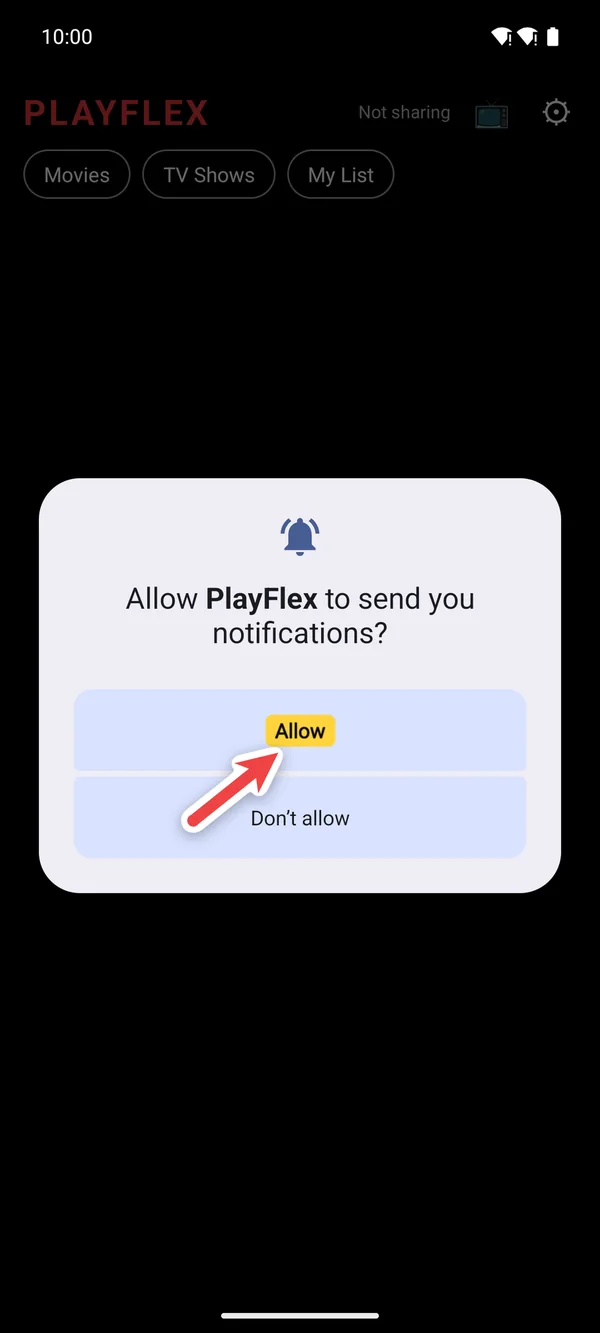
Open PlayFlex and tap Allow. The notification shows you when sharing is on.
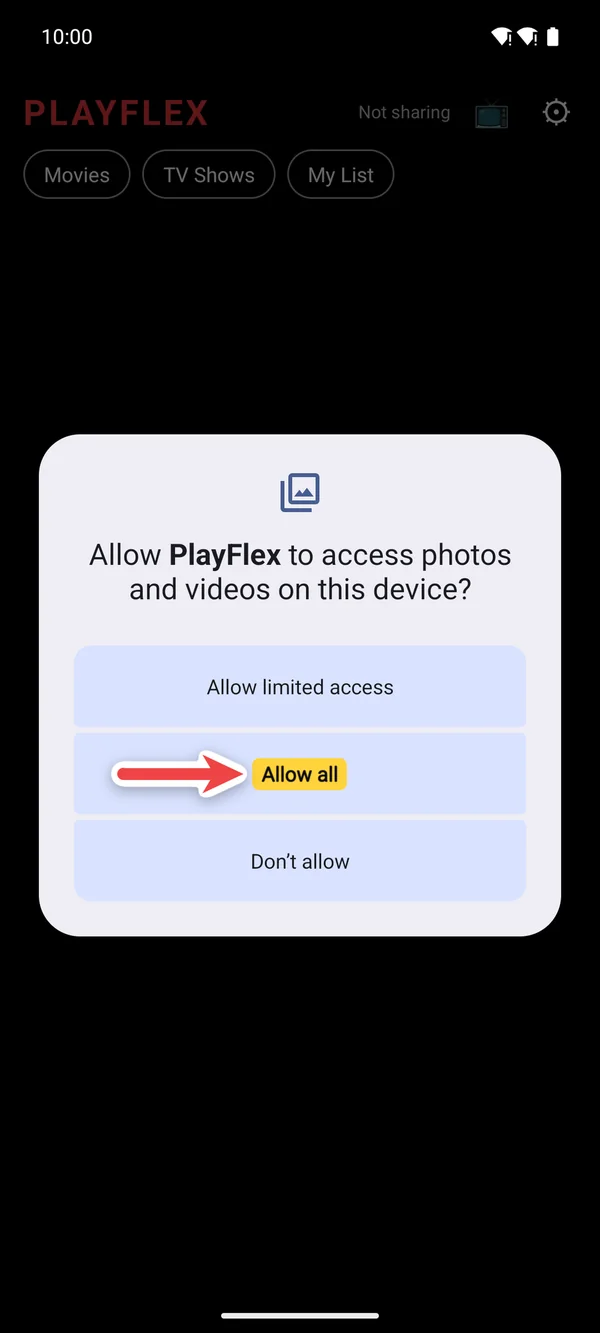
Allow access to your videos
Tap Allow all. PlayFlex only reads your videos. It never changes or uploads them.
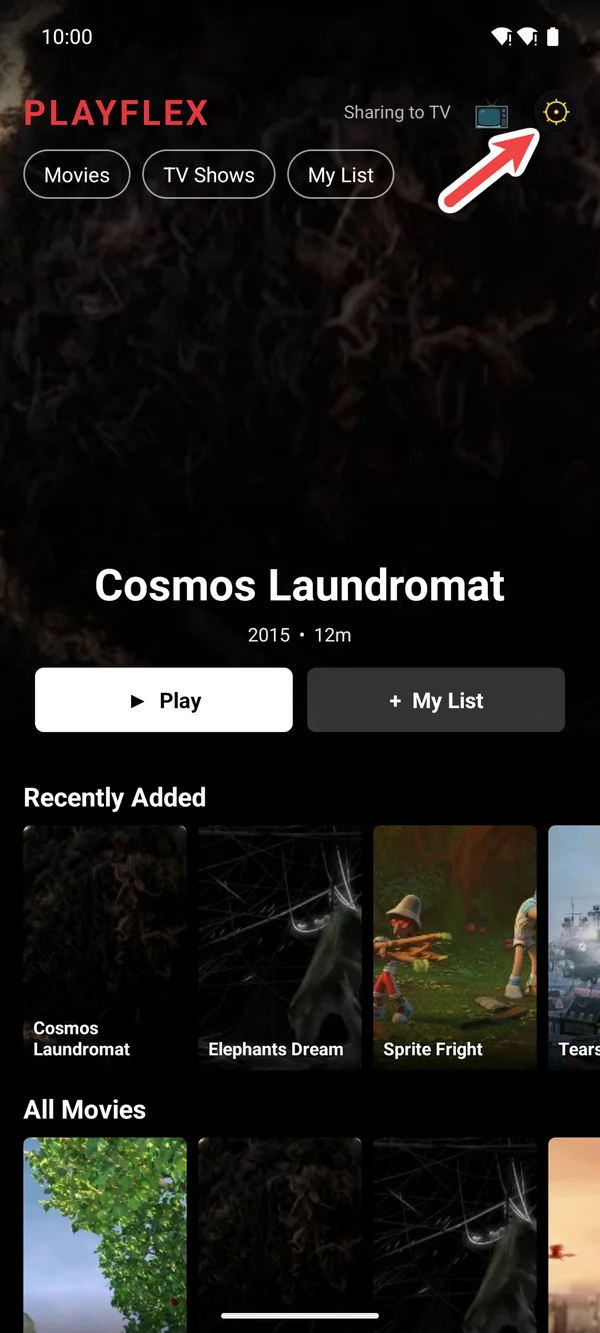
Open settings
Your movies show up on the home screen. Tap ⚙ at the top right.
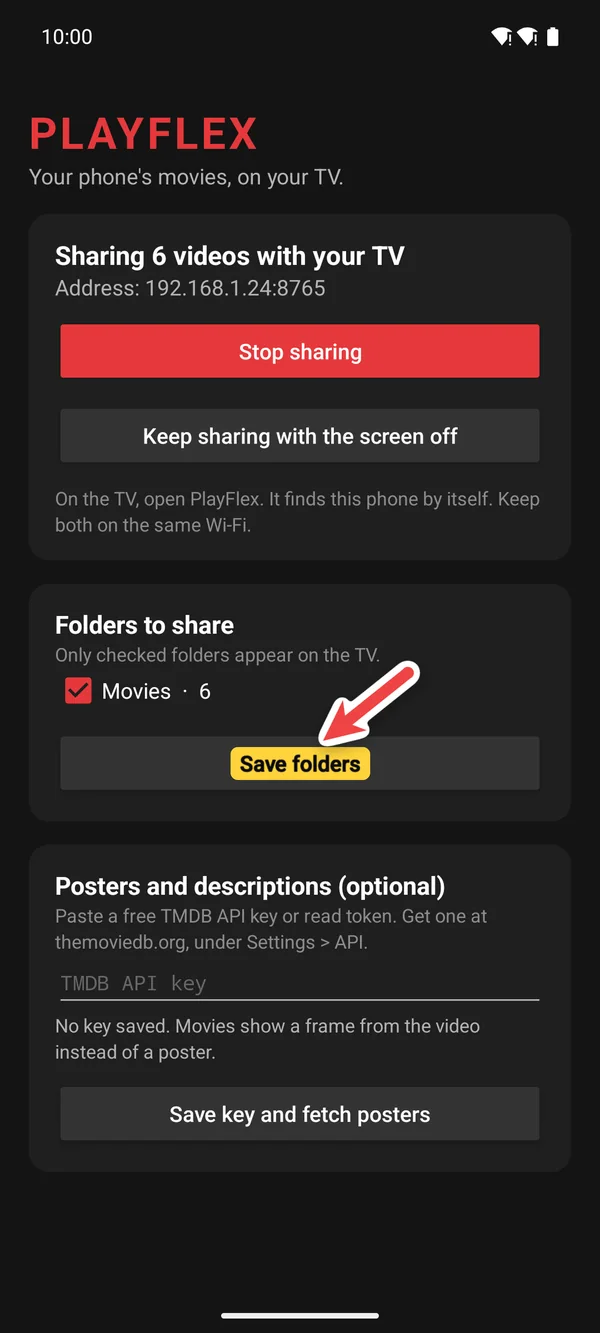
Pick your movie folders
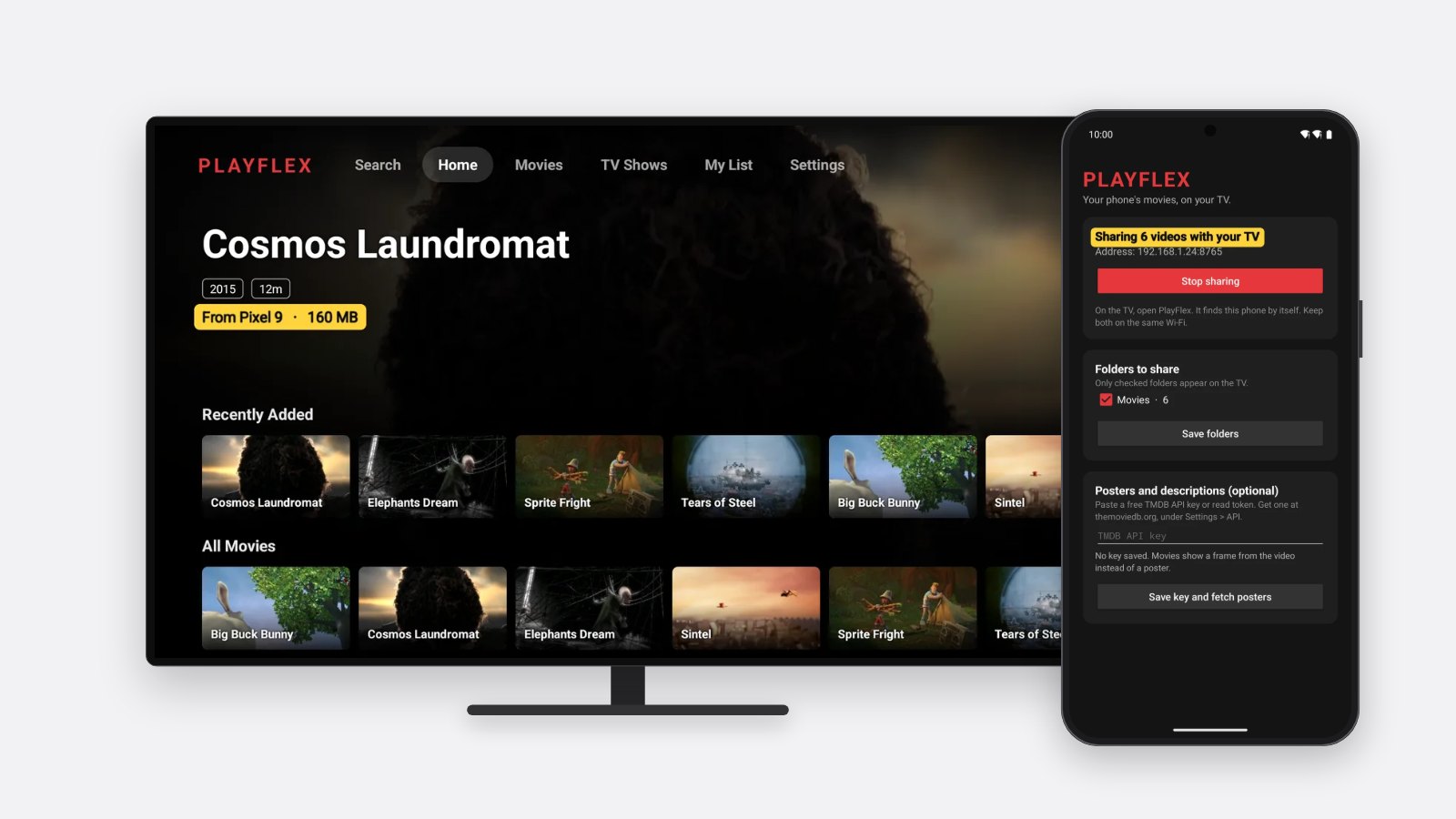
Under Folders to share, tick the folders that hold your movies and tap Save folders. Only ticked folders show up on the TV.
Tip: Short clips stay off the TV. PlayFlex only shares videos that are 10 minutes or longer.
Keep sharing with the screen off
Tap Keep sharing with the screen off, then Allow. Now the phone can sit in your pocket while the TV plays.
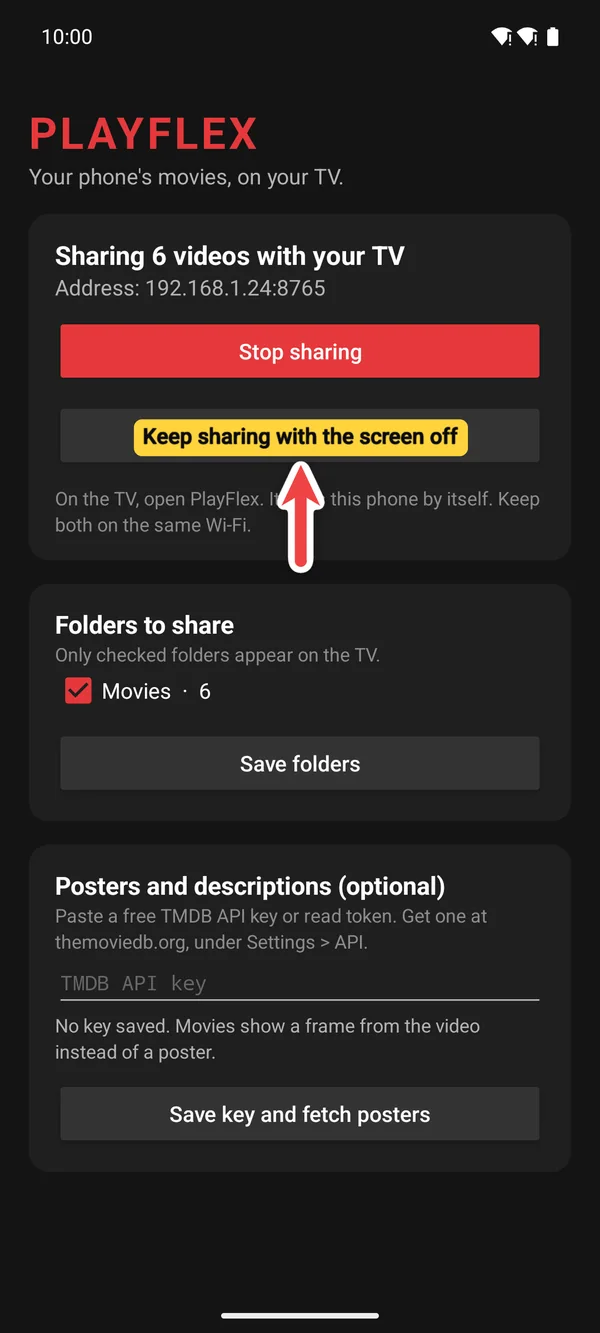
1Tap Keep sharing with the screen off 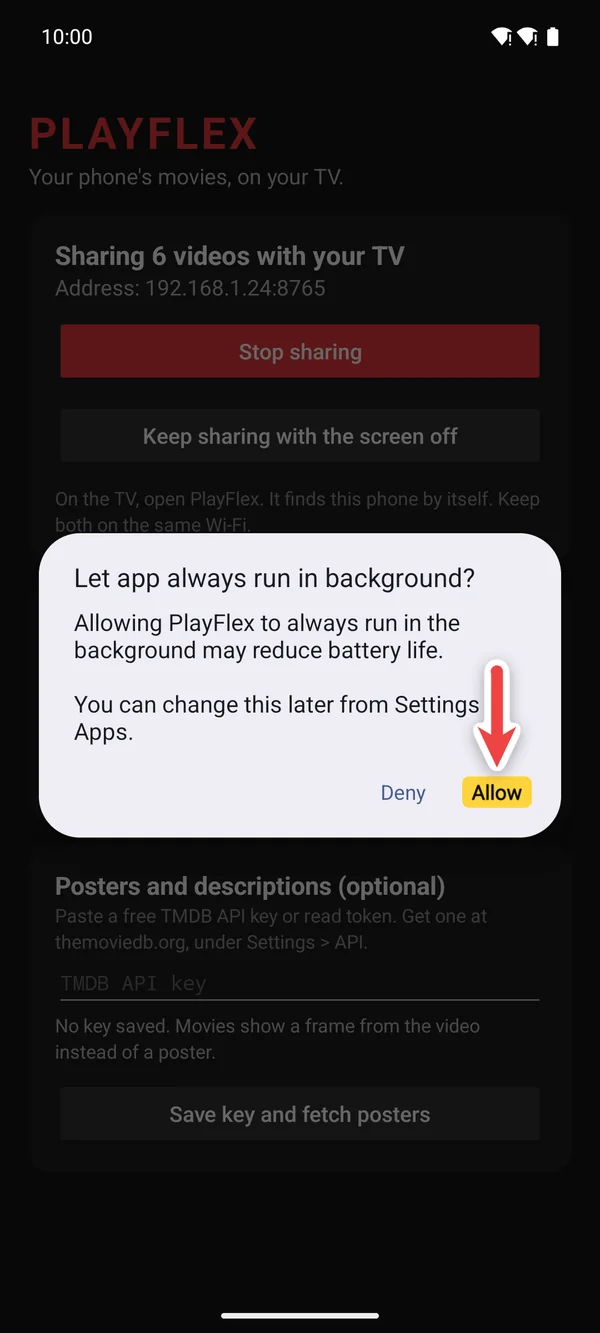
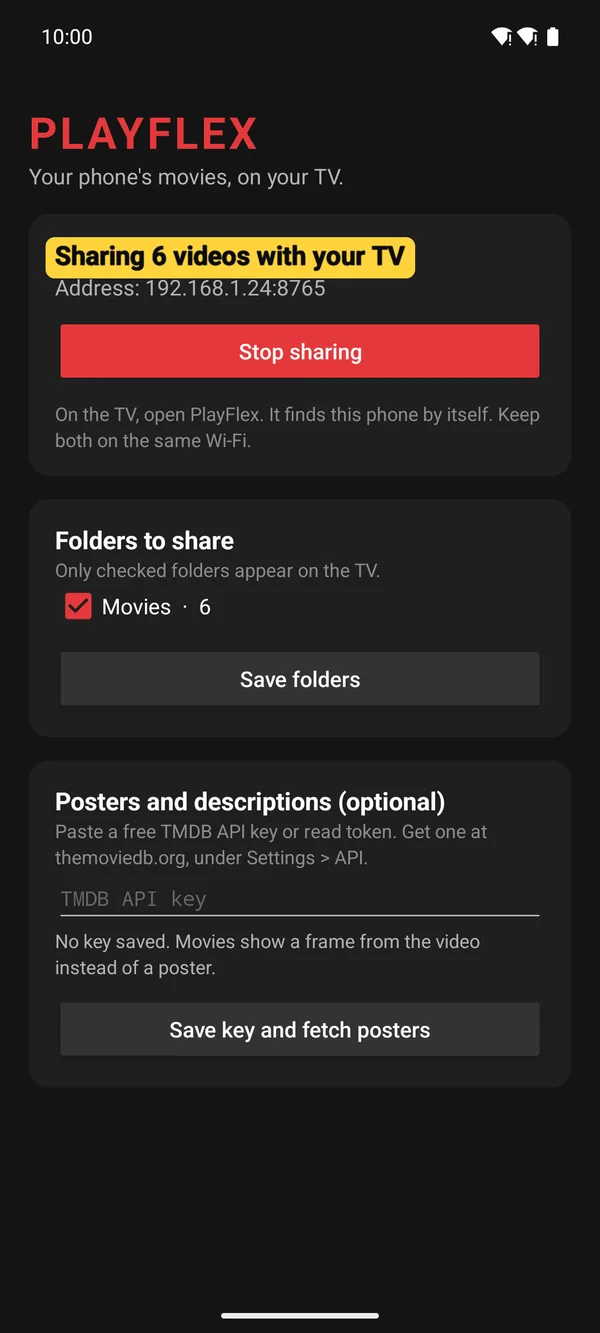
2Tap Allow Check it's sharing
At the top you'll see Sharing 6 videos with your TV (your number will differ) and the phone's address. That's it. Next, connect the TV.
Questions
Does PlayFlex copy my movies to the TV?
No. The TV plays them straight from your phone over Wi-Fi.
Does it use mobile data?
No. It only works over your home Wi-Fi.
Can I turn sharing off?
Yes. Tap Stop sharing in PlayFlex settings, or use the PlayFlex tile in Quick Settings.
Do I have to open the app every time?
No. Sharing starts by itself after a restart or an update.
Next: How to connect PlayFlex on your TV to your phone
Before this: How to install PlayFlex on your Android phone
Don't have PlayFlex yet? Get the free apps.