How to let PlayFlex start movies on your TV from your phone
1 min · On your TV · Updated
Android TV only lets an app open its player from the background if you allow it. Do this once and Play on TV works even when the TV is on another app.
You need
- PlayFlex on the TV
- The TV remote
Steps
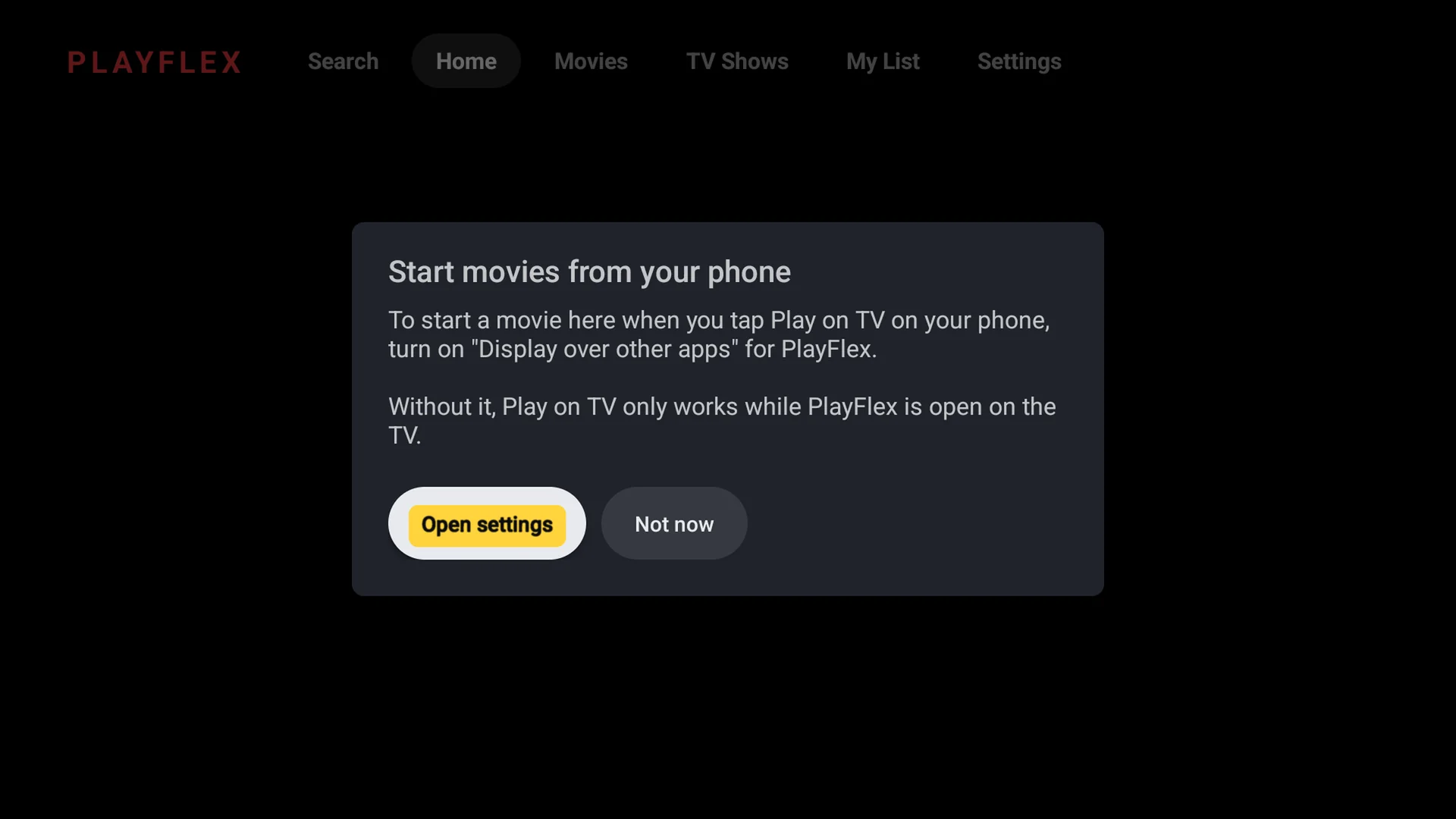
Select Open settings
The first time you open PlayFlex on the TV, it asks to start movies from your phone. Select Open settings.
Tip: Missed it? In PlayFlex on the TV, open Settings and select Allow Play on TV from the phone.
Find PlayFlex
In Allow display over other apps, move down to PlayFlex and press OK.
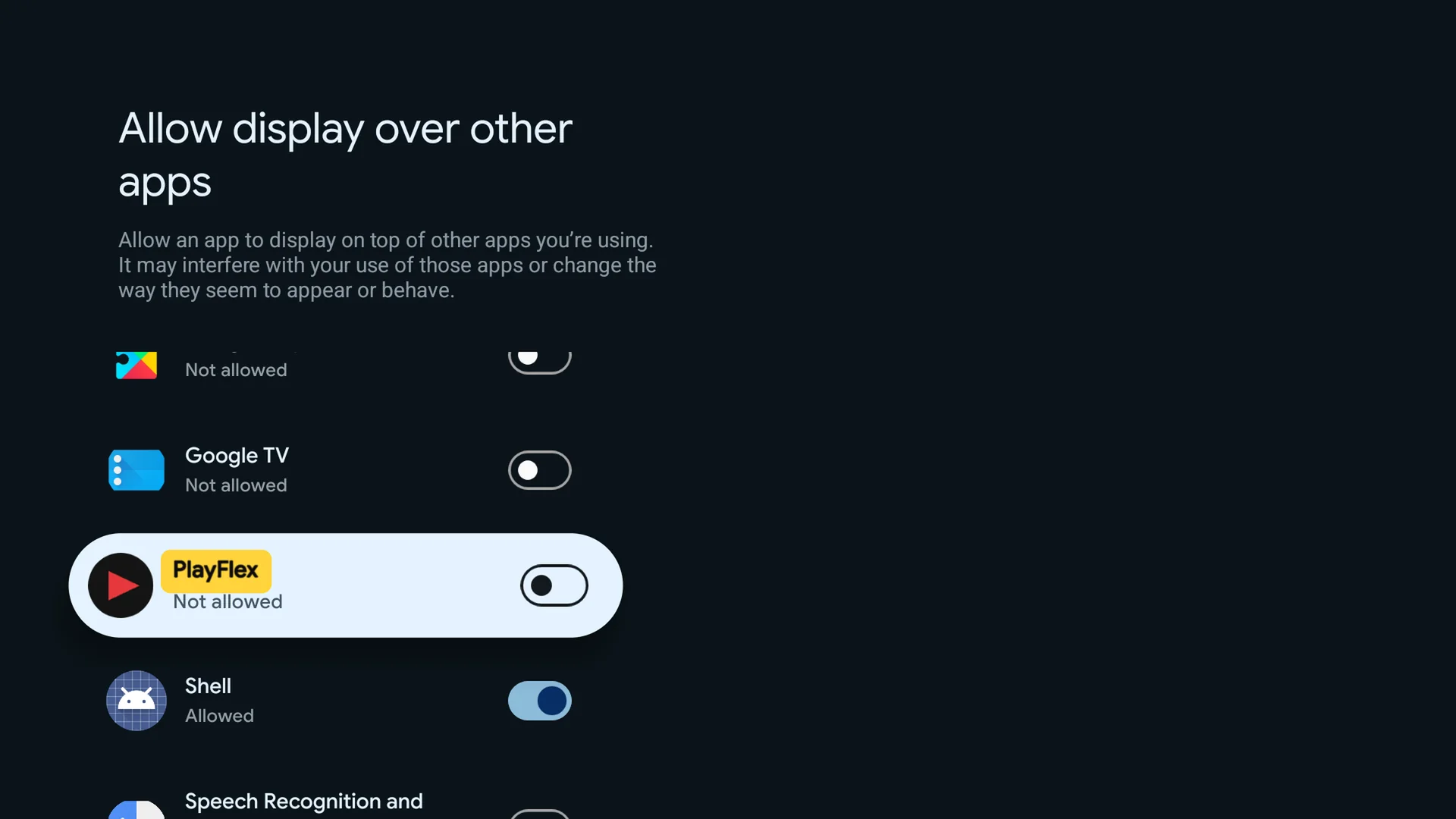
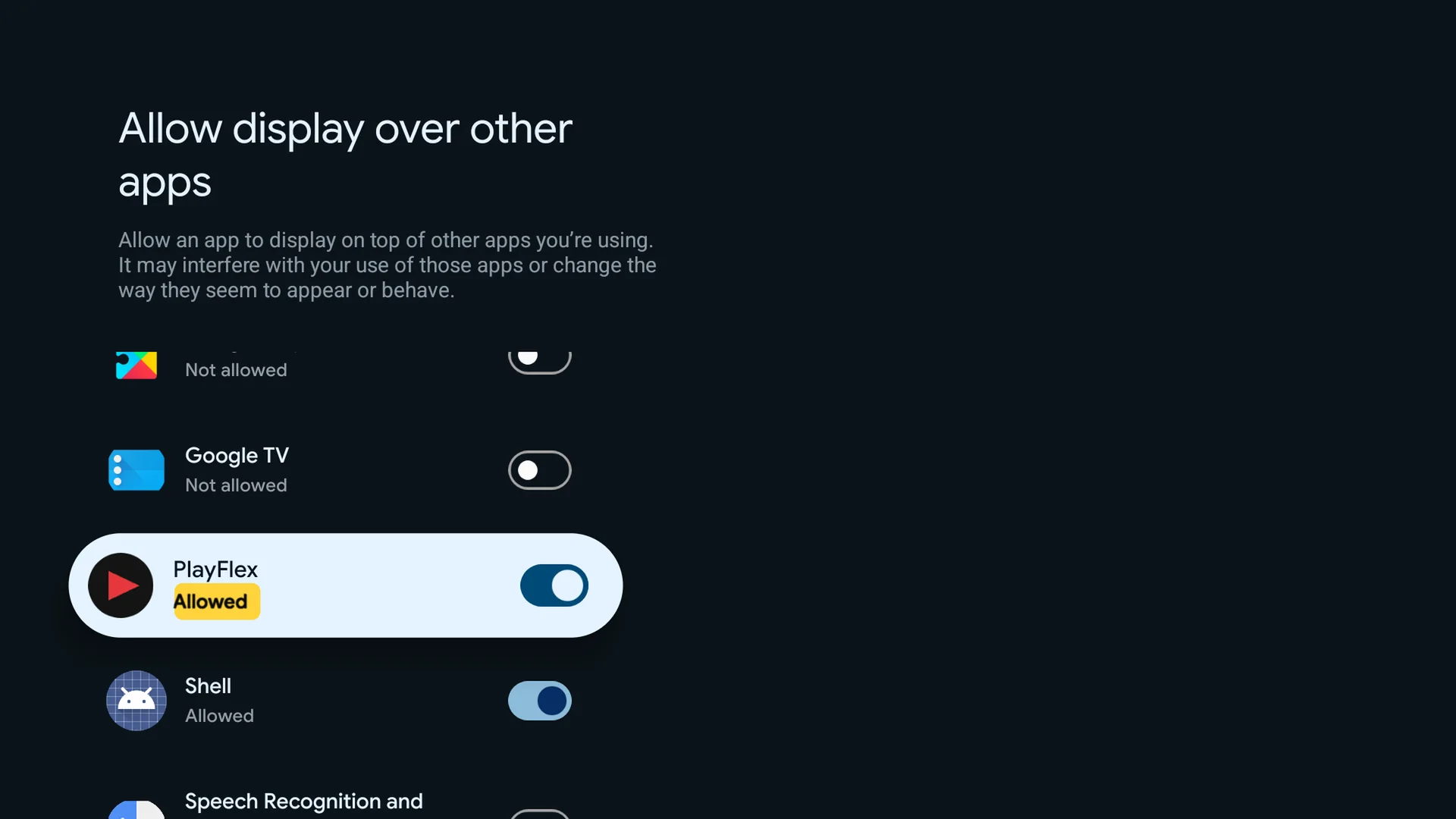
Check it says Allowed
PlayFlex now says Allowed. Press Back. That's it.
Questions
Why does PlayFlex need this?
So it can open the player when you tap Play on TV on your phone. It doesn't use it for anything else.
What if I don't allow it?
Play on TV still works, but only while PlayFlex is open on the TV.
Next: How to add movie posters and descriptions to PlayFlex
Before this: How to skip forward and back in PlayFlex with your TV remote
Don't have PlayFlex yet? Get the free apps.