How to add movie posters and descriptions to PlayFlex
5 min · On your phone · Updated
Out of the box, every movie gets a frame from the video as its picture. If you want real posters, backdrops, ratings and genre rows, paste a free key from The Movie Database (TMDB). It's optional.
You need
- PlayFlex on your phone
- A free account at themoviedb.org
Steps
Get a free TMDB key
Sign in at themoviedb.org, open Settings > API and ask for a key. Copy the API Key or the API Read Access Token. Either works.
Open PlayFlex settings
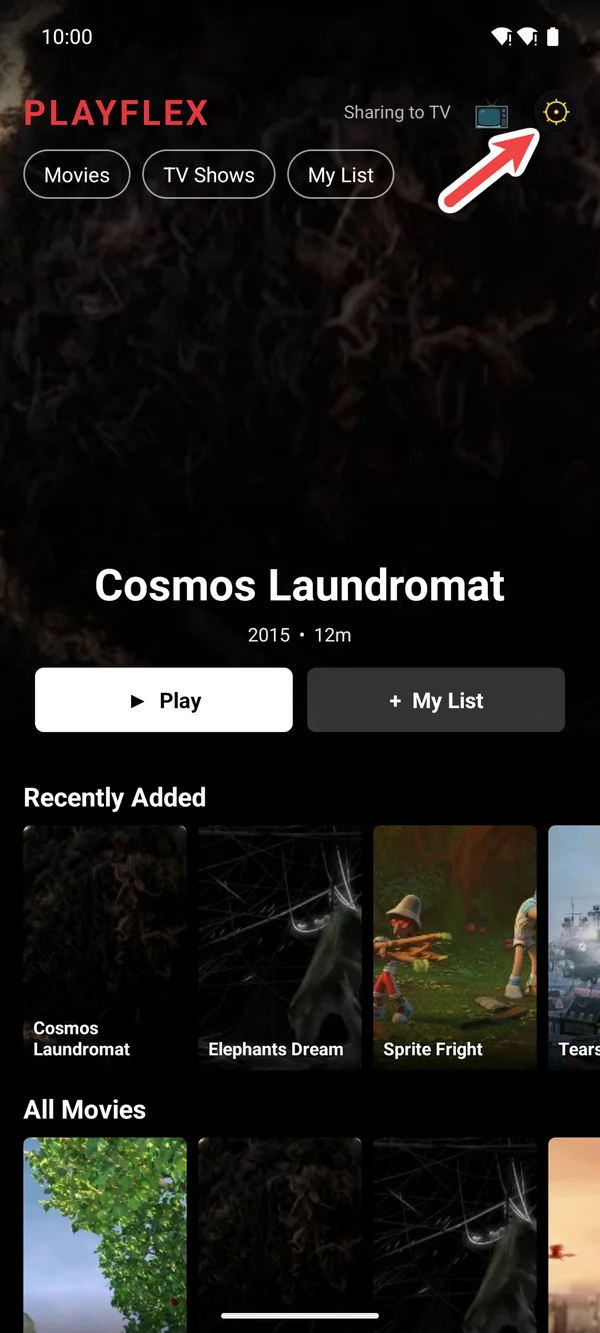
On your phone, open PlayFlex and tap ⚙.
Paste the key
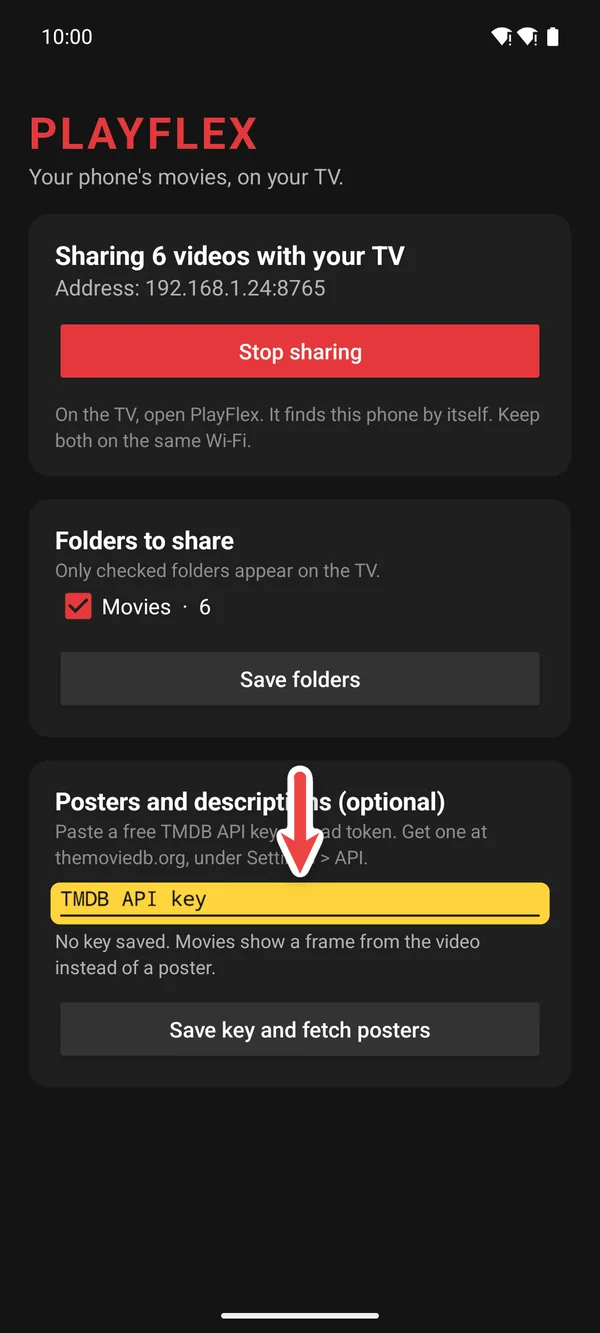
Scroll to Posters and descriptions and paste the key into the TMDB API key box.
Save it
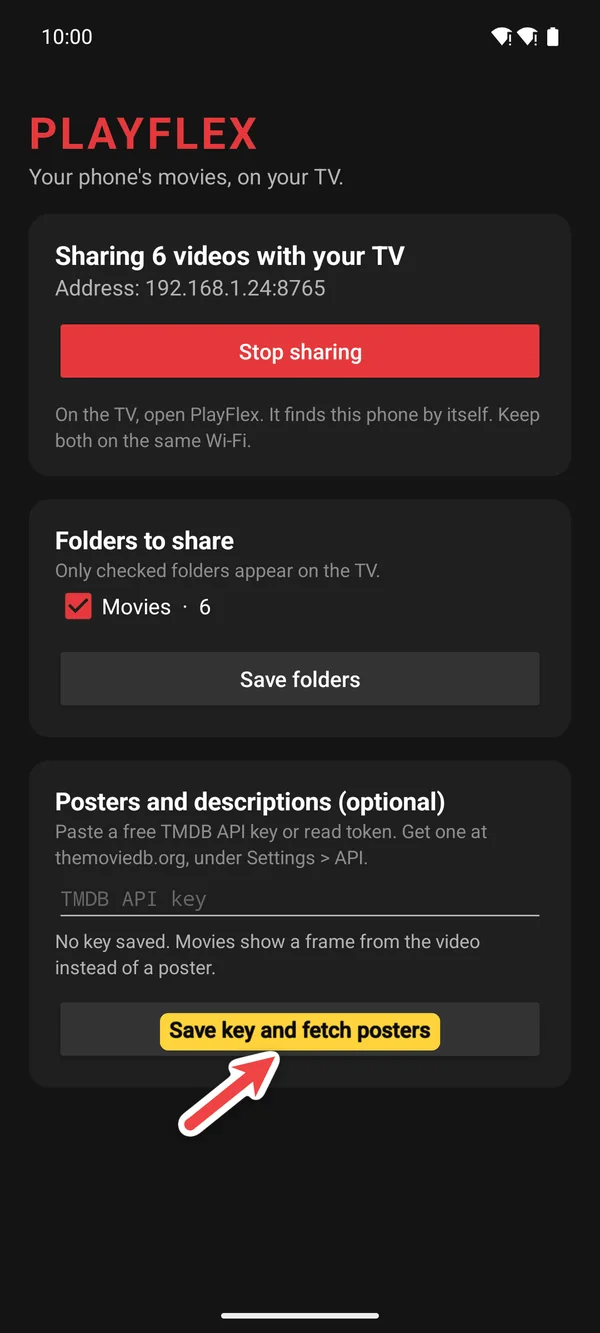
Tap Save key and fetch posters. The line under the box shows how many titles it matched. The TV picks them up the next time you open PlayFlex.
If something doesn't work
- Some movies didn't match
- Name the file like the movie, with the year: Sintel (2010).mkv.
- It shows a problem with the key
- Copy the key again with nothing before or after it, then save.
Questions
Is TMDB free?
Yes, for personal use.
Do I need this?
No. Everything works without it. You just get frames instead of posters.
Next: How to continue a movie on your phone or TV in PlayFlex
Before this: How to let PlayFlex start movies on your TV from your phone
Don't have PlayFlex yet? Get the free apps.