
How to Install and Use Claude Code on Mac: A Beginner's Guide
Before you start
- A Mac with macOS 13 Ventura or newer and at least 4 GB of RAM. Apple silicon and Intel Macs both work.
- A paid Claude plan: Pro, Max, Team or Enterprise. A Claude Console (API) account works too. The free plan doesn't include Claude Code.
- An internet connection and about 10 minutes.
Install Claude Code
Claude Code installs with one command. You don't need anything else first.
- 1
Open Terminal
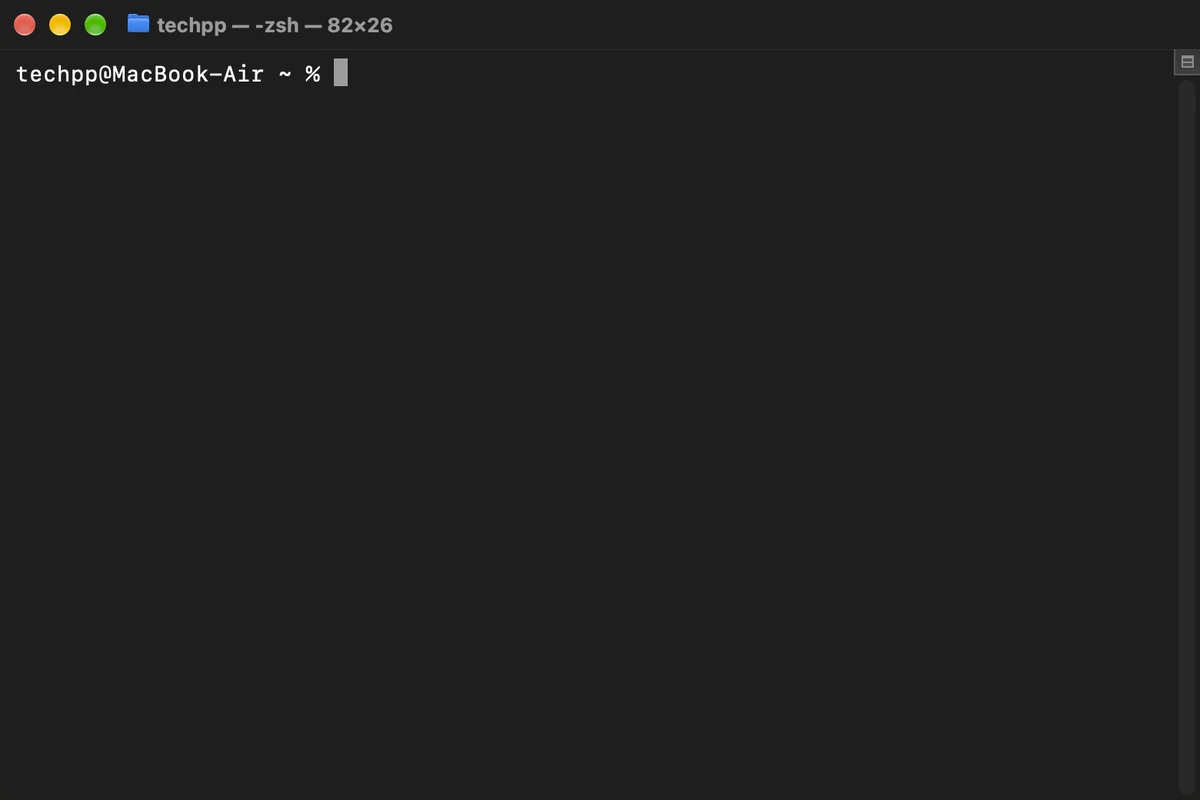
Press Command + Space, type Terminal and press Return. A window like this opens.
- 2
Paste the install command
Copy this command, paste it into Terminal with Command + V and press Return.
curl -fsSL https://claude.ai/install.sh | bash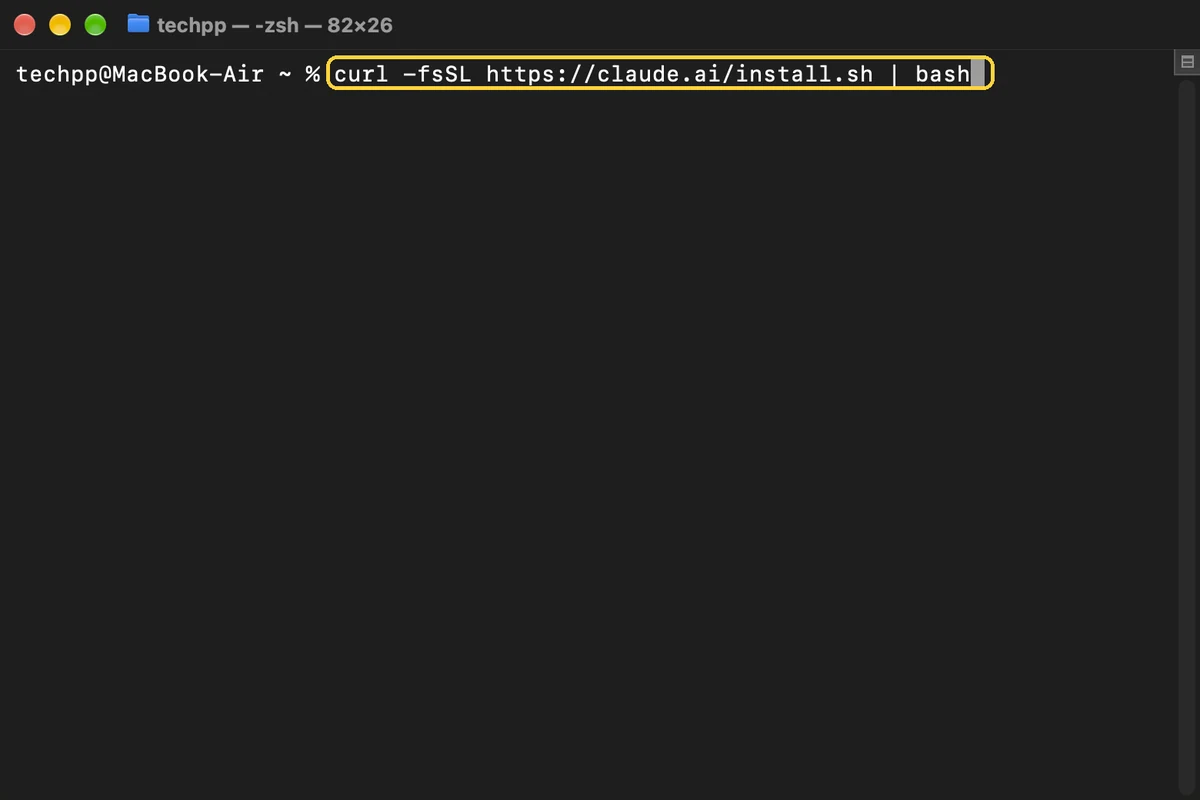
- 3
Wait for it to finish
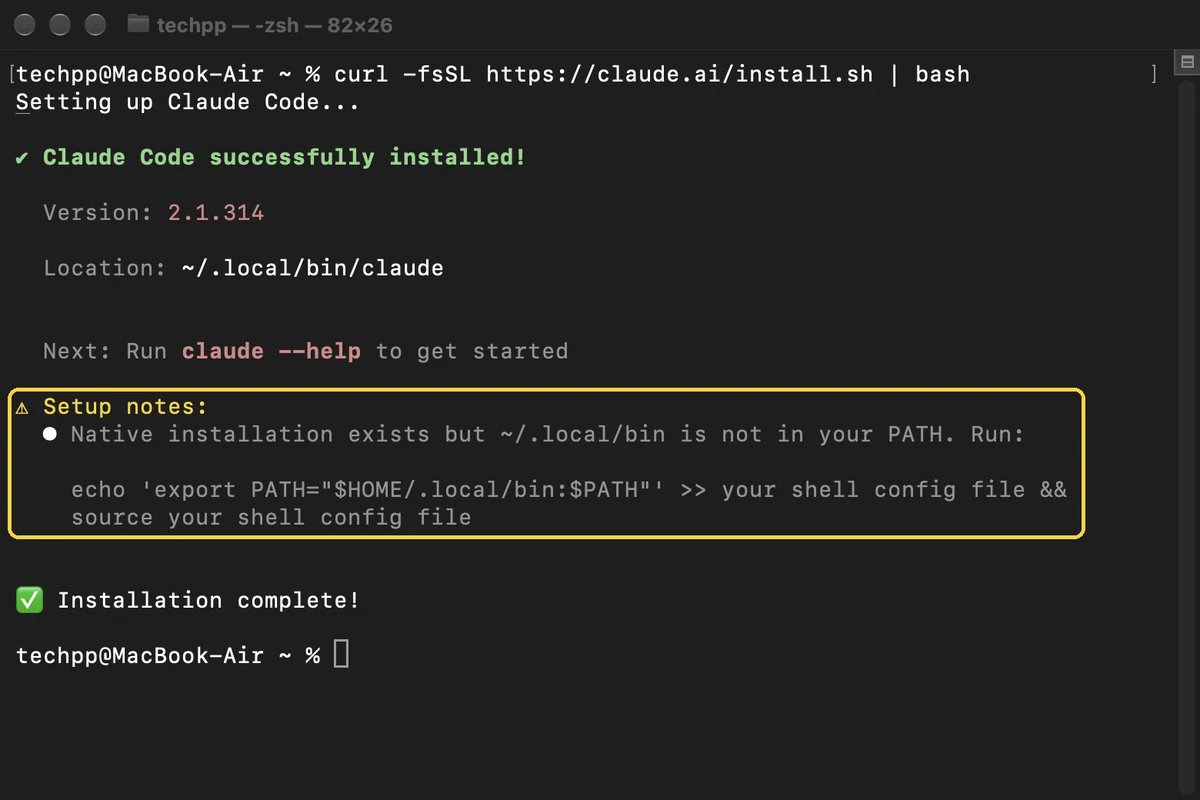
After a minute or two you will see Claude Code successfully installed! Nothing moves while it downloads, so be patient.
Fix “command not found”
On a new Mac, Terminal can't find Claude Code yet. These two steps fix that for good.
- Optional
Only on some Macs
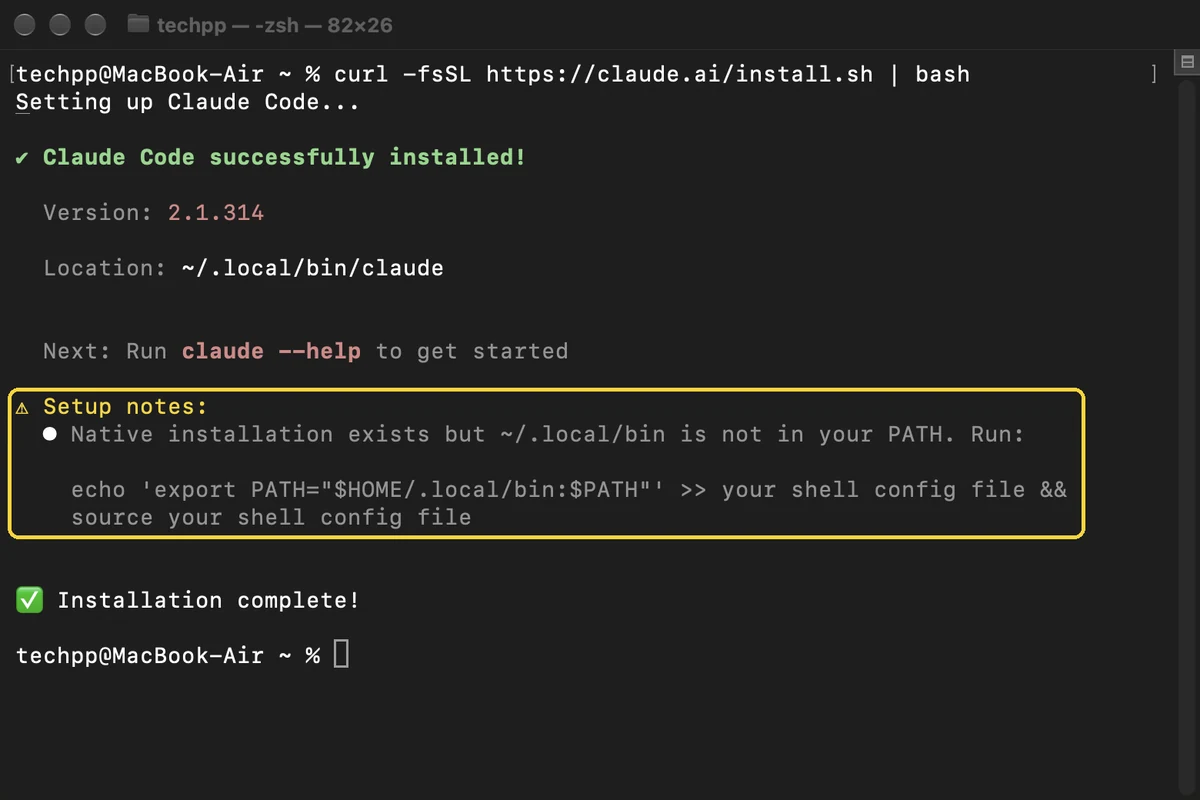
4Look for Setup notes
If the installer shows Setup notes saying ~/.local/bin is not in your PATH, do step 5. If not, skip to step 6.
- Optional
Only if you saw Setup notes in step 4
5Paste the PATH command
Copy this command, paste it into Terminal and press Return.
echo 'export PATH="$HOME/.local/bin:$PATH"' >> ~/.zshrc && source ~/.zshrc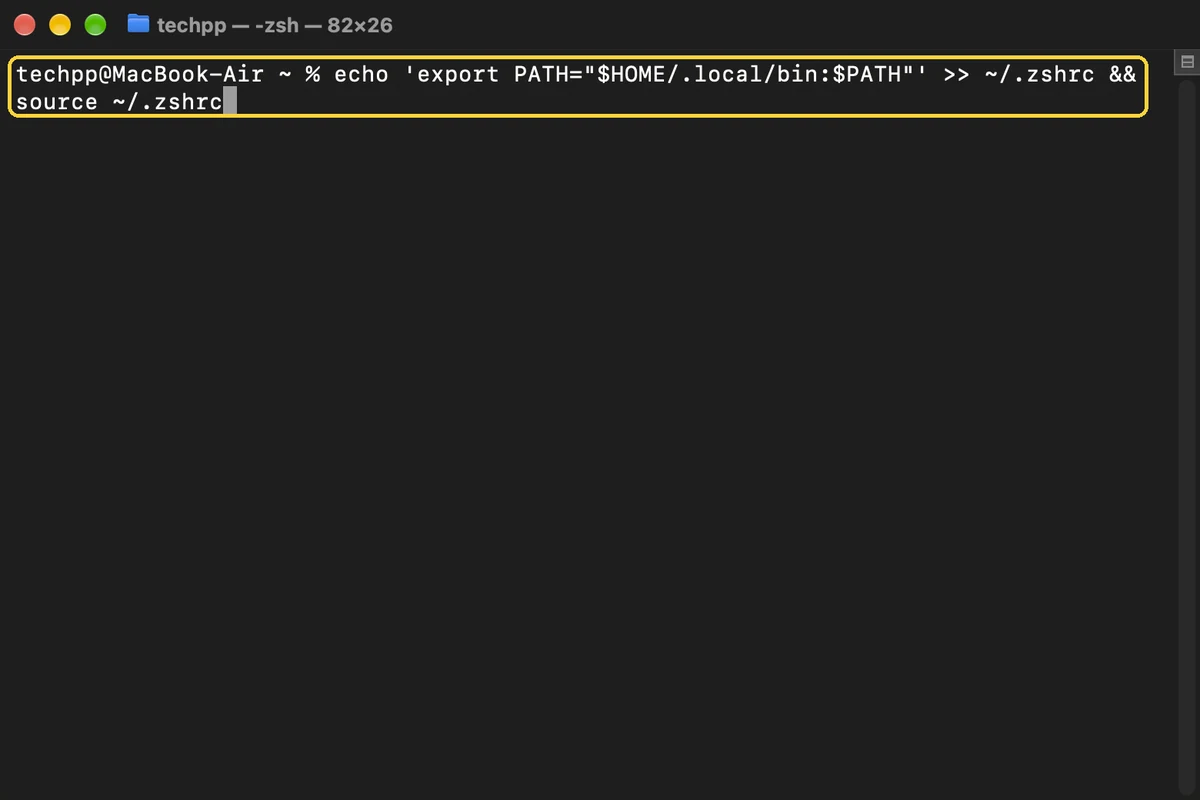
- 6
Check that it works
Type this and press Return. If you see a version number, Claude Code is installed.
claude --version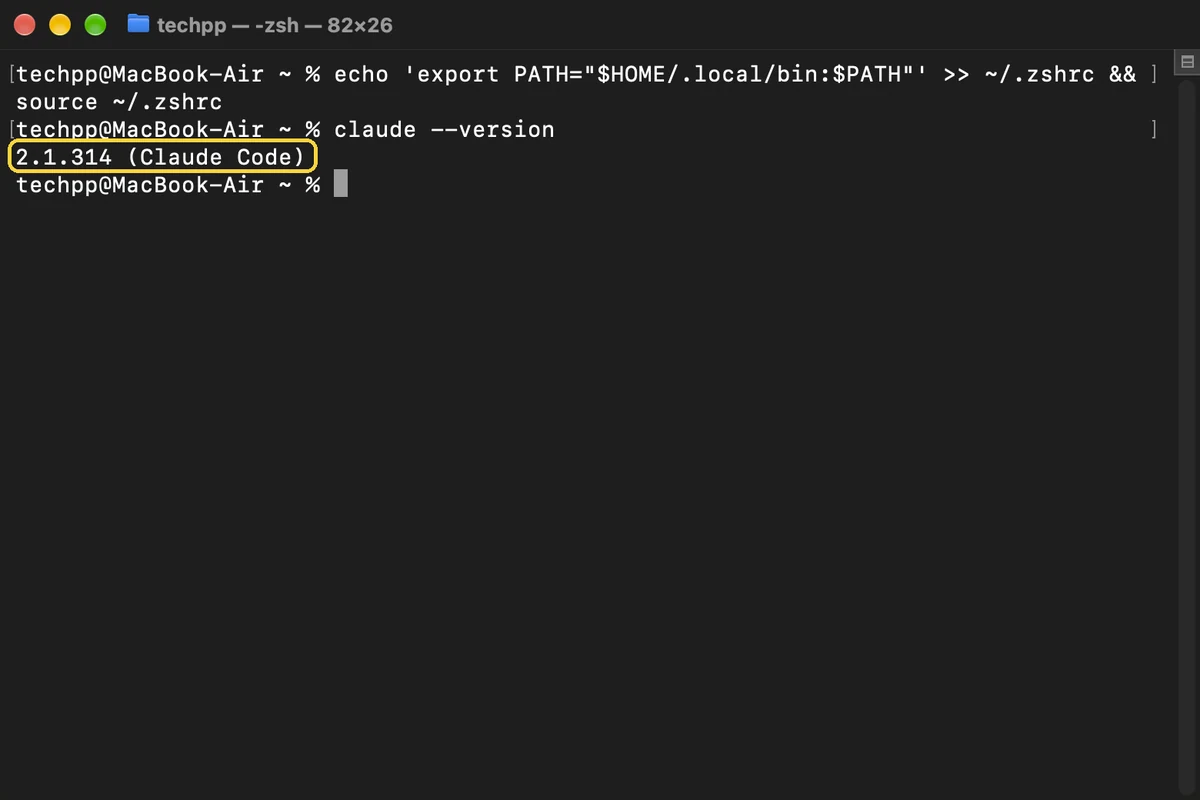
Start Claude Code and sign in
Claude Code works inside a folder, so you make one for your first project. You only sign in once.
- 7
Make a project folder
Copy this command, paste it and press Return. It makes a folder called my-first-project and opens it.
mkdir my-first-project && cd my-first-project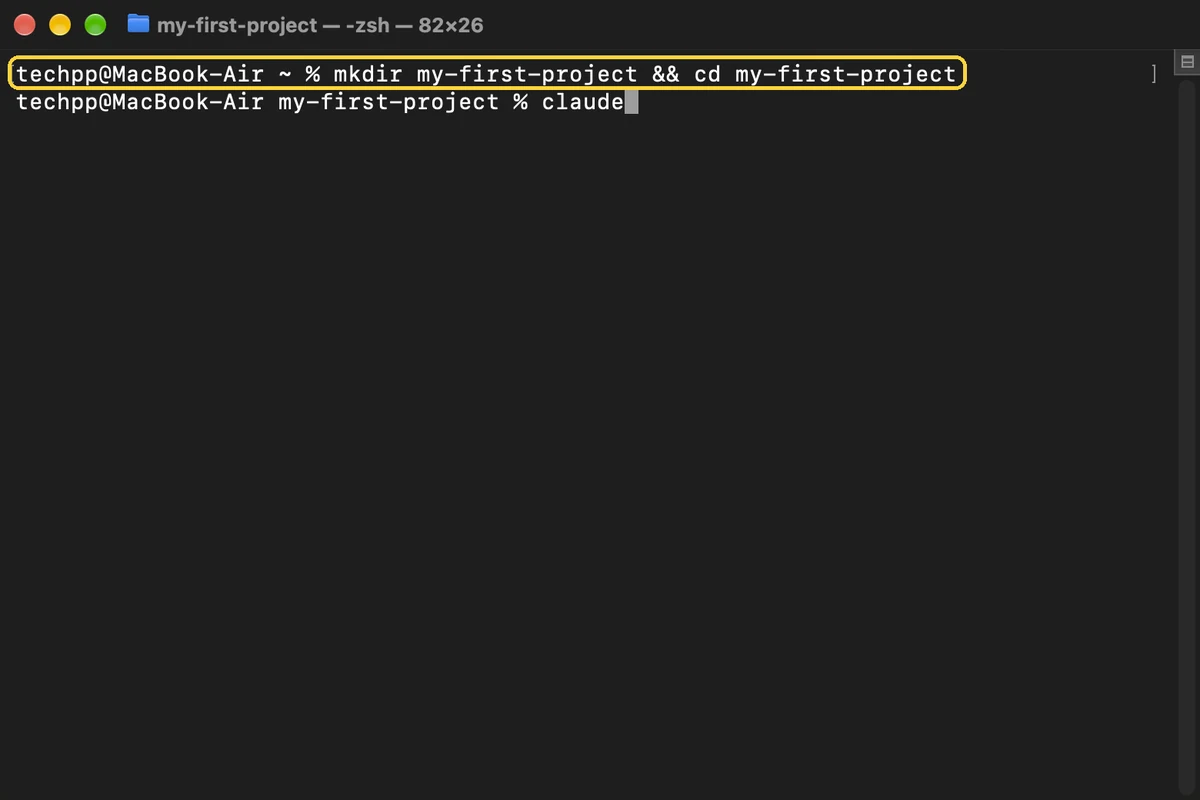
- 8
Start Claude Code
Type claude and press Return.
claude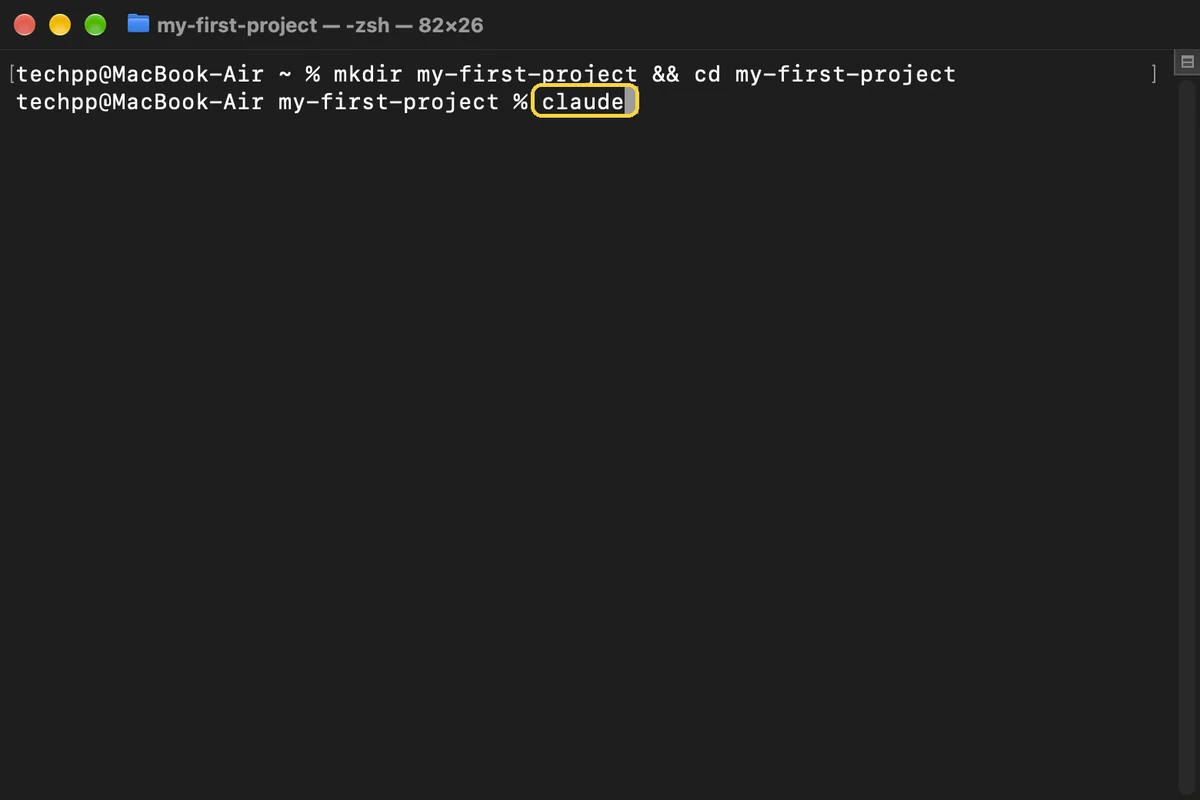
- 9
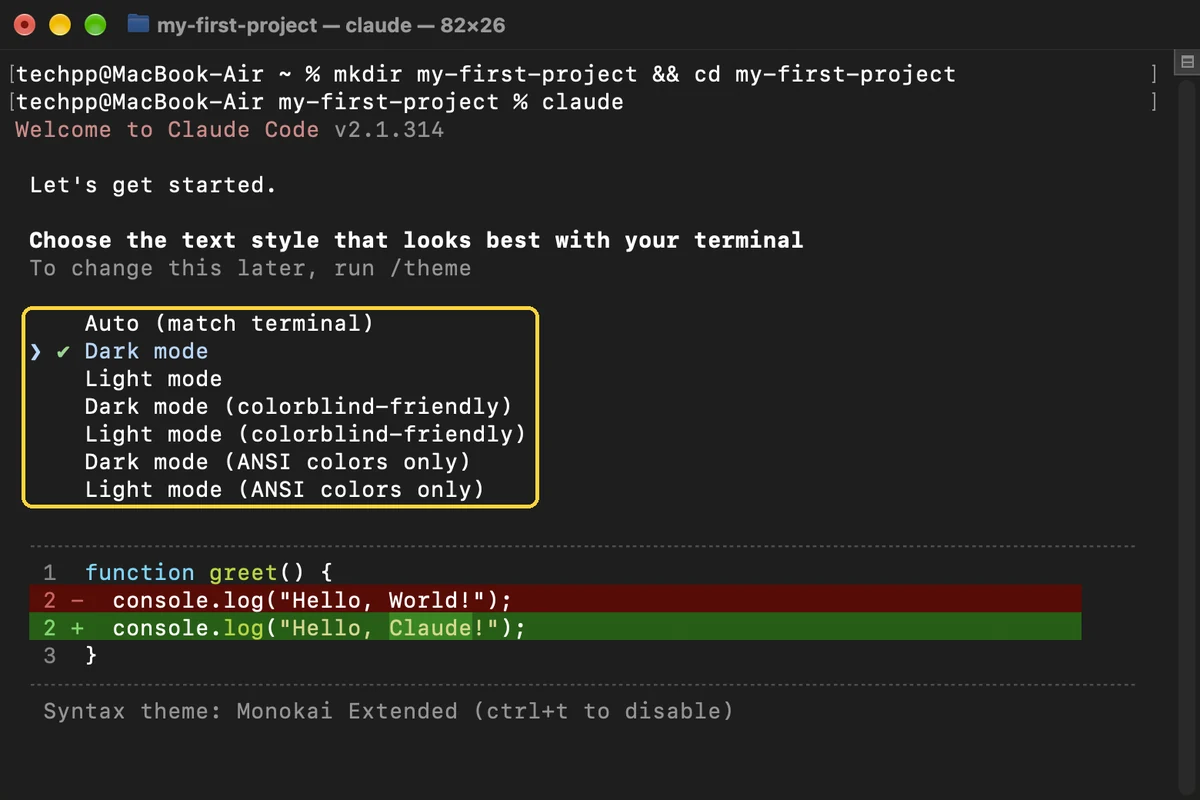
Pick a text style
Press Return to keep Dark mode. Use the arrow keys first if you want another style.
- 10
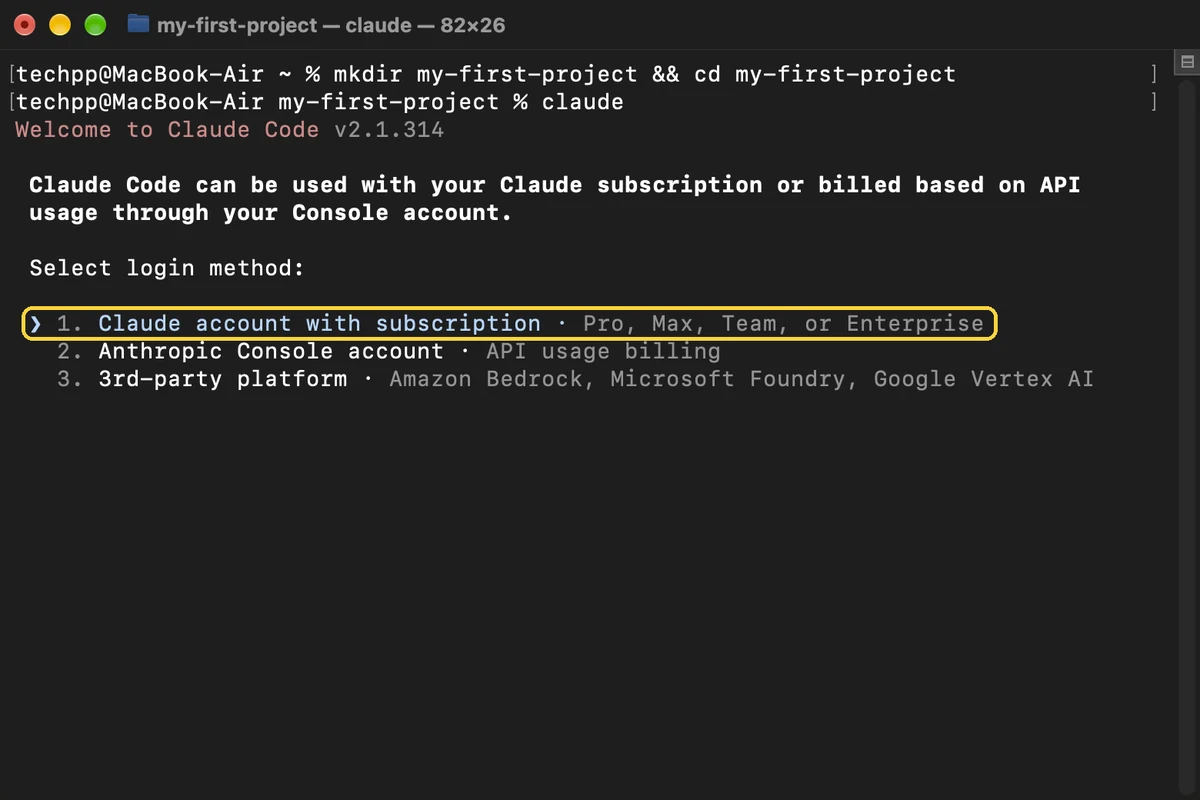
Choose how to sign in
Press Return to choose Claude account with subscription.
- 11
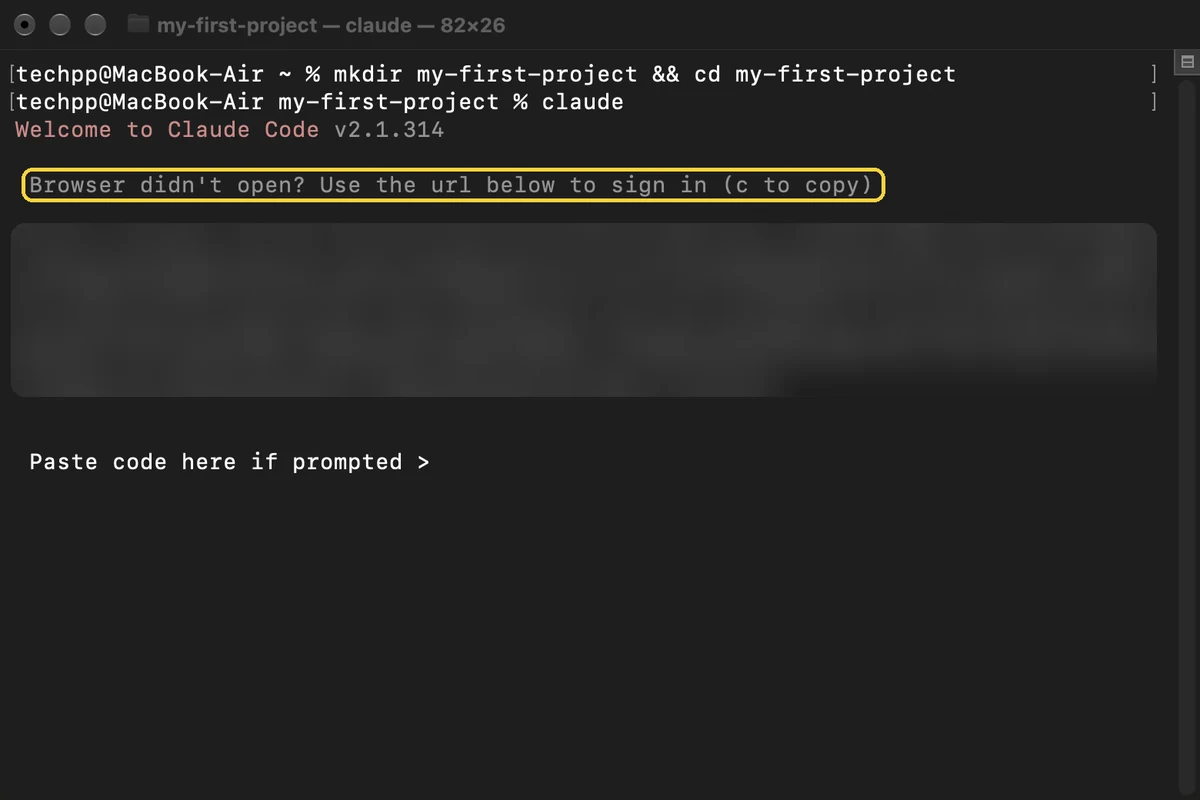
Sign in in your browser
Your browser opens. Sign in to Claude and click Authorize. If it doesn't open, press C here and paste the link into your browser.
- 12
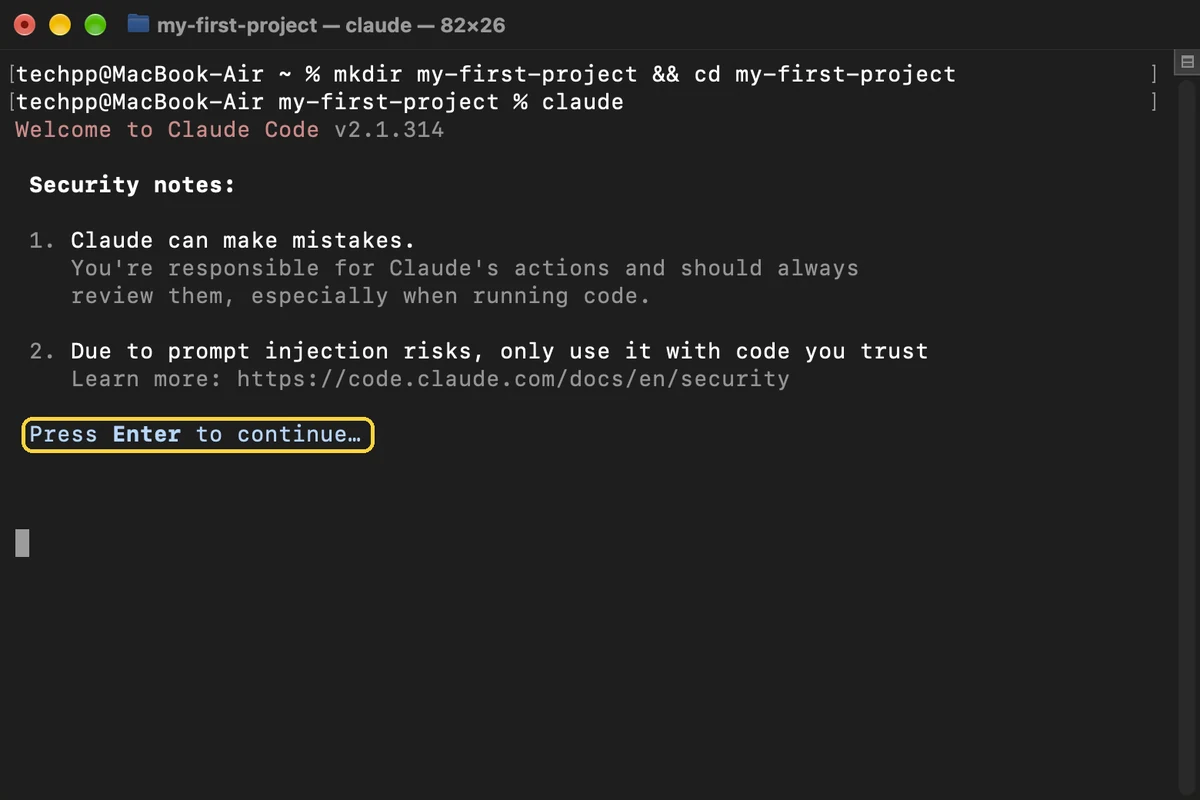
Read the security notes
Back in Terminal, read the two notes and press Return.
- 13
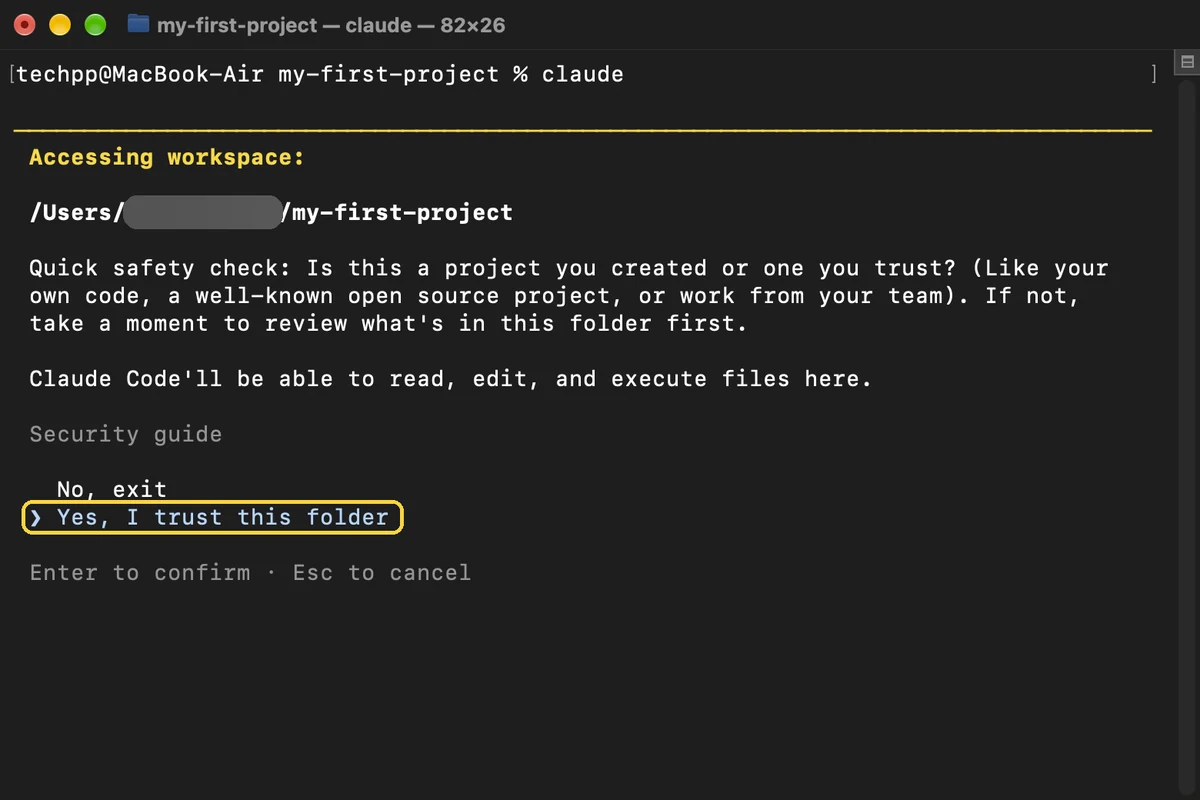
Trust your project folder
Press the down arrow to select Yes, I trust this folder, then press Return.
Build your first project
Now the fun part. You type what you want in plain English, the same way you would ask a friend who codes.
- 14
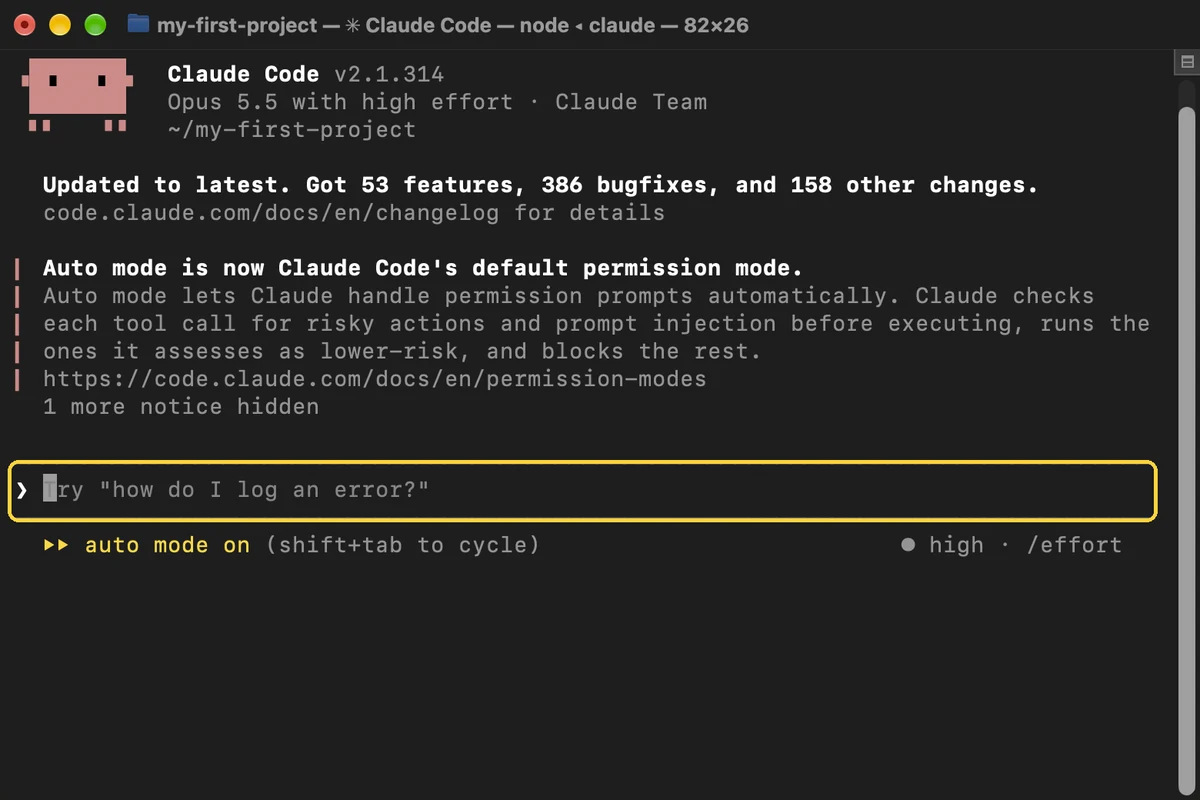
Find the message box
Claude Code is ready. You type everything into the message box at the bottom.
- 15
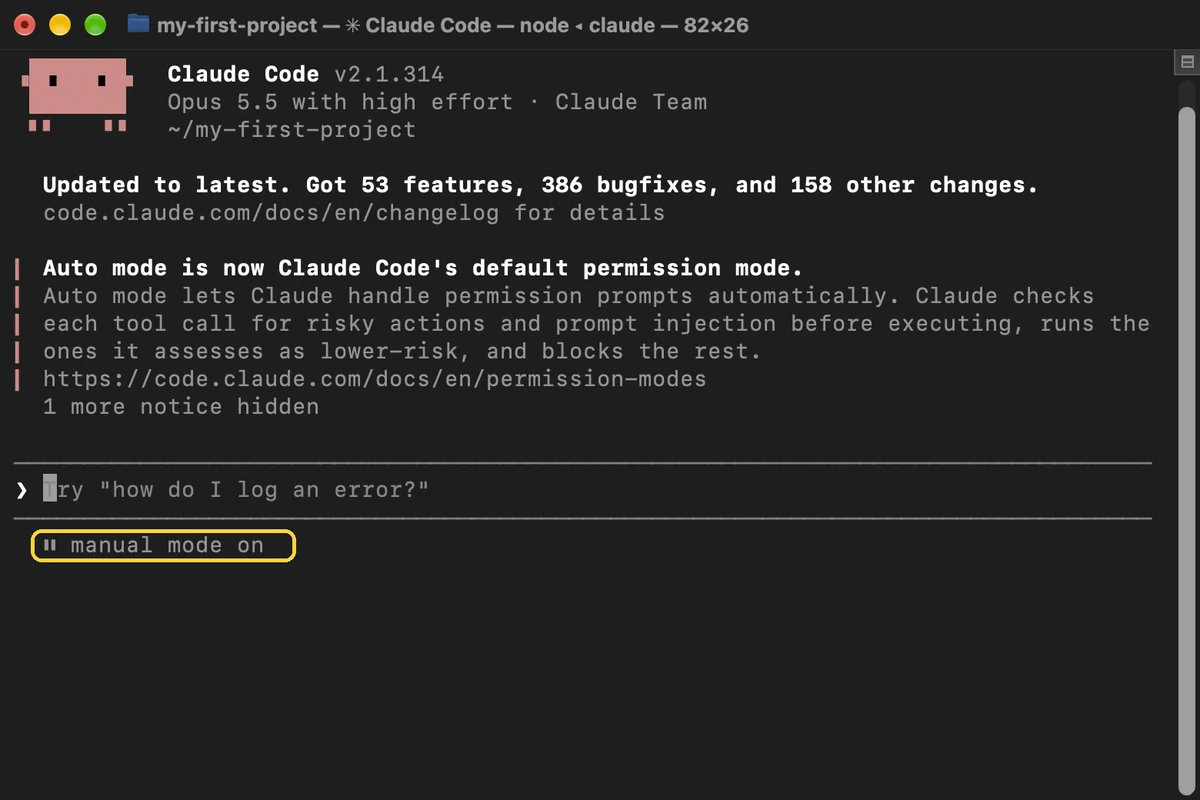
Turn on manual mode
Press Shift + Tab until you see manual mode on. Now Claude asks before it changes anything.
- 16
Ask Claude for something
Copy this request, paste it into the message box and press Return.
Make a simple webpage that counts down to New Year's Day. Save it as index.html in this folder.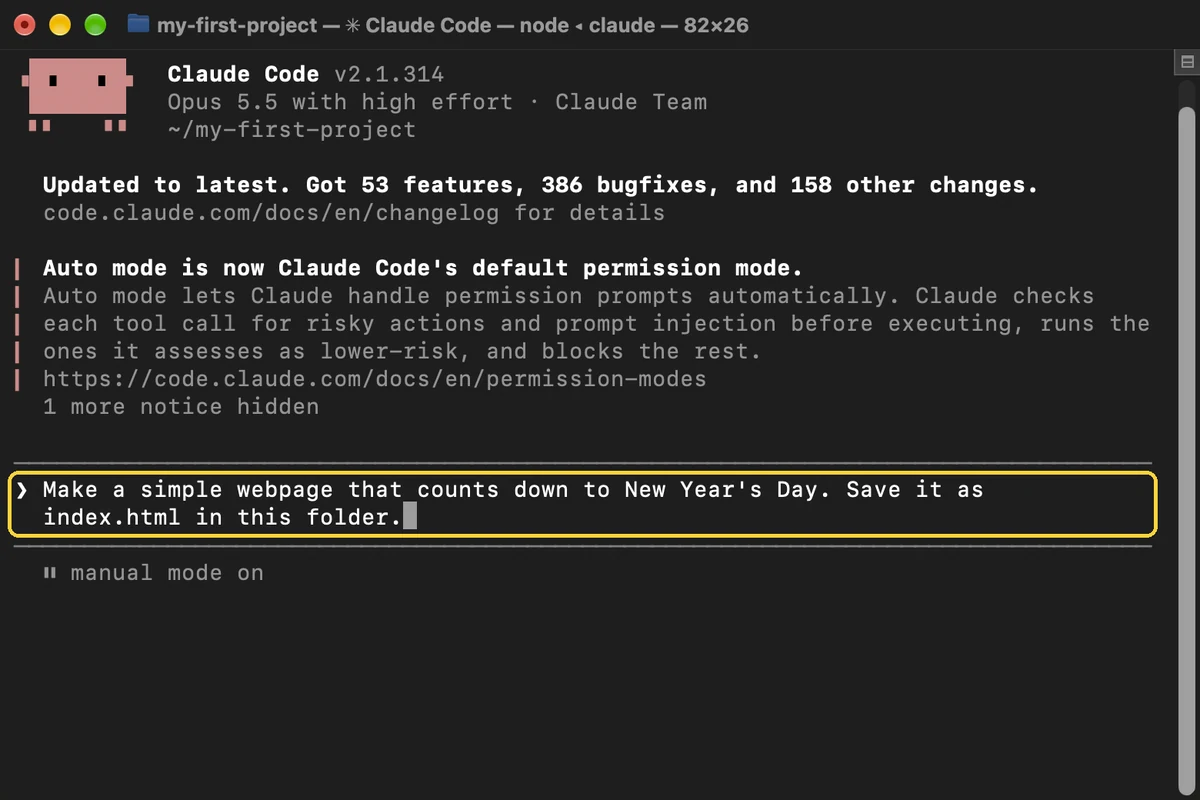
- 17
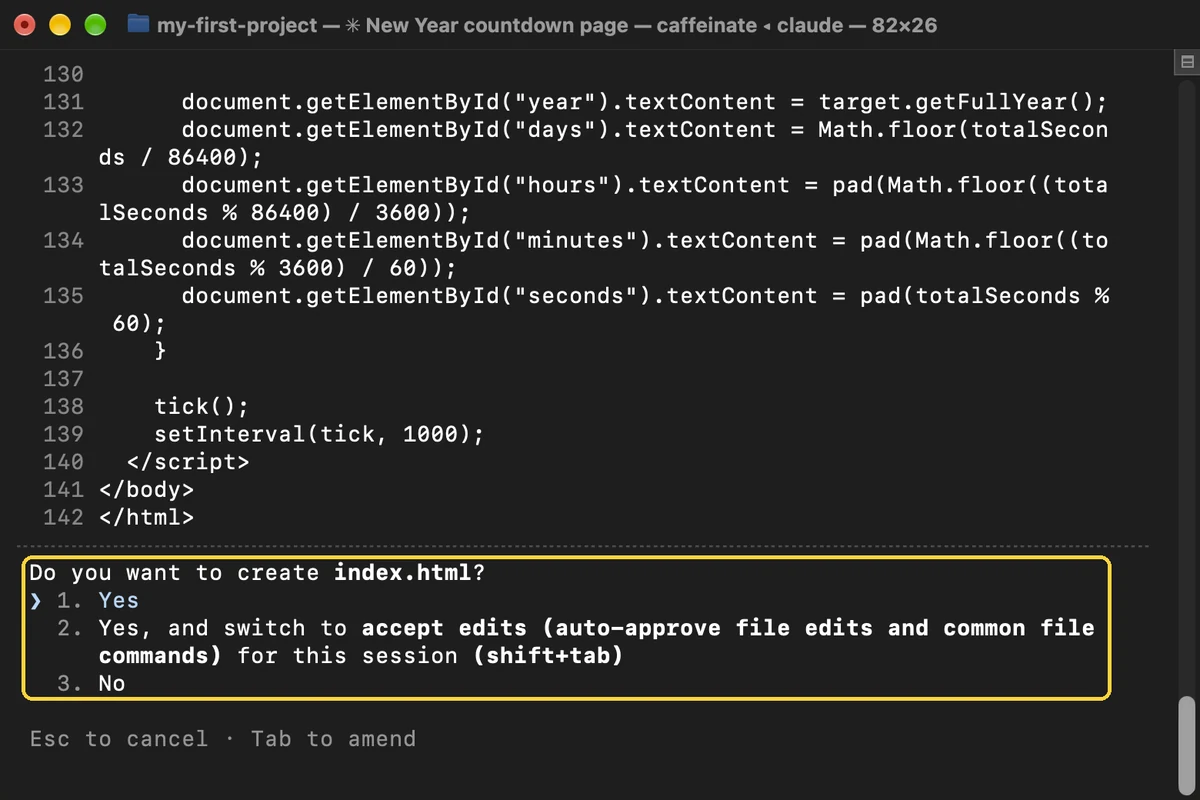
Say yes to the new file
Claude shows the file it wants to make. Press Return to choose Yes.
- 18
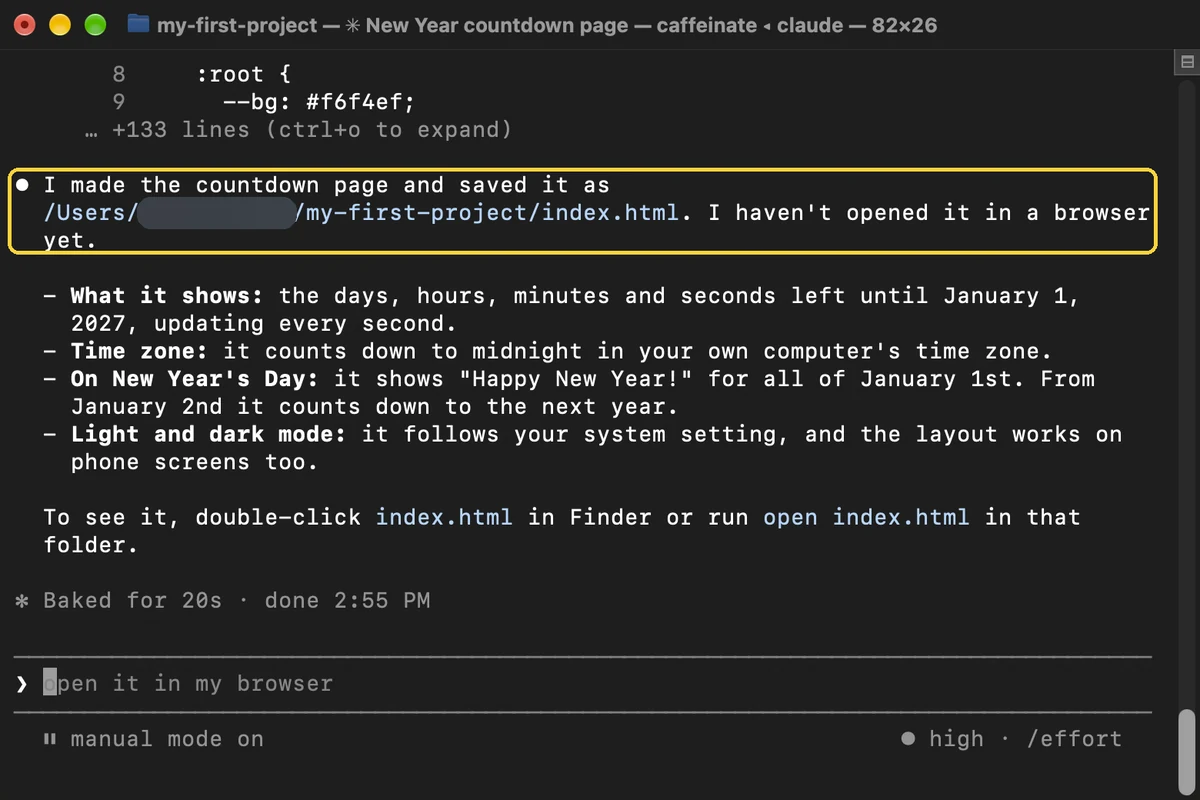
Read what Claude made
Claude saves index.html and tells you what it did.
- 19
Ask Claude to open it
Type this into the message box and press Return.
open it in my browser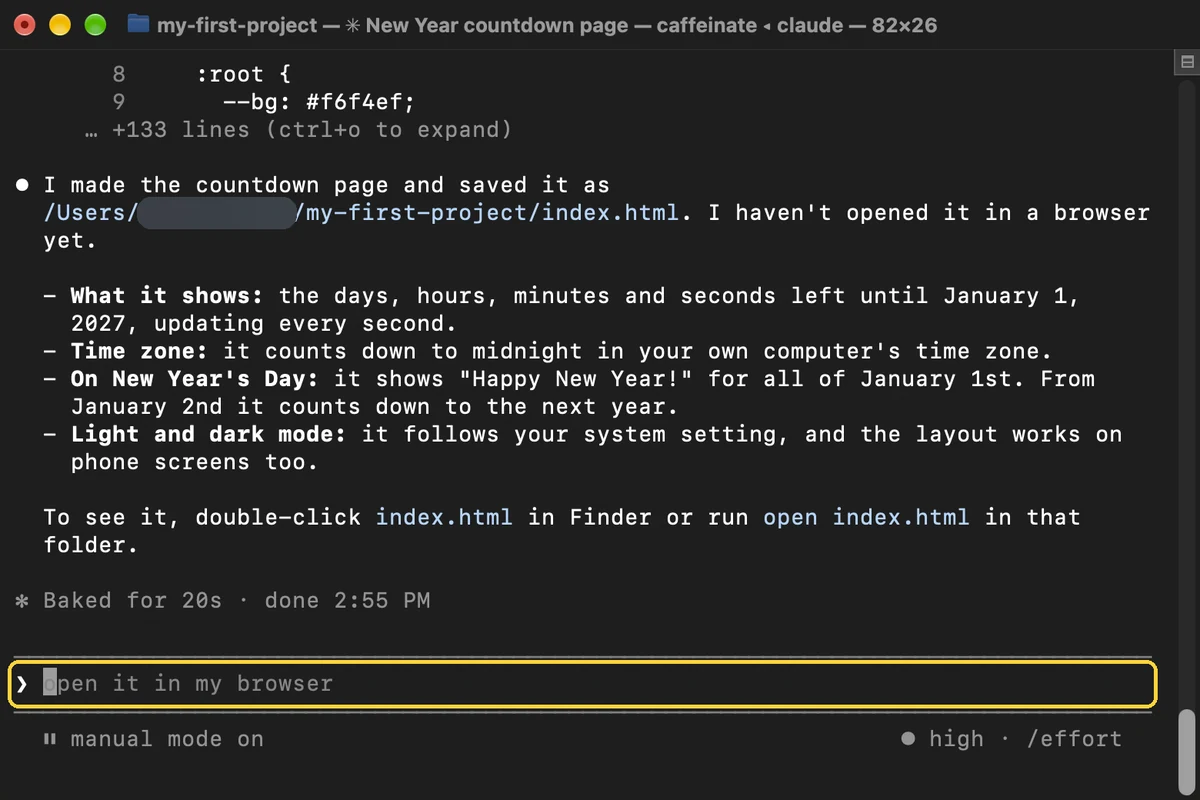
- 20
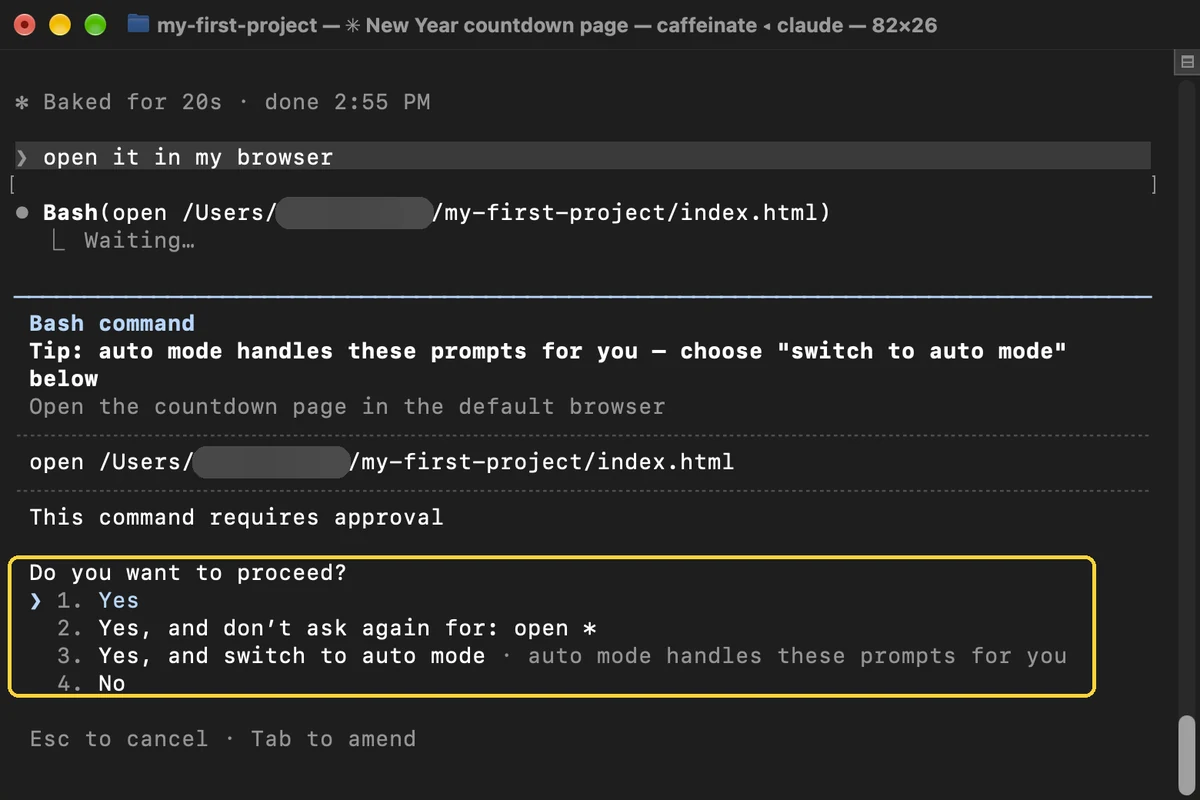
Say yes to opening it
Claude asks before it runs anything. Press Return to choose Yes.
- 21
See your page
Your countdown page opens in the browser. You just built your first project.

Useful commands
A few commands you will use all the time.
- 22
See all commands
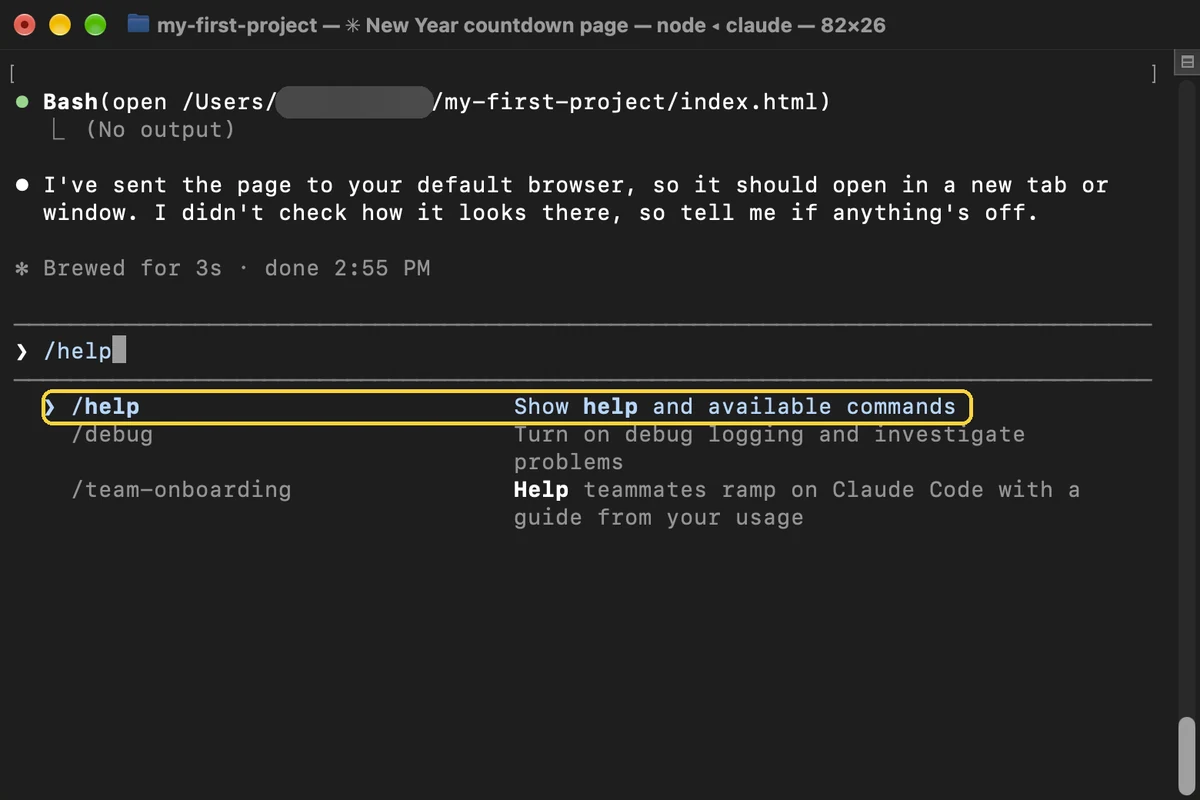
Type / in the message box. A list of commands appears.
- 23
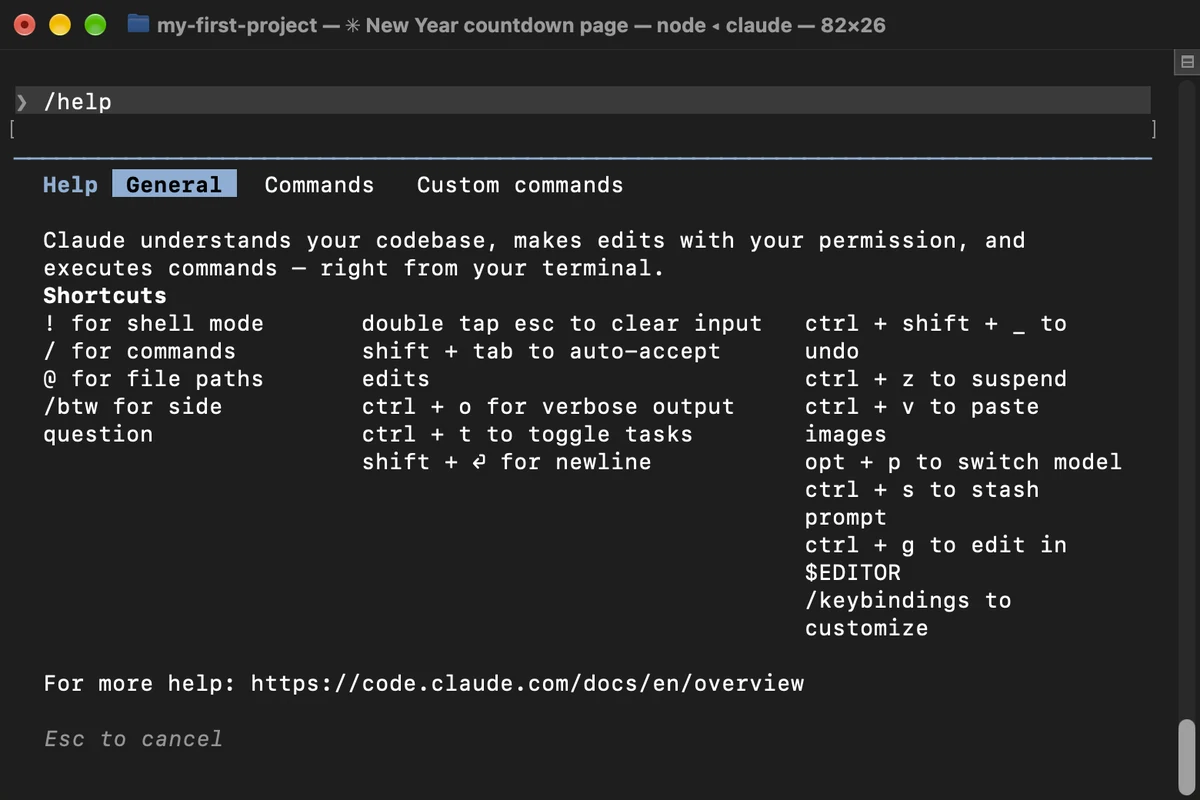
Open the help screen
Type /help and press Return to see the shortcuts. Press Esc to close it.
- 24
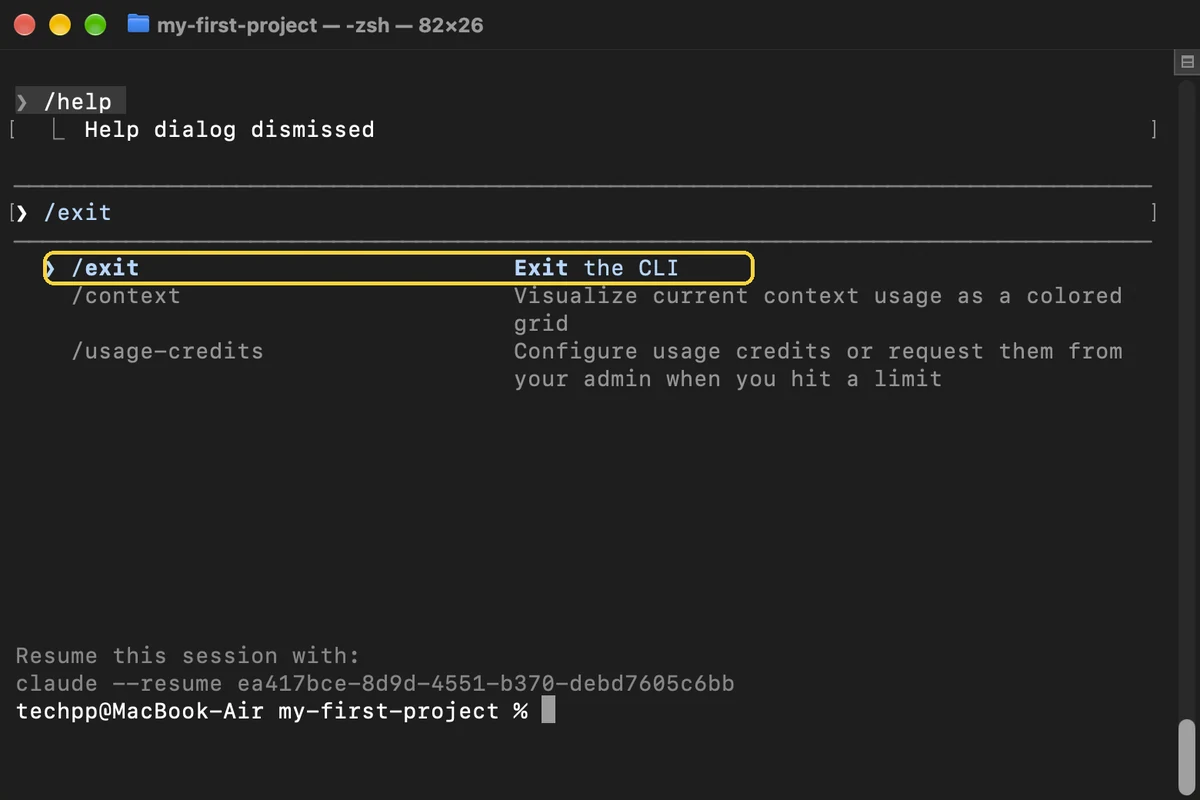
Quit Claude Code
Type /exit and press Return. Next time, type claude -c in the same folder to carry on where you left off.
Update or uninstall Claude Code
Claude Code updates itself, so you rarely need this.
- Optional
Claude Code already updates itself
25Update right away
Type this in Terminal and press Return.
claude update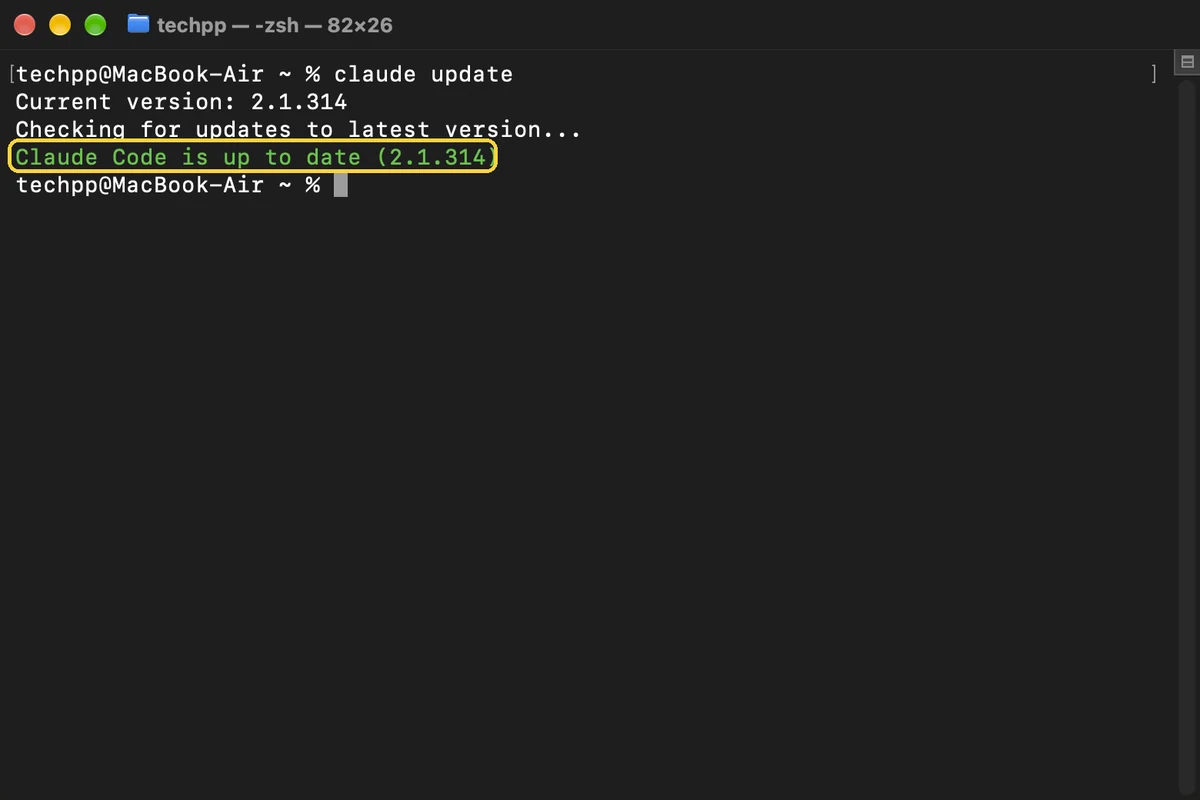
Uninstall Claude Code
Run this in Terminal to remove Claude Code from your Mac.
rm -f ~/.local/bin/clauderm -rf ~/.local/share/claudeTo also delete your settings and conversation history, run this too. You can't undo it.
rm -rf ~/.clauderm ~/.claude.jsonFAQ
Is Claude Code free?
No. Claude Code needs a paid Claude plan (Pro, Max, Team or Enterprise) or a Claude Console account with API credits. The free plan doesn't include it.
Does Claude Code work on Intel Macs?
Yes. It runs on Apple silicon and Intel Macs with macOS 13 Ventura or newer and at least 4 GB of RAM.
Can I install Claude Code with Homebrew?
Yes. Run brew install --cask claude-code. A Homebrew install doesn't update itself, so run brew upgrade claude-code every now and then.
Do I have to use Terminal?
No. Claude Code is also in the Claude desktop app, in VS Code and JetBrains editors, and on the web at claude.ai/code. Terminal is simply the quickest way to start.
Can Claude Code change or delete my files?
Yes, which is why it asks first. In manual mode, Claude asks before it creates or changes a file or runs a command, and you can always choose No.
That's it. Claude Code is now set up on your Mac, and you have already built your first project with it. From here, just open Terminal, go to a folder and type claude. Want a real task to try next? See our guide on how to debloat any Android phone with Claude Code.
Comments
0Share your thoughts, questions, or feedback about this guide.