
How to Debloat Any Android Phone With or Without Claude Code
We recently published a detailed guide on how to debloat your Android TV, and even non-programmers have used it to clean up their TVs and make them feel brand new. Claude Code is what makes that possible, so we thought, why not do the same for the Android phone you use every day?
ADB has let you debloat Android phones for years, but it can feel too technical if you've never touched a command line. With Claude, you can simply ask it to do everything for you. And since Claude can talk to your phone, it can also check which apps are running in the background, point out ones you don't recognise, and block ads by setting a private DNS.
This is a simple, interactive guide. Follow the steps yourself, or let Claude Code run them for you, and debloat your Android phone in minutes.
9 steps with Claude Code · 8 without · About 20 minutes · No root
Works on
- Any Android phone on Android 8 or newer
- Samsung, Xiaomi, Redmi, POCO, OnePlus, OPPO, realme, vivo, iQOO, Motorola and Pixel
Doesn't work on
- iPhones
- Work phones where your company has turned off USB debugging
You need a computer and a USB cable, plus a paid Claude plan if you use Claude Code. Nothing needs root or an unlocked bootloader, and every app you remove can be brought back.
With Claude Code
Paste each prompt into Claude Code and approve the commands it runs. You don't need to type a single command yourself.
Step 1: Install Claude Code
Note: Claude Code needs a paid Claude plan (Pro or higher). The free plan doesn't include it.
- 1.
Open Terminal and run
curl -fsSL https://claude.ai/install.sh | bash - 2.
Open a new Terminal window and check it works
claude --version
- 1.
Open PowerShell and run
irm https://claude.ai/install.ps1 | iex - 2.
Open a new PowerShell window and check it works
claude --version
Prefer not to use a terminal? Install the Claude desktop app and use its Code tab
claude.com
Step 2: Turn on USB debugging and plug in your phone
- 1.
Turn on USB debugging
Step 2 of the do-it-yourself guide below shows where to find it on every brand. On a OnePlus:
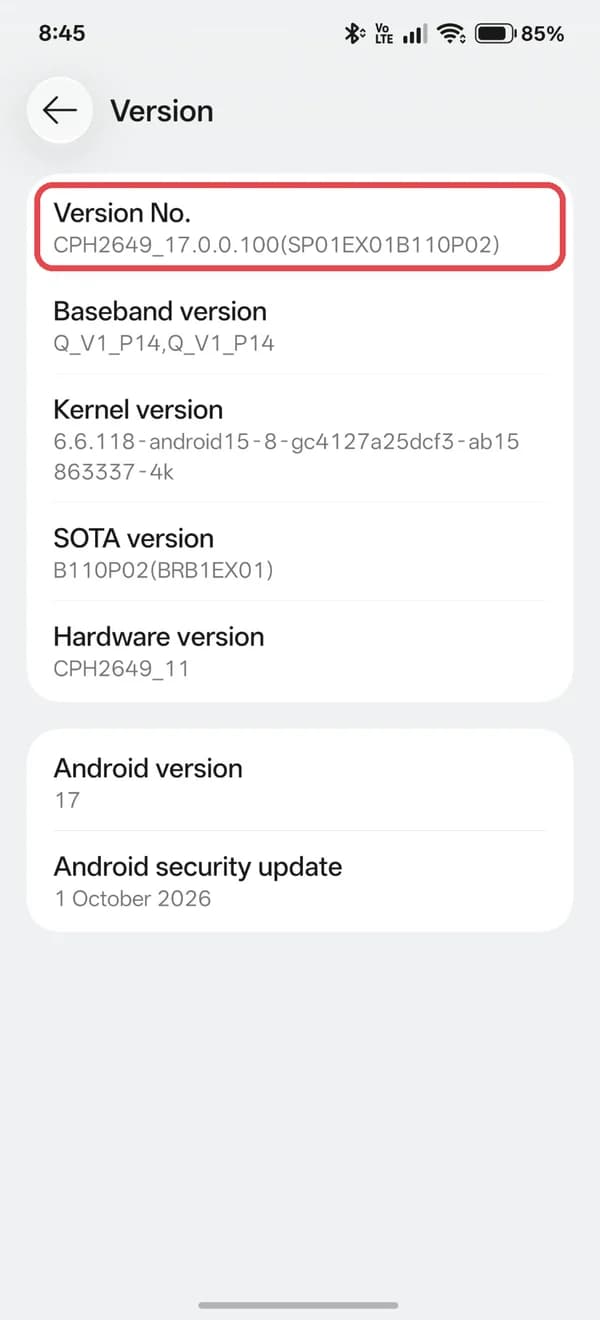
Settings > About device > Version > tap Version No. seven times 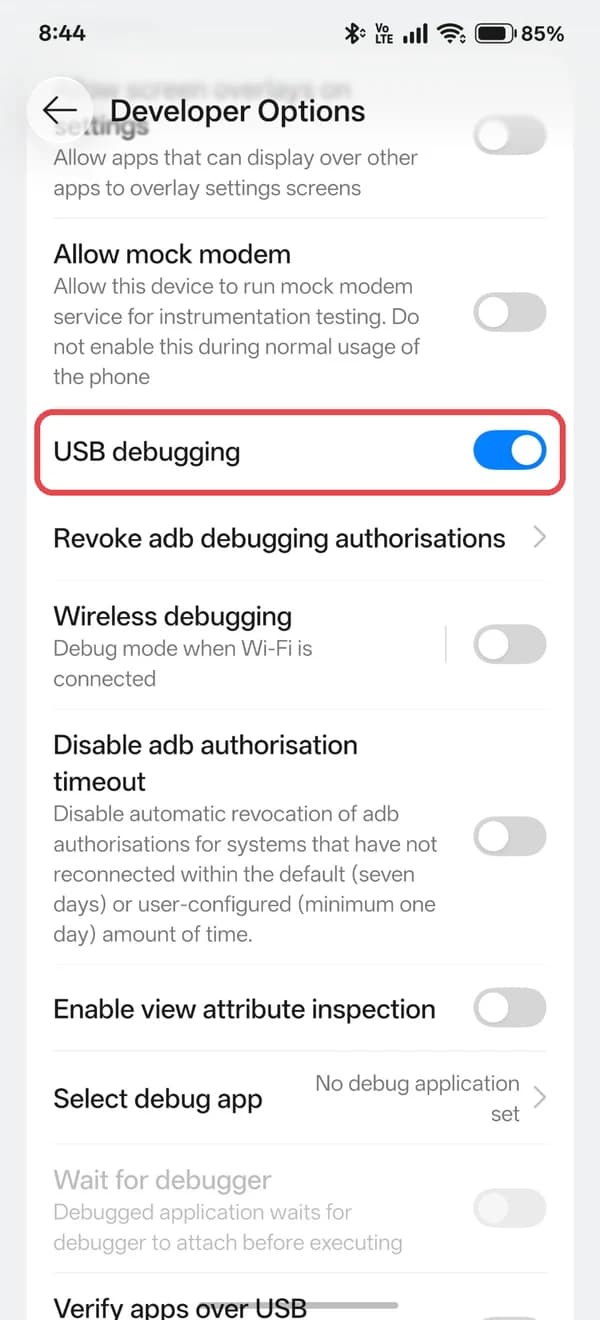
Settings > System & update > Developer Options > USB debugging - 2.
Plug the phone into your computer with a USB cable and unlock it
Step 3: Start Claude Code in a new folder
- 1.
Make a folder for this job and start Claude Code in it
The first time, it opens your browser so you can sign in.
mkdir debloat-phonecd debloat-phoneclaude - 2.
Claude asks before it runs each command
Read what it wants to do, then approve it. If anything looks wrong, say no and ask why.
Step 4: Set up ADB and save your app list
- 1.
Paste this
Paste into Claude CodeCheck whether ADB is installed on this computer. If it isn't, install Android SDK Platform-Tools for me. Then run adb devices and tell me if my phone is connected. If it says unauthorized, tell me what to tap on my phone. Once it's connected, save a list of every app on my phone to apps-before.txt in this folder, so we can undo everything later.
- 2.
When your phone asks, tick Always allow from this computer and tap Allow
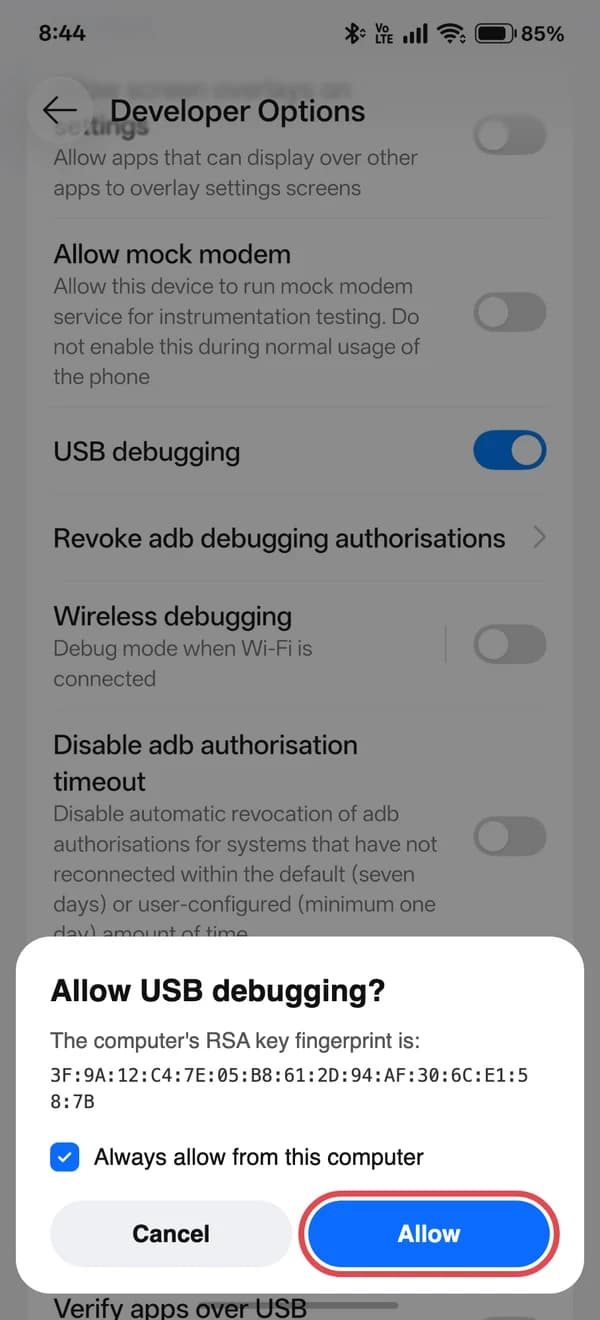
Tick Always allow, then tap Allow - 3.
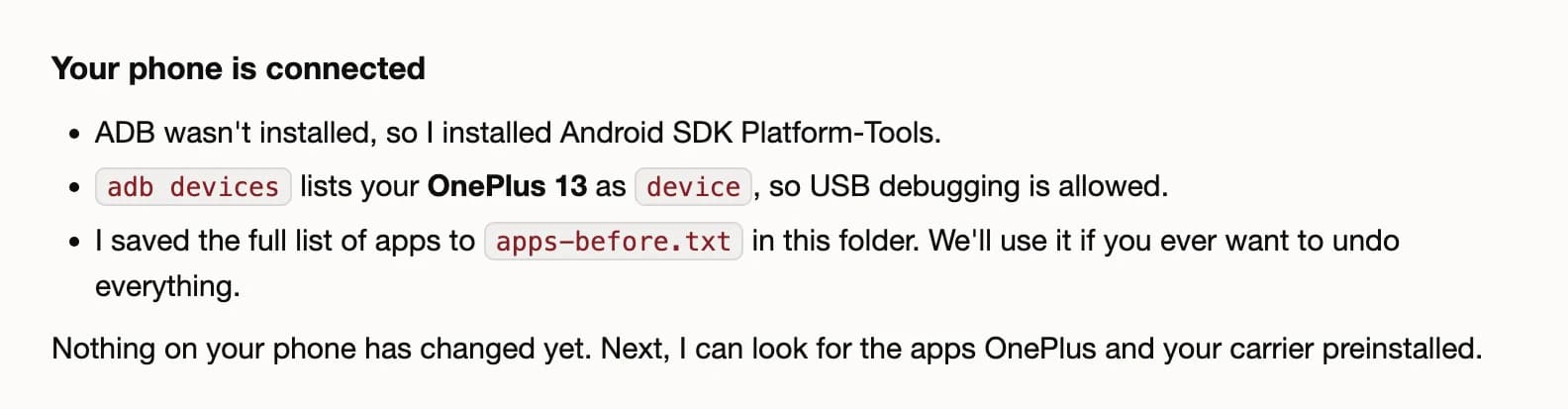
Claude confirms your phone is connected
Step 5: Find the bloat
- 1.
Paste this
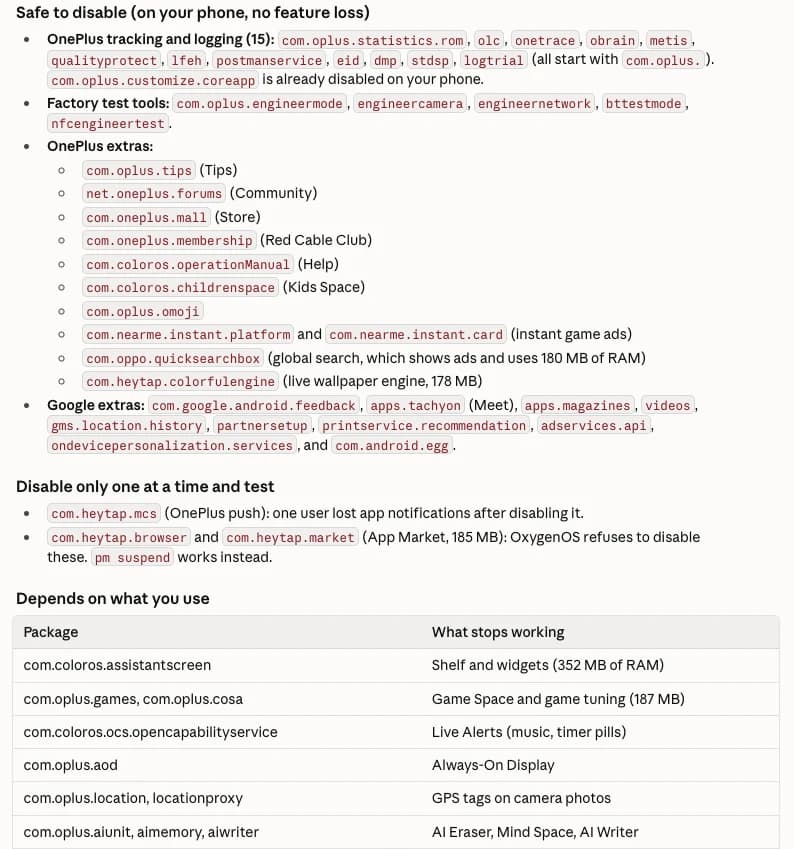
Paste into Claude CodeFind the apps my phone maker and carrier preinstalled. Sort them into three groups: safe to remove, remove only if I don't use it, and leave alone. Never put Google Play services, the Play Store, Settings, the phone and SMS apps, my launcher, my keyboard or anything that handles system updates in the first two groups. Show each package name with a plain-English description. Don't remove anything yet.
- 2.
Read the list and tell Claude about any app you want to keep
Here's what Claude found on a OnePlus 13.
Step 6: Remove it in small batches
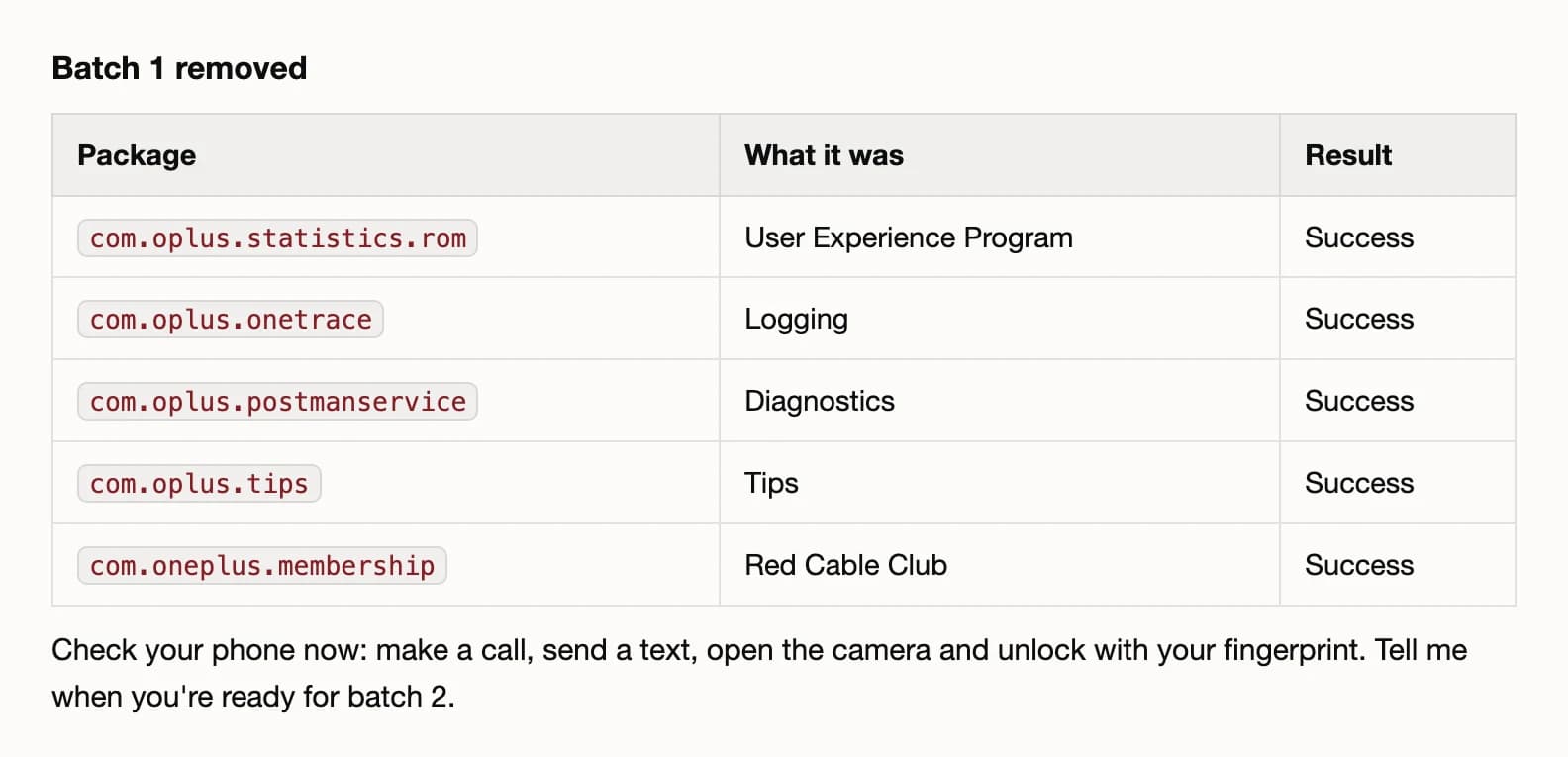
Tip: After each batch, make a call, send a text, open the camera and unlock with your fingerprint before you let Claude carry on.
- 1.
Paste this
Paste into Claude CodeRemove the safe group with pm uninstall --user 0, five apps at a time. After each batch, list what you removed and wait for me to check my phone before you continue.
- 2.
Claude stops after every batch
- 3.
Want the second group gone too? Ask for it the same way
Step 7: Check what runs in the background
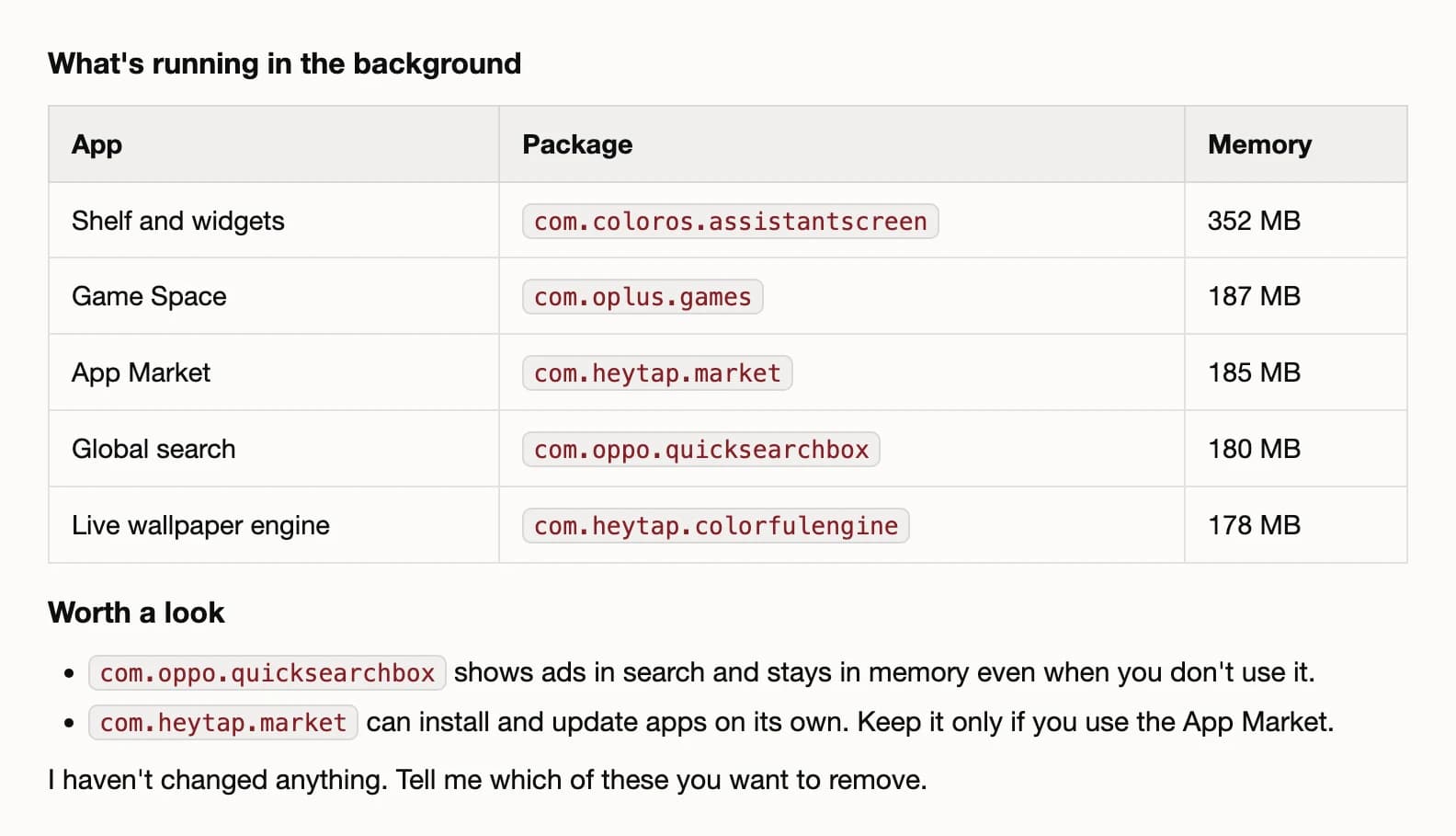
Paste this
Paste into Claude CodeShow me which apps are running in the background right now and which ones use the most memory and battery. Point out any app I probably didn't install myself or that has unusual permissions, and explain why in plain words. Don't change anything without asking me.
Step 8: Block ads and speed it up
Paste this
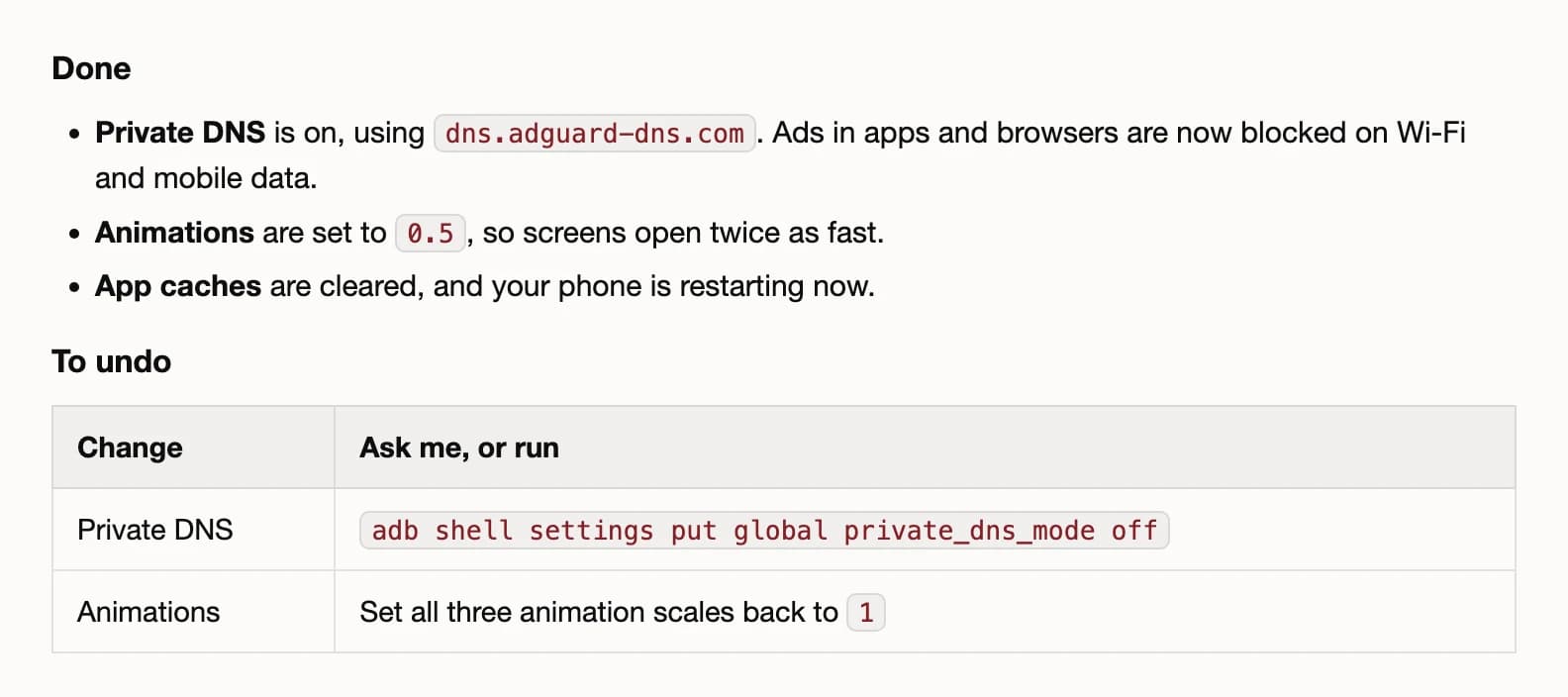
Paste into Claude CodeTurn on Private DNS with dns.adguard-dns.com to block ads, set all three animation scales to 0.5, clear the app caches and restart my phone. Then tell me how to undo each change.
Step 9: Undo anything
- 1.
If something stopped working after a batch
Paste into Claude CodeSomething stopped working after the last batch. Bring back the apps you just removed with cmd package install-existing.
- 2.
To put everything back
Paste into Claude CodeUndo everything: bring back every app that's in apps-before.txt but missing from my phone now, and turn Private DNS off.
Without Claude Code
Step 1: Install ADB
- 1.
Download SDK Platform-Tools for Windows
developer.android.com - 2.
Unzip it, open the folder, type
cmdin the address bar and press EnterType every command in this window.
- 3.
Check it works
If you see “not recognized”, type
.\adbinstead ofadb.adb version
- 1.
Install Homebrew
brew.sh - 2.
Install ADB in Terminal
brew install --cask android-platform-tools - 3.
Check it works
adb version
- 1.
Debian or Ubuntu
sudo apt install adb - 2.
Fedora
sudo dnf install android-tools - 3.
Check it works
adb version
Step 2: Turn on USB debugging
- 1.
Open the build number
Phone Where to find it Samsung Settings > About phone > Software information > Build number Xiaomi, Redmi, POCO Settings > About phone > OS version (MIUI version on older phones) OnePlus, OPPO, realme Settings > About device > Version > Version No. (Build number on older phones) vivo, iQOO Settings > About phone > Software version Pixel, Motorola and others Settings > About phone > Build number - 2.
Tap it seven times and enter your PIN
The phone tells you developer options are now on. Here's the path on a OnePlus:
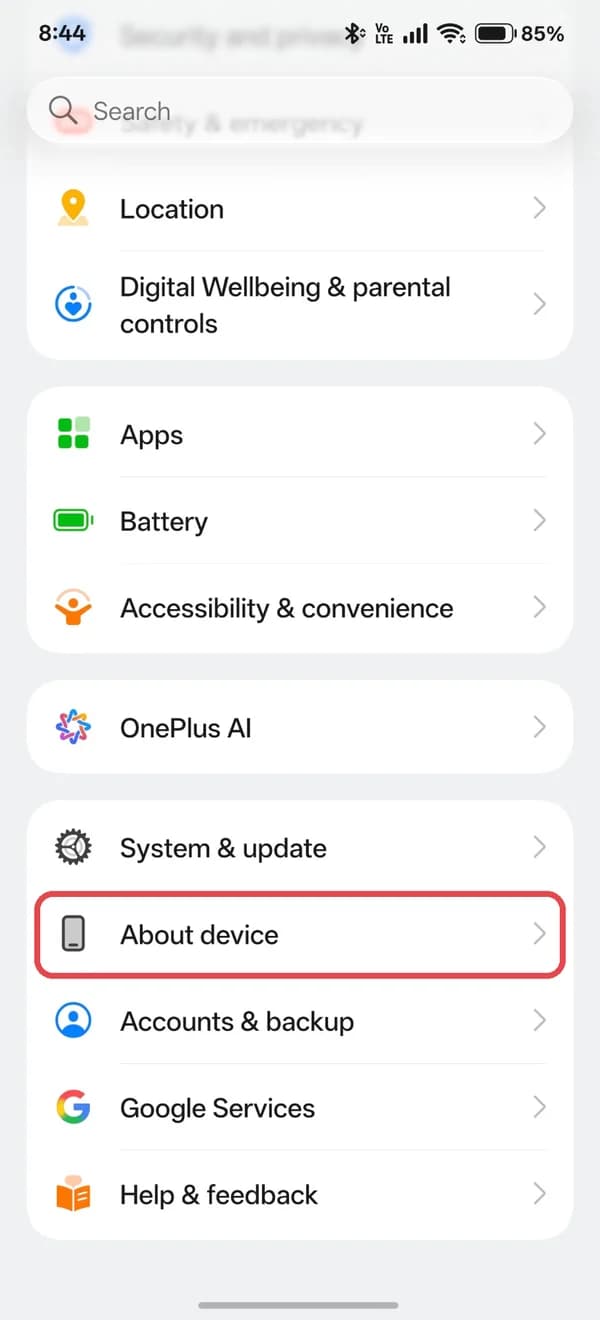
1. Settings > About device 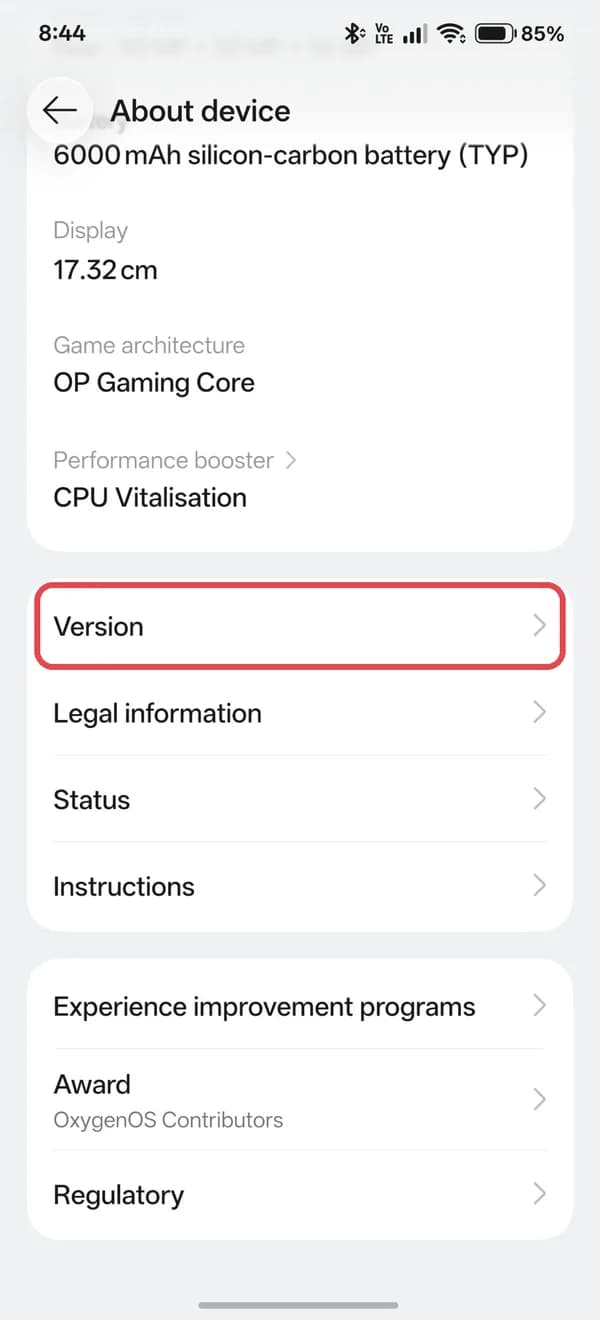
2. Version 3. Tap Version No. seven times - 3.
Search Settings for Developer options, open it and turn on USB debugging
On a OnePlus it's under Settings > System & update.
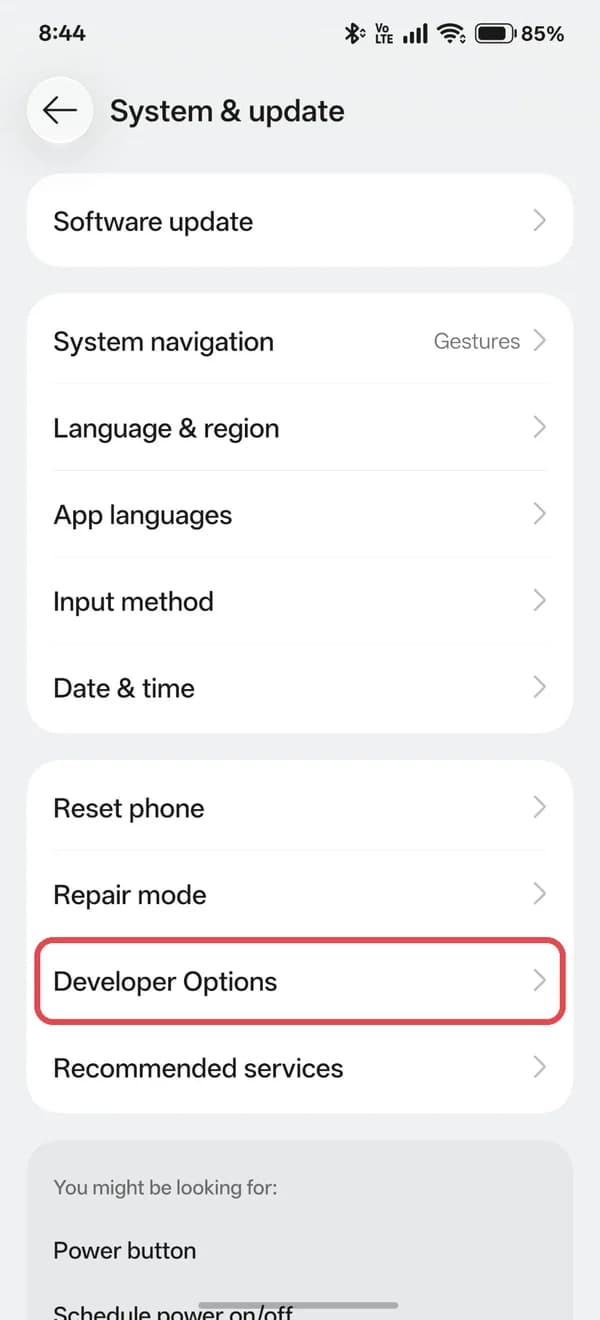
1. System & update > Developer Options 2. Turn on USB debugging
Step 3: Connect your phone
- 1.
Plug the phone into your computer and unlock it
- 2.
Tick Always allow from this computer and tap Allow
Tick Always allow, then tap Allow - 3.
Check it's connected
Your phone shows up in the list with the word
device.adb devices
- 1.
On the phone, open Developer options > Wireless debugging > Pair device with pairing code
- 2.
Pair using the address and six-digit code on the phone
adb pair PHONE-IP:PORT 123456 - 3.
Connect using the address on the main Wireless debugging screen
It's a different port from the one you paired with.
adb connect PHONE-IP:PORT
Step 4: Save a list of your apps
Warning: Back up your photos and chats first. You won't need the backup if you follow this guide, but it's your safety net.
Run this once
You'll need this file if you ever want to undo everything at once.
adb shell pm list packages > apps-before.txt
Step 5: Learn the two commands
- 1.
Remove an app
It disappears for you, but a copy stays on the phone, so it can always come back.
adb shell pm uninstall --user 0 PACKAGE.NAME - 2.
Bring it back
adb shell cmd package install-existing PACKAGE.NAME - 3.
Do five to ten apps at a time, then restart and check the phone
Make a call, send a text, open the camera and unlock with your fingerprint.
- 4.
Never remove these
Package Why com. google. android. gmscom. google. android. gsf Apps stop signing in and updating com. android. vending Play Store com. android. settings Settings com. android. systemui Status bar, notifications and navigation com. android. phonecom. android. providers. telephony Calls, texts and mobile data Anything with launcher in its name Your home screen Your keyboard, like com.samsung.android.honeyboard or com.google.android.inputmethod.latin You need it to type your PIN after a restart Anything with update, updater, ota or sau in its name System updates Anything with packageinstaller or permissioncontroller in its name Installing apps and app permissions
Step 6: Remove the bloat
Tip: If a command says not installed for 0, that app isn't on your phone. Just skip it.
- 1.
Safe on almost every Galaxy
Package What it is com. samsung. android. app. tips Tips com. samsung. android. arzone AR Zone com. samsung. android. aremojicom. samsung. android. aremojieditor AR Emoji com. samsung. android. ardrawing AR Doodle com. samsung. android. livestickers Deco Pic com. samsung. android. stickercenter Camera sticker downloads com. samsung. android. service. livedrawing Live Message com. samsung. android. kidsinstallercom. sec. android. app. kidshome Samsung Kids com. samsung. android. privateshare Private Share com. samsung. android. rubin. app Customization Service (usage tracking) - 2.
Only if you don't use these
Package What stops working com. samsung. android. bixby. agentcom. samsung. android. bixby. wakeup Bixby voice com. samsung. android. visionintelligencecom. samsung. android. bixbyvision. framework Bixby Vision in the camera com. samsung. android. app. spage Samsung Free (the panel left of the home screen) com. samsung. android. game. gamehomecom. samsung. android. game. gametools Game Launcher and Game Booster com. sec. android. app. sbrowser Samsung Internet com. samsung. android. email. provider Samsung Email com. samsung. android. voc Samsung Members com. samsung. android. app. watchmanagerstub Galaxy Watch setup - 3.
Leave
com.samsung.android.app.routinesandcom.sec.android.app.samsungappsaloneThey run Modes and Routines and the Galaxy Store, which Samsung Wallet needs.
- 1.
Xiaomi, Redmi and POCO (HyperOS and MIUI)
Package What it is com. miui. msa. globalcom. miui. systemAdSolution System ads com. miui. analyticscom. miui. daemon Usage tracking com. xiaomi. mipicks GetApps store com. miui. hybrid Quick Apps com. miui. bugreportcom. miui. miservice Feedback and Services com. mi. globalminusscreencom. mi. android. globalminusscreen App Vault com. miui. android. fashiongallery Wallpaper Carousel com. xiaomi. glgm Games com. miui. yellowpage Yellow Pages com. xiaomi. mirecycle Mi Recycle - 2.
Only if you don't use these
Package What stops working com. mi. globalbrowser Mi Browser com. miui. videoplayer Mi Video com. miui. player Mi Music com. miui. cleaner Cleaner com. xiaomi. scanner Scanner - 3.
Leave
com.miui.securitycenter,com.miui.global.packageinstallerandcom.android.updateraloneRemoving them can stop the phone from starting.
- 1.
ColorOS, OxygenOS and realme UI
Package What it is com. oplus. statistics. romcom. nearme. statistics. rom User Experience Program (tracking) com. oplus. logkitcom. oplus. crashbox Bug reports and crash logs com. heytap. pictorial Lock screen magazine com. oneplus. membership Red Cable Club com. realme. securitycheck realme security check - 2.
Only if you don't use these
Package What stops working com. heytap. marketcom. oppo. market App Market com. heytap. browser Browser com. coloros. gamespaceuicom. oplus. games Games and Game Space com. heytap. music Music com. heytap. cloud HeyTap Cloud com. heytap. themestore Theme Store com. oneplus. brickmode Zen Mode com. heytap. speechassist Breeno assistant - 3.
Leave
com.coloros.safecenter,com.oplus.safecenter,com.coloros.weather2andcom.heytap.mcsaloneThey run the screen lock and app permissions, the weather app can stop some phones from starting, and removing
com.heytap.mcscan stop app notifications.
- 1.
Funtouch OS and OriginOS
Package What it is com. vivo. magazine Lock screen posters com. vivo. space vivo website shortcut com. android. bbklog Log collection com. vivo. vivokaraoke Karaoke com. vivo. walletcom. vivo. unionpay Wallet and v-Coin com. vivo. dream. clockcom. vivo. dream. musiccom. vivo. dream. weather Screensavers - 2.
Only if you don't use these
Package What stops working com. vivo. browser vivo Browser com. vivo. appstore V-Appstore com. bbk. theme Themes com. vivo. assistant Jovi assistant com. vivo. globalsearch Swipe-down search com. vivo. easyshare EasyShare - 3.
Leave
com.iqoo.secureandcom.vivo.smartshotaloneThey run i Manager and screenshots.
- 1.
Motorola
Package What it is com. motorola. demo Shop demo mode com. motorola. helpcom. motorola. genie Feedback and Device Help com. motorola. ccc. notification Motorola promo notifications com. motorola. discovery Tip bubbles com. motorola. mototour Moto tour com. motorola. brapps App Box - 2.
Leave
com.motorola.motoalone if you use the twist and chop gestures
- 1.
Safe on any phone
Package What it is com. google. android. feedback Crash report feedback com. google. android. videos Google TV app com. google. android. apps. magazines Google News com. google. android. apps. podcasts Google Podcasts com. google. android. apps. tips Pixel Tips - 2.
Only if you don't use these
Package What stops working com. google. android. apps. tachyon Google Meet calls com. google. android. apps. subscriptions. red Google One com. google. android. apps. youtube. music YouTube Music com. google. android. apps. docs Google Drive
- 1.
Background services nobody needs
Package What it is com. facebook. appmanagercom. facebook. servicescom. facebook. system Facebook installer and updater com. netflix. partner. activation Netflix activation - 2.
Apps the phone came with
Package App com. facebook. katana Facebook com. netflix. mediaclient Netflix com. microsoft. skydrive OneDrive com. linkedin. android LinkedIn com. amazon. mShop. android. shopping Amazon Shopping com. spotify. music Spotify com. booking Booking.com - 3.
Want one back later? Install it again from the Play Store
- 1.
List the apps your phone maker added
adb shell "pm list packages | grep -iE 'ads|promo|feedback|analytics|tips'" - 2.
Remove a few at a time and check the phone after each batch
Step 7: Block ads with Private DNS
Note: This won't remove YouTube ads. YouTube sends them from the same servers as the videos.
- 1.
Turn it on
Works on Android 9 or newer, on Wi-Fi and mobile data.
adb shell settings put global private_dns_mode hostnameadb shell settings put global private_dns_specifier dns.adguard-dns.com - 2.
If an app or Wi-Fi login page stops loading, turn it off
adb shell settings put global private_dns_mode off
Step 8: Make it feel faster
- 1.
Shorten the animations
adb shell settings put global window_animation_scale 0.5adb shell settings put global transition_animation_scale 0.5adb shell settings put global animator_duration_scale 0.5 - 2.
Clear every app's cache
Your logins, photos and downloads stay.
adb shell pm trim-caches 999G - 3.
Restart the phone
adb reboot
Undo anything
Tip: Nothing in this guide deletes an app from the phone for good, so every change can be undone.
Undo one change
To undo Run An app you removed adb shell cmd package install-existing PACKAGE.NAMEPrivate DNS adb shell settings put global private_dns_mode offAnimations The Step 8 commands with 1instead of0.5Undo everything on Mac or Linux
This uses the file from Step 4.
adb shell pm list packages > apps-now.txtgrep -vxFf apps-now.txt apps-before.txt | cut -d: -f2 | tr -d '\r' | while read p; do adb shell cmd package install-existing "$p" < /dev/null; doneUndo everything on Windows (PowerShell)
$now = adb shell pm list packagesGet-Content apps-before.txt | Where-Object { $now -notcontains $_ } | ForEach-Object { adb shell cmd package install-existing ($_ -replace 'package:','').Trim() }Still stuck? A factory reset brings every app back
Troubleshooting
Problem Fix adb devices shows nothing Try another cable or port and set the phone's USB mode to File transfer. On Windows, install your phone maker's USB driver. adb devices says unauthorized Unlock the phone and tap Allow. No prompt? Tap Revoke USB debugging authorizations in Developer options and plug in again. A command fails with another error Your phone maker protects that app. Skip it. Something stopped working Bring back your last batch with adb shell cmd package install-existing PACKAGE.NAMEApps came back after an update System updates can restore them. Run your commands again. Phone stuck on the logo Plug it in and run adb devices. If it shows up, bring back your last batch. If not, a factory reset from recovery mode will fix it, but it erases the phone.
Was this article helpful?
Comments
0Share your thoughts, questions, or feedback about this guide.