
How to Debloat Any Android TV with ADB: The Full Command List
9 steps · About 20 minutes · No root
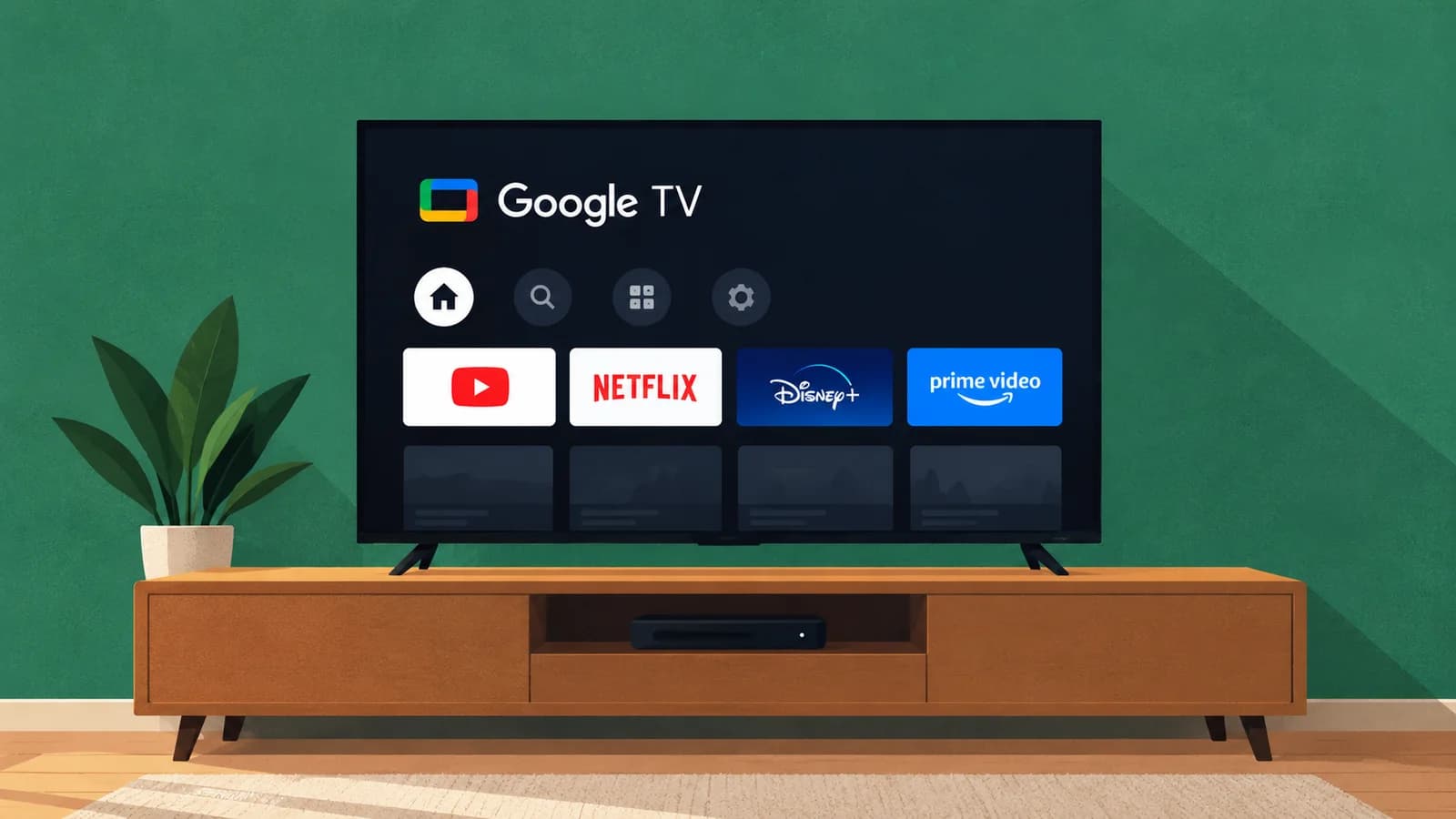
Works on
- Android TV, Google TV and Fire TV
- Sony, TCL, Xiaomi, Hisense, Philips
- Nvidia Shield and Chromecast with Google TV
Doesn't work on
- Samsung TVs (they run Tizen, not Android)
- LG TVs (they run webOS, not Android)
You need a computer with ADB on the same Wi-Fi as your TV. Nothing needs root, and every command can be undone.
Using Claude Code?
Watch how to debloat your Android TV with Claude Code running the commands for you.
Step 1: Install ADB
- 1.
Download SDK Platform-Tools for Windows
developer.android.com - 2.
Unzip it, open the folder, type
cmdin the address bar and press EnterType every command in this window.
- 3.
Check it works
If you see “not recognized”, type
.\adbinstead ofadb.adb version
- 1.
Install Homebrew
brew.sh - 2.
Install ADB in Terminal
brew install --cask android-platform-tools - 3.
Check it works
adb version
- 1.
Debian or Ubuntu
sudo apt install adb - 2.
Fedora
sudo dnf install android-tools - 3.
Check it works
adb version
Step 2: Turn on developer options on the TV
- 1.
Open the build number
TV Where to find it Google TV Settings > System > About > Android TV OS build Older Android TV Settings > Device Preferences > About > Build Philips Settings > Android settings > Device Preferences > About > Build Fire TV Settings > My Fire TV > About > your device name - 2.
Press OK on it seven times
The TV says “You are now a developer”.
- 3.
Go back, open Developer options and turn on USB debugging
On Fire TV it's called ADB debugging.
Step 3: Connect your computer to the TV
- 1.
Find the TV's IP address
Settings > Network & Internet > your Wi-Fi. It looks like 192.168.1.18.
- 2.
Connect, putting your TV's IP in place of TV-IP
adb connect TV-IP:5555adb devices - 3.
On the TV, tick Always allow and press Allow
Your TV now shows up in the list with the word
device.
- 1.
On the TV, open Developer options > Wireless debugging > Pair device with pairing code
- 2.
Pair using the address and six-digit code on the TV
adb pair TV-IP:PORT 123456 - 3.
Connect using the address on the main Wireless debugging screen
It's a different port from the one you paired with.
adb connect TV-IP:PORT
Step 4: Save a list of your apps
Run this once
You'll need this file if you ever want to undo everything at once.
adb shell pm list packages -d > already-disabled.txt
Step 5: Learn the two commands
- 1.
Turn an app off
adb shell pm disable-user --user 0 PACKAGE.NAME - 2.
Turn it back on
adb shell pm enable PACKAGE.NAME - 3.
Do five to ten apps at a time, then check the TV still works
Try the remote, change input and open Settings.
- 4.
Never turn these off
Package Why com. google. android. gmscom. google. android. gsf Apps stop signing in and updating com. android. vending Play Store com. android. tv. settings Settings com. android. systemui The TV's interface com. google. android. tv. remote. service Your remote com. google. android. apps. tv. launcherxcom. google. android. tvlauncher Home screen (only in Step 7) Anything with inputmethod, tvinput, hdmi or livetv Keyboard, HDMI inputs and live TV
Step 6: Turn off the bloat
Tip: If a command says Unknown package, that app isn't on your TV. Just skip it.
- 1.
Safe on almost every TV
Package com. google. android. tvrecommendations com. google. android. leanbacklauncher. recommendations com. google. android. videos com. google. android. play. games com. google. android. feedback com. google. android. partnersetup com. google. android. onetimeinitializer com. google. android. syncadapters. calendar com. google. android. backdrop com. android. printspooler com. android. dreams. basic com. android. adservices. api com. android. ondevicepersonalization. services - 2.
Only if you don't use these
Package What stops working com. google. android. katniss Google Assistant and the mic button com. google. android. apps. mediashellcom. google. android. gms. cast. receiver Casting from your phone com. google. android. youtube. tvmusic YouTube Music
- 1.
Sony Bravia
Package What it is com. sony. dtv. multiscreendemo Shop demo mode com. sony. dtv. promos Sony promotions com. sony. dtv. sonyselect Sony Select com. sony. dtv. ecodashboard Eco dashboard com. sony. dtv. smarthelpcom. sony. dtv. helpguidecontents Built-in help com. sony. dtv. sonytab Sony tab on the home screen - 2.
Leave
com.sony.dtv.sonysystemserviceand AirPlay alone
- 1.
TCL
Package What it is com. tcl. overseasappshow App ads com. tcl. bootadservice Ads at startup com. tcl. dashboard TCL dashboard com. tcl. appmarket2 TCL app store com. tcl. browser TCL browser com. tcl. guardcom. tcl. tvweishi TCL antivirus com. tcl. messageboxcom. tcl. noteremindercom. tcl. esticker Messages, notes, stickers com. tcl. usercenter TCL account - 2.
Leave
com.tcl.suspension,com.tcl.tvinputandcom.tcl.ttvsaloneThey run the Inputs button, HDMI and updates.
- 1.
Xiaomi Mi TV (PatchWall)
Package What it is com. mitv. tvhome. mitvpluscom. mitv. tvhome. michannel PatchWall channels com. mitv. tvhome. atv PatchWall home screen (the normal Android TV home takes over) - 2.
Leave
com.google.android.tvlauncheraloneIt's the home screen that replaces PatchWall.
Only these, nothing more
Package com. nvidia. stats com. nvidia. enhancedlogging com. nvidia. feedback com. nvidia. diagtools com. nvidia. shield. remotediagnostic com. nvidia. SHIELD. Platform. Analyser com. nvidia. factorybundling
- 1.
Search for your TV's extra apps
adb shell "pm list packages | grep -iE 'promo|demo|ads|store'" - 2.
Turn off a few at a time and check the TV after each batch
Skip this step
Turning off Amazon's apps can break search and Alexa. Steps 8 and 9 still work.
Step 7: Swap the home screen (optional)
Warning: Do these in order, or you could end up with a black screen. Skip this step on Fire TV.
- 1.
On the TV, install Projectivy Launcher from the Play Store and open it
This gets rid of the ads on the home screen.
- 2.
Make it your home screen
The last line should show
com.spocky.projengmenu. If it doesn't, stop here.adb shell cmd role add-role-holder --user 0 android.app.role.HOME com.spocky.projengmenuadb shell cmd role get-role-holders --user 0 android.app.role.HOME - 3.
Turn off the old home screen
On Sony, also run
adb shell pm disable-user --user 0 com.sony.dtv.applicationdisabler.adb shell pm disable-user --user 0 com.google.android.apps.tv.launcherxadb shell pm disable-user --user 0 com.google.android.tungsten.setupwraith - 4.
Press Home on the remote
You should see Projectivy.
Step 8: Block ads with Private DNS
Note: This won't remove YouTube ads. YouTube sends them from the same servers as the videos.
- 1.
Turn it on
Works on Android 9 or newer, Fire TV included.
adb shell settings put global private_dns_mode hostnameadb shell settings put global private_dns_specifier dns.adguard-dns.com - 2.
If an app stops loading, turn it off
adb shell settings put global private_dns_mode off
Step 9: Make it feel faster
- 1.
Shorten the animations
adb shell settings put global window_animation_scale 0.5adb shell settings put global transition_animation_scale 0.5adb shell settings put global animator_duration_scale 0.5 - 2.
Clear every app's cache
Your logins and downloads stay.
adb shell pm trim-caches 999G - 3.
Restart the TV
adb reboot
Undo anything
Tip: Nothing in this guide deletes anything, so every change can be undone.
Undo one change
To undo Run An app you turned off adb shell pm enable PACKAGE.NAMEPrivate DNS adb shell settings put global private_dns_mode offAnimations The Step 9 commands with 1instead of0.5Bring back the Google TV home screen
adb shell pm enable com.google.android.apps.tv.launcherxadb shell pm enable com.google.android.tungsten.setupwraithadb shell pm enable com.sony.dtv.applicationdisablerUndo everything on Mac or Linux
This uses the file from Step 4.
adb shell pm list packages -d > now-disabled.txtgrep -vxFf already-disabled.txt now-disabled.txt | cut -d: -f2 | tr -d '\r' | while read p; do adb shell pm enable "$p" < /dev/null; doneUndo everything on Windows (PowerShell)
$before = Get-Content already-disabled.txtadb shell pm list packages -d | Where-Object { $before -notcontains $_ } | ForEach-Object { adb shell pm enable ($_ -replace 'package:','').Trim() }Still stuck? A factory reset brings every app back
Troubleshooting
Problem Fix Black screen after Step 7 Run the “Bring back the Google TV home screen” commands above. ADB still works. The mic button stopped working adb shell pm enable com.google.android.katnissCan't cast from your phone adb shell pm enable com.google.android.apps.mediashellHDMI inputs are missing Turn back on any app with tvinput or hdmi in its name Apps came back after a restart On Sony, turn off com.sony.dtv.applicationdisabler. Elsewhere, an update did it. Run your commands again.adb devices says unauthorized Press Allow on the TV adb devices says offline Run adb disconnect, then connect againTV stuck on the logo Wait five minutes. If it still won't start, factory reset it with the TV's buttons.
Was this article helpful?
Comments
0Share your thoughts, questions, or feedback about this guide.