
AirPods Firmware Update Tracker
Last updated: Published November 11, 2026
The latest AirPods firmware is 9B47. Apple started rolling it out on November 10, 2026 for AirPods Pro 3, AirPods Pro 2, AirPods 5, AirPods 4 and AirPods Max 2, and lists bug fixes and other improvements.
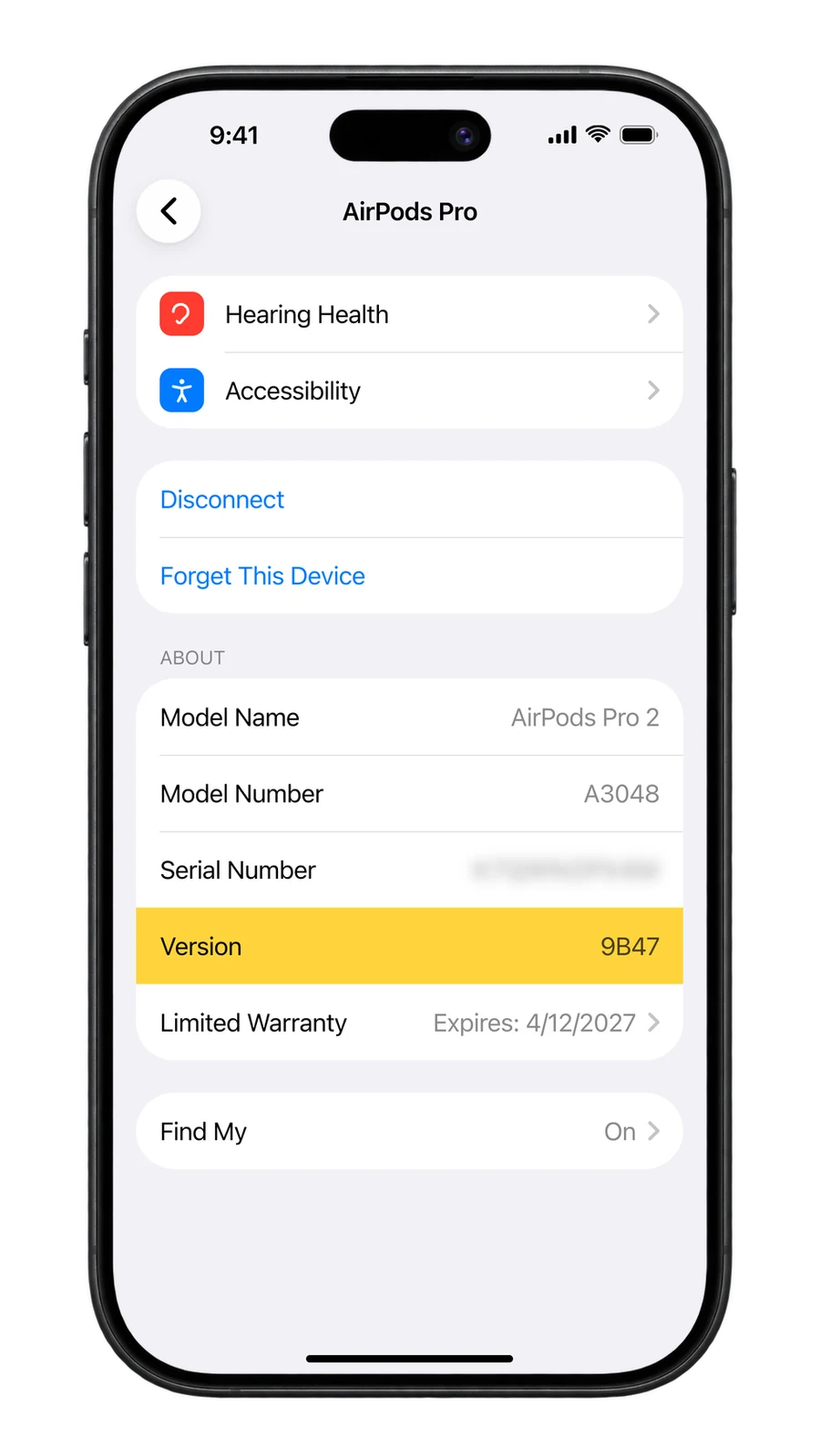
Older AirPods without the H2 chip stay on their final firmware, shown on each card below. To see your version, open Settings on your iPhone, tap Bluetooth, then tap the info button next to your AirPods and scroll to About.
Already getting firmware 9B47
The update installs on its own, in stages, while your AirPods charge near your iPhone, iPad or Mac. It can take a few days to reach every pair.
Firmware 9B47, rolling out since November 10, 2026(8)
 AirPods Pro 39B47
 AirPods Pro 2 (USB-C)9B47
 AirPods Pro 2 (Lightning)9B47
 AirPods 5 with Wireless Charging Case9B47AirPods 59B47
 AirPods 4 with ANC9B47
 AirPods 49B47
 AirPods Max 29B47
Not getting firmware 9B47
These AirPods stay on the last firmware Apple released for them, shown on each card.
AirPods Pro(1)
 AirPods Pro 1Latest: 6F21
AirPods(3)
 AirPods 3Latest: 6F21
 AirPods 2Latest: 6F21
 AirPods 1Latest: 6.8.8
AirPods Max(2)
 AirPods Max 1 (USB-C)Latest: 7E108AirPods Max 1 (Lightning)Latest: 6F25
Every AirPods Firmware Update
| Version | What changed |
|---|---|
| 9B47 | Bug fixes |
| 9A350 | AirPods 5 support |
| 9A348 | Custom EQ and GymKit heart rate |
| 8B41 to 8A357 | Bug fixes |
| 8A356 | AirPods Pro 3 support |
| 7E108 | Bug fixes |
| 7E101 | Lossless audio on AirPods Max |
| 7E93 to 7B20 | Bug fixes |
| 7B19 | Hearing Test and Hearing Aid |
| 7A304, 7A302 | Bug fixes |
| 7A294 | Head gestures and Voice Isolation |
| 6F25 to 6A303 | Bug fixes |
| 6A300 and 6A301 | Adaptive Audio and Conversation Awareness |
| 5E135 to 5A377 | Bug fixes |
| 5A374 | AirPods Pro 2 support |
| 4E71 | Bug fixes |
How to Update AirPods Firmware
Unlike iPhone or Mac updates, Apple doesn't give AirPods a direct update option. Instead, they update automatically when they're connected to your iPhone and it's online. But these steps make it happen sooner.
- 1
Update Your iPhone
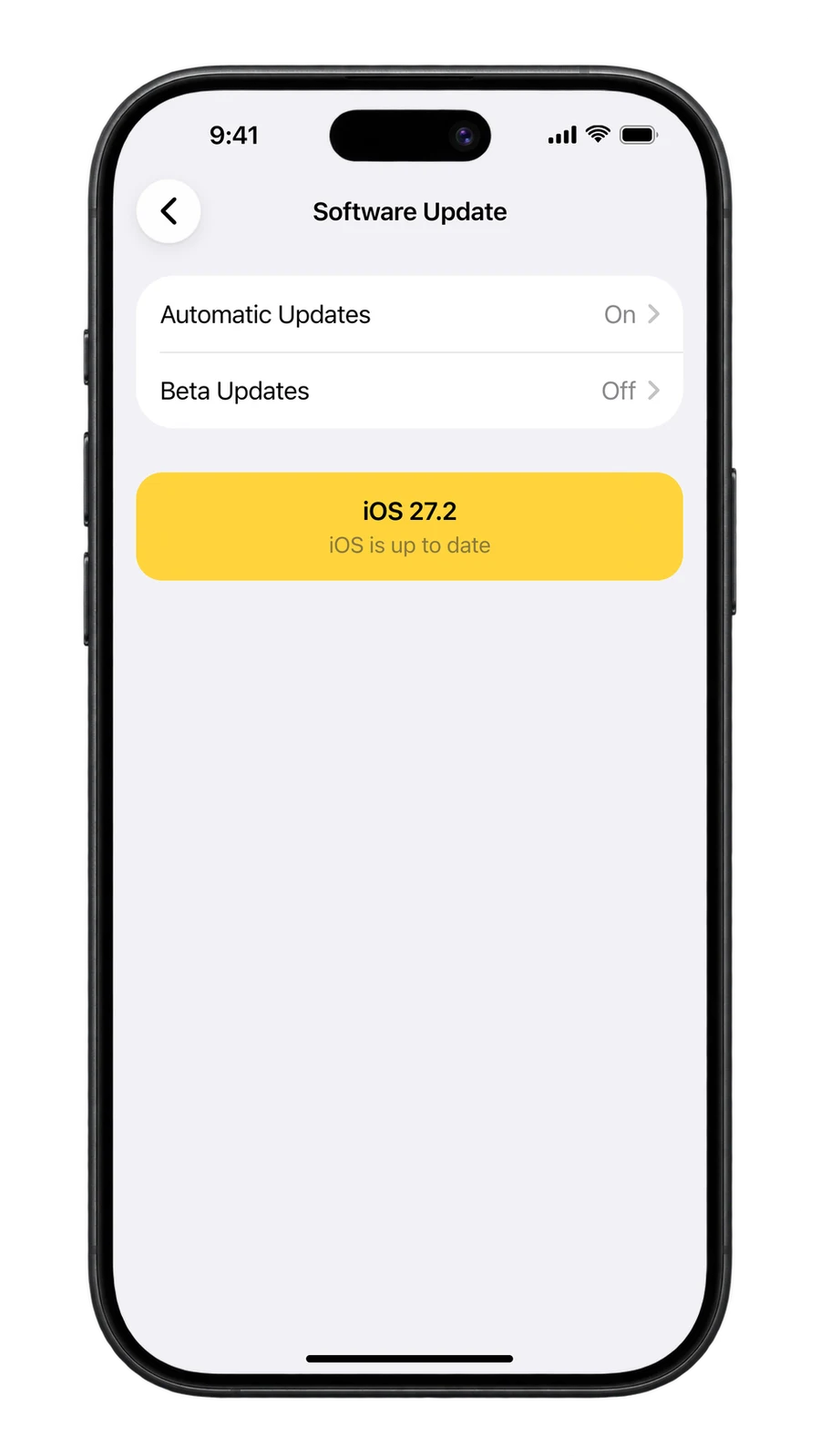
Open Settings, tap General, then Software Update, and install any update you see. When it says iOS is up to date, you're ready. The firmware comes through your iPhone, iPad or Mac, so it needs the latest software.
- 2
Turn On Wi-Fi and Bluetooth
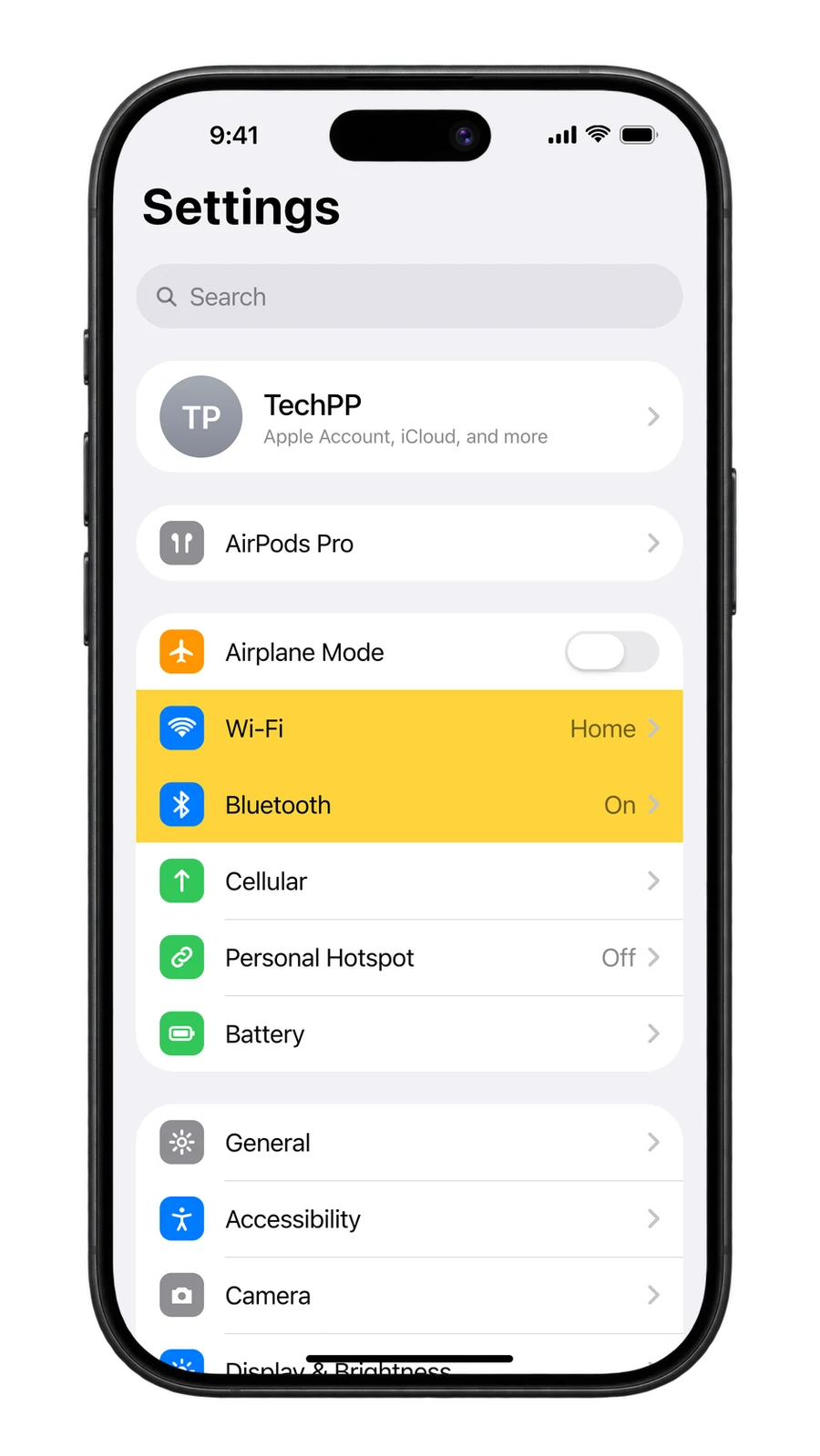
In Settings, check that Wi-Fi is connected and Bluetooth is on, and keep your AirPods connected to this iPhone.
- 3
Charge the Case Next to Your iPhone
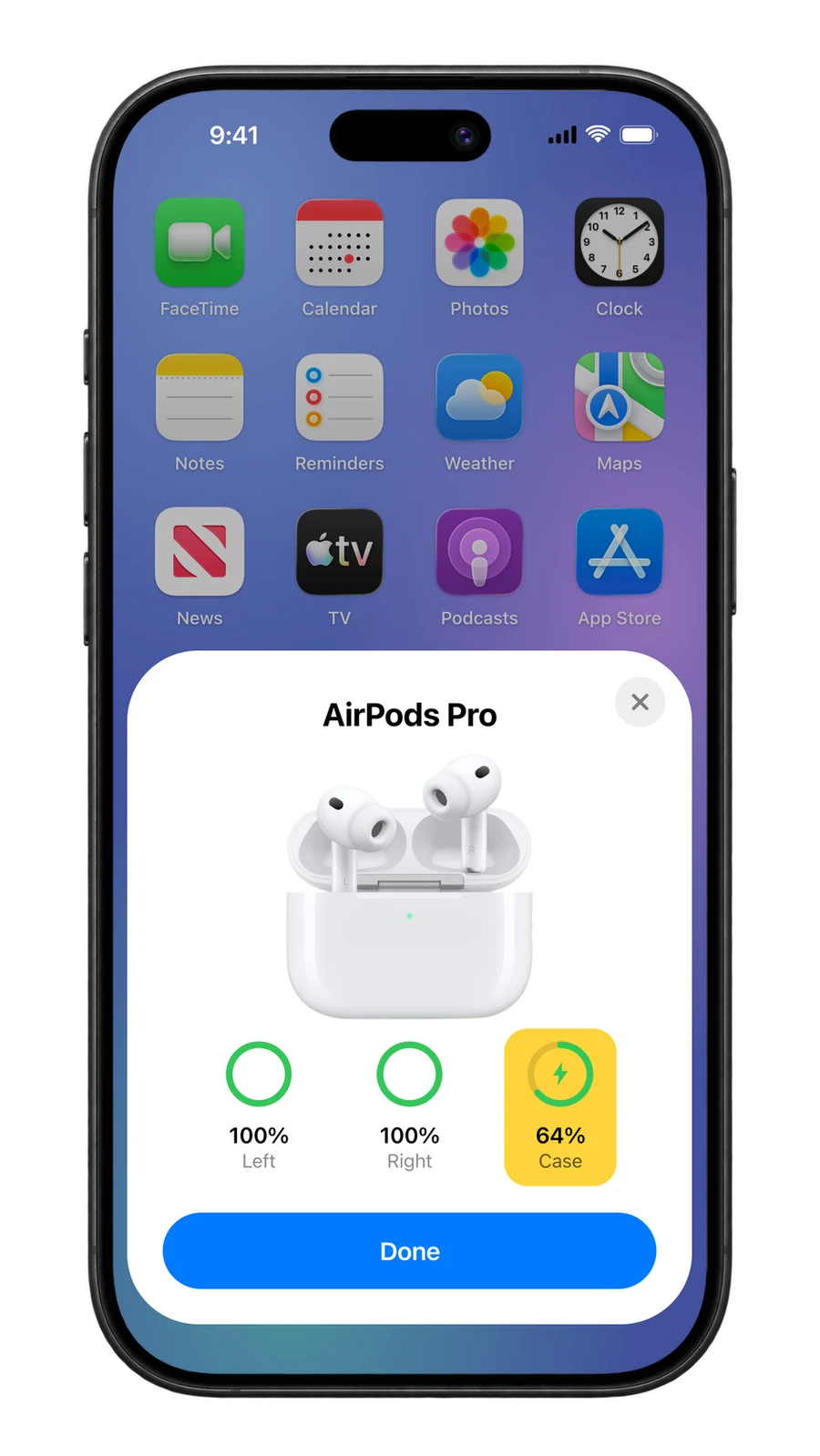
Put both AirPods in the case and plug the case in. Open the lid next to your iPhone: the card shows the case charging. Close the lid and leave it near the iPhone for at least 30 minutes. For AirPods Max, plug the cable into the right ear cup instead.
- 4
Open Your AirPods in Bluetooth Settings
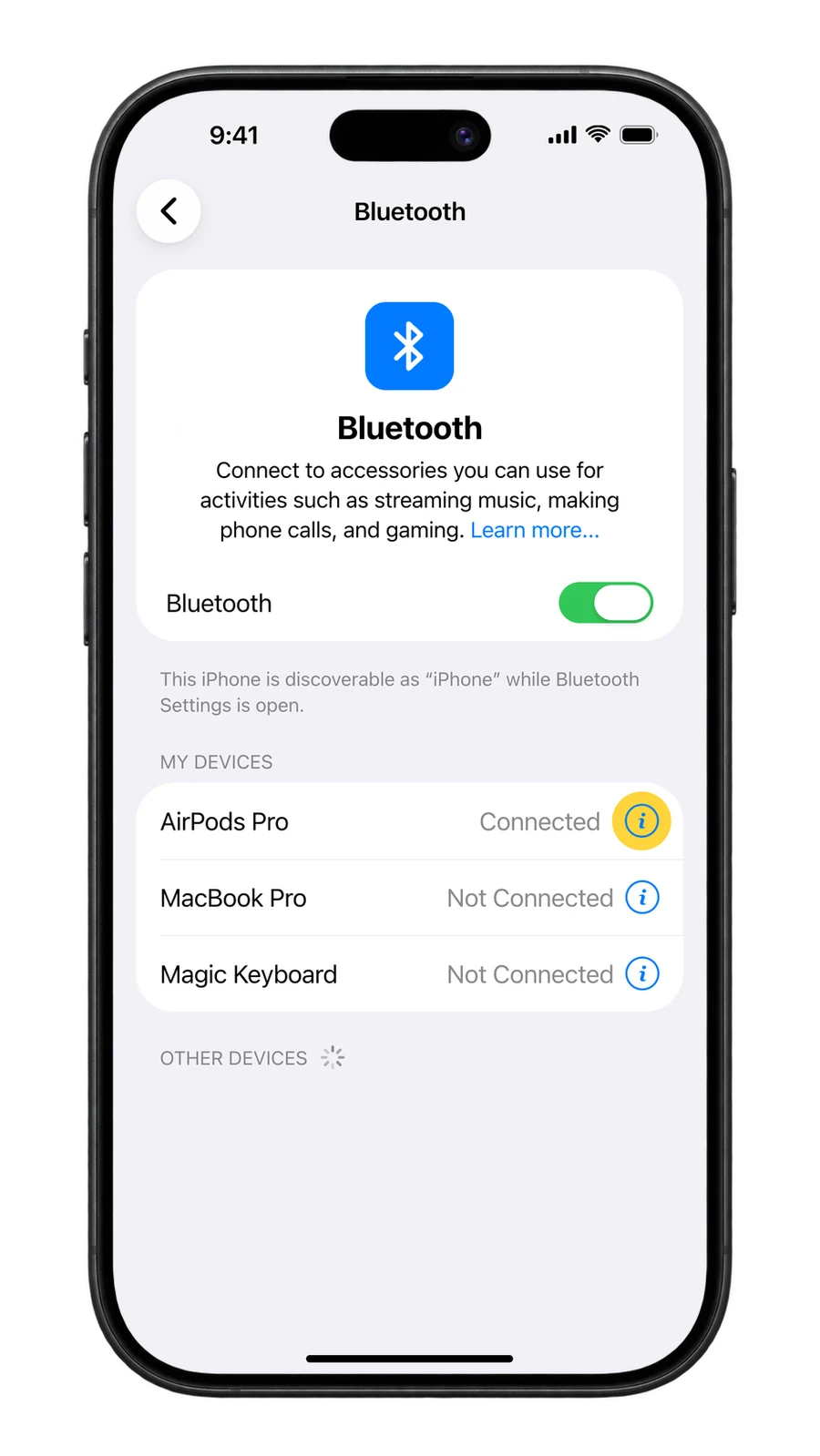
After 30 minutes, open the lid so the AirPods reconnect. Go to Settings, tap Bluetooth, then tap the info (i) button next to your AirPods.
- 5
Check the Version Number
Scroll down to About. Version should read 9B47 on AirPods Pro 3, AirPods Pro 2, AirPods 5, AirPods 4 and AirPods Max 2. If it doesn't, leave them charging next to your iPhone a little longer; older AirPods stay on the final version shown on their card above.
Comments
0Share your thoughts, questions, or feedback about this guide.
Leave a Comment