
The Ultimate Guide to Instagram Privacy Settings (2026)
We don't need to specially mention the popularity of Instagram. It is one of the most successful social media products by Meta.
And of course, Instagram is free to use. Anyone can create an account and use all the Instagram features for free, which means we all know that if the product is free, you are the product, and your data, of course.
Meta is known for aggressively tracking and collecting your data. Fortunately, Instagram also lets you limit the data tracking features.
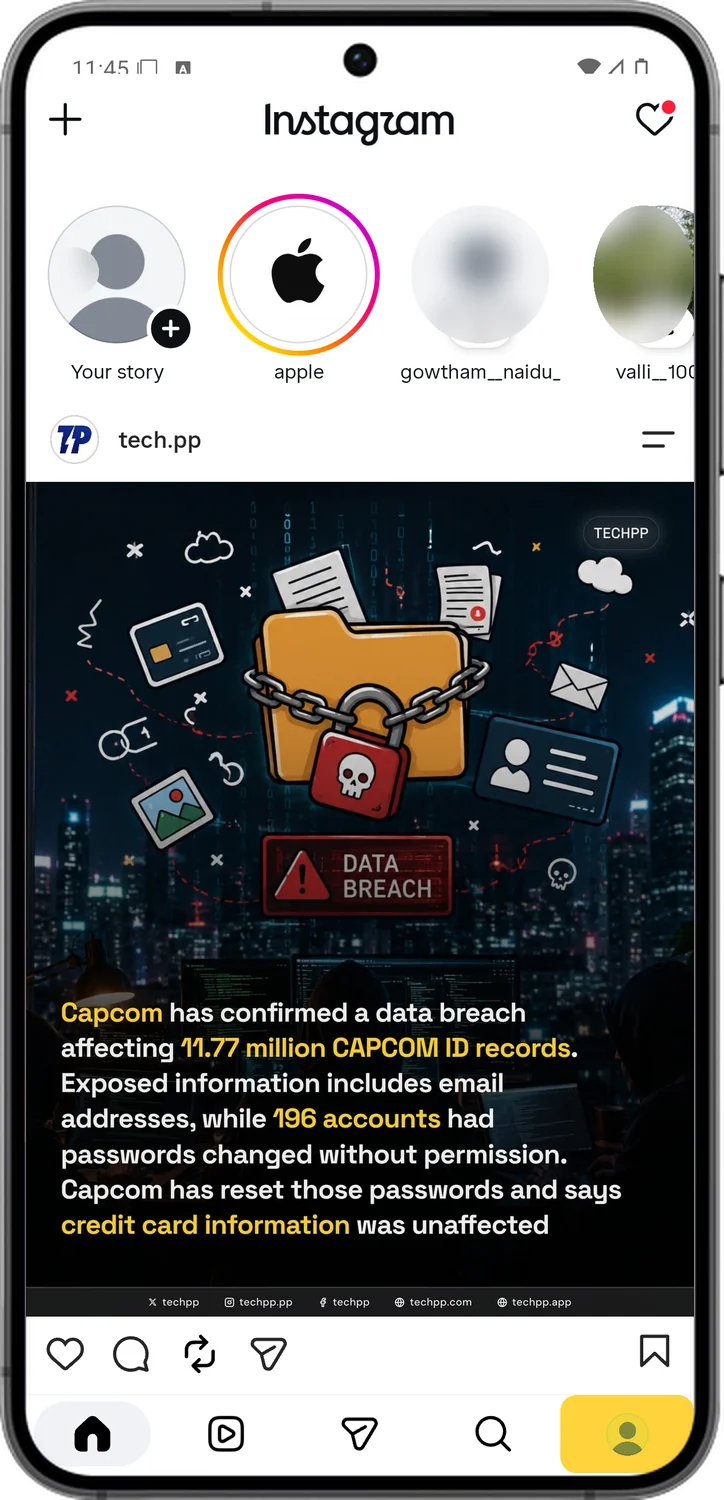
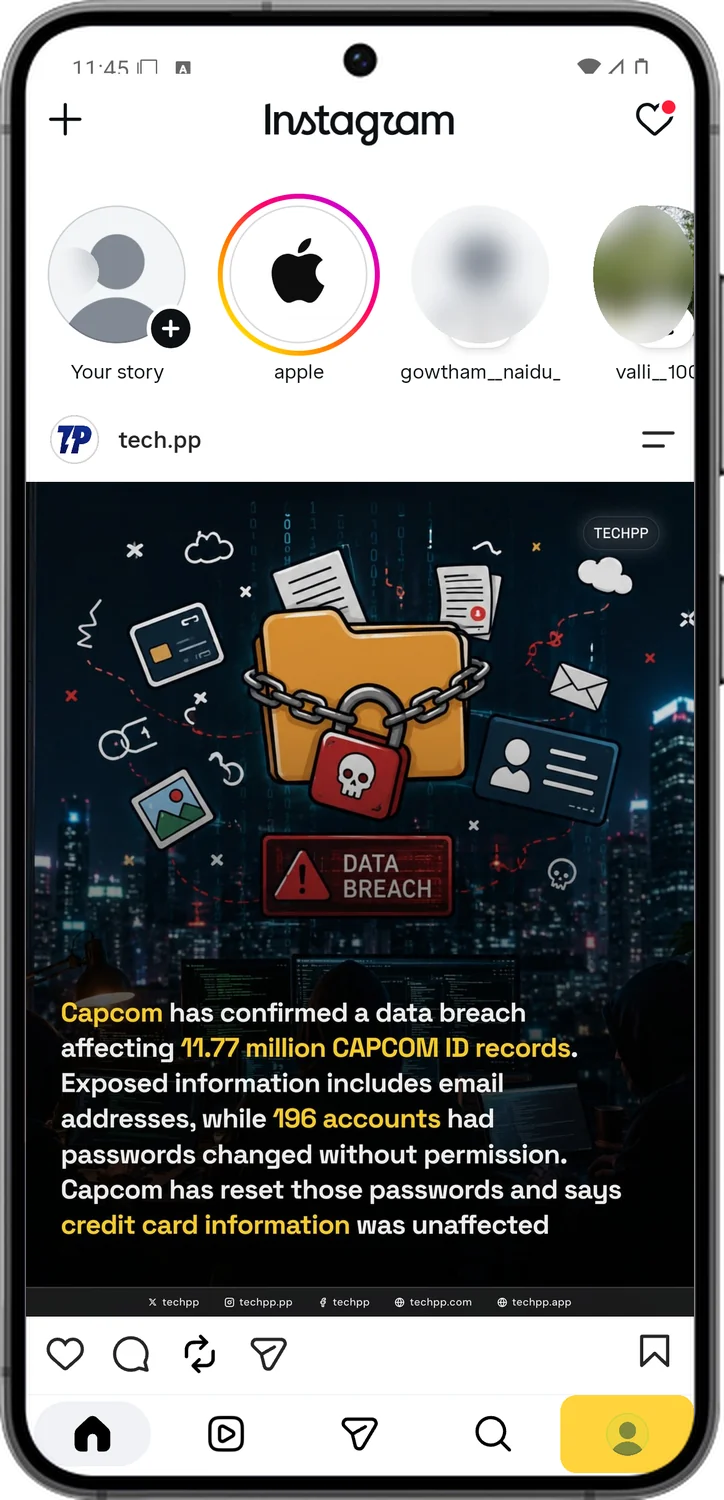
If you are an Instagram user looking for the utmost privacy setup, this is a one-stop solution for you. In this guide, you will look at all the settings you must enable for the best privacy, with a screenshot for every tap.
1.Open Instagram's Privacy Settings
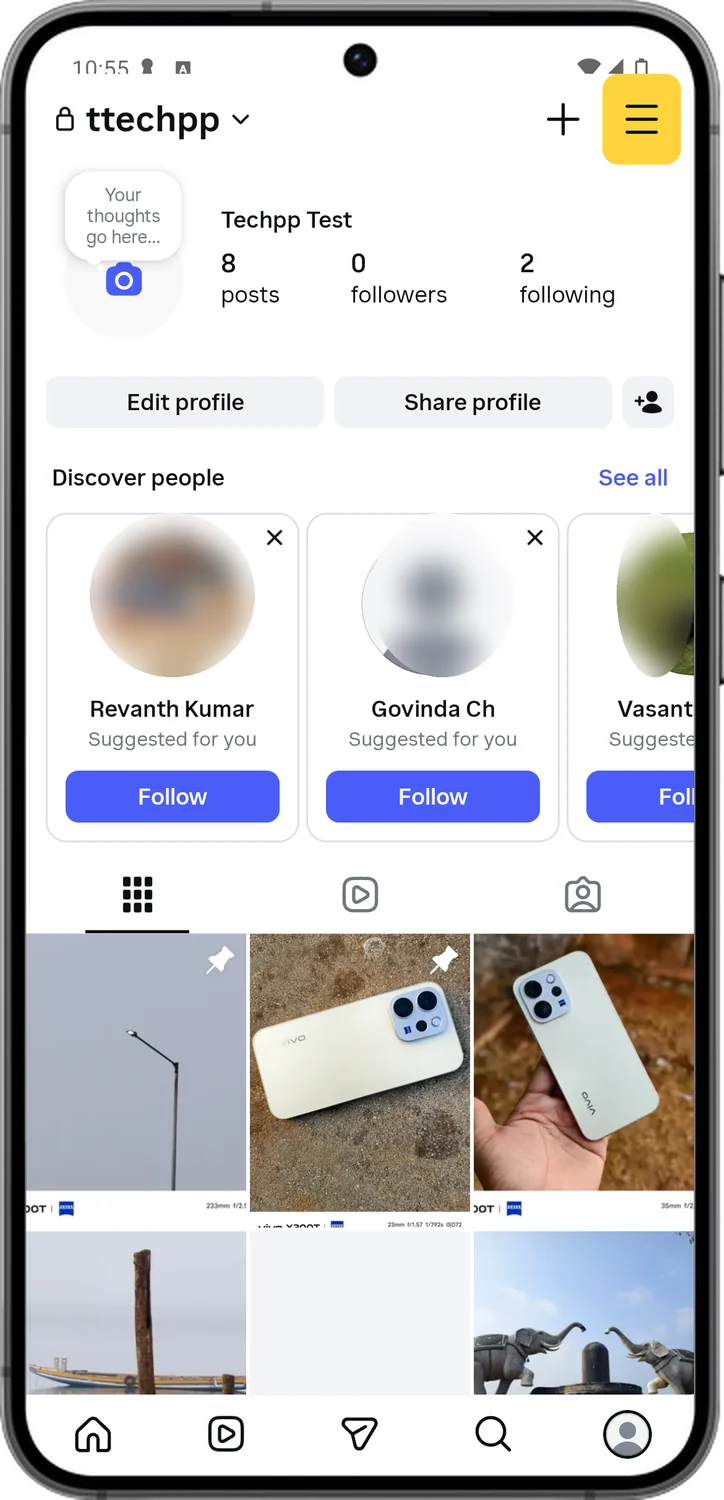
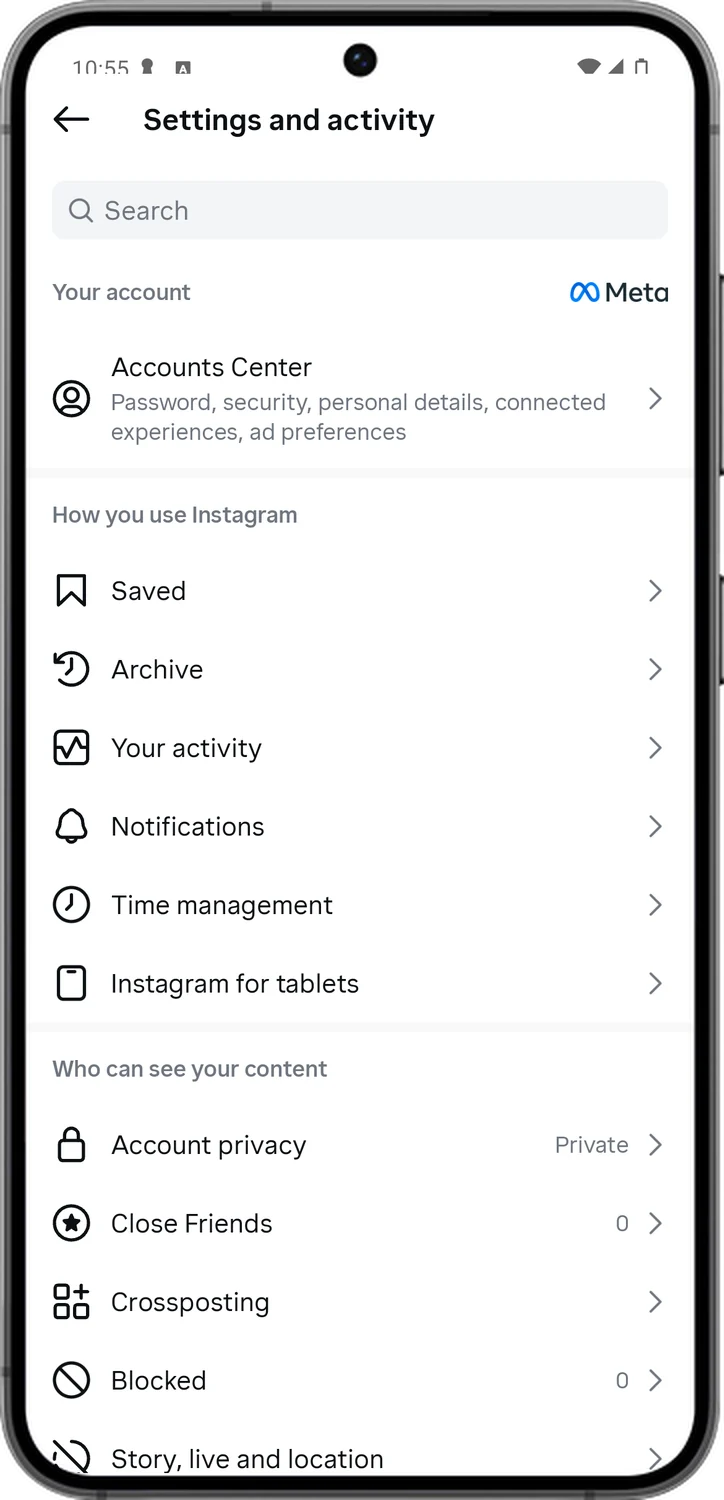
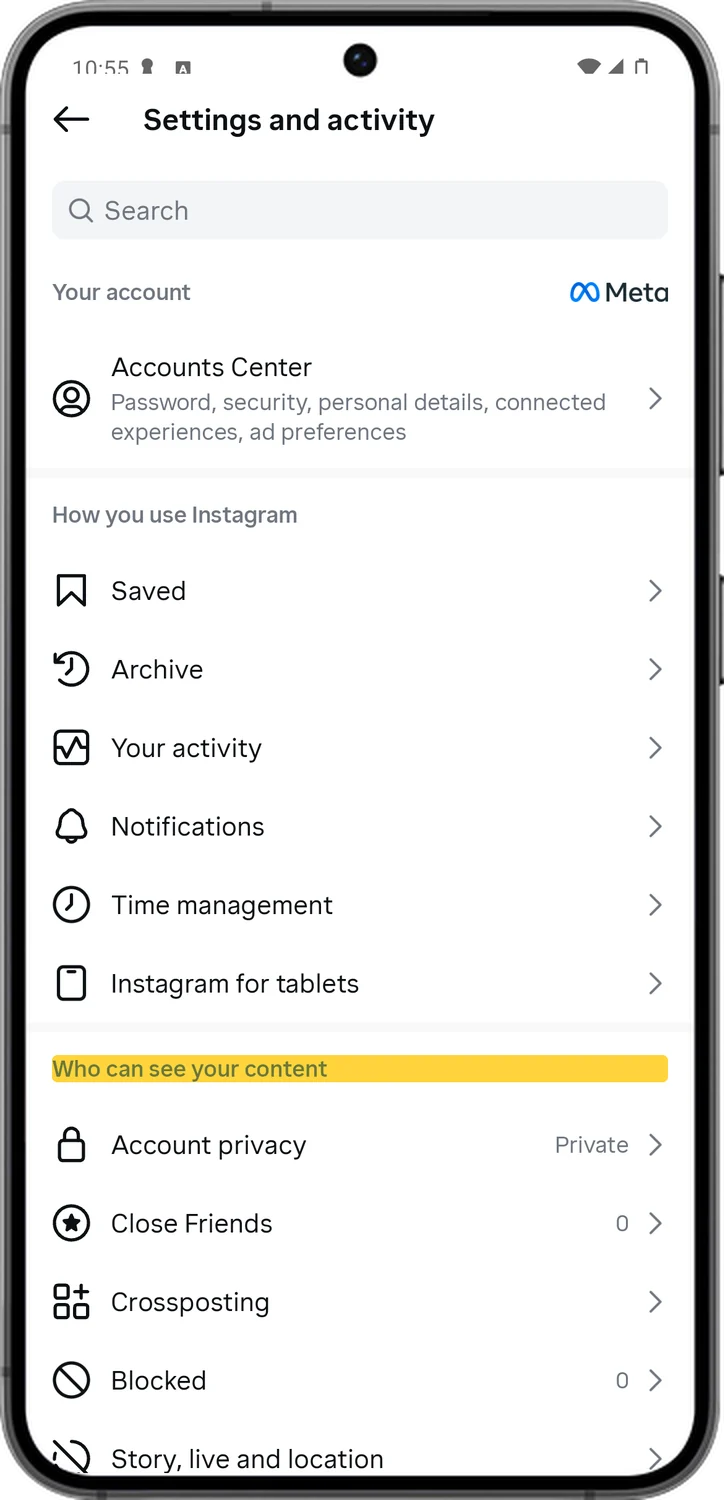
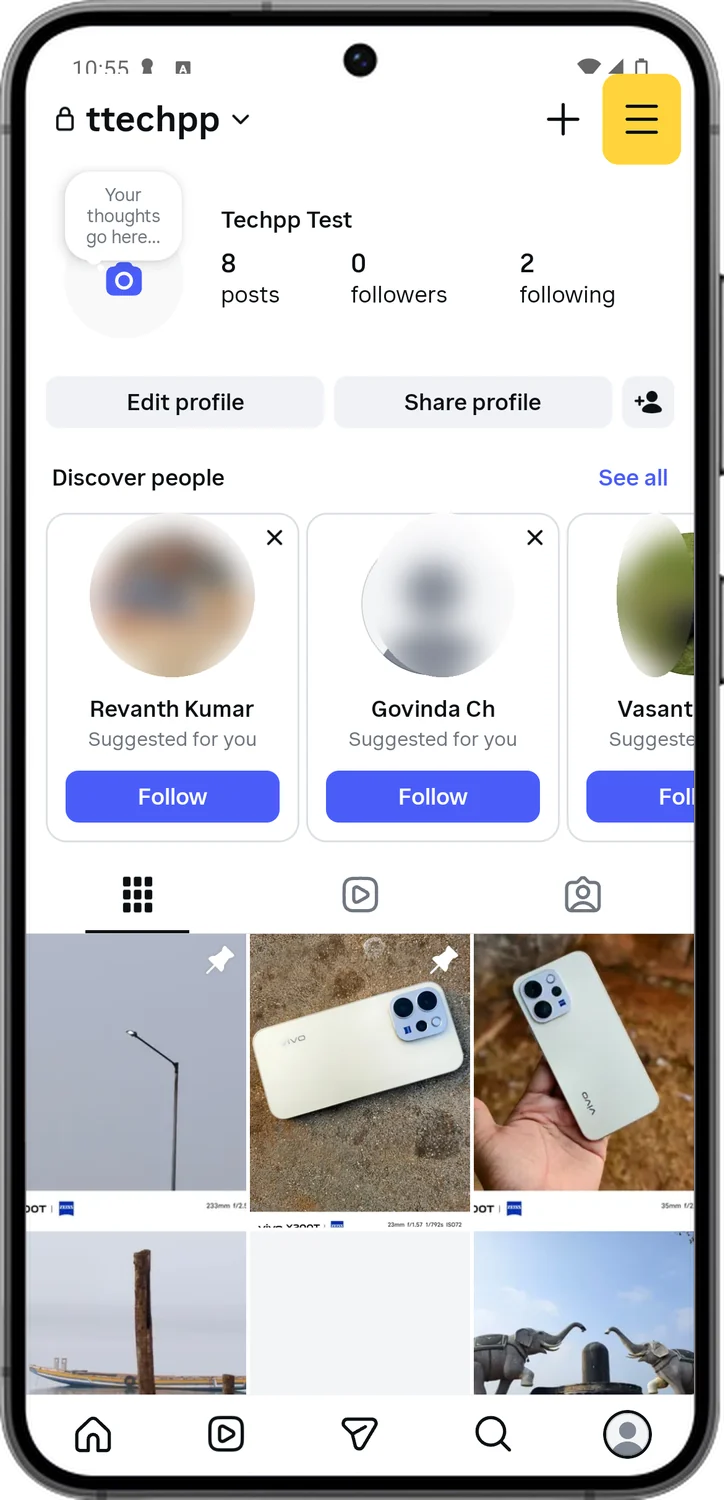
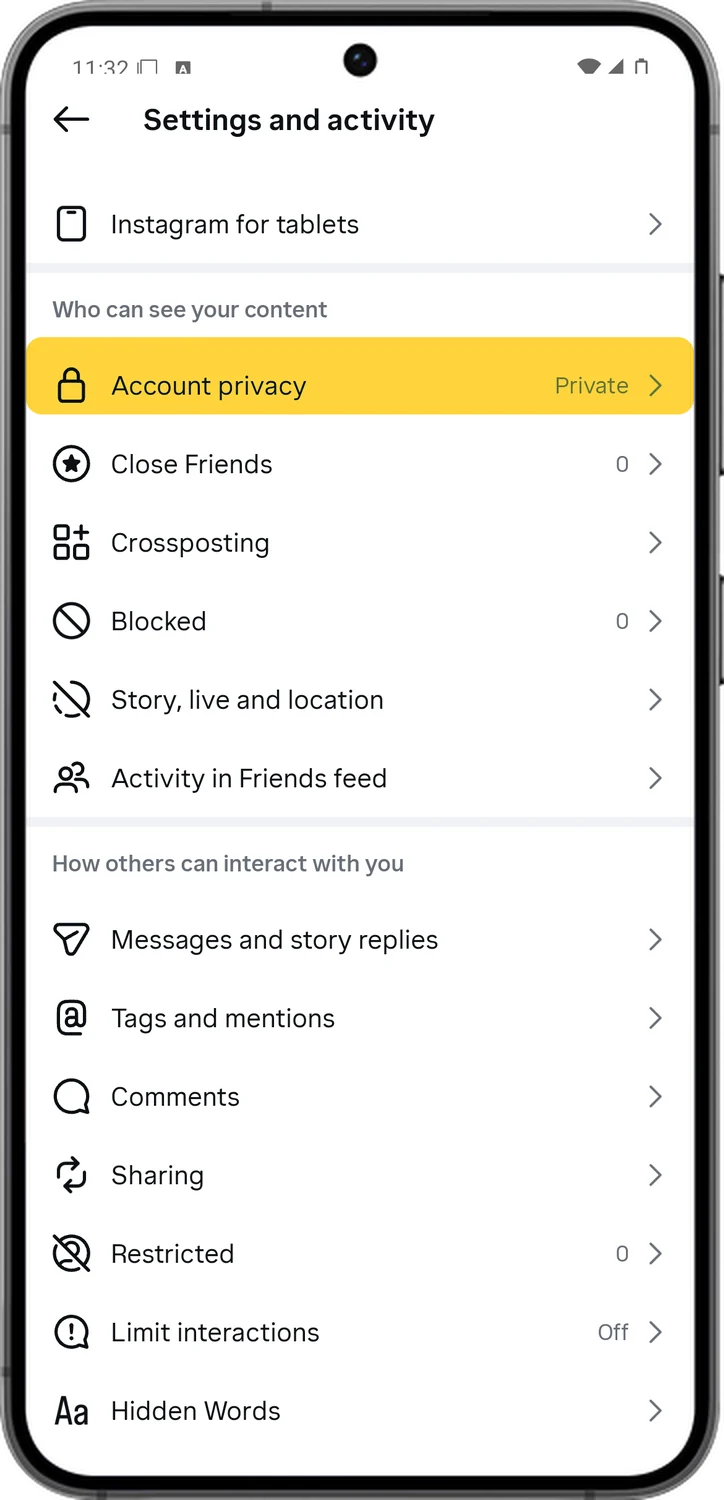
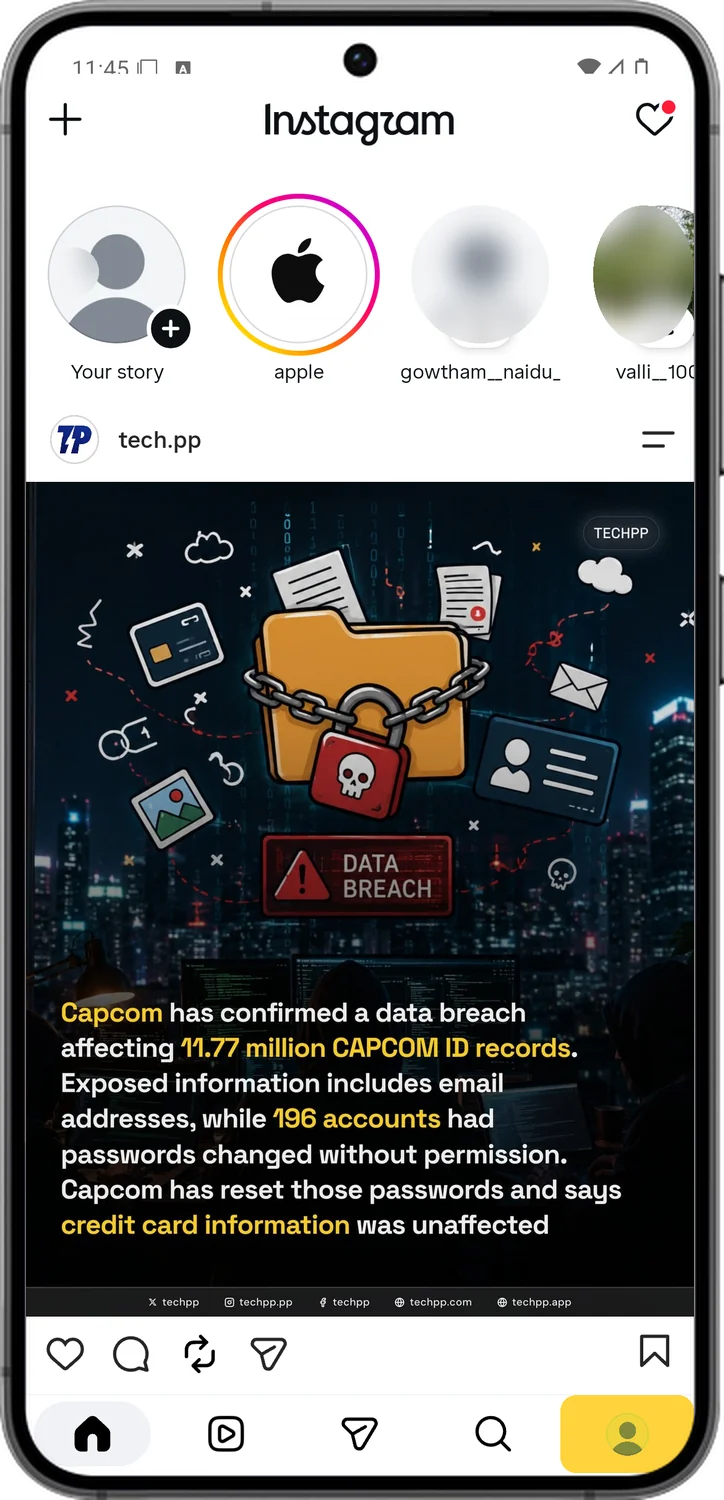
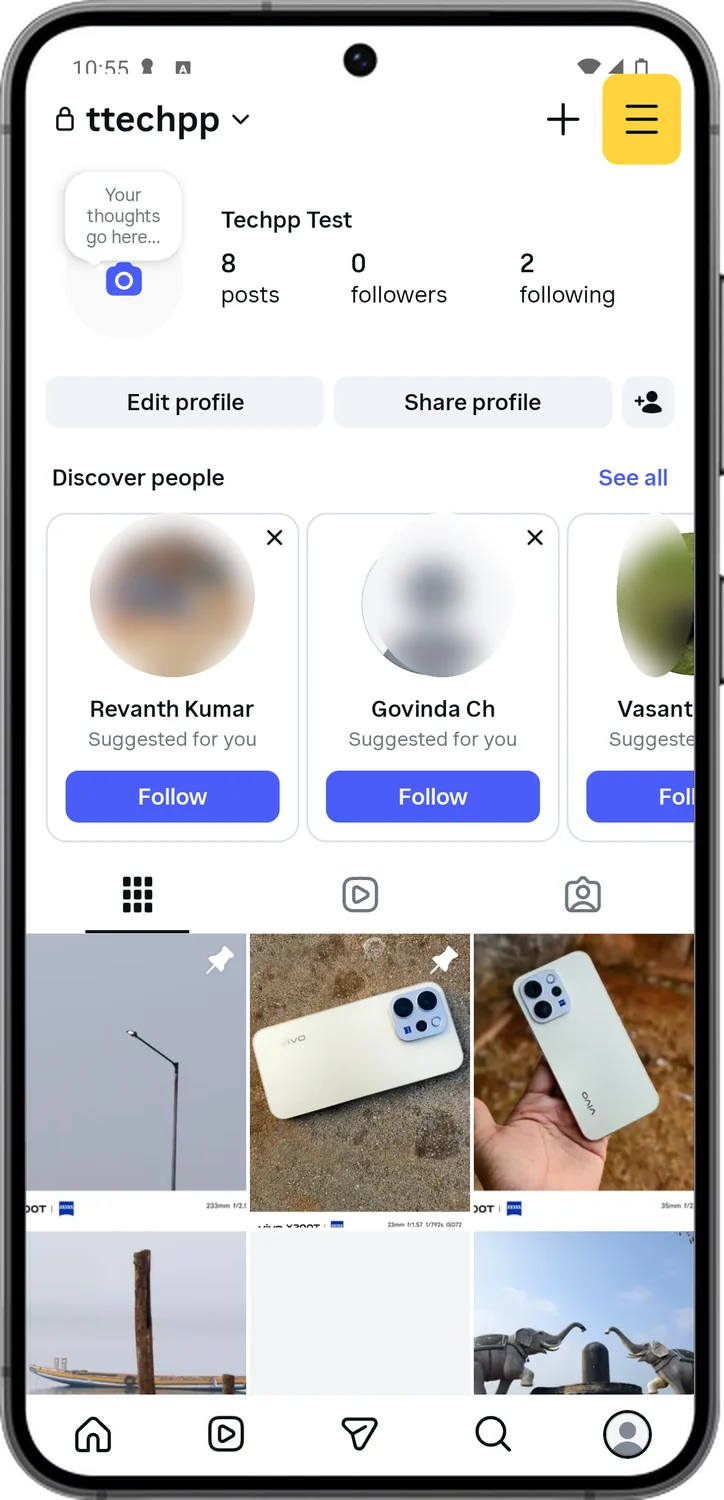
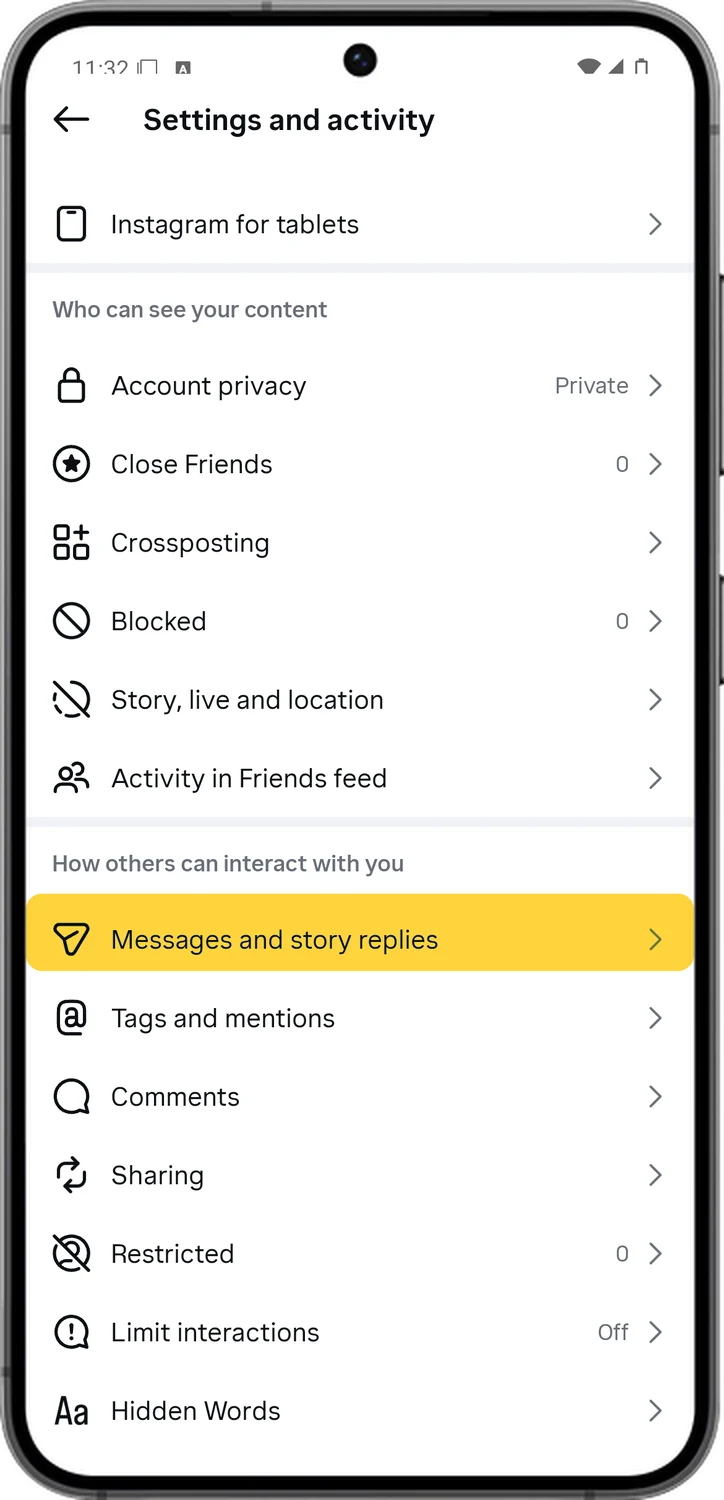
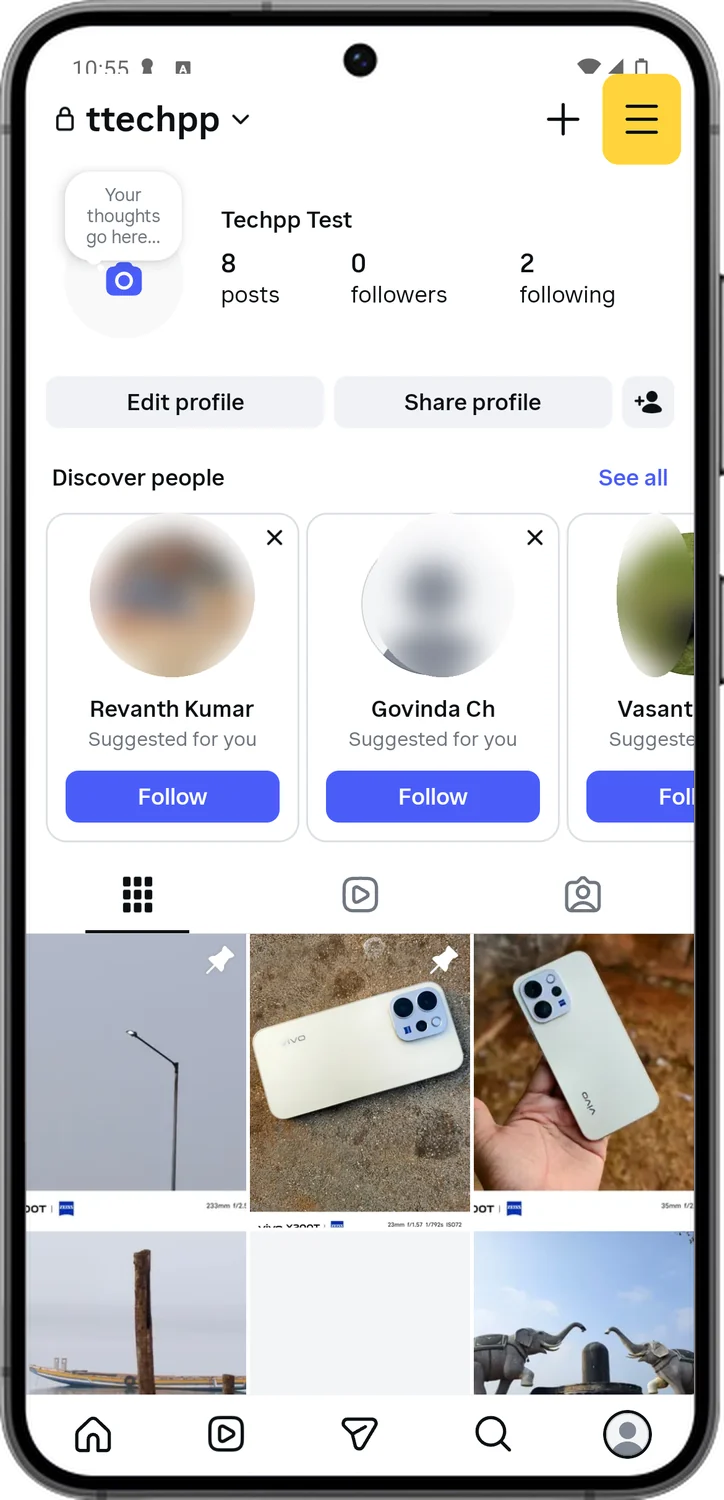
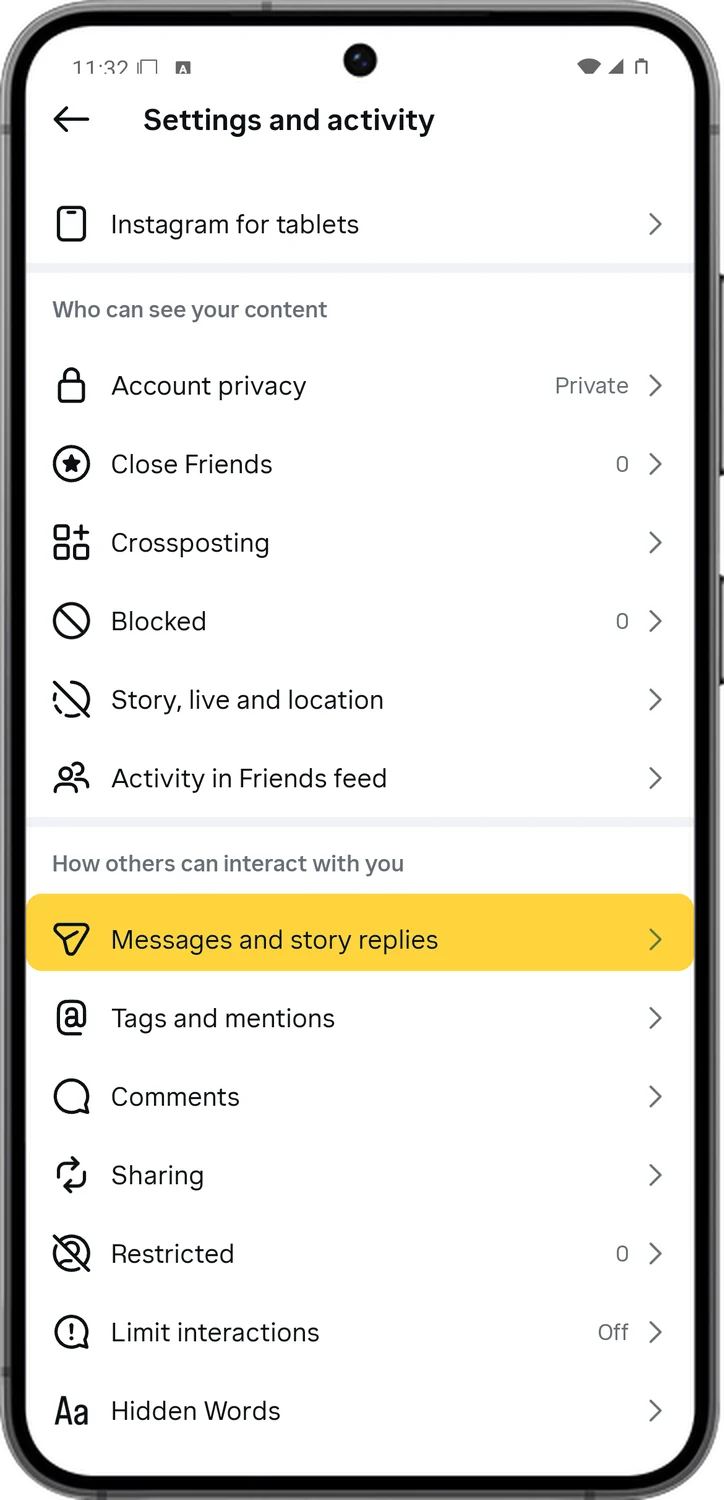
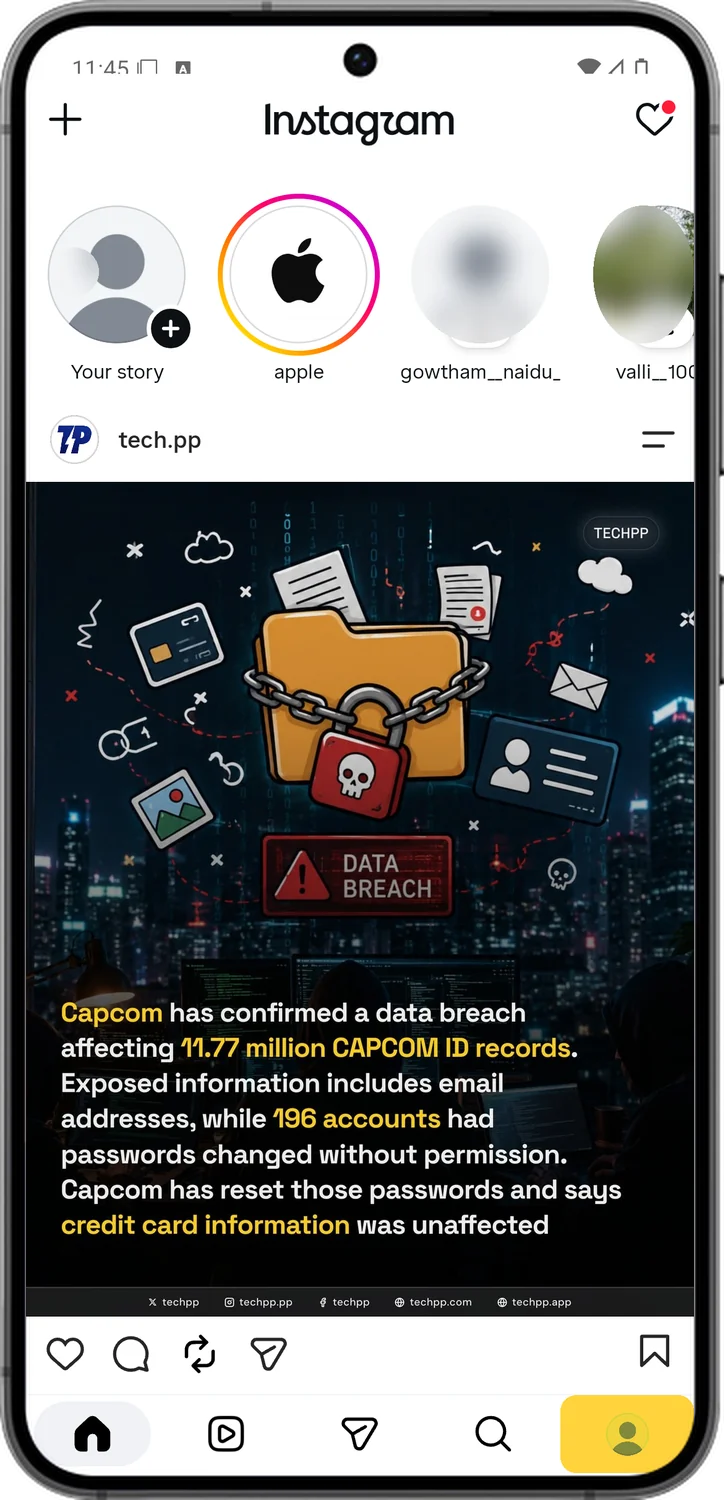
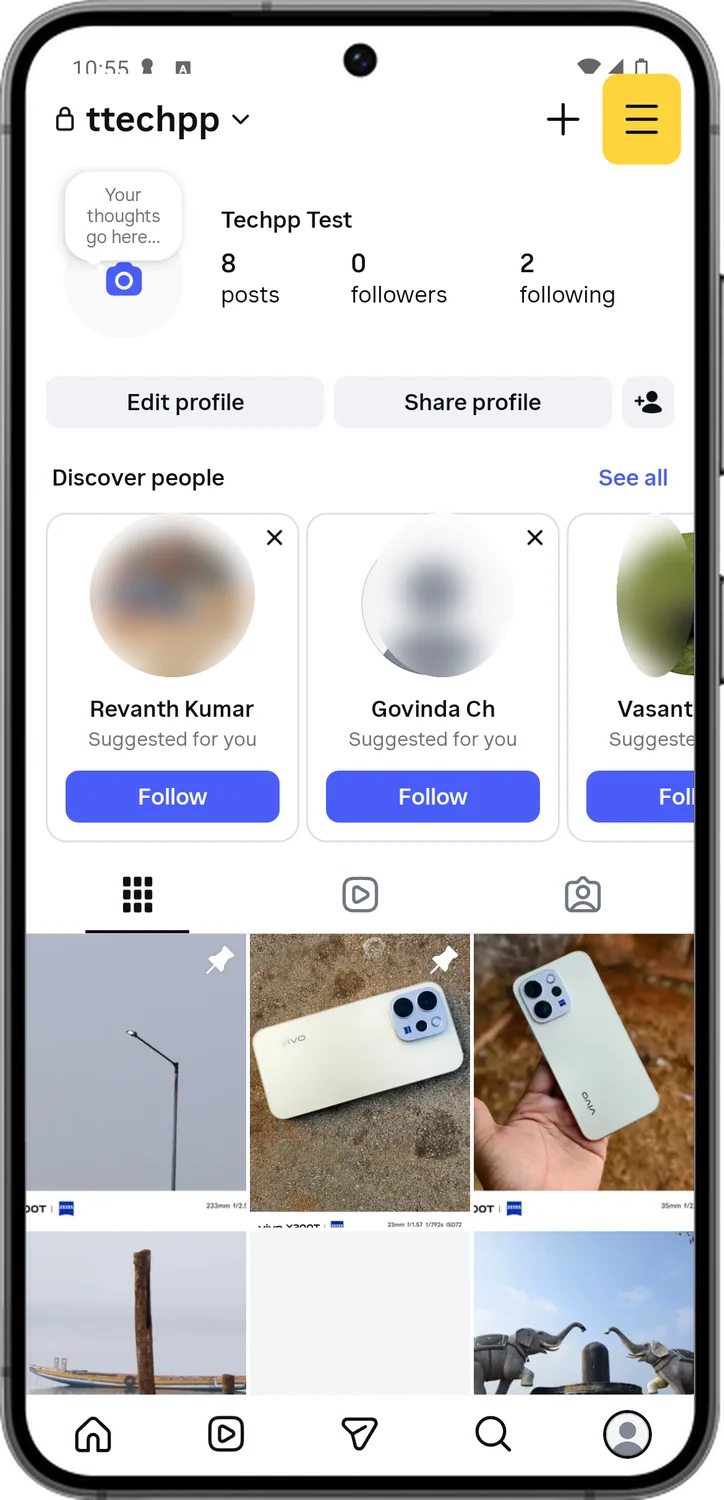
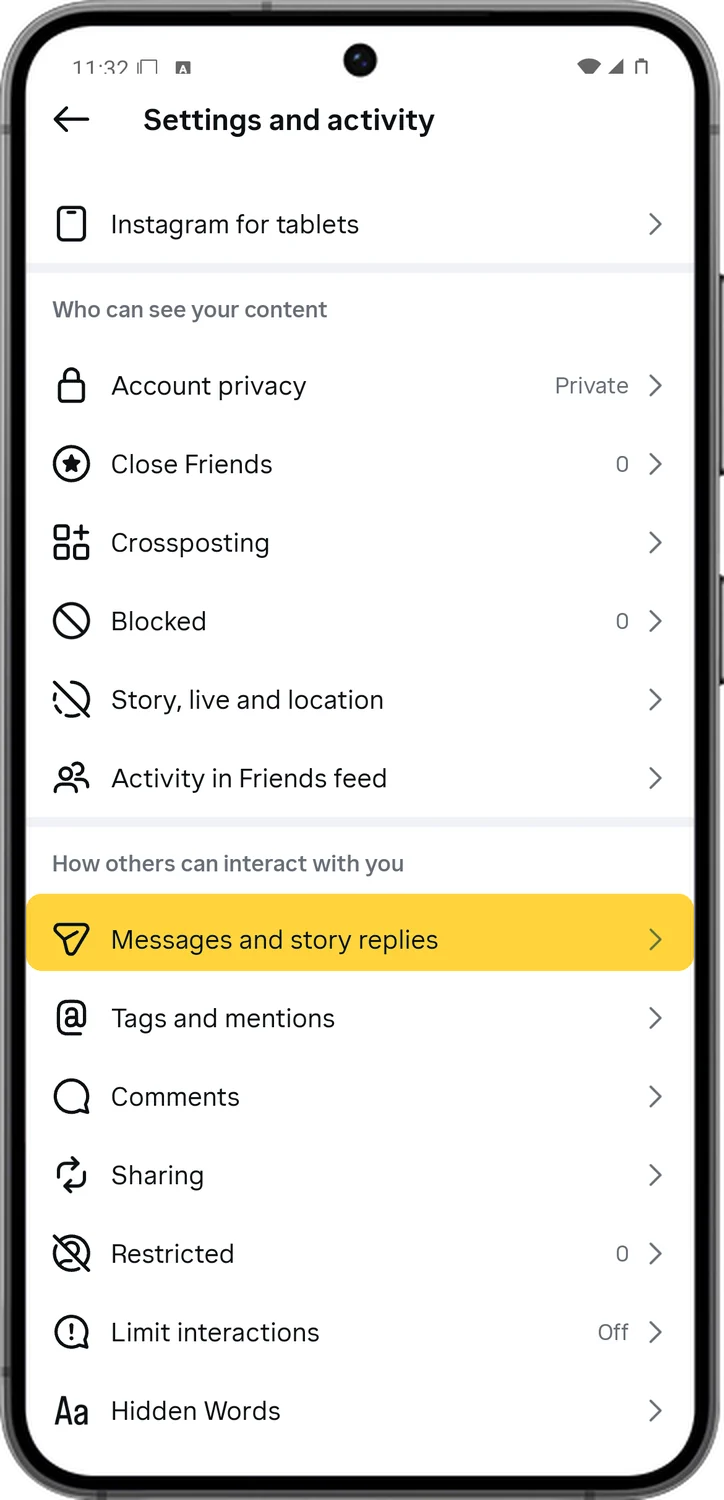
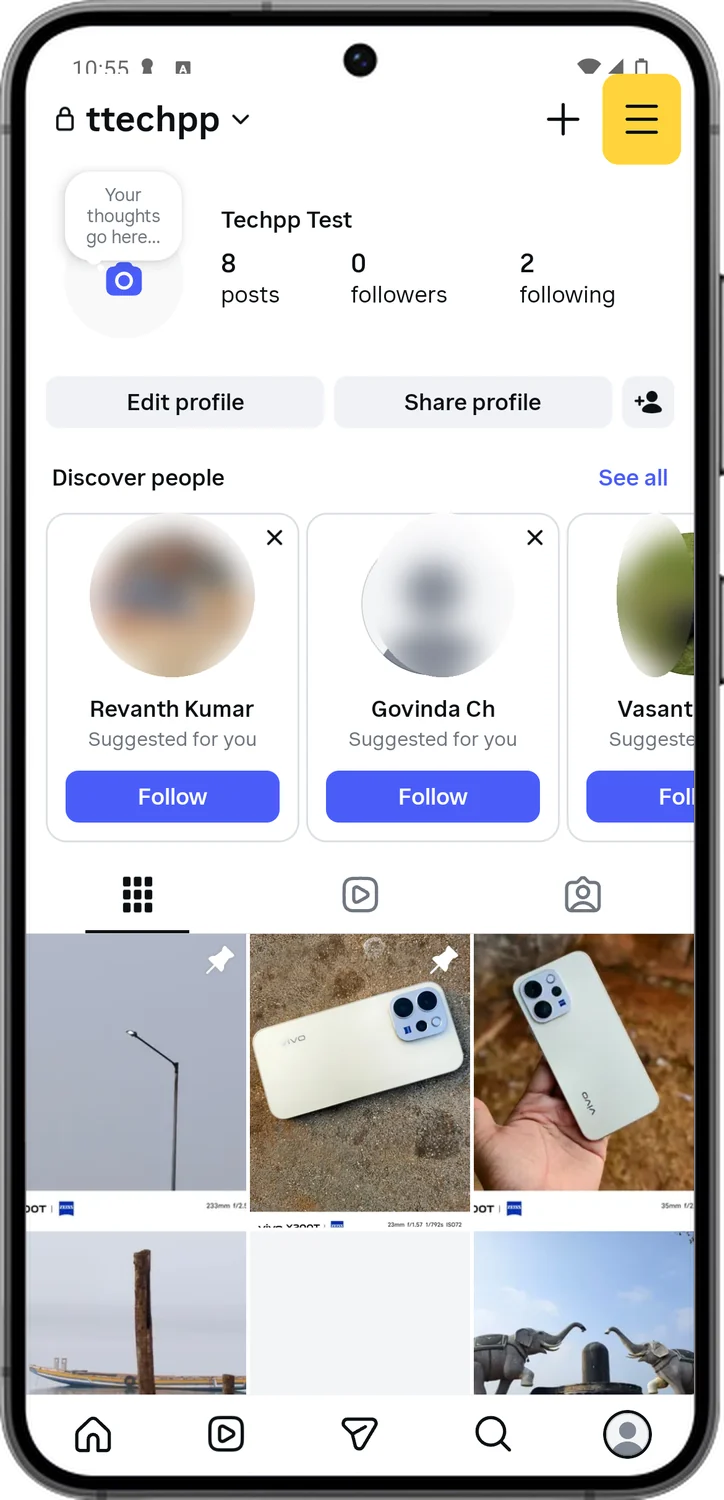
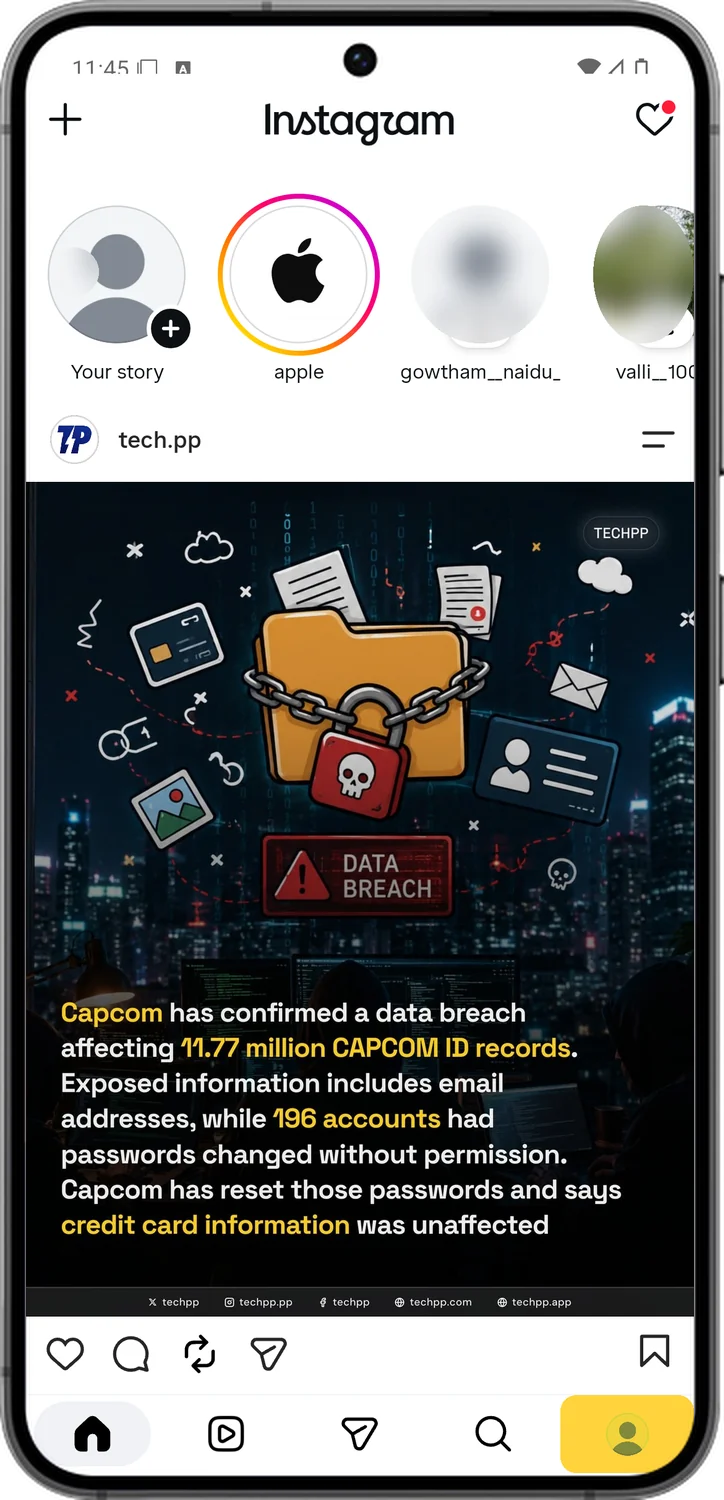
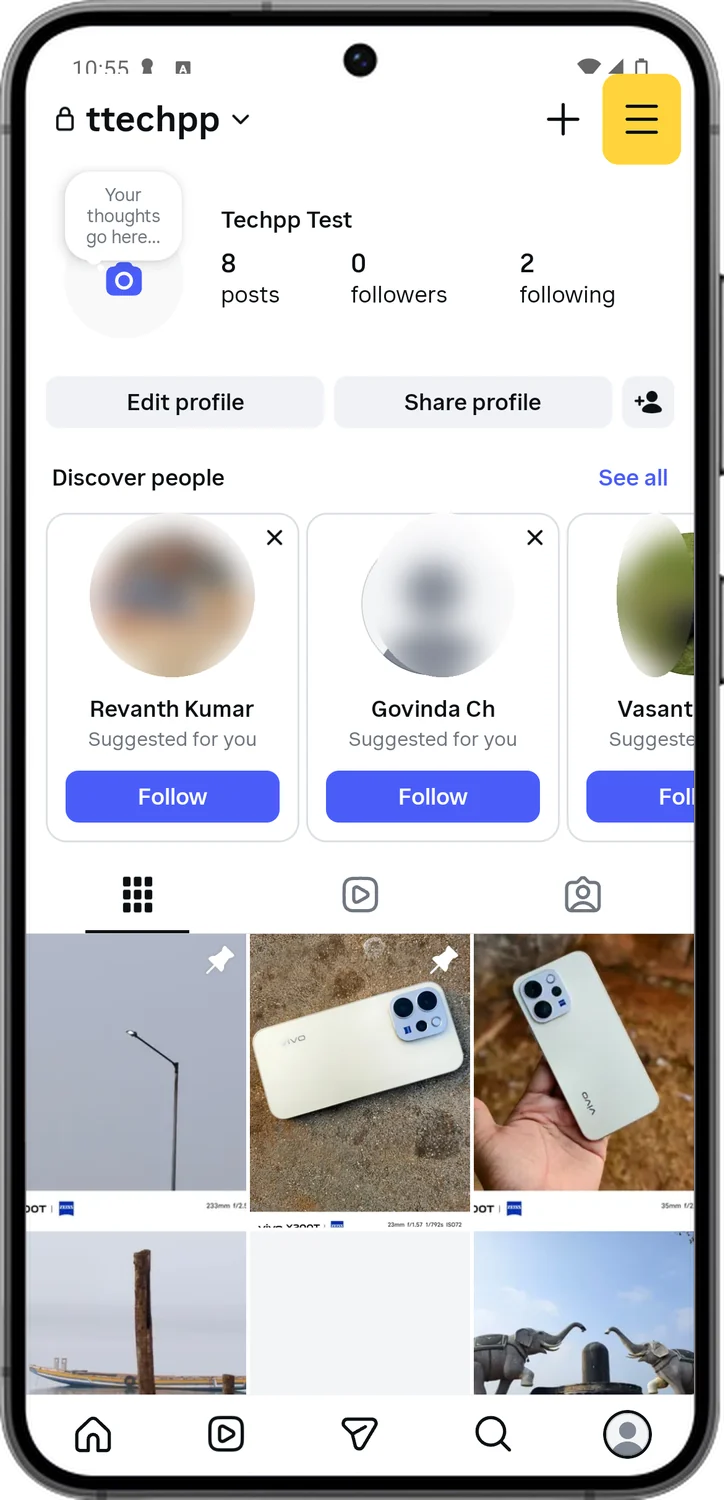
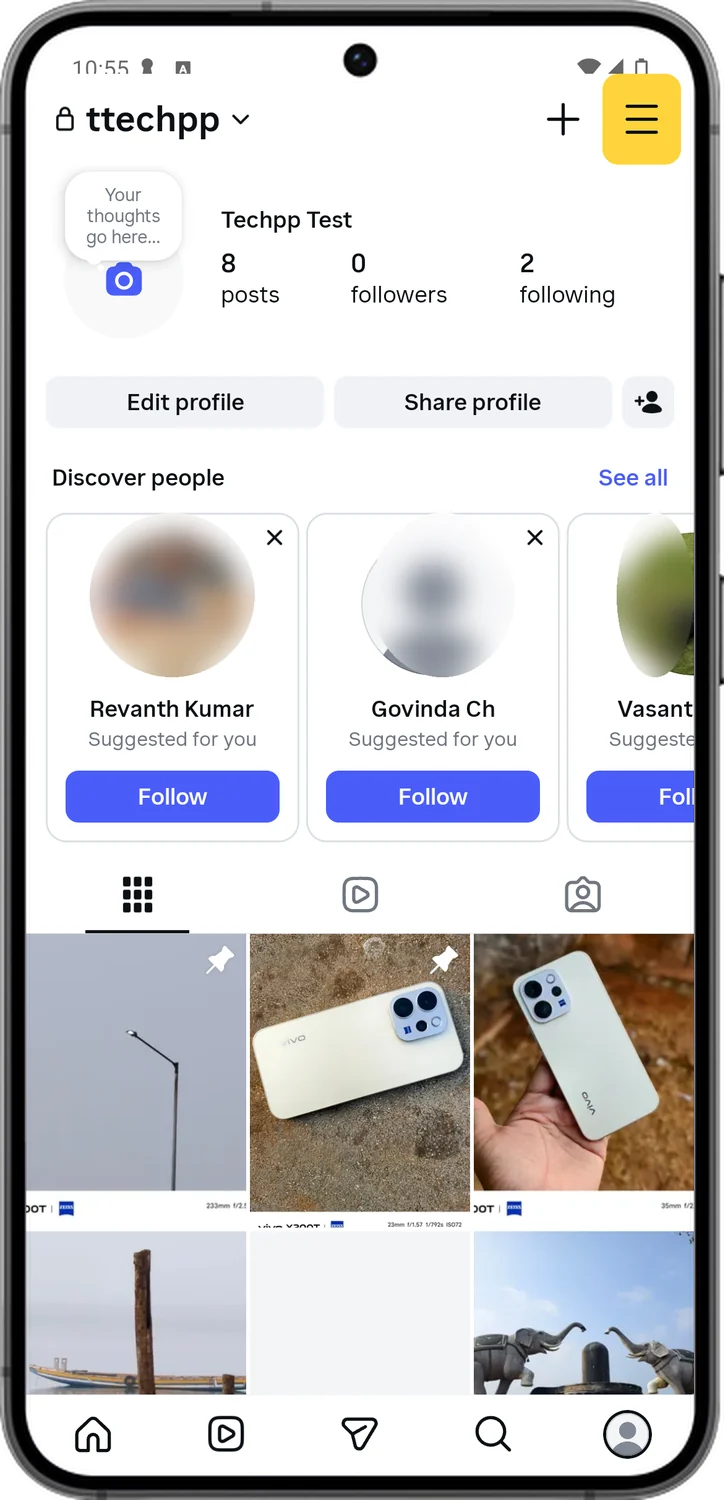
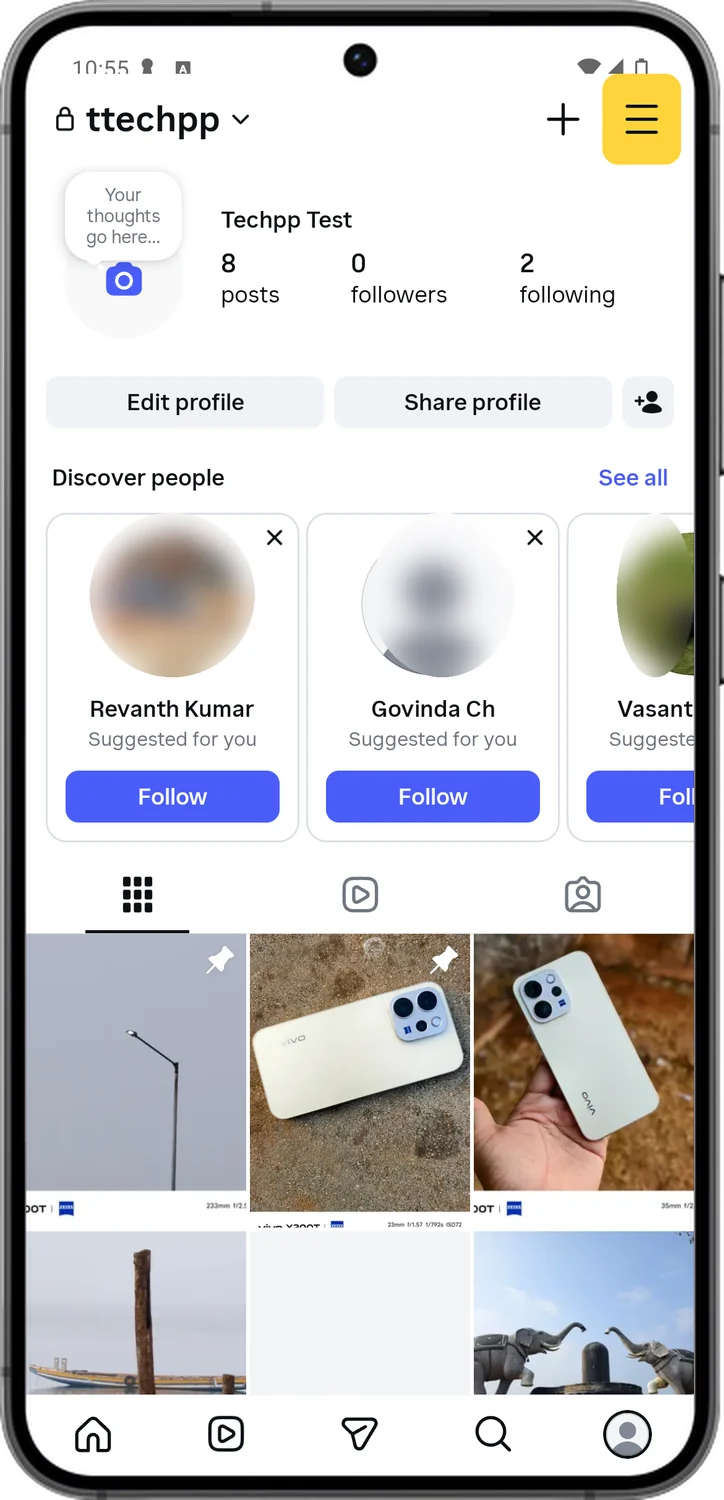
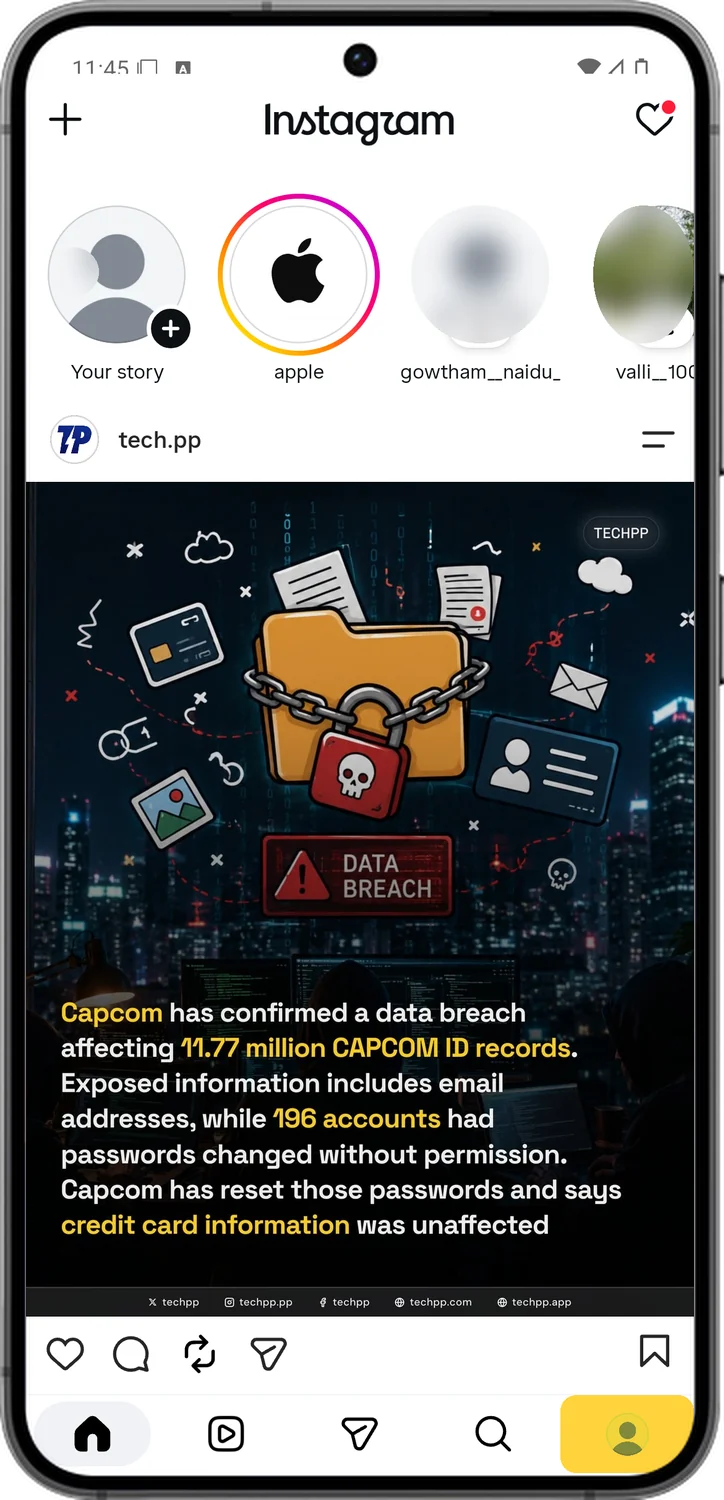
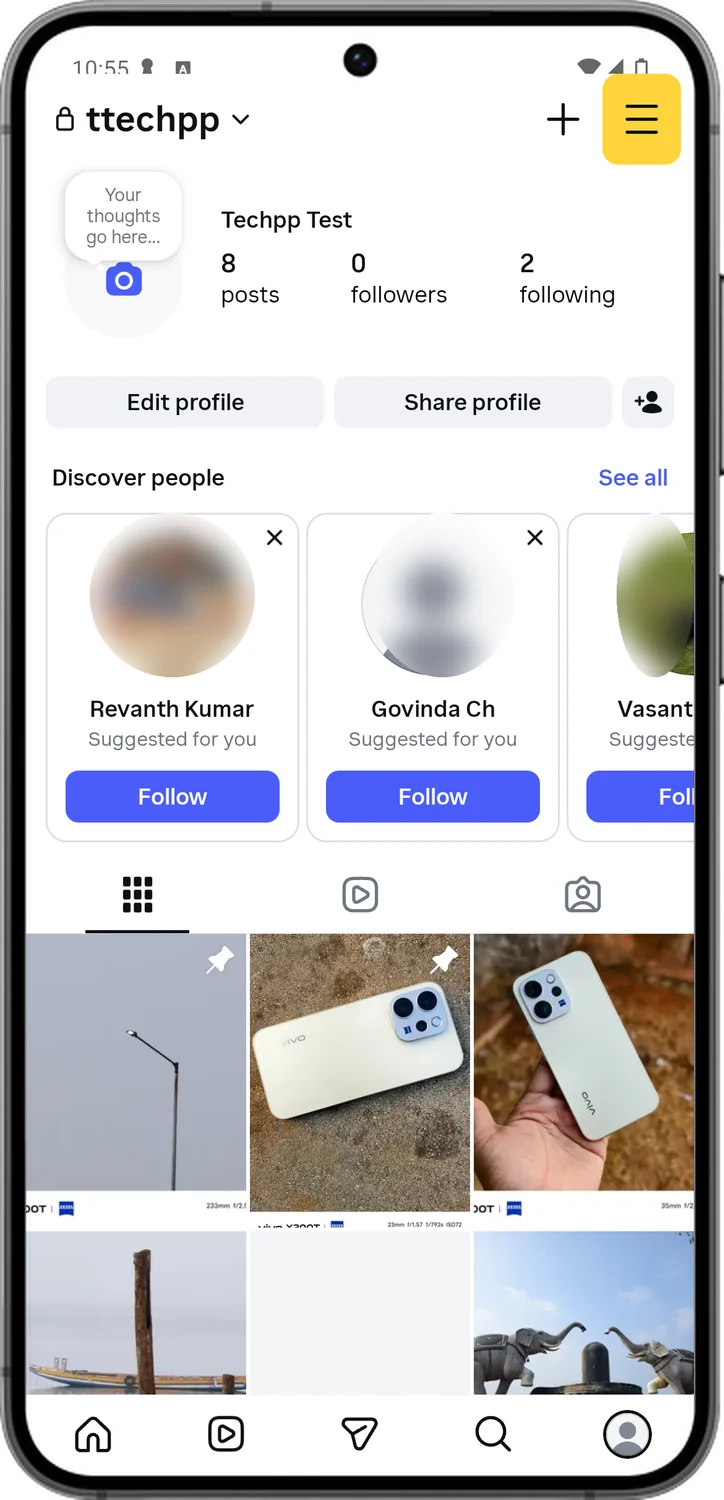
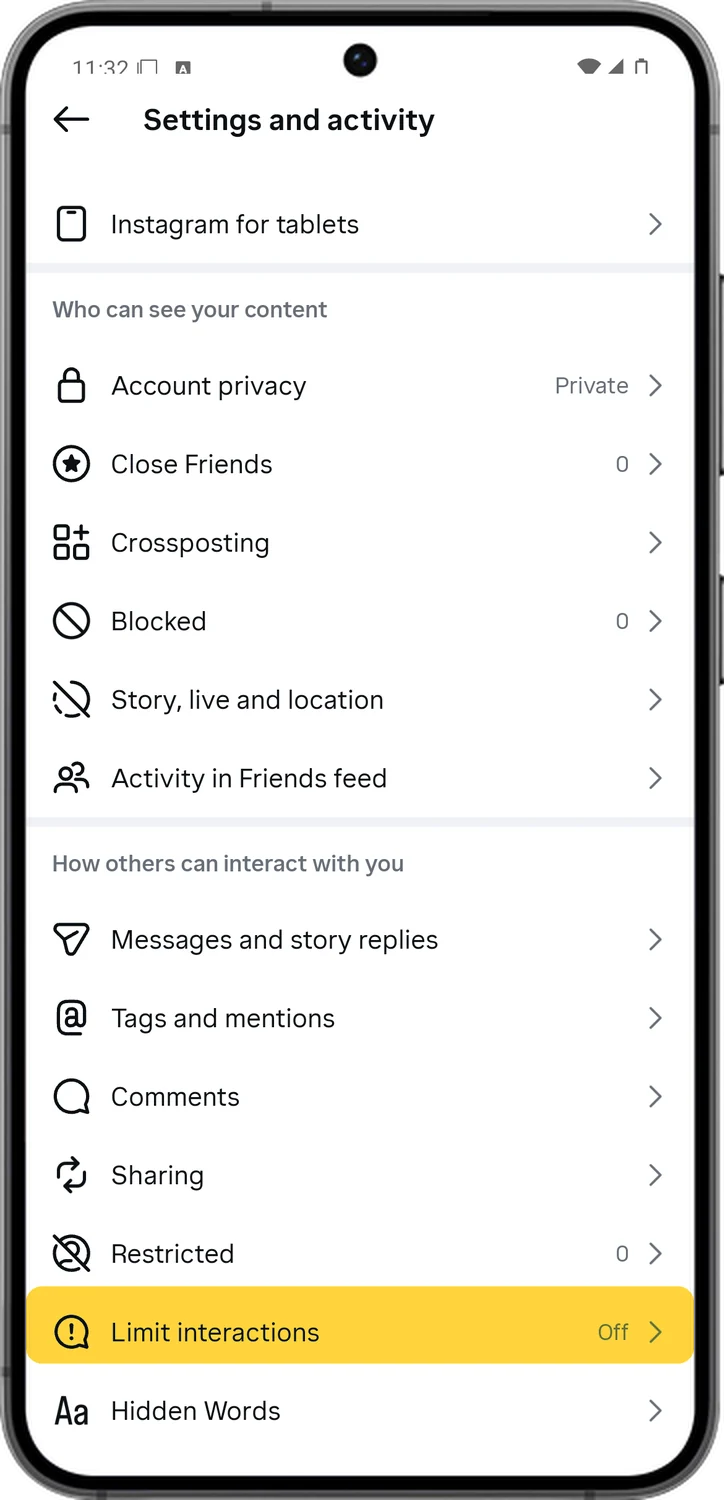
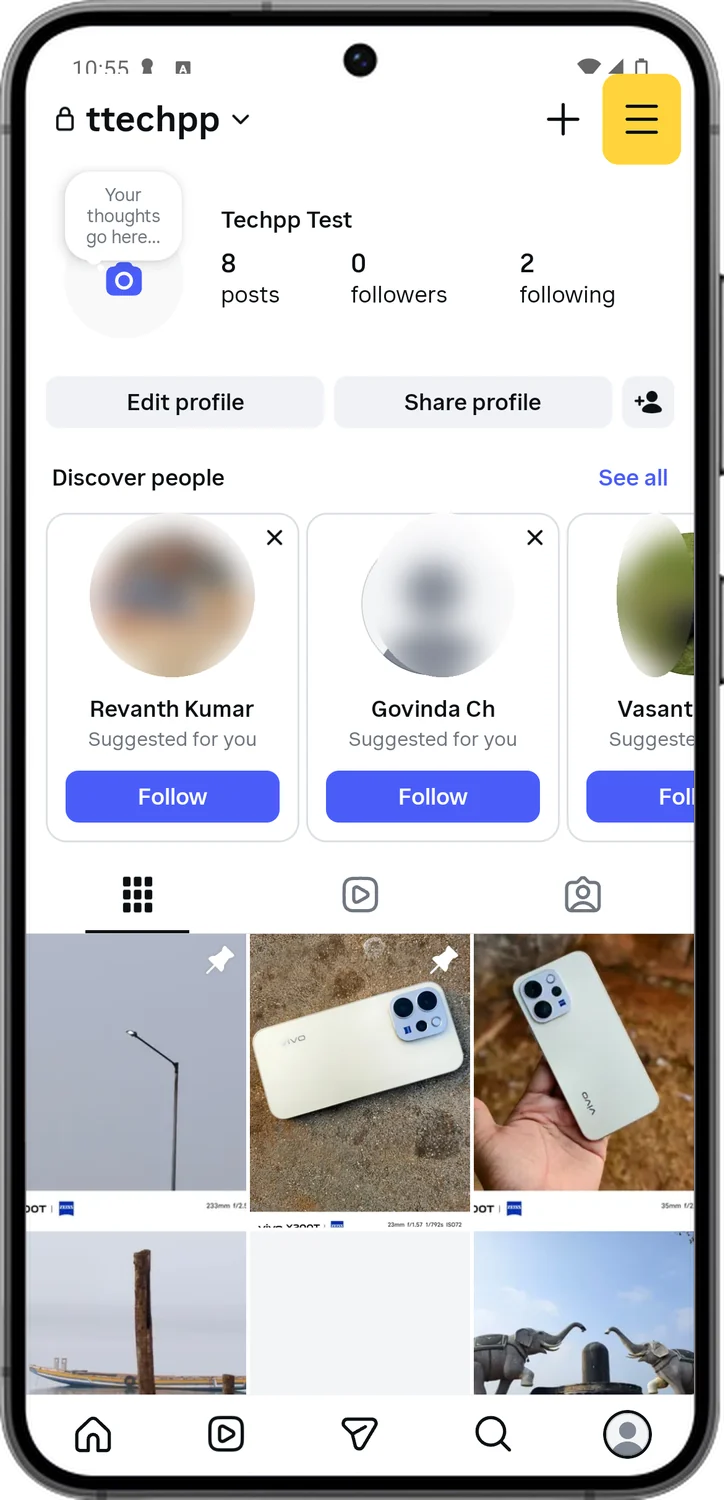
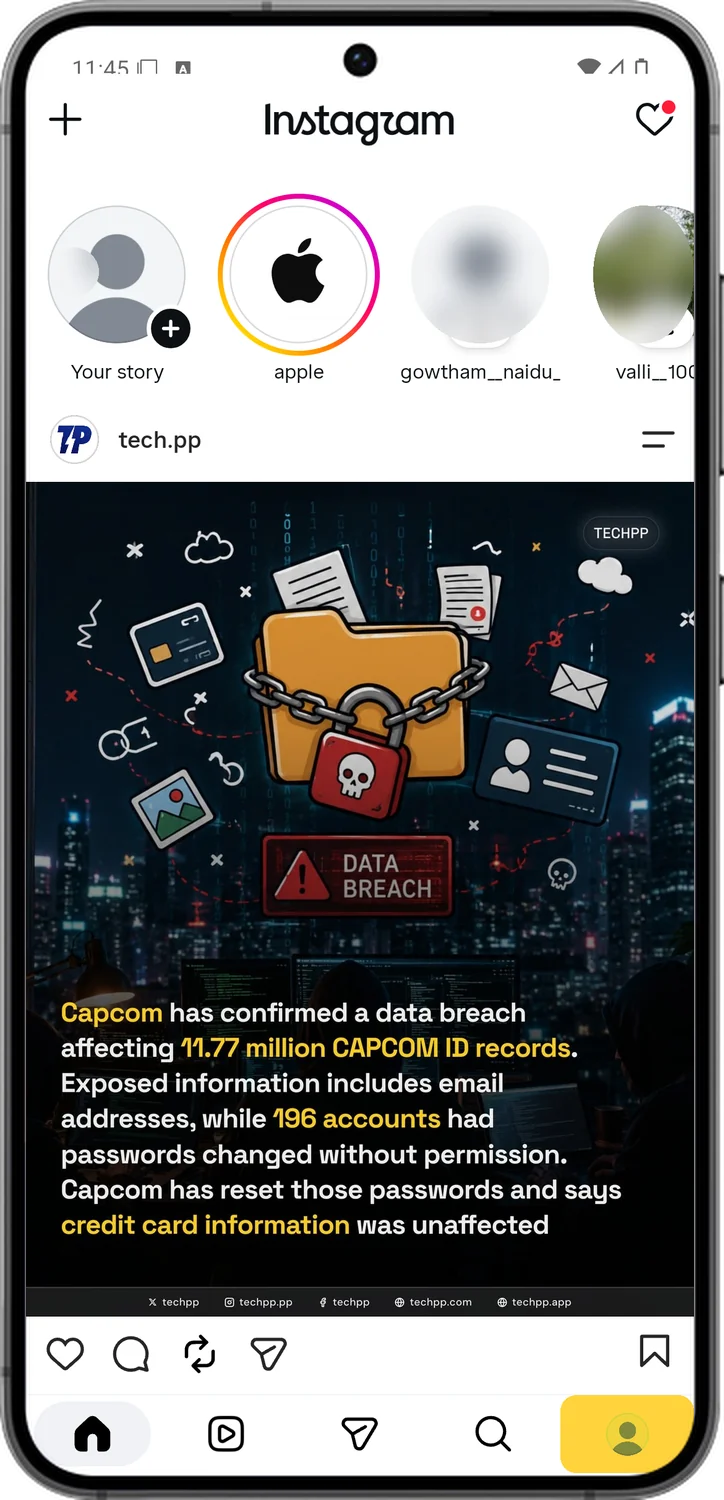
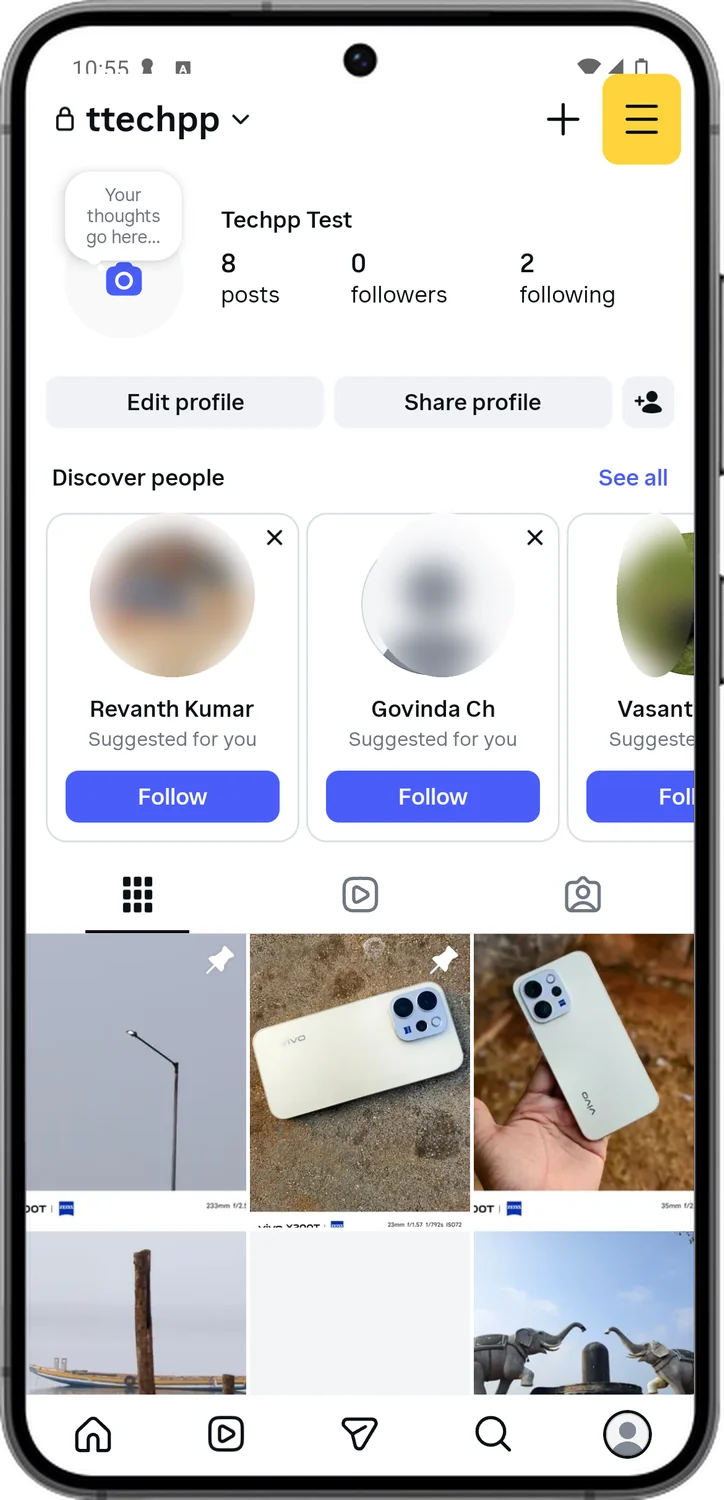
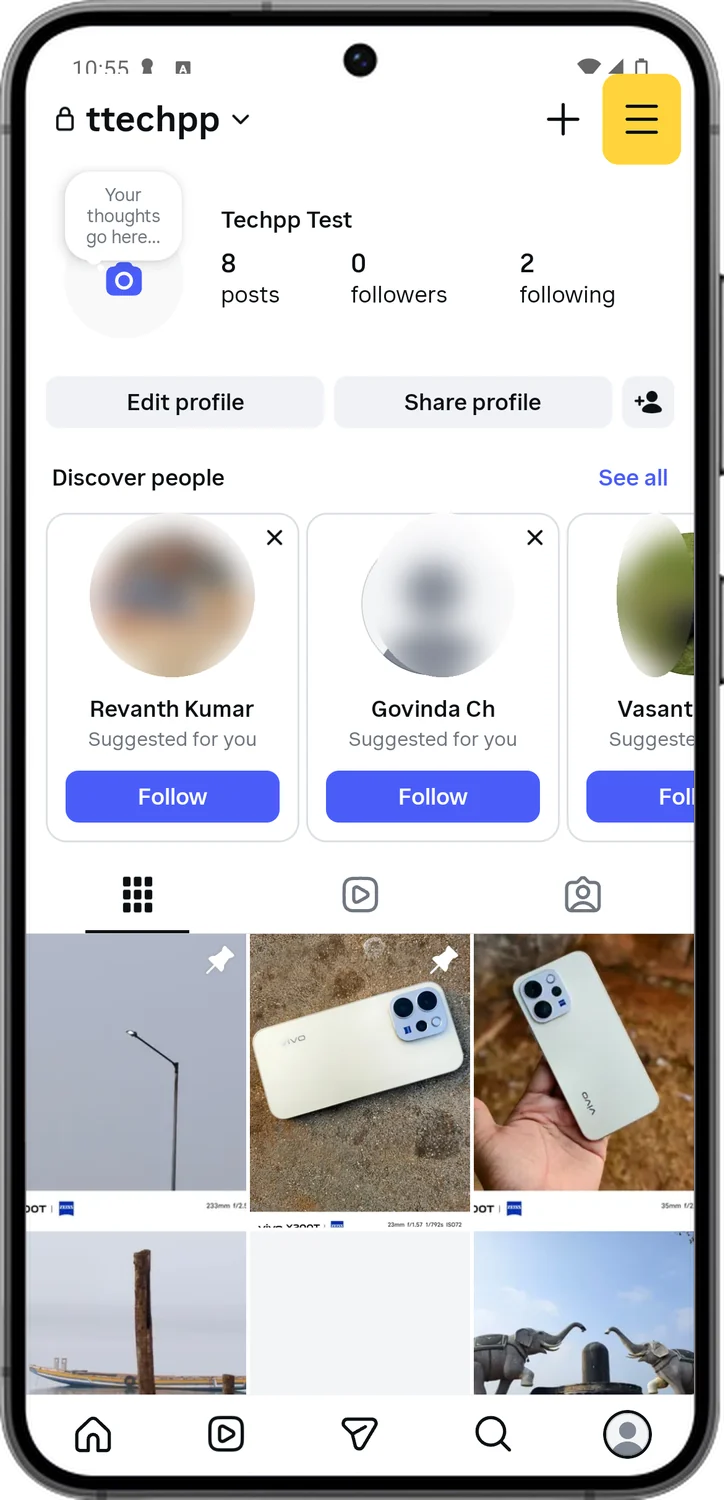
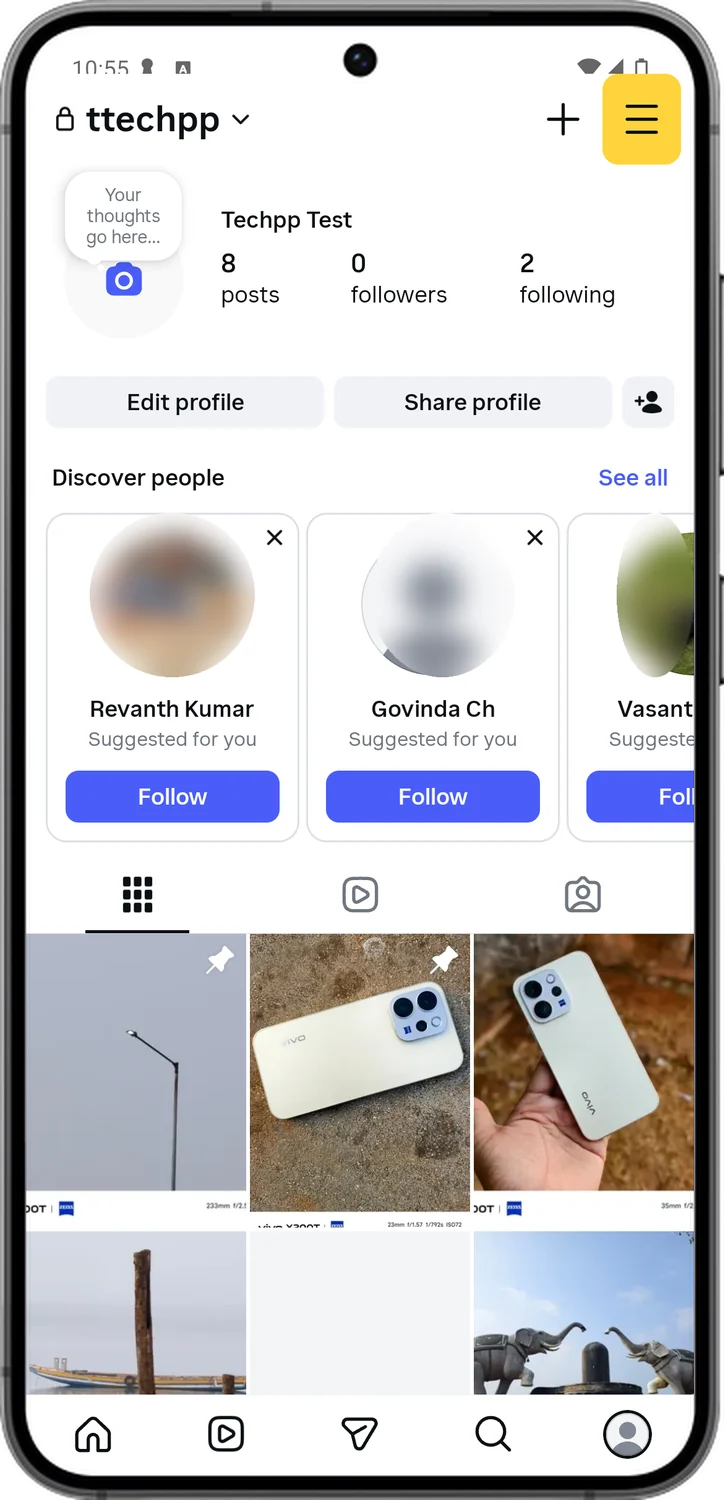
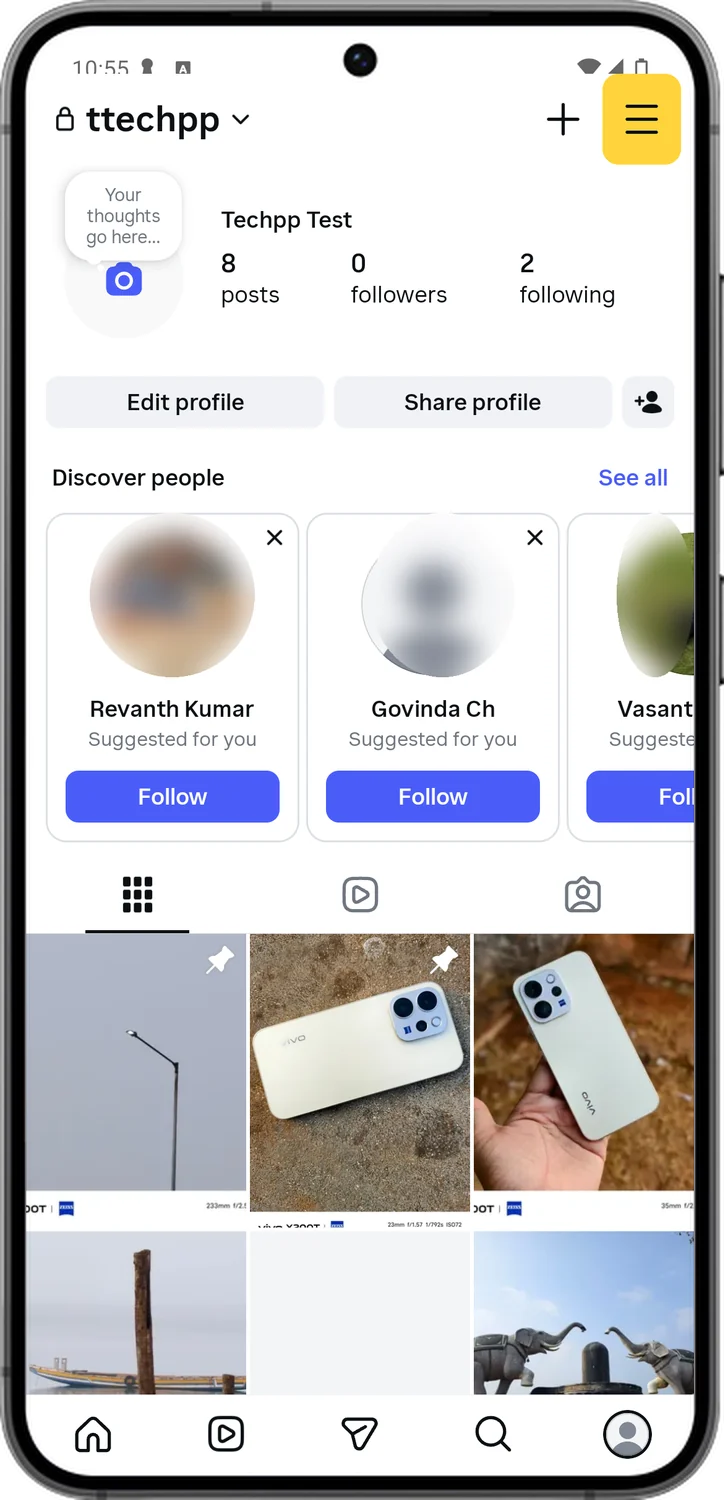
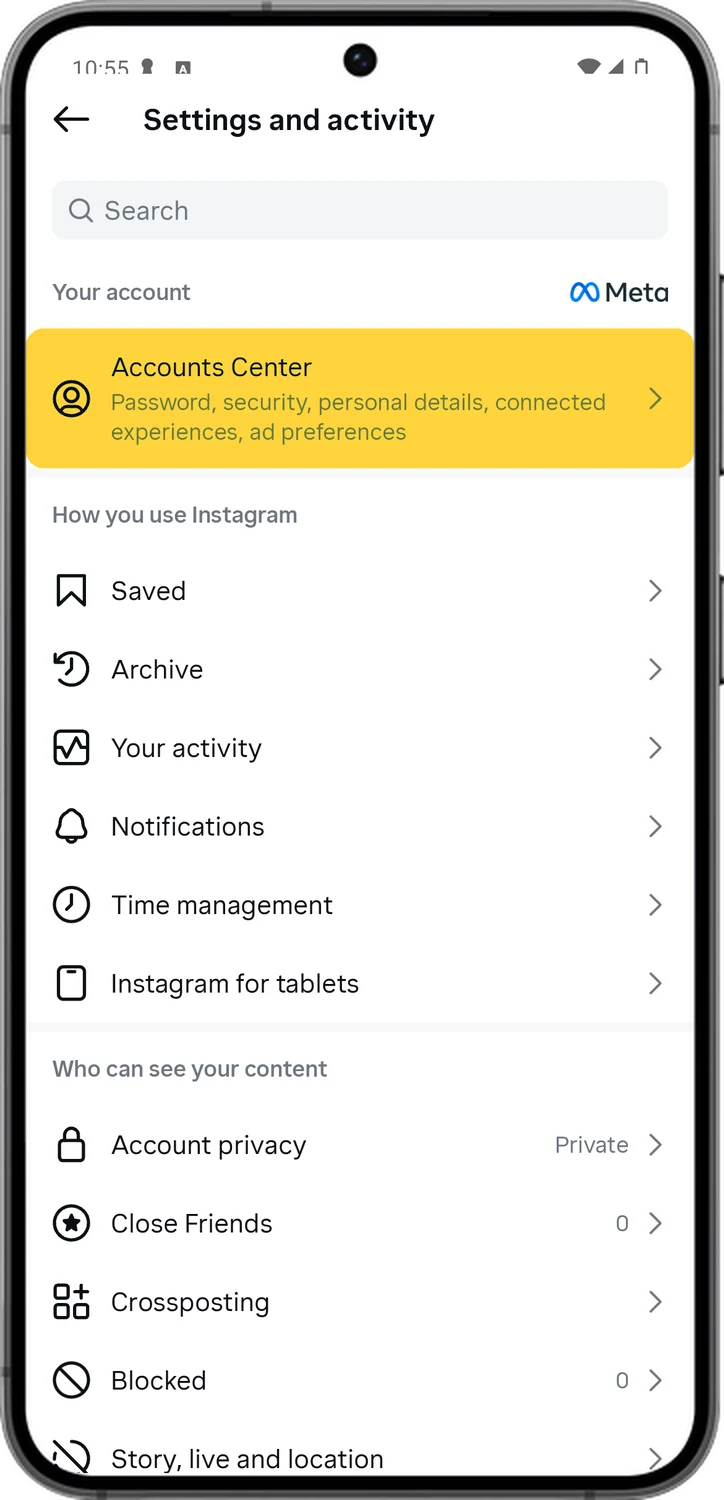
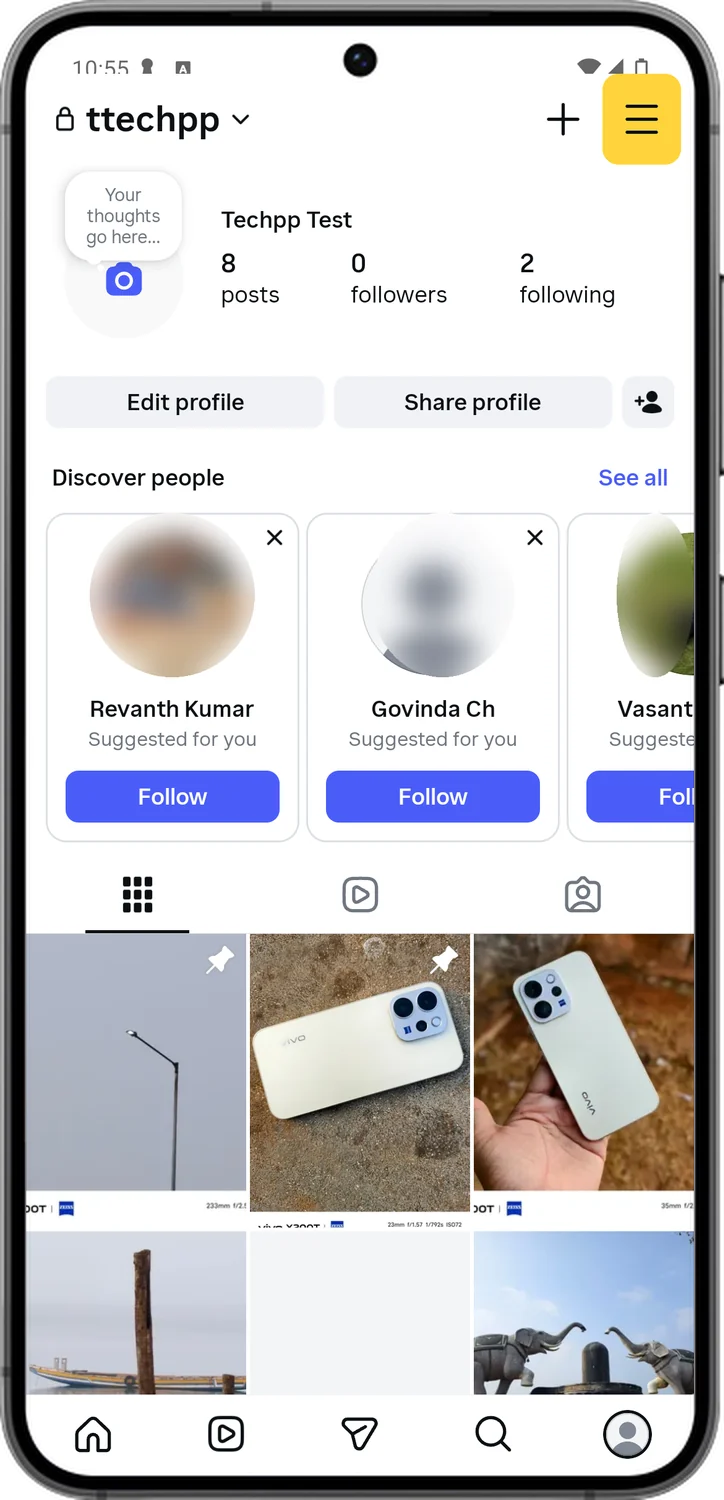
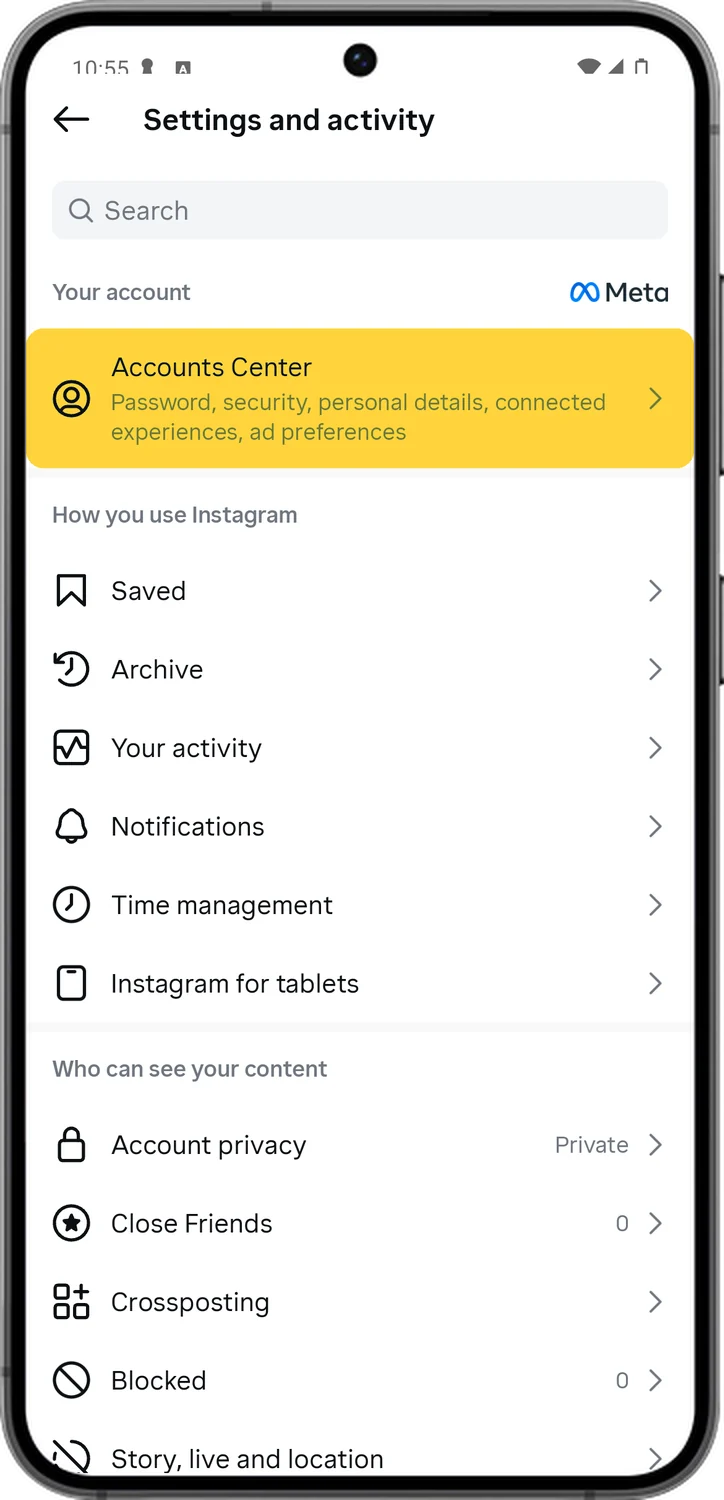
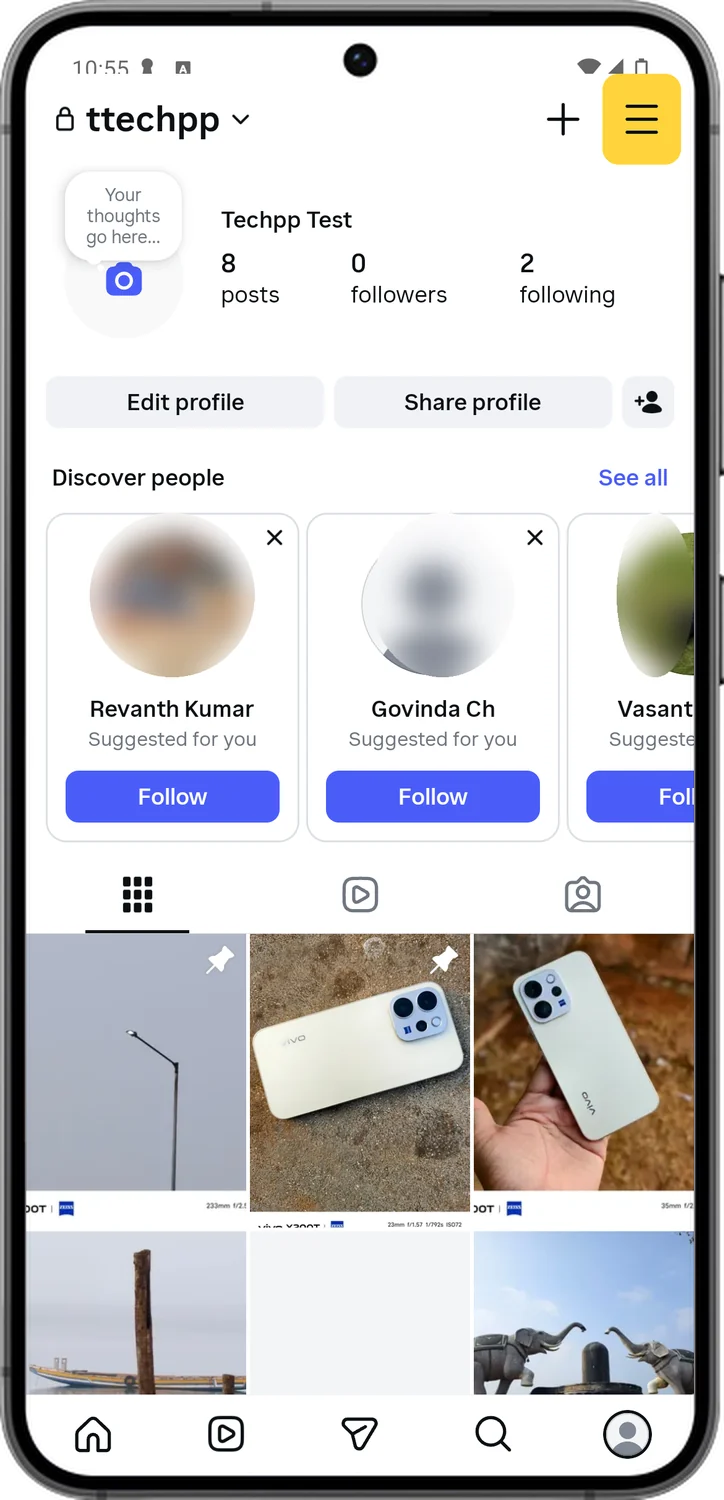
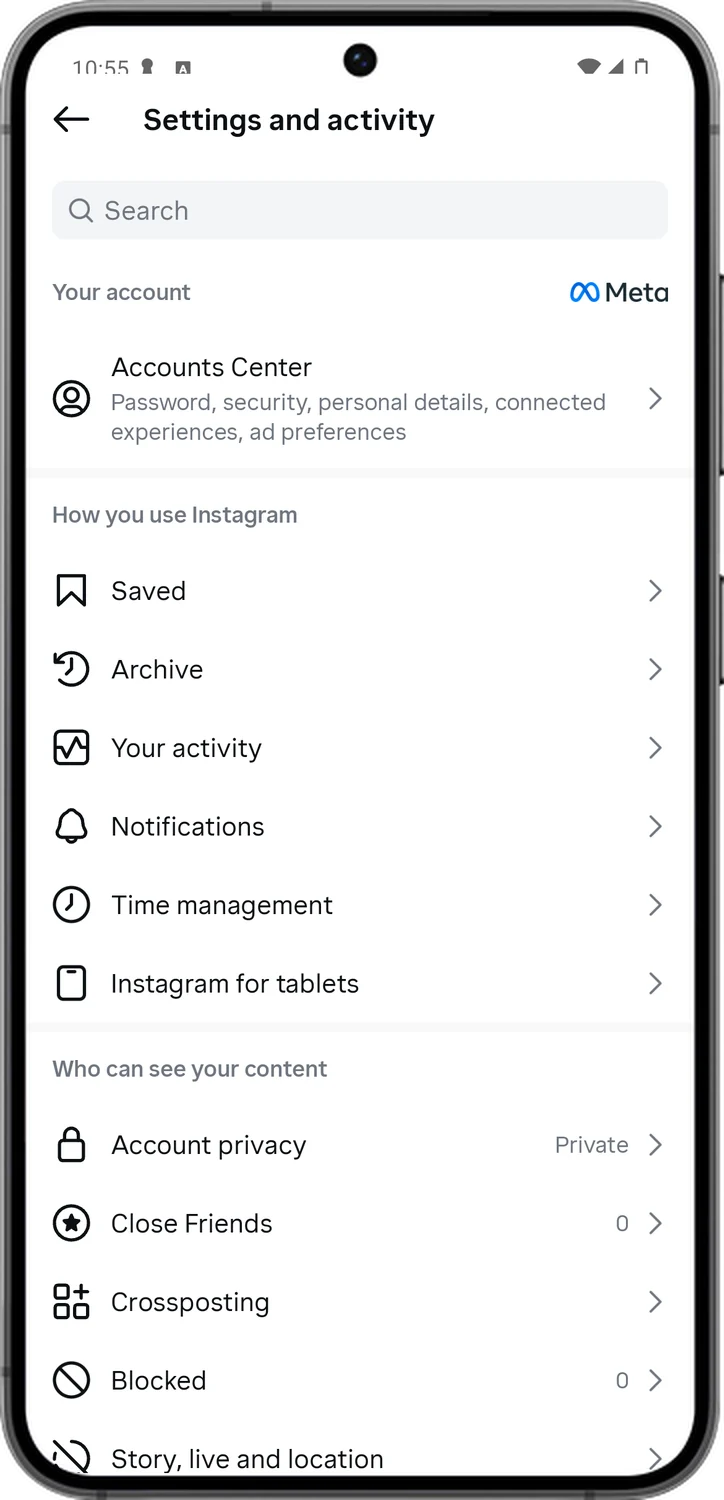
Every control in this guide lives in one place: the Settings and activity screen. Learn how to reach it once, because every section below starts the same way. If a setting is not where this guide shows it, the search bar at the top of that screen finds it by name.
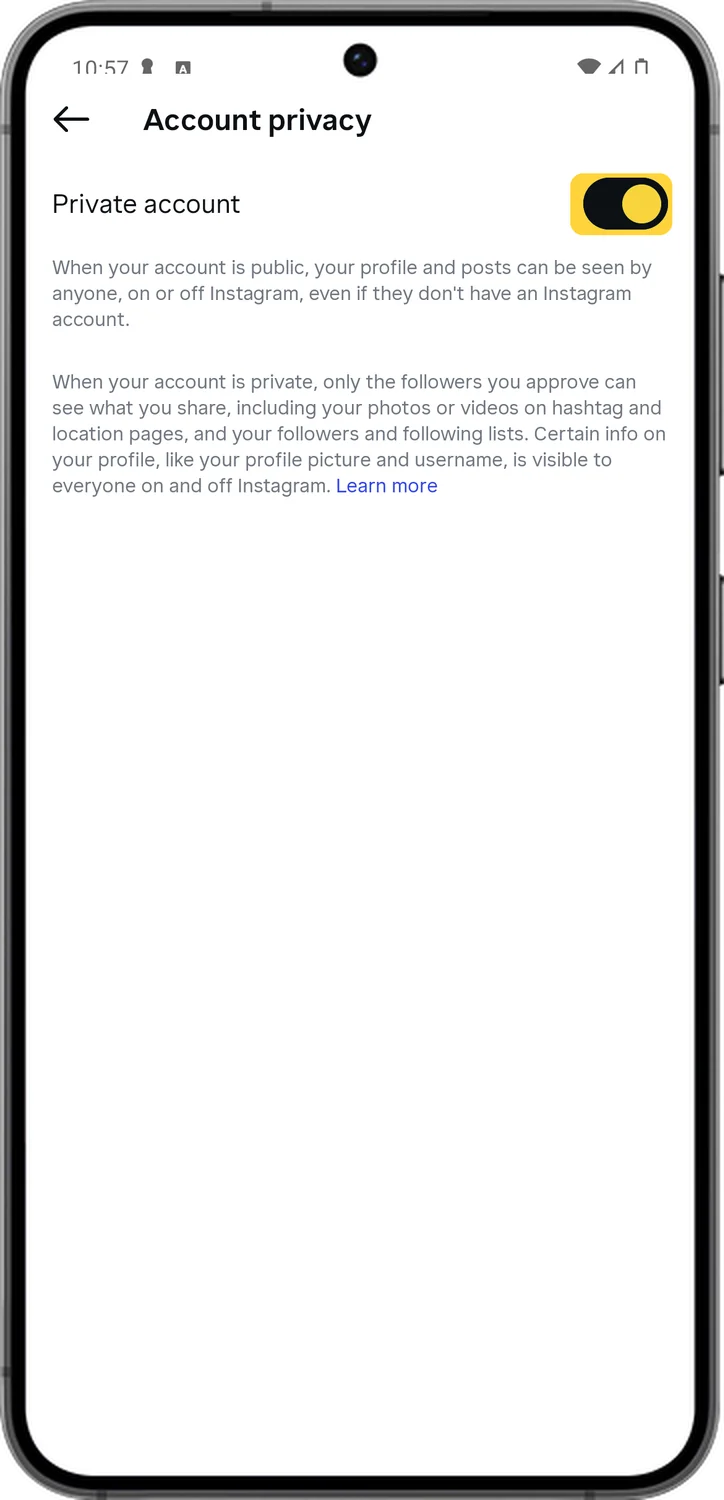
2.Make Your Account Private
This is the single biggest switch. With a private account, only followers you approve can see your posts, Reels and stories. Your content also stays out of Explore and hashtag pages, and strangers see only your name, photo and bio.
3.Hide When You're Online
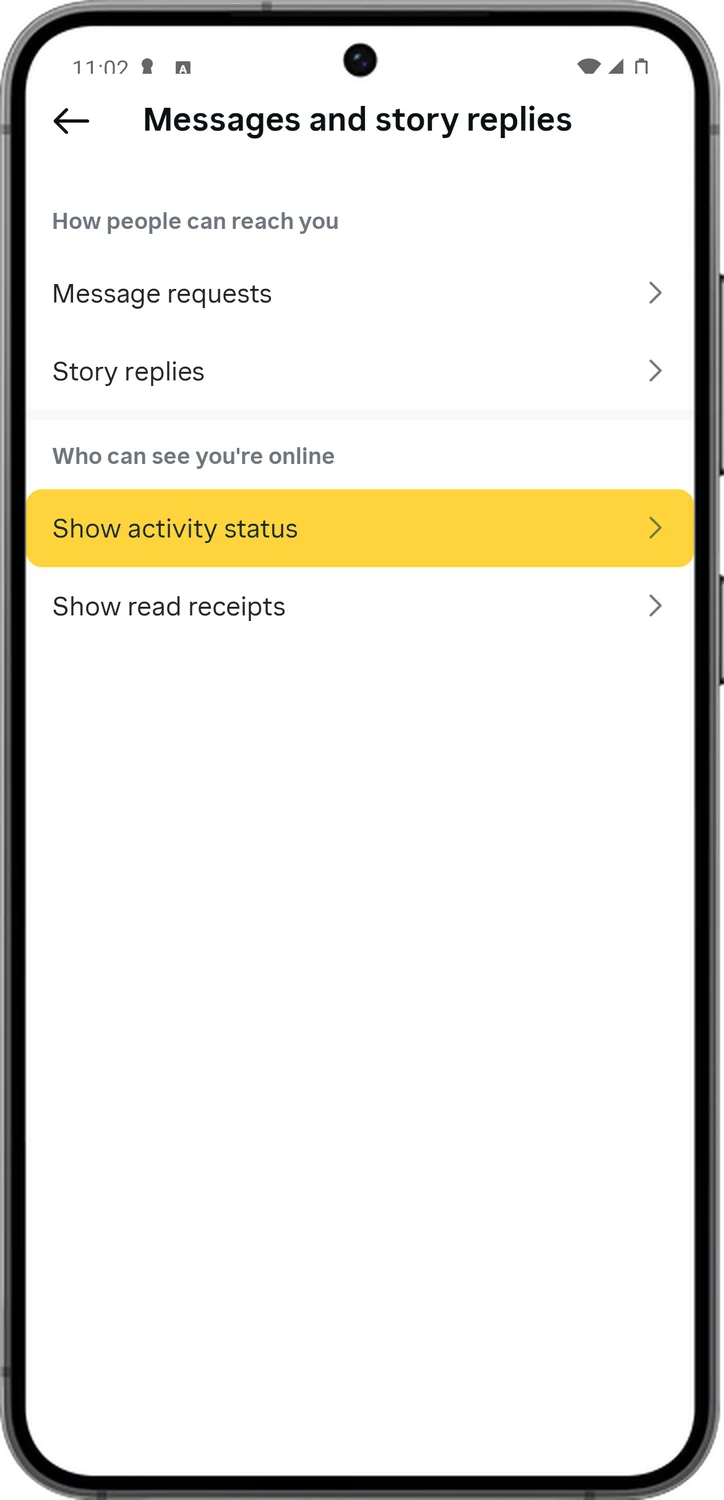
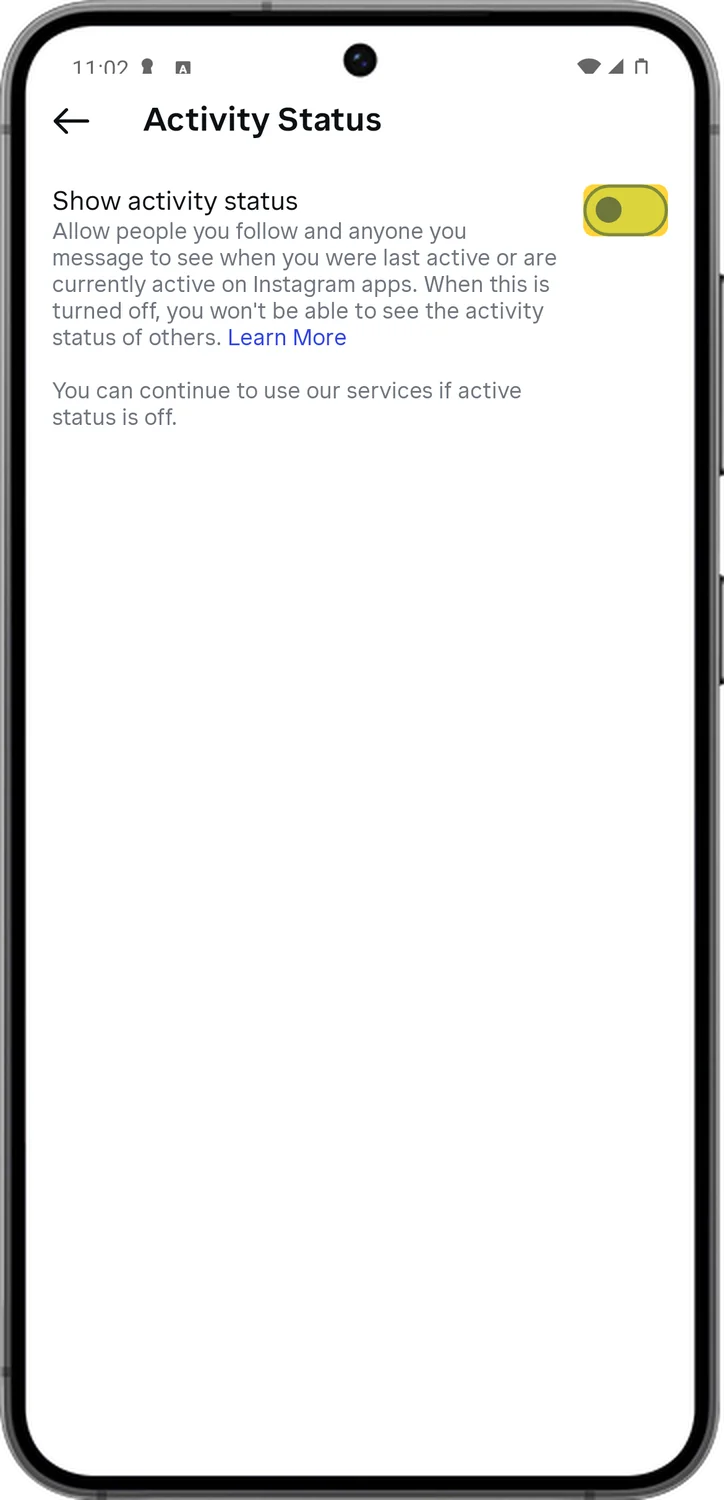
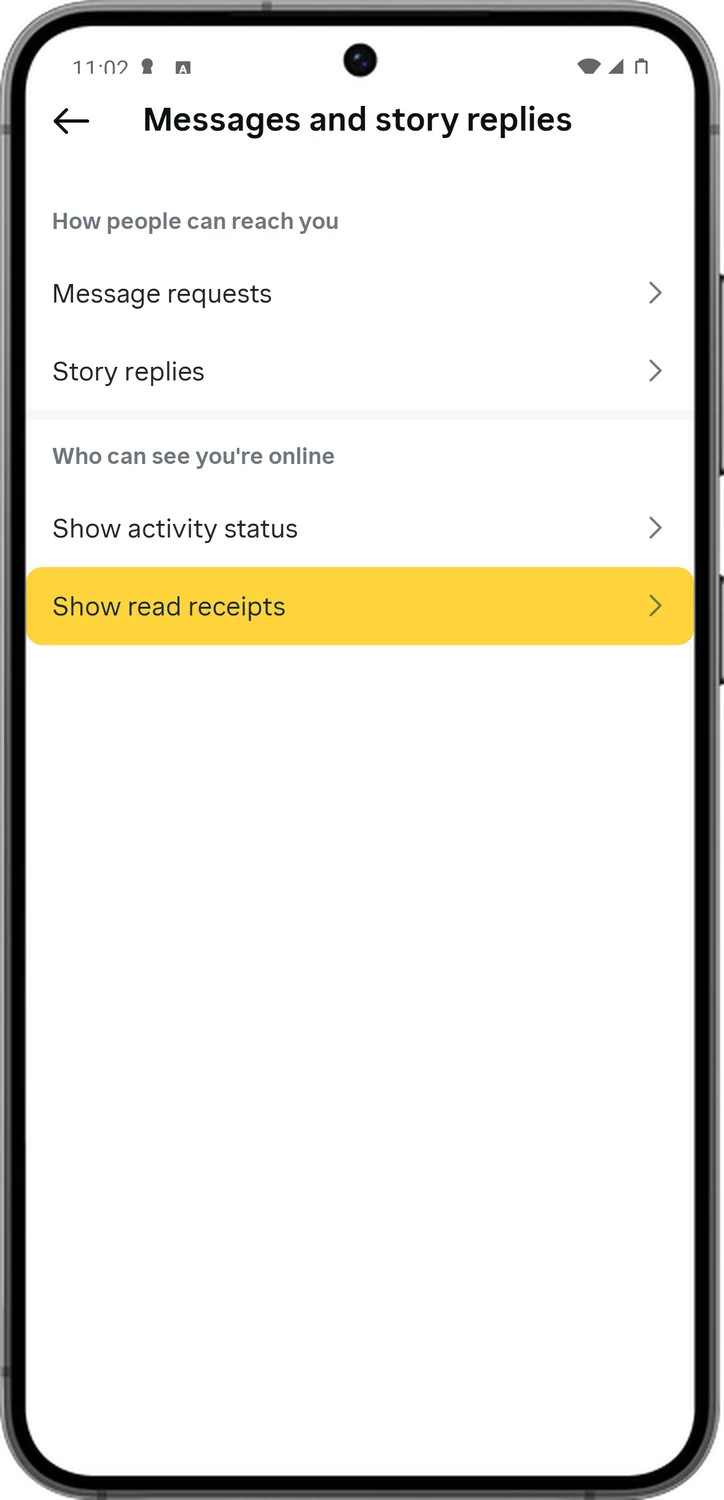
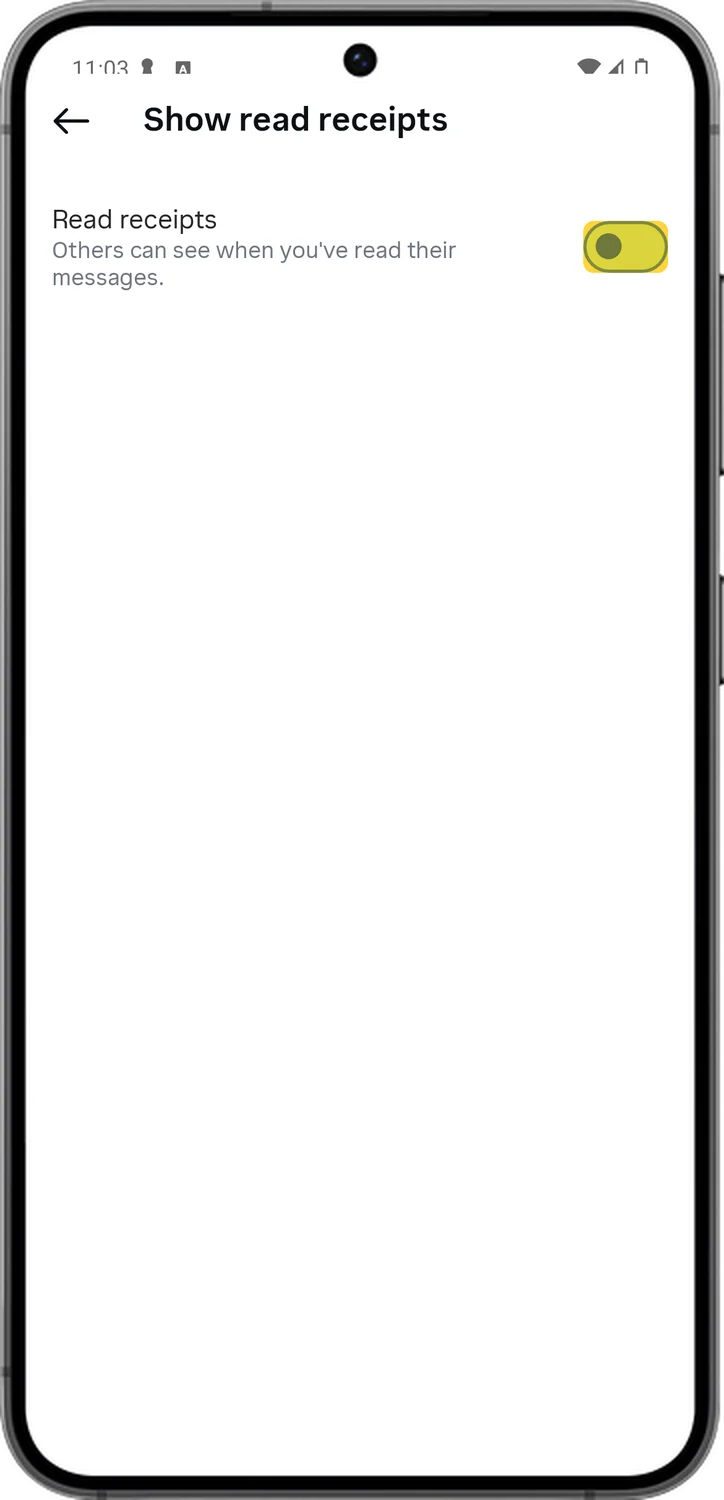
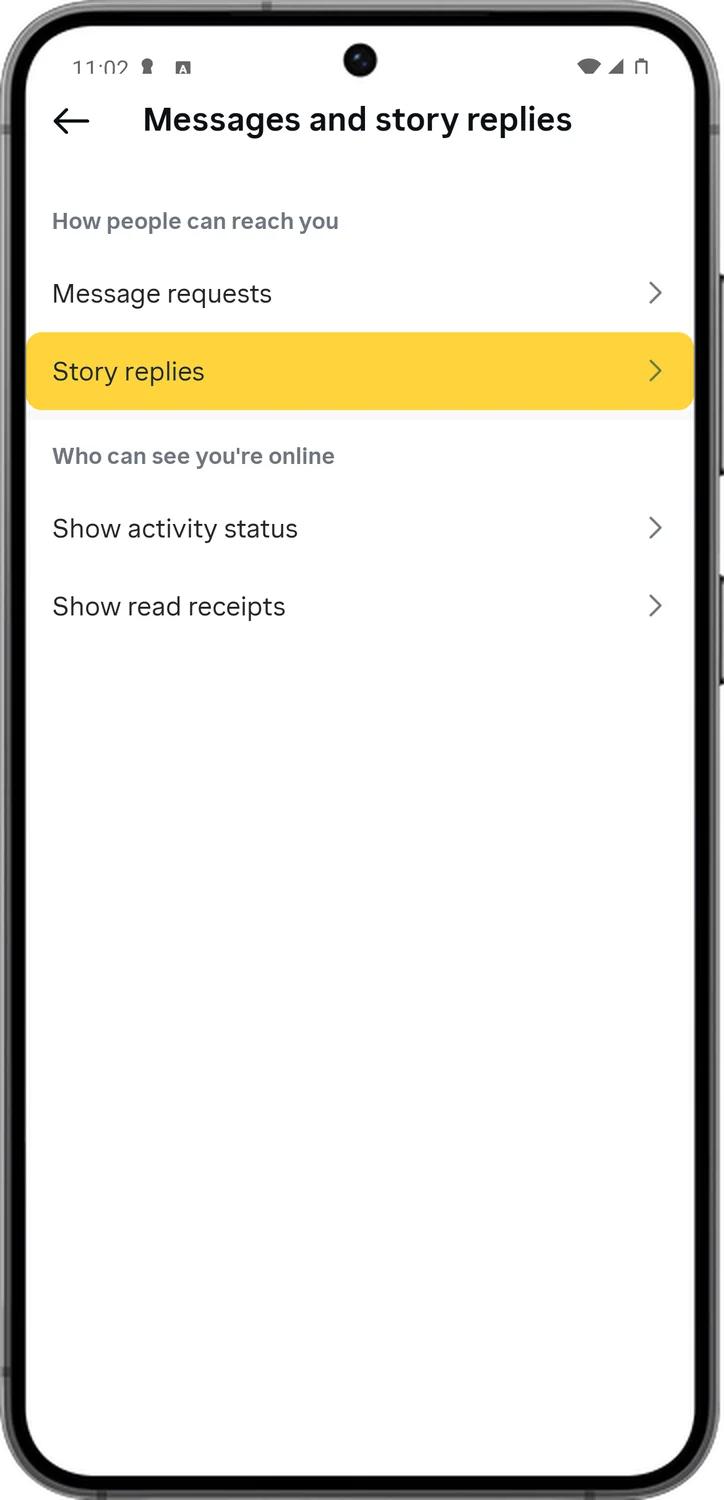
By default, people you follow and anyone you message can see when you were last active, and whoever messages you can see when you have read it. Both can be switched off. Note that when you hide yours, you stop seeing other people's as well.
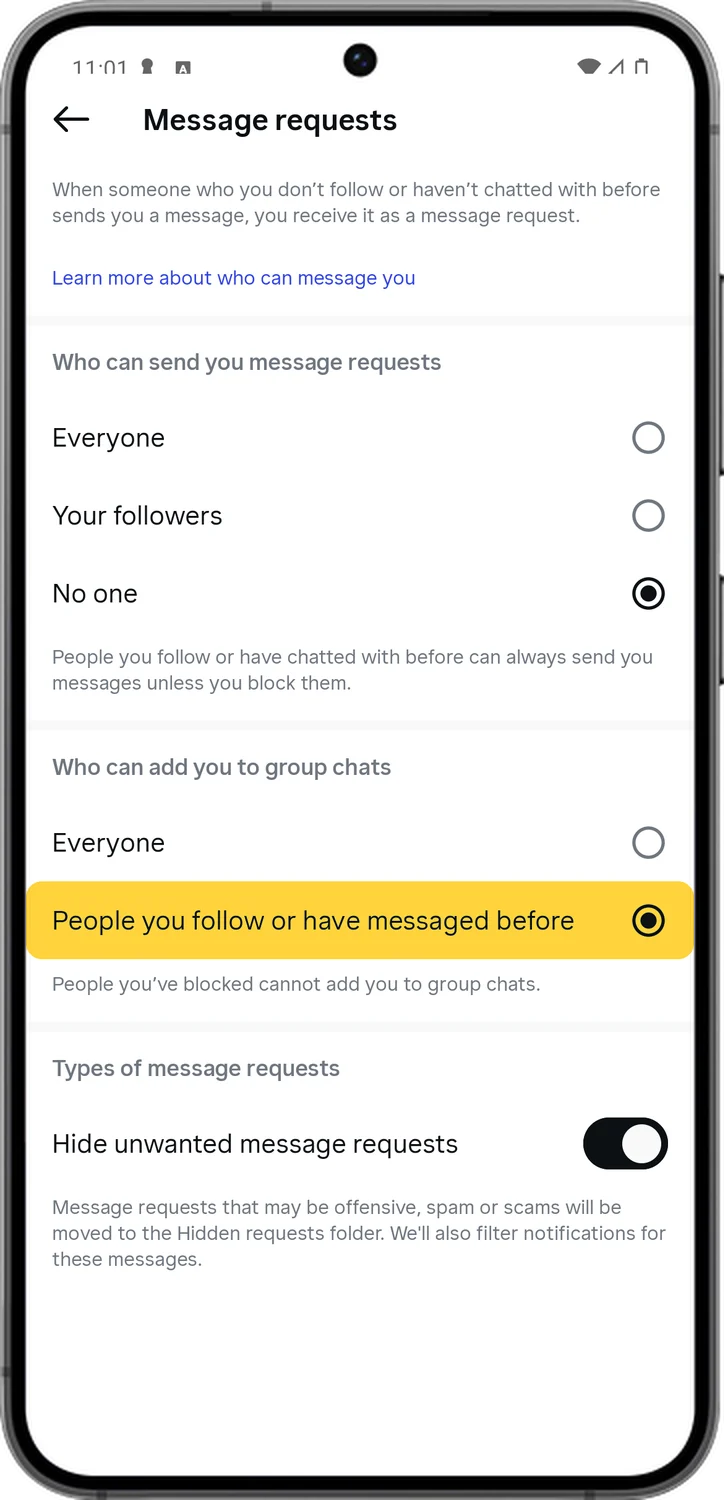
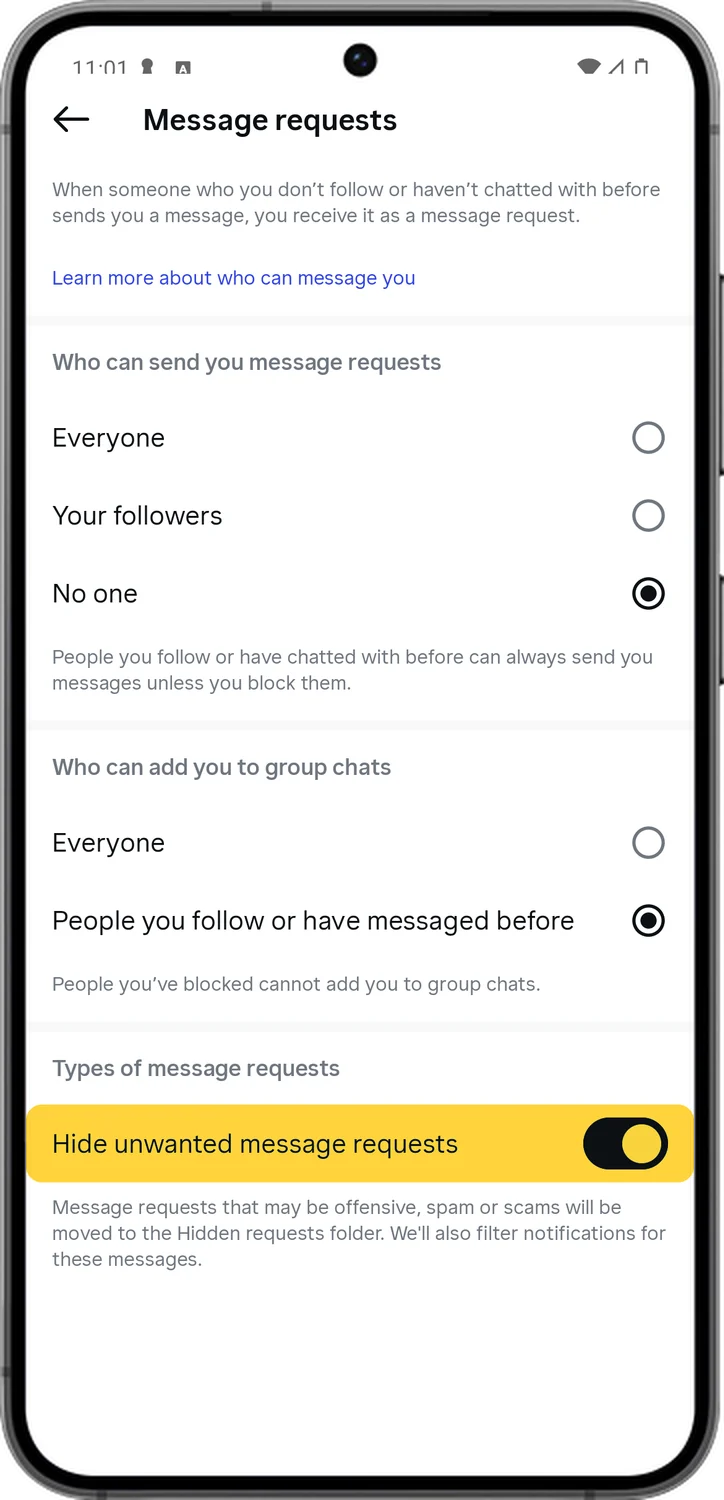
4.Control Who Can Message You
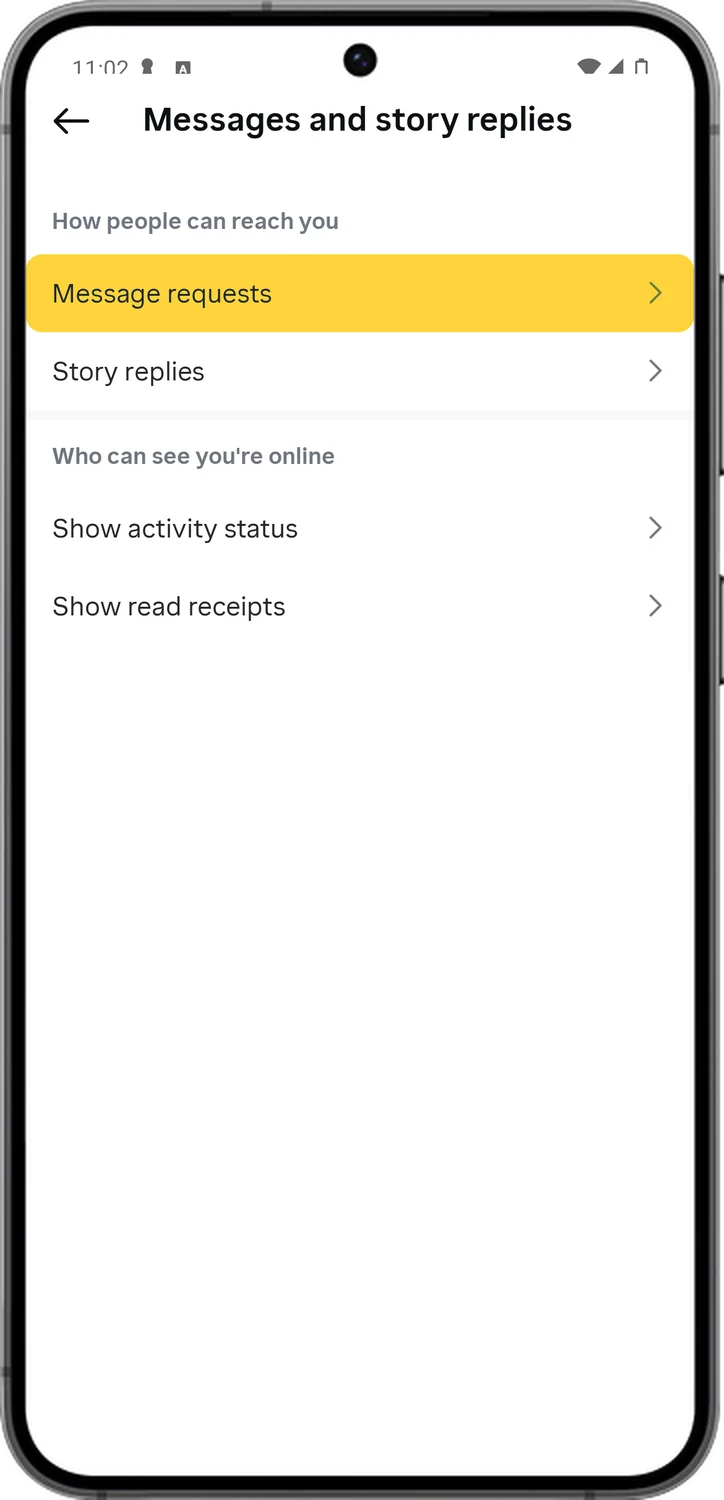
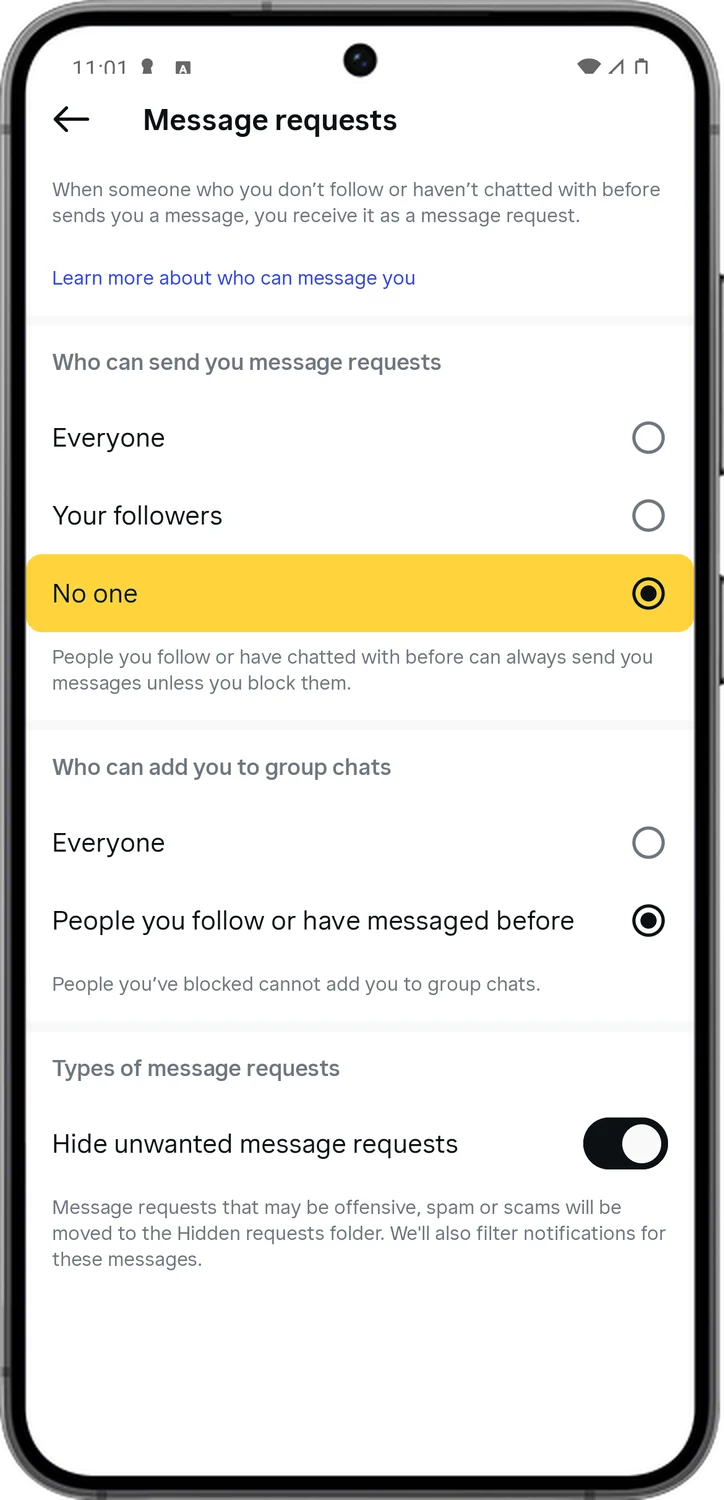
Message requests are how strangers reach you: anyone you do not follow lands in a Requests folder. You can stop those requests from everyone, keep yourself out of group chats you did not ask to join, and have Instagram hide spam and offensive requests before you see them.
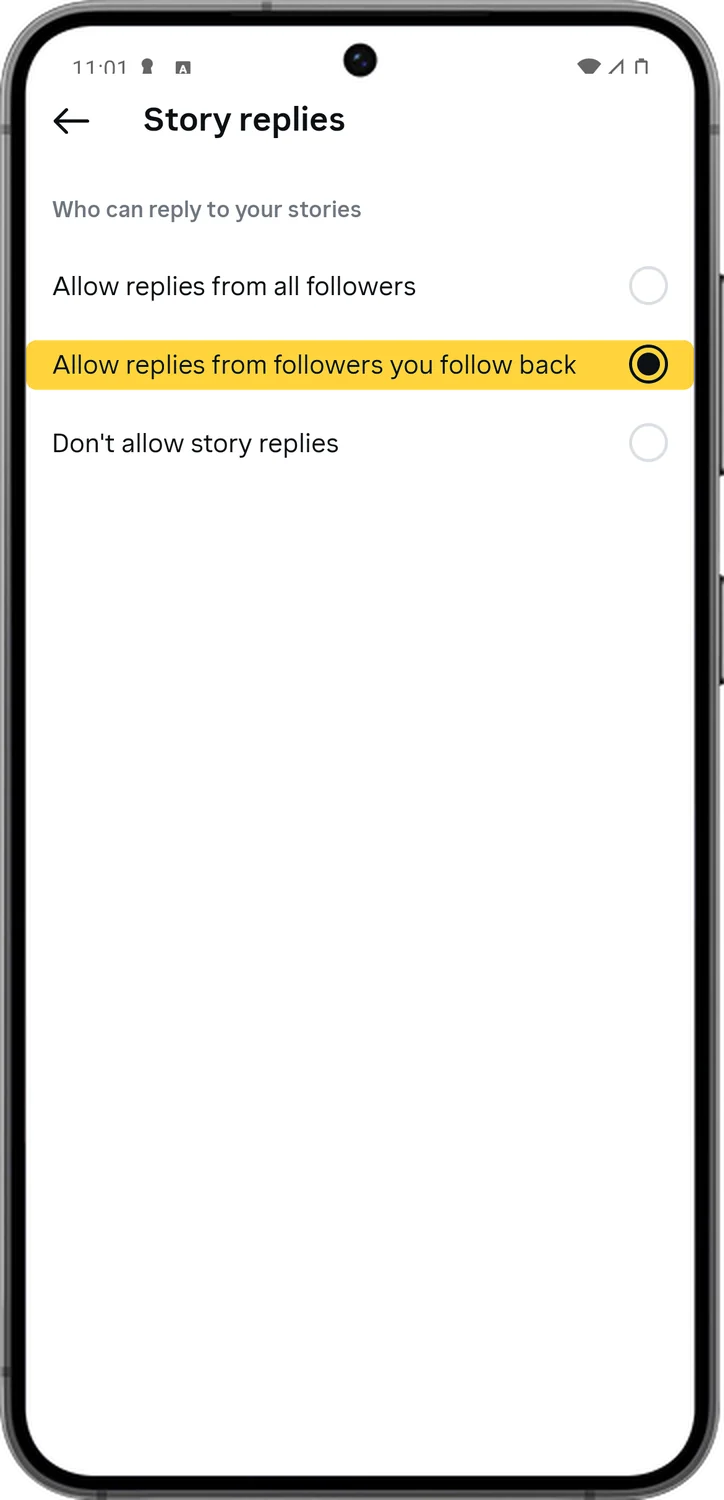
5.Limit Replies to Your Stories
When someone replies to your story, it arrives as a direct message, so story replies are another door for strangers. You can limit them to people you follow back, or switch them off entirely.
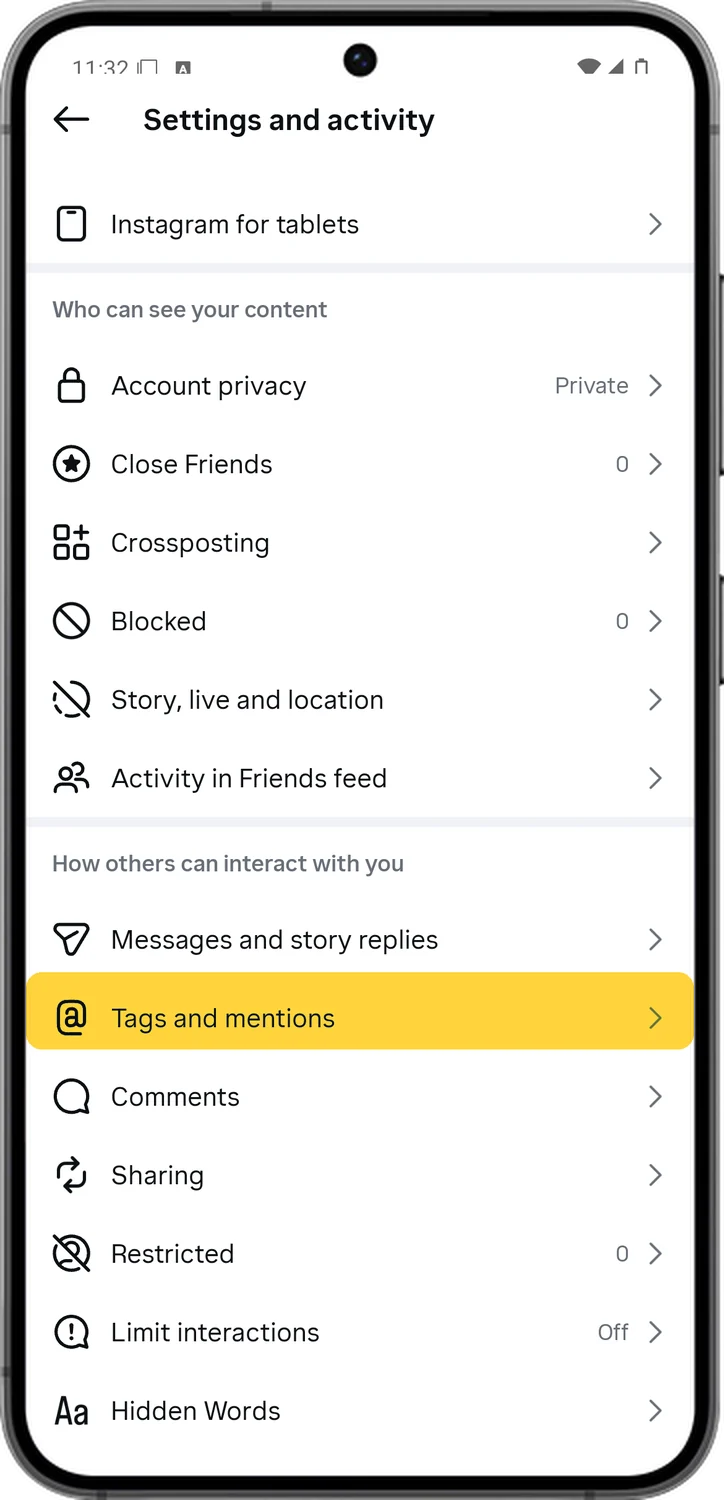
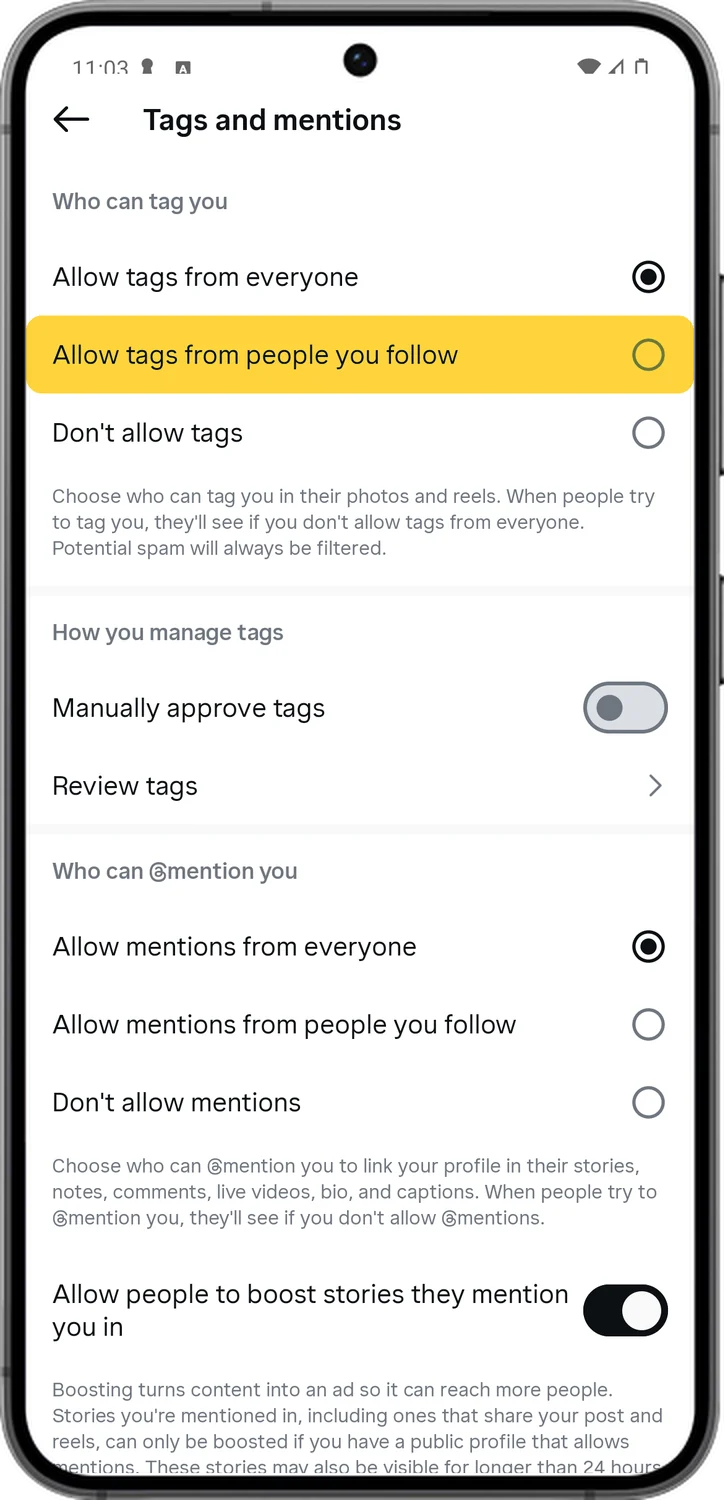
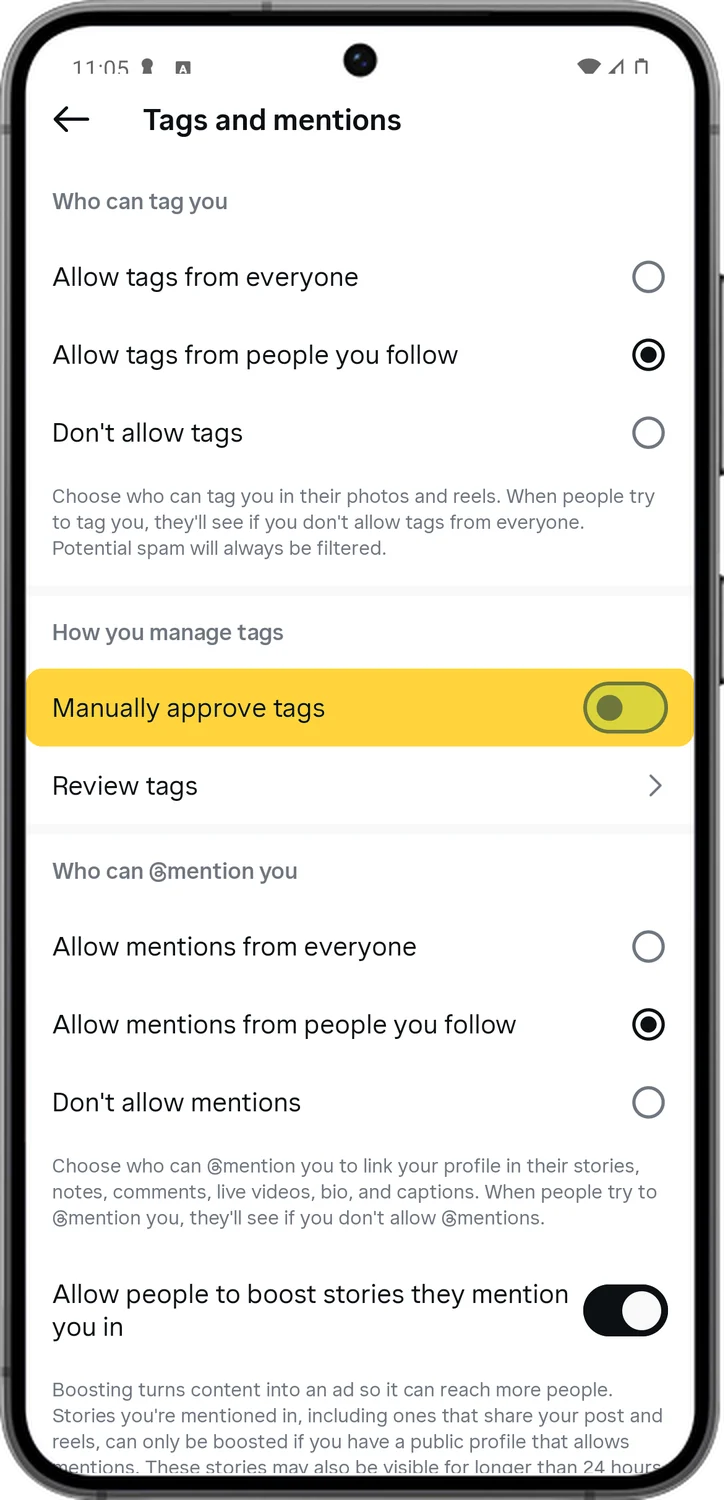
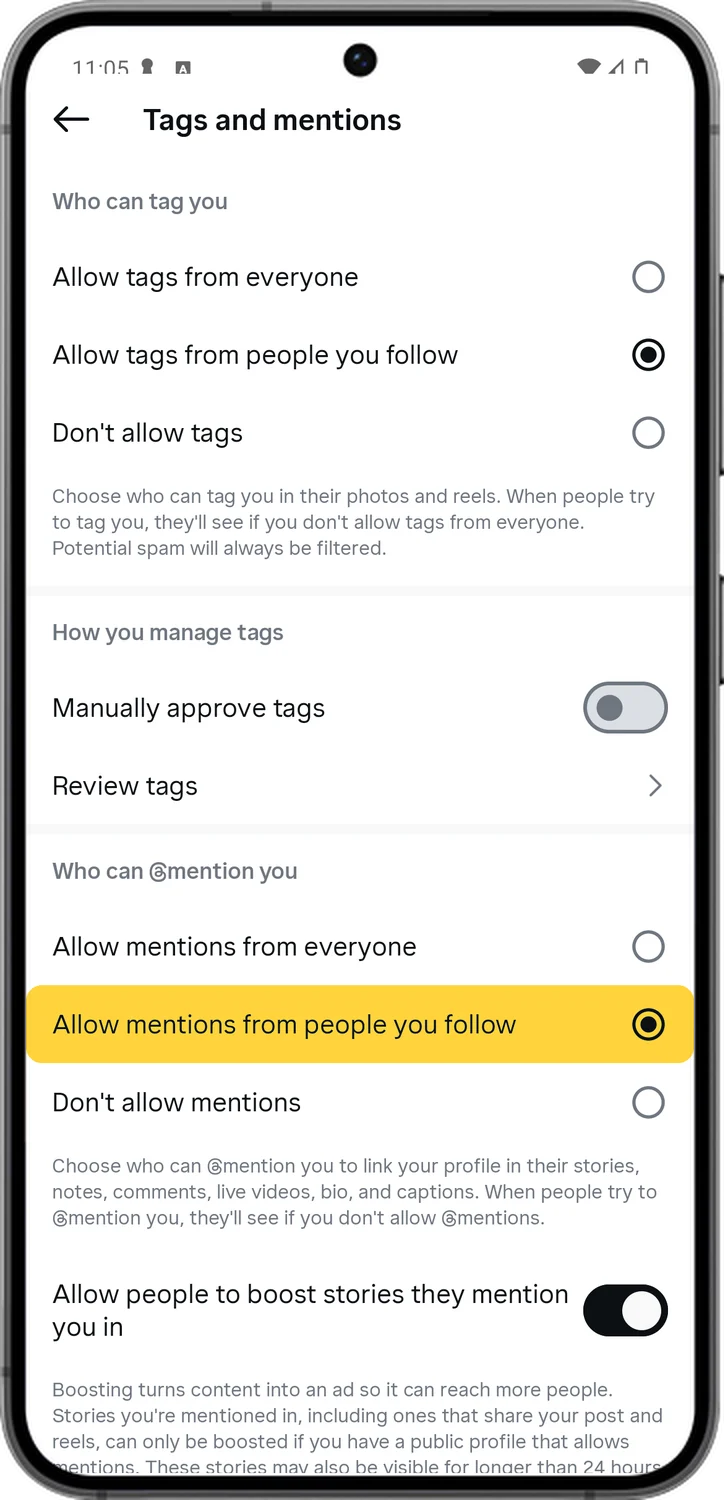
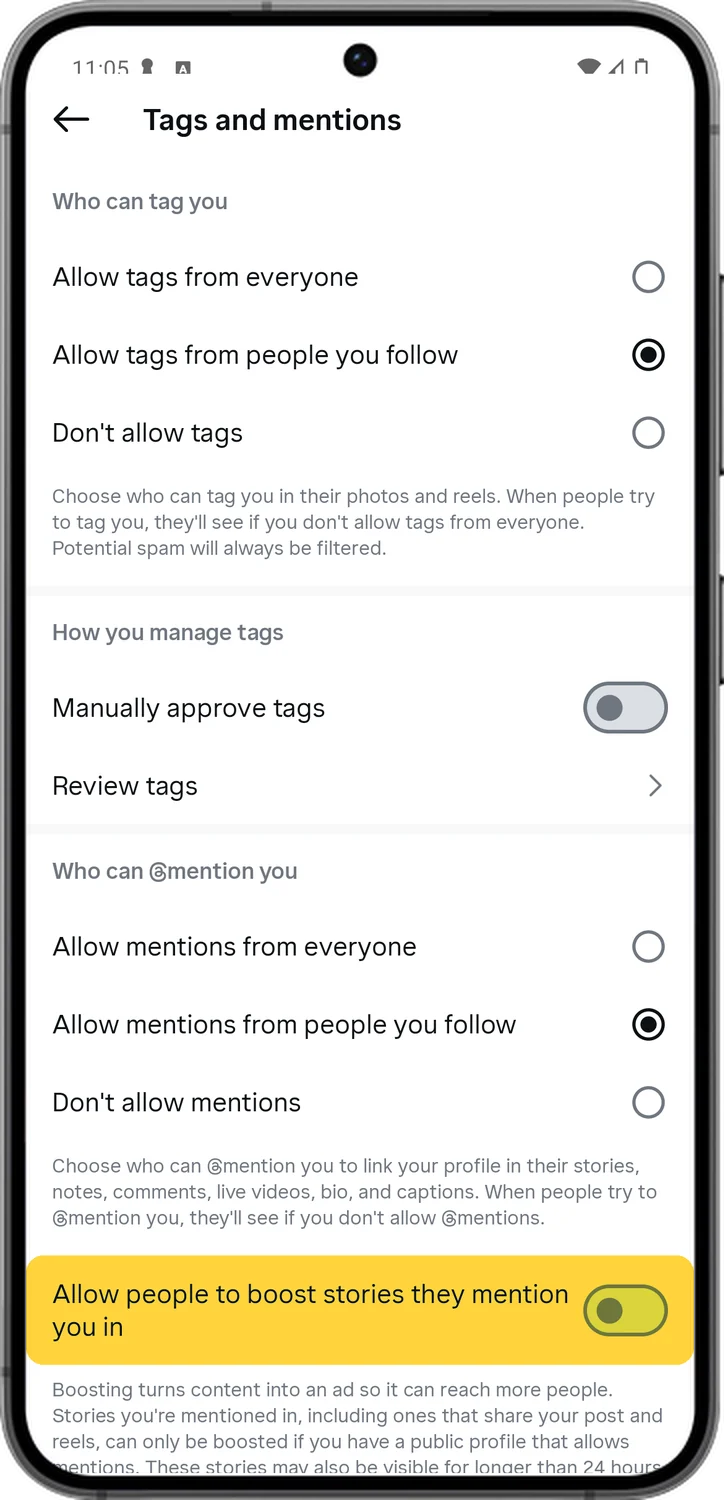
6.Approve Tags and Limit Mentions
Anyone can tag you in a photo or @mention you in a comment, which puts your name next to content you did not choose. You can limit both to people you follow, and review every tag before it shows on your profile.
9.Stop Others Resharing Your Stories
Followers can forward your stories to other people in messages, and anyone you mention in a story can repost it to their own audience. Both are simple switches.
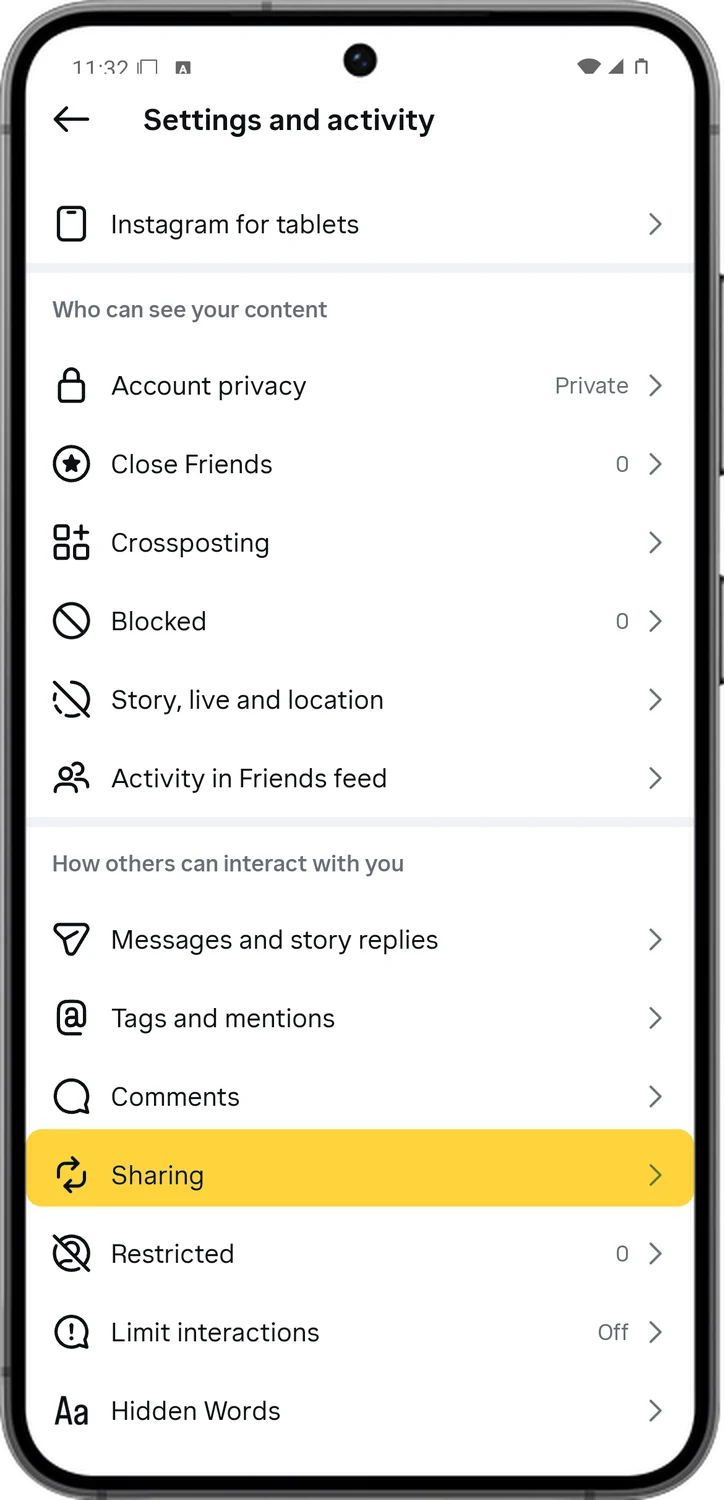
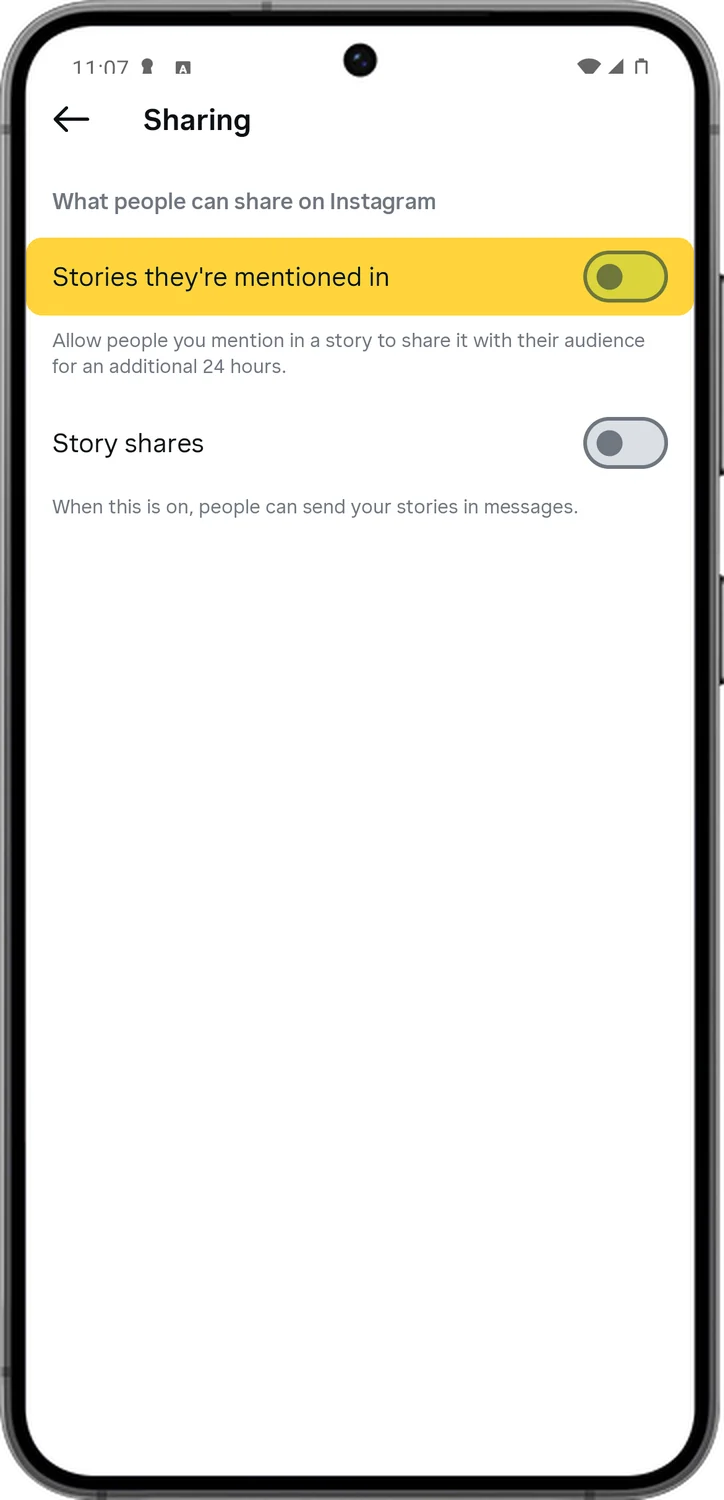
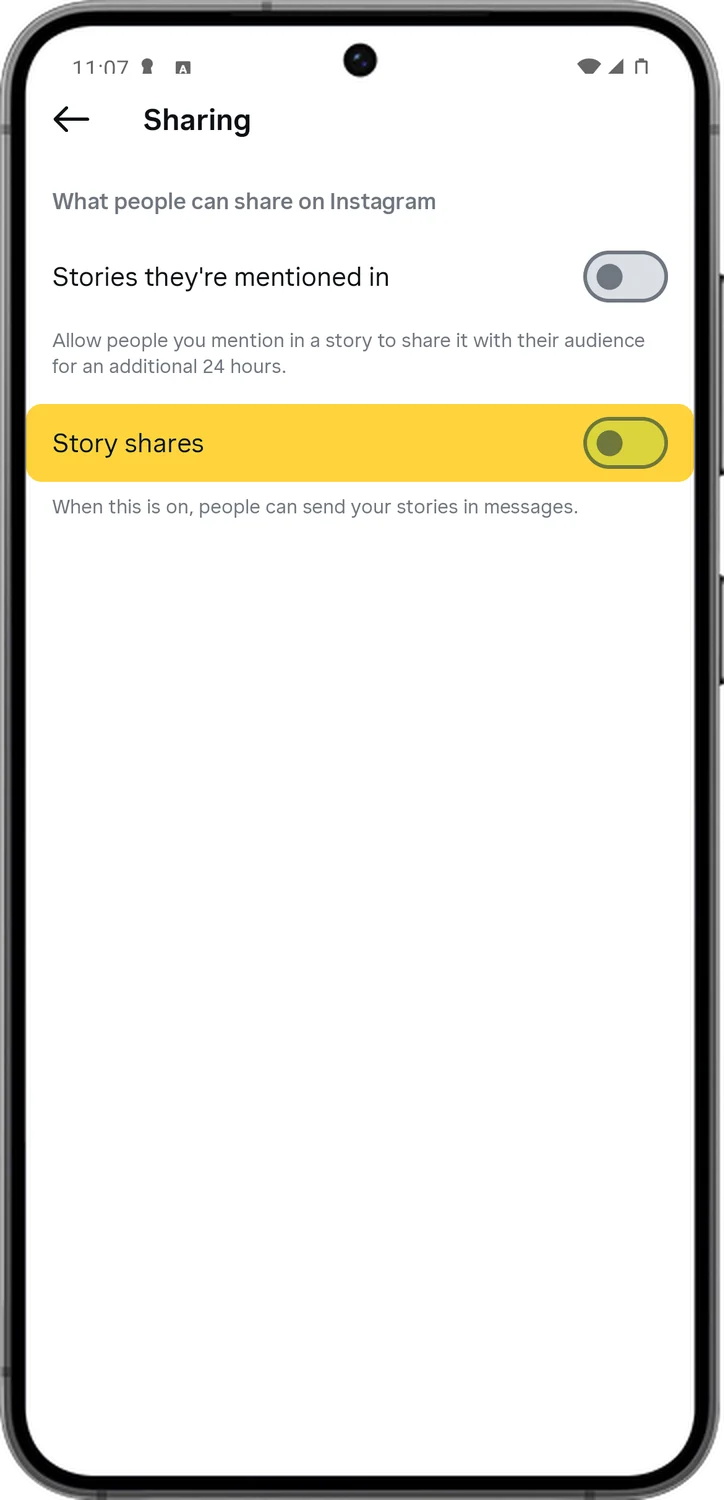
10.Hide Stories and Your Location
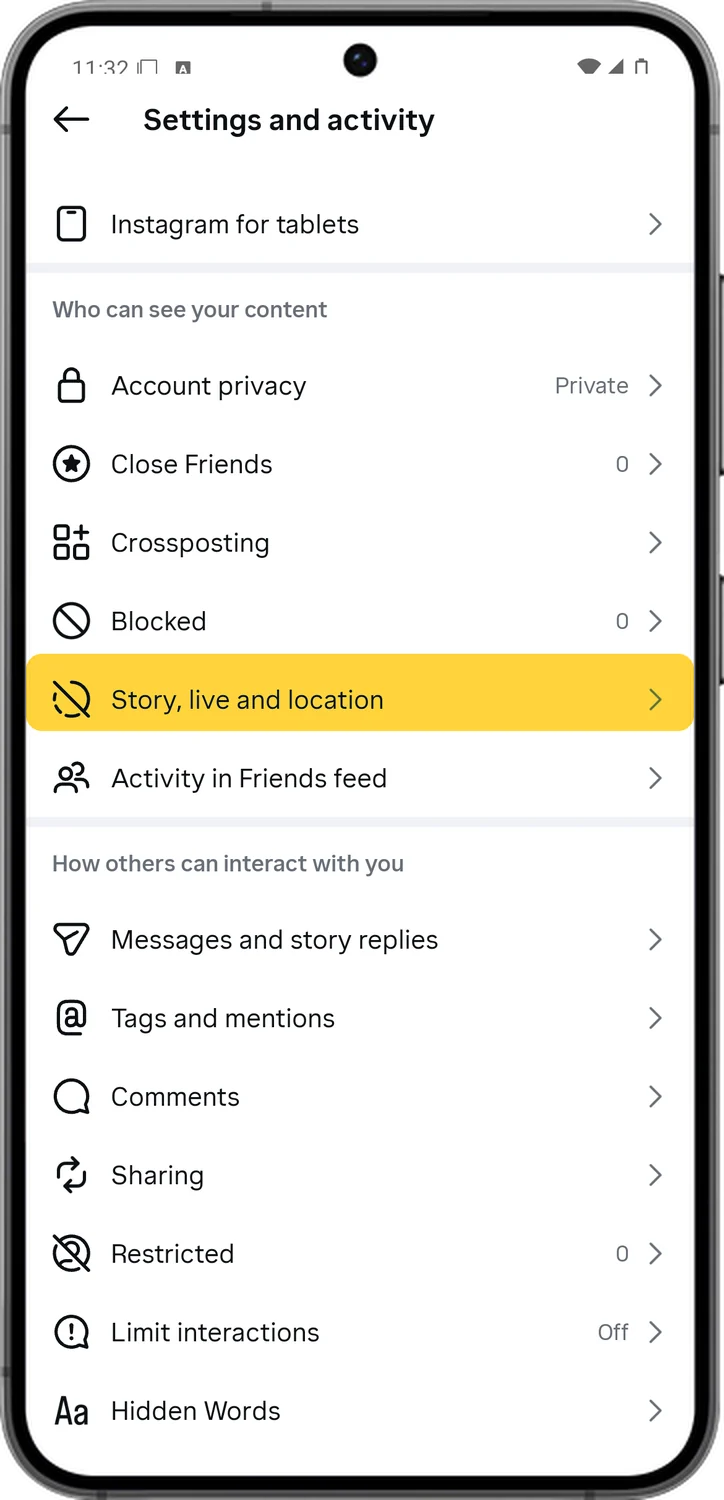
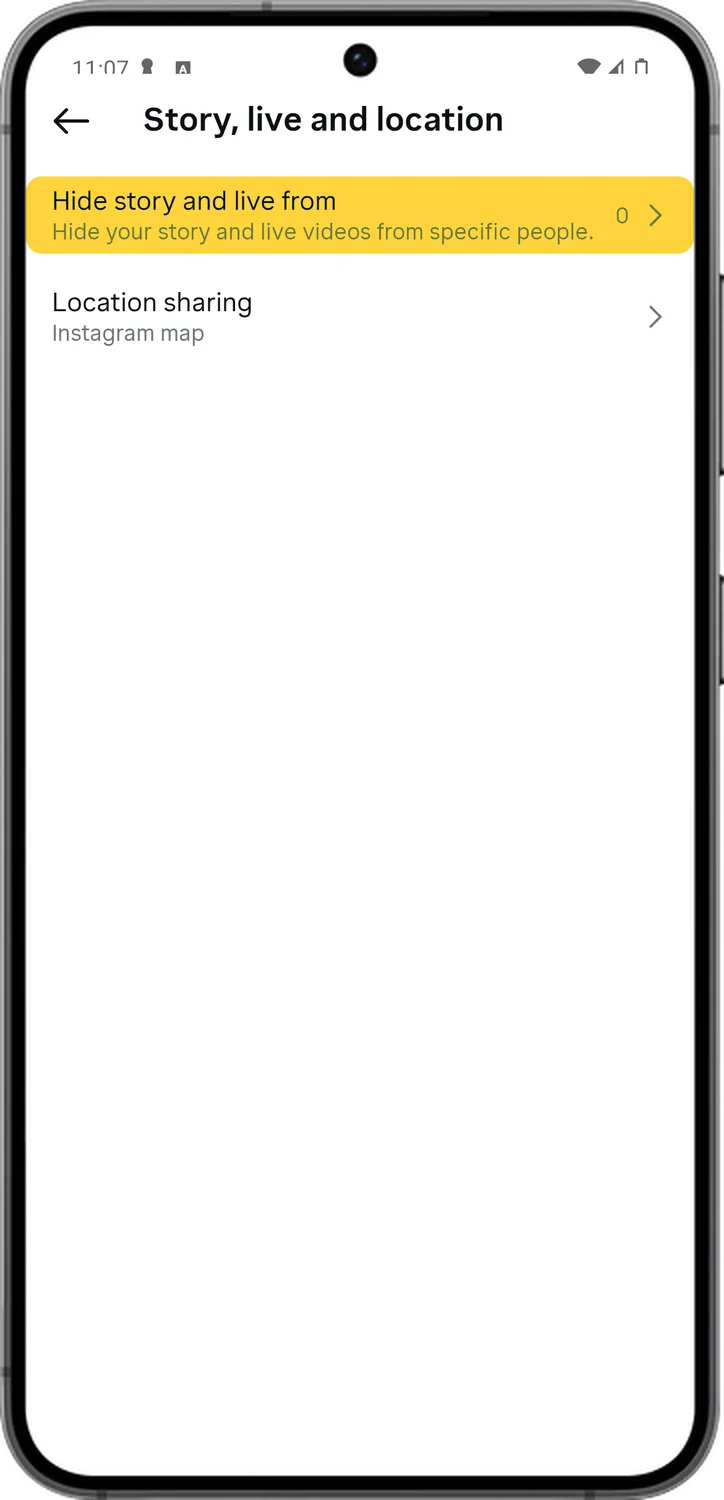
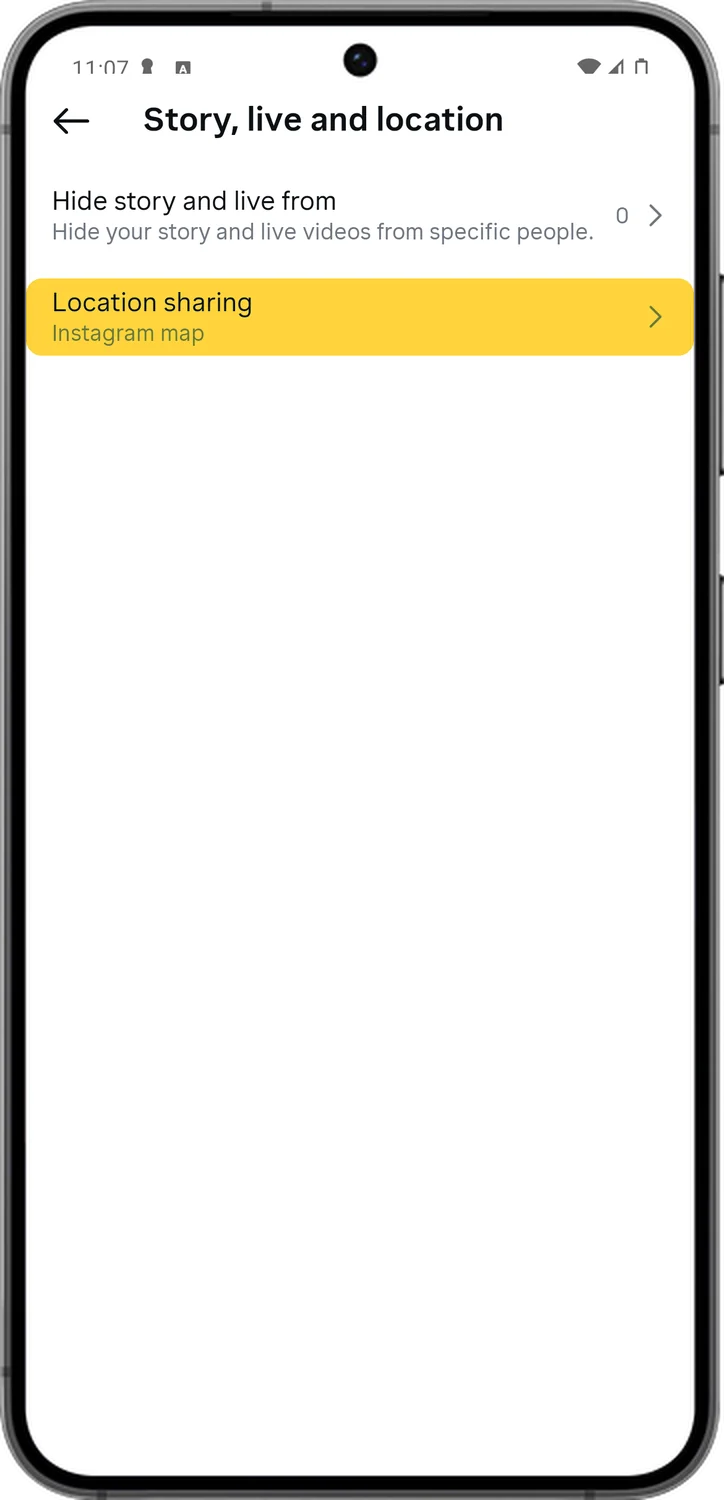
You can keep your stories and live videos away from specific people without blocking them, and you can decide whether your location shows on the Instagram map.
11.Limit Interactions When You're Being Bothered
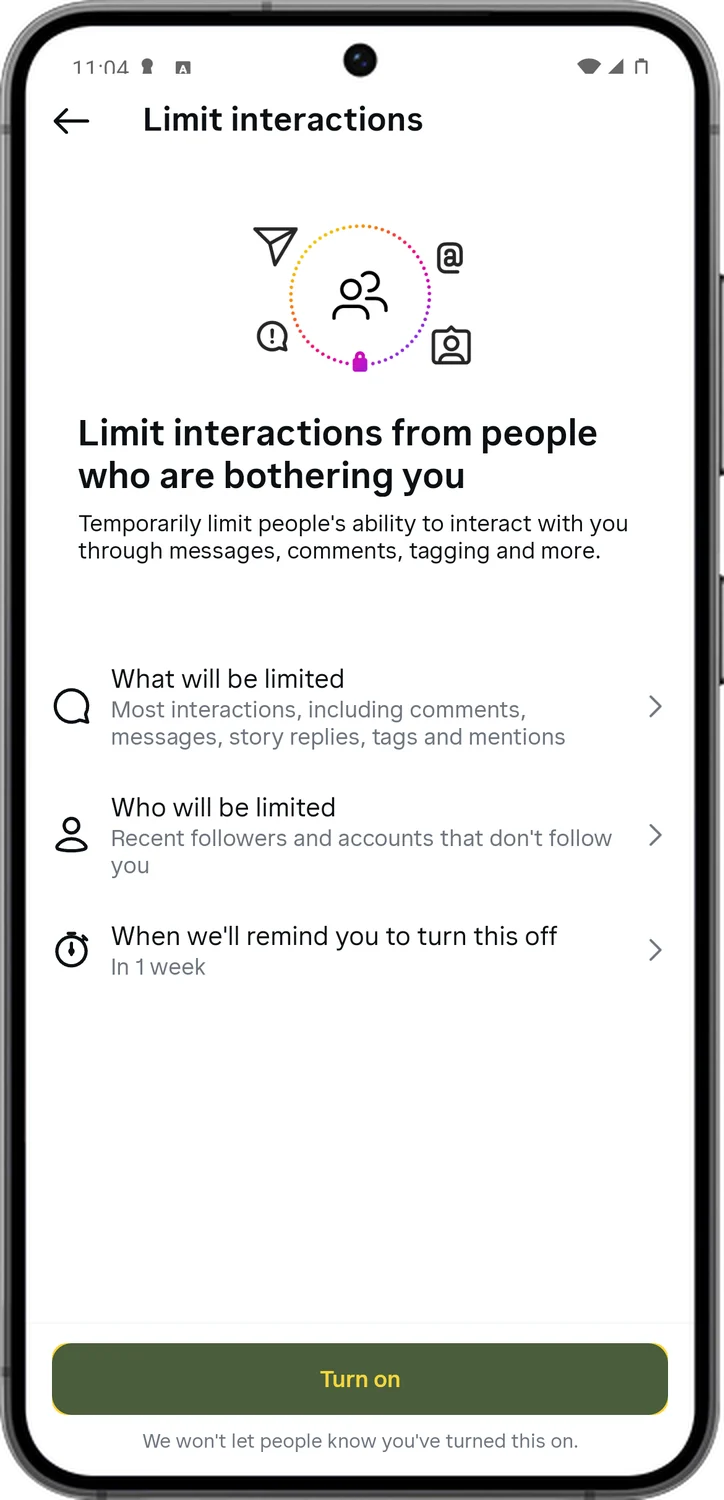
Limits is a temporary shield for a bad week. While it is on, comments, messages, tags and mentions from recent followers and from people who do not follow you are quietly held back, and they are not told.
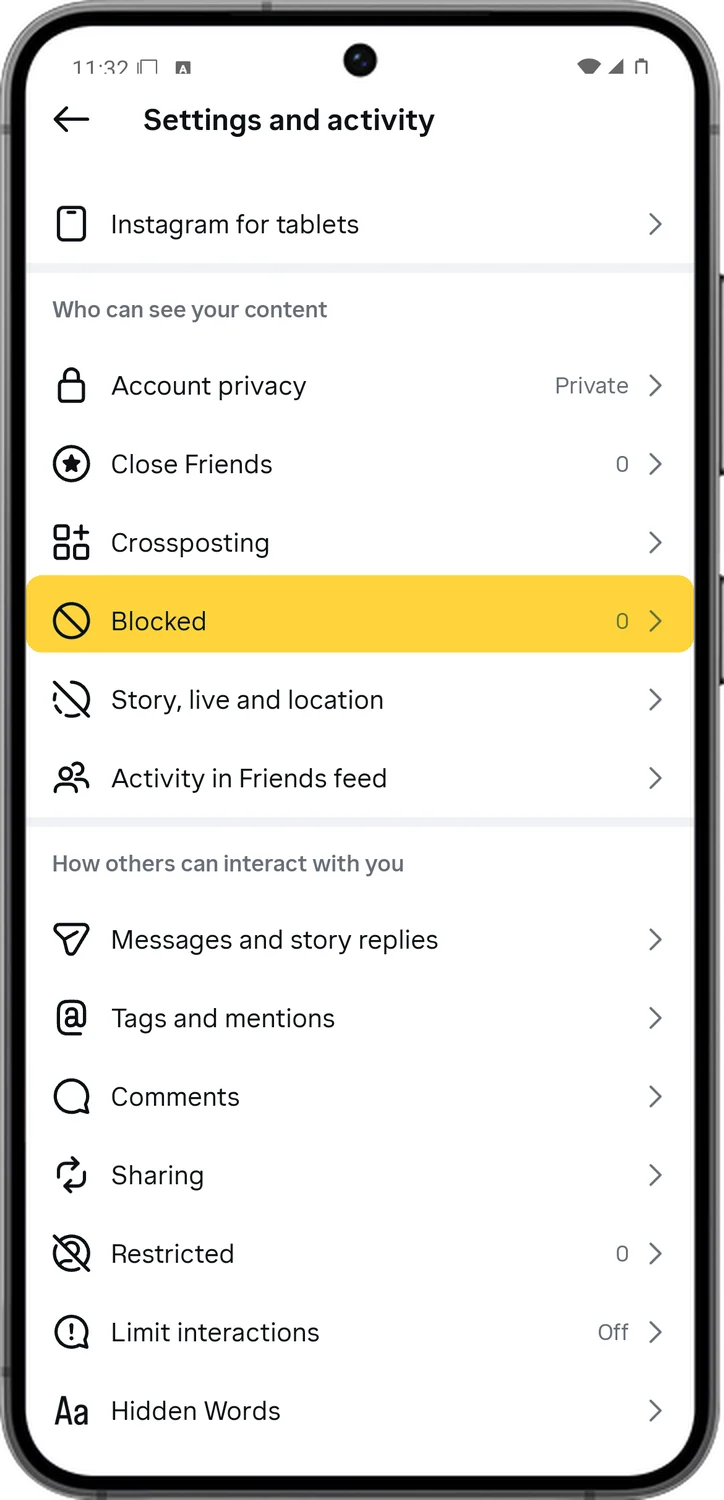
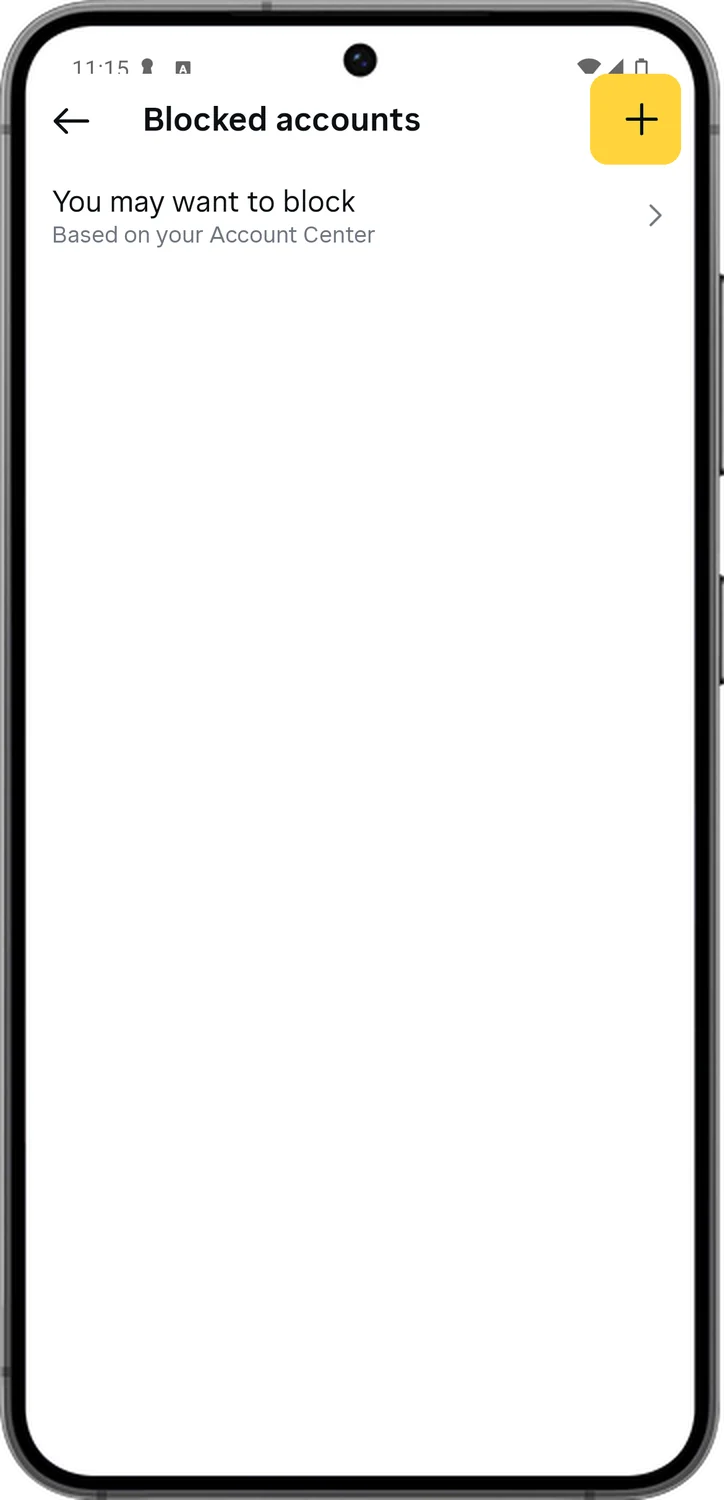
12.Restrict or Block Accounts
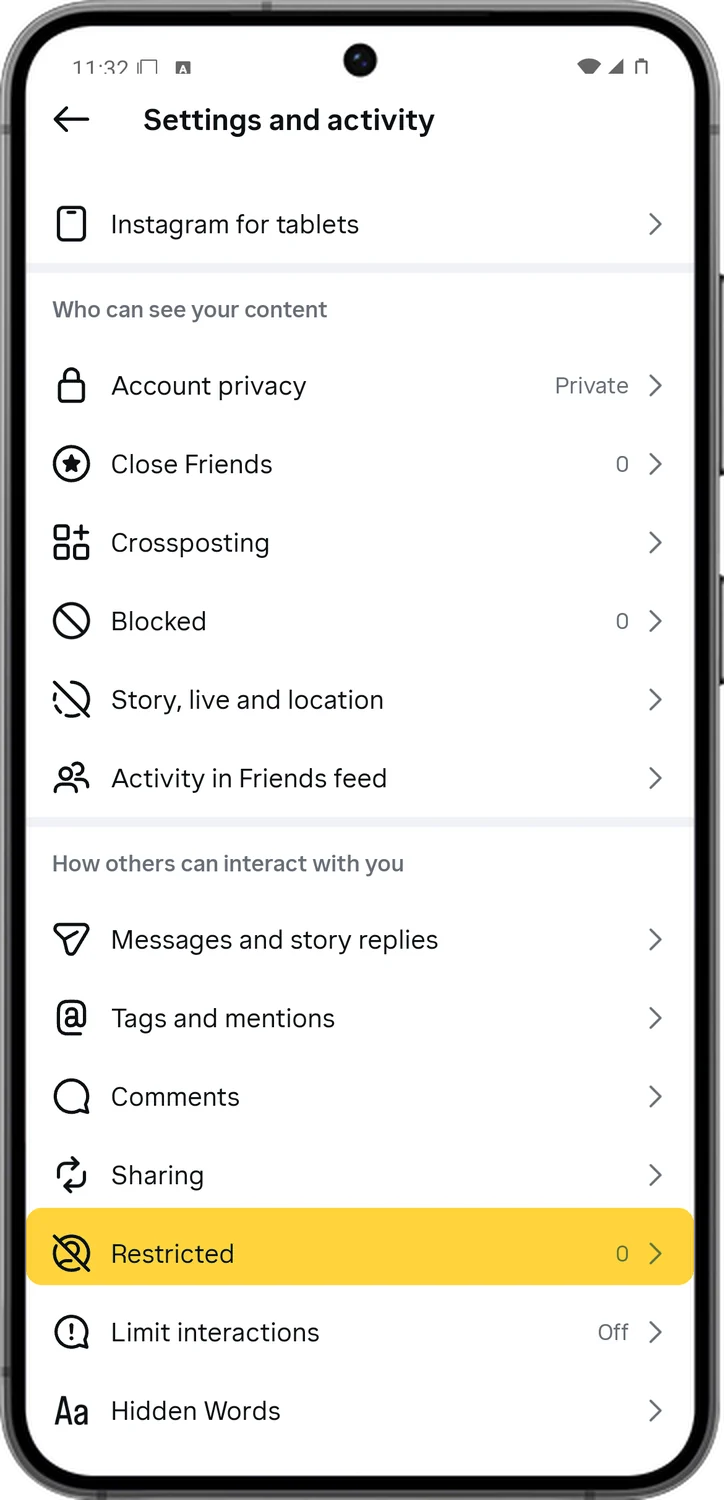
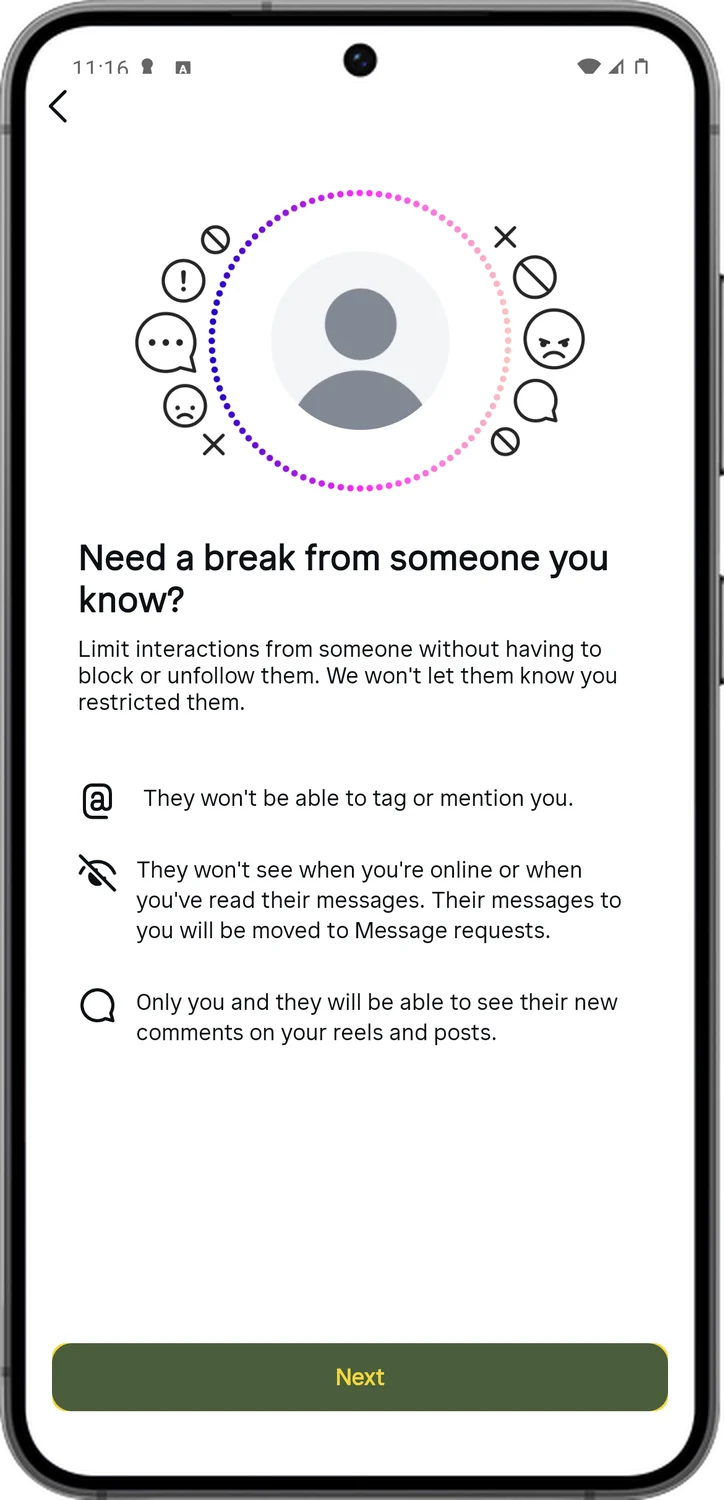
Restrict is the quiet option: that person's comments are hidden from everyone but them, they cannot see when you are online, and they are not told. Block is the hard stop: they cannot find your profile, posts or stories at all.
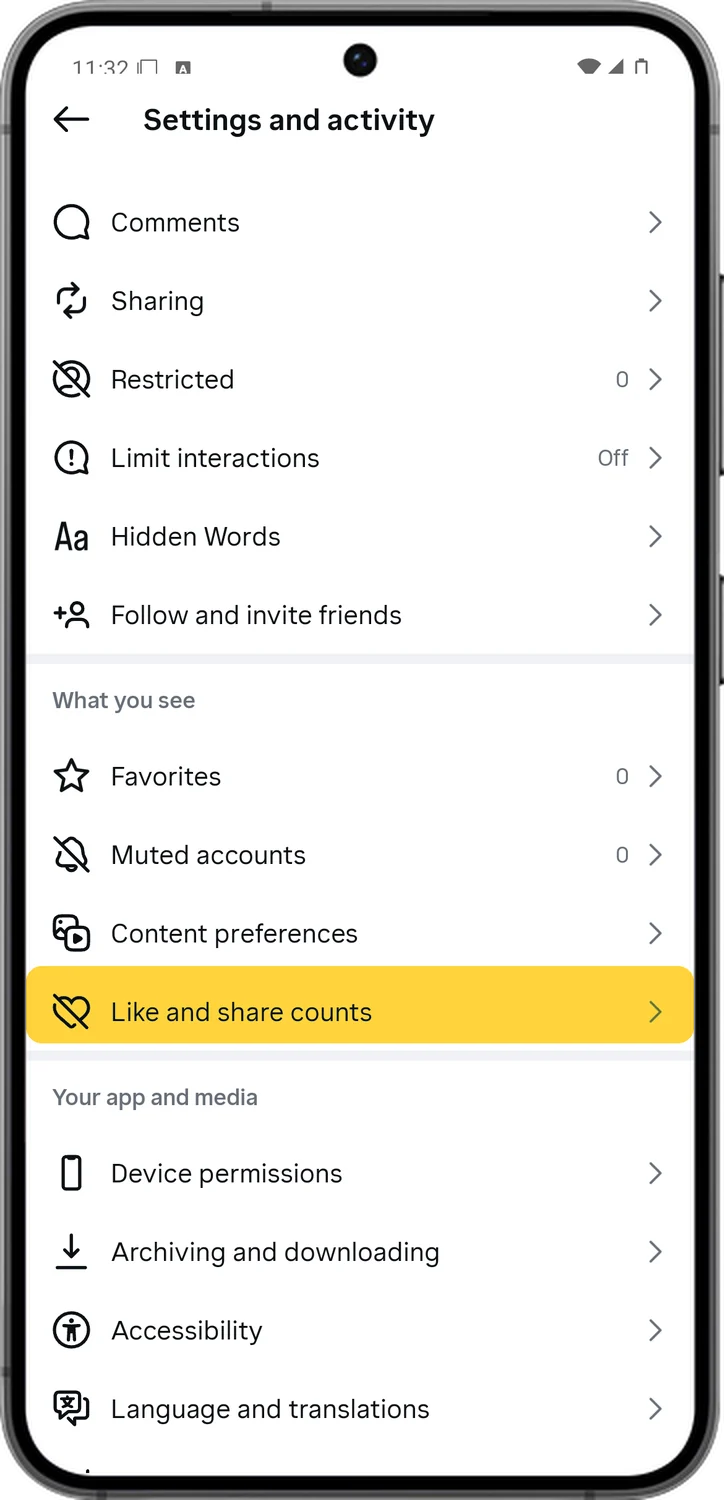
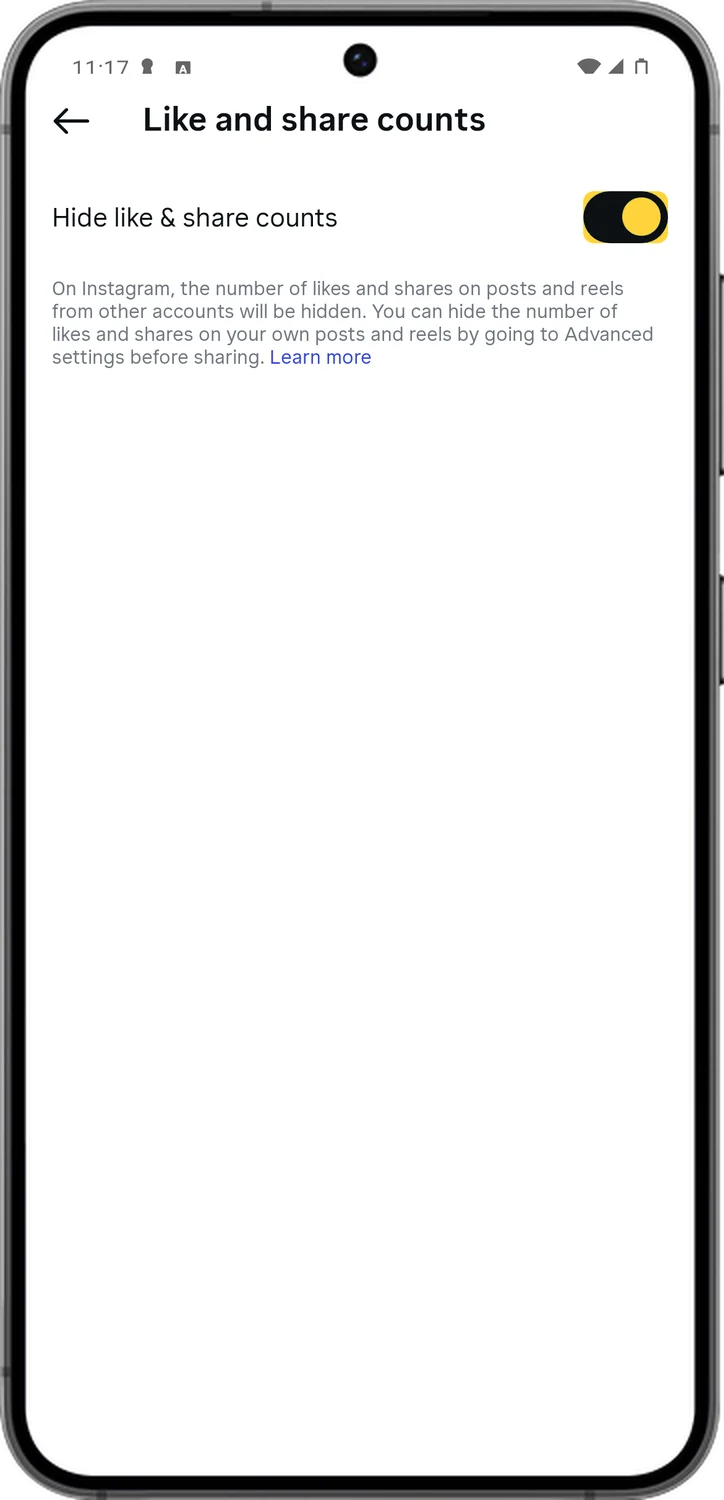
13.Hide Like and Share Counts
Not strictly a privacy setting, but it keeps the numbers off your posts and stops the comparing. Other people still see counts on their own content.
14.Cut the Phone Permissions
Instagram only needs your camera, microphone and photos while you are posting. Contacts and precise location are the ones to refuse, because both feed friend suggestions and ads.
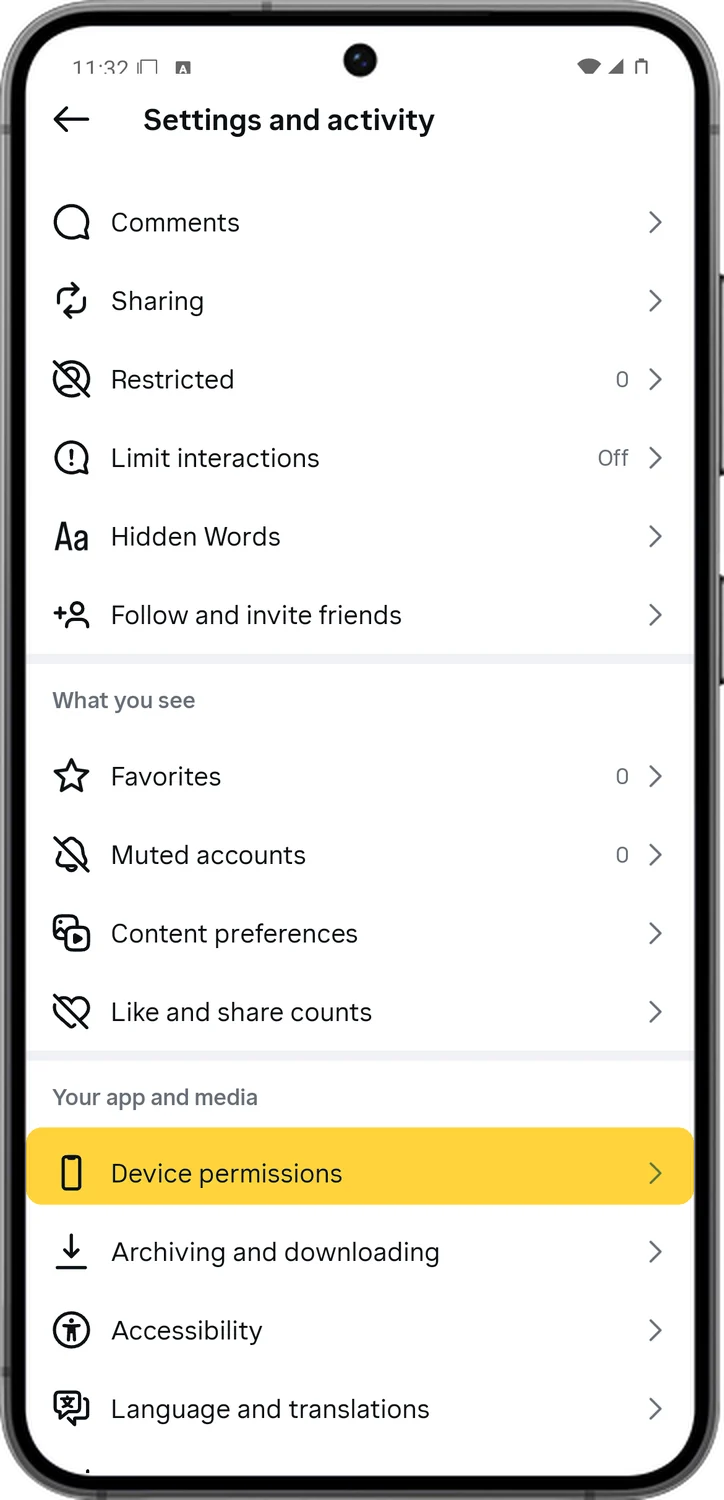
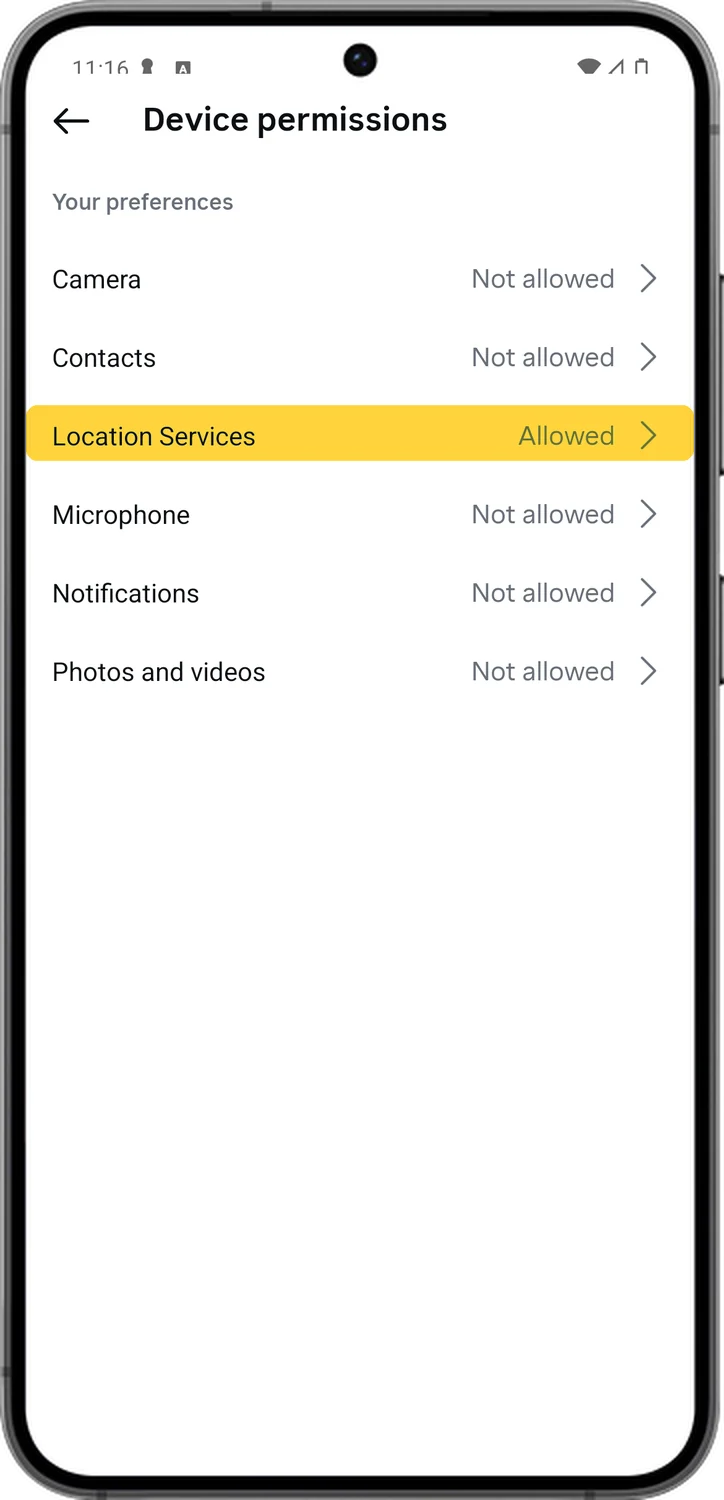
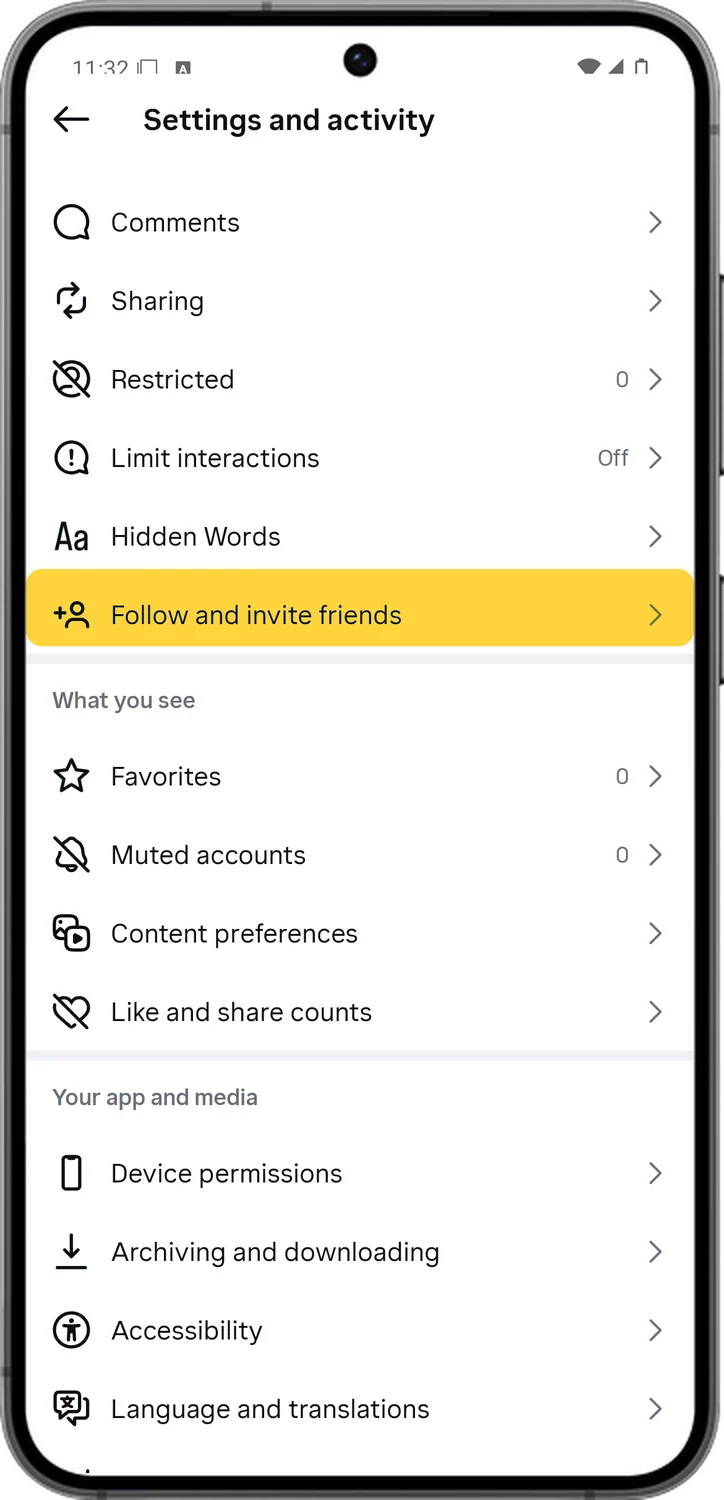
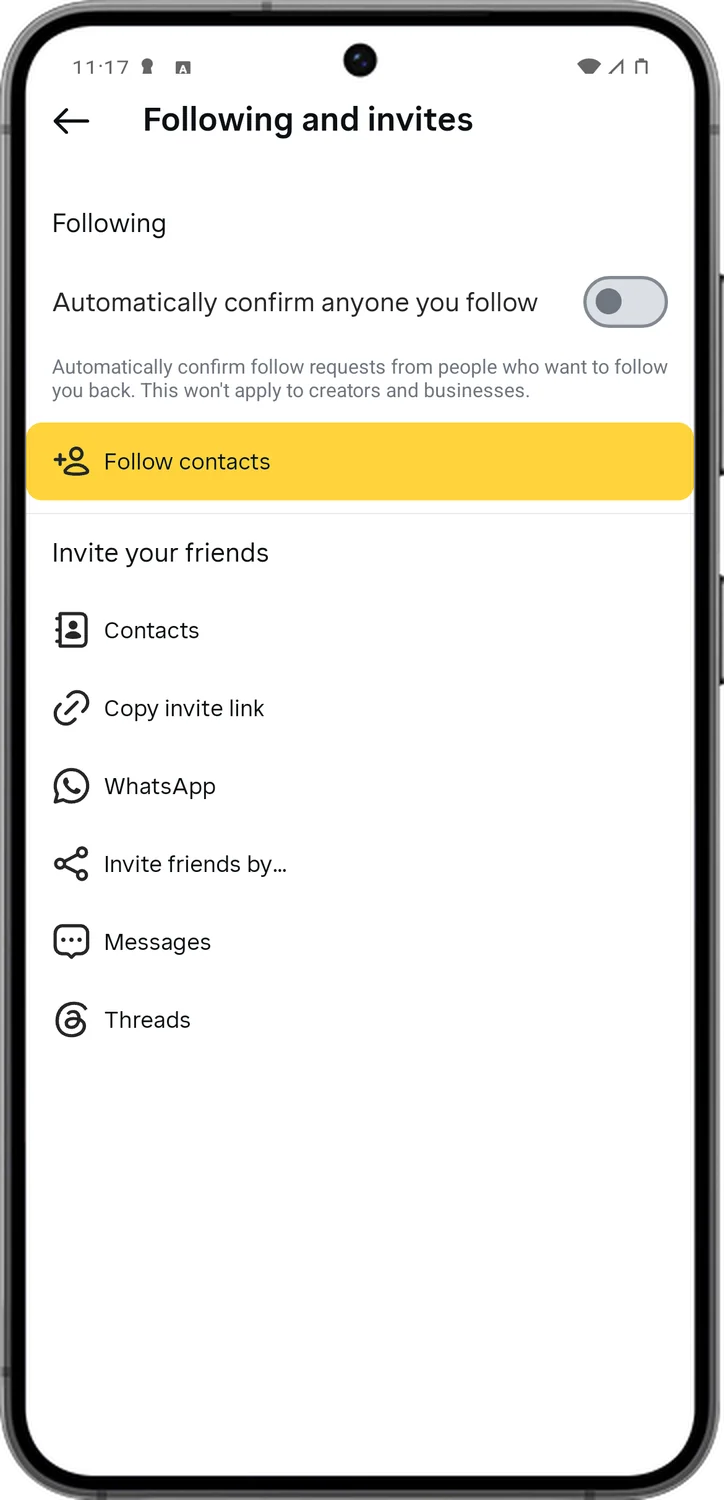
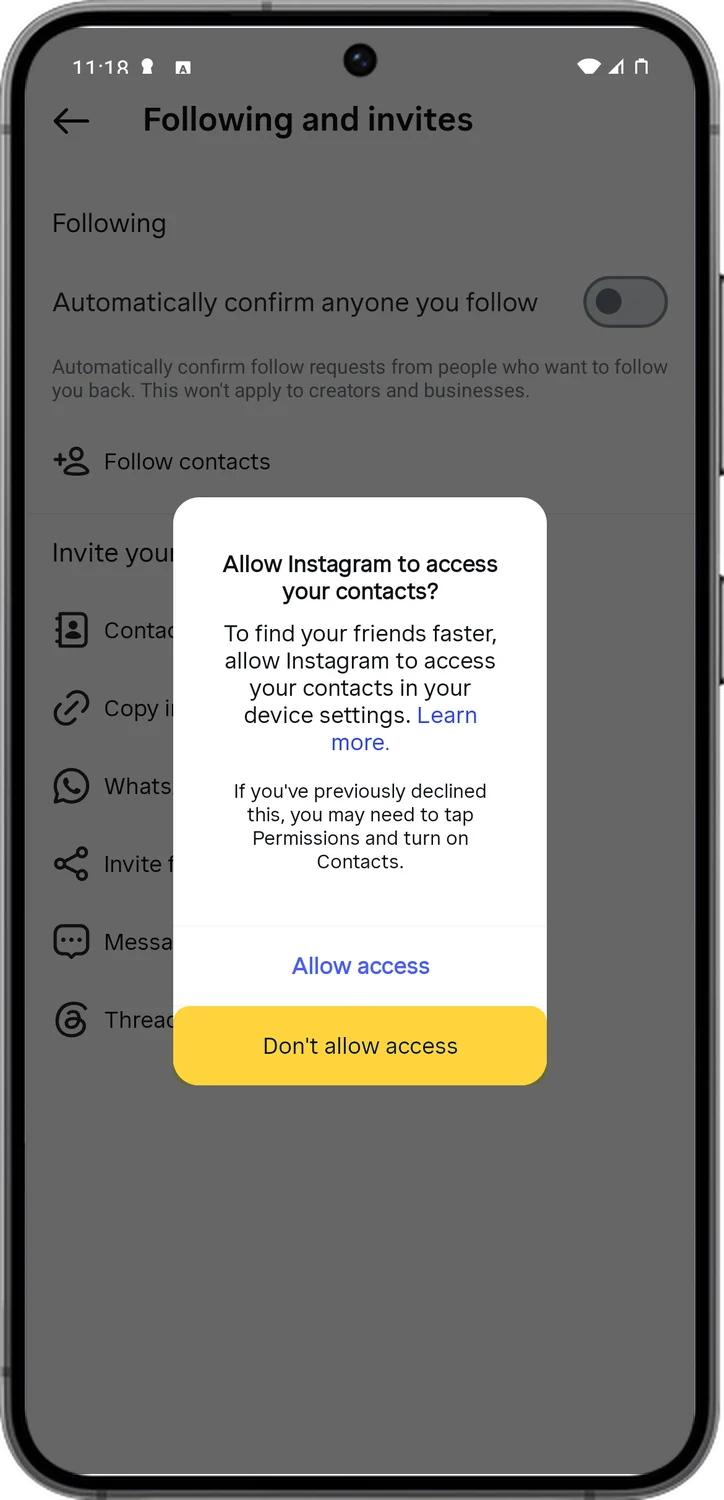
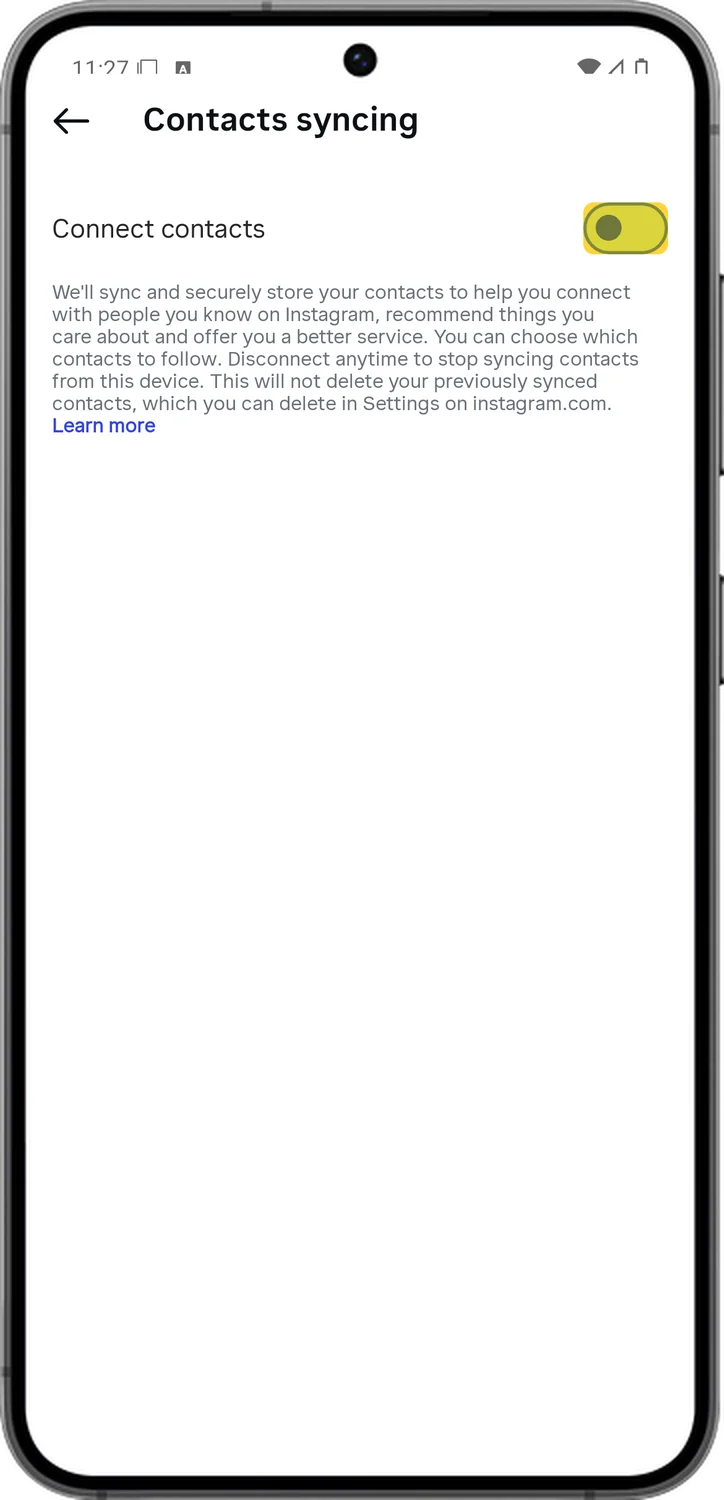
15.Stop Contact Syncing
If you ever allowed it, Instagram keeps a copy of your phone's address book on Meta's servers and uses it for friend suggestions, including suggesting you to the people in your contacts. Refuse the permission, then make sure the upload is off.
16.Turn on Two-factor and Check Your Logins
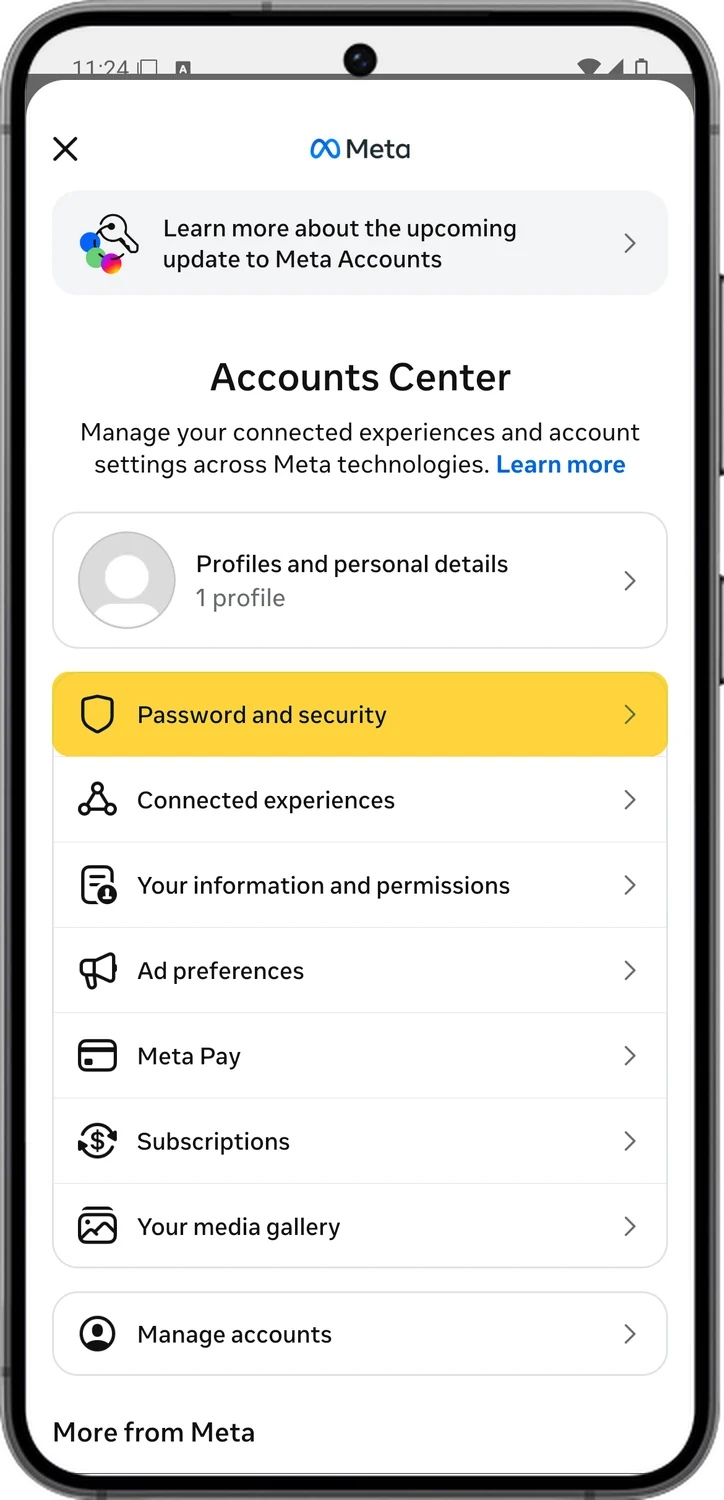
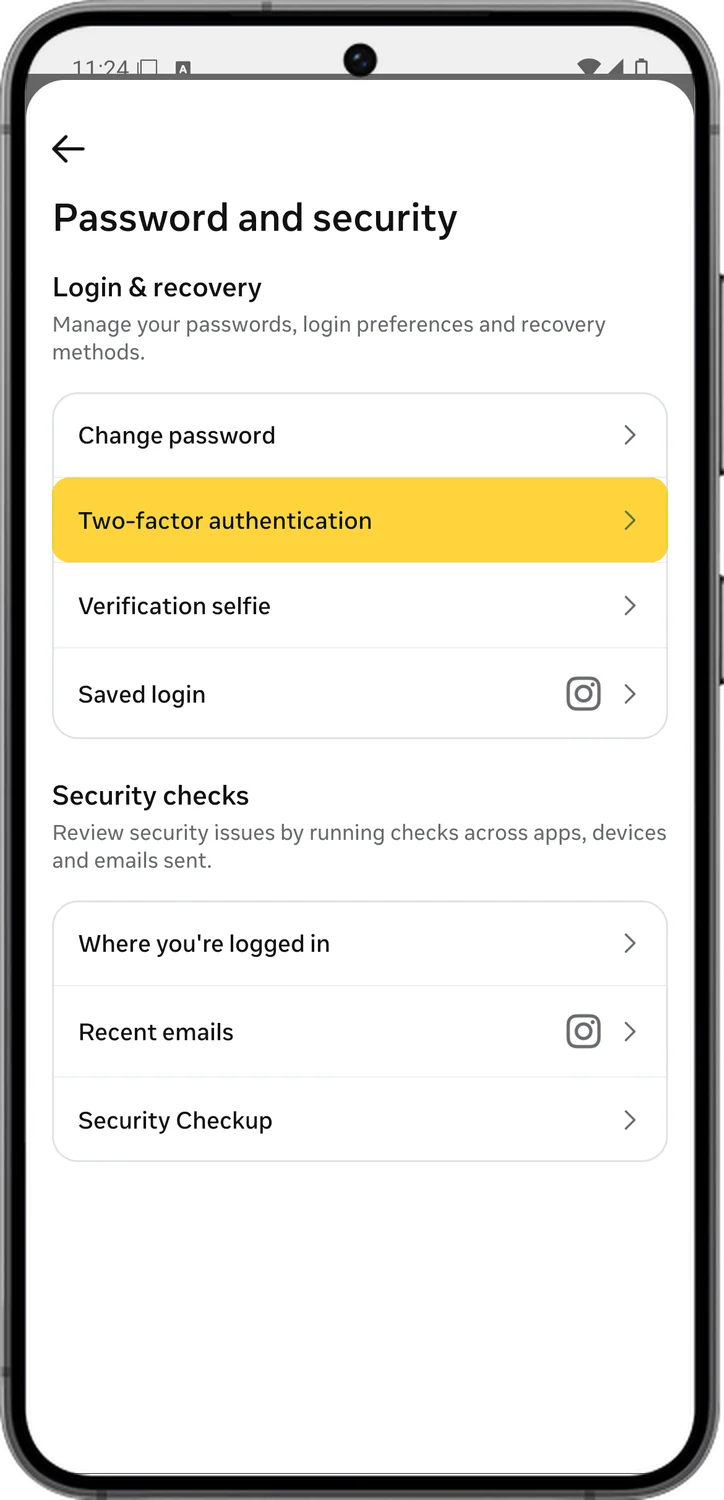
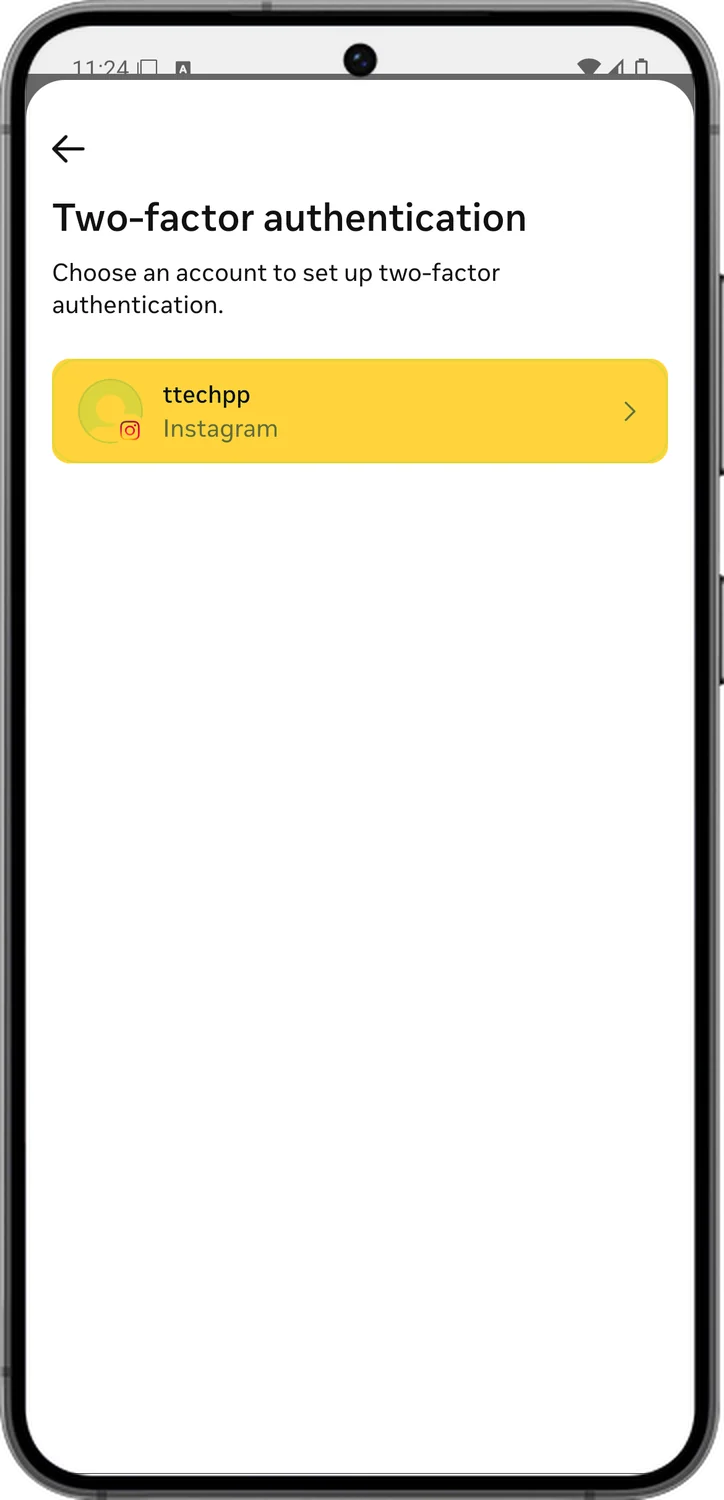
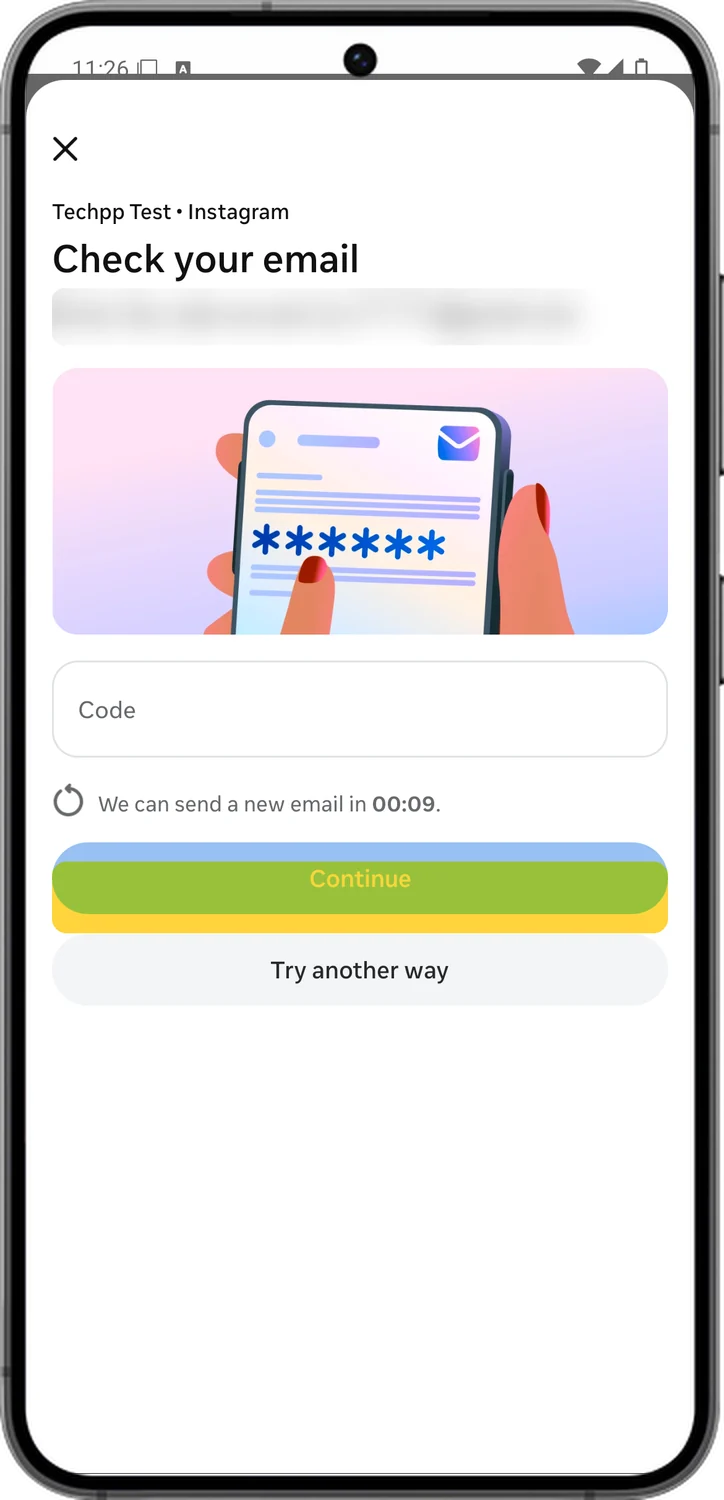
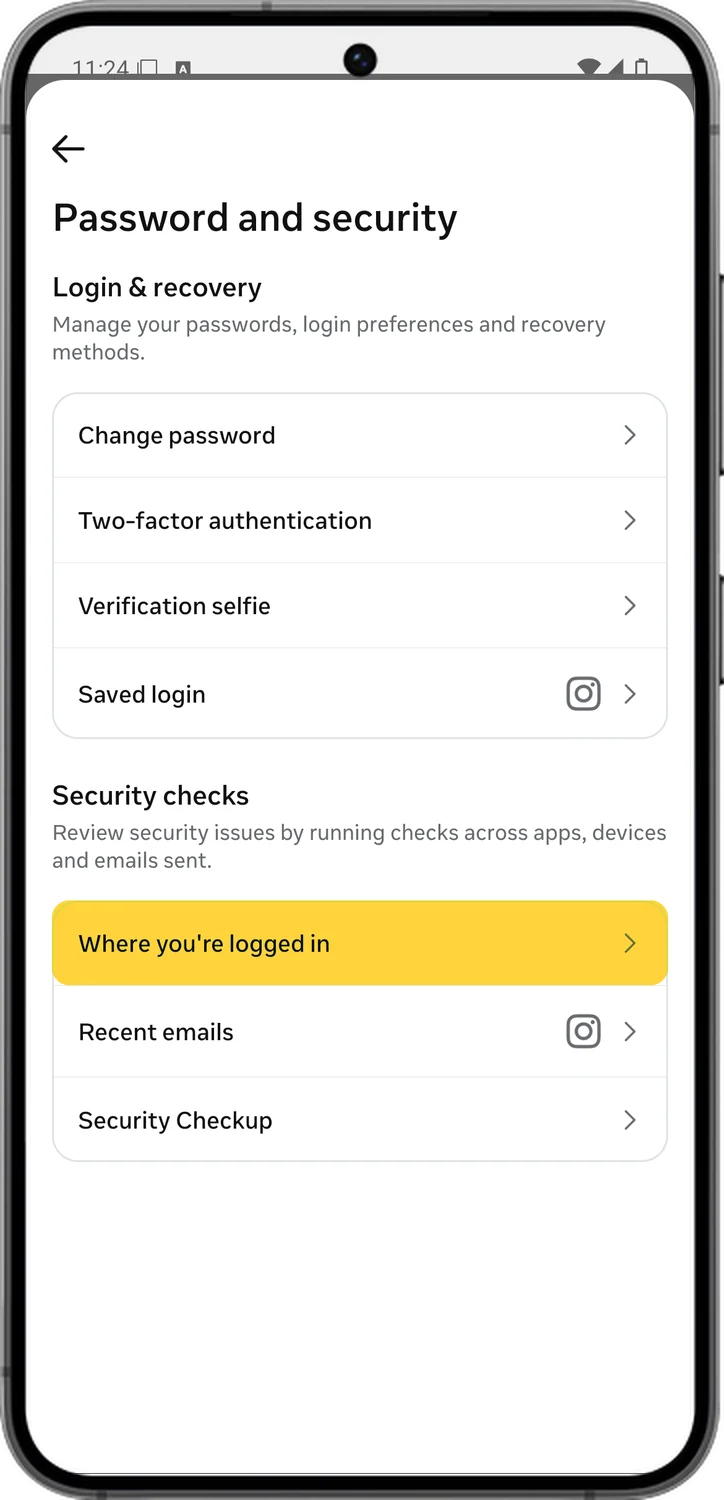
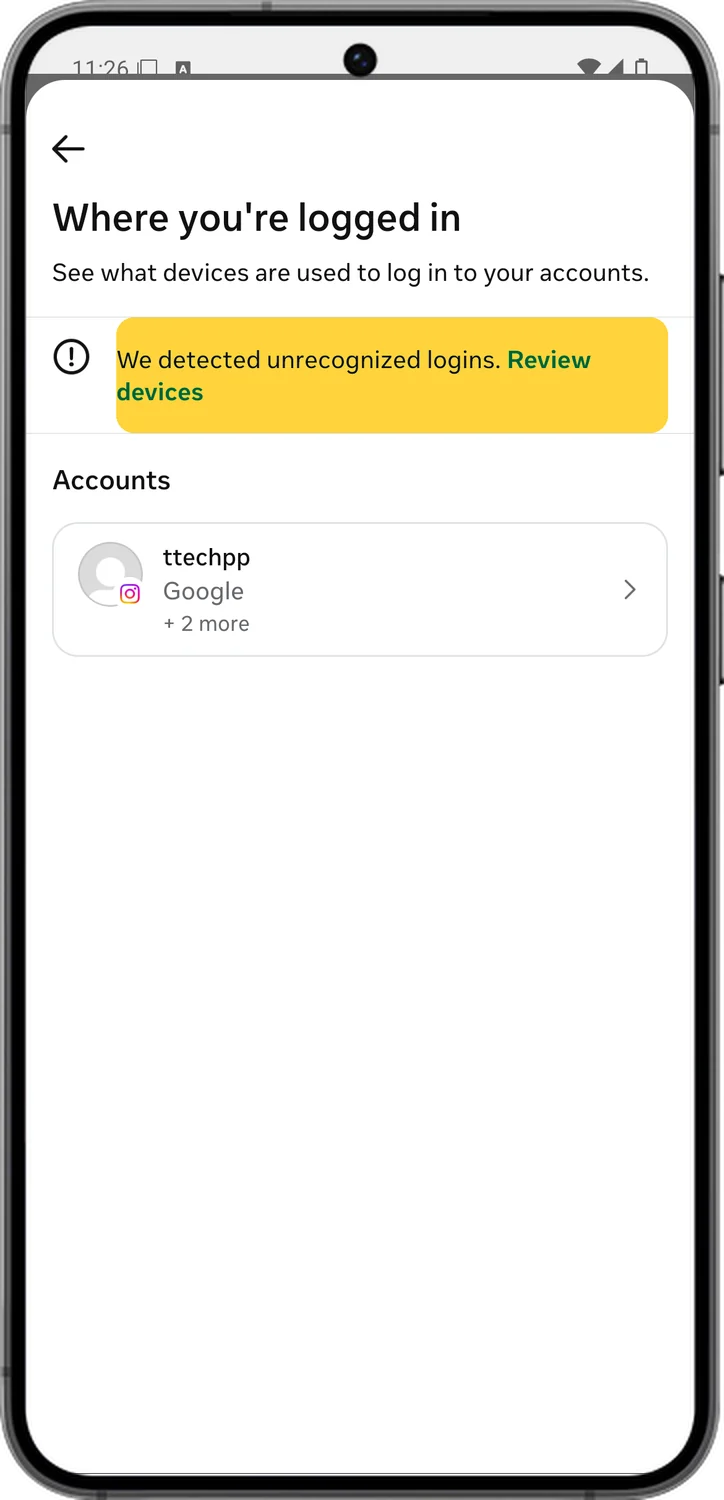
Privacy settings mean nothing if someone else can log in as you. Two-factor authentication asks for a six-digit code from an app on every new login, and Where you're logged in shows every phone and computer currently signed in to your account.
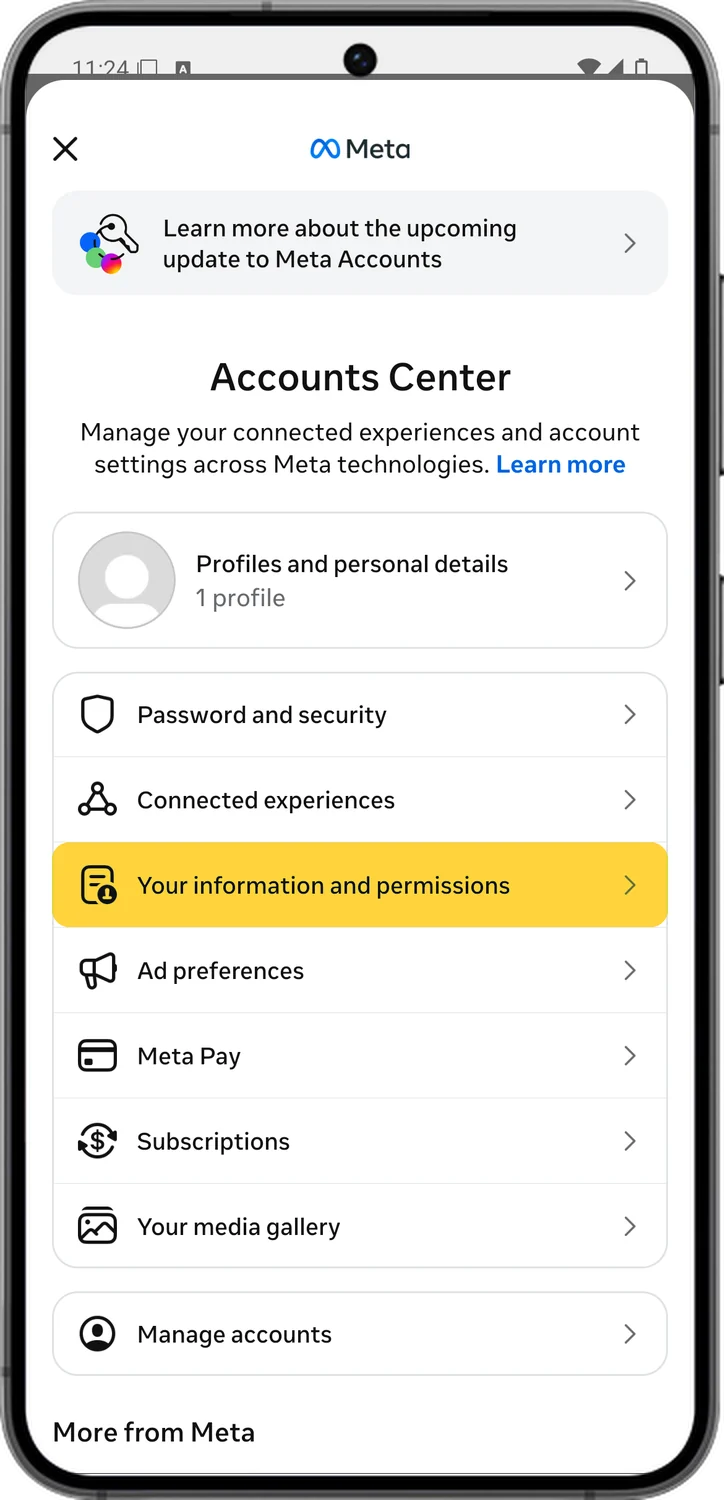
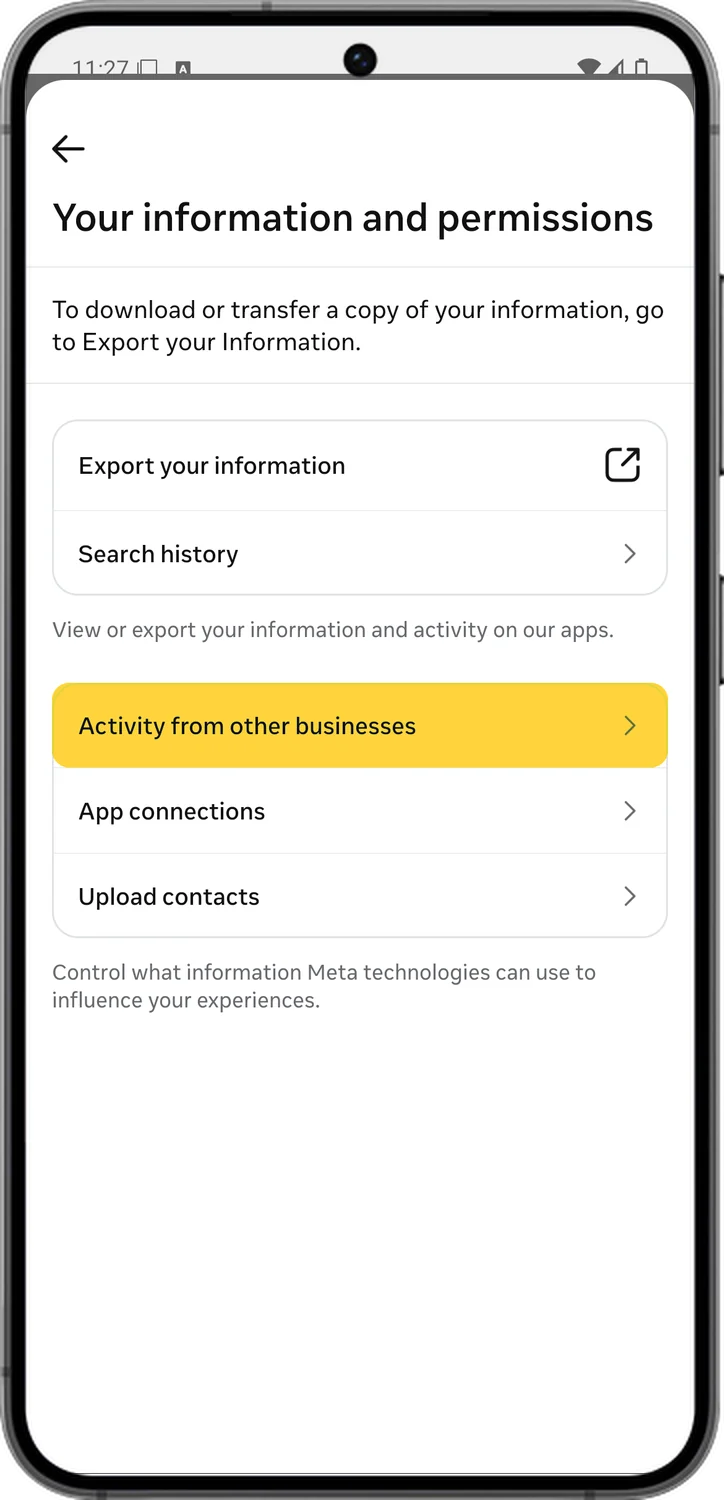
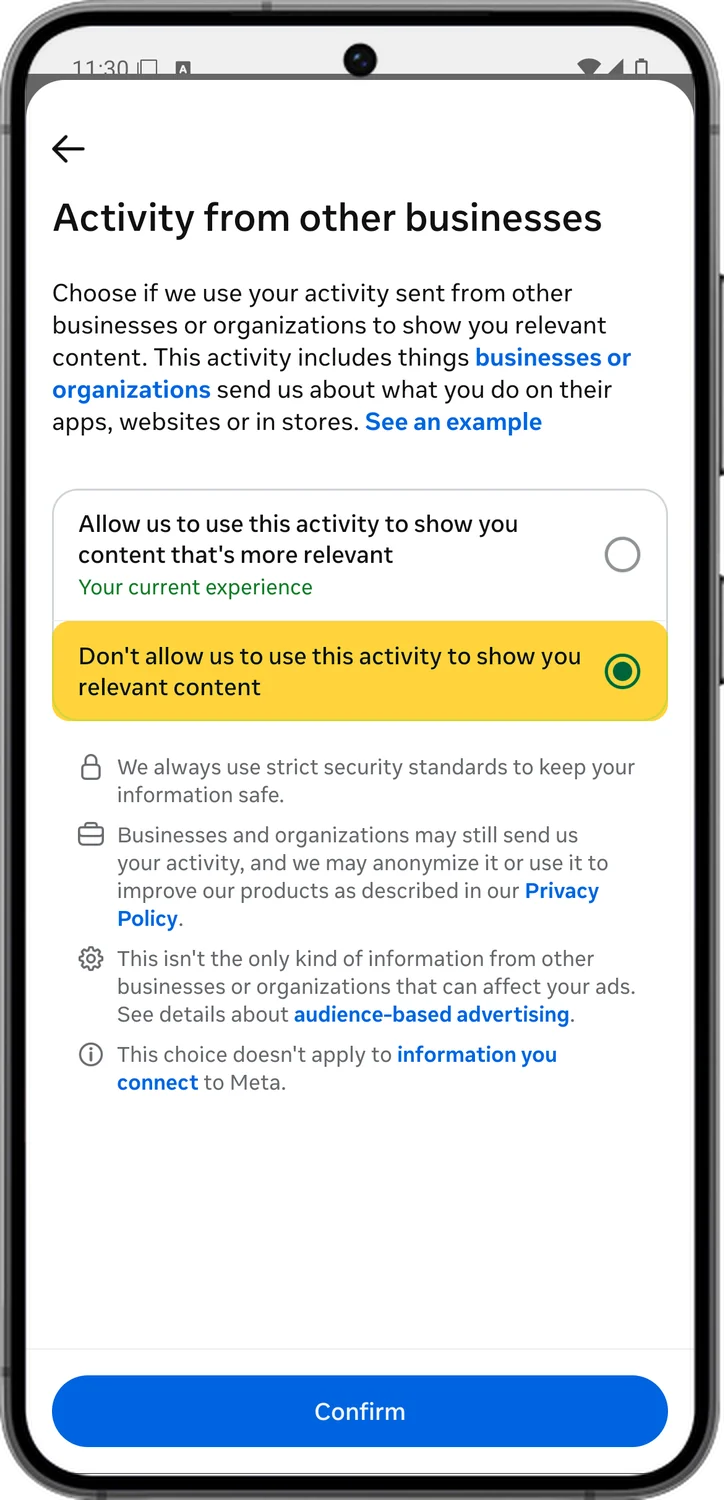
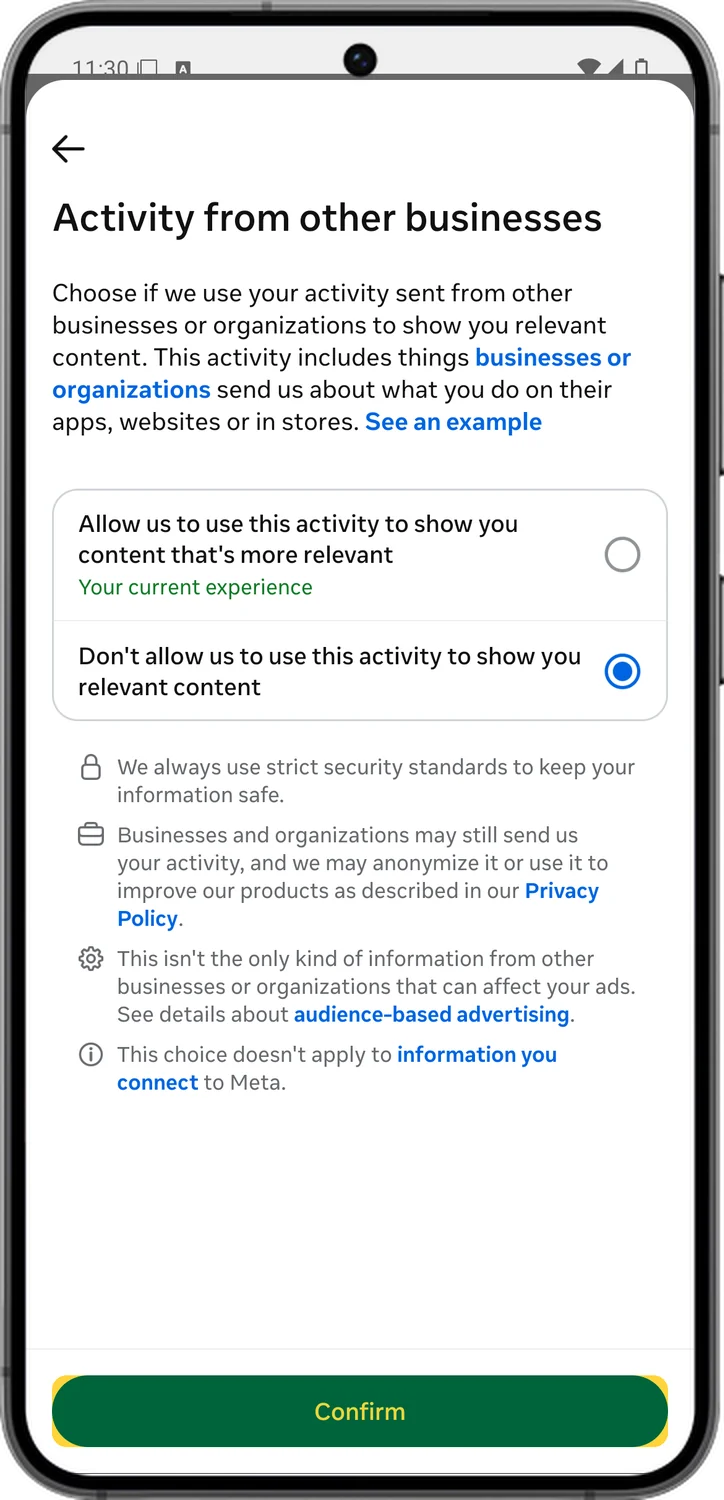
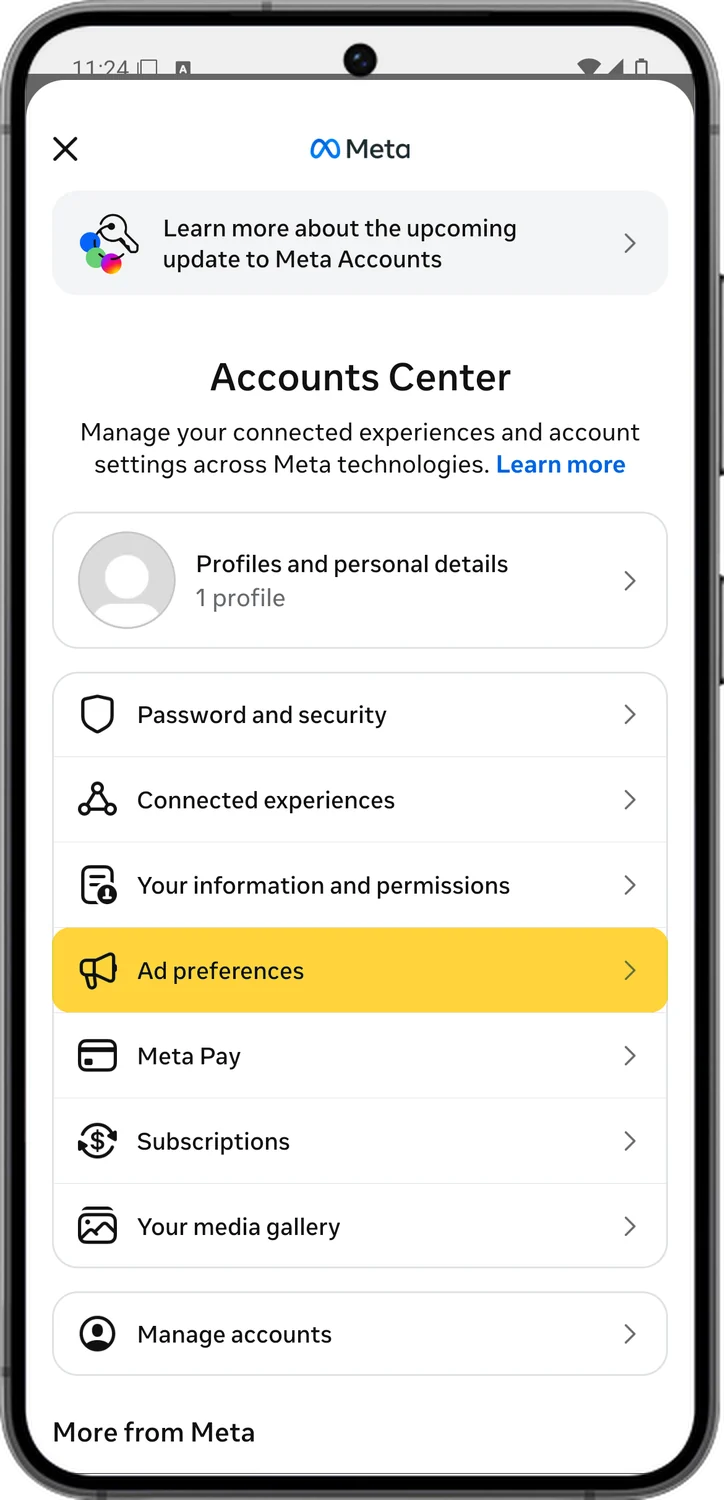
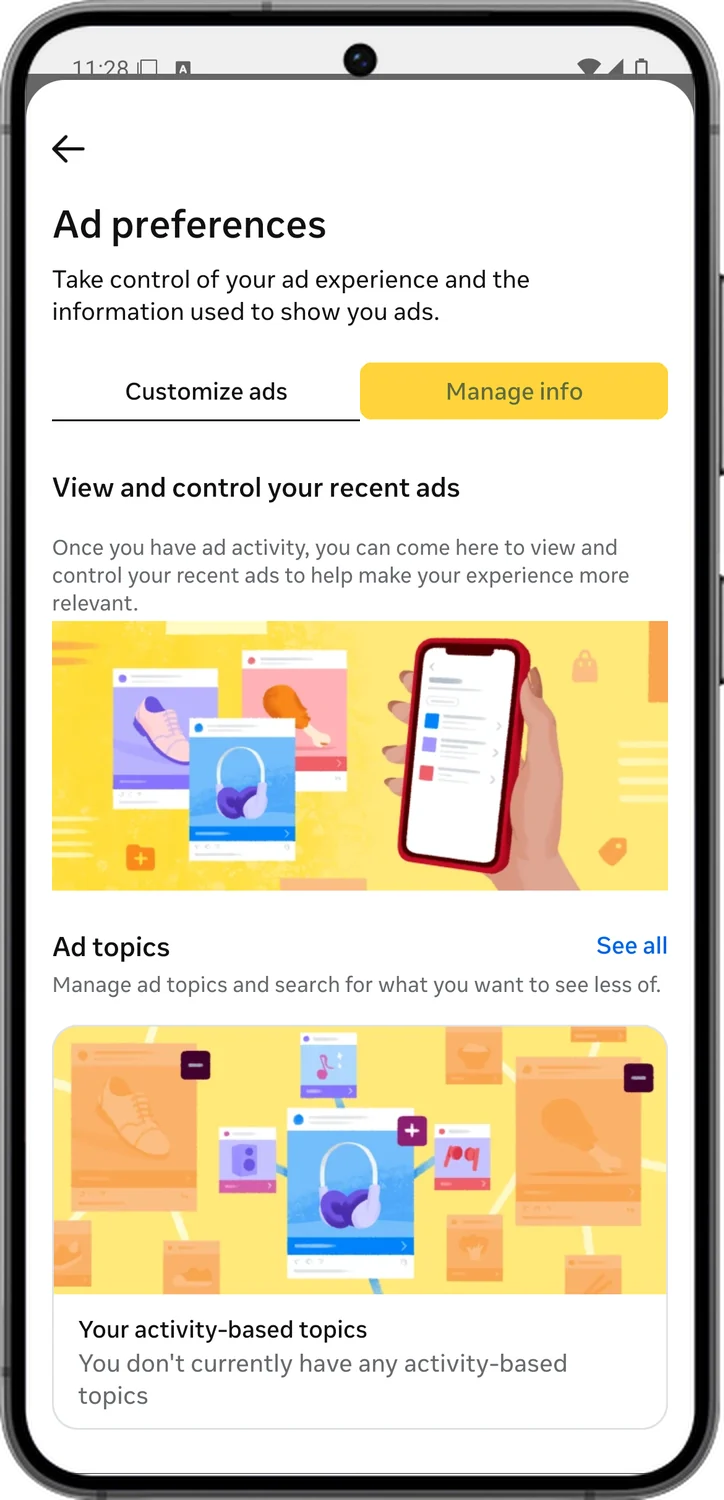
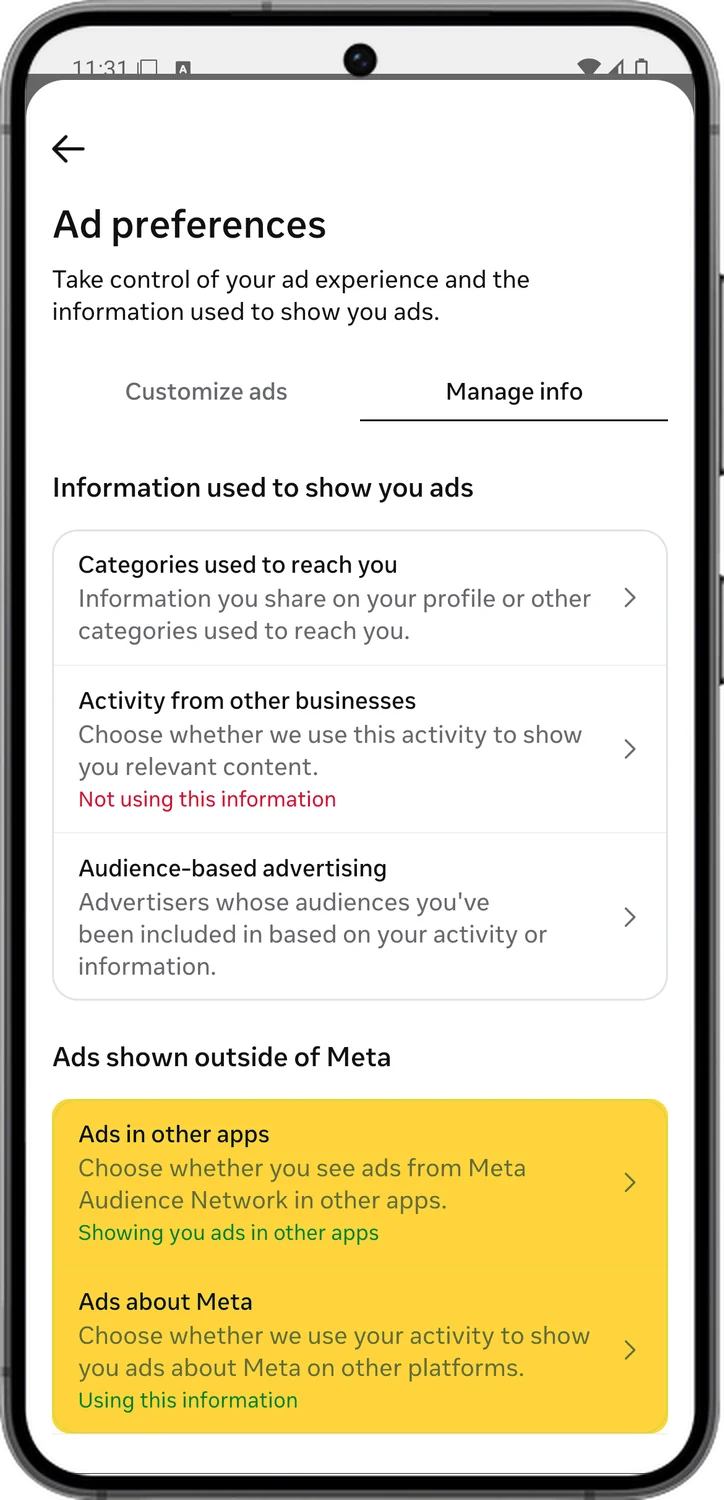
17.Stop Meta Using Your Activity from Other Apps
Shops and apps send Meta a record of what you do on their sites, and Instagram uses it to pick your ads and recommendations. You can tell Meta not to use that activity, and turn off Meta's ads in other apps.
18.Run Meta's Privacy Checkup
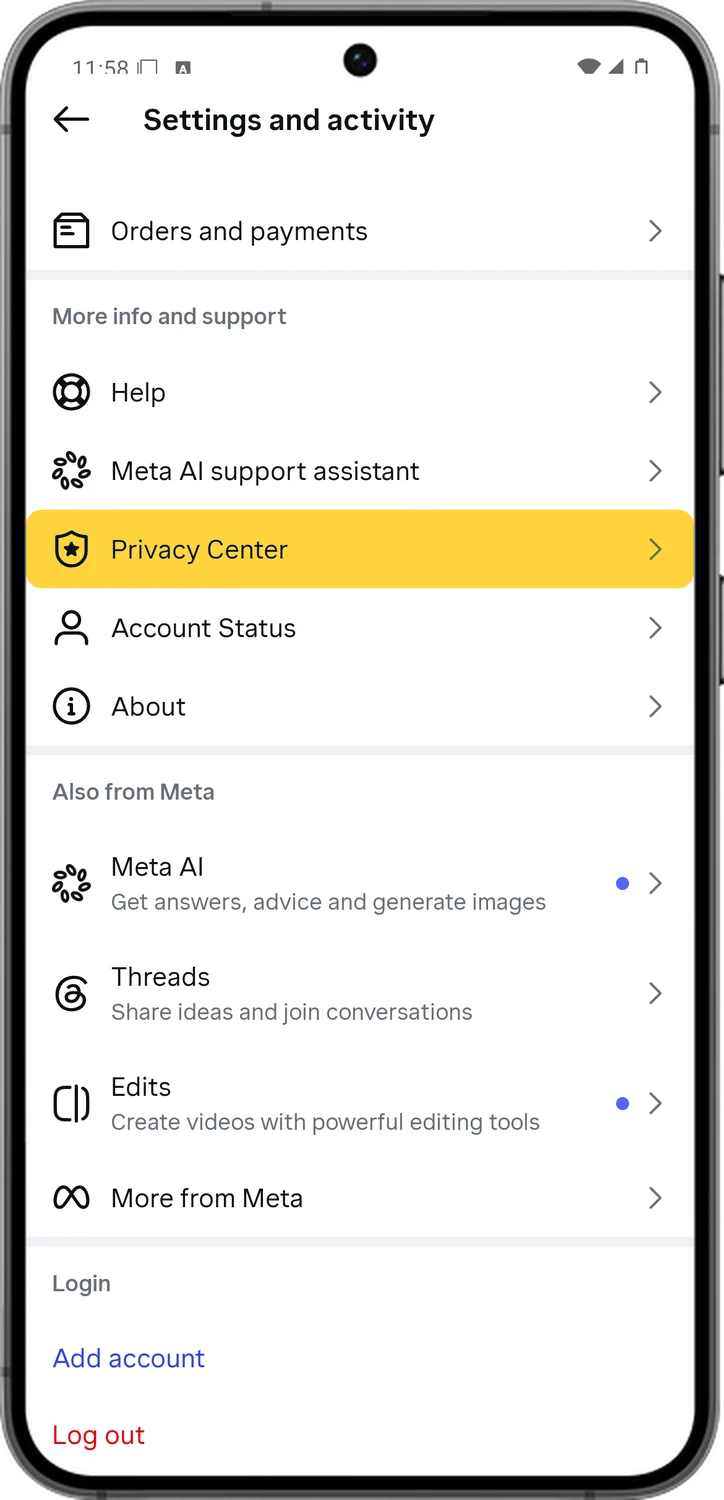
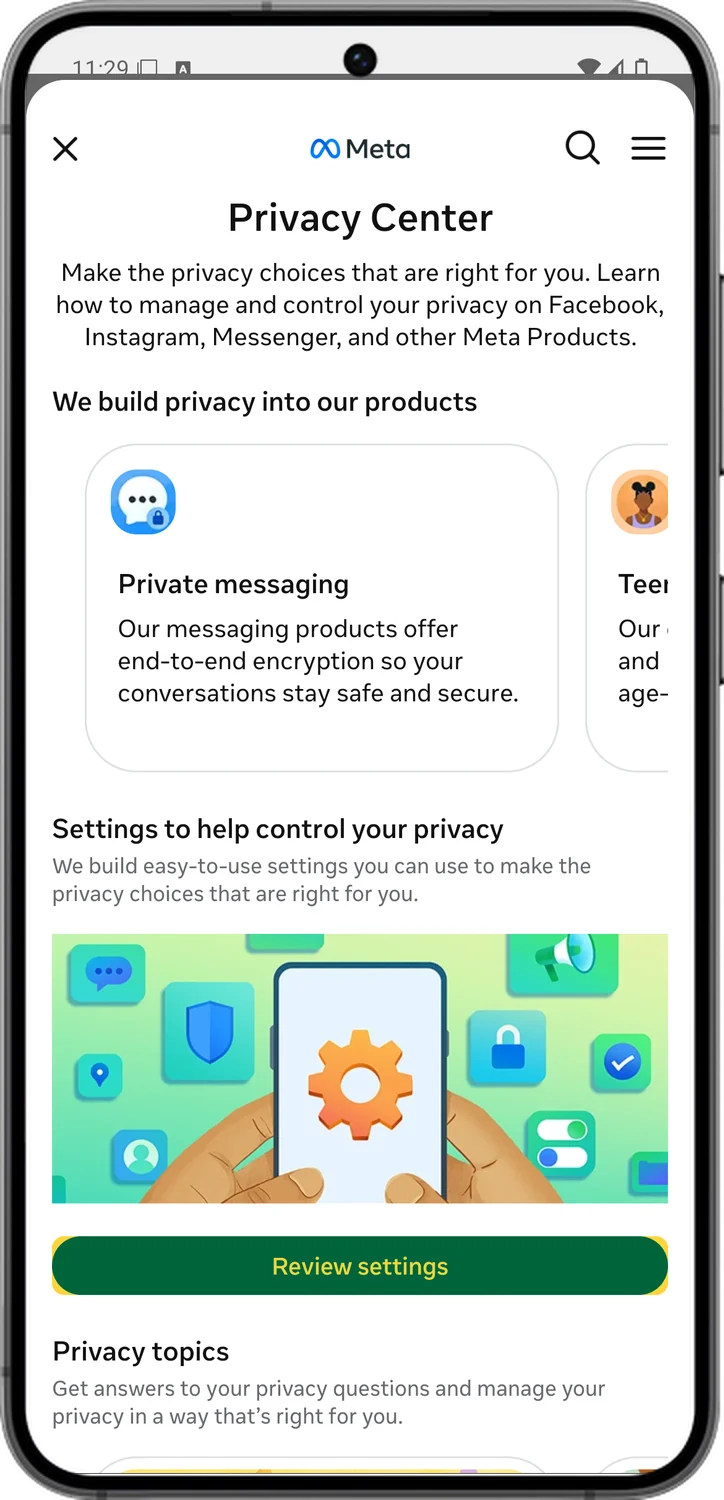
Privacy Center is Meta's own walkthrough of these settings across Instagram, Facebook and Threads. It is a good place to confirm everything above stuck, and to catch new settings as Instagram adds them.
Those are the settings you can change on Instagram for better privacy. Whether you are on iPhone, Android or Instagram on the web, these settings apply across platforms. Instagram constantly tests new features, and if there is a new privacy feature, we will update this guide. For more setup guides like this one, see our TechPP setup guides.
Was this article helpful?
Comments
0Share your thoughts, questions, or feedback about this guide.
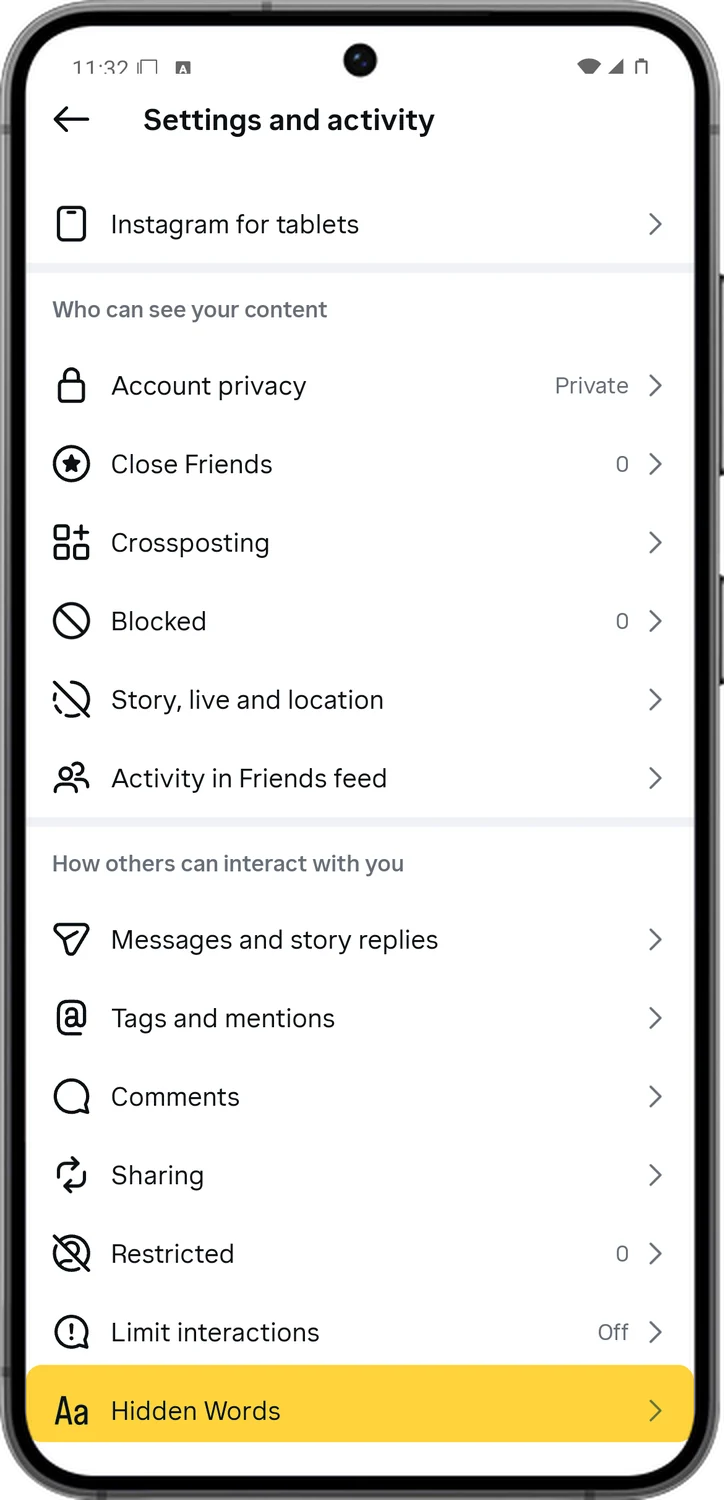
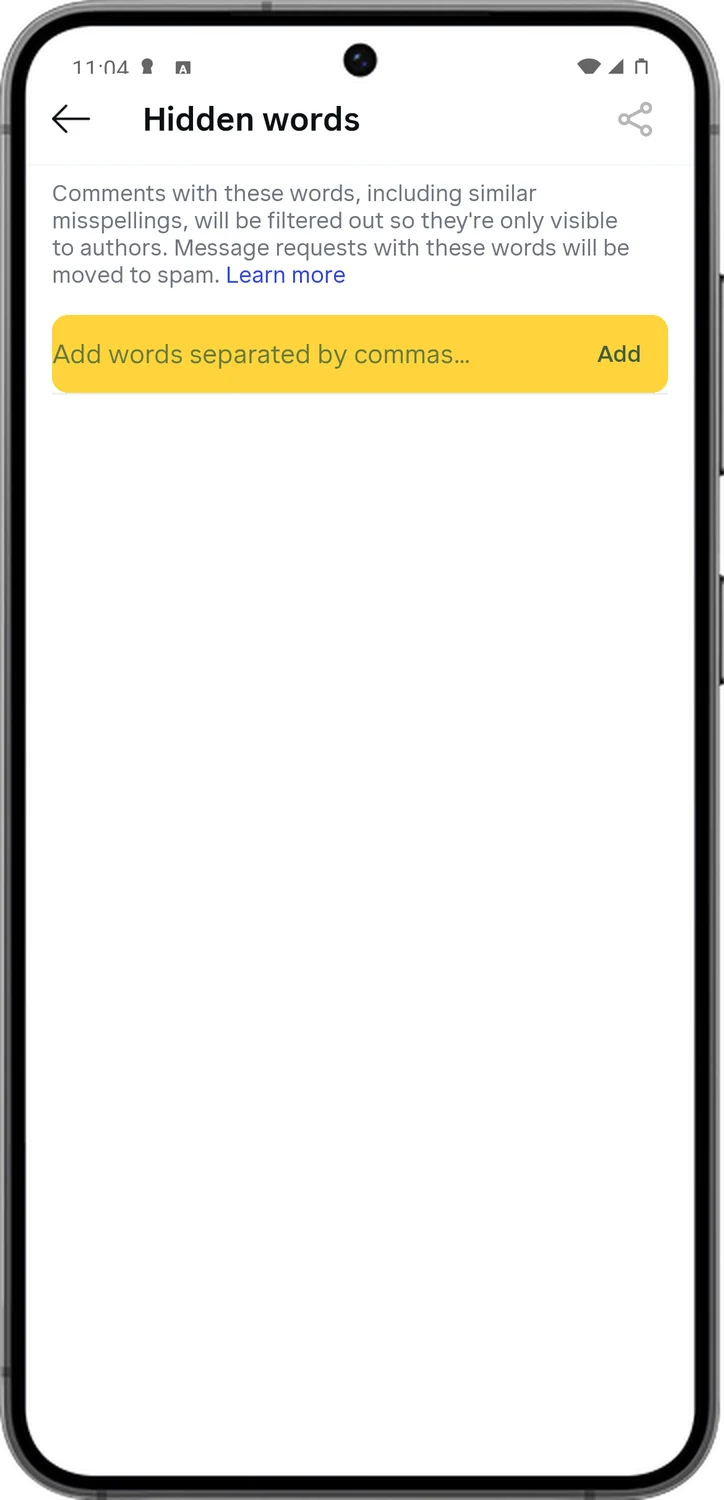
7.Filter Comments
Comments are where unwanted attention usually starts. Tighten who can comment, let Instagram hide more of the offensive ones automatically, and turn off GIF and photo comments, which are hard to moderate.