
YouTube Icons and Symbols Explained
YouTube is the app most of us open to watch anything, from tutorials to music videos and Shorts. Over the years, YouTube has packed in plenty of features like chapters, Ask, Hype, stable volume and Shorts limits, and most of them only show up as small icons.
In this guide, you will learn what every icon in the latest YouTube app means, screen by screen. And this is an interactive guide. You can tap on every icon on the screens below to know what it does.
Home
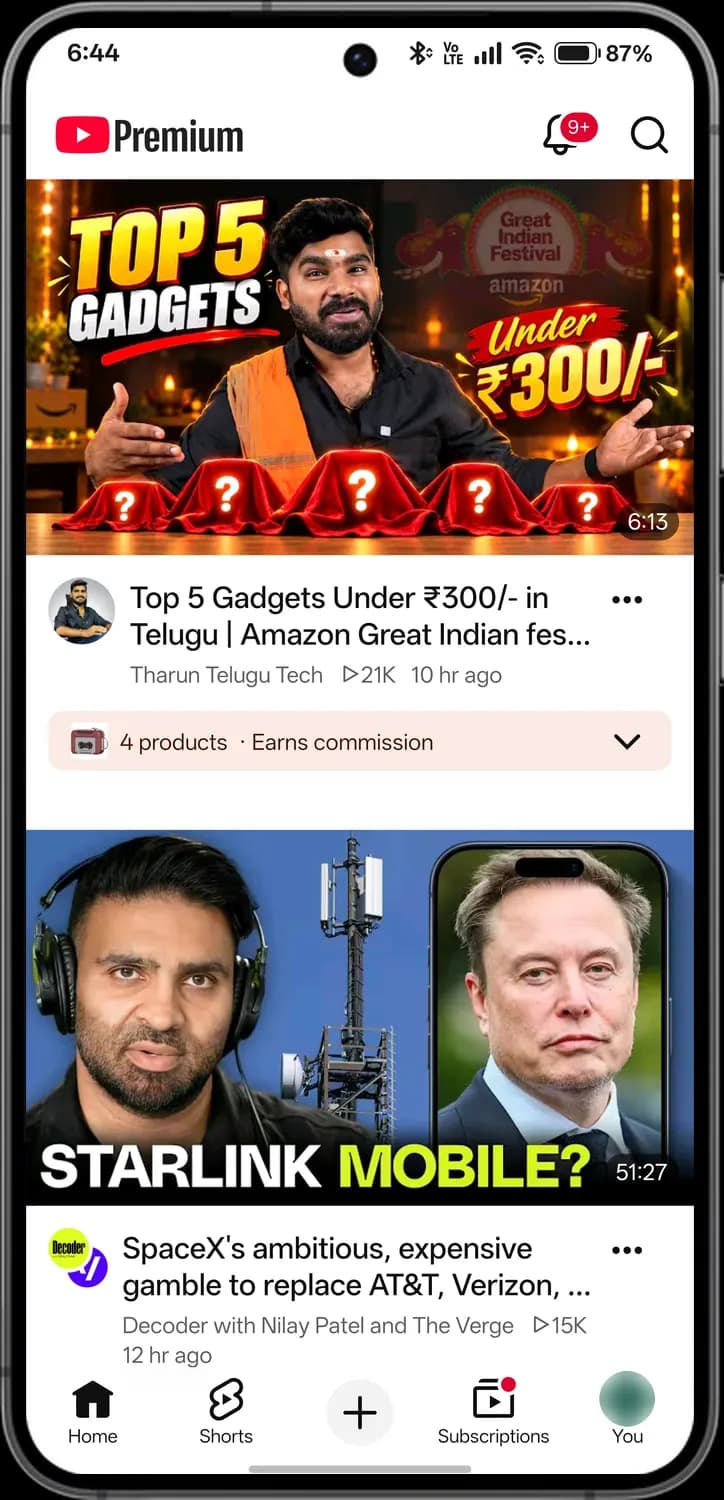
YouTube opens on Home, with videos picked for you. The bar at the bottom switches between the app's five tabs. Your profile picture is blurred here.
YouTube Premium
The logo says Premium when you pay for YouTube Premium: no ads, downloads and background play.
Notifications
New uploads and replies. The red number is how many you have not seen.
Search
Search for videos, channels and playlists.
Video length
How long the video is.

Channel
Tap the channel's picture to open its page.
More options
Save, download, share, or tell YouTube you are not interested.
Views
How many times the video has been watched.
Products
Products tagged in the video. The channel earns a commission if you buy.
Home
Highlighted while you are here. Videos picked for you.
Shorts
Short vertical videos you swipe through.
Create
Upload a video, record a Short, go live or post.
Subscriptions
New videos from channels you subscribe to.

You
Your channel, history, library and settings.
Watching a video
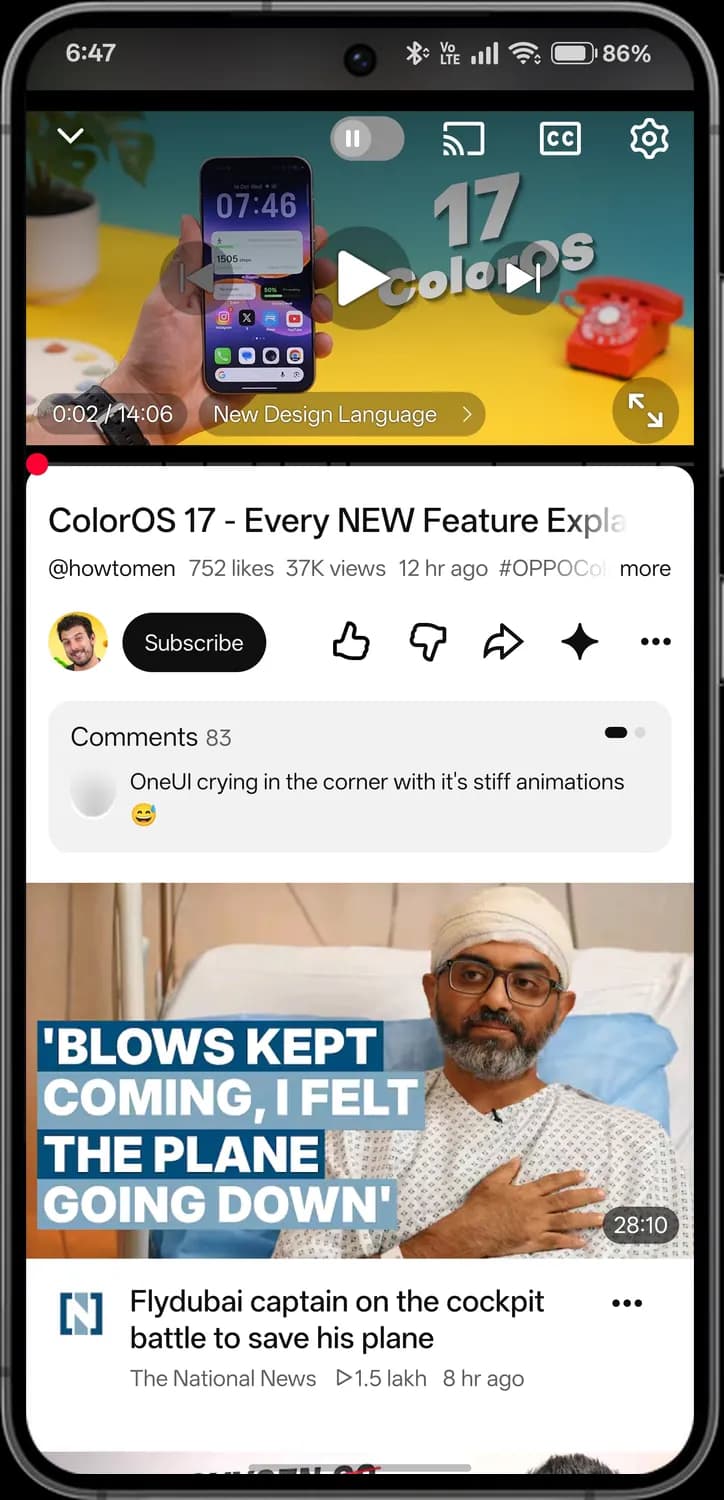
Tap a video to watch it. The controls appear when you tap the player, and the buttons under the title let you like, share, save and more.
Player and buttons
Minimise
Shrinks the video so you can keep browsing while it plays.
Autoplay
When it is on, the next video starts by itself.
Cast
Plays the video on your TV.
Captions
Turns subtitles on or off.
Player settings
Quality, speed, captions, lock screen and more.
Previous
Goes back to the previous video.
Play and pause
Plays or pauses the video.
Next
Skips to the next video.
Time
How far into the video you are, and how long it is.

Chapter
The part of the video you are in. Tap to see every chapter.
Full screen
Turns the phone sideways and fills the screen.
Subscribe
Follows the channel, so its new videos show in Subscriptions.
Like
Tells YouTube you liked the video.
Dislike
Tells YouTube you did not like it. Only you see this.
Share
Sends the video to someone or copies its link.
Ask
Ask AI questions about the video.
More actions
Save, Hype, download and report.
Comments
How many comments, and the top one. Tap to read them all.
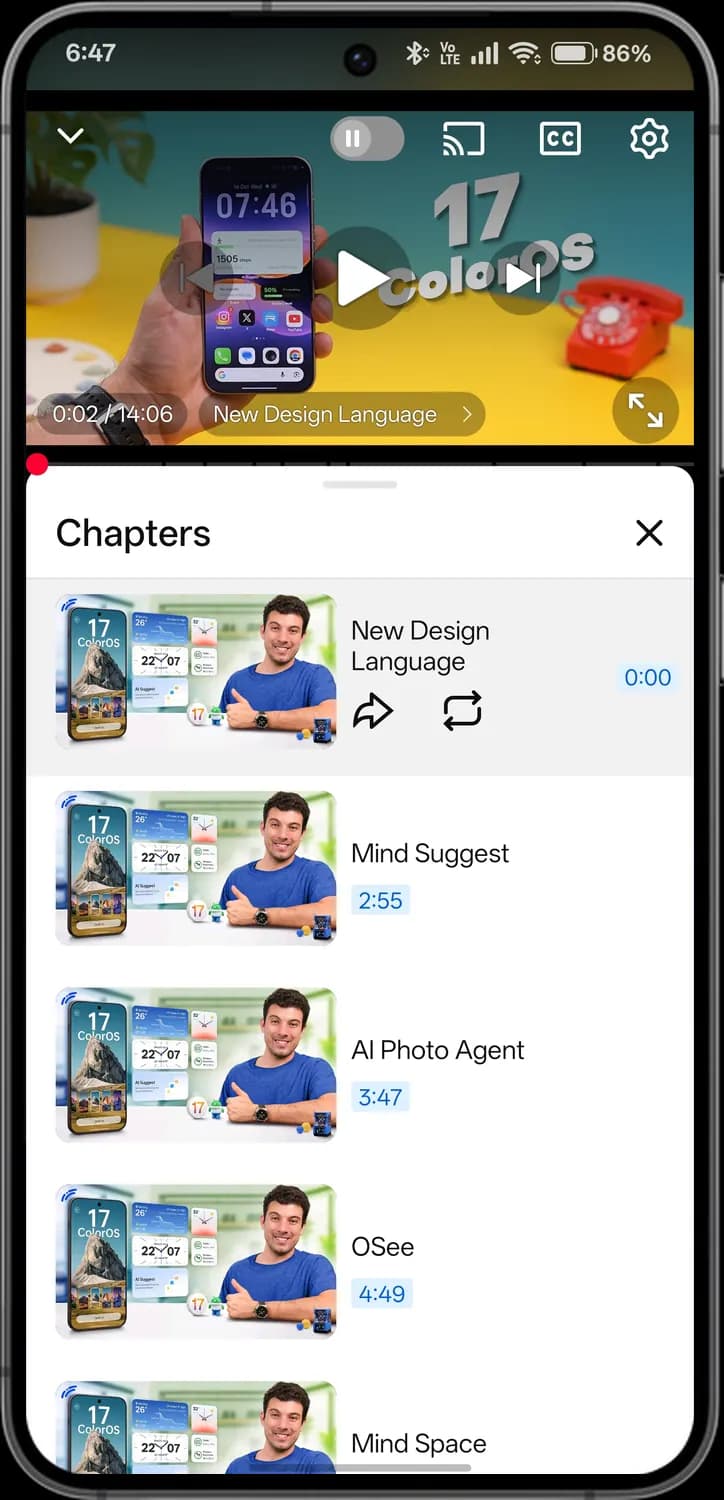
Chapters
Close chapters
Closes the chapter list.
Chapter list
Each part of the video, with when it starts. Tap one to jump there.
Share chapter
Shares a link that starts at this chapter.
Loop chapter
Plays this chapter on repeat.
Start time
Where the chapter starts.
Save and download menu
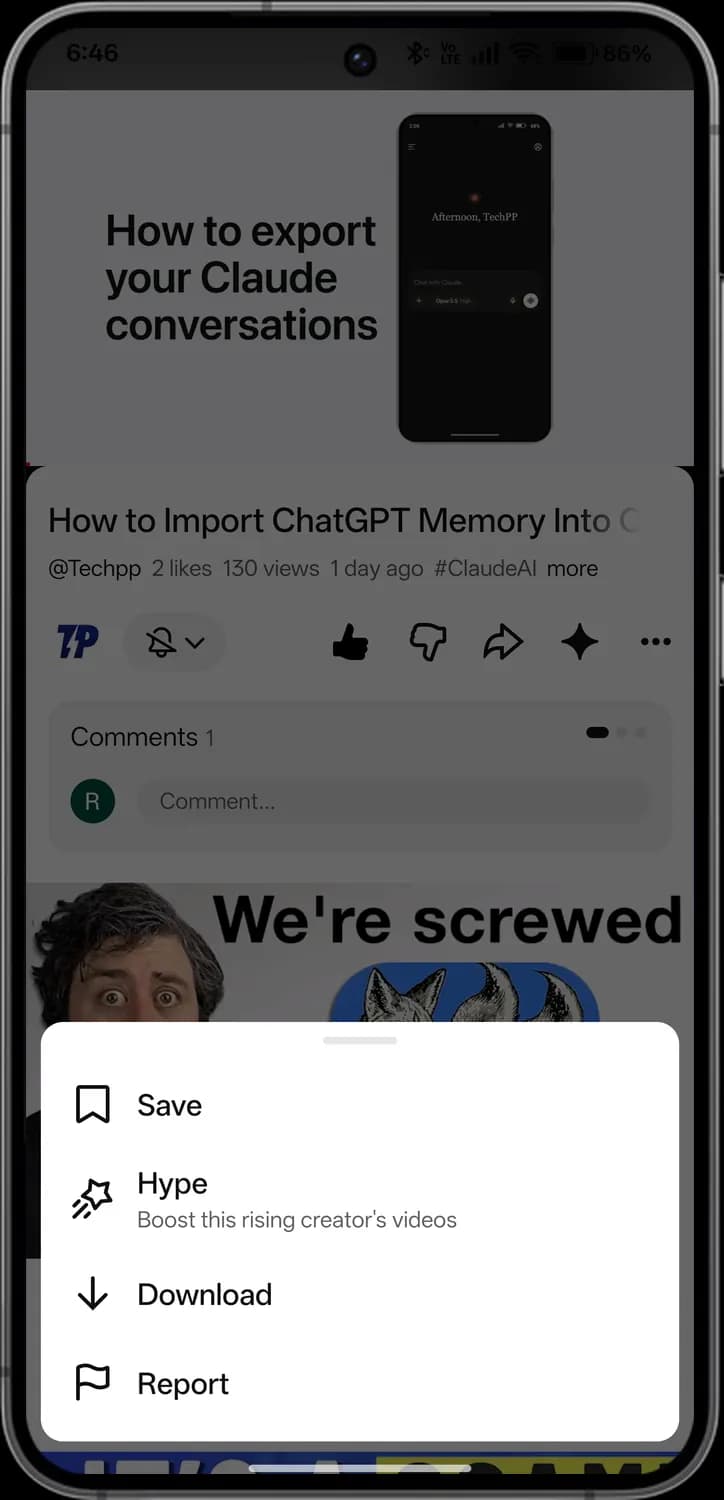
Save
Adds the video to Watch later or a playlist.
Hype
Boosts a smaller creator's video up YouTube's charts.
Download
Saves the video to watch offline (Premium).
Report
Reports the video to YouTube.
Player settings
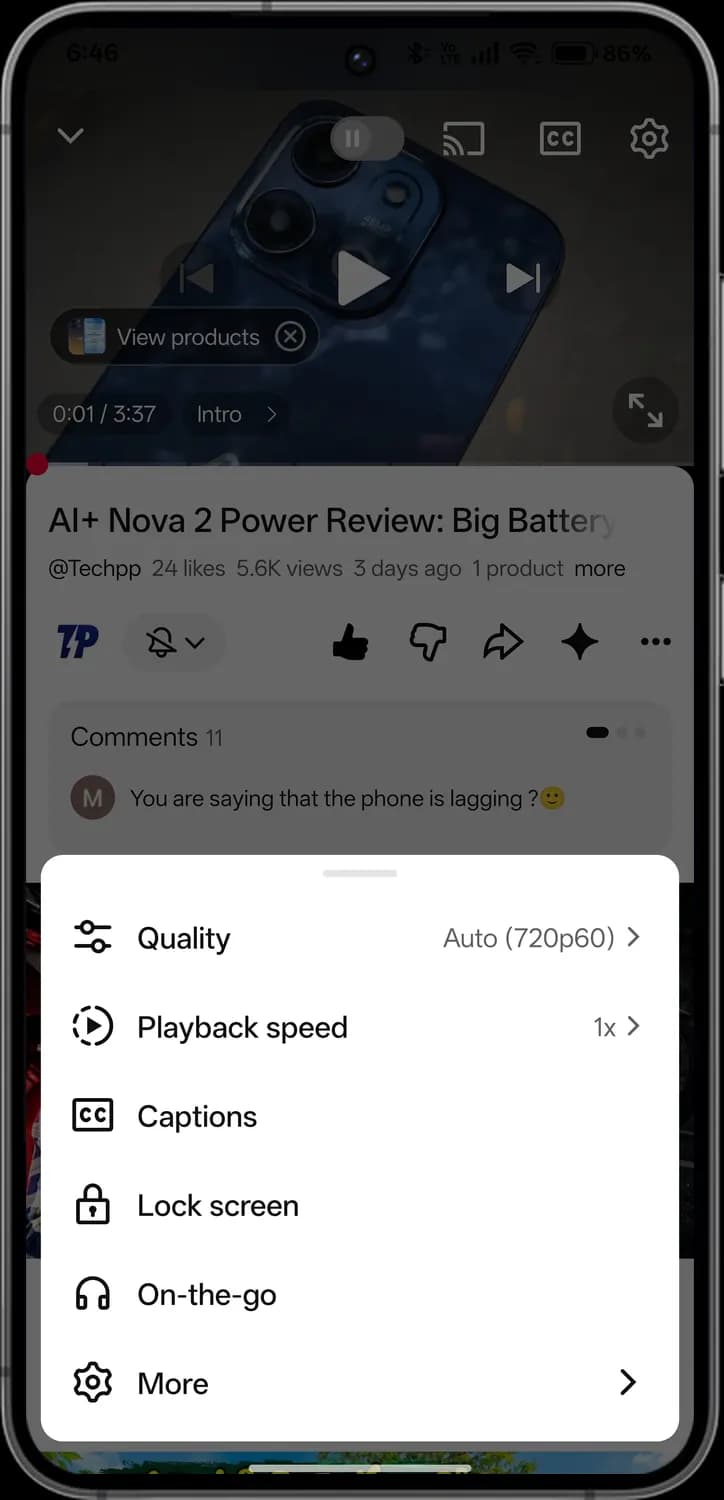
Quality
Picks how sharp the video looks.
Playback speed
Plays the video slower or faster.
Captions settings
Picks the subtitle language.
Lock screen
Locks the screen so taps don't stop the video.
On-the-go
A simpler player with big buttons for listening on the move.
More
Loop, ambient mode, stable volume, sleep timer and VR.
More player settings
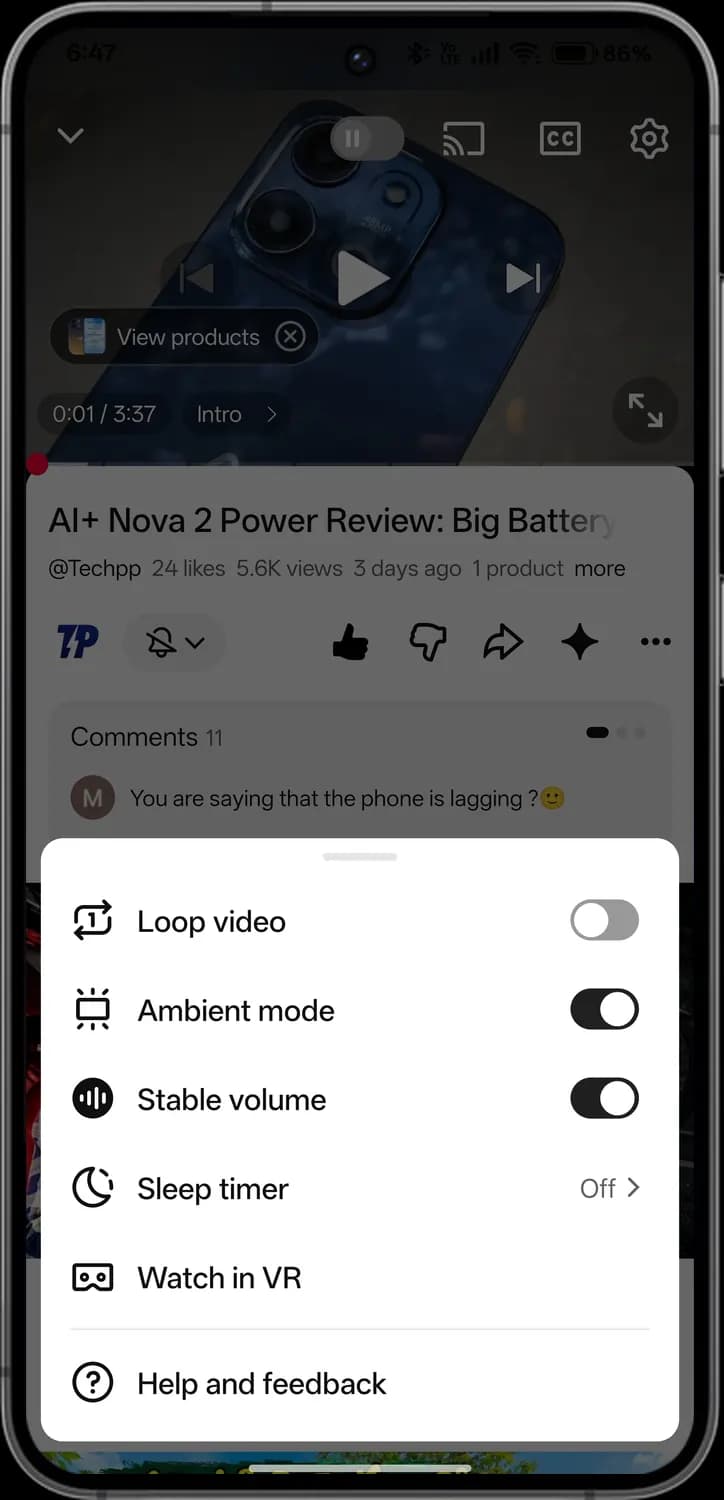
Loop video
Plays the video on repeat.
Ambient mode
Tints the area around the video with its colours.
Stable volume
Evens out loud and quiet parts.
Sleep timer
Stops the video after a set time.
Watch in VR
Plays the video in a VR headset.
Help and feedback
Help articles and a way to send feedback.
Video quality
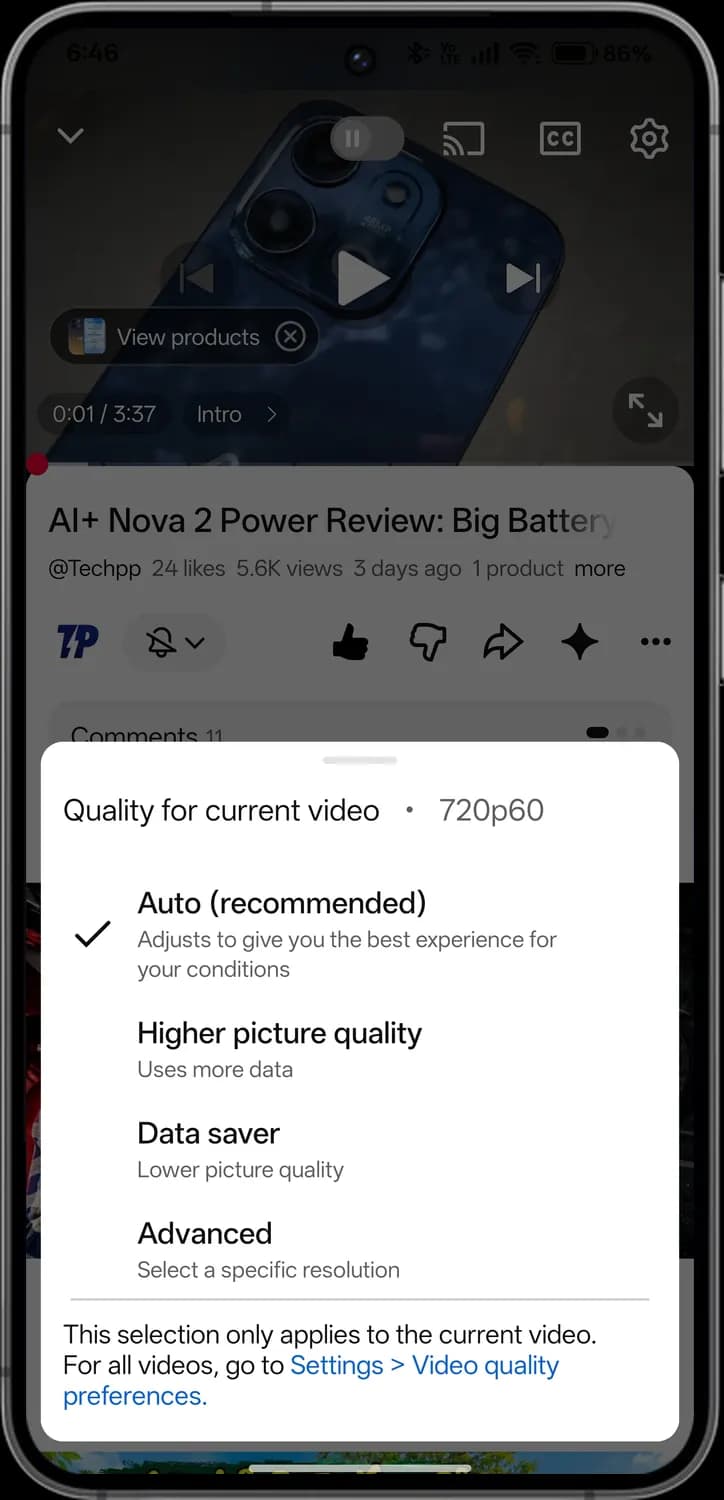
Auto quality
Picks the best quality for your connection.

Higher picture quality
Uses more data for a sharper picture.
Data saver
A lower quality that uses less data.
Advanced
Pick an exact resolution, like 1080p.
Shorts
Shorts are vertical videos up to three minutes long. Swipe up for the next one.
Shorts player
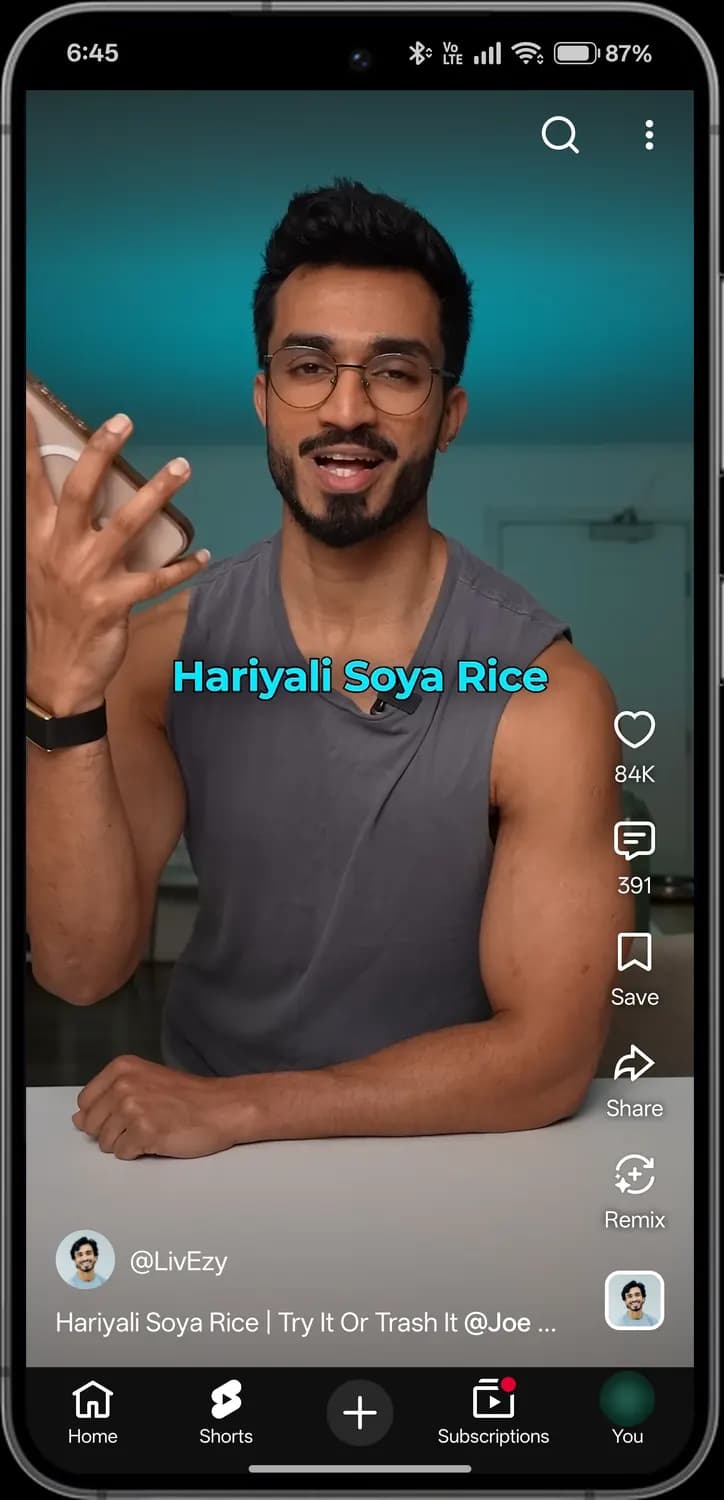
Search Shorts
Searches for Shorts.
More options
Description, captions, quality and more.
Like
Likes the Short. The number is how many likes it has.
Comments
Opens the comments. The number is how many there are.
Save
Adds the Short to a playlist.
Share
Sends the Short to someone.
Remix
Makes your own Short using this one's sound or clip.

Channel
The creator. Tap to open their channel.

Sound
The Short's audio. Tap to see other Shorts using it.
Home
Videos picked for you.
Shorts
Highlighted while you are here. Short vertical videos you swipe through.
Create
Upload a video, record a Short, go live or post.
Subscriptions
New videos from channels you subscribe to.
You
Your channel, history, library and settings.
Shorts menu
Description
The Short's description and details.
Clear screen
Hides the buttons so you can see the whole video.
Captions
Turns subtitles on or off.
Audio track
Switches to the original or a dubbed language.
Quality
Picks how sharp the Short looks.
Not interested
Shows you fewer Shorts like this.
Don't recommend channel
Stops showing you this channel.
Report
Reports the Short to YouTube.
Send feedback
Tells YouTube about a problem.
Audio track
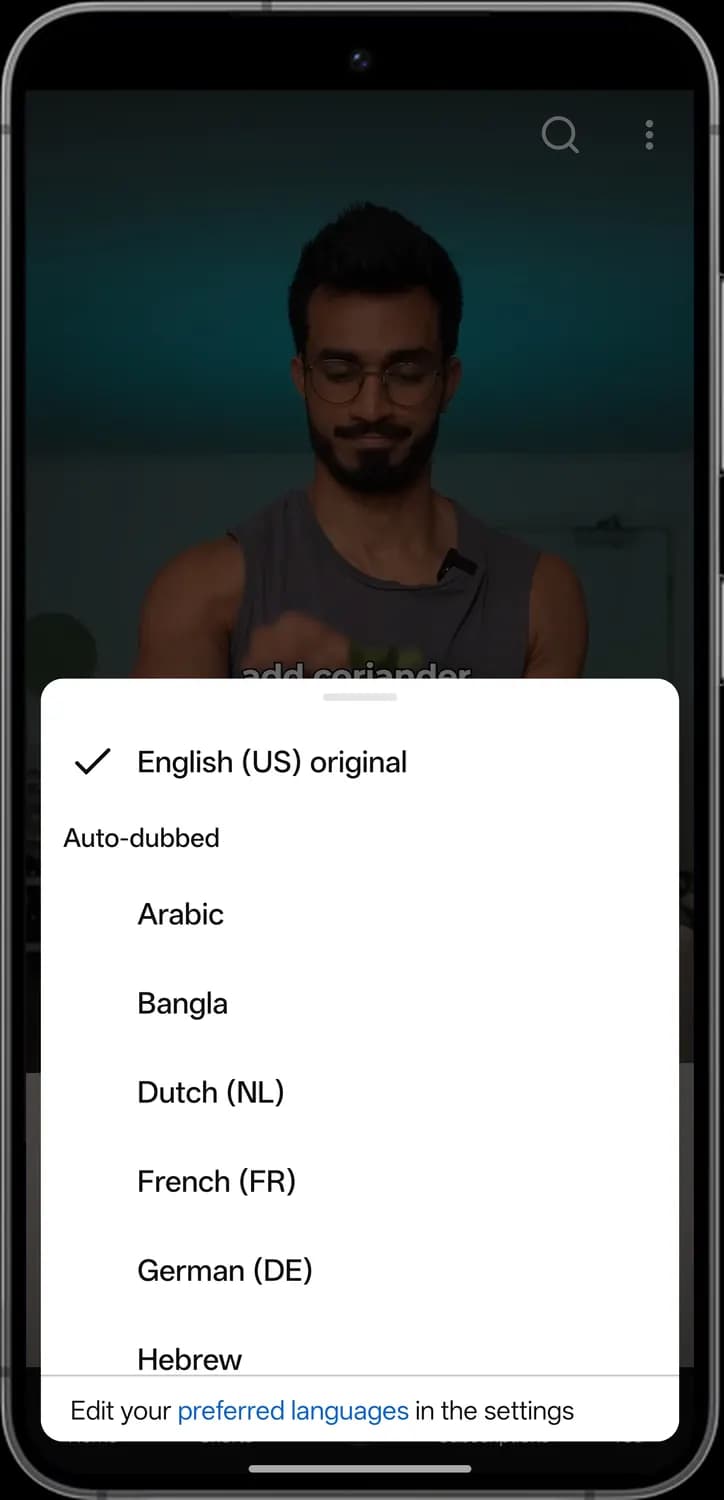
Original audio
The creator's own voice. The tick shows it is playing.
Auto-dubbed
YouTube's AI dubs the video into other languages. Tap one to switch.
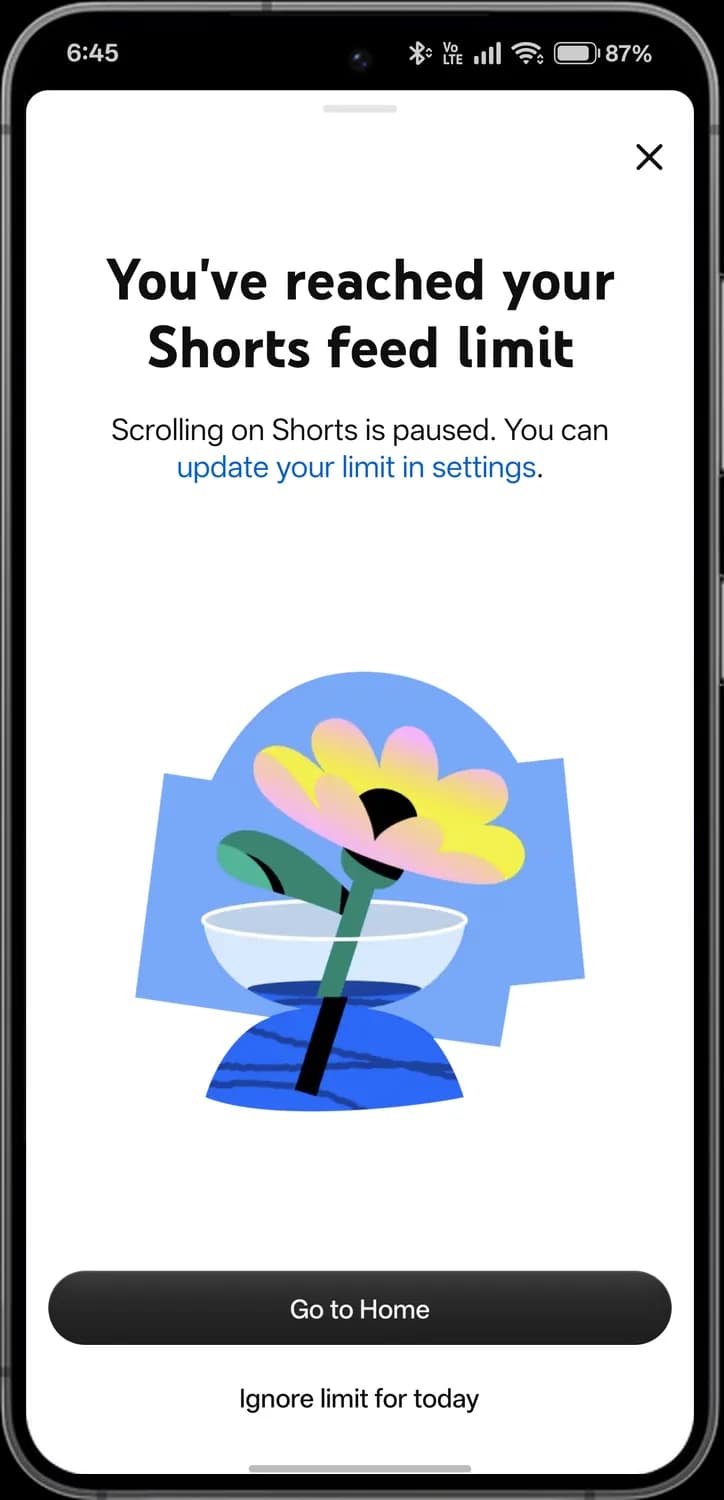
Shorts feed limit
Close
Closes the message.

Update your limit
Changes how long you can scroll Shorts each day.

Go to Home
Leaves Shorts and goes back to Home.

Ignore limit for today
Keeps scrolling Shorts for the rest of the day.
Search
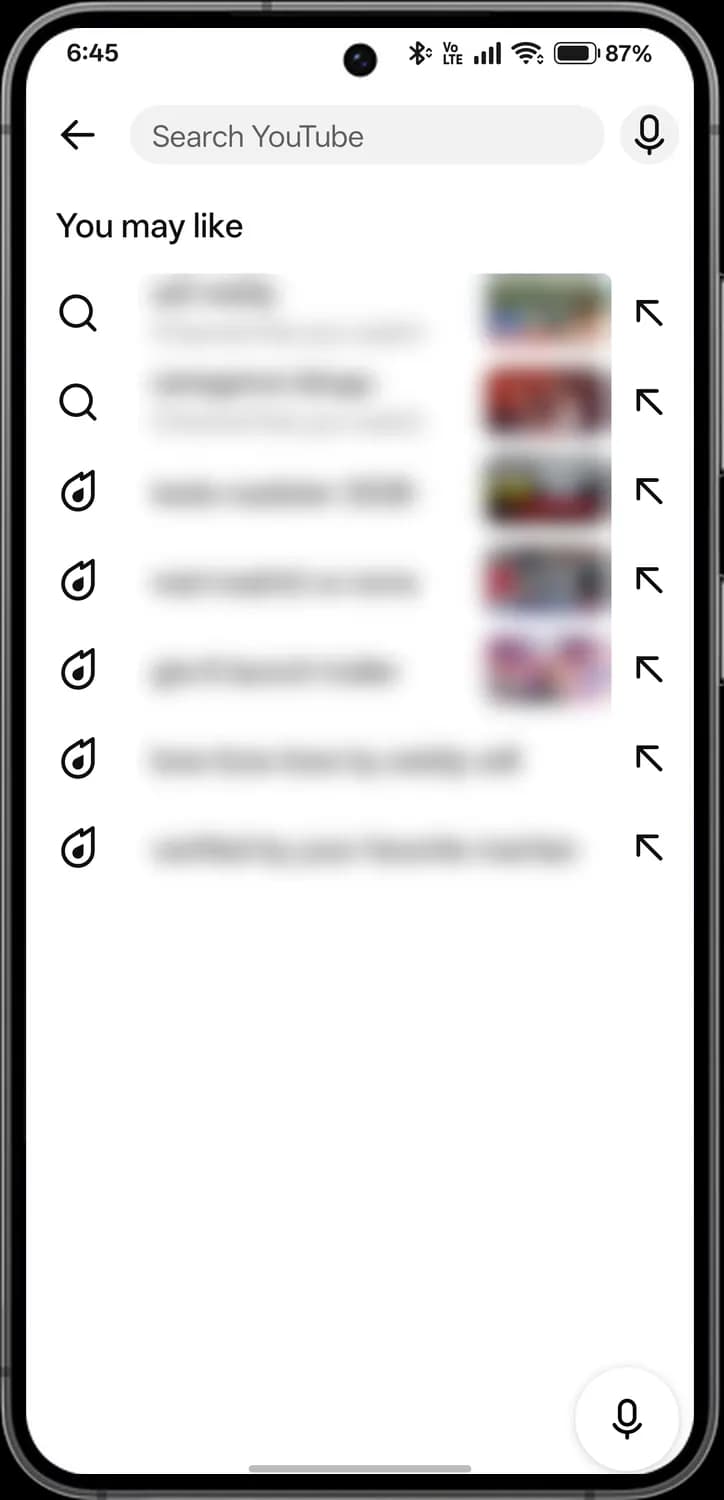
Tap the search icon to find videos and channels. Your search history and suggestions are blurred here.
Search suggestions
Back
Leaves search.
Search box
Type what you are looking for.
Voice search
Search by speaking.
Past search
Something you searched for before.
Trending search
Popular searches right now.
Fill in
Puts the suggestion in the box so you can add to it.
Voice search button
Starts a voice search.
Channel result
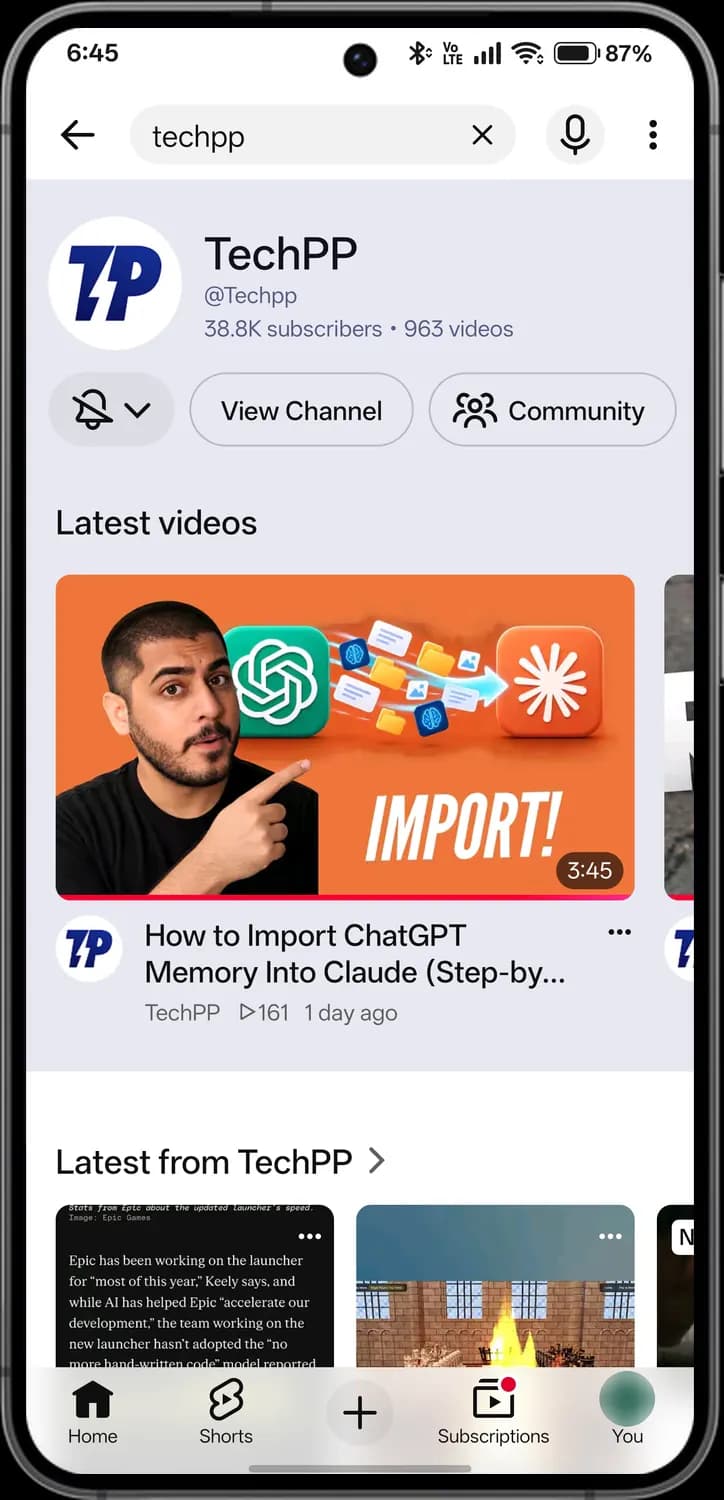
Clear search
Clears what you typed.
More options
Search filters and settings.

Subscribers and videos
How many people subscribe and how many videos it has.
Notifications bell
Not subscribed yet. After you subscribe, choose all, personalised or no notifications.
View Channel
Opens the channel's page.
Community
The channel's community posts.
More from channel
See all of the channel's latest posts.
Channel you subscribe to
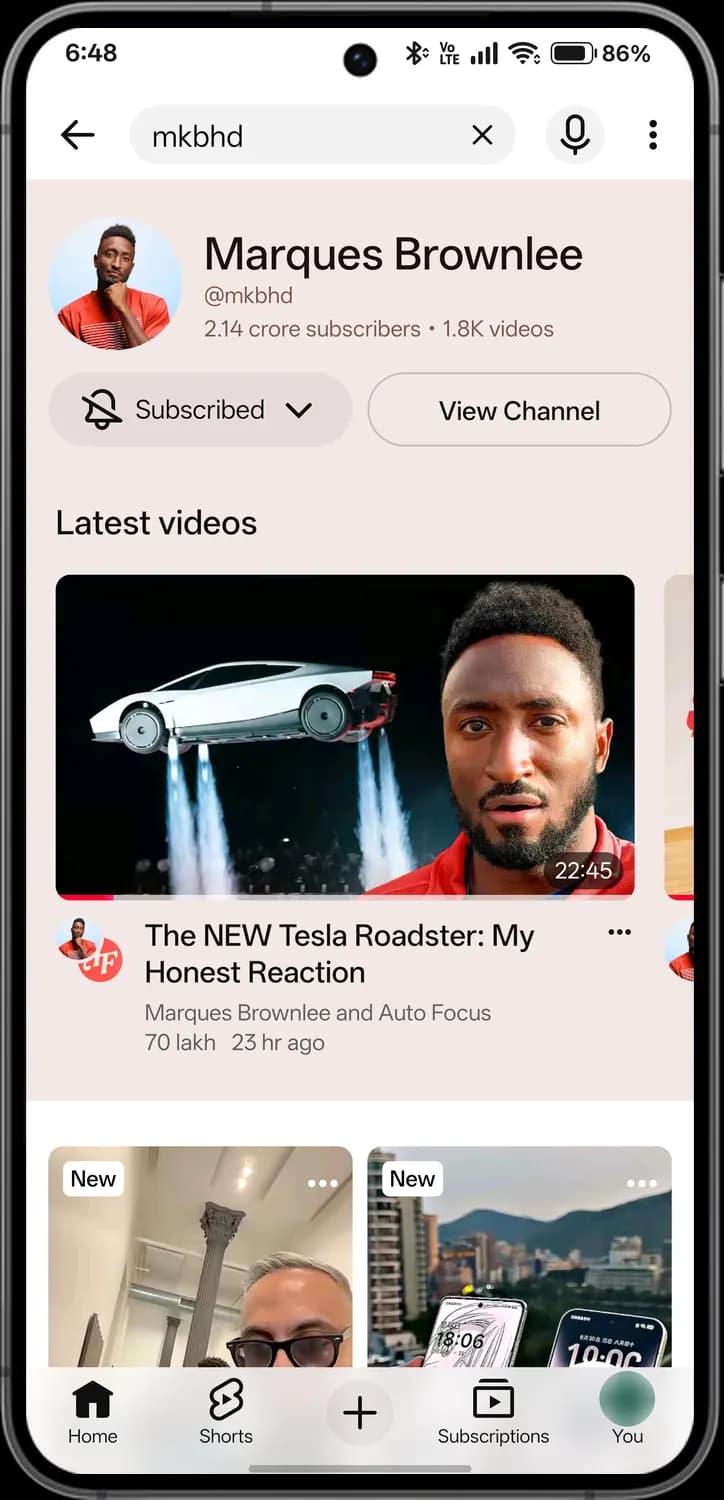
Subscribed
You subscribe. Tap to change notifications or unsubscribe.
View channel
Opens the channel's page.
New
A video uploaded recently that you have not watched.
Subscriptions
The Subscriptions tab shows the newest videos and posts from channels you follow.
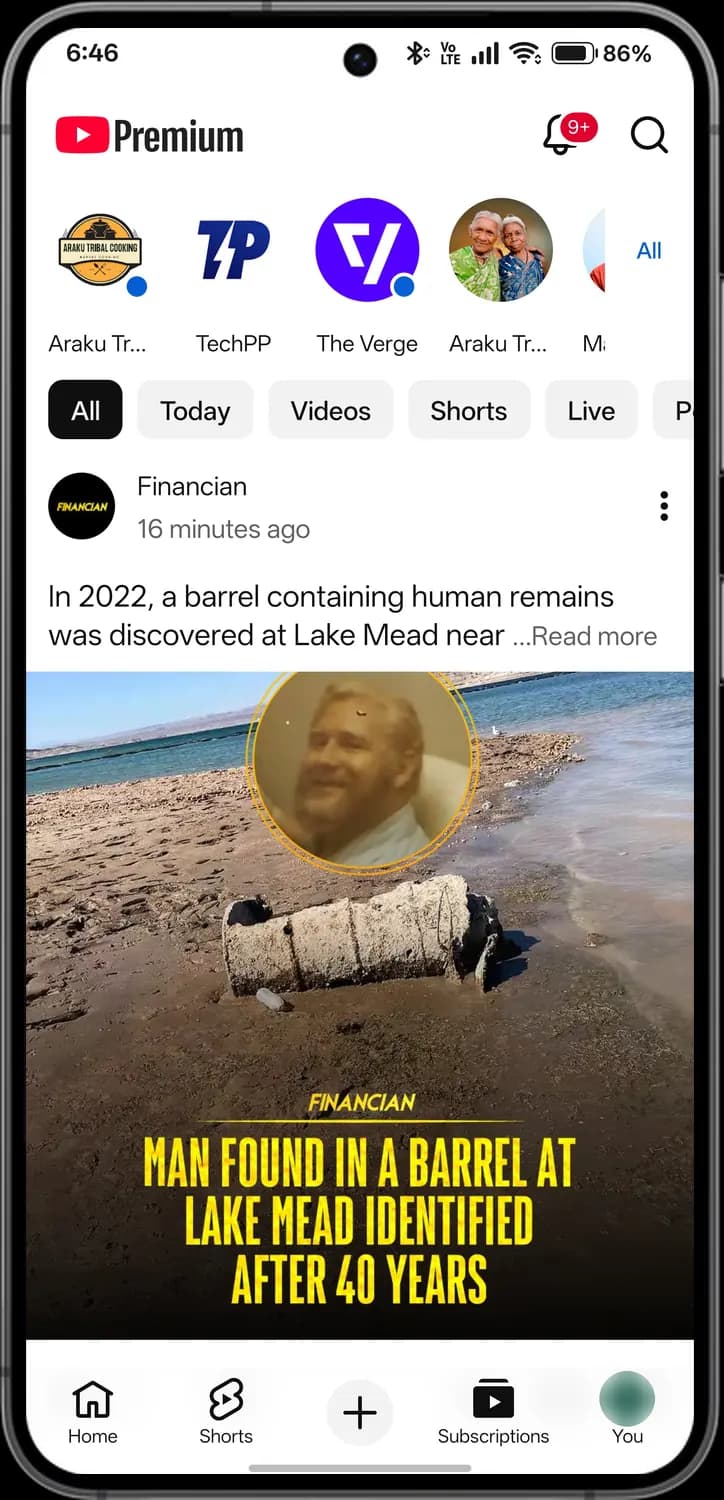
Your channels
Channels you subscribe to. Tap one to see only its videos.

New content
A blue dot means the channel has something you have not seen.

All channels
Opens the full list of your subscriptions.
Filters
Show everything, or only today's, videos, Shorts, live or posts.
Post options
Options for the post, such as not interested.
Read more
Shows the rest of the post.
Home
Videos picked for you.
Shorts
Short vertical videos you swipe through.
Create
Upload a video, record a Short, go live or post.
Subscriptions
Highlighted while you are here. New videos from channels you subscribe to.

You
Your channel, history, library and settings.
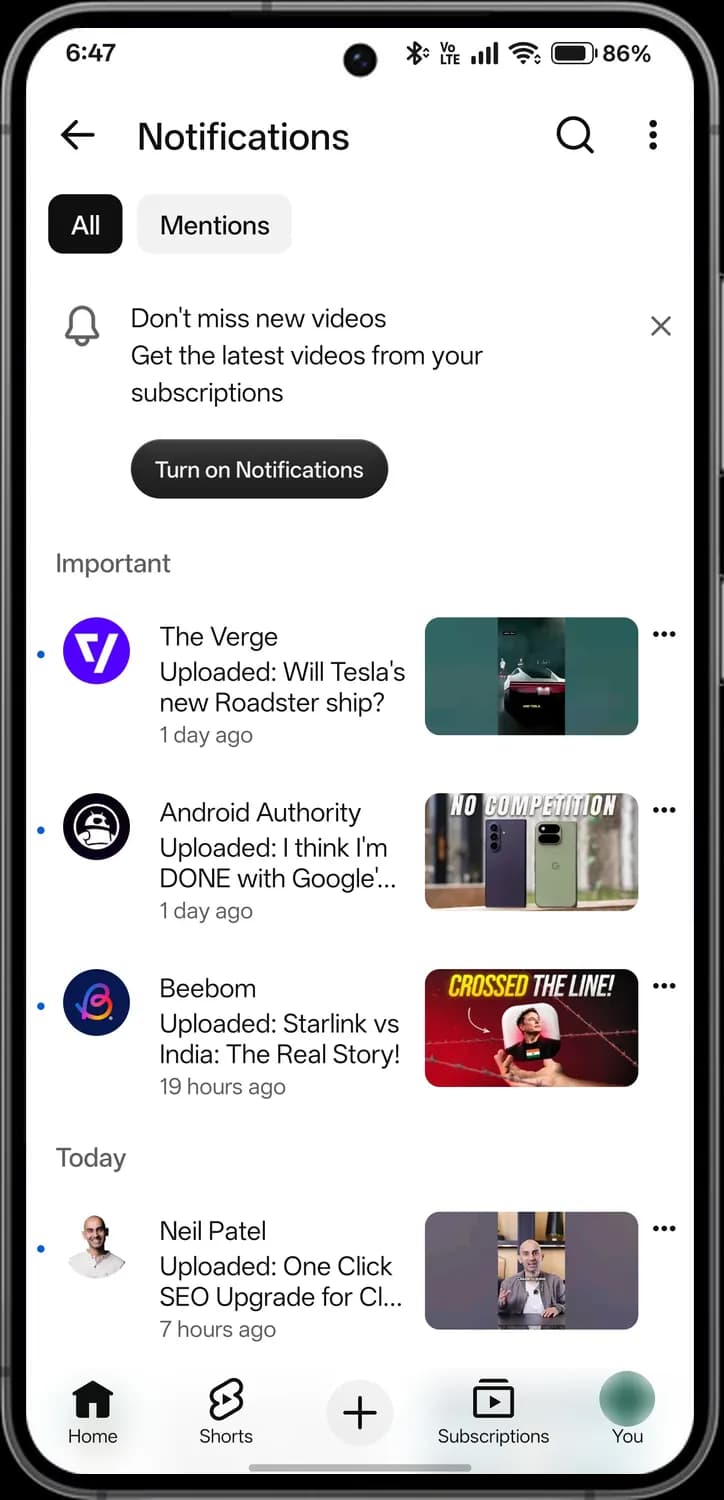
Notifications
Tap the bell at the top of Home to see new uploads, replies and mentions.
Back
Returns to the previous screen.
Search notifications
Searches your notifications.
Notification settings
Choose which notifications you get.
All and Mentions
Every notification, or only when someone mentions you.
Turn on notifications
Lets YouTube send notifications to your phone.
Dismiss
Hides the reminder.

Unread
A blue dot marks a notification you have not seen.

Notification options
Turn off notifications from this channel, or hide it.
Home
Videos picked for you.
Shorts
Short vertical videos you swipe through.
Create
Upload a video, record a Short, go live or post.
Subscriptions
New videos from channels you subscribe to.

You
Your channel, history, library and settings.
You
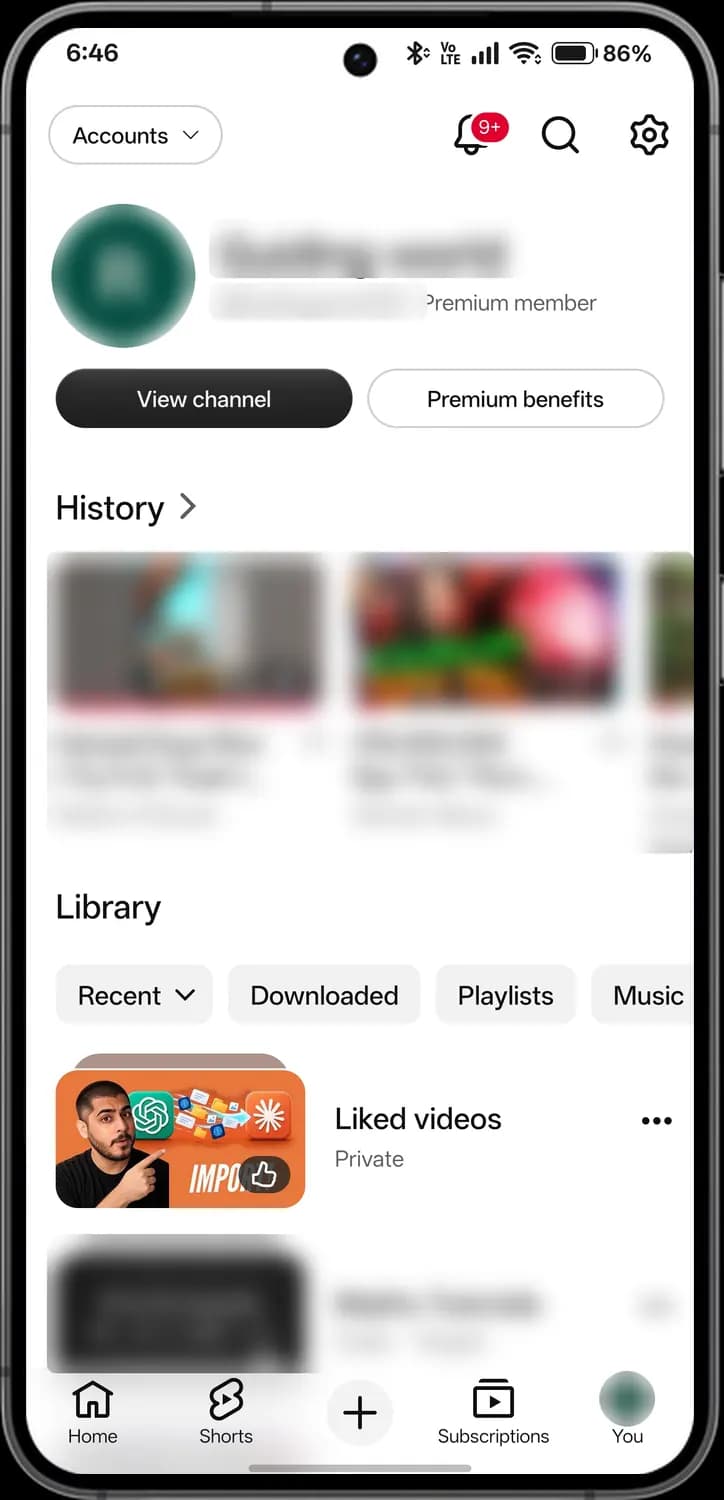
The You tab has your channel, watch history, library and settings. Your name, handle, picture, history and playlists are blurred here.
Accounts
Switches between your Google accounts and channels.
Notifications
New uploads and replies.
Search
Search YouTube.

Settings
All of YouTube's settings.

View channel
Opens your own channel.
Premium benefits
What your YouTube Premium membership includes.
History
Videos you watched. Tap to see all of them.
Library filters
Recent, downloaded, playlists and music.
Liked videos
Every video you liked, in one private playlist.
Home
Videos picked for you.
Shorts
Short vertical videos you swipe through.
Create
Upload a video, record a Short, go live or post.
Subscriptions
New videos from channels you subscribe to.

You
Highlighted while you are here. Your channel, history, library and settings.
Settings
Tap the gear icon on the You tab to open YouTube's settings.
Account
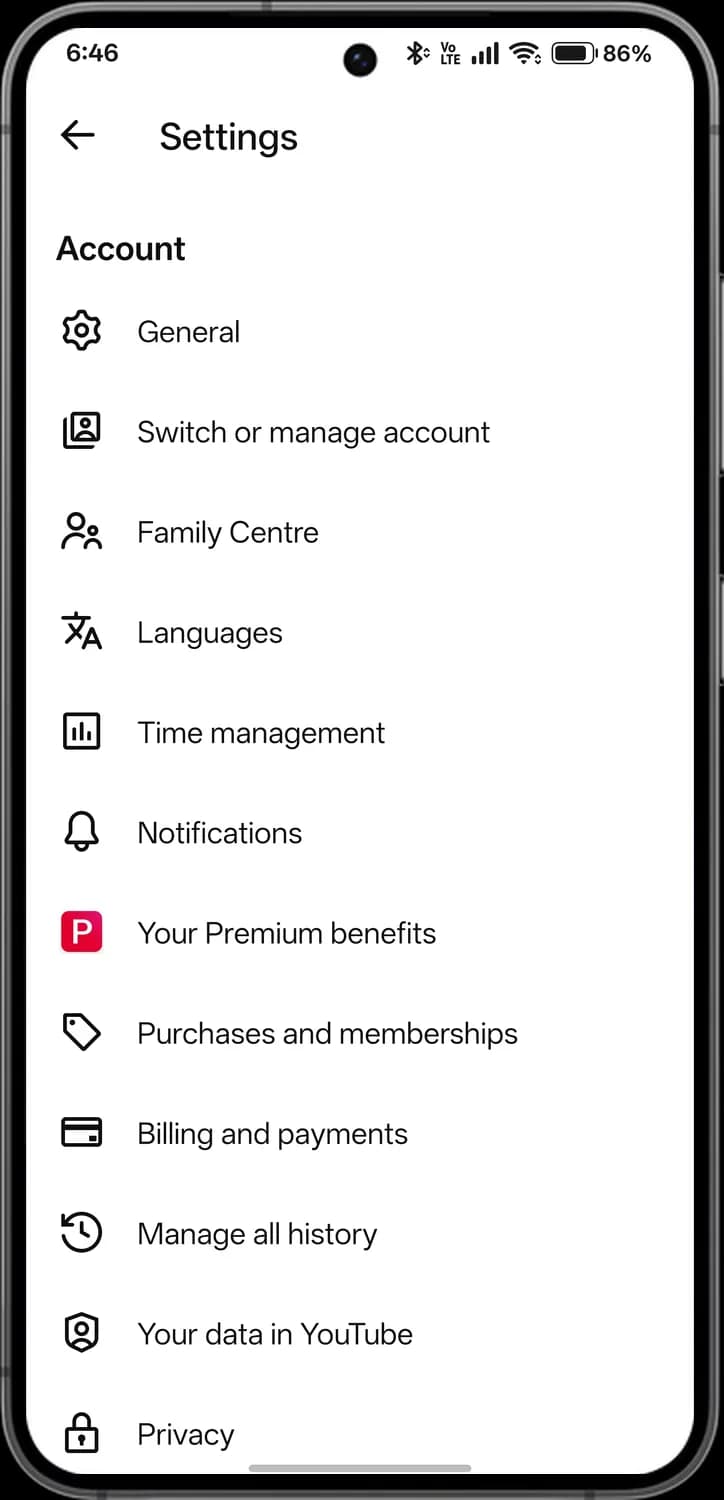
General
Appearance, autoplay, Shorts limits and other basics.
Switch or manage account
Change accounts or manage your Google account.
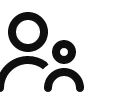
Family Centre
Supervise your children's accounts.
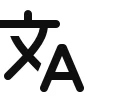
Languages
The app's language and your preferred languages.
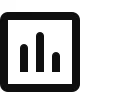
Time management
Bedtime and take-a-break reminders, and your watch time.
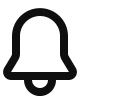
Notifications
Choose which notifications you get.
Your Premium benefits
What your Premium membership includes.
Purchases and memberships
Channel memberships, Premium and other purchases.
Billing and payments
Your payment methods.
Manage all history
Watch and search history, and pausing it.
Your data in YouTube
What YouTube keeps about you.
Account, continued
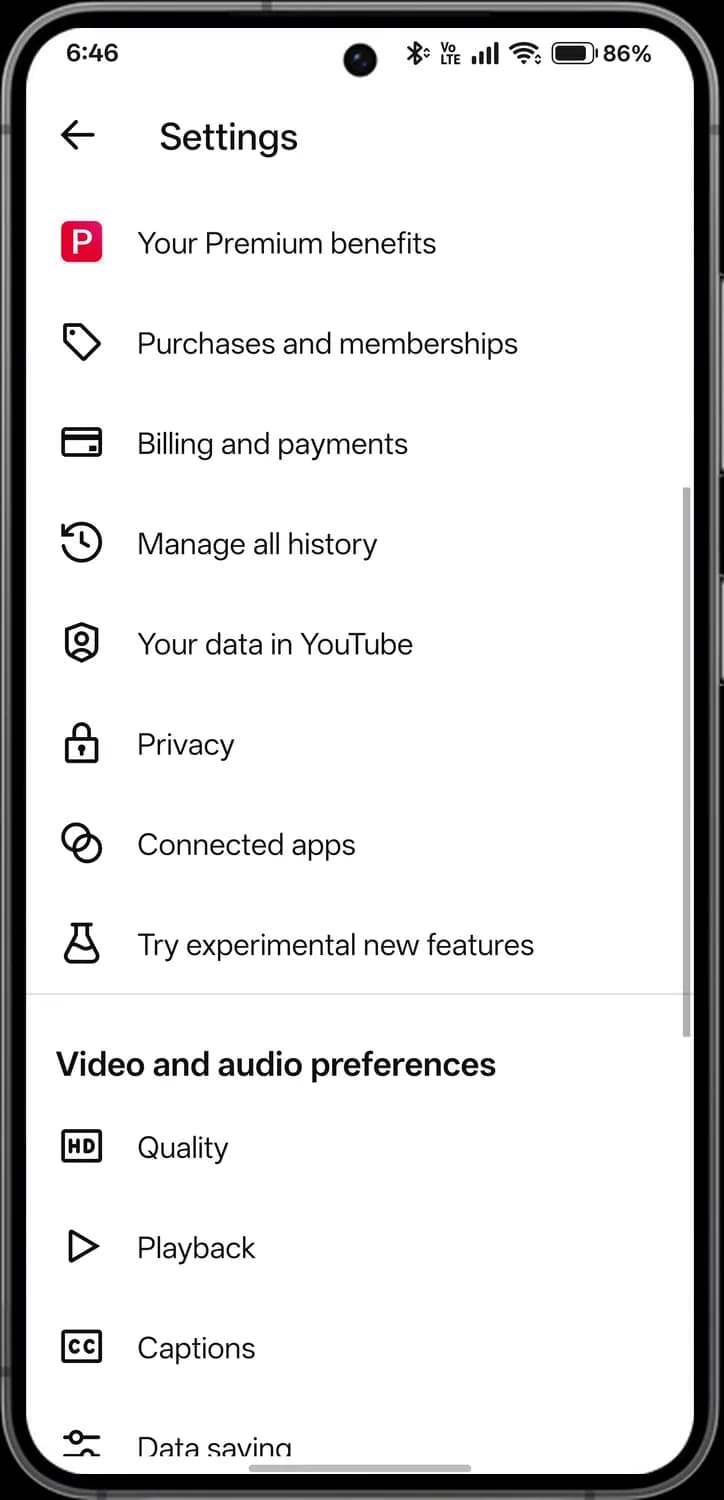
Privacy
Who can see your subscriptions, playlists and more.
Connected apps
Apps and devices linked to your account.
Try experimental features
Test new features before everyone else.
Video, audio and help
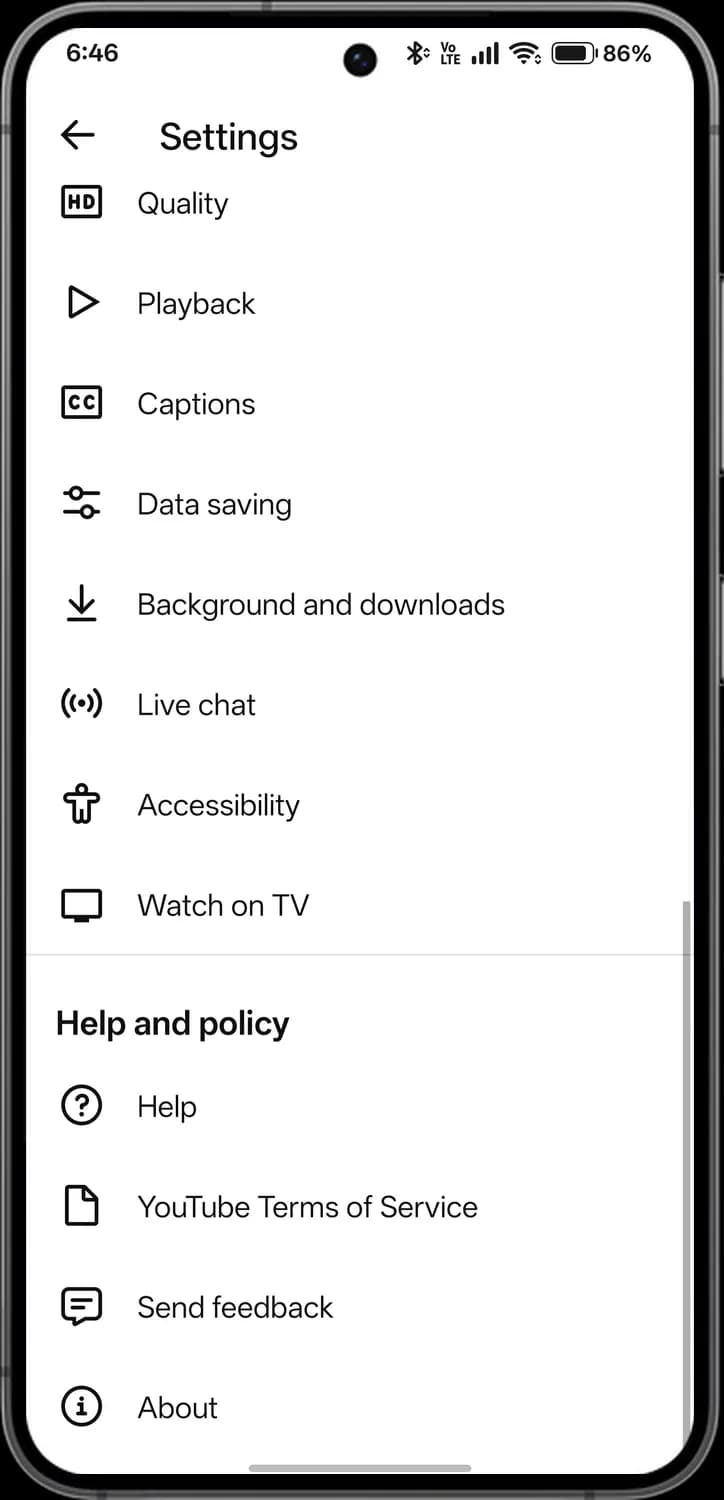
Quality preferences
Default quality on mobile data and Wi-Fi.
Playback
Double-tap to seek, previews and other playback settings.
Captions preferences
Caption size and style.
Data saving
Use less mobile data.
Background and downloads
Background play and download quality.
Live chat
Settings for live chat during streams.
Accessibility
Player settings that make YouTube easier to use.
Watch on TV
Link a TV so you can cast to it.
Help
YouTube's help centre.
Terms of Service
YouTube's terms.
Send feedback
Tell YouTube about a problem.
About
App version and licences.
Shopping
Videos can tag products. The channel earns a commission if you buy.
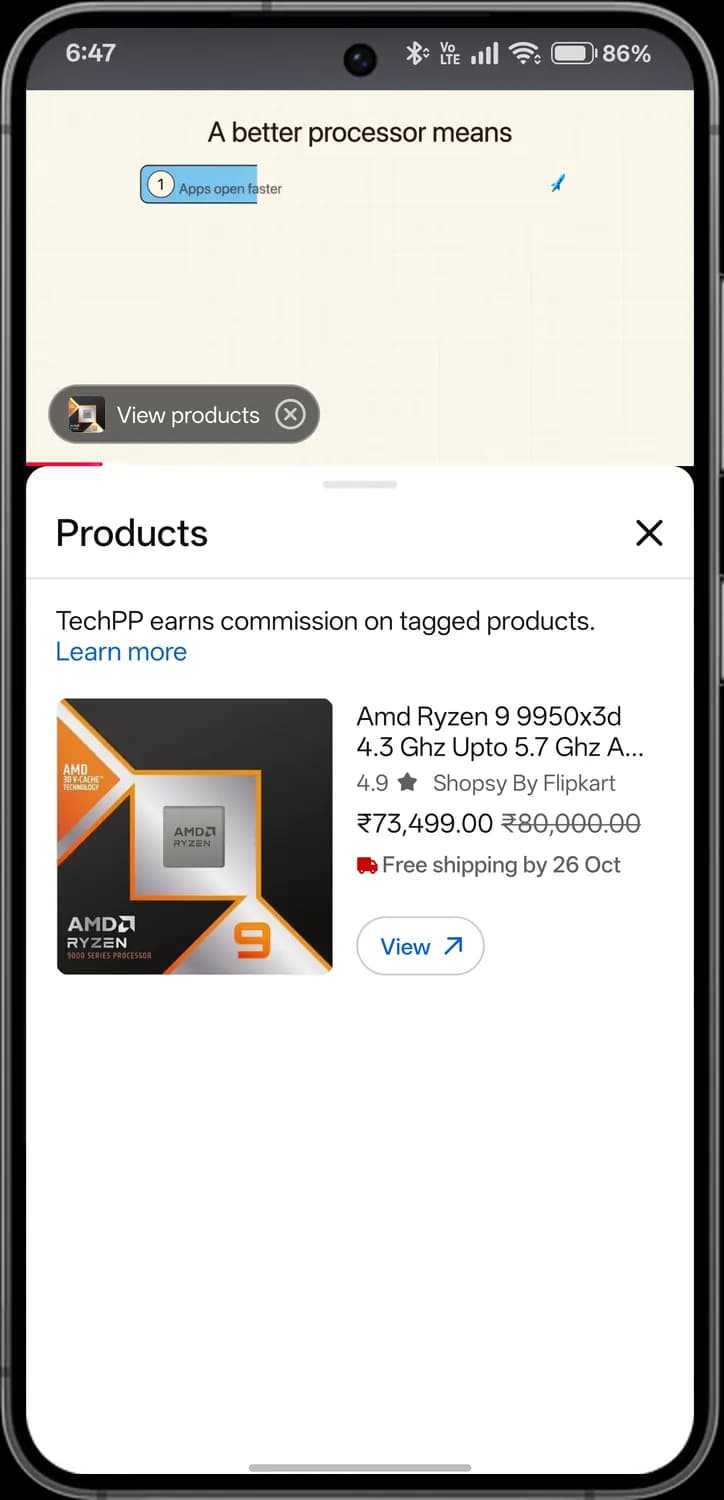
View products
Products in the video. Tap to see them.

Hide products
Hides the products button.
Close
Closes the product list.
Learn more
How tagged products and commissions work.
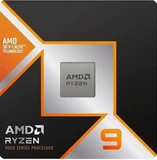
Product
The product, its store, rating and price.

Rating
The product's rating and the store selling it.
View
Opens the product in the store.
Create
Tap the plus in the middle of the bottom bar to upload or record.
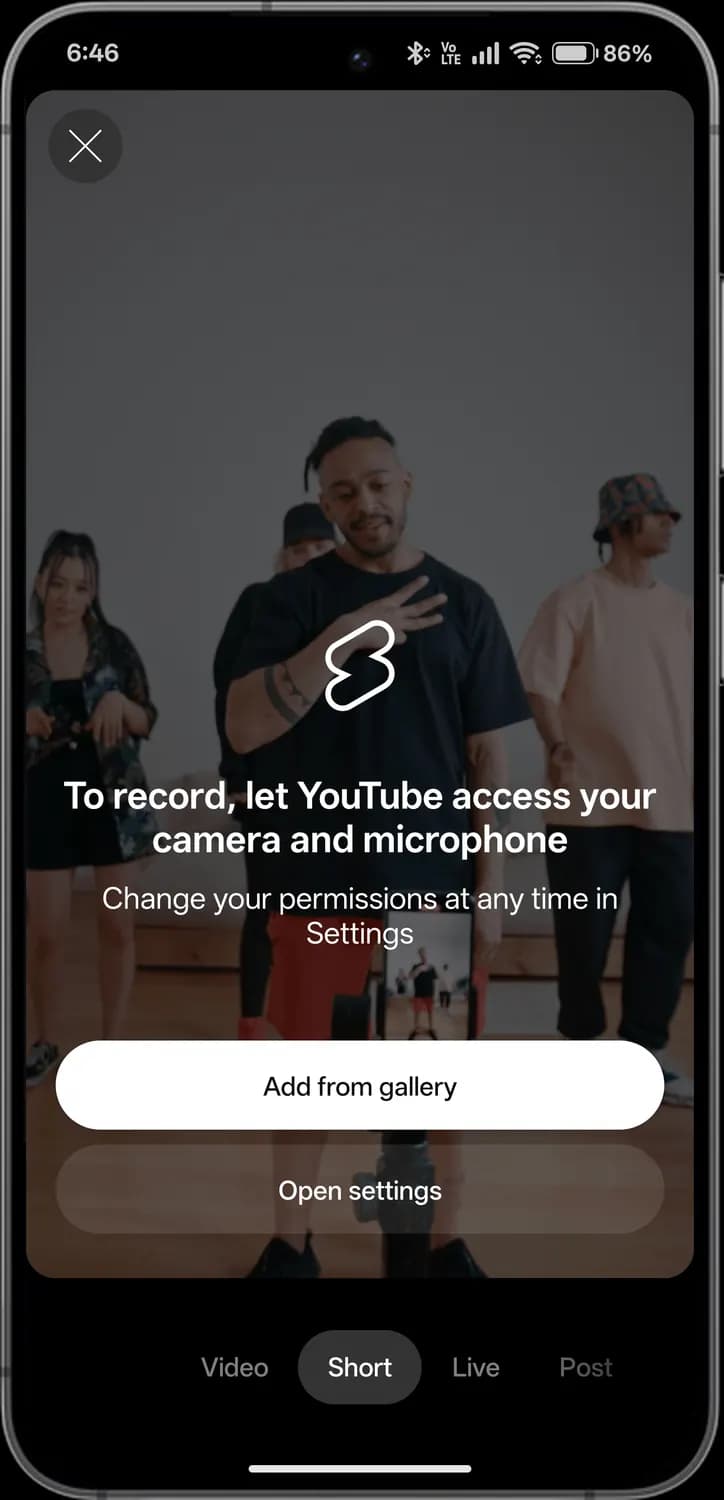
Close
Closes Create.

Add from gallery
Upload a video from your phone.

Open settings
Lets YouTube use the camera and microphone.
Create type
Upload a video, record a Short, go live or write a post.
Those are the meanings of YouTube icons and symbols. YouTube keeps testing new features and moving icons around, so we update this guide every time the interface changes, and you can bookmark this page to stay updated. Since YouTube looks almost the same on Android and iPhone, most of these icons mean the same thing on both. For more icon guides, you can also visit our TechPP icon guides.
Comments
0Share your thoughts, questions, or feedback about this guide.
Comments
Comments open under the video. Commenters' names and pictures are blurred here.
Sort comments
Top comments first, by time in the video, or newest first.
Comment info
Explains how comments are sorted and moderated.
Close
Closes the comments.
More options
Report the comment.
Translate
Translates the comment into your language.
Like comment
Likes the comment. The number is how many likes it has.
Dislike comment
Dislikes the comment.
Reply
Writes a reply.
Creator heart
The creator liked this comment.
Replies
Shows the replies to the comment.
Add a comment
Write your own comment.