
WhatsApp Icons and Symbols Explained
WhatsApp is the app most of us open first thing in the morning, and over the years it has added a lot more than chats: status, channels, communities, Meta AI, lists and plenty of call features. Each of them comes with its own icons, and the latest update moved a few of them around.
In this guide, you will learn what every icon in the latest WhatsApp means, screen by screen. And this is an interactive guide. You can tap on every icon on the screens below to know what it does.
Chats tab
WhatsApp opens on the Chats tab. The bar at the bottom switches between the app's five tabs. Names, photos and messages are blurred here.
Top of the screen

Payments
WhatsApp Pay in India: send money and see payment history.

More options
Opens the menu with New group, New community, Starred and Read all.

Ask Meta AI or Search
Search your chats, or ask Meta AI a question.
All
Shows every chat.
Unread
Shows only chats with unread messages. The number is how many.

Favourites
Shows only the chats you marked as favourites.

Groups
Shows only group chats.
Chat list

Archived
Chats you archived. The number is how many there are.

Read ticks
Two blue ticks: your last message was read.

Draft
A message you started typing but have not sent yet.

Pinned
A pin keeps the chat at the top of the list.

Muted
The chat is muted, so it does not notify you.

Unread count
How many unread messages are in the chat.
Bottom bar
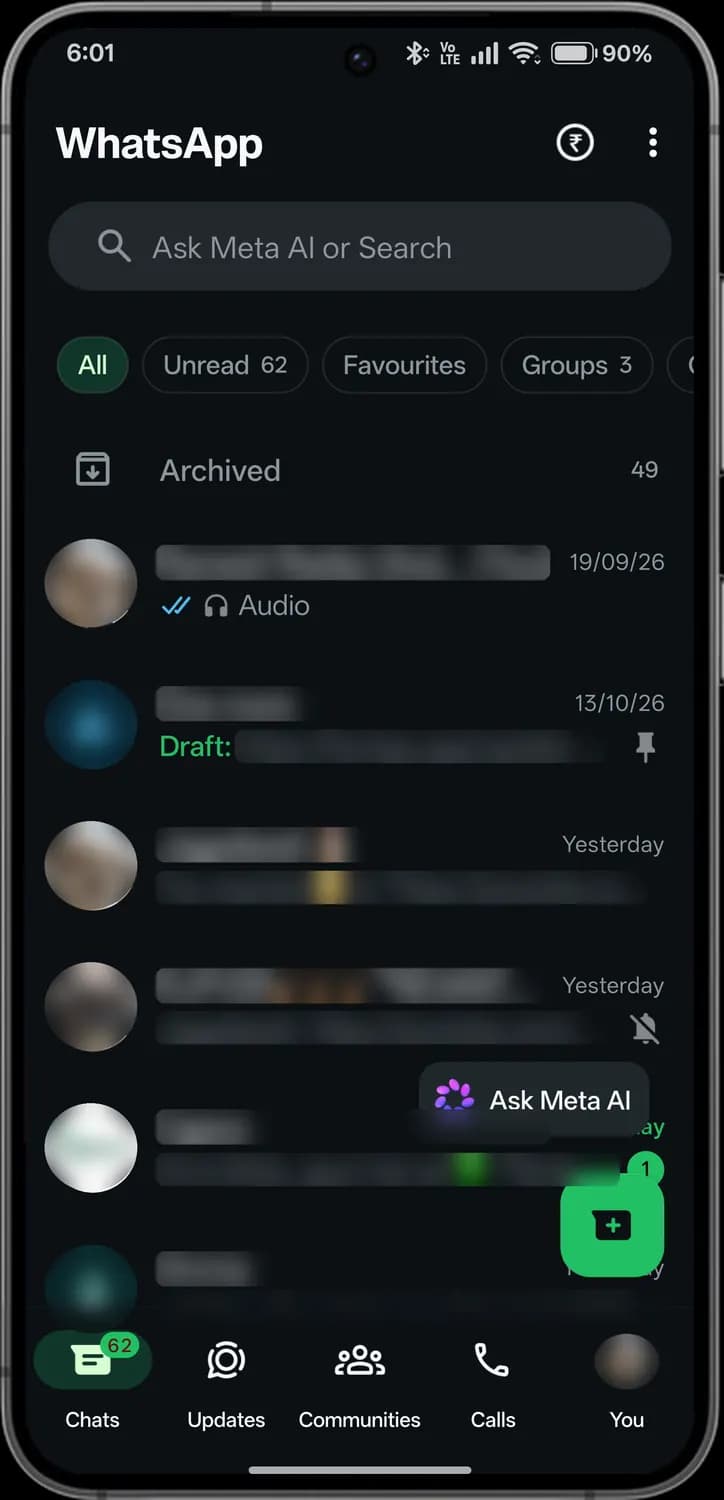

Ask Meta AI
Chat with Meta AI, WhatsApp's built-in assistant.
New chat
Start a chat with a contact, or make a new group.

Chats tab
Highlighted while you are here. Your chats, with unread counts on the badge.

Updates tab
Status updates and channels.

Communities tab
Communities you belong to, and their announcement groups.

Calls tab
Your call history, and new calls.

You tab
Your profile and all of WhatsApp's settings.
Menu
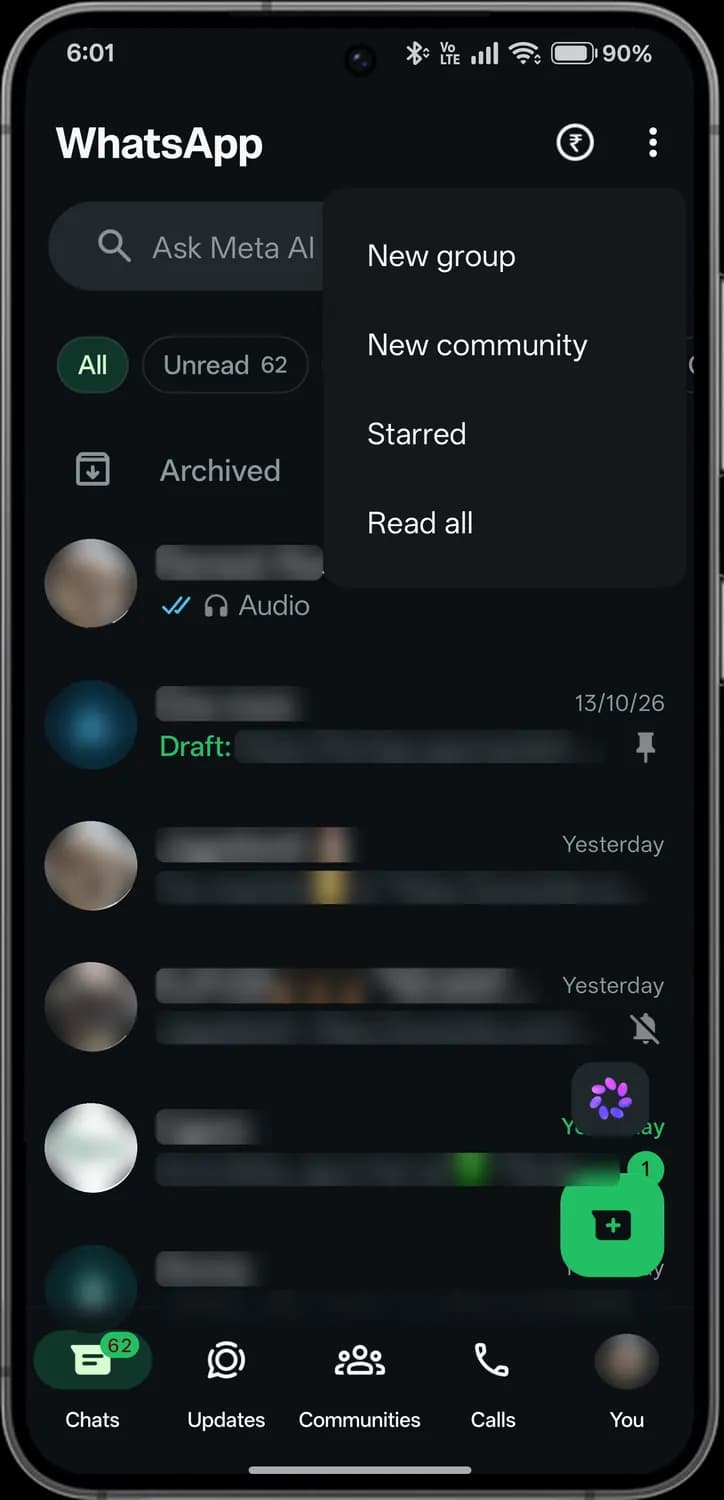

New group
Start a group chat.

New community
Bring several groups together in one community.

Starred
Messages you starred, so you can find them again.

Read all
Marks every chat as read.
Chat screen
Open a chat to message someone. The header has call buttons, and the bar at the bottom sends messages, files and voice notes. Names, photos and messages are blurred here.
One-to-one chat
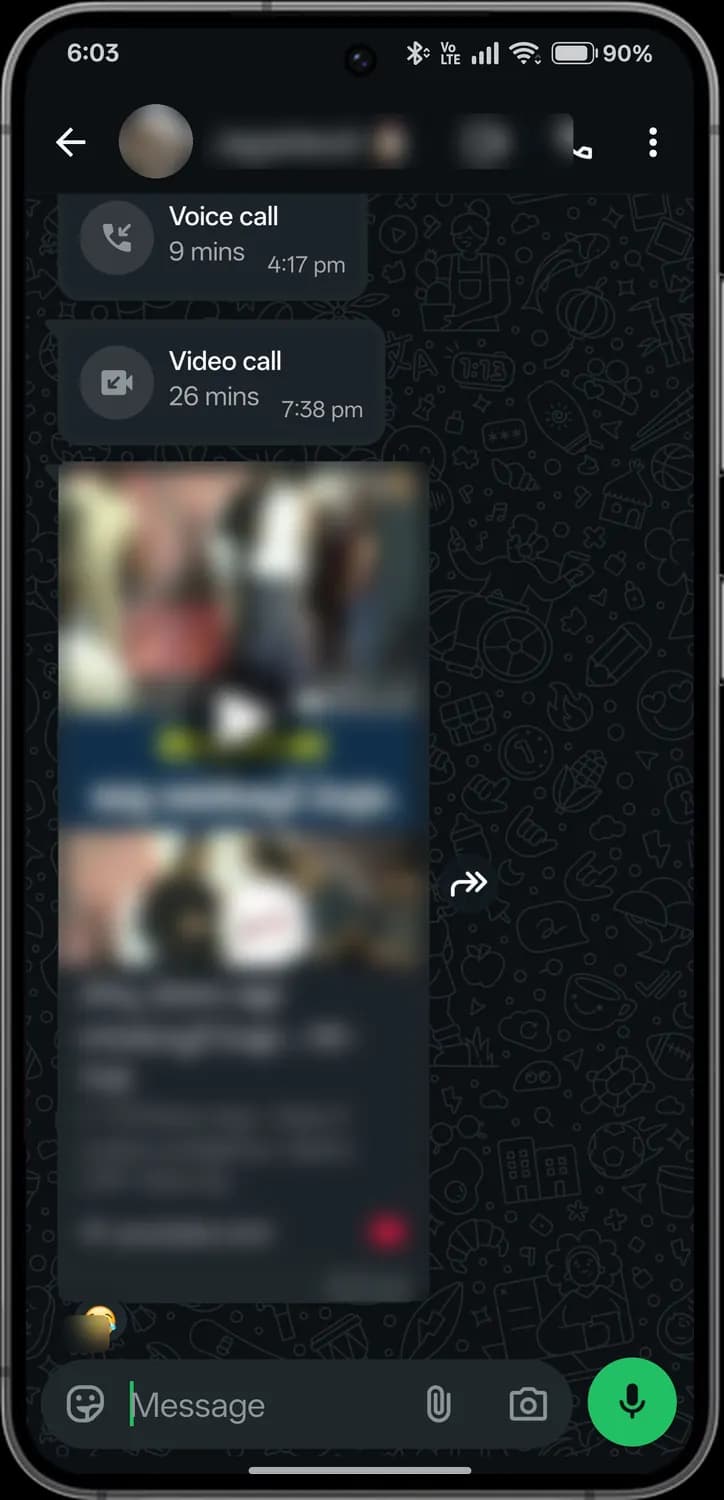

Back
Returns to your chats.

Video call
Starts a video call.

Voice call
Starts a voice call.

More options
Search, mute, wallpaper, disappearing messages and more.

Voice call record
A voice call you had, and how long it lasted.

Video call record
A video call you had, and how long it lasted.

Forward
Forwards the message to another chat.

Emoji and stickers
Opens emoji, GIFs and stickers.

Message
Where you type your message.

Attach
Send a document, photo, contact, location, poll or event.

Camera
Take a photo or video to send.

Voice message
Hold to record a voice message.
Business chat
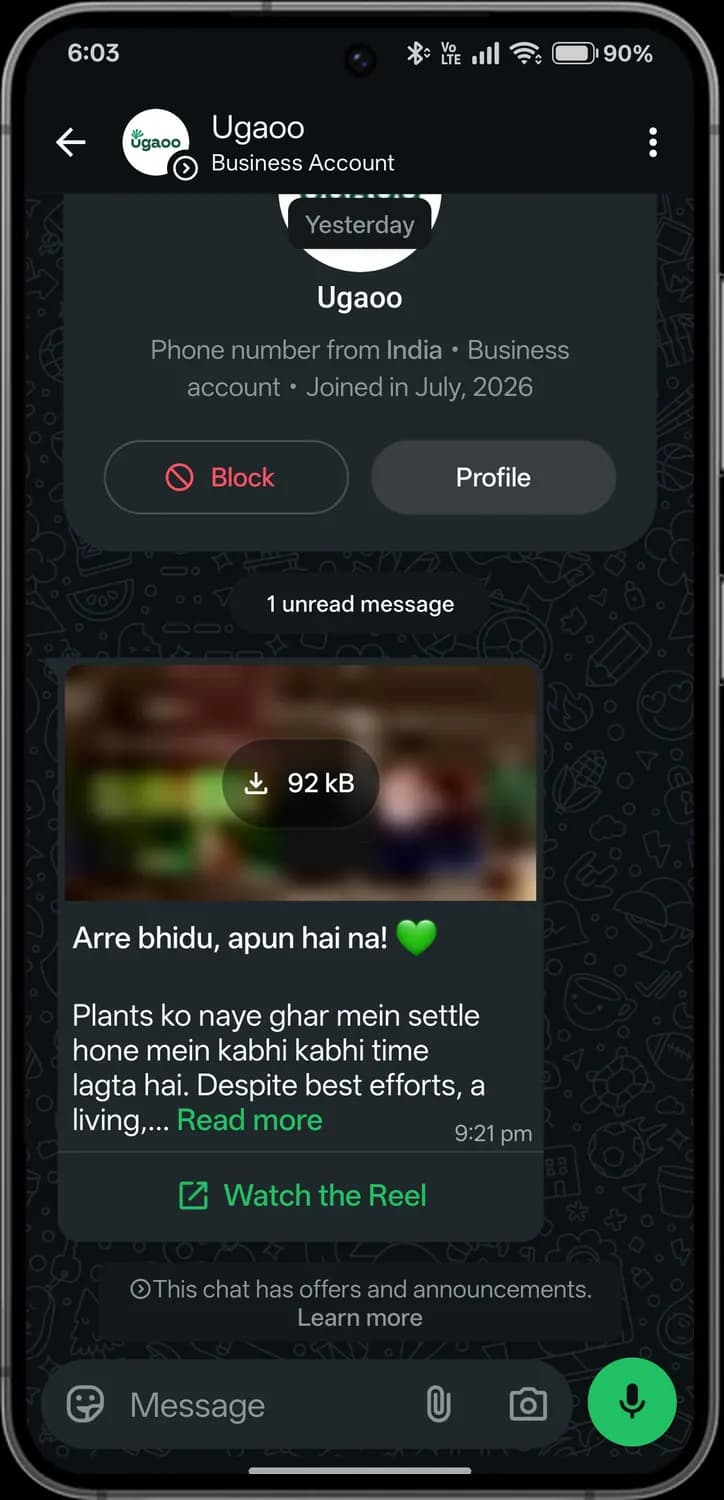

Business account
The badge on the photo means it is a business.

Business info
Where the number is from and when it joined WhatsApp.

Block
Stops this business messaging you.

Profile
Opens the business profile.

Unread message
Marks where your unread messages start.
Download
The photo has not downloaded yet. Tap to get it; the size is shown.

Read more
Shows the rest of a long message.
Link button
Opens a link the business attached.

Offers and announcements
This business may send offers. Tap to learn more.
Group chat
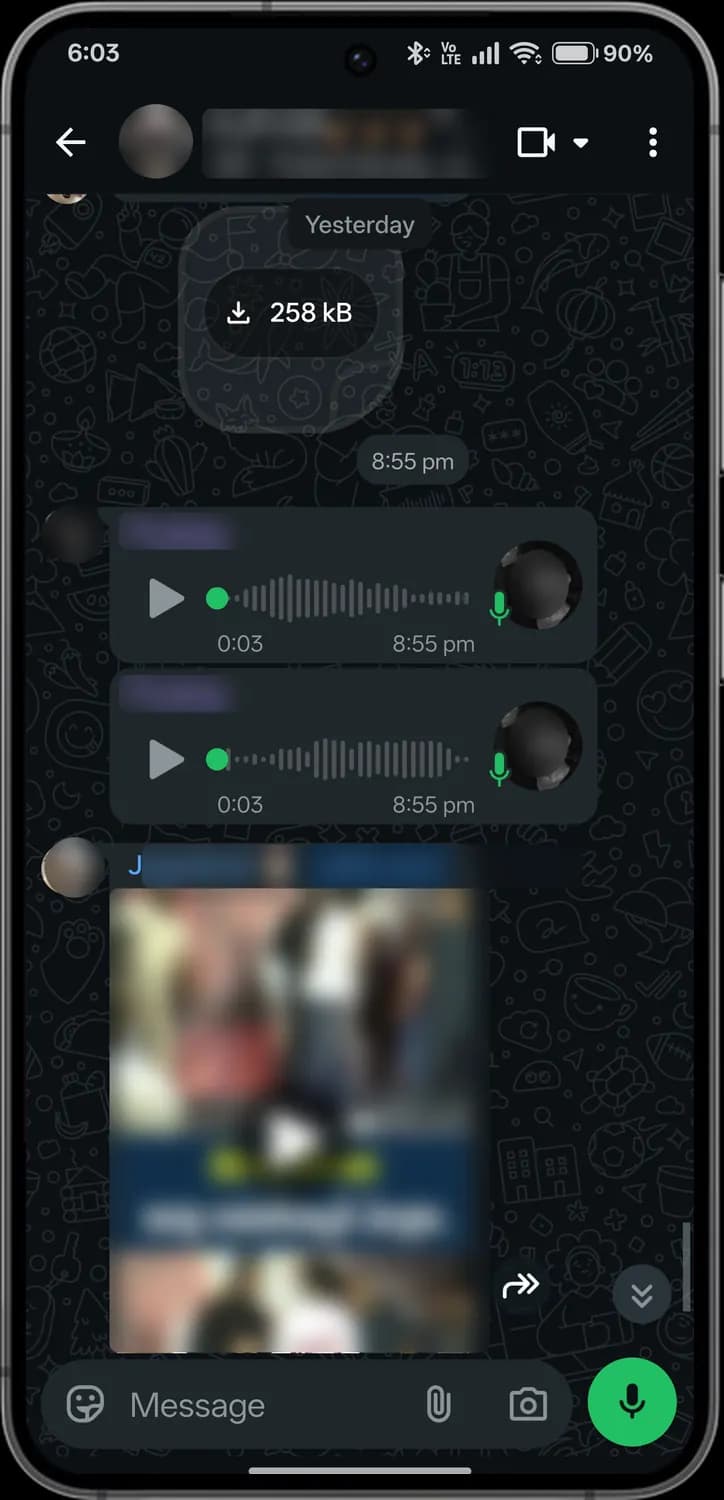

Group call
Starts a video or voice call with the group.
Download file
Tap to download the shared file.

Play voice message
Plays the voice message.
Voice message length
Its length, and the waveform you can drag along.

Forward in group
Forwards the message to another chat.

Scroll to bottom
Jumps to the newest messages.
Calls
The Calls tab shows your call history, and the screens you see during a call. Names, photos and numbers are blurred here.
Calls tab
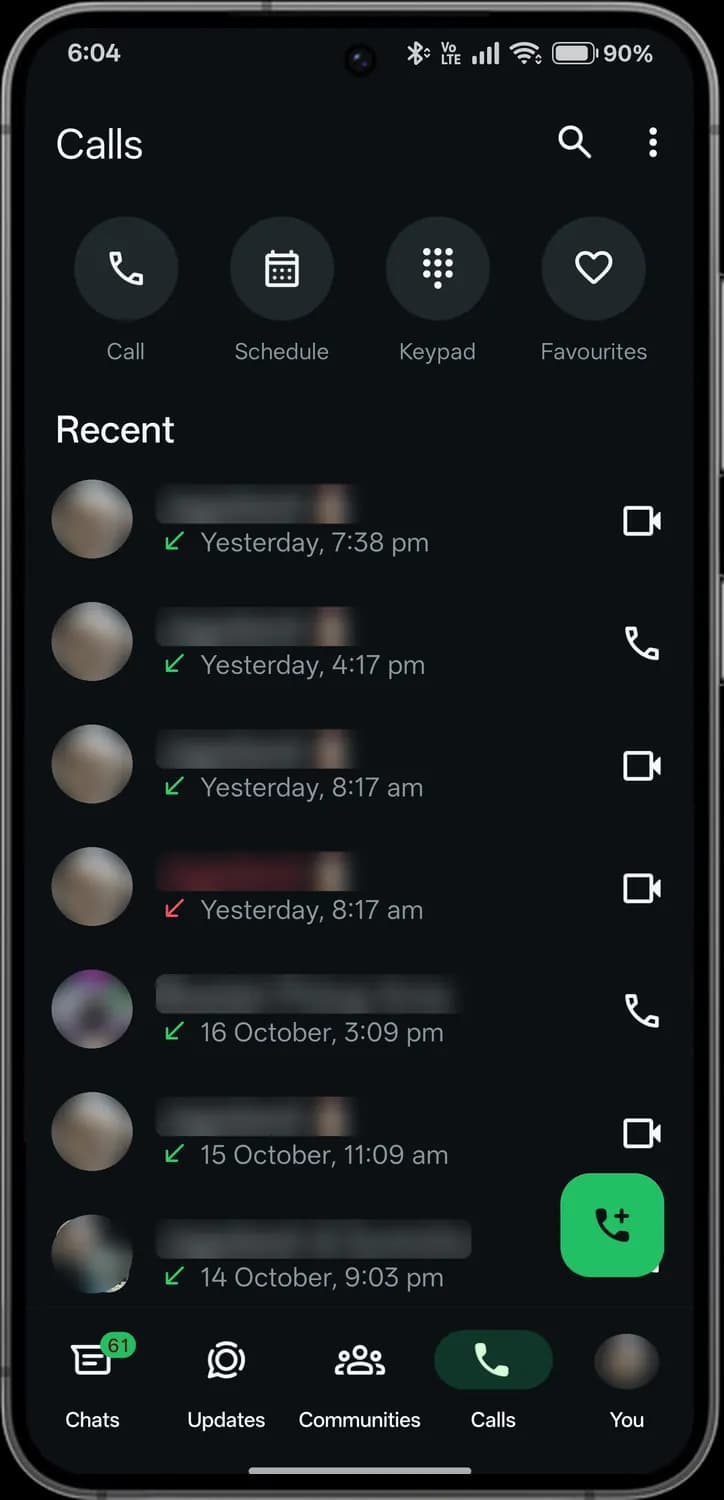

Search
Search your calls.

More options
Clear call log and settings.

Call
Start a voice or video call.

Schedule
Plan a call for later and invite people.

Keypad
Dial a number.

Favourites
Call your favourite contacts quickly.

Video call
A video call. Tap the icon to call back.

Voice call
A voice call. Tap the icon to call back.

Incoming call
The green arrow means you received the call.

Missed call
A red name and arrow mean you missed the call.

New call
Start a new call.
Call info
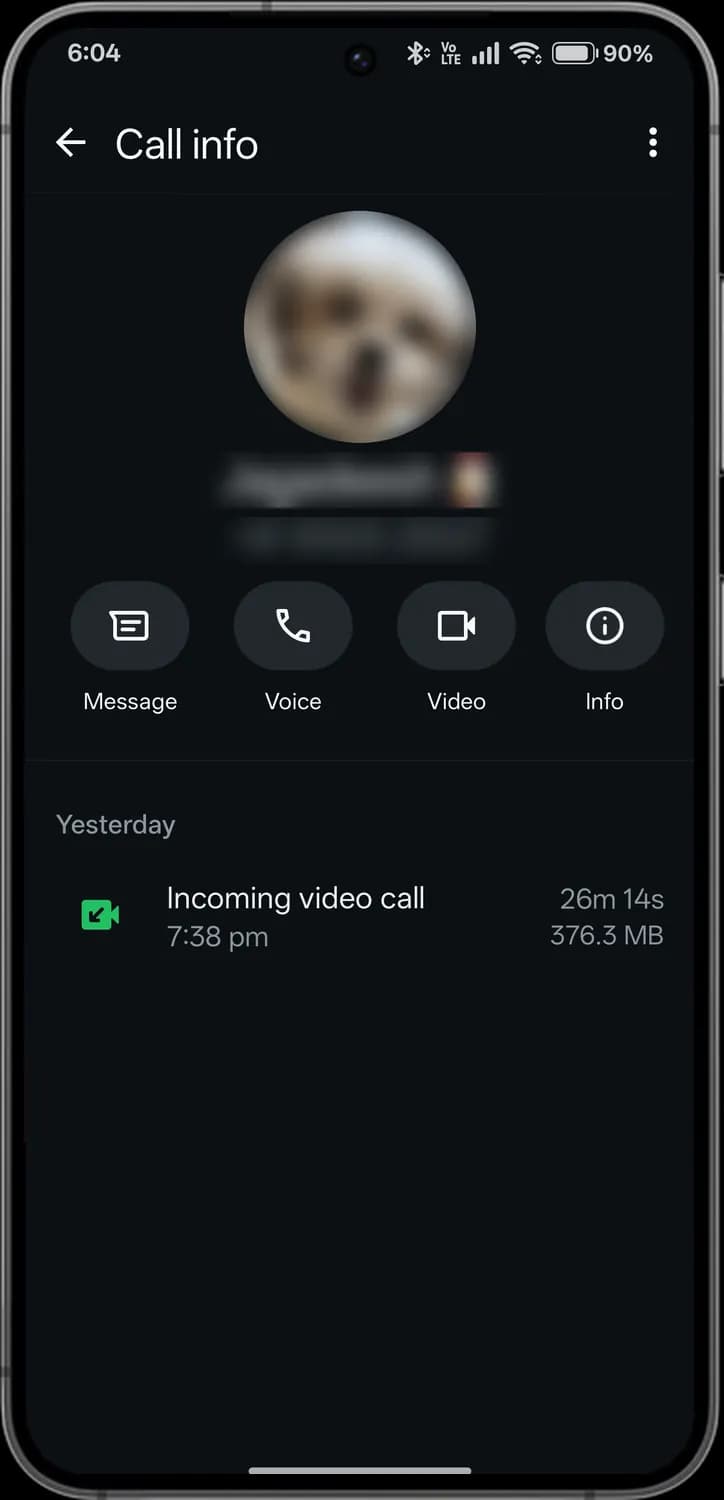

Message
Opens the chat.

Voice
Calls back with voice.

Video
Calls back with video.

Info
Opens the contact's details.

Call details
When the call was, how long it lasted and how much data it used.
During a video call
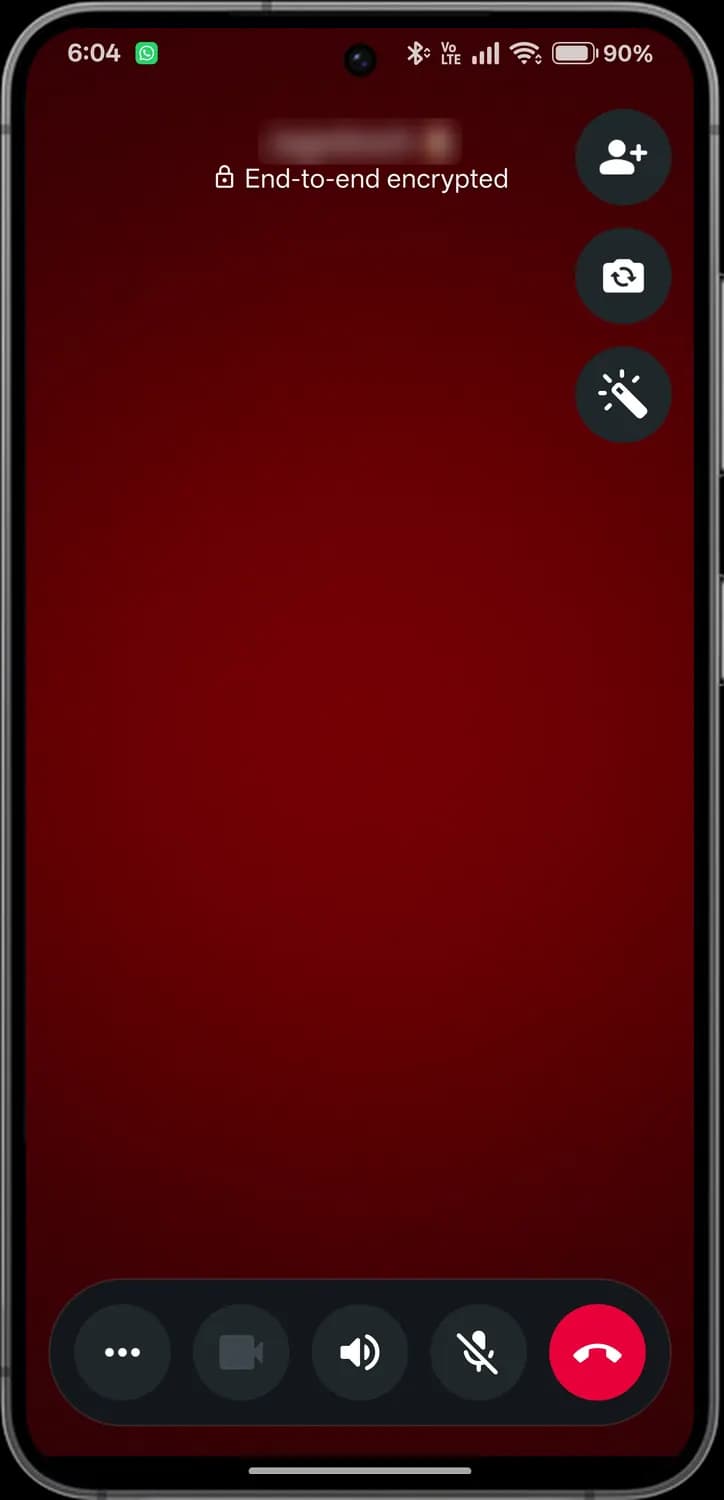

Add person
Adds someone to the call.

Encrypted
The call is end-to-end encrypted.

Flip camera
Switches between front and back cameras.

Effects
Filters, backgrounds and effects for your video.

More
Share screen and send a message.

Camera
Turns your video on or off.

Speaker
Switches between speaker and earpiece.

Mute
Mutes your microphone.

End call
Hangs up.
Effects and filters
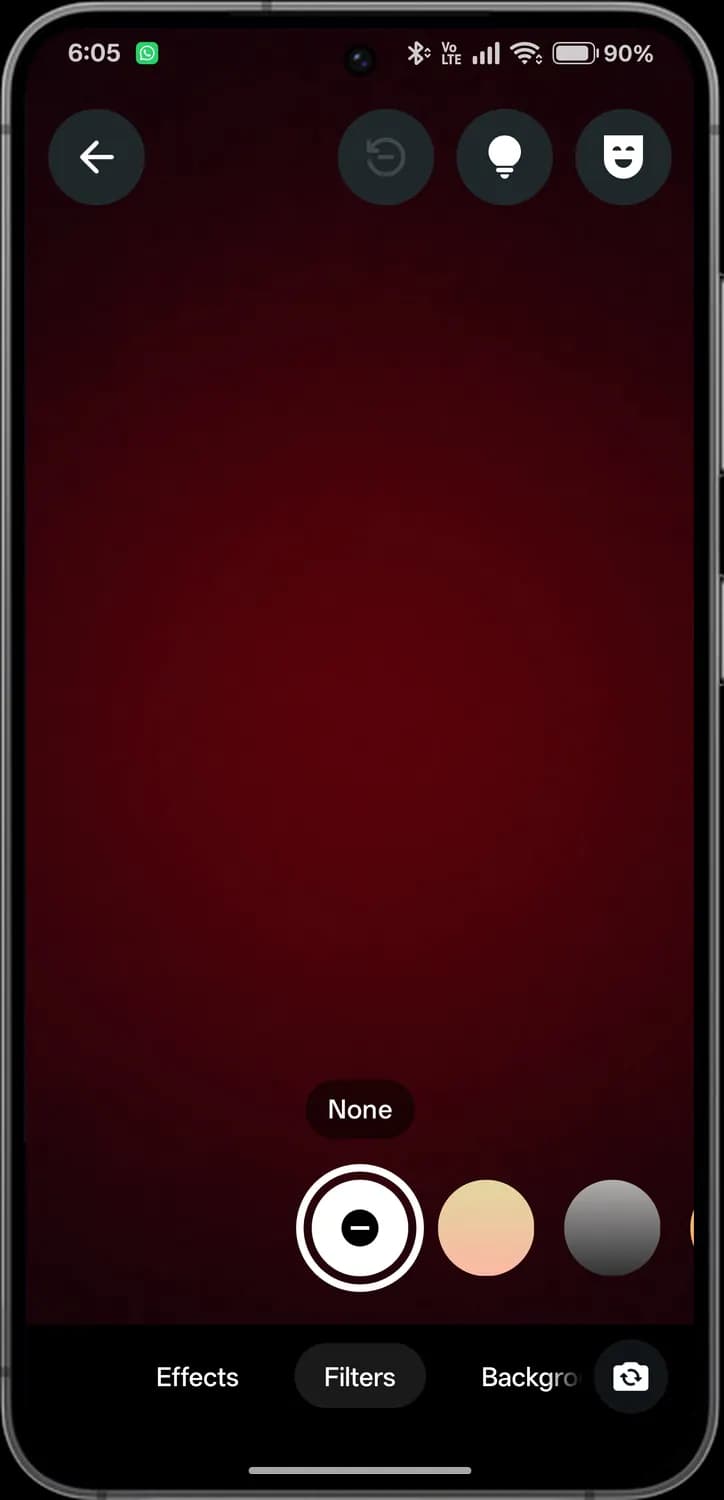

Back
Returns to the call.

Reset
Removes all effects.

Low light
Brightens your video in the dark.

Avatar
Shows your avatar instead of your face.

Filter
Pick a filter. None means no filter.

Effect types
Effects, filters and backgrounds.

Switch camera
Switches between front and back cameras.
Call menu
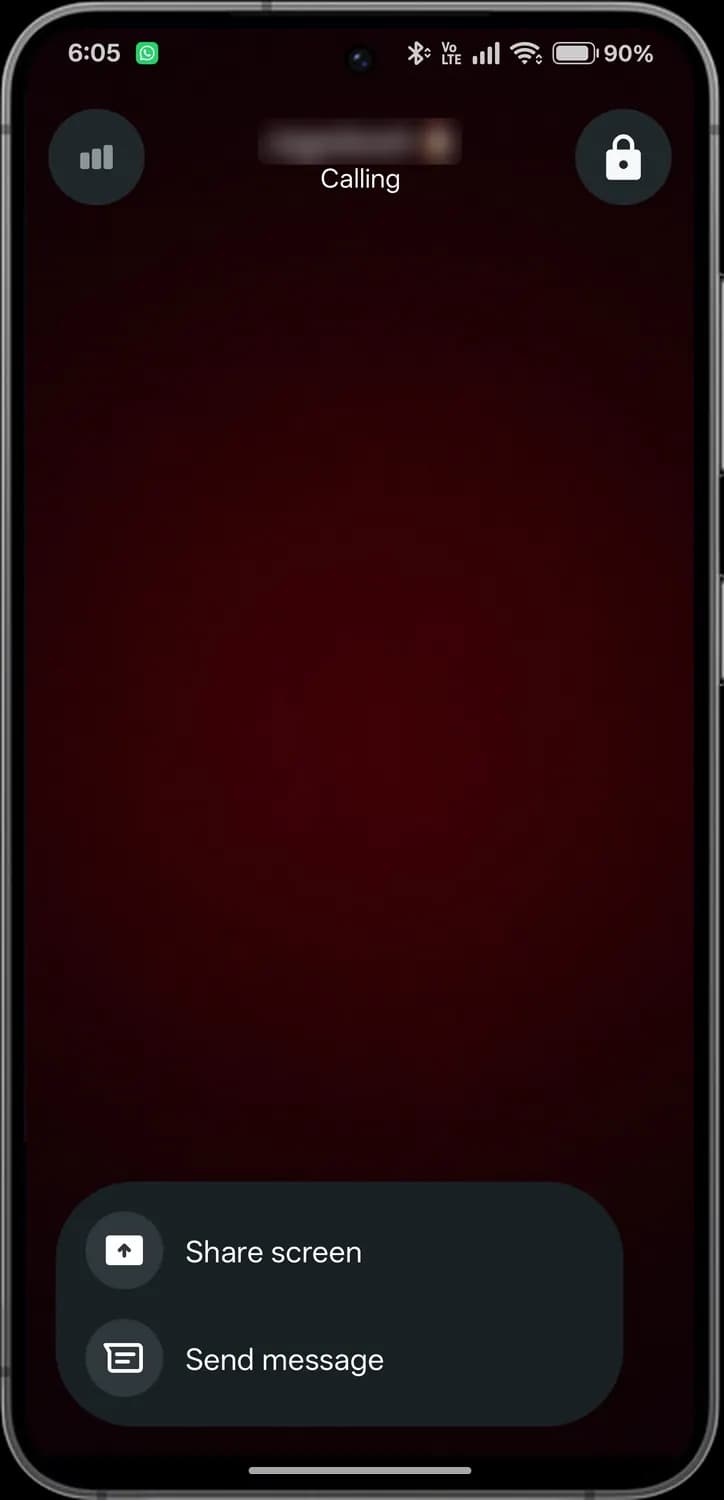

Connection
How good the call connection is.

Encrypted call
The call is end-to-end encrypted.

Share screen
Shows your screen to the other person.

Send message
Sends a message without leaving the call.
Updates tab
Updates holds status updates from your contacts and the channels you follow. Your contacts' statuses are blurred here.
Status and channels
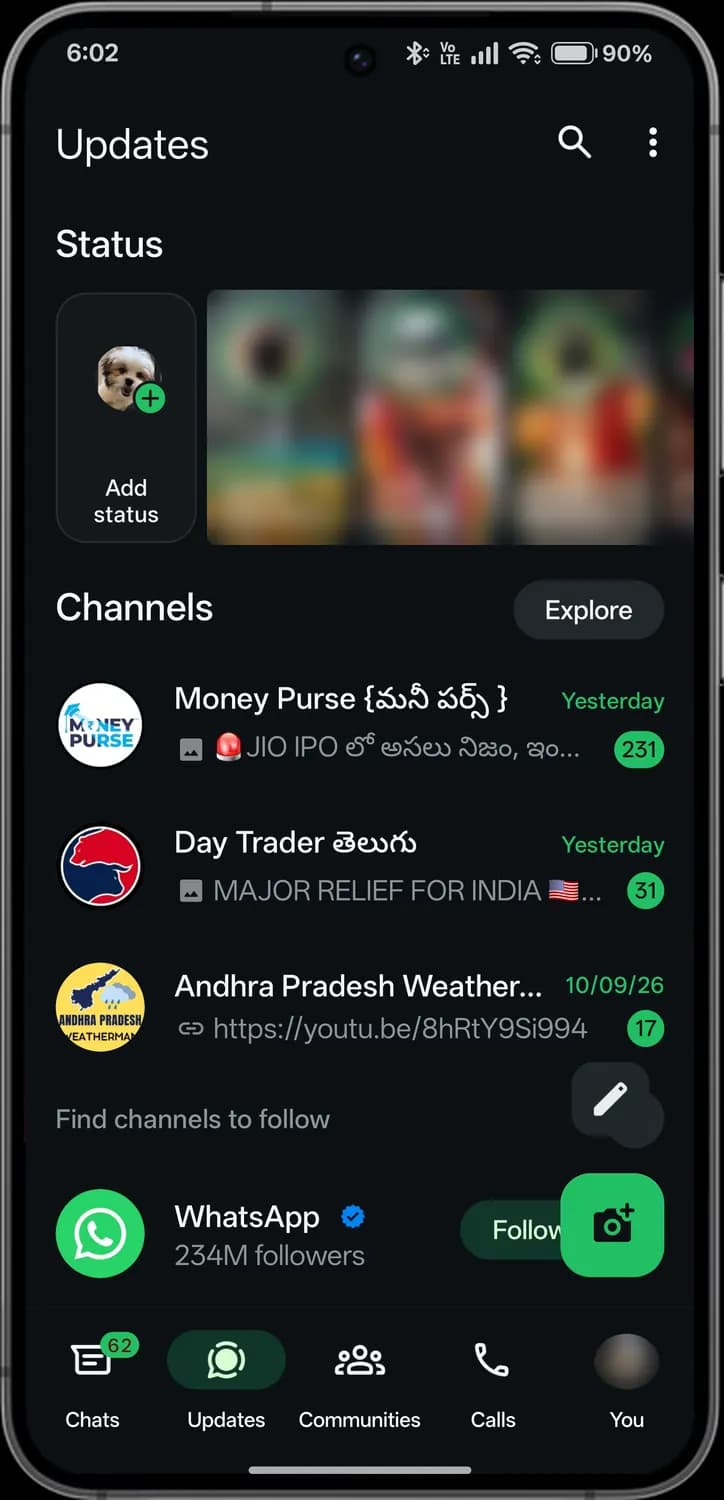

Search
Search status updates and channels.

More options
Status privacy, create channel and settings.

Add status
Post a photo, video, text or voice status for 24 hours.

Explore
Find more channels to follow.
New channel updates
How many updates you have not seen in the channel.

Verified
A blue tick means WhatsApp verified the channel.

Text status
Write a text-only status.

Camera status
Take a photo or video for your status.
Find channels
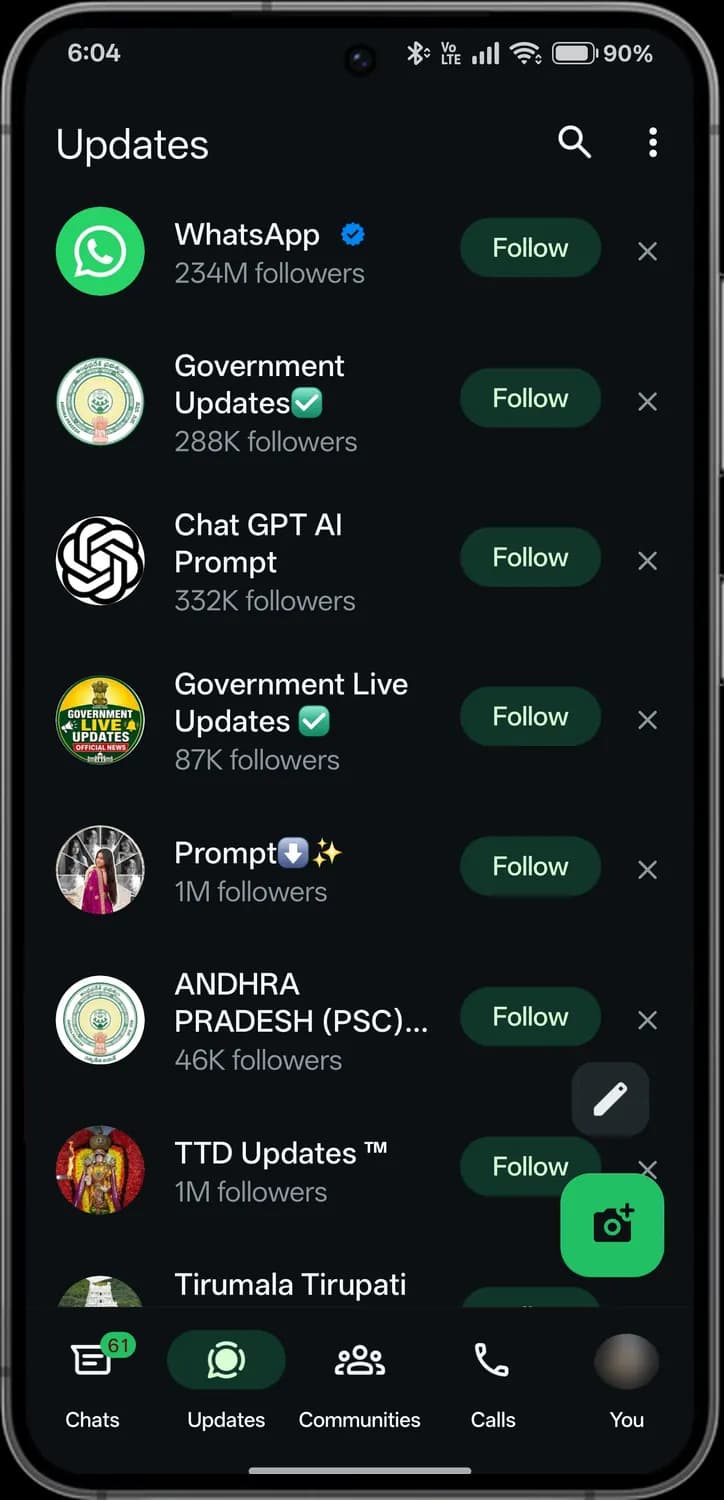

Follow
Follows the channel, so its updates appear here.

Dismiss
Hides the suggested channel.
Search channels
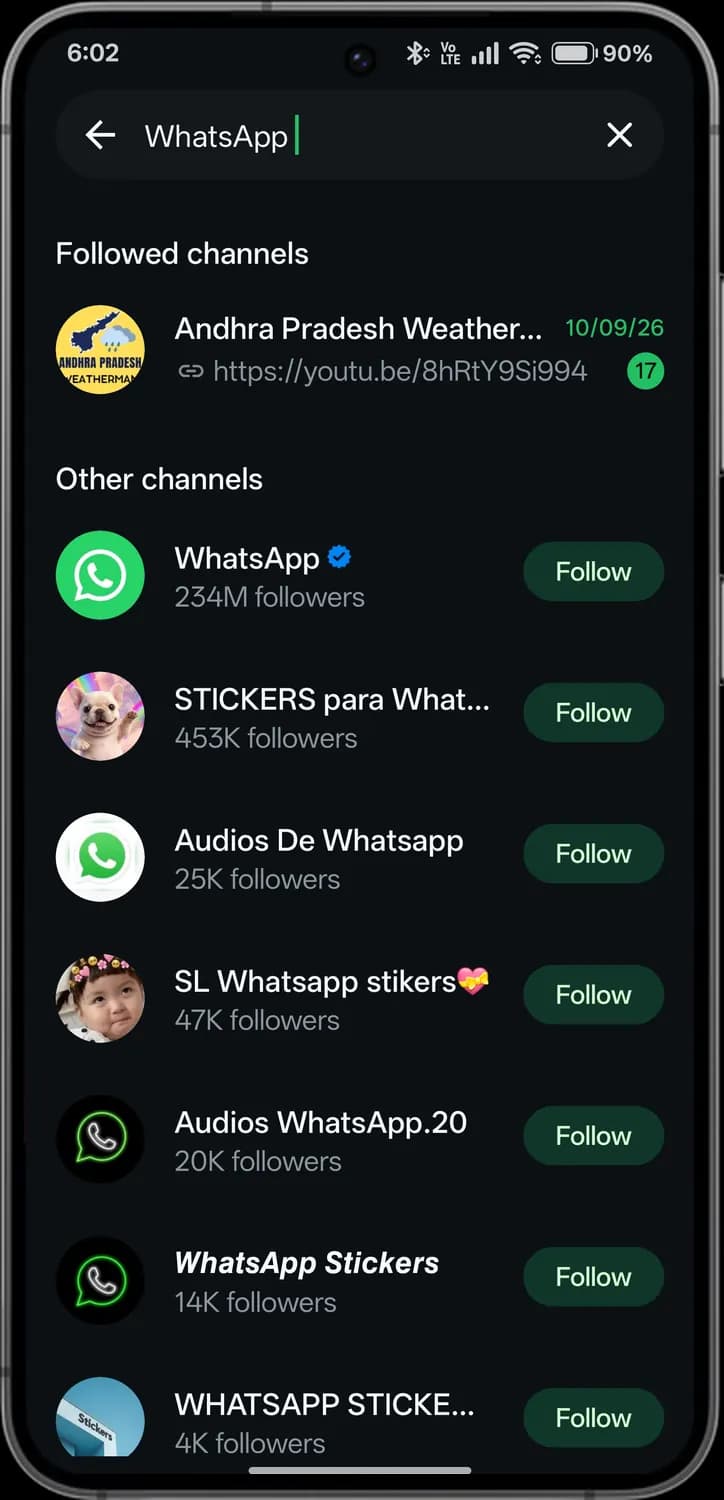

Followed channels
Channels you already follow that match your search.

Unread updates
Updates you have not seen in that channel.
Adding a status
Tap Add status to share a photo, video, text, music or voice note for 24 hours. Your gallery is blurred here.
Add status
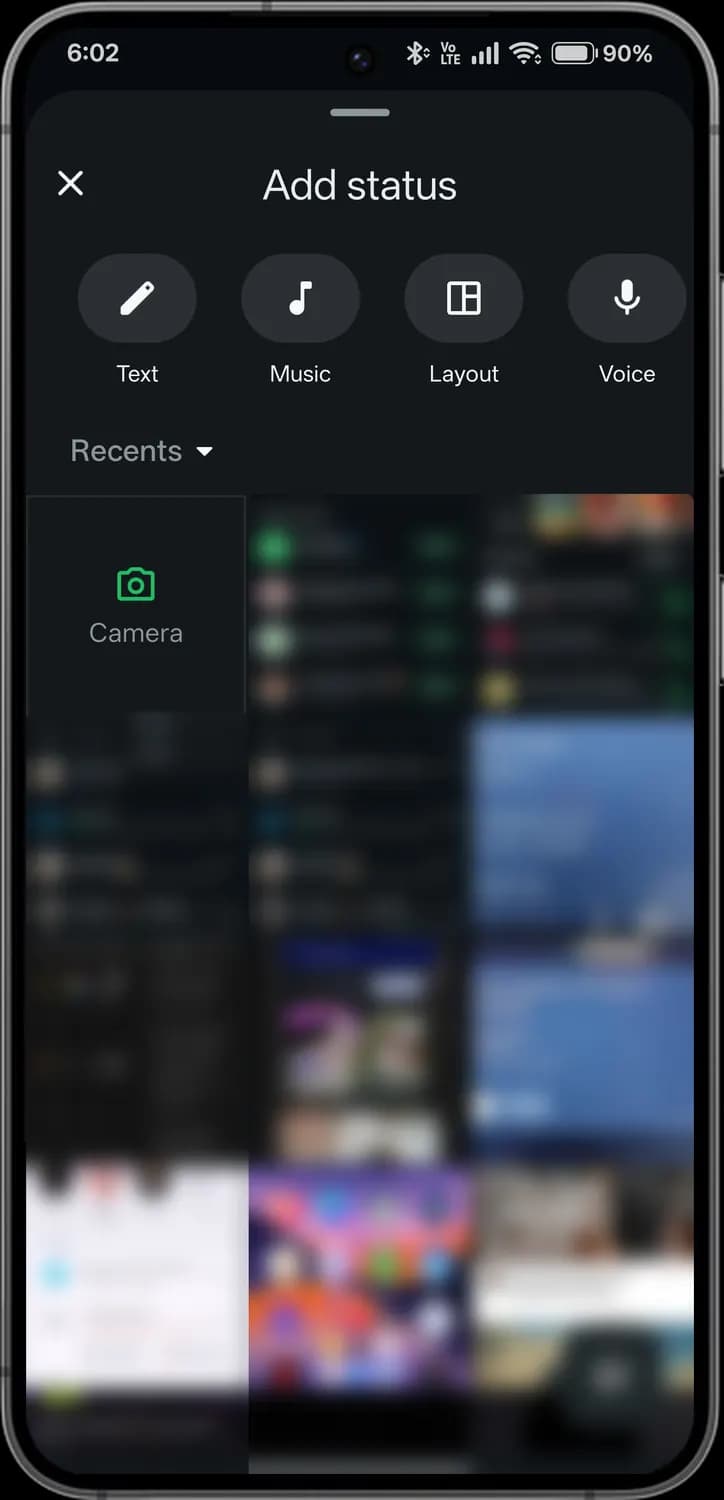

Close
Closes without posting.

Text
Write a text status on a coloured background.

Music
Share a song as your status.

Layout
Combine several photos into one status.

Voice
Record a voice note as your status.

Recents
Switch which album the photos come from.

Camera
Take a new photo or video.

Select multiple
Pick several photos and videos at once.
Text status
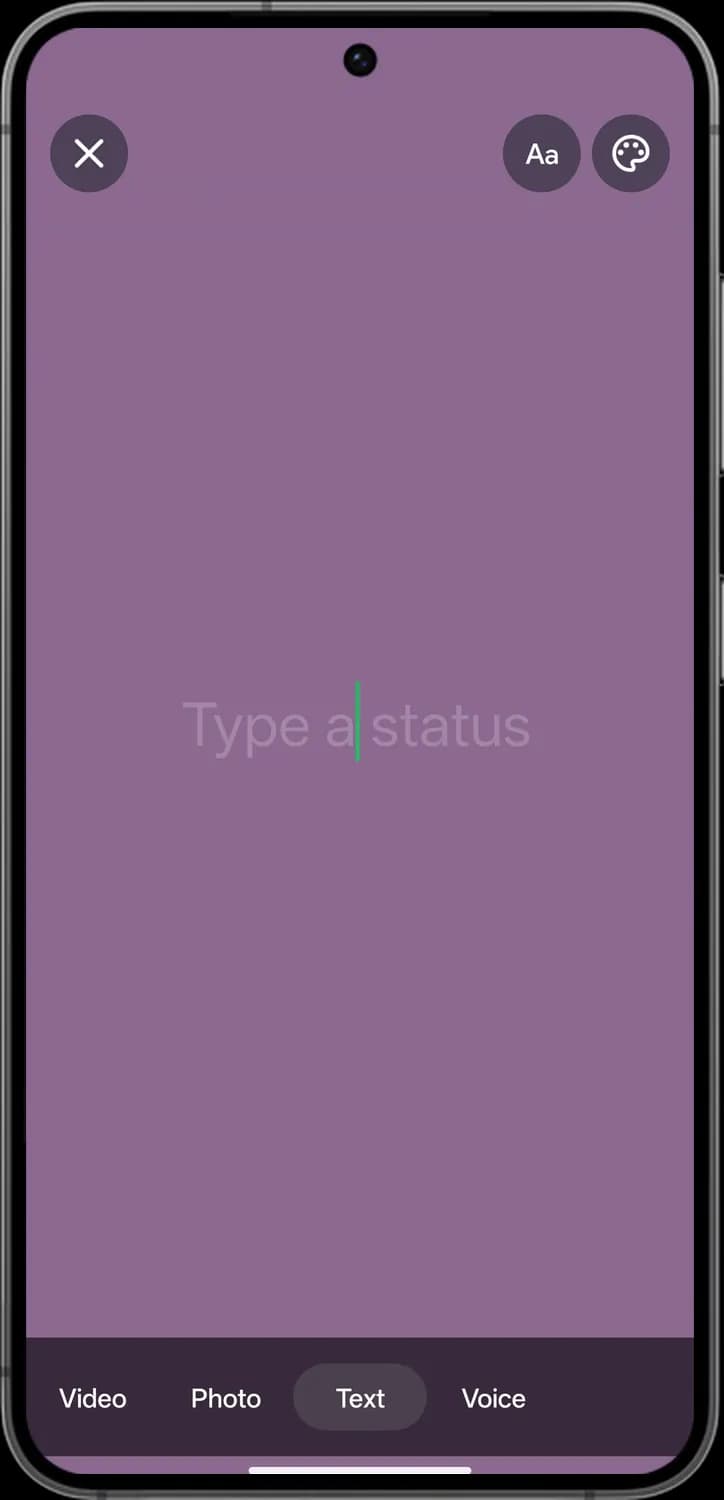

Discard status
Discards the status.

Font
Changes the text style.

Text background
Changes the background colour.

Type a status
Where you write your text status.

Status types
Switch between video, photo, text and voice.
Music
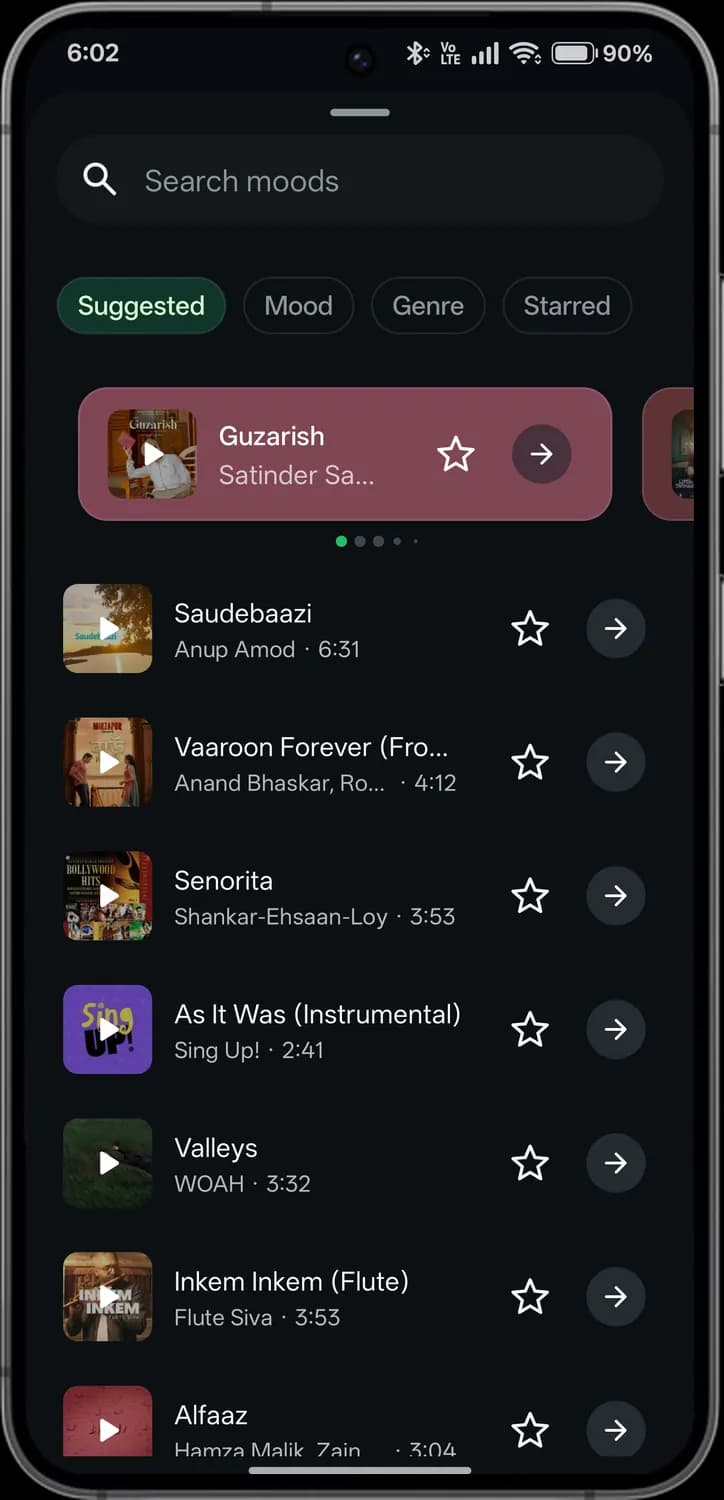

Search moods
Find music by mood, genre or name.

Music filters
Suggested, Mood, Genre and Starred songs.

Featured song
Tap to preview the song.

Star
Saves the song so you can find it later.
Use song
Picks the song for your status.
Voice status
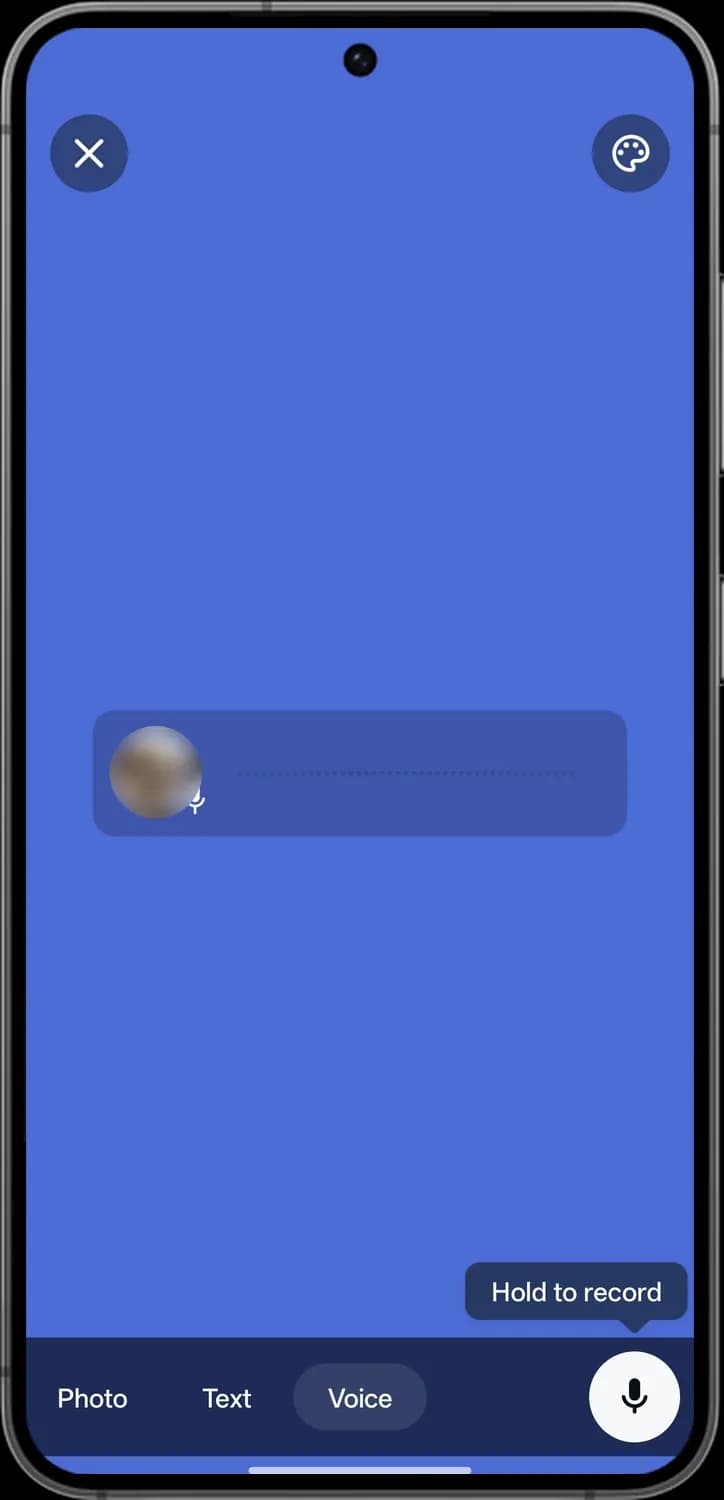

Hold to record
Press and hold to record your voice status.

Voice preview
Your recording, ready to post.

Voice background
Changes the background colour.
Channels
Channels are one-way updates from people and organisations you follow. Only the admins post; you can react.
Channel
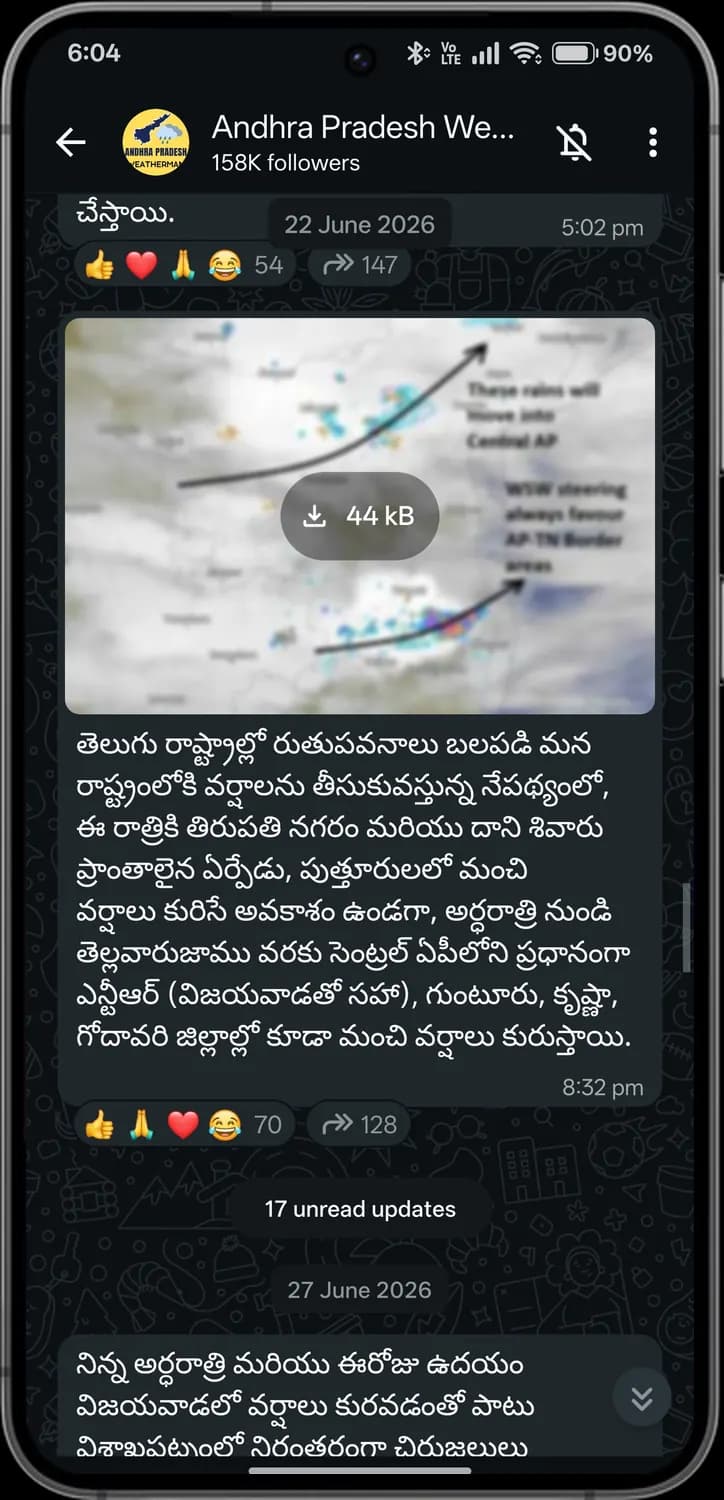

Followers
How many people follow the channel.

Muted
Notifications for this channel are off.

Reactions
Emoji reactions from followers, and how many.

Forward count
How many times the update was forwarded.
Download
Tap to download the photo.

Unread updates
Marks where updates you have not seen start.

Scroll to bottom
Jumps to the newest updates.
Channel info
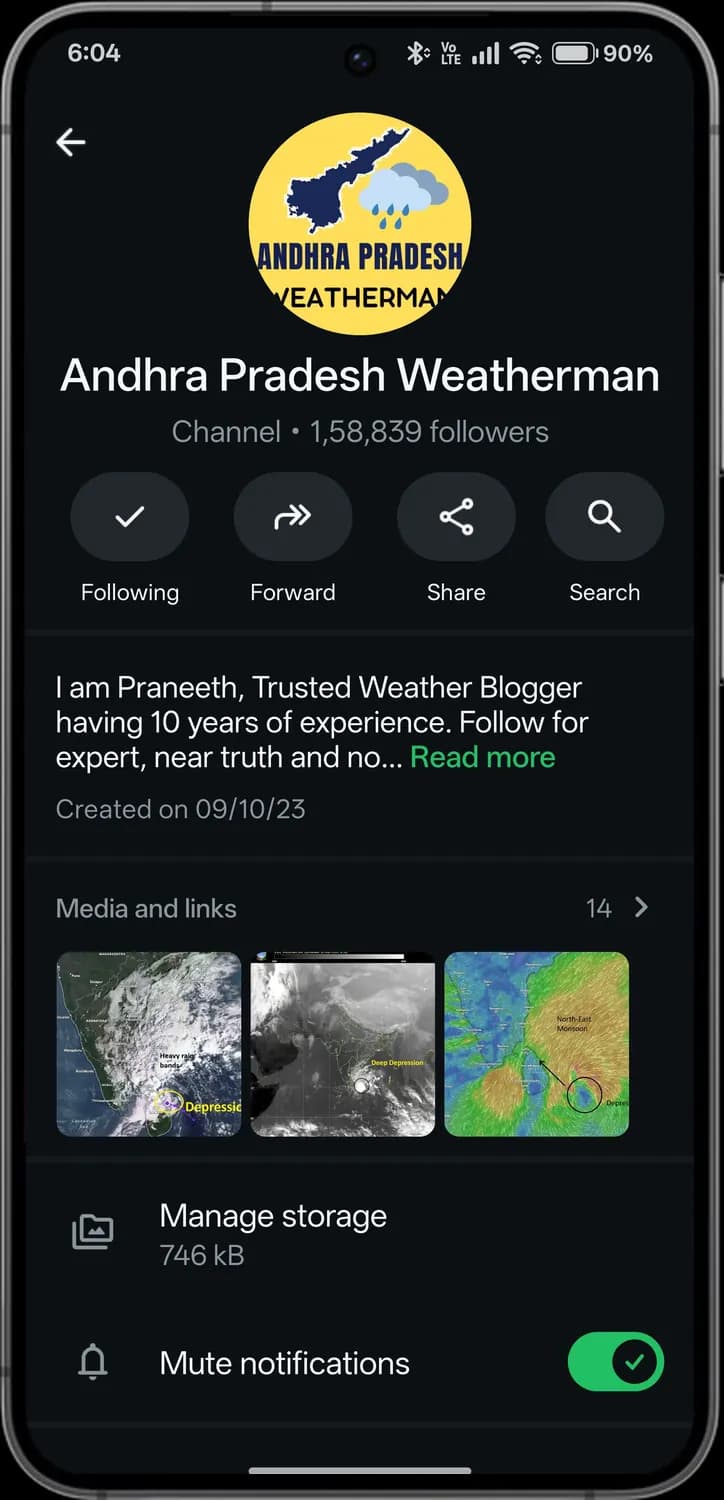

Following
You follow this channel. Tap to unfollow.

Forward
Share the channel in a chat.

Share
Share a link to the channel.

Search
Search the channel's updates.

Media and links
Photos, videos and links posted in the channel.

Mute notifications
Turns the channel's notifications off.
Channel settings
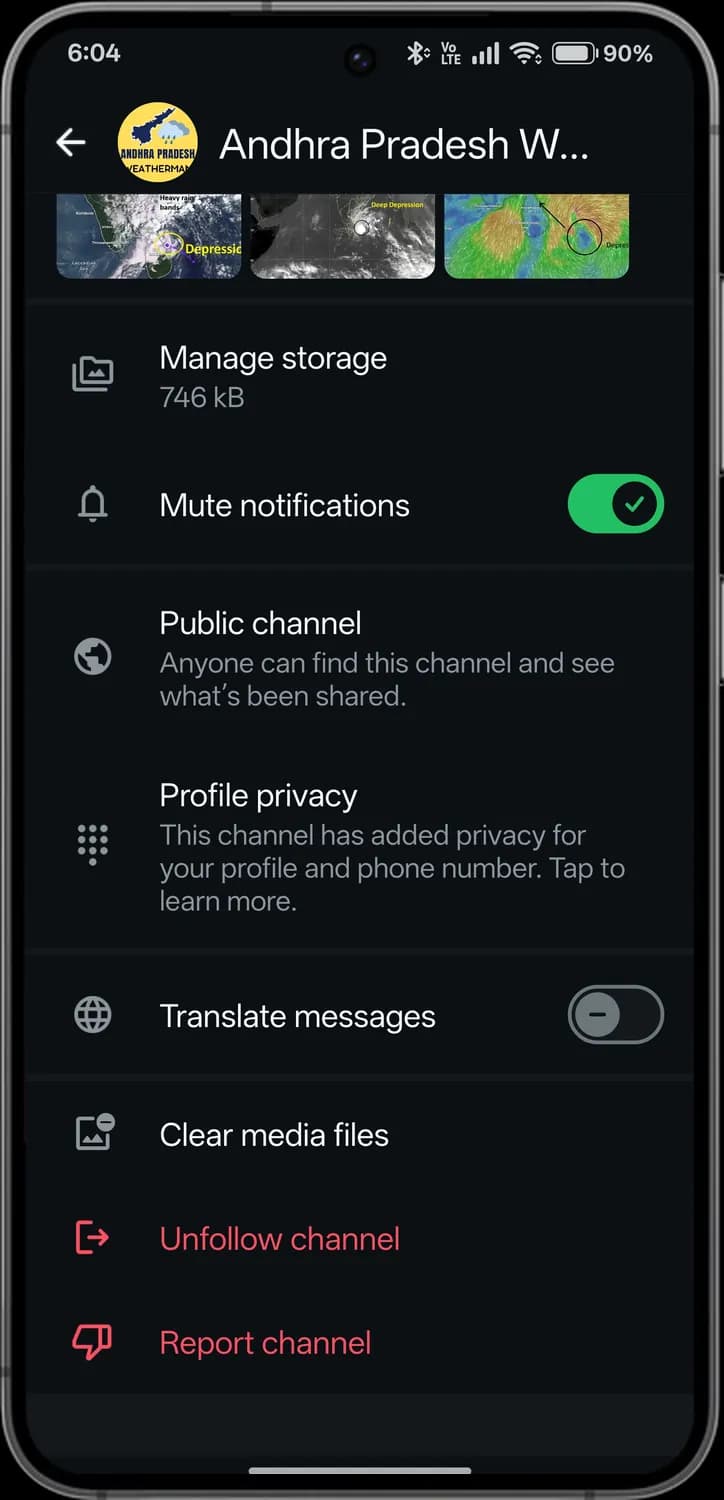

Public channel
Anyone can find the channel and see what it shares.
Profile privacy
The admins cannot see your name or number.

Translate messages
Translates updates into your language.

Clear media files
Deletes the channel's photos and videos from your phone.

Unfollow channel
Stops following the channel.

Report channel
Reports the channel to WhatsApp.
New chat, group and community
The new chat button opens your contacts, and the options to make a group or a community. Contacts are blurred here.
New chat
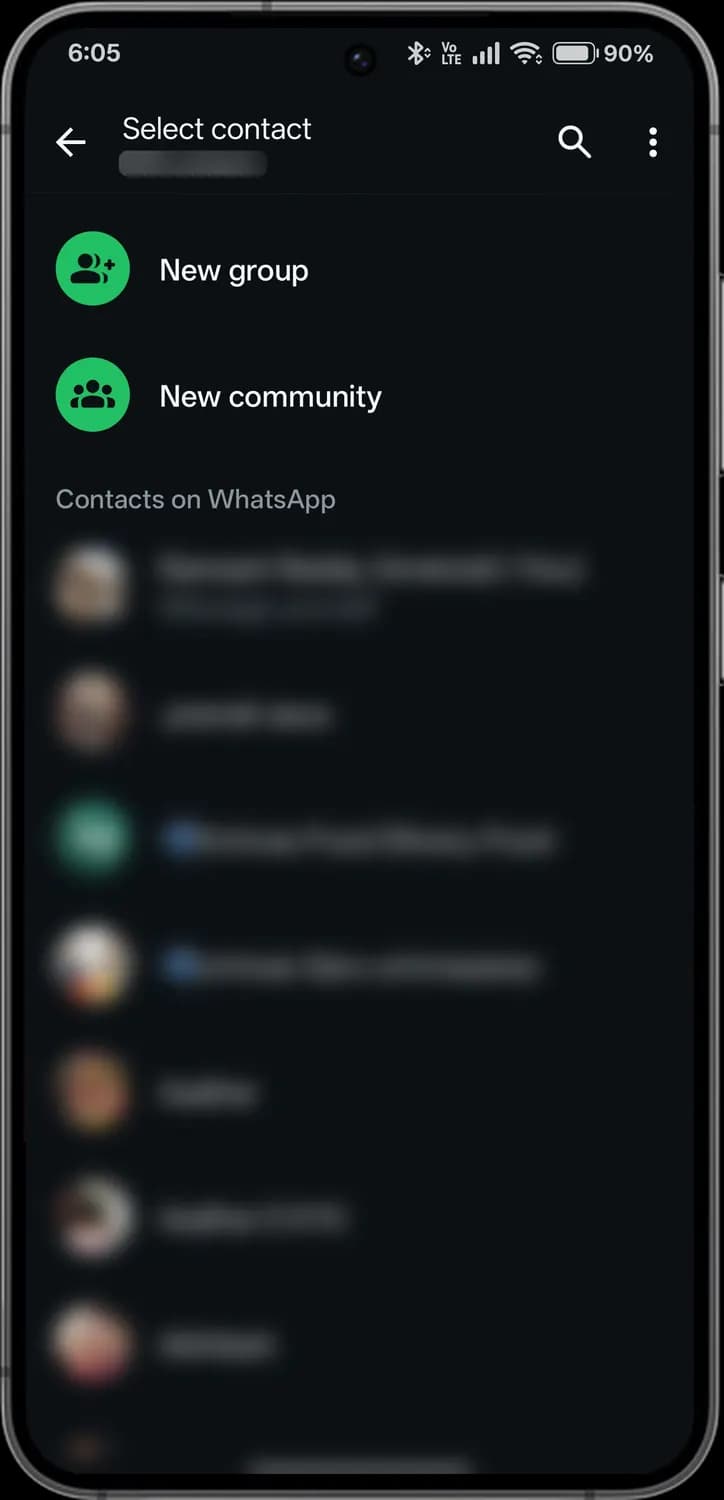

Search
Search your contacts.

More options
Invite a friend, contacts and refresh.

New group
Start a group chat.

New community
Bring several groups together.
New group
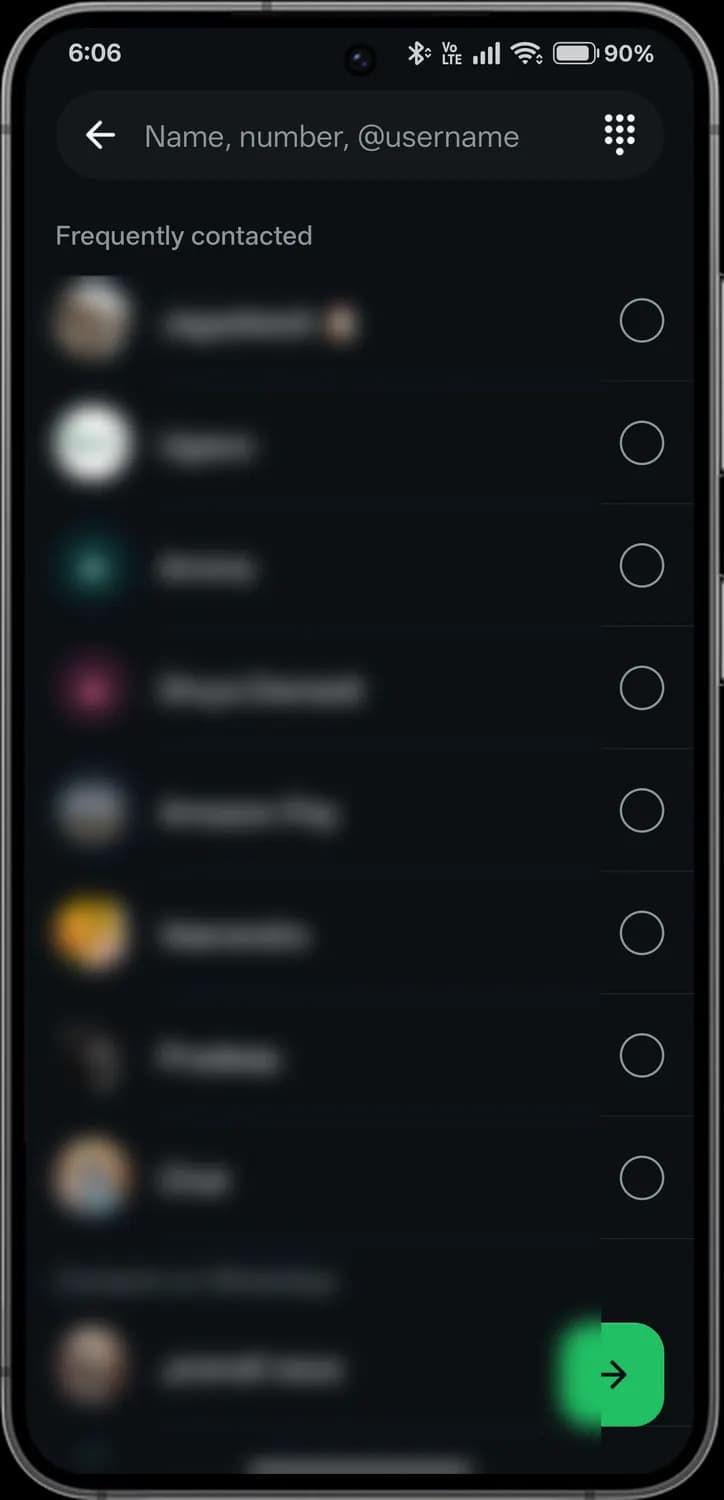

Search contacts
Find people by name, number or username.

Dial pad
Type a phone number instead.

Select
Tap to add the person to the group.

Next step
Continues to name the group.
New community
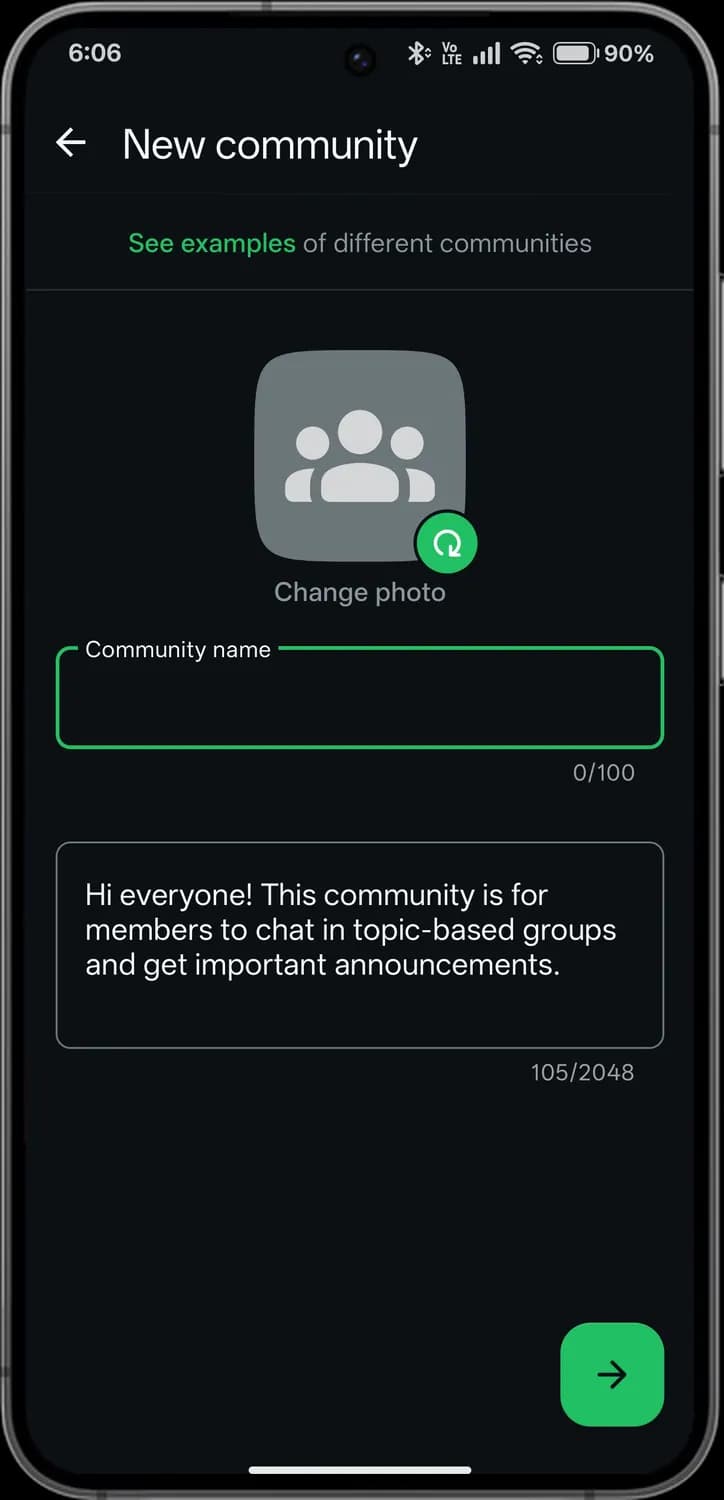

See examples
Examples of different communities.

Change photo
Pick a photo for the community.

Community name
Name the community, up to 100 characters.

Description
Tell members what the community is for.

Continue
Continues to add groups.
Contact and business info
Tap a chat's name to see the contact's details and the chat's settings. The name, photo and number are blurred here.
Business profile
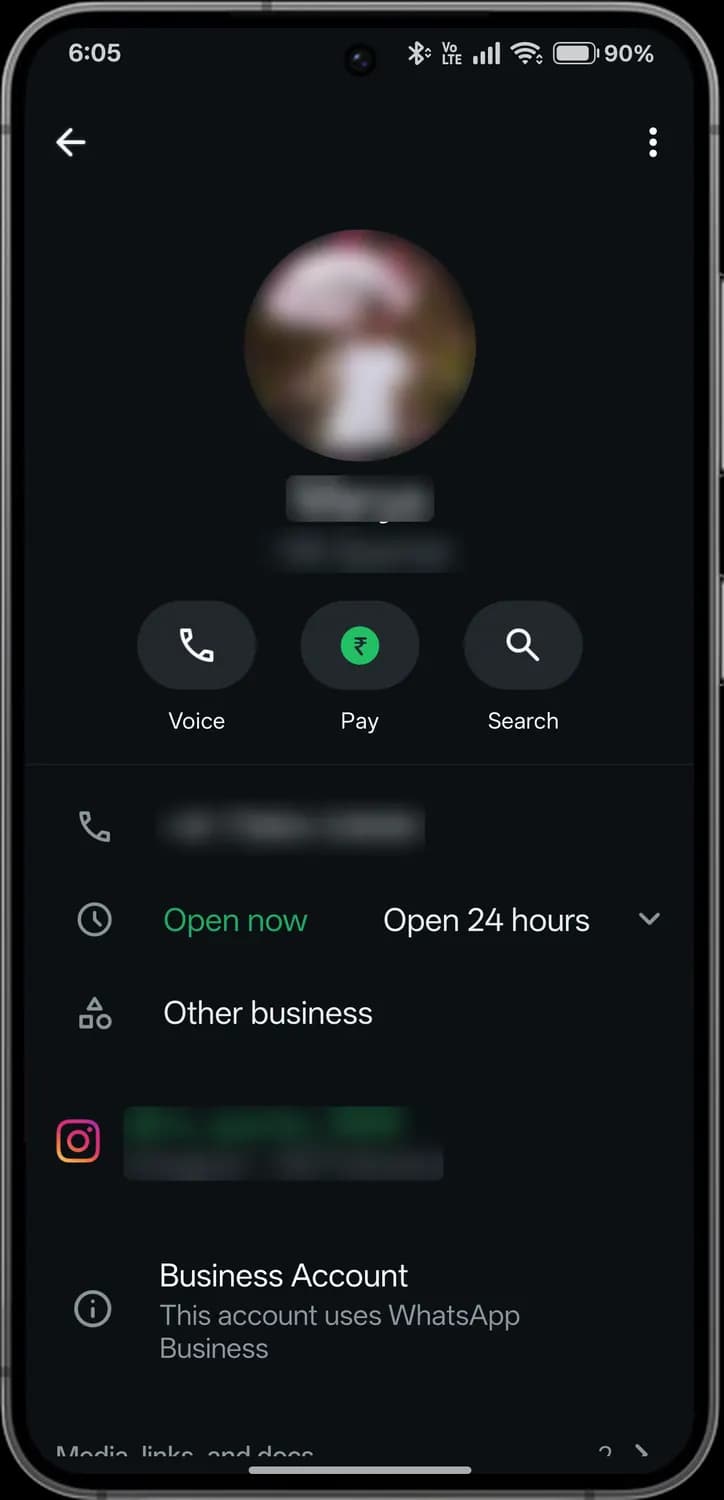

Voice
Calls the business.

Pay
Pays the business with WhatsApp Pay.

Search
Search the chat.

Business hours
Whether the business is open now, and its hours.

Category
The kind of business.

Instagram
The business's linked Instagram account.

Business account
The account uses WhatsApp Business.
Chat settings
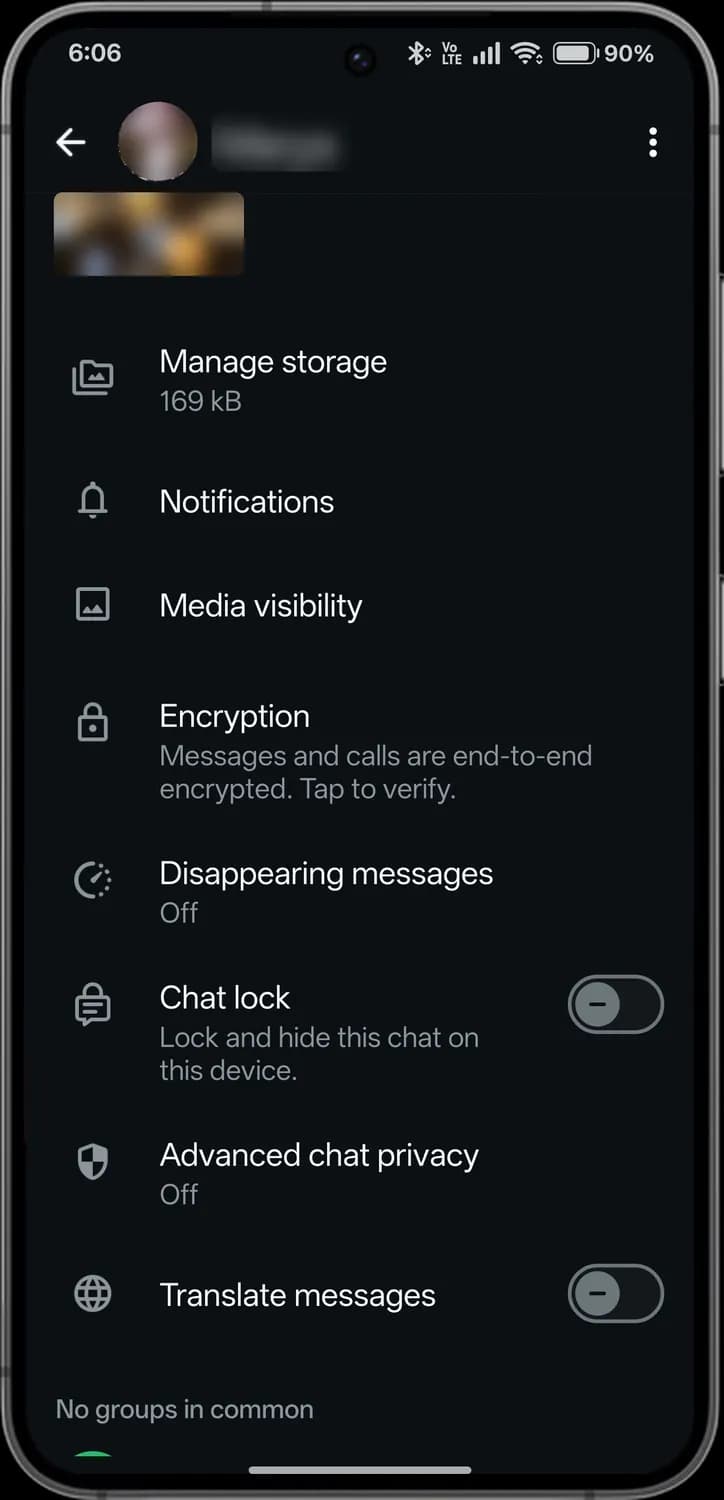

Manage storage
See and delete this chat's media.

Notifications
Custom tones and alerts for this chat.

Media visibility
Whether this chat's photos save to your gallery.

Encryption
Messages and calls are end-to-end encrypted. Tap to verify.

Disappearing messages
Messages delete themselves after a set time.

Chat lock
Locks and hides the chat behind your fingerprint or PIN.

Advanced chat privacy
Stops others saving media or exporting the chat.

Translate messages
Translates messages into your language.
More settings
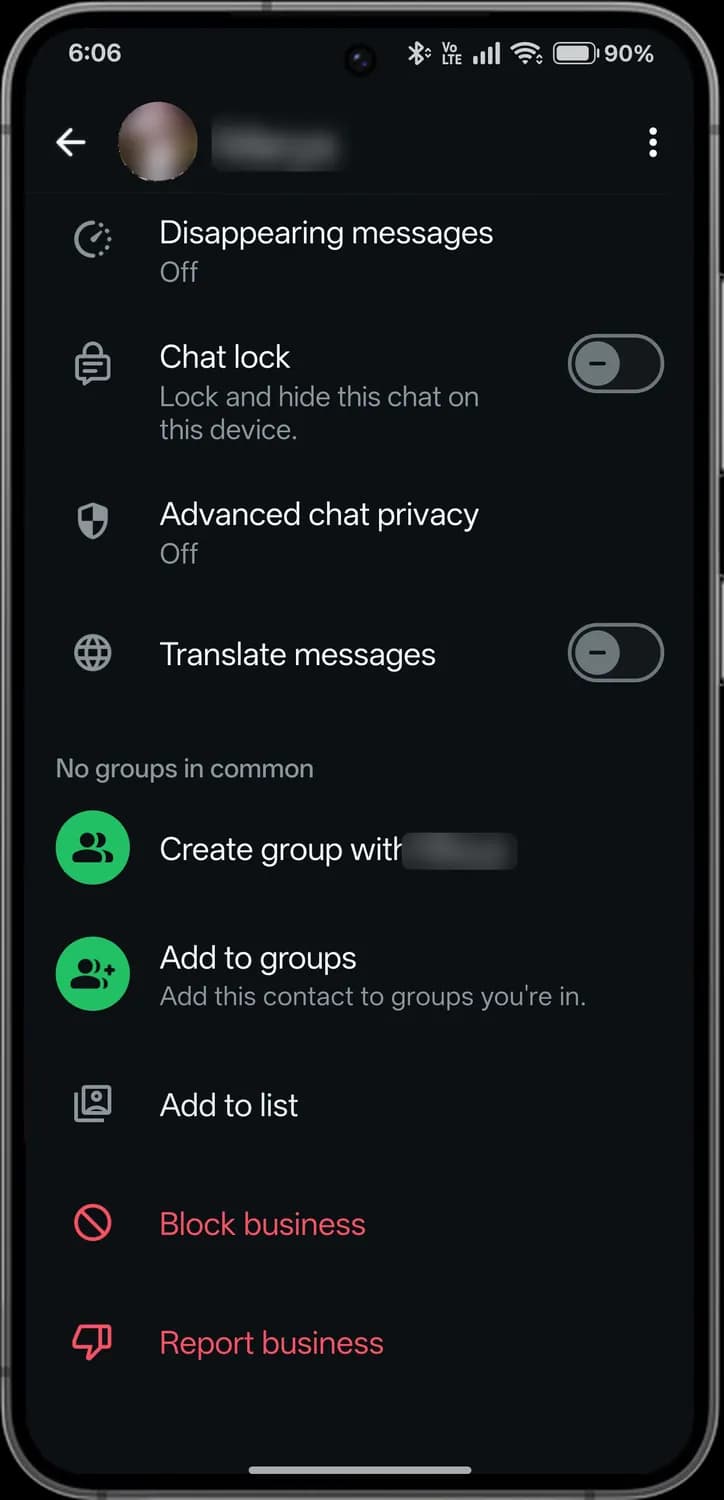

Create group
Starts a group with this contact.

Add to groups
Adds the contact to groups you are in.

Add to list
Adds the chat to one of your chat lists.

Block
Blocks the business.

Report
Reports the business to WhatsApp.
Archived and starred
Archived chats are hidden from your chat list. Starred messages are ones you saved. Messages, names and emails are blurred here.
Archived
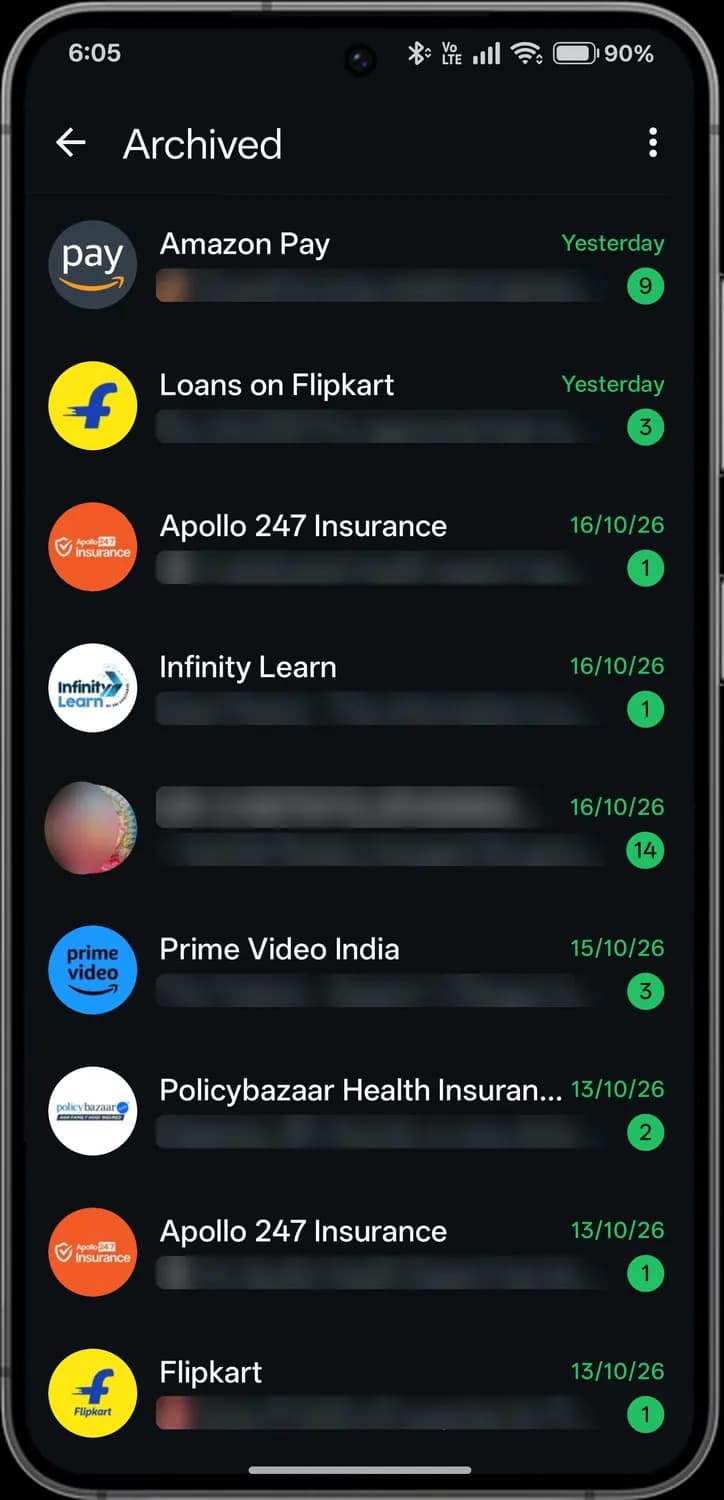

Back
Returns to your chats.

Archive settings
Choose whether archived chats stay archived when new messages arrive.

Unread count
New messages in an archived chat.
Starred
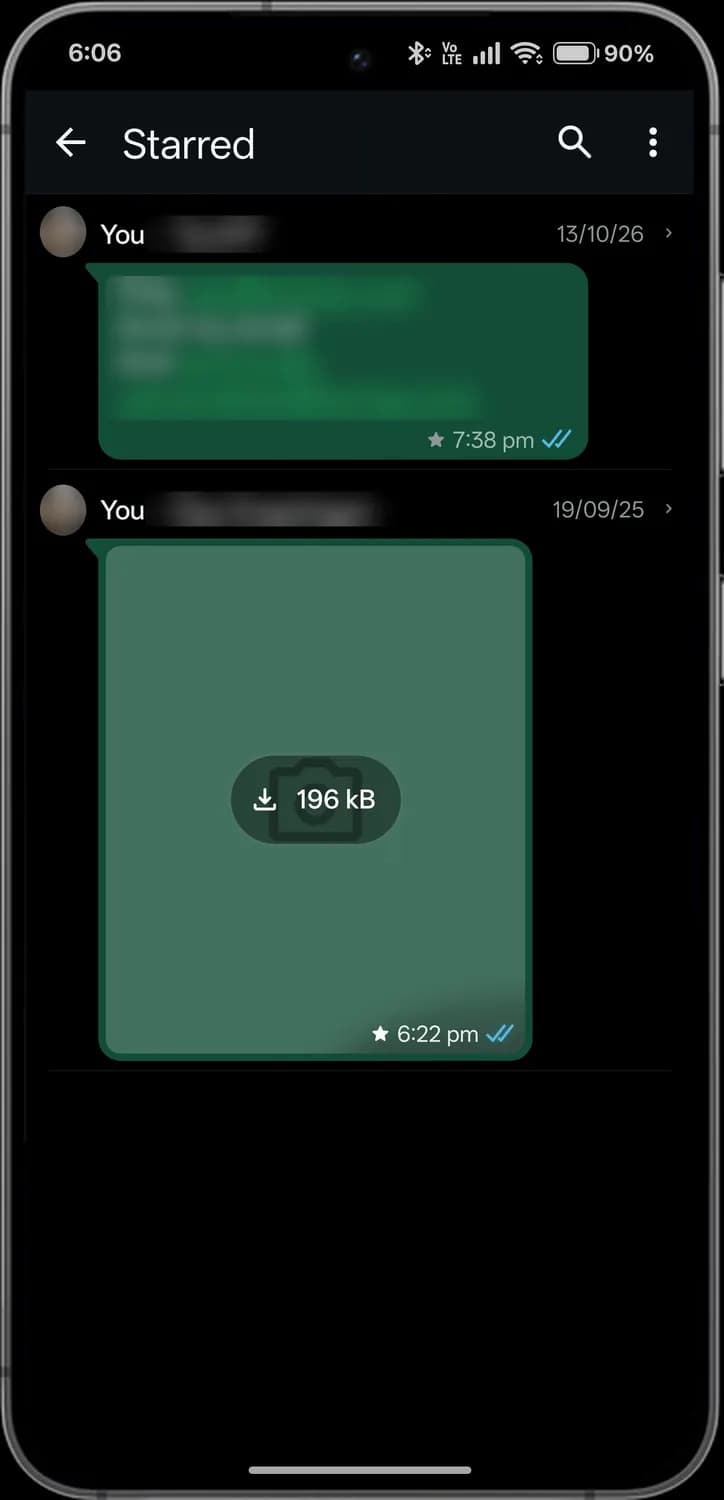

Search
Search your starred messages.

Starred
A star marks a message you saved.

Read ticks
Two blue ticks: the message was read.

Open in chat
Jumps to the message in its chat.
You and settings
The You tab has your profile and all of WhatsApp's settings. Your name, photo and username are blurred here.
Your profile
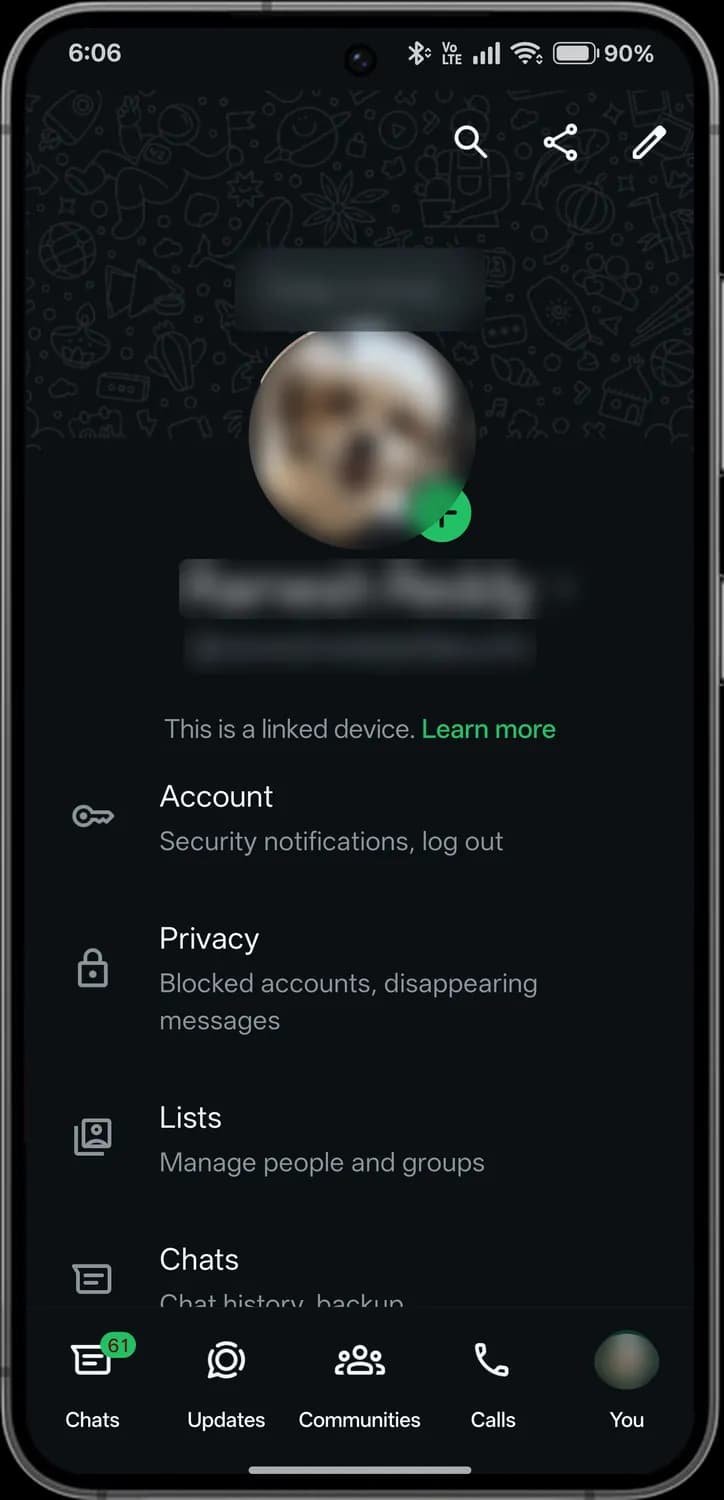

Status note
A short note shown above your photo.

Add photo
Changes your profile photo.

Search
Search settings.

Share
Share your profile.

Edit
Edit your name, about and links.

Linked device
This phone is a linked device, not your main one.
Settings
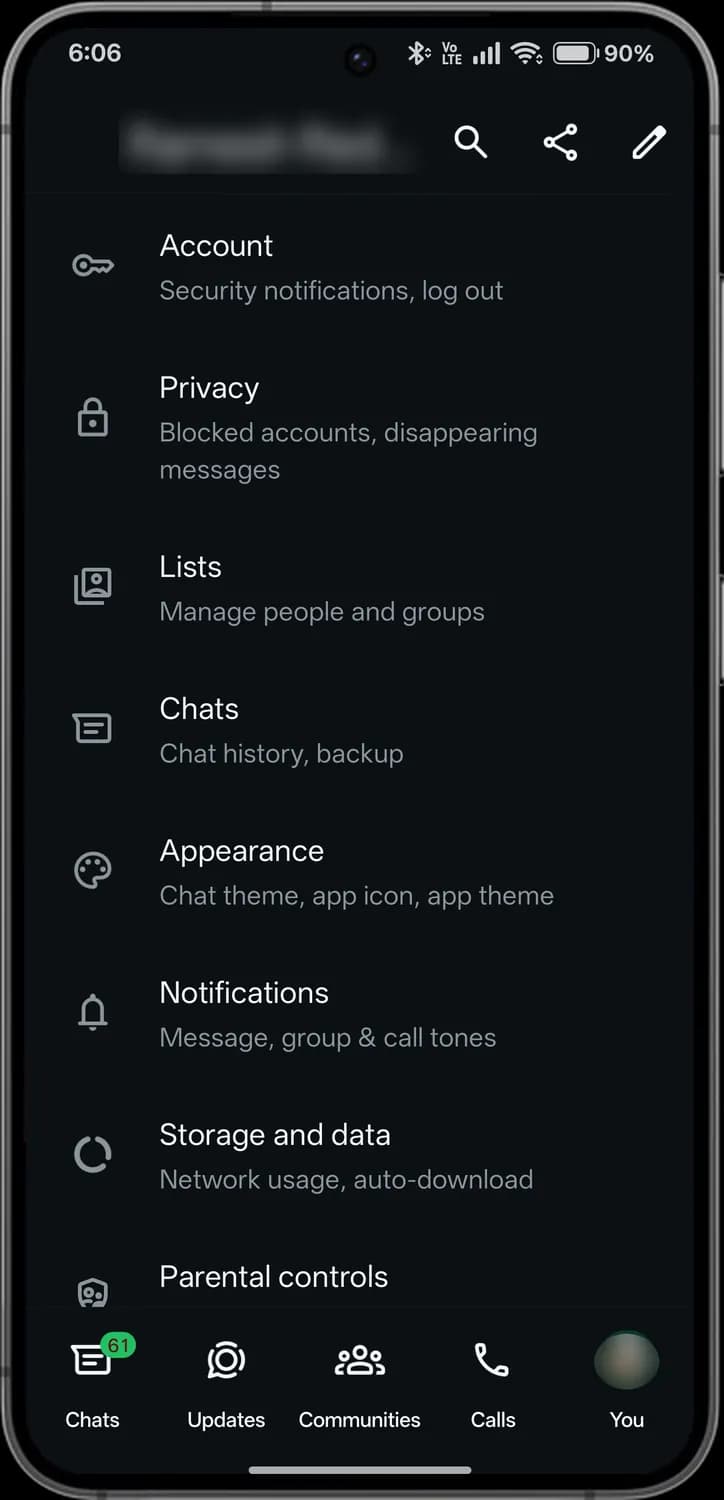

Account
Security notifications, passkeys and log out.
Privacy
Who sees your last seen, photo and status; blocked contacts.

Lists
Custom chat lists, like Work or Family.

Chats
Chat settings, history and backup.

Appearance
Chat theme, app icon and app theme.

Notifications
Message, group and call tones.

Storage and data
Network usage and auto-download.
More settings
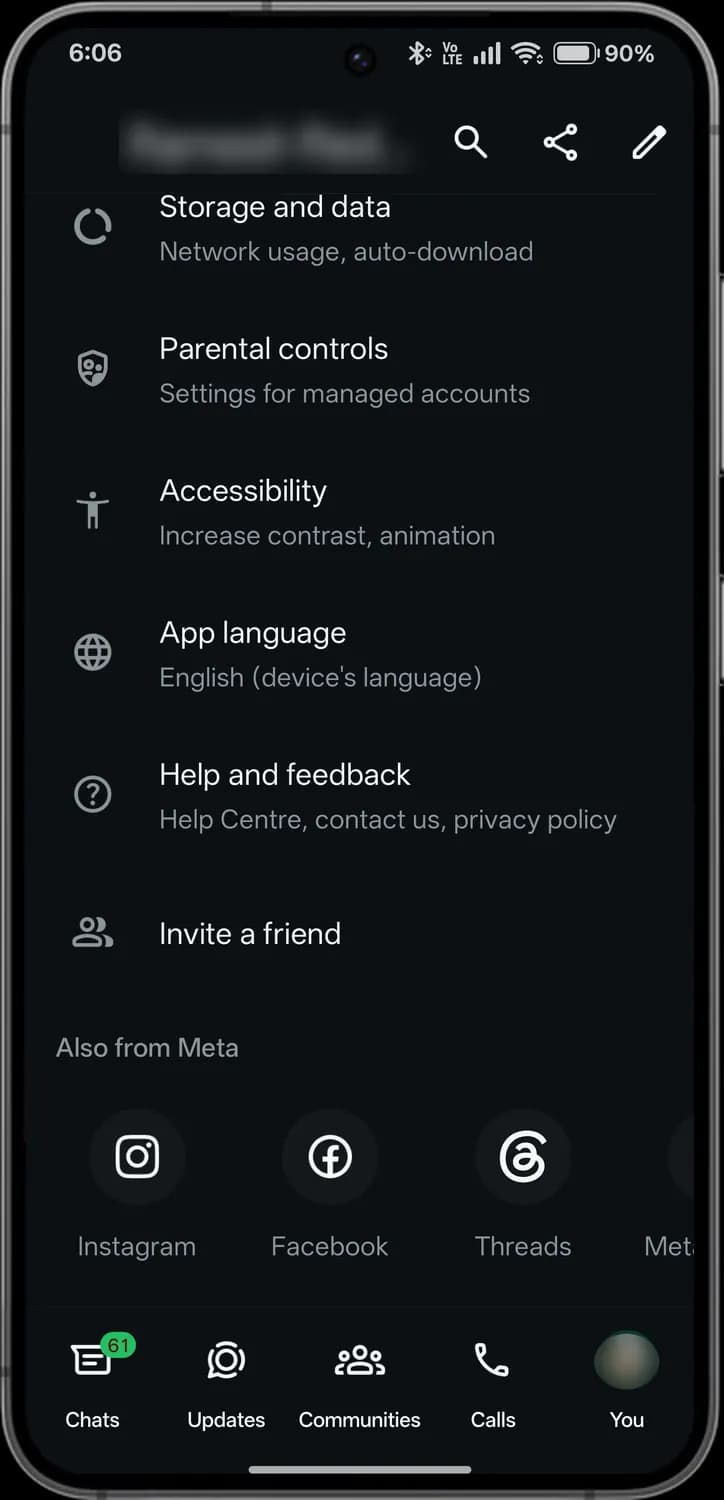

Parental controls
Settings for accounts you manage.

Accessibility
Higher contrast and less animation.

App language
Changes WhatsApp's language.

Help and feedback
Help Centre, contact us and privacy policy.

Invite a friend
Invite people to WhatsApp.

Also from Meta
Open Instagram, Facebook and Threads.
Account
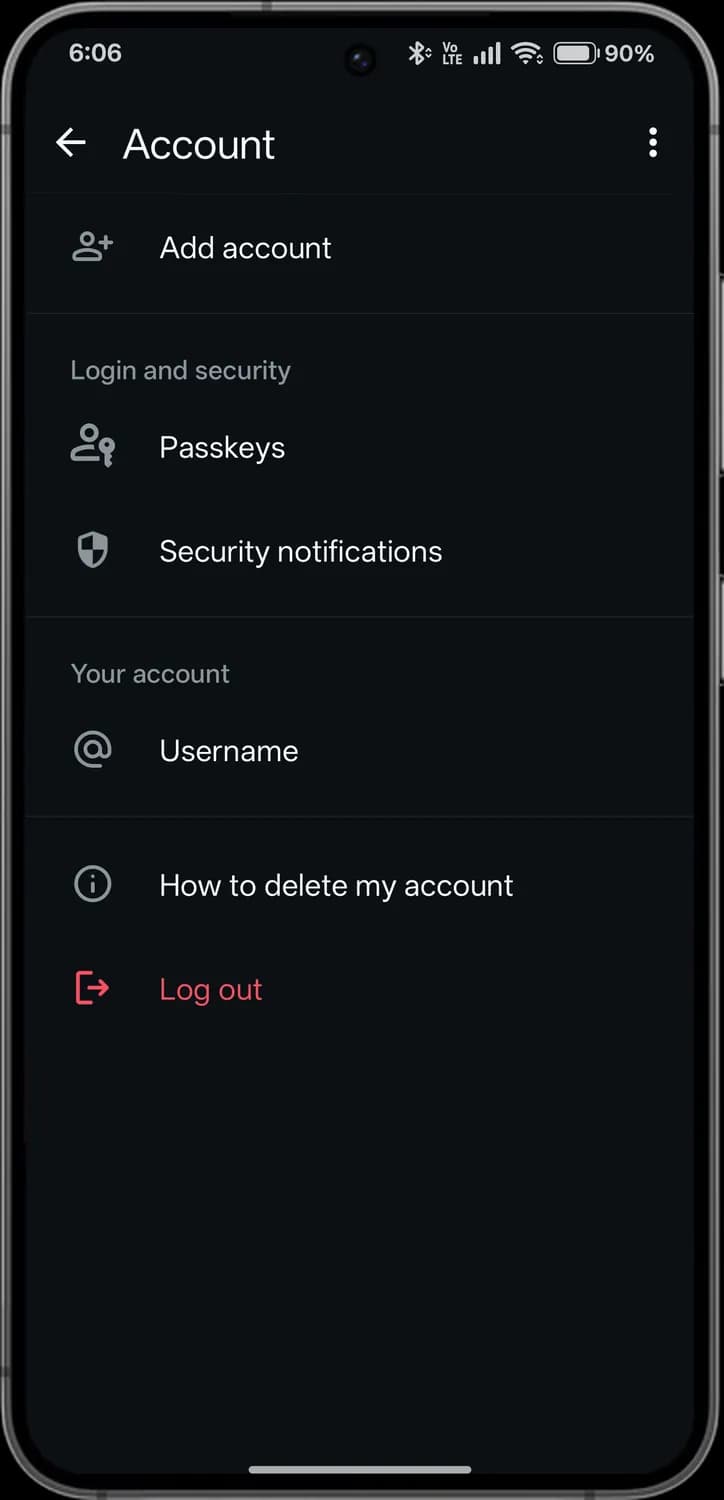

Add account
Add a second WhatsApp account.

Passkeys
Sign in with your fingerprint or face instead of a code.

Security notifications
Alerts when a contact's security code changes.

Username
Set a username so people can find you without your number.

How to delete my account
Steps to delete your account.

Log out
Logs this device out of WhatsApp.
Privacy
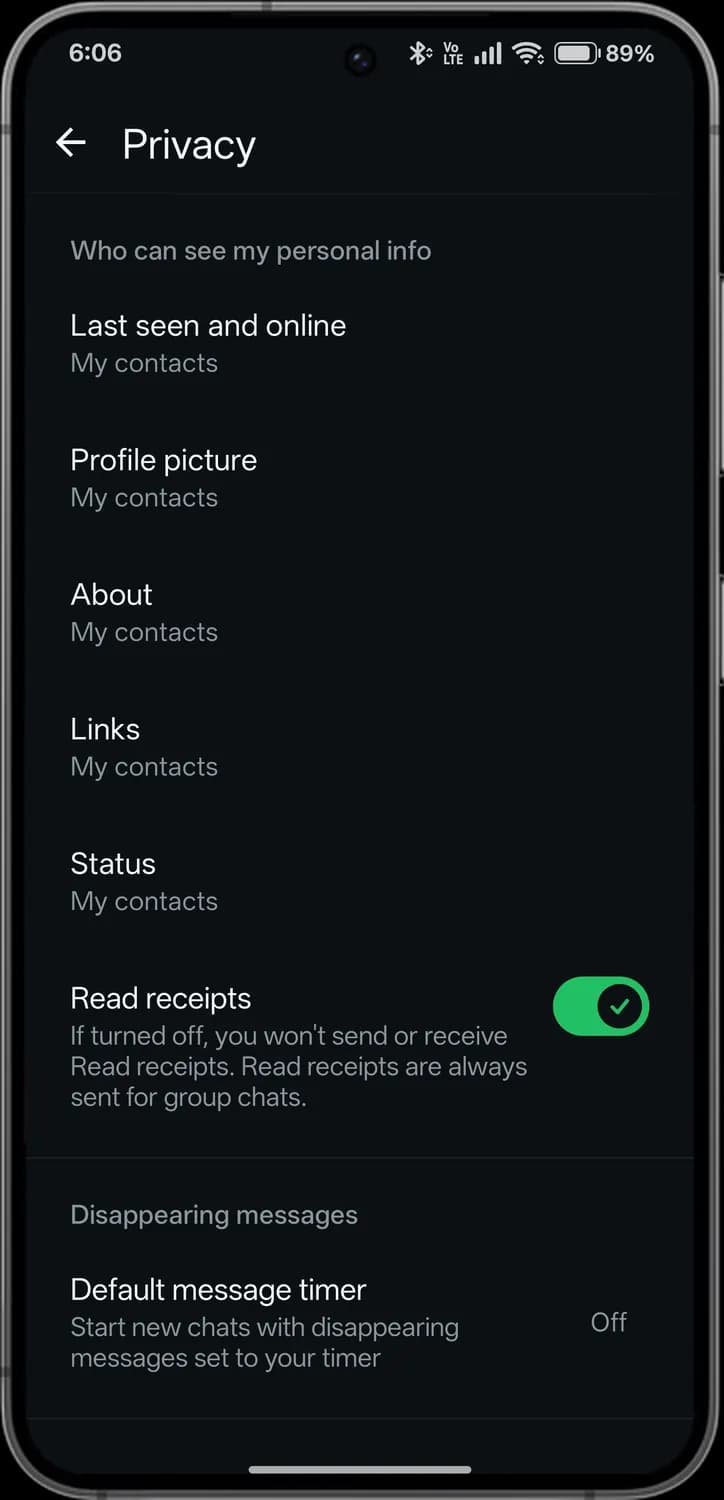

Last seen and online
Who can see when you were last online.

Profile picture
Who can see your profile photo.

About
Who can see your about text.

Links
Who can see the links on your profile.

Status
Who can see your status updates.

Read receipts
Turns the blue ticks on or off.

Default message timer
Makes new chats disappear after a set time.
Lists
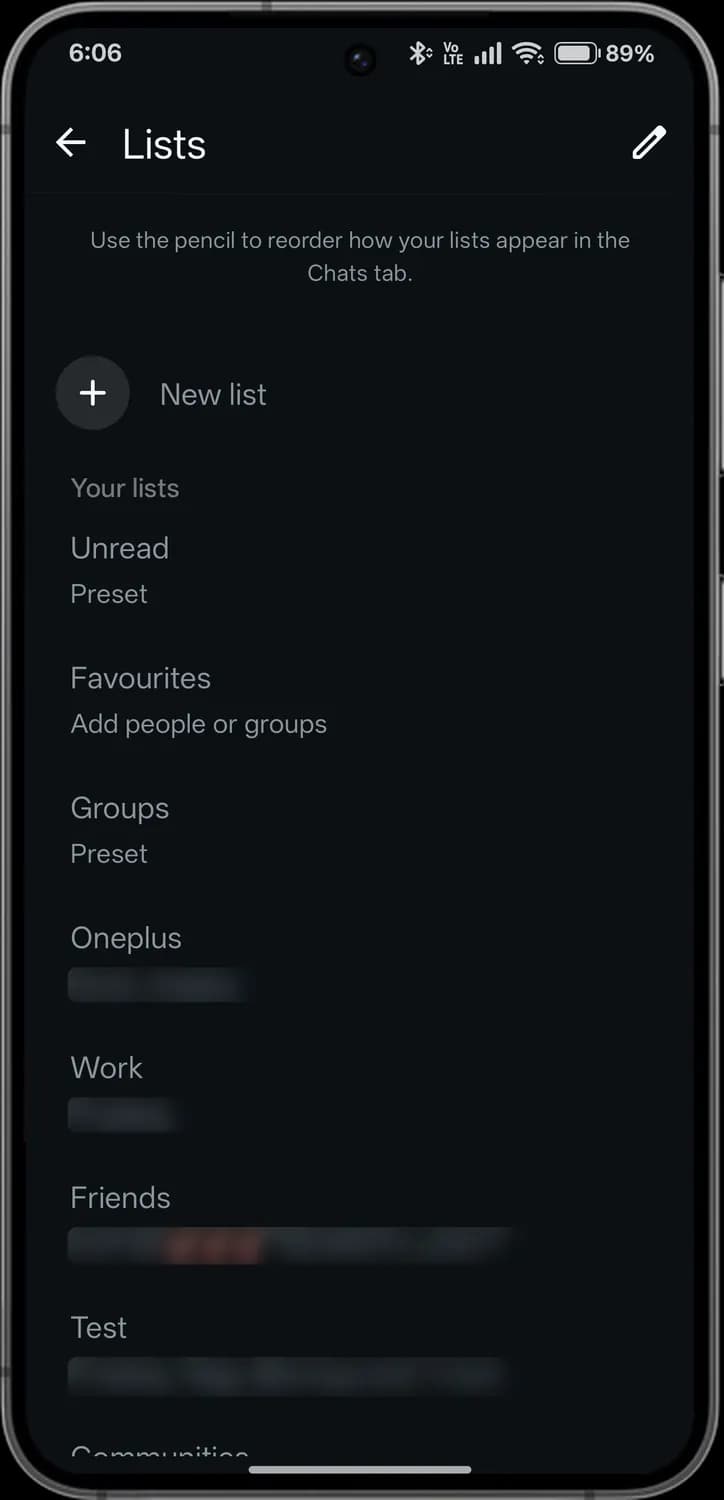

New list
Create a chat list.

Reorder
Change the order of your lists in the Chats tab.

Preset list
Lists WhatsApp makes for you, like Unread and Groups.

Your list
A list you made, with who is in it.
Appearance
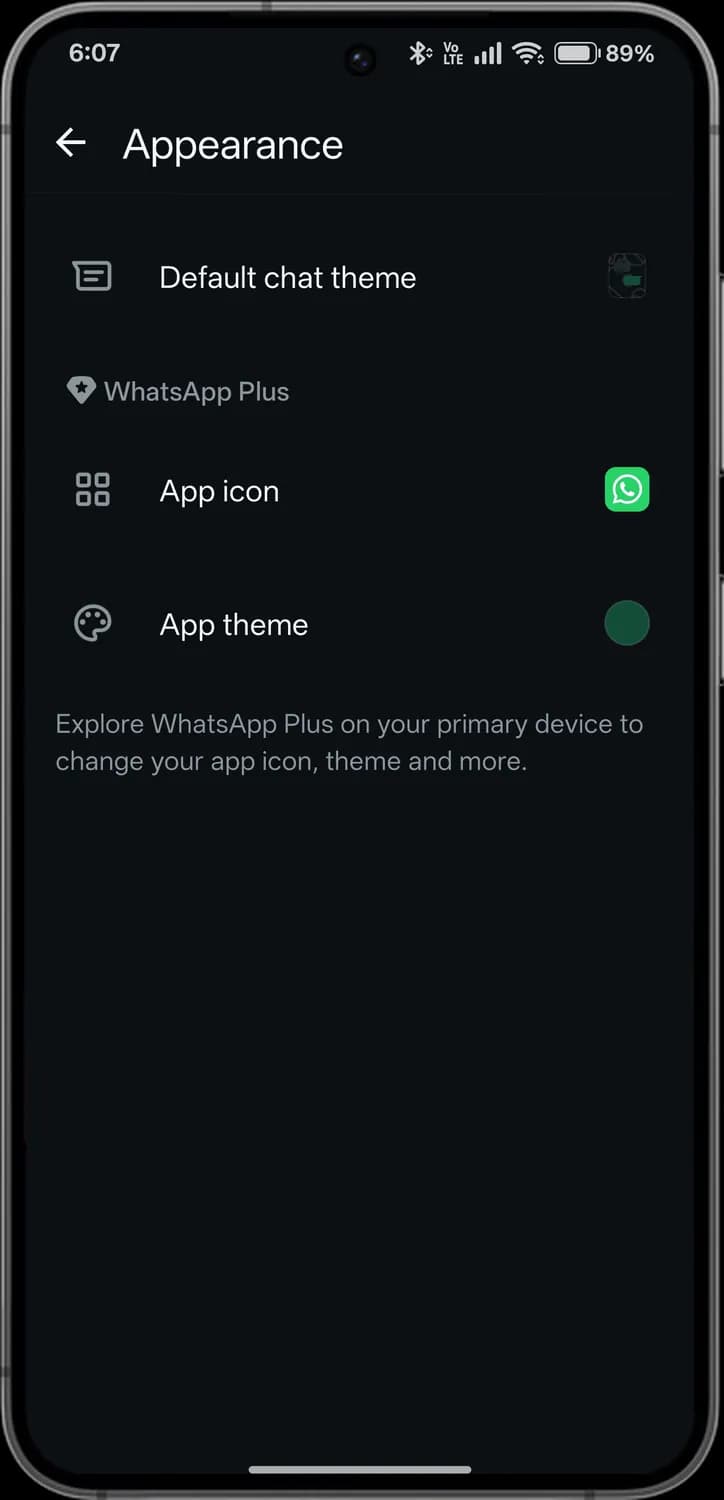

Default chat theme
Wallpaper and colours for your chats.

WhatsApp Plus
Paid extras like custom app icons and themes.

App icon
Changes WhatsApp's icon on your home screen.

App theme
Changes WhatsApp's accent colour.
Chats
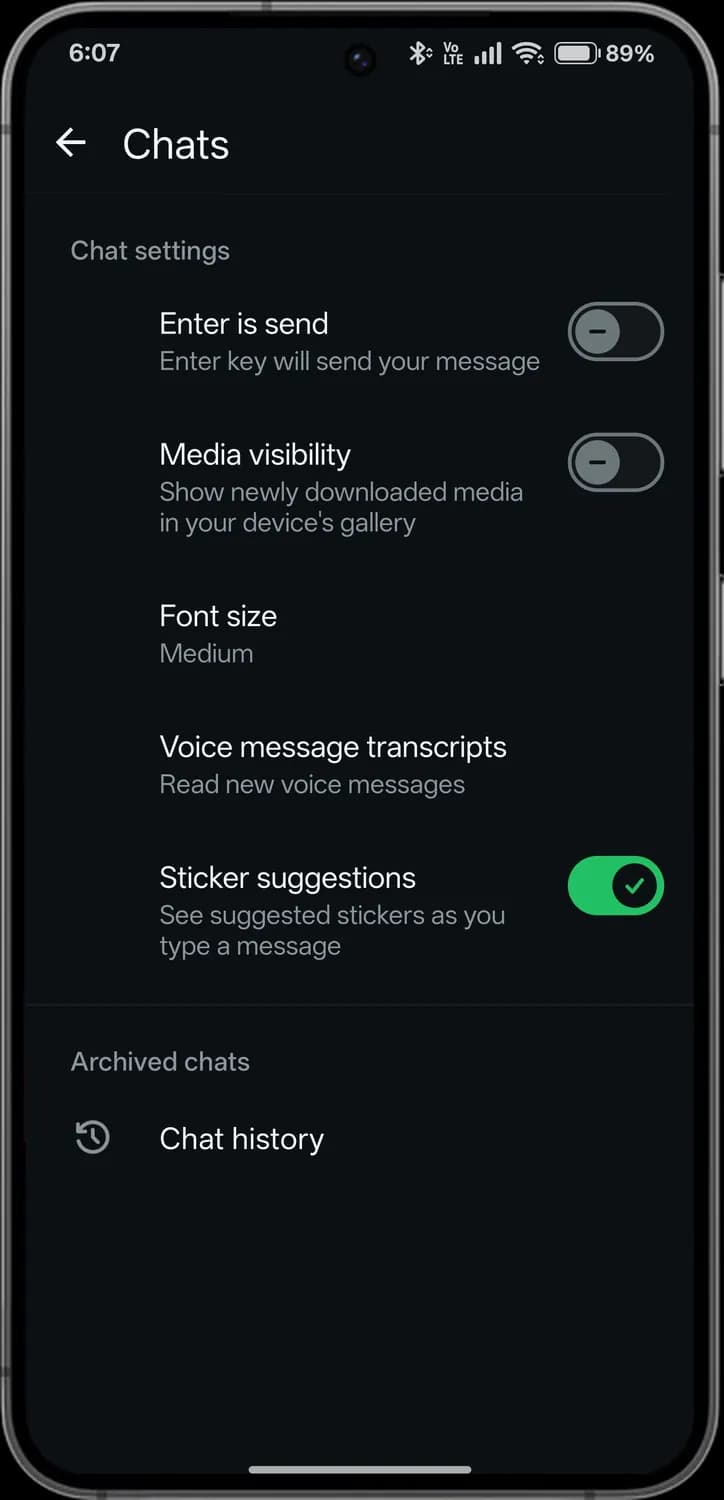

Enter is send
The Enter key sends your message.

Media visibility
Saves downloaded media to your gallery.

Font size
The size of the text in chats.

Voice message transcripts
Turns voice messages into text.

Sticker suggestions
Suggests stickers as you type.

Chat history
Export, archive or clear all chats.
Create with Meta AI
Meta AI can make images from a description, or edit your photos.
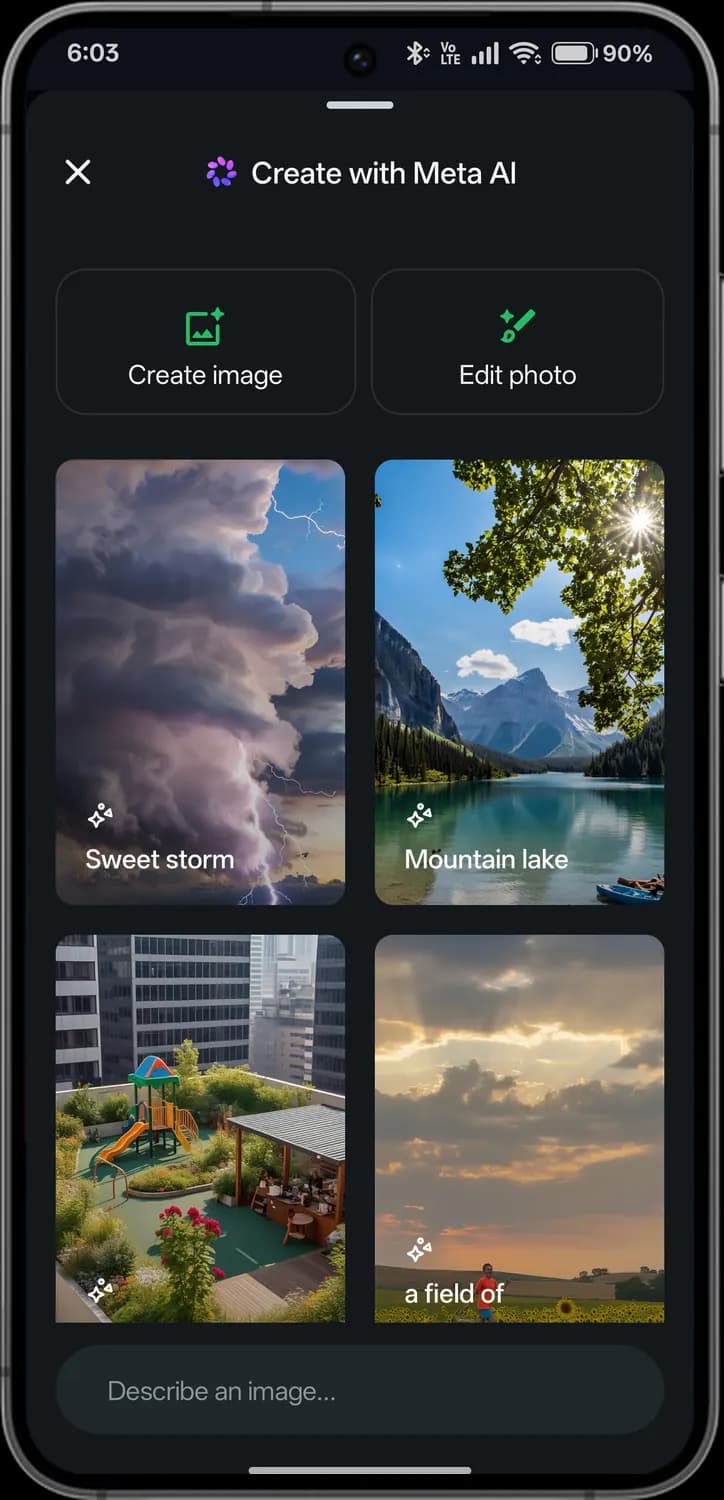

Close
Closes Meta AI.

Create image
Describe a picture and Meta AI makes it.

Edit photo
Change a photo with AI, such as removing objects.

Example
Tap an example to try its prompt.

Describe an image
Type what you want Meta AI to create.
Those are the meanings of WhatsApp icons and symbols. WhatsApp keeps adding new features and moving icons around, so we update this guide every time the interface changes, and you can bookmark this page to stay updated. Since WhatsApp looks almost the same on Android and iPhone, most of these icons mean the same thing on both. For more icon guides, you can also visit our TechPP icon guides.
Comments
0Share your thoughts, questions, or feedback about this guide.