
Instagram Edits Icons and Symbols Explained
Instagram edit app is popular among Instagram creators that lets creators to easily edit and manage their Instagram profile. Although the app is minimal, Instagram packed plenty of useful features which can sound confusing for a beginner. Whether if you are learning Instagram edits app or using it for the first time, this guide is here to help you.
Here is every icon mean and what it does on every screen.
Home (Projects)
How to get here: Home
Edits opens on Home, which lists your projects. Every video you are working on is saved here, and the bar at the bottom switches between the app's four tabs.
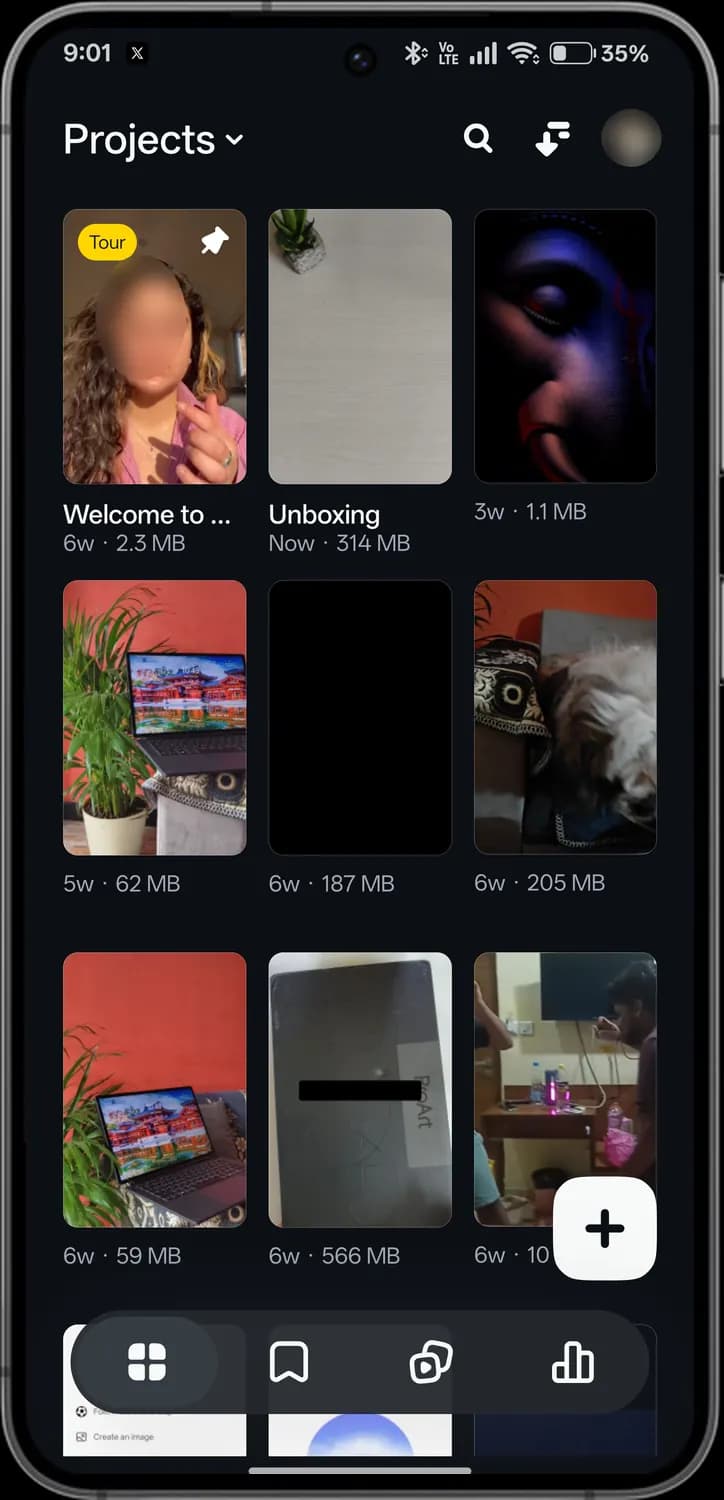
Top of the screen
How to get here: Home
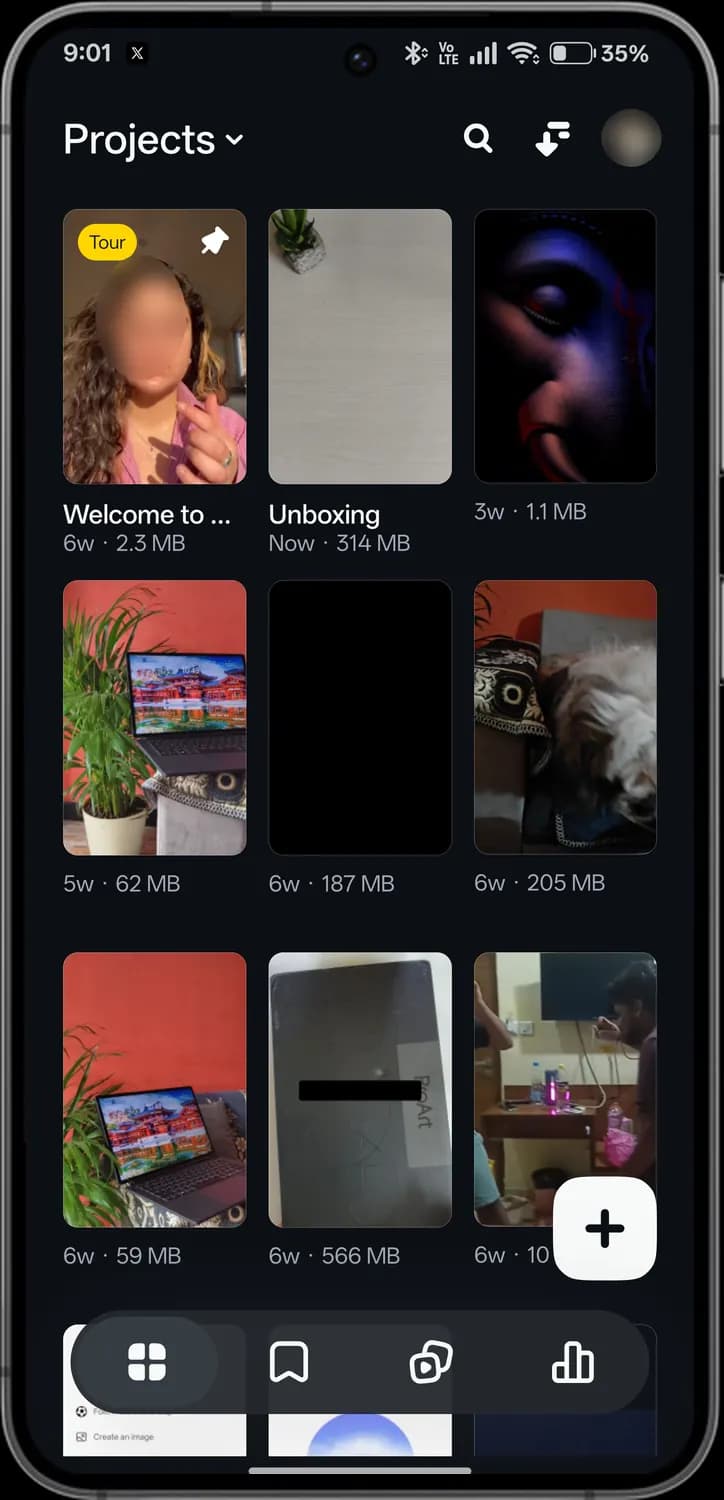
Bottom of the screen
How to get here: Home
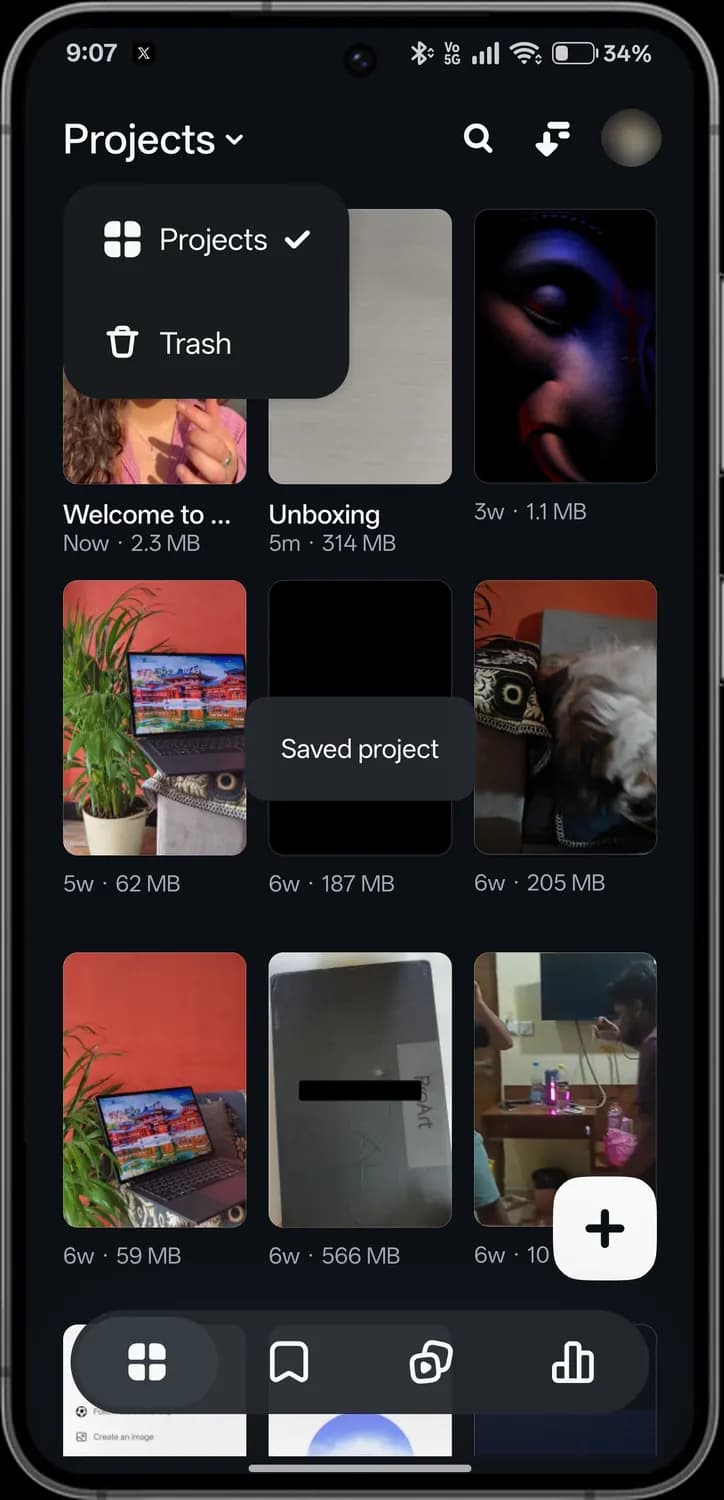
How to get here: HomeProjects menu
Swipe sideways to see every screen.
Projects menu
Switches between your projects and the Trash.

Search
Finds a project by name.

Sort
Changes the order of your projects, for example by date or size.
Profile
Opens your account, settings and help. Your picture is blurred here.

Tour
Marks the sample project that walks you through Edits.

Pinned
A pin keeps a project at the top of the list.
Project details
The project's name, when you last edited it and how much space it takes.
New project
Starts a new video from clips on your phone.

Projects tab
This screen: all your projects.

Ideas tab
Saved reels, templates, audio and notes for future videos.

Inspiration tab
Trending reels and templates to borrow ideas from.

Insights tab
How your reels and account are doing.

Trash
Deleted projects wait here, so you can bring one back.
Saved project
Confirms your project was saved when you left the editor.
Profile menu
How to get here: HomeProfile picture
Tap your profile picture at the top right to open this menu. Your name and handle are blurred here.
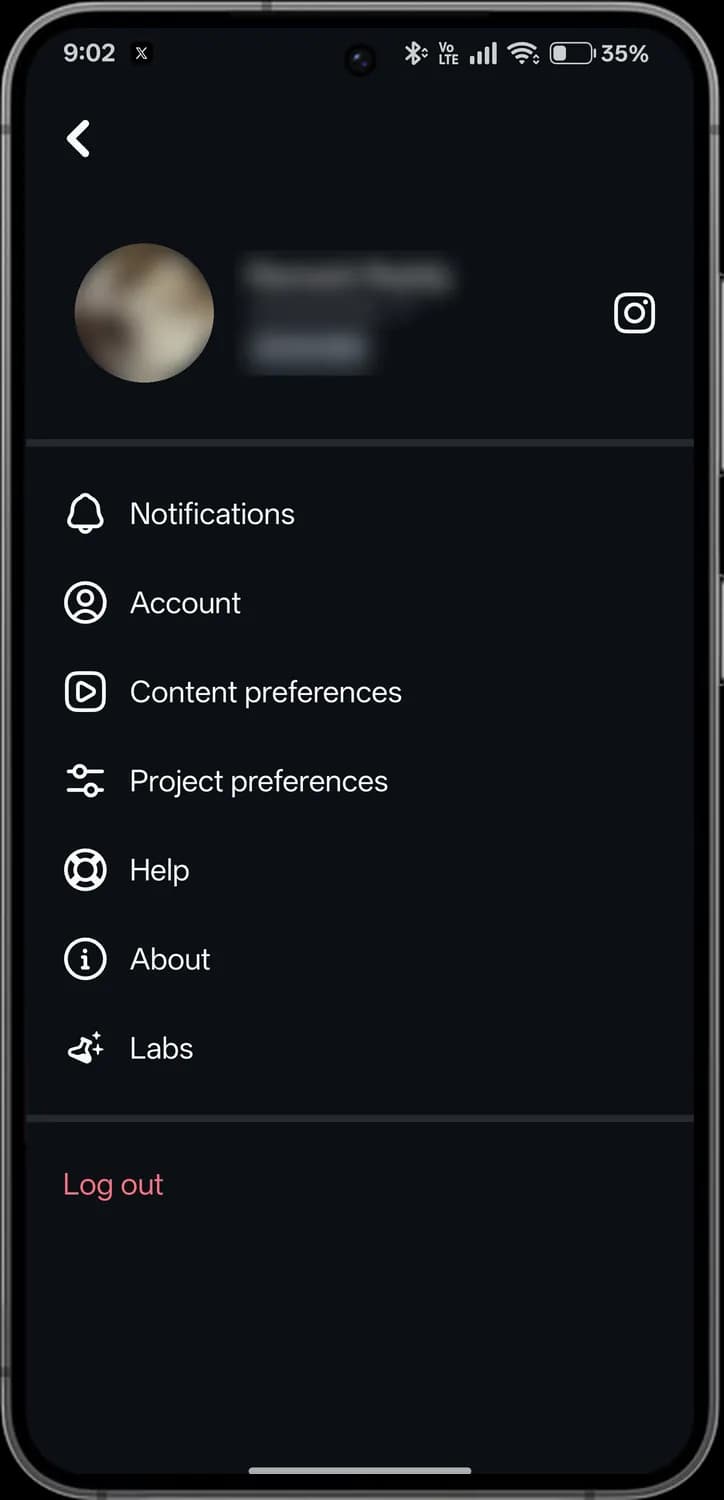

Back
Returns to the screen you came from.

Open Instagram
Opens your Instagram profile in the Instagram app.

Notifications
Choose which alerts Edits sends you.

Account
Your linked Instagram account and account settings.
Content preferences
What you see in Inspiration and templates.

Project preferences
Defaults for new projects, such as quality and frame rate.

Help
Help articles and a way to report a problem.

About
App version and legal information.

Labs
Experimental features you can try before they are released.
Log out
Signs you out of Edits on this phone.
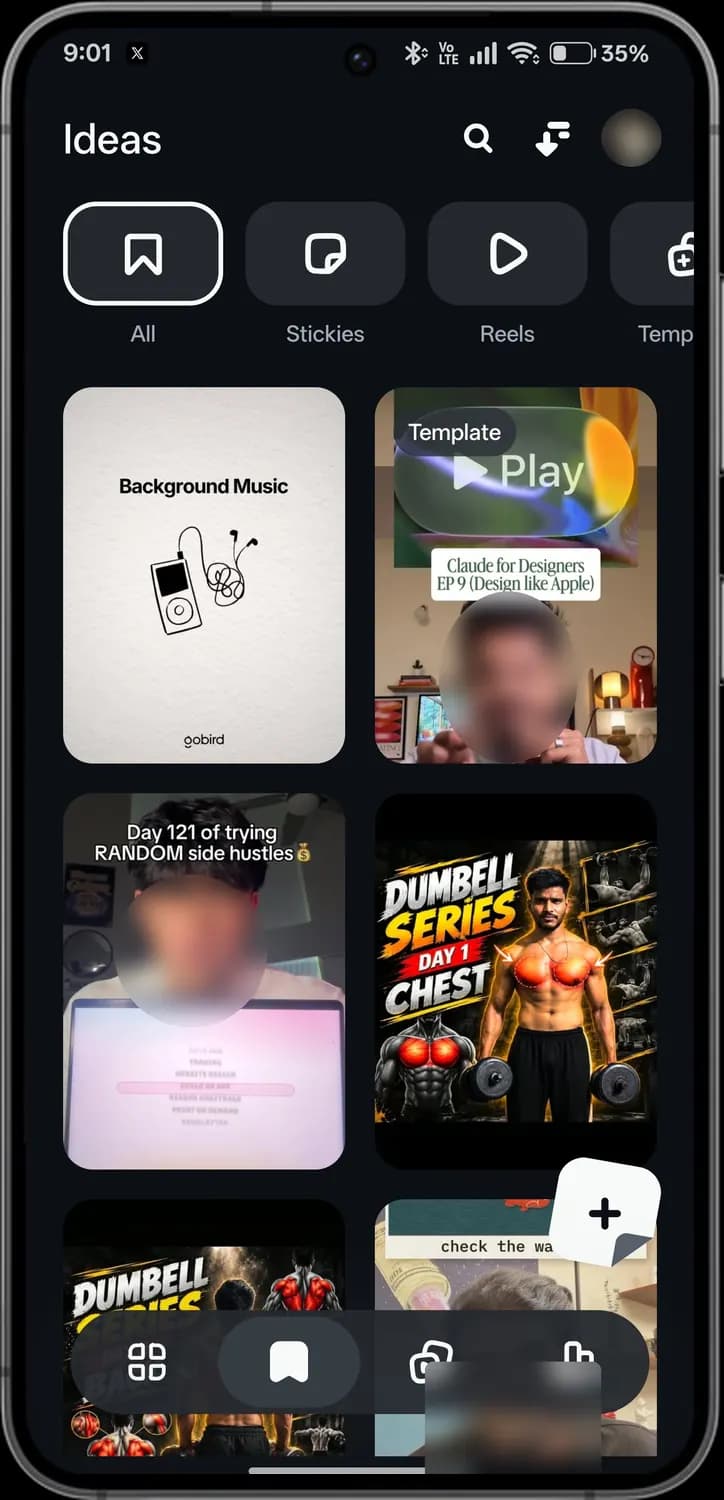
Ideas
How to get here: HomeIdeas tab
Ideas keeps everything you want to use later. The filters at the top scroll sideways. Faces in the saved reels are blurred here.
How to get here: HomeIdeas tab
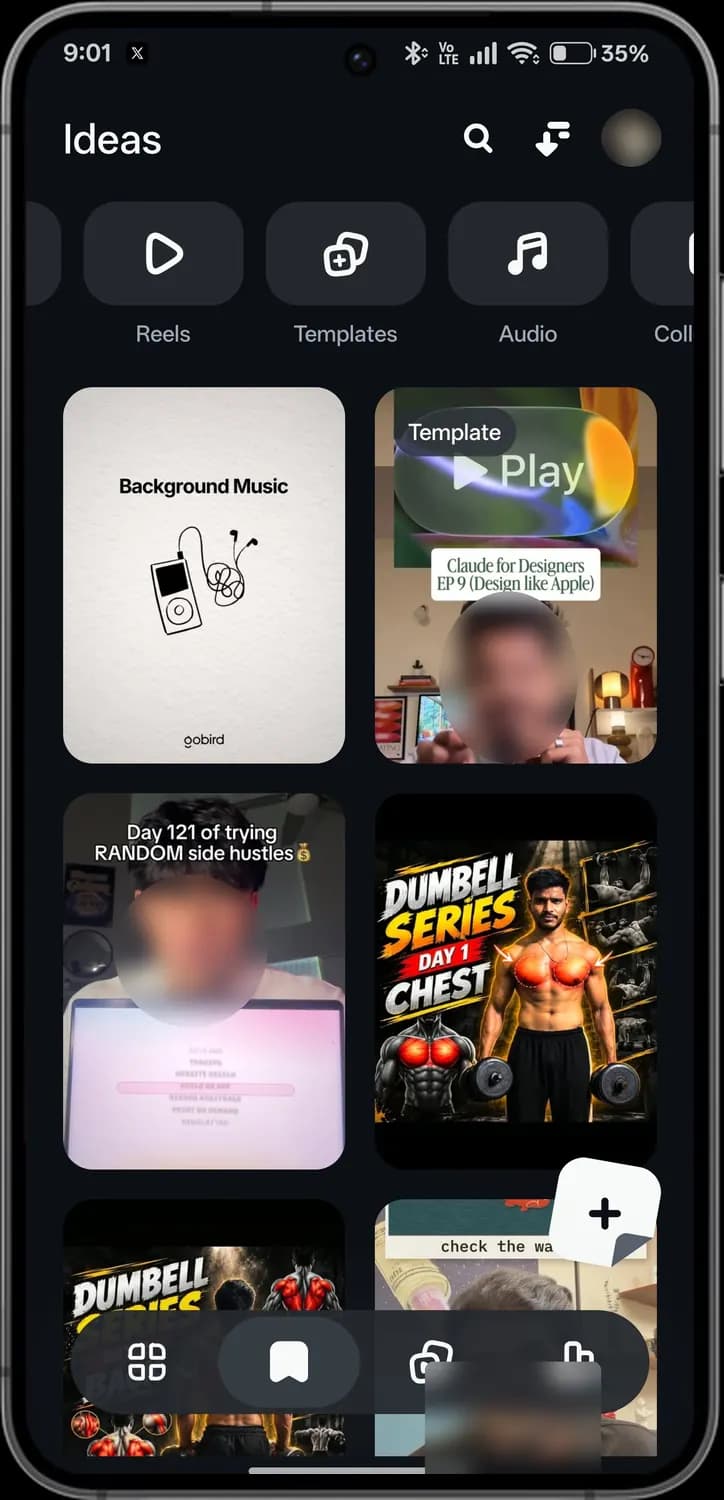
How to get here: HomeIdeas tabSwipe the filters
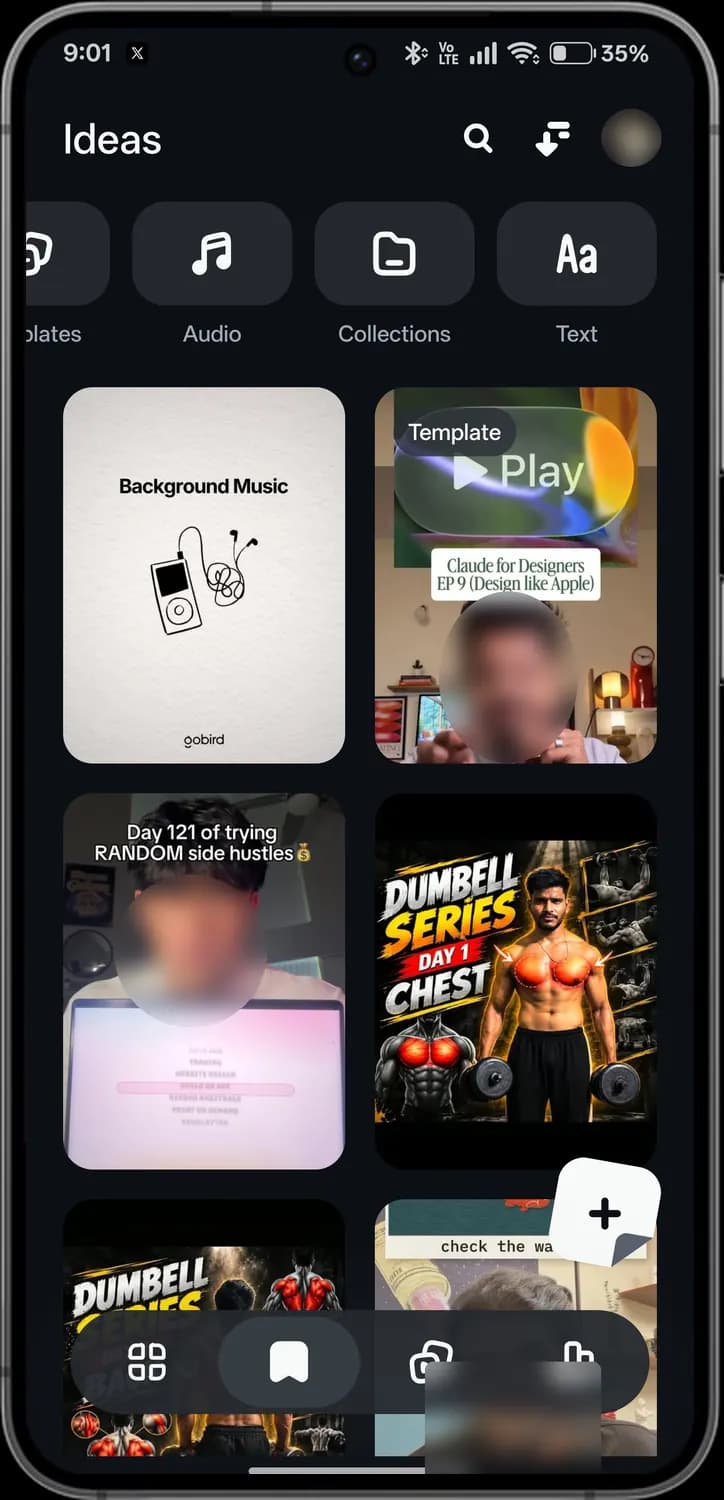
How to get here: HomeIdeas tabSwipe the filters to the end
Swipe sideways to see every screen.

All
Everything you have saved, in one list.

Stickies
Quick notes for video ideas, like sticky notes.
Reels
Reels you saved from Instagram.
Template badge
Marks a saved reel you can reuse as a template.

New sticky
Writes a new idea note.

Ideas tab
Highlighted while you are in Ideas.

Templates
Templates you saved to use with your own clips.

Audio
Songs and sounds you saved.

Collections
Folders that group your saved ideas.
Text
Saved text, such as notes and scripts.
Inspiration and templates
How to get here: HomeInspiration tab
The third tab shows popular reels to learn from, and templates you can fill with your own clips. Usernames are blurred here.
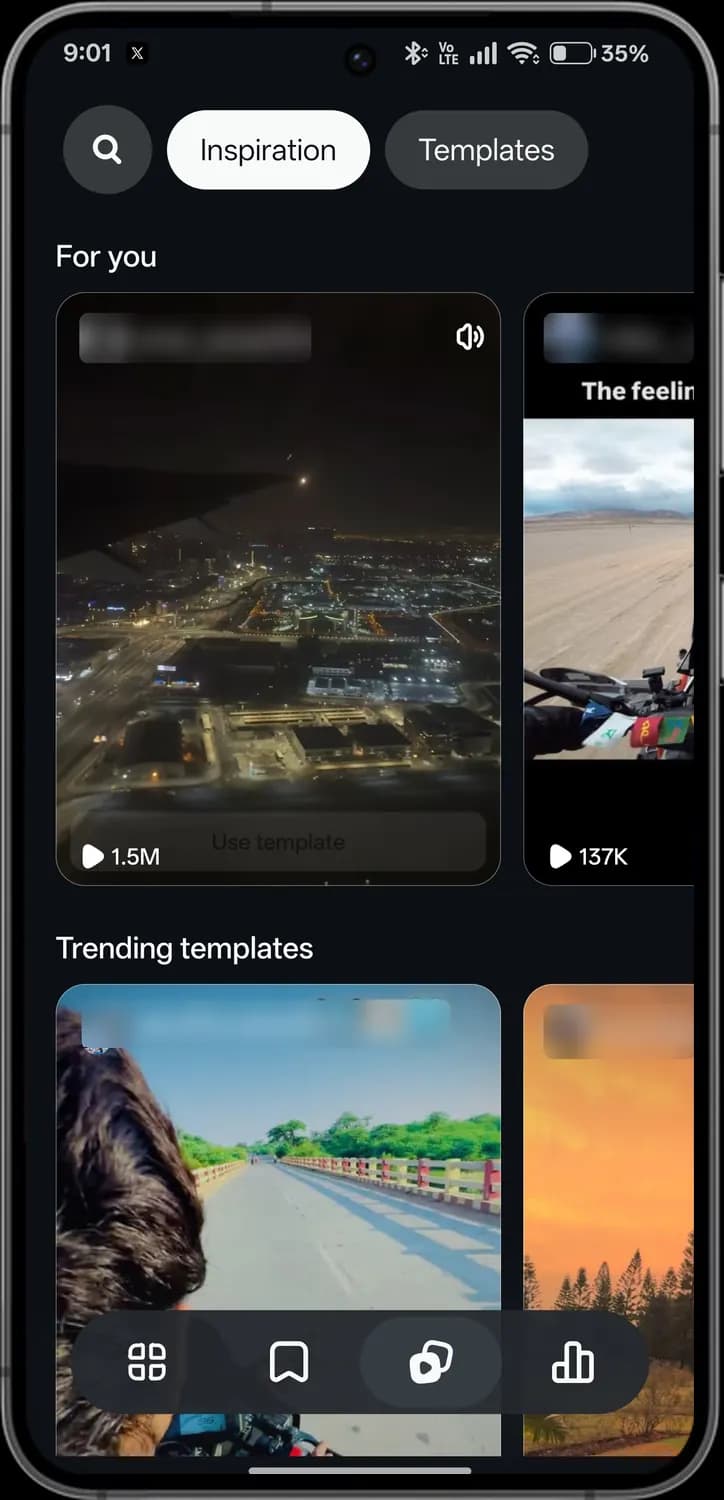
How to get here: HomeInspiration tab
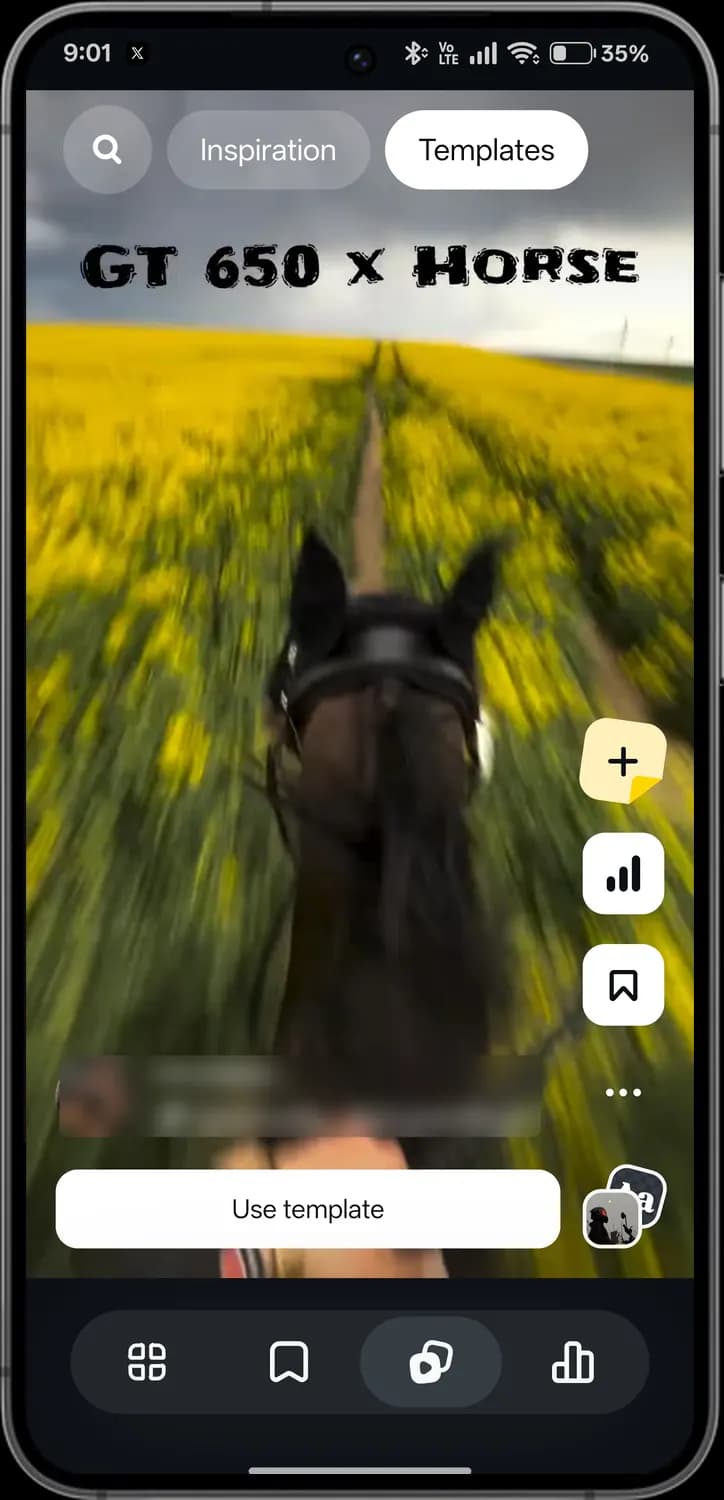
How to get here: HomeInspiration tabTemplatesOpen a template
Swipe sideways to see every screen.

Search
Finds reels and templates.
Inspiration
Popular reels picked for you.
Templates
Reels whose edit you can reuse with your own clips.
Sound
Turns the reel's sound on or off.
Plays
How many times the reel has been played.

Inspiration tab
Highlighted while you are in Inspiration.
Add to Ideas
Saves the template to your Ideas.
Stats
Shows how the template is doing.

Save
Bookmarks the template.
More options
Extra actions, such as sharing or reporting.
Use template
Starts a new project from this template.
Audio
Opens the template's audio.
Insights
How to get here: HomeInsights tab
Insights shows how your reels and account are doing, in three tabs: Overview, Audience and Comments.
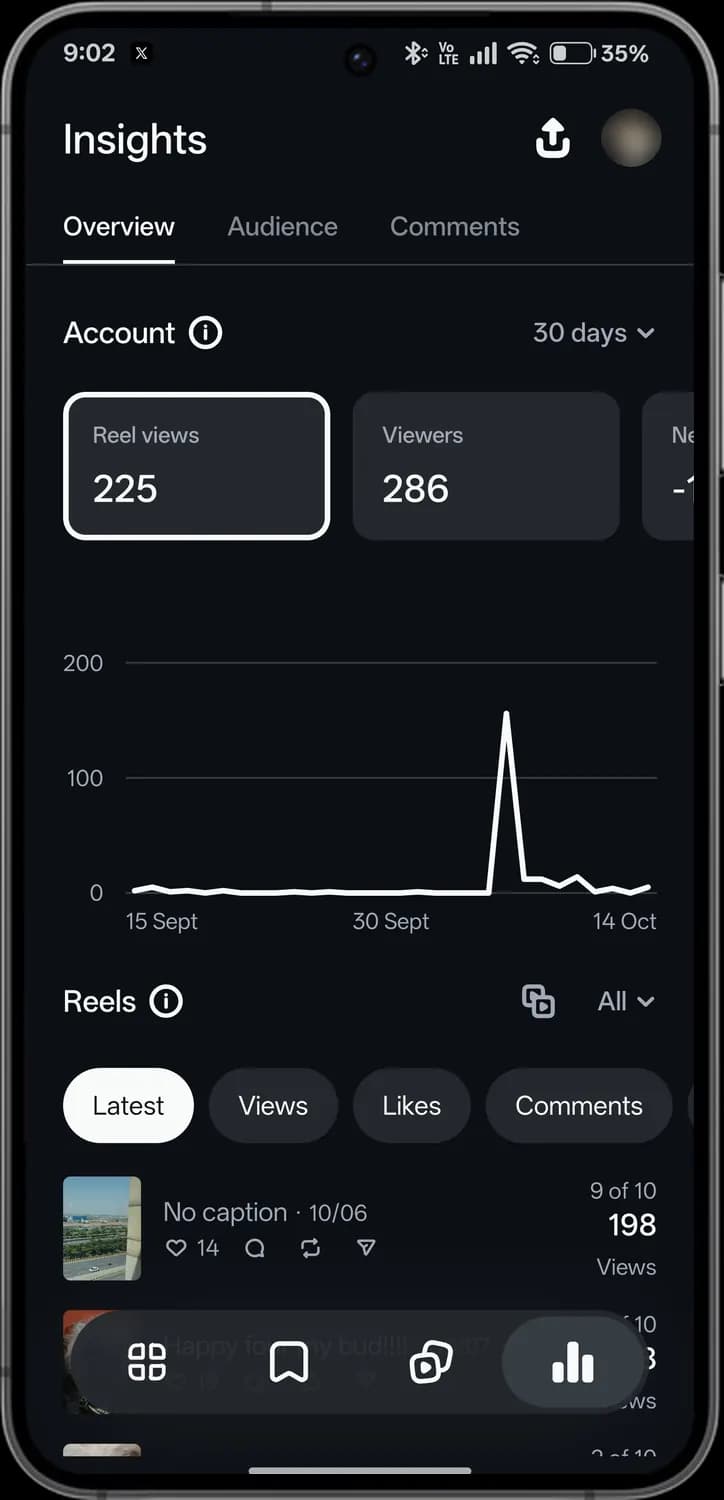
Top of the screen
How to get here: HomeInsights tabOverview
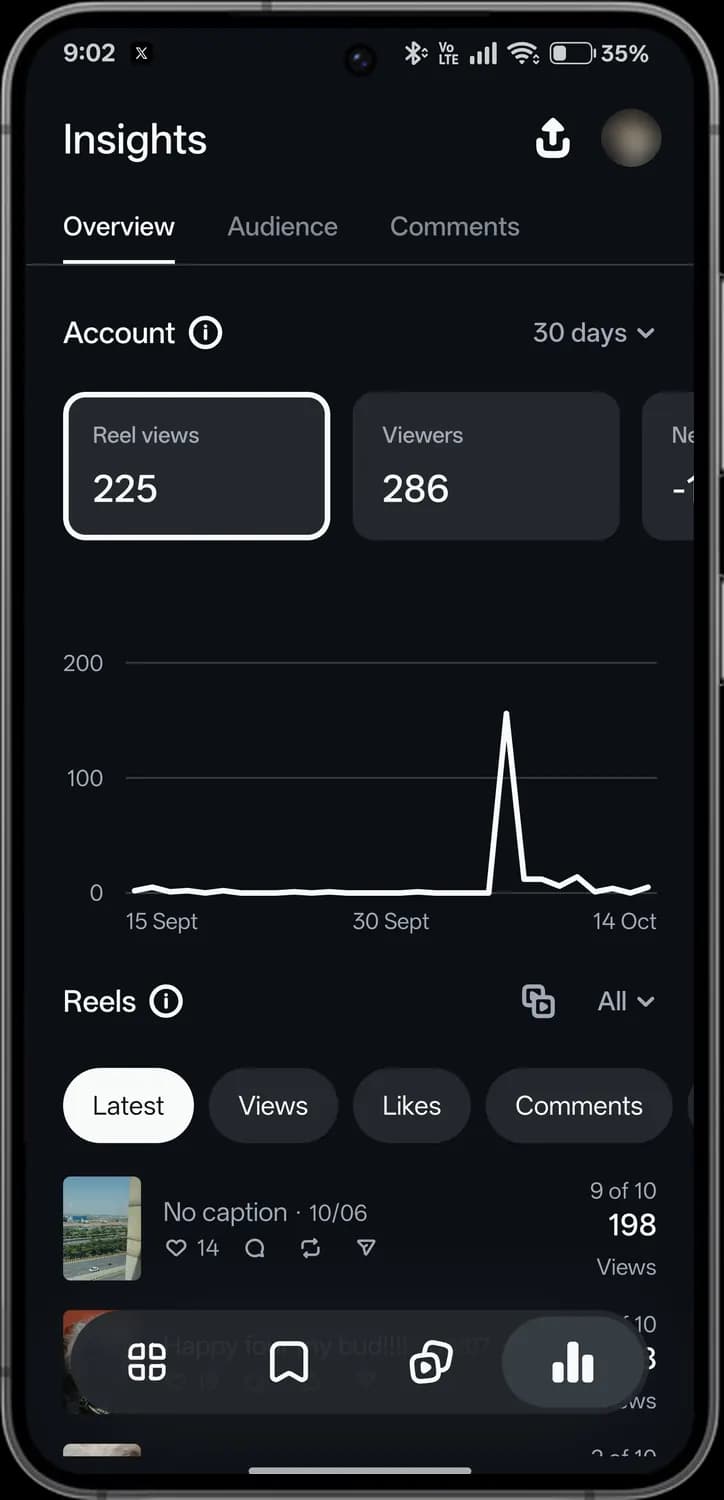
Chart and reels
How to get here: HomeInsights tabOverview
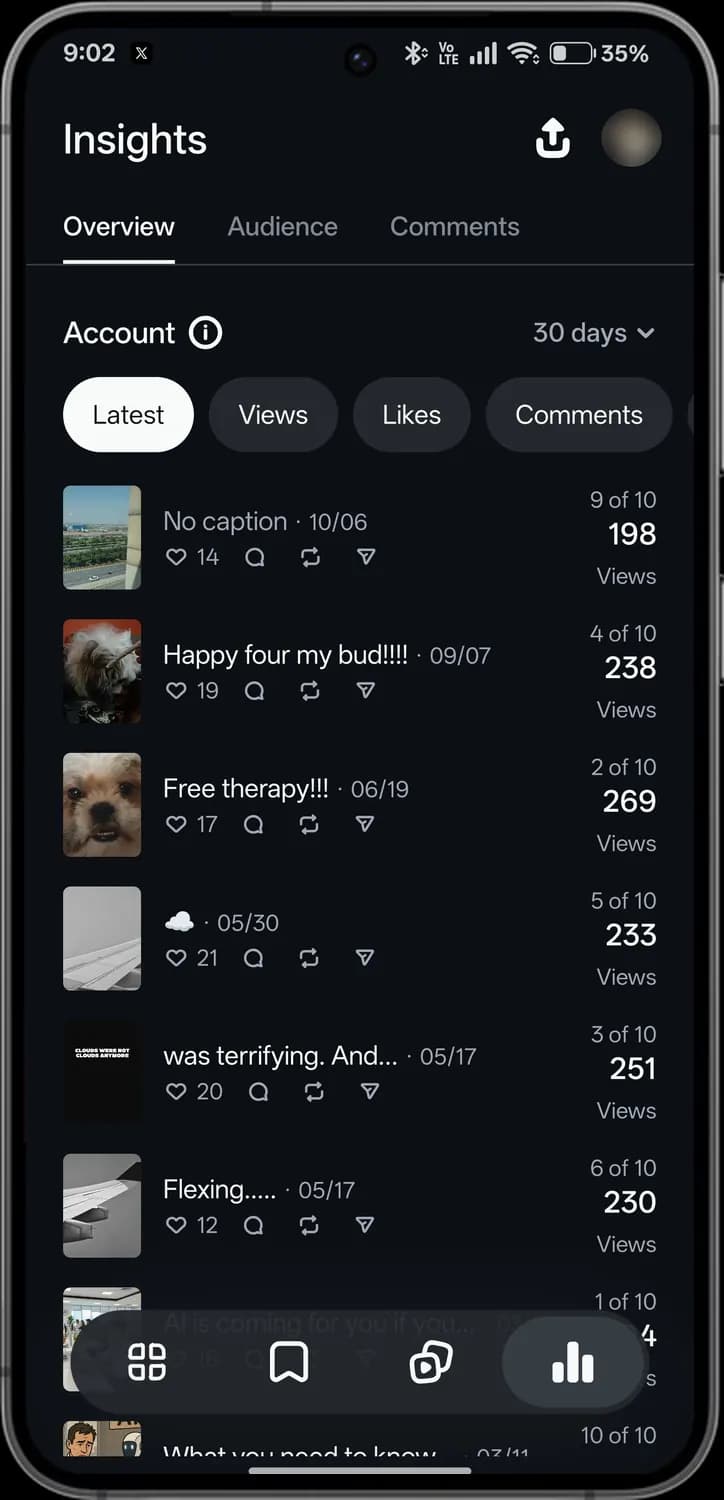
How to get here: HomeInsights tabOverviewScroll down
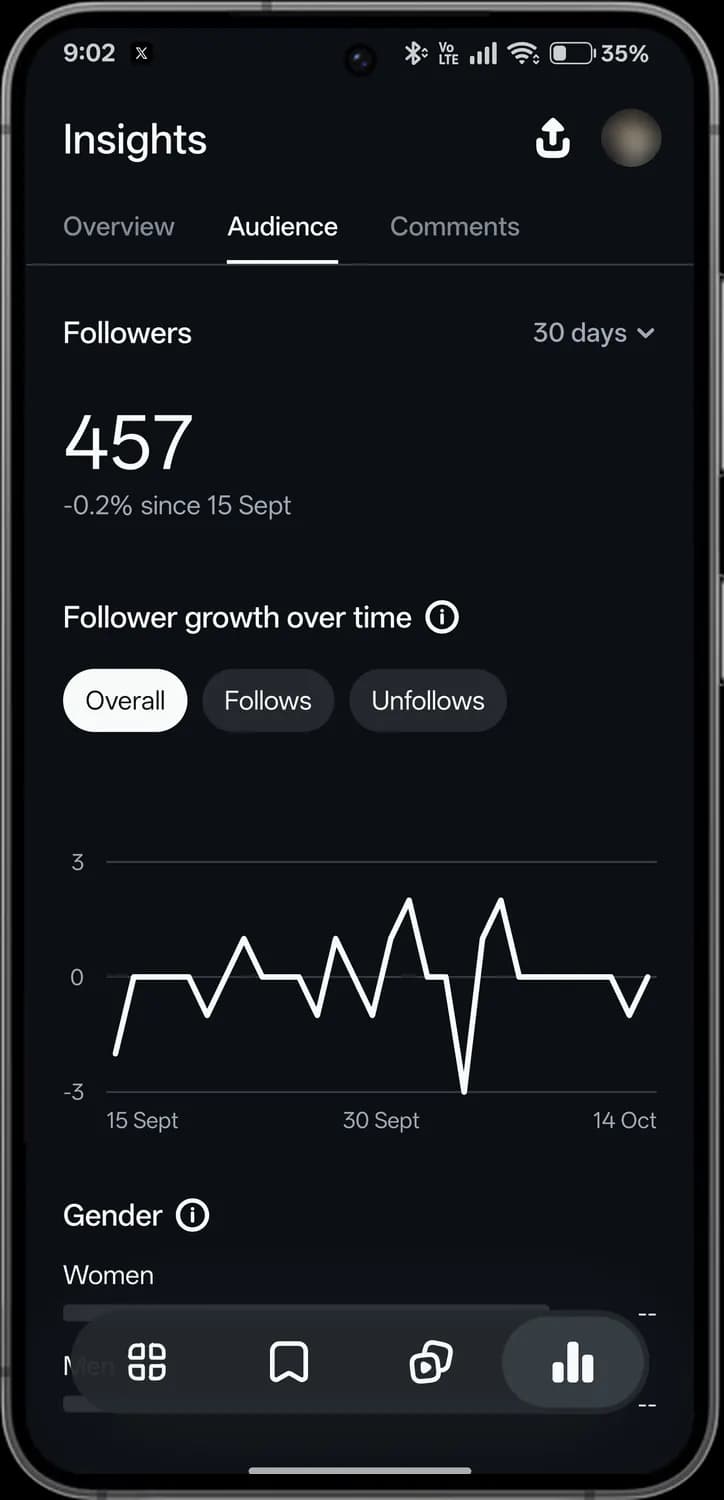
How to get here: HomeInsights tabAudience
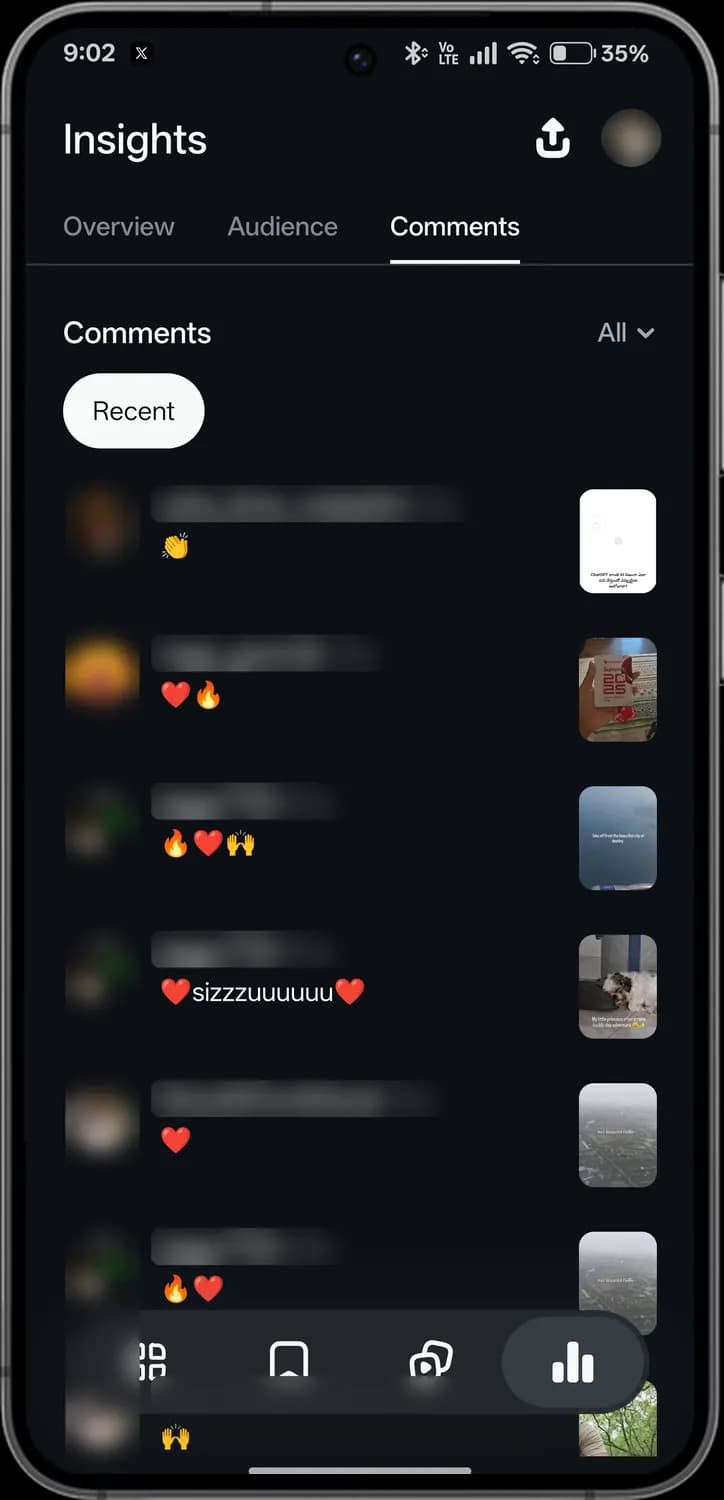
How to get here: HomeInsights tabComments
Swipe sideways to see every screen.

Share
Shares or exports your insights.

Overview
Views, viewers and how each reel did.
Audience
Your followers and who they are.
Comments
Recent comments on your reels.

Info
Explains what each number means.
Date range
Changes the period, such as the last 30 days.
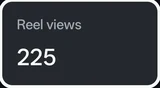
Key numbers
Reel views, viewers and more. Swipe sideways for the rest.
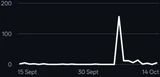
Trend chart
How the selected number changed over the period.
Filter reels
Chooses which reels the list below includes.
Insights tab
Highlighted while you are in Insights.
Sort
Orders your reels by latest, views, likes or comments.

Reel
Each reel with its caption and posting date.

Likes, comments, reposts and shares
The counts for each reel.
Rank and views
How the reel ranks among your recent ones, and its views.
Followers
Your follower count and how it changed.
Growth filter
Shows all changes, only follows or only unfollows.
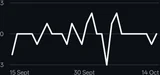
Follower chart
Follower gains and losses each day.
Gender
The split of your followers by gender.
Comment filter
Chooses which comments to show.
Recent
Shows the newest comments first.
Comment
Who commented and what they said. Names are blurred here.
Reel commented on
The reel the comment is on.
Video editor
How to get here: HomeOpen a project
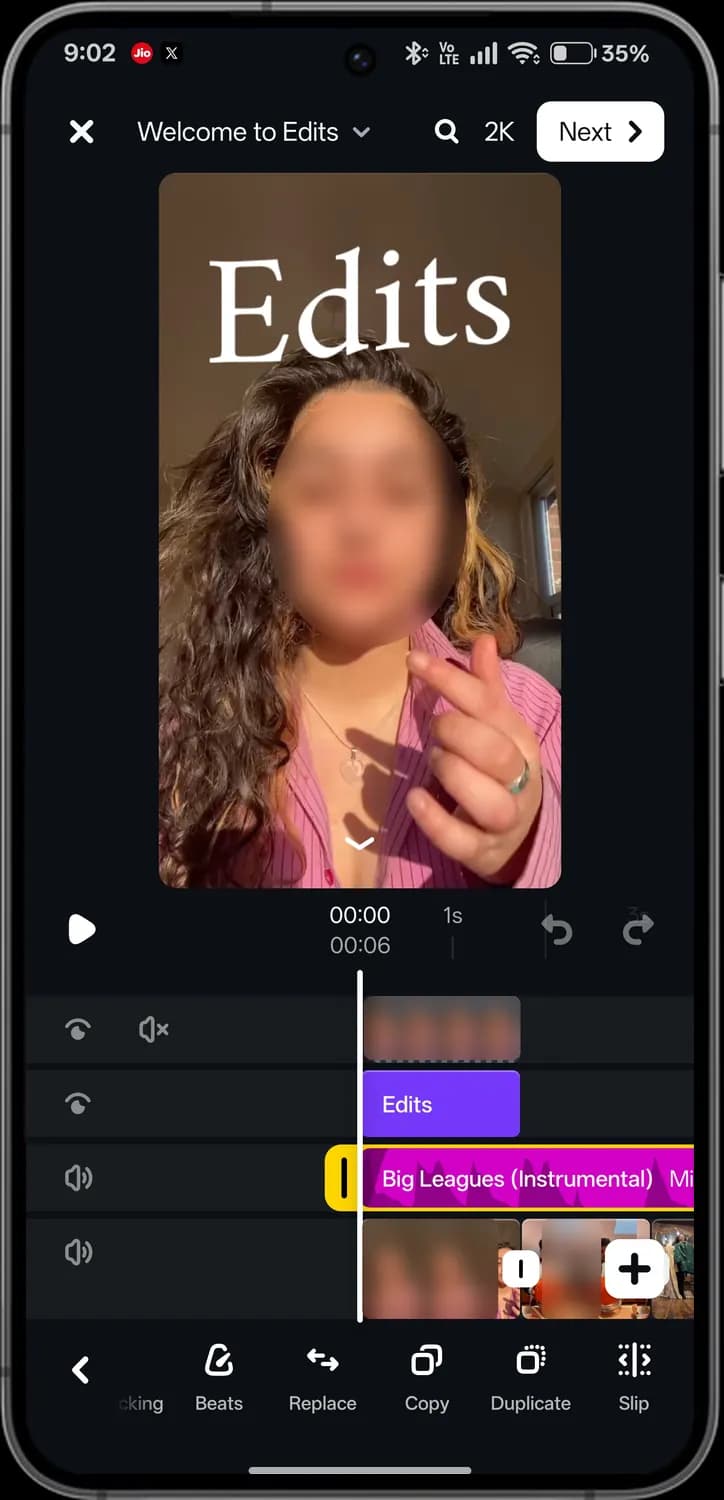
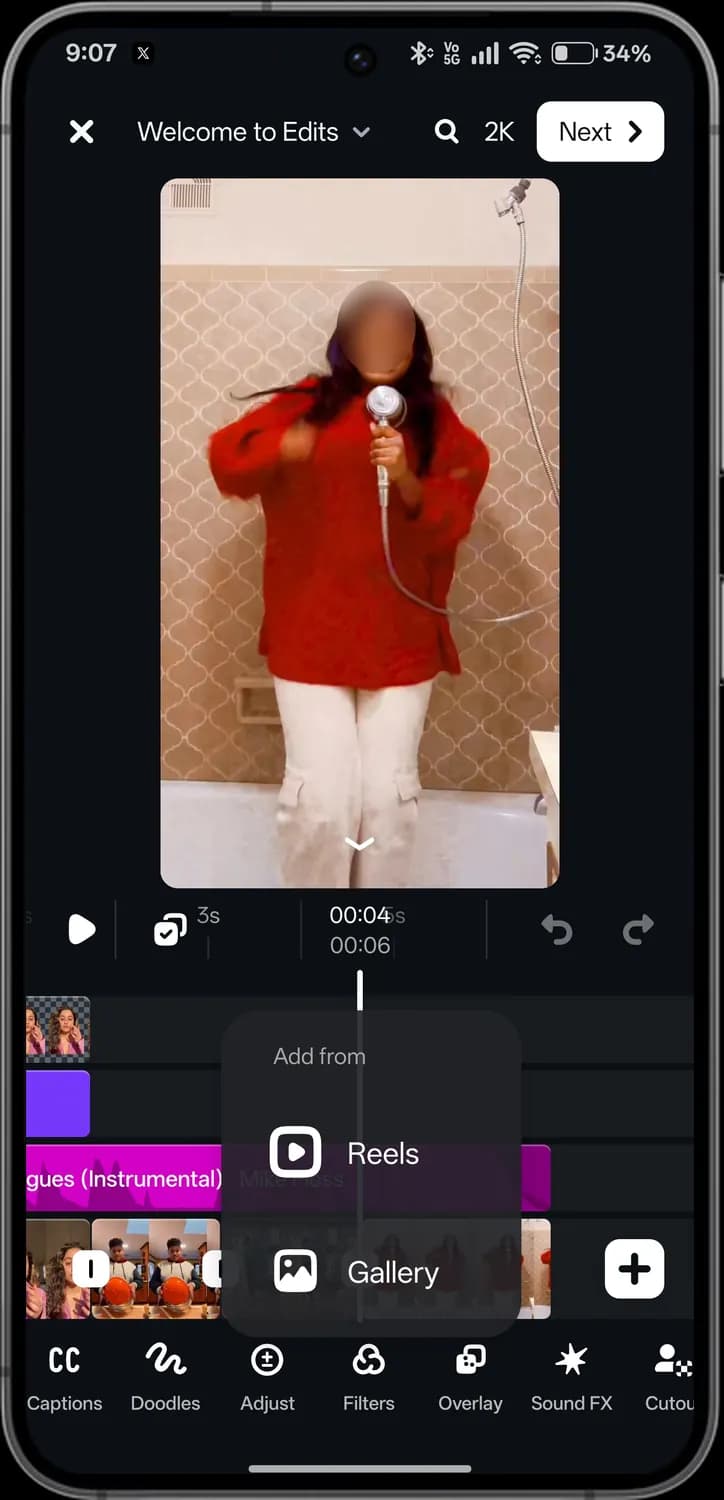
Open a project to edit it. The preview sits on top, the timeline in the middle and the tools along the bottom. The toolbar scrolls sideways and changes with what you select: here the music track is selected.
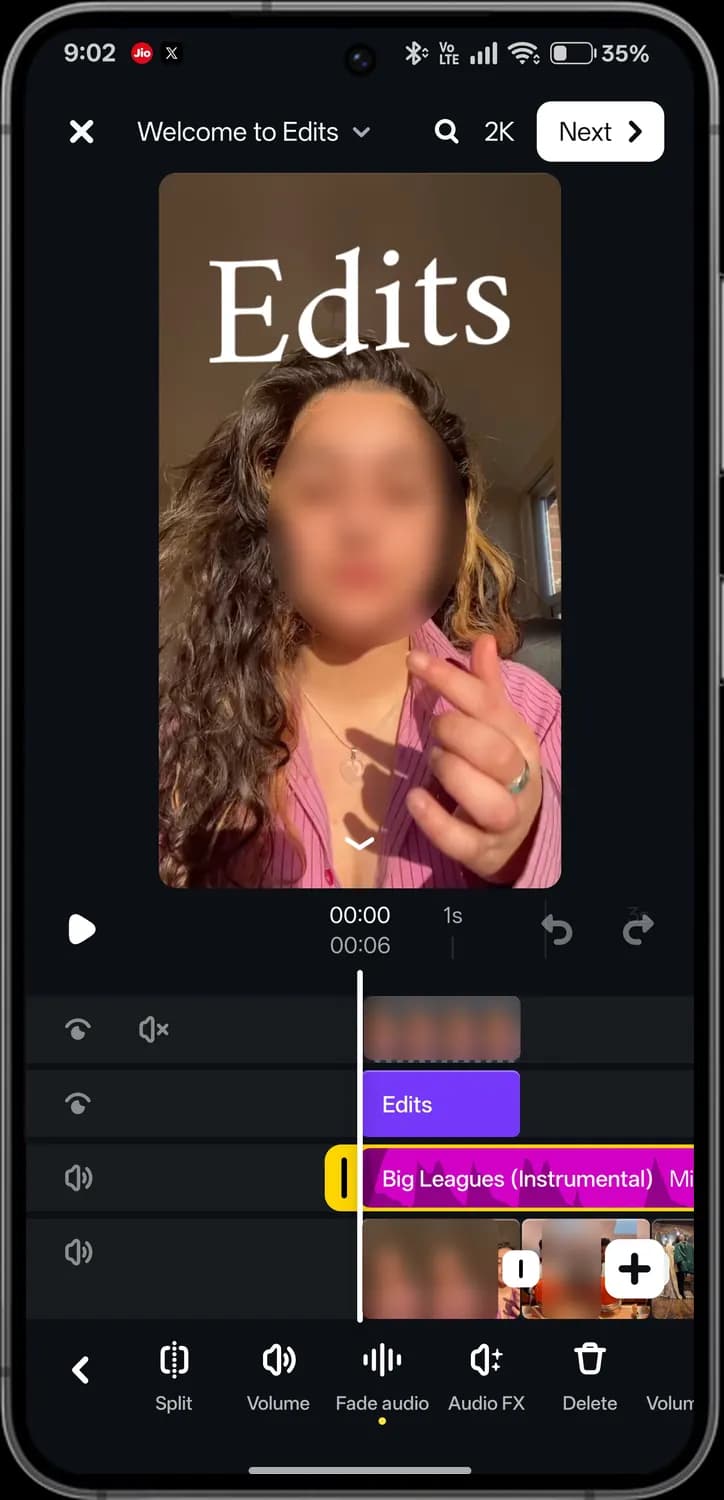
Top bar and preview
How to get here: HomeOpen a projectTap the music track
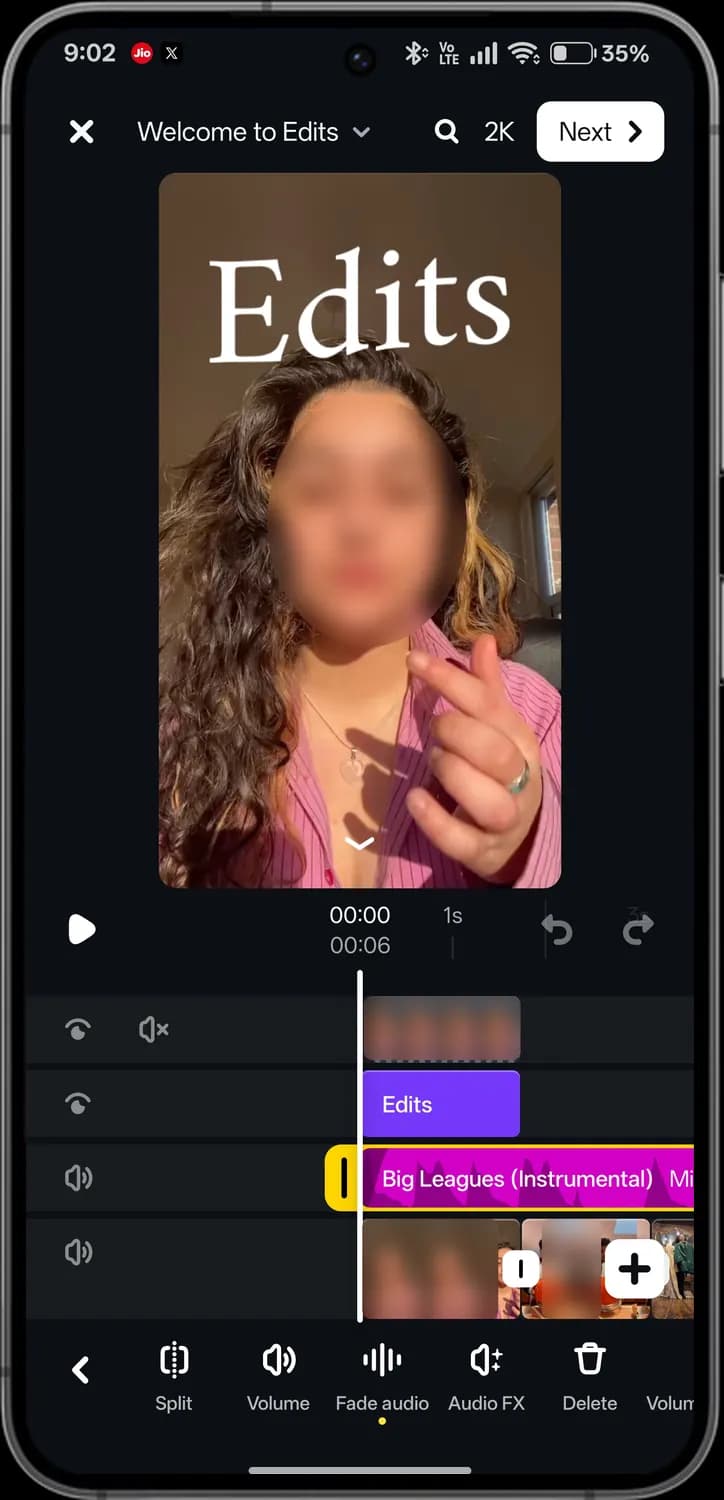
Timeline
How to get here: HomeOpen a projectTap the music track
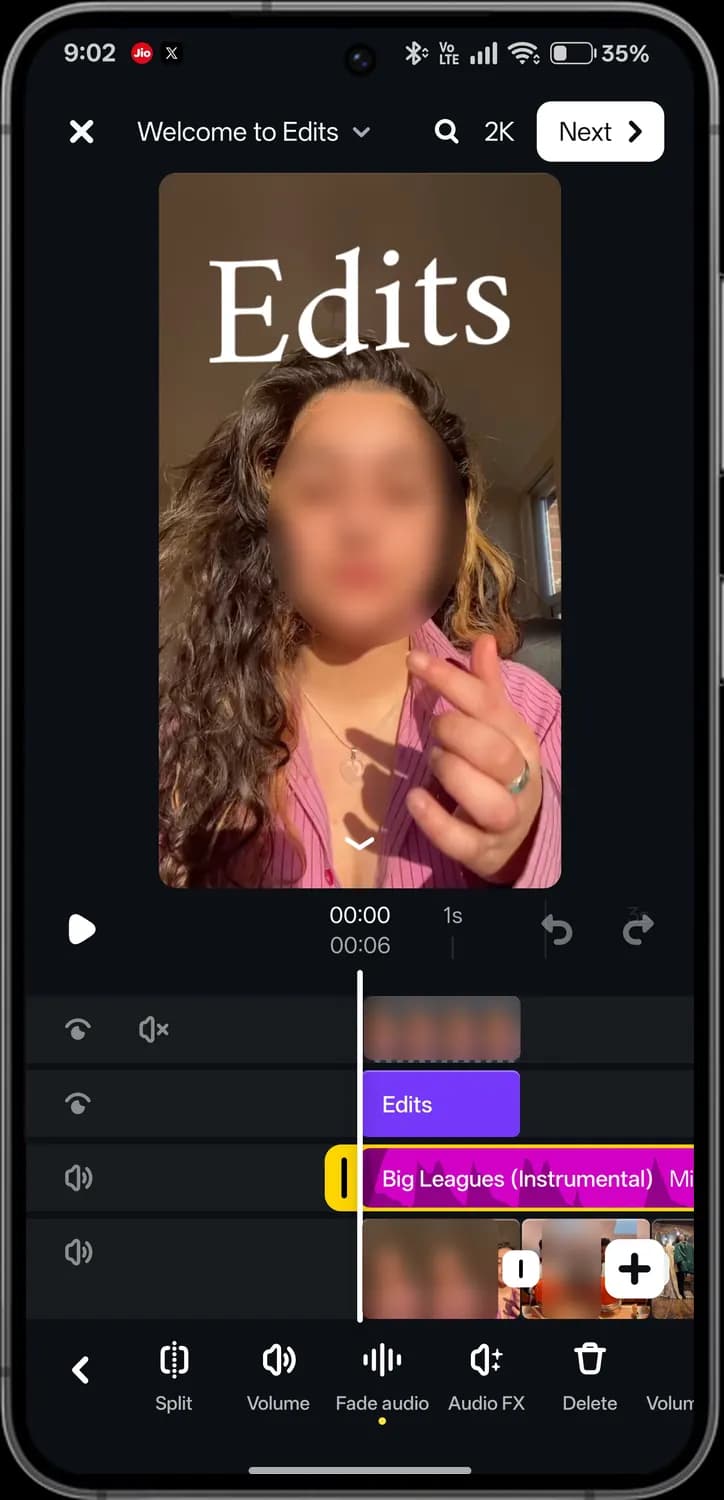
Toolbar
How to get here: HomeOpen a projectTap the music track
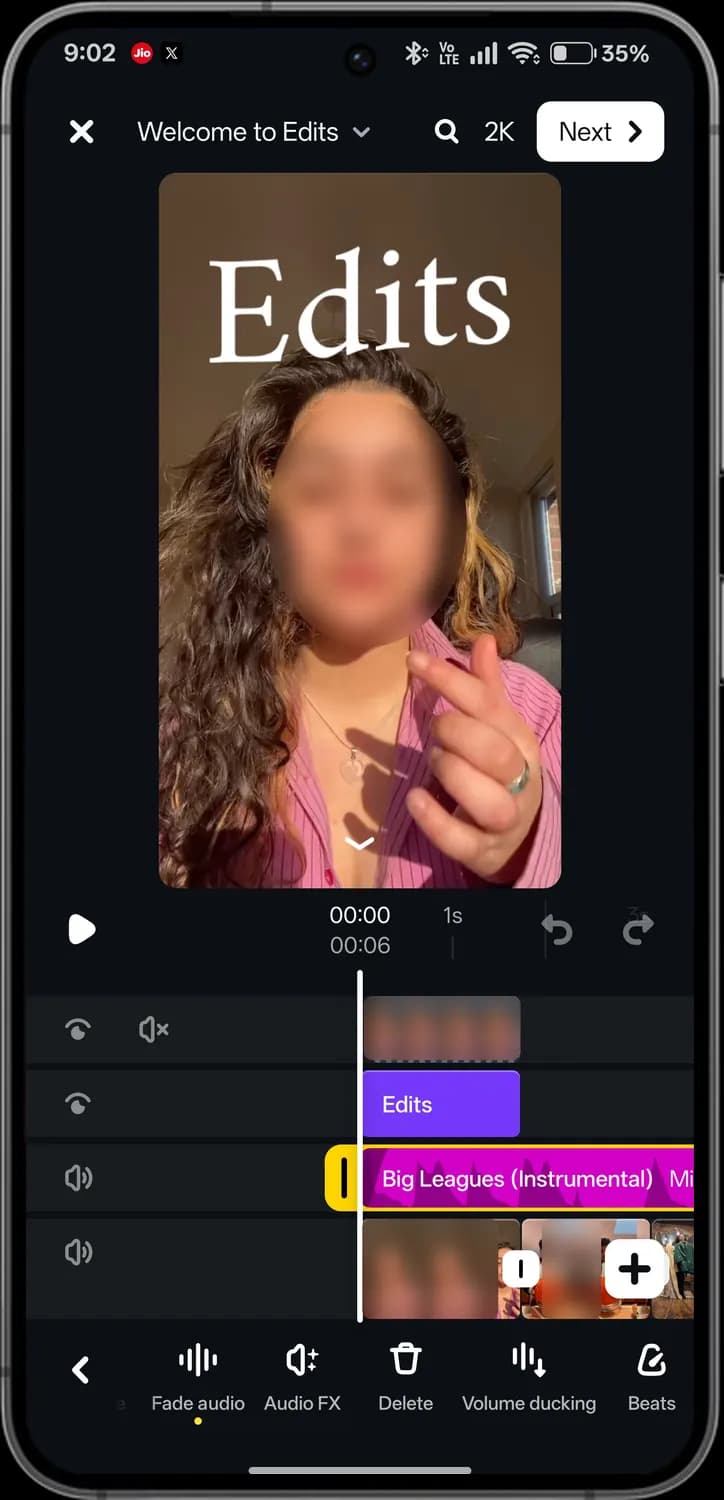
How to get here: HomeOpen a projectTap the music trackSwipe the toolbar
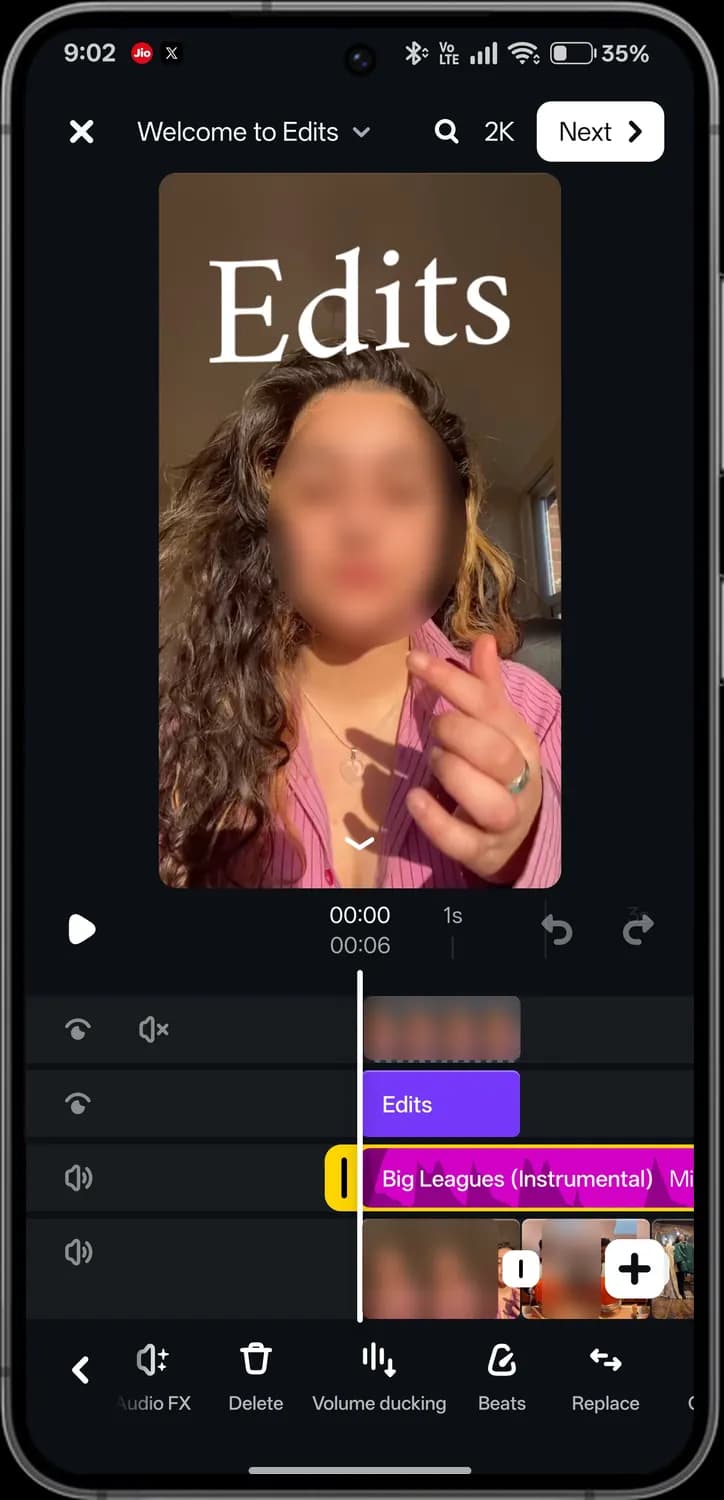
How to get here: HomeOpen a projectTap the music trackSwipe the toolbar
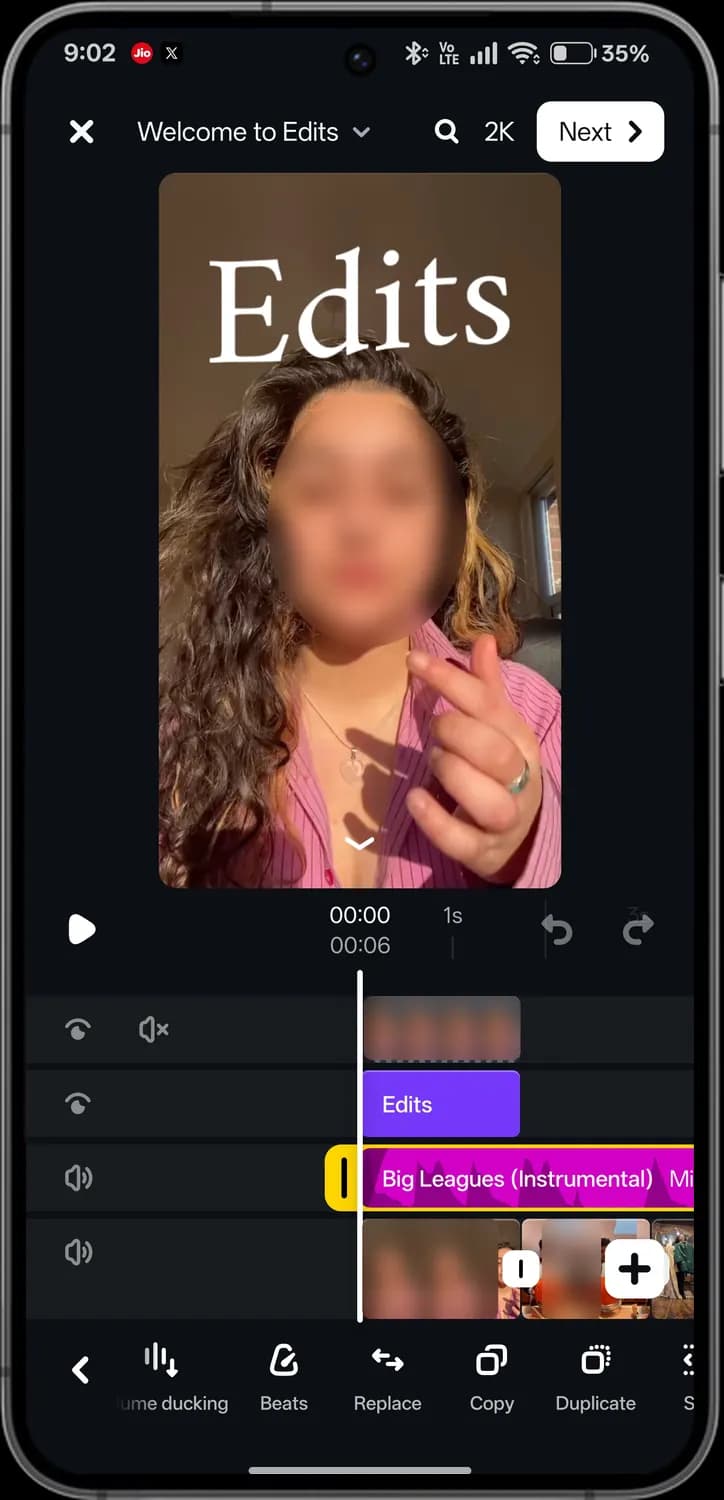
How to get here: HomeOpen a projectTap the music trackSwipe the toolbar
How to get here: HomeOpen a projectTap the music trackSwipe the toolbar
How to get here: HomeOpen a projectPlus at the end of the timeline
Swipe sideways to see every screen.

Close
Leaves the editor. Your project is saved.

Project name
Tap to rename the project.

Search tools
Finds an editing tool by name.
Export quality
The resolution the video will be saved in, here 2K.

Next
Moves on to export and share the video.

Preview
Plays your video as it will look.

Play
Plays or pauses the preview.
Time
Where the playhead is, and how long the video runs.

Undo
Takes back your last change.
Redo
Puts back a change you undid.

Show or hide track
Hides a layer from the preview without deleting it.
Mute
Silences the sound of the clips in that track.

Overlay clip
A video or image placed on top of the main video.
Text layer
Text on the video. Tap it to edit; drag the ends to set when it shows.

Music track
The selected audio. The yellow handles trim where it starts and ends.
Video clips
Your clips in order. Tap one to edit it.
Transition
The tile between two clips. Tap it to add a transition.
Add clip
Adds more clips from your phone, the camera or Reels.

Back to tools
Closes this set of tools and returns to the main toolbar.

Split
Cuts the selected clip or audio in two at the playhead.
Volume
Turns the selected clip or audio up or down.
Fade audio
Fades the sound in at the start or out at the end.
Audio FX
Adds effects to the sound, such as voice changers.

Delete
Removes the selected clip, audio or layer.
Volume ducking
Lowers the music automatically while someone is speaking.

Beats
Marks the beats in the music so cuts land on them.
Replace
Swaps the selected clip or audio for another one, keeping its place and edits.

Copy
Copies the selected clip or audio so you can paste it elsewhere.

Duplicate
Places a copy of the selected clip or audio right after it.

Slip
Changes which part of the clip or audio plays without changing its length.
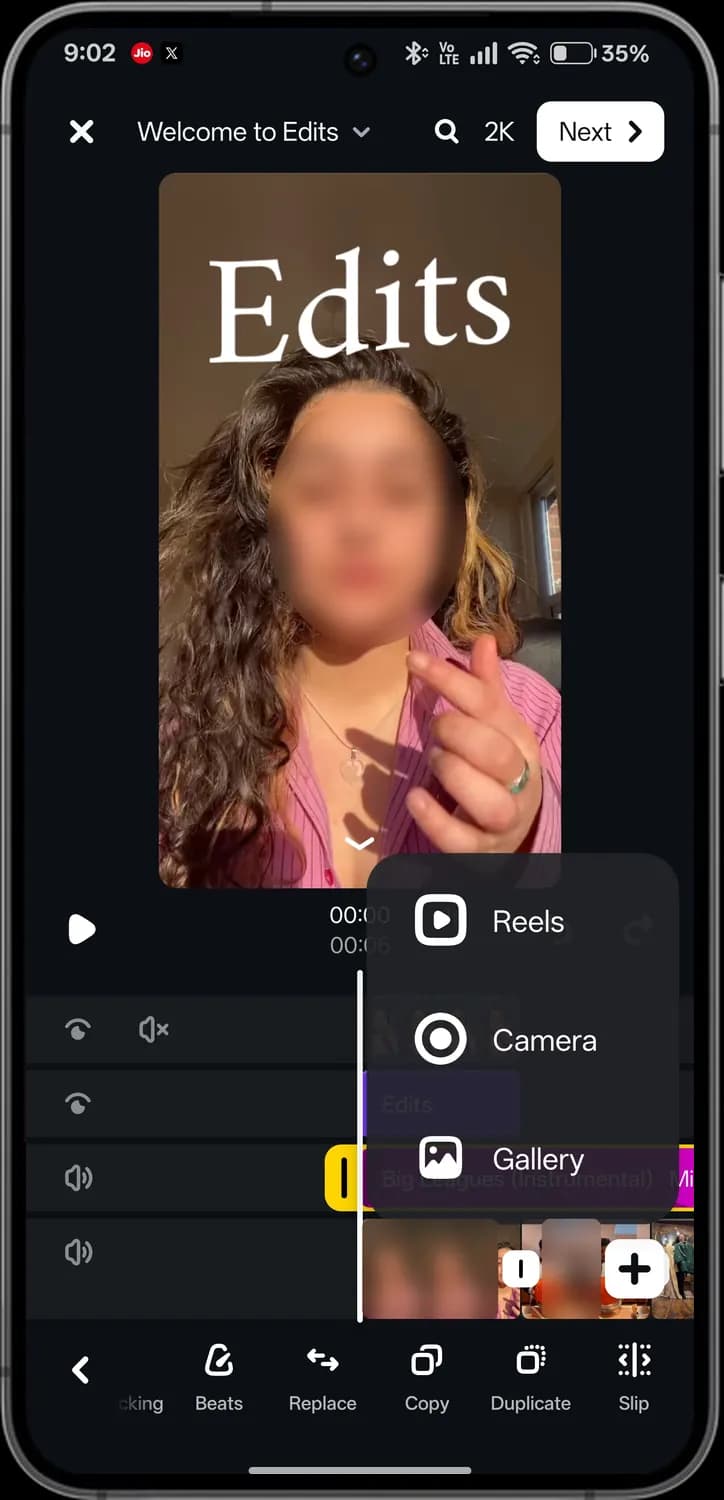
Add from Reels
Adds a clip from a reel on Instagram.
Camera
Records a new clip with the camera.
Gallery
Adds clips from your phone.
Editor tools
How to get here: HomeOpen a projectMain toolbar
With nothing selected, the toolbar shows the tools for the whole video. Each of the tools below has its own section further down.

Captions
Turns speech into captions automatically.

Doodles
Draws on the video with brushes.
Adjust
Brightness, contrast, colour and other light settings.
Filters
Ready-made colour looks.
Overlay
Adds a video or image on top of the main video.

Sound FX
Adds sound effects, such as a whoosh or a beep.
Cutout
Cuts a person or object out of the background.
Add from Reels
Adds a clip from a reel on Instagram.
Add from gallery
Adds clips from your phone.
Full-screen preview
How to get here: HomeVideo editorArrow under the preview
Tap the arrow under the preview, or swipe down on it, to watch your video full screen. Faces are blurred here.
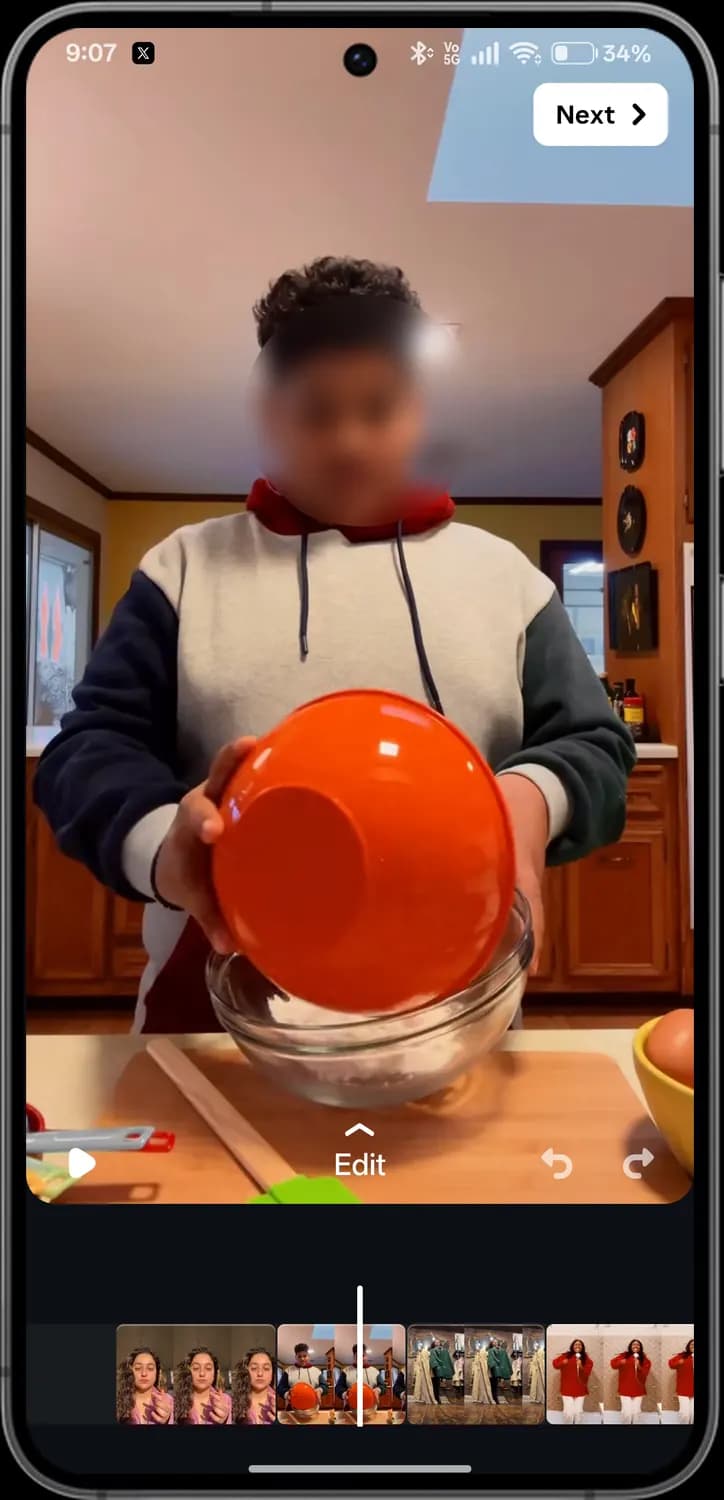

Next
Moves on to export and share.
Play
Plays or pauses the video.
Back to editor
Tap Edit, or swipe up, to return to the timeline.

Undo and redo
Takes back or puts back a change.

Clips
All your clips; drag to move through the video.
Add from Reels
How to get here: HomeVideo editorPlusReels
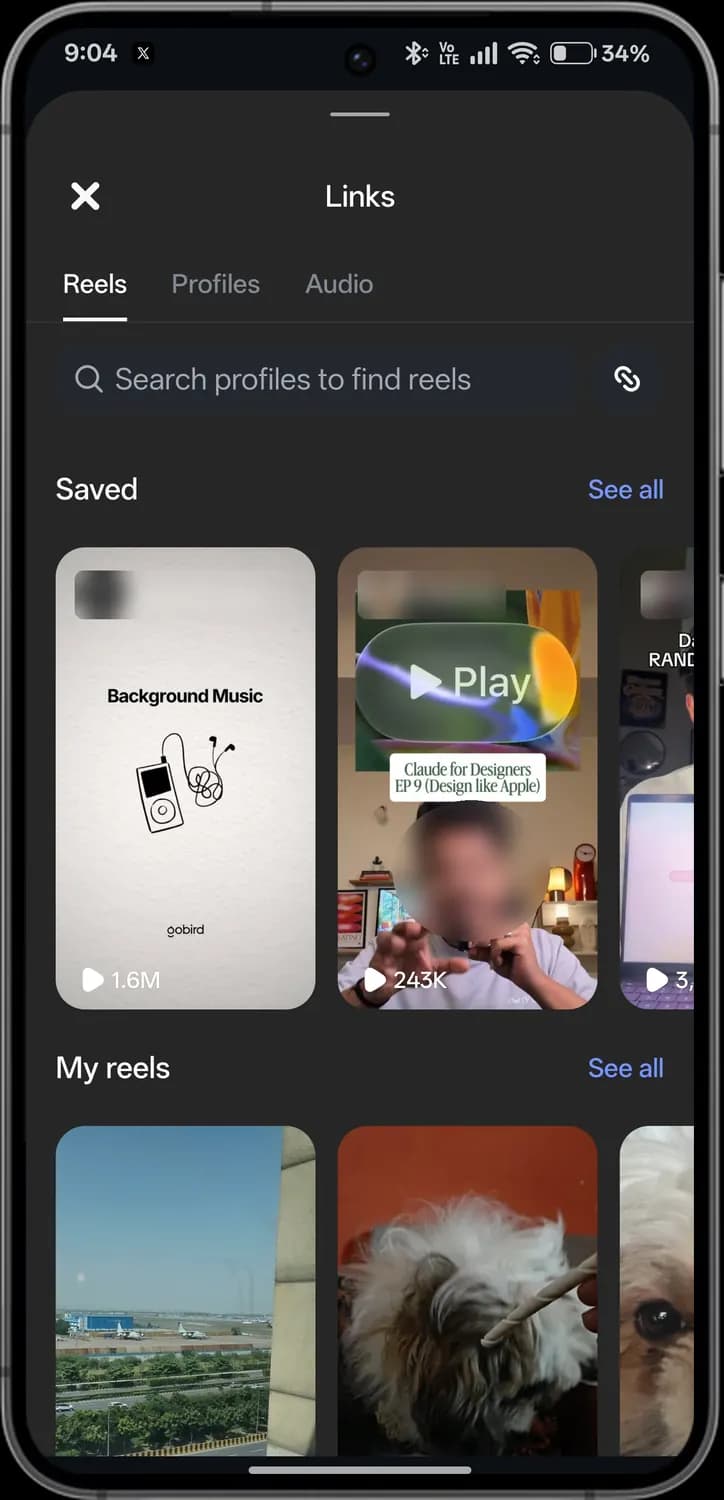
Use a reel from Instagram in your video: search for a profile, paste a link, or pick from reels you saved. Names and faces are blurred here.

Close
Closes Links.
Reels, Profiles, Audio
Choose whether to find reels, people or audio.
Search profiles
Finds reels by searching for an account.

Paste a link
Pastes a reel link you copied.

Saved
Reels you saved on Instagram. See all shows the full list.
Plays
How many times the reel has been played.
My reels
Reels you posted.
Audio library
How to get here: HomeVideo editorAudio icon
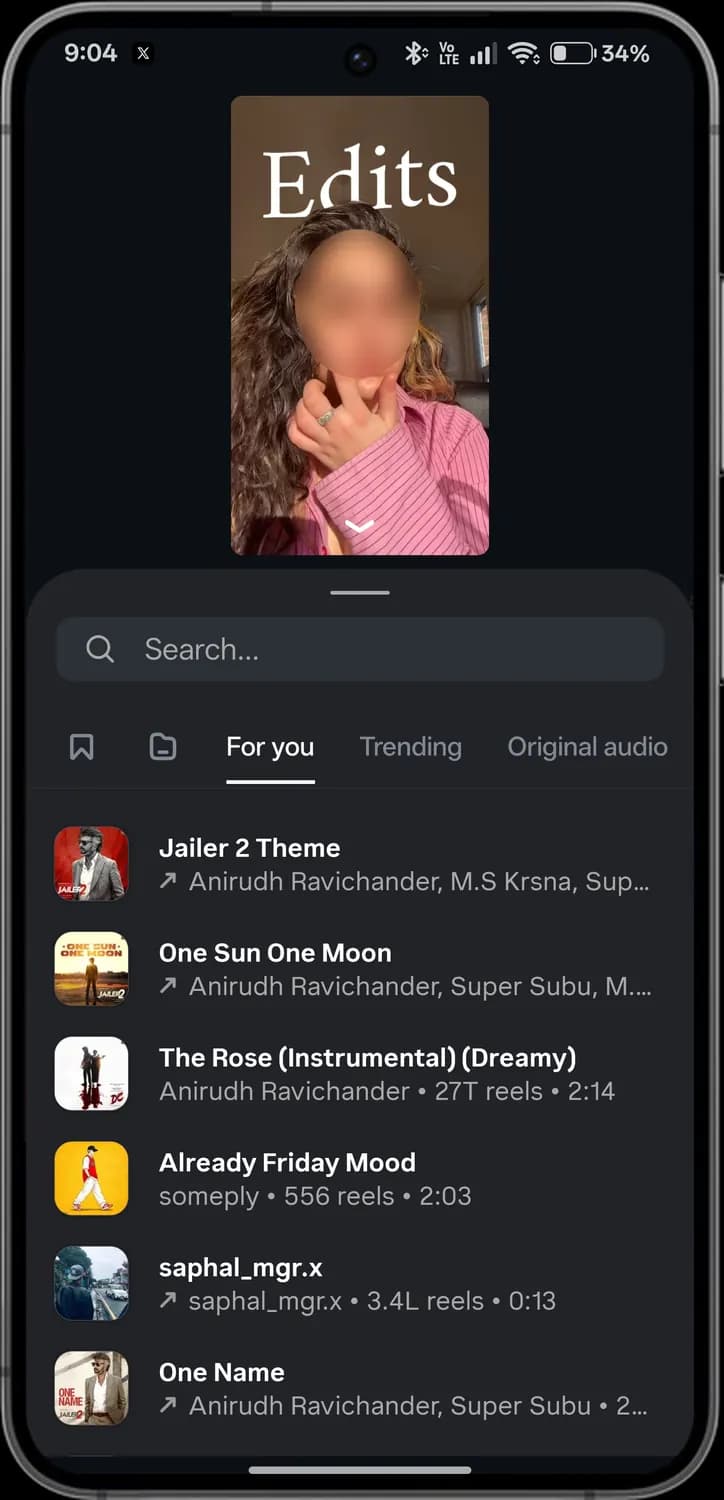
Browse songs and sounds for your video, or tap the music track to change it.
Search
Finds songs and sounds.

Saved audio
Audio you bookmarked.
Your audio
Sounds from your phone or ones you added before.
For you
Audio picked for you.
Trending
Audio that is popular on Reels right now.
Original audio
Sounds that people recorded themselves.
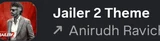
Song
Tap it to preview, then add it to your video.

Trending arrow
The arrow means the audio is trending.

Reels and length
How many reels use the audio, and how long it is.
Text
How to get here: HomeVideo editorText icon
Add text to your video, then style it with the tools above the keyboard. Faces in the preview are blurred here.
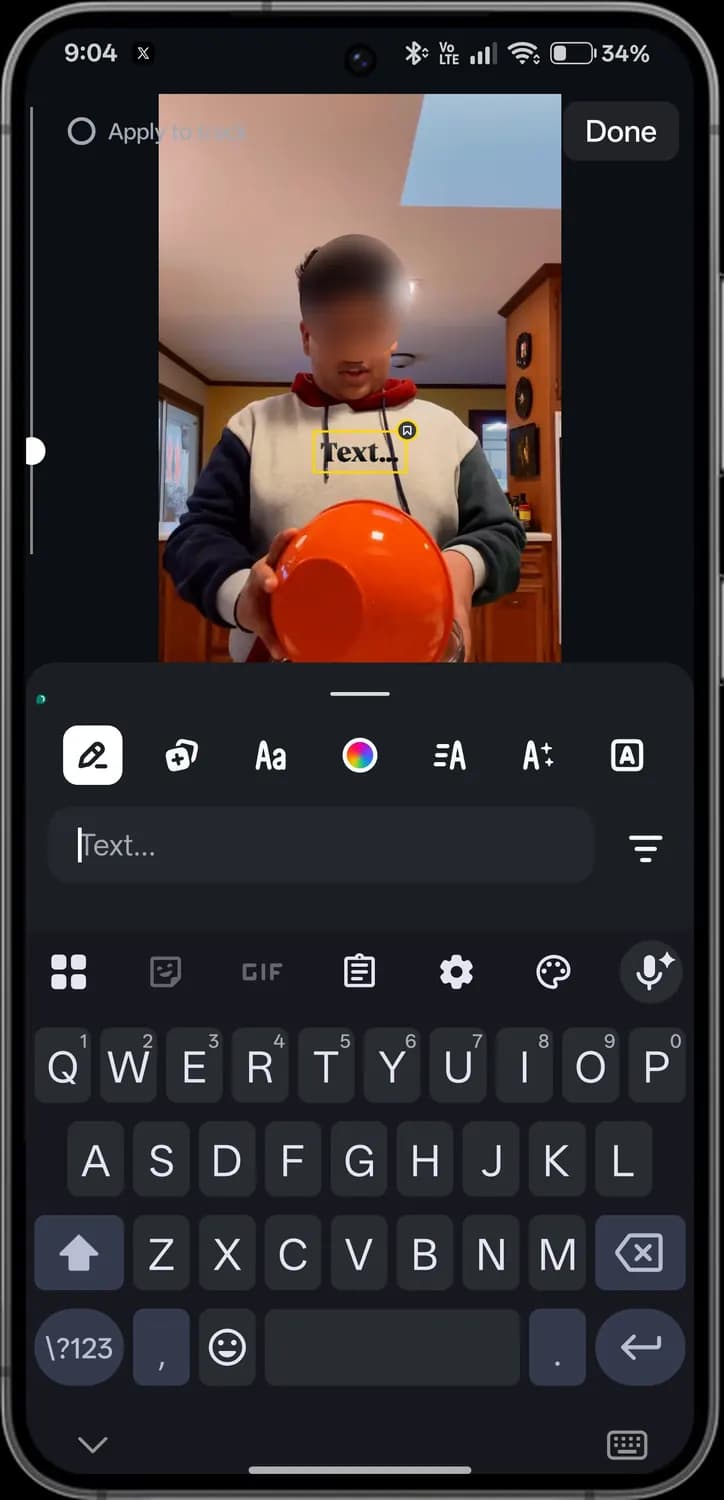
Top of the screen
How to get here: HomeVideo editorText icon
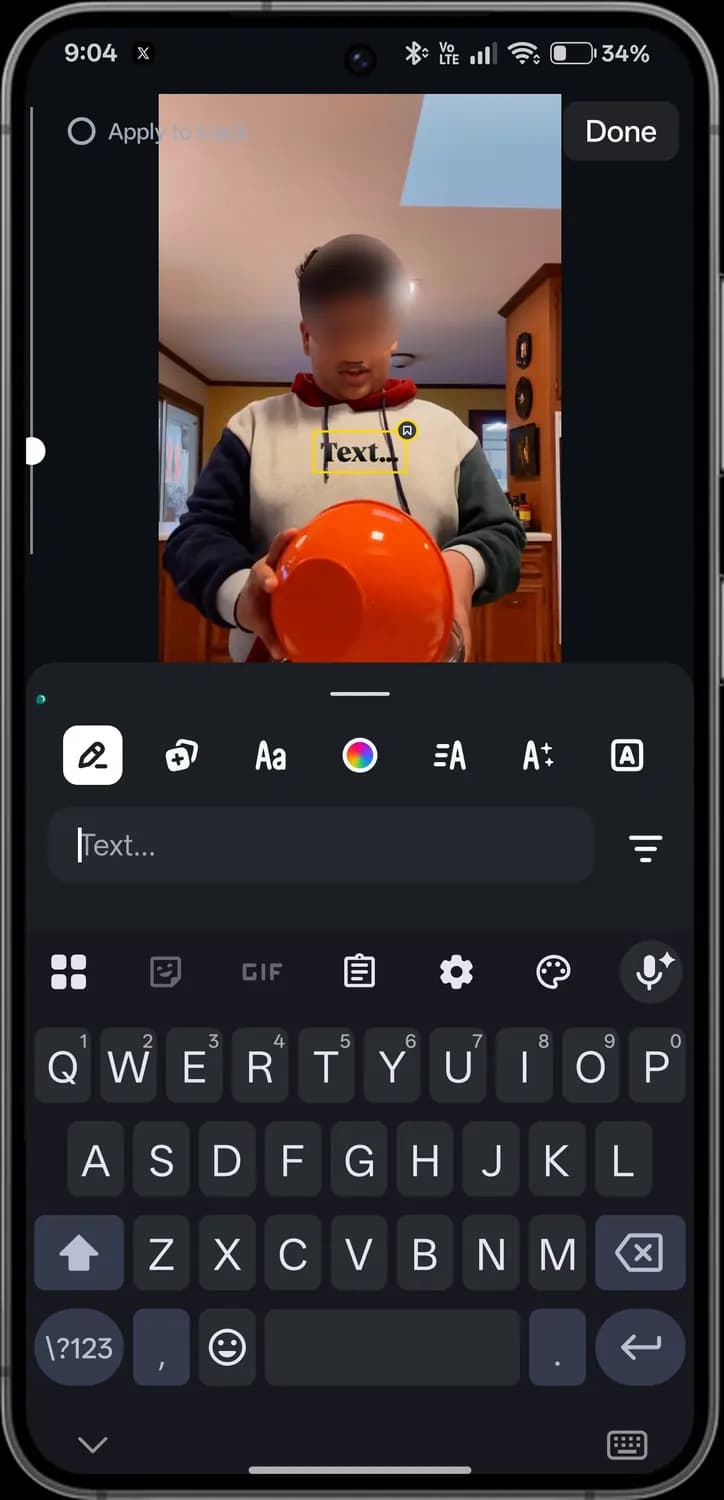
Text tools
How to get here: HomeVideo editorText icon
Swipe sideways to see every screen.

Apply to track
Applies this style to every piece of text on the same track.
Done
Finishes editing the text.
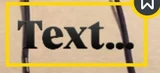
Text box
Your text on the video. Drag it to move it.

Edit text
Types or changes the words.

Text presets
Ready-made text looks.

Font
Changes the typeface.
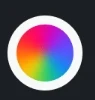
Colour
Changes the text colour.

Spacing
Changes letter and line spacing.

Animation
Makes the text move in or out.

Background
Puts a box behind the text.
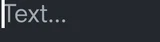
Text field
Where you type.

Alignment
Aligns the text left, centre or right.
Voiceover
How to get here: HomeVideo editorVoiceover icon
Record your voice over the video, with your script shown above the preview like a teleprompter.
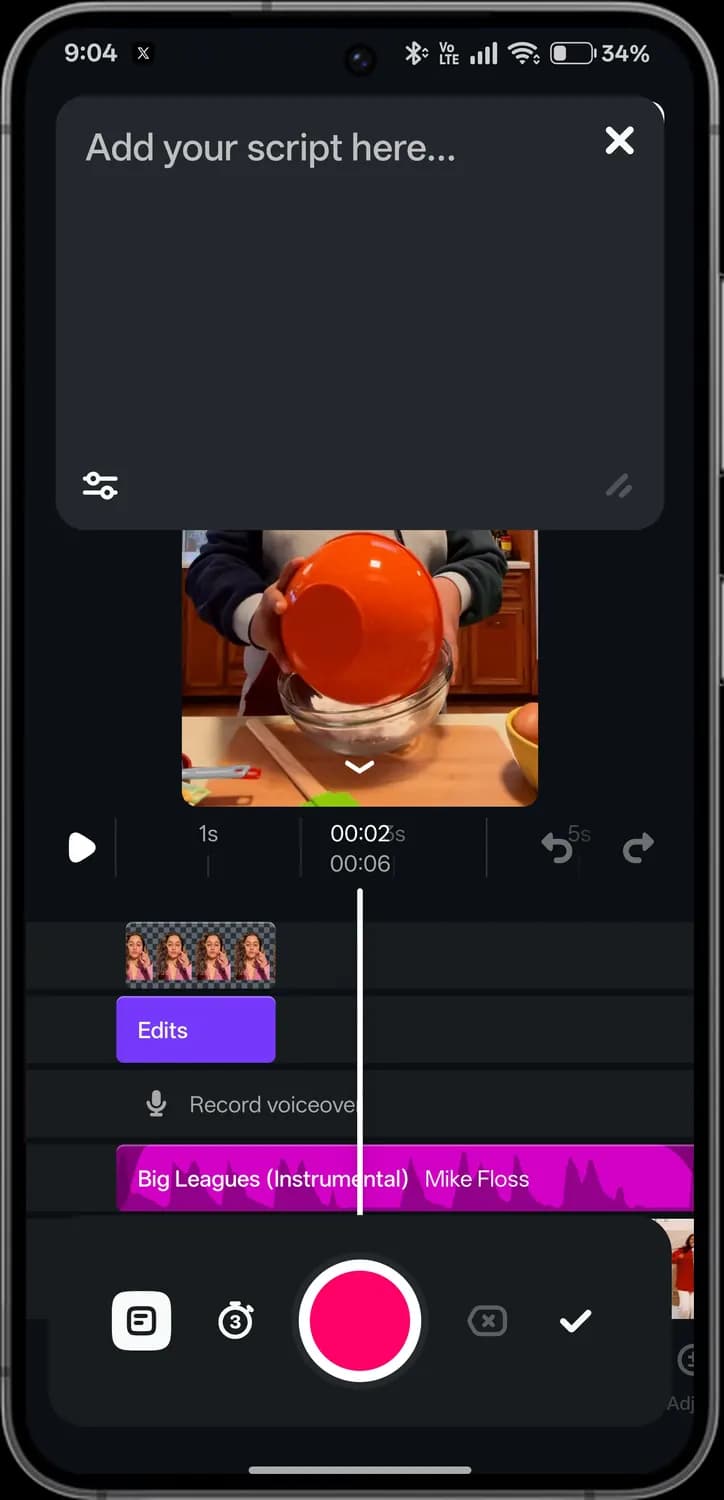
Script
Type what you want to say; it scrolls while you record.

Close script
Hides the script.

Script settings
Changes the script's size and scrolling speed.

Voiceover track
Where your recording appears on the timeline.

Show script
Shows or hides the script while you record.
Countdown
Counts down before recording starts.

Record
Starts and stops recording.
Delete take
Throws away the last recording.

Done
Keeps the recording and closes voiceover.
Captions
How to get here: HomeVideo editorCaptions icon
Captions turns what is said in your video into on-screen text. Faces in the preview are blurred here.
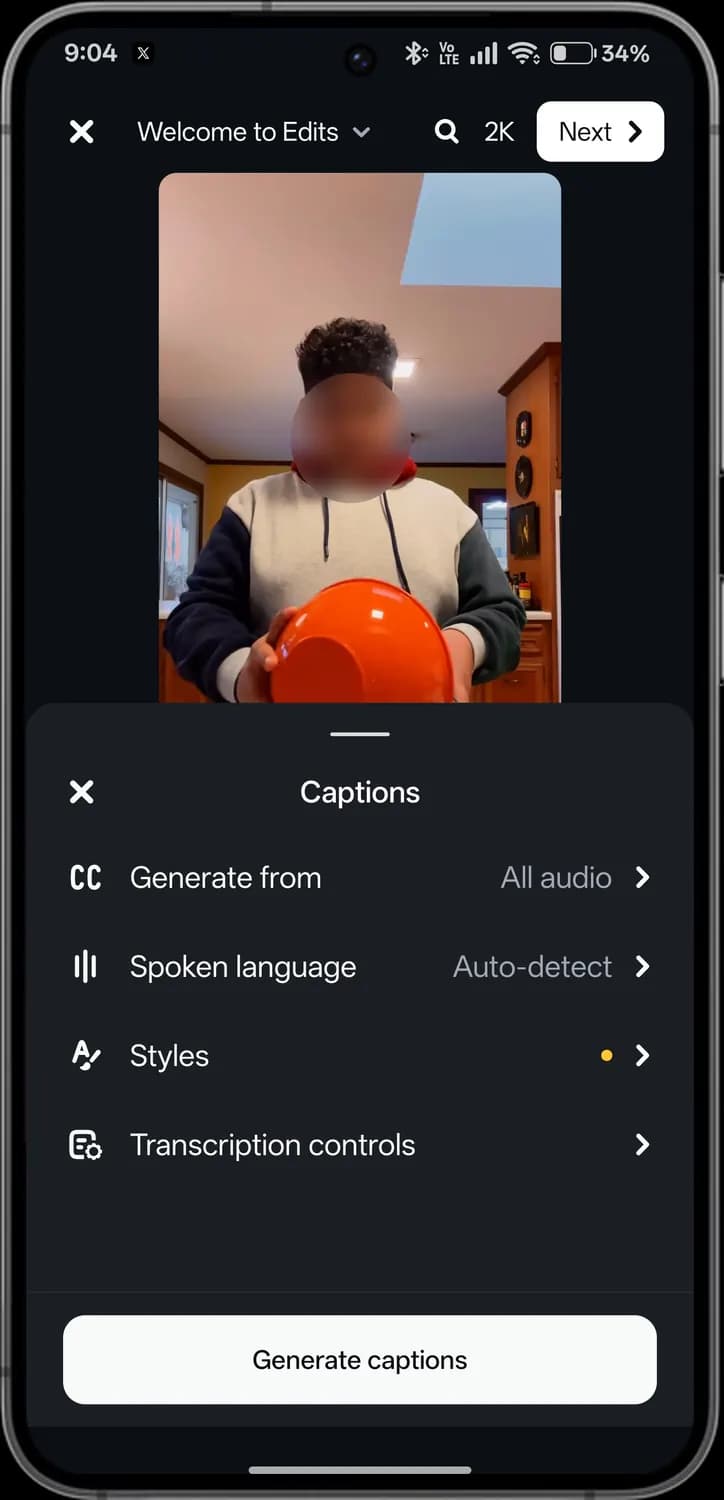
How to get here: HomeVideo editorCaptions icon
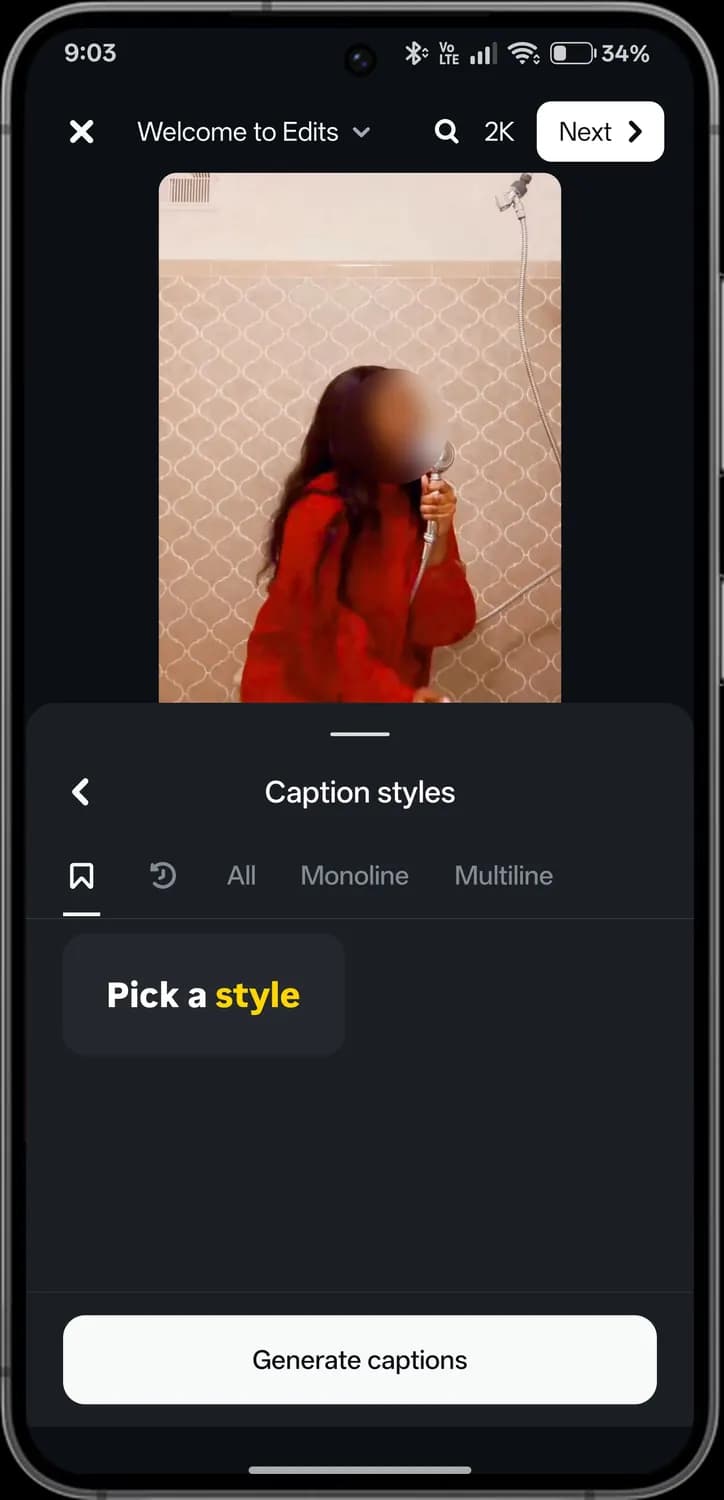
How to get here: HomeVideo editorCaptions iconStyles
Swipe sideways to see every screen.

Close
Closes captions.

Generate from
Which audio to caption, such as all audio or only the voice.

Spoken language
The language people speak in the video. Auto-detect works it out for you.

Styles
The look of the captions. The yellow dot marks new styles.

Transcription controls
Fine-tunes how speech is turned into text.

Generate captions
Creates the captions from your settings.

Back
Returns to the captions settings.

Saved styles
Caption styles you bookmarked.

Recent
Styles you used recently.

Style types
Filters styles: all, single line or several lines.

Pick a style
Tap a style to preview it on your video.
Generate captions
Creates captions in the chosen style.
Doodles
How to get here: HomeVideo editorDoodles icon
Draw on your video with different brushes. Faces in the preview are blurred here.
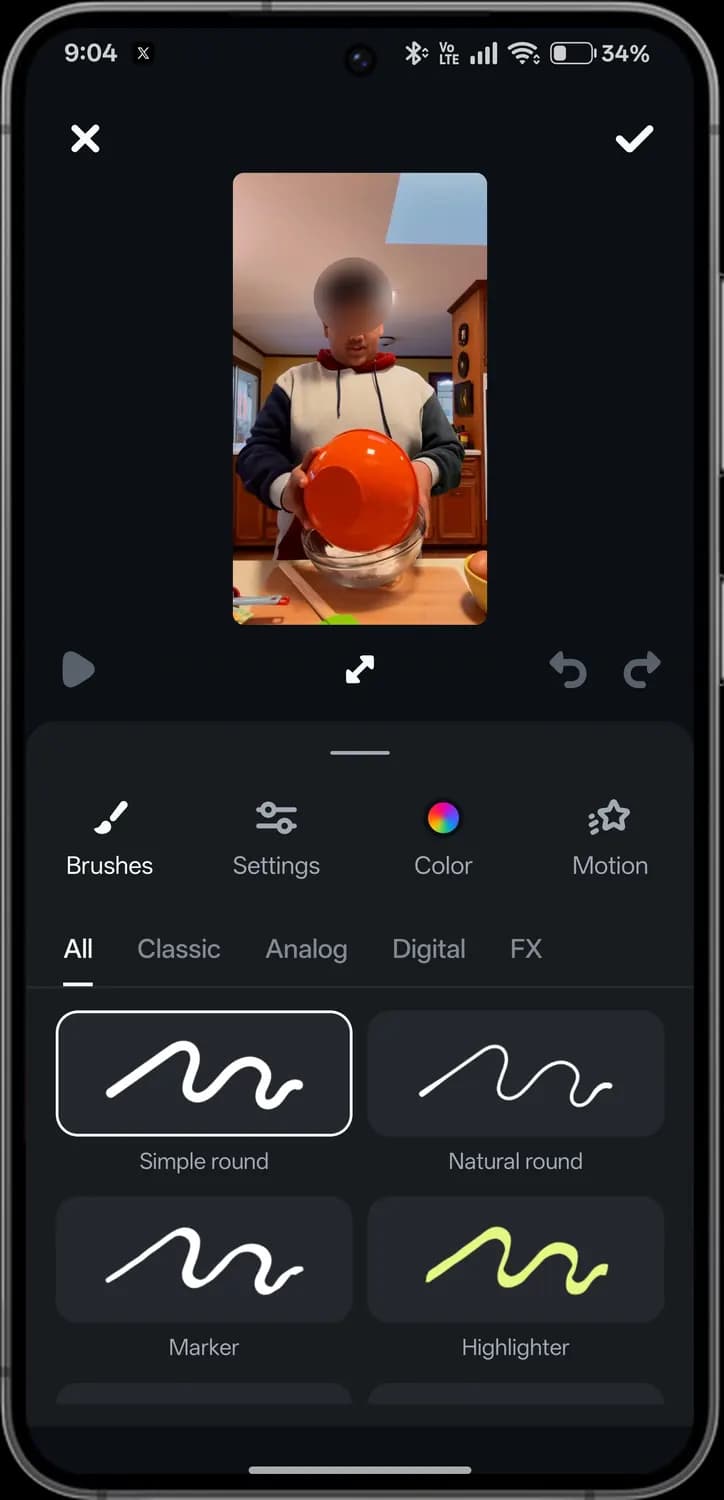

Close
Leaves without keeping the drawing.

Done
Keeps the drawing.

Full screen
Makes the preview bigger while you draw.

Undo and redo
Takes back or puts back a stroke.
Brushes
Choose a brush.
Settings
Brush size and opacity.
Colour
The brush colour.
Motion
Animates your drawing so it moves.

Brush types
Filters brushes: classic, analogue, digital or effects.

Brush
Each style draws differently, from a simple round line to a highlighter.
Filters
How to get here: HomeVideo editorFilters icon
Filters change the colour and mood of a clip. The preview face is blurred here.
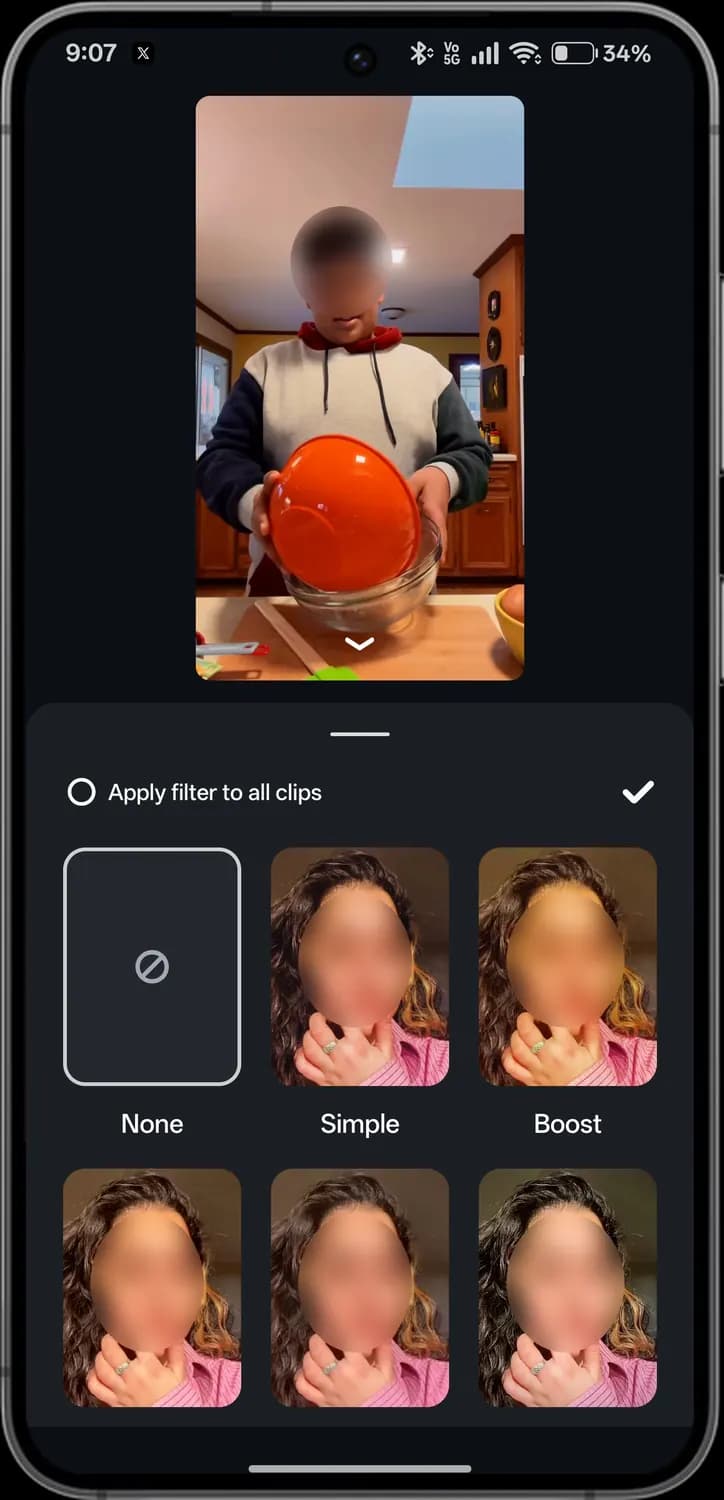

Apply filter to all clips
Uses the same filter on every clip, not just this one.

Done
Keeps the filter.
None
Removes the filter.

Filter
Each tile previews a filter on your clip, such as Simple or Boost.
Sound effects
How to get here: HomeVideo editorSound FX icon
Add short sounds, such as a whoosh or a beep, at the playhead. The preview face is blurred here.
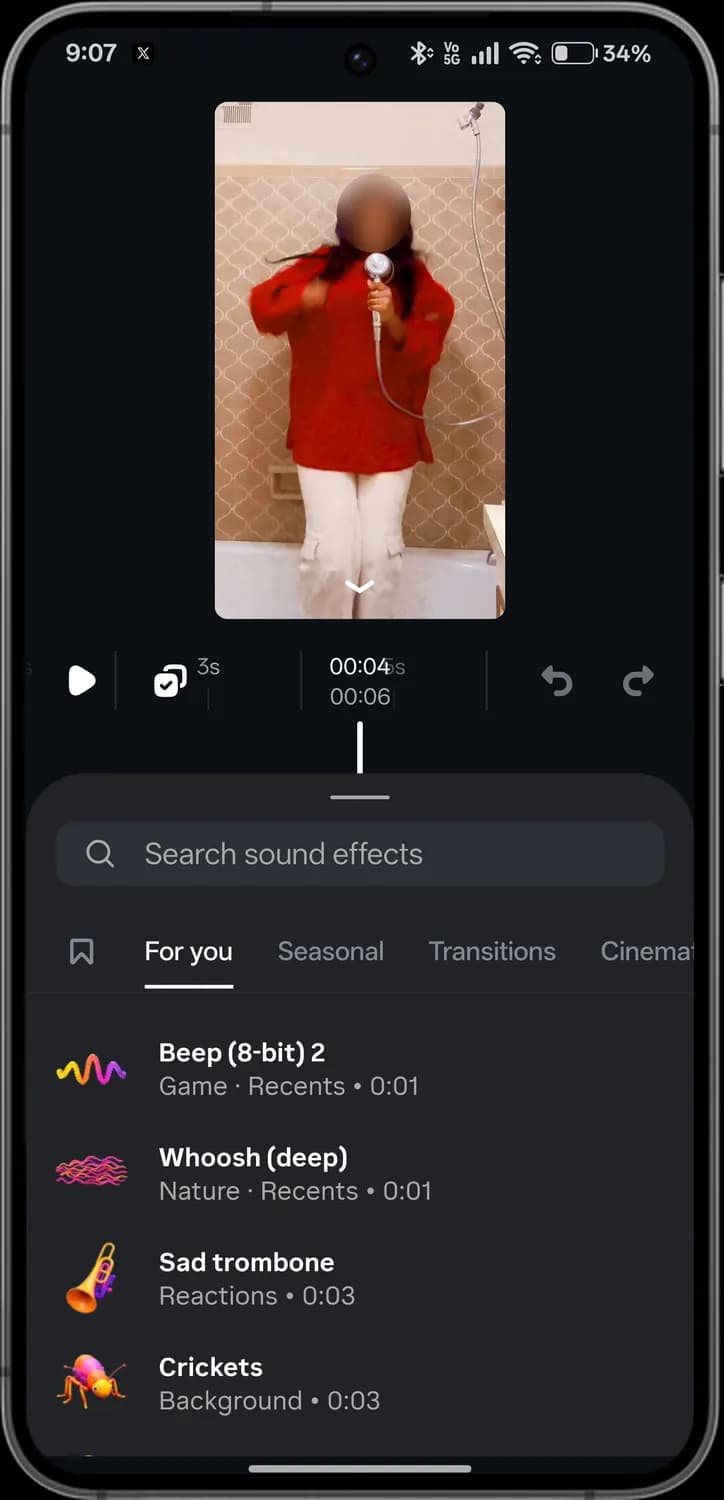
Search
Finds a sound effect.

Saved
Sound effects you bookmarked.
Categories
For you, Seasonal, Transitions, Cinematic and more.
Sound effect
Its name, category and length. Tap to hear it and add it.
Cutout
How to get here: HomeVideo editorCutout icon
Cutout separates a person or object from the background. The preview face is blurred here.
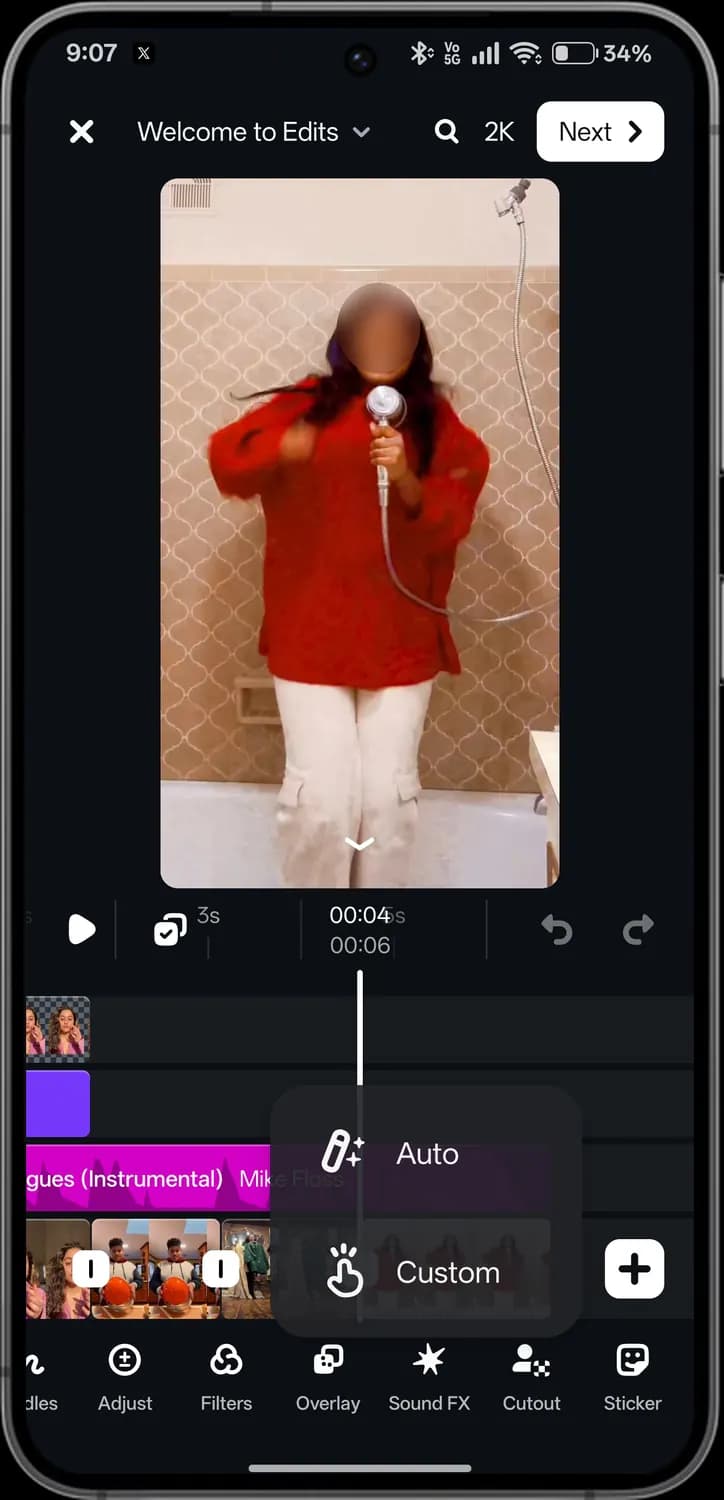
Auto
Finds the person or main object for you.
Custom
Lets you mark what to cut out yourself.

Sticker
Adds stickers and GIFs to the video.
Stickers
How to get here: HomeVideo editorSticker icon
Stickers come from GIPHY. Search, then tap one to add it to your video.
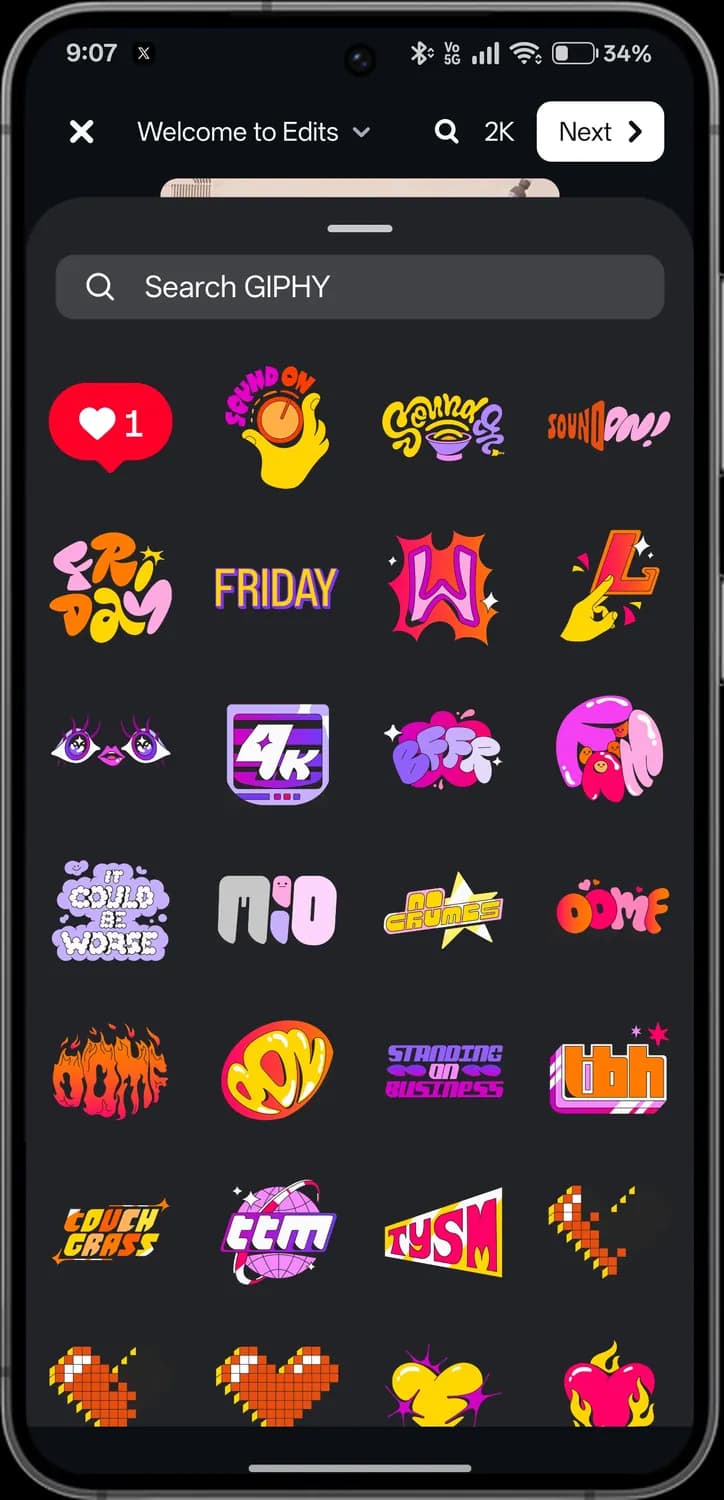

Search GIPHY
Finds stickers and GIFs.
Sticker
Tap a sticker to place it; drag and pinch to move and resize it.
Those are the meanings of Instagram icons. Instagram edits app is available for both an Android and iPhone and has similar icon representation. Moreover, Instagram edits is also coming to the desktop but it's still in the works. While mostly Instagram edits interface has remained the same, Instagram constantly adds new features to the platform. To stay updated with all the latest changes and help you with various icons and their meanings, you can bookmark our page. For more icon guides you can also visit our TechPP icon guides.
Was this article helpful?
Comments
0Share your thoughts, questions, or feedback about this guide.