
Google Play Store Icons and Symbols Explained
Google Play Store is where you get every app and game on Android, and it is on almost every Android phone. Over the years, Google has added plenty of new sections to it, like the You tab, Play Points, challenges and even AI answers about apps, and each of them comes with its own icons and labels.
In this guide, you will learn what every icon and label in the Play Store means, screen by screen. And this is an interactive guide. You can tap on every icon on the screens below to know what it does.
Apps tab
How to get here: Play StoreApps tab
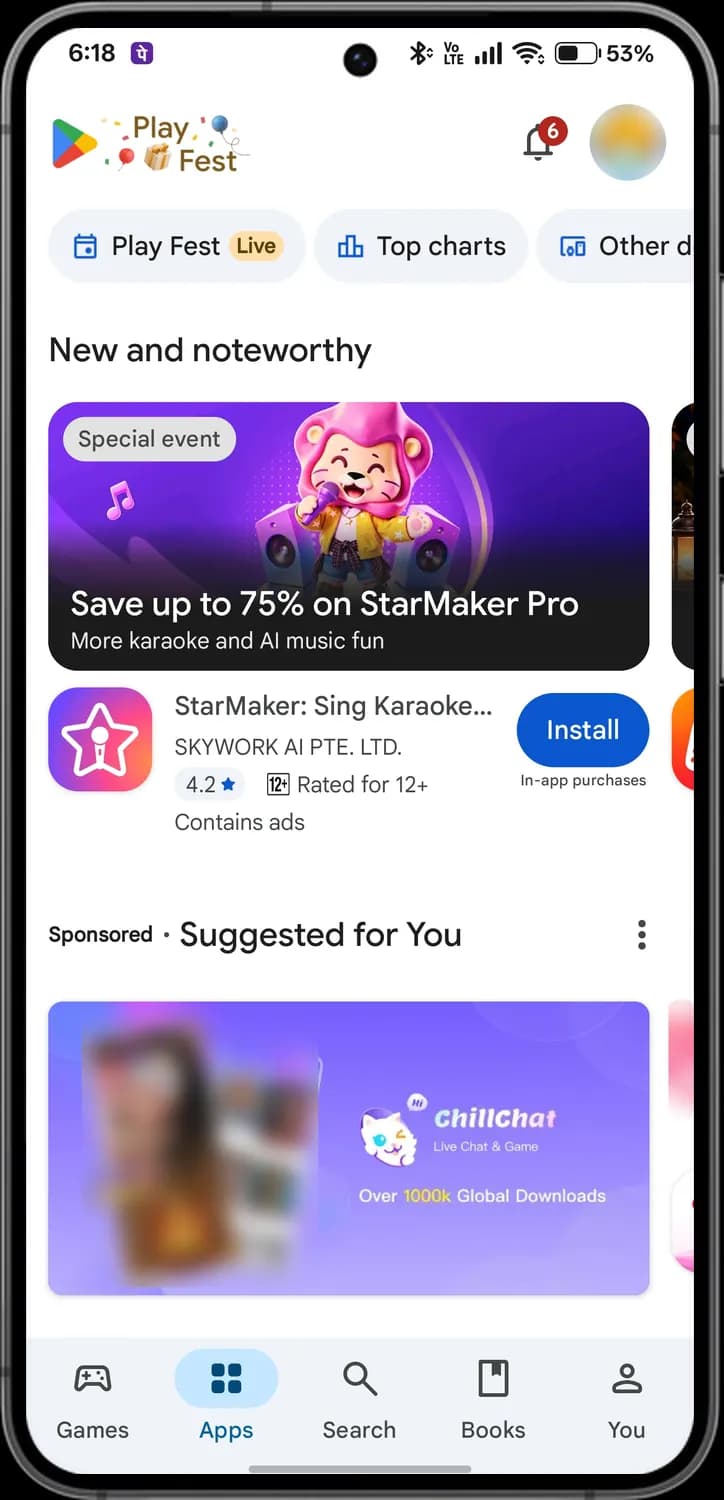
The Apps tab shows apps picked for you, events and ads. The bar at the top and the tabs at the bottom are the same on the Games tab. The ad banner and your profile picture are blurred here.
Top of the screen
Play Store logo
The Google Play logo. During events it changes; here it shows Play Fest, Google Play's sale on apps and games.
Notifications
Alerts and offers from Google Play. The red number is how many you have not seen.

Profile picture
Opens your account menu.

Play Fest
Opens the Play Fest event. Live means it is running now.

Top charts
The most popular apps right now: top free, top grossing and top paid.

Other devices
Apps for your other devices, such as a watch, TV, car or Chromebook.
Account menu
How to get here: Play StoreApps tabProfile picture
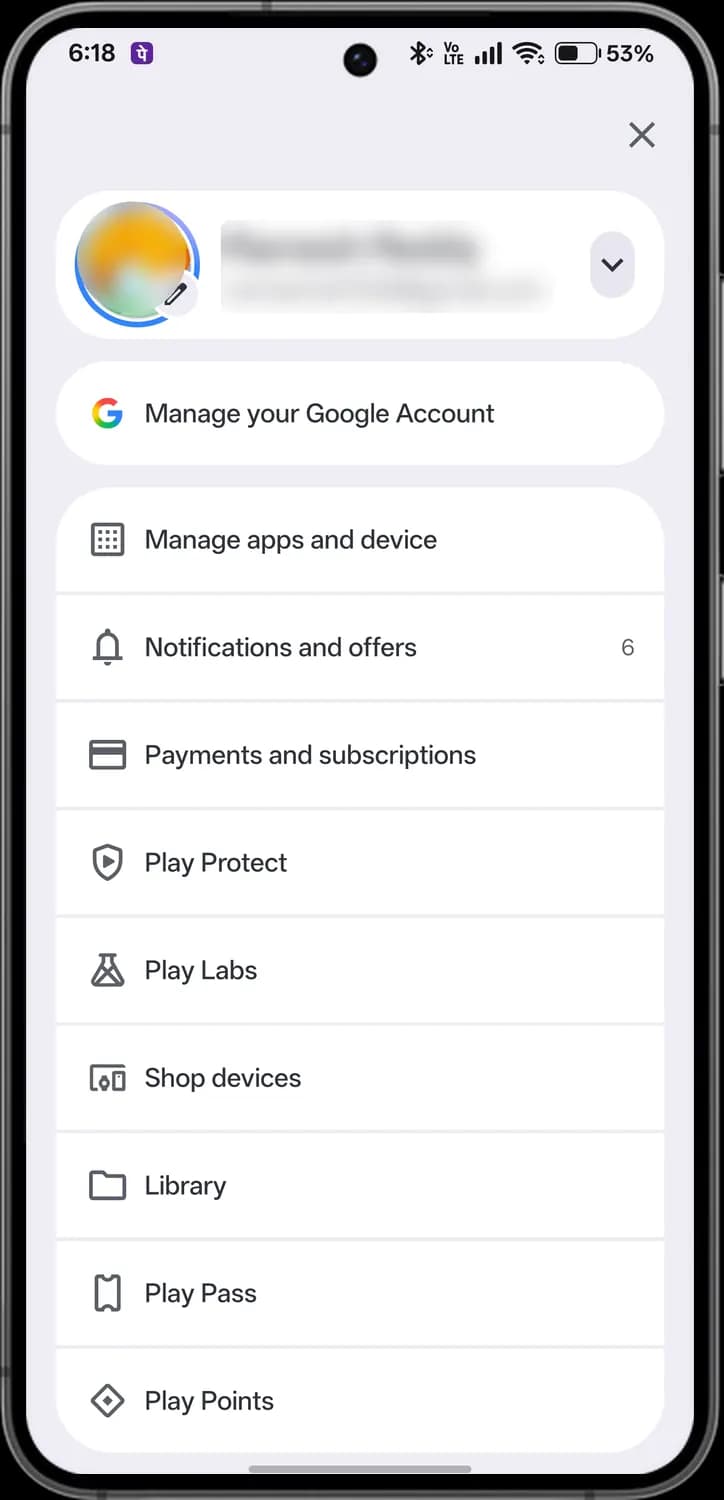
Tap your profile picture at the top right of any tab to open this menu. Your name, email and picture are blurred here.
Top of the menu

Close
Closes the menu.

Change profile picture
Changes the picture on your Google account.
Switch account
Switches to another Google account on your phone, or adds one.
Manage your Google Account
Your Google account settings: personal info, security and privacy.

Manage apps and device
Updates, storage, and every app installed on your phone.

Notifications and offers
Your Play Store alerts and offers. The number is how many are new.

Payments and subscriptions
Payment methods, subscriptions, budget and order history.
Search tab
How to get here: Play StoreSearch tab
The Search tab opens with ideas: quick searches, suggested apps and what people are searching for. Your profile picture is blurred here.
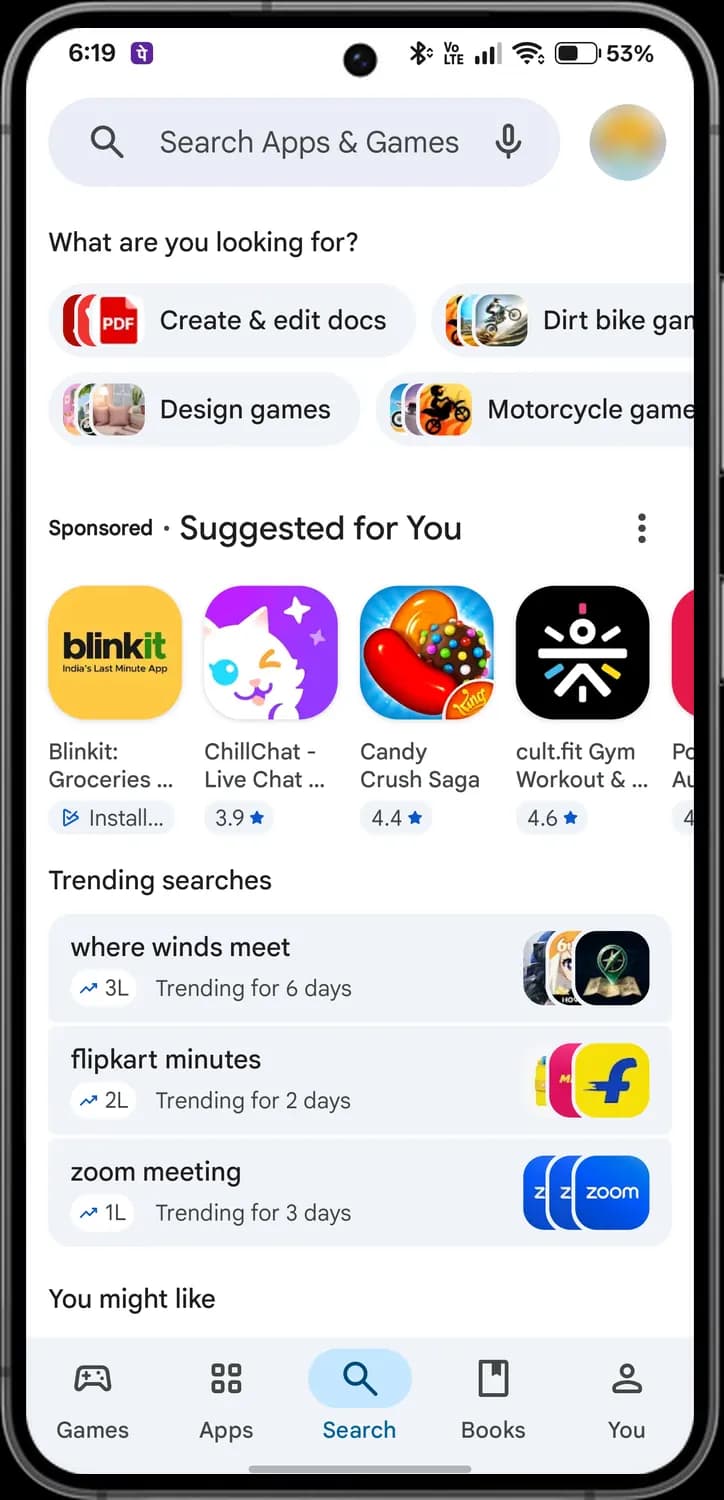
Top of the screen

Search bar
Search for apps and games by name, or by what you want to do.

Voice search
Search by speaking.

Profile picture
Opens your account menu.

Quick search
Ready-made searches for kinds of apps, picked for you.
Ad options
Explains why you see these ads.
Searching
How to get here: Play StoreSearch tabSearch bar
Tap the search bar to type. Your recent searches show up first; after you search, the results show each app's rating, age rating and size.
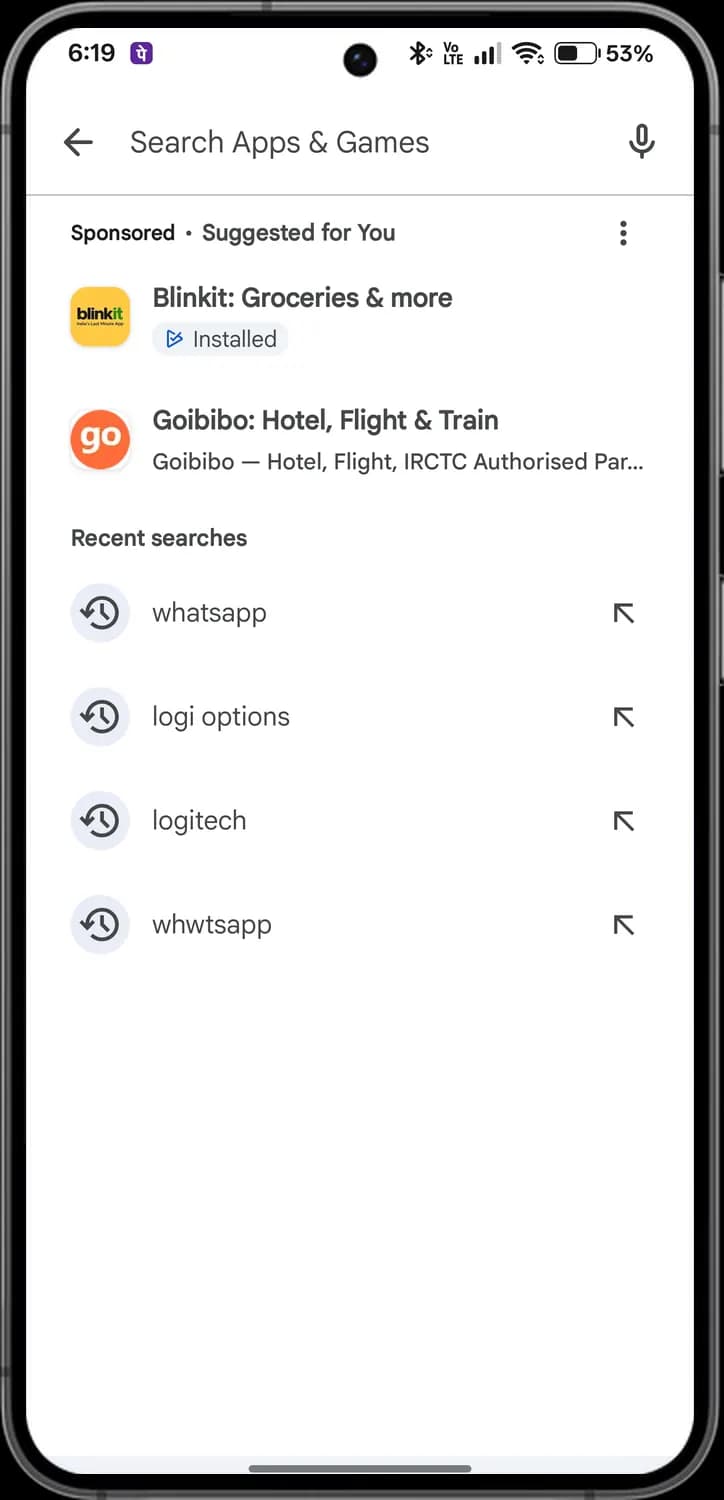
Search bar
Back
Closes search.

Search box
Type the app or game you want.

Voice search
Search by speaking.
Recent search
Something you searched for before. Tap it to search again.

Fill in the search
Puts that search in the box so you can change it before searching.
App page
How to get here: Play StoreSearch tabSearch for an appTap the app
Every app has its own page with its rating, downloads and buttons to install, open or remove it.
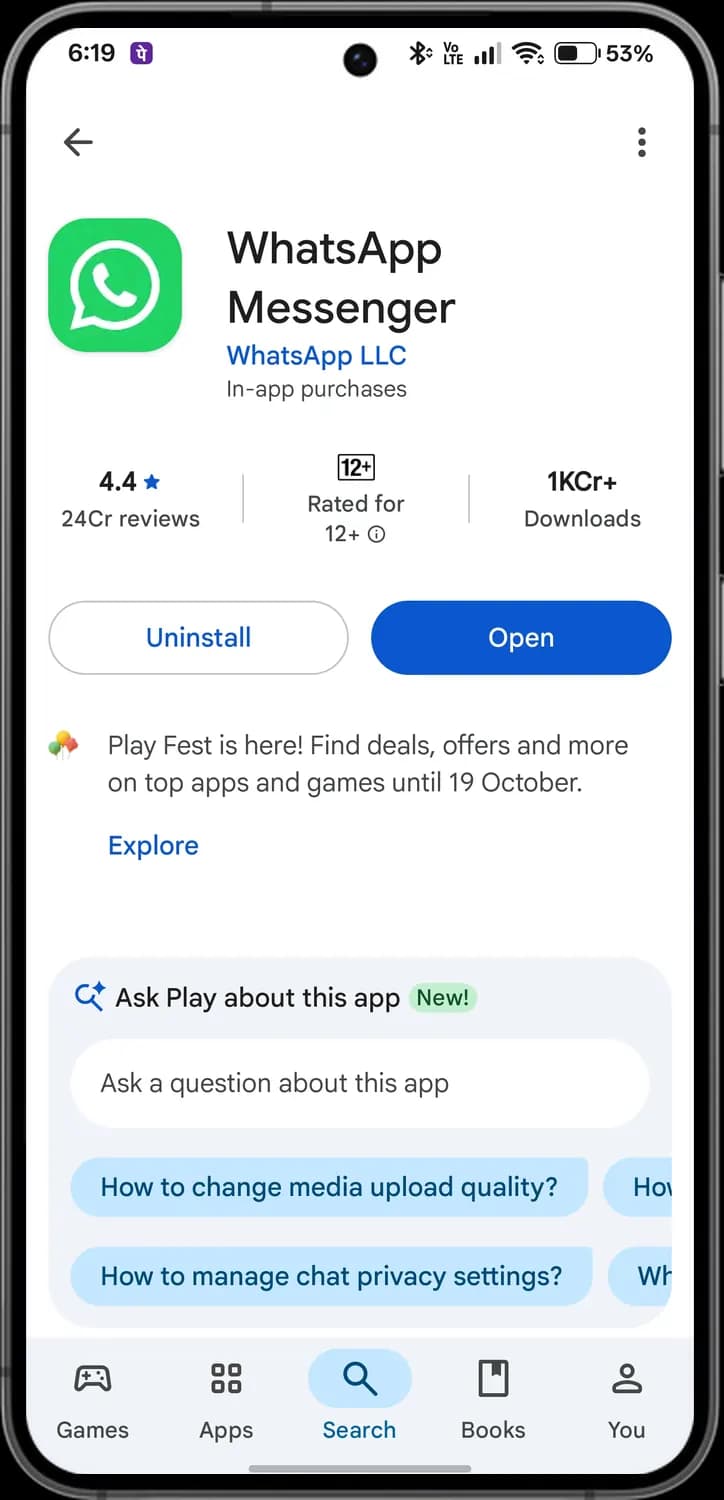
Top of the page
Back
Returns to the previous screen.

More options
Share the app, report it, or turn its automatic updates on or off.

Developer
Who made the app. Tap to see their other apps.

In-app purchases
The app sells items, upgrades or subscriptions inside it.
Ratings and reviews
How to get here: Play StoreSearch tabSearch for an appTap the appScroll down
Further down the app page are the latest changes, ratings for each kind of device, your own rating and other people's reviews. Reviewers' names and pictures are blurred here.
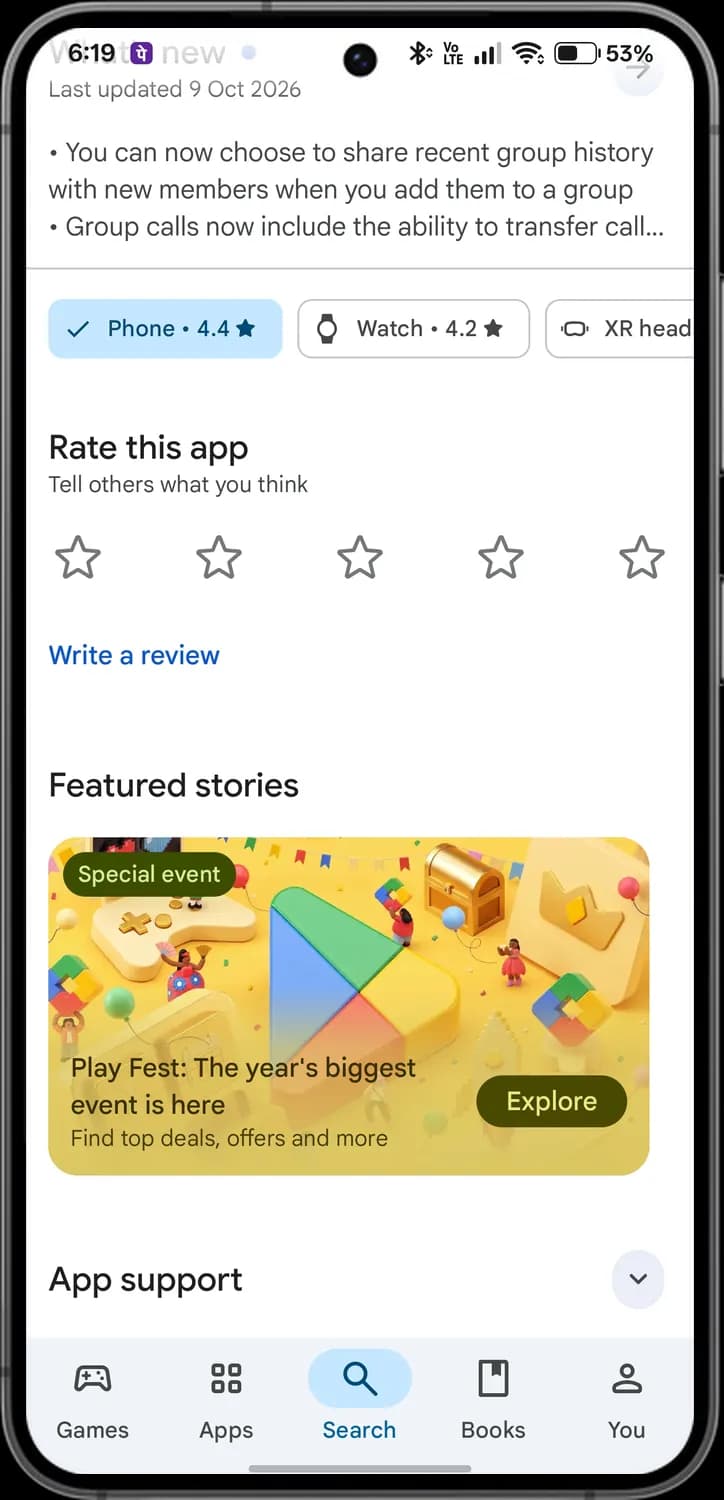
Updates and devices

Last updated
When the developer last updated the app.

What's new
The changes in the latest update.

Phone ratings
Ratings and reviews from people using the app on a phone. The tick means it is selected.
Watch ratings
Ratings from people using the app on a watch.

XR headset ratings
Ratings from people using the app on an XR headset.
Installing an app
How to get here: Play StoreSearch tabSearch for an appTap the app
On an app you do not have yet, the page shows Install. While it downloads, the page shows the progress and lets you cancel.
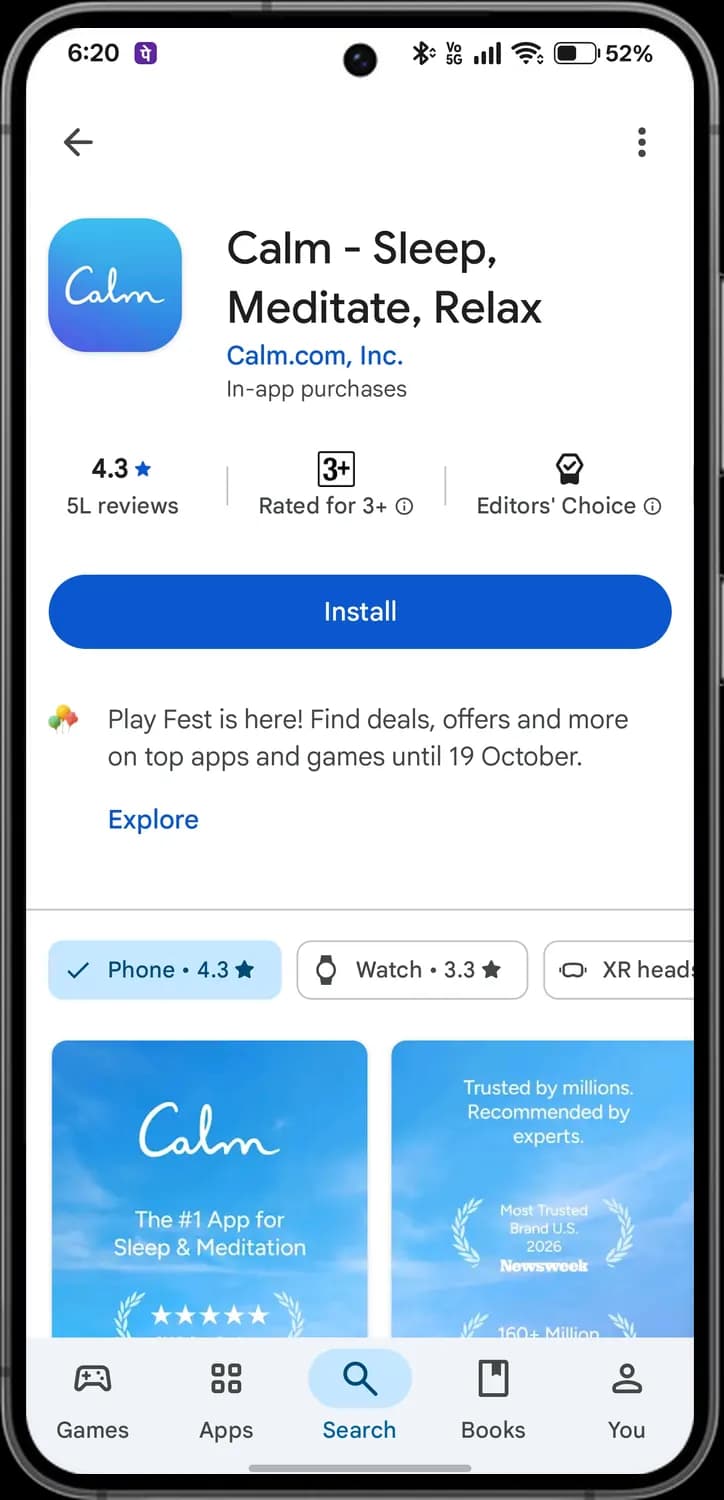
Tap the app
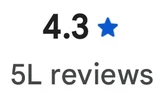
Rating and reviews
The average rating and how many people rated it. L stands for lakh, so 5L is 500,000.
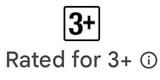
Age rating
Who the app is suitable for. 3+ means everyone.

Editors' Choice
Picked by Google Play's editors for its quality.

Install
Downloads and installs the app.

Screenshots
Pictures and videos of the app from the developer. Swipe to see more.
Books tab
How to get here: Play StoreBooks tab
The Books tab is Google Play Books inside the Play Store. Faces on book covers and your profile picture are blurred here.
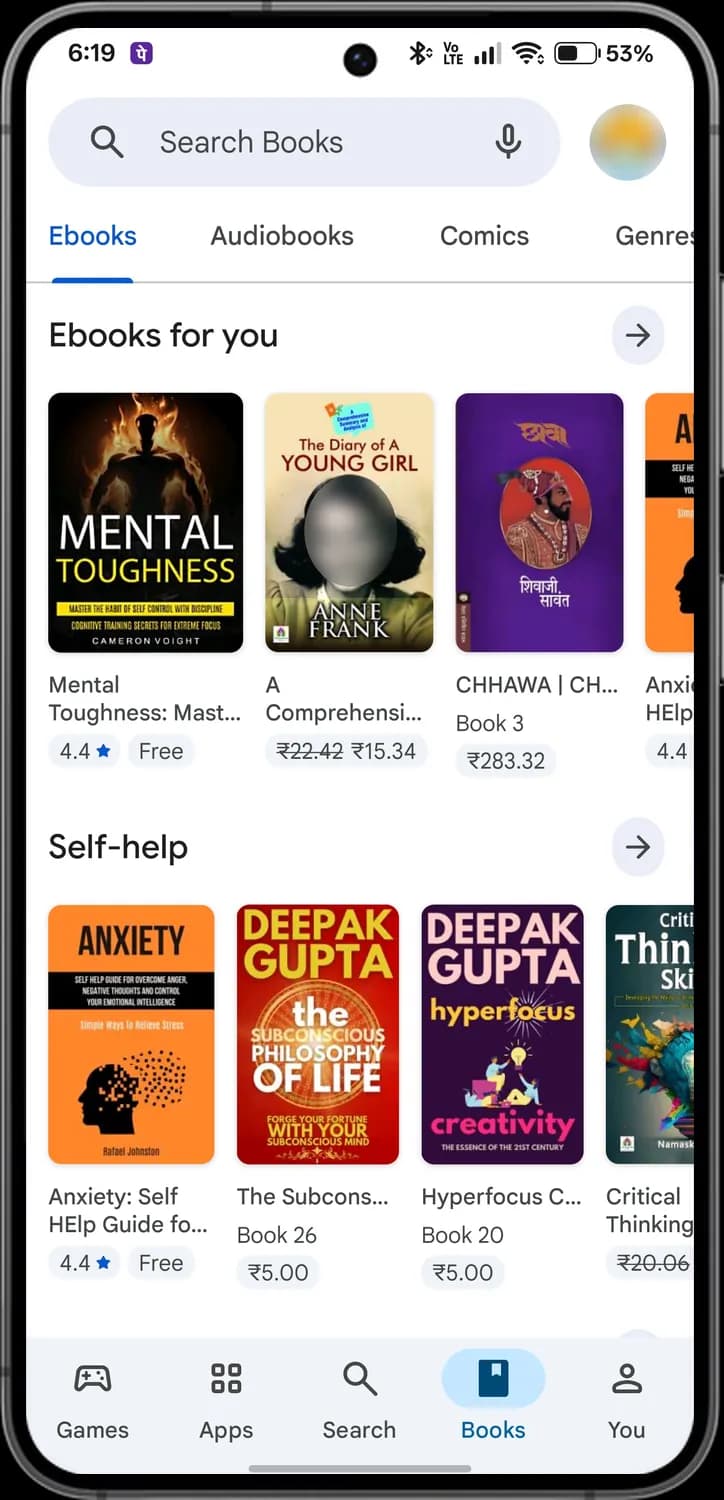
Top of the screen

Search Books
Search for ebooks, audiobooks and comics.

Voice search
Search by speaking.

Profile picture
Opens your account menu.

Ebooks
Books to read. The blue line marks the tab you are on.
Audiobooks
Books read aloud.

Comics
Comics and manga.

Genres
Browse books by subject.
You tab
How to get here: Play StoreYou tab
The You tab holds your Play profile, game challenges and streaks. Your name, gamer name and picture are blurred here.
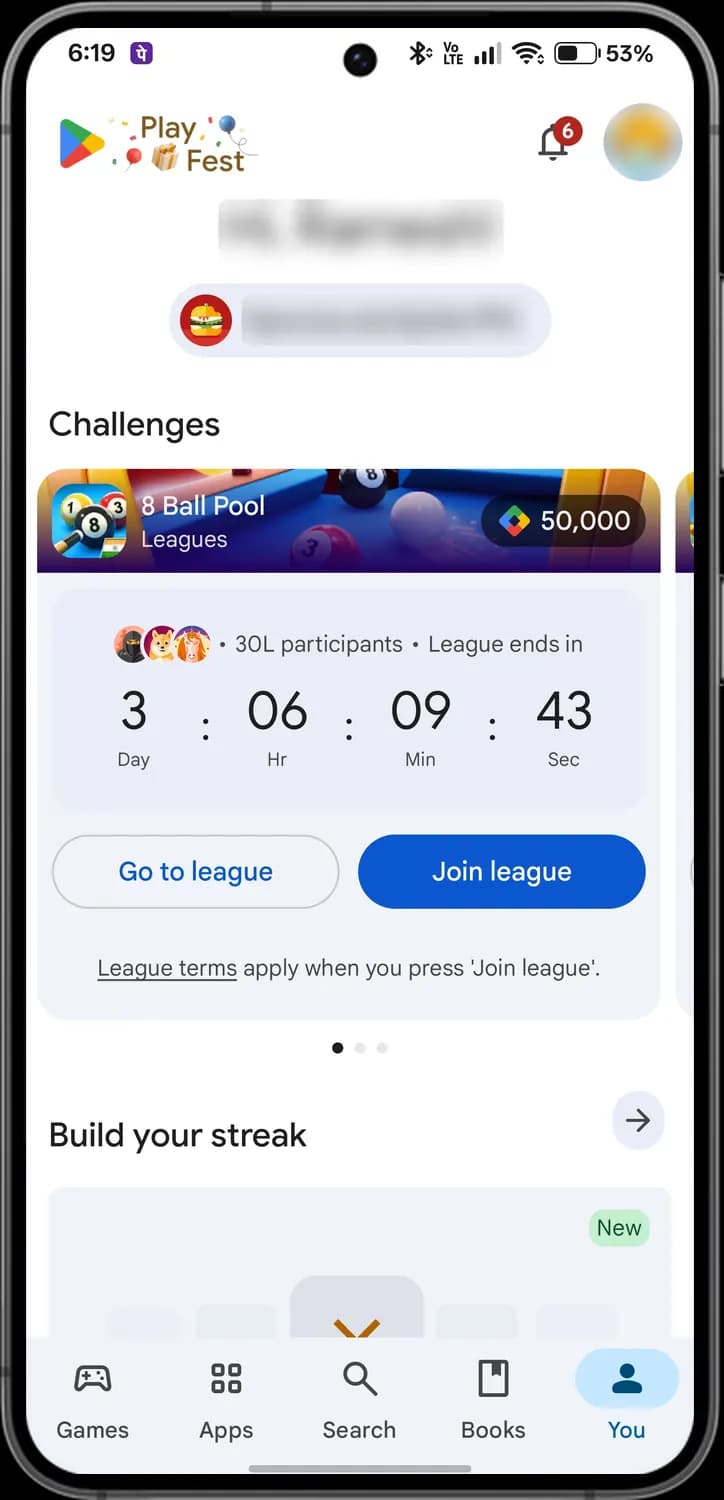
Top of the screen
Notifications
Alerts and offers from Google Play. The red number is how many you have not seen.

Profile picture
Opens your account menu.

Play Games profile
Your gamer name and avatar for Play Games. Tap to edit them.
Challenge
A game challenge or league you can join. Swipe for more.

Prize
The Play Points you can win.
Those are the meanings of Google Play Store icons and labels. Since Google keeps adding new features and events to the Play Store, we update this guide every time the interface changes, so you can bookmark this page to stay updated. The Play Store looks the same on most Android phones, so these icons mean the same thing on yours. For more icon guides, you can also visit our TechPP icon guides.
Was this article helpful?
Comments
0Share your thoughts, questions, or feedback about this guide.