
Google Photos Icons and Symbols Explained
Google Photos is the most popular photos app on Android, and in fact, it is the default app on most phones.
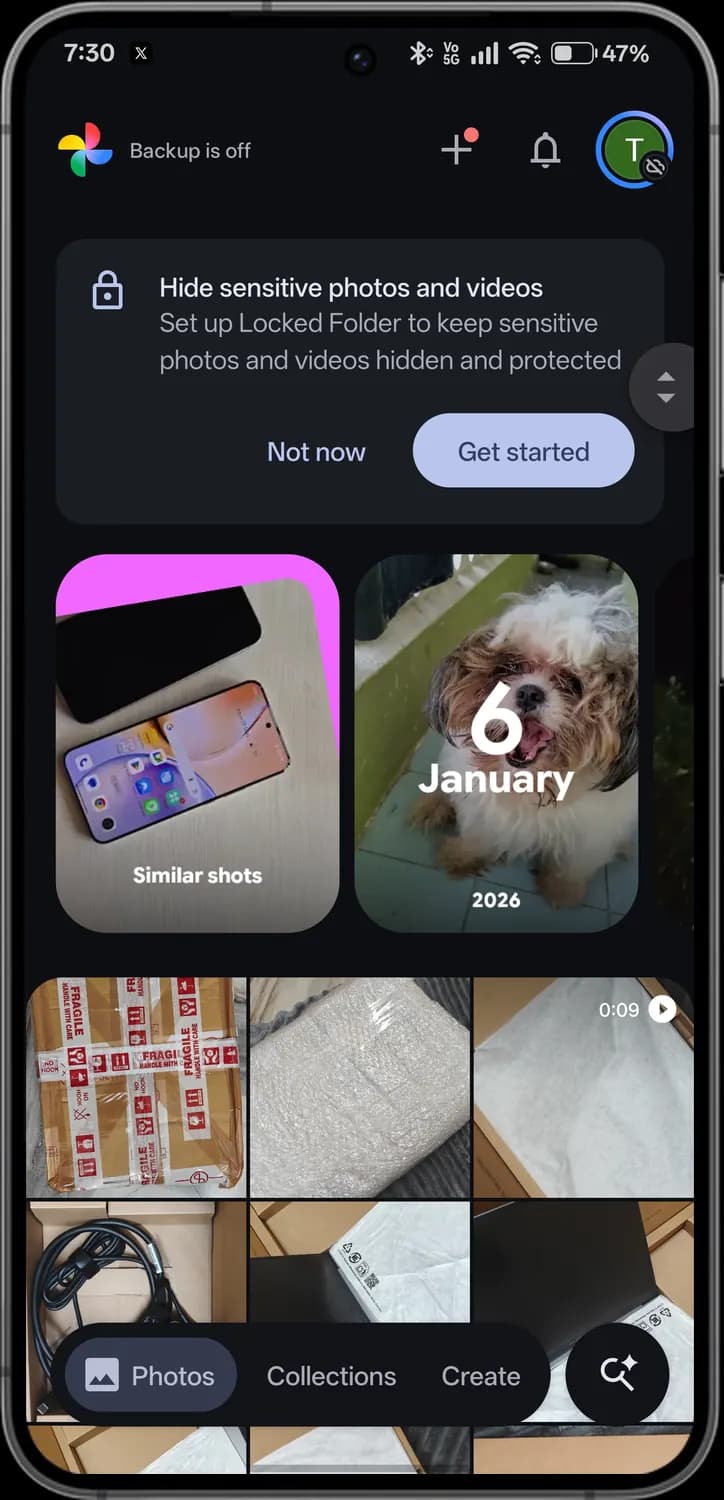
While Google Photos interface is not as minimal compared to the other apps, in addition to that Google lately added plenty of AI features with several new icons that can be confusing for the beginners.
However, it won't be an issue from now. In this guide, you will learn everything about Google Photos icons and their meaning of every screen. And this is an interactive guide. You can tap on every icon on the screen below to know what it does.
Home screen
The Photos tab is where Google Photos opens. The top bar shows your backup status and account, your memories sit above the photo grid, and the bar at the bottom switches between the app's main tabs.
Google Photos logo
Marks the Photos tab. Tap it to jump back to the top of your photo grid.
Backup status
Shows whether your photos are backing up to your Google account. Here it reads Backup is off; tap it to turn backup on or check its progress.
Create new
The plus button makes something new, such as an album, a collage or a shared album. The red dot means there is something new to try.

Notifications
The bell holds updates such as new memories, shared albums and finished creations.
Account and backup
Your profile picture opens account settings, storage and Photos settings. The small crossed-out cloud on it means backup is off.

Locked Folder
The padlock appears on the prompt to set up Locked Folder, a passcode-protected space for private photos and videos that stays out of your grid.
Fast scroll
Drag this handle up or down to move quickly through your photos by date.
Similar shots
A memory that groups near-identical photos, so you can pick the best one and clear the rest.

Memories
Story cards that bring back photos from a day or a past year. Tap one to play it as a slideshow.
Video length
A time and a play button on a thumbnail mean it is a video; the time is how long it runs.
Photos tab
Your full photo and video timeline, newest first.
Collections tab
Albums, pinned collections and the folders on your phone.
Create tab
Tools that make collages, videos, animations and AI creations from your photos.
Ask Photos and search
The magnifier with a sparkle searches your library. You can type a plain question, such as photos from last summer's trip, and Ask Photos finds them.
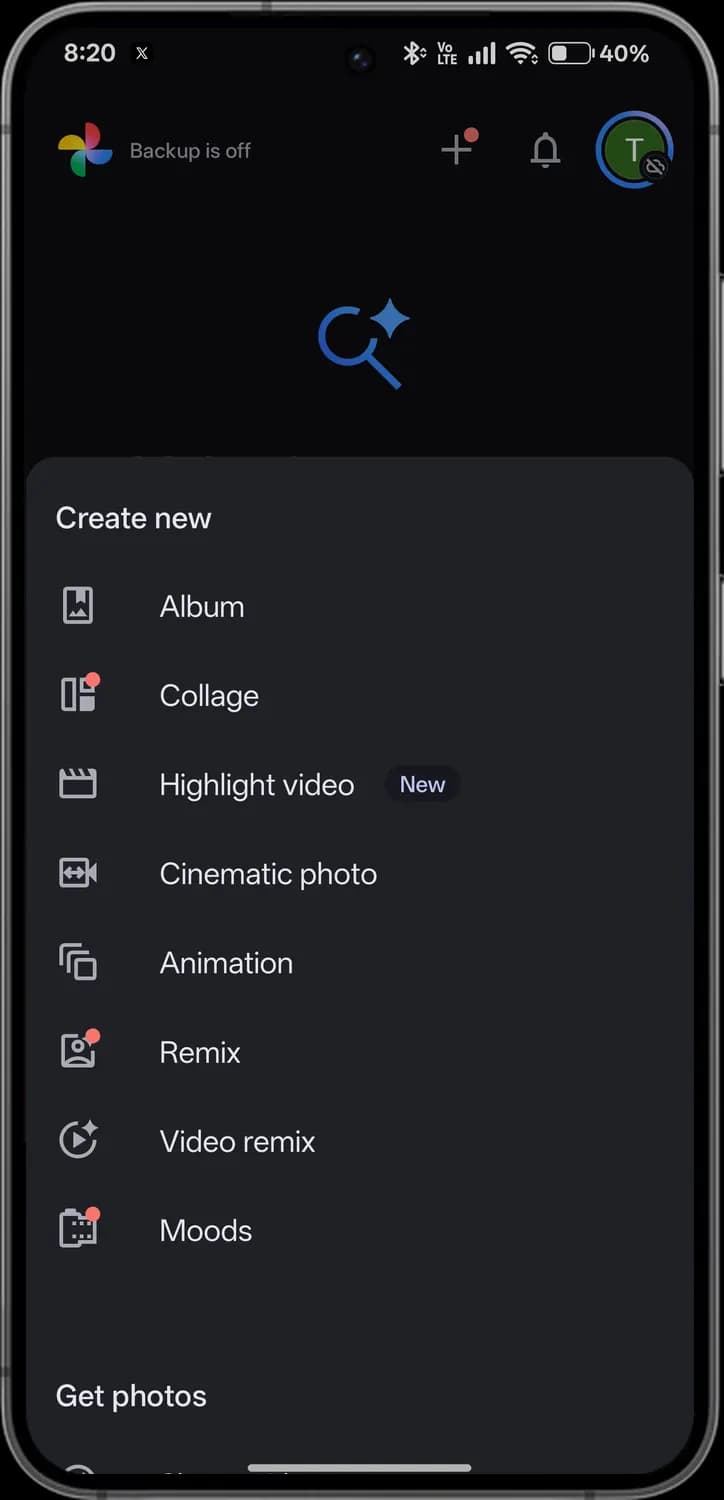
Create new menu
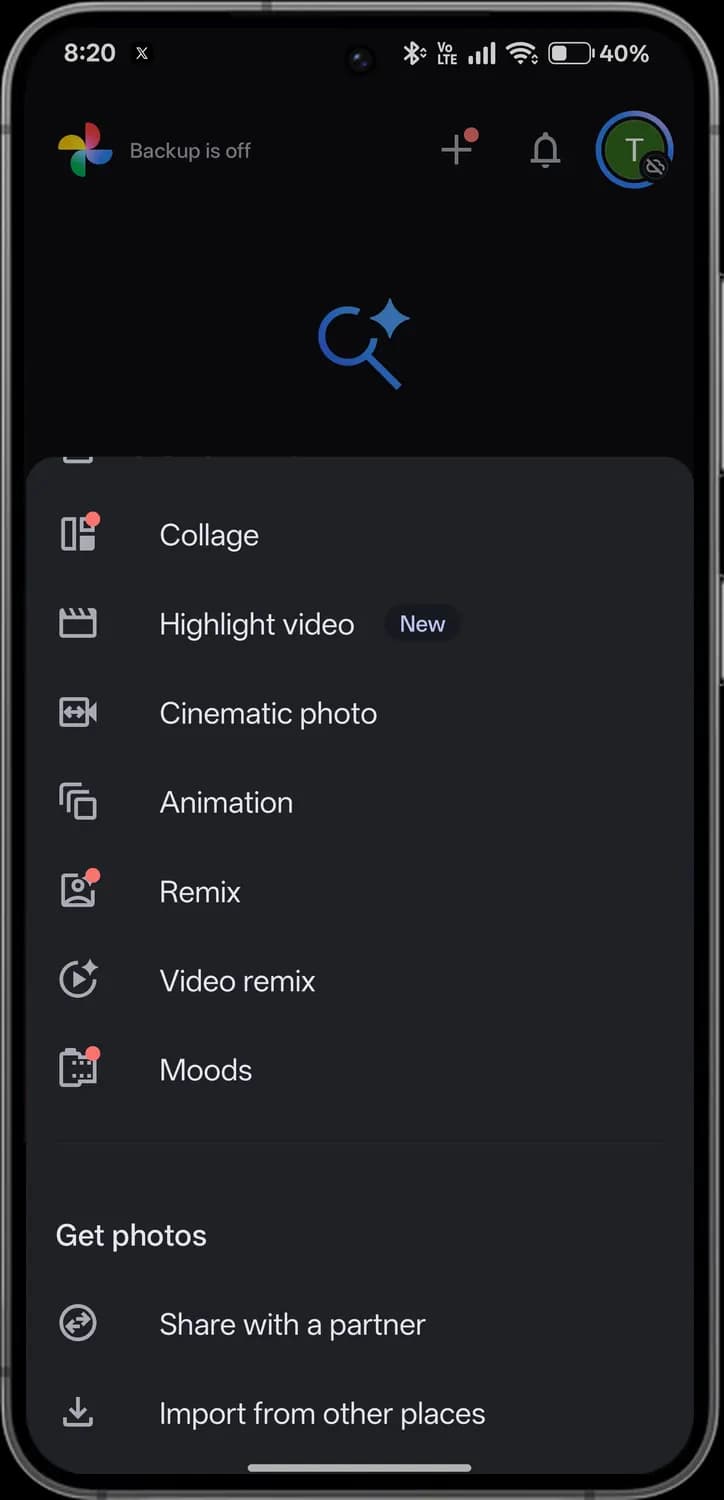
Tap the plus at the top of the home screen and this menu slides up. Scroll it to reach the Get photos options.
Swipe sideways to see every screen.
Album
Makes a new album and lets you pick the photos for it.

New dot
A red dot on a tool's icon means it is new or has changed since you last opened it.

Collage
Puts several photos together in one layout.

Highlight video
Edits your clips and photos into a short video with music.

New label
Marks a tool that was added recently.
Cinematic photo
Turns a still photo into a short 3D-style clip with a slow camera move.

Animation
Strings a few similar photos into a short looping animation.
Remix
Redraws a photo in a different art style, such as a sketch or a cartoon.

Video remix
Uses AI to restyle a video, for example relighting it or replacing the background.
Moods
Applies a film-style look adjusted to the light and colours of each photo.

Share with a partner
Shares all your photos, or only photos of the people you choose, with one partner automatically.
Import from other places
Brings in photos from somewhere else, such as another photo service.
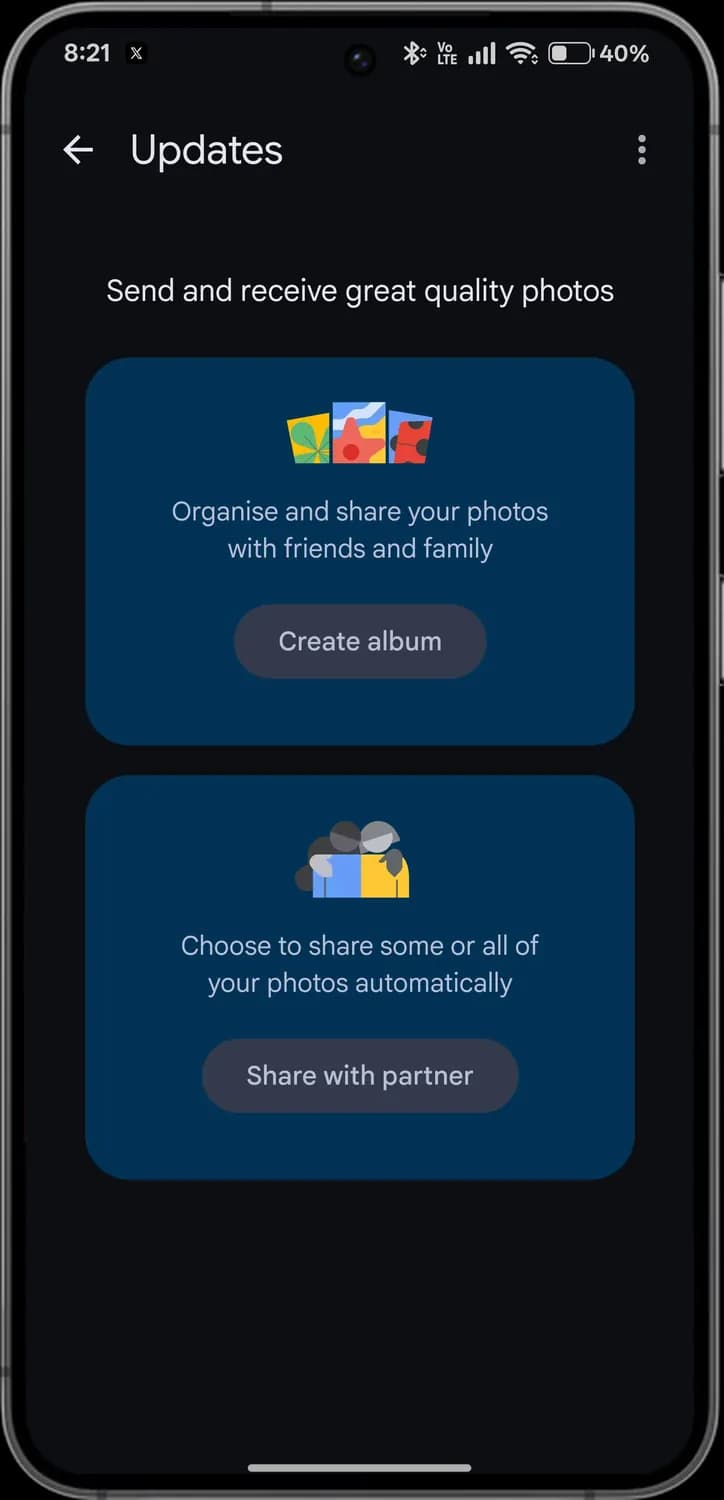
Updates
The bell on the home screen opens Updates, where shared albums and partner sharing show up.
Back
Returns to the home screen.
More options
Extra options for this page.
Create album
Starts an album you can share with friends and family so everyone can add photos.
Share with partner
Sets up partner sharing, which sends some or all of your photos to one person automatically.
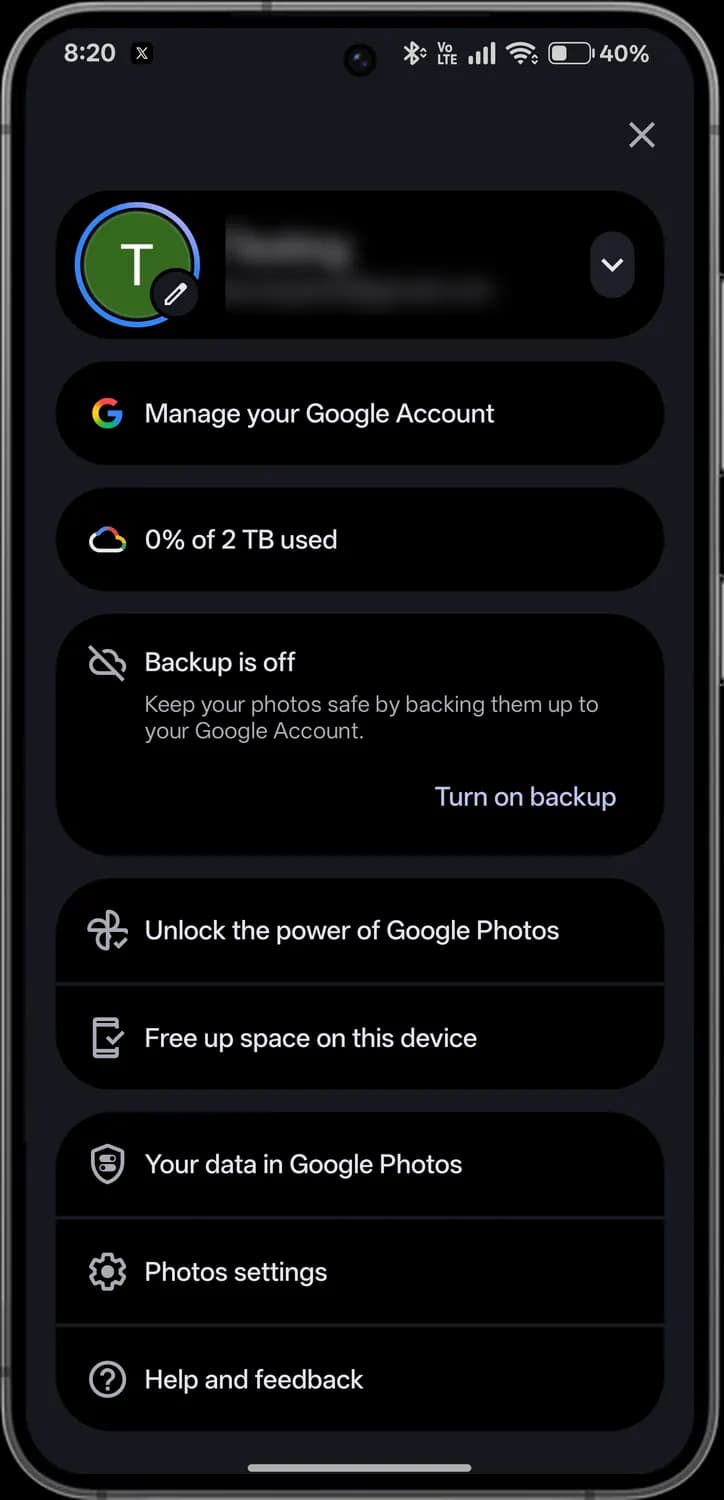
Account menu
Tap your profile picture at the top right of the home screen to open this menu. The account name and email are blurred here.

Close
Closes the menu.
Profile picture
The pencil on it changes your profile photo.
Switch account
Switches to another Google account on this phone, or adds one.
Manage your Google Account
Opens your Google Account settings, such as security and privacy.
Storage
How much of your Google storage is used. It is shared with Gmail and Drive; tap it to see what is taking space.

Backup status
Shows that backup is off and that your photos are only on this phone.
Turn on backup
Turns on backup to your Google account.
Unlock the power of Google Photos
Shows the Google Photos features you can turn on, such as backup.
Free up space on this device
Removes photos and videos from your phone that are already backed up, to free storage.

Your data in Google Photos
Shows the data Google Photos keeps, such as face groups and locations, and lets you control it.
Photos settings
All of the app's settings, from backup and notifications to sharing and memories.
Help and feedback
Opens Google Photos help, or sends feedback to Google.
Backup
Tap Backup is off at the top of the home screen to open this page; the gear opens backup settings. The account email is blurred here.
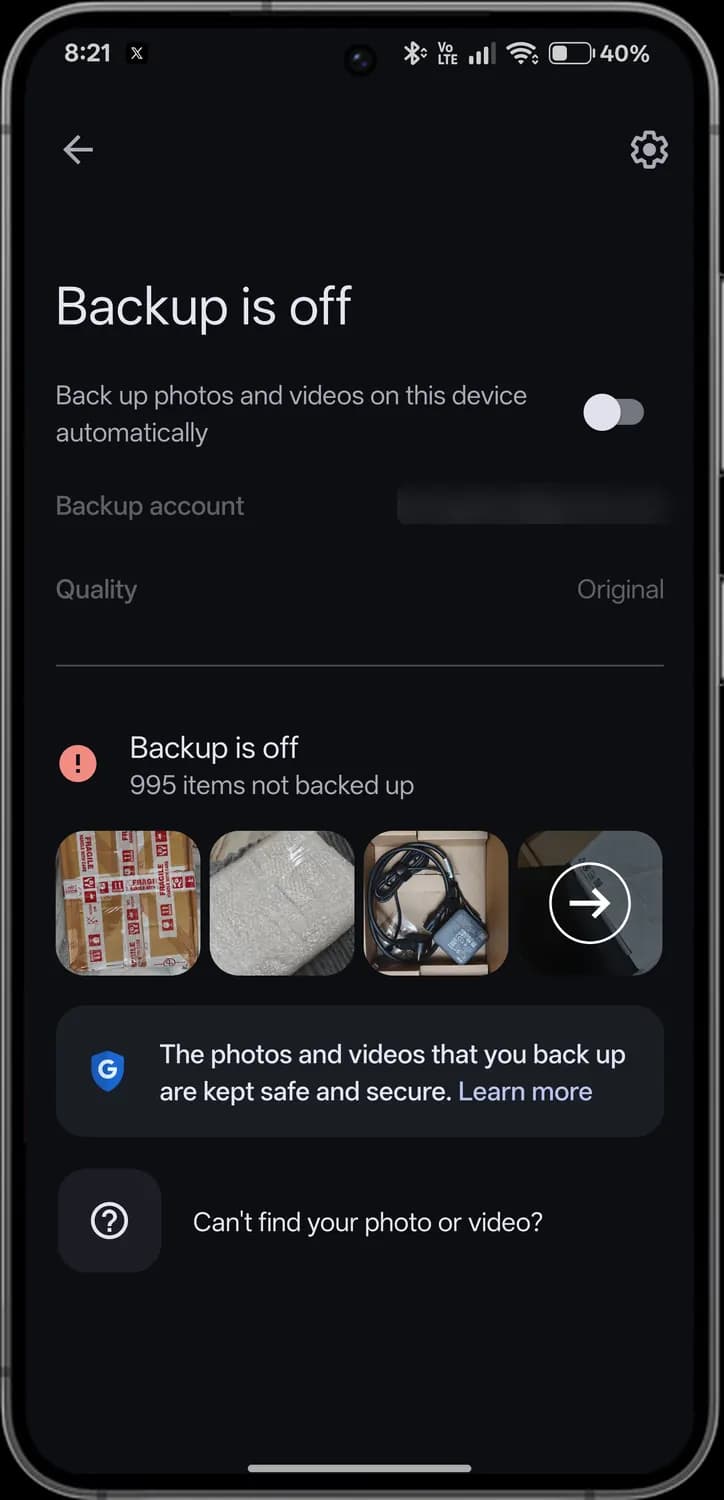
Swipe sideways to see every screen.
Back
Returns to the home screen.
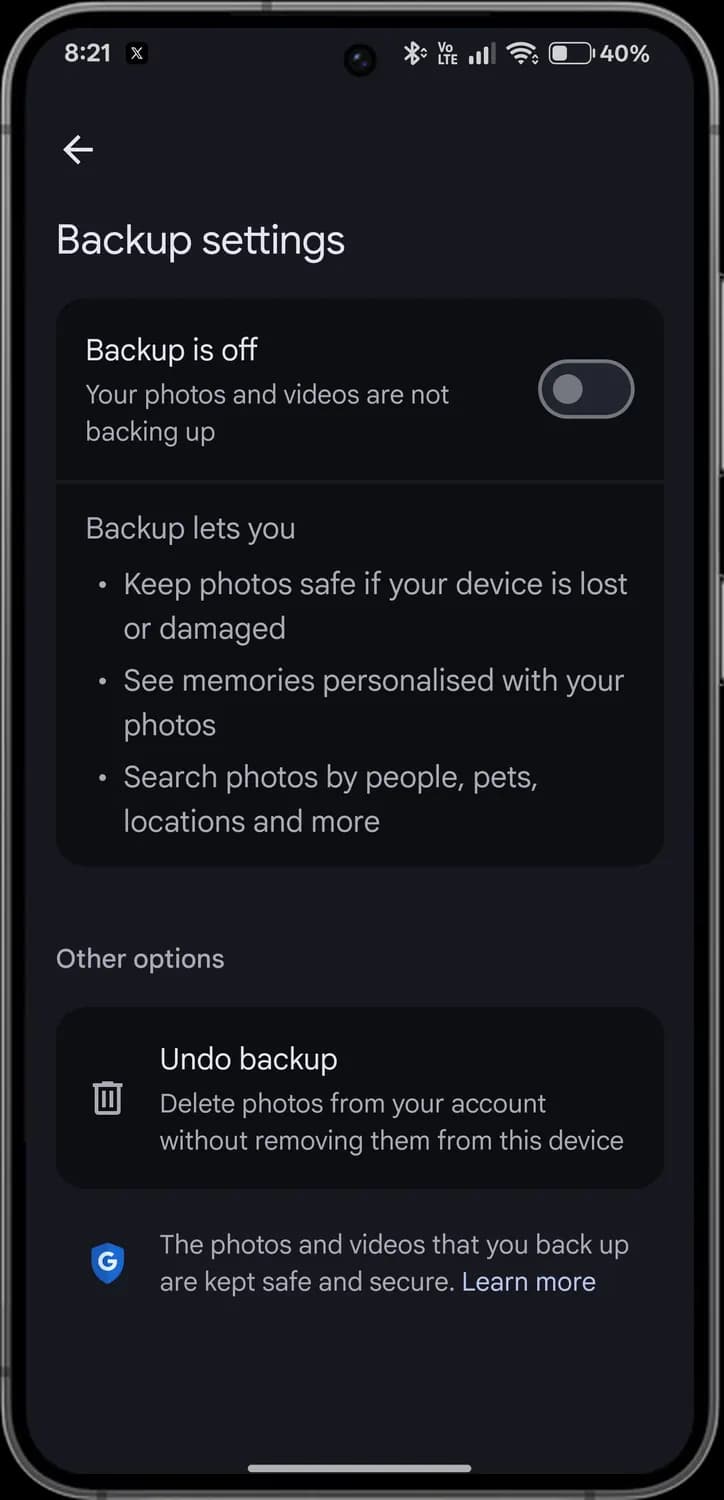
Backup settings
The gear opens the settings page shown next.
Backup switch
Turns automatic backup of this phone's photos and videos on or off.

Backup account
The Google account your photos back up to.

Quality
Original keeps photos at full quality. Storage saver shrinks them slightly to use less space.
Not backed up
The red exclamation mark shows how many photos and videos are only on this phone.
See all
The arrow opens every photo and video waiting to be backed up.

Safe and secure
The shield links to how Google protects your backed-up photos.

Can't find your photo or video?
Help for photos and videos that seem to be missing.
Undo backup
Deletes the backed-up copies from your Google account and keeps the ones on this phone.
Collections
Collections gathers your albums in one place. Pinned shortcuts sit at the top, then the folders on your phone, places and other collections.
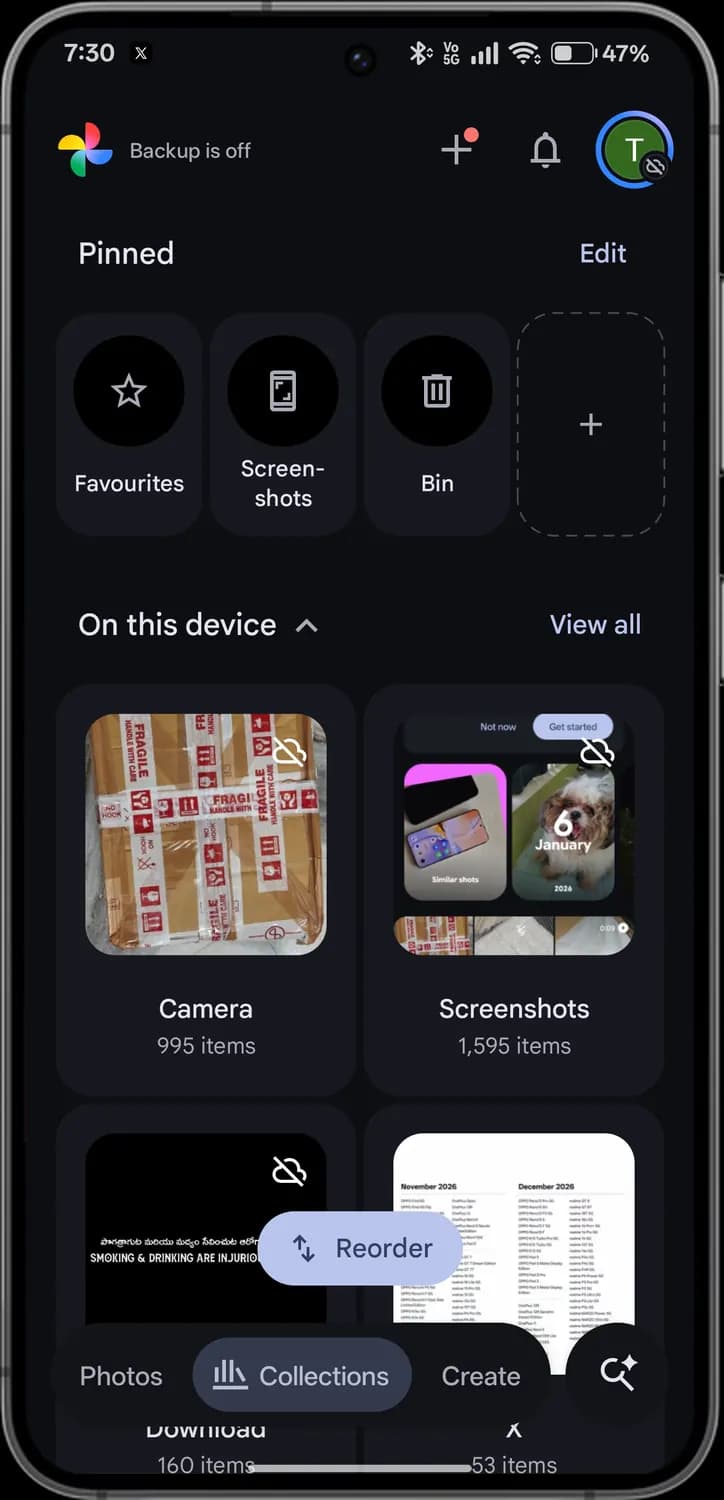
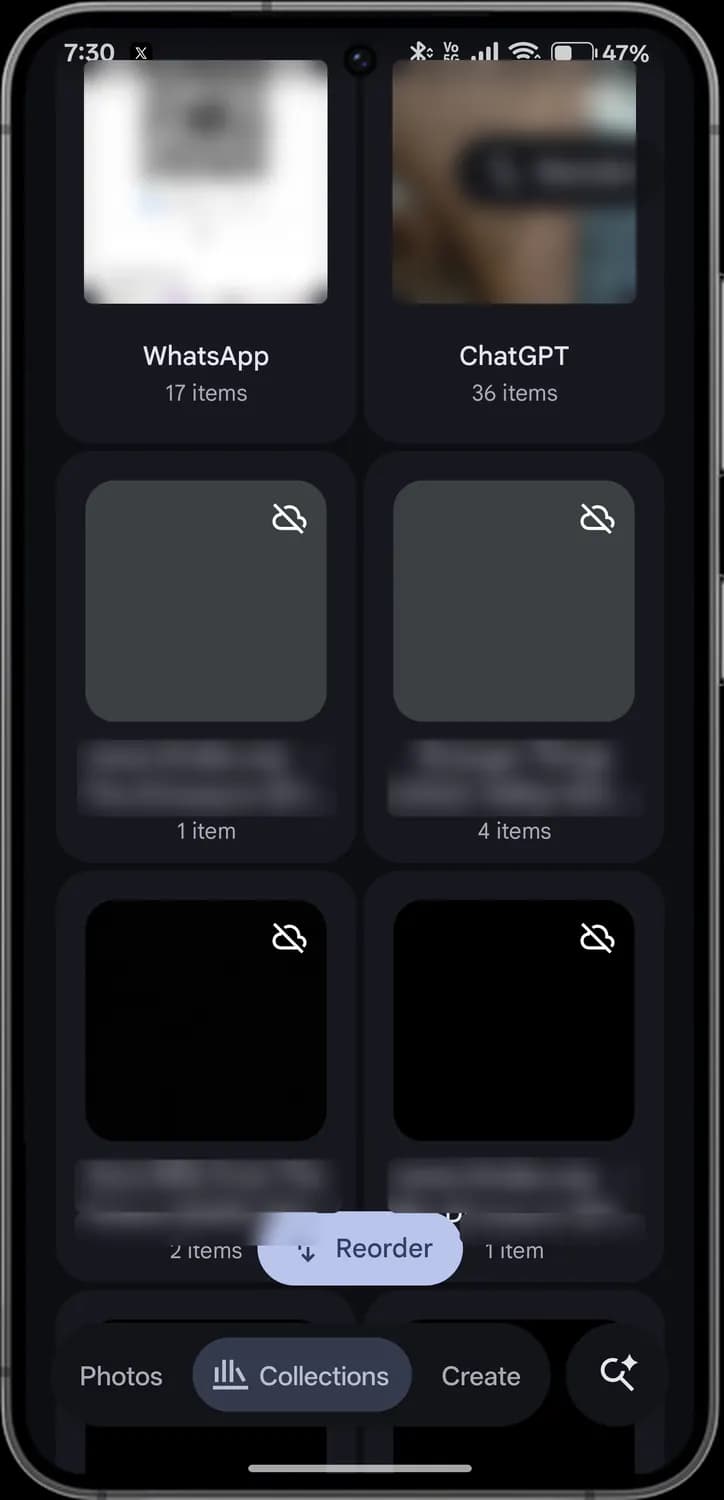
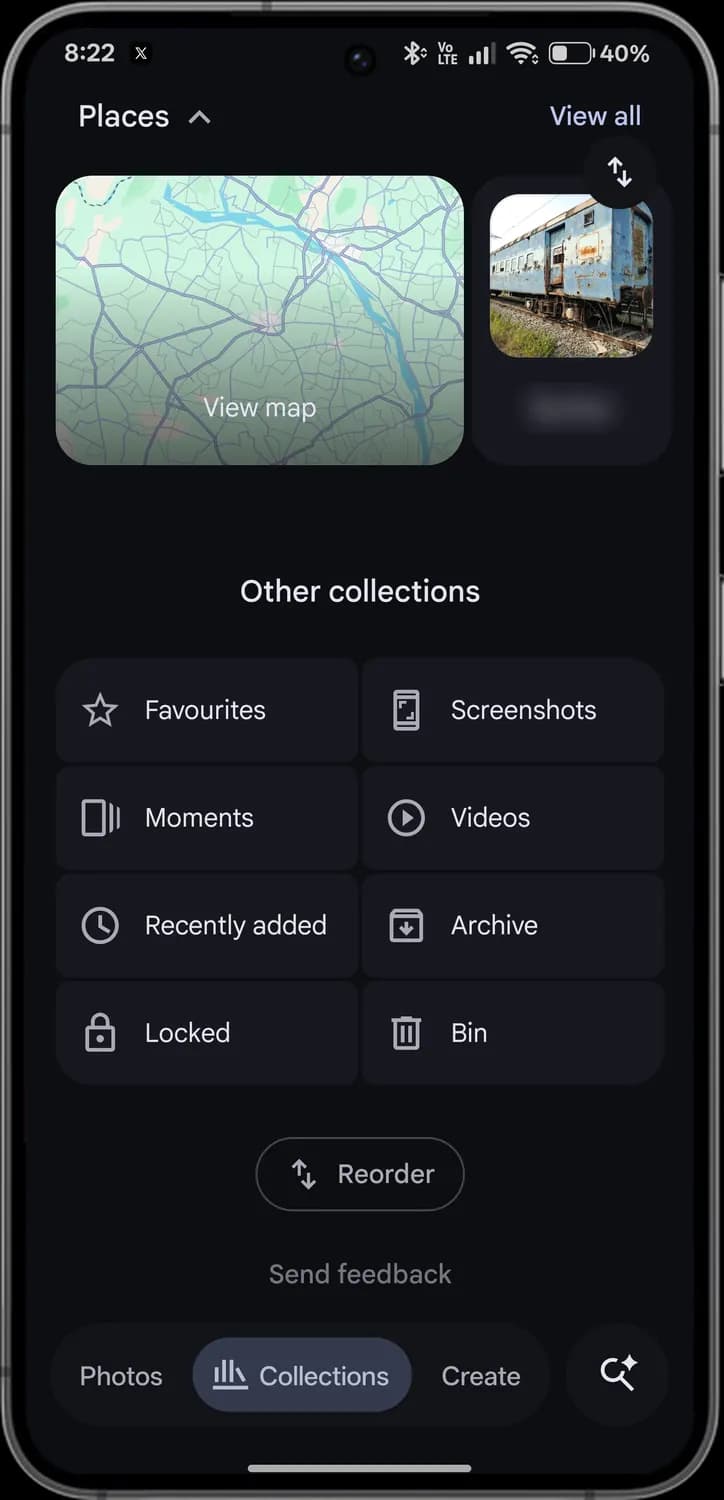
Swipe sideways to see every screen.
Edit pinned
Choose which collections stay pinned at the top, and in what order.

Favourites
Every photo and video you have starred.
Screenshots
All the screenshots on your phone, kept apart from your camera photos.

Bin
Deleted photos and videos wait here before they are removed for good: 30 days for items only on your phone, 60 days for backed-up items.

Add a pinned collection
Pin another album or collection to this row.

Show or hide
The arrow next to On this device folds the section away or opens it again.
View all
Opens the full list of folders on your phone.

Not backed up
A crossed-out cloud on a folder means its photos are only on this phone and are not saved to your Google account.
Reorder
Drag your albums and folders into the order you want.
Collections tab
Highlighted when you are in Collections.
Folders from other apps
Apps that save images, such as WhatsApp or ChatGPT, get their own folder here, with the number of items under its name.

Folder not backed up
The same crossed-out cloud on these folders: their photos and videos are only on this phone.
Places
Photos grouped by where they were taken. The arrow folds the row away.
View map
Shows your photos on a map, by where they were taken.

Place album
Each place gets its own album. The name is blurred here.
Moments
Groups photos from events and trips into their own collections.

Videos
Every video in your library, in one place.
Recently added
Photos and videos newest to your library, including downloads and saved images.
Archive
Photos you archived to keep them out of your main grid.
Locked
Opens Locked Folder; it needs your screen lock.
Send feedback
Sends feedback about Collections to Google.
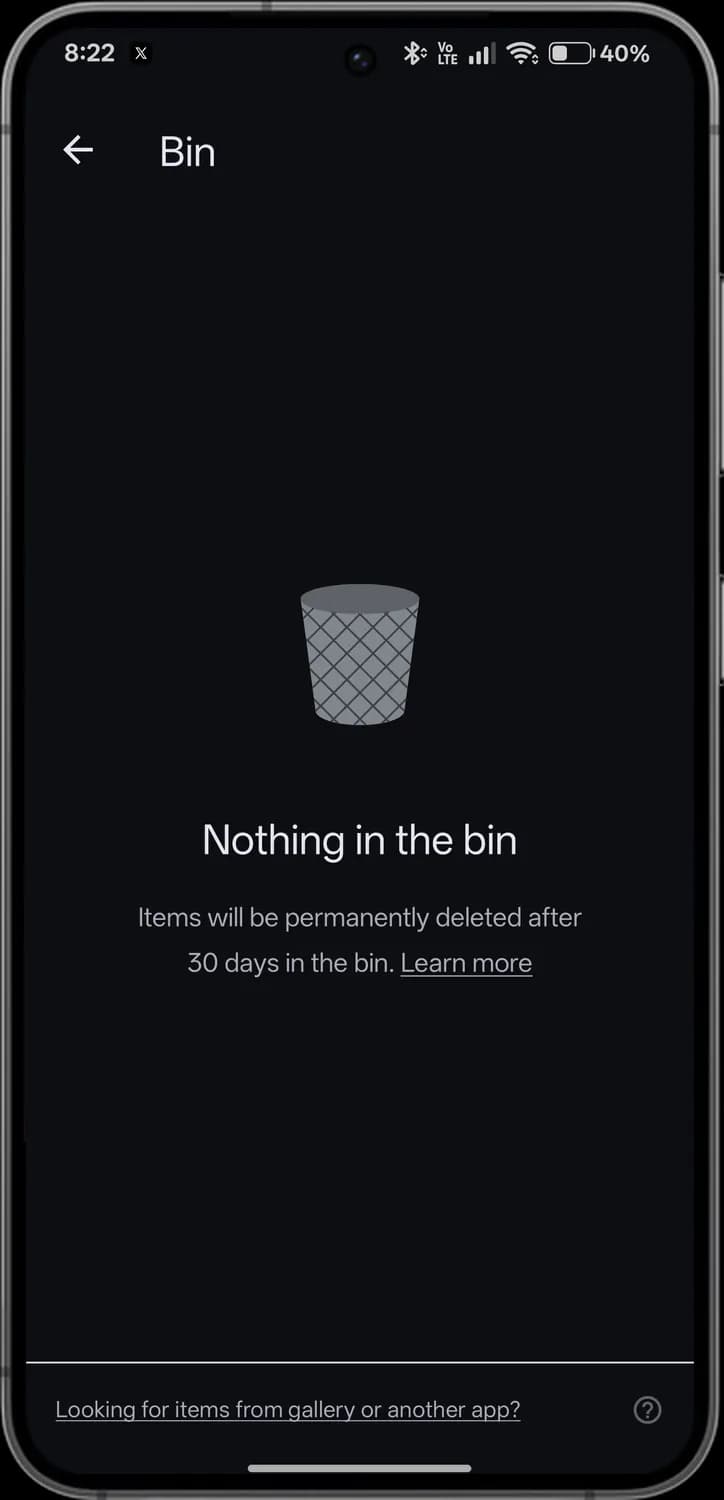
Bin
Open Bin from Collections to see deleted photos and videos before they are gone for good.
Back
Returns to Collections.
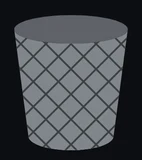
Empty bin
Shown when nothing is waiting to be deleted.
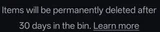
Deletion countdown
Items are deleted for good after a while in the bin: 30 days for items only on your phone, as here, and 60 days for backed-up items.

Gallery and other apps
If you deleted something in another gallery app, this link explains where to look.
Help
Opens help for the bin.
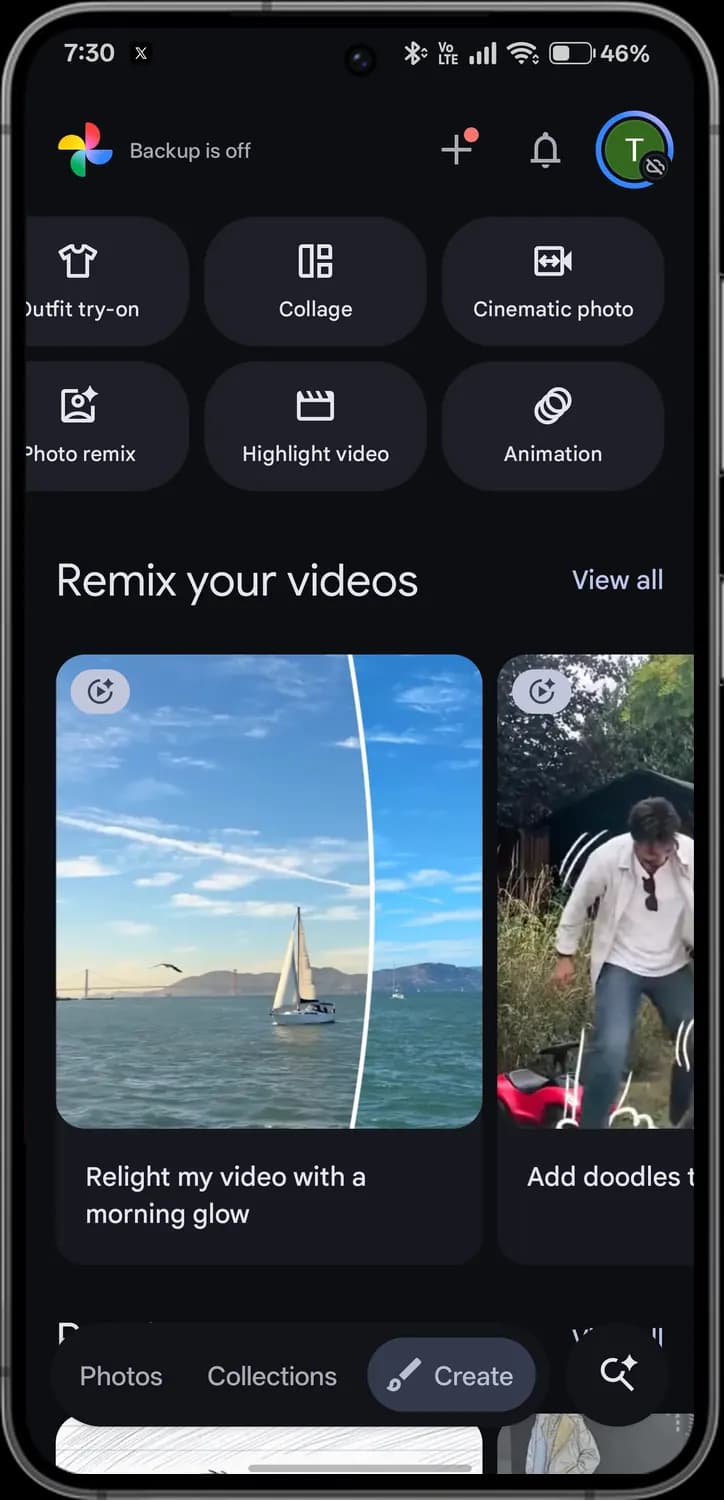
Create tab
The Create tab turns your photos and videos into something new. Swipe the rows sideways to see every tool.
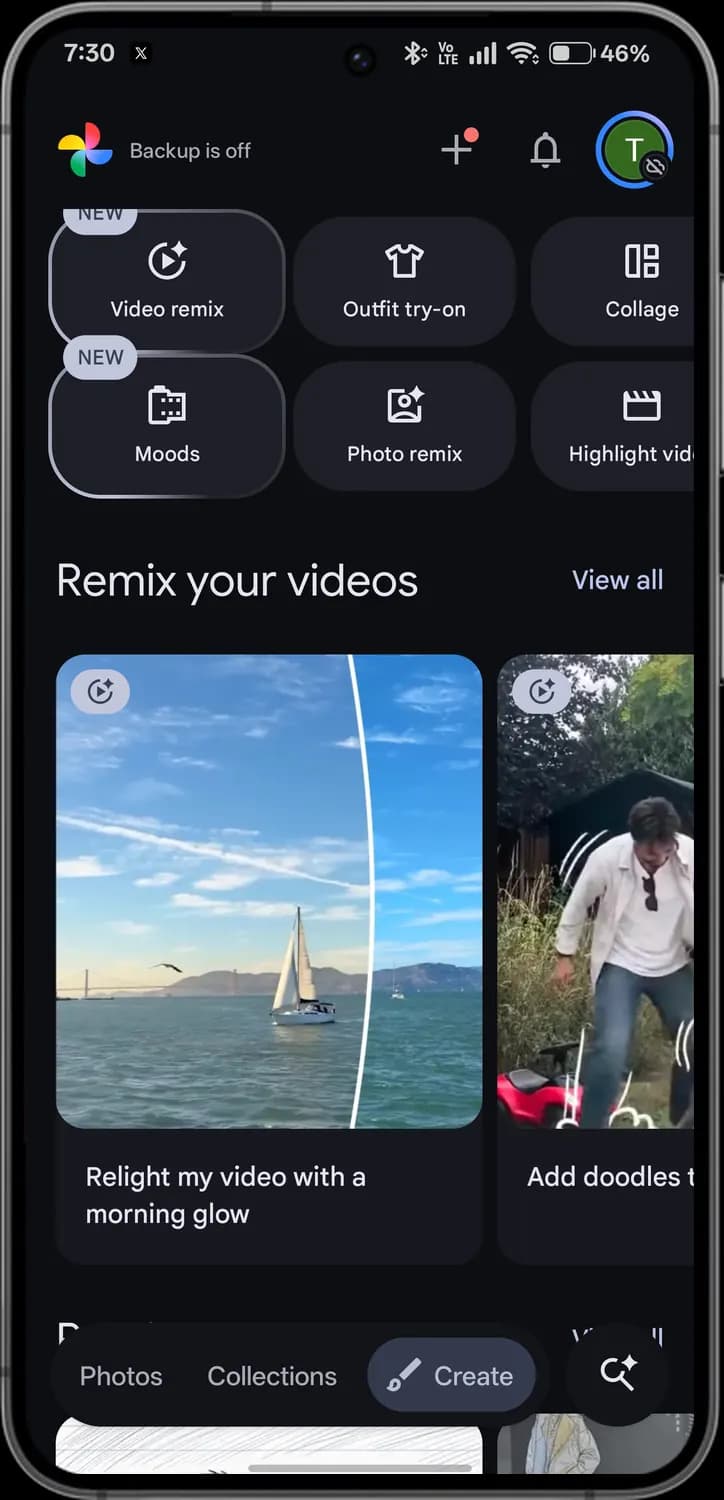
Swipe sideways to see every screen.

New badge
Marks a tool that was added recently.

Video remix
Uses AI to restyle a video, for example relighting it, replacing the background or adding drawn effects.

Outfit try-on
Shows how clothes could look on you, using a photo of yourself.

Collage
Puts several photos together in one layout.

Moods
Applies a film-style look, such as Crisp 35mm or Airy Minimalist, adjusted to the light and colours of each photo.

Photo remix
Redraws a photo in a different art style, such as a sketch or a cartoon.

Highlight video
Picks your best clips and photos and edits them into a short video with music.

Remix template
This badge on a card marks a ready-made video remix. Tap the card to try that effect on one of your videos.

View all
Shows every ready-made remix idea.
Create tab
The brush icon shows you are in the Create tab.

Cinematic photo
Turns a still photo into a short 3D-style clip with a slow camera move.

Animation
Strings a few similar photos into a short looping animation.
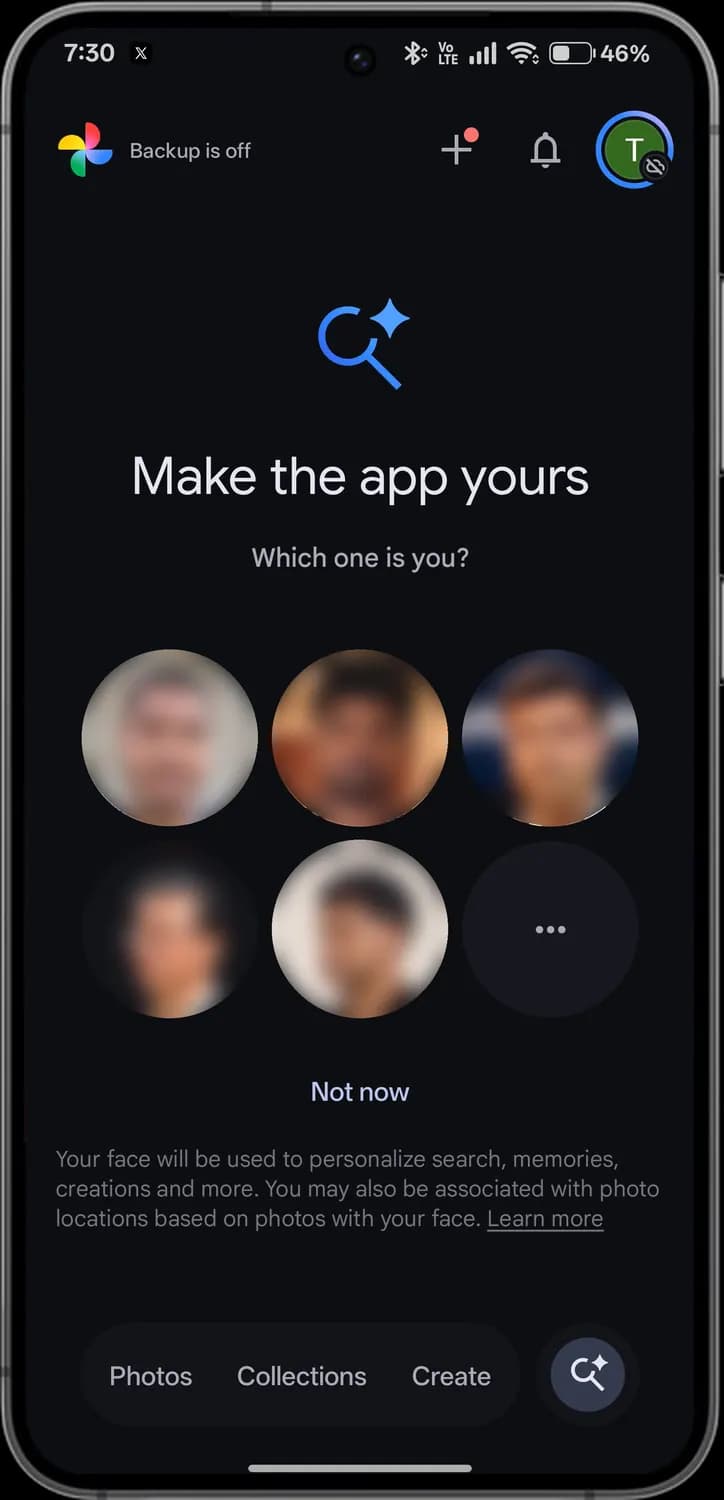
Ask Photos setup
The first time you tap the Ask button, Google Photos asks which face is yours, so search and memories can recognise you.

Ask Photos
The magnifier with a sparkle stands for Ask Photos, the search that understands plain questions.
Which one is you?
Pick your own face from the people Google Photos found, so you can search for photos of yourself and get memories about you.

More faces
The three dots show more faces if yours isn't in the first rows.
Not now
Skips this step. You can set it up later.

Learn more
Explains how your face is used for search, memories, creations and photo locations.

Ask tab
The Ask button is highlighted while you are in Ask Photos.
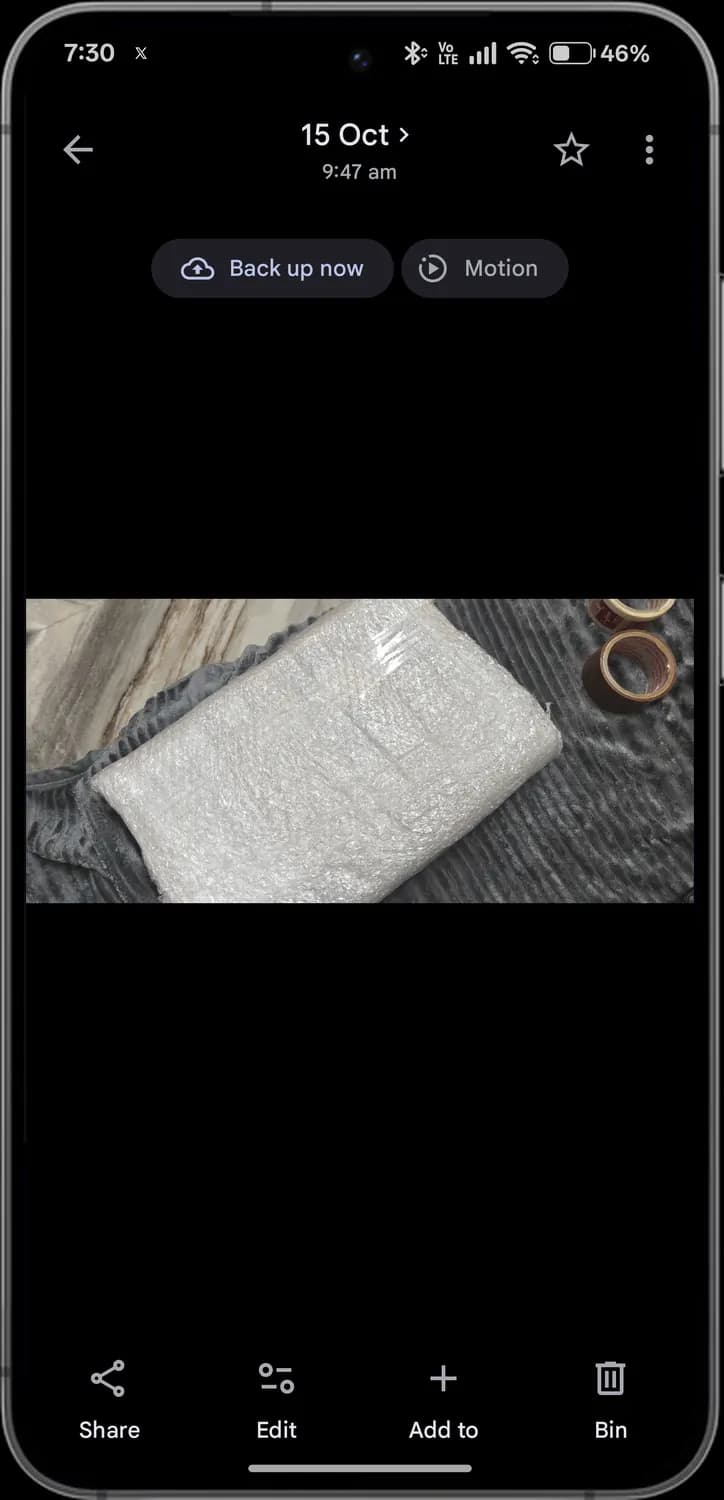
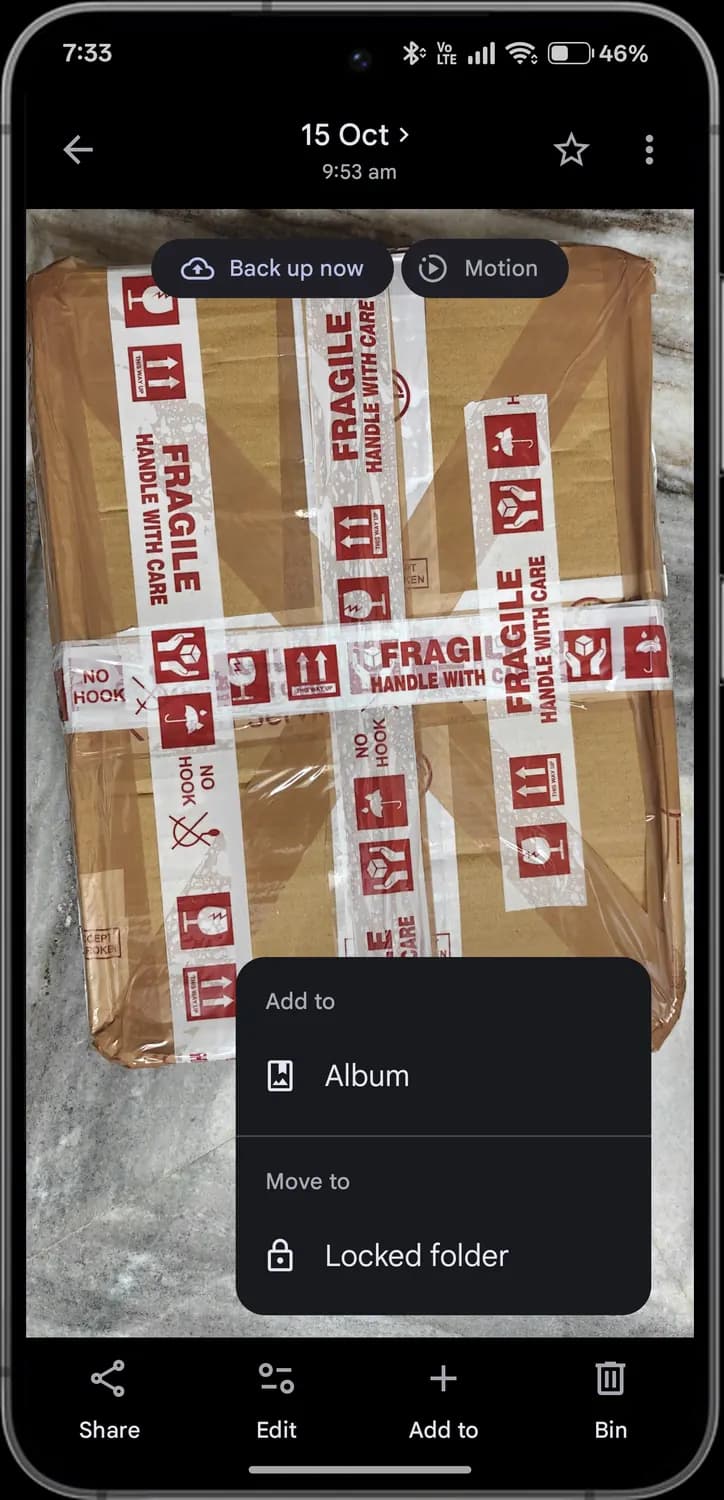
Photo viewer
Open any photo and these controls appear around it. Tap the photo once to hide them and see it full screen.

Back
Returns to the grid or album you came from.
Date and time
When the photo was taken. Tap it to see details such as the location, camera and file size.
Favourite
Stars the photo and adds it to Favourites.
More options
Opens the menu below, with Google Lens, Archive, Cast and more.
Back up now
The cloud with an arrow uploads this photo to your Google account right away, even with backup off.
Motion
Plays the few seconds of movement saved with a motion photo.
Share
Sends the photo to an app or a contact, or creates a link to it.
Edit
Opens the photo editor. Its tools are explained further down.
Add to
Adds the photo to an album, or moves it to Locked Folder.
Bin
Moves the photo to the Bin.
More options menu
The three dots in the photo viewer open this menu.
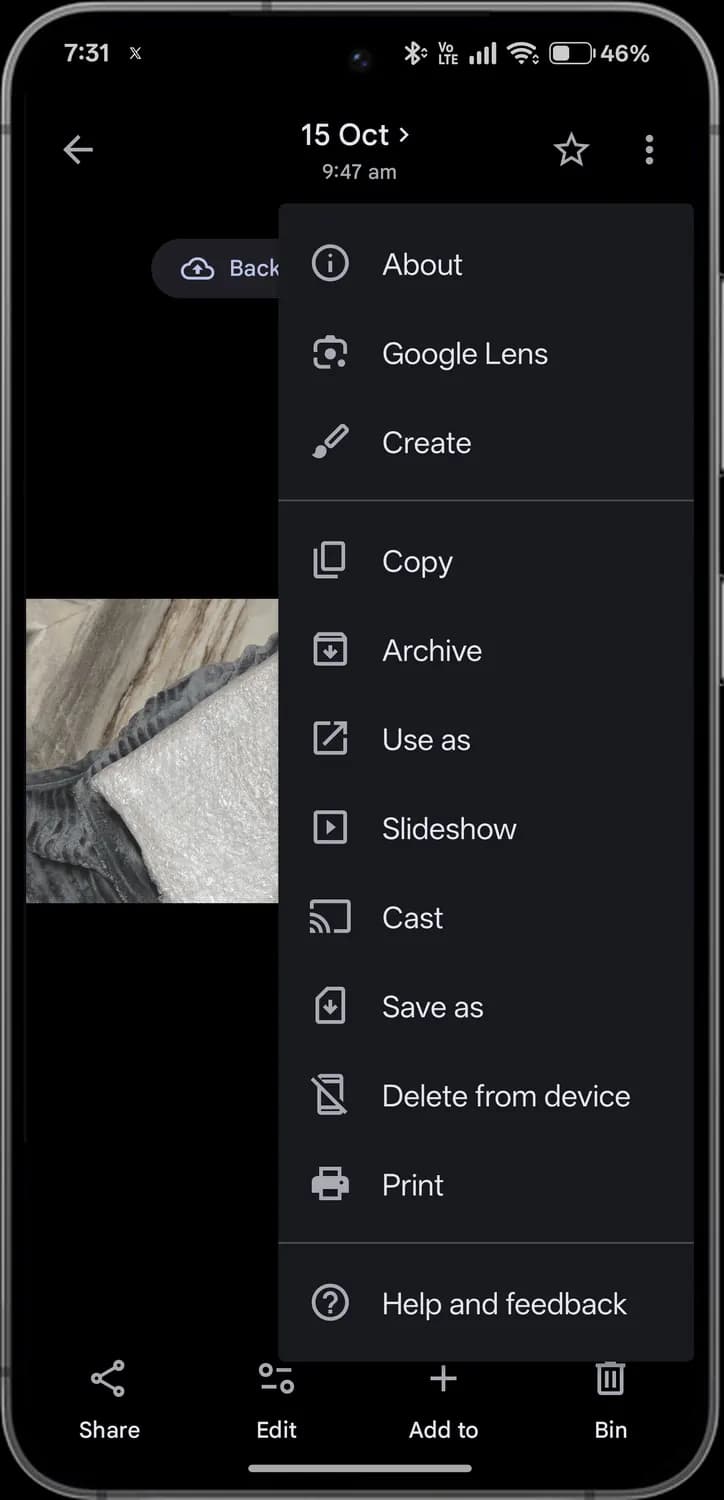

About
Shows the photo's details: date, location, camera, size and who it is shared with.
Google Lens
Identifies what is in the photo, copies its text or searches for similar things.

Create
Makes a collage, animation or other creation that starts from this photo.

Copy
Copies the photo so you can paste it into another app.
Archive
Hides the photo from your main grid without deleting it. Archived photos stay in albums and search.

Use as
Sets the photo as your wallpaper or a contact photo.

Slideshow
Plays the photos around this one as a slideshow.

Cast
Shows the photo on a TV or display with Chromecast or Google TV.
Save as
Saves a copy of the photo to a folder you pick.

Delete from device
Removes the copy on your phone. A backed-up copy stays in your Google account.
Print
Sends the photo to a printer.

Help and feedback
Opens Google Photos help, or lets you send feedback to Google.
Add to sheet
Tap Add to in the photo viewer and this sheet slides up.
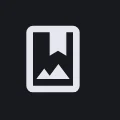
Album
Adds the photo to an existing album or a new one.
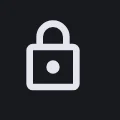
Locked folder
Moves the photo into Locked Folder. It disappears from your grid, albums and search, and needs your screen lock to view.
Photo editor
Tap Edit on any photo to open the editor. The quick controls sit at the top, and the tool tabs run along the bottom; swipe them sideways to reach the rest.
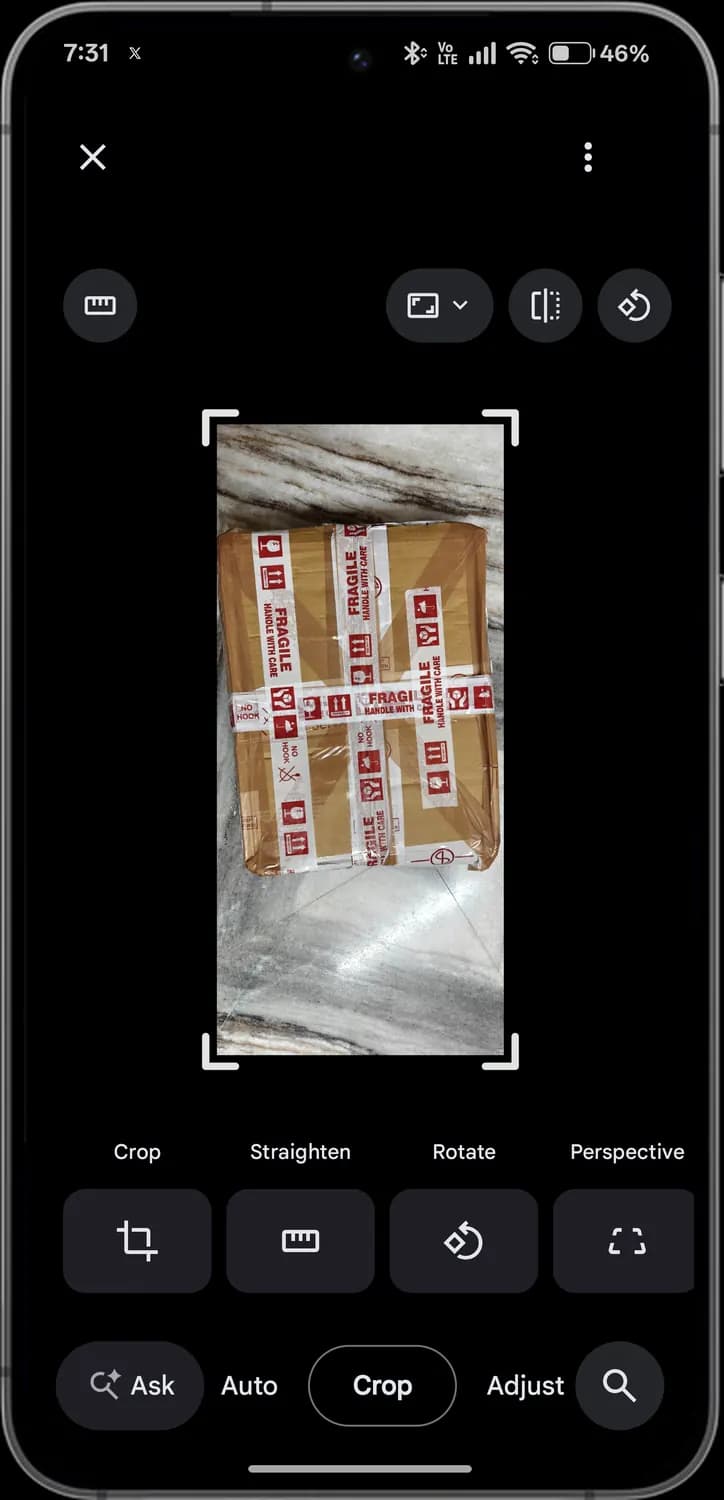

Close
Leaves the editor. If you made changes, it asks whether to save or discard them.
More options
Extra editor options, such as exporting a copy.
Straighten
A shortcut to level a tilted horizon.
Aspect ratio
Locks the crop to a shape such as square, 4:3 or 16:9.
Mirror
Flips the photo left to right.
Rotate
Turns the photo 90 degrees each time you tap.
Crop handles
Drag the corners or edges to crop the photo.
Ask
Describe the edit you want, such as remove the reflection or brighten the sky, and the editor makes it.
Tool tabs
Switch between Auto, Crop, Adjust, Actions, Markup, Filters and More. Each tab is explained below.

Search tools
Finds an editing tool by name, so you don't have to swipe through the tabs.
Editor: Auto tools
One-tap fixes, shown as previews of your own photo.
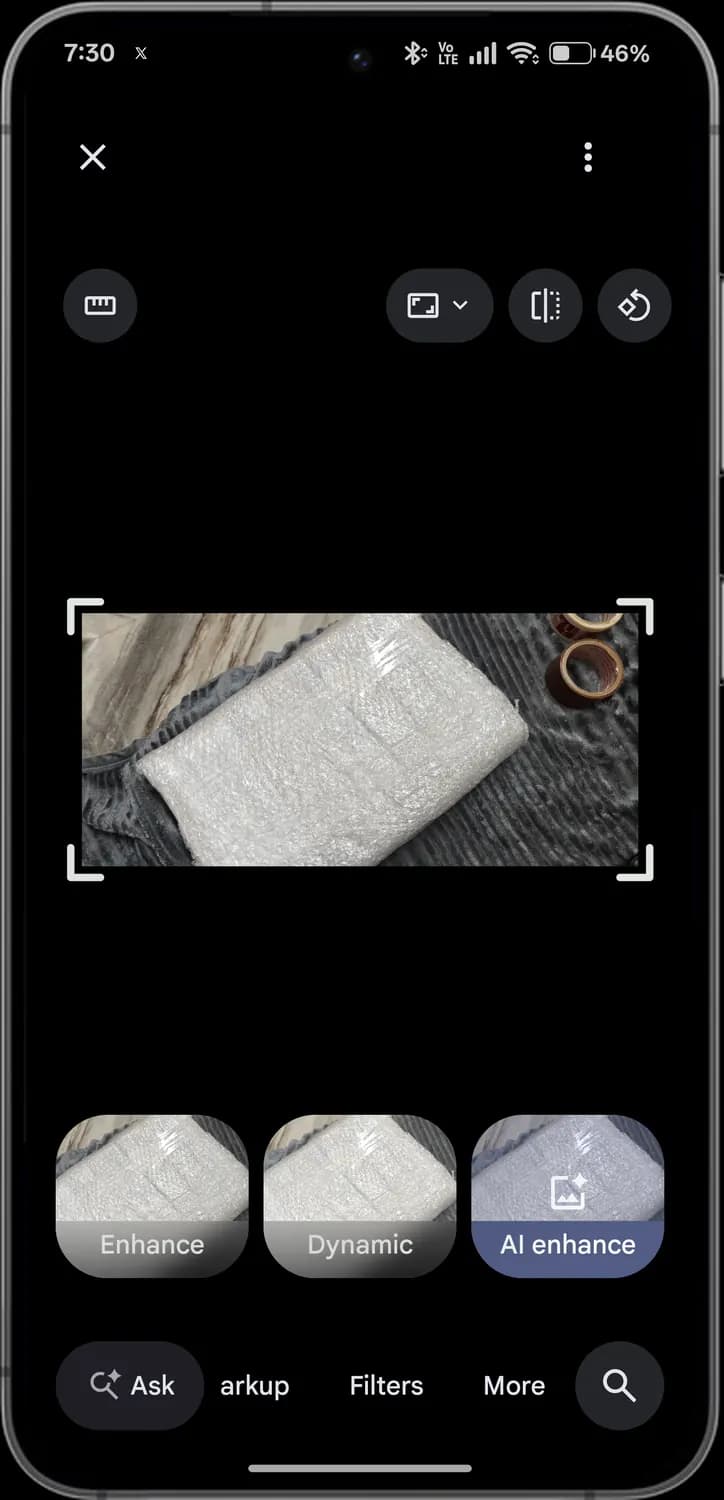
Enhance
Balances brightness, contrast and colour in one tap.
Dynamic
A stronger fix with more contrast and richer colour.
AI enhance
Uses AI to sharpen detail, clean up noise and fix light together.
Editor: Crop tools
Tools that change the frame and angle of the photo.
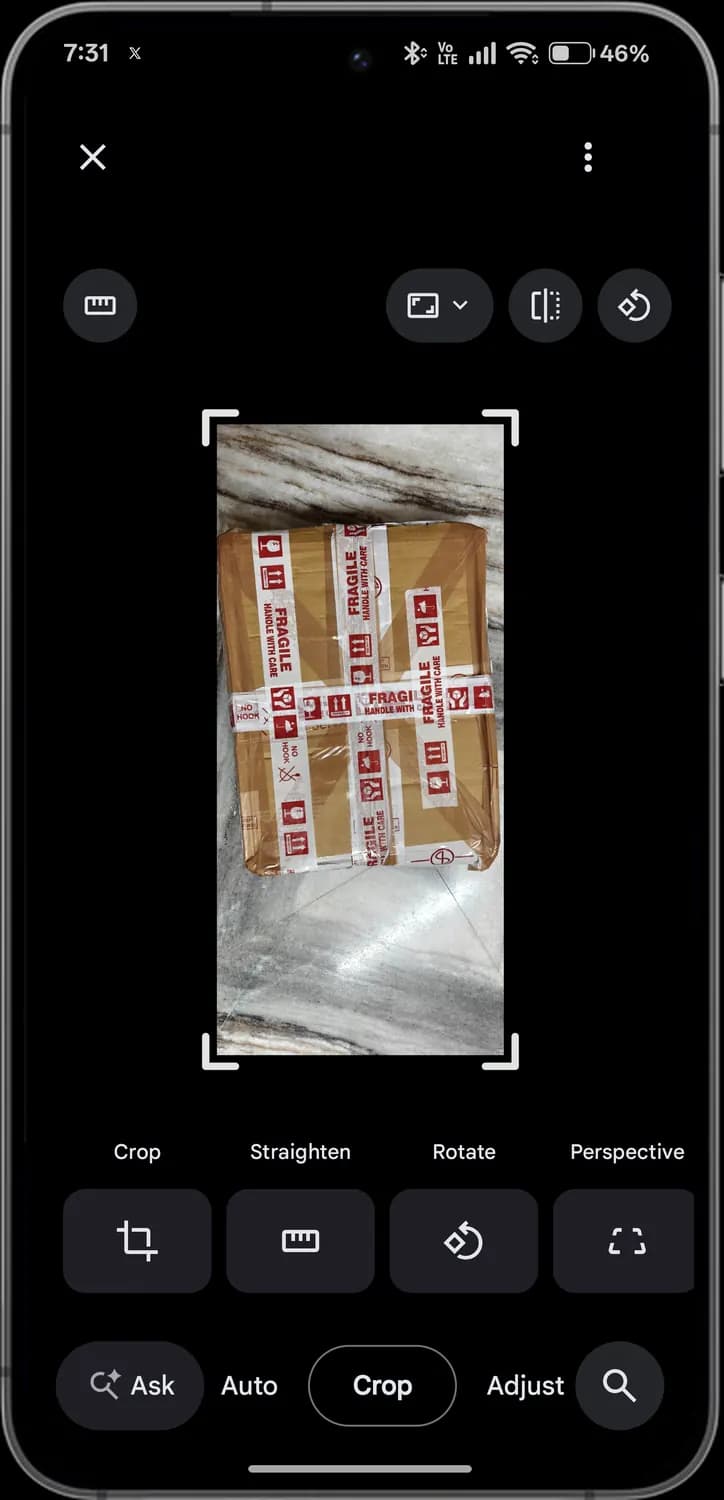
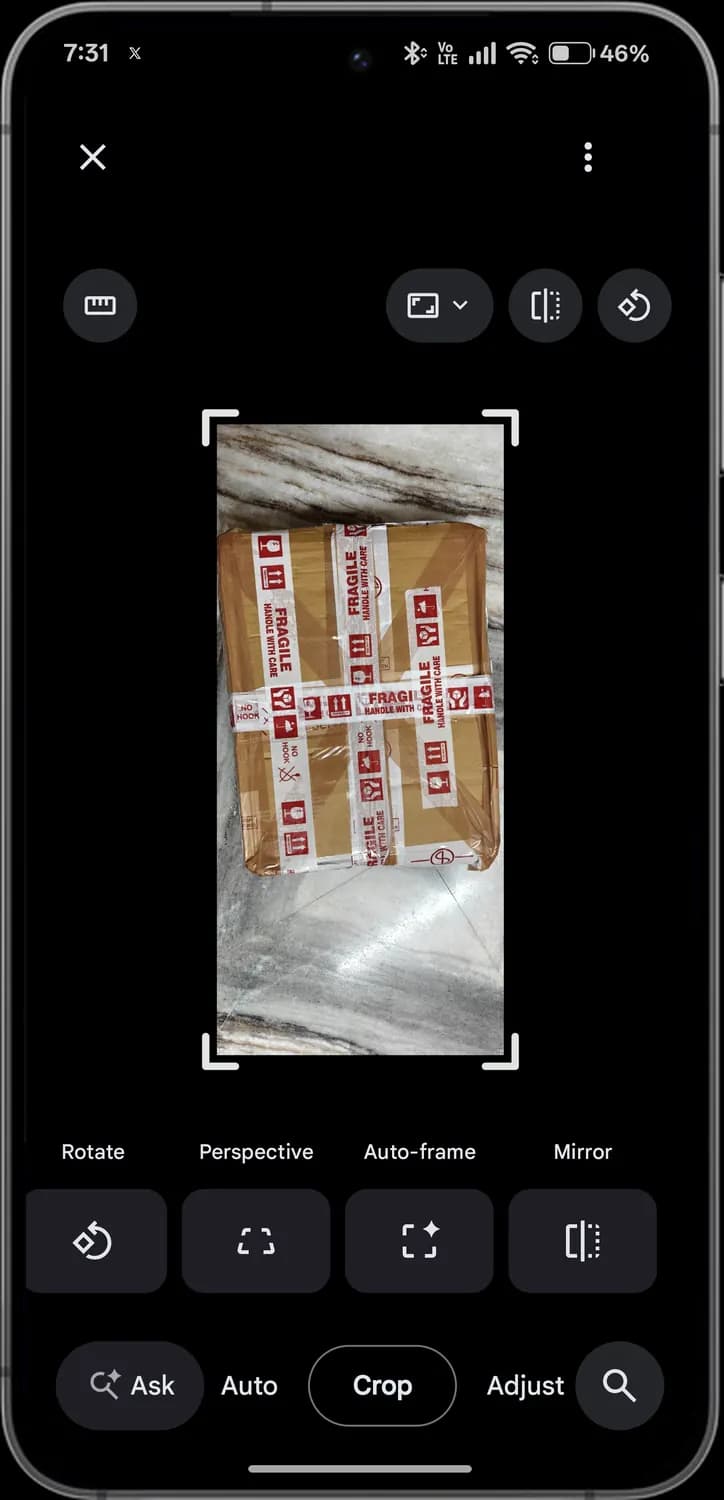
Swipe sideways to see every screen.

Crop
Trims the edges of the photo.
Straighten
Levels a tilted photo with a slider.

Rotate
Turns the photo 90 degrees.

Perspective
Corrects shapes that lean, such as a building shot from below or a document shot at an angle.
Auto-frame
Uses AI to reframe the photo, and can fill in edges beyond the original frame.

Mirror
Flips the photo left to right.
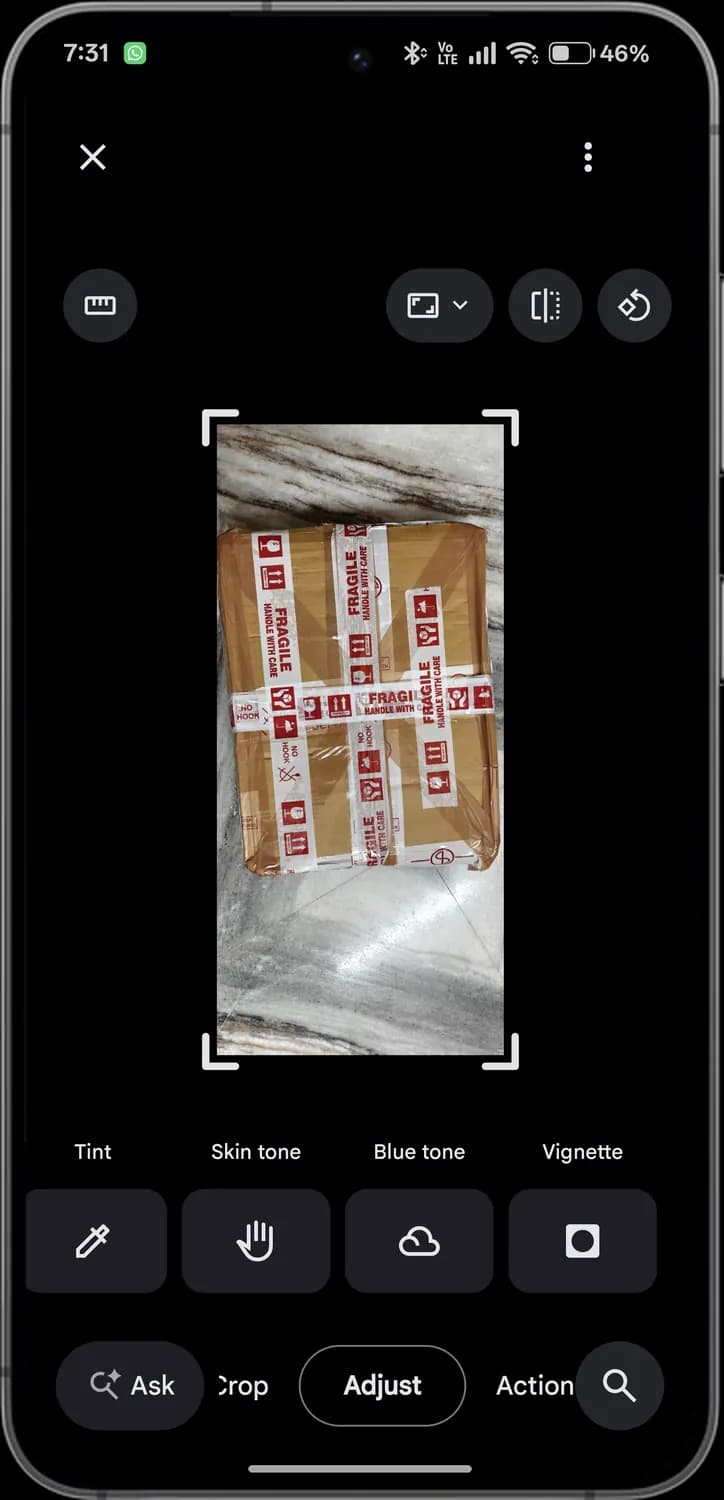
Editor: Adjust tools
Sliders for light and colour. Swipe the row to see them all.
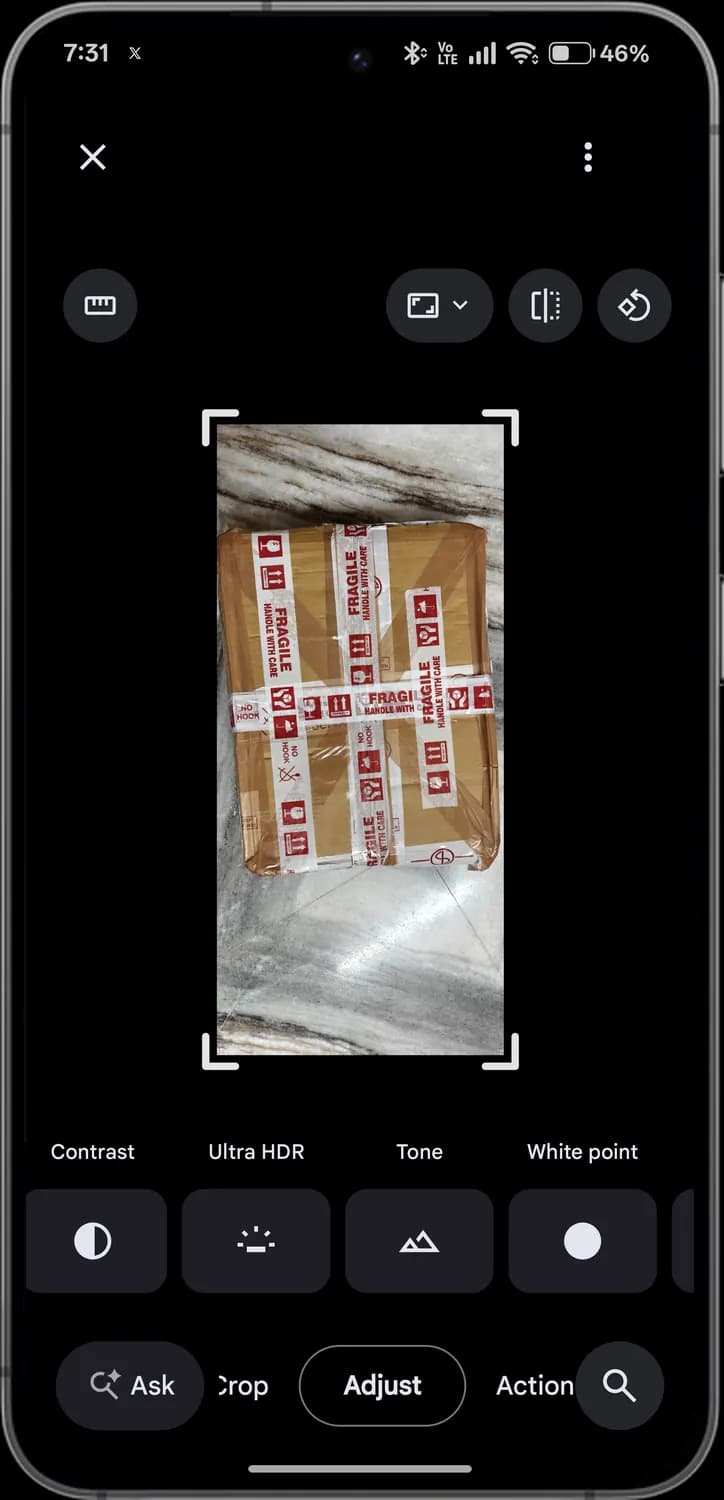
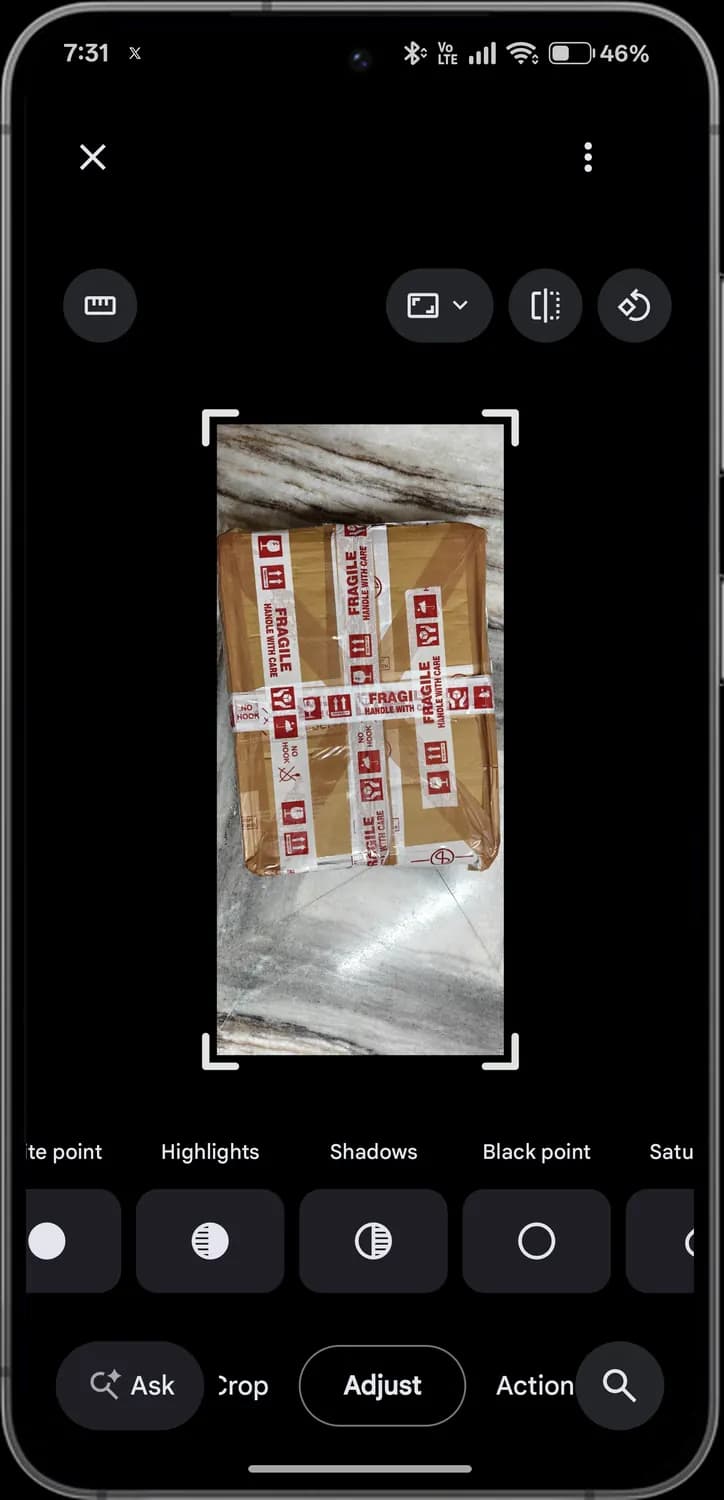
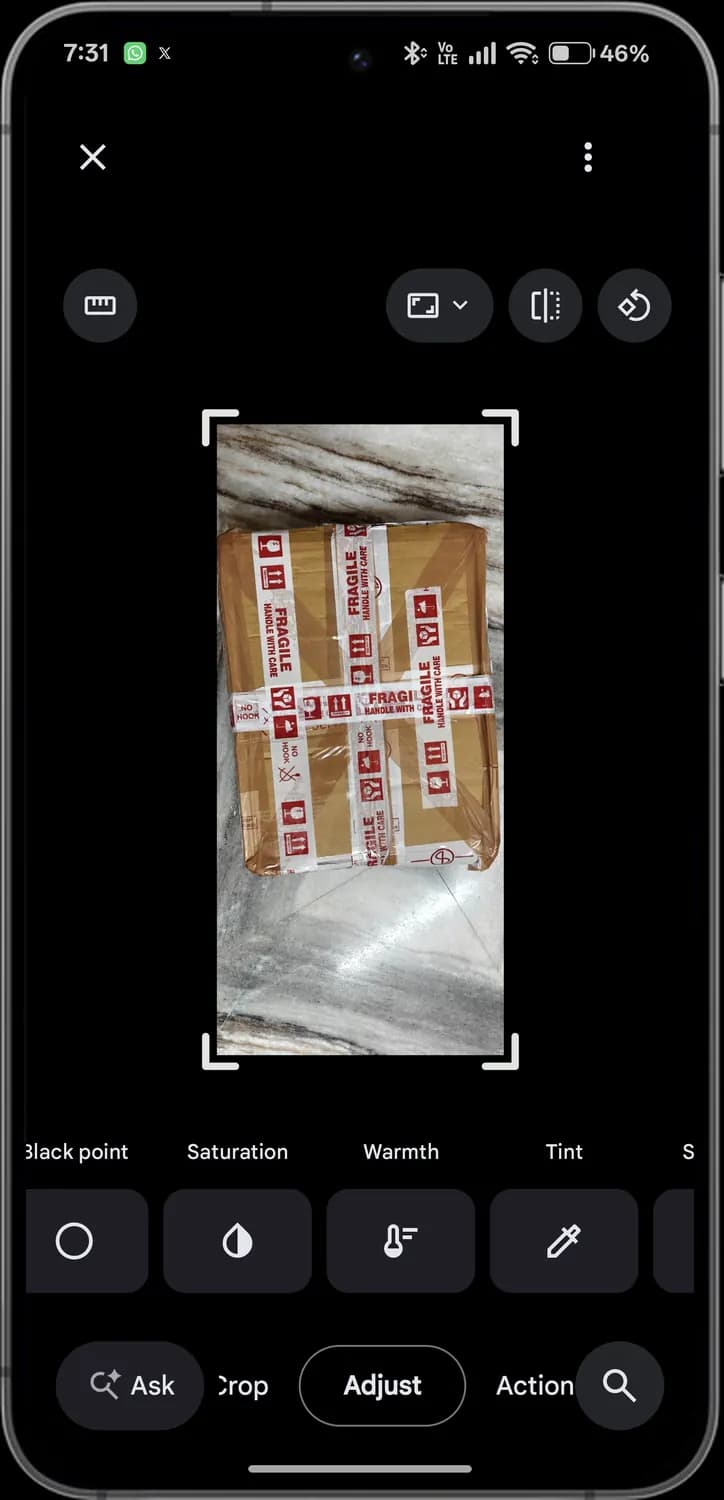
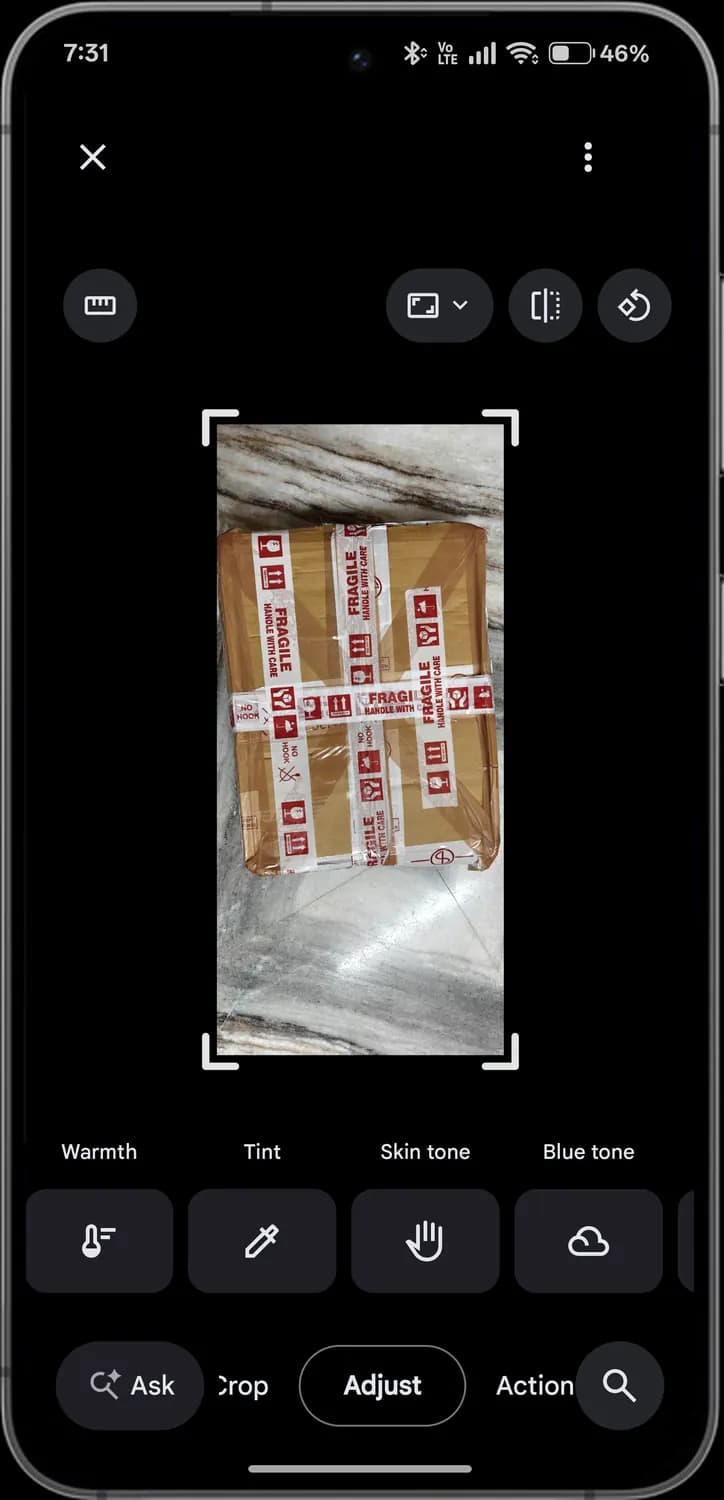
Swipe sideways to see every screen.

Contrast
Increases or reduces the difference between light and dark areas.

Ultra HDR
Adds extra brightness to highlights on screens that support Ultra HDR.

Tone
Balances the light and dark tones across the whole photo.

White point
Sets how bright the brightest parts of the photo get.

Highlights
Brings back or brightens detail in the bright areas.

Shadows
Lifts or deepens the dark areas.

Black point
Sets how dark the darkest parts of the photo get.

Saturation
Makes colours more vivid or more muted.

Warmth
Shifts colours warmer (orange) or cooler (blue).

Tint
Shifts colours towards green or magenta.
Skin tone
Adjusts skin colours without changing the rest of the photo.

Blue tone
Adjusts blues, such as sky and water, on their own.

Vignette
Darkens or lightens the corners to draw the eye to the centre.
Editor: Actions tools
Bigger fixes, many of them powered by AI.
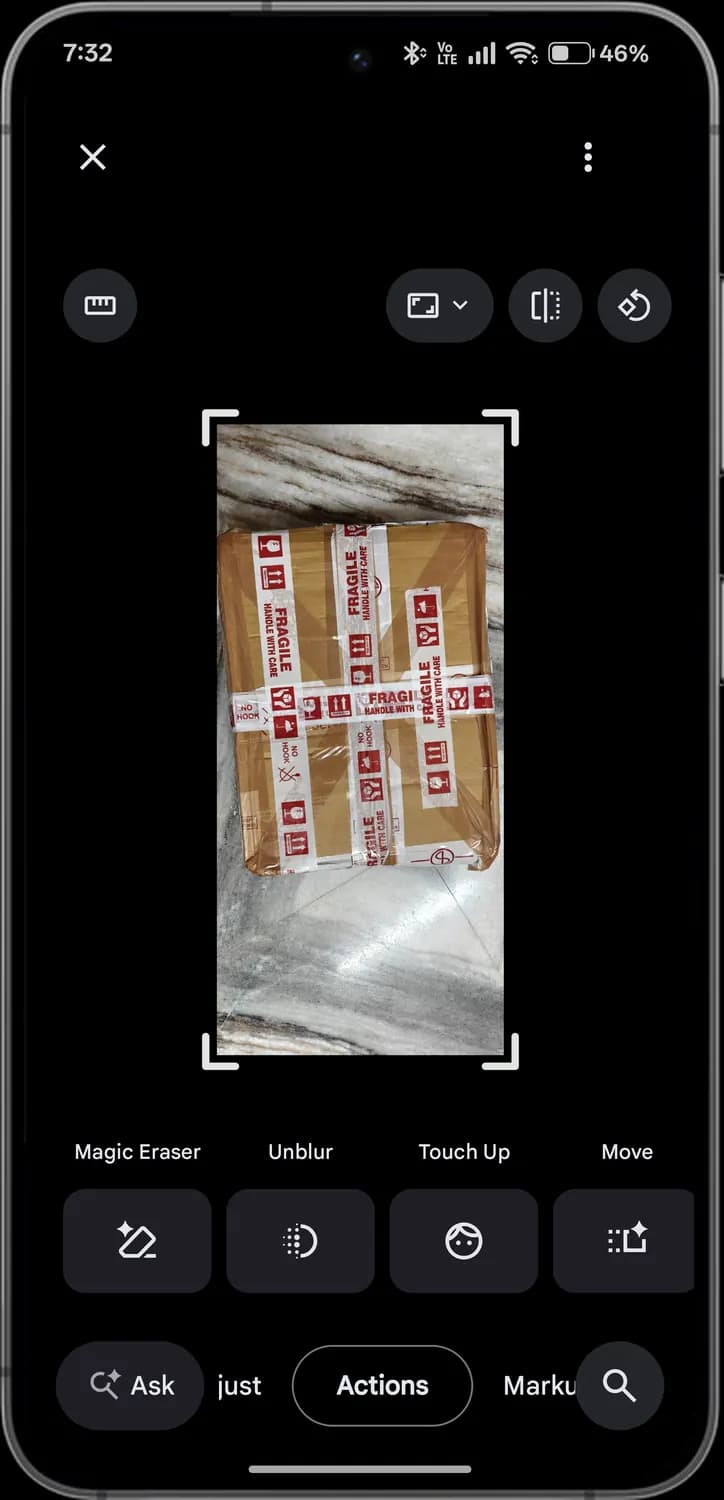
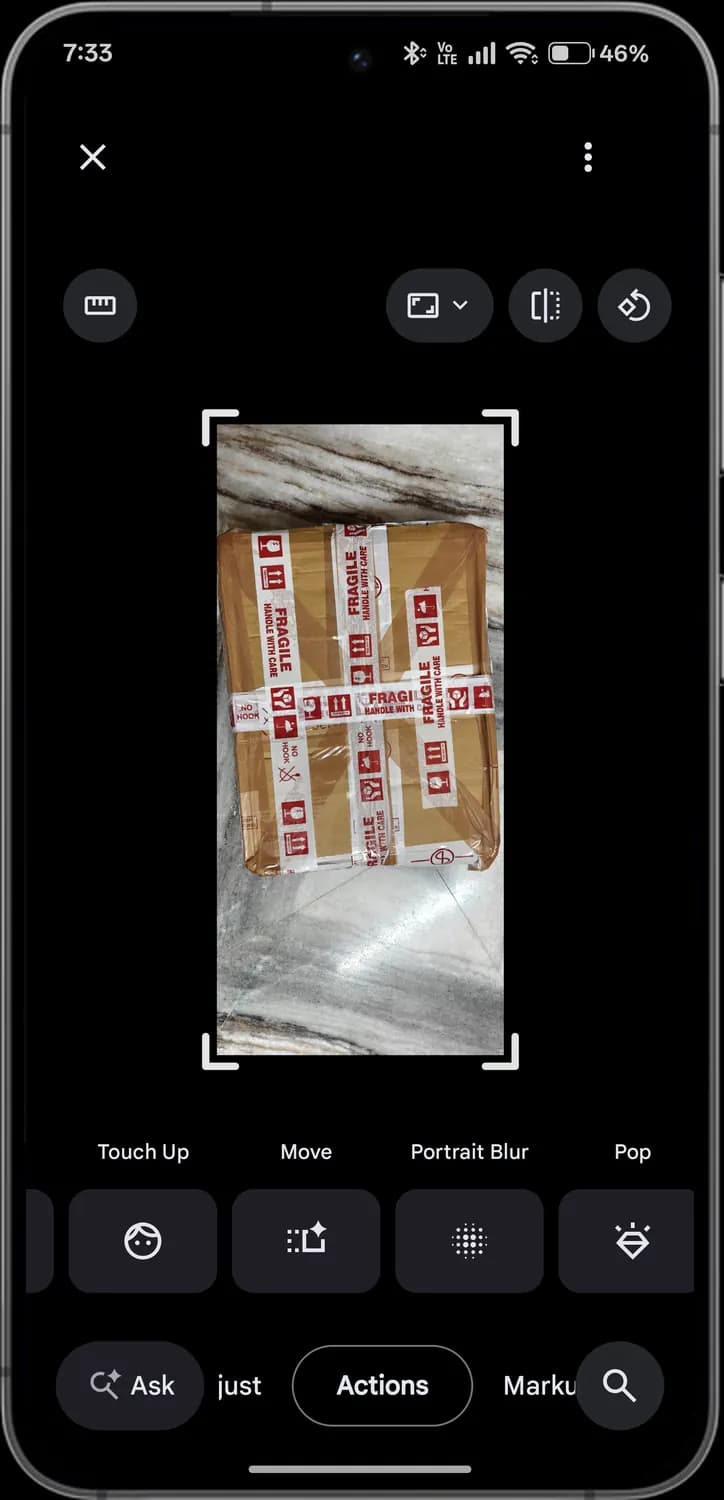
Swipe sideways to see every screen.

Magic Eraser
Removes unwanted objects or people; circle them and they disappear.

Unblur
Sharpens a blurry or shaky photo.

Touch Up
Smooths skin and evens out faces.
Move
Picks up a person or object and moves it elsewhere in the photo, filling in the gap.

Portrait Blur
Blurs the background behind your subject.

Pop
Makes the subject stand out with more contrast and colour.

Sharpen
Adds crispness to fine detail.
Denoise
Cleans up grain, especially in low-light photos.
Editor: Markup tools
Draw and write on the photo.
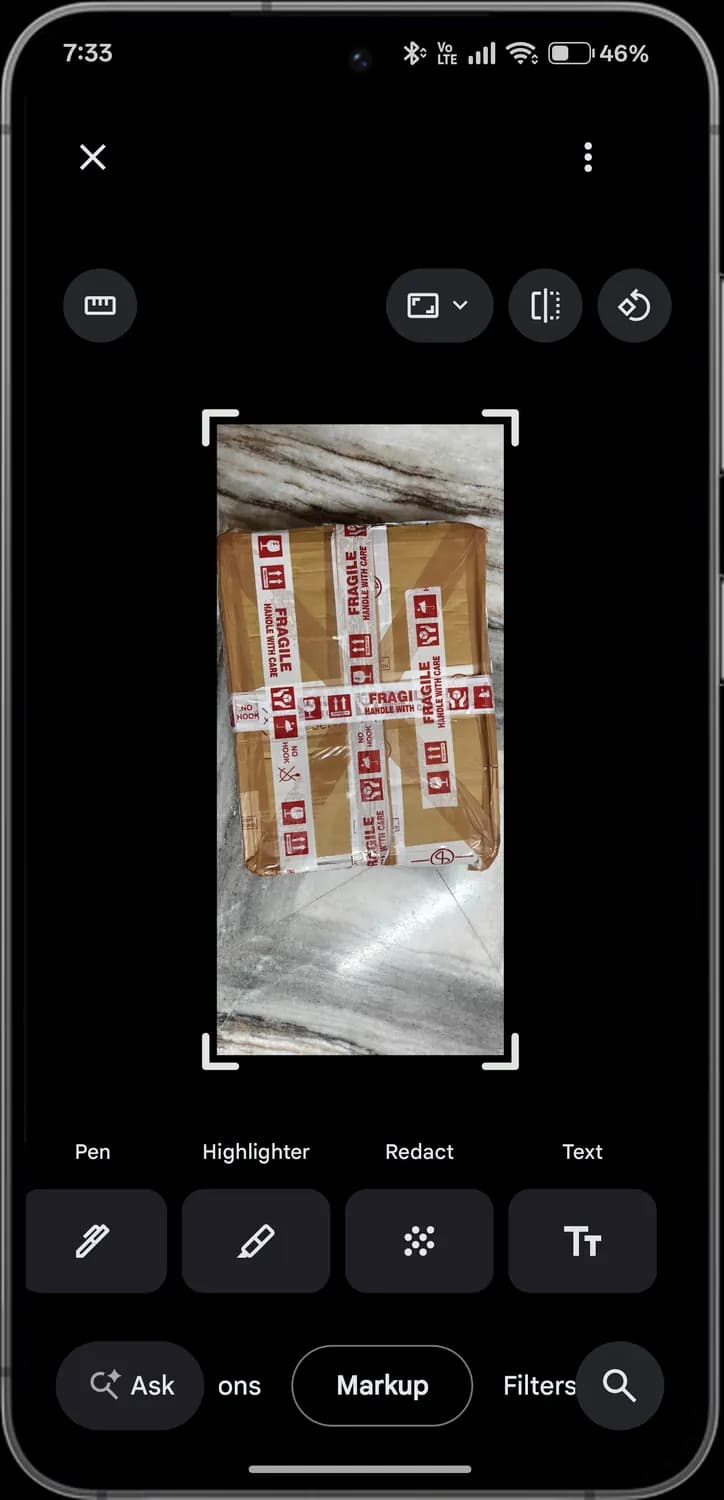

Pen
Draws freehand lines.

Highlighter
Draws see-through strokes to mark something.

Redact
Covers private details, such as a phone number or a name, so they can't be read.

Text
Adds a text label to the photo.
Editor: Filters tools
Ready-made looks for the whole photo.
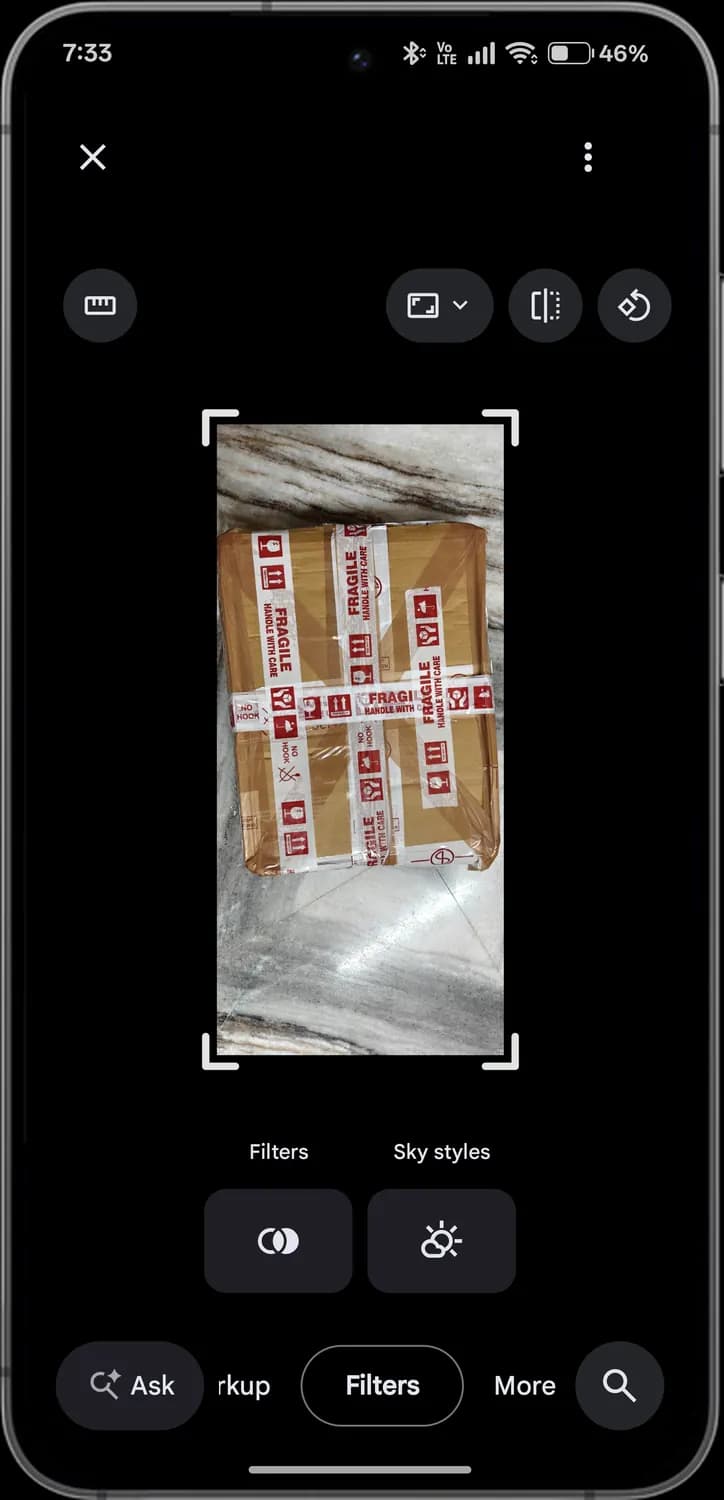

Filters
Applies a preset colour style, with a slider for its strength.

Sky styles
Changes only the sky, for example to a sunset or vivid blue, and leaves the rest alone.
Editor: More tools
Other apps on your phone that can edit the photo. What you see here depends on the apps you have installed.
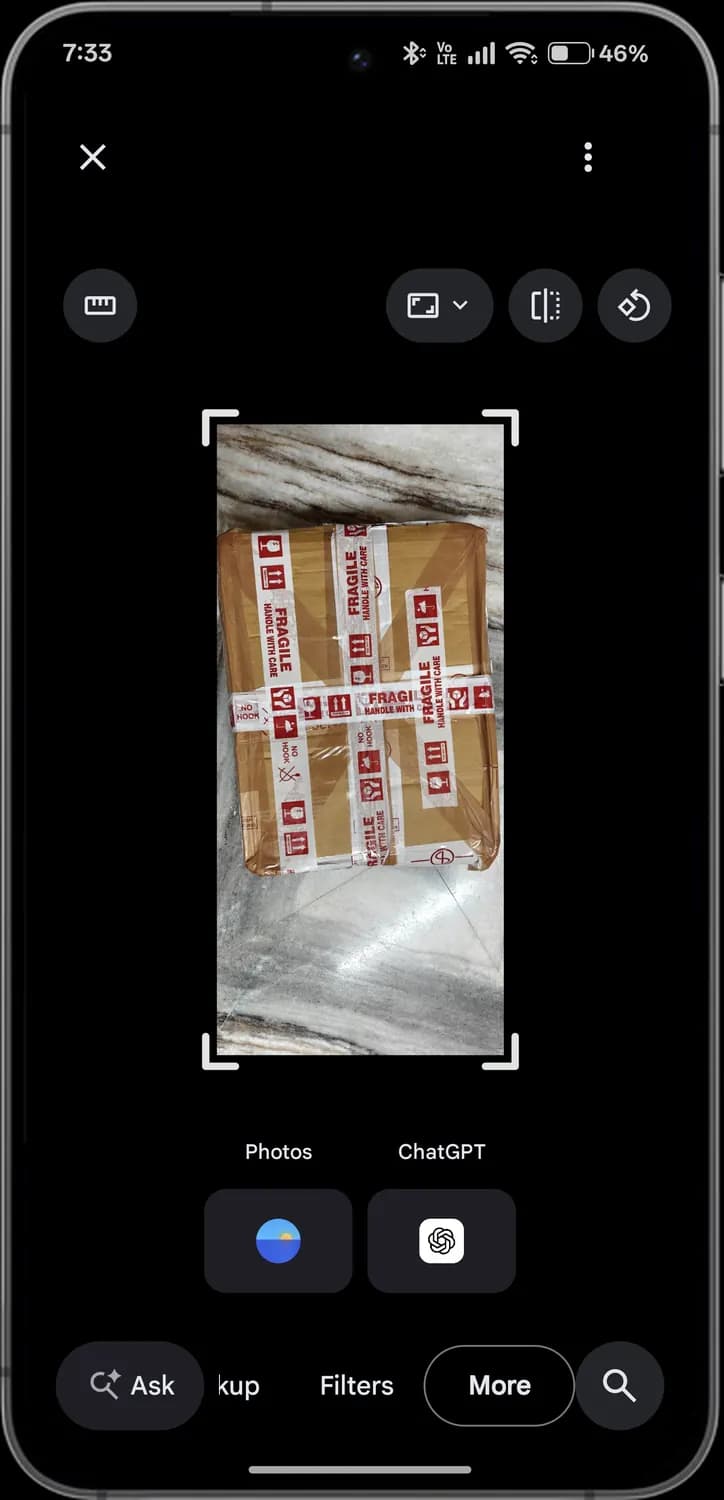

Other editing apps
Sends the photo to another installed app, here the phone's own gallery editor, to edit it there.

ChatGPT
Opens the photo in the ChatGPT app, if it is installed.
Those are the meanings of Google Photos icons and what they do. Since Google Photos frequently updates its interface by also adding new features, we update this guide every single time the user interface changes. So to help you stay updated, you can add this post to the bookmarks and stay updated. However, before going, since Google Photos app has similar interface on iOS and Android, both of the icons look very similar and has the exact same meaning. If you are looking for the other icon guides, you can visit our TechPP icon guide and get to know of what various icons meaning on other apps.
Was this article helpful?
Comments
0Share your thoughts, questions, or feedback about this guide.