
Google Health App Icons and Symbols Explained
Google Health is the new name for the Fitbit app, and it's the app you set up a Fitbit Air with. It now has an AI coach that writes to you about your day, builds your workout plan and answers questions about your data. But a lot of what it shows sits behind small icons and coloured labels: the tiles on Today, the sparkle on coach updates, the dots on your sleep chart, and dozens of workout types.
In this guide, you will learn what every icon in the latest Google Health app means, screen by screen. And this is an interactive guide. You can tap on every icon on the screens below to know what it does.
Today page
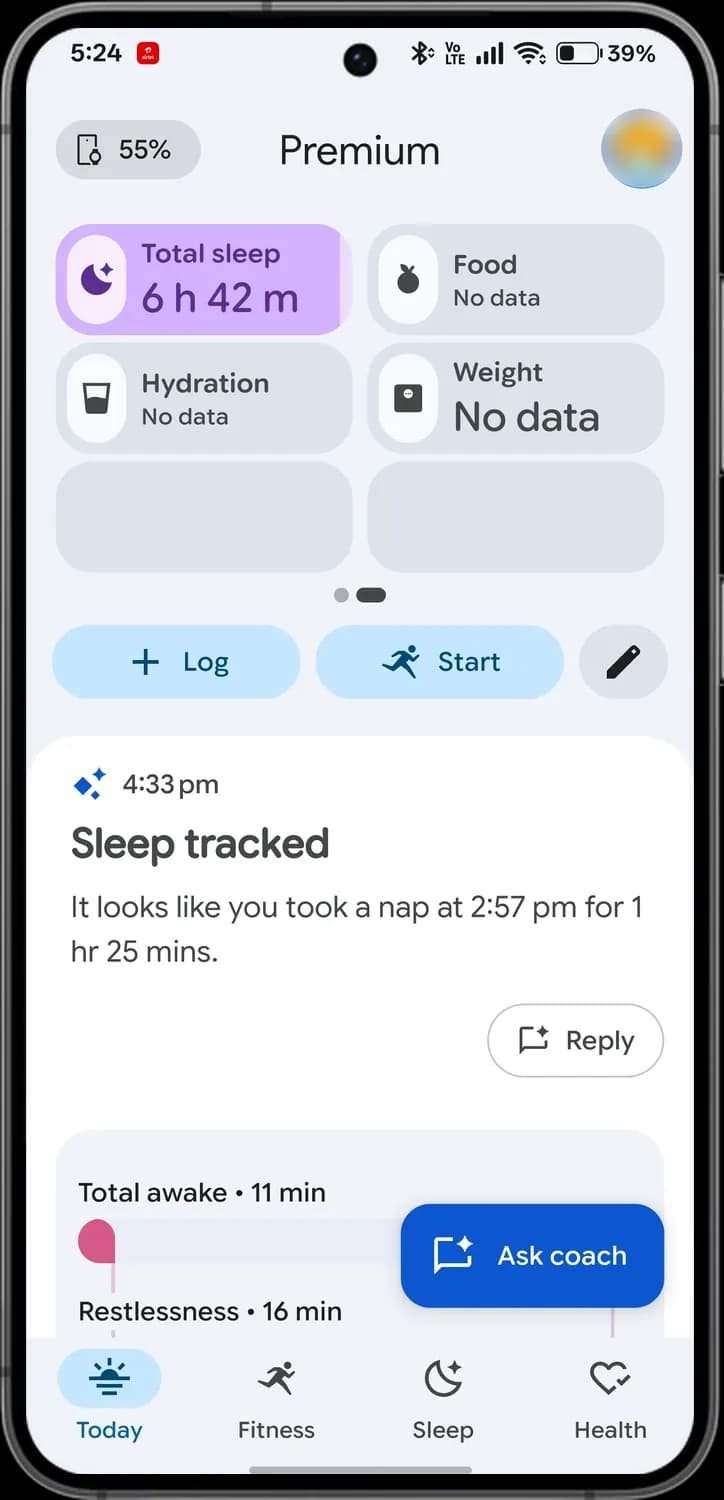
Google Health opens on Today. The tiles up top are your numbers for the day, the buttons below them log or start something, and the coach writes to you in the feed underneath.
Top bar and buttons
Tracker battery
Battery left on your tracker, here a Fitbit Air at 55%. Tap it to open your connected devices.
Premium
Shows this account has a Google Health Premium membership.

Your profile
Your account picture. Tap it for your account, settings, help and connected apps.

Log
The plus button. Log food, water, weight, a workout and more, by hand or by telling the coach.

Start
The running figure. Start tracking a workout right now.
Edit tiles
The pencil. Choose which tiles sit at the top of Today and in what size.
Tiles
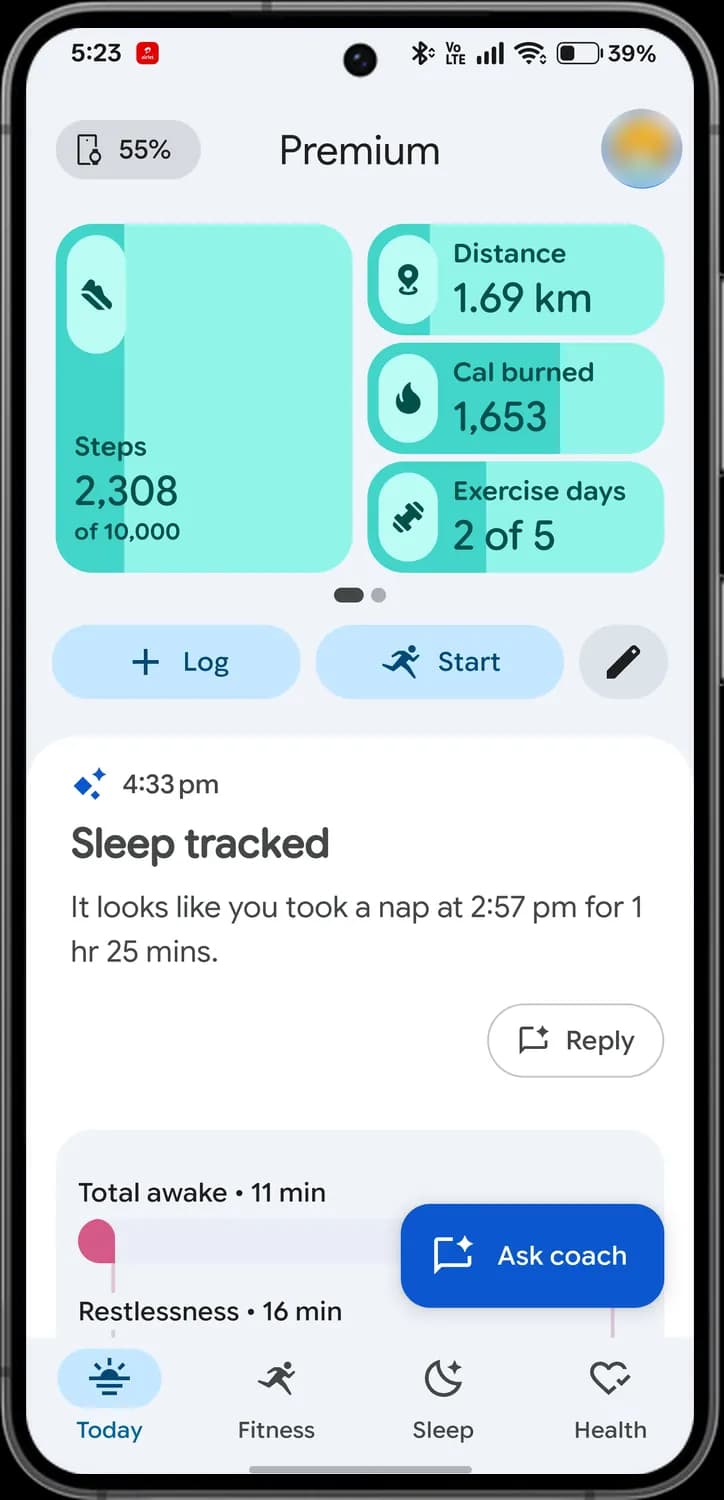

Steps
The shoe tile. Steps so far today against your daily goal. The fill grows as you get closer.

Distance
The location pin. How far you've moved today.

Calories burned
The flame. Calories burned so far today, including the ones you burn at rest.

Exercise days
The dumbbell. How many days this week you've hit your exercise goal.
Tile pages
The dots mean there's another page of tiles. Swipe left on the tiles to see it.
Coach and tabs
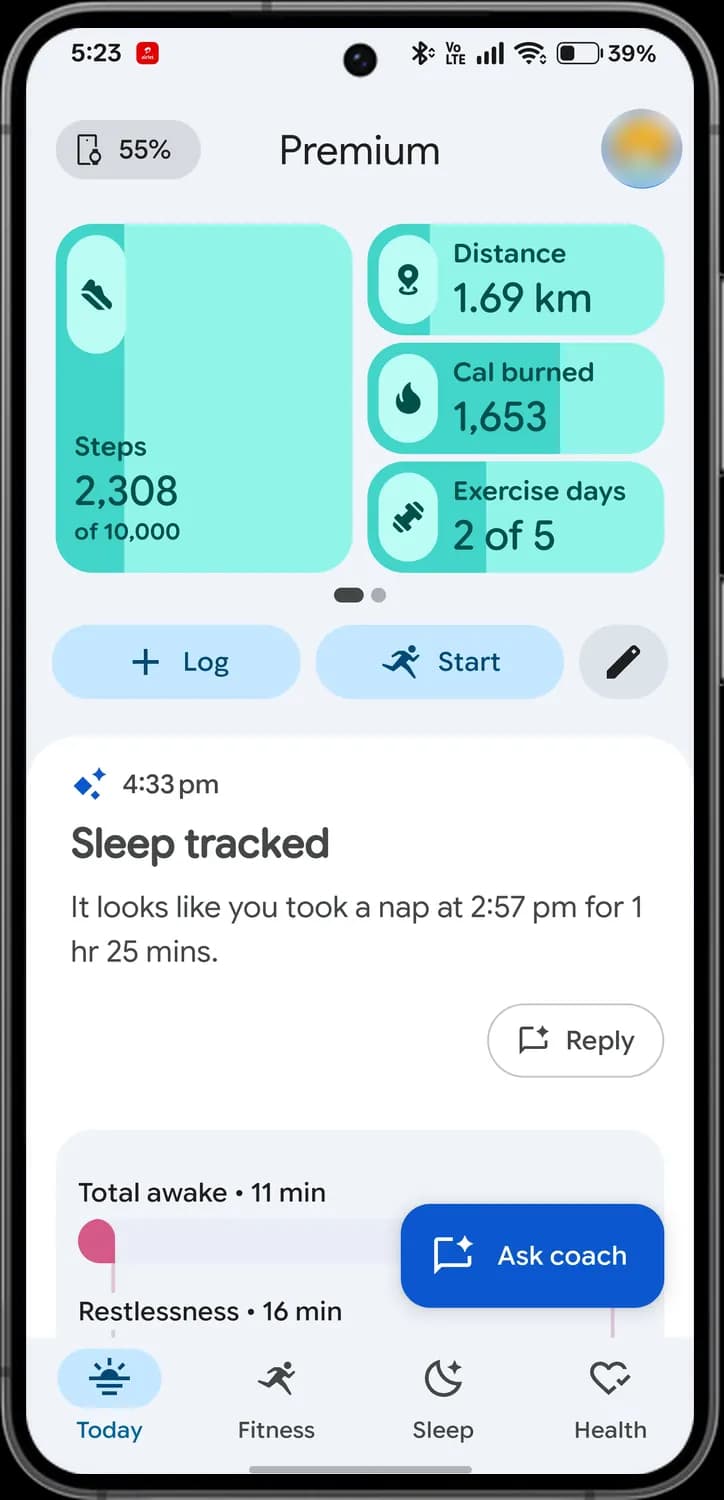

Coach update
The blue sparkle marks a message from the AI coach, with the time it was written.

Reply
Answer the coach about this update, in your own words.

Ask coach
Opens a chat with the coach. Ask about your data, or ask it to change your plan. It shrinks to just the icon as you scroll.

Today tab
The sunrise. Your daily summary and the coach's updates.

Fitness tab
The running figure. Your plan, workouts and activity history.
Sleep tab
The moon with a star. Last night's sleep, stages and trends.
Health tab
The heart with a tick. Vitals, heart rate, health checks and medical records.
Second page of tiles

Total sleep
The moon. How long you slept last night.

Food
The apple. Calories you've logged from food today.
Hydration
The glass. Water you've logged today.
Weight
The scale. Your latest weight. It says No data until you log one or connect a smart scale.

Empty slots
Free spaces on this page. Tap the pencil to fill them with more tiles.
Coach updates
Scroll down on Today and you'll find the coach's updates. Each one explains something it noticed, like a workout or a short night, and many end with a question you can answer.
A workout update

Update time
When the coach wrote this update.

Reply to the coach
Add context, like how the workout felt. The coach uses it in later advice.
Activity
The workout this update is about, with its type icon, time and length. Tap it for the full details.

Tracked automatically
The tracker with a sparkle. Your Fitbit Air spotted and recorded this activity on its own.

Coach button
The chat bubble with a sparkle. The Ask coach button after you scroll.
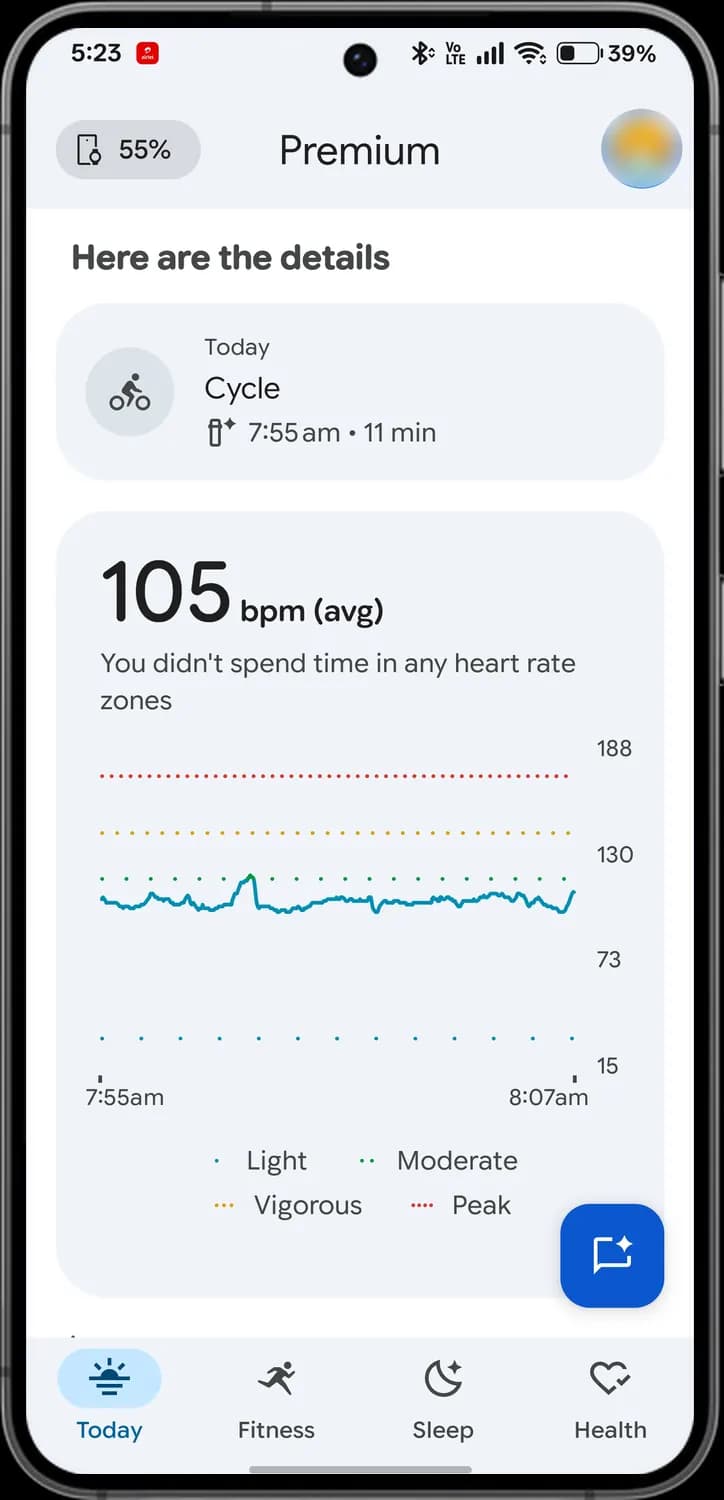
Heart rate details
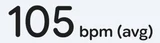
Average heart rate
Your average heart rate during the activity.

Light zone
The first dotted line on the chart. The easiest heart rate zone.

Moderate zone
The second dotted line. Steady effort, like a brisk walk.

Vigorous zone
The yellow dotted line. Hard effort where talking gets difficult.
Peak zone
The red dotted line. Your hardest, all-out effort.
A question from the coach
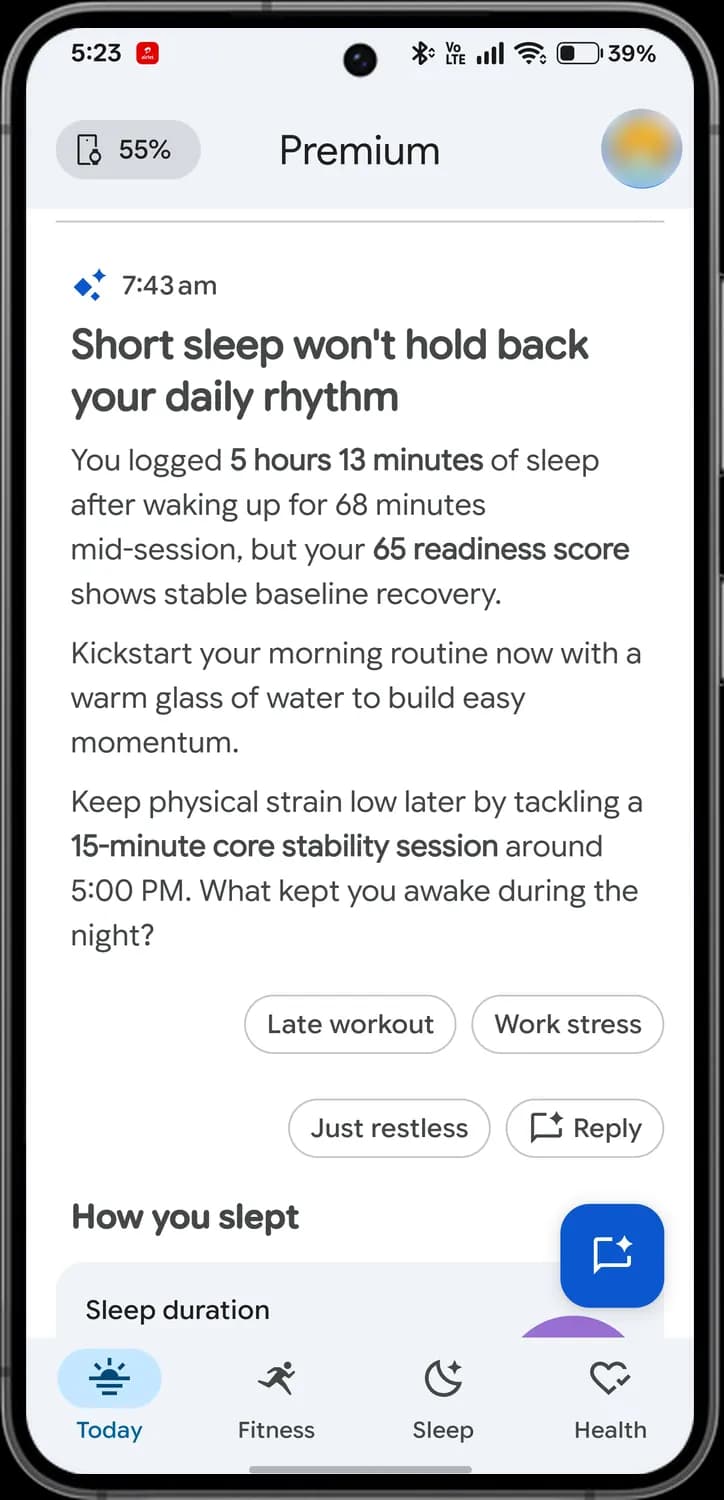

Coach sparkle
Marks this as a coach update. This one is about how you slept.
Late workout
A suggested answer. Tap one of these to answer the coach's question in one go.
Work stress
Another suggested answer to the coach's question.
Just restless
Another suggested answer.
Reply
None of the suggestions fit? Write your own answer.
Editing your tiles
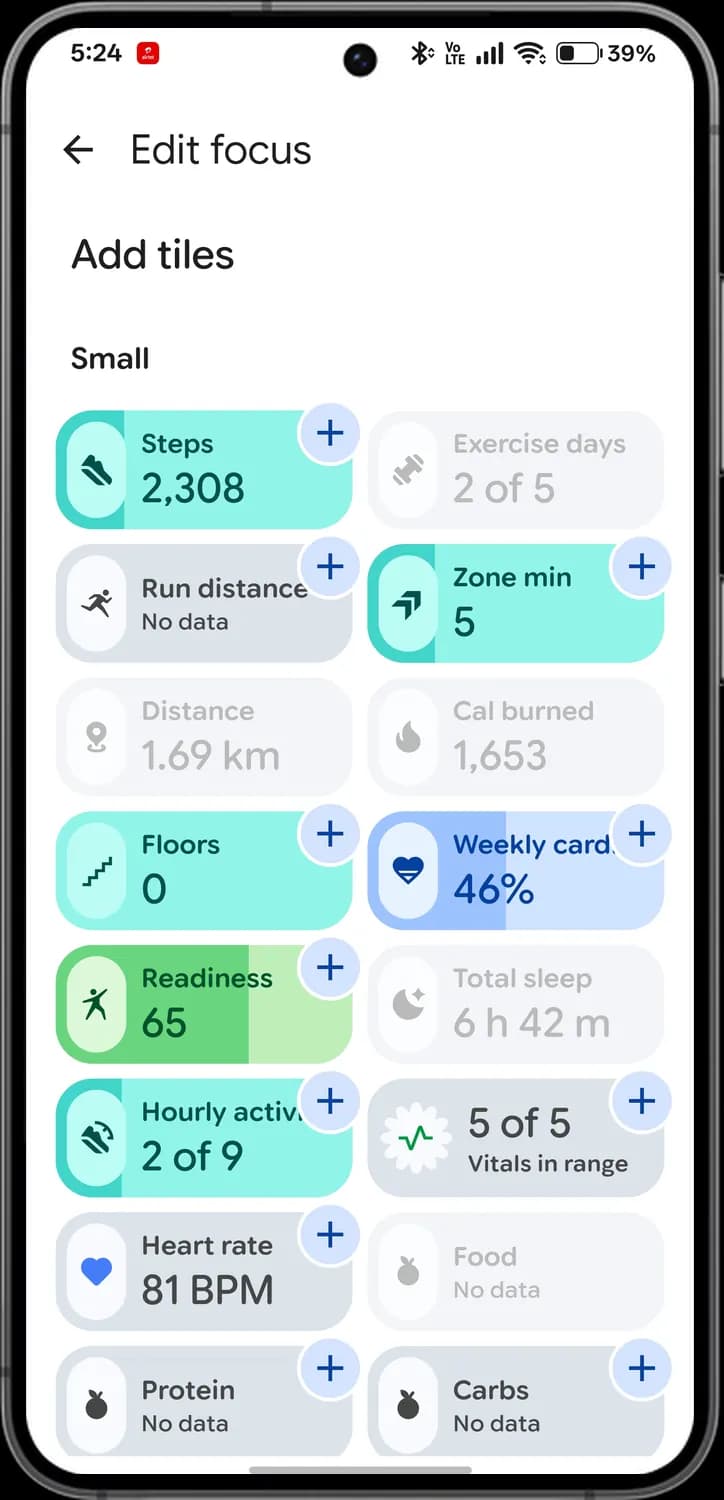
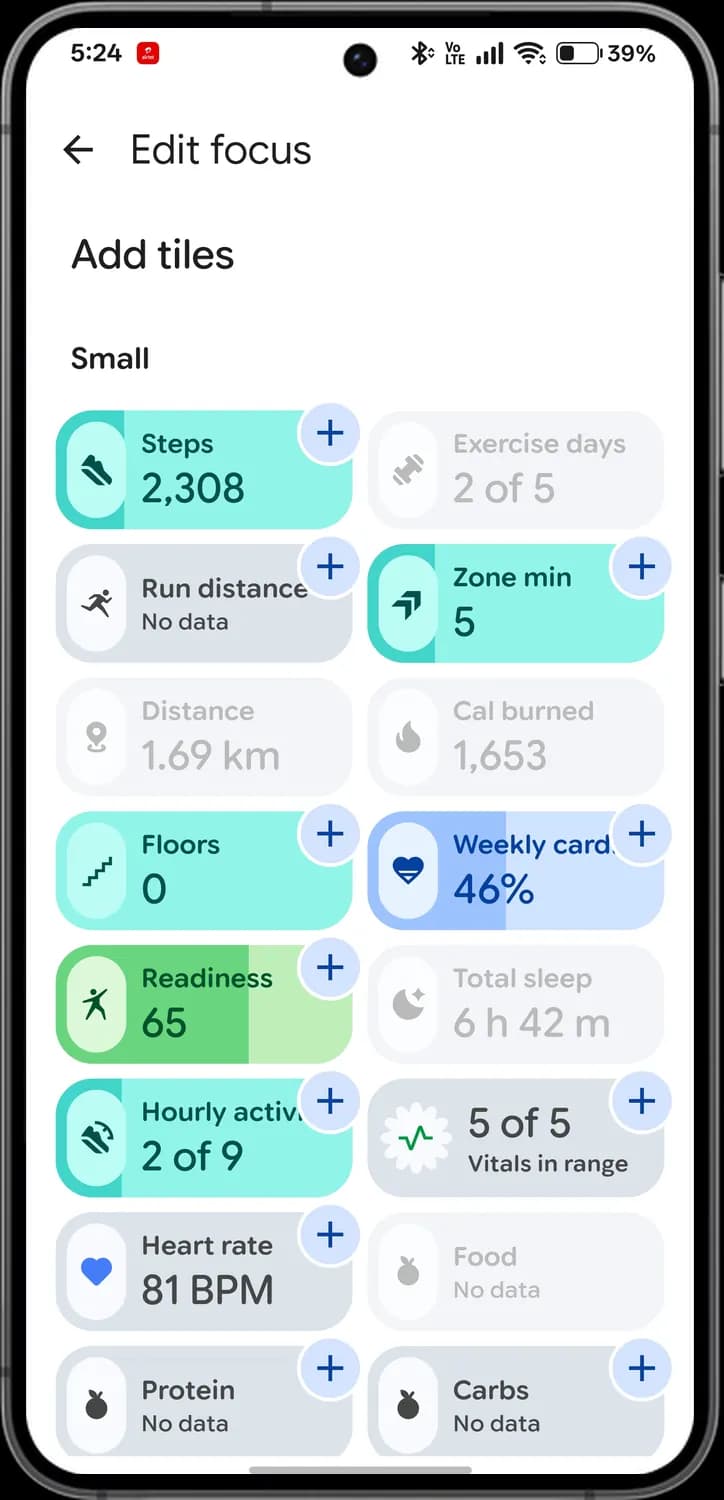
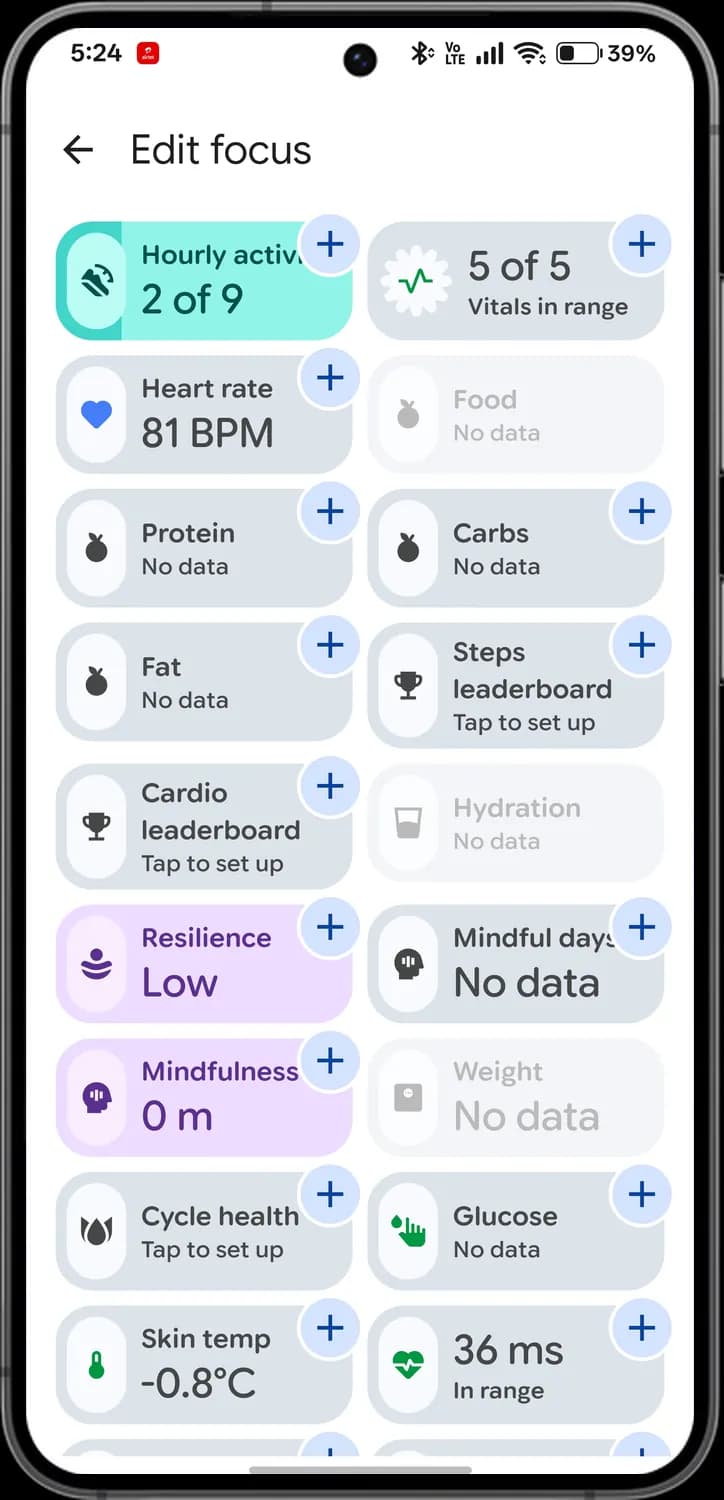
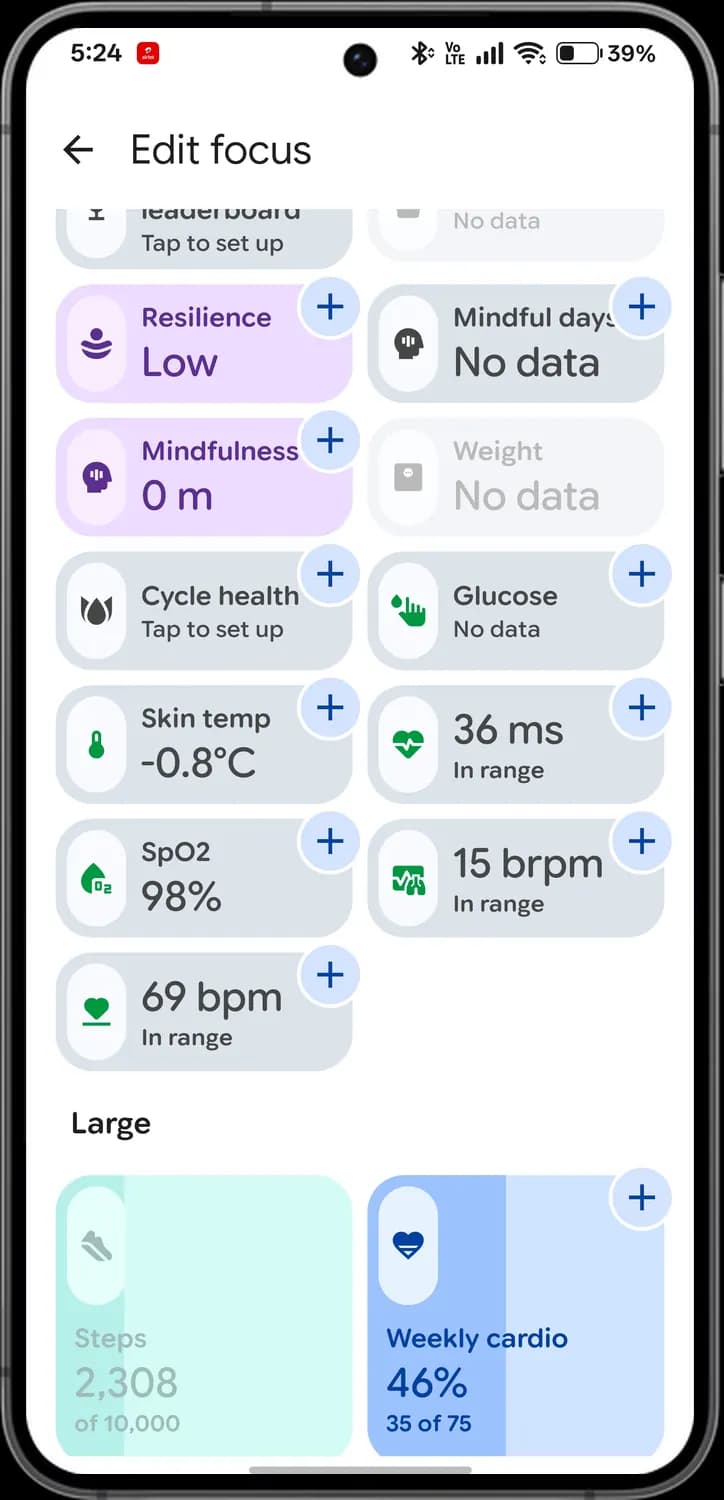
Tap the pencil on Today to open Edit focus. Your current tiles are at the top, and every tile you can add is listed below them, each with its own icon.
Your tiles
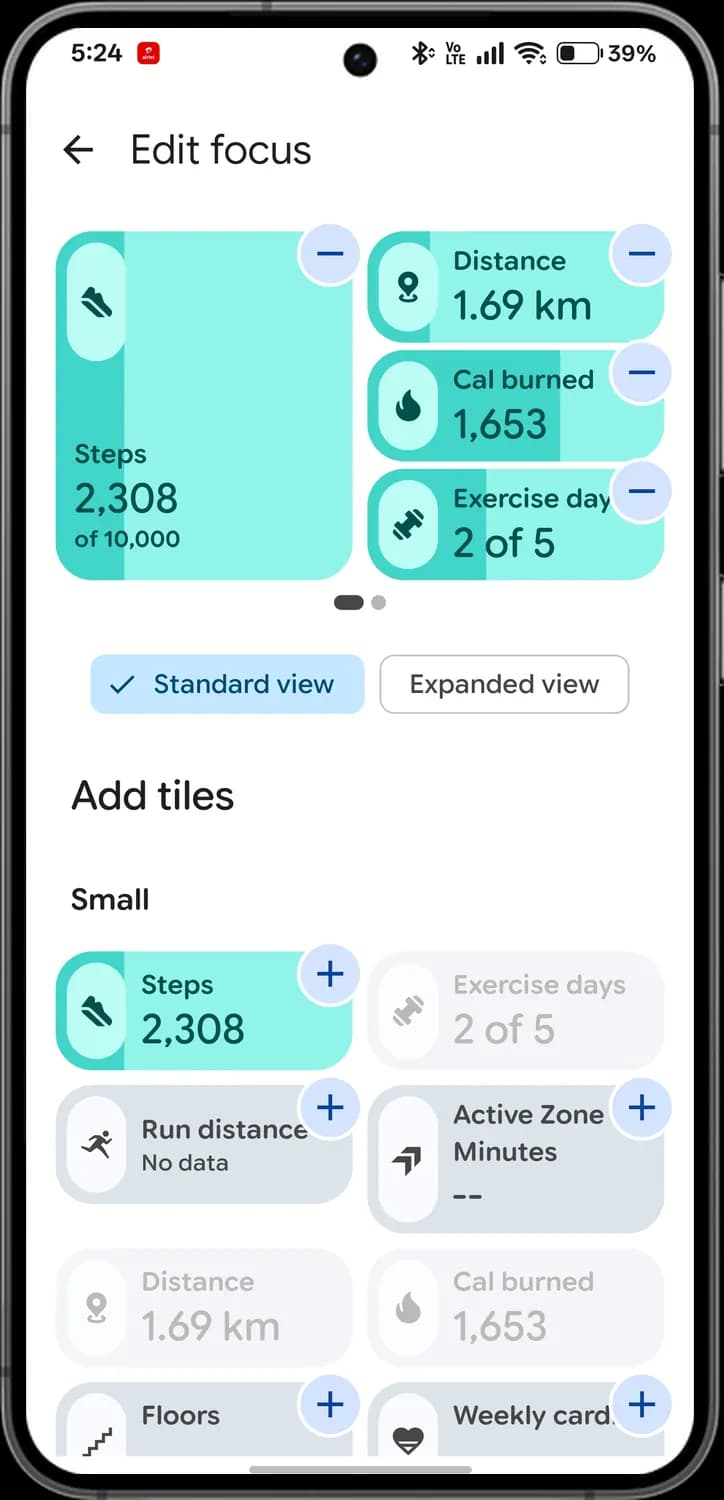

Remove tile
The minus button. Takes this tile off Today.

Pages
Your tiles are spread over two pages. These dots show which one you're editing.

Standard view
Shows one large tile with three small ones beside it.
Expanded view
Shows more of your tiles at once.

Add tile
The plus button. Puts this tile on Today.
Greyed-out tile
A faded tile with no plus is already on Today.
Activity tiles
Run distance
The runner. How far you've run.

Zone minutes
The arrow. Active Zone Minutes, the minutes you spend in your higher heart rate zones.

Floors
The stairs. Floors climbed today.

Weekly cardio
The heart. Progress towards your weekly cardio load goal.

Readiness
The figure with raised arms. Your Readiness score, how prepared your body is for a hard workout today.
Heart and food tiles

Hourly activity
The shoe with a clock. How many hours today you hit your hourly steps goal.
Vitals
The pulse line in a badge. How many of your vitals are in their usual range.

Heart rate
The blue heart. Your latest heart rate.

Protein
The apple. Protein you've logged today.
Carbs
Also an apple. Carbs you've logged today.
More tiles
Fat
Another apple. Fat you've logged today.
Steps leaderboard
The trophy. Compare your steps with friends. Tap to set it up.
Cardio leaderboard
Also a trophy. Compare cardio with friends.

Resilience
The stacked waves. How well your body is coping with stress.
Mindful days
The head with a dot. Days this week with a mindfulness session.
Mindfulness
The head shape on purple. Minutes of mindfulness today.

Cycle health
The drops. Period and cycle tracking. Tap to set it up.
Vitals tiles
Glucose
The finger with a drop. Blood glucose readings you've logged.
Skin temp
The thermometer. How your skin temperature during sleep differs from your usual.

HRV
The heart with a pulse line. Heart rate variability, here 36 ms.
SpO2
The drop with O2. Your blood oxygen level.
Breathing rate
The lungs with a pulse line. Breaths per minute while you sleep.
Resting heart rate
The heart with a line through it. Your heart rate at rest.

Large tile
Large tiles take the big slot on Today. Here, Weekly cardio.
Logging
Tap Log on Today and this sheet opens. You can tell the coach what to log, show it a photo or a file, or fill in an entry yourself.
Log with Coach
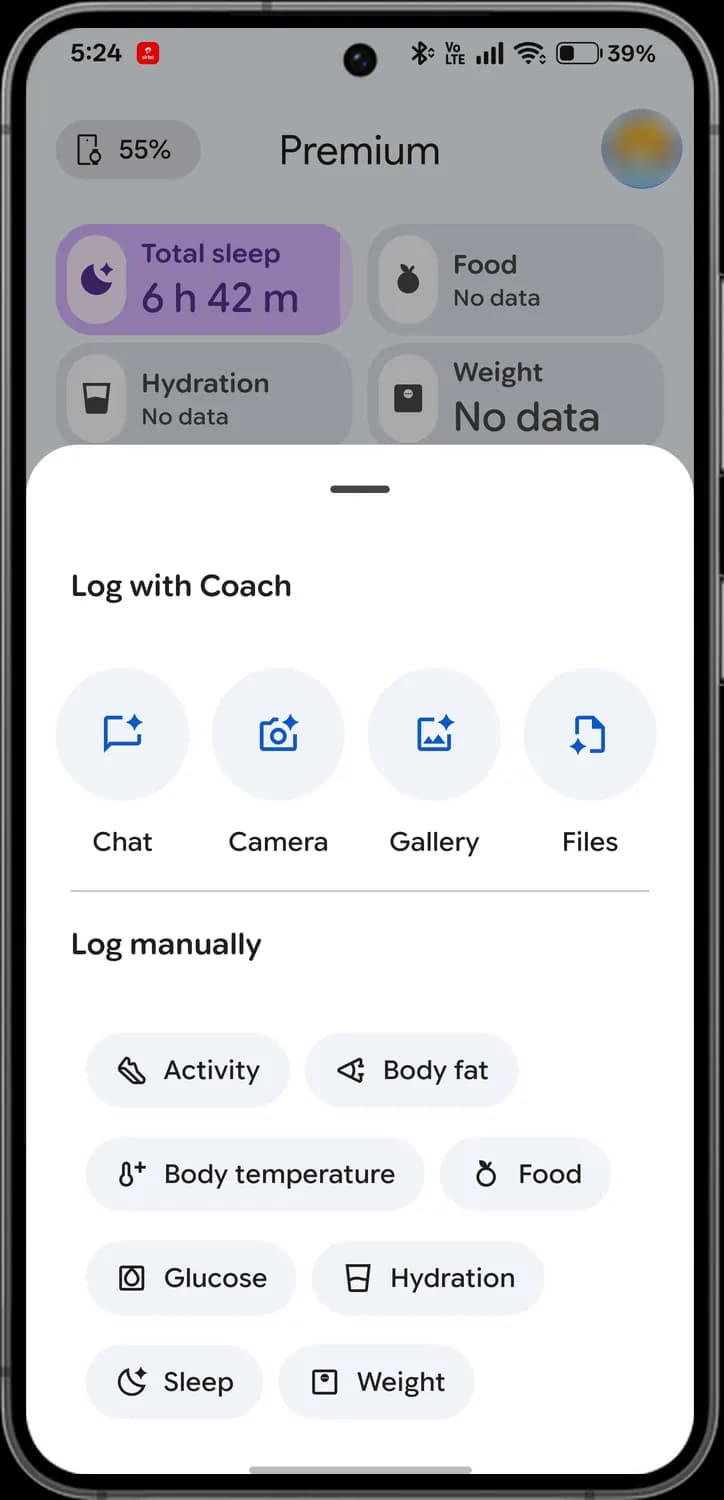

Chat
Type what you ate or did, and the coach logs it for you.

Camera
Take a photo, like your meal, and the coach logs it.

Gallery
Pick a photo you already took.

Files
Share a document, such as a lab report.
Log manually
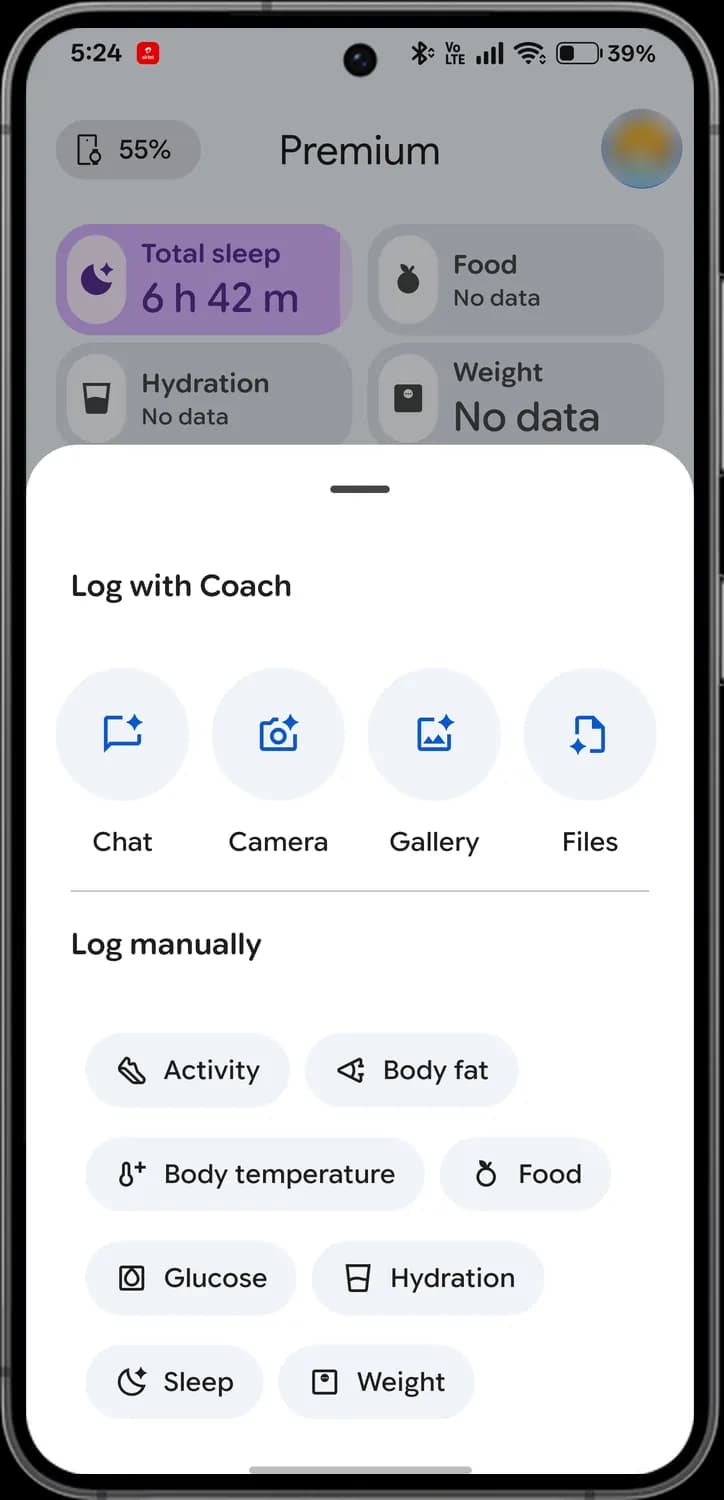

Activity
The shoe. Add a workout or walk your tracker missed.

Body fat
The megaphone shape. Log a body fat percentage.

Body temperature
The thermometer with a plus. Log a temperature reading.

Food
The apple. Log a meal or snack.
More to log
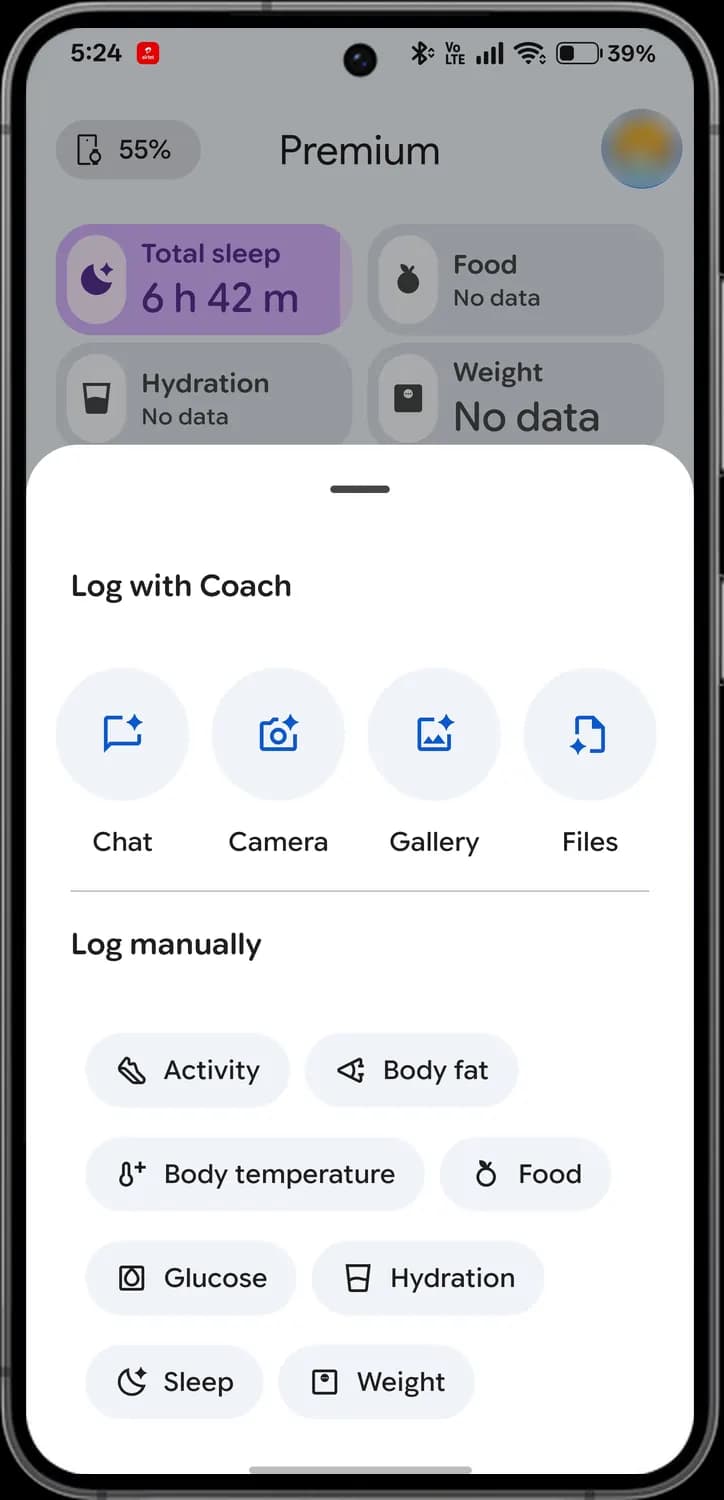

Glucose
The square drop. Log a blood glucose reading.

Hydration
The glass. Log water you drank.

Sleep
The moon. Add sleep you didn't wear your tracker for.

Weight
The scale. Log your weight.
Fitness tab
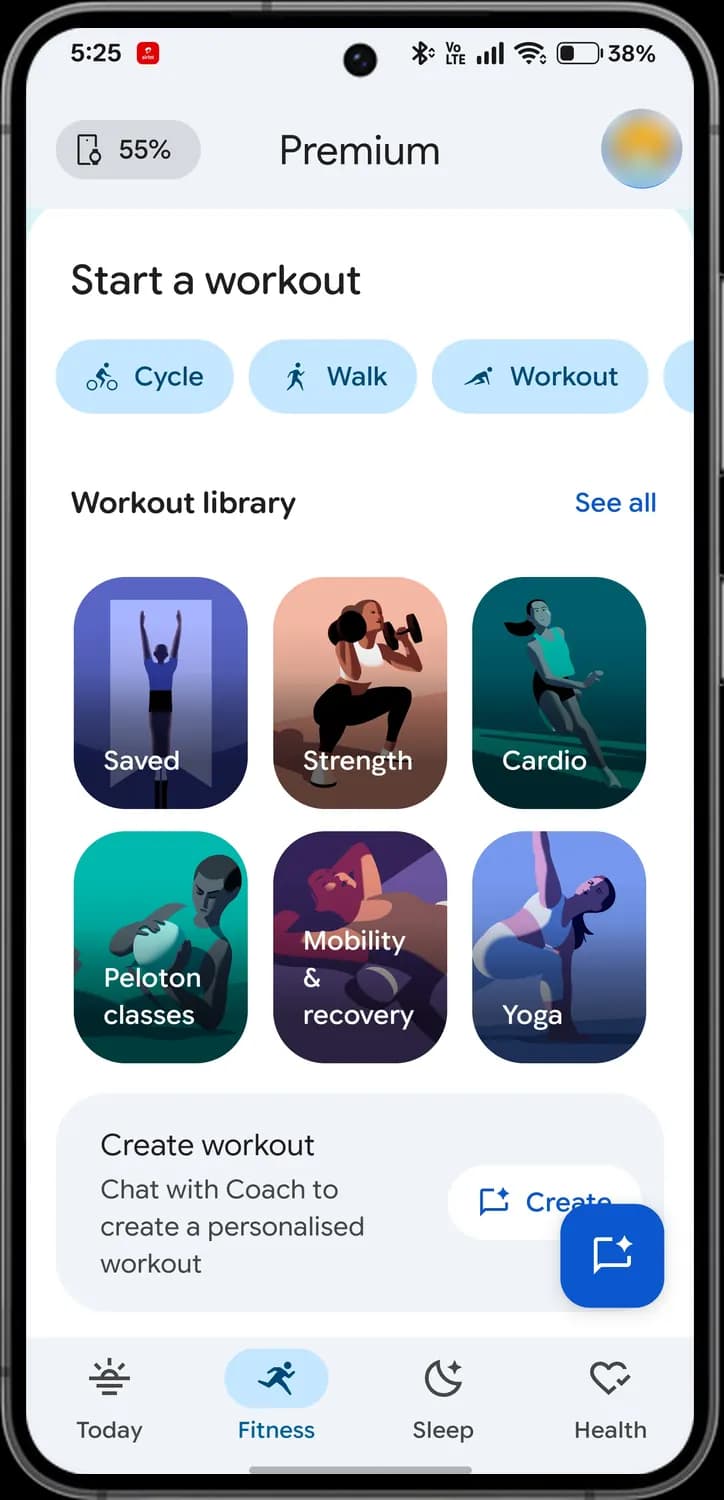
Fitness holds the plan the coach built for you, ways to start a workout, and every activity you've recorded.
Your plan
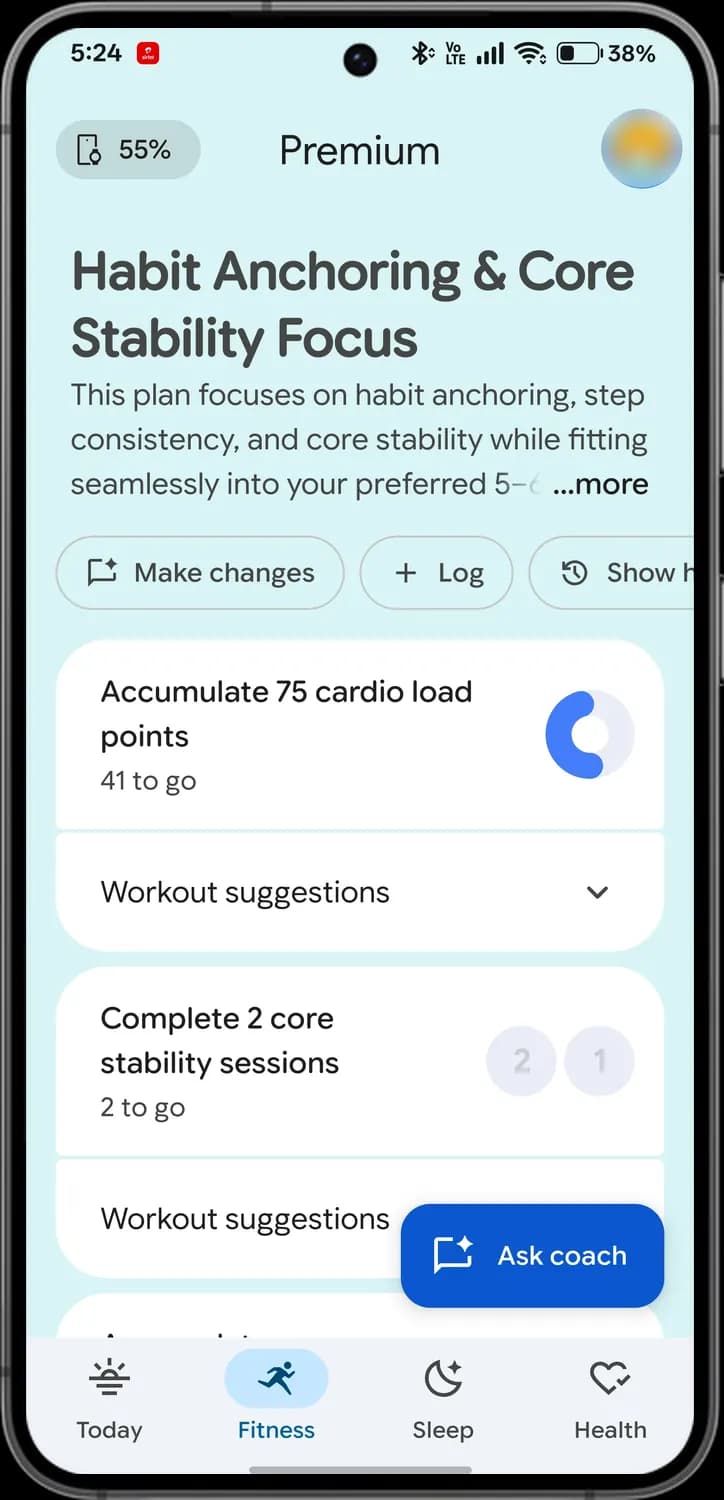

Your plan
The weekly plan the coach made from your goals.

Make changes
Ask the coach to change your plan.

Log
Add an activity to your plan by hand.

Show history
The clock with an arrow. See your past plans.

Goal ring
Fills as you work towards this week's target.

Workout suggestions
The down arrow opens workouts the coach suggests for this goal.

Session counters
One circle per session left to do this week.
Start a workout
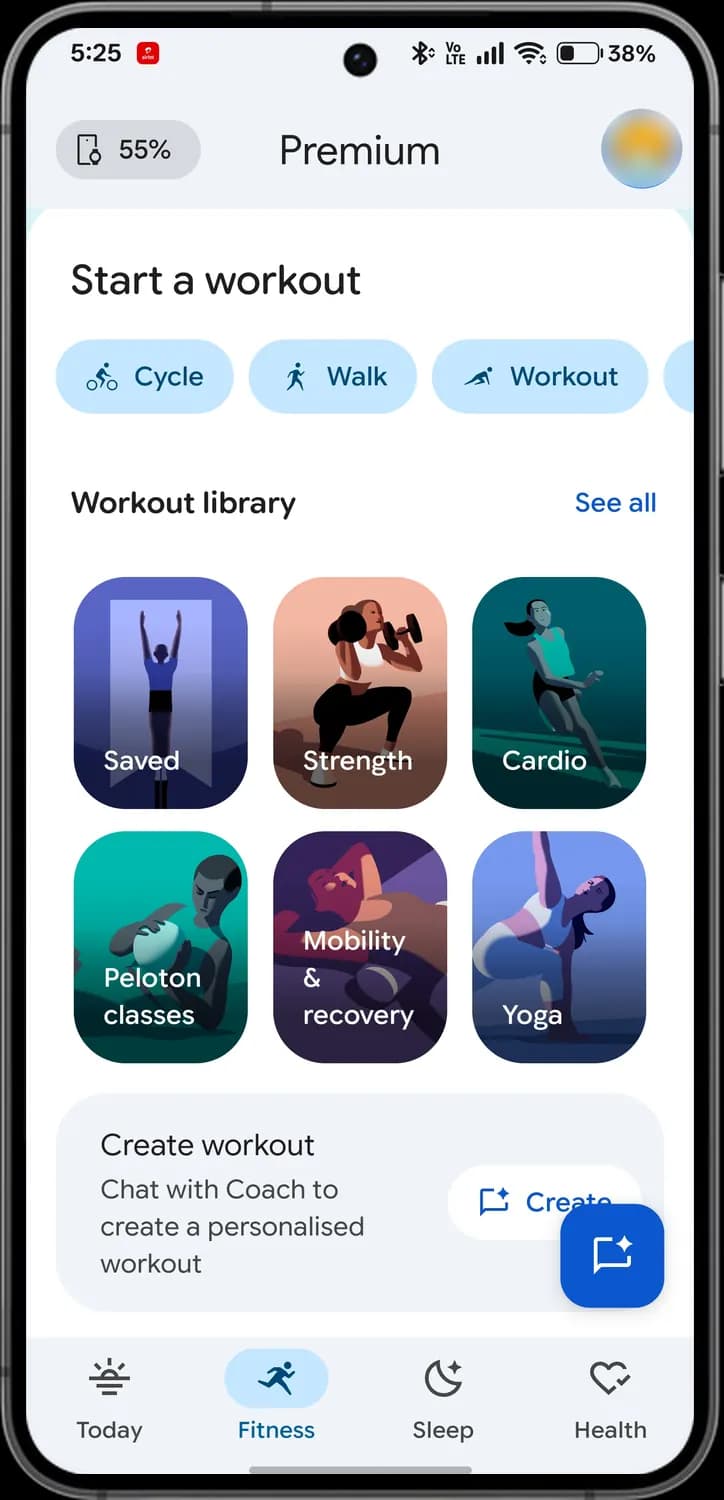

Cycle
The bike. Start a cycling workout in one tap.

Walk
The walking figure. Start a walk.

Workout
The figure with arms out. Start a general workout.

See all
Opens the full list of workout types.
Create workout
Chat with the coach to make a workout just for you.

Create
Starts that chat.
Workout library
Saved
Workouts you've saved.
Strength
Guided strength workouts.
Cardio
Guided cardio workouts.

Peloton classes
Classes from Peloton.
Mobility & recovery
Stretching and recovery sessions.
Yoga
Guided yoga sessions.
Recent activities
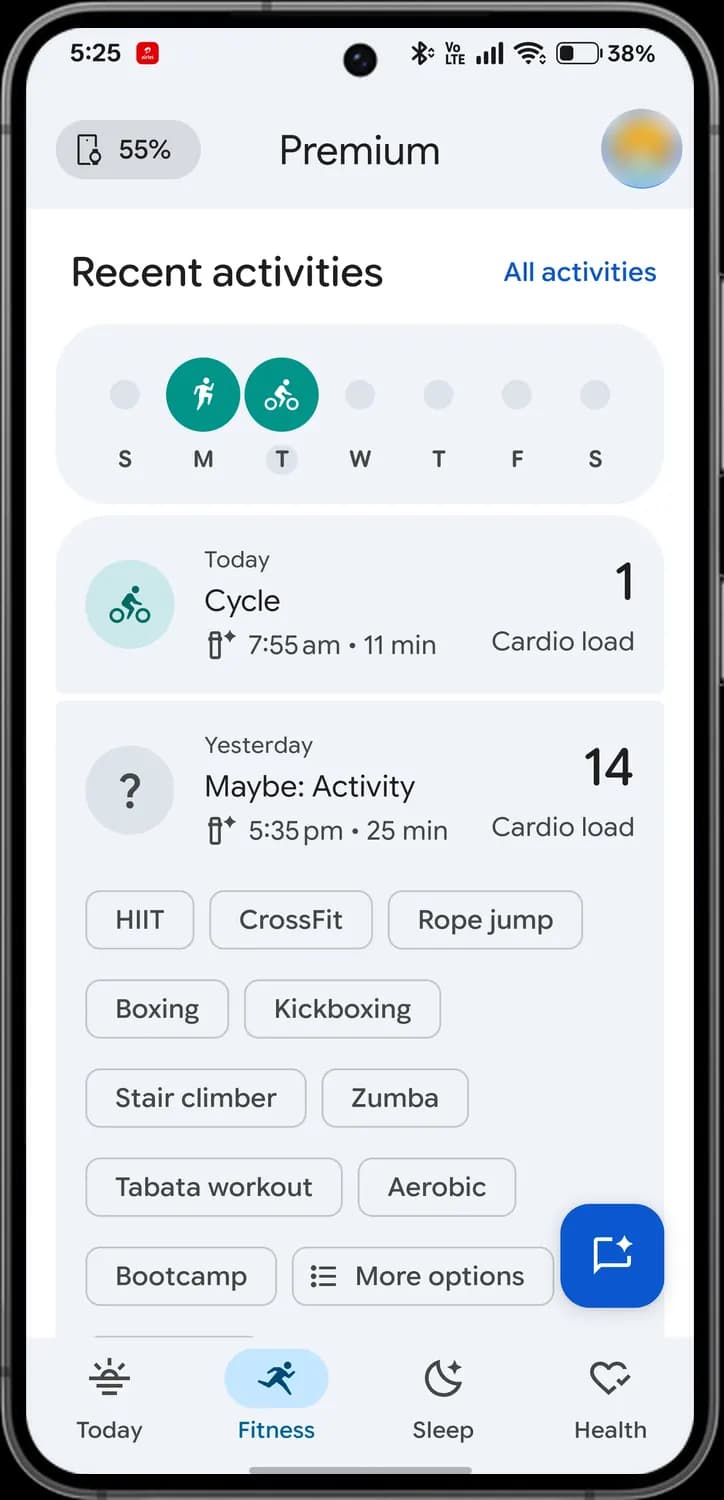

All activities
Opens your full activity history.
Active days
Each filled circle is a day you were active, with an icon for what you did.
Recorded activity
An activity with its icon, time and length.
Cardio load points
How much cardio load this activity added.

Unconfirmed activity
The question mark. Your tracker noticed movement but isn't sure what it was.
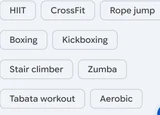
Activity type
Tap the one you did and the activity gets that name.

More options
The list icon. Shows more activity types to pick from.
Fitness metrics
Scroll down on Fitness for your weekly charts. Each card shows today's number and a week of history, and you can tap a card to see more.
Cardio fitness
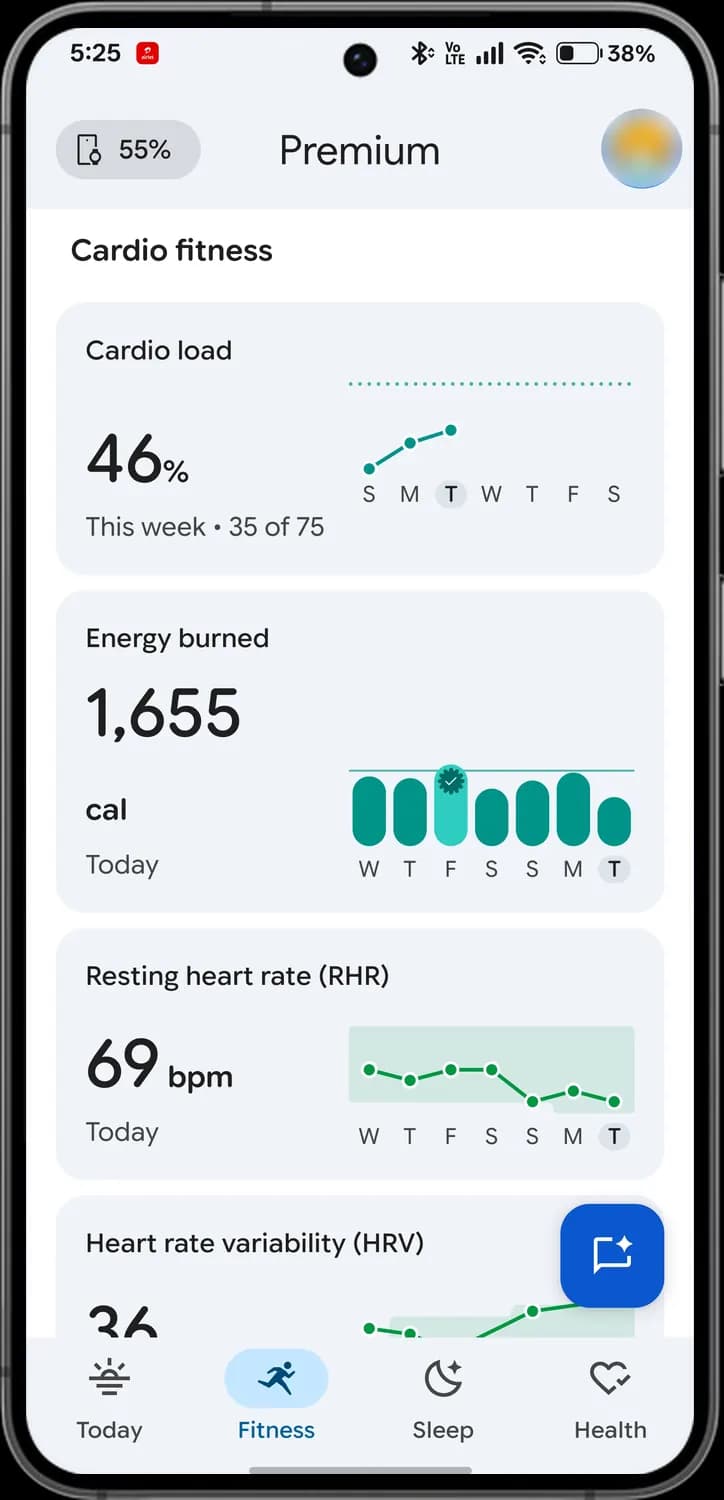
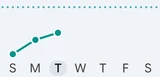
Cardio load
Your weekly cardio load, how hard your heart has worked this week.
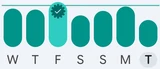
Energy burned
Calories burned each day of the week.

Goal met
The tick badge marks a day you hit your goal.
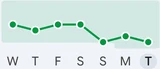
Resting heart rate
Your heart rate at rest. The shaded band is your usual range.
Daily activity
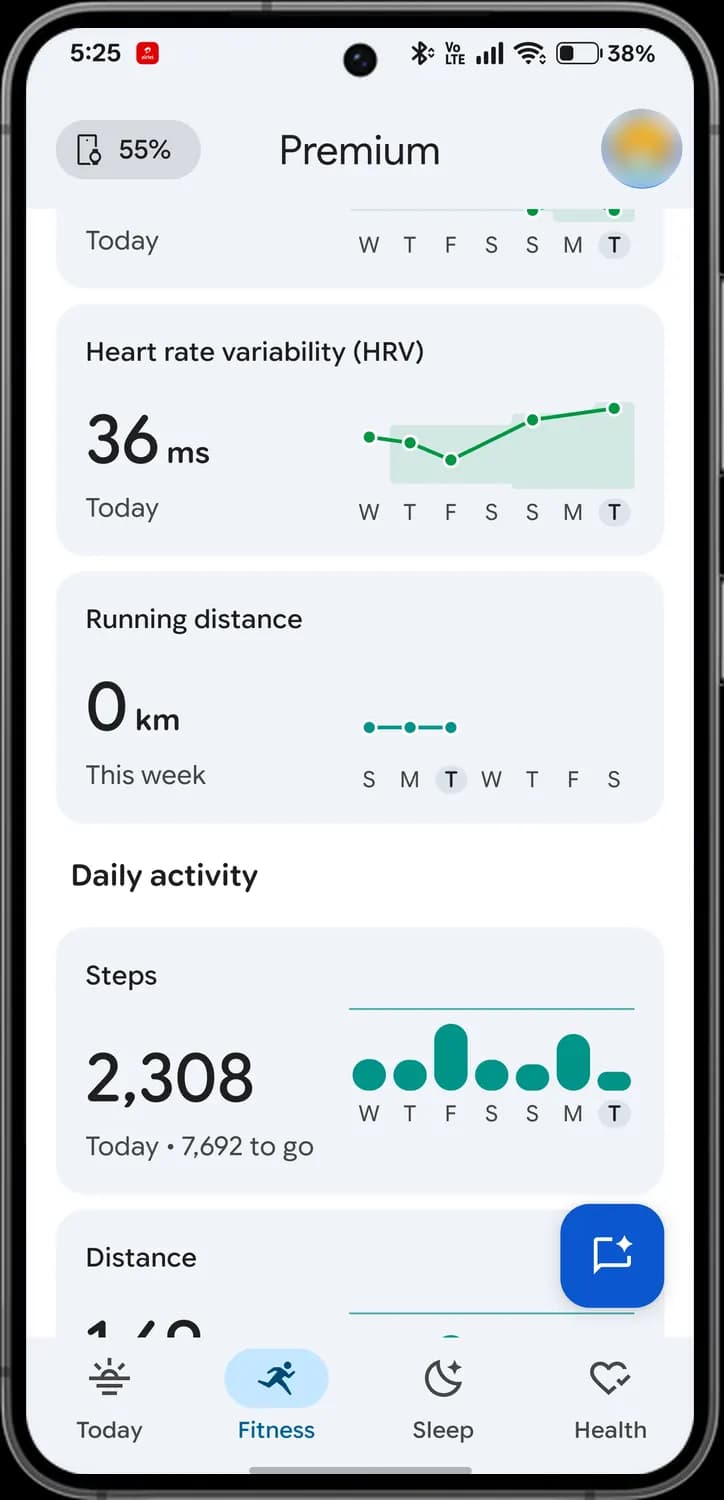
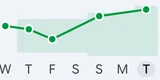
Heart rate variability
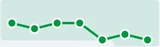
How much the time between heartbeats varies. The shaded band is your usual range.
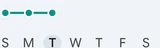
Running distance
How far you've run this week.
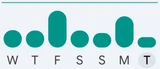
Steps
Steps for each day and how many are left to reach today's goal.
More activity
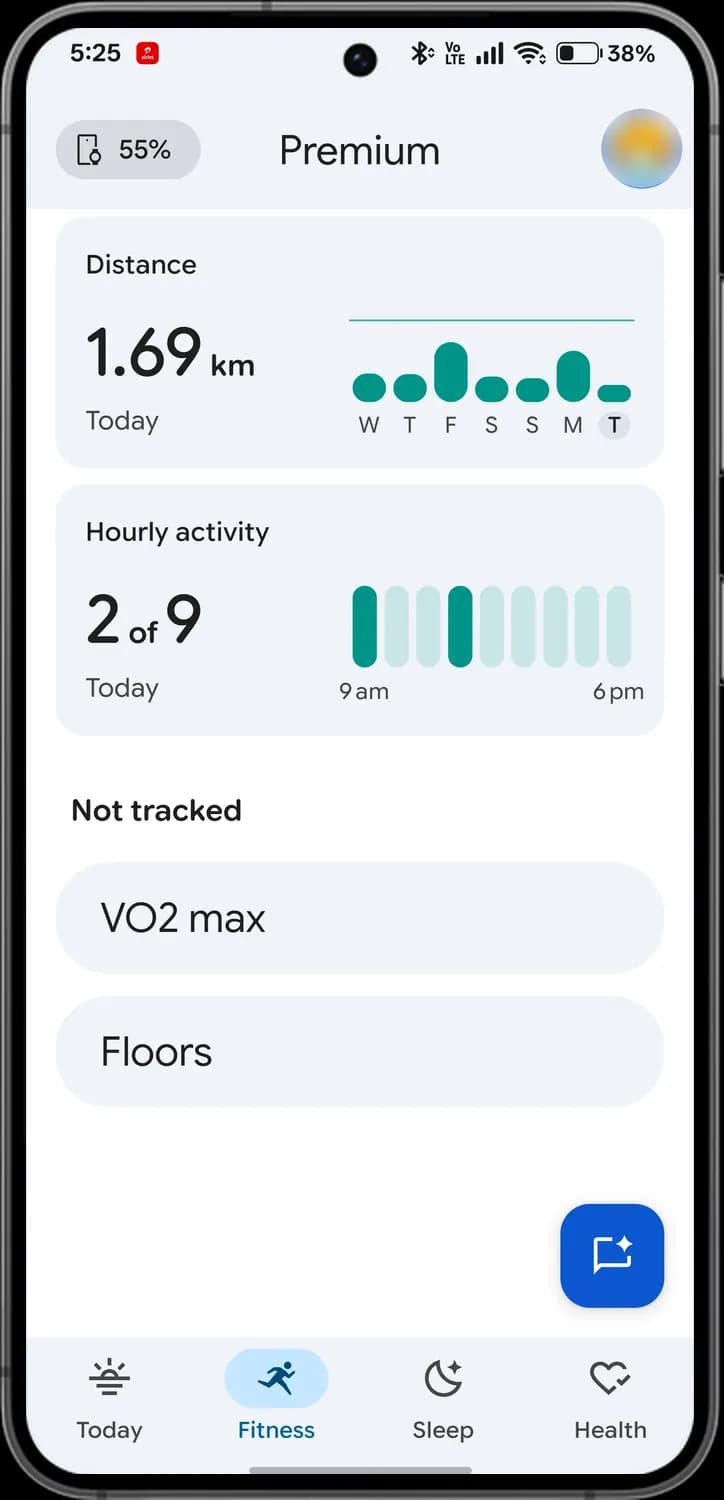
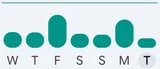
Distance
How far you've moved each day.
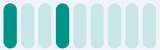
Hourly activity
Each bar is an hour. Dark ones are hours you hit your steps goal.

Not tracked
Metrics your devices can't record yet, like VO2 max.
Workout types
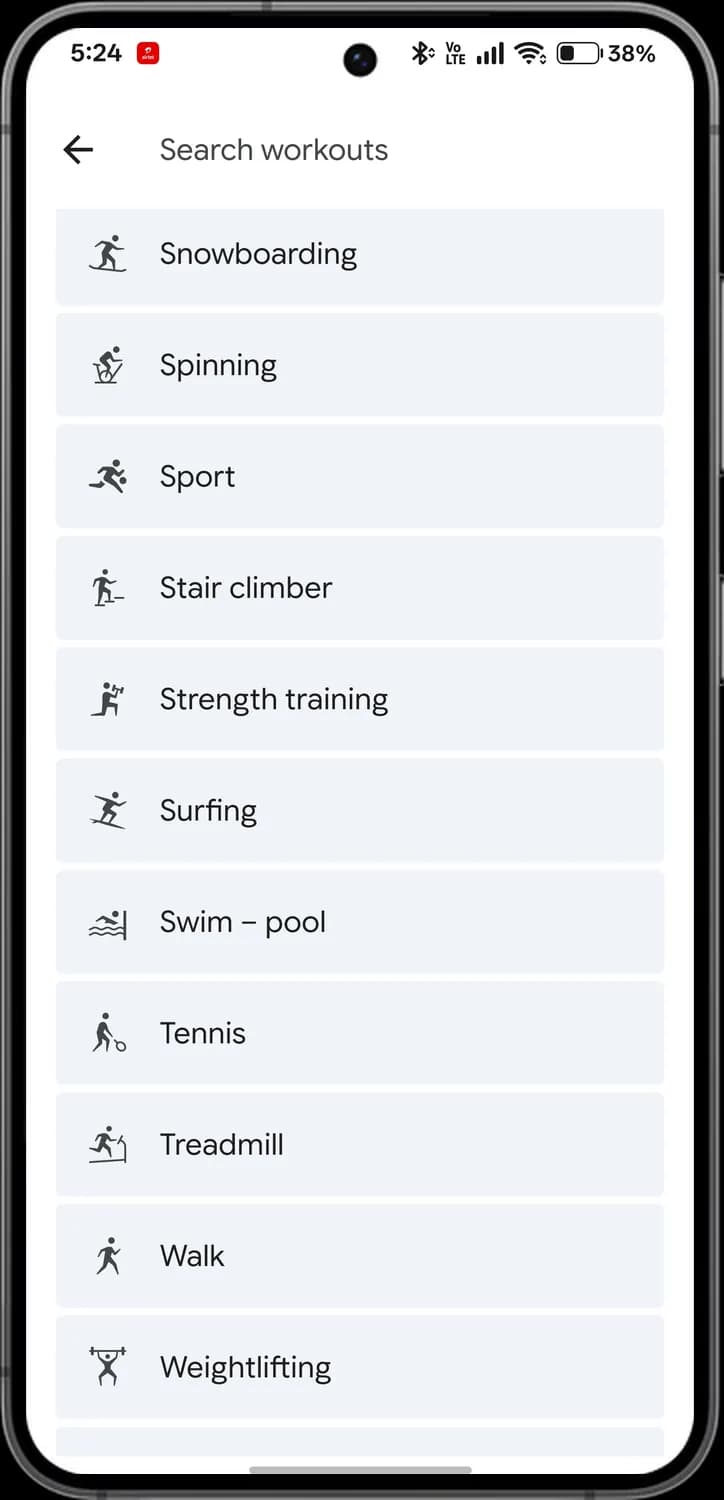
Tap See all under Start a workout to search every workout type. Each one has its own icon, the same one you'll see in your activity history.
Search and saved
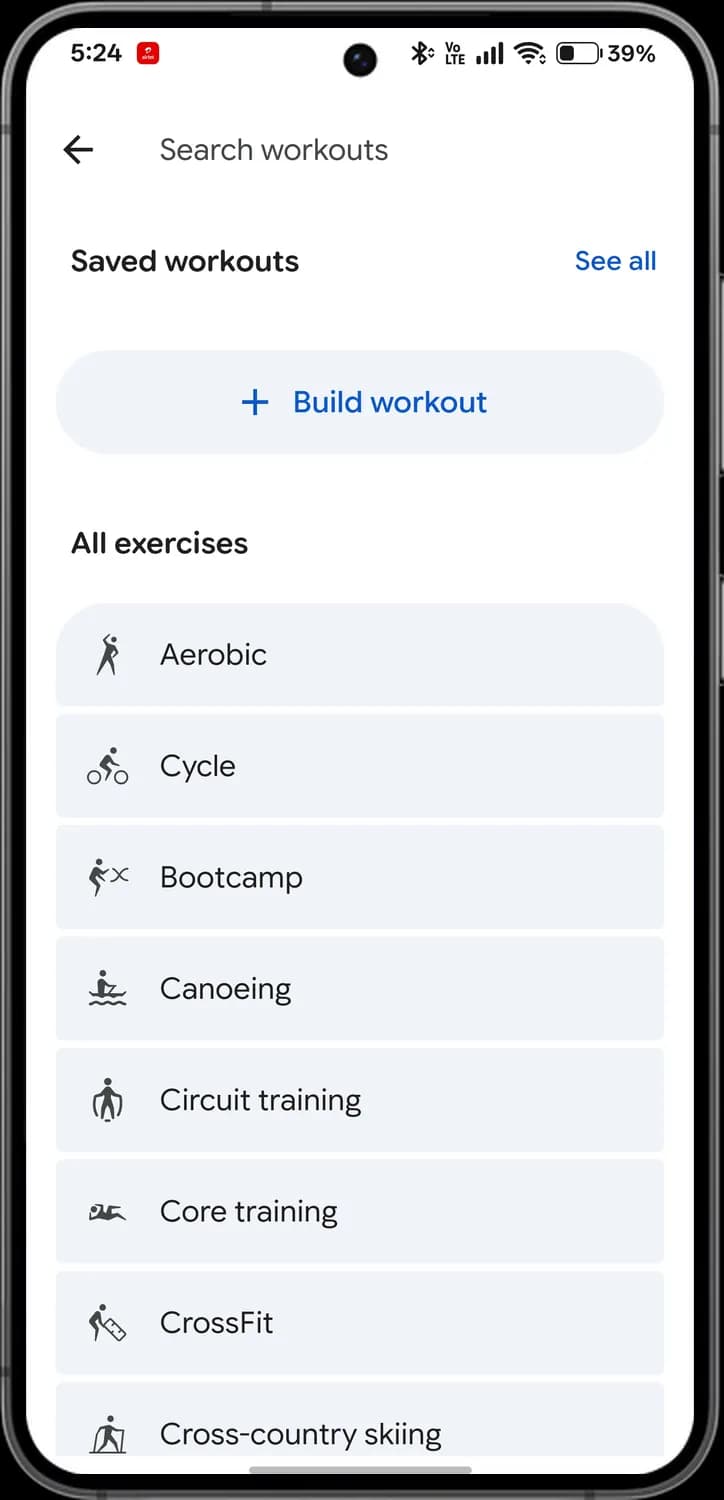

Search workouts
Type to find a workout type.

See all
Shows all your saved workouts.

Build workout
The plus. Put together your own workout.
Aerobic
A figure mid-step.
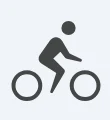
Cycle
A bike with a rider.
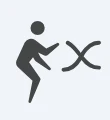
Bootcamp
A figure with an x beside it.
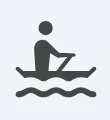
Canoeing
A figure in a canoe.
All exercises
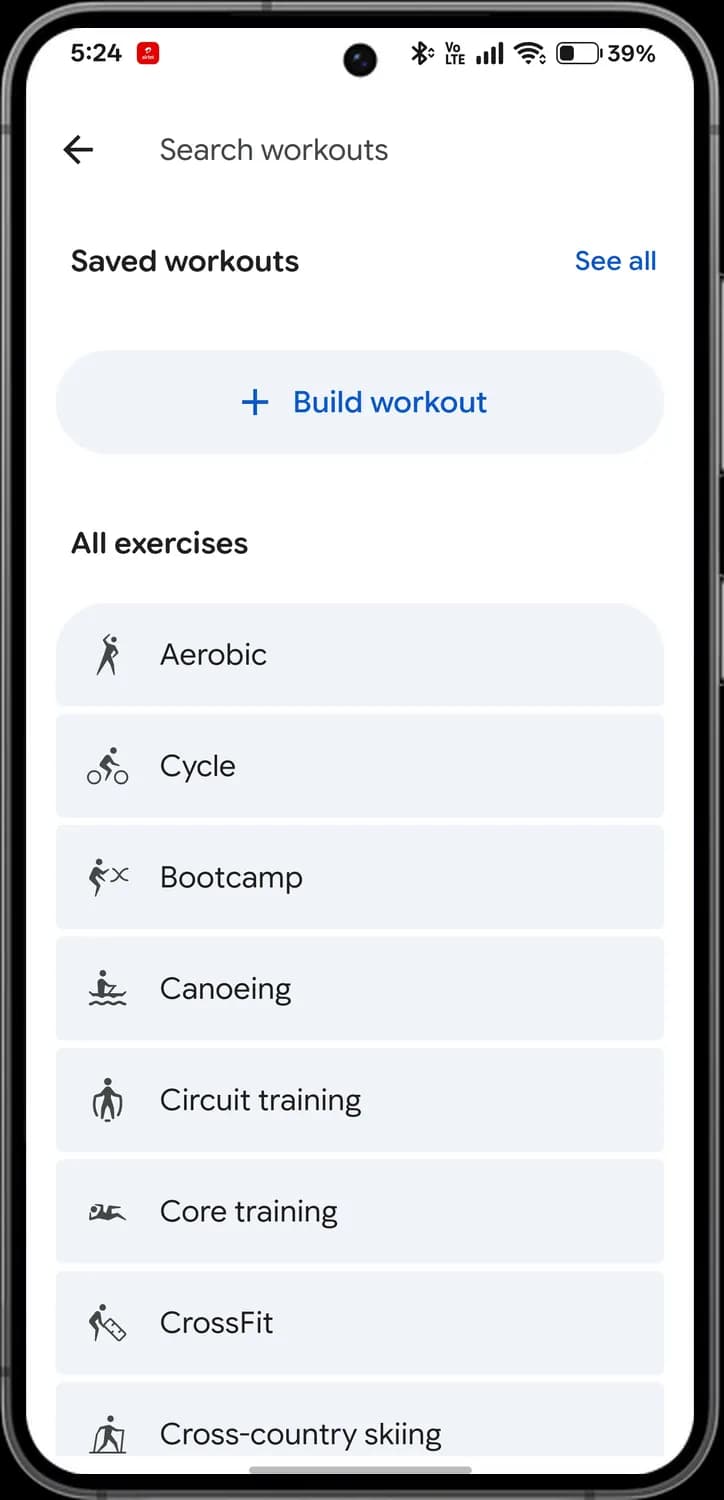
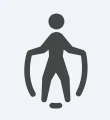
Circuit training
A figure holding weights.
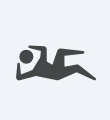
Core training
A figure in a plank.
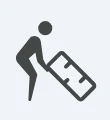
CrossFit
A figure lifting a kettlebell.
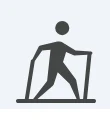
Cross-country skiing
A skier with poles.
D to I
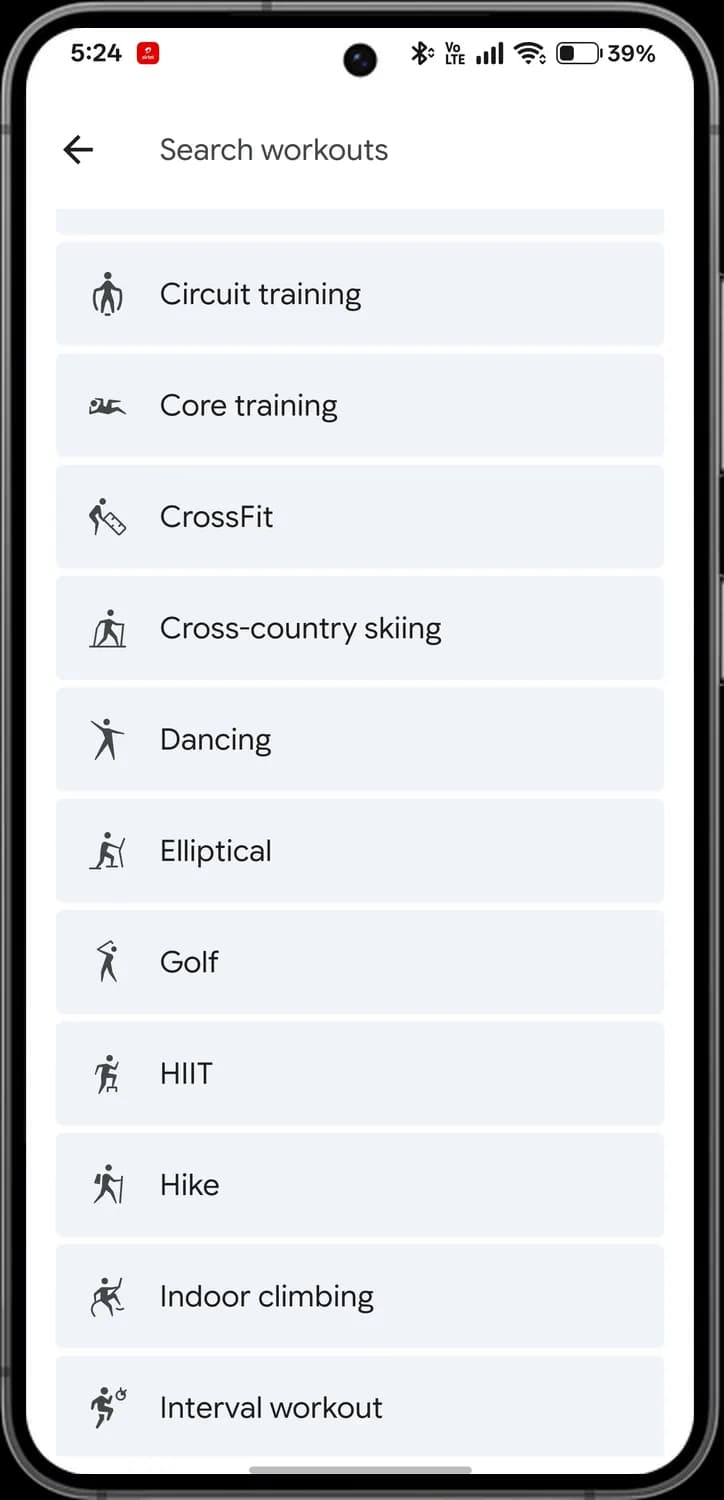
Dancing
A dancing figure.
Elliptical
A figure on an elliptical trainer.
Golf
A golfer mid-swing.
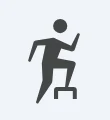
HIIT
High intensity interval training.
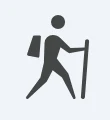
Hike
A figure with a walking stick.
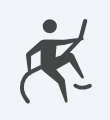
Indoor climbing
A figure on a climbing wall.
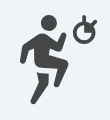
Interval workout
Alternating hard and easy efforts.
K to P
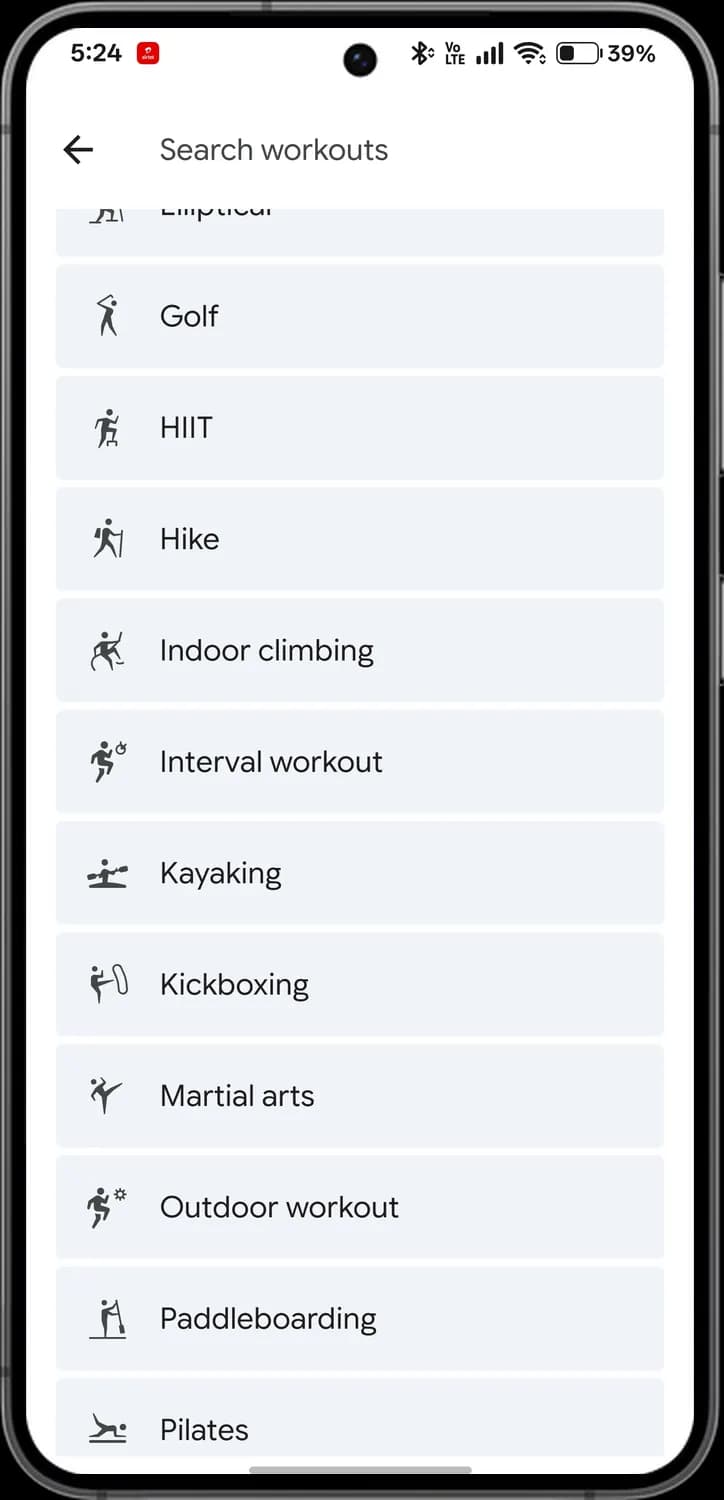

Kayaking
A figure in a kayak.
Kickboxing
A figure kicking.

Martial arts
A figure in a fighting stance.
Outdoor workout
A workout outside.
Paddleboarding
A figure on a paddleboard.
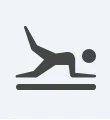
Pilates
A figure on a mat.
P to S
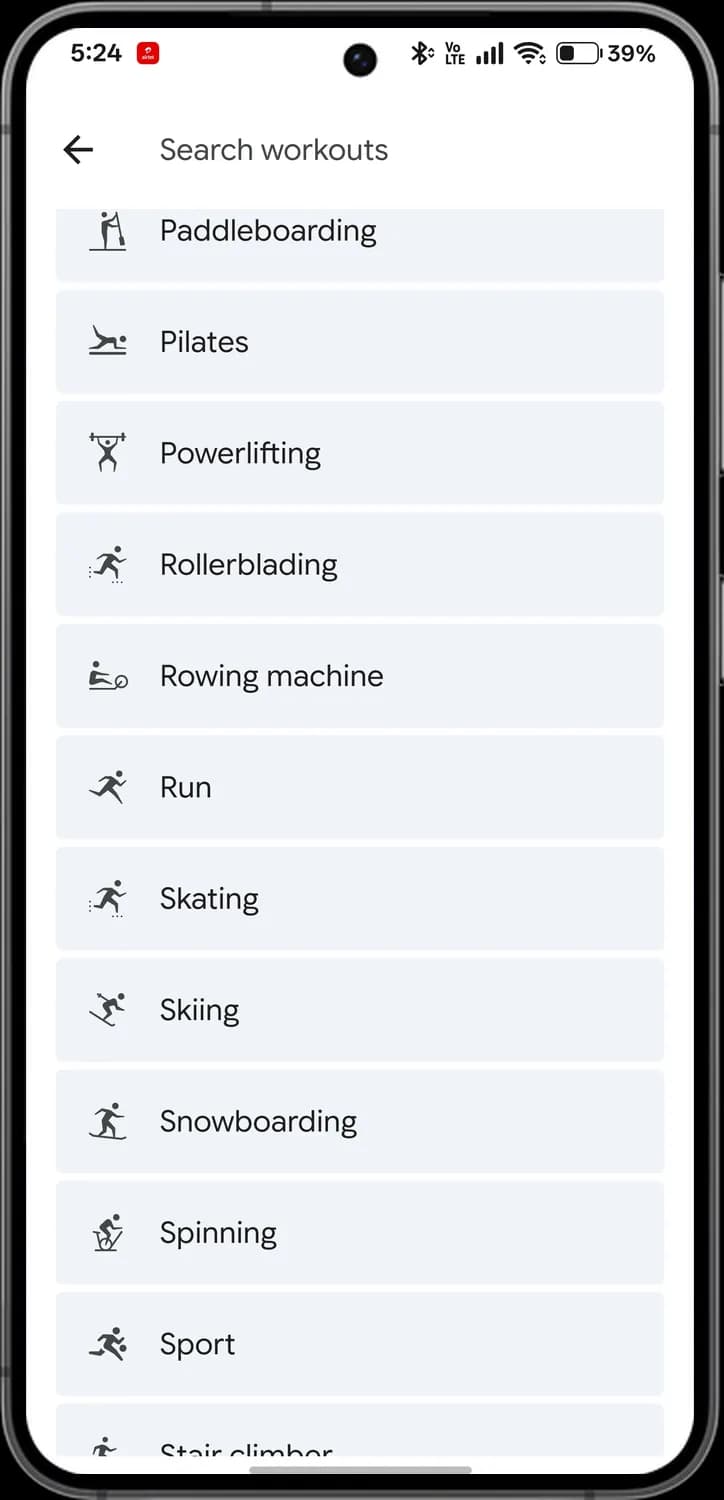
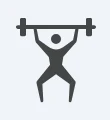
Powerlifting
A figure lifting a barbell.
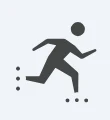
Rollerblading
A figure on inline skates.
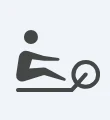
Rowing machine
A figure on a rowing machine.
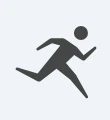
Run
A running figure.
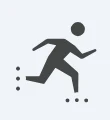
Skating
A figure on skates.
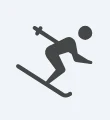
Skiing
A downhill skier.
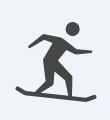
Snowboarding
A figure on a snowboard.
S to T
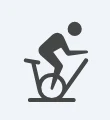
Spinning
A figure on an indoor bike.

Sport
Any sport without its own type.
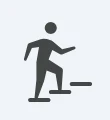
Stair climber
A figure on steps.
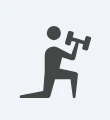
Strength training
A figure with a dumbbell.

Surfing
A figure on a surfboard.
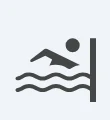
Swim pool
A swimmer.
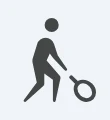
Tennis
A figure with a racket.
T to Y
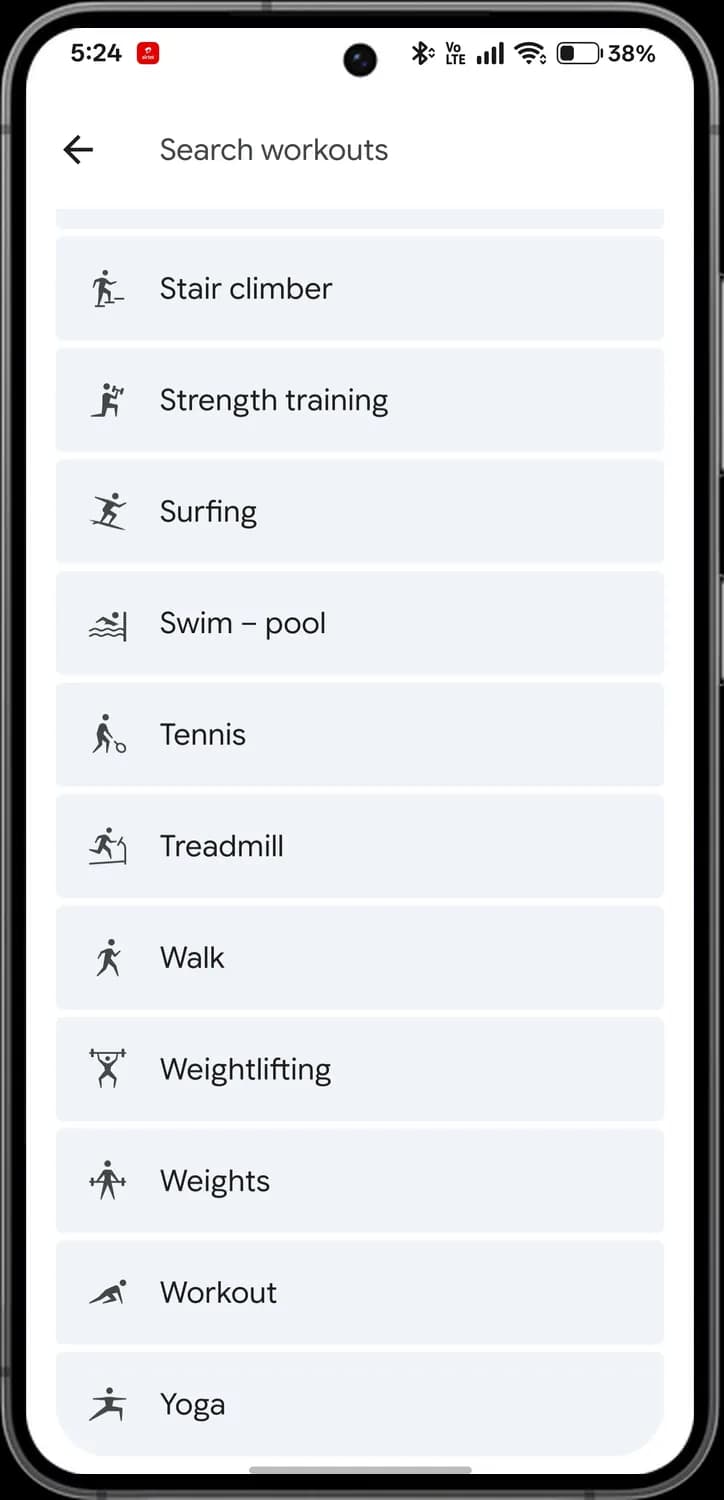
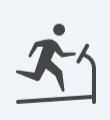
Treadmill
A figure on a treadmill.
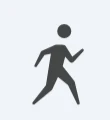
Walk
A walking figure.
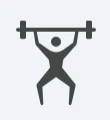
Weightlifting
A figure lifting weights overhead.
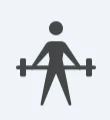
Weights
A figure with free weights.
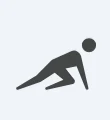
Workout
A general workout.
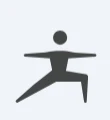
Yoga
A figure in a yoga pose.
Sleep tab
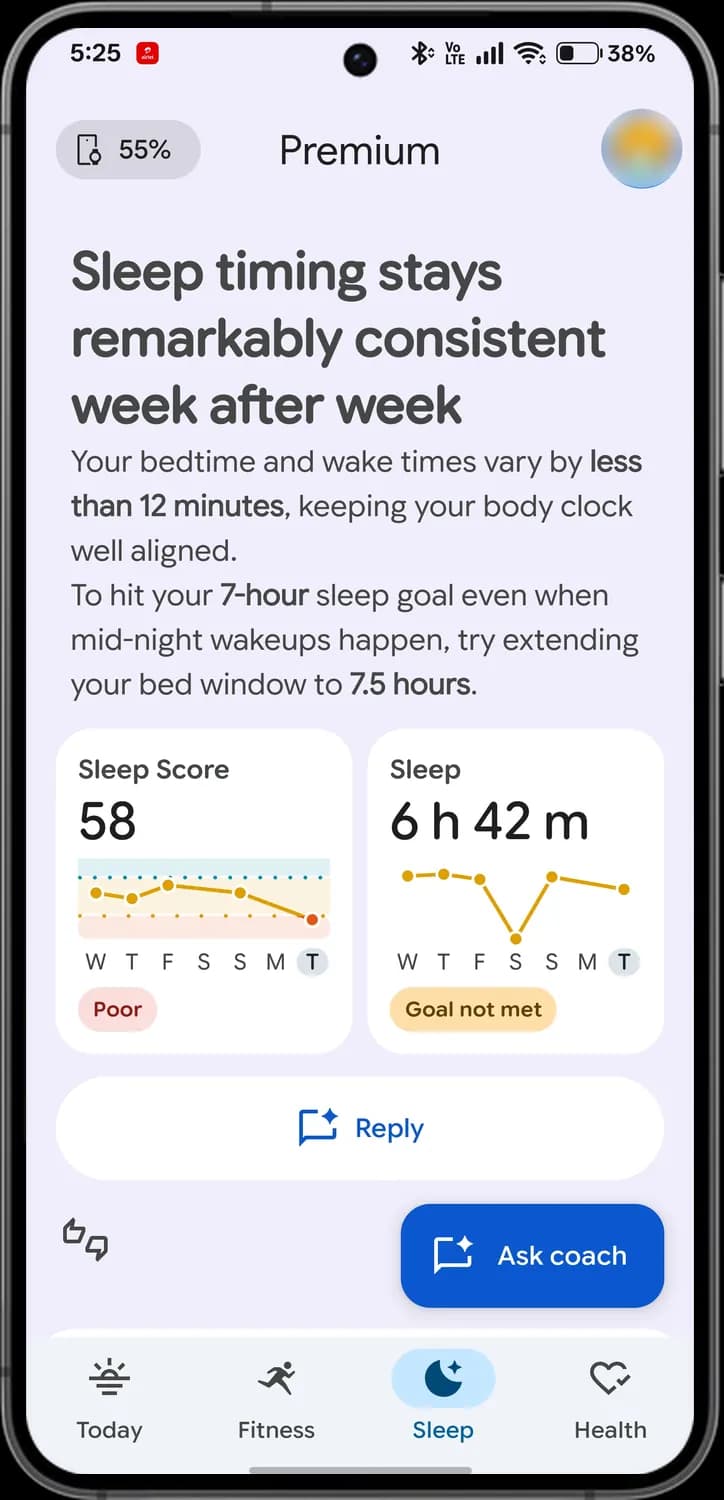
Sleep opens on the coach's take on your night, then breaks it down into scores, stages and how restful it was.
Last night
Sleep Score
A score out of 100 for last night, with a week of history.
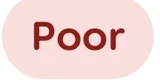
Poor
The label under the score. Red means poor, and it turns green as the score improves.
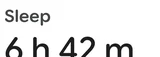
Sleep duration
How long you slept, against your sleep goal.
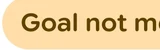
Goal not met
You slept less than your goal.

Reply
Answer or ask the coach about this sleep update.
Rate this update
The thumbs. Tell Google whether this update was useful.

Ask coach
Start a chat about your sleep.
Sleep stages
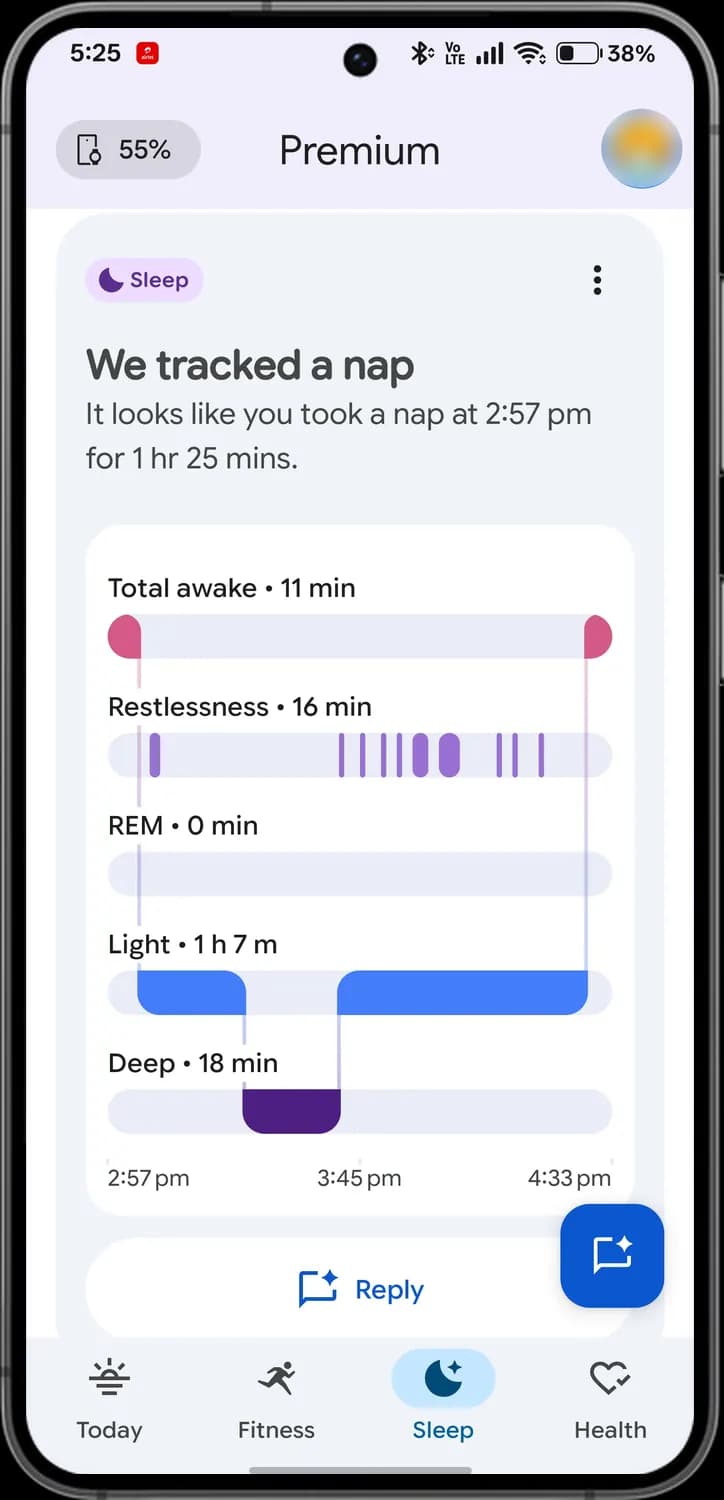

Sleep tag
The moon tag shows this update is about sleep.

More
The three dots. More options for this update.
Awake
Pink. Time you were awake.
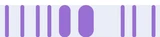
Restlessness
Purple ticks. Moments you moved around.
REM
Time in REM sleep, when most dreaming happens.
Light
Blue. Time in light sleep.

Deep
Dark purple. Time in deep sleep, when your body recovers most.
Sleep quality
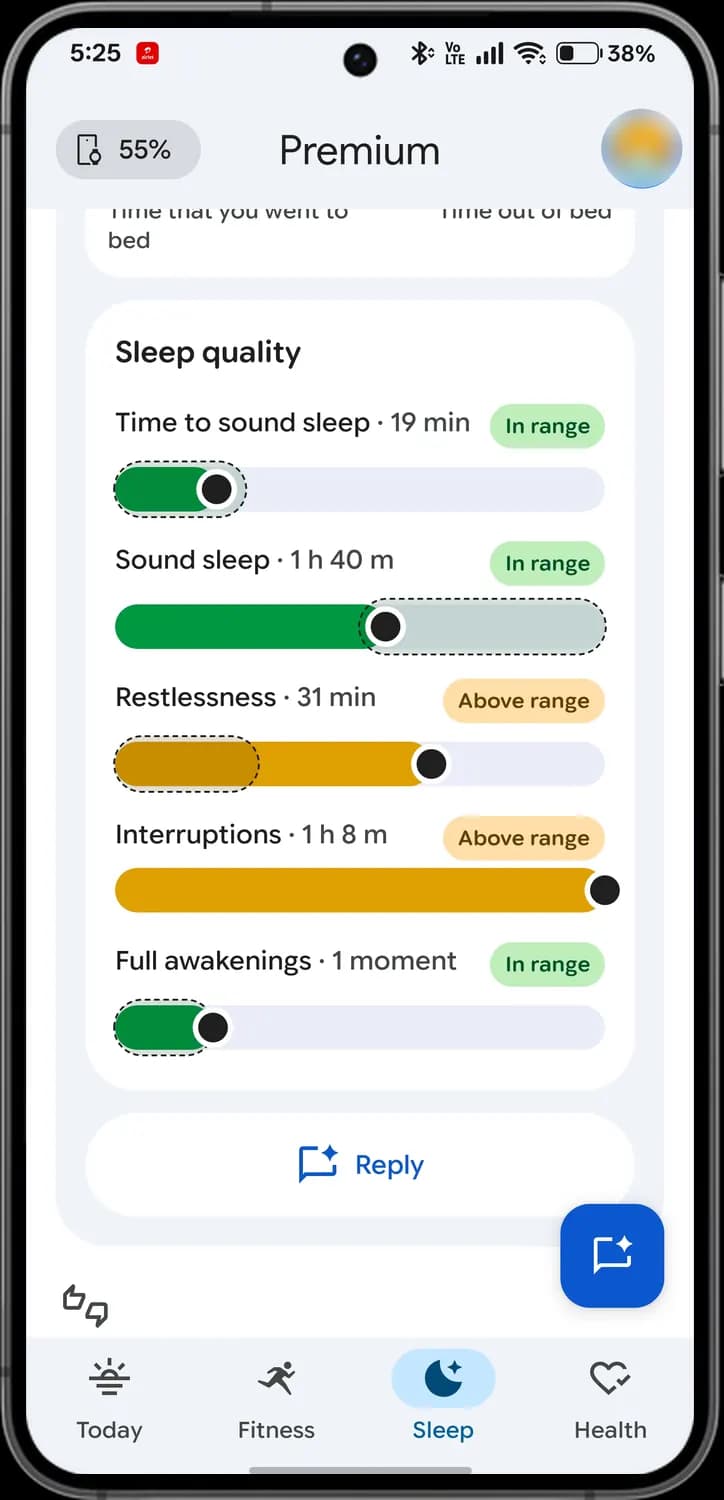

In range
The green label. This part of your sleep was within the usual range.

Above range
The orange label. This one was higher than usual.
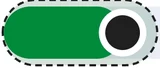
Usual range
The dashed outline is your normal range for this measure.

Your value
The black dot is where last night landed.
Key metrics
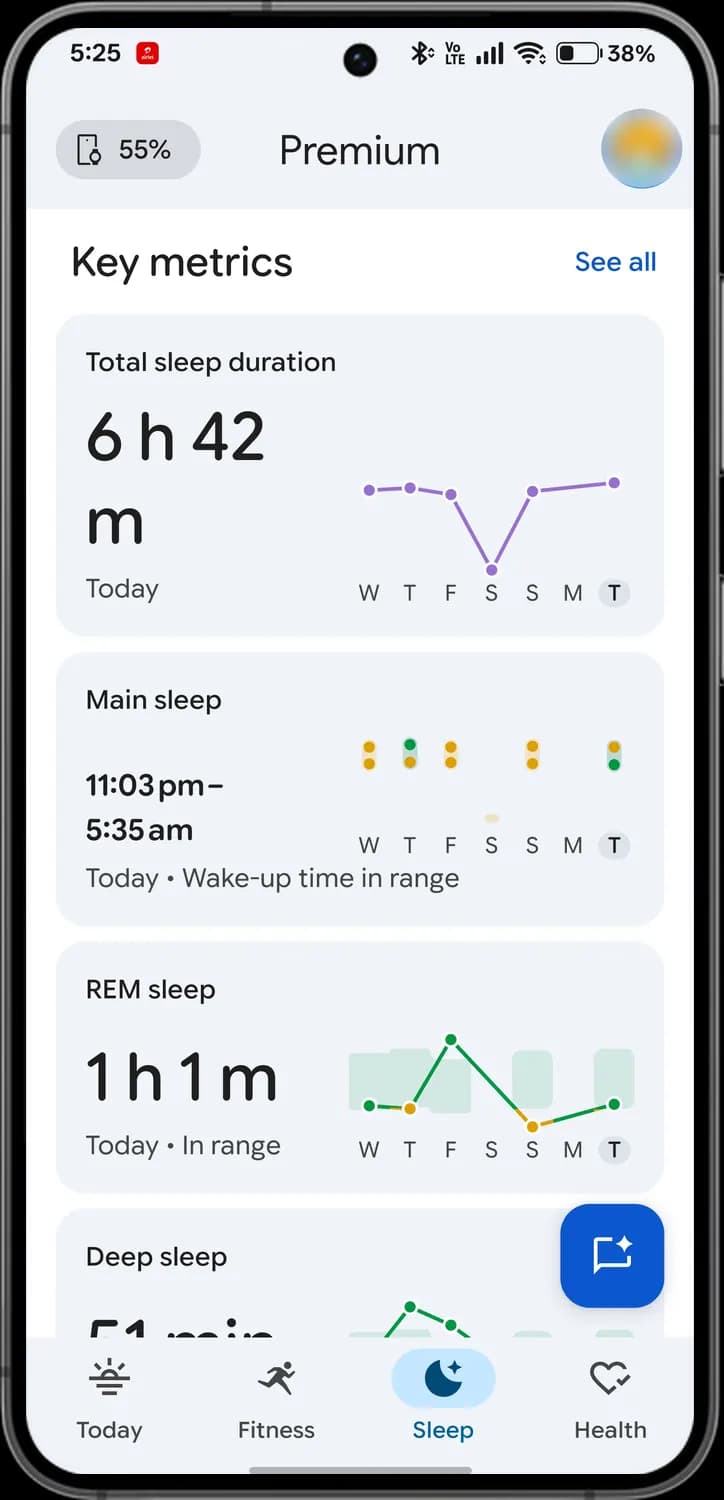

See all
Opens every sleep metric.
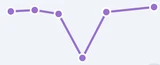
Total sleep duration
Time asleep each night this week.

Today marker
The grey circle marks today on every weekly chart.

Bedtime dots
Your bed and wake times for each day. Green dots were in your usual range.
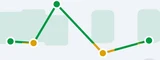
REM sleep
Time in REM sleep each night. The shaded band is your usual range.
Health tab
Health gathers your vitals and key health numbers. Tap Edit to choose which metrics show here.
Health status
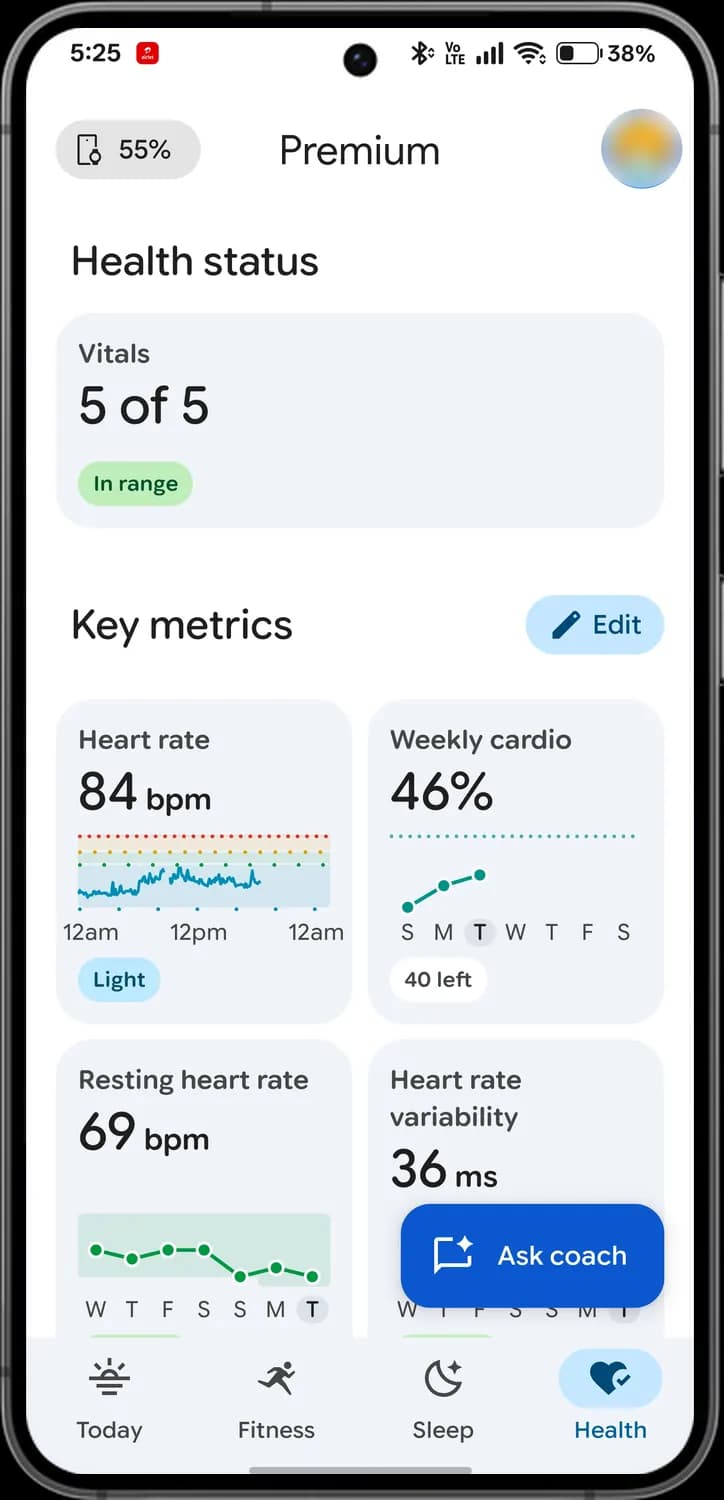
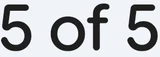
Vitals
How many of your five vitals are in their usual range: breathing rate, HRV, resting heart rate, SpO2 and skin temperature.
In range
The green label. Everything here is normal for you.

Edit
The pencil. Choose which key metrics show on Health.
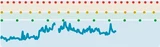
Heart rate
Your latest heart rate, with today's chart.
Weekly cardio
Your progress towards this week's cardio load goal.
Points left
Cardio load points still to earn this week.
Heart and oxygen
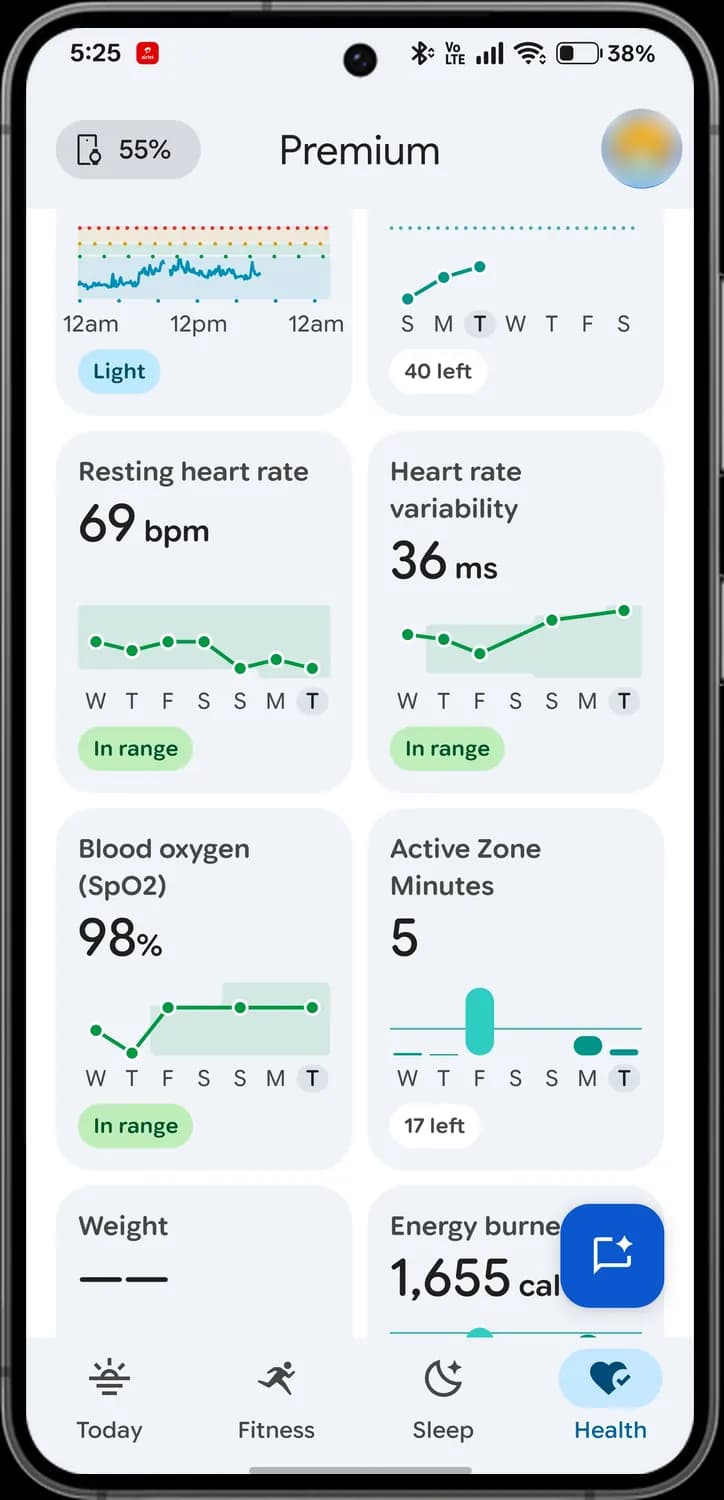
Resting heart rate
Your heart rate at rest over the week.
Heart rate variability
How much the time between heartbeats varies.
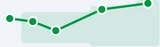
Blood oxygen
SpO2, the oxygen level in your blood, measured while you sleep.
Active Zone Minutes
Minutes in your higher heart rate zones, and how many are left this week.
Energy and weight
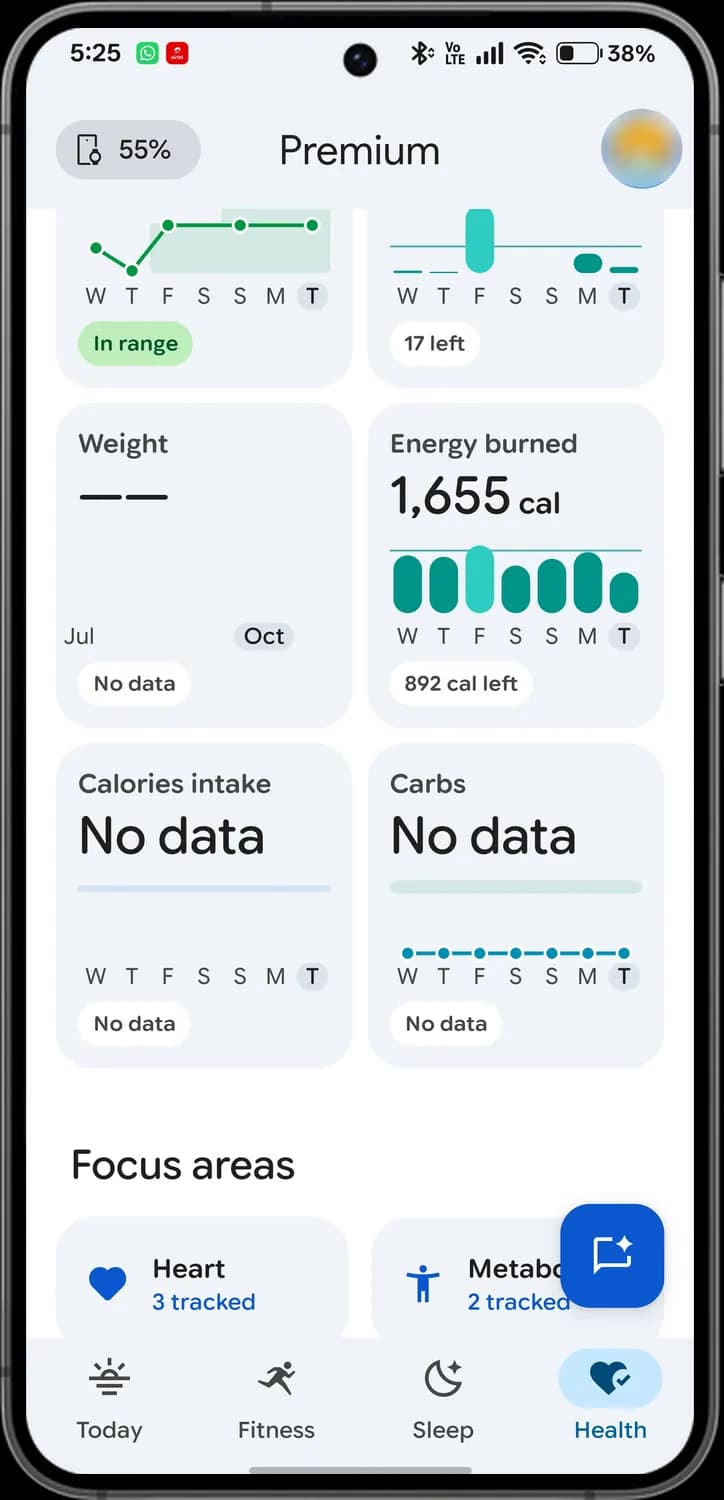
Weight
Two dashes mean no weight logged yet.

Energy burned
Calories burned each day this week.
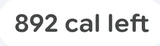
Calories left
Calories still to burn to reach today's goal.
Focus areas and health checks
Further down Health, focus areas group your metrics by topic, and health checks alert you when something looks off.
Focus areas
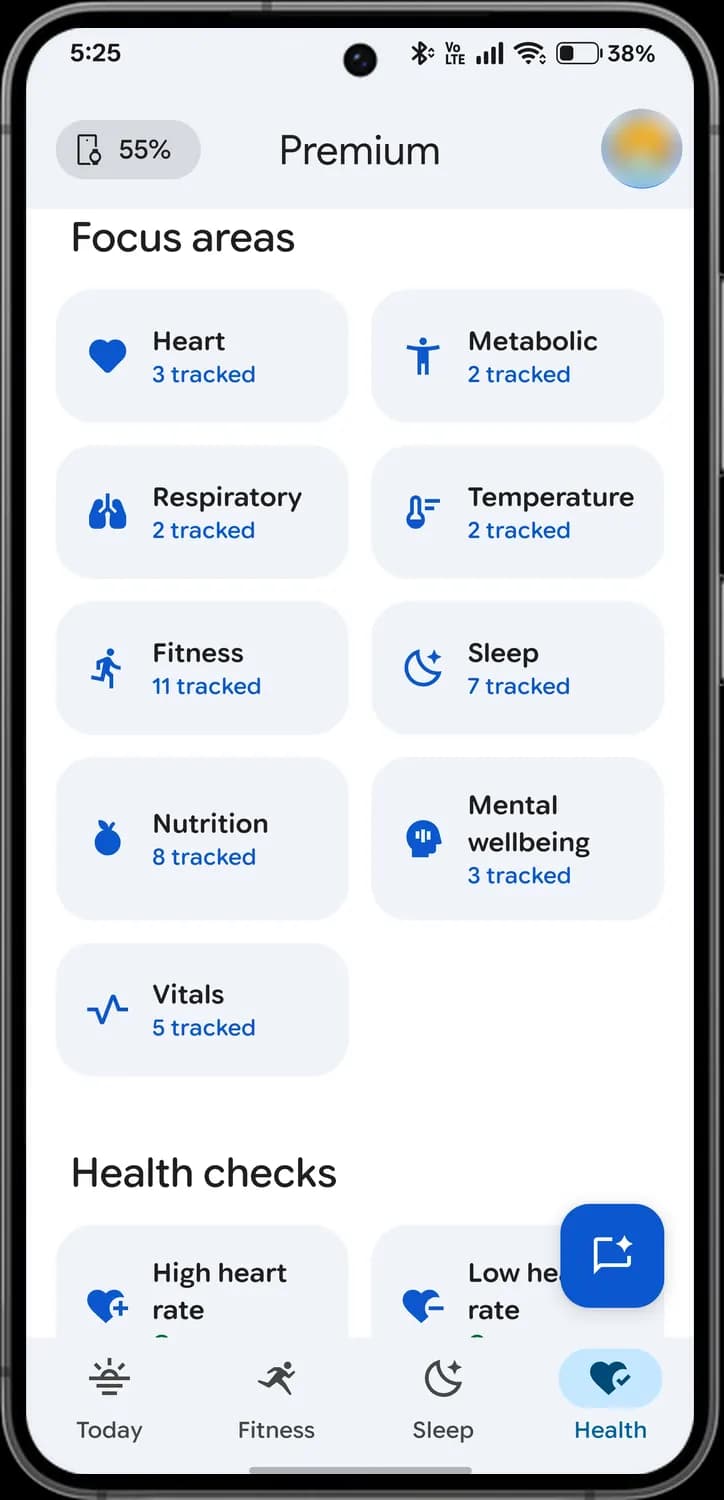

Heart
The heart. Heart metrics, like resting heart rate.

Metabolic
The standing figure. Weight and body metrics.

Respiratory
The lungs. Breathing rate and blood oxygen.

Temperature
The thermometer. Skin and body temperature.

Fitness
The runner. Activity and workout metrics.
More focus areas

Sleep
The moon. All your sleep metrics.

Nutrition
The apple. Food, water and nutrients you log.

Mental wellbeing
The head. Stress, resilience and mindfulness.

Vitals
The pulse line. Your five vitals.
Health checks
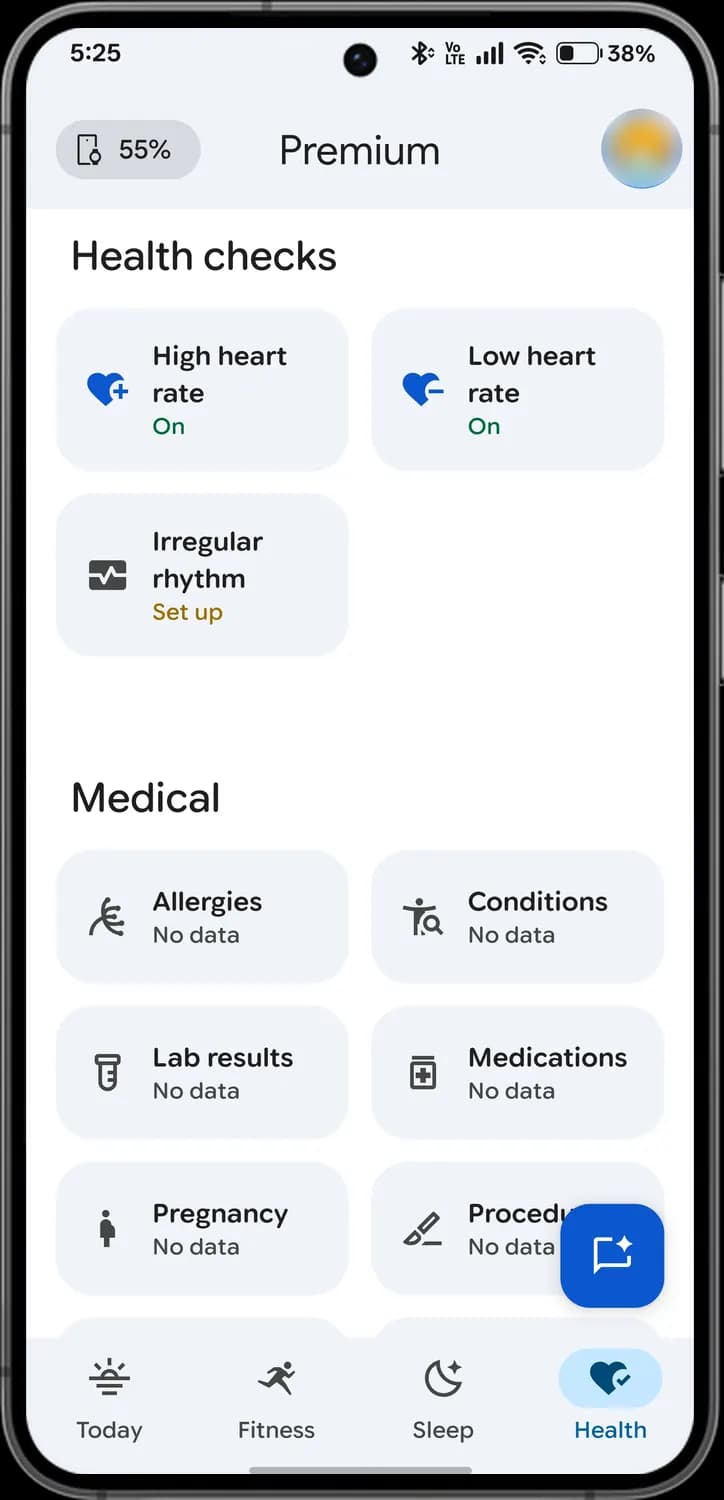

High heart rate
The heart with a plus. Alerts you when your heart rate stays high while you're inactive.

Low heart rate
The heart with a minus. Alerts you when it stays unusually low.

Irregular rhythm
The pulse in a box. Checks for signs of atrial fibrillation.

Set up
Orange text means a check is not switched on yet. Green On means it is.
Medical records and personal info
At the bottom of Health you'll find your medical records, once you upload or connect them, and your own profile and goals.
Medical records

Allergies
The leaf shape. Your recorded allergies.

Conditions
The figure with a magnifier. Diagnosed conditions.

Lab results
The test tube. Results from blood tests and other labs.

Medications
The pill box with a plus. Medicines you take.

Pregnancy
The pregnant figure. Pregnancy records.

Procedures
The scalpel. Surgeries and procedures.
More records
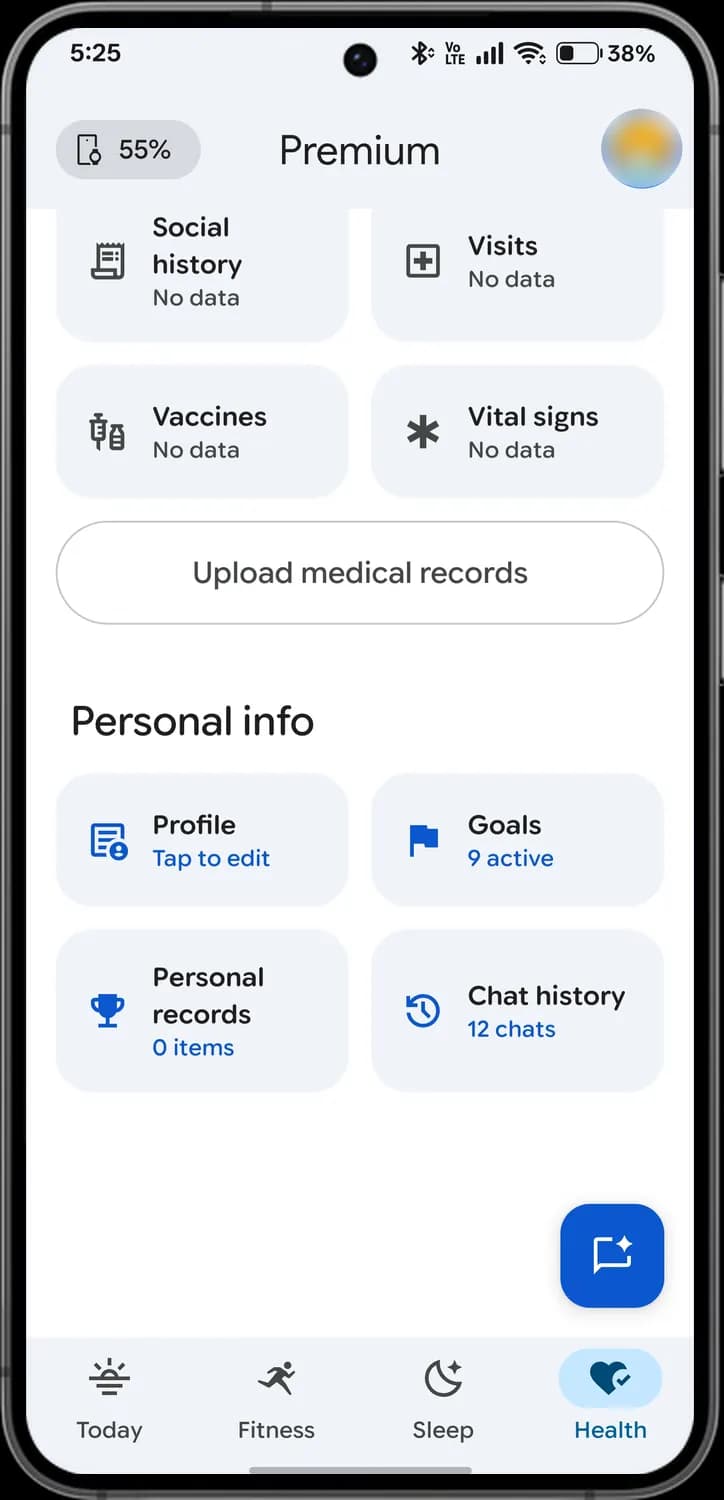

Social history
The notepad. Lifestyle details like smoking or alcohol use.

Visits
The square with a plus. Doctor and hospital visits.

Vaccines
The syringe and vial. Your vaccinations.

Vital signs
The asterisk. Readings taken at the doctor, like blood pressure.

Upload medical records
Add records from a file or photo.
Personal info
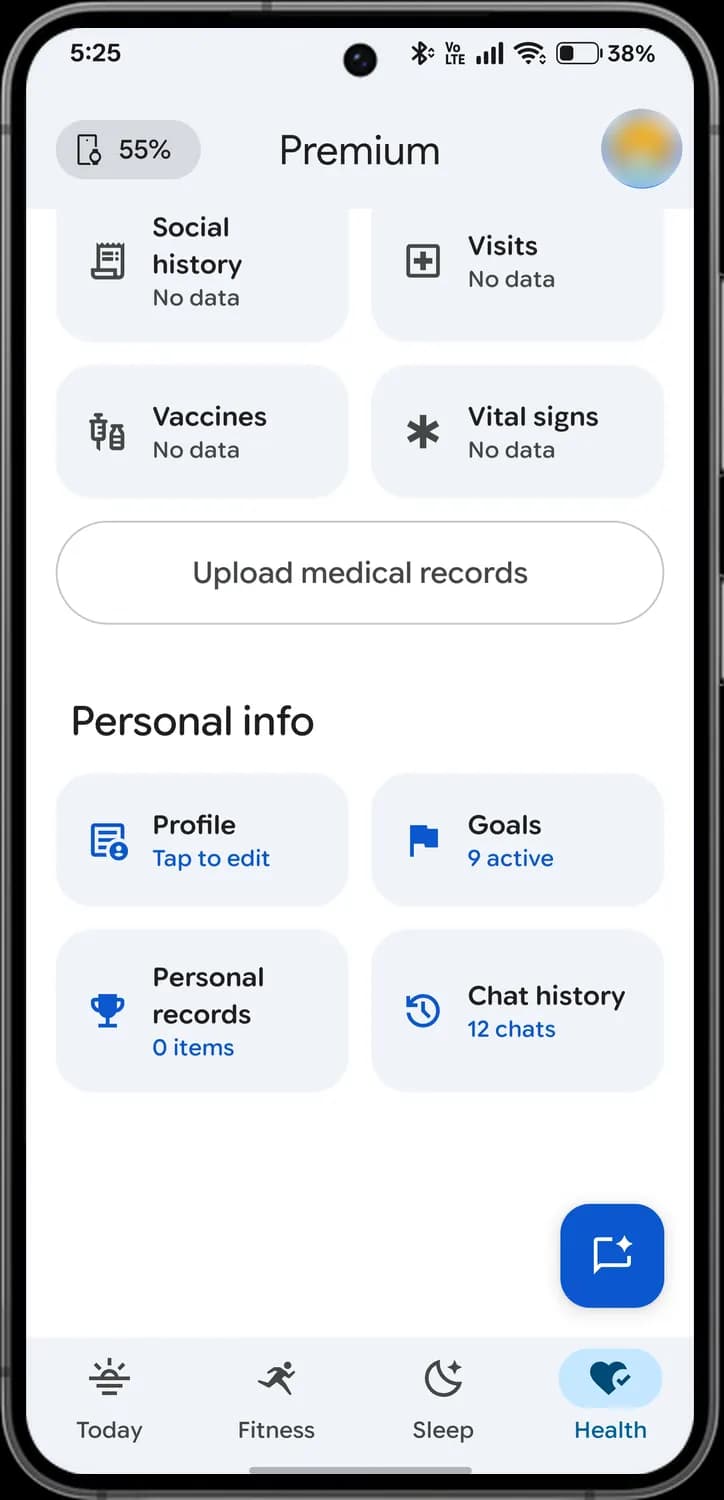

Profile
The form. Your height, weight, age and other details. Tap to edit.

Goals
The flag. Your active goals.

Personal records
The trophy. Your best efforts.

Chat history
The clock with an arrow. Your past chats with the coach.
Ask coach
Ask coach opens a chat with the AI coach. It knows your data, so you can ask about it, log something, or have it change your plan.
New chat
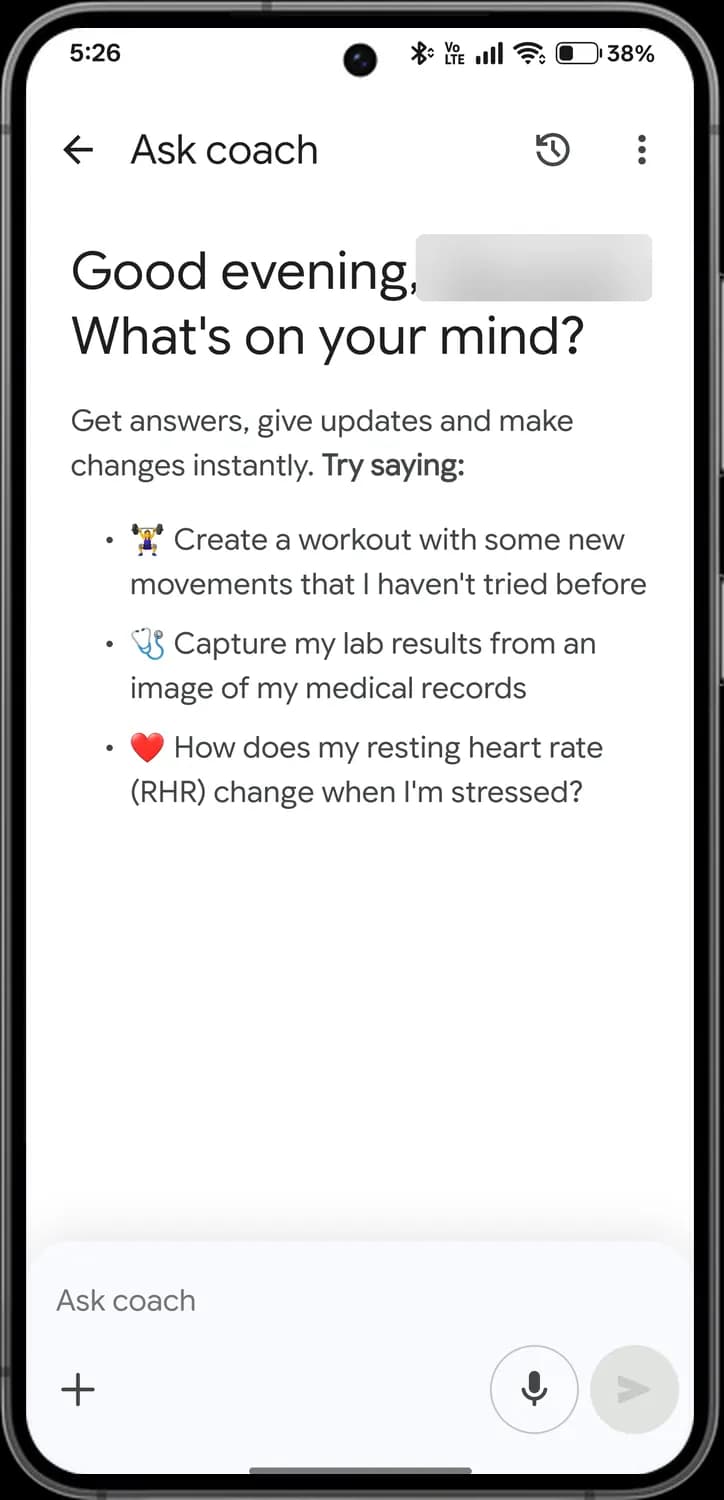

Chat history
The clock with an arrow. Opens your earlier chats.

More options
The three dots. More options for the chat.
Try saying
Example questions. Tap one to send it.
Attach
The plus. Add a photo or file to the chat.
Voice
The microphone. Speak instead of typing.

Send
The arrow. Sends your message. It's grey until you type.
Attach
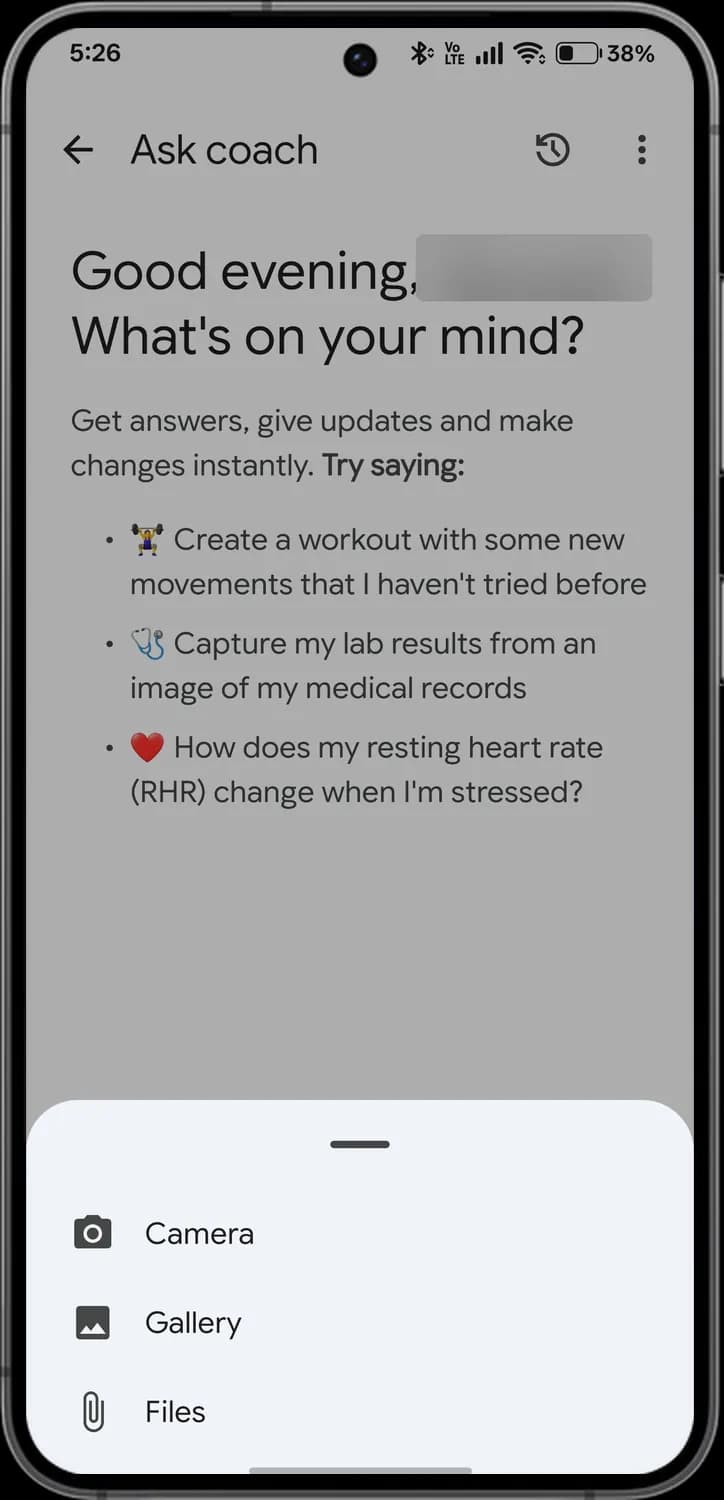

Camera
Take a photo to share with the coach.

Gallery
Share a photo you already have.
Files
The paperclip. Share a document, like a lab report.
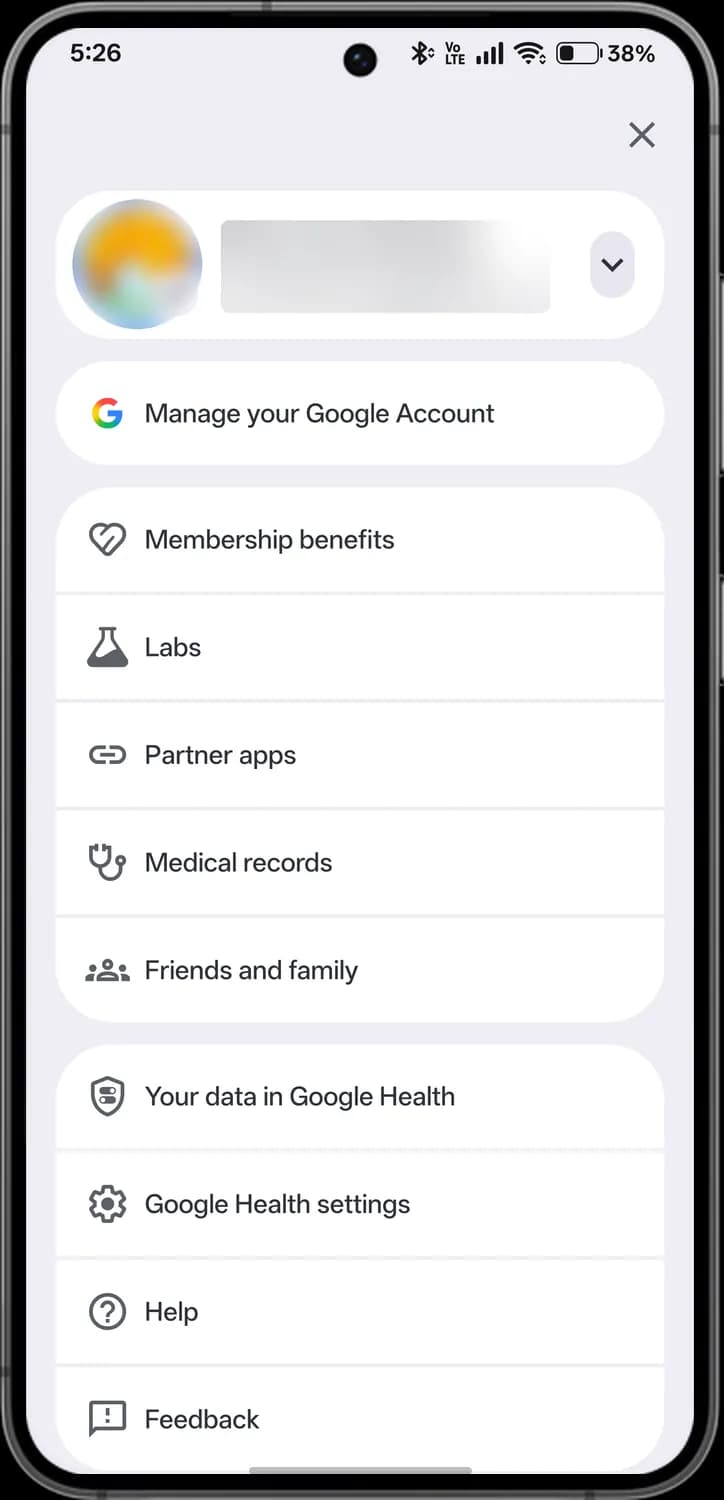
Account menu
Tap your profile picture on any main tab to open this menu.
Account
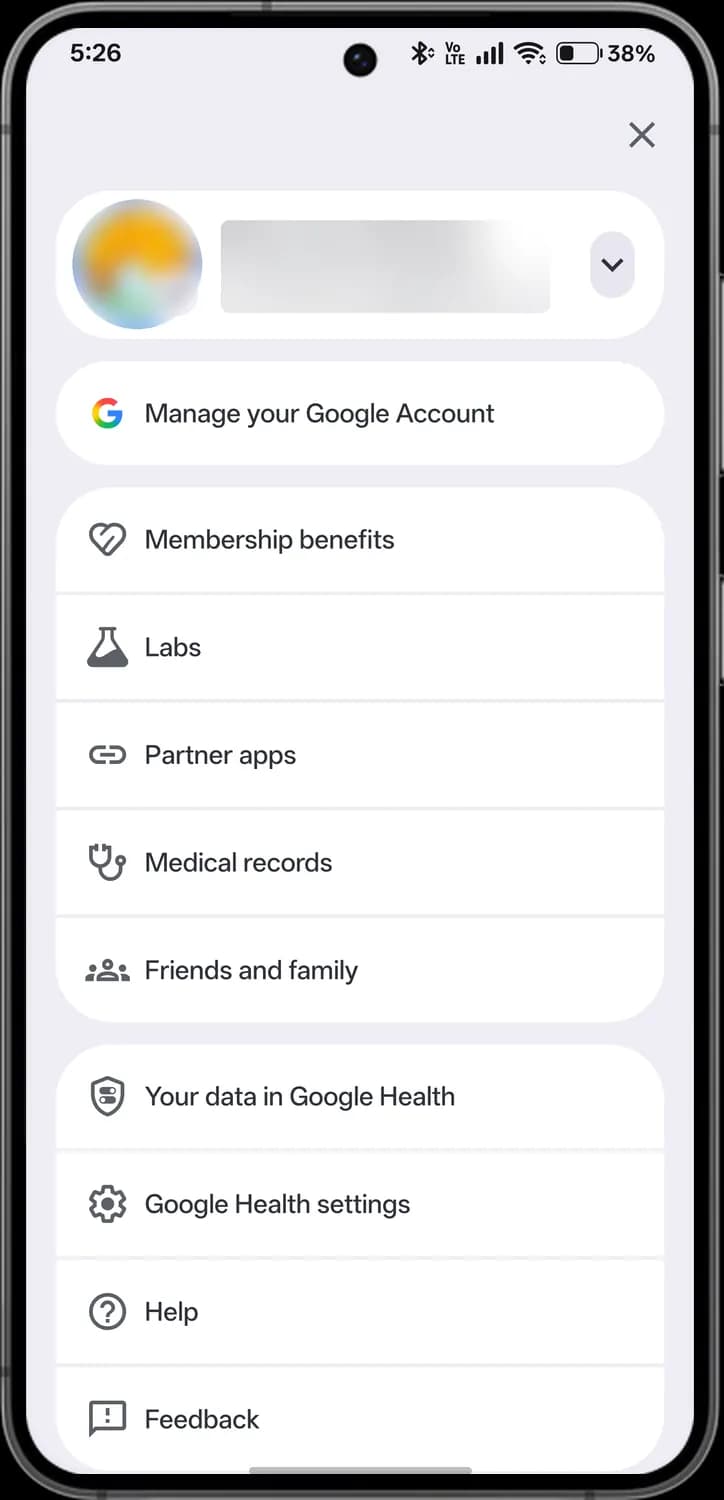

Close
The X. Closes the menu.

Manage your Google Account
The Google G. Opens your Google Account settings.

Membership benefits
The heart. What your Premium membership includes.

Labs
The flask. Try experimental features.

Partner apps
The chain link. Apps connected to Google Health.

Medical records
The stethoscope. Connect or upload your medical records.

Friends and family
The group. People you share with.
Settings and help
Switch account
The arrow. Switch to another Google account.

Your data in Google Health
The shield. See, download or delete your data, and control who it's shared with.

Google Health settings
The gear. Units, notifications, devices and more.

Help
The question mark. Help articles.

Feedback
The exclamation mark. Send feedback to Google.
Connections
Tap the battery chip on Today to see your devices and the apps that share data with Google Health.
Devices
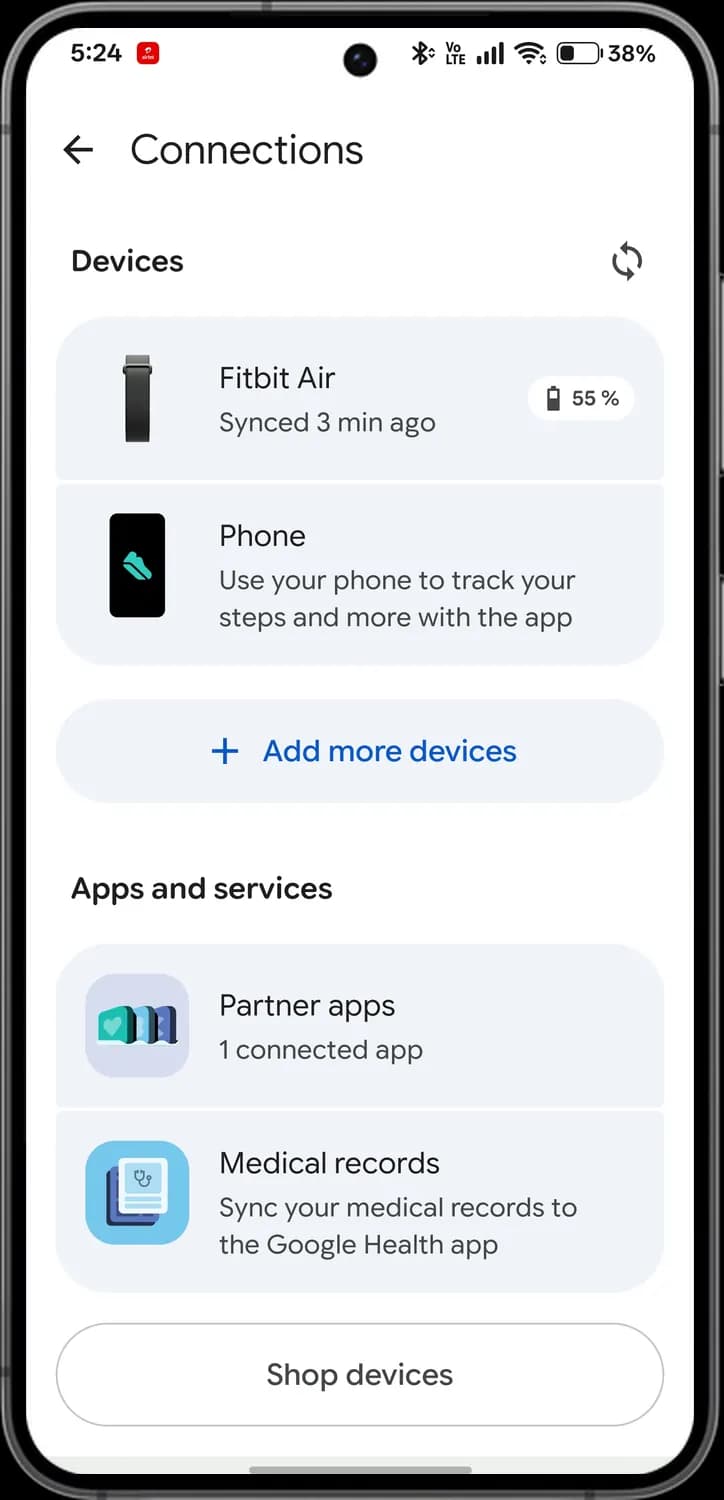
Sync
The circular arrows. Syncs your devices now.
Fitbit Air
Your tracker and when it last synced. Tap for its settings.
Battery level
How much charge your tracker has left.
Phone
Your phone can count steps and more on its own.

Add more devices
Pair another tracker or watch.
Apps and services
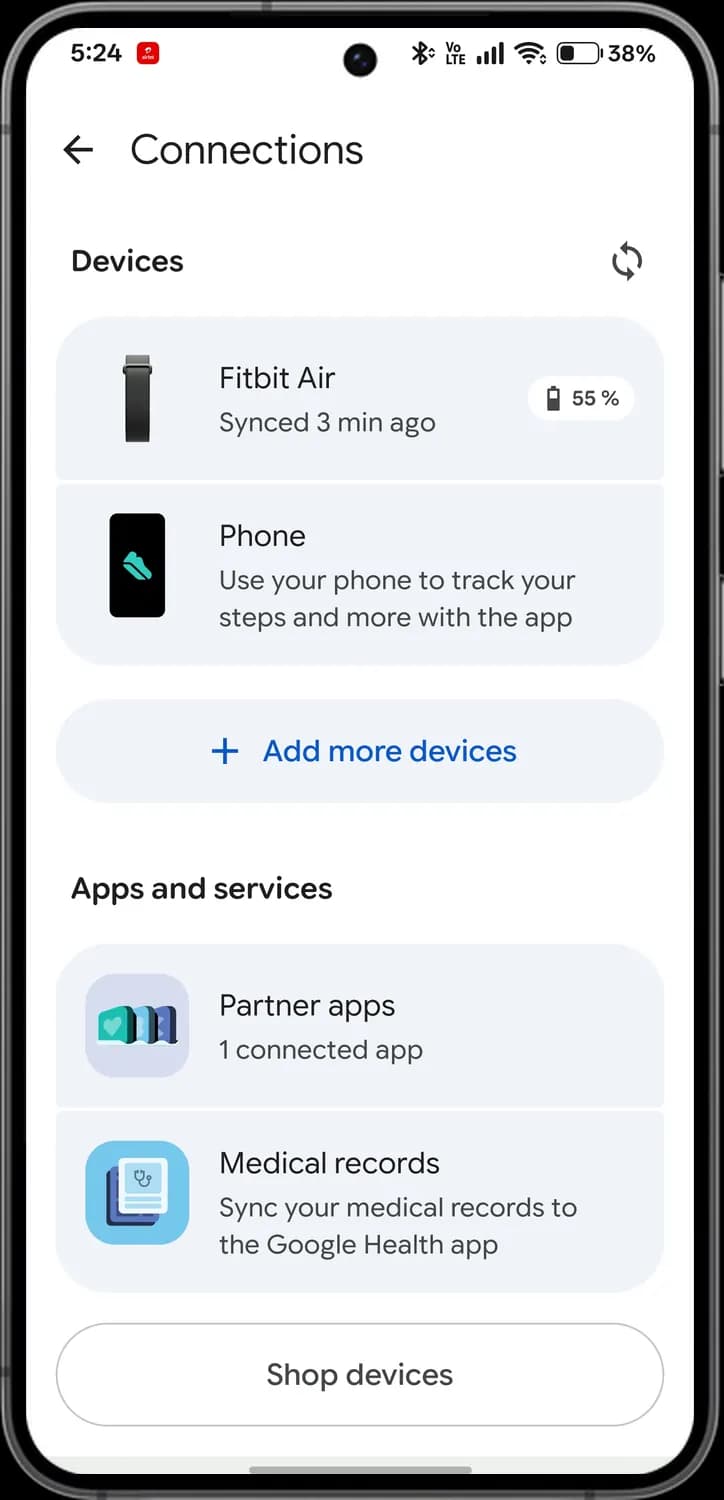
Partner apps
Apps that share data with Google Health, and how many are connected.

Medical records
Sync your medical records into the app.

Shop devices
Opens the Google Store to buy Fitbit devices.
Those are the meanings of Google Health app icons and symbols. Google is still adding features to the app and the coach, so we update this guide every time the app changes, and you can bookmark this page to stay updated. These screens are from the Android app with a Fitbit Air paired. For more icon guides, you can also visit our TechPP icon guides.
Was this article helpful?
Comments
0Share your thoughts, questions, or feedback about this guide.