
Google Calendar Icons and Symbols Explained
Google Calendar is where most of us keep our meetings, trips, birthdays and to-dos, and it now handles tasks too. But a lot of what it can do sits behind small icons: the dots under dates, the tick on top, the arrows on a task, the circle next to Google Meet, and the options hidden inside a new event.
In this guide, you will learn what every icon in the latest Google Calendar app means, screen by screen. And this is an interactive guide. You can tap on every icon on the screens below to know what it does.
Calendar home
Google Calendar opens on your calendar, here in Month view. The bar on top holds everything you reach for most, and the colours on each day tell you what kind of entry it is.
Top bar
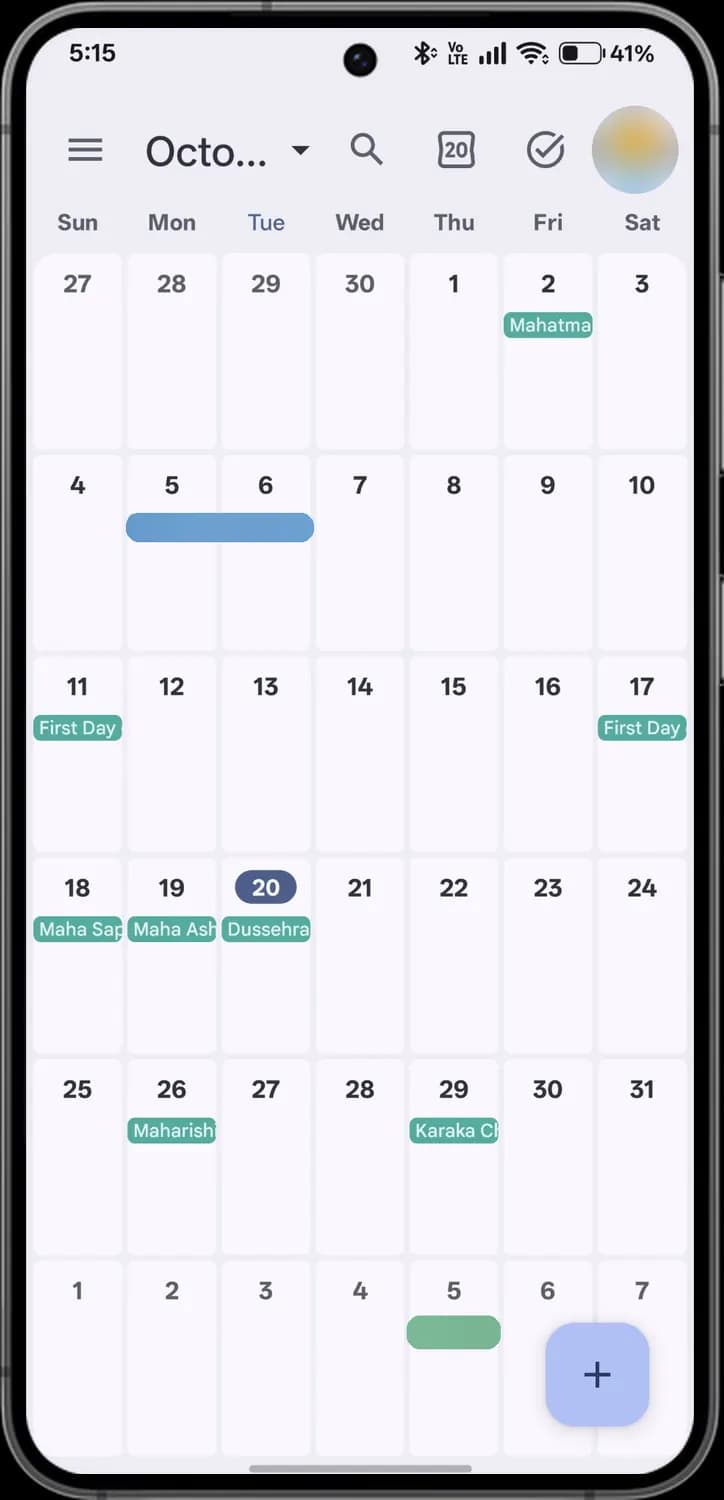

Menu
Opens the side menu: switch views, show or hide calendars, and open Settings.
Month name
Shows the month you are looking at. Tap it to open a small month picker and jump to any date.

Search
Find any event, task or birthday by name, place or person.

Today
Jump back to today. The number on the icon is today's date.

Tasks
Opens Google Tasks, your to-do lists, inside Calendar.

Your account
Switch Google accounts or manage your Google Account.
Month view

Today's date
The filled circle marks today in the month grid.
Holiday
Green entries come from the Holidays calendar for your country, like Dussehra here.

Create
Add a new event, task or birthday. It opens a small menu with all three.
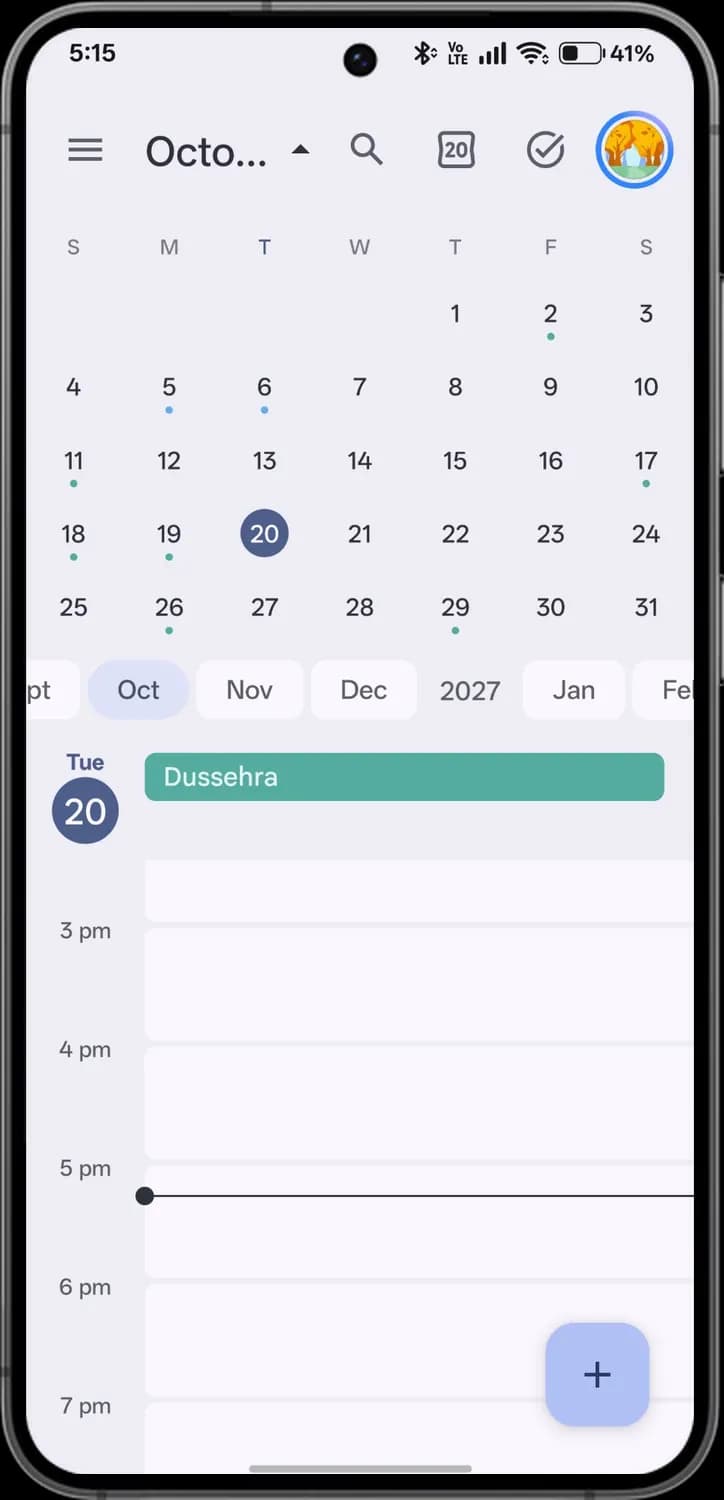
Month picker and day view
Tapping the month name drops down a small calendar above the day view. It's the quickest way to jump to another date while still seeing today's timeline.

Hide month picker
The arrow points up while the picker is open. Tap it to fold the picker away.

Day with entries
A dot under a date means something is planned that day.

Today
Today's date is filled in so you can find it at a glance.
Months and years
Swipe this row to jump to another month or year. The highlighted chip is the month on screen.

All-day event
Entries without a time, like holidays, sit in a bar at the top of the day.
Current time
The line with a dot marks the time right now on today's timeline.

Create
Add an event, task or birthday on the day you are viewing.
Schedule view
Schedule view lists everything coming up as one scrolling agenda, with a picture at the start of each month.
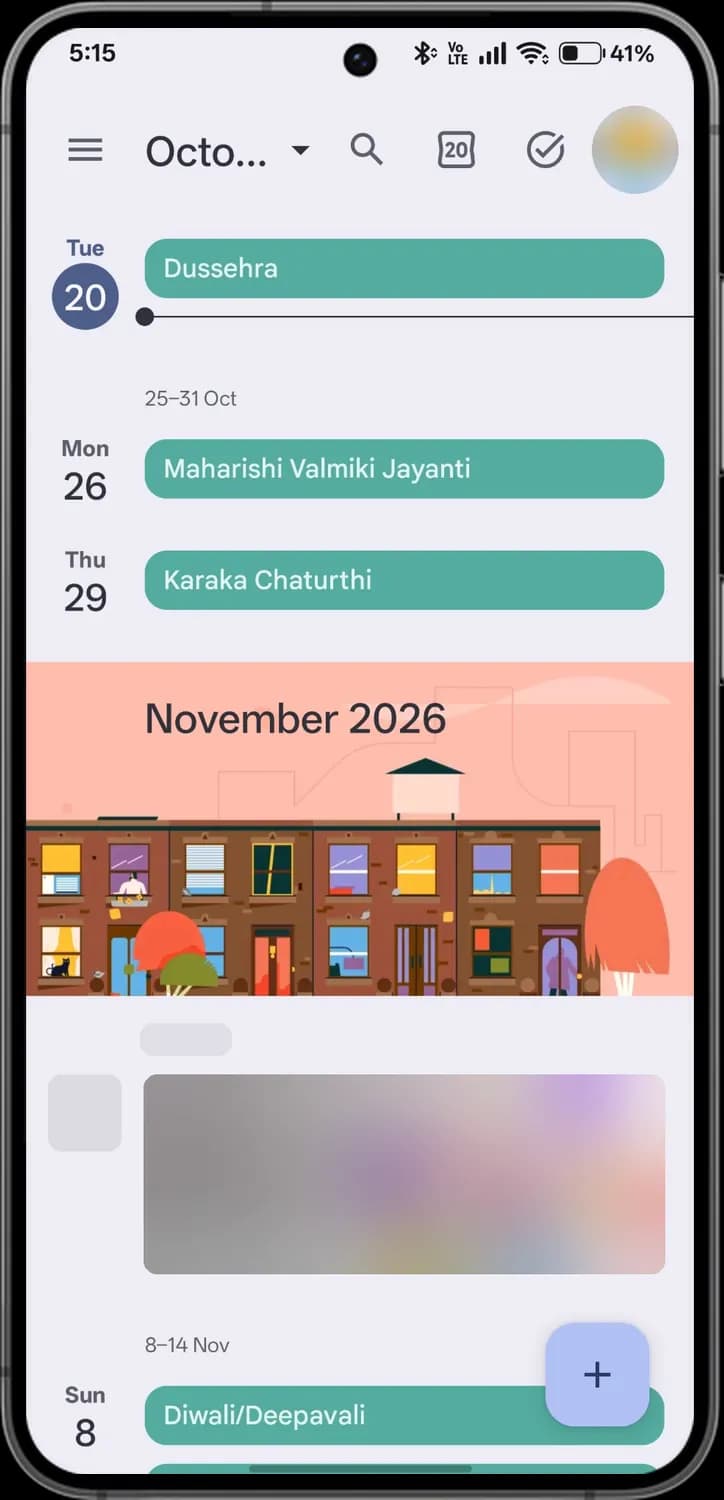

Today
Today's date is marked with a filled circle at the top of the list.

Holiday
Holidays from your country's Holidays calendar show as green bars.

Current time
The line with a dot shows where now falls among today's entries.
Week
Each week starts with its date range, so you can tell where one week ends.

Month banner
A new month opens with an illustration and the month's name.

Create
Add an event, task or birthday.
Create button
The + button in the corner opens three choices. Each one opens its own form, covered in the next sections.
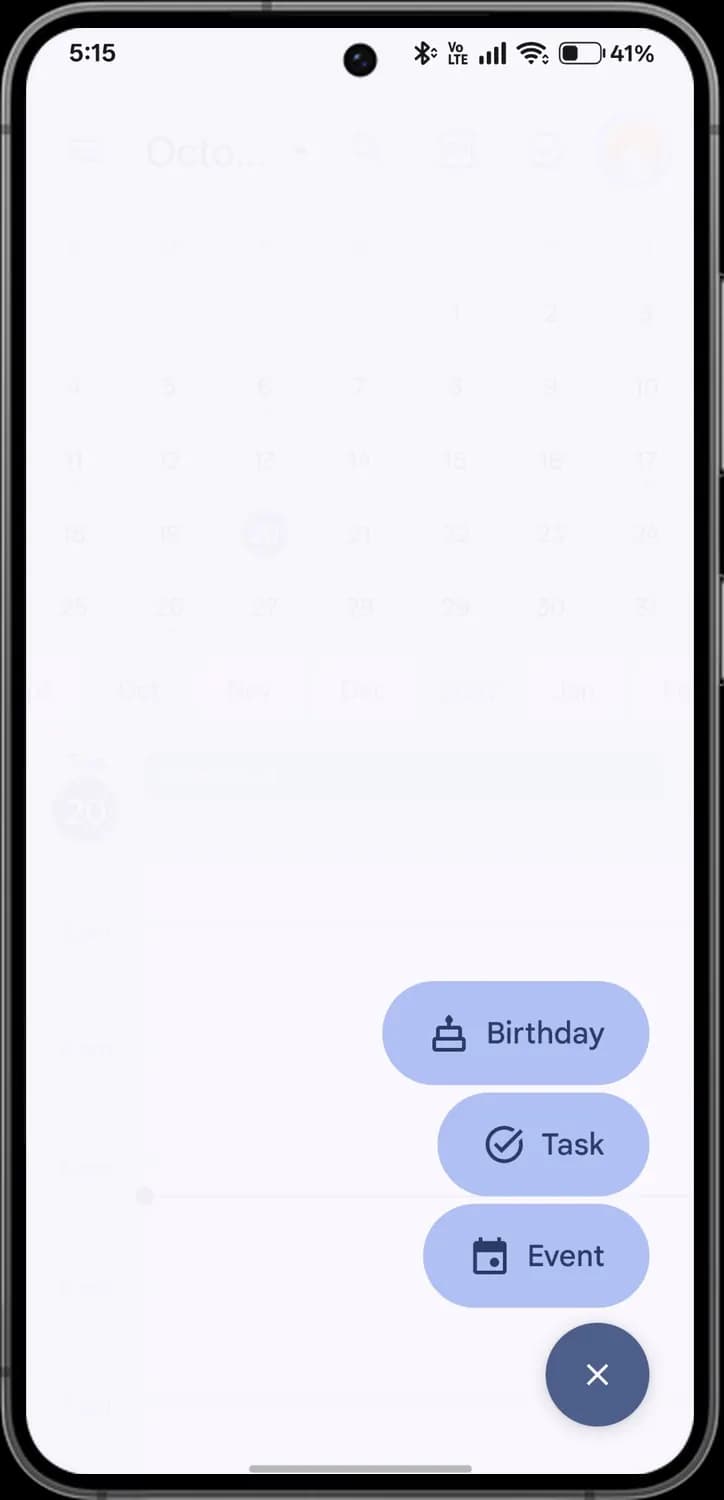

Birthday
Save someone's birthday. It repeats every year and lands in your Birthdays calendar.

Task
Add a to-do to Google Tasks, with an optional date and time.

Event
Add something with a time and place, like a meeting or a trip.

Close
Close the menu without creating anything.
New event
A new event starts as a small sheet. Drag it up, or start typing, to see every option.
Quick sheet
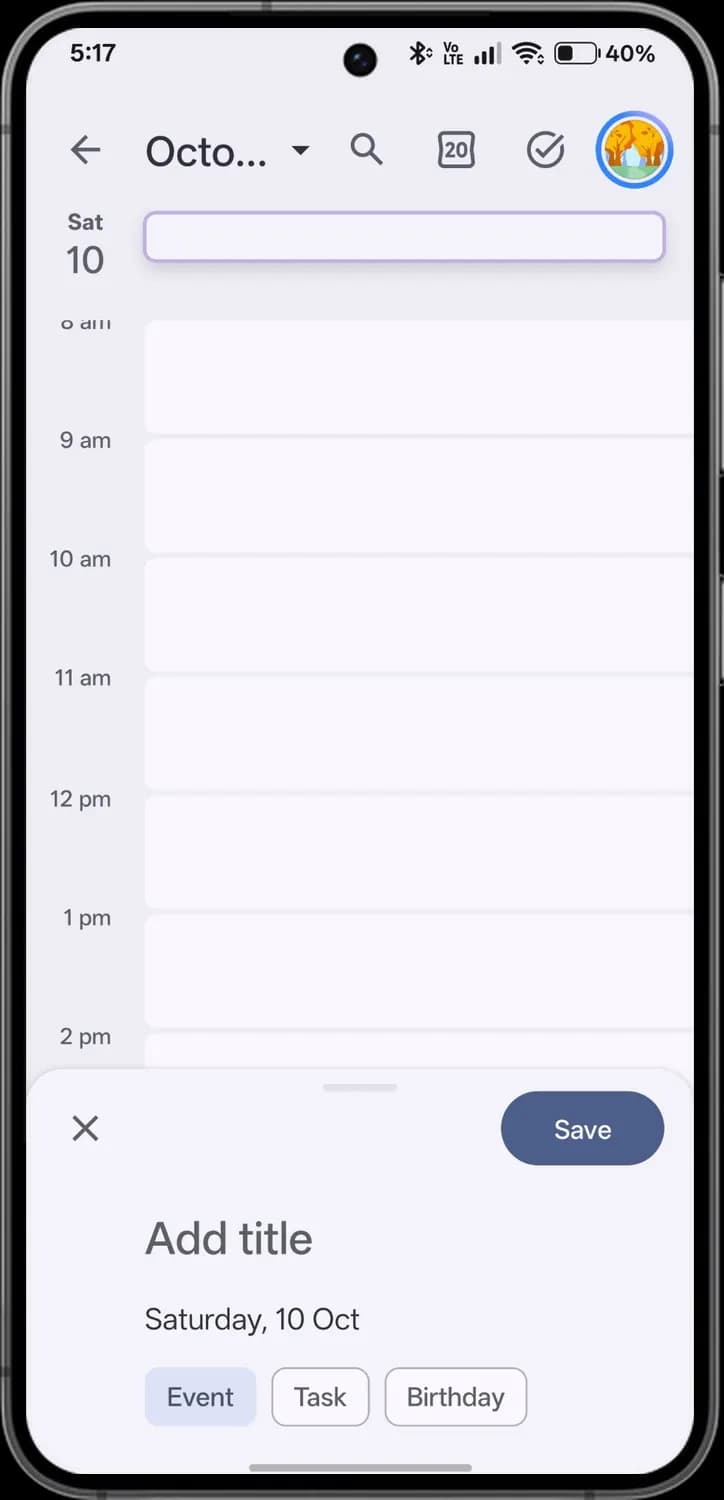

Close
Throw away the new event.

Save
Save the event to your calendar.
Add title
Name the event, for example Team lunch.

Event
Selected: you are creating an event.
Task
Switch the sheet to a task instead.
Birthday
Switch the sheet to a birthday instead.
More options
Drag the handle up to open the full form.
Date and time
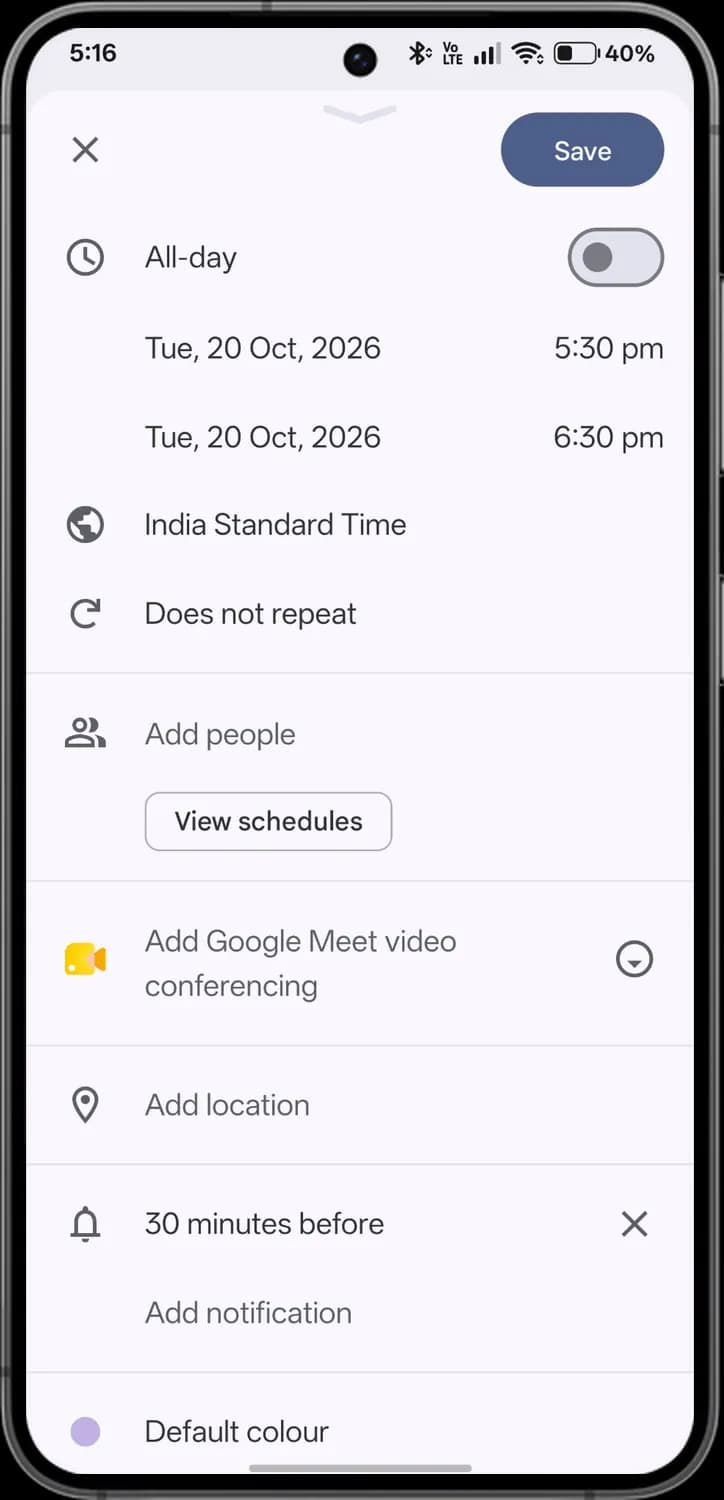

All-day
Turn it on for things that last the whole day, like a holiday or a trip. The times disappear.

Starts
The start date and time. Tap either one to change it.

Ends
The end date and time.

Time zone
The time zone the event uses. Change it for flights or calls with people abroad.

Repeat
Make the event repeat, for example every week or every month.
People and place
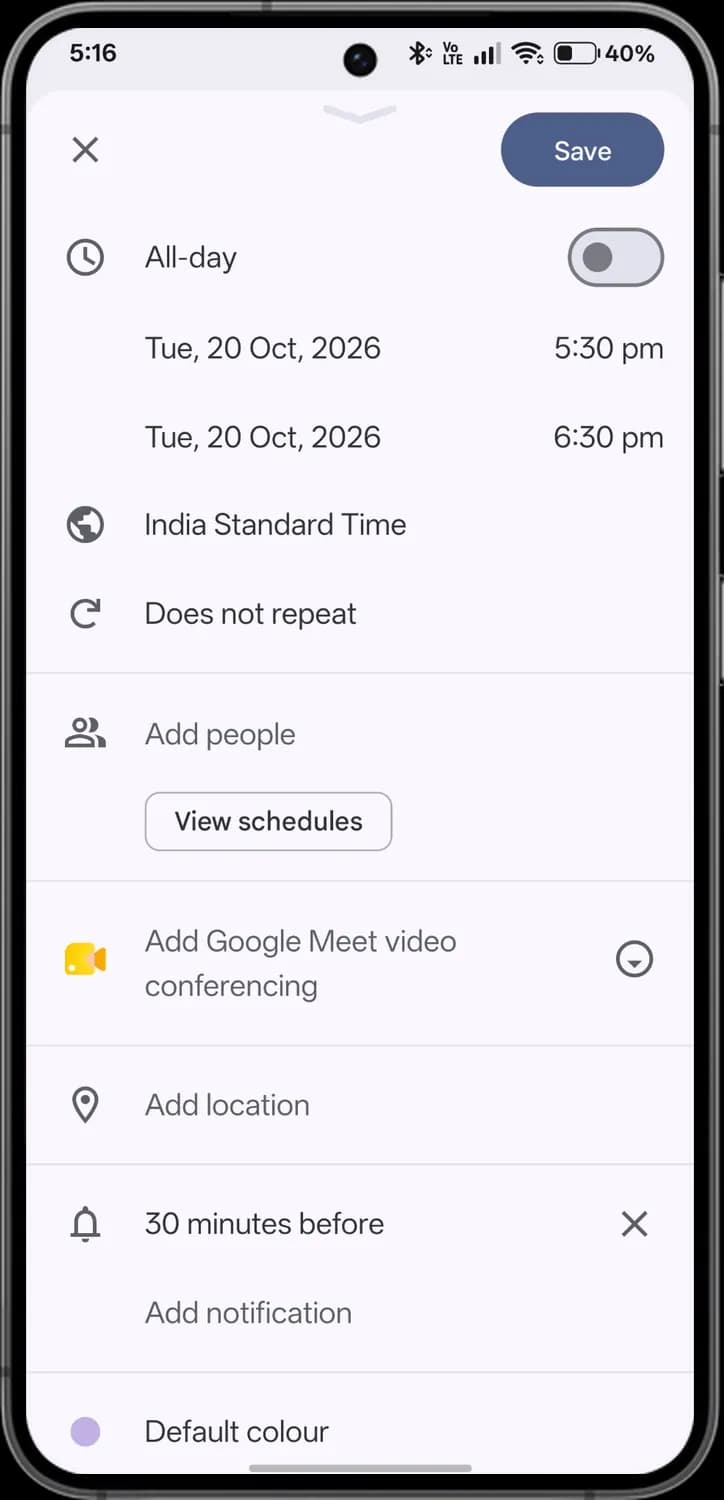

Add people
Invite guests by email. They get the invite and can reply yes or no.
View schedules
See when the people you invited are free before you pick a time.

Google Meet
Add a Google Meet video call link to the event.

Meeting options
Choose another video calling option, or remove the call.

Location
Add a place. Guests can open it in Maps.
Reminders and extras
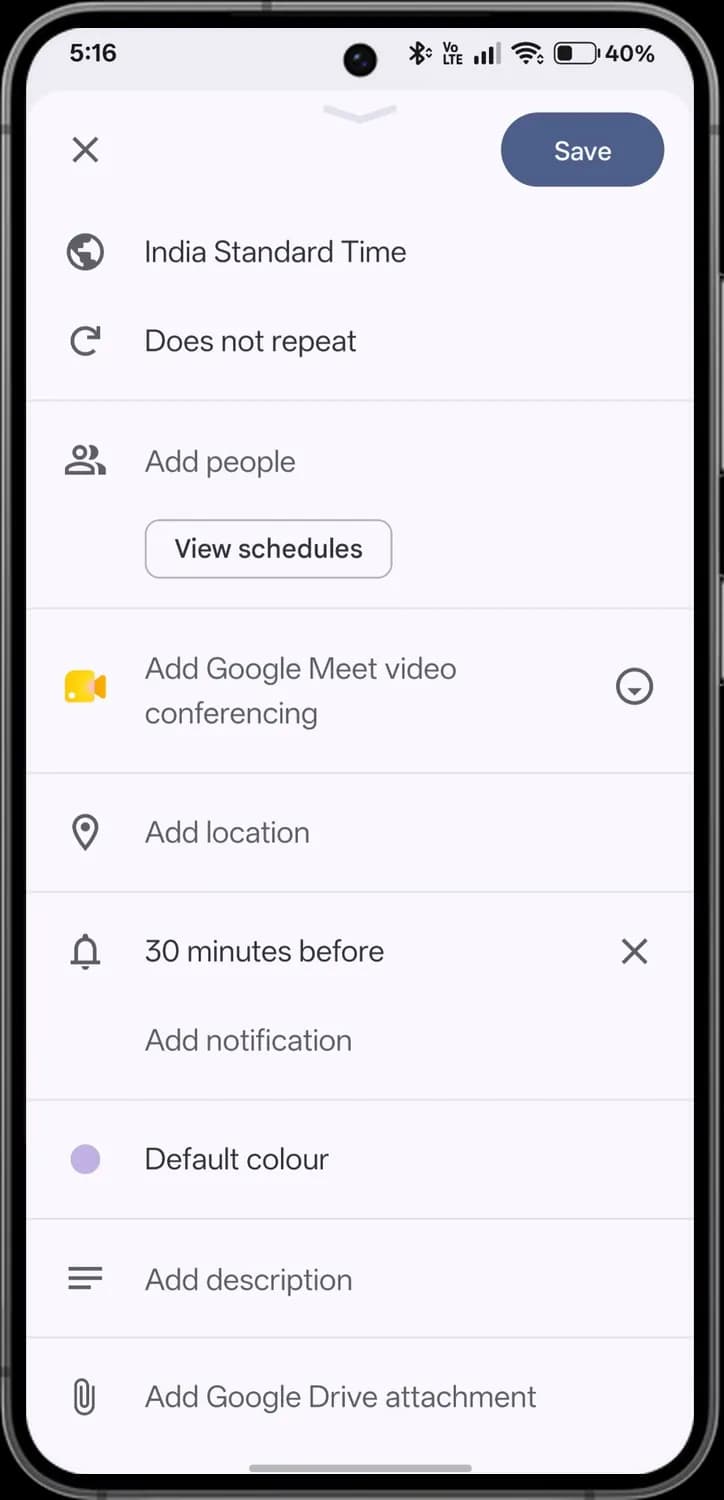

Reminder
When Calendar notifies you before the event. Tap it to change the time.

Remove reminder
Delete this reminder.
Add reminder
Add another reminder, for example one a day before.

Event colour
Give this event its own colour so it stands out.

Description
Add notes, an agenda or links.

Drive attachment
Attach a file from Google Drive, like a document for the meeting.
New birthday
Birthdays have a simpler form: a name, a date and when to remind you. They repeat every year on their own.
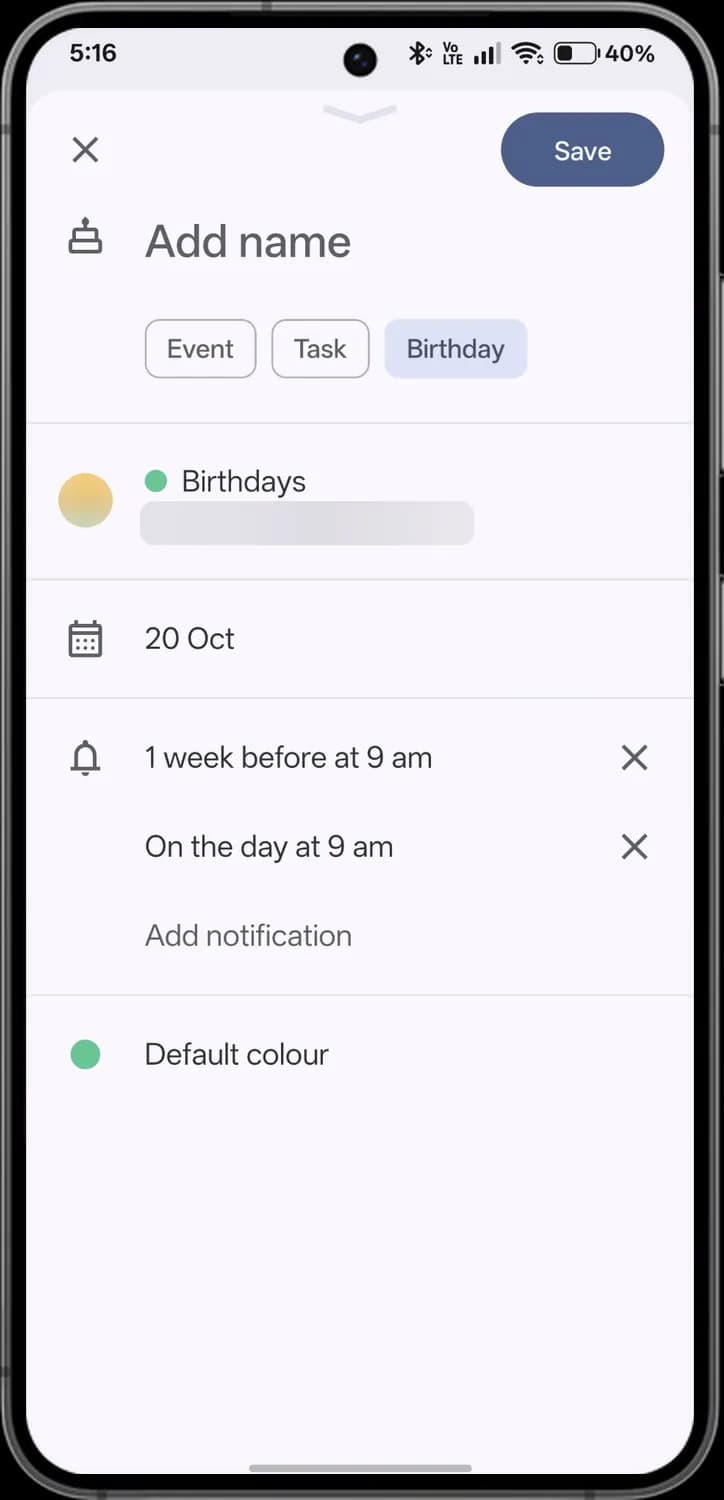

Name
Whose birthday it is. The cake icon marks a birthday entry.
Birthdays calendar
Birthdays are saved to the Birthdays calendar of the account shown here.

Date
The birthday's date. It repeats every year.

Reminder
Calendar reminds you a week before, and again on the day, at 9 am.

Remove reminder
Delete that reminder.
Add reminder
Add another reminder.

Colour
Change the colour birthdays use on your calendar.
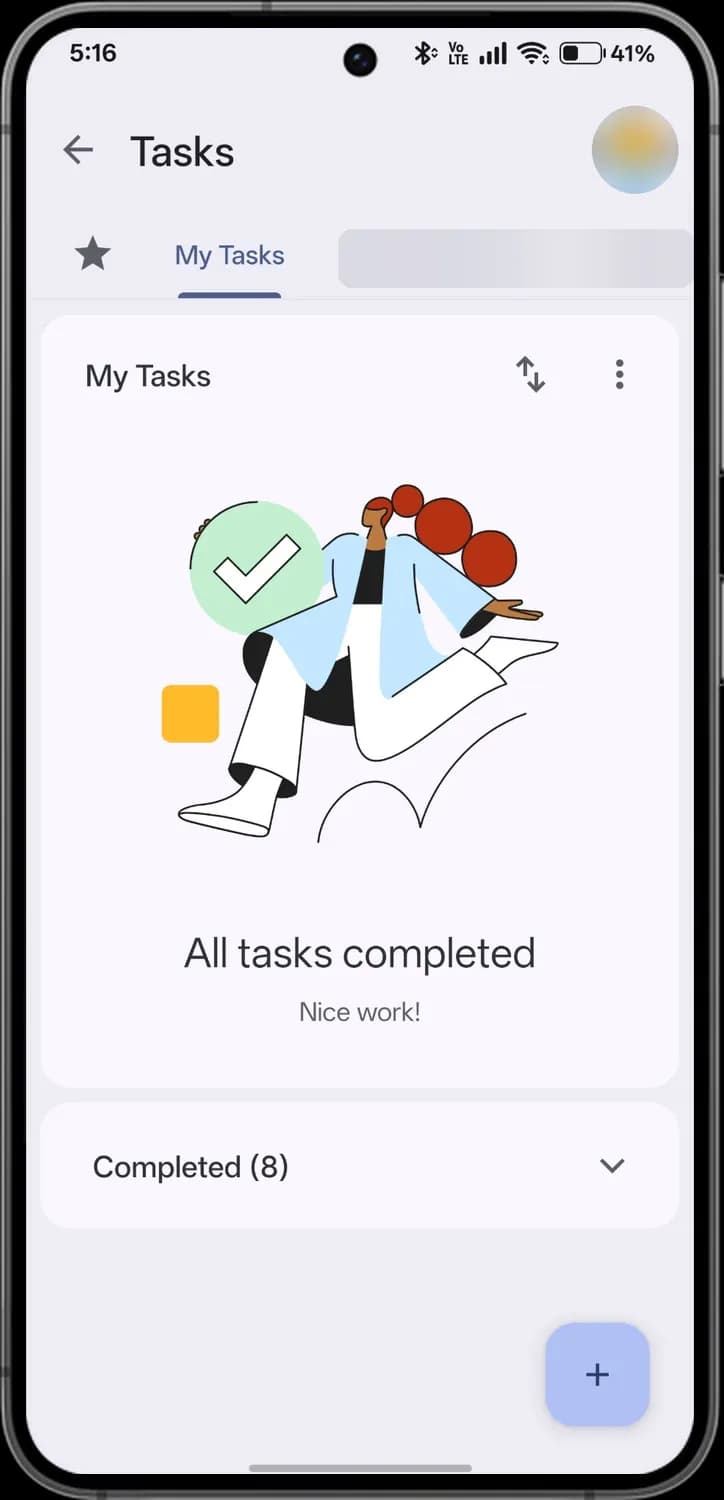
Tasks
The tick icon on top opens Google Tasks inside Calendar. Each list has its own tab, and tasks with a date also show up on your calendar.
Your lists

Back
Go back to your calendar.

Starred
Tasks you starred, from every list, in one place.
Task list
Each tab is one of your lists. My Tasks is the default list.

Sort
Sort the list by your own order, by date, or starred first.

More options
Rename or delete the list, or clear completed tasks.

Completed
Tasks you have ticked off. Tap to show or hide them.

Add task
Add a new task to this list.
New task
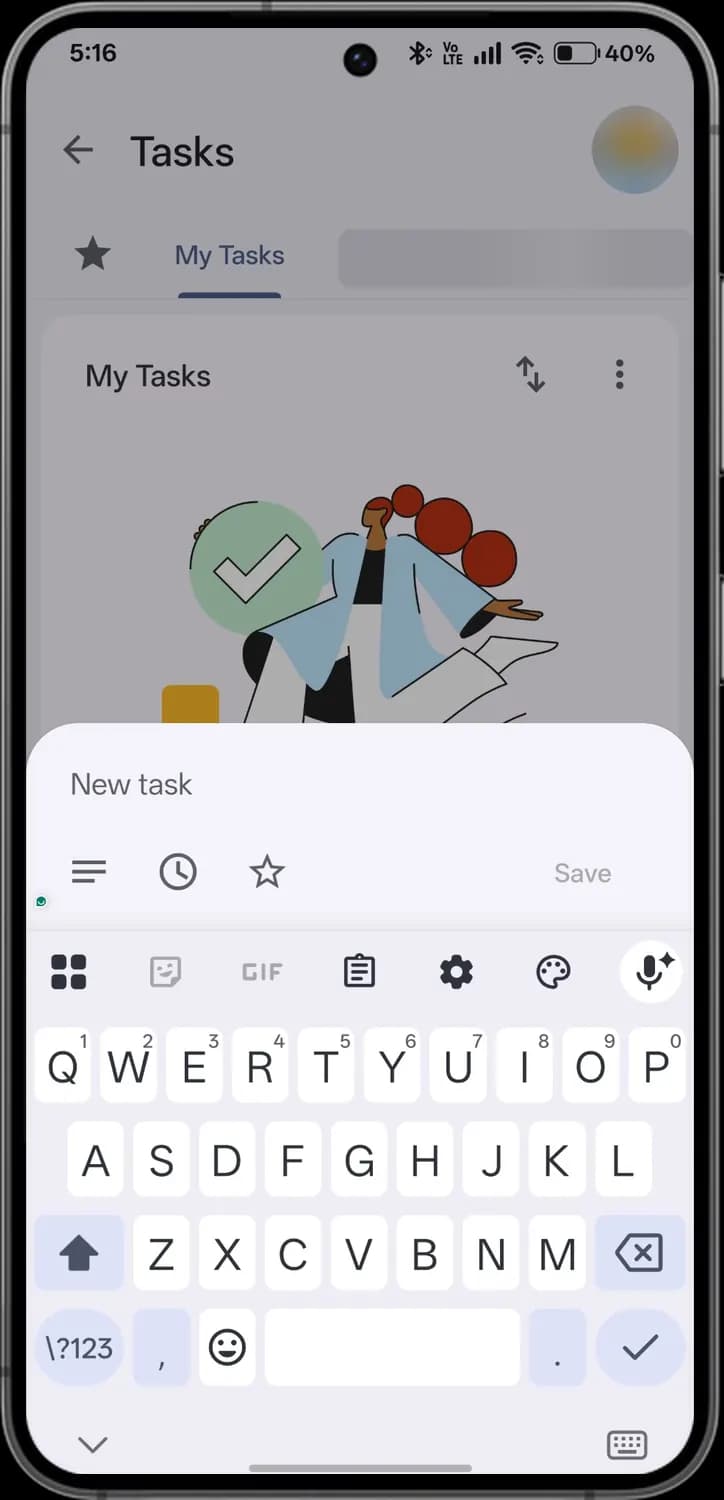

Task details
Add notes to the task.

Date and time
Give the task a date, a time or a repeat. Dated tasks appear on your calendar.

Star
Star the task so it shows under Starred.
Save task
Save the task. Greyed out until you type a name.
Completed tasks
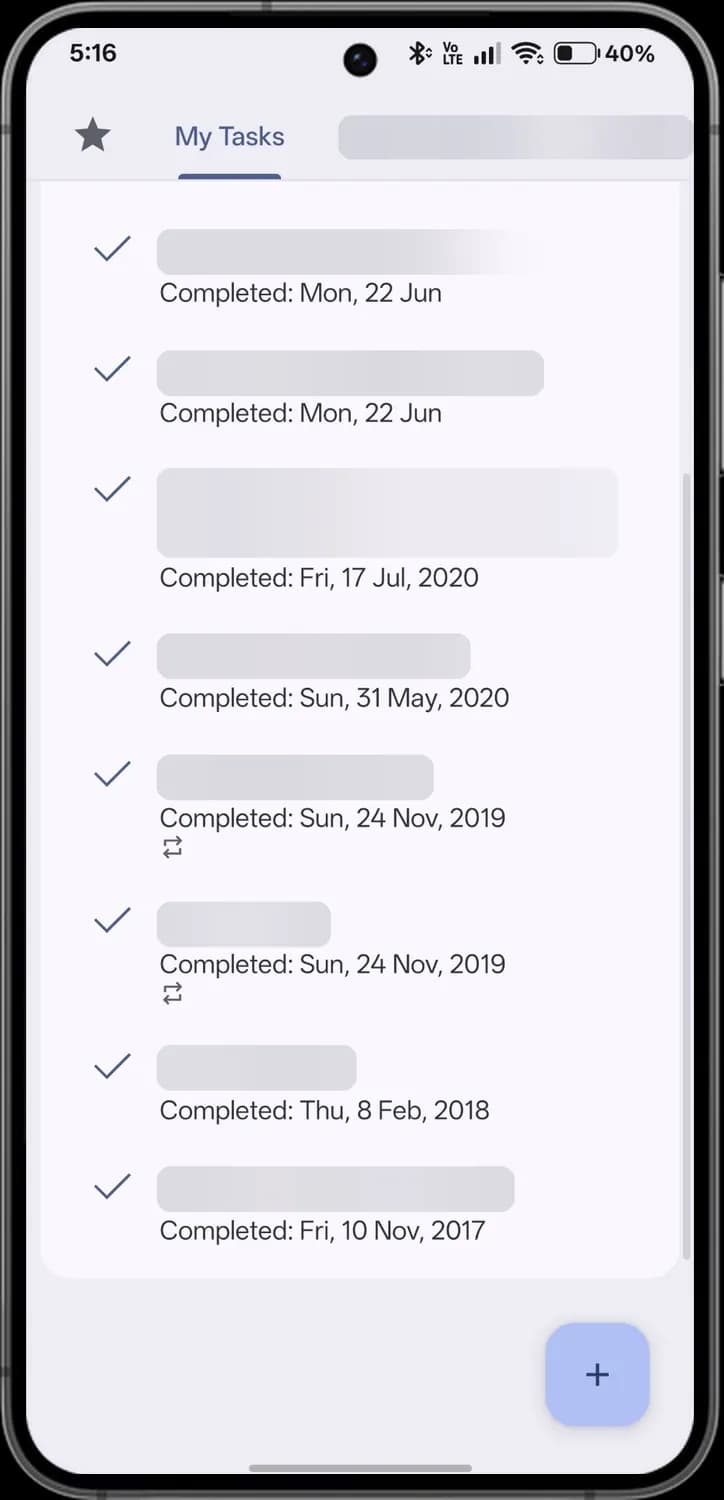

Done
A tick and a struck-through name mean the task is done. Tap the tick to bring it back.

Completion date
The day you ticked the task off.

Repeating task
The two arrows mean the task repeats, for example every week.
Side menu
The three-line menu in the corner switches between views and lets you choose which calendars show up.
Views
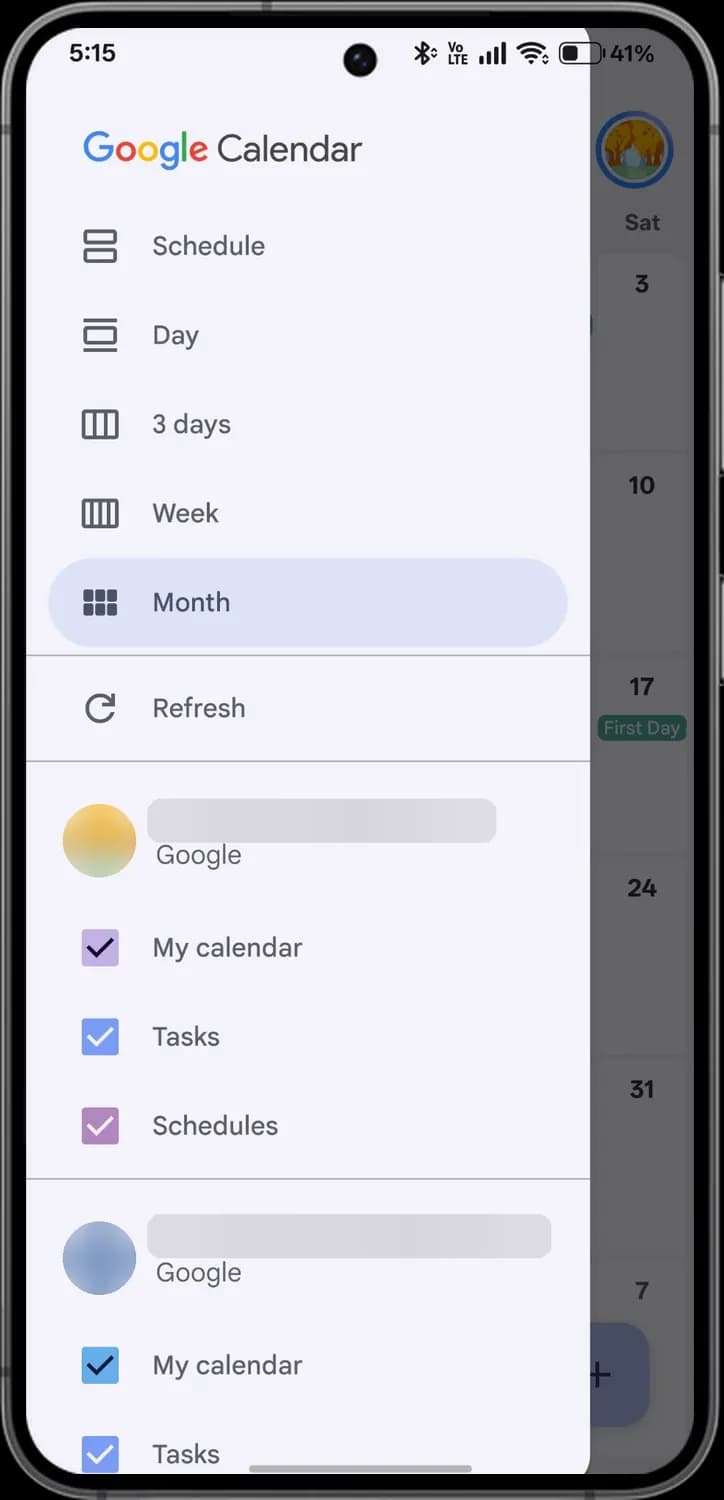

Schedule
An agenda list of everything coming up.

Day
One day at a time, hour by hour.

3 days
Three days side by side.

Week
The whole week, hour by hour.

Month
The whole month as a grid. The highlighted view is the one you are using.

Refresh
Sync now, so changes made on another device show up.
Your calendars

Account
The Google account these calendars belong to.

My calendar
Your main calendar. Untick a box to hide that calendar without deleting anything.

Tasks calendar
Shows dated tasks on your calendar.

Schedules
Booking pages you share so others can book time with you.
More calendars and settings
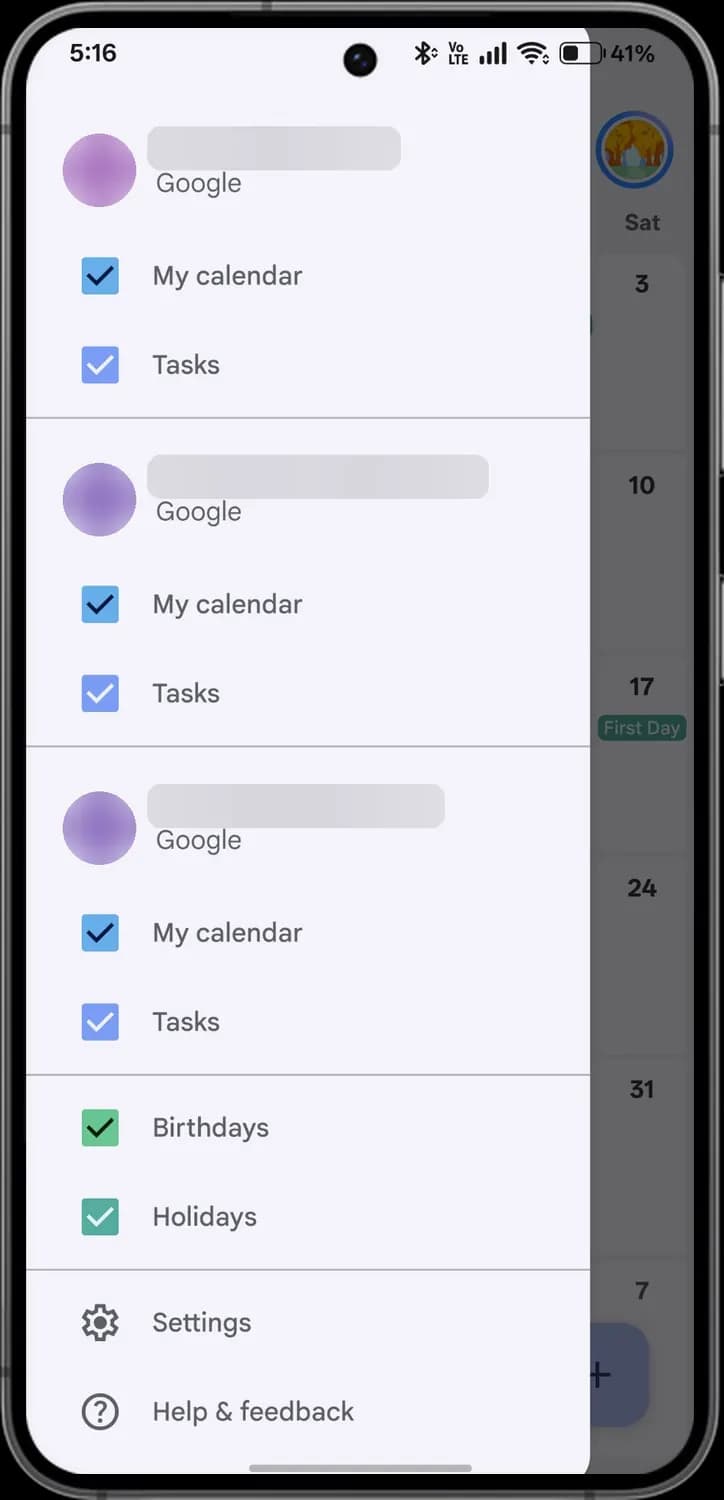

Birthdays
Birthdays you add, plus ones from your Google contacts.

Holidays
Public holidays for your country.

Settings
Default reminders, time zone, start of the week and more.

Help and feedback
Google's help pages, or send feedback about the app.
Those are the meanings of Google Calendar icons and symbols. Google keeps adding features to Calendar and moving icons around, so we update this guide every time the app changes, and you can bookmark this page to stay updated. These screens are from the Android app, and the iPhone app uses almost the same icons. For more icon guides, you can also visit our TechPP icon guides.
Was this article helpful?
Comments
0Share your thoughts, questions, or feedback about this guide.