
Google AI Studio Interface Explained
Google AI Studio is Google's web app for trying Gemini models, building small apps just by describing them, and getting an API key for your own code. It's free to start, but the first time you open it, it looks like a cockpit: a sidebar, a settings panel full of switches, and dozens of tiny icons with no labels.
In this guide, I have marked every button, menu and icon on each screen, starting with the pages you will use most. Click any highlighted box on a screenshot to see what it does, or search for an icon below.
Home screen and sidebar
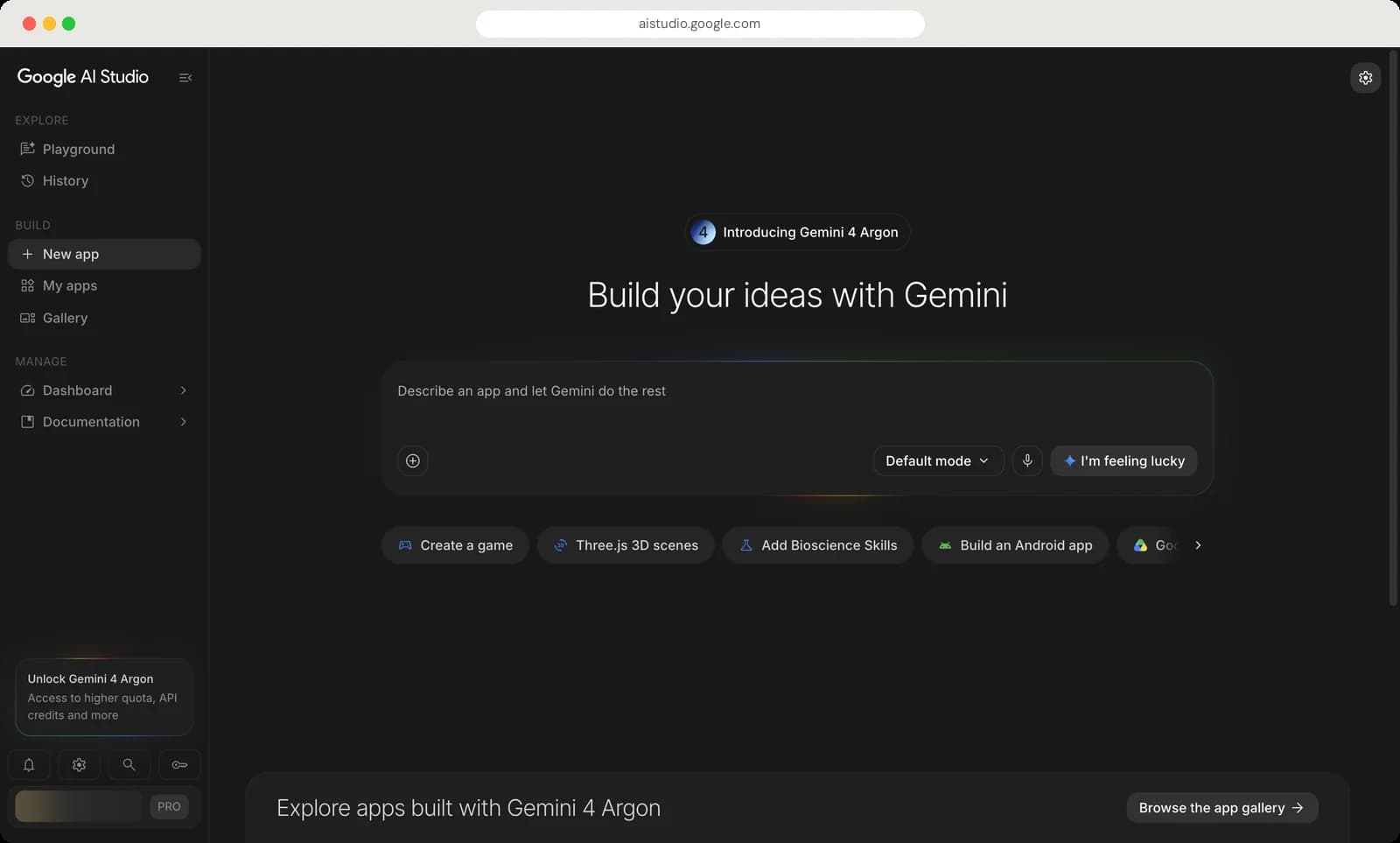
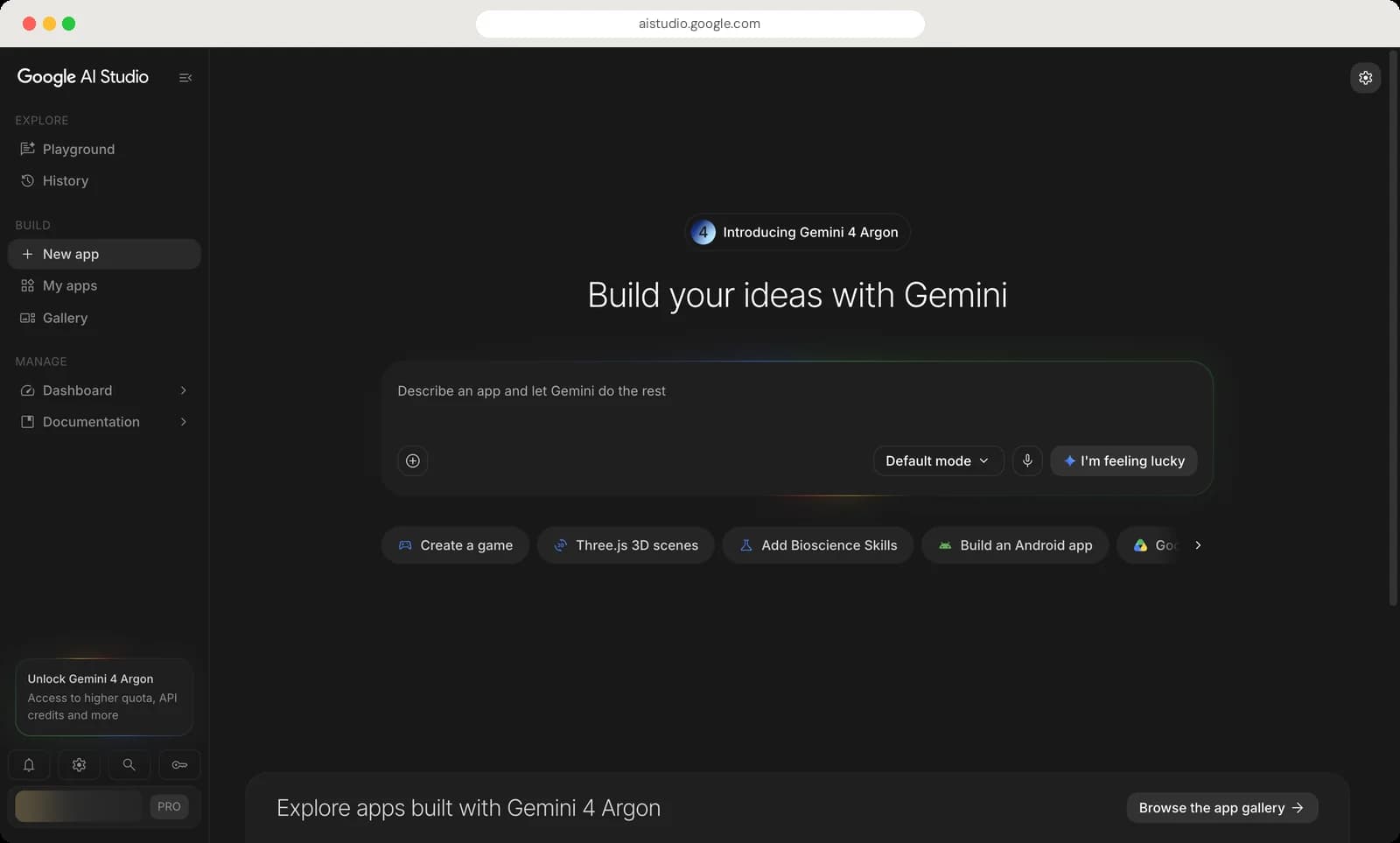
AI Studio opens on the Build page. The sidebar on the left takes you everywhere else, and the big box in the middle turns a description into a working app.
Sidebar
Playground
Chat with Gemini models and test prompts. This is where most people start.
History
Your saved chats from the Playground.
New app
The Build page you are on now. Describe an app and Gemini writes it.
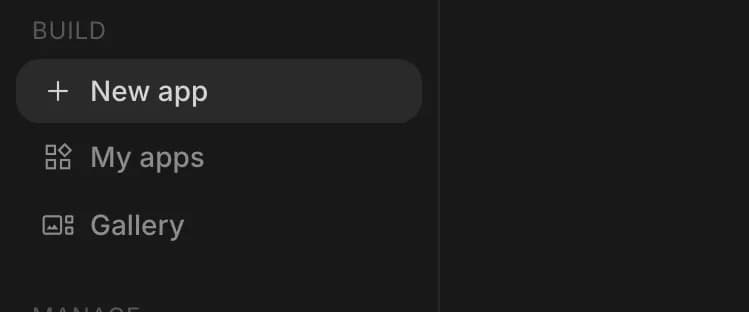
My apps
Every app you have built or remixed.
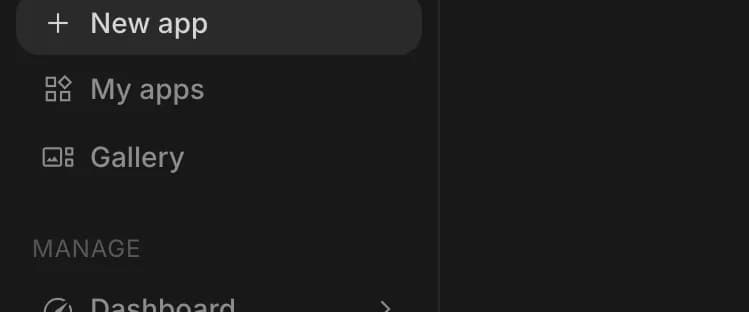
Gallery
Ready-made apps from Google and other people. Open one to try it or remix it.
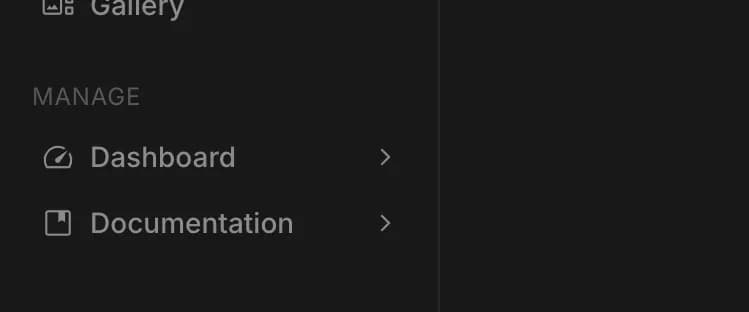
Dashboard
API keys, usage, rate limits and billing for developers.
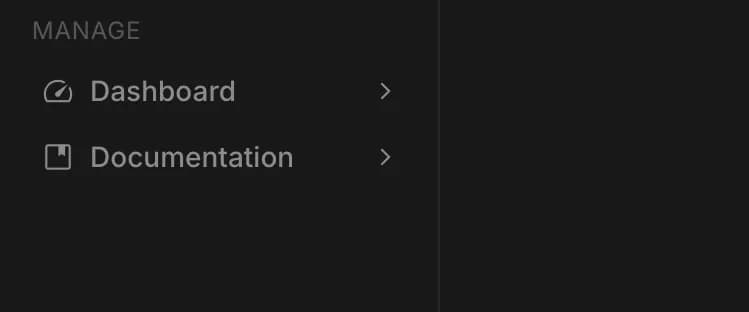
Documentation
Google's Gemini API docs, opened right inside AI Studio.


The build box
Describe your app
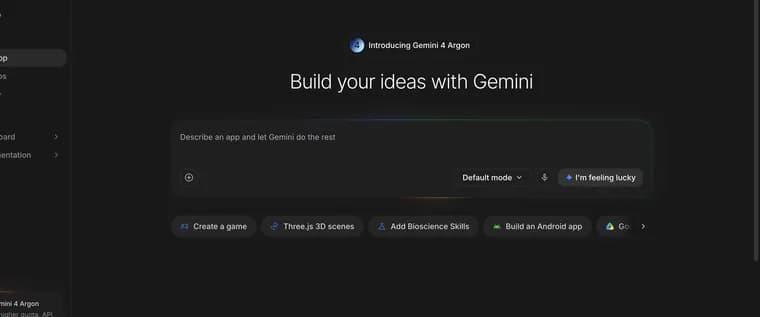
Type what you want, like a habit tracker or a quiz game, and Gemini builds it.

Add files
Bring in a GitHub project, Drive files, uploads or a camera photo.
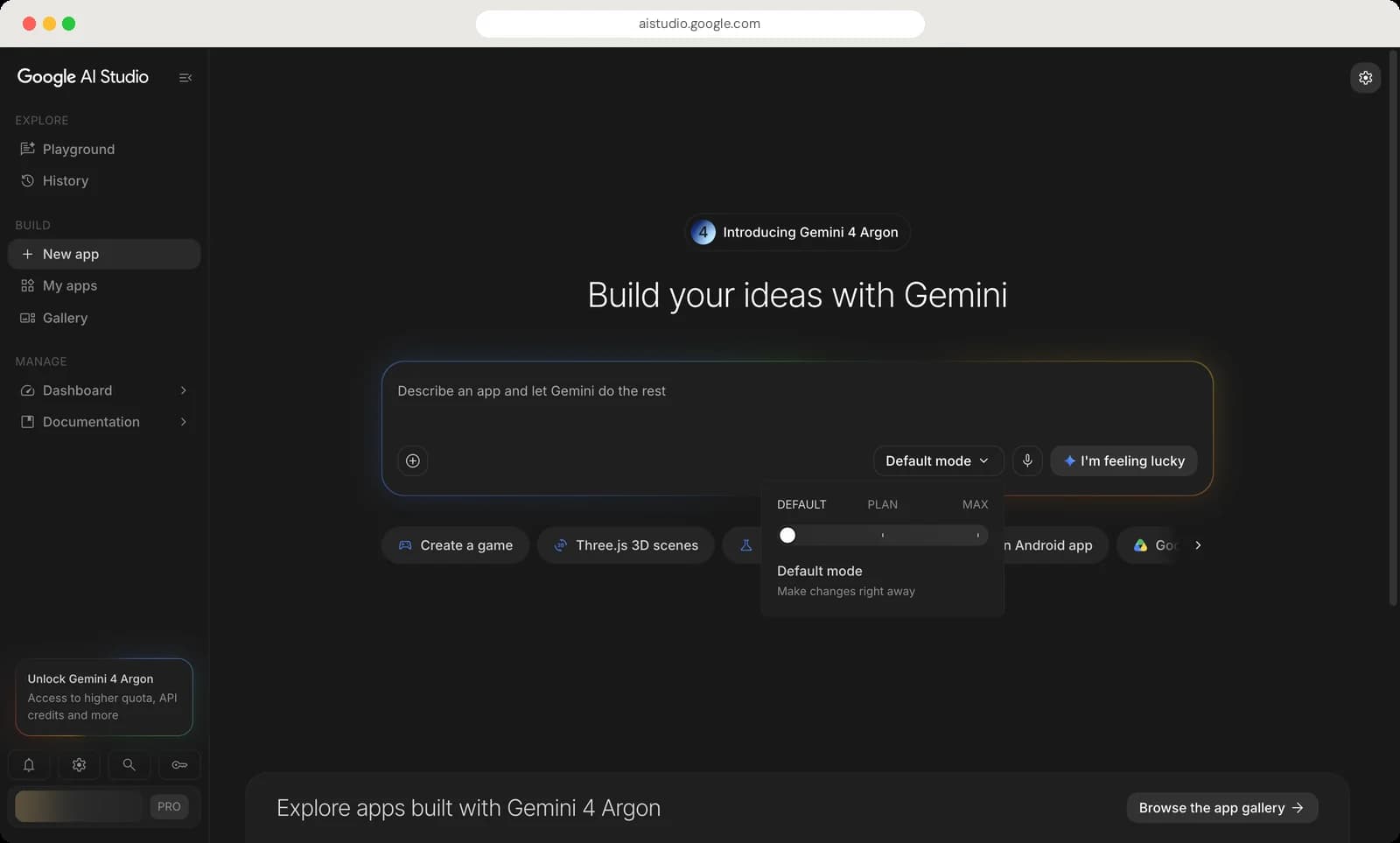
Mode
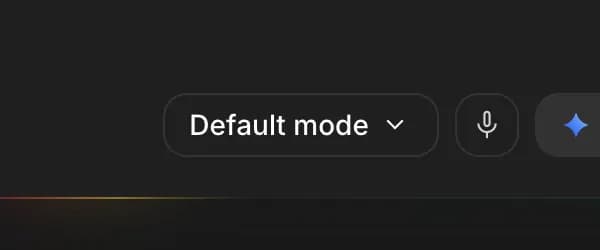
How hard Gemini works on your app: Default, Plan or Max.
Voice input
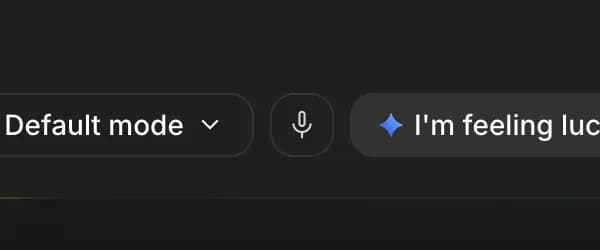
Speak your idea instead of typing it.
I'm feeling lucky
Gemini picks an app idea and builds it for you.
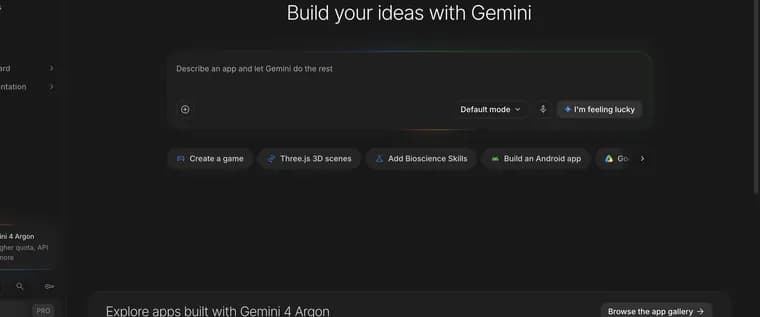
Starter ideas
One-tap prompts like Create a game. The arrow shows more.

Build settings
The model Build chats with, the code framework and custom instructions.





Bottom of the sidebar

Collapse menu
Hides the sidebar to give the page more room.
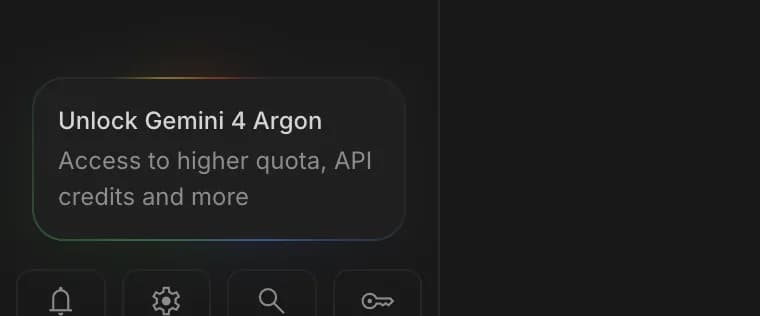
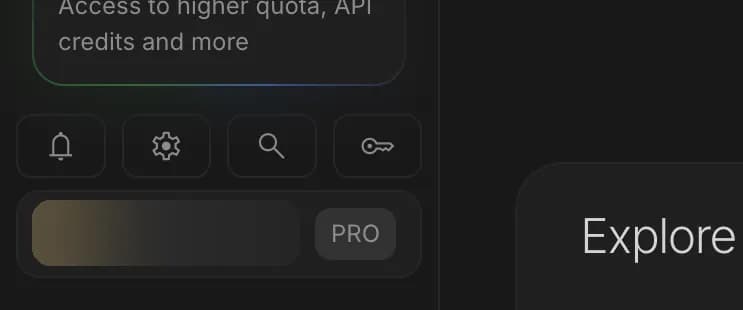
Upgrade card
Shows what a paid plan unlocks, like the newest model and higher limits.
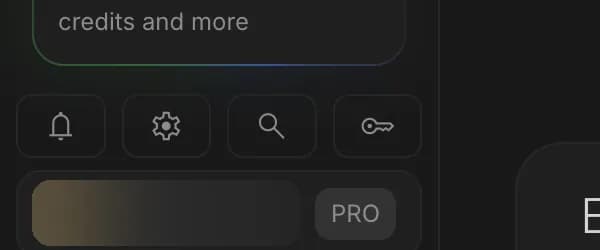
What's new
The bell. Hover it for Google's latest model and feature announcements.
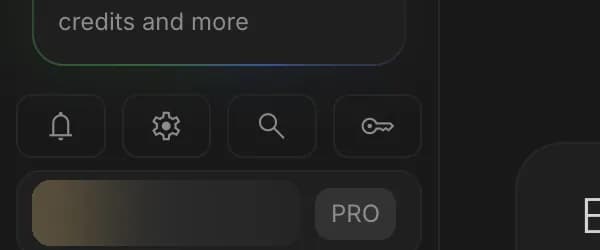
Settings
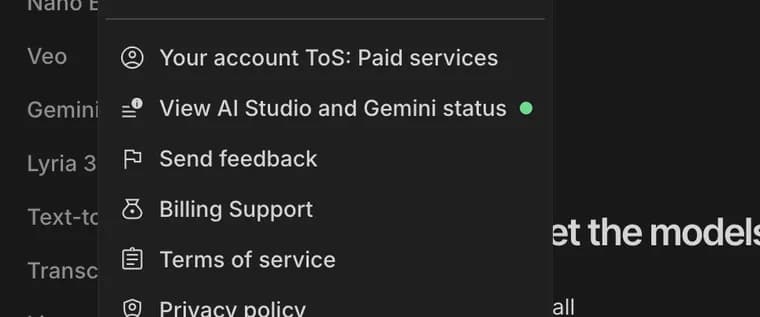
Theme, keyboard shortcut, feedback, status and legal pages.
Search
Search AI Studio. The shortcut is Cmd + / (Ctrl + / on Windows).
Get API key
Jumps to your API keys, which you need to use Gemini in your own code.
Account
Your Google account and plan. Switch account or sign out here.



Building an app
Three small controls around the build box change how your app gets made. Here is what each one opens.
Mode menu
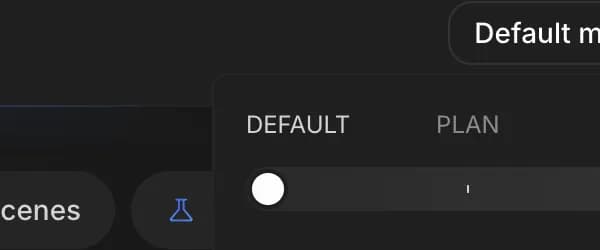
Default
Make changes right away. Best for quick apps and small edits.
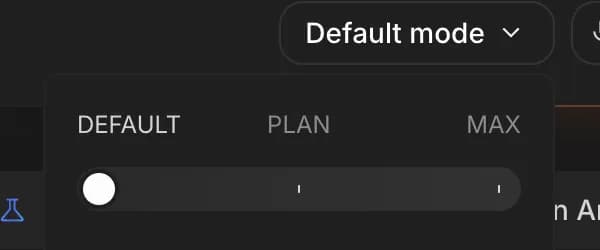
Plan
Create a plan before making changes, so you can check it first.
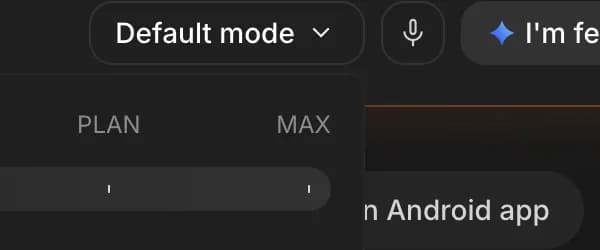
Max
Work longer for better results. Good for bigger apps.
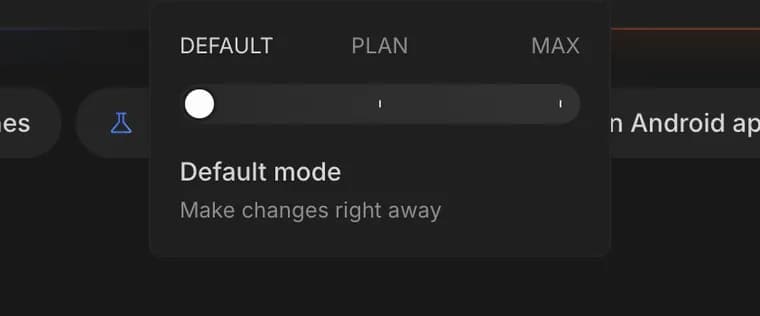
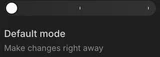
Mode slider
Drag or tap to switch modes. The text below explains the one you picked.



Add files menu
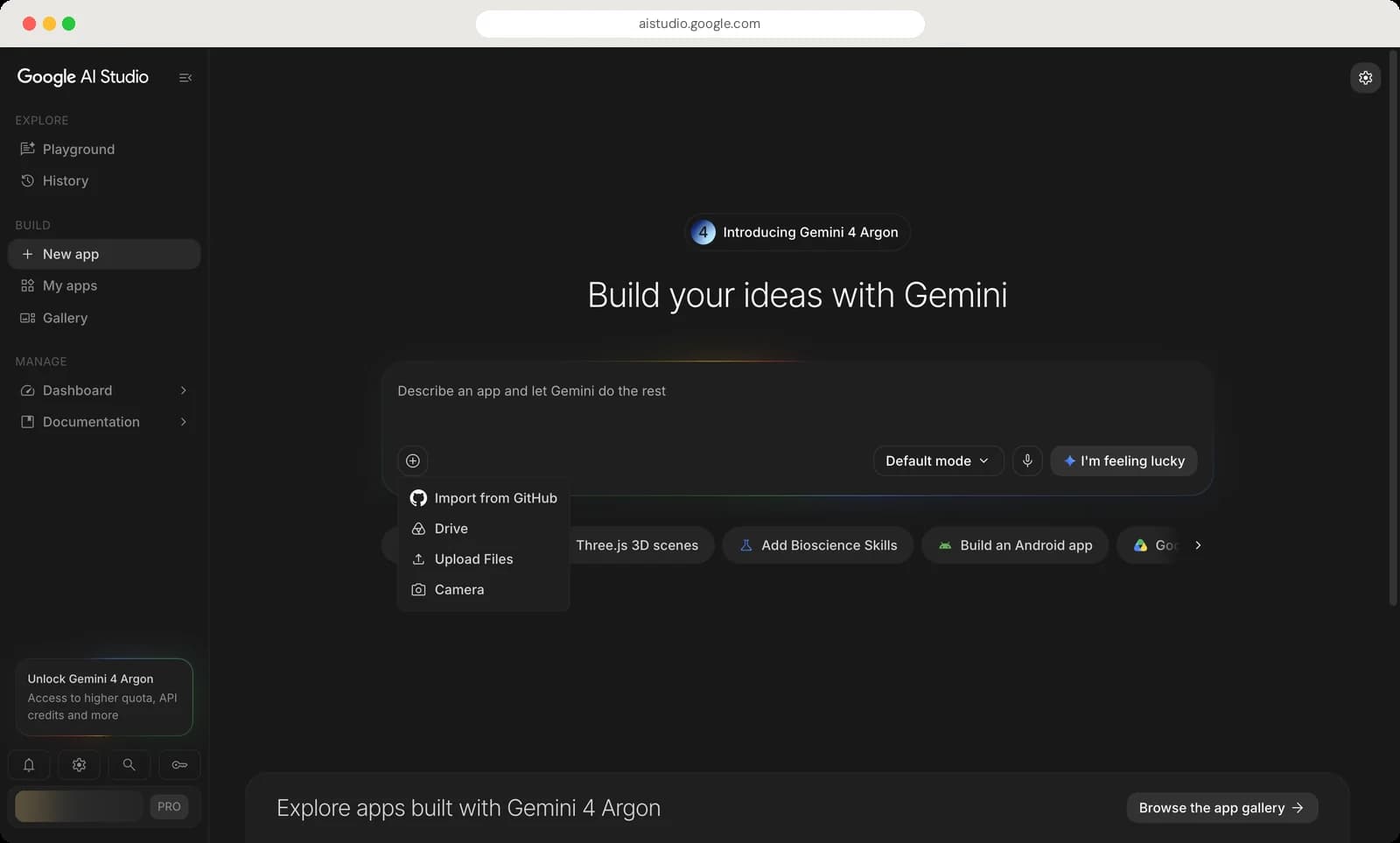
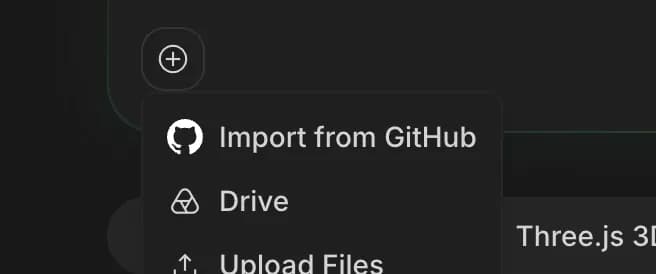
Import from GitHub
Start from code you already have on GitHub.
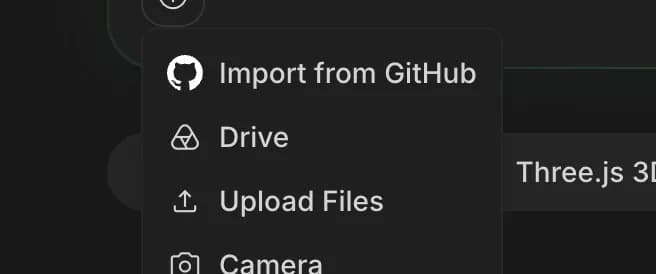
Drive
Add files from your Google Drive.
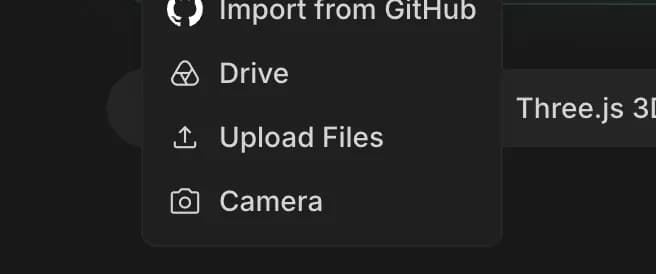
Upload Files
Add images, PDFs or other files from your computer.
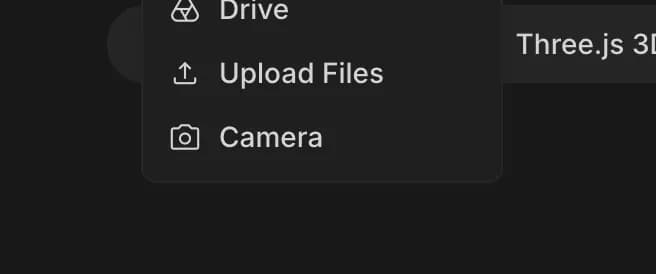
Camera
Take a photo, like a sketch of the app you want.


Build settings
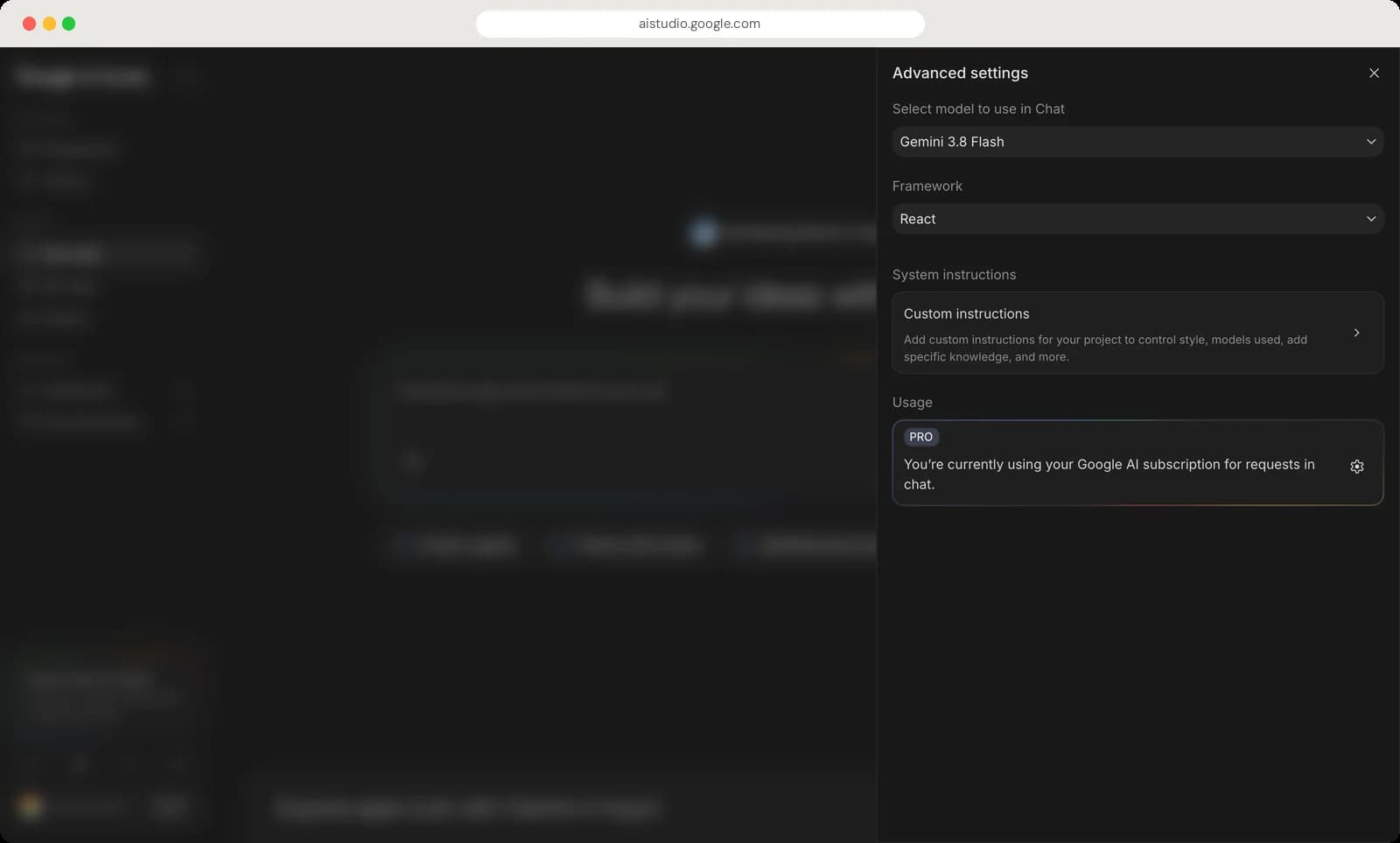
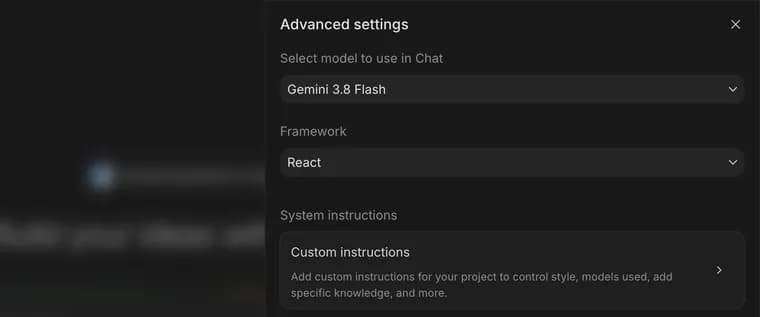
Chat model
The Gemini model Build uses to write your app. Gemini 4 Argon needs a paid plan.
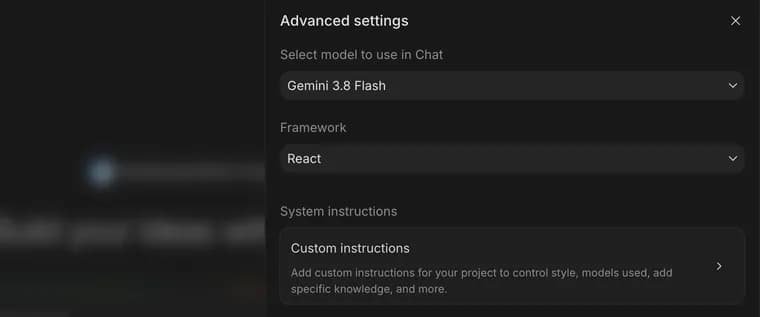
Framework
The kind of code it writes: React, Next.js, Angular, XR Blocks or Android.
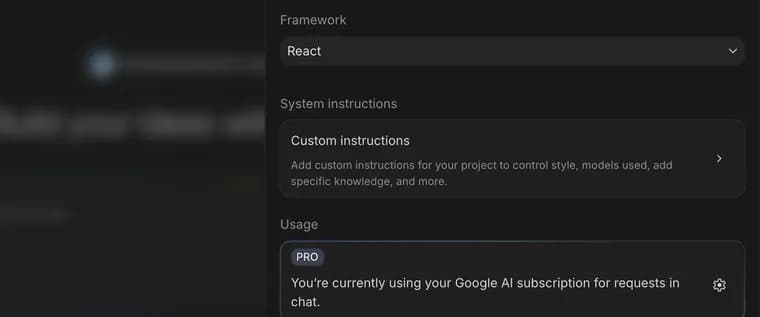
Custom instructions
Rules for every app, like your style or which models to use.
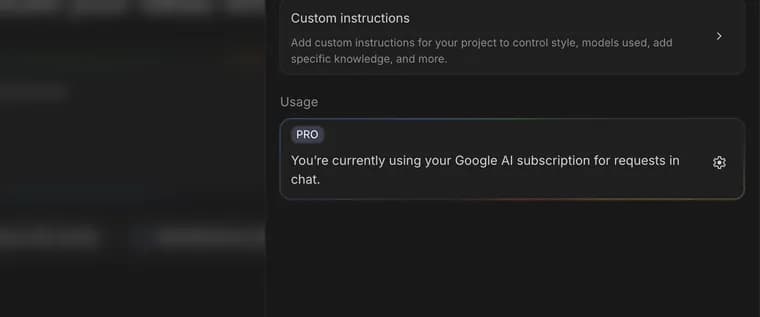
Usage
Shows that Build requests come out of your Google AI subscription.
Usage settings
Change how Build requests are paid for.
Close
Closes the panel.





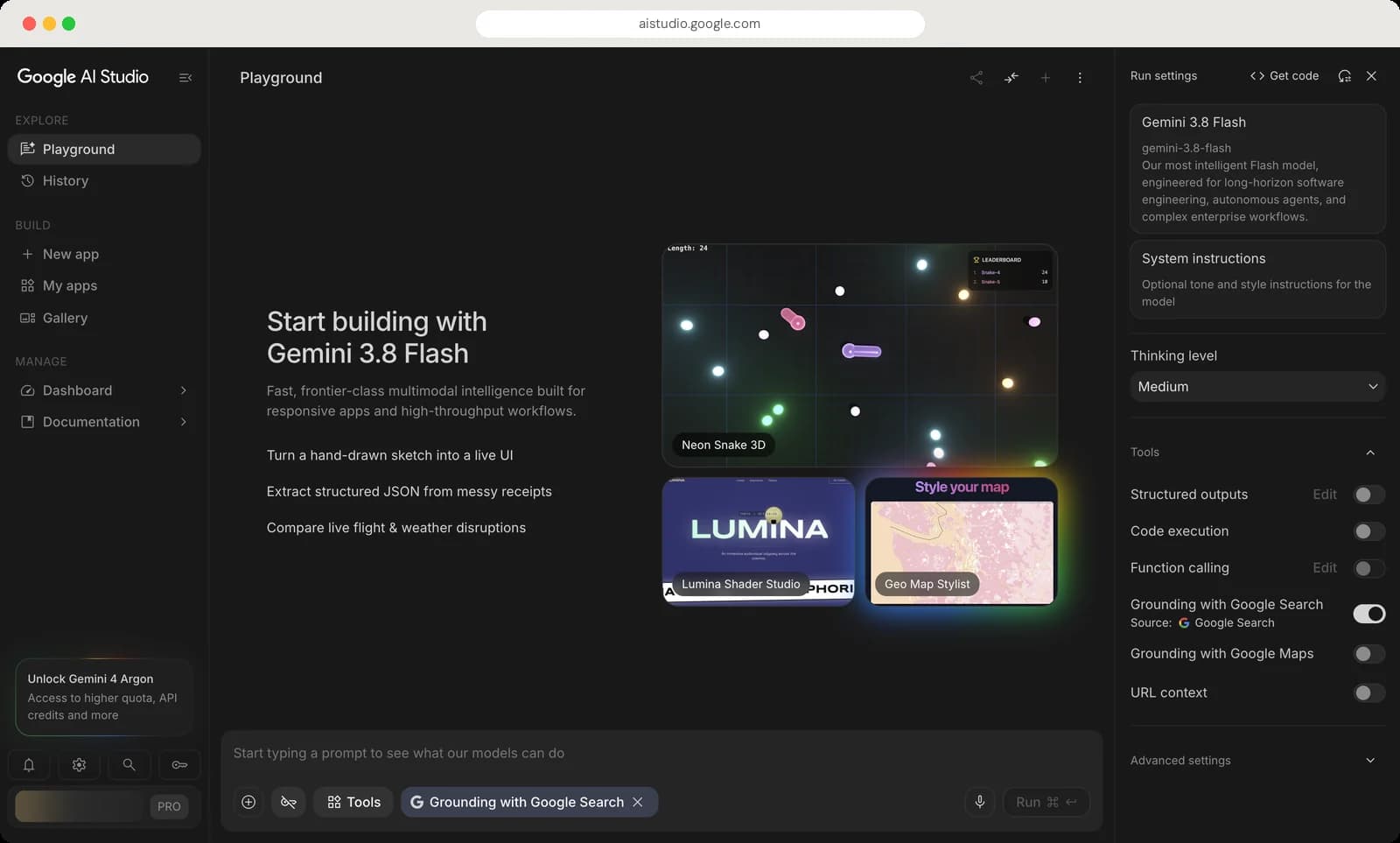
Playground
The Playground is a chat with Gemini, plus a panel of settings on the right. Type at the bottom, press Run, and tweak the settings to change how the model answers.
Top bar

Share
Share this chat with a link. It works once you have run a prompt.
Compare mode
Run one prompt on two models side by side.
New chat
Start a fresh chat. It is greyed out while the chat is empty.
More
Temporary chat, save, copy, delete and Raw Mode.
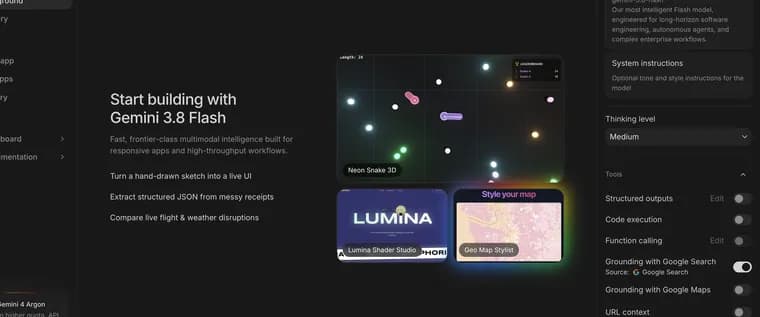
Example ideas
Things to try with the selected model. Click a card to see it in action.



Prompt box
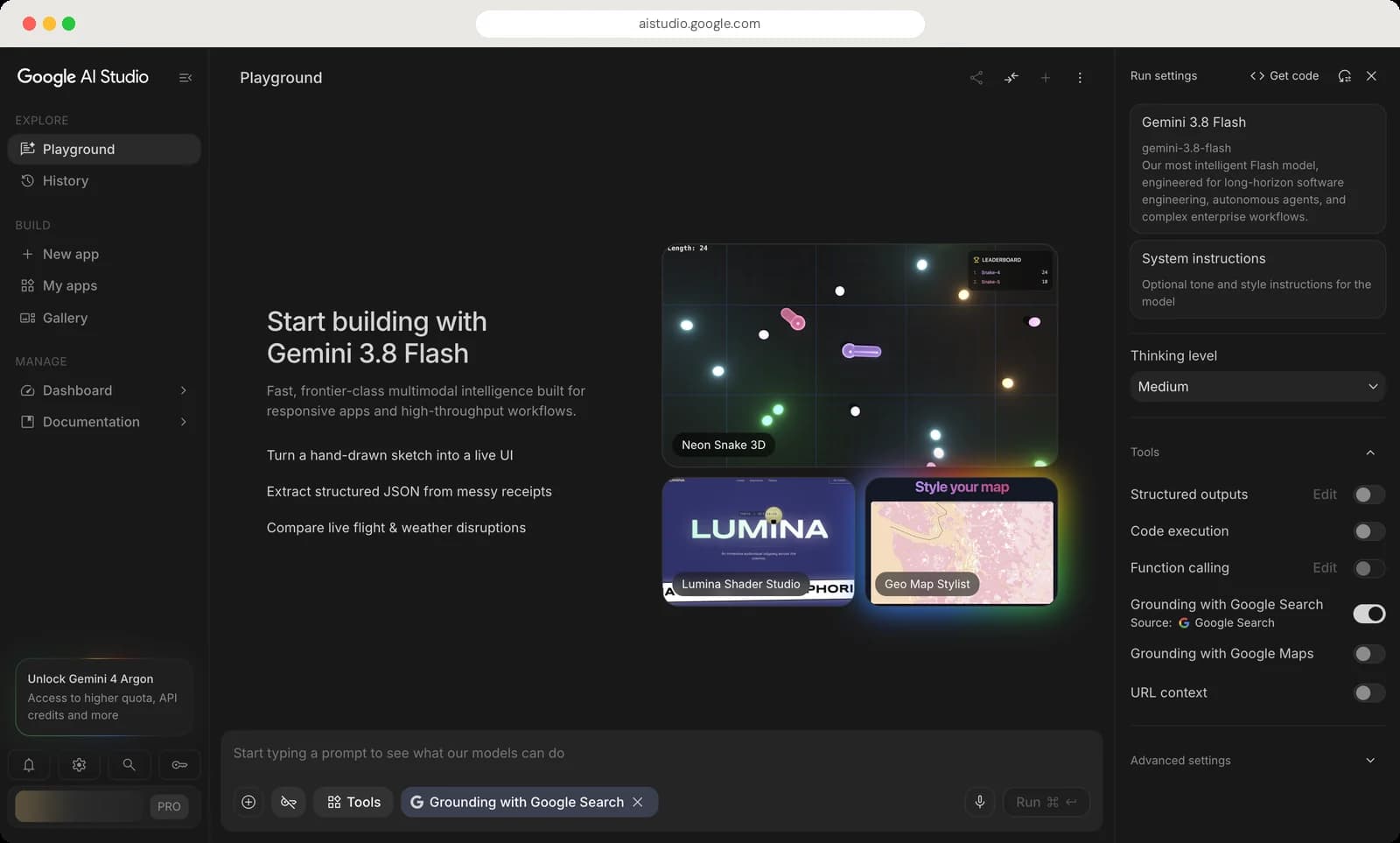
Prompt
Type your question or instructions here.
Insert
Add images, video, audio, files, a YouTube link or sample media.
API key
The crossed key means no paid key is linked. Click to link one.
Tools
Turn on extras like Google Search, code execution or URL context.
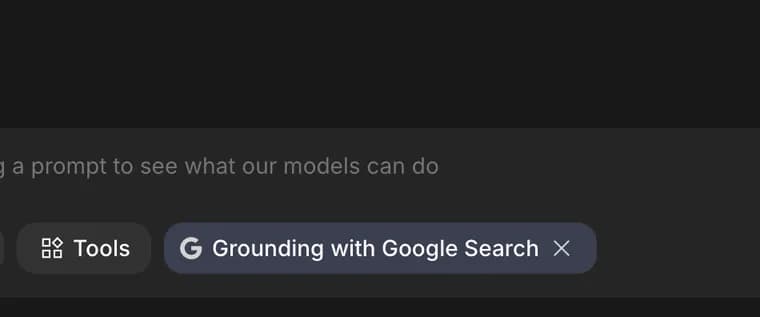
Active tool
A tool that is on for this chat. The x turns it off.
Speech to text
Dictate your prompt.
Run
Sends the prompt. The shortcut is Cmd + Enter.






Run settings
Get code
The code for this exact chat and settings, ready to paste into your project.
Reset
Puts every setting back to its default.
Hide settings
Closes the Run settings panel.
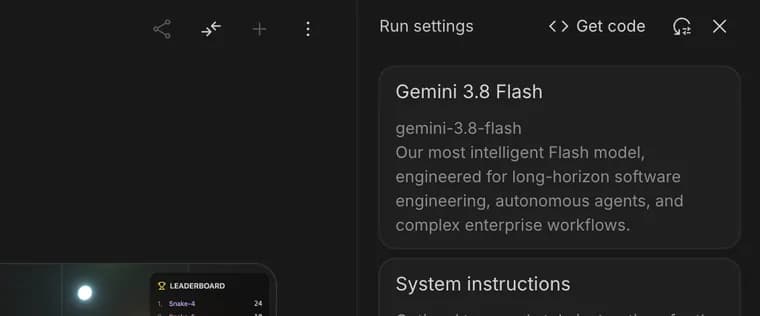
Model
The model that answers. Click to pick a different one.
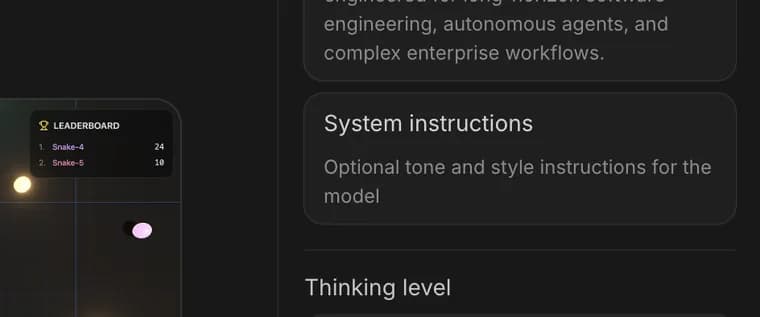
System instructions
Standing rules for the chat, like answer in Hindi or be brief.
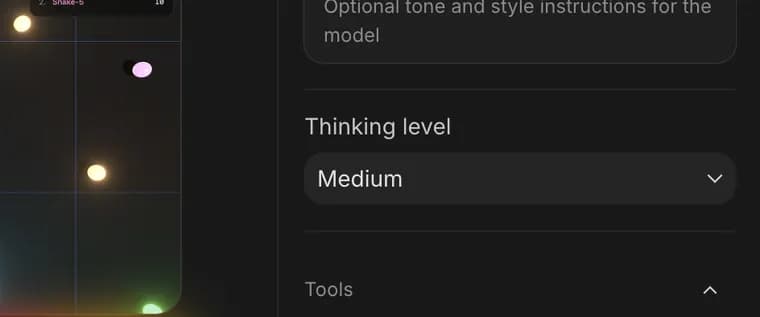
Thinking level
How long the model thinks before answering: Low, Medium or High.
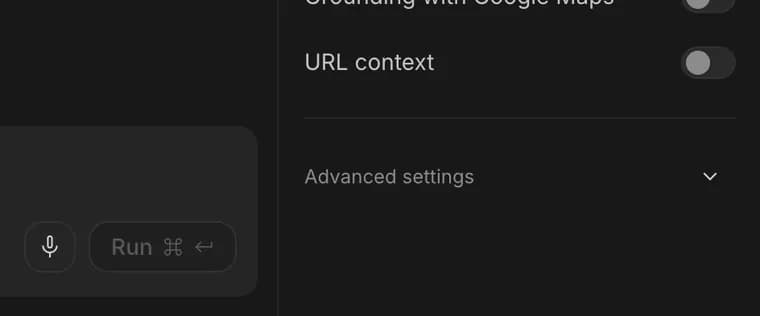
Advanced settings
Media resolution, safety filters, stop sequences and answer length.






More menu
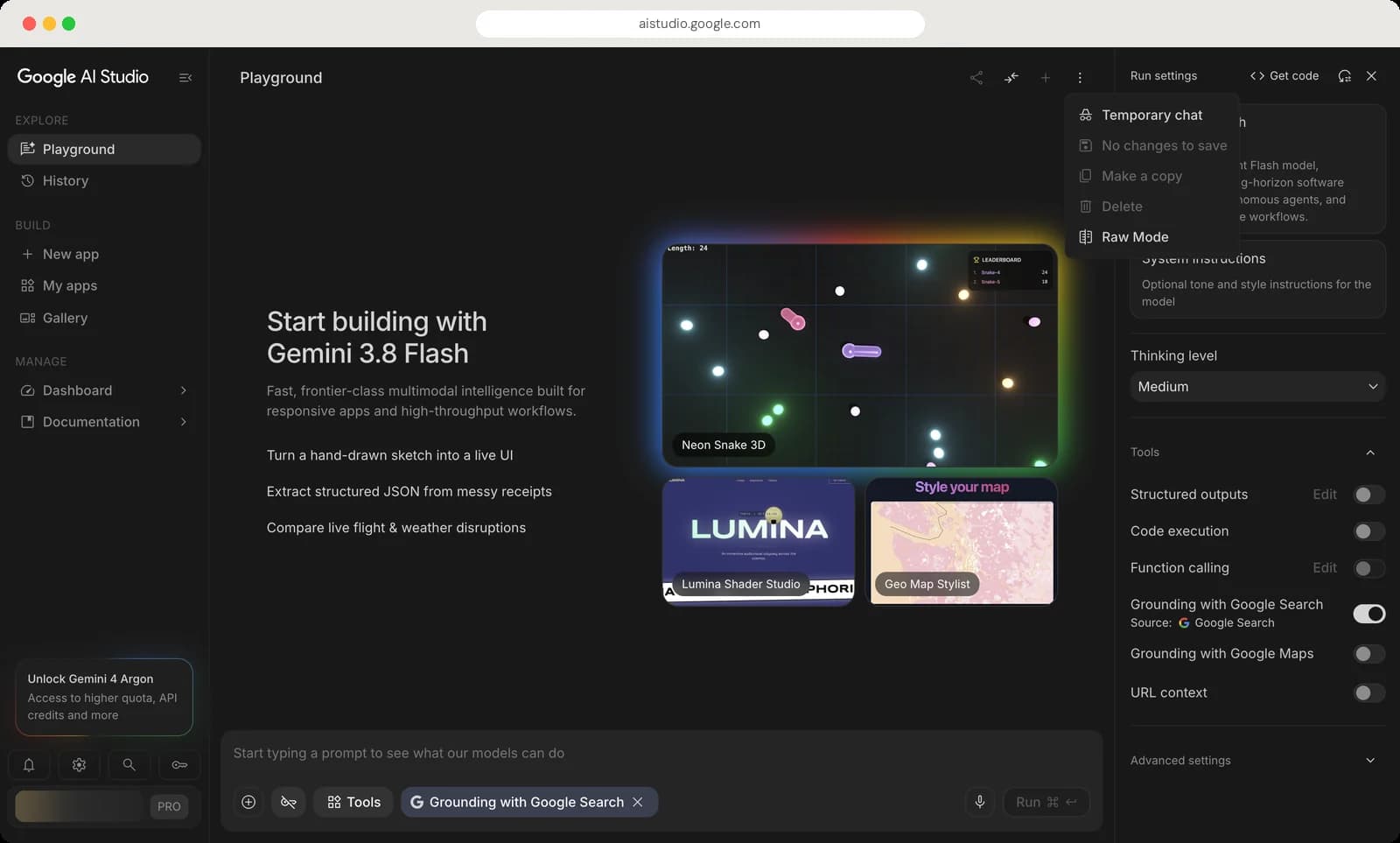
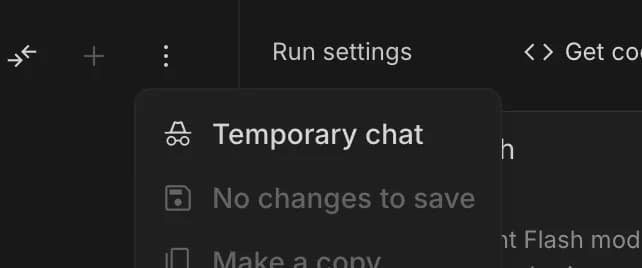
Temporary chat
A chat that is not saved to your history.
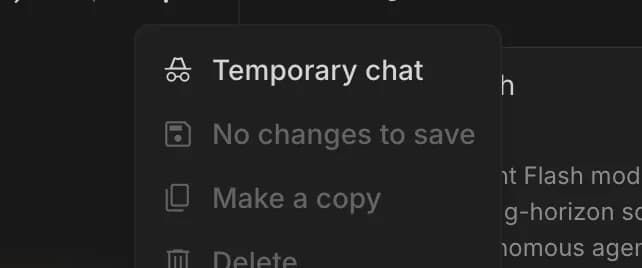
Save
Saves the chat. It reads No changes to save until you change something.
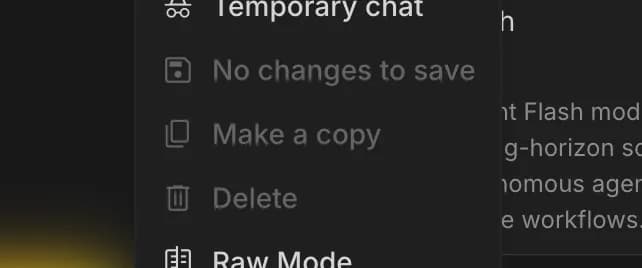
Make a copy
Duplicates the chat so you can try a different direction.
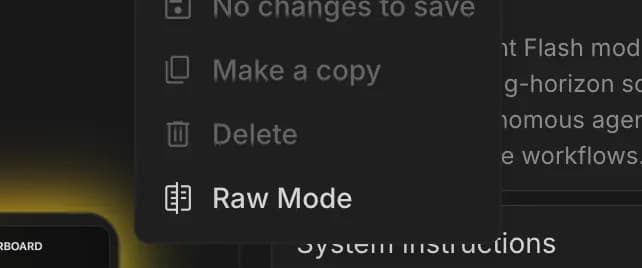
Delete
Deletes the chat.
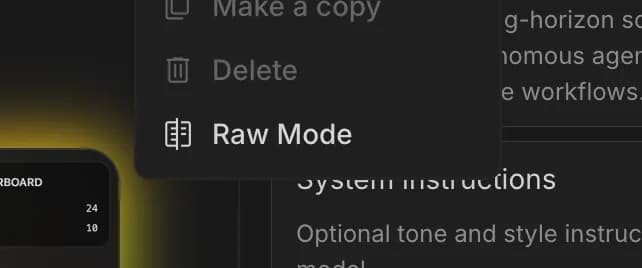
Raw Mode
Shows the chat as plain text, without formatting.


Insert and Tools menus
The two buttons at the bottom left of the Playground decide what the model can see and what it is allowed to do.
Insert menu
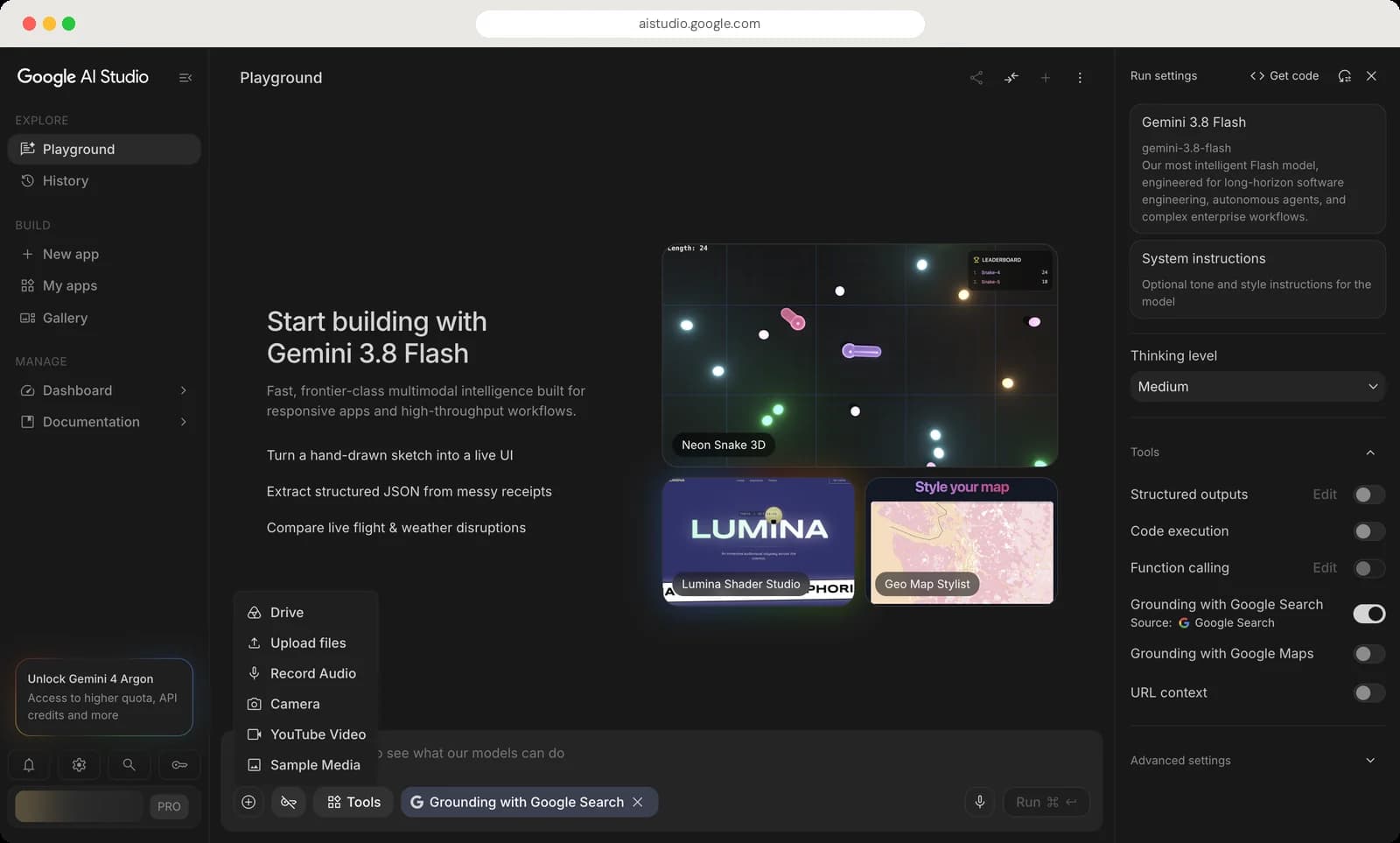
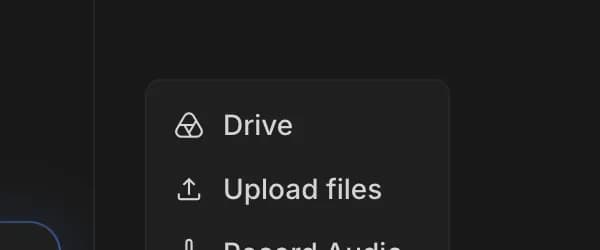
Drive
Attach a file from Google Drive.
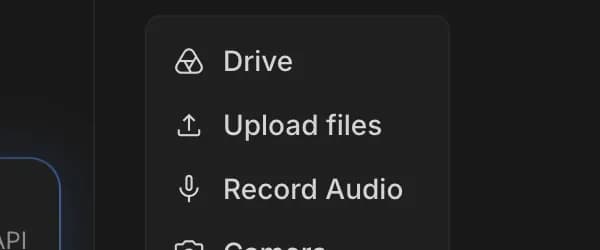
Upload files
Attach a file from your computer.
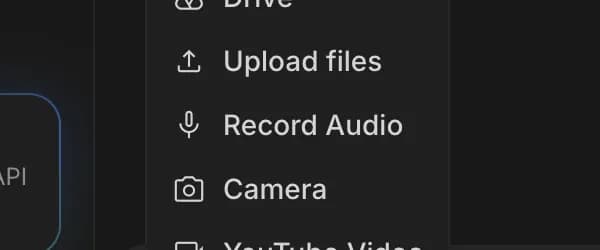
Record Audio
Record your voice for the model to listen to.
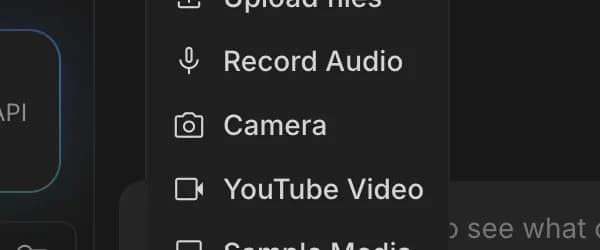
Camera
Take a photo with your webcam.
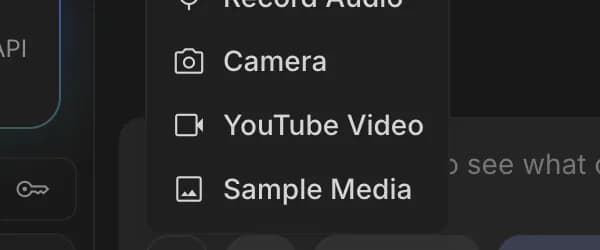
YouTube Video
Paste a YouTube link and ask questions about the video.
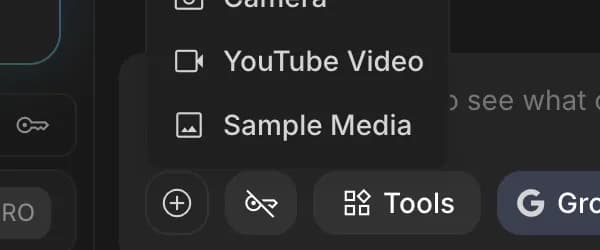
Sample Media
Built-in images and clips to experiment with.


Tools menu
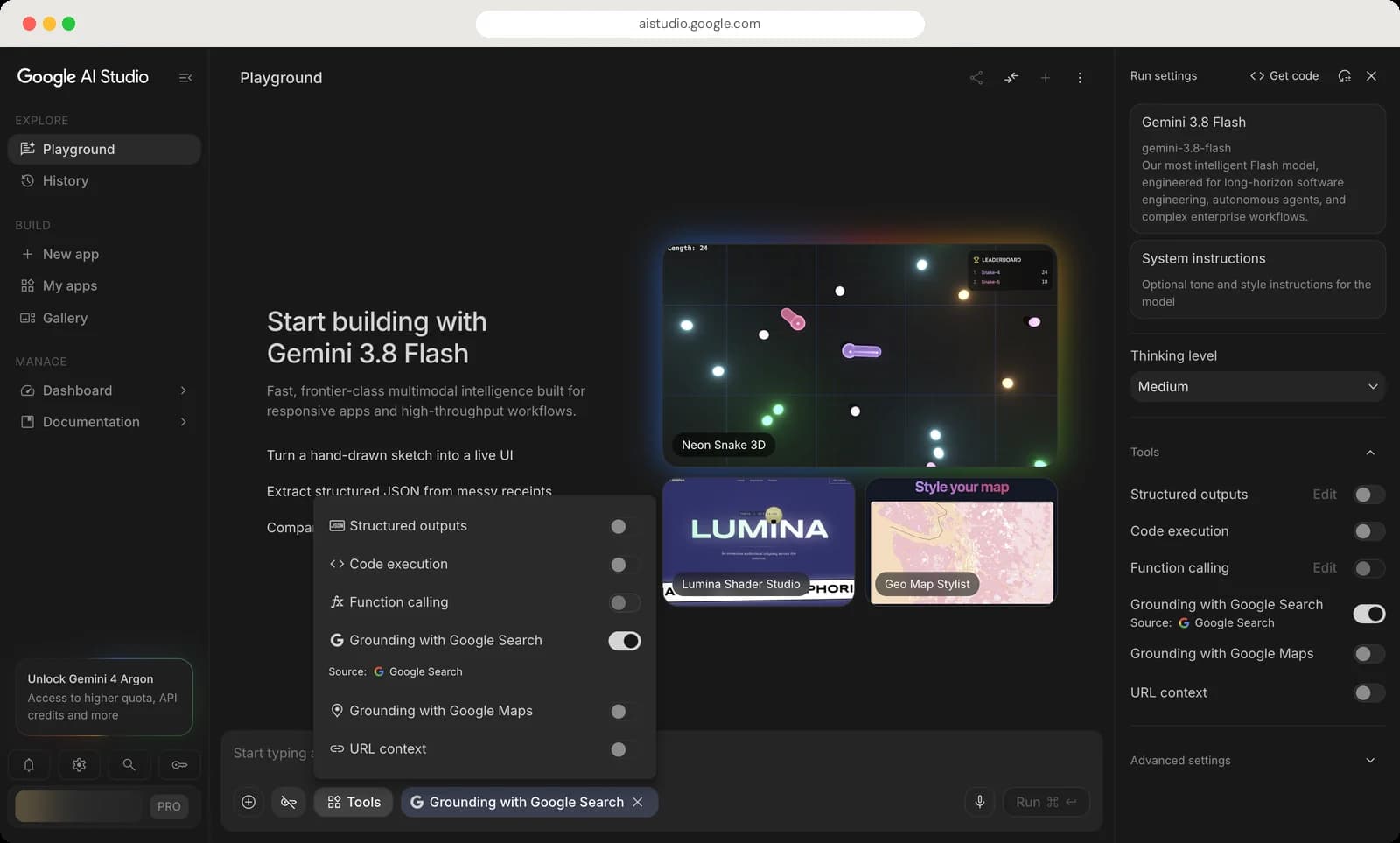
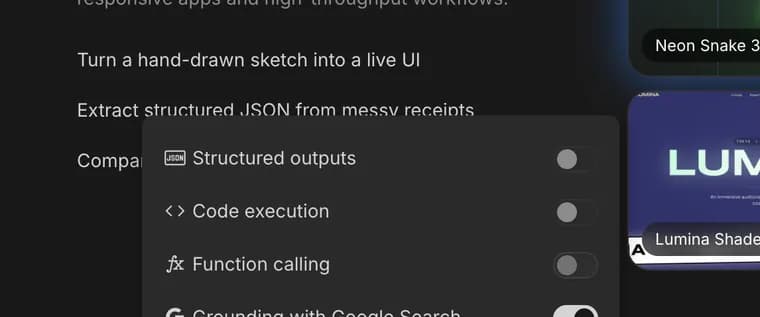
Structured outputs
Makes the answer follow a fixed format, like JSON, that code can read.
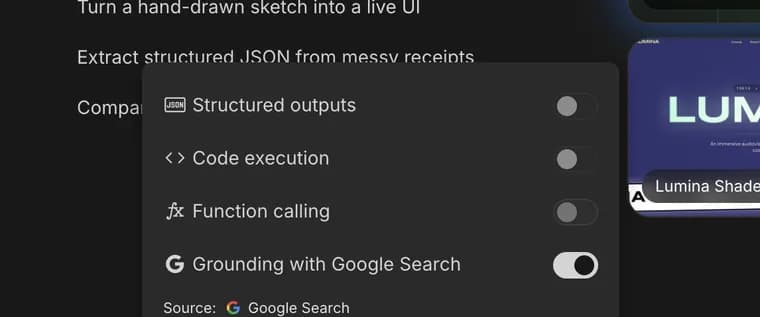
Code execution
Lets the model write and run Python to work things out.
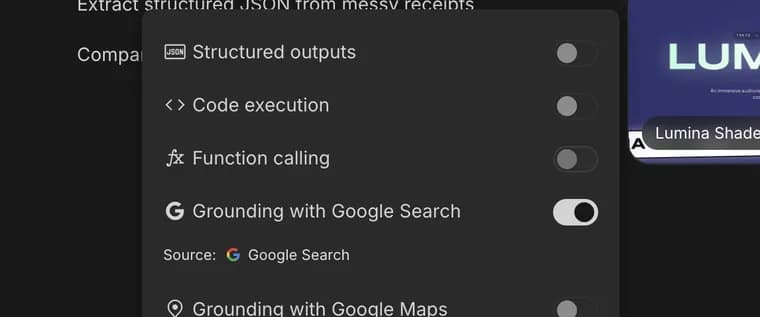
Function calling
Lets the model call functions you describe, like checking an order.
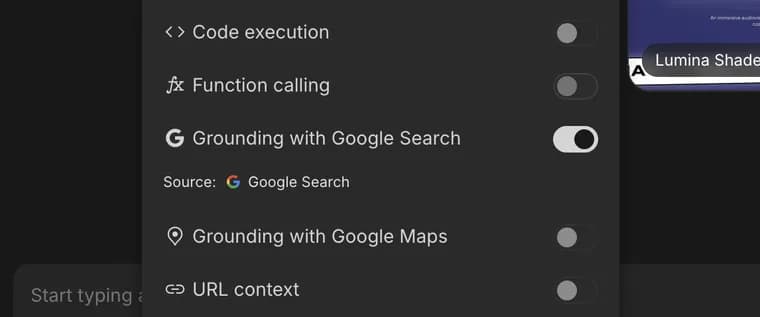
Grounding with Google Search
Answers use fresh results from Google Search, with sources.
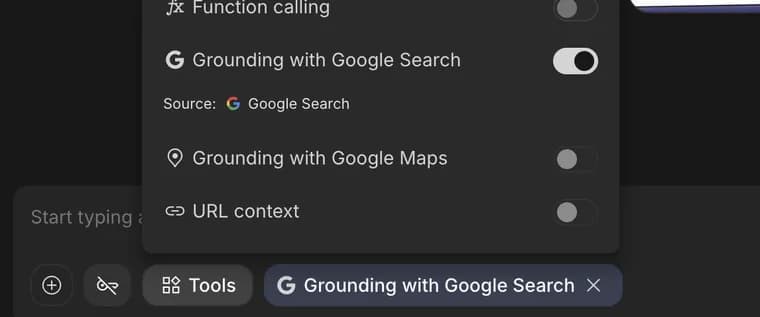
Grounding with Google Maps
Answers can use places and directions from Google Maps.
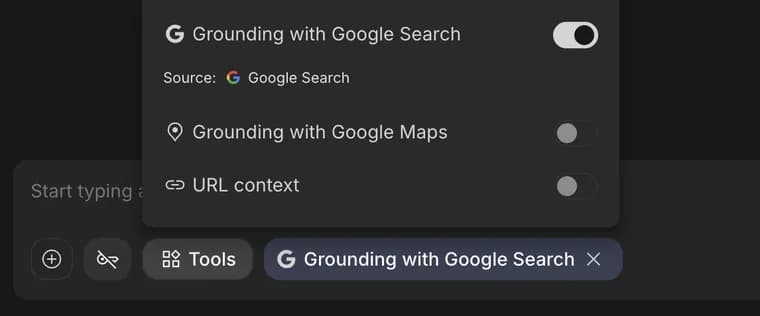
URL context
Paste links and the model reads those pages.


Choosing a model
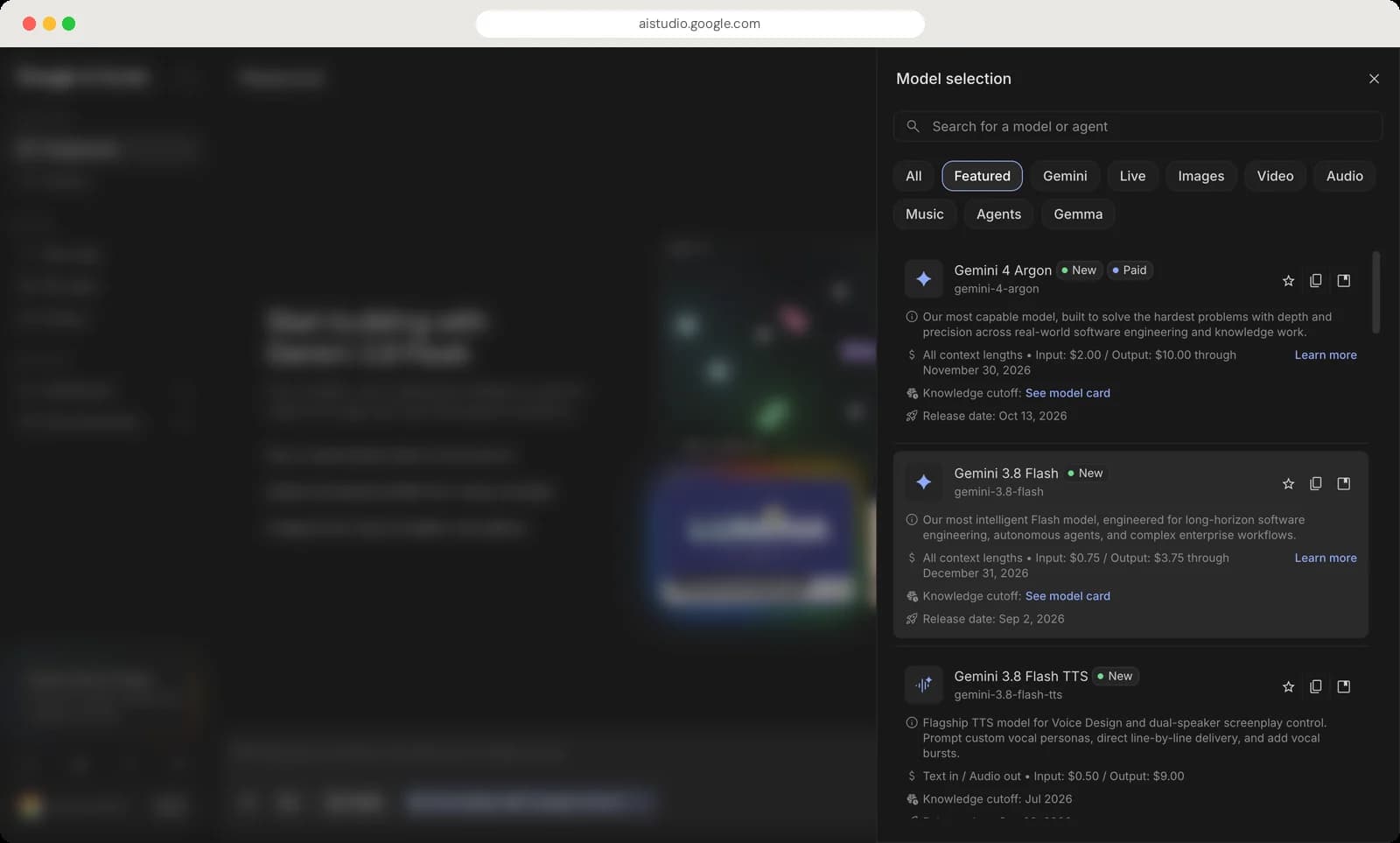
Click the model card in Run settings to open Model selection. Every model shows its price, knowledge cutoff and release date.
Model selection
Search models
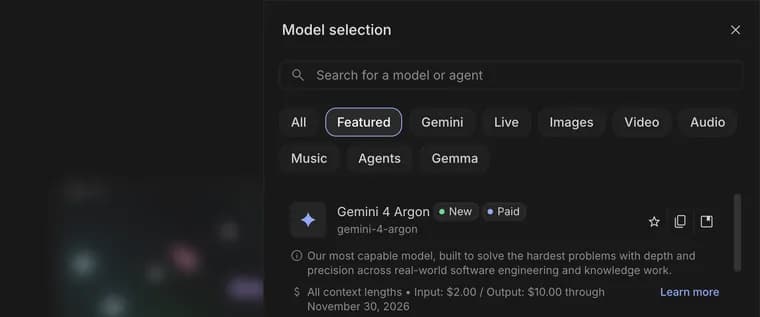
Find a model or agent by name.
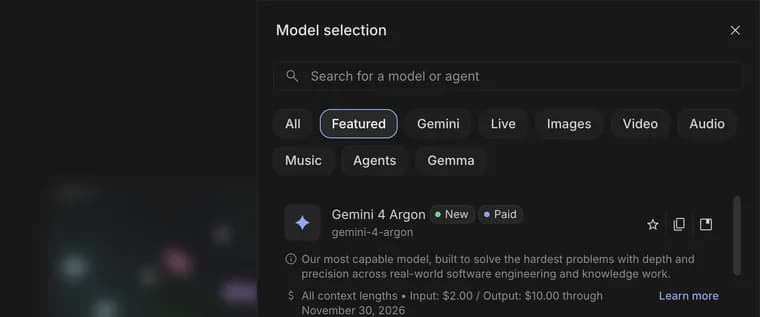
Filters
Narrow the list: Featured, Gemini, Live, Images, Video, Audio, Music, Agents and Gemma.
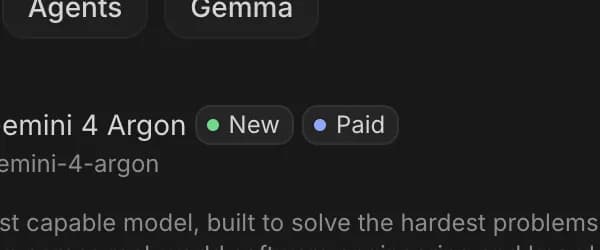
New and Paid tags
New means just released. Paid means it needs a paid API key.
Star model
Saves a model to your favourites.
Copy model ID
Copies the ID, like gemini-4-argon, for use in code.
Developer docs
Opens this model's documentation.
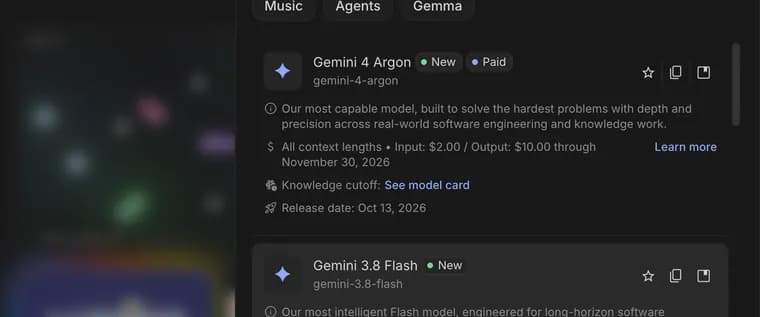
Model details
What it is good at, the price per million tokens, knowledge cutoff and release date.





Thinking level
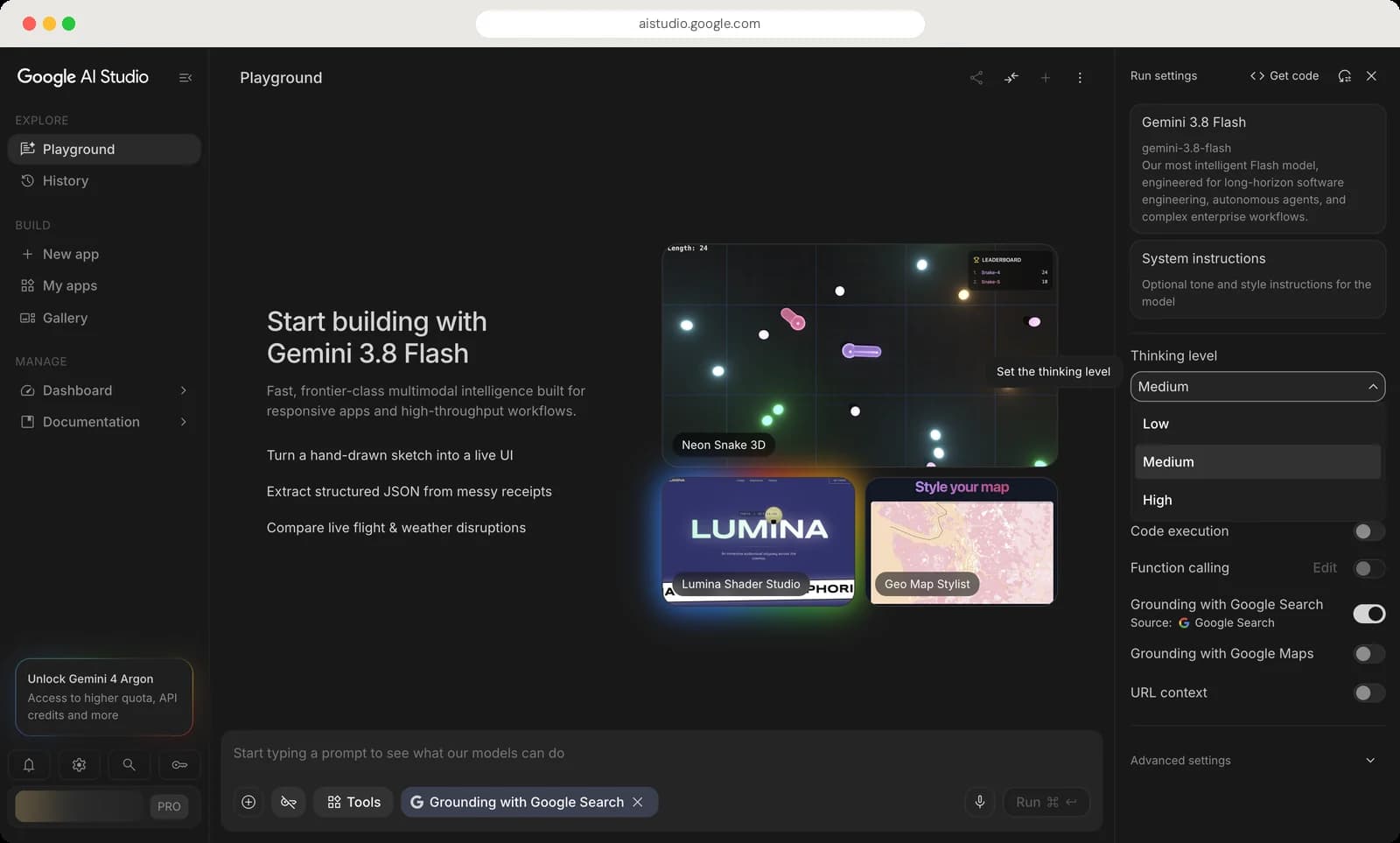
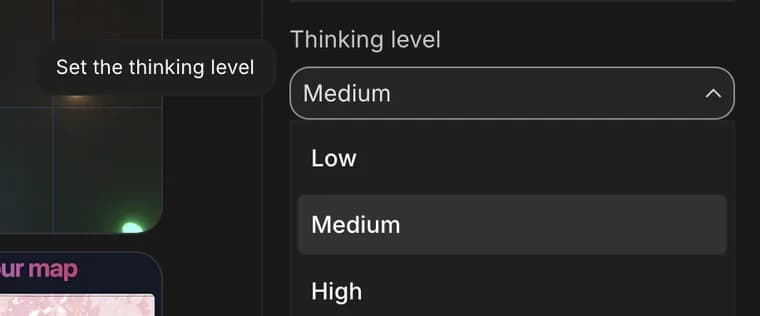
Low
Fastest answers. Fine for simple questions.
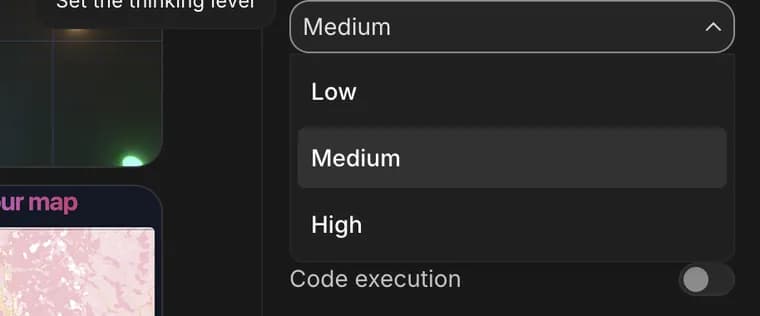
Medium
The default balance of speed and quality.
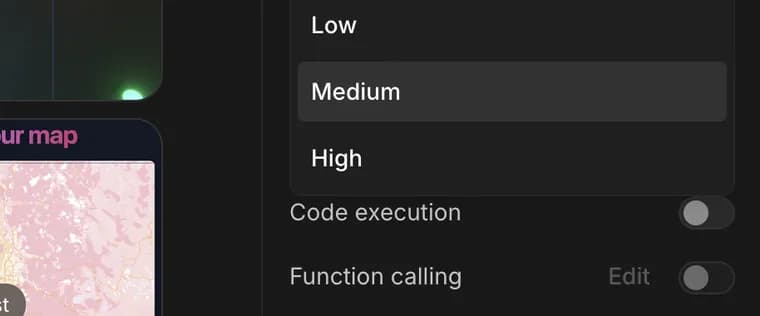
High
Thinks longest. Use it for maths, code and tricky problems.



Advanced settings, instructions and code
Three more places in Run settings that are worth knowing once you are comfortable.
Advanced settings
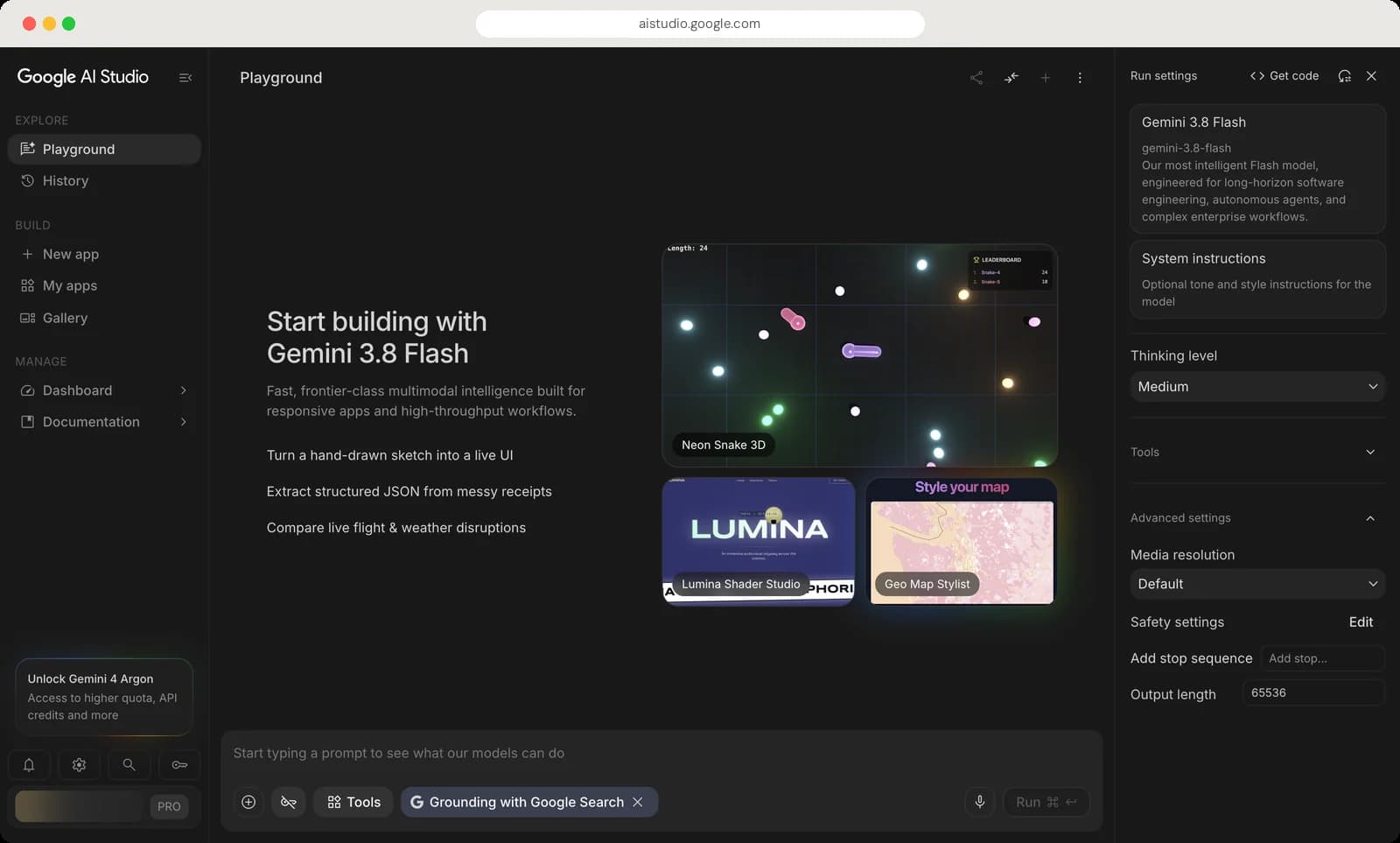
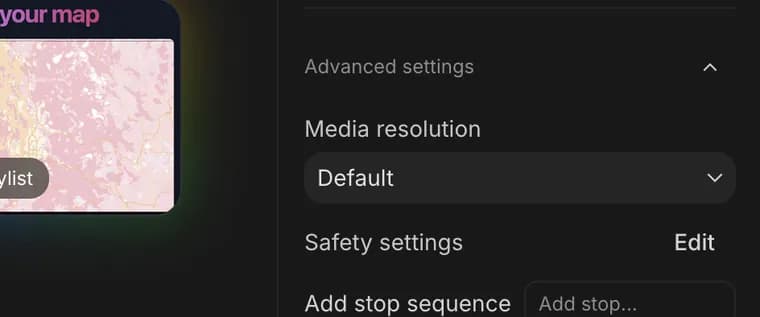
Media resolution
How much detail the model sees in images and video. Higher costs more tokens.
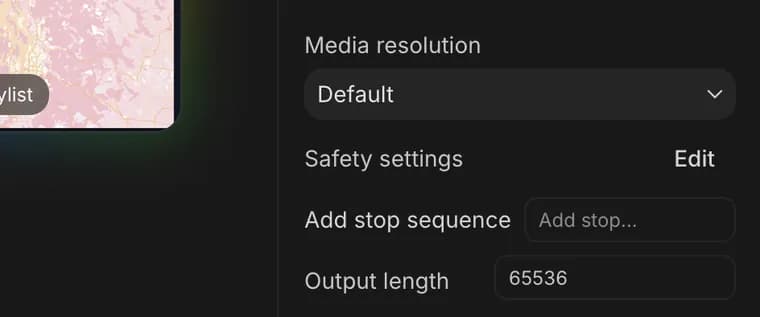
Safety settings
How strictly harmful content is blocked. Edit opens the filters.
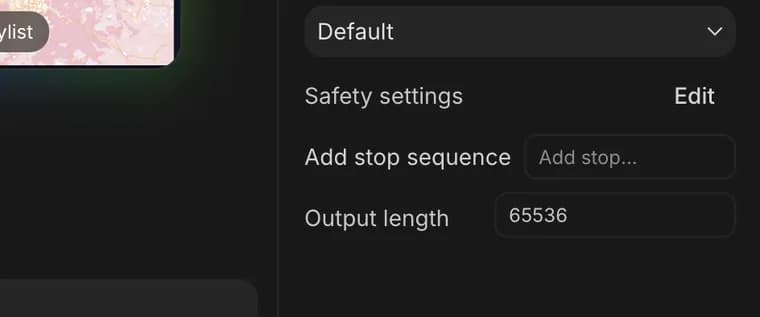
Stop sequence
Text that makes the model stop writing when it appears.
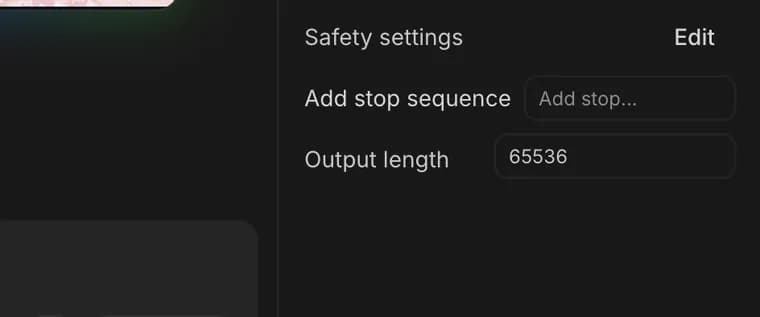
Output length
The most tokens one answer can use.


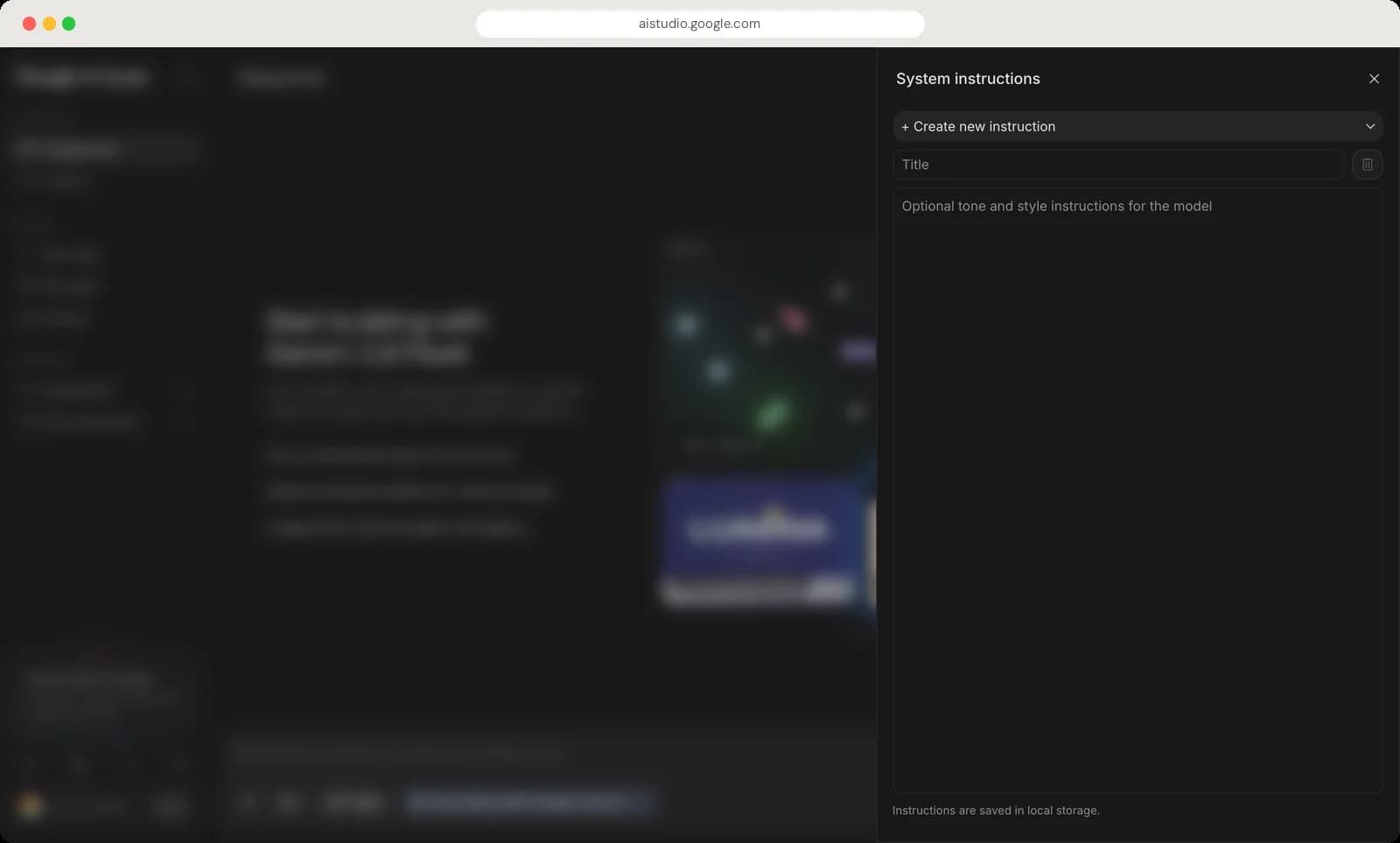
System instructions
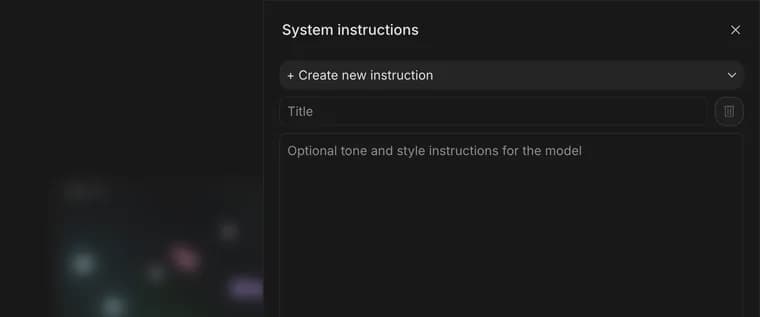
Saved instructions
Pick an instruction you saved earlier, or create a new one.
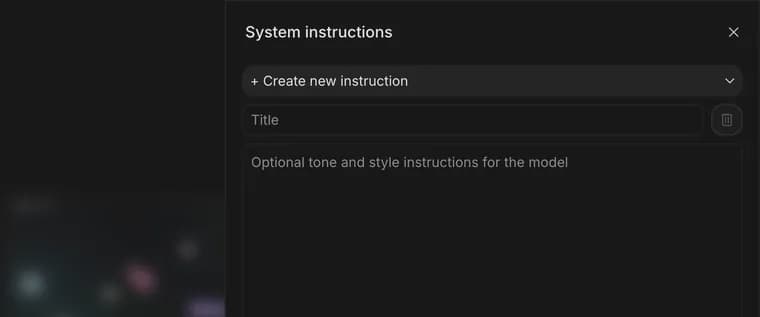
Title
A name for this instruction so you can find it again.
Delete instruction
Removes the saved instruction.
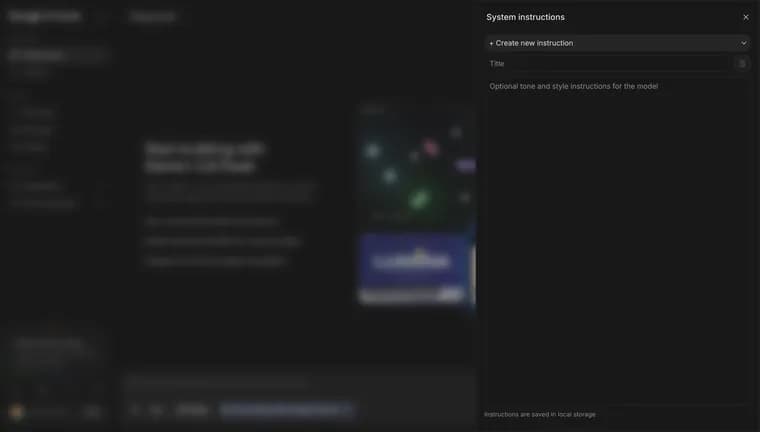
Instructions
Write the rules here, like your tone or a role for the model.
Stored in your browser
Saved instructions live in this browser only, not your account.




Get code
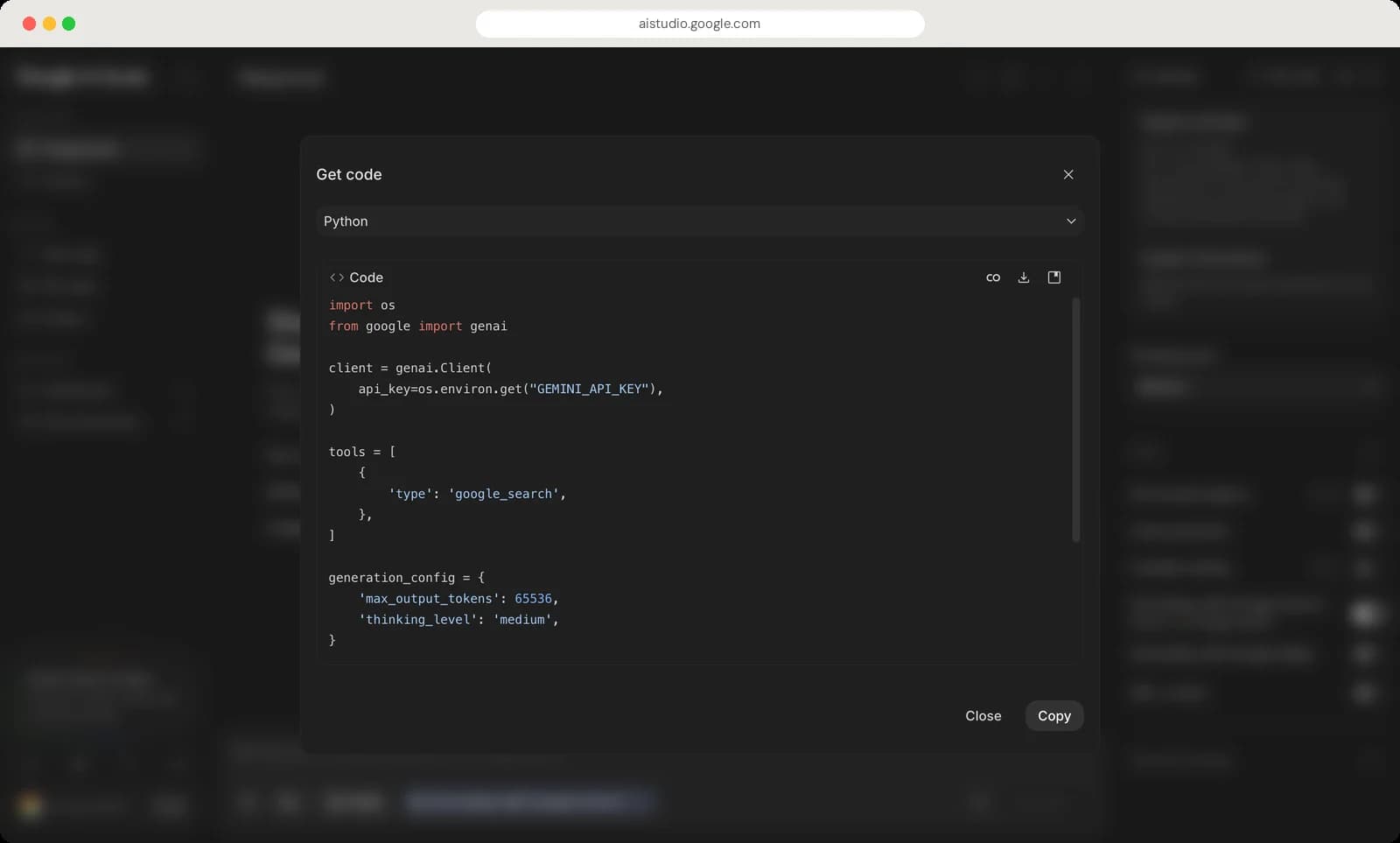
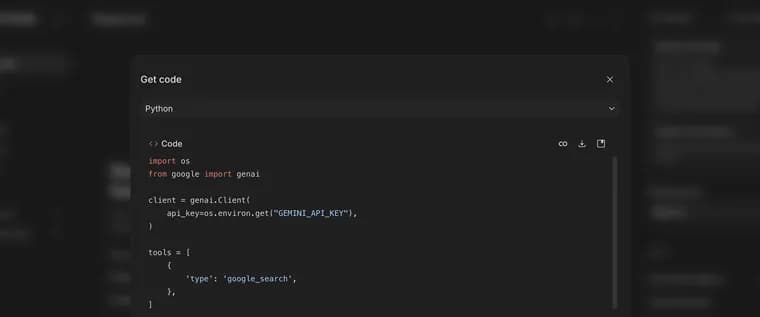
Language
Python, TypeScript, Java, Go or REST.
Open in Colab
Opens the code in a Google Colab notebook to run it.
Download
Saves the code as a file.
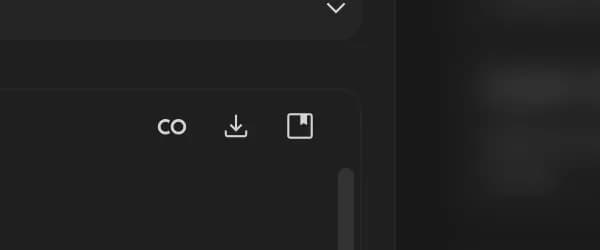
API Docs
Opens the API documentation.
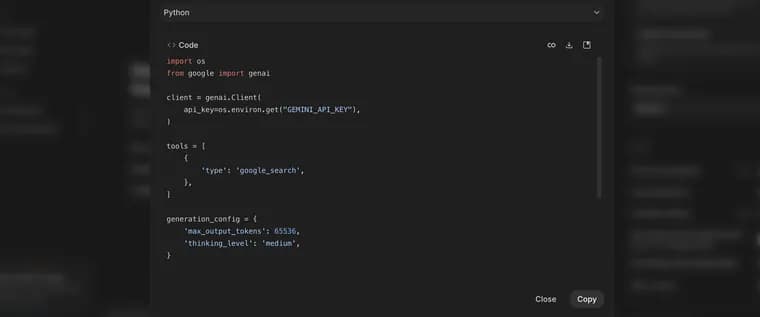
The code
Your settings, like the tools and thinking level, already filled in.

Copy
Copies the code.




Compare mode
Compare mode splits the Playground in two, so one prompt goes to two models at once.
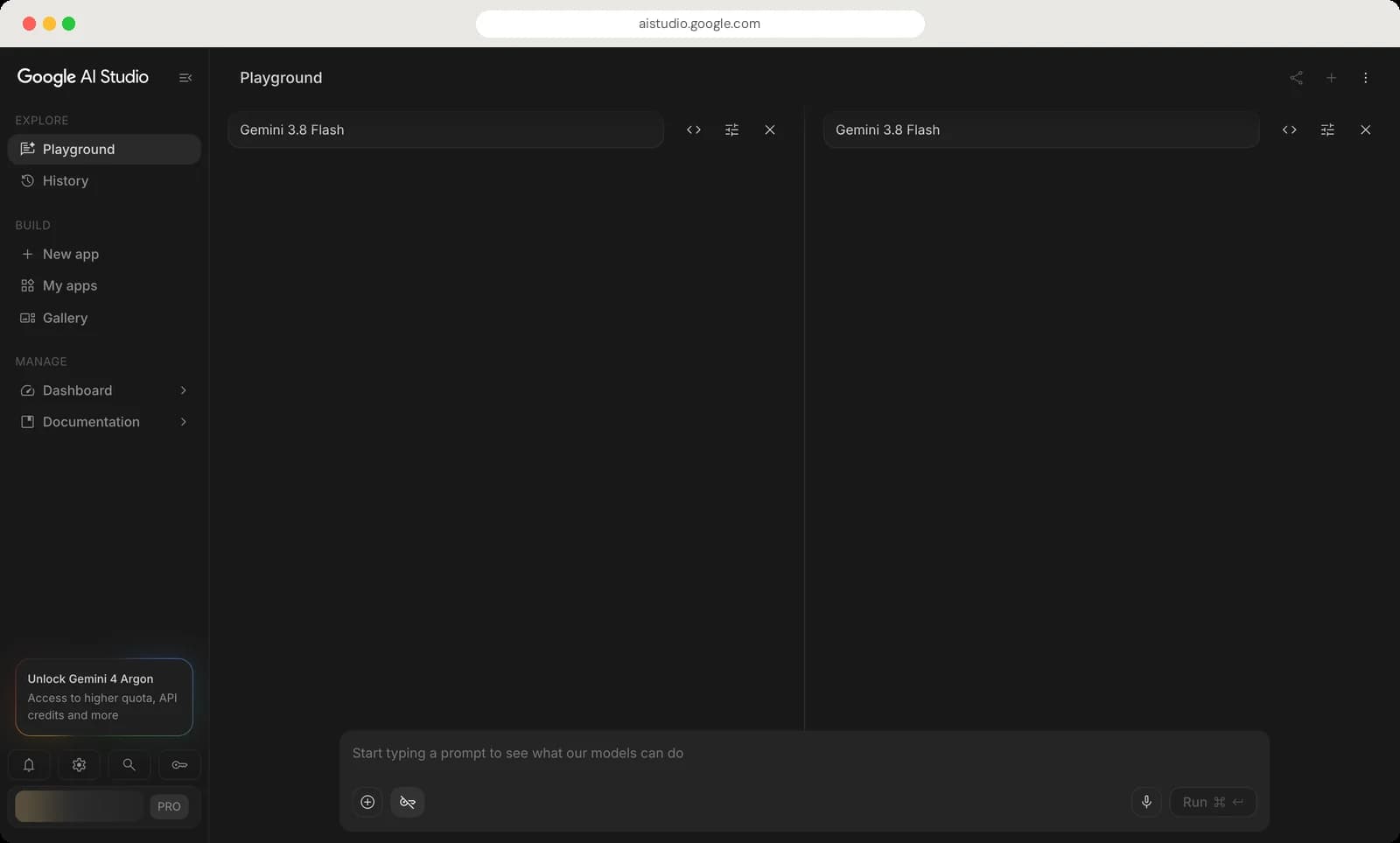
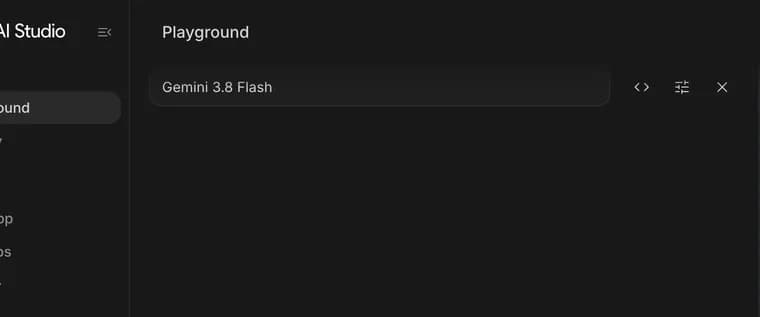
Left model
Click to pick the first model.
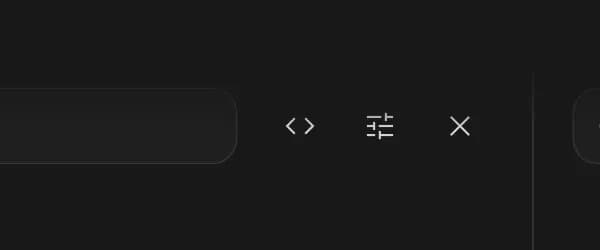
Get code
The code for this side's model and settings.
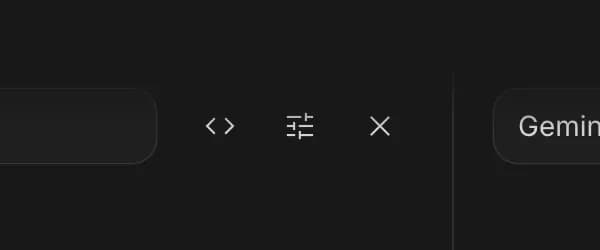
Run settings
Settings for this side only.
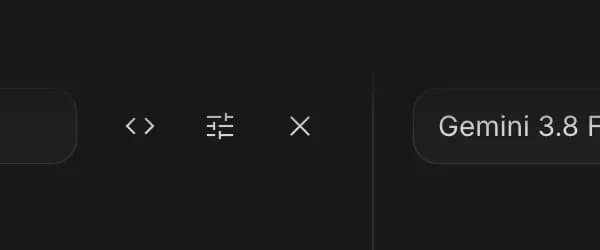
Close chat
Removes this side and goes back to one chat.
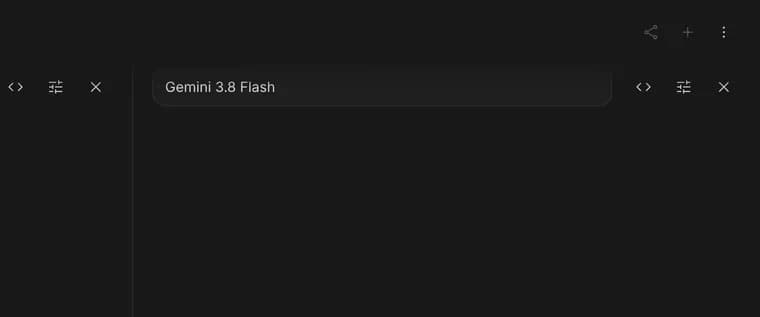
Right model
Click to pick the second model.
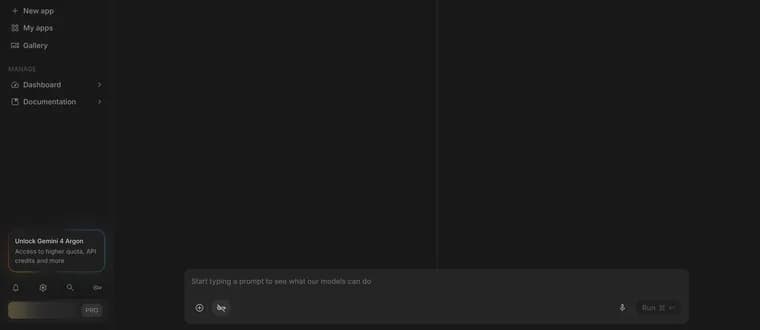
Shared prompt
Whatever you type here goes to both models.





Inside an app
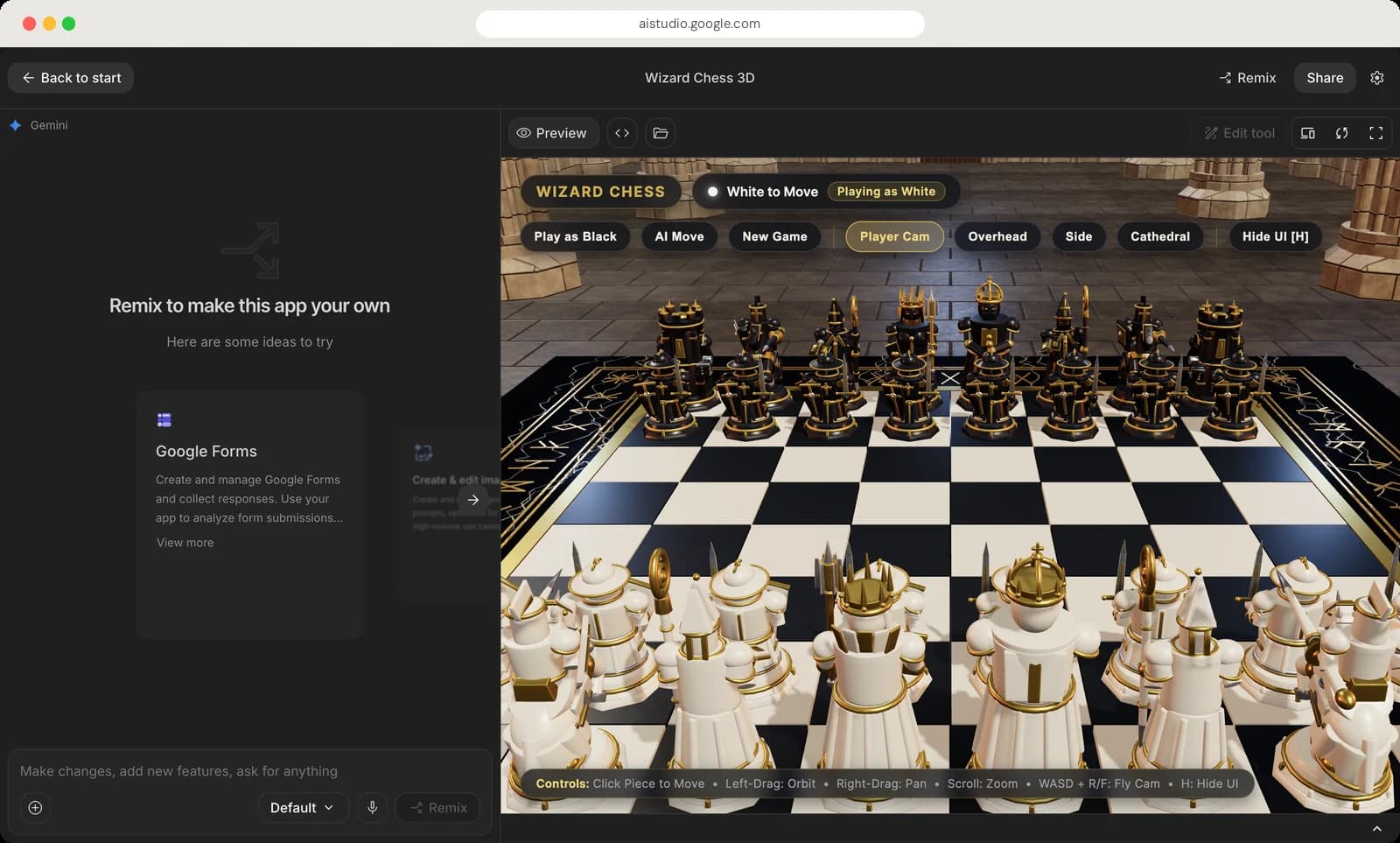
Open any app, yours or one from the Gallery, and you get this editor: chat on the left, the live app on the right.
Top bar
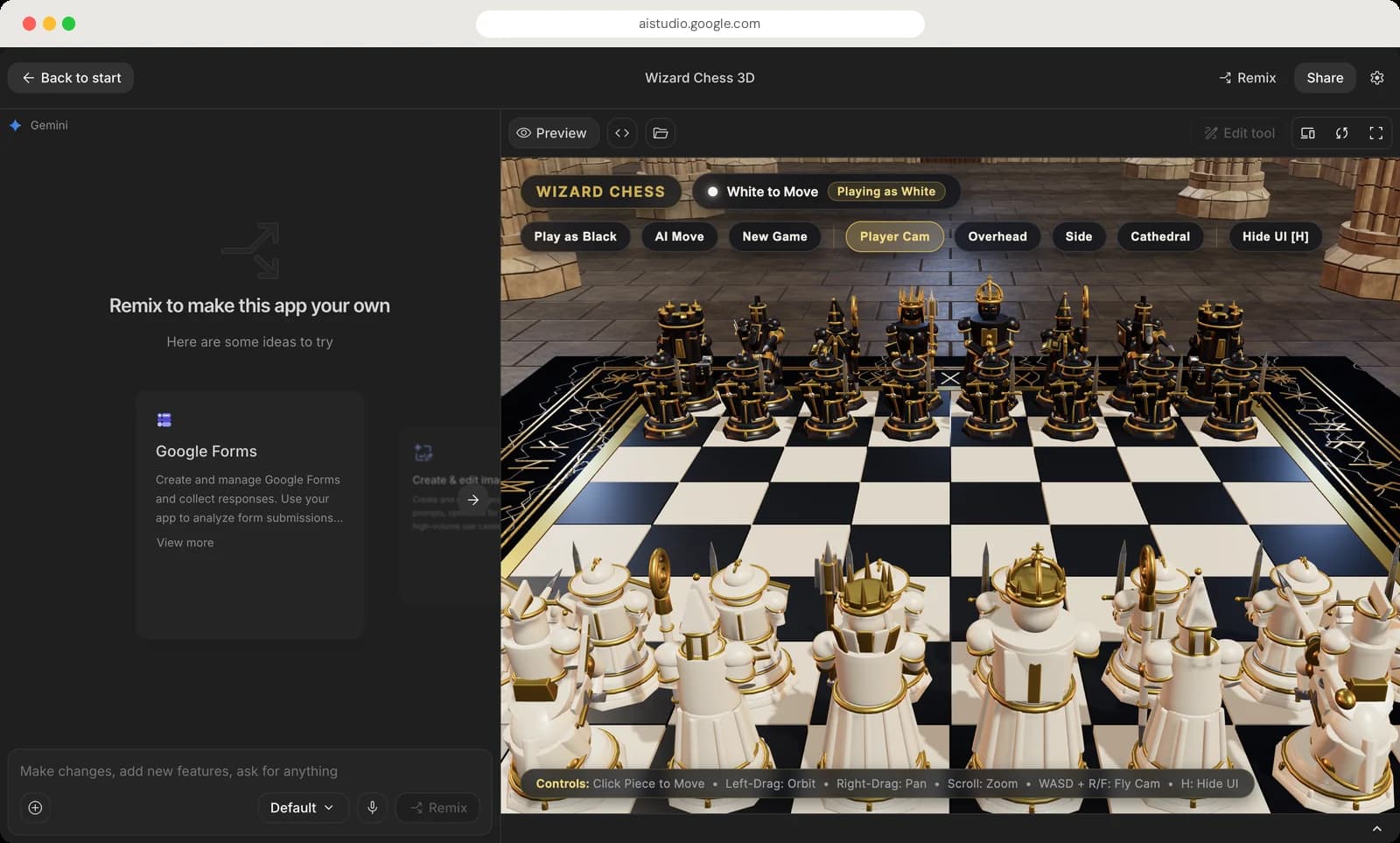
Back to start
Returns to the Build page.
Remix
Makes your own copy of the app that you can change.
Share
Get a link so others can use the app.
App settings
The same Build settings: model, framework and instructions.
Preview
Shows the running app.
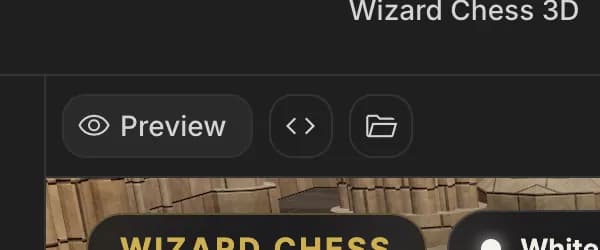
Code
Shows the app's files and code.

Artifacts
Plans Gemini writes before big changes show up here.






Preview tools
Edit tool
Click a part of the app to change just that part. Remix first for Gallery apps.
Device preview
See how the app looks on a phone, tablet or desktop.
Reload
Restarts the app.
Full screen
Shows only the app.



Chat panel
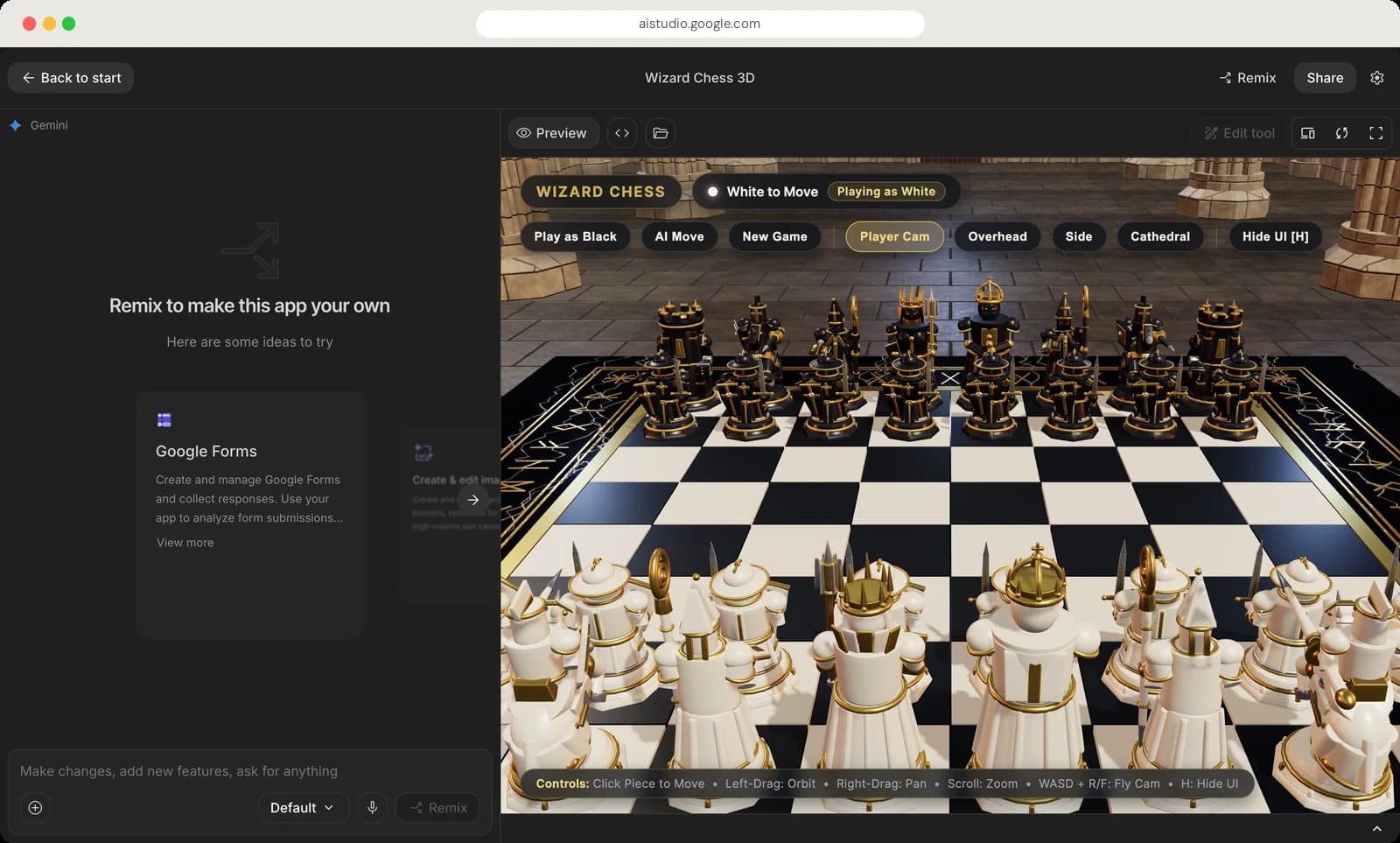
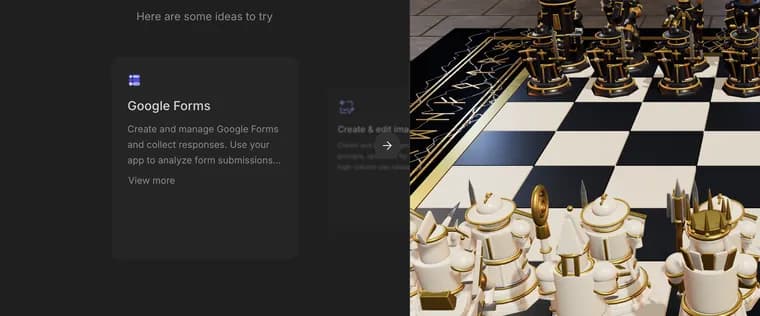
Ideas
Suggestions for features to add, like Google Forms. The arrow shows more.
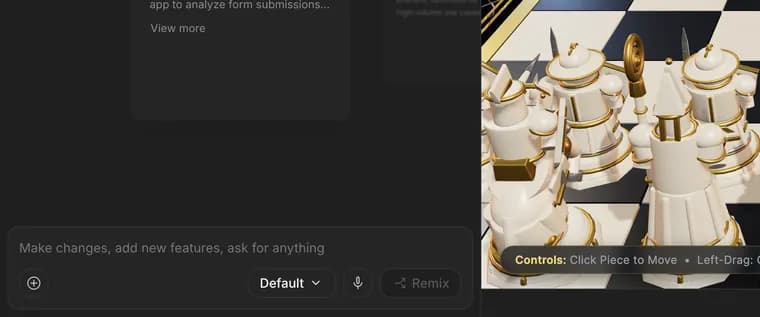
Ask for changes
Describe a change, a new feature or a bug to fix.
Attach
Add images or files to your request.
Mode for changes
Default, Plan or Max, the same as on the Build page.
Voice
Say the change out loud.
Send
Sends your request. It reads Remix until you have your own copy.





Code view
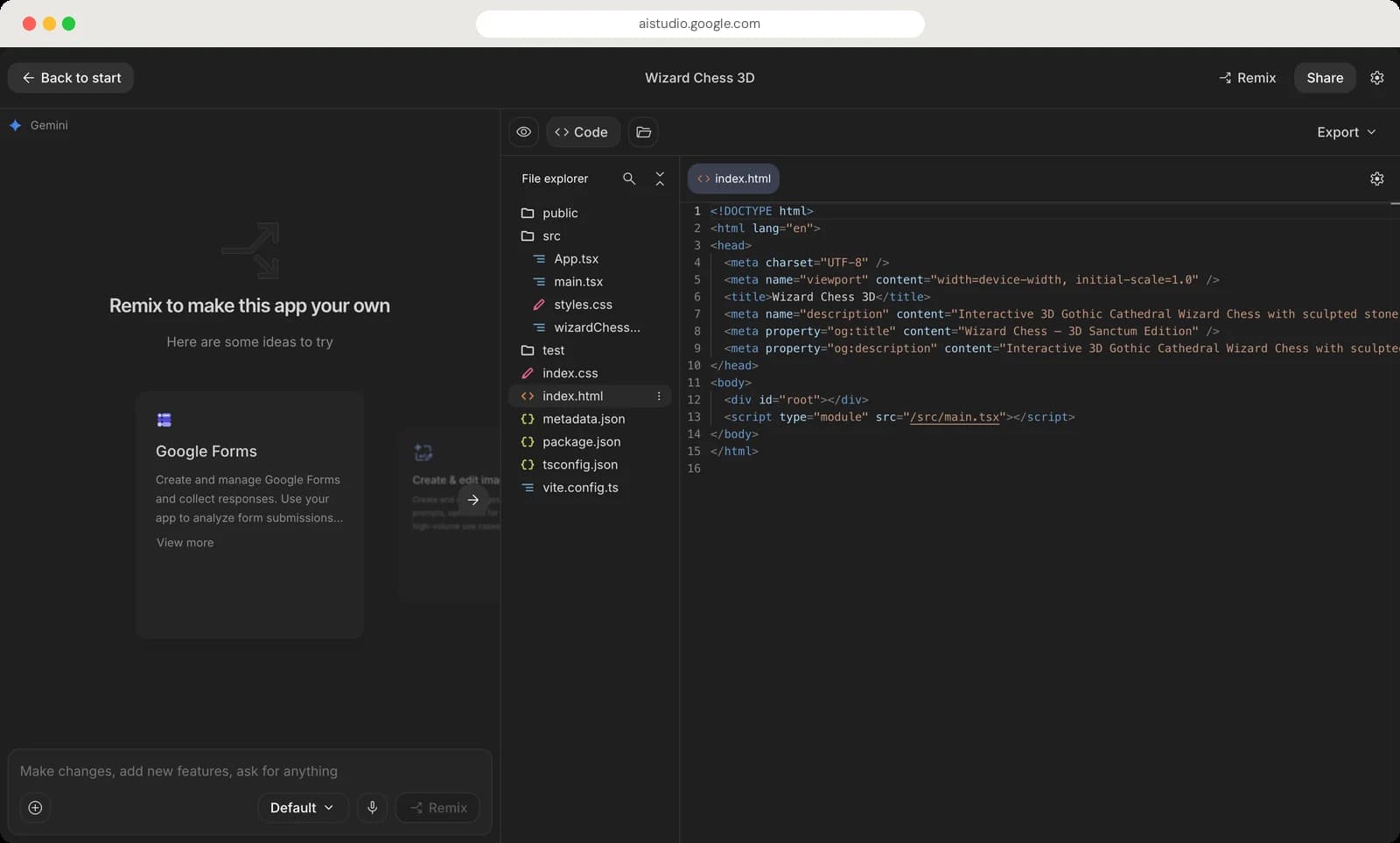
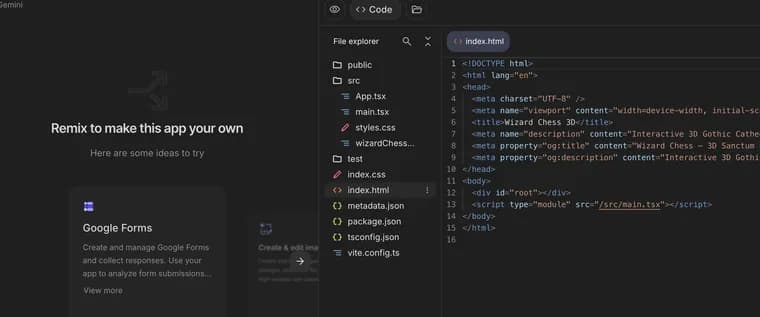
File explorer
Every file in the app. Click one to open it.
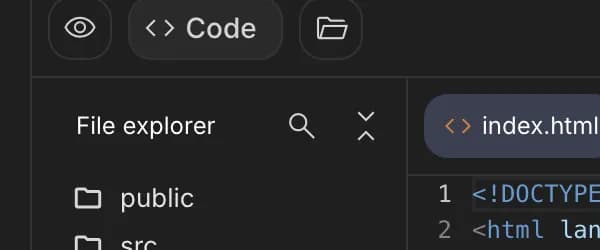
Search files
Find a file by name.
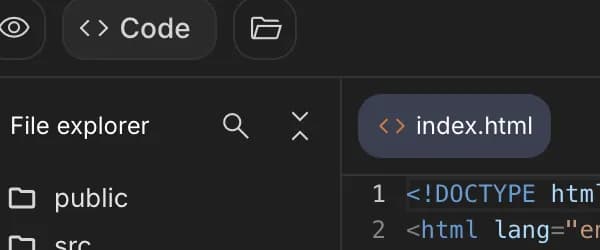
Collapse folders
Folds all the folders shut.
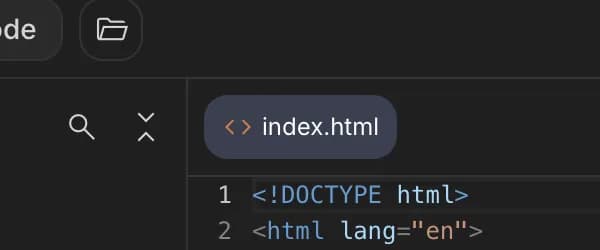
Open file
The file you are looking at.
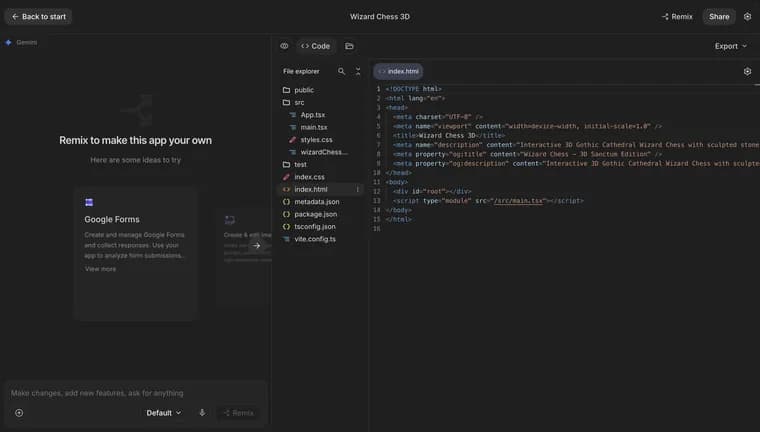
Editor
The code itself. You can read it, or edit it once the app is yours.
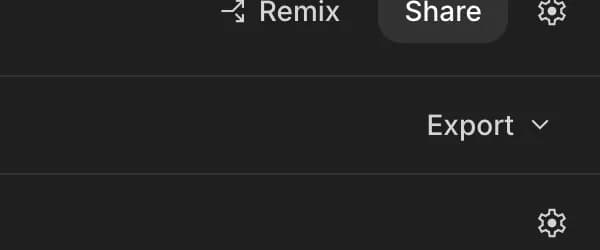
Export
Download the whole app as a .zip file.
Editor settings
Font size and other editor options.





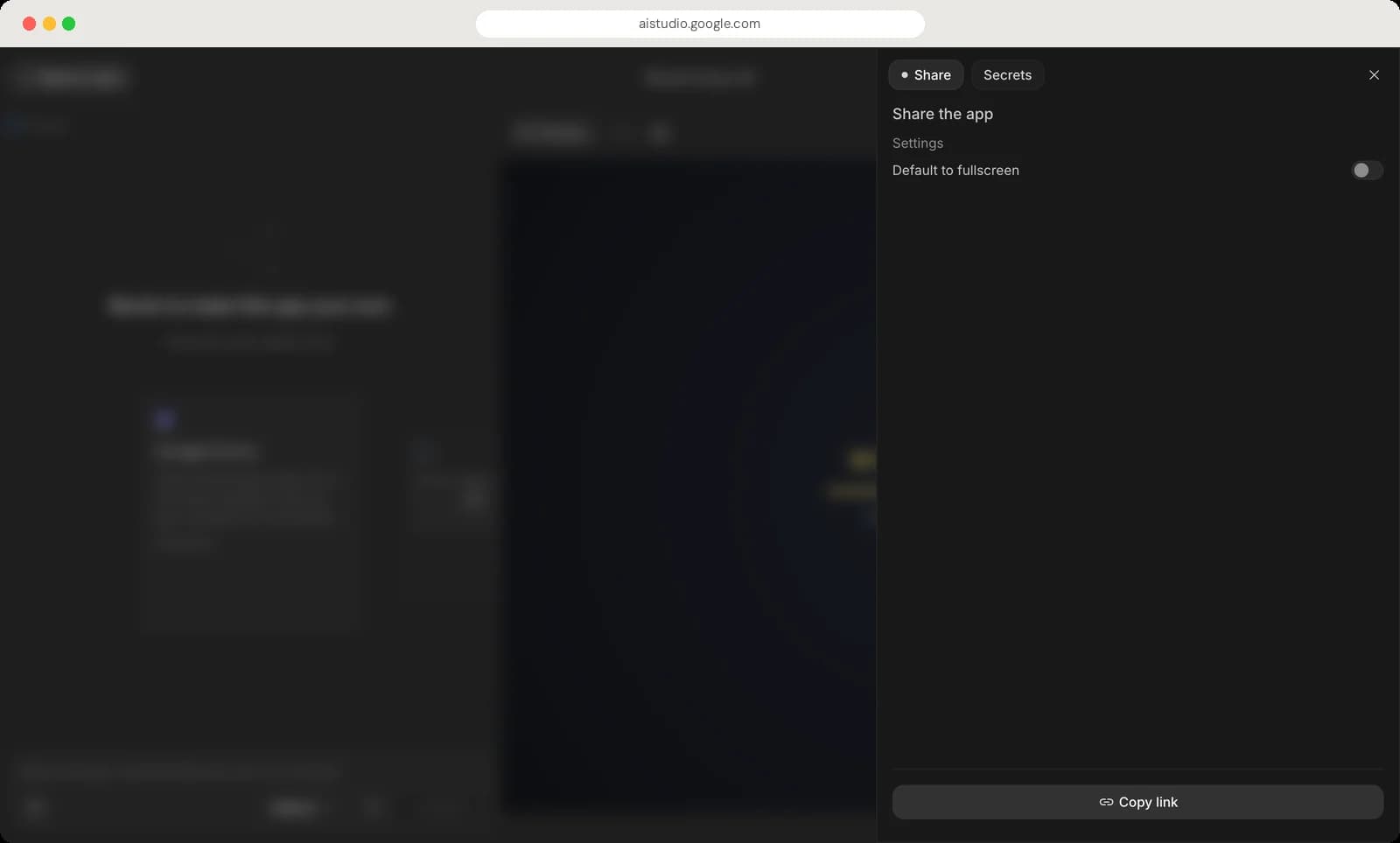
Share panel
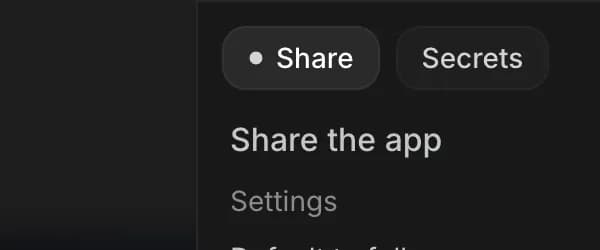
Share tab
Settings for the public link.
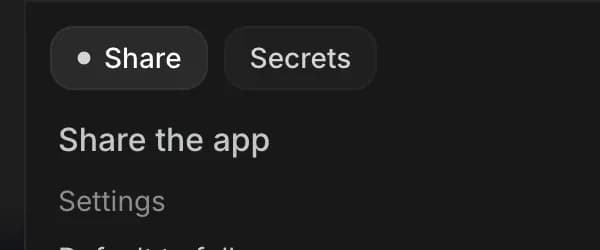
Secrets
Store API keys the app needs without showing them in the code.
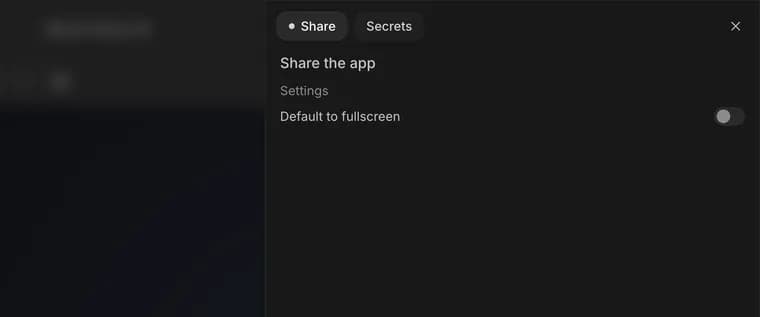
Default to fullscreen
Opens the shared app without the editor around it.
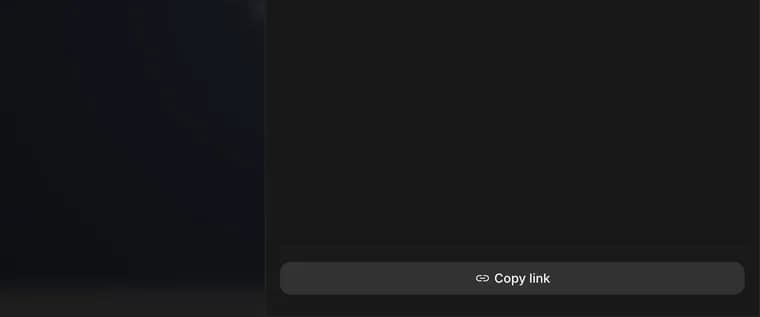
Copy link
Copies the link to send to anyone.



History, My apps and Gallery
Everything you have made in AI Studio, and everything other people share, lives in these three pages.
History
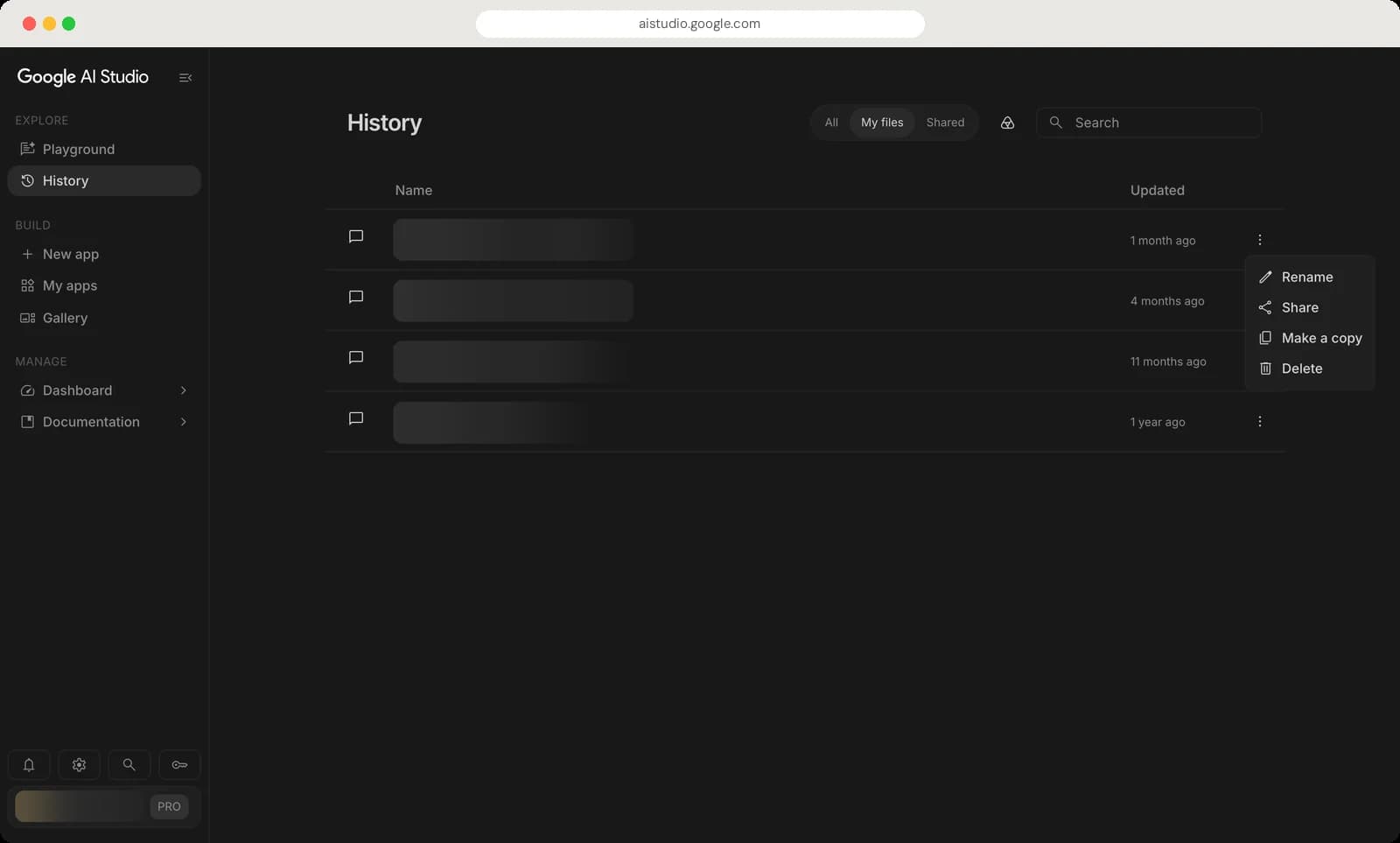
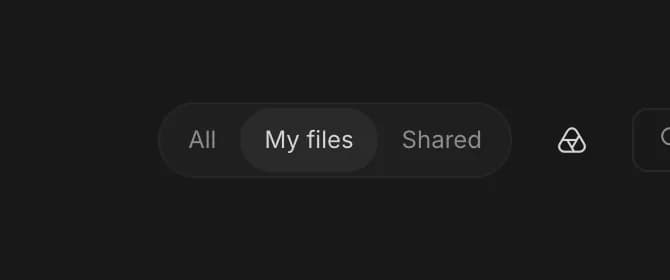
Filter
All chats, only yours, or ones shared with you.
Google Drive
Your chats are saved in a Google AI Studio folder in Drive.
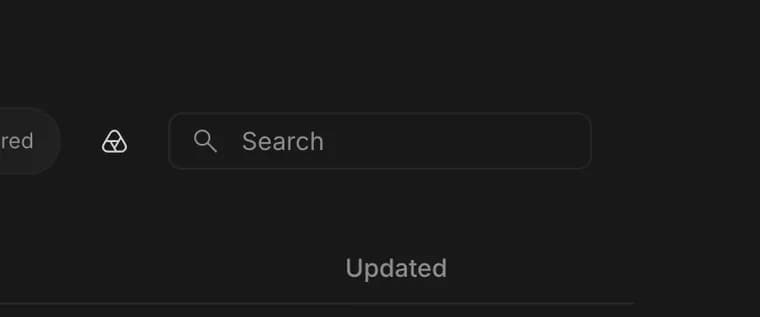
Search chats
Find a chat by name.
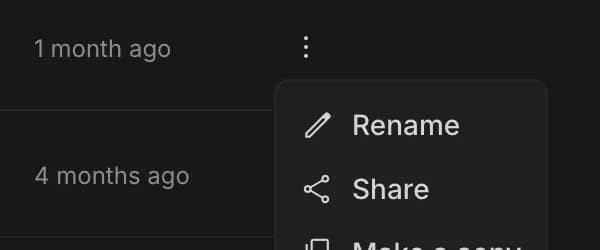
Rename
From the dots menu on any chat: give it a clearer name.
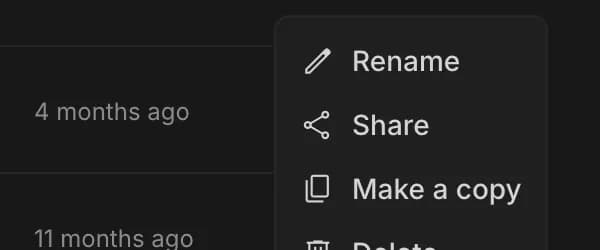
Share chat
Send the chat to someone.
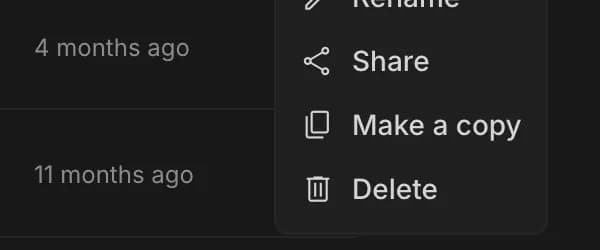
Make a copy
Duplicate the chat.
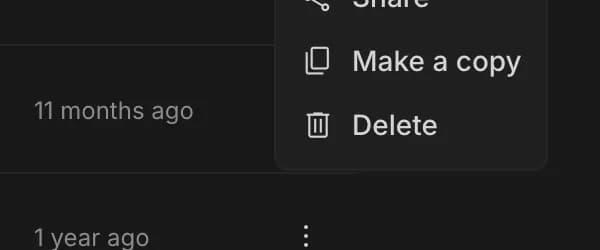
Delete chat
Delete the chat.



My apps
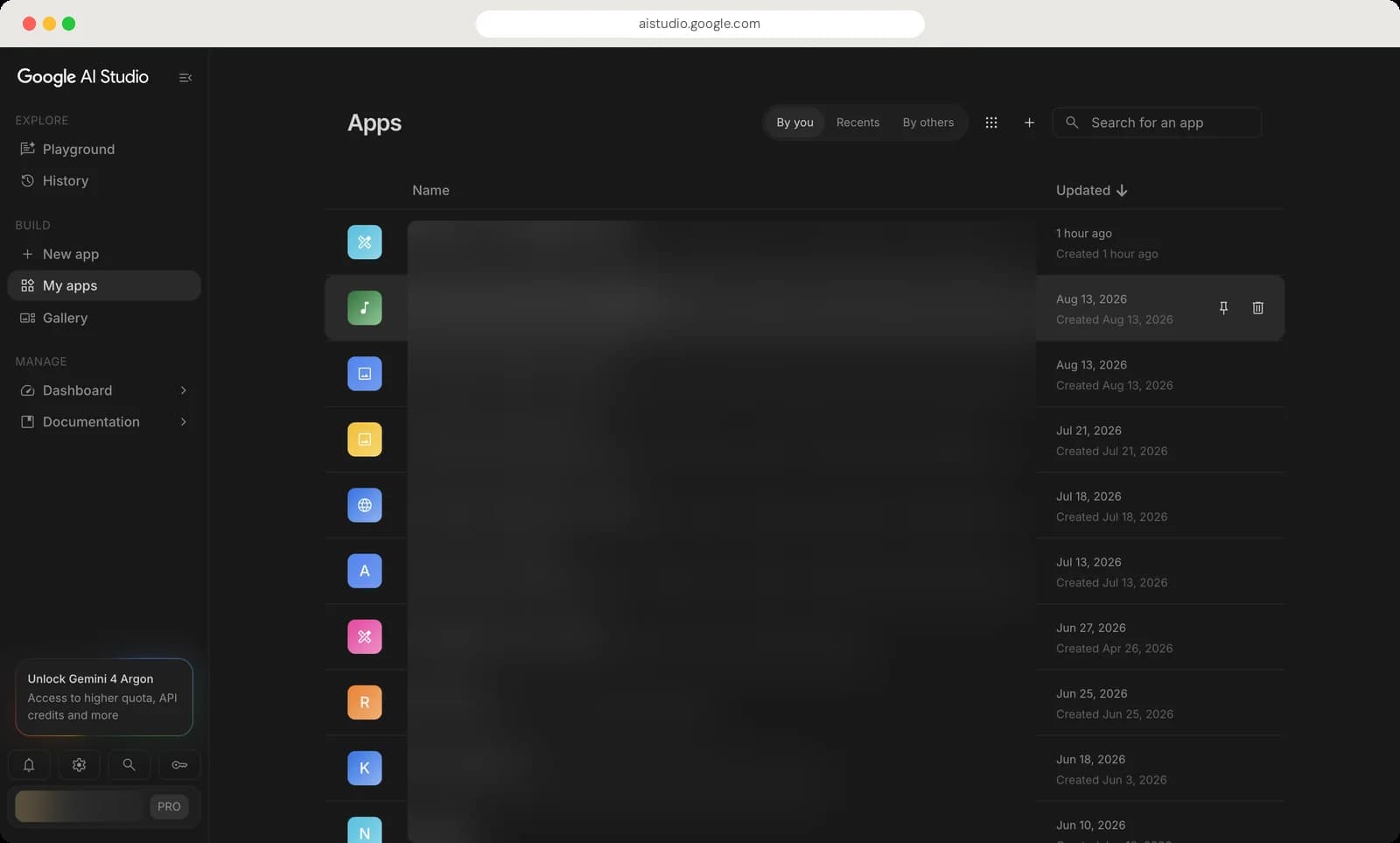
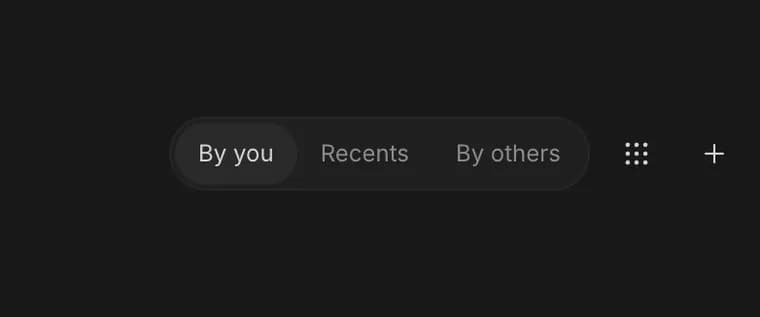
Tabs
Apps you made, ones you opened recently, or ones shared by others.
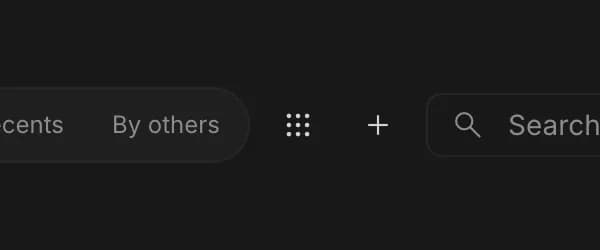
Explore gallery
Jumps to the Gallery.
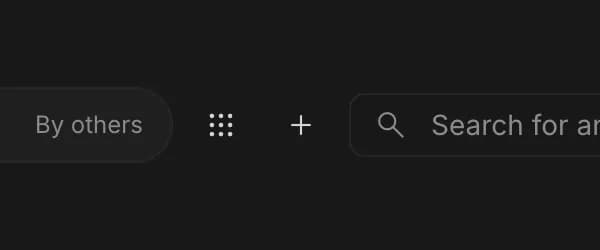
New app
Start a new app.
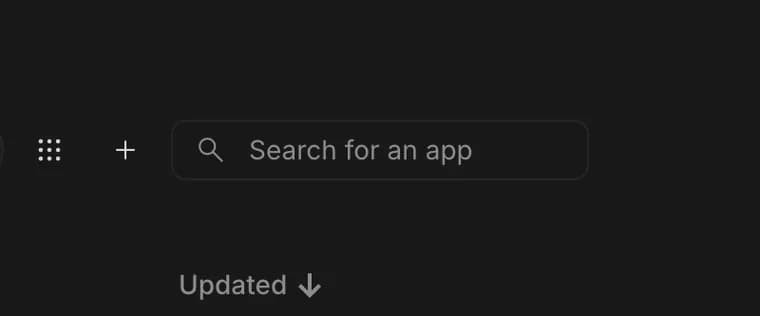
Search apps
Find an app by name.
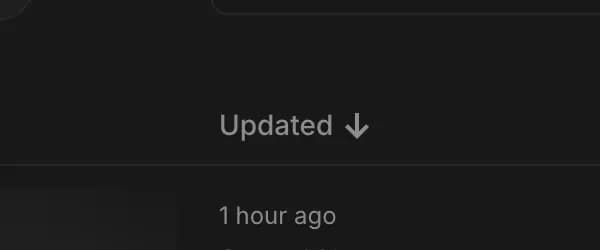
Sort
Newest or oldest first.
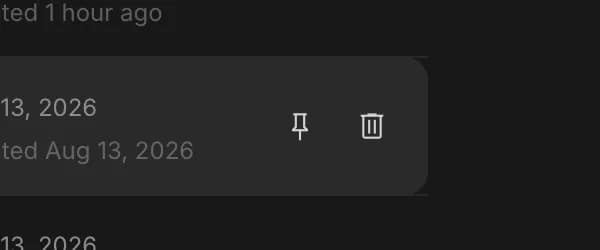
Pin
Keeps an app at the top. Appears when you point at a row.
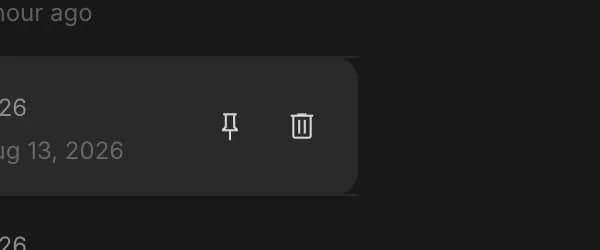
Delete app
Deletes the app.






Gallery
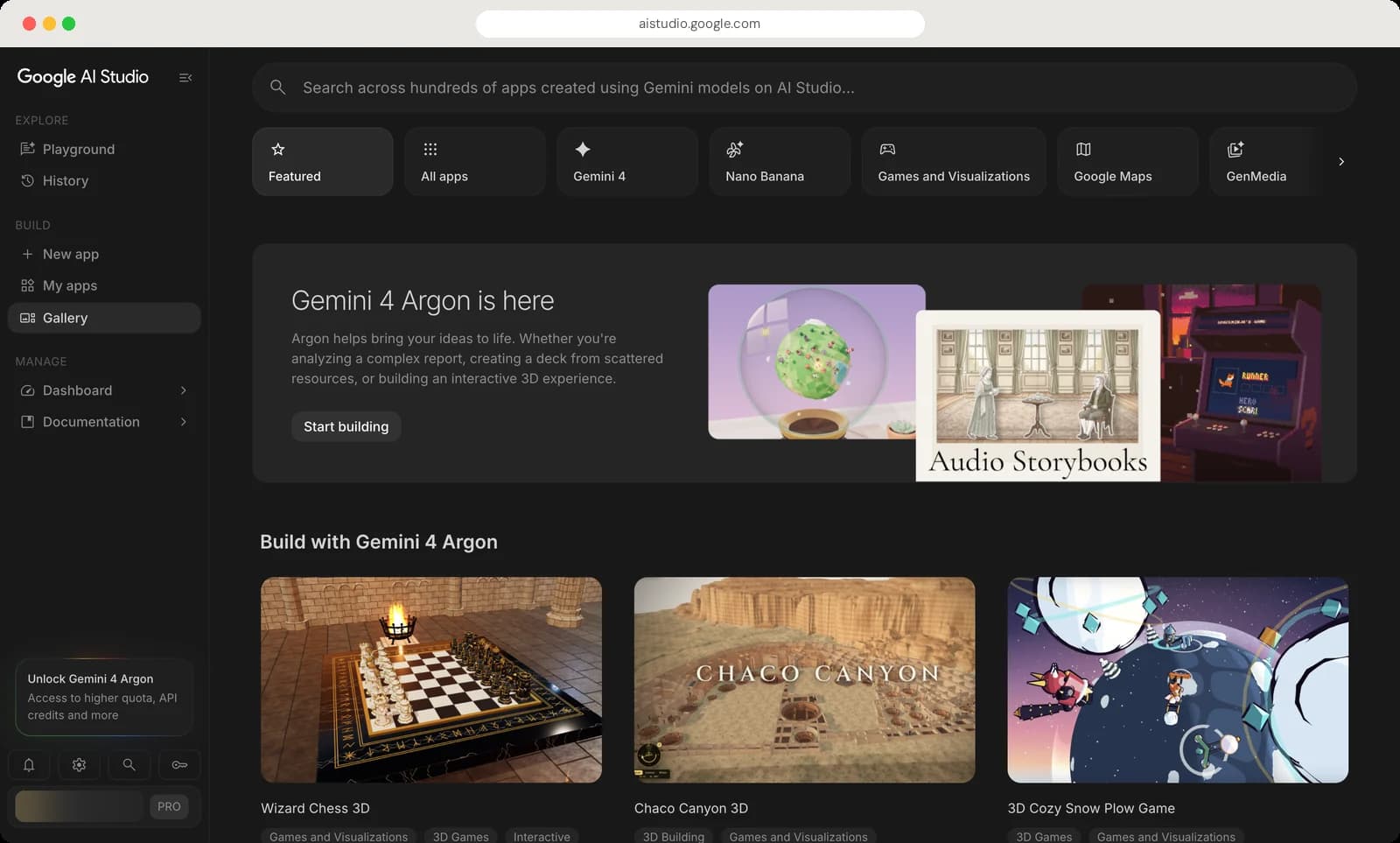
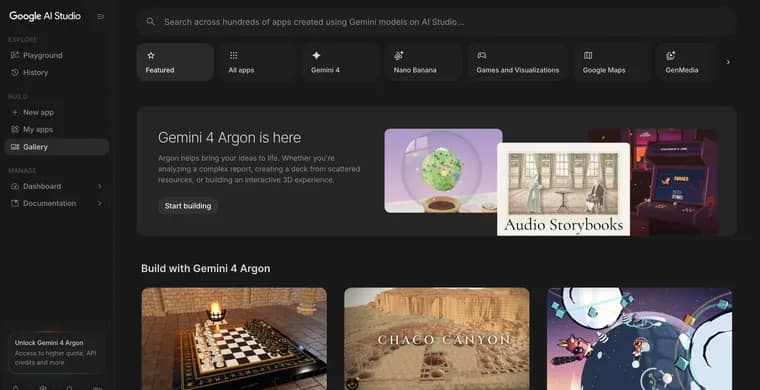
Search the gallery
Search hundreds of apps people built with Gemini.
Featured
Google's picks.
All apps
Everything in the gallery.
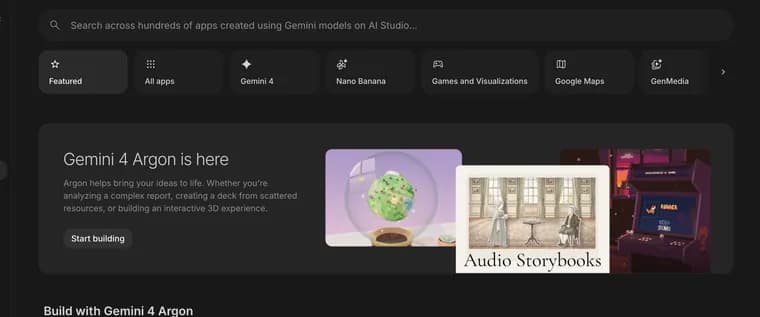
Categories
Apps grouped by model or topic, like Nano Banana, games or Google Maps.
More categories
Scrolls to more categories.
Start building
Opens the Build page with the featured model.
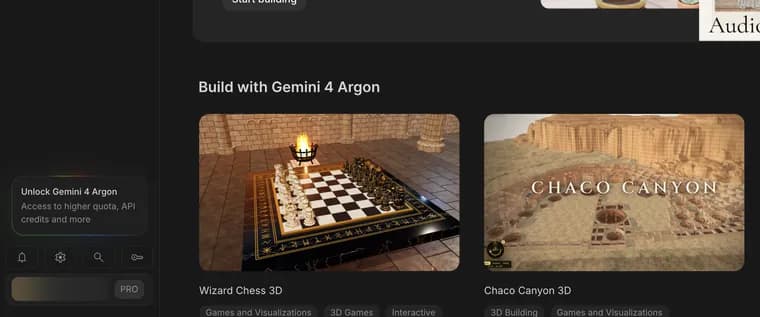
App card
Open an app to try it, then remix it into your own copy.





Dashboard: API keys and limits
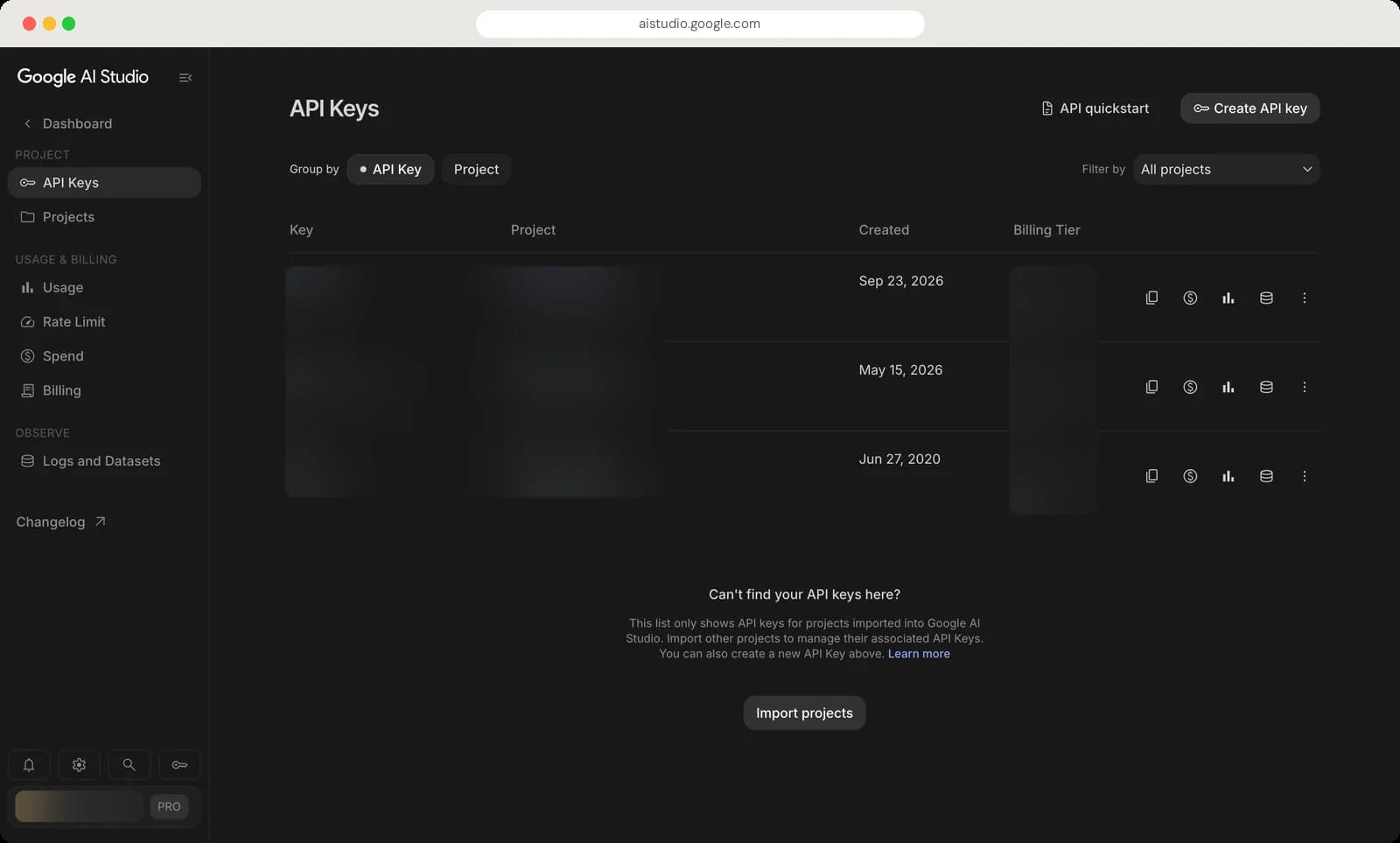
Dashboard is for using Gemini in your own code. You get API keys here and keep an eye on how much you use.
Dashboard menu
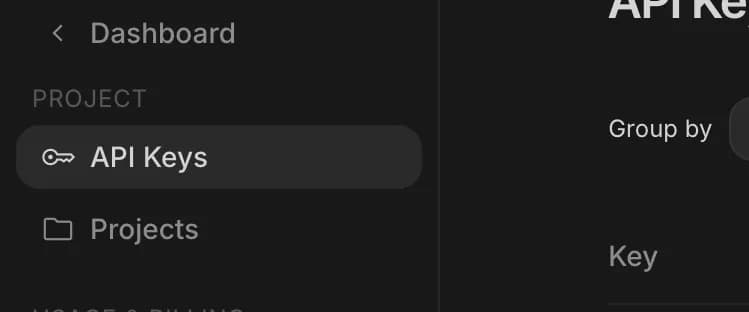
API Keys
Create and manage the keys your code uses to call Gemini.
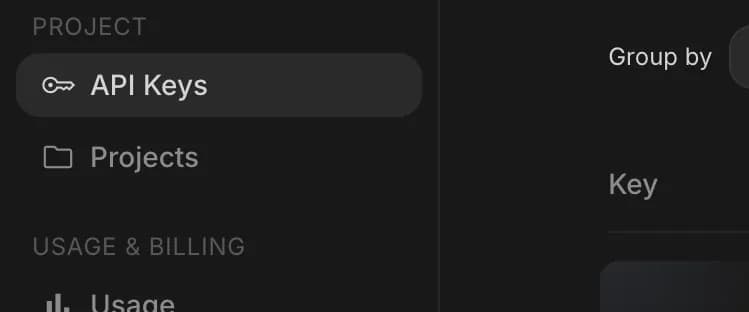
Projects
Google Cloud projects your keys belong to.
Usage
Charts of your requests, errors and tokens.
Rate Limit
How close you are to your request limits.
Spend
How much paid usage has cost.
Billing
Set up or manage paid billing.
Logs and Datasets
Records of past requests, for debugging and testing.


API keys
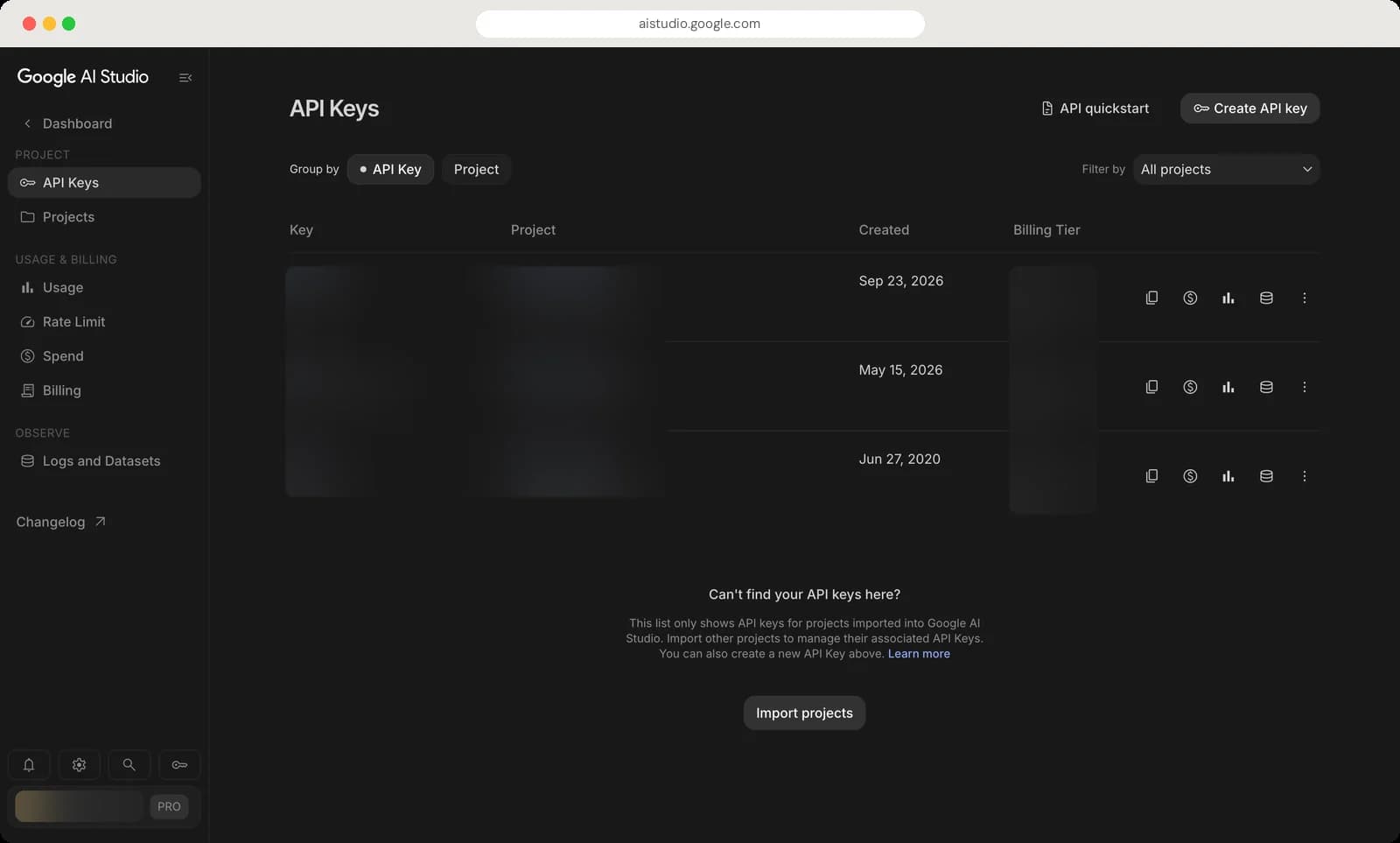
Create API key
Makes a new key. Keep it private, like a password.
API quickstart
A short guide to making your first API call.
Copy API key
Copies the key.
View spend
What this key has cost.
View usage
This key's usage charts.

View logs
This key's request logs.

Key menu
Rename key or delete key.



Usage
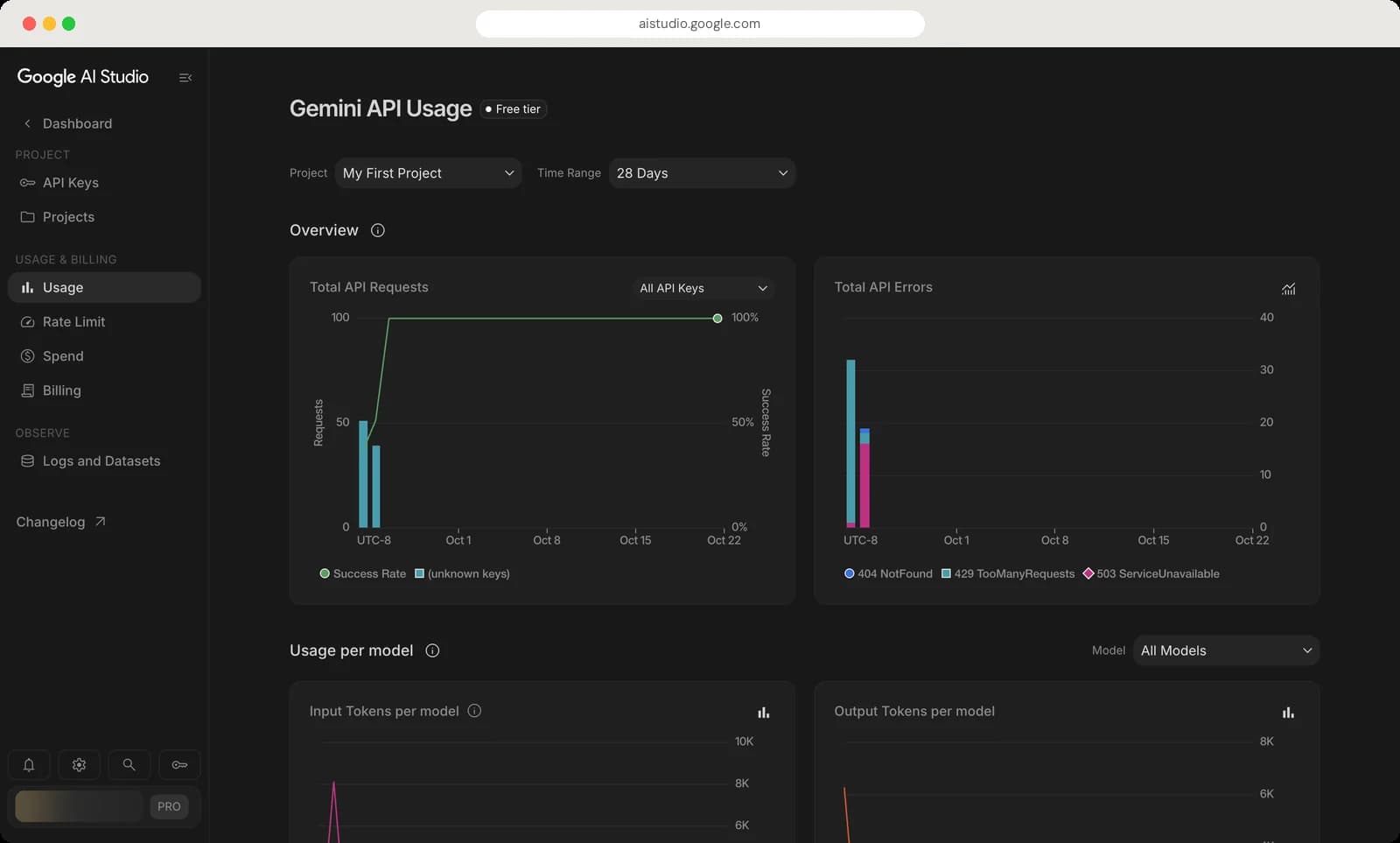
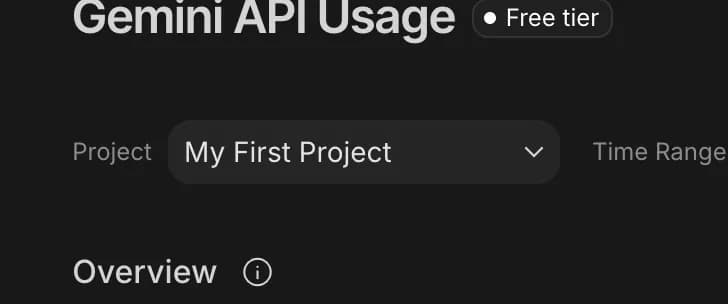
Project
Which project's usage you see.
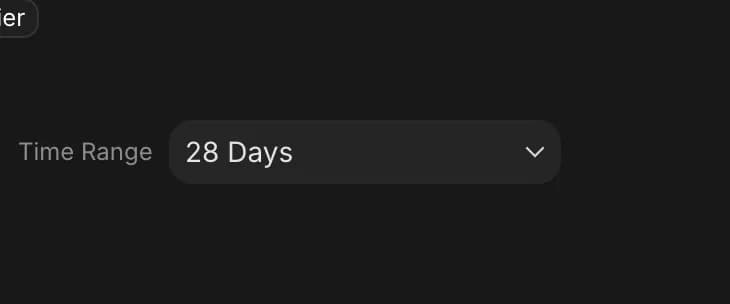
Time range
How far back the charts go.
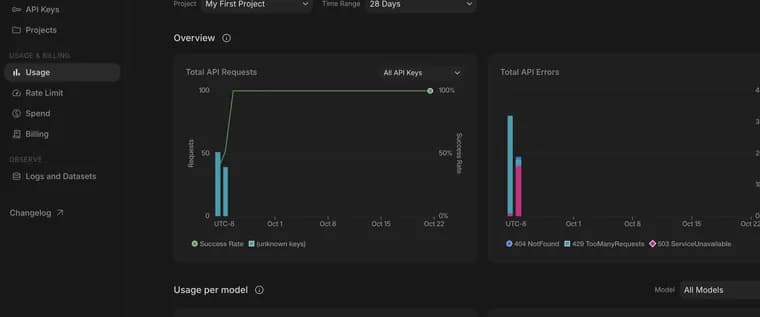
Total API requests
Requests per day, and the green line shows how many succeeded.
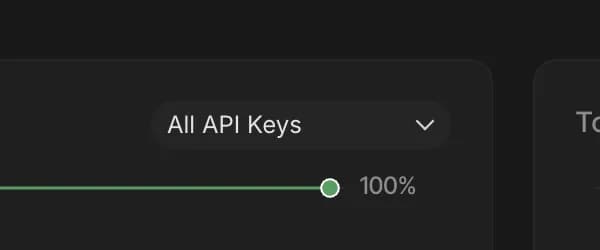
Key filter
Show one key or all of them.
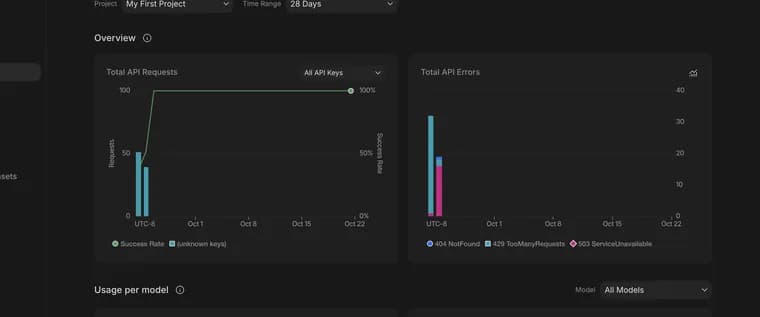
Total API errors
Failed requests by type, like 429 Too Many Requests.
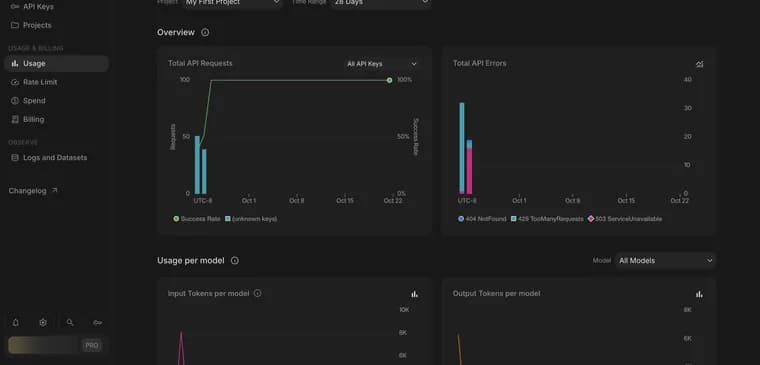
Usage per model
Tokens in and out for each model.



Rate limit
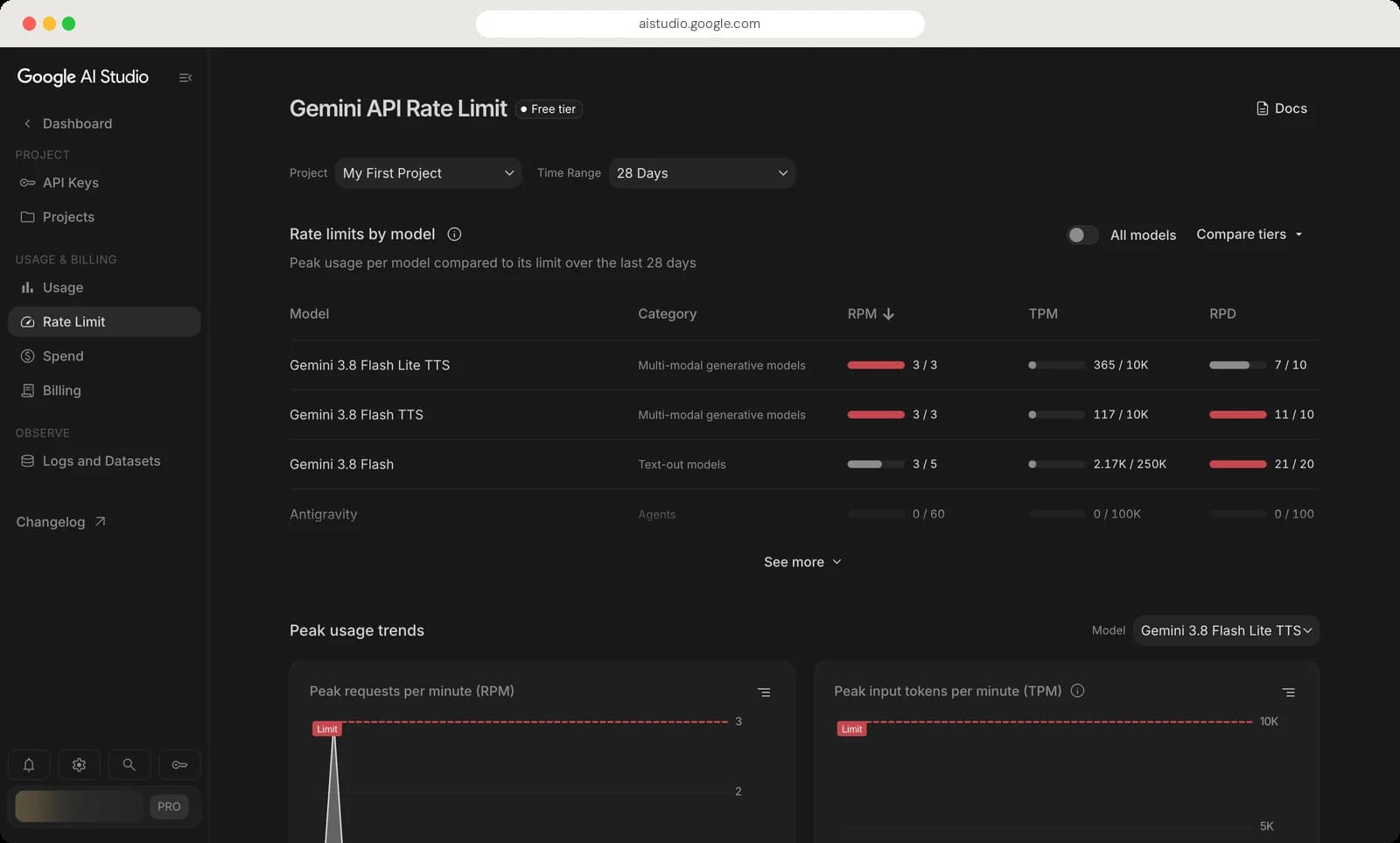
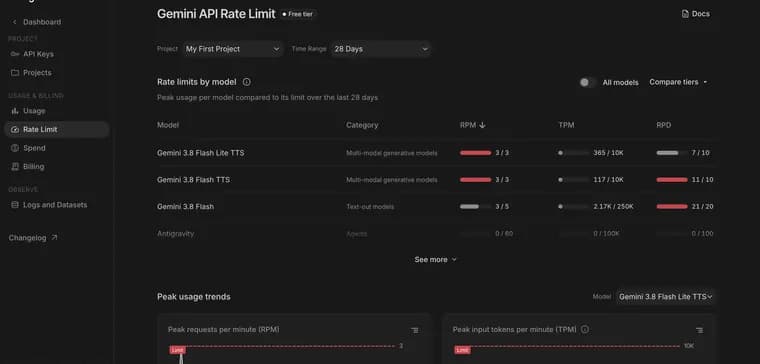
Rate limits by model
Your peak use against each model's limit. Red means you hit it.
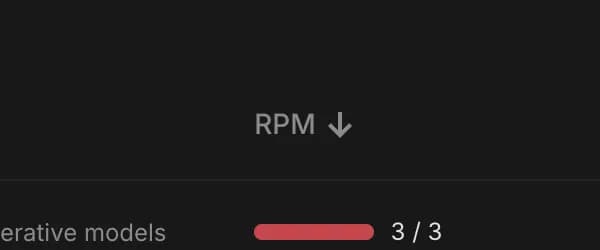
RPM
Requests per minute.
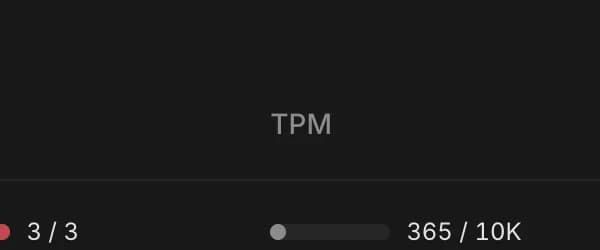
TPM
Tokens per minute.
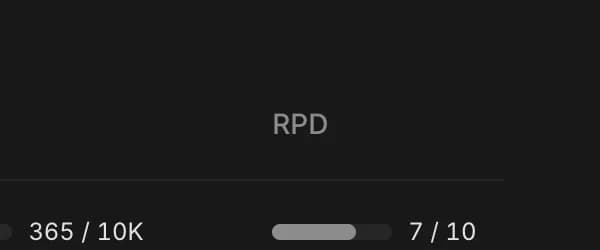
RPD
Requests per day.
All models
Show every model, not just the ones you used.
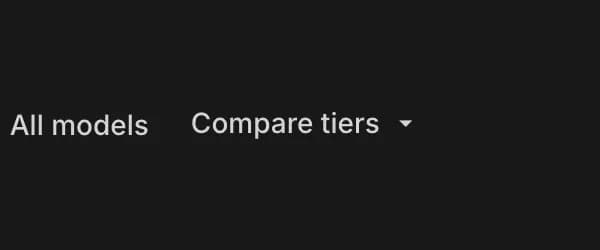
Compare tiers
See how limits grow on paid tiers.
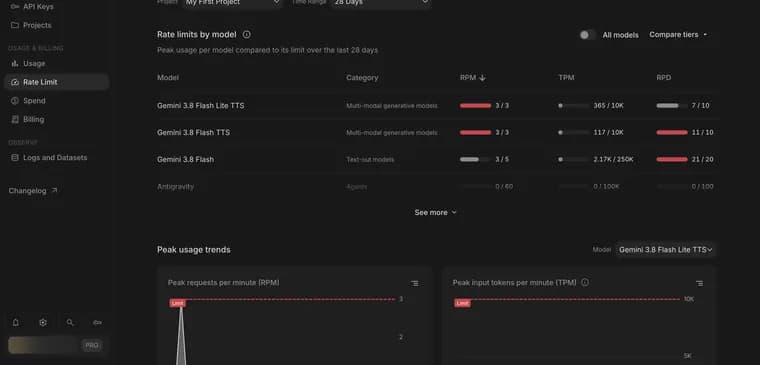
Peak usage trends
Your busiest minutes over time, with the limit drawn in red.







Docs, settings and account
The icons at the bottom of the sidebar hold the help, settings and account options.
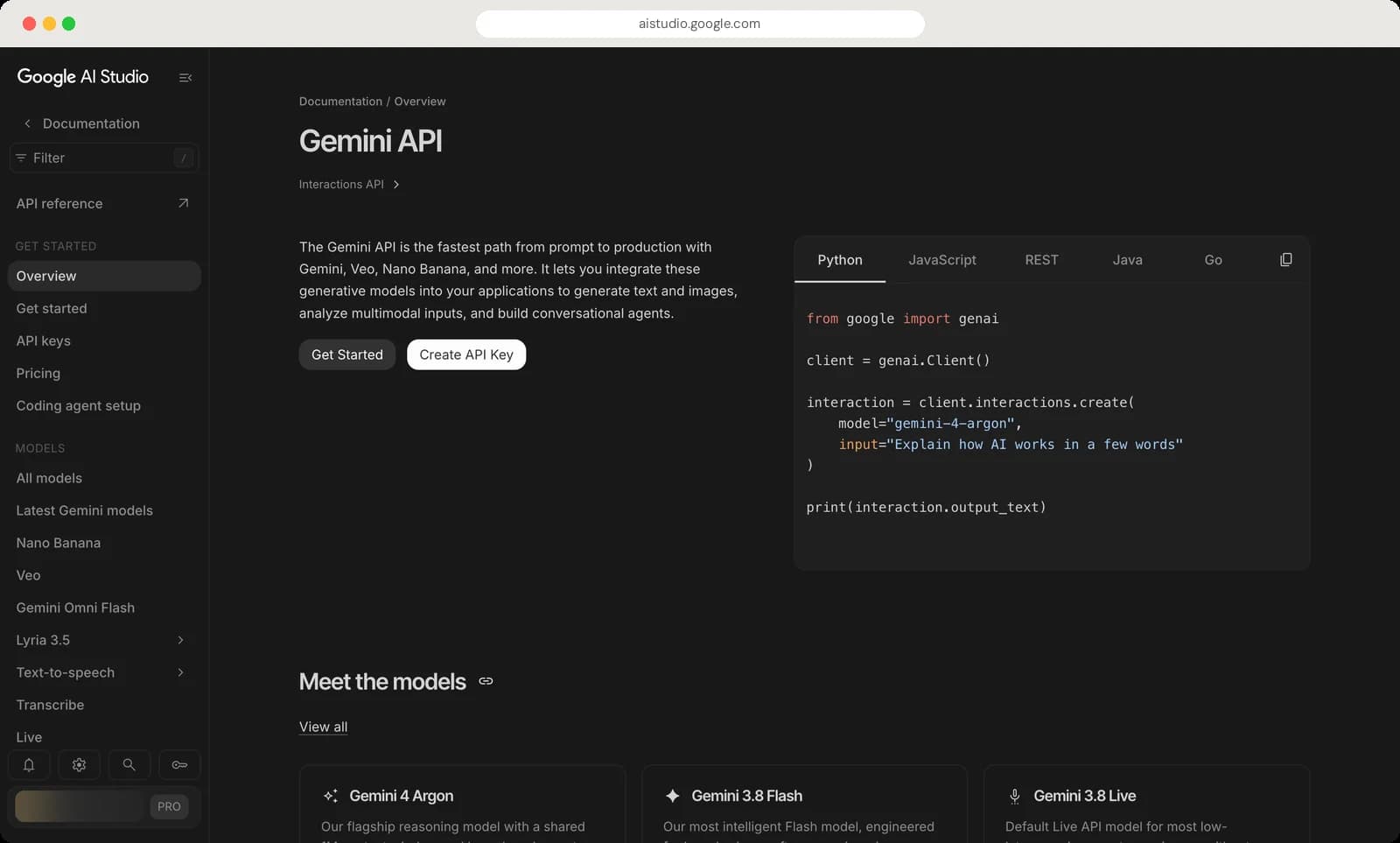
Documentation
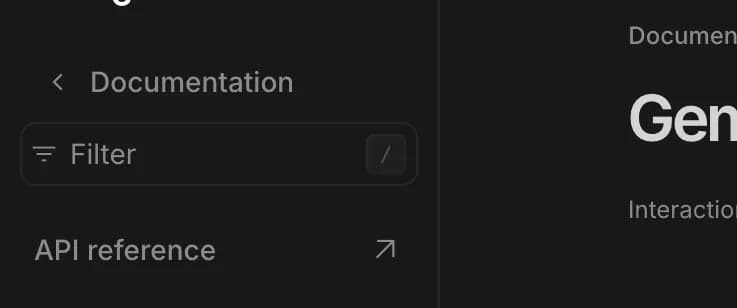
Filter docs
Find a docs page fast. Press / to jump here.
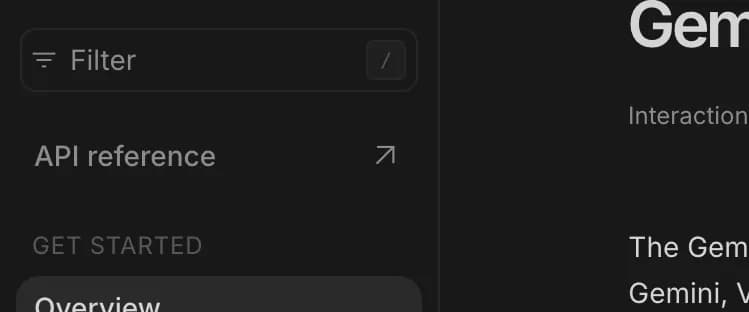
API reference
The full technical reference. Opens on a new page.
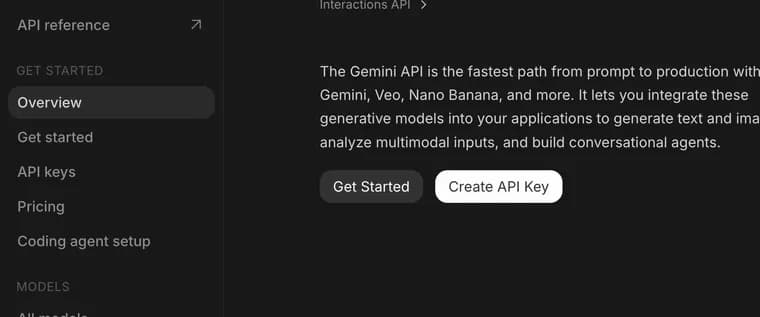
Get started
Setup guides: first steps, API keys, pricing and coding agents.
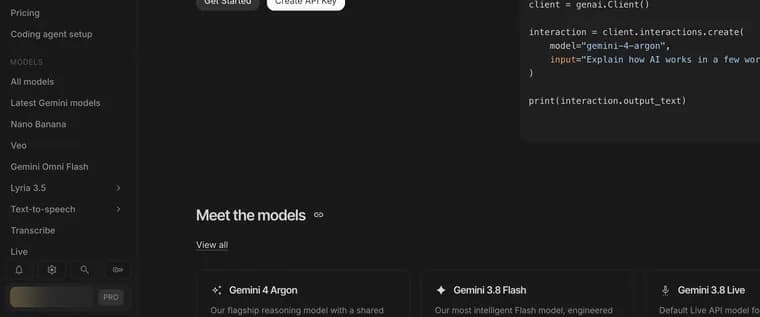
Models
A page for every model family, like Gemini, Nano Banana and Veo.
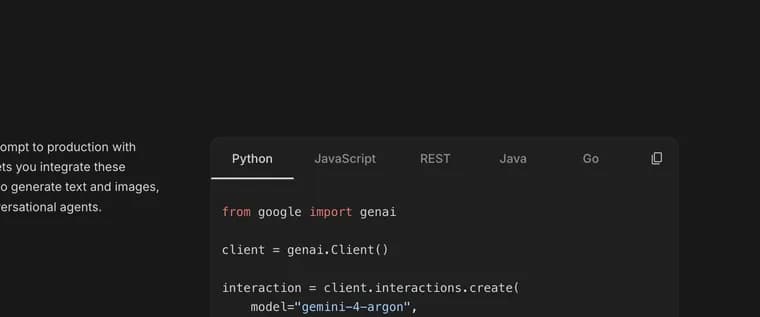
Code tabs
The same example in Python, JavaScript, REST, Java and Go.
Copy example
Copies the example code.
Create API Key
The quickest way to get a key.







What's new
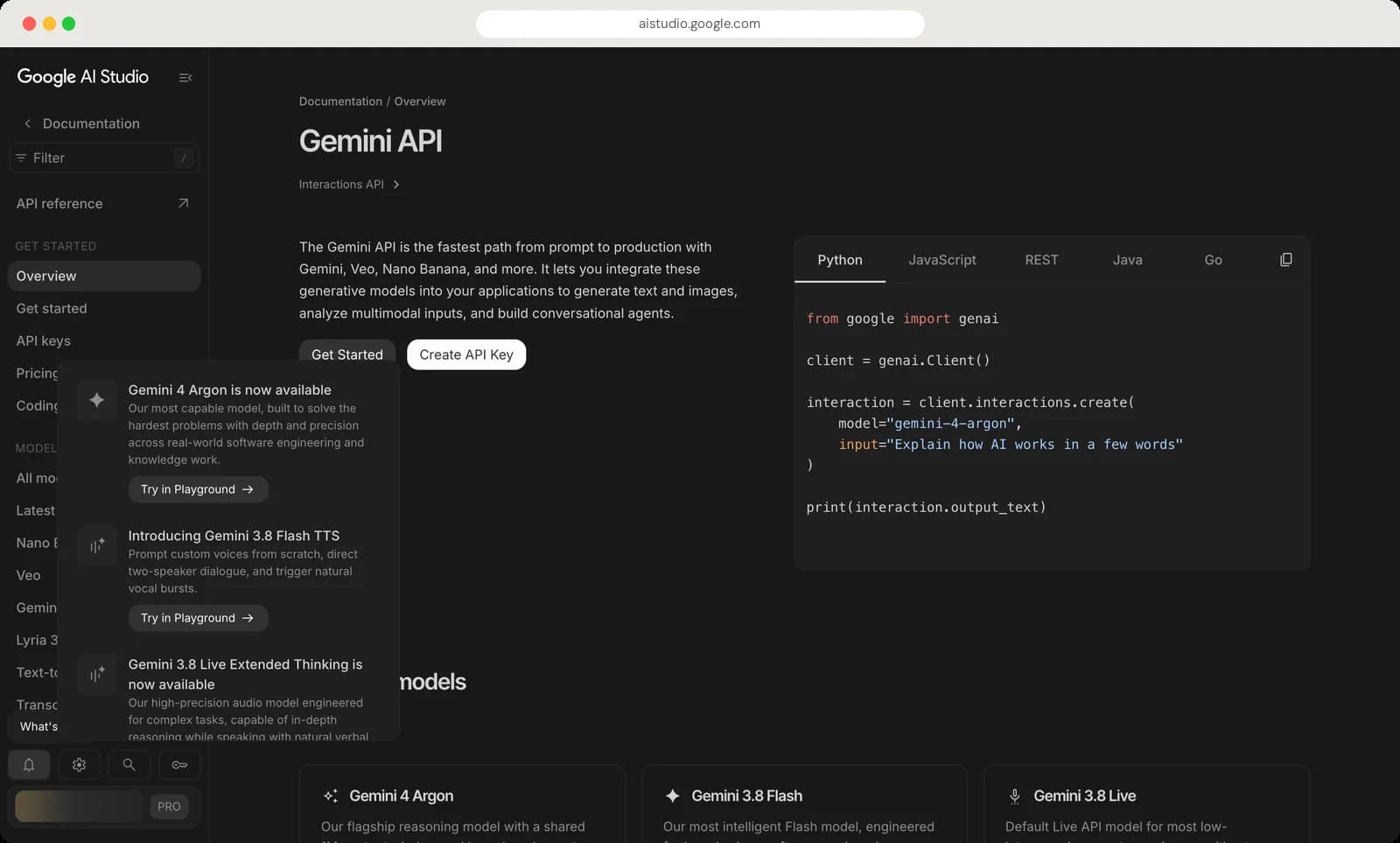
Bell
Hover it to see what's new.
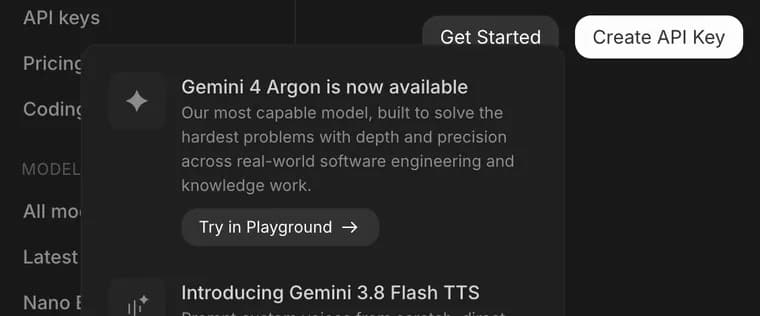
Announcement
A new model or feature, with a short note on what it does.
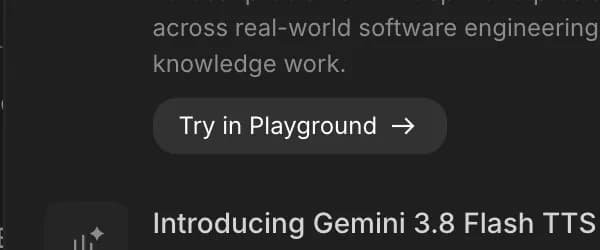
Try in Playground
Opens the new model in the Playground.


Settings menu
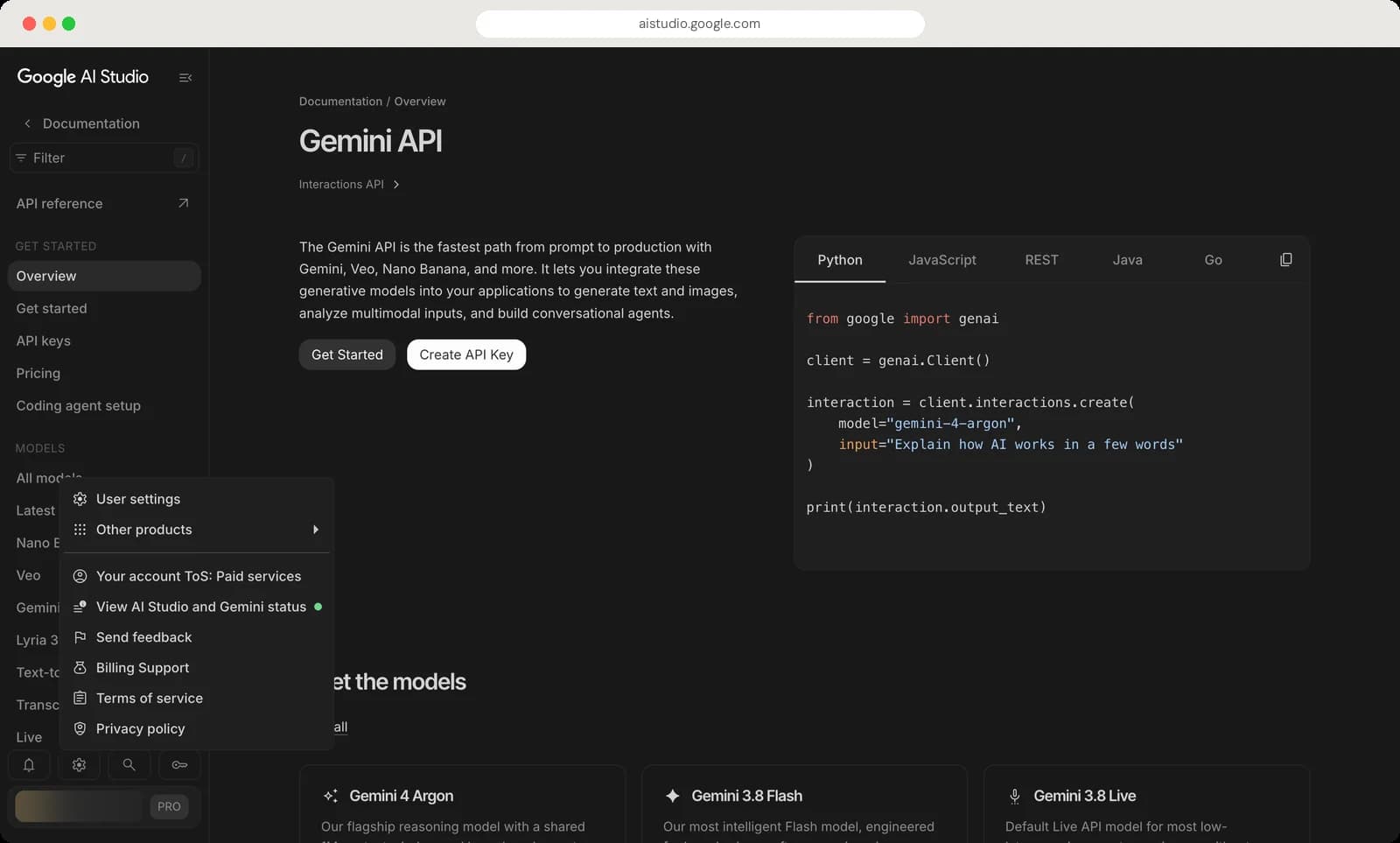
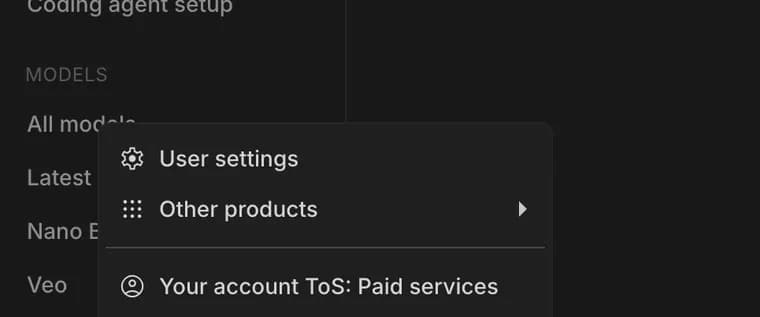
User settings
Theme, run shortcut, autocomplete and notifications.
Other products
Links to Google's other AI tools.
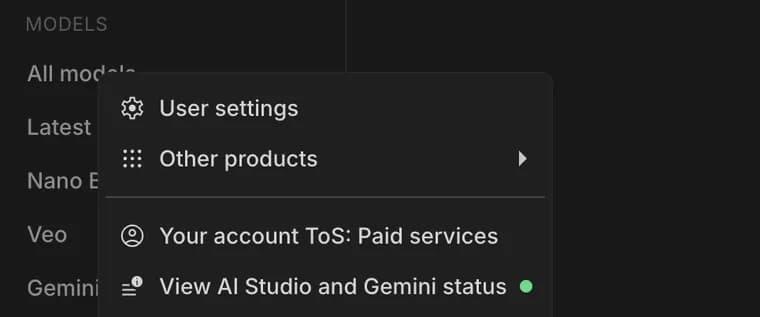
Terms you agreed to
Shows which terms apply to your account, here the paid services terms.
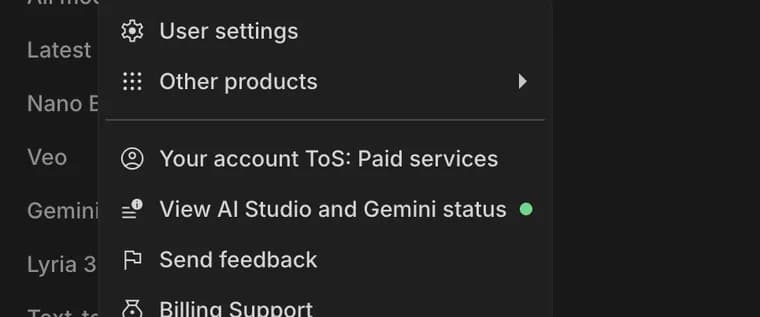
Status
Whether AI Studio and Gemini are working. Green means all good.
Send feedback
Tell Google about a bug or idea.
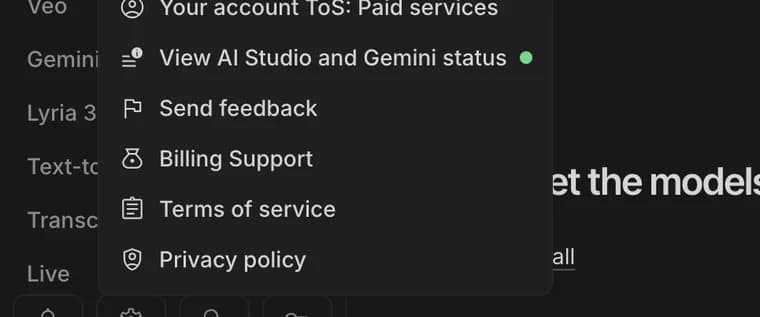
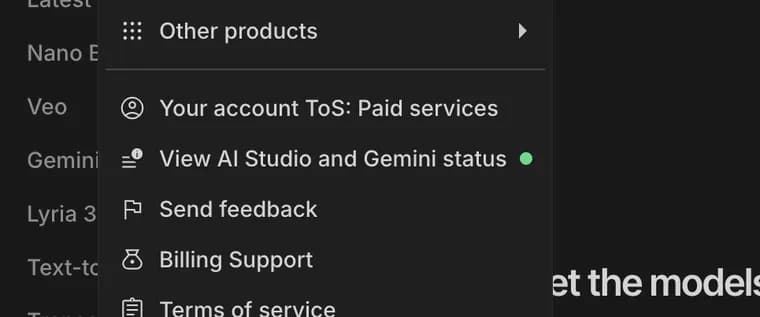
Billing Support
Help with charges and payments.
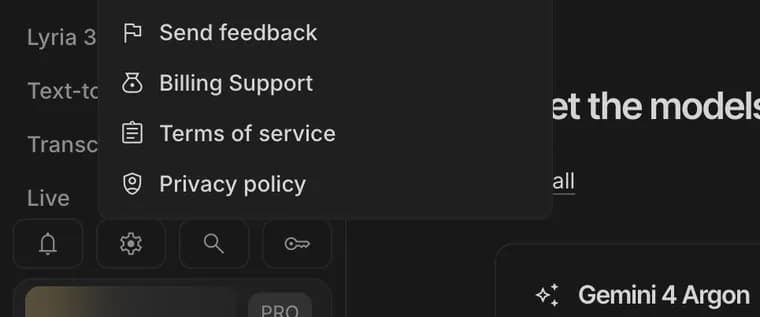
Terms and privacy
Google's terms of service and privacy policy.


User settings
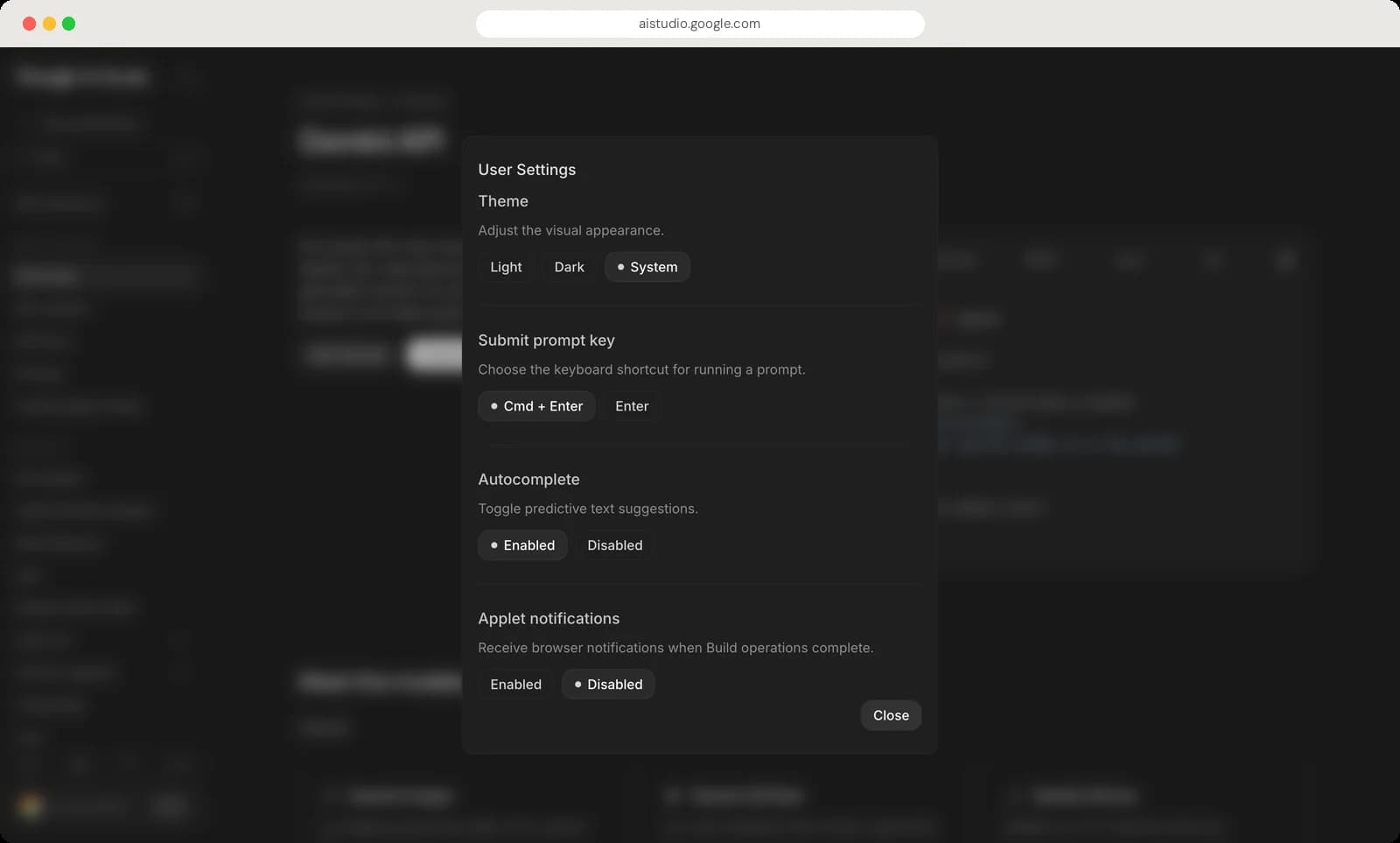
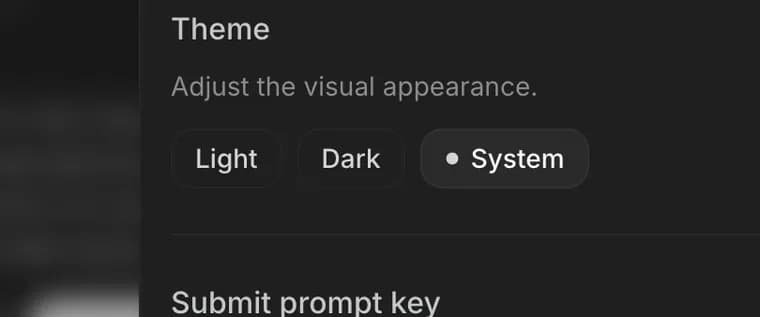
Theme
Light, Dark, or follow your computer.
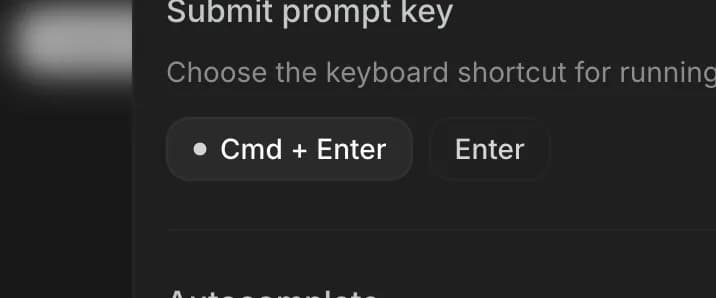
Submit prompt key
Run prompts with Cmd + Enter, or with just Enter.
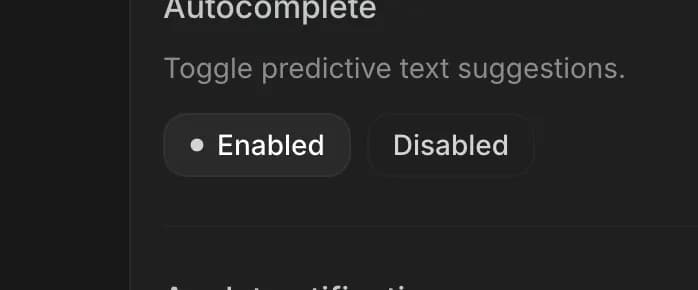
Autocomplete
Suggests the rest of your prompt as you type.
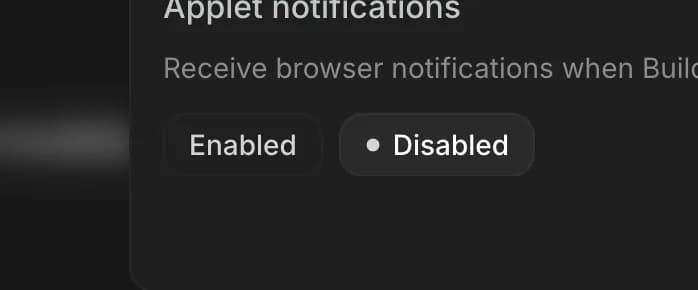
Applet notifications
A browser notification when an app finishes building.


Account
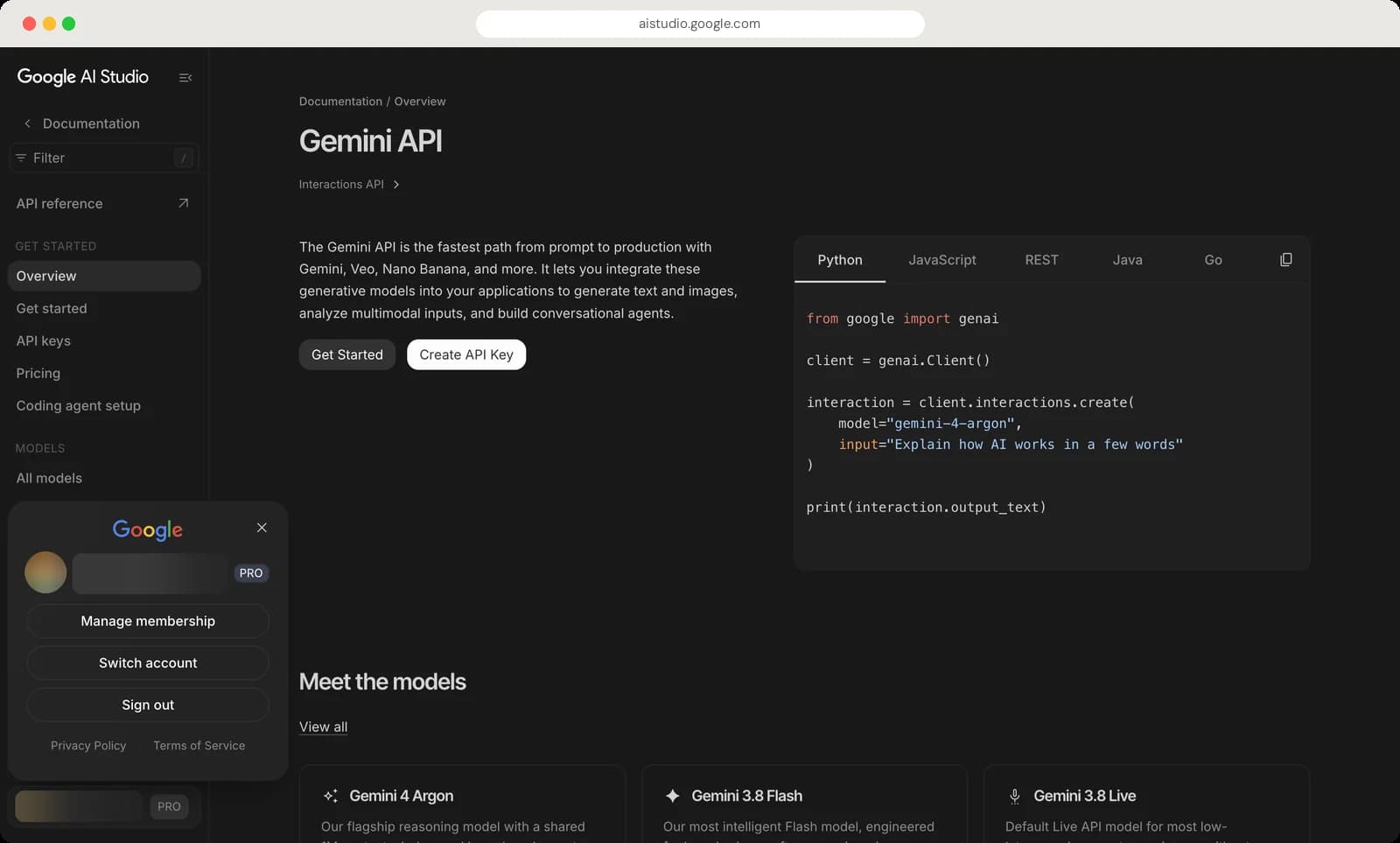

Plan badge
Your plan. PRO means a Google AI Pro subscription.
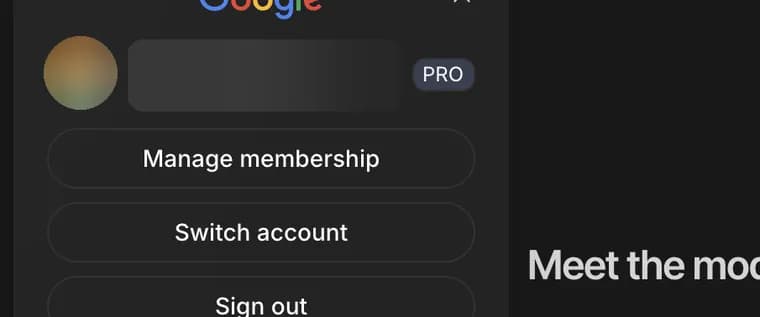
Manage membership
Change or cancel your Google AI plan.
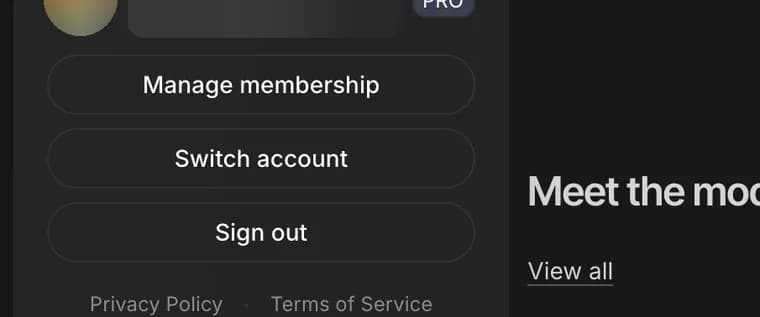
Switch account
Use a different Google account.
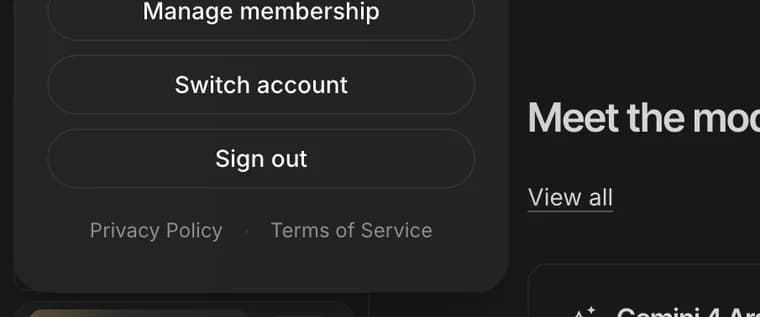
Sign out
Signs you out of AI Studio.




That covers every part of the Google AI Studio interface. Google changes AI Studio often, and we update this guide whenever the layout moves around. These screenshots are from the web app in dark mode; light mode has the same buttons in the same places. For more guides like this, you can also visit our TechPP icon guides.
Was this article helpful?
Comments
0Share your thoughts, questions, or feedback about this guide.