
YouTube Music Icons and Symbols Explained
YouTube Music packs a lot into its player and menus: the song and video switch, Samples, mixes, speed dial and Sound Search. Most of these show up as small icons, and some of them only appear when you open a song’s menu.
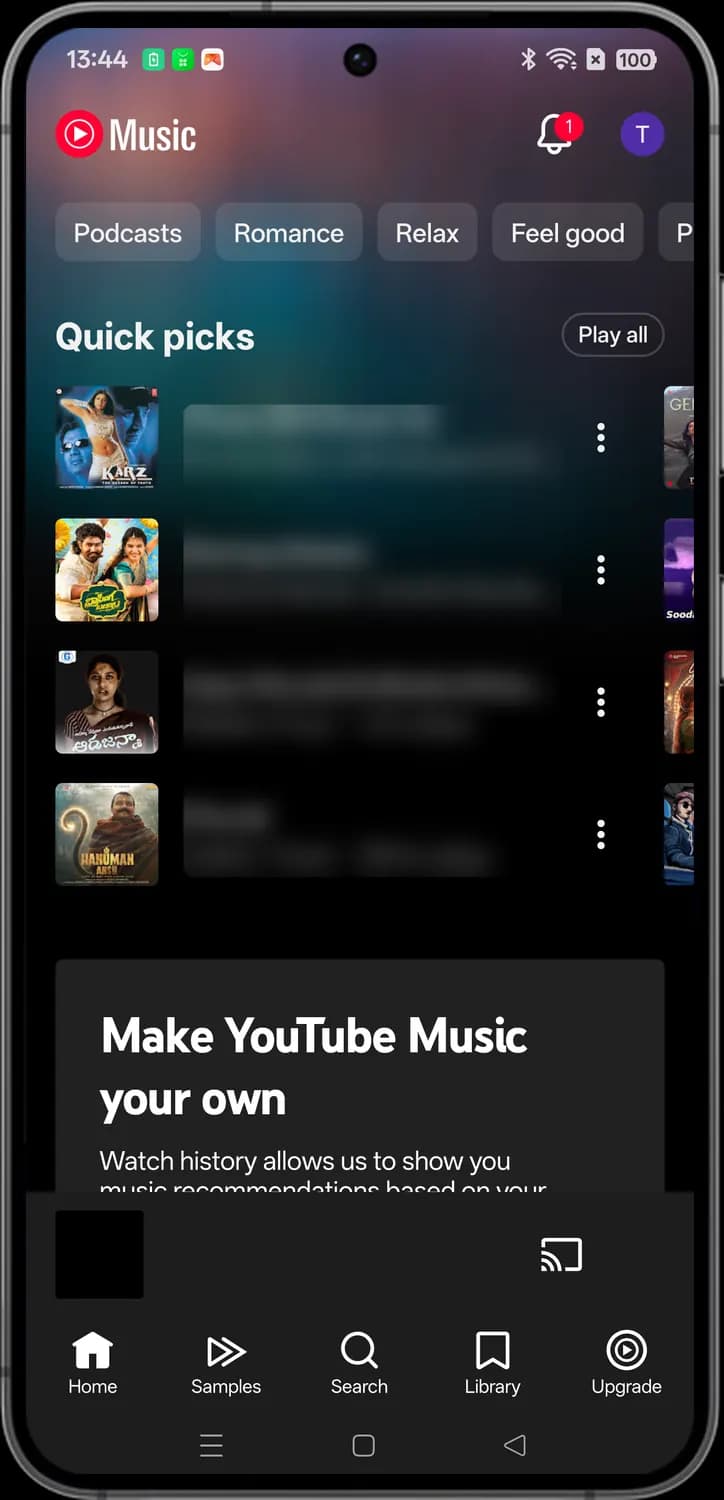
In this guide, you will learn what every icon in the latest YouTube Music app means, screen by screen. And this is an interactive guide. You can tap on every icon on the screens below to know what it does.
Home
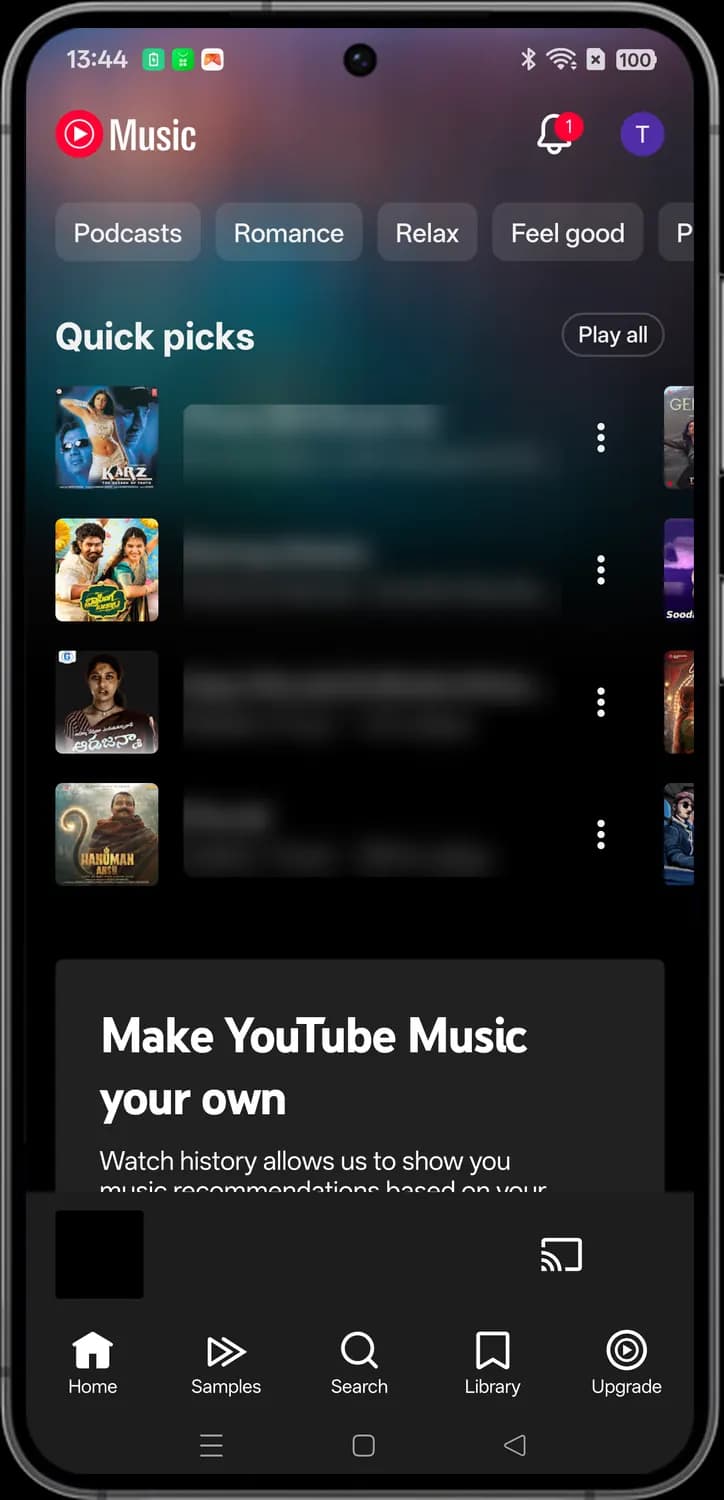
Home is the first tab you see when you open YouTube Music. Mood chips sit at the top, Quick picks below them, and the tab bar runs along the bottom of every main screen.
Top bar and Quick picks
Activity feed
The bell. Shows your notifications and updates, like new releases from artists you listen to. The red number is how many new updates you have not seen yet.

Account
Your profile picture (here the letter T). Opens the Account menu with your channel, downloads, history, settings and the option to switch accounts.
Action menu
The three dots next to any song, album or playlist. Opens its menu, with options like Play next, Save to playlist, Start mix and Go to artist.
Tab bar

Home tab
Brings you back to Home, with Quick picks, mixes and recommendations based on what you play.

Samples tab
Opens Samples, a vertical feed of short song clips. Swipe up to hear the next one and find new music fast.

Search tab
Opens search, where you can type or speak a song, artist, album or podcast, or browse charts and new releases.

Library tab
Opens your Library: liked songs, saved playlists, albums, artists, podcasts and downloads.

Upgrade tab
Shows the YouTube Music Premium plans. Premium removes ads and lets you download music and play it with the screen off.
Search
Tap the Search tab to get here. Type in the box at the top, or use the tiles below to browse when you are not looking for anything in particular.
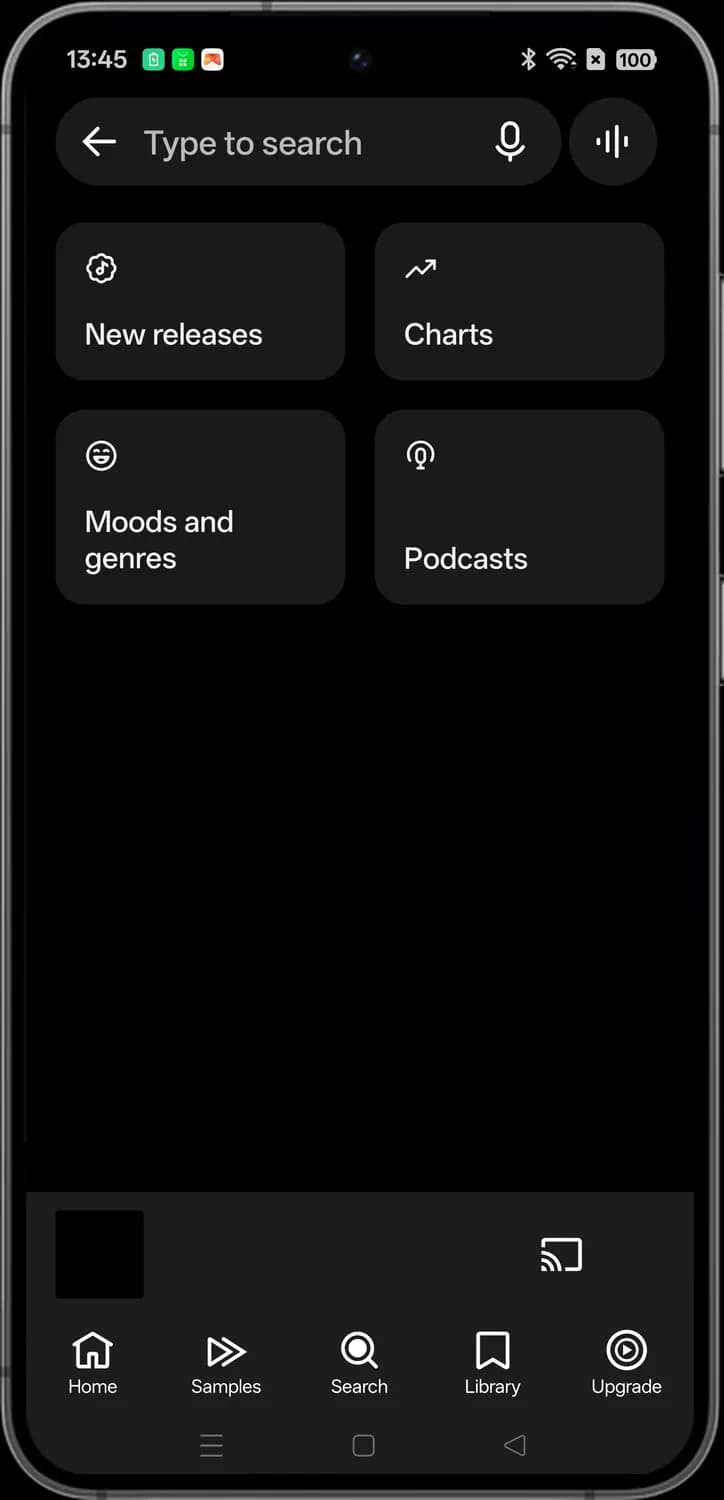

Back
The left arrow. Closes search and takes you back to the screen you came from.

Voice search
The microphone. Tap it and say a song, artist or album name instead of typing it.

Sound Search
The sound wave icon. Tap it and hum, sing or play a song near your phone, and YouTube Music tries to tell you what it is.

New releases
The badge with a music note. Shows the latest albums, singles and music videos.

Charts
The trending arrow. Opens the top songs, videos and artists charts, which you can switch by country.

Moods and genres
The smiley face. Lets you browse playlists by mood (like Chill or Workout) and by genre.

Podcasts
The podcast mic. Opens the podcasts page, where you can browse shows and episodes.
Search results and song menu
Search for an artist and the top result shows up as a card with quick play buttons, followed by songs. Tap the three dots next to any song to open its menu.
Artist result


Artist page
The arrow on the artist card. Opens the artist's page with their top songs, albums, videos and similar artists.
Shuffle
The crossed arrows. Plays the artist's songs in random order.
Mix
The radio waves. Starts a mix of this artist's songs along with similar music, and keeps going as long as you listen.
Song menu: top


Like
The thumbs up. Likes the song and adds it to Liked music in your Library. It also helps tune your recommendations.

Close
The X. Closes the menu without doing anything.

Play next
Puts the song right after the one that is playing now.
Save to playlist
Adds the song to one of your playlists, or lets you create a new playlist for it.

Share
Opens the share sheet so you can send a link to the song through any app, or copy it.

Start mix
Starts a mix based on this song: similar tracks that keep playing one after another.
Song menu: list


Add to queue
Adds the song to the end of your Up next queue, after everything already lined up.

Save to library
The bookmark. Saves the song to your Library so you can find it again later.
Download
Saves the song on your phone so you can play it without internet. This needs YouTube Music Premium.

Go to album
Opens the album or single this song comes from.
Go to artist
Opens the page of the artist who sings it.

View song credits
Shows who performed, wrote and produced the song.

Pin to speed dial
Pins the song to Speed dial on Home, so you can play it with one tap.
Now playing
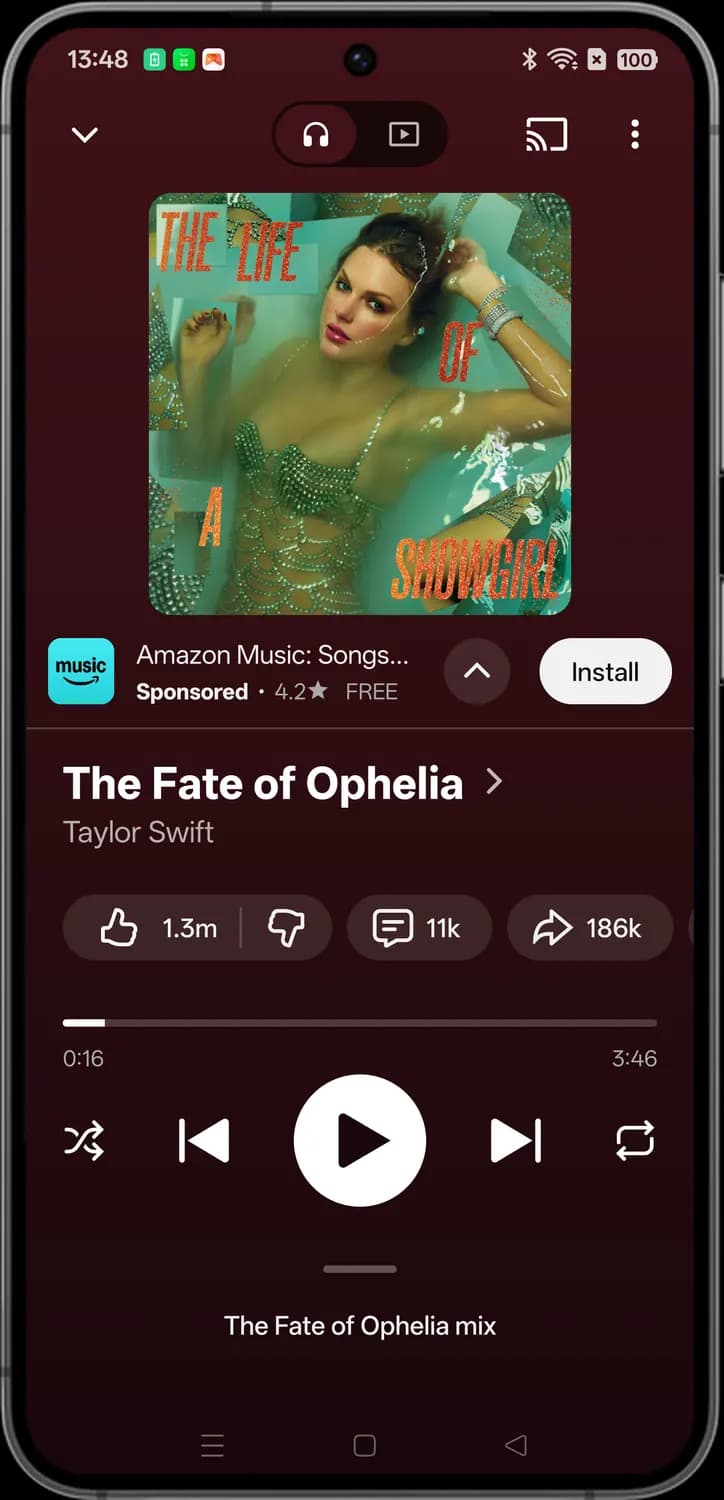
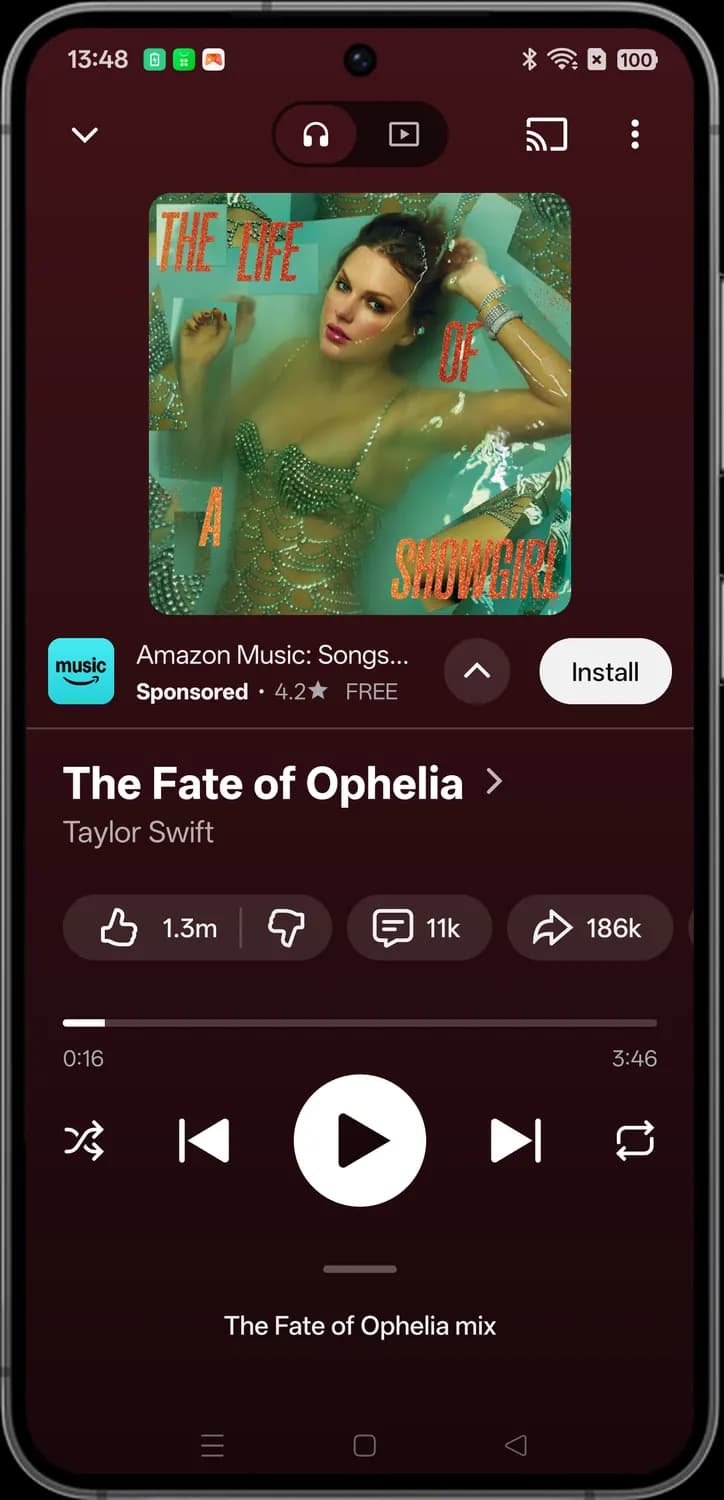
Tap the mini player at the bottom of the screen to open the full player. Swipe up from the bottom of it to see Up next, lyrics and related music.
Top bar

Minimize
The down arrow. Shrinks the player into the mini player at the bottom, so you can keep browsing while the music plays.

Song
The headphones side of the switch. Plays the audio-only version of the track, with the album art on screen.

Video
The video side of the switch. Switches to the music video, when the song has one, and picks up from the same spot.

Cast
Plays the music on a TV or speaker with Chromecast on the same Wi-Fi network. Your phone becomes the remote.

Menu
The three dots. Opens the same options as a song's menu (Play next, Save to playlist, Go to album and more), plus Dismiss queue to clear Up next.
Song actions

View related
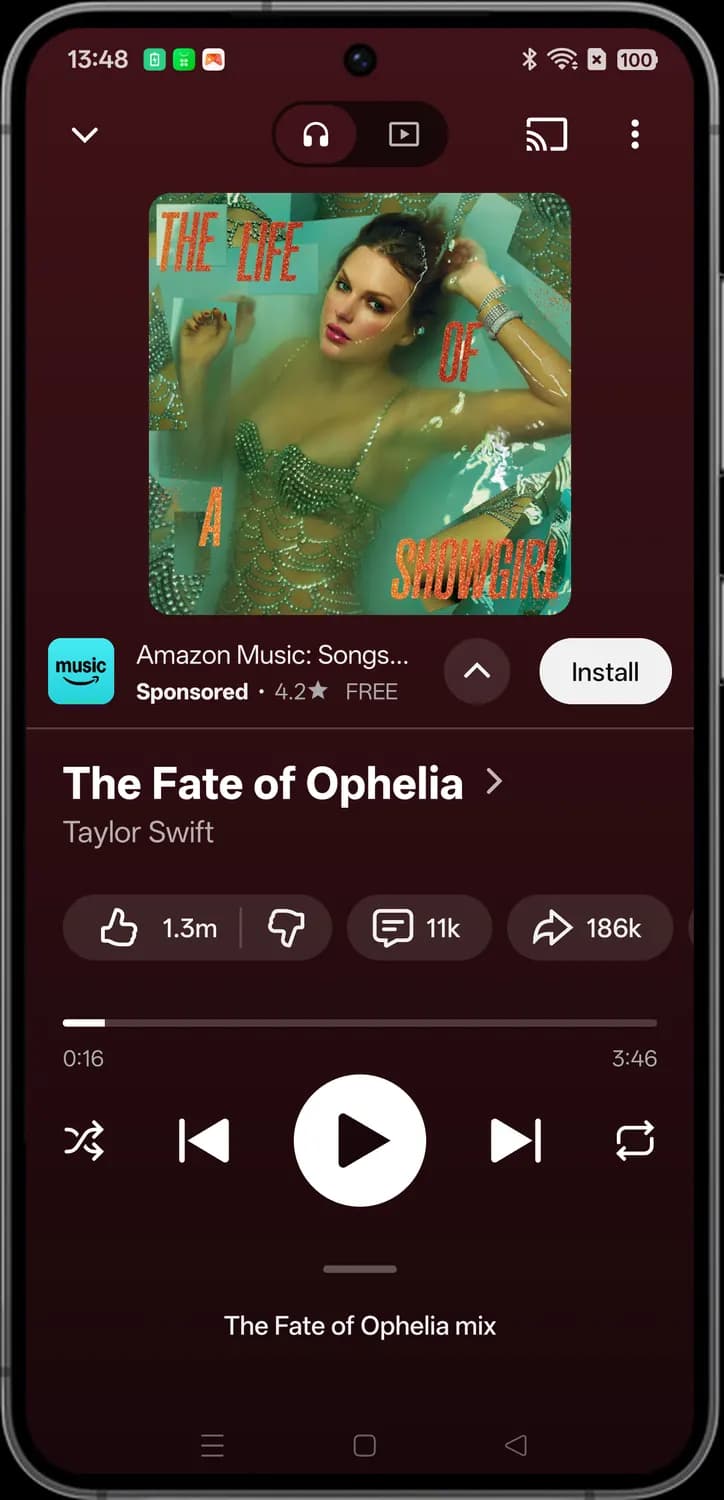
The arrow next to the song title. Tap the title to see related songs, albums and artists.

Like
The thumbs up with the like count. Likes the song and adds it to Liked music in your Library.

Dislike
The thumbs down. Tells YouTube Music you do not like the song, so you get less music like it.

Comments
The speech bubble with the comment count. Opens the comments people left on the song, and lets you add your own.

Share
The arrow with the share count. Sends a link to the song through any app on your phone.
Playback controls
Seek bar
Shows how far into the song you are and how long it runs. Drag along it to jump to any part.

Shuffle
The crossed arrows. Turns shuffle on or off for the songs in Up next.

Previous
Goes back to the start of the song. Tap it again within the first few seconds to go to the previous song.

Play
Plays the song. While music is playing it turns into a pause button.

Next
Skips to the next song in Up next.

Repeat
The looped arrows. Tap once to repeat the whole queue and again to repeat just this song. A third tap turns repeat off.
Samples
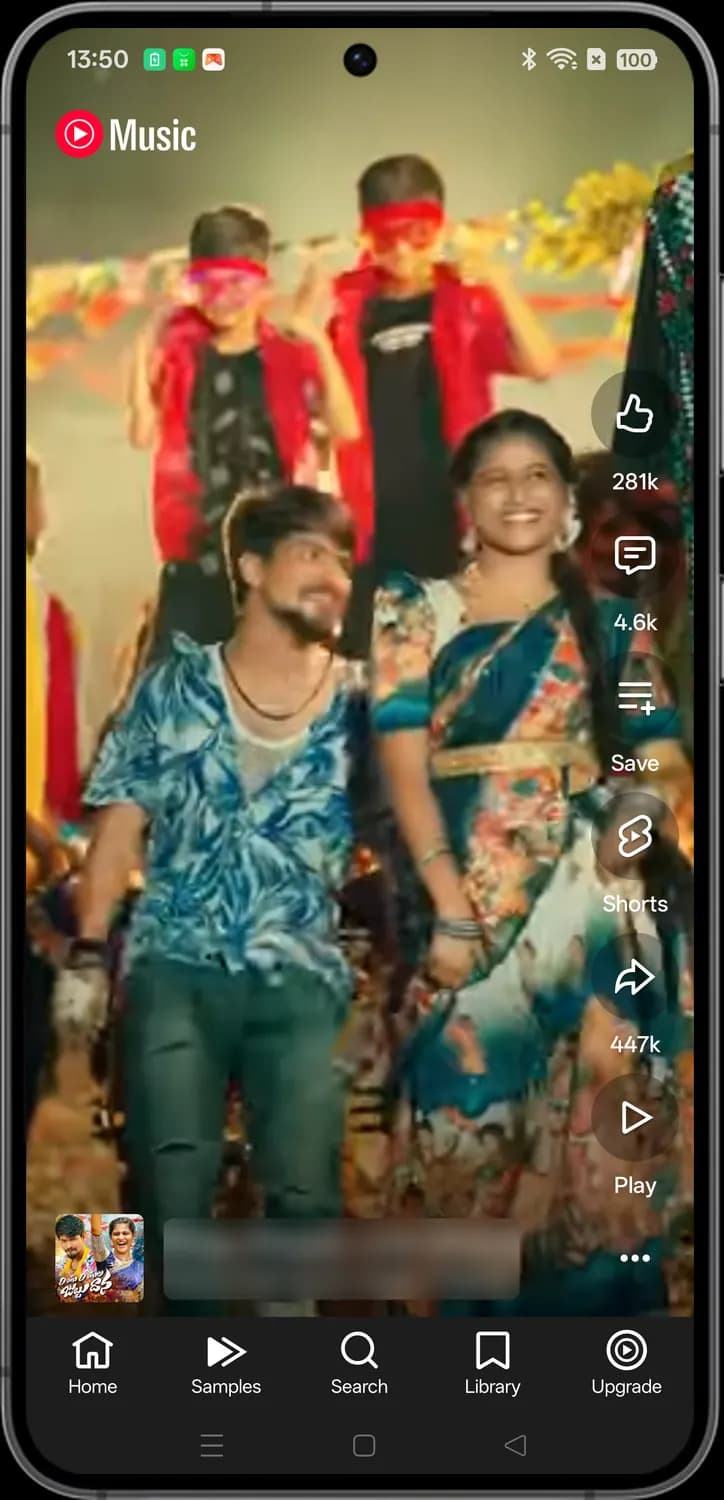
The Samples tab plays short vertical clips of songs, one after another. Swipe up for the next one. The buttons on the right work on the song in the clip.
Like
The thumbs up. Likes the song in this clip and adds it to Liked music.
Comments
The speech bubble. Opens the comments on the clip's video.
Save to playlist
Adds the song to one of your playlists, or to a new one.

Shorts
The Shorts logo. Lets you make your own YouTube Short that uses this song.
Share
The arrow. Sends a link to the song to a friend or another app.
Play
Plays the full song in the player, starting from the beginning.
Library
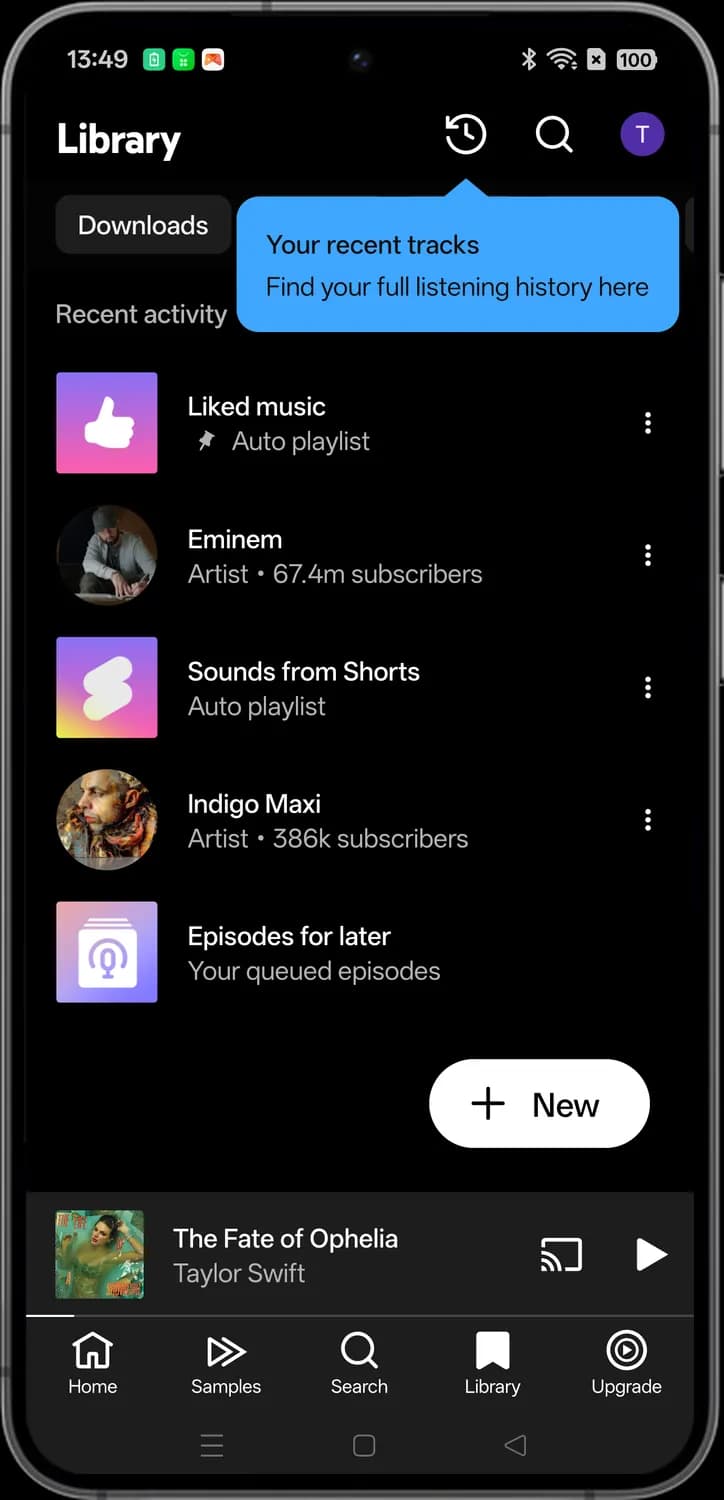
The Library tab holds everything you saved: Liked music, playlists, albums, artists and podcasts. The chips at the top filter it, and the list is sorted by recent activity.
History
The clock with an arrow. Shows the songs, videos and podcasts you played recently.
New
The plus button. Creates a new playlist that you can add songs to.
Mini player
Shows the song that is playing or paused. Tap it to open the full player.

Play in the mini player
Plays or pauses the current song without opening the full player.
Status symbols. These only show information. They are not buttons.

Pinned
The pin next to Liked music. Pinned items stay at the top of your Library no matter how you sort it.
Account menu
Tap your profile picture at the top right of Home or Library to open this menu. Your name and handle are at the top.
Top of the menu
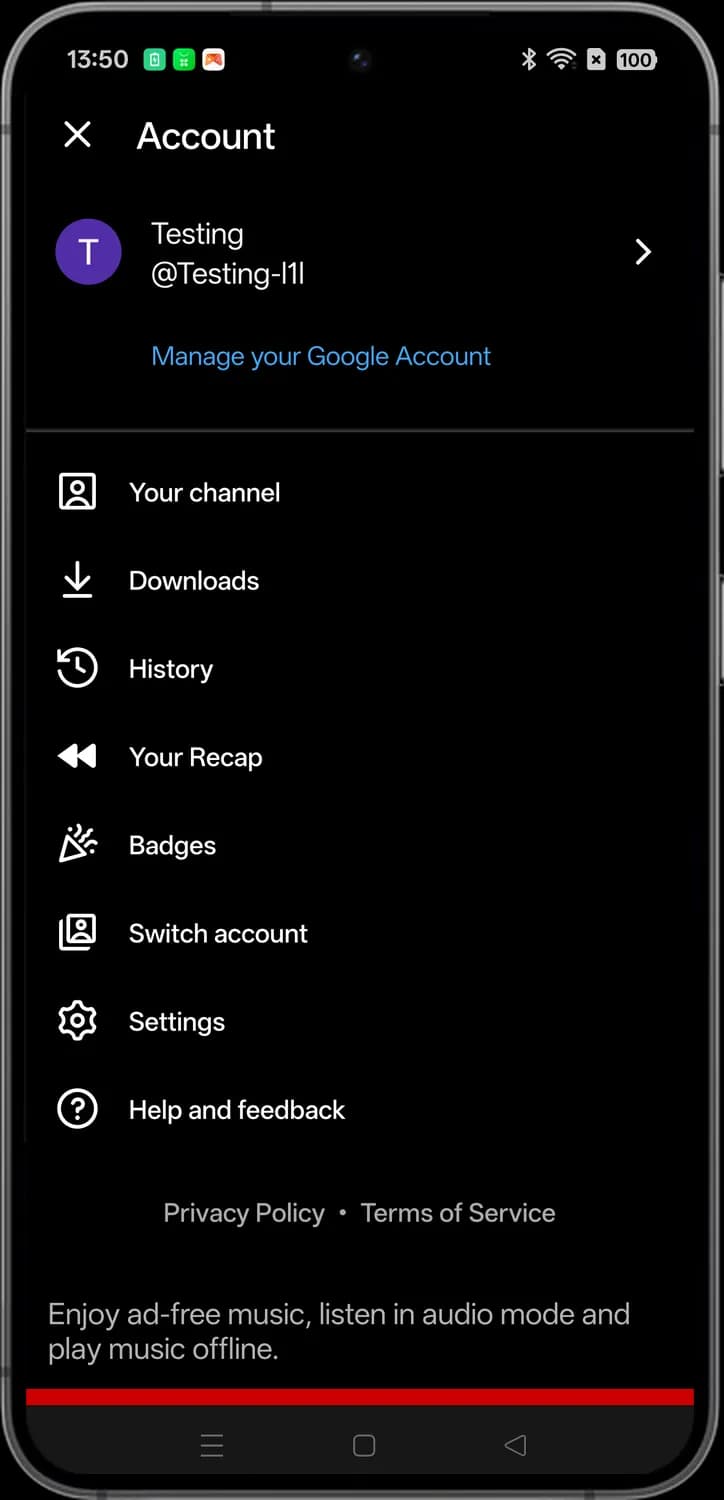

Close
The X. Closes the Account menu and takes you back.

Your channel
Opens your YouTube channel page, with your public playlists.
Downloads
Shows the songs, albums and playlists saved on your phone for offline listening.
History
Shows everything you played recently, the same list as the clock icon in Library.

Your Recap
Opens your Recap: your top artists, songs and albums over a period of time.
More options
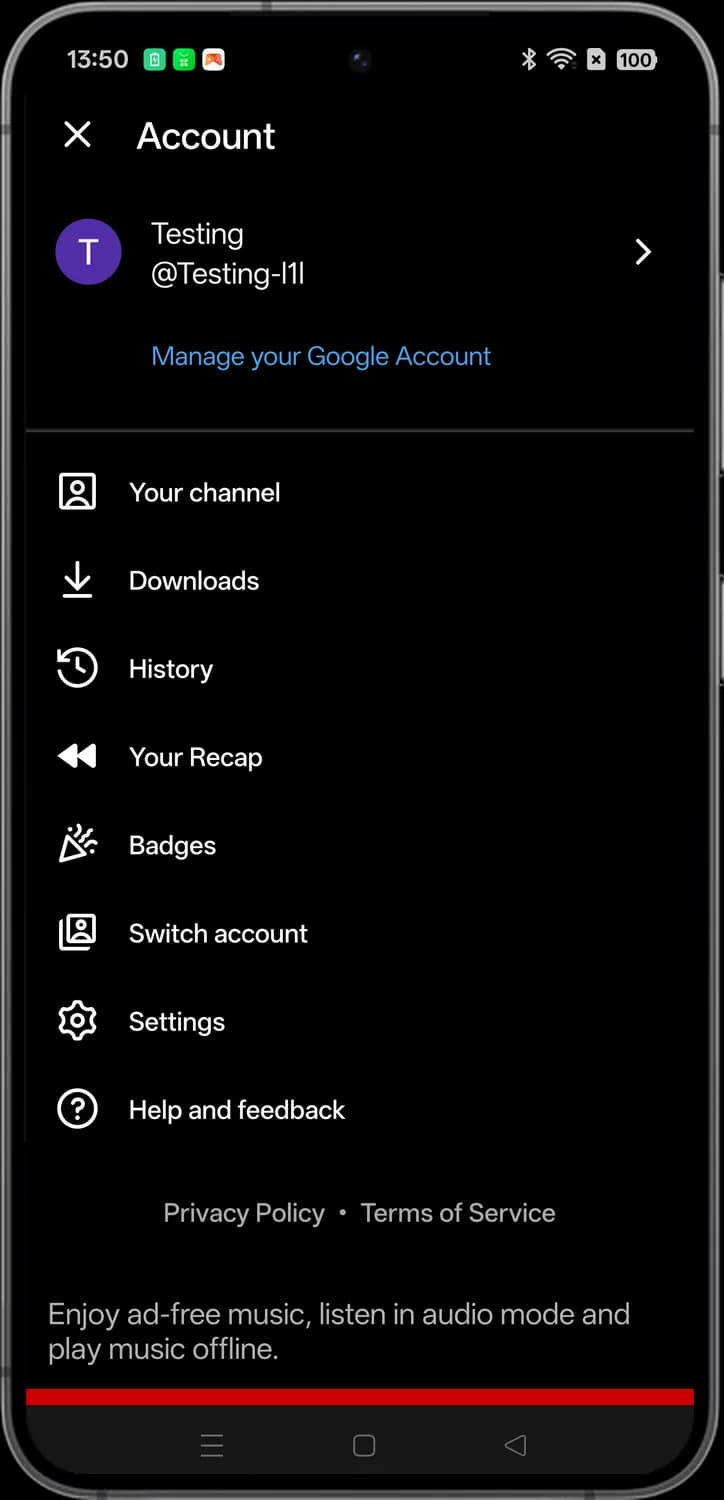
Badges
Shows the badges you have collected in YouTube Music.

Switch account
Switches to another Google account on your phone. The arrow next to your name does the same.

Settings
Opens YouTube Music settings: playback, downloads, data saving, notifications and privacy.
Help and feedback
Opens help articles and lets you send feedback to Google.
Those are the meanings of YouTube Music icons and symbols. YouTube updates the Music app every few weeks, so we update this guide every time the icons change, and you can bookmark this page to stay updated. These screens are from YouTube Music for Android, and most icons mean the same thing on iPhone. For more icon guides, you can also visit our TechPP icon guides.
Comments
0Share your thoughts, questions, or feedback about this guide.