
Xiaomi secret codes for Redmi, POCO and HyperOS (2026)
Last updated: November 2, 2026
If you own a Xiaomi, Redmi or POCO phone, there is a hidden menu called CIT that lets you test pretty much every part of it: the screen, touch, speakers, fingerprint sensor, vibration motor and more. It is the same test Xiaomi service centres use, and you open it with a dialer code.
Not just that, there are codes for checking battery and charging details, turning the VoLTE and Wi-Fi calling switches on or off, and saving a bug report. All three brands run the same HyperOS (or MIUI on older phones), so the codes below work across Xiaomi, Redmi and POCO.
Open the Phone app, go to the keypad and type the code. Codes vary by model and HyperOS or MIUI version, so if one does nothing, your phone doesn't support it. New to this? Follow the step-by-step guide.
Device information
| Code | What it does | Copy |
|---|---|---|
| *#06# | Show IMEI and serial number | |
| *#*#6484#*#* | Check serial, IMEI and versions in CIT | |
| *#07# | Show SAR valueNot on every model | |
| *#*#225#*#* | Show calendar storage info | |
| *#*#426#*#* | Open Firebase Cloud Messaging diagnosticsNeeds Google Play services |
Hardware testing (CIT)
Some models take *#*#6484#*#*, others *#*#64663#*#* or *#66*#. If none works, open Settings, then About phone (or My device, then All specs), and tap Kernel version four times in a row.
| Code | What it does | Copy |
|---|---|---|
| *#*#6484#*#* | Open CIT hardware test menu | |
| *#*#64663#*#* | Open CIT hardware test menu (alternative code) | |
| *#66*# | Open the hardware test menuSome models only |
Display, touchscreen and sensors
Xiaomi has no separate code for each sensor. These tests sit inside the CIT menu.
| Code | What it does | Copy |
|---|---|---|
| *#*#6484#*#* | Touchscreen and fingerprint tests in CIT |
Audio and vibration
These tests sit inside the CIT menu.
| Code | What it does | Copy |
|---|---|---|
| *#*#6484#*#* | Speaker, earphone and vibration tests in CIT |
Battery and charging
| Code | What it does | Copy |
|---|---|---|
| *#*#6485#*#* | Show battery and charging infoCycle count is hidden on some models | |
| *#*#6484#*#* | Check battery temperature in CIT |
Network, SIM and cellular testing
The toggle codes show or hide a setting. Dial the same code again to switch it back.
| Code | What it does | Copy |
|---|---|---|
| *#*#4636#*#* | Open phone and network infoDoes not open on some newer HyperOS builds | |
| *#*#64663#*#* | SIM card test in CIT | |
| *#*#86583#*#* | Turn the VoLTE switch on or off | |
| *#*#869434#*#* | Turn the VoWiFi (Wi-Fi calling) switch on or off | |
| *#*#8667#*#* | Show the VoNR (5G calling) switch | |
| *#*#54638#*#* | Show or hide the 5G switchNot on every model | |
| *#*#726633#*#* | Show the 5G SA network mode optionDepends on model and carrier |
Engineering, debugging and logs
Engineer Mode can change radio settings. Look, but do not edit values.
| Code | What it does | Copy |
|---|---|---|
| *#*#284#*#* | Save a bug report to MIUI/debug_log | |
| *#*#759#*#* | Open Google Partner Setup (RLZ debug)Needs Google Play services | |
| *#*#3646633#*#* | Open MediaTek Engineer ModeMediaTek models only |
SIM and call forwarding
These are standard carrier codes, not Xiaomi codes. Support varies by carrier.
| Code | What it does | Copy |
|---|---|---|
| *#21# | Check unconditional call forwarding | |
| *#61# | Check forwarding when unanswered | |
| *#62# | Check forwarding when unreachable | |
| *#67# | Check forwarding when busy | |
| ##002# | Cancel all call forwarding | |
| *43# | Turn on call waiting | |
| #43# | Turn off call waiting | |
| *#43# | Check call waiting status | |
| *#31# | Check caller ID hiding status | |
| *#33# | Check call barring status | |
| **04*OLDPIN*NEWPIN*NEWPIN# | Change SIM PIN |
If a code does nothing: Xiaomi uses different CIT codes on different models, so try the other code in the same group. You can also open CIT without a code: go to Settings, then About phone, and tap Kernel version four times in a row.
How to use secret codes: step-by-step guide
Never used a dialer code before? It takes less than a minute, and you do not need to install anything or root your phone.
- 1
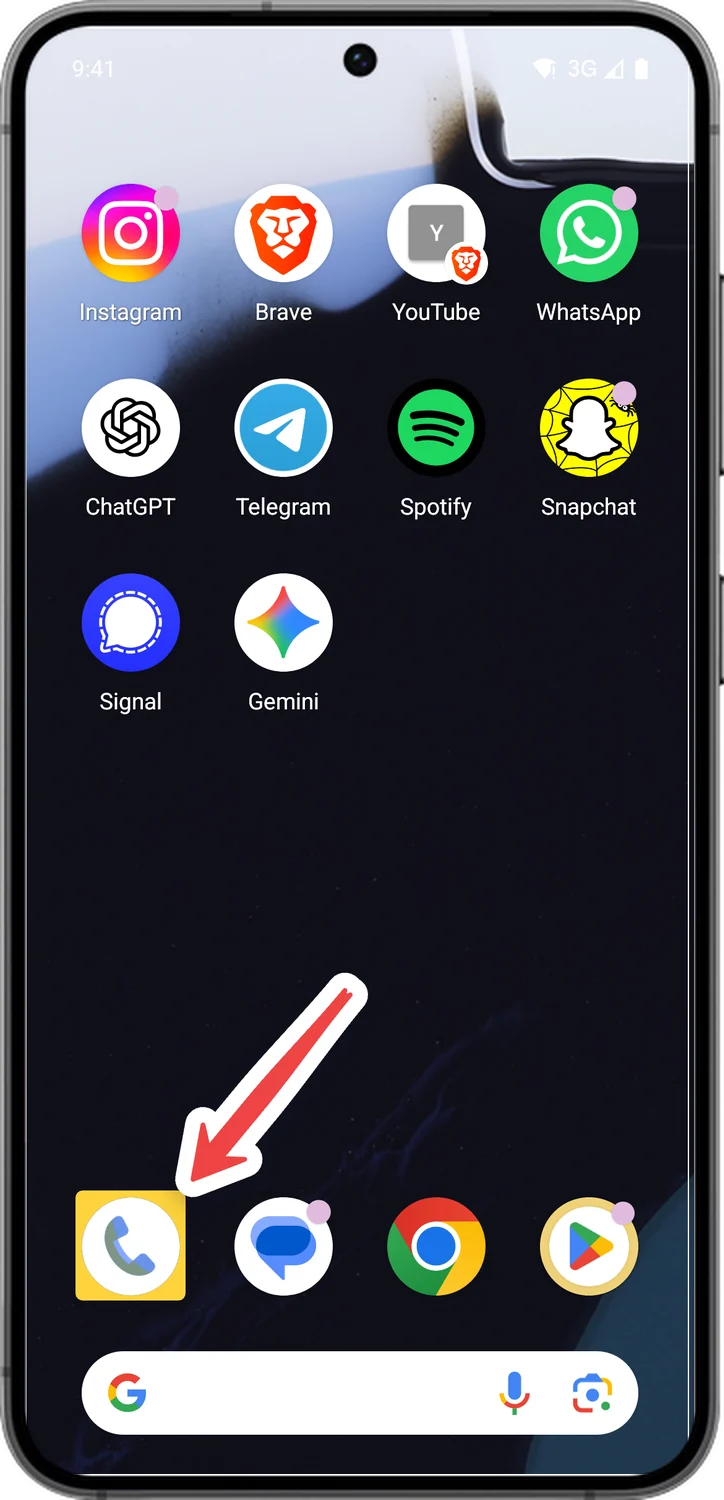
Open the Phone app
Tap the Phone app you use to make calls. It is usually in the dock at the bottom of your home screen.
- 2
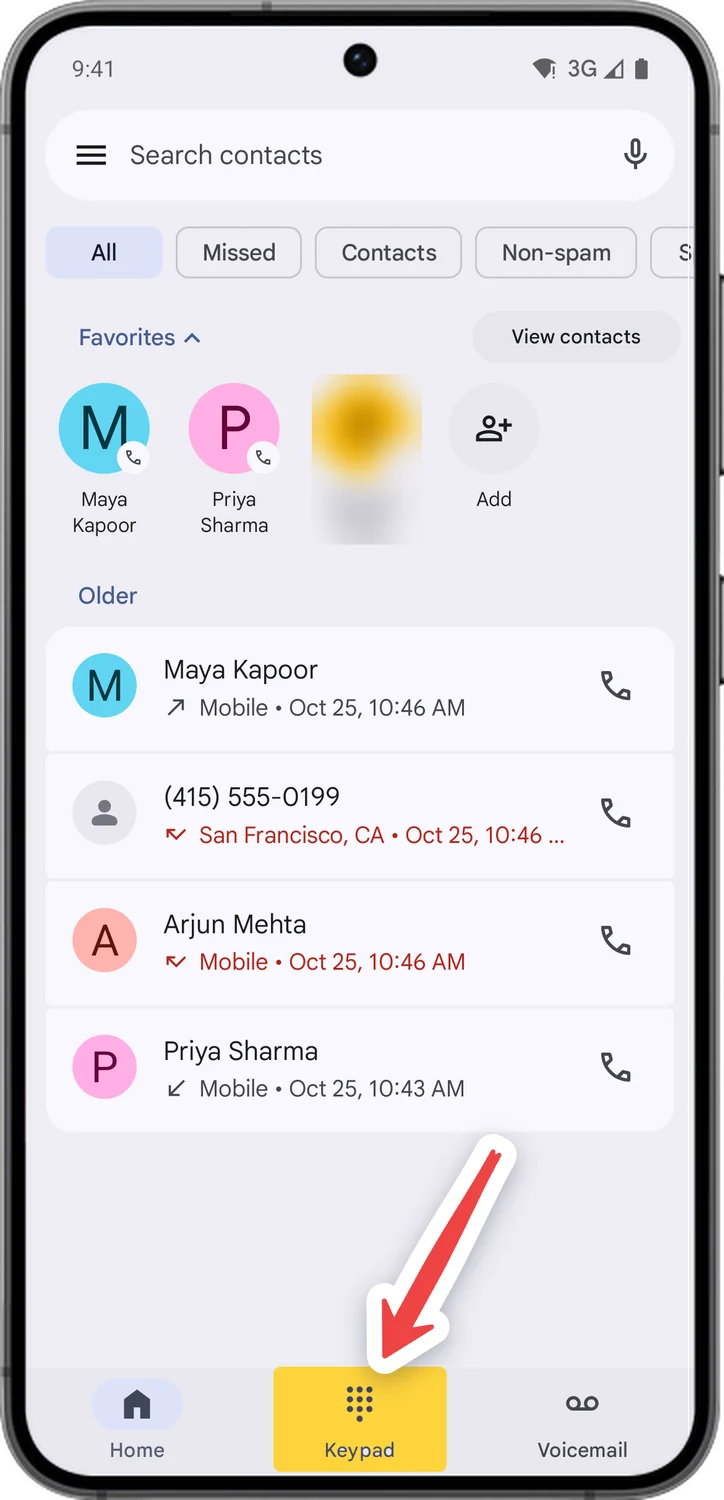
Open the keypad
Tap Keypad at the bottom. You should see the number buttons with * and # in the bottom row.
- 3
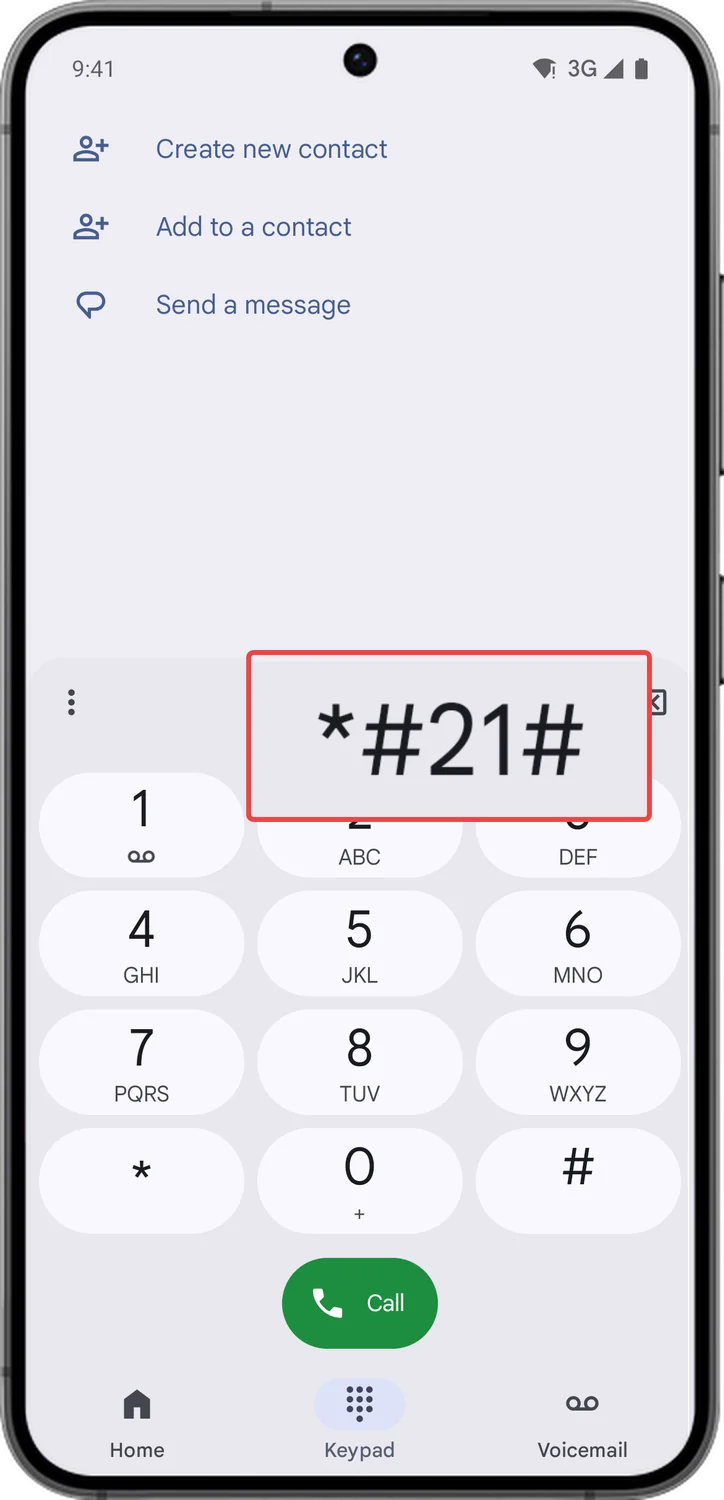
Type the code exactly as it appears
Type the code one key at a time, including every * and #. They sit on either side of 0. One wrong key and the code will not work.
- 4
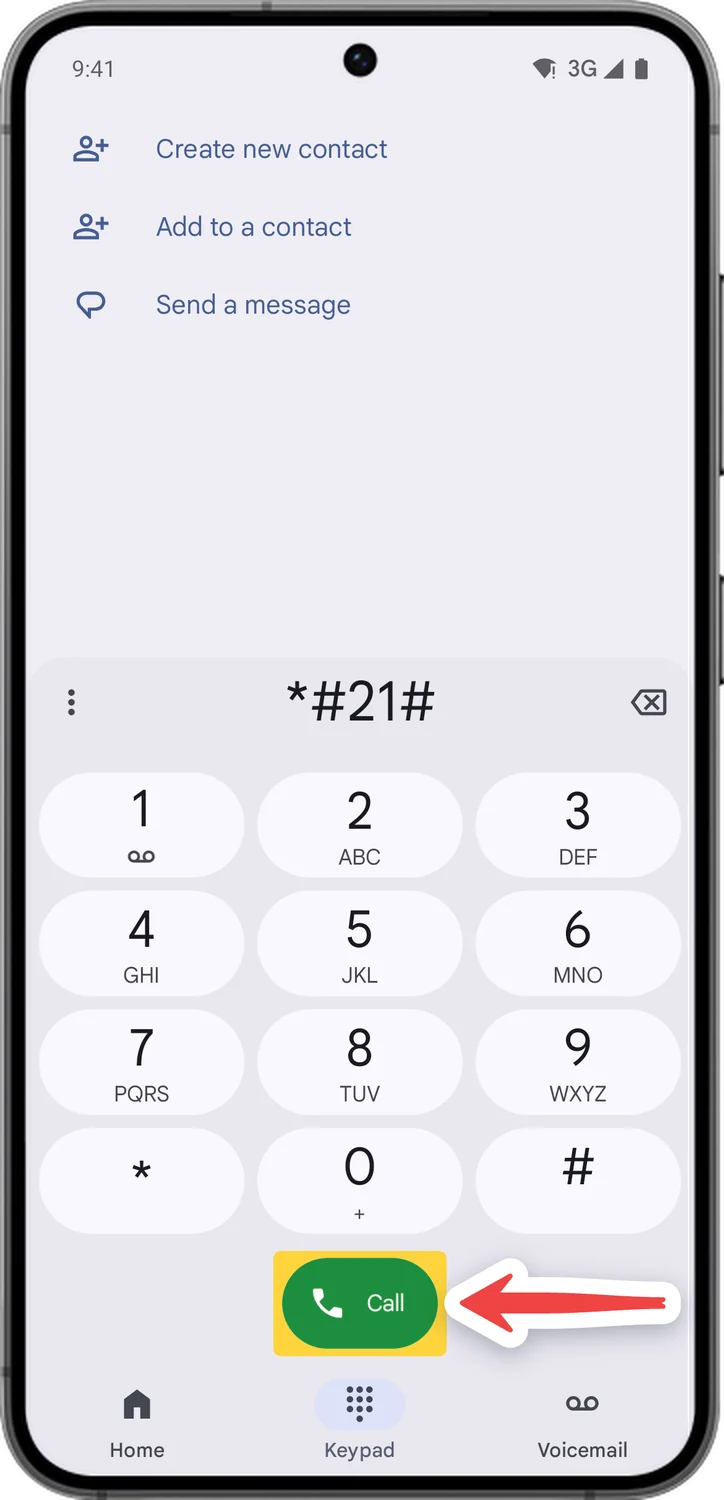
Press call if nothing happens
Most codes open on their own the moment you type the last #. Call forwarding and call waiting codes need the green Call button.
- 5
Read the screen, then go back
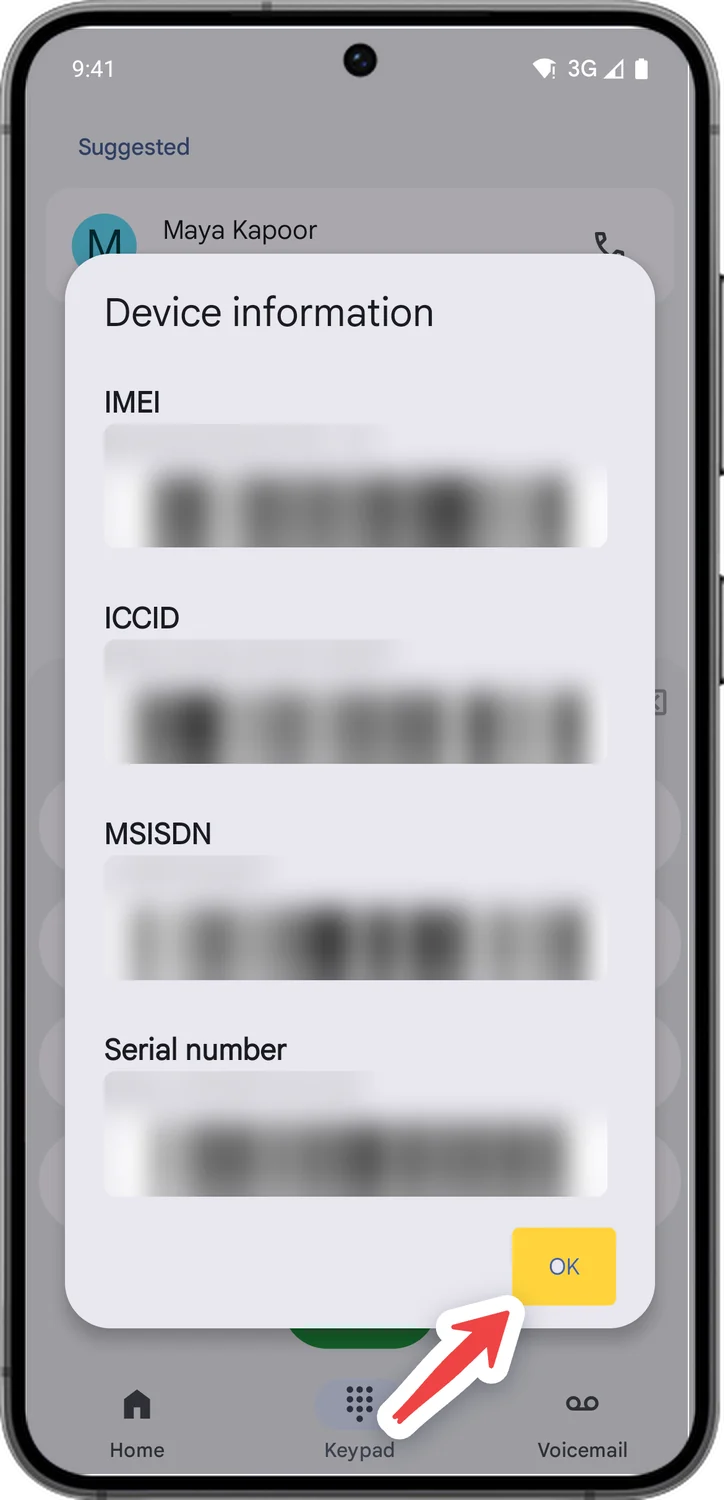
The result opens as a pop-up or a test menu. Read what you need, then tap OK or press Back. Nothing changes just by looking.
- Optional
Only if you would rather not type the code
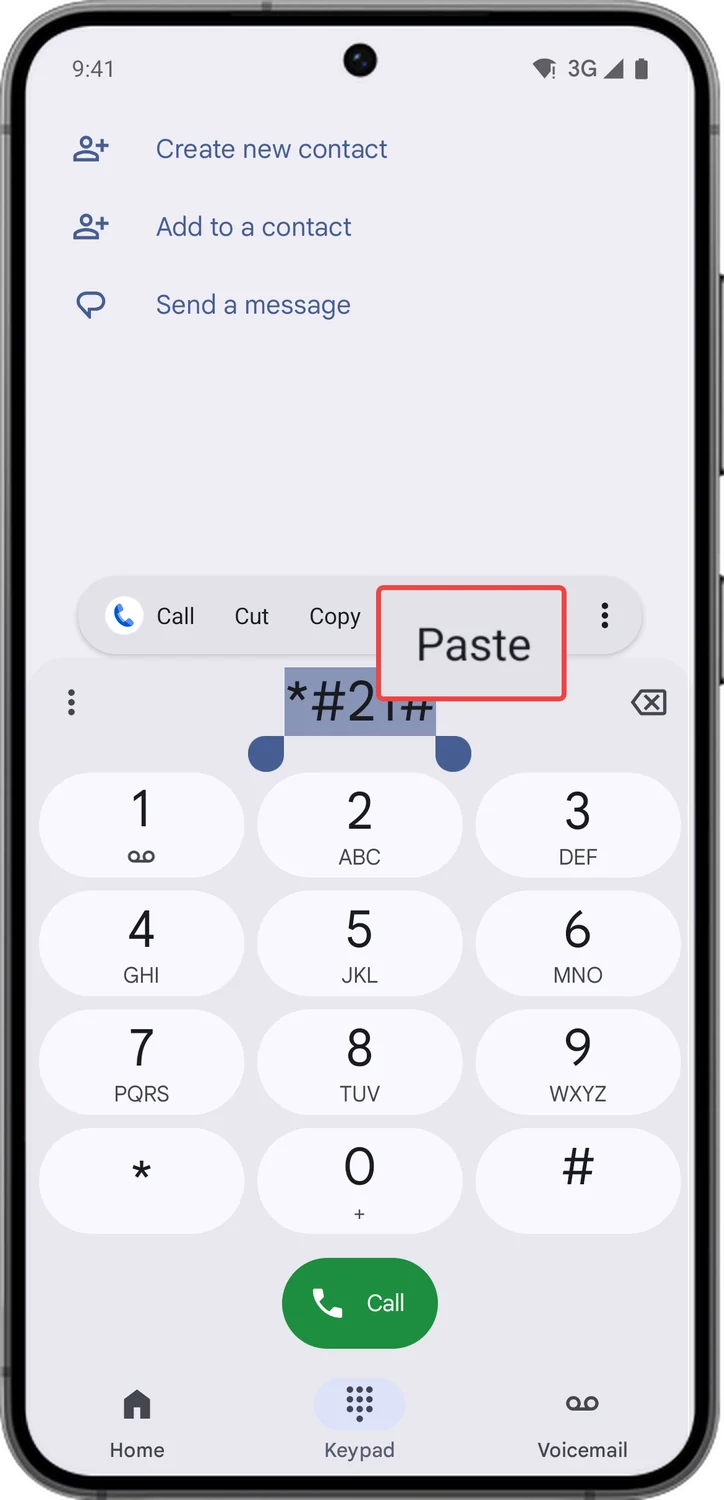
6Paste a code instead of typing it
Tap Copy next to a code in the tables above, then tap and hold the number area on the keypad and choose Paste. If a pasted code does nothing, type it by hand.
Comments
0Share your thoughts, questions, or feedback about this guide.