
Threads Icons and Symbols Explained
Threads keeps its icons small and unlabelled. The heart is a like, the speech bubble is a reply, and the two arrows open a menu where you can quote a post, mark it up or simply repost it. The compose screen and your profile have even more icons that are easy to miss.
In this guide, you will learn what every icon in the latest Threads app means, screen by screen. And this is an interactive guide. You can tap on every icon on the screens below to know what it does.
Home Feed
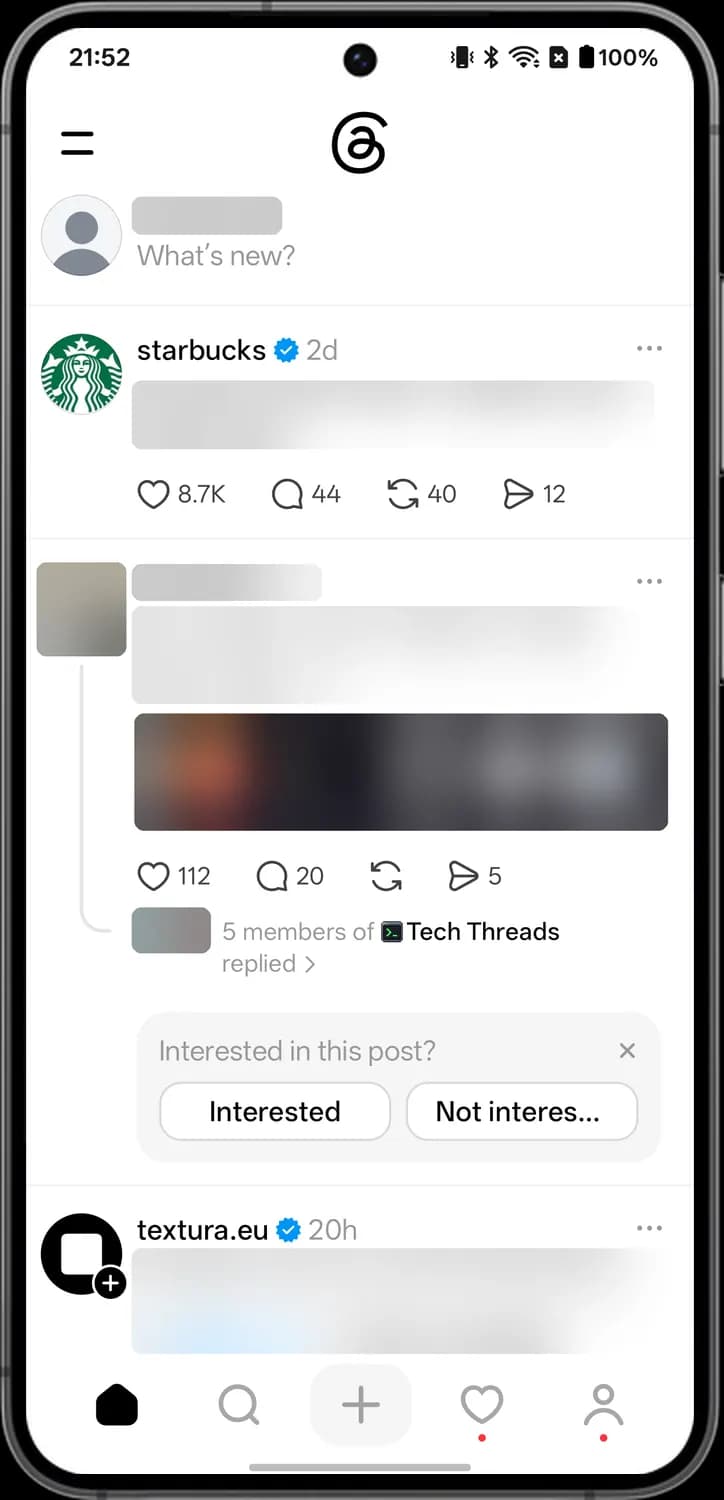
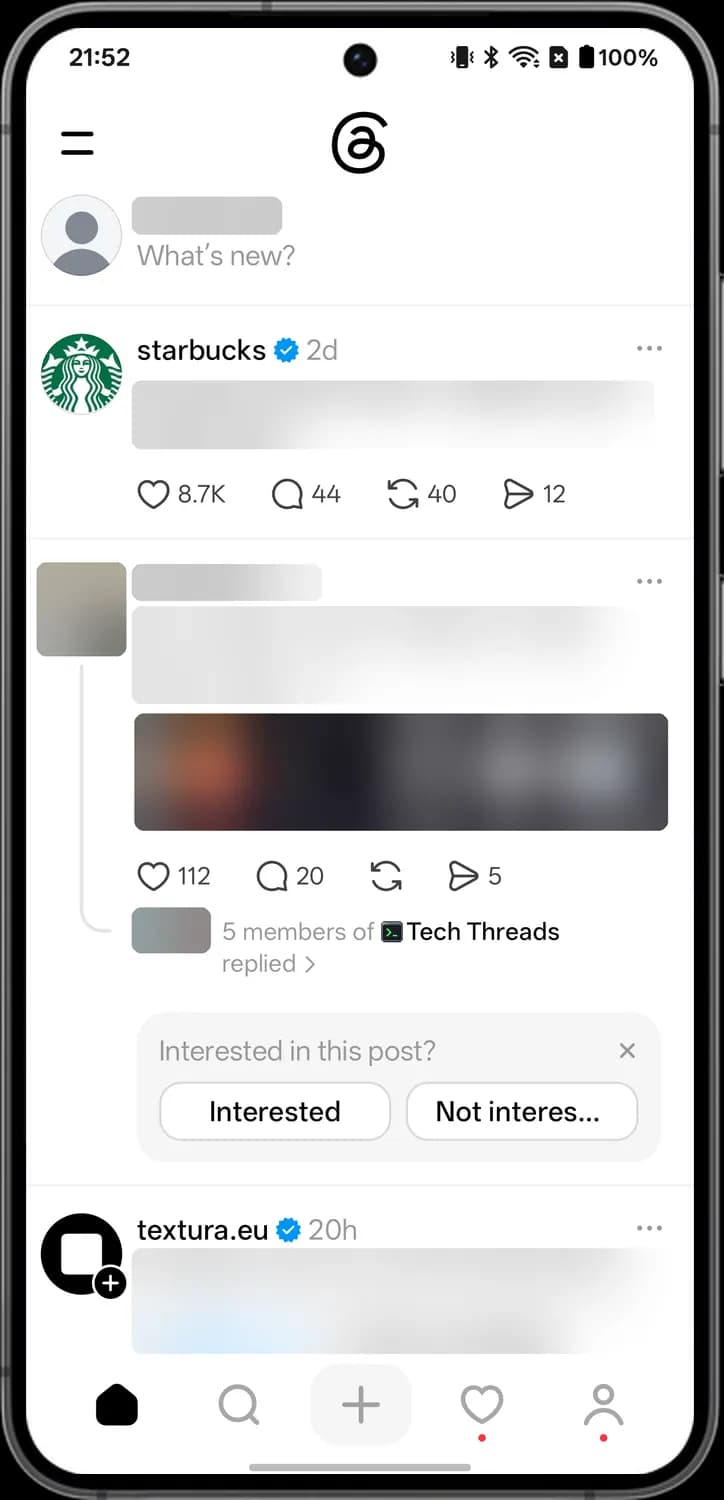
This is the Feed tab, the first screen you see when you open Threads. It shows posts from people you follow and suggested posts, with the controls for each post under it.
Top bar and posts

Feeds menu
The two lines at the top left. Tap it to open the Feeds menu, where you switch between For you, Following and your own feeds.

What's new box
Your profile picture and the What's new? line at the top of the feed. Tap it to start writing a new thread.

More options
The three dots at the top right of each post. Tap it for options like Copy link, Save, Not interested, Mute and Report.

Follow badge
The small plus on a profile picture means you do not follow that profile yet. Tap it to follow without leaving the feed.
Status symbols. These only show information. They are not buttons.

Verified badge
The blue badge with a tick next to a name. It means the profile is verified.
Post actions

Like
The heart under a post, with the number of likes next to it. Tap it to like the post, and tap it again to remove your like.

Reply
The speech bubble opens the post so you can write a reply. The number shows how many replies it has.

Repost
The two arrows open the repost options: repost it to your profile, or quote it with your own words.

Share
The paper plane opens the share sheet, where you can send the post on Instagram, copy it to another app or add it to your story.

Dismiss suggestion
The X on the Interested in this post? card. Tap it to close the card without answering.
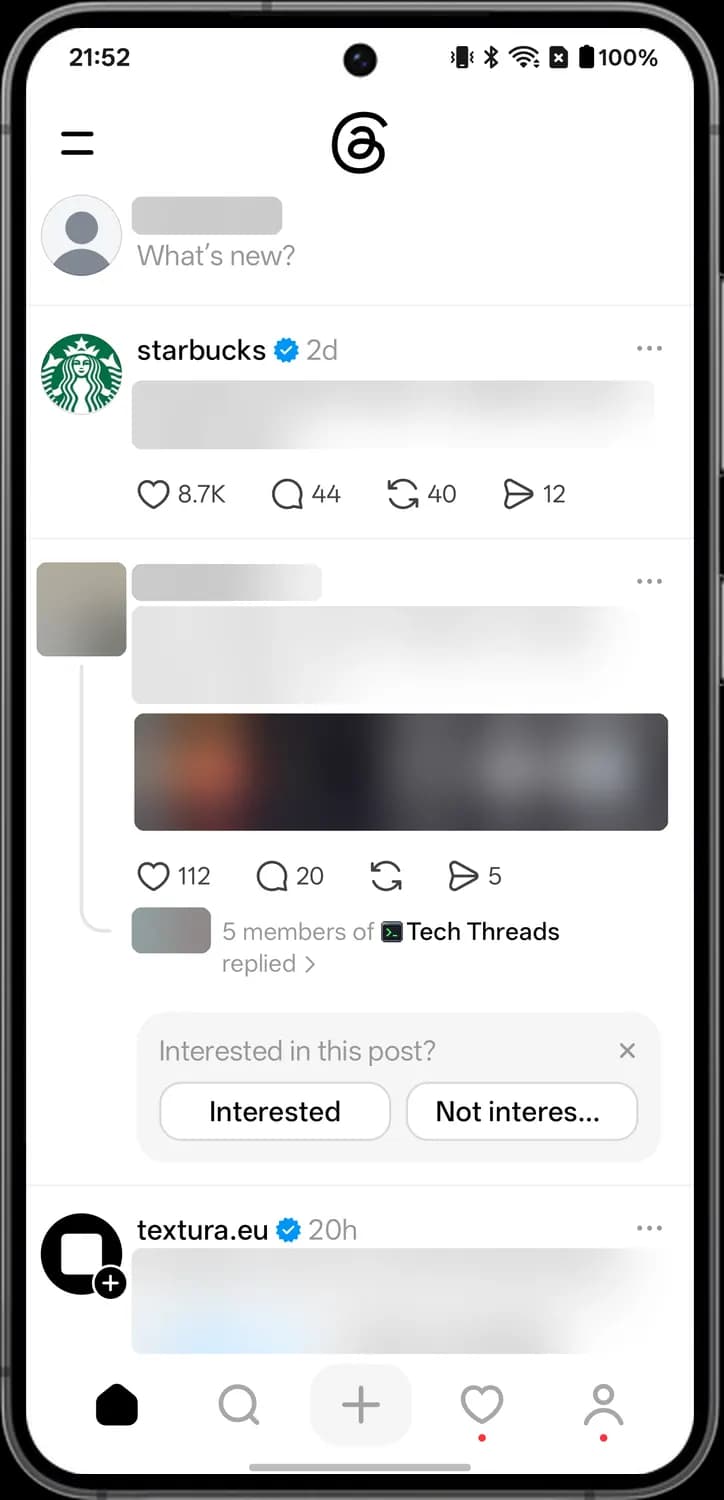
Tab bar

Feed tab
The house takes you back to your feed. It is filled in when you are on the Feed tab.

Search tab
The magnifying glass opens Search, where you look for people, posts and topics.

Create
The plus in the middle of the tab bar opens the New thread screen so you can write a post.
Activity tab
The heart opens Activity, with your likes, follows, replies and mentions. A red dot under it means there is something new.

Profile tab
The person outline opens your own profile, with your threads, replies and reposts.
Feeds Menu
Tap the two lines at the top left of the feed to open this menu. It lists your feeds and popular communities.
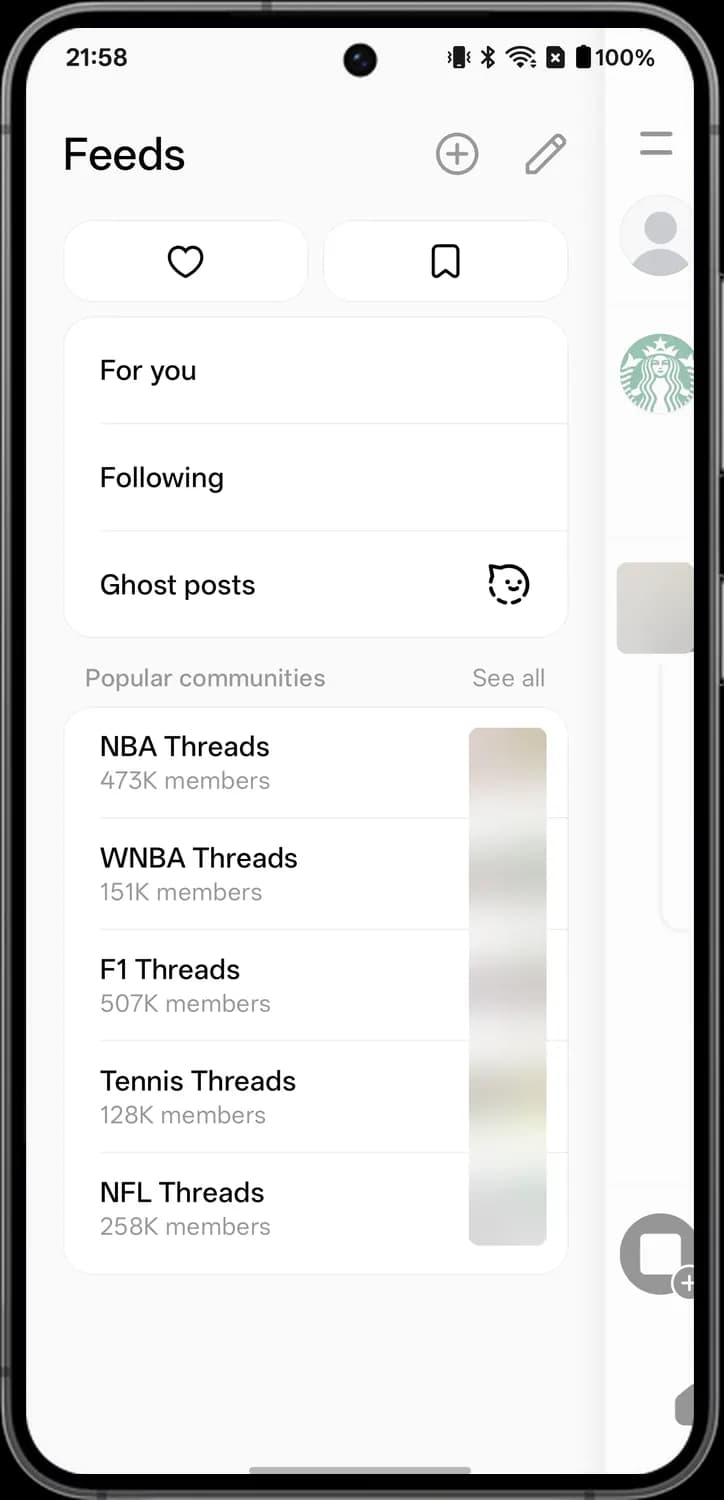

Create feed
The plus in a circle next to Feeds. Tap it to make your own custom feed from profiles or topics you choose.

Edit feeds
The pencil next to Feeds. Tap it to reorder, pin or remove the feeds in this list.

Liked posts
The button with the heart opens the posts you have liked.

Saved posts
The button with the bookmark opens the posts you have saved.

Ghost posts
The little ghost face opens the Ghost posts feed. Ghost posts disappear from Threads after 24 hours.
Post Menu
Tap the three dots at the top right of any post to open this menu. The icons sit on the right of each row.
Link, save and interest
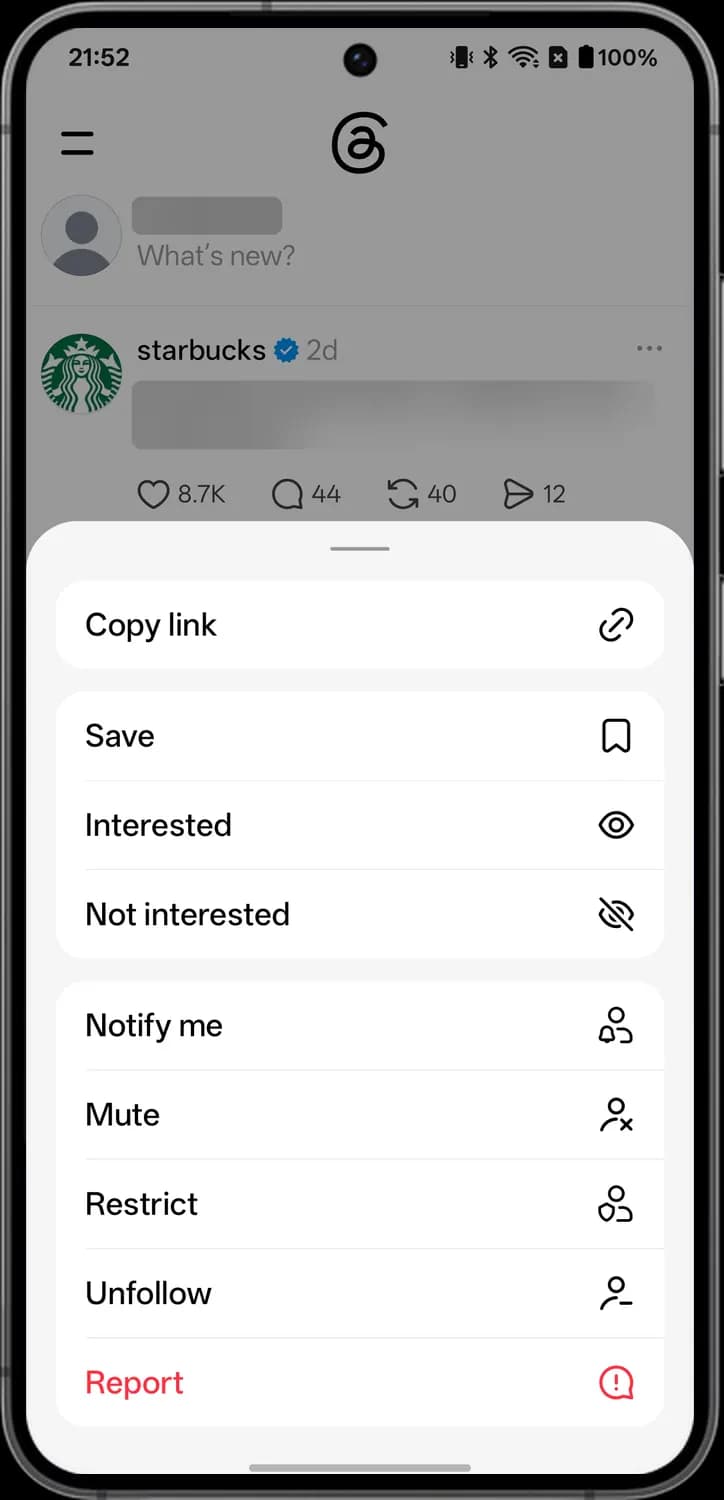

Copy link
Copies a link to the post so you can paste it anywhere.

Save
Saves the post so you can find it later under Saved.

Interested
Tells Threads you want to see more posts like this one in your feed.

Not interested
Tells Threads to show you fewer posts like this one.
Profile options
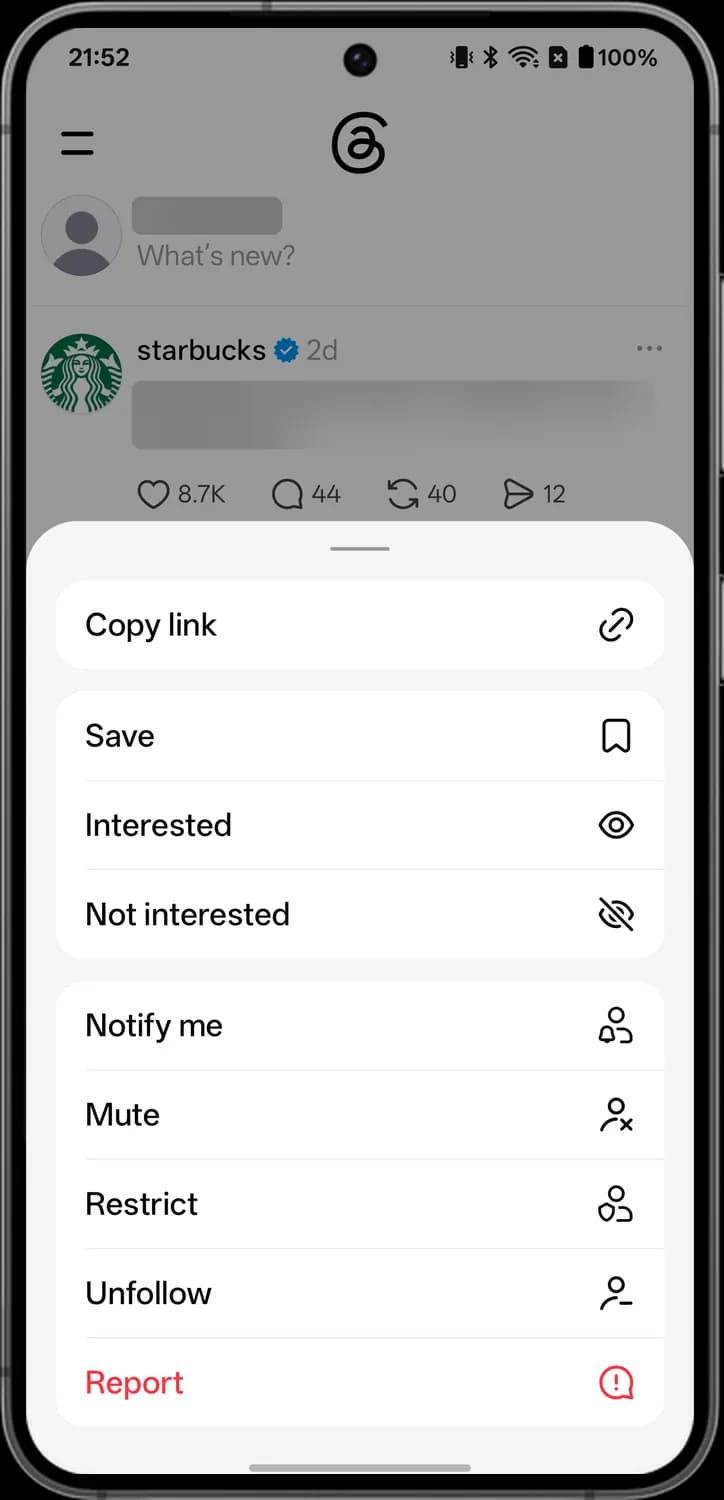

Notify me
The person with a bell. Tap it to get a notification when this profile posts.

Mute
Hides this profile's posts from your feed without unfollowing them. They are not told.

Restrict
Limits this profile without blocking it: their new replies on your threads are only visible to them, and they are not told.

Unfollow
Stops following this profile, so their posts no longer show in your Following feed.

Report
The red exclamation mark. Tap it to report the post to Threads if it breaks the rules.
Repost Options
Tap the two arrows under a post to open these options.
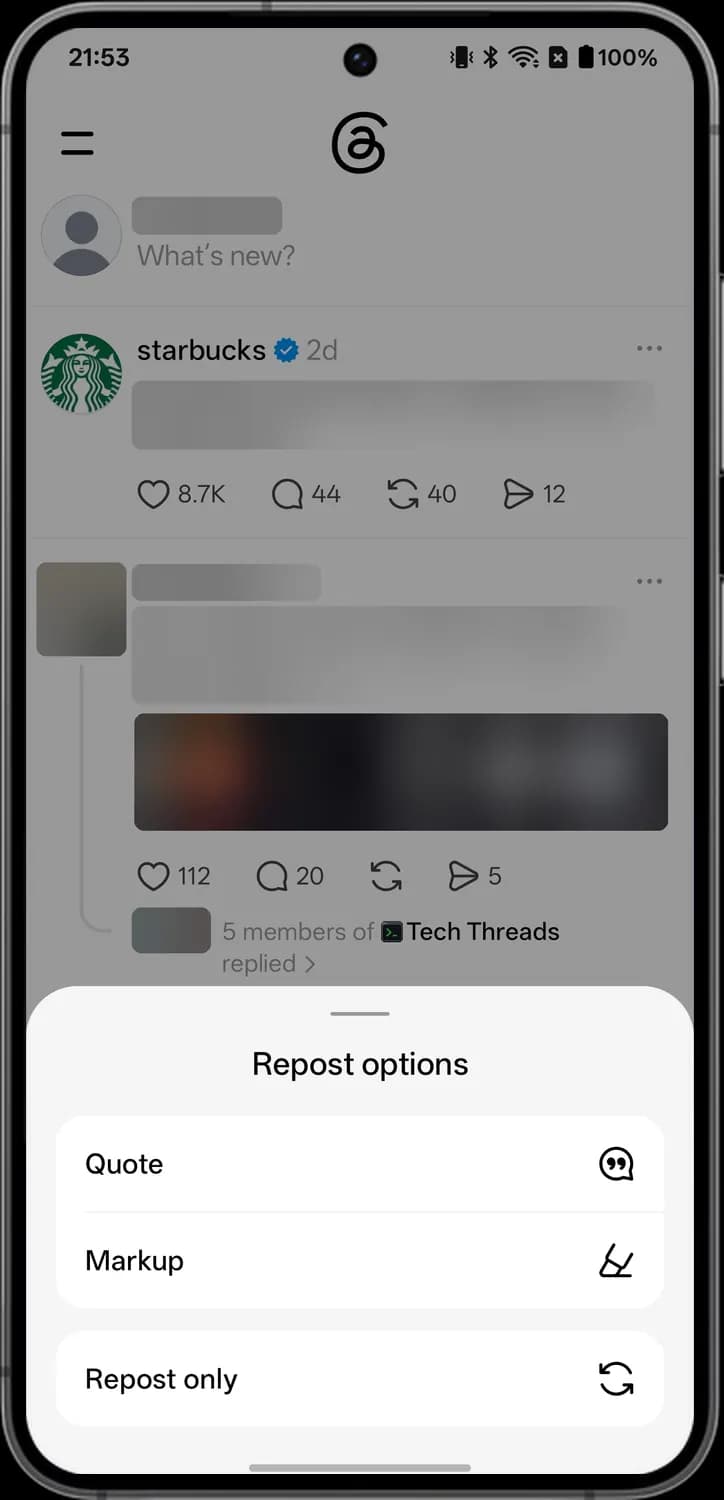

Quote
Opens a new post with this post attached, so you can add your own words above it.

Markup
The pen icon. Lets you highlight or write on top of the post, then repost it with your marks.

Repost only
Reposts the post to your profile as it is, without adding anything.
Share Sheet
Tap the paper plane under a post to open the share sheet.
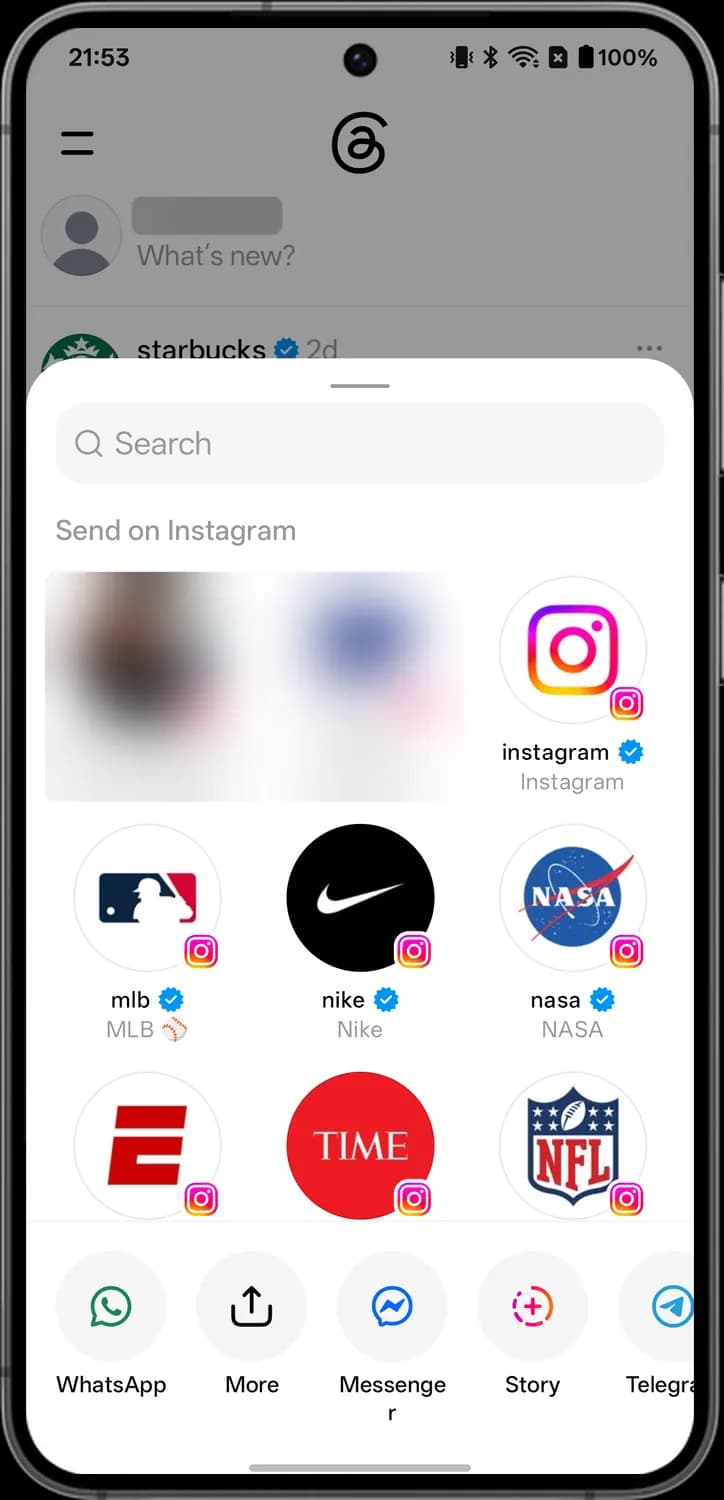

Search
The magnifying glass in the search box. Type a name to find someone to send the post to.

Instagram badge
The small Instagram logo on a profile picture means the post is sent to that person as an Instagram message.

WhatsApp
Shares a link to the post in a WhatsApp chat.

More
The box with an arrow opens your phone's own share menu, with every app that can take the link.

Messenger
Sends the post to someone in Messenger.

Story
The circle with a plus adds the post to your Instagram story.
Thread Page
Tap any post to open it on its own page, with the replies under it.
Top bar and replies
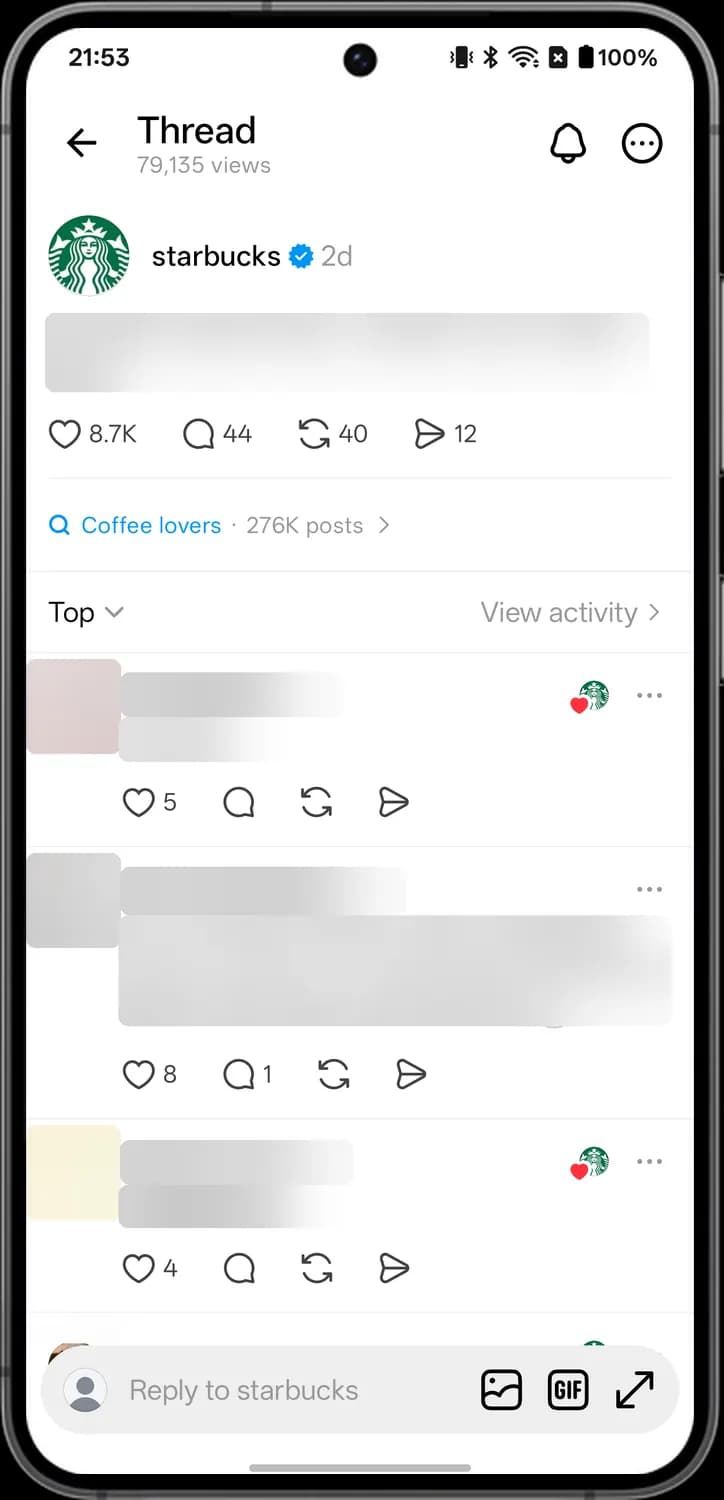

Back
The arrow at the top left takes you back to the feed.

Thread notifications
The bell. Tap it to get notified about new activity on this thread for the next 24 hours.

Thread options
The three dots in a circle open more options for this thread, like the menu on a post in the feed.

Topic
The magnifying glass with a topic name under the post. Tap it to see more posts on that topic.
Reply bar

Reply box
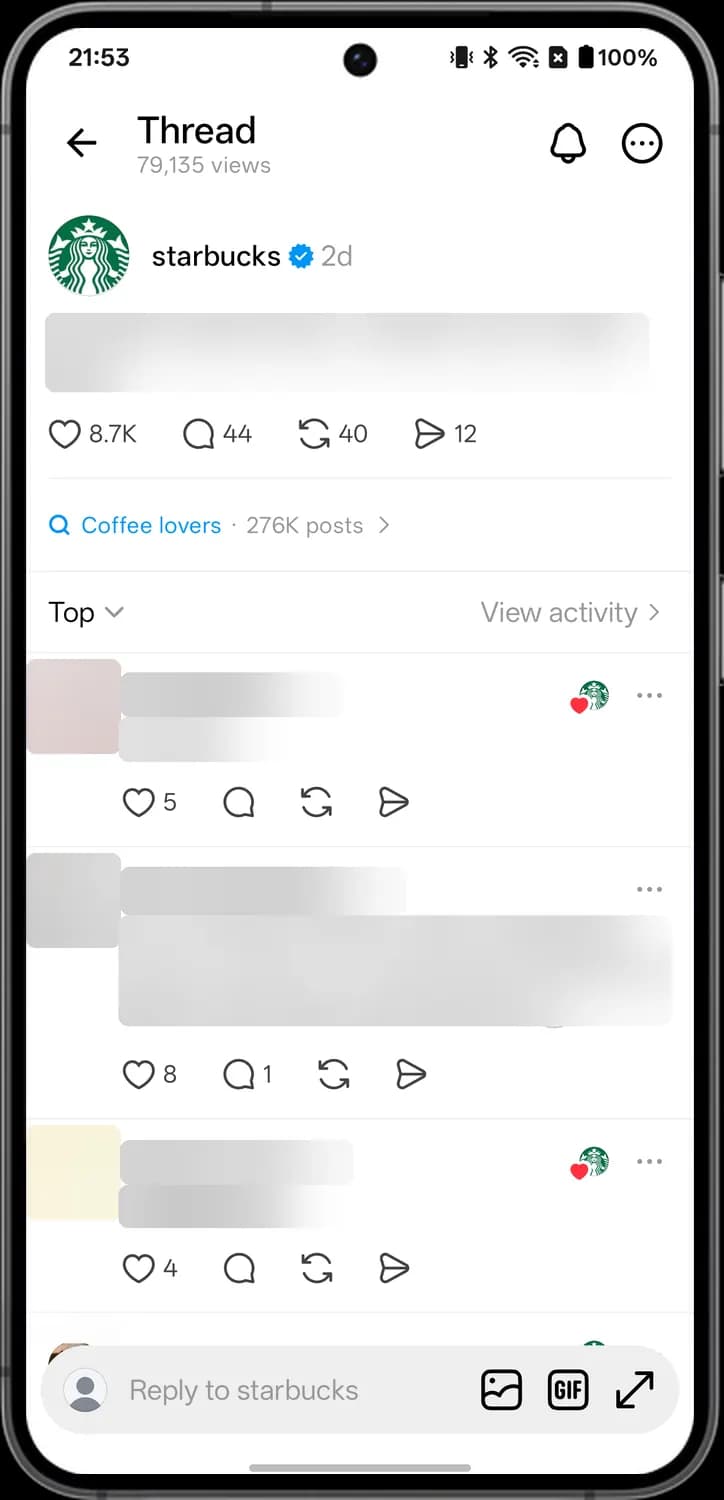
The Reply to box at the bottom. Tap it to type a reply without leaving the page.

Gallery
Adds a photo or video from your phone to your reply.

GIF
Adds a GIF to your reply.
New Thread
Tap the plus in the tab bar, or the What's new? line on the feed, to open this screen and write a post.
Top and bottom bars
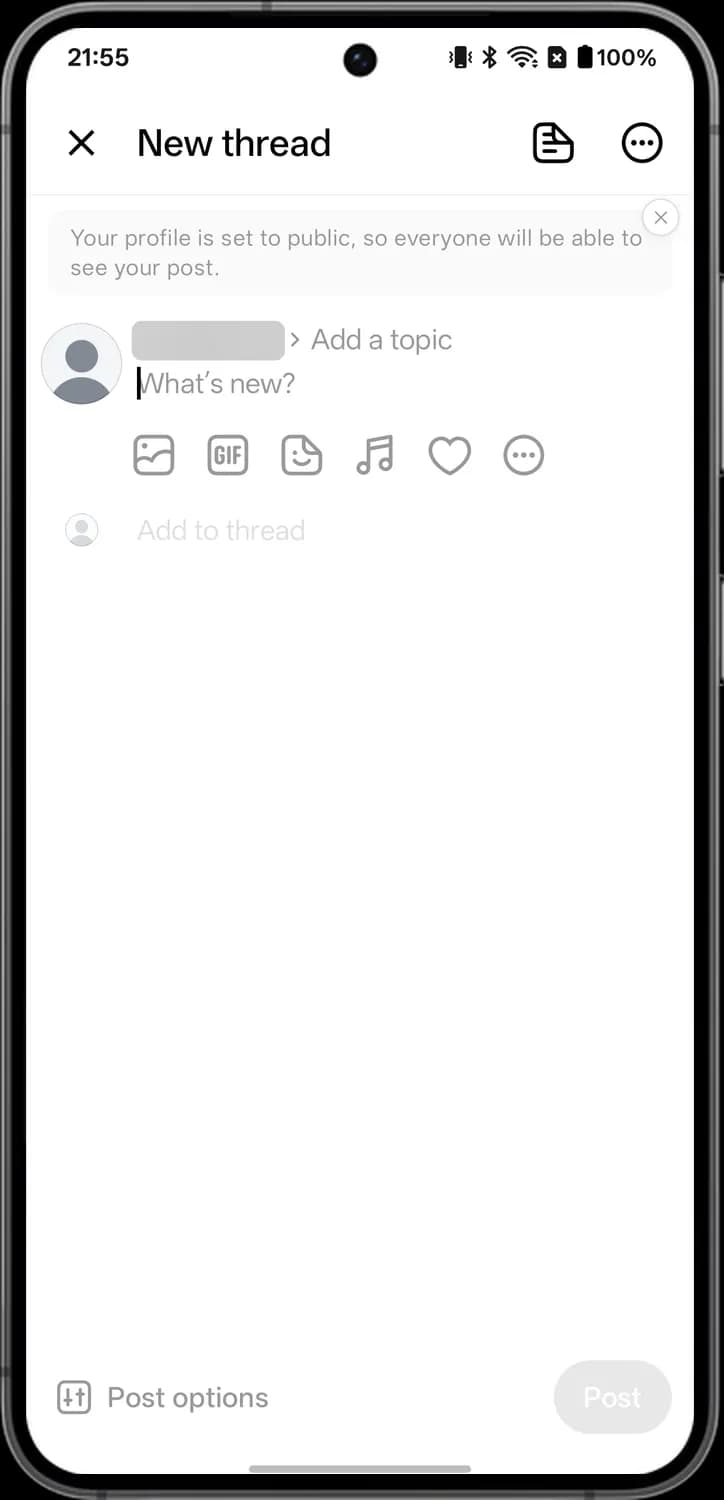

Cancel
The X at the top left closes the screen. If you have written something, Threads asks if you want to save it as a draft.

Drafts
Opens your saved drafts so you can finish one.

Post menu
The three dots in a circle at the top right open options like Add AI label and Schedule.

Dismiss notice
The small X closes the note that says your profile is public.

Post options
Opens Post options, where you choose who can reply to and quote your post.
Attachment toolbar
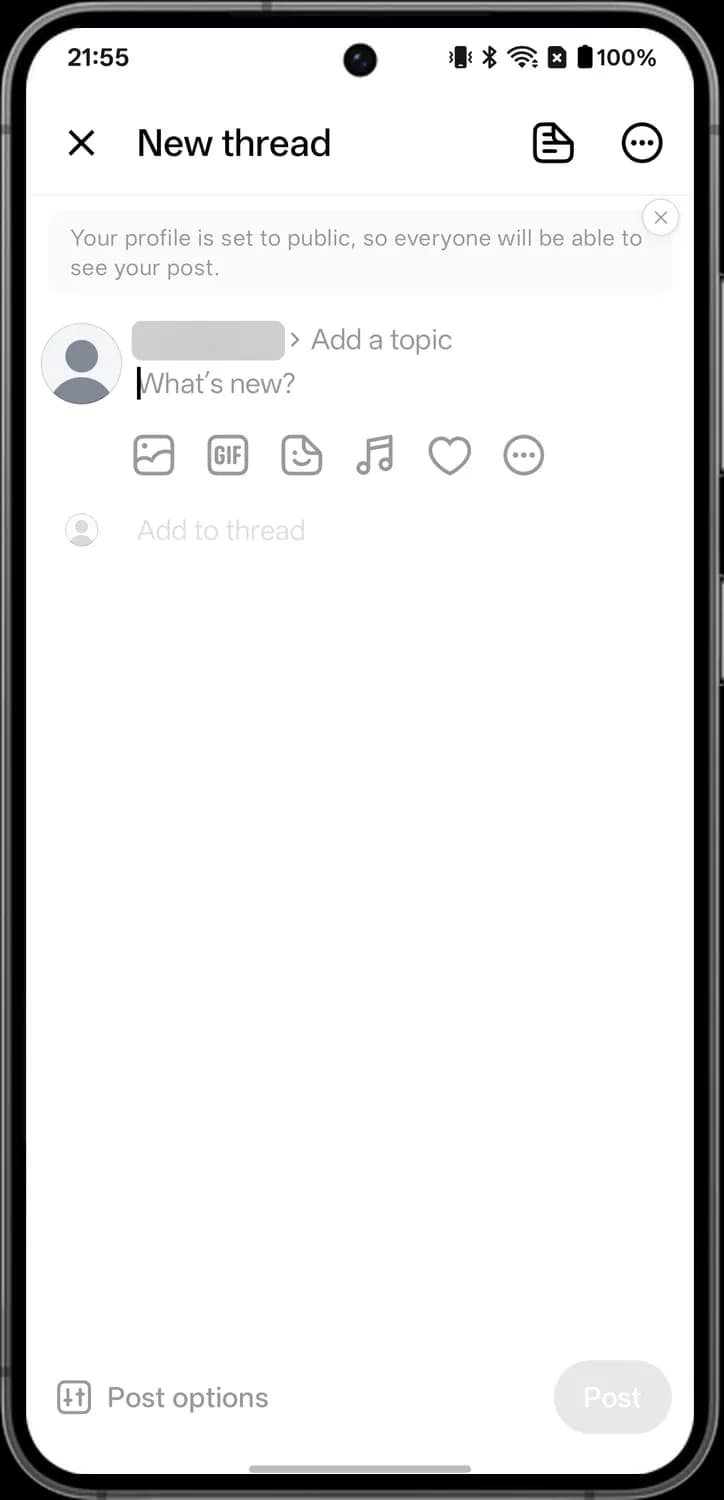

Add photos or videos
Picks photos or videos from your gallery to attach.

Add a GIF
Opens a GIF search so you can add one to the post.

Add a sticker
Adds a sticker to the post.

Add music
The music note adds a song to the post.

Like effect
The heart picks an effect that plays when people like your post.

More attachments
The three dots in a circle open more things to attach: Text, Quote, Poll and Location.

Add to thread
The small picture and Add to thread line. Tap it to add another post under this one, as a thread.
More attachments
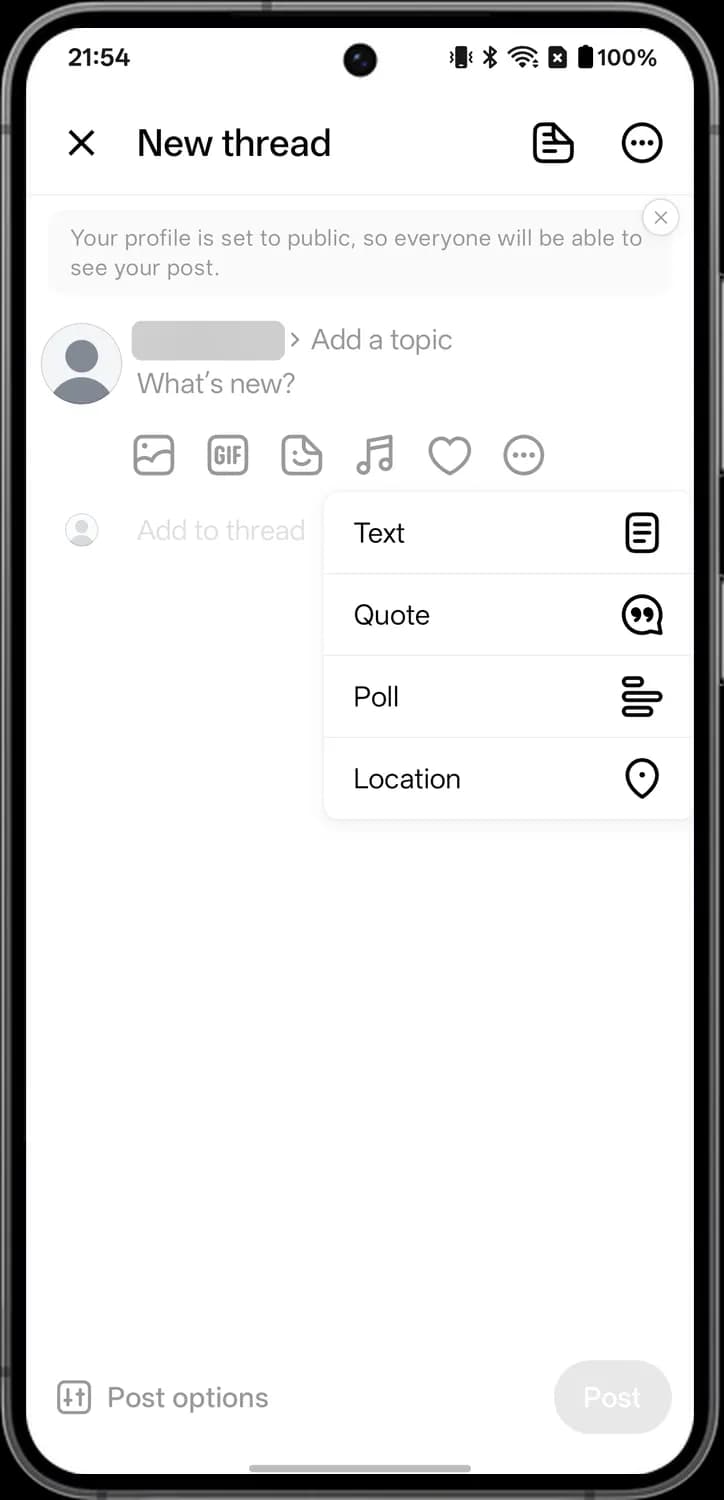

Text
Adds a text attachment, a longer block of text attached to your post.

Poll
Adds a poll with options people can vote on.

Location
Tags a location on your post.
Post menu
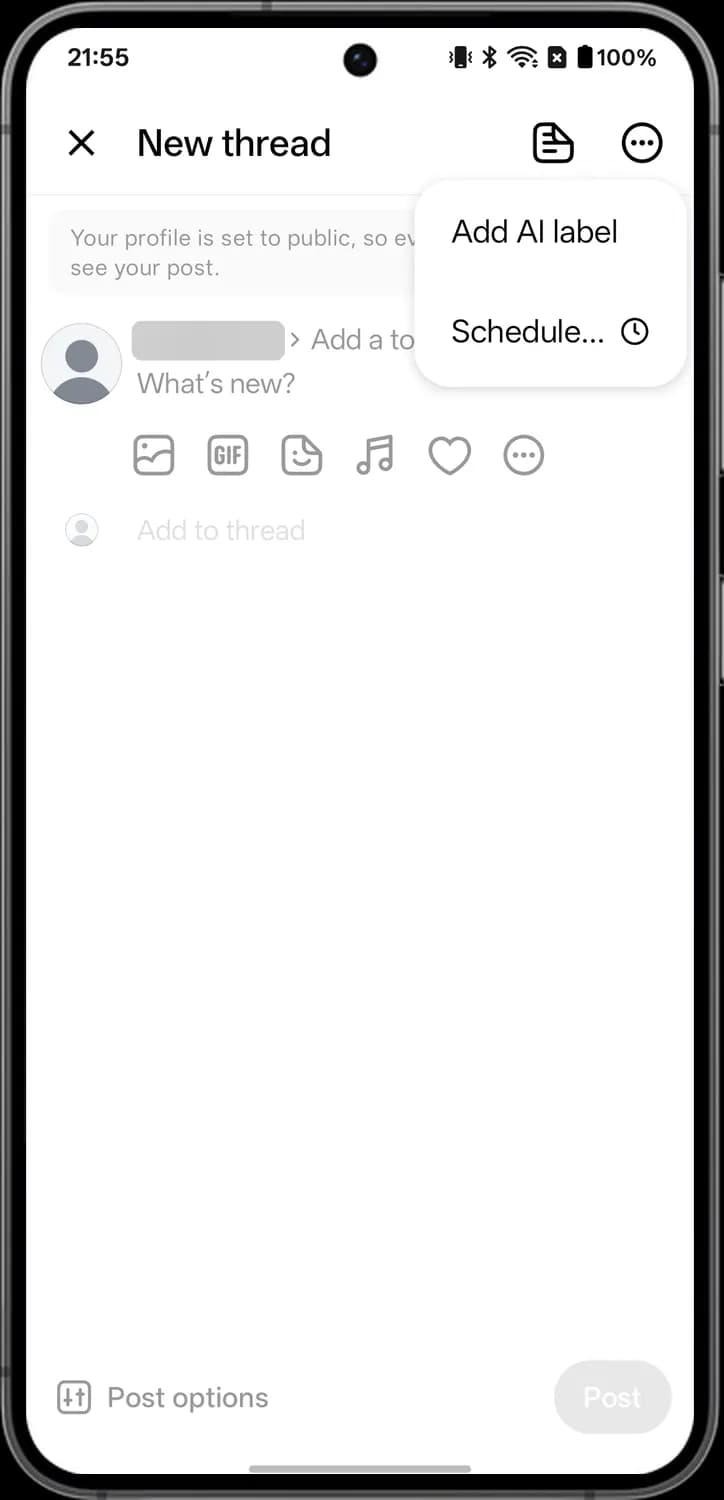

Schedule
The clock next to Schedule lets you pick a date and time for the post to go up later.
Search
Tap the magnifying glass in the tab bar to open Search. Before you type, it suggests profiles to follow.
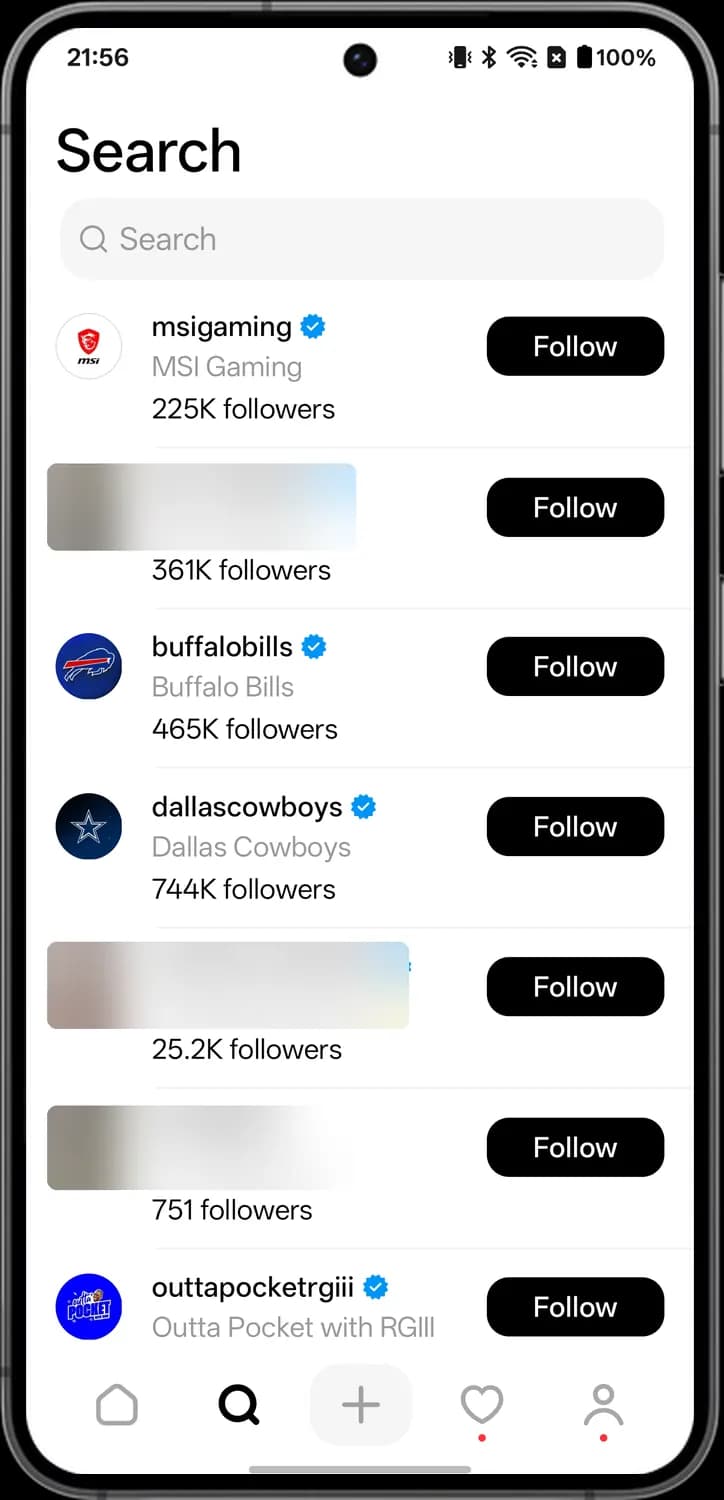

Search box
The magnifying glass in the search box. Tap the box and type to find profiles, posts and topics.
Status symbols. These only show information. They are not buttons.

Verified
The blue badge with a tick next to a suggested profile means it is verified.
Activity
Tap the heart in the tab bar to open Activity. It lists your follows, replies, mentions and other notifications.
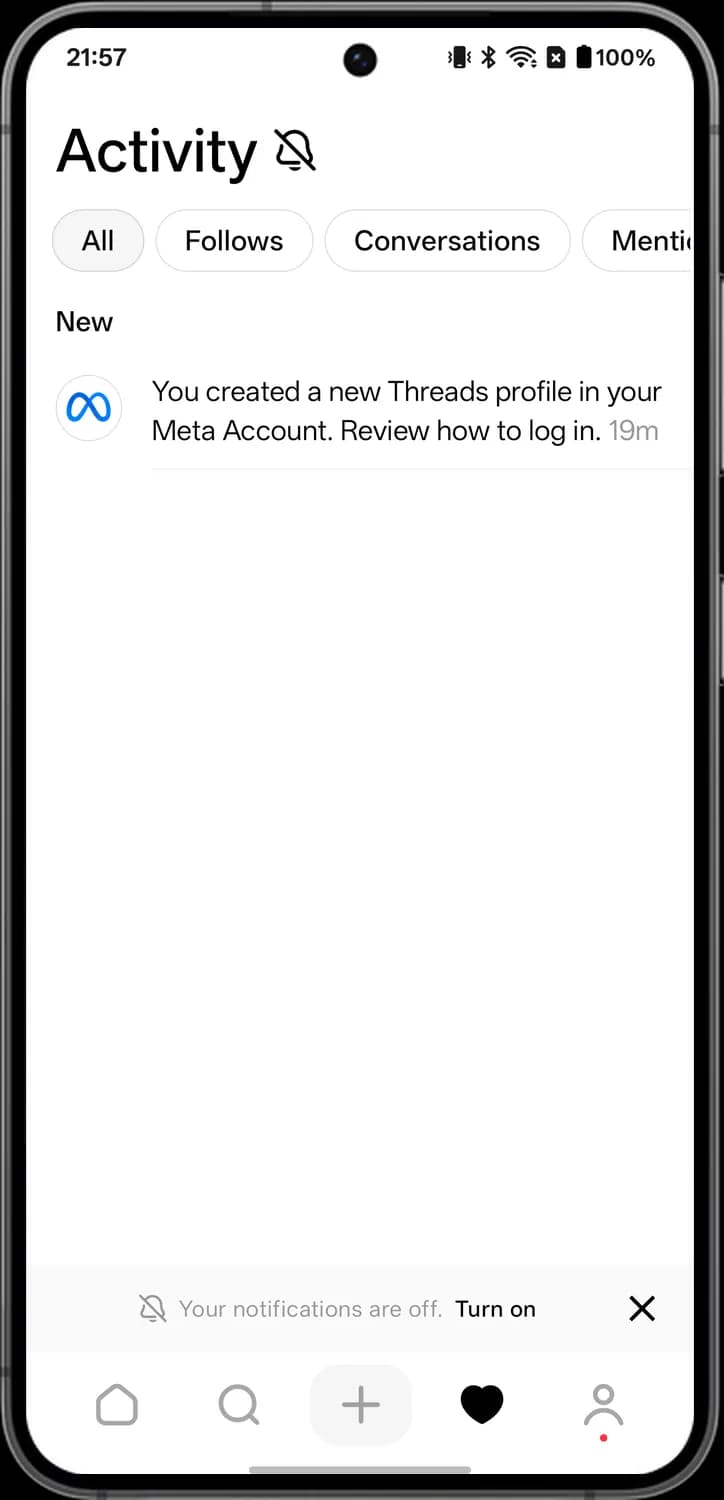

Enable notifications
The bell with a line through it next to Activity means your notifications are off. Tap it to turn them on.

Dismiss banner
The X closes the notifications are off banner.
Status symbols. These only show information. They are not buttons.

Notifications off
The crossed out bell in the banner at the bottom shows that Threads notifications are off on your phone.
Your Profile
Tap the person icon at the right of the tab bar to open your profile.
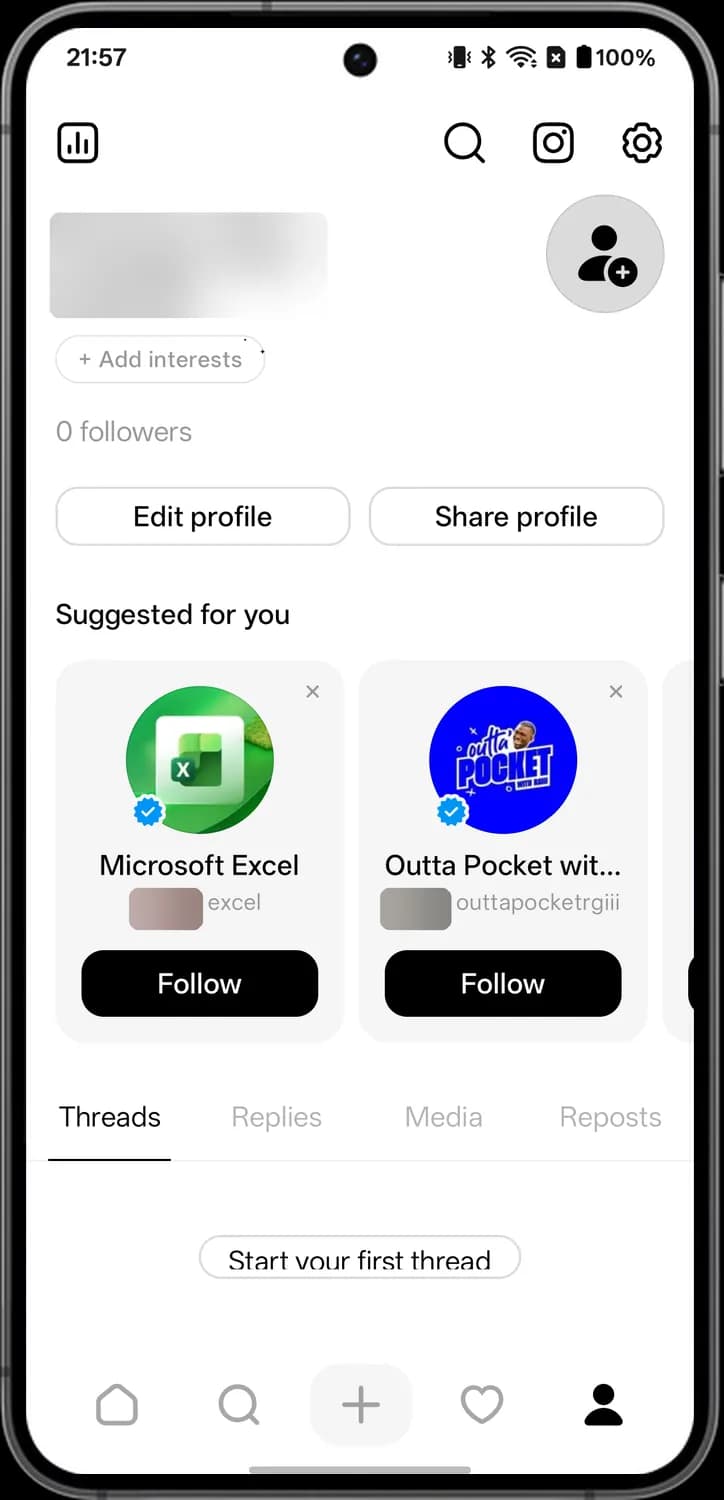

Insights
The bar chart at the top left opens Insights, with your views, interactions and followers.

Instagram
The Instagram logo opens your Instagram profile in the Instagram app.

Settings
The gear opens Threads settings.
Add profile picture
The person with a plus shows you have no profile picture yet. Tap it to add one.

Hide suggestion
The X on a Suggested for you card removes that profile from the suggestions.
Settings
Tap the gear at the top right of your profile to open Settings.
Account and saved posts
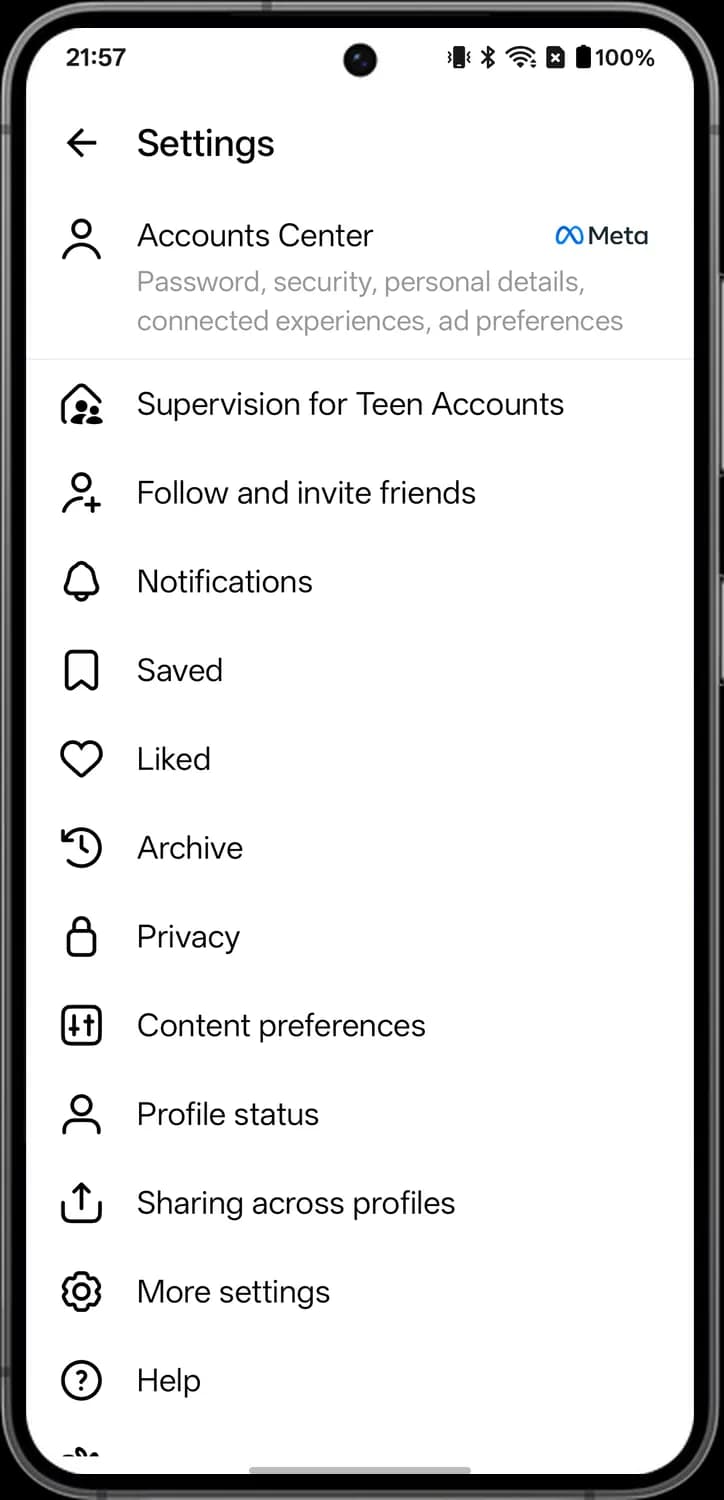

Accounts Center
The person outline next to Accounts Center opens Meta's shared settings for your password, security, personal details and ad preferences.

Supervision for Teen Accounts
The house with two people. Sets up supervision so a parent can see and manage a teen's account.

Follow and invite friends
The person with a plus. Find people to follow and invite friends to Threads.

Notifications
The bell. Choose which notifications Threads sends you.

Saved
The bookmark. Shows the posts you have saved.

Liked
The heart. Shows the posts you have liked.

Archive
The clock with a curved arrow. Shows the posts you have archived, which are hidden from your profile.
Privacy and preferences
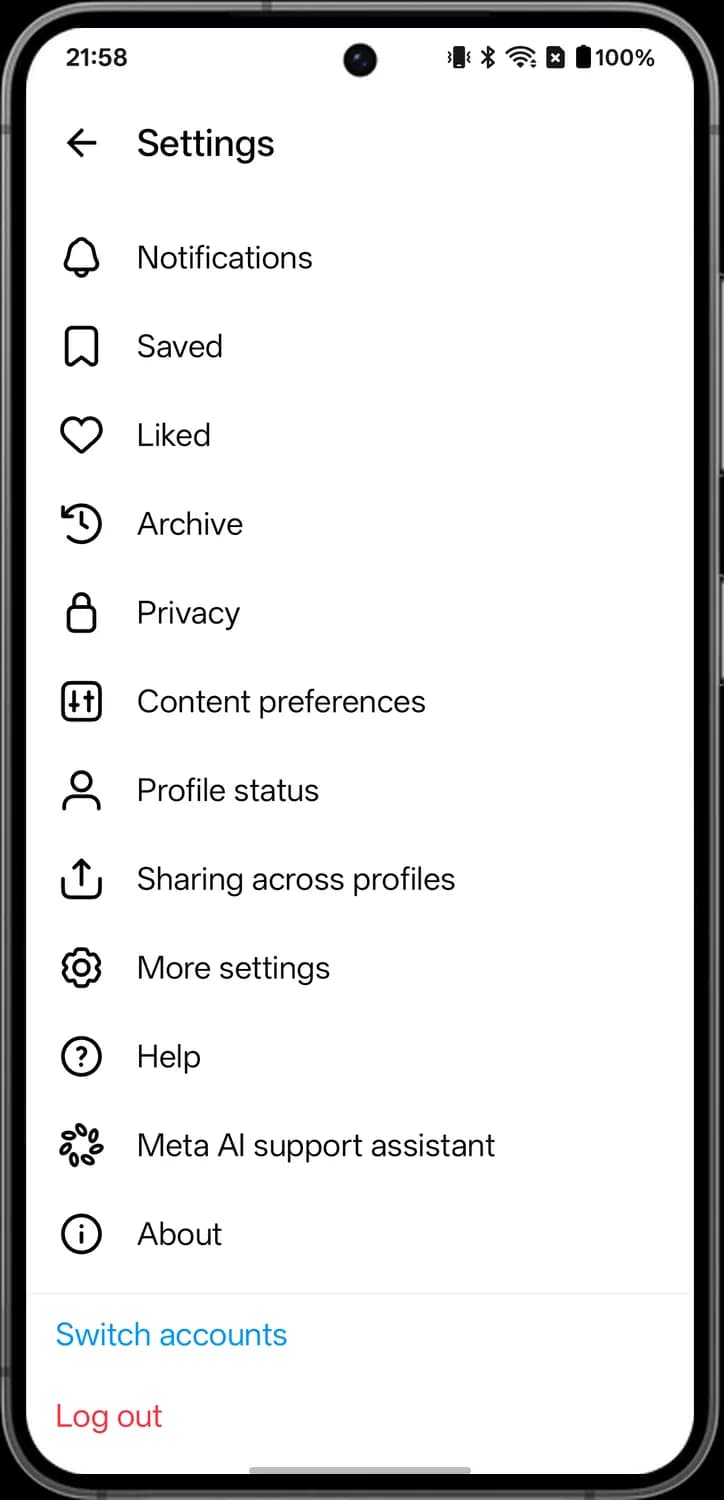

Privacy
The padlock. Make your profile private and control who can mention you, reply to you and see your content.

Content preferences
The two sliders. Control what you see in your feed, such as hidden words and sensitive content.

Profile status
The person outline. Shows if any of your posts were removed or if your profile has any limits.

Sharing across profiles
The box with an up arrow. Choose whether your posts are also shared to your other Meta profiles, like Instagram or Facebook.

More settings
The gear opens the rest of the settings.
Help and about
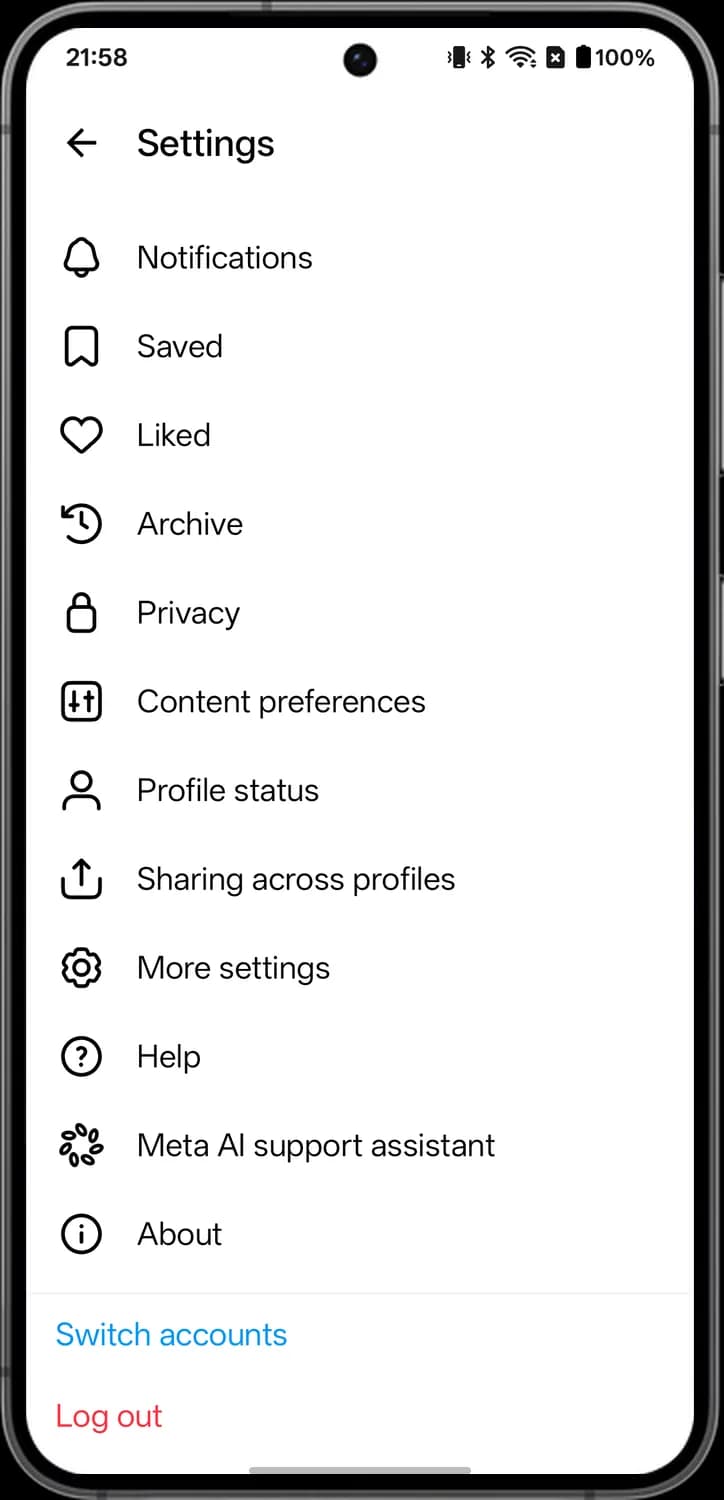

Help
The question mark opens the Help Center and lets you report a problem.

Meta AI support assistant
The cluster of dots opens a chat with Meta AI that answers questions about your account.

About
The i in a circle. Shows the app version, privacy policy and terms of use.
Those are the meanings of Threads icons and symbols. Meta updates the Threads app often and the icons change with it, so we update this guide every time they do, and you can bookmark this page to stay updated. These screens are from Threads for Android, so a few icons may sit in slightly different places on iPhone or the web. For more icon guides, you can also visit our TechPP icon guides.
Comments
0Share your thoughts, questions, or feedback about this guide.
Leave a Comment