
Telegram Icons and Symbols Explained
Telegram is packed with features: Saved Messages, channels, bots, stories, chat folders, stickers and a lot more. And almost every one of them shows up as a small icon somewhere in the app, from the pencil button on the chat list to the paperclip in a chat and the rows in Settings.
In this guide, you will learn what every icon in the latest Telegram app means, screen by screen. And this is an interactive guide. You can tap on every icon on the screens below to know what it does.
Chat list
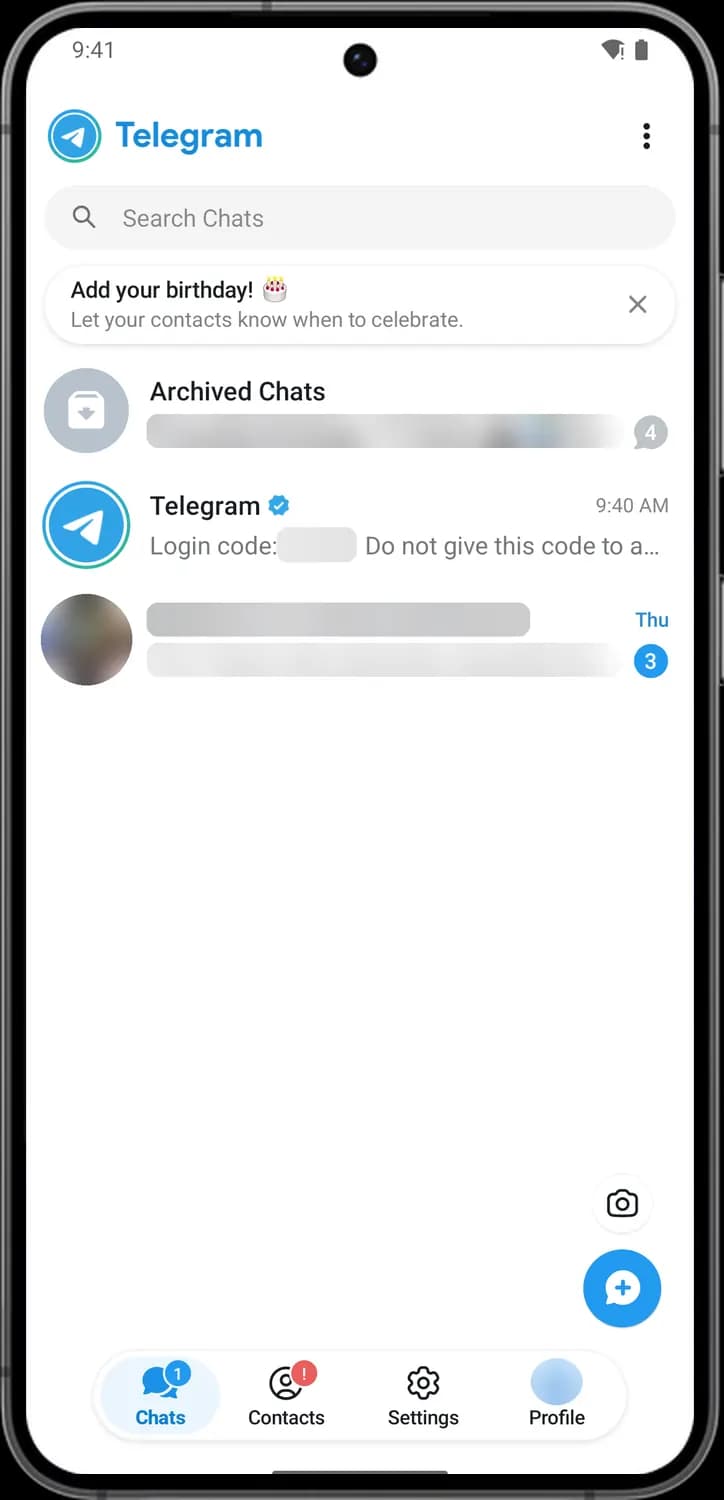
This is the first screen you see when you open Telegram: all your chats, newest first, with the search bar on top and the tab bar at the bottom.
Top bar and chats

More options
The three dots. Opens a short menu with Night Mode, New Group and Saved Messages.

Search Chats
The magnifying glass. Tap it to search your chats, contacts, channels, messages and media in one place.

Close suggestion
The X on a tip card like "Add your birthday". Tap it to hide the card. Tap the card itself if you want to do what it suggests.

Archived Chats
The gray box with a down arrow. Chats you archive move here so your main list stays short. Tap it to open them.
Status symbols. These only show information. They are not buttons.

Muted unread count
A gray number bubble means the chat is muted: you still see how many unread messages there are, but you get no notifications for them.

Verified badge
The blue check mark next to a name. Telegram has confirmed that this account or channel is the real one.

Unread count
A blue circle with a number shows how many messages in that chat you have not read yet.
Buttons and tab bar

Post Story
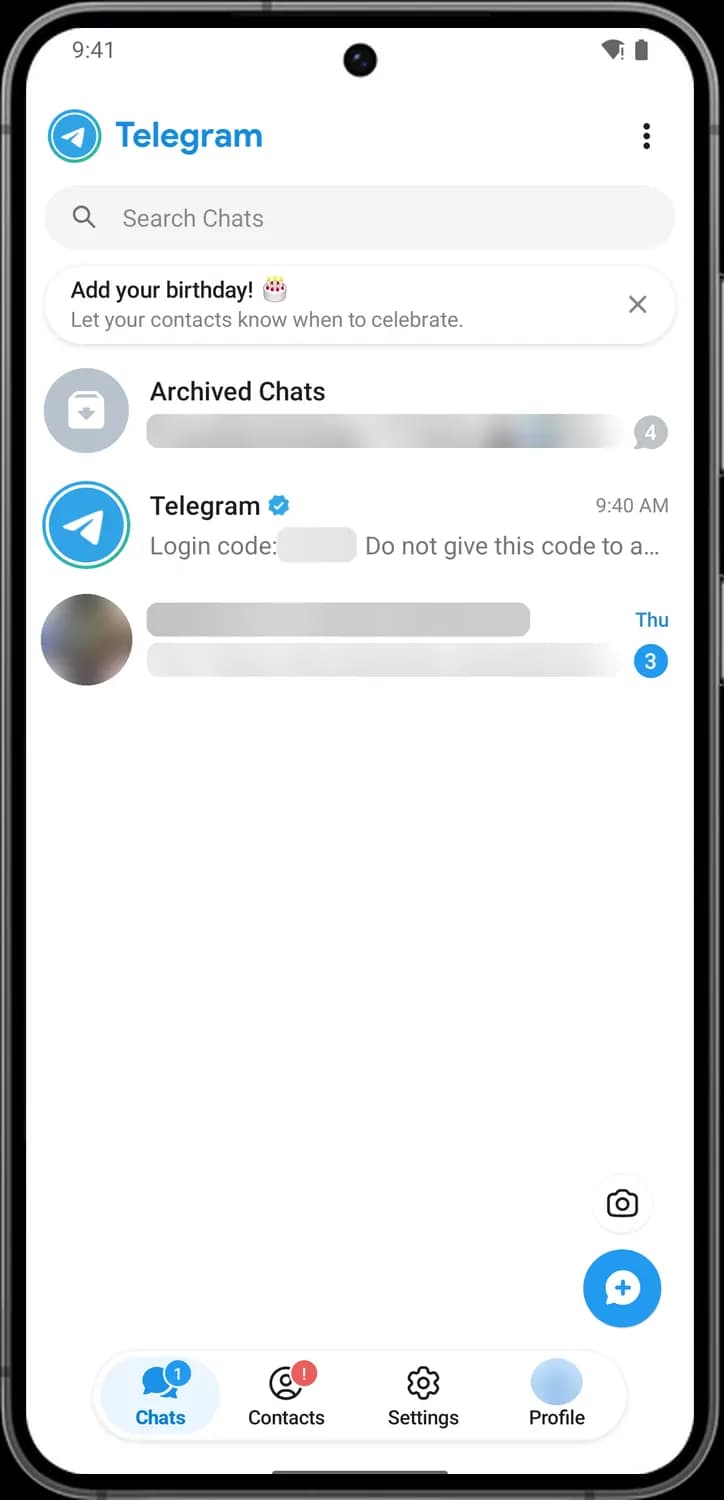
The camera button. Opens the camera so you can take a photo or video, or pick one, and share it as a story.

New Message
The round blue button with a plus. Opens New Message, where you start a chat with a contact or create a new group or channel.

Chats tab
The two speech bubbles. Brings you back to your chat list. A number on it means you have unread messages.

Contacts tab
The person in a circle. Opens your contacts, sorted by when they were last seen, with Invite Friends and Recent calls on top.

Settings tab
The gear. Opens Settings for your account, chats, privacy, notifications and more.

Profile tab
Your profile picture (or your initials). Opens your own profile page, where you can change your photo and info and add posts.
Chat list actions
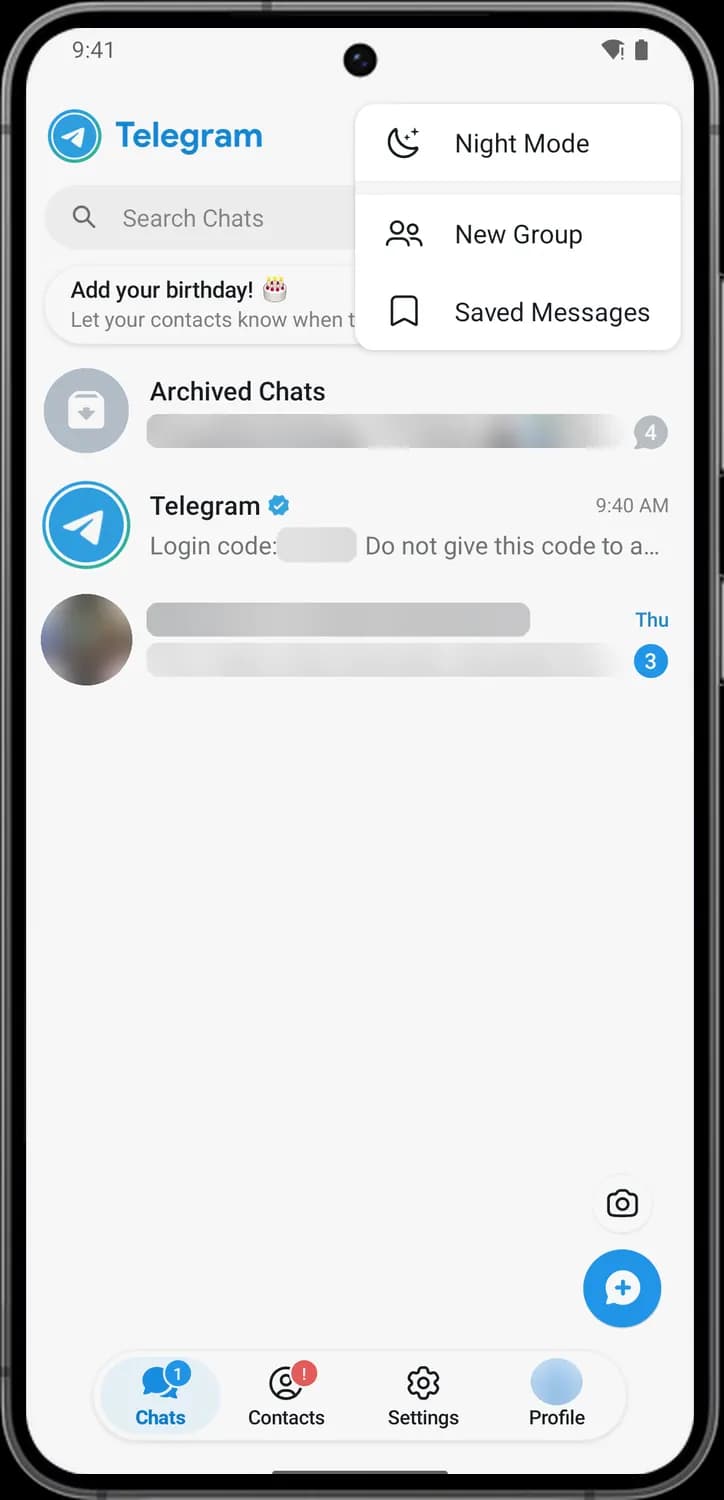
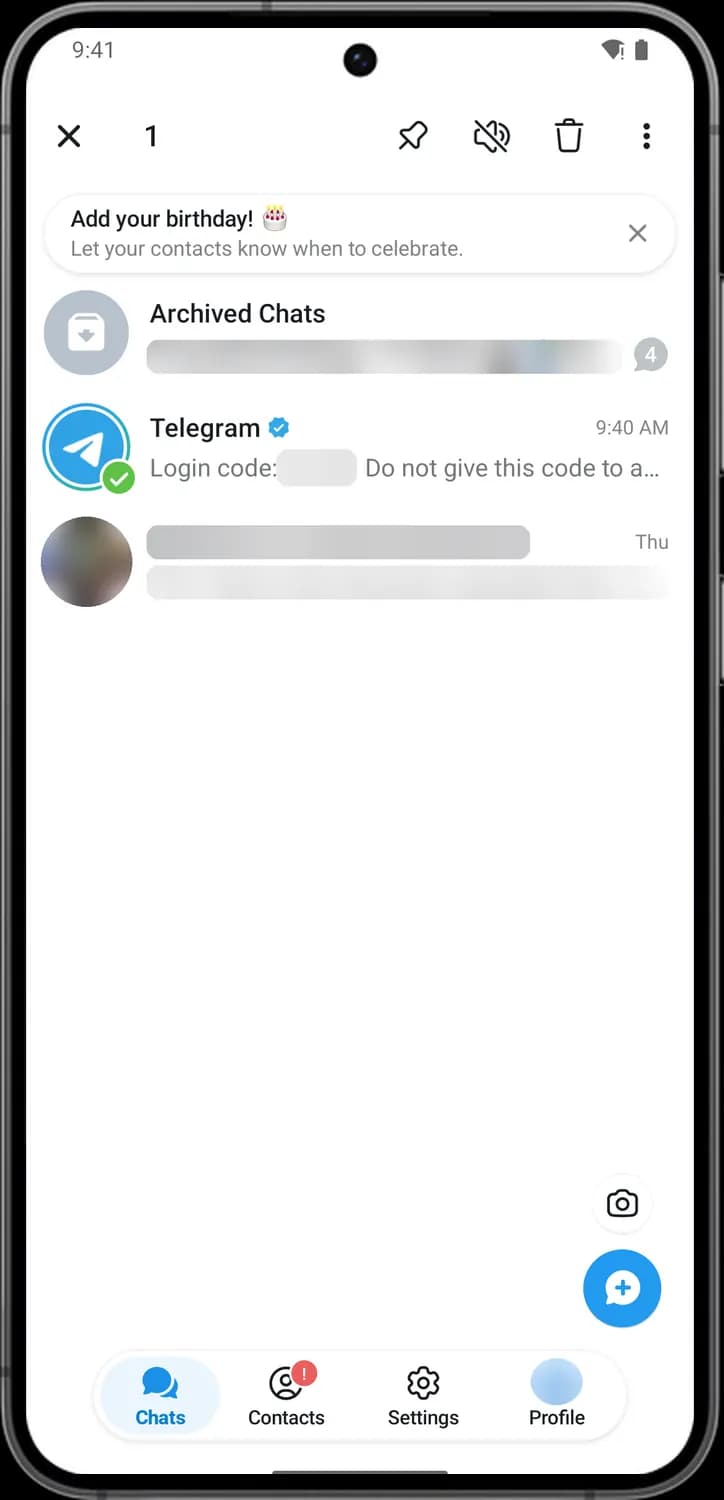
Tap the three dots on the chat list for a quick menu, or long-press any chat to select it and get a bar of actions at the top.
More options menu

Night Mode
The moon. Switches Telegram to its dark theme. Tap it again to go back to the light theme.

New Group
The two people. Starts a new group: pick the members, then give the group a name.

Saved Messages
The bookmark. Opens Saved Messages, your private chat with yourself for notes, links and files.
After a long-press on a chat

Close selection
The X. Clears the selection and puts the normal top bar back.

Selected chat
A green check mark on a chat's picture means it is selected. Tap other chats to select them too, and the number at the top counts them.

Pin to top
The pin. Keeps the selected chat at the top of your list, above newer chats. Tap it again on a pinned chat to unpin it.

Mute
The speaker with a line through it. Turns off notifications for the selected chat. On a muted chat the same button unmutes it.

Delete
The trash can. Deletes the selected chat. Telegram asks you to confirm first.

More actions
The three dots in the selection bar. Opens a menu with Mark as unread and Clear History.
Its More options menu
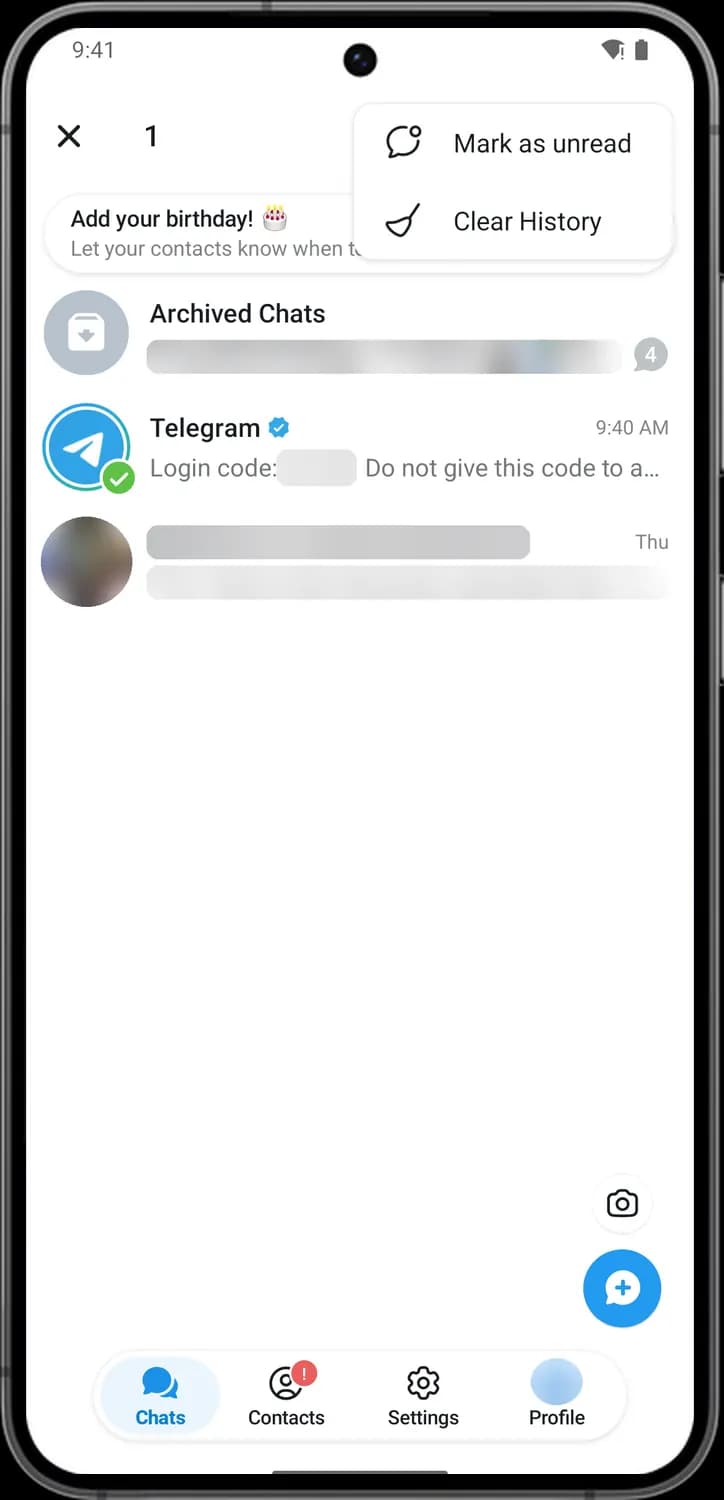

Mark as unread
The speech bubble with a dot. Marks the chat as unread so it stands out in your list until you open it again.

Clear History
The broom. Deletes all the messages in the chat but keeps the chat in your list. Telegram asks you to confirm.
Inside a chat
Open any chat to see its top bar and the message box at the bottom. These screenshots show Saved Messages, your own cloud storage chat, but the icons are the same in other chats.
Top bar and message box
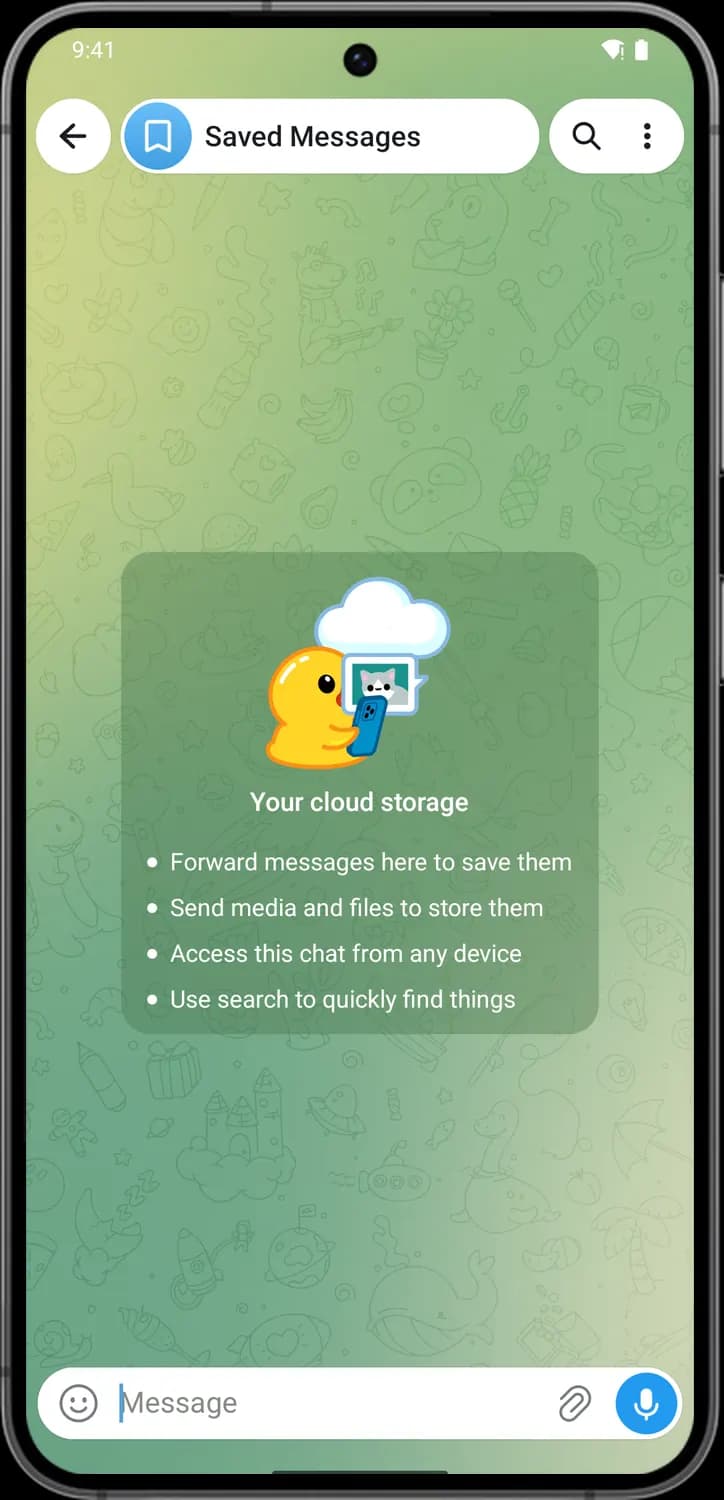

Back
The arrow. Takes you back to the chat list.

Chat name and picture
The bookmark picture and the chat name. Tap it to open the chat's info page with its shared photos, files and links.

Search in chat
The magnifying glass. Searches the messages in this chat only.

More options
The three dots. Opens a menu with Change Wallpaper, Add to Home Screen, Clear History and Delete Chat.

Emoji, stickers and GIFs
The smiley face. Opens the panel with emoji, GIFs and stickers in place of the keyboard.

Attach media
The paper clip. Opens the attach menu to send photos, videos, files, your location, a poll or a contact.

Record voice message
The microphone. Press and hold it to record a voice message and let go to send. A quick tap switches it to a round video message.
More options menu
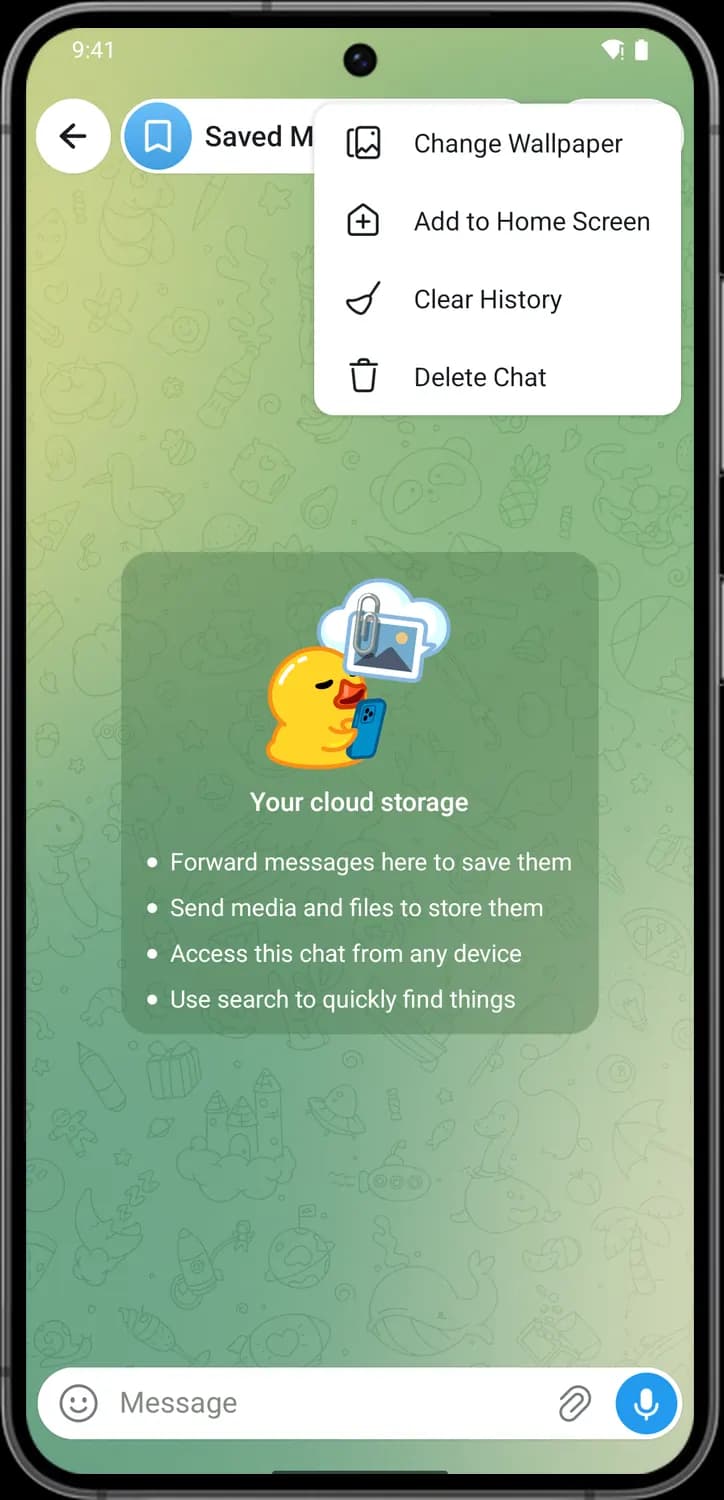

Change Wallpaper
The picture frame. Lets you pick a new background for this chat.

Add to Home Screen
The house with a plus. Puts a shortcut to this chat on your phone's home screen.

Clear History
The broom. Deletes every message in the chat but keeps the chat itself.

Delete Chat
The trash can. Removes the chat and its messages. Telegram asks you to confirm.
Attach menu
Tap the paper clip in the message box to open this sheet. The row of tabs at the bottom picks what you want to send.
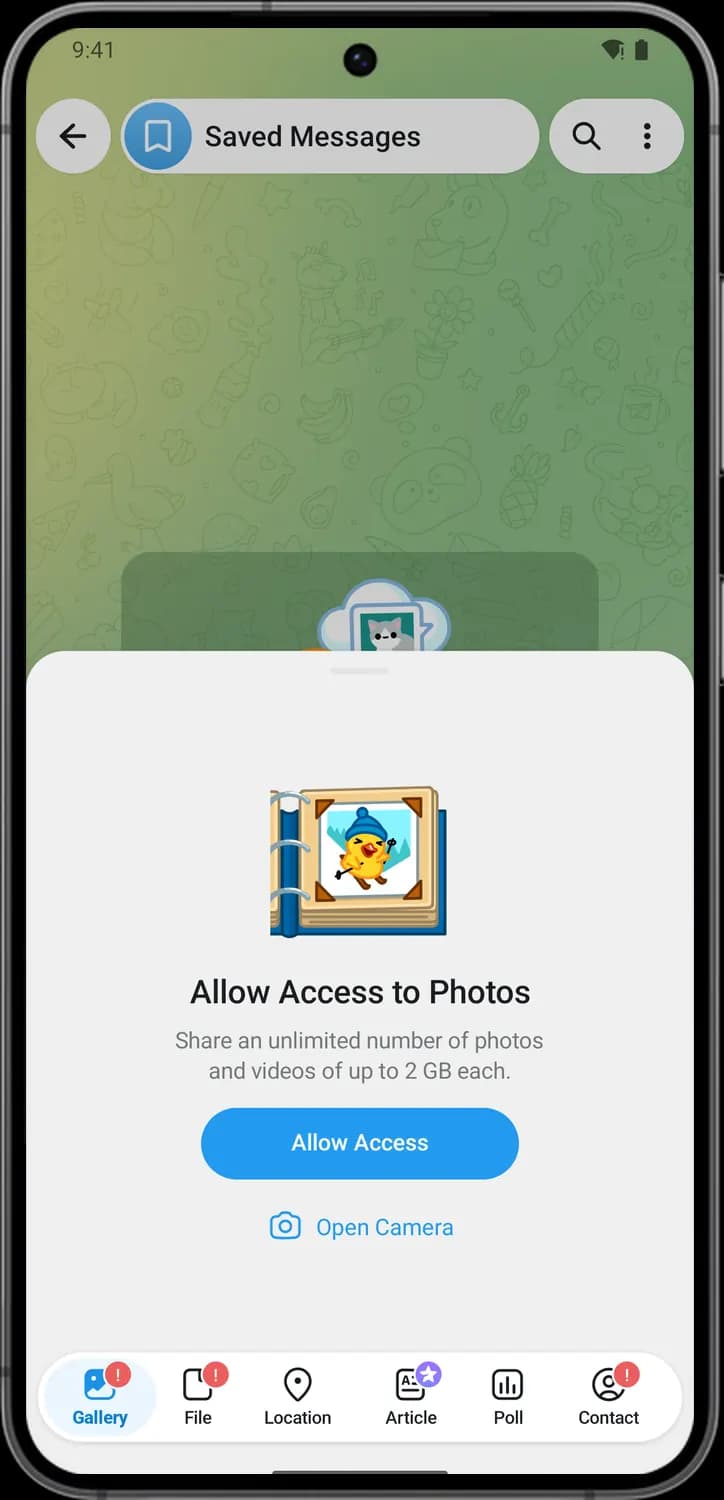

Open Camera
The camera. Opens the camera so you can take a photo or video and send it right away.

Gallery
The picture icon. Shows the photos and videos on your phone so you can pick some to send. The red mark means Telegram does not have access to your photos yet.

File
The page icon. Sends any file from your phone, like a PDF or a document, without compressing it.

Location
The map pin. Shares your current location or a place you pick on the map, or your live location for a set time.

Poll
The bar chart. Creates a poll with a question and answers that others can vote on.

Contact
The person in a circle. Shares a contact card from your phone's contacts.
Emoji, stickers and GIFs
Tap the smiley face in the message box and the keyboard turns into this panel. The bar on top jumps between emoji categories, and the tabs at the bottom switch to GIFs and stickers.
Categories
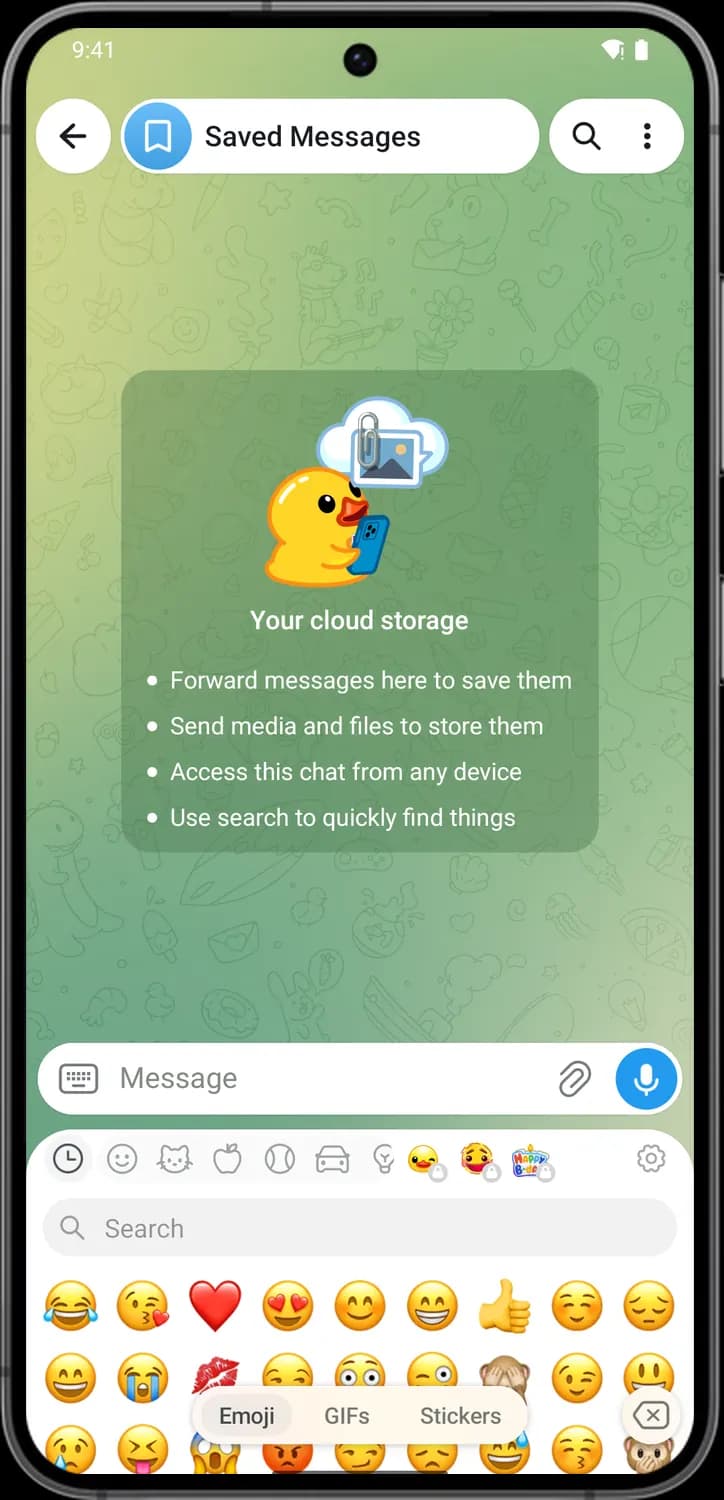

Keyboard
The keyboard icon takes the smiley's place while the panel is open. Tap it to bring your keyboard back.

Recently Used
The clock. Shows the emoji you used most recently.

Emoji and people
The smiley. Jumps to faces, gestures and people.

Animals and nature
The cat. Jumps to animals, plants and weather.

Food and drink
The apple. Jumps to food and drink emoji.

Activity
The ball. Jumps to sports, games and hobbies.

Travel and places
The car. Jumps to vehicles, buildings and places.
Packs, search and backspace
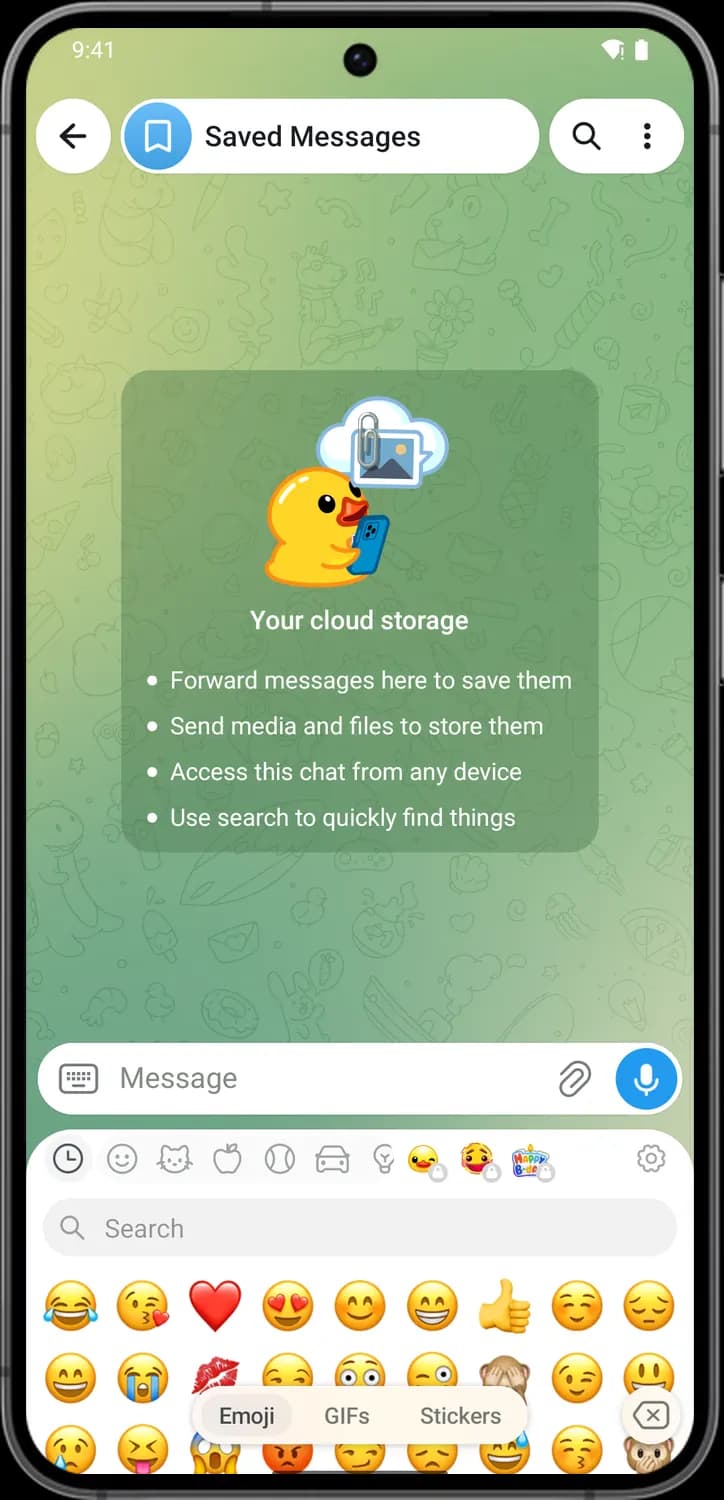

Objects
The light bulb. Jumps to everyday objects. Swipe the bar to reach symbols and flags.

Custom emoji packs
The animated emoji with a small lock. These are custom emoji packs, and the lock means you need Telegram Premium to send them.

Emoji settings
The gear. Opens the Stickers and Emoji settings, where you manage your packs and suggestions.

Search emoji
The magnifying glass. Type a word to find matching emoji.

Backspace
The arrow with an X. Deletes the last character or emoji in your message.
Emoji, GIFs and stickers tabs
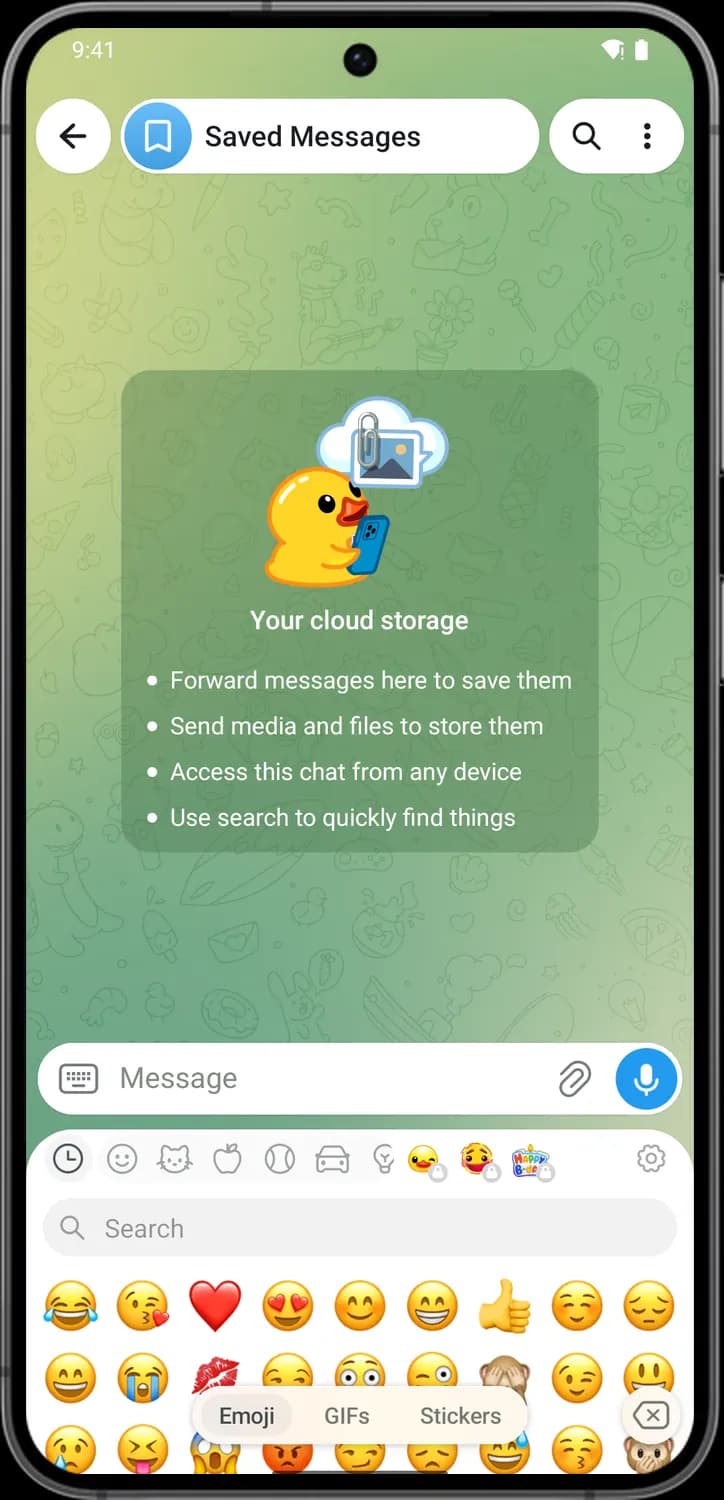

Emoji tab
Shows the emoji grid. This is the tab that is open here.

GIFs tab
Switches the panel to GIFs, with trending ones first and a search box to find more.

Stickers tab
Switches the panel to your stickers and lets you find new sticker packs.
Message actions
Tap a message to get reactions and a menu. Long-press it instead to select it, and you can then tap more messages to act on all of them at once.
After a tap on a message
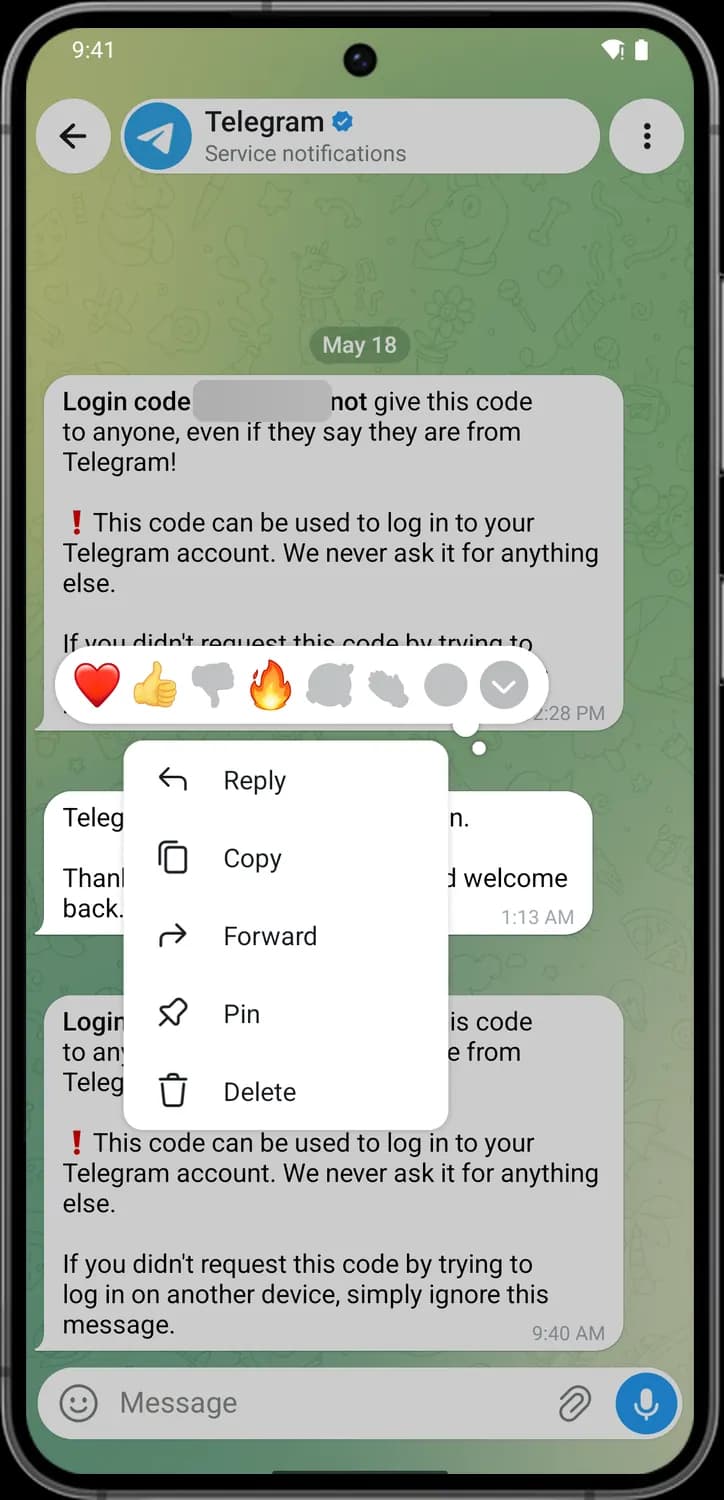

Reactions
The row of emoji above the menu. Tap one to react to the message, and it shows up under the message for everyone in the chat.

Expand panel
The arrow at the end of the reactions. Opens the full list of emoji you can react with.

Reply
The curved arrow pointing left. Quotes this message in your answer so everyone knows what you are replying to.

Copy
The two squares. Copies the message text so you can paste it somewhere else.

Forward
The arrow pointing right. Sends a copy of the message to another chat. You pick the chat next.

Pin
The pin. Pins the message to the top of the chat so it is easy to find later.

Delete
The trash can. Deletes the message. In chats with other people you can choose to delete it for them too.
After a long-press on a message
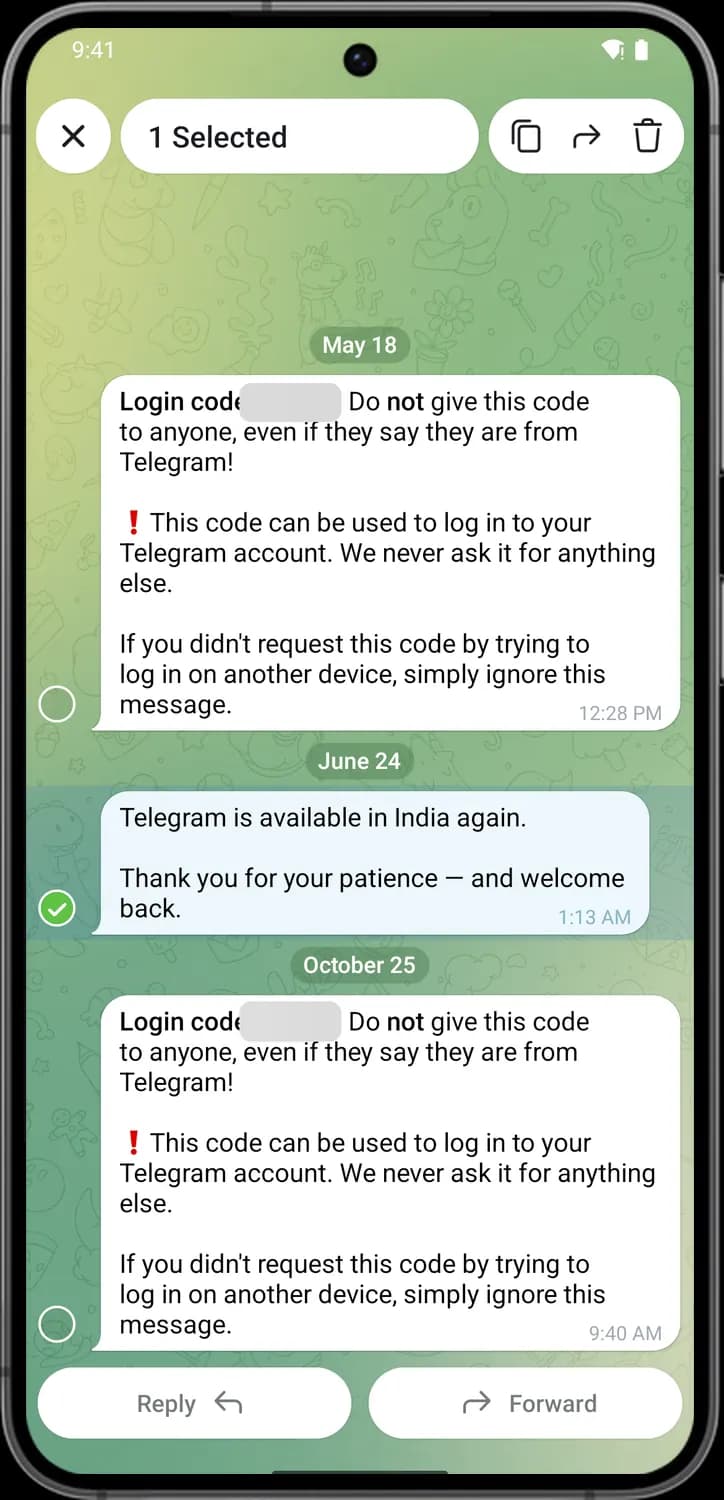

Close selection
The X. Clears the selection and puts the normal top bar back.

Copy selected
The two squares in the top bar. Copies the text of every selected message.

Forward selected
The arrow in the top bar. Forwards all the selected messages to another chat.

Delete selected
The trash can in the top bar. Deletes all the selected messages.

Selected message
The green check mark on the left. That message is selected. Tap the empty circle next to other messages to add them.

Reply to selected
The Reply button at the bottom. Starts a reply that quotes the selected message.
New message
Tap the round blue button on the chat list to get here. Pick a contact to start a chat, or create a group or a channel.
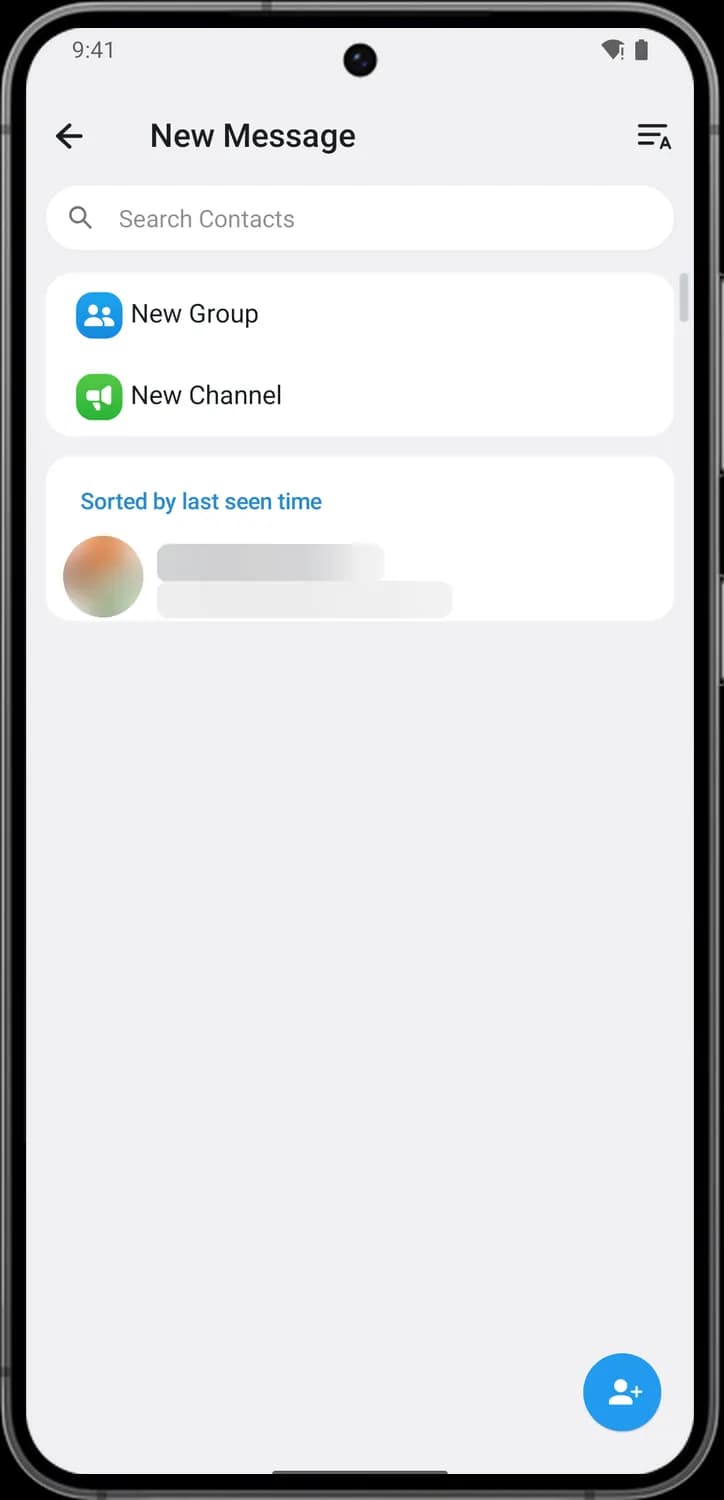

Back
The arrow. Closes New Message and takes you back to your chats.

Change sorting
The lines with a letter A. Switches the contact list between sorting by last seen time and sorting by name.

Search Contacts
The magnifying glass. Type a name or username to find a contact, or anyone on Telegram with a public username.

New Group
The blue icon with two people. Starts a group chat: choose the members, then name the group.

New Channel
The green megaphone. Creates a channel, where only you (and admins you add) post and everyone else follows along.

Create New Contact
The person with a plus. Adds a new contact by name and phone number.
Contacts
The Contacts tab lists everyone in your contacts who uses Telegram. It shares the sorting button, search bar and add-contact button with the New Message screen above.
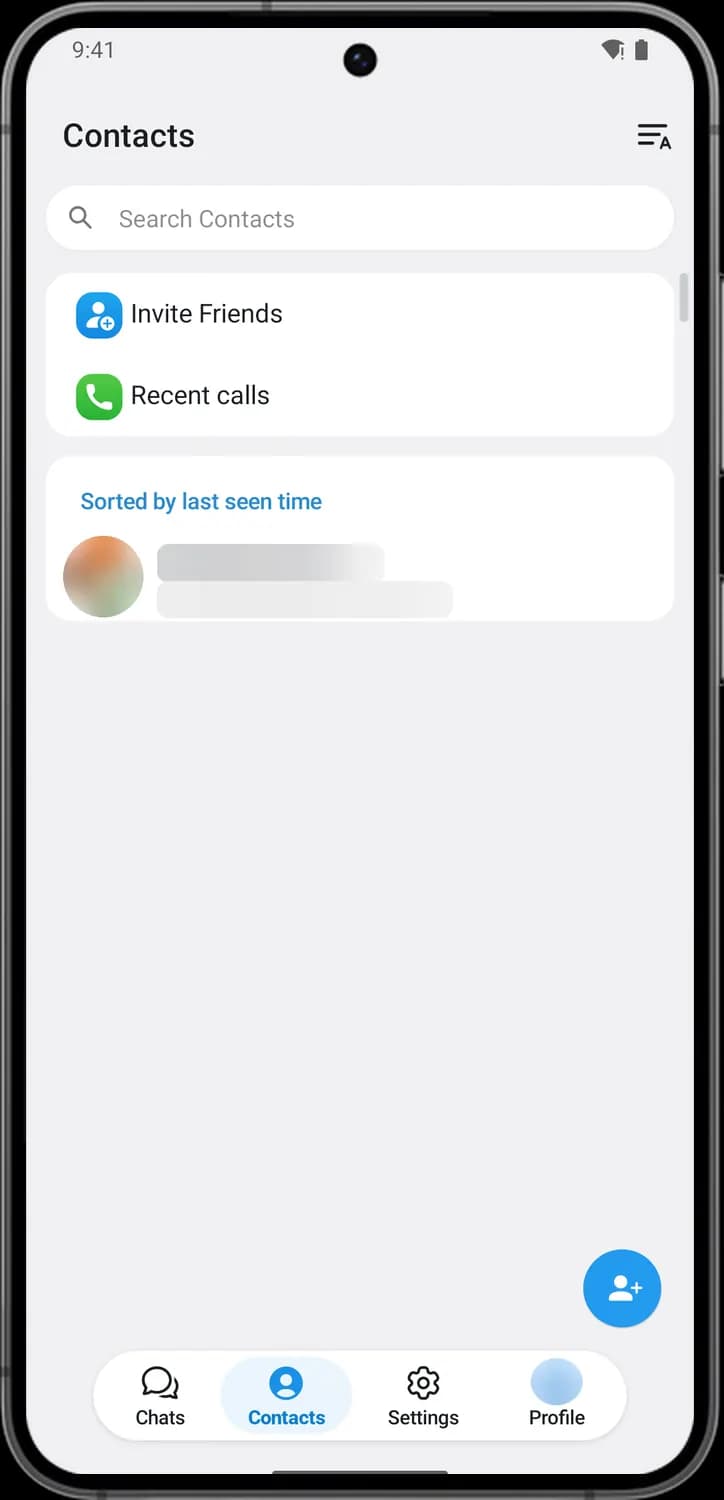

Invite Friends
The blue icon with a person and a plus. Sends an invite link to friends who are not on Telegram yet.

Recent calls
The green phone. Shows your recent Telegram voice and video calls, and lets you start a new call.
Settings
Tap the gear in the tab bar. Your name and number sit at the top, followed by the main settings, Telegram's paid extras and the Help section.
Top bar and number check
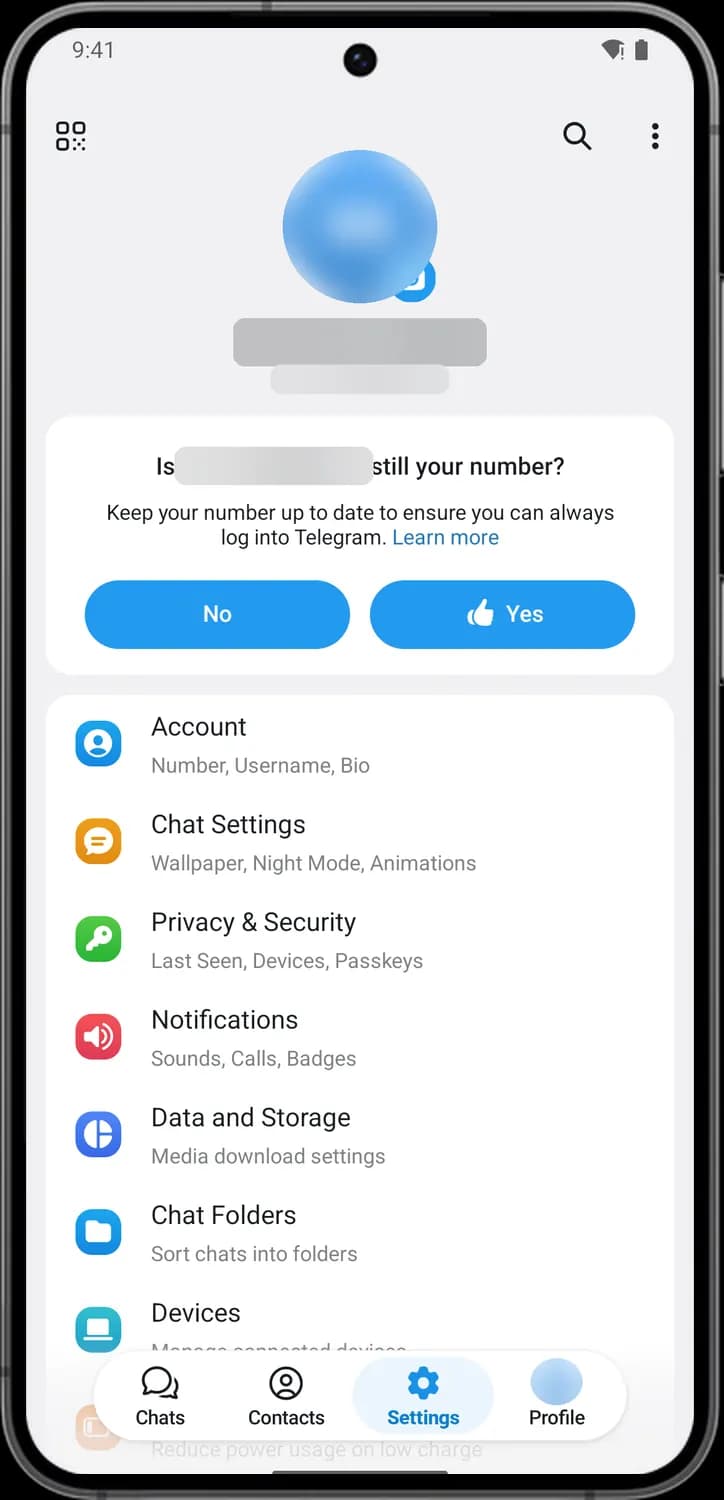

QR Code
The square pattern. Shows a QR code for your profile that someone can scan to find you on Telegram.

Search settings
The magnifying glass. Searches all the settings and Telegram's FAQ.

More options
The three dots. Opens a menu with options for your account, including Log Out.

No
On the "still your number?" card. Tap it if your phone number has changed, and Telegram takes you to change it.

Yes
The thumbs up on the same card. Confirms the number is still yours and hides the card.
Main settings
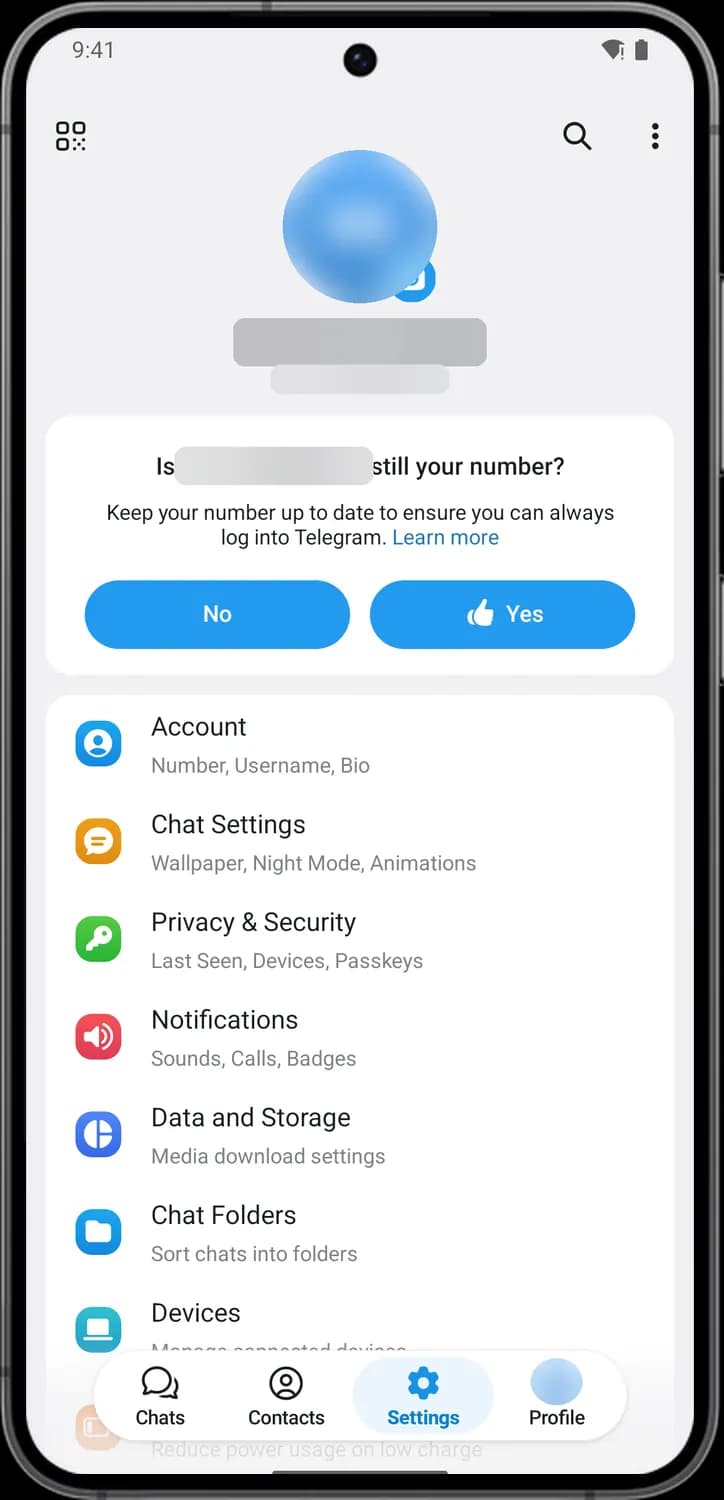

Account
The blue person icon. Your phone number, username, bio and birthday.

Chat Settings
The orange speech bubble. Text size, wallpaper, themes, night mode and animations.

Privacy & Security
The green key. Who can see your last seen, phone number and photo, plus passcode lock, two-step verification and blocked users.

Notifications
The red speaker. Sounds and alerts for private chats, groups and channels, calls and the badge count.

Data and Storage
The blue pie chart. How much space Telegram uses, when media downloads on its own, and proxy settings.

Chat Folders
The blue folder. Sorts chats into folders such as Unread or Personal, which show as tabs on your chat list.
More settings
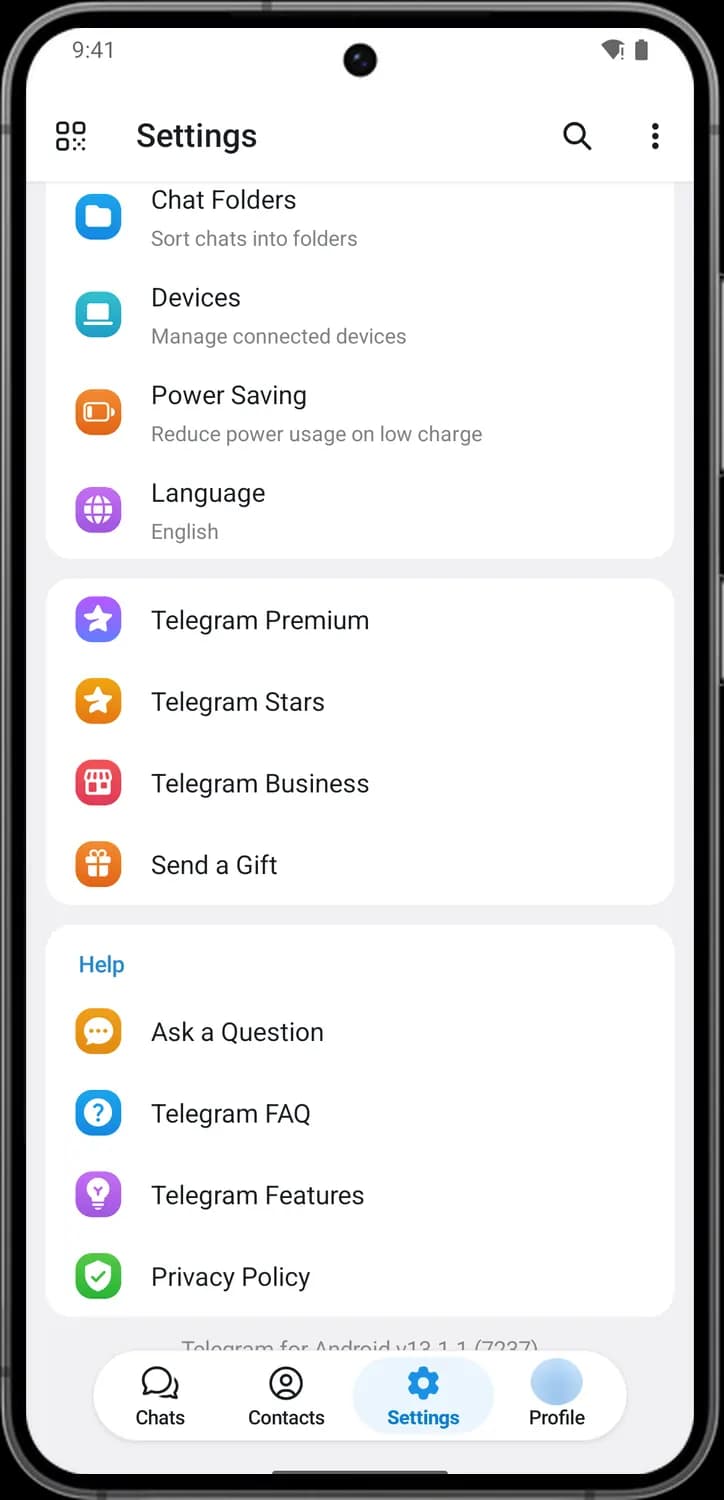

Devices
The teal laptop. Shows every phone and computer signed in to your account, lets you sign them out, and links a desktop app by QR code.

Power Saving
The orange battery. Turns off animations and autoplay to save battery, on its own when the charge gets low.

Language
The purple globe. Changes the language of the Telegram app.

Telegram Premium
The purple star. Shows what the paid Premium plan adds, like bigger uploads, faster downloads and voice-to-text, and lets you subscribe.

Telegram Stars
The orange star. Your balance of Stars, Telegram's in-app currency for paying bots, sending gifts and reacting with paid reactions.

Telegram Business
The red shop. Business tools for Premium users, like opening hours, a location, greeting messages and quick replies.

Send a Gift
The orange gift box. Sends a gift or a Premium subscription to one of your contacts.
Help
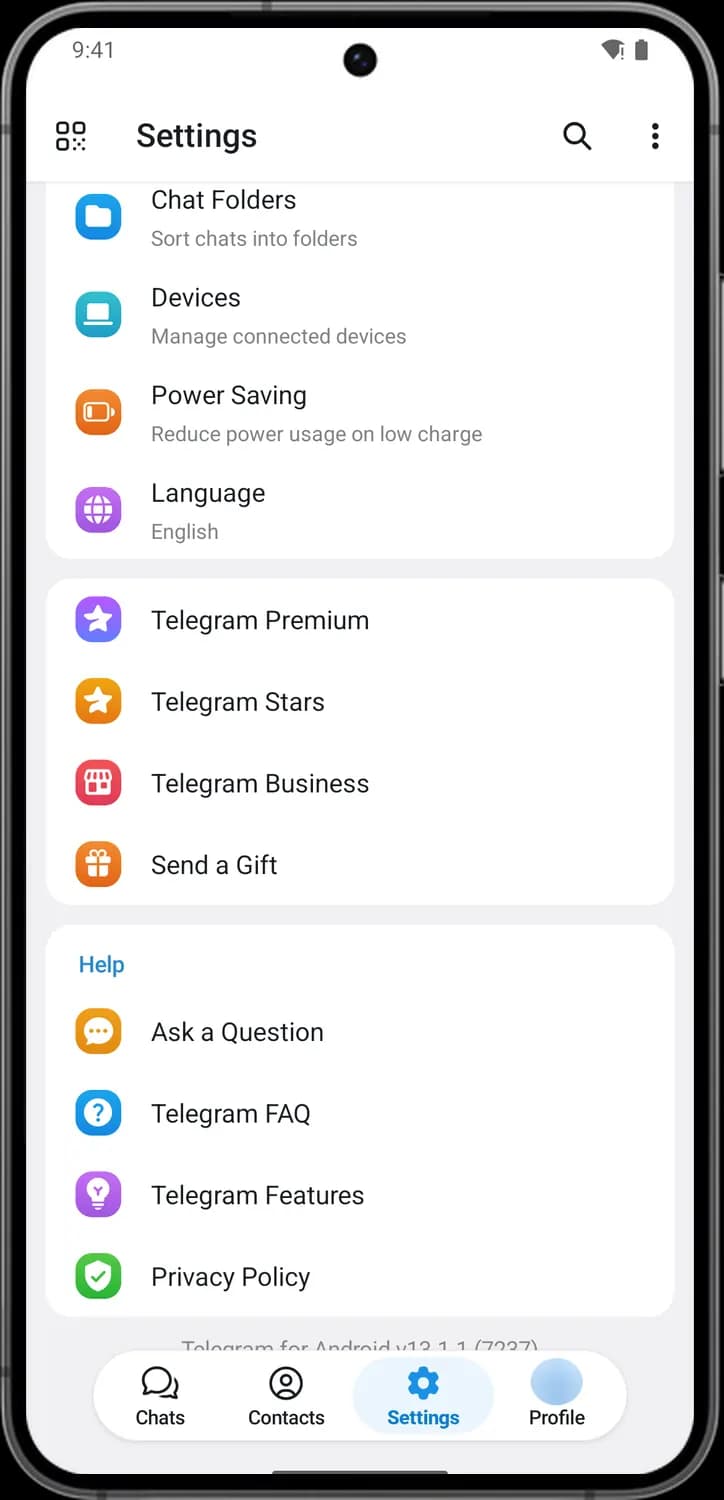

Ask a Question
The orange speech bubble with dots. Starts a chat with Telegram's volunteer support team.

Telegram FAQ
The blue question mark. Opens Telegram's list of frequently asked questions.

Telegram Features
The purple light bulb. Opens Telegram's tips channel, with short posts that show off features.

Privacy Policy
The green shield. Opens Telegram's privacy policy.
Profile
The Profile tab shows your own profile the way others see it, with buttons to change it and a place for your posts.
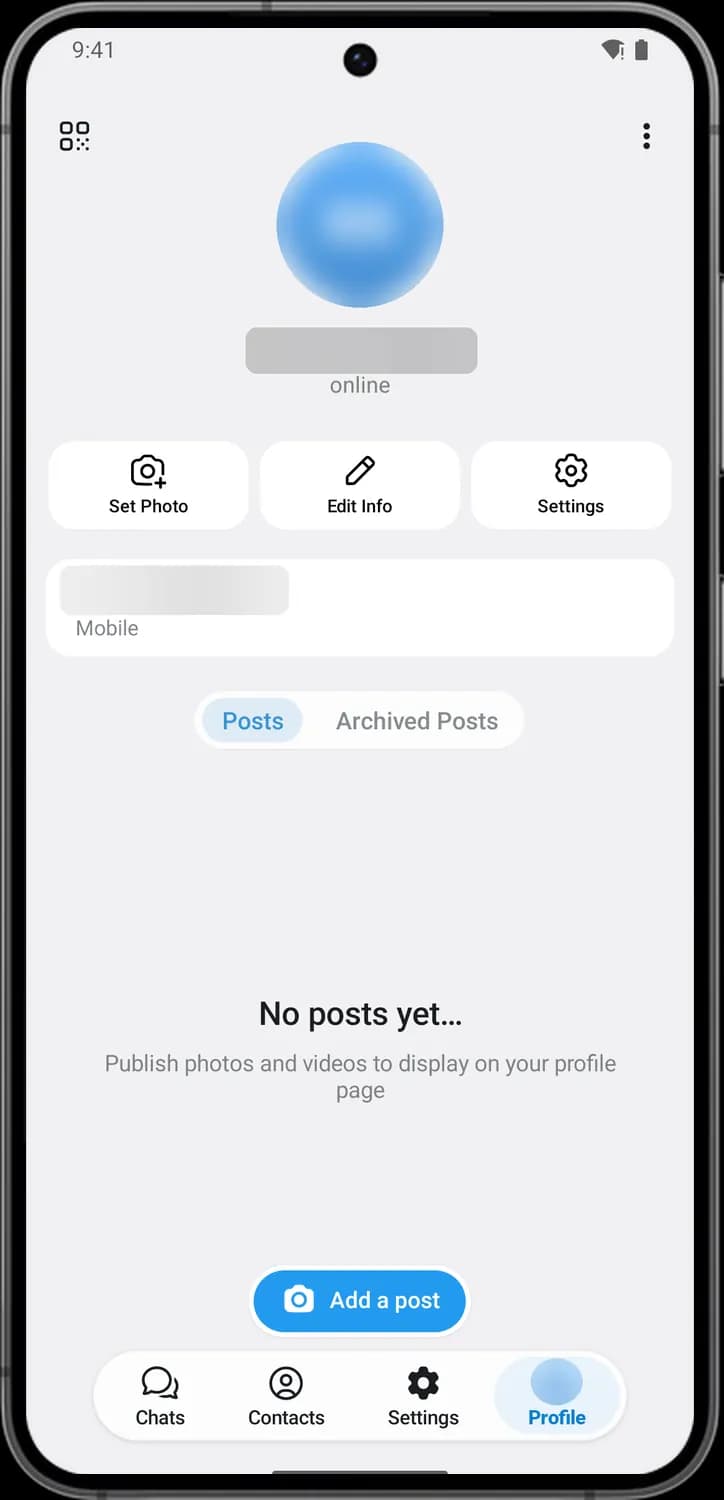

Set Photo
The camera with a plus. Adds a profile photo or video from your gallery or the camera.

Edit Info
The pencil. Changes your name, bio, birthday and other profile details.

Settings shortcut
The gear. Opens Settings, the same page as the Settings tab.

Add a post
The camera button. Lets you post a photo or video to your profile page, like a story that stays there.
Those are the meanings of Telegram icons and symbols. Telegram adds new features with almost every update, so we update this guide every time the icons change, and you can bookmark this page to stay updated. These screens are from Telegram for Android, and most icons mean the same thing on iPhone. For more icon guides, you can also visit our TechPP icon guides.
Comments
0Share your thoughts, questions, or feedback about this guide.