
Complete Realme secret codes list (2026)
Last updated: October 10, 2026
Realme phones hide dialer codes for checking firmware, running hardware tests and reading network details. Most hardware tests live inside one engineering menu, *#899#, and many of the other codes only work on older Realme UI versions, so the groups below mark which ones are legacy.
Open the Phone app, go to the keypad and type the code. Codes vary by model and Realme UI version, so if one does nothing, your phone doesn't support it. New to this? Follow the step-by-step guide.
Device information
| Code | What it does | Copy |
|---|---|---|
| *#06# | Display IMEI number | |
| *#66# | Display IMEI with barcode | |
| *#07# | Show SAR/RF exposure information | |
| *#1234# | Show firmware or software version | |
| *#6776# | Display Android version, kernel, OTA and baseband details | |
| *#888# | Show motherboard PCB number and QR code | |
| *#*#1234#*#* | Alternative firmware information code on older devices | |
| *#*#225#*#* | Show Google Calendar information | |
| *#*#426#*#* | Open Firebase Cloud Messaging diagnostics | |
| *#*#3932433284#*#* | Display device region information | |
| *#*#3264#*#* | Display legacy RAM hardware version |
Hardware testing
| Code | What it does | Copy |
|---|---|---|
| *#899# | Open AfterSale Engineering Mode and hardware diagnostics | |
| *#808# | Open manual engineering hardware tests | |
| *#807# | Run automatic hardware tests on older models | |
| *#806# | Open engineering aging or endurance test mode | |
| *#800# | Open feedback and troubleshooting tool | |
| *#802# | Run GPS TTFF (time to first fix) tests | |
| *#803# | Open Wi-Fi test mode | |
| *#804# | Open VirtualComm settings | |
| *#805# | Open Bluetooth engineering mode | |
| *#809# | Open camera test mode | |
| *#9434# | Open commercial engineering menu or check engineering access | |
| *#36446337# | Open engineering tests on older MediaTek-based models | |
| *#*#3646633#*#* | Legacy MediaTek engineering interface |
Display, touchscreen and sensors
Unlike Samsung, Realme generally uses a single engineering menu for most hardware tests rather than a separate dialer code for each sensor.
| Code | What it does | Copy |
|---|---|---|
| *#899# | Test screen colors, touch responsiveness and sensors | |
| *#808# | Open individual display and sensor tests on older models | |
| *#99# | Enable or disable screen-always-on testing on older software | |
| *#*#2664#*#* | Legacy Android touchscreen test | |
| *#*#2663#*#* | Legacy touchscreen controller information | |
| *#*#0588#*#* | Legacy proximity sensor test | |
| *#*#0842#*#* | Legacy vibration and backlight test | |
| *#*#64663#*#* | Generic factory hardware testing code on certain older Android builds |
Camera, audio and vibration
| Code | What it does | Copy |
|---|---|---|
| *#899# | Test cameras, microphone, speakers and vibration | |
| *#809# | Open legacy camera testing mode | |
| *#800# | Capture and submit camera or audio bug reports | |
| *#*#34971539#*#* | Legacy Android camera firmware information | |
| *#*#0673#*#* | Legacy audio output test | |
| *#*#0289#*#* | Legacy melody/audio test | |
| *#*#0283#*#* | Legacy audio loopback test | |
| *#*#0842#*#* | Legacy vibration motor and backlight test |
Network, SIM and cellular testing
| Code | What it does | Copy |
|---|---|---|
| *#*#4636#*#* | Android phone, network and usage information on older builds | |
| *#899# | Hardware and network diagnostics | |
| *#36446337# | Older MediaTek engineering and network tests | |
| *#9434# | Commercial engineering settings | |
| *#*#7262626#*#* | Legacy GSM field test | |
| *#7465625# | Legacy SIM/network lock status menu | |
| *#268# | Qualcomm-related service settings on certain older devices | |
| *#*#828282#*#* | Telecom developer menu reported on selected Realme builds |
Wi-Fi, Bluetooth and GPS
| Code | What it does | Copy |
|---|---|---|
| *#803# | Open Wi-Fi diagnostics | |
| *#805# | Open Bluetooth engineering test | |
| *#802# | Test GPS time to first fix | |
| *#899# | Access supported connectivity hardware tests | |
| *#*#232338#*#* | Legacy Wi-Fi MAC address information | |
| *#*#232339#*#* | Legacy Wi-Fi hardware test | |
| *#*#232331#*#* | Legacy Bluetooth hardware test | |
| *#*#232337#*#* | Legacy Bluetooth address information | |
| *#*#1472365#*#* | Legacy quick GPS test | |
| *#*#1575#*#* | Legacy advanced GPS test |
Battery and charging
| Code | What it does | Copy |
|---|---|---|
| *#899# | Open diagnostics, including available battery and charging hardware checks | |
| *#800# | Report battery drain, heating or charging issues | |
| *#*#4636#*#* | Legacy Android testing information; some older builds expose battery details |
Engineering, debugging and developer
These are advanced or legacy service codes. Some may change system settings. Reported functions.
| Code | What it does | Copy |
|---|---|---|
| *#800# | Feedback tool and diagnostic log collection | |
| *#899# | Main engineering and after-sales test mode | |
| *#9434# | Commercial engineering access | |
| *#*#83781#*#* | Alternative legacy engineering menu | |
| *#564# | Legacy logging settings | |
| *#643223# | Development settings menu on older builds | |
| *#8011# | ADB/debugging-related configuration | |
| *#9090# | Generic legacy diagnostic configuration | |
| *#*#759#*#* | Google RLZ debugging information | |
| *#*#8351#*#* | Enable legacy voice-dialing logs | |
| *#*#8350#*#* | Disable legacy voice-dialing logs | |
| *#*#197328640#*#* | Legacy Android service mode |
Region and special configuration
Reported functions.
| Code | What it does | Copy |
|---|---|---|
| *#*#3932433284#*#* | View region or country configuration | |
| *#*#39324#*#* | Open region-related unlock menu | |
| *#*#828282#*#* | Open telecom developer menu | |
| *#008# | Switch language to Chinese on some older builds | |
| *#99# | Toggle always-on screen test on older builds |
SIM and call forwarding
These are standard carrier service codes, not Realme-exclusive codes.
| Code | What it does | Copy |
|---|---|---|
| *#21# | Check unconditional call forwarding | |
| *#61# | Check forwarding when unanswered | |
| *#62# | Check forwarding when unreachable | |
| *#67# | Check forwarding when busy | |
| *#43# | Check call waiting status | |
| *43# | Enable call waiting | |
| #43# | Disable call waiting | |
| *#31# | Check caller ID restriction | |
| *#33# | Check outgoing call barring | |
| ##002# | Cancel call forwarding rules where supported | |
| **04*OLDPIN*NEWPIN*NEWPIN# | Change SIM PIN where supported |
Factory reset and data wipe
Warning: do not dial these codes just to test them. Reported functions; they can erase your phone.
| Code | What it does | Copy |
|---|---|---|
| *#*#2947322243#*#* | Legacy internal storage wipe | |
| *#*#947322243#*#* | Reported immediate data wipe | |
| *#*#7780#*#* | Legacy Android factory reset | |
| *2767*3855# | Legacy full reset/format code | |
| *#8778# | Factory reset on certain older Oppo/Realme builds | |
| *#*#46*#*#* | Reported SIM data reset |
Before you try a reset code: the codes in the last group can erase your phone, some without asking. Do not dial them just to test them. To reset a Realme phone safely, go to Settings, then Additional settings, then Back up and reset, after backing up your data.
How to use secret codes: step-by-step guide
Never used a dialer code before? It takes less than a minute, and you do not need to install anything or root your phone.
- 1
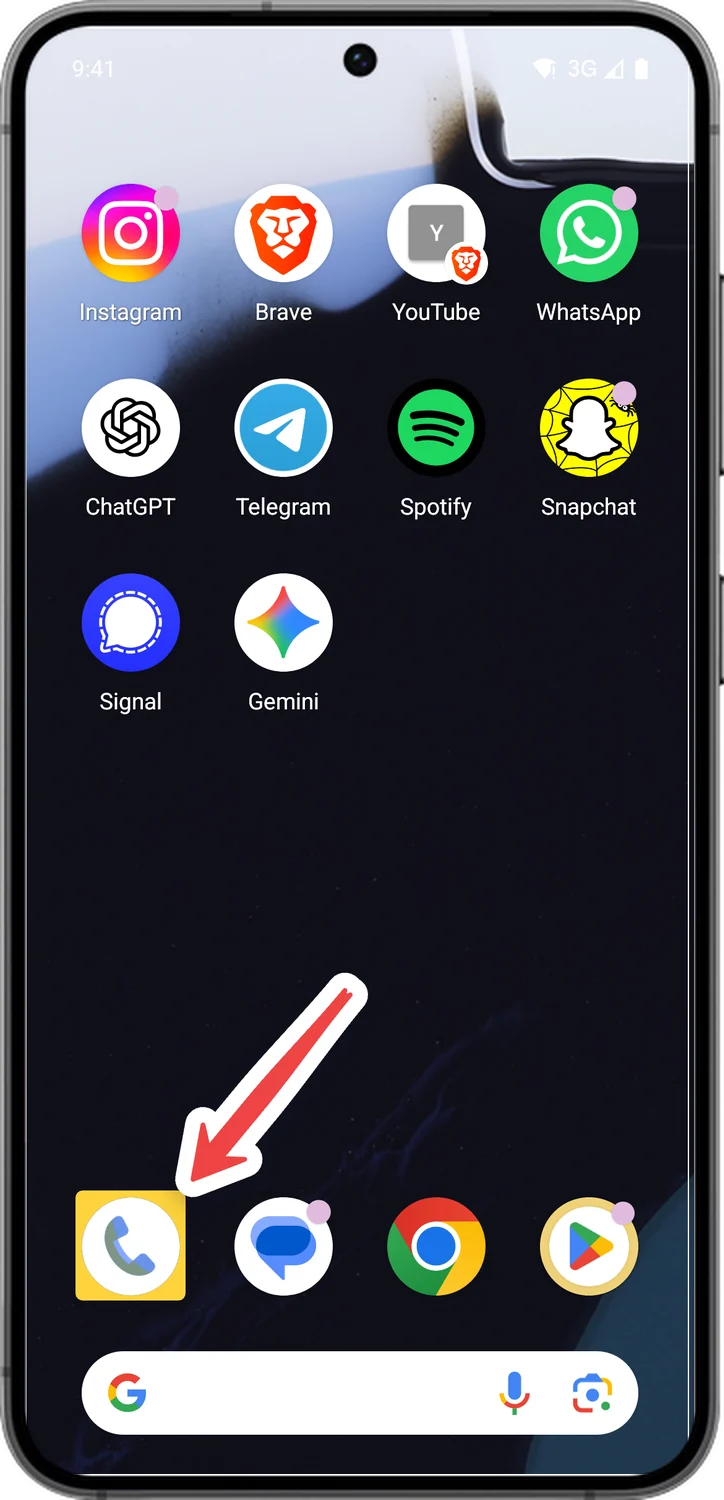
Open the Phone app
Tap the Phone app you use to make calls. It is usually in the dock at the bottom of your home screen.
- 2
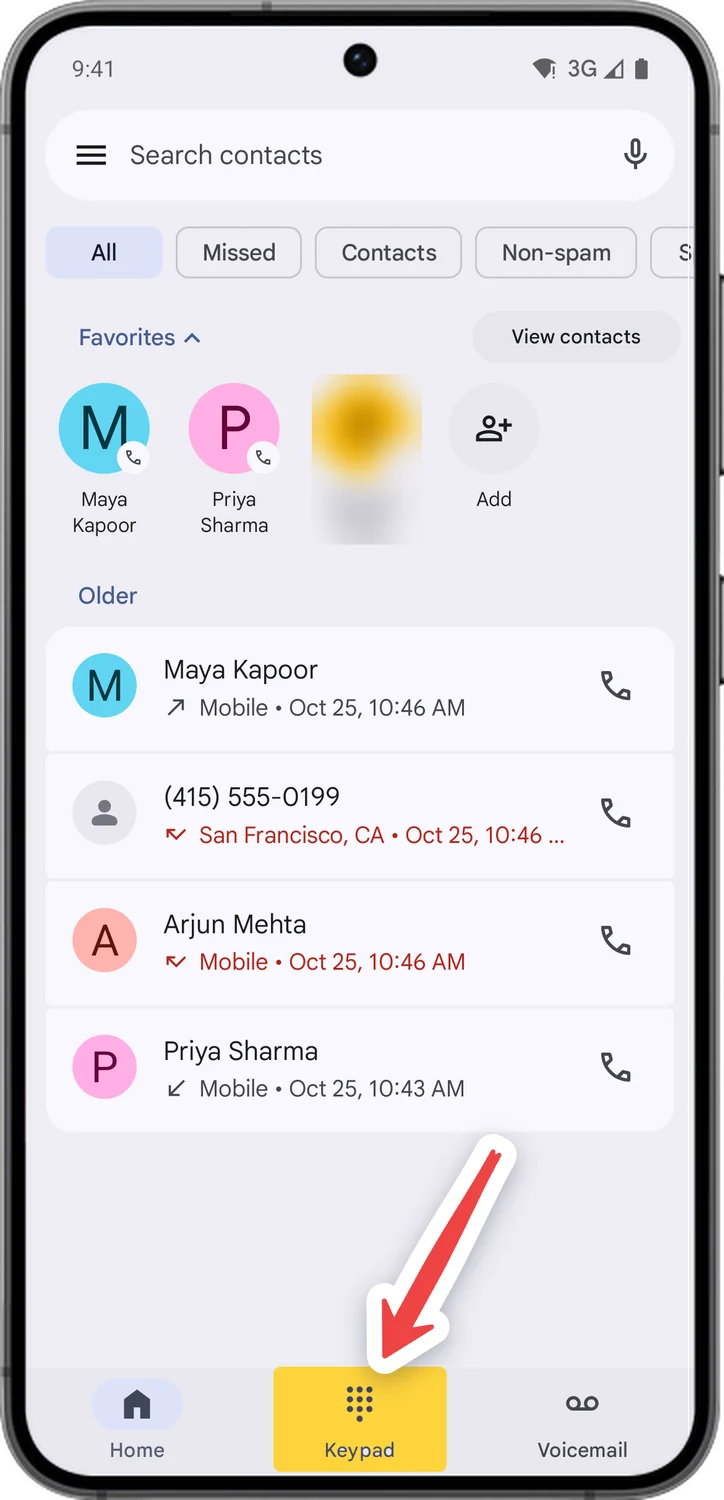
Open the keypad
Tap Keypad at the bottom. You should see the number buttons with * and # in the bottom row.
- 3
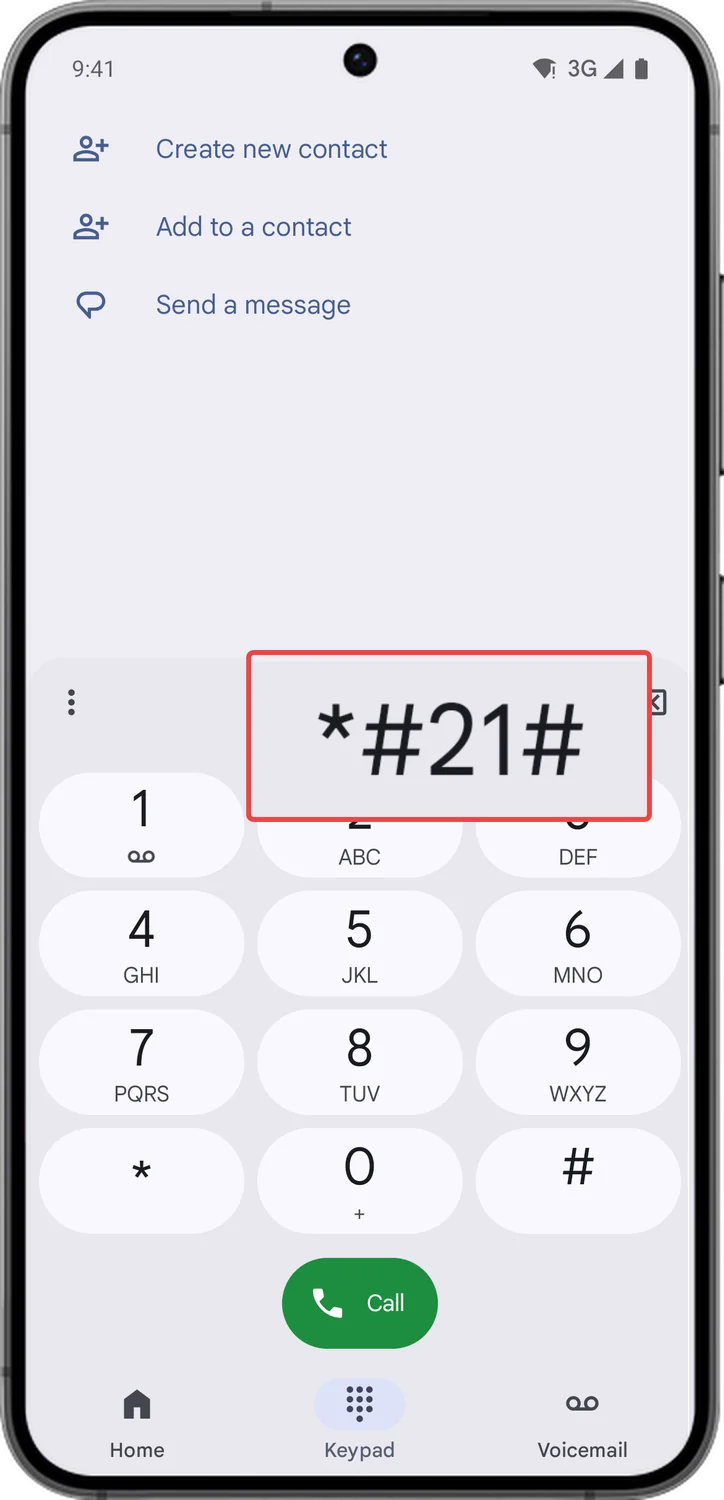
Type the code exactly as it appears
Type the code one key at a time, including every * and #. They sit on either side of 0. One wrong key and the code will not work.
- 4
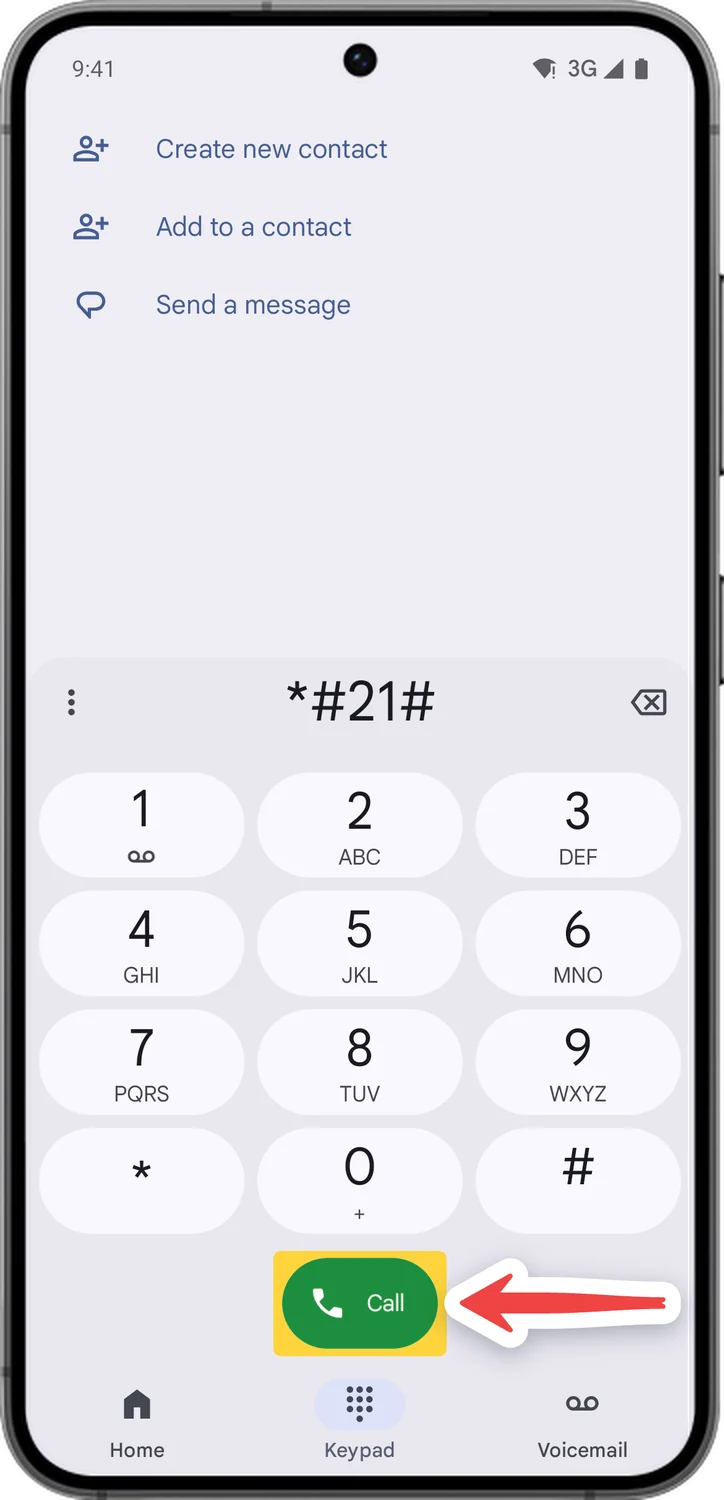
Press call if nothing happens
Most codes open on their own the moment you type the last #. Call forwarding and call waiting codes need the green Call button.
- 5
Read the screen, then go back
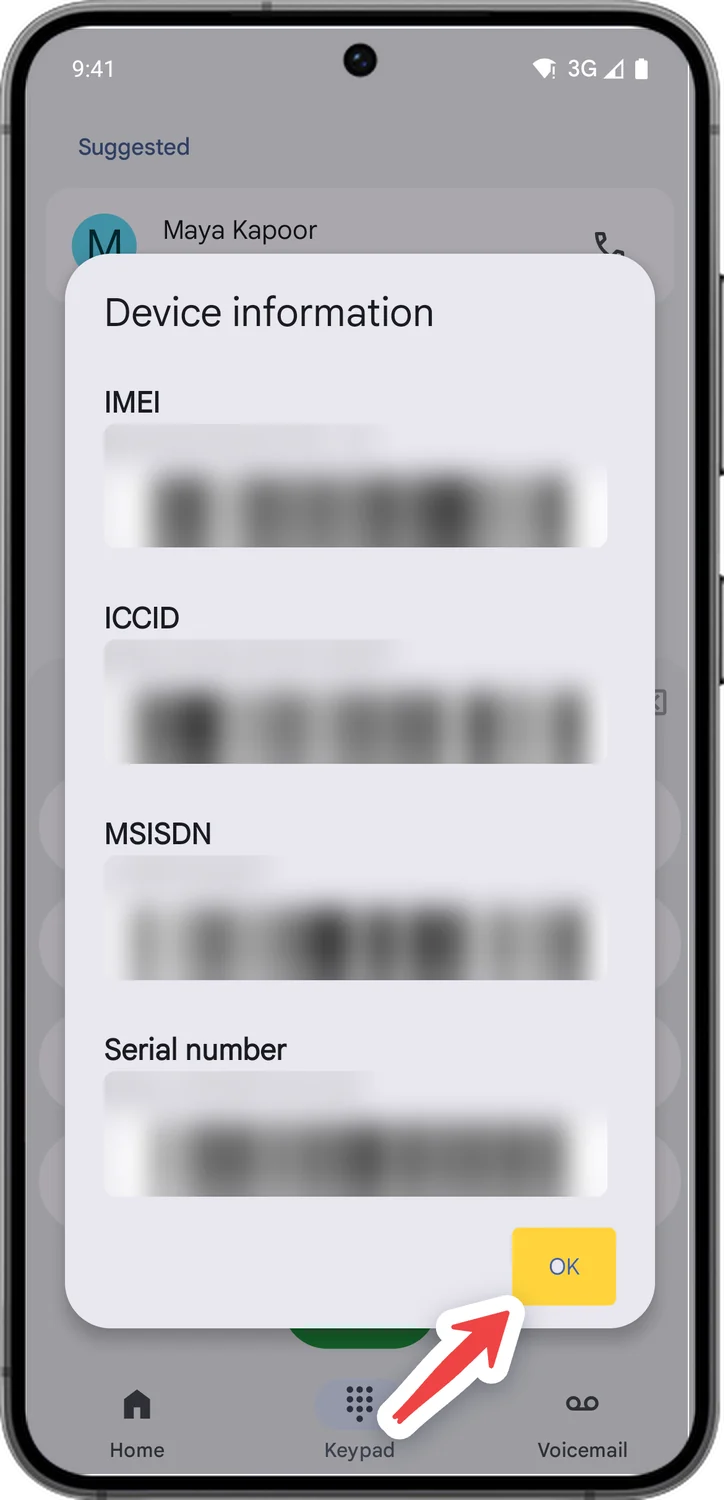
The result opens as a pop-up or a test menu. Read what you need, then tap OK or press Back. Nothing changes just by looking.
- Optional
Only if you would rather not type the code
6Paste a code instead of typing it
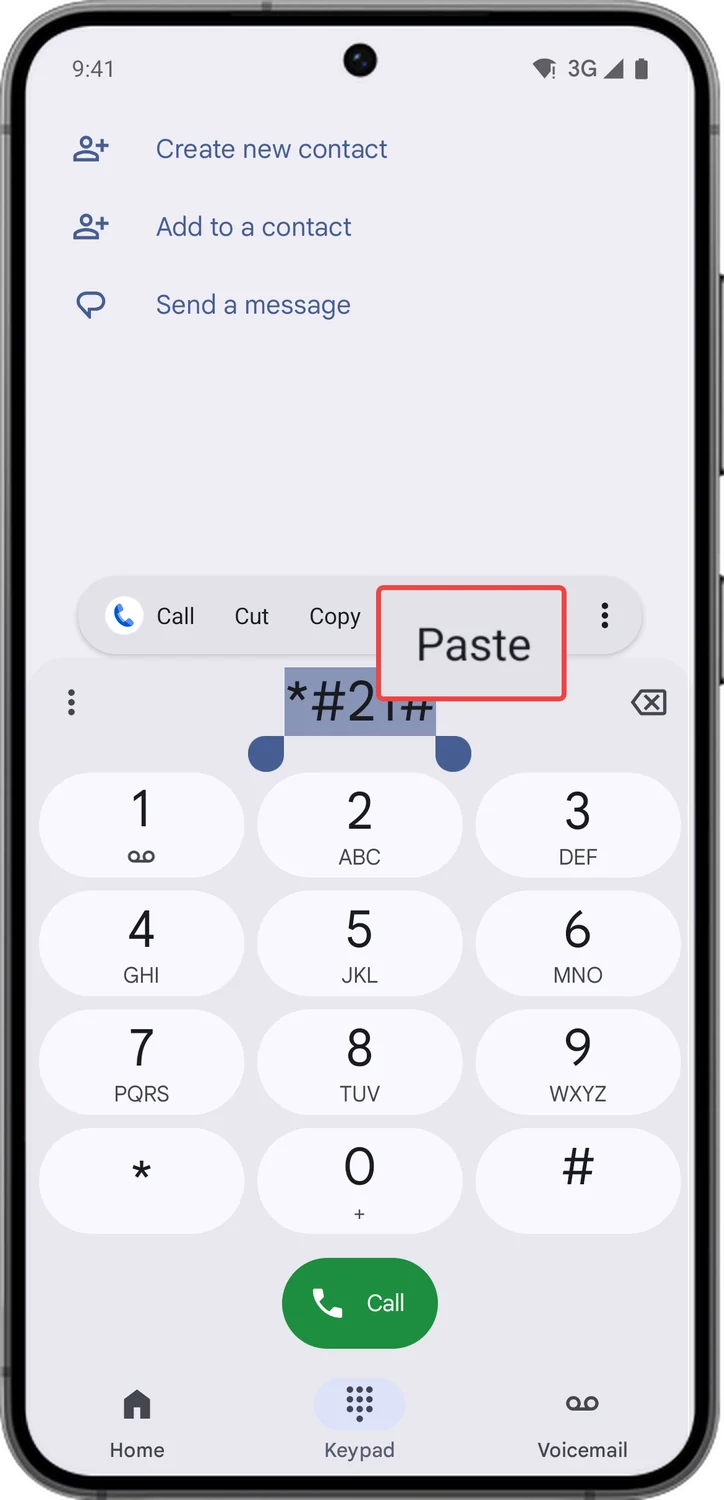
Tap Copy next to a code in the tables above, then tap and hold the number area on the keypad and choose Paste. If a pasted code does nothing, type it by hand.
Comments
0Share your thoughts, questions, or feedback about this guide.
Leave a Comment