
Complete Google Pixel secret codes list (2026)
Last updated: October 10, 2026
Google Pixel phones run close to stock Android, so they have fewer hidden codes than most brands. The most useful one is *#*#7287#*#*, which opens Google's official Pixel Repair Diagnostics for testing the screen, sensors, speakers and more.
Open the Phone app, go to the keypad and type the code. Codes vary by model and Android version, so if one does nothing, your phone doesn't support it. New to this? Follow the step-by-step guide.
Device information
| Code | What it does | Copy |
|---|---|---|
| *#06# | Display IMEI number | |
| *#07# | Display SAR and regulatory informationWhere supported | |
| *#*#4636#*#* | Open Android phone information and testing menu | |
| *#*#225#*#* | Display calendar storage information | |
| *#*#426#*#* | Open Google Play services and FCM diagnostics | |
| *#*#759#*#* | Open Google RLZ debug informationSupported builds | |
| *#*#7287#*#* | Open official Google Pixel Repair Diagnostics |
Hardware testing
Pixel Repair Diagnostics is Google's official test tool. The legacy codes come from older Android builds and may not open on current Pixels.
| Code | What it does | Copy |
|---|---|---|
| *#*#7287#*#* | Open Pixel Repair Diagnostics | |
| *#*#4636#*#* | Check network and phone status | |
| *#*#2664#*#* | Legacy Android touchscreen test | |
| *#*#0588#*#* | Legacy proximity sensor test | |
| *#*#0842#*#* | Legacy vibration and backlight test | |
| *#*#0283#*#* | Legacy audio loopback test | |
| *#*#0289#*#* | Legacy audio test | |
| *#*#64663#*#* | Factory hardware testing interfaceCertain non-Pixel Android builds |
How to use secret codes: step-by-step guide
Never used a dialer code before? It takes less than a minute, and you do not need to install anything or root your phone.
- 1
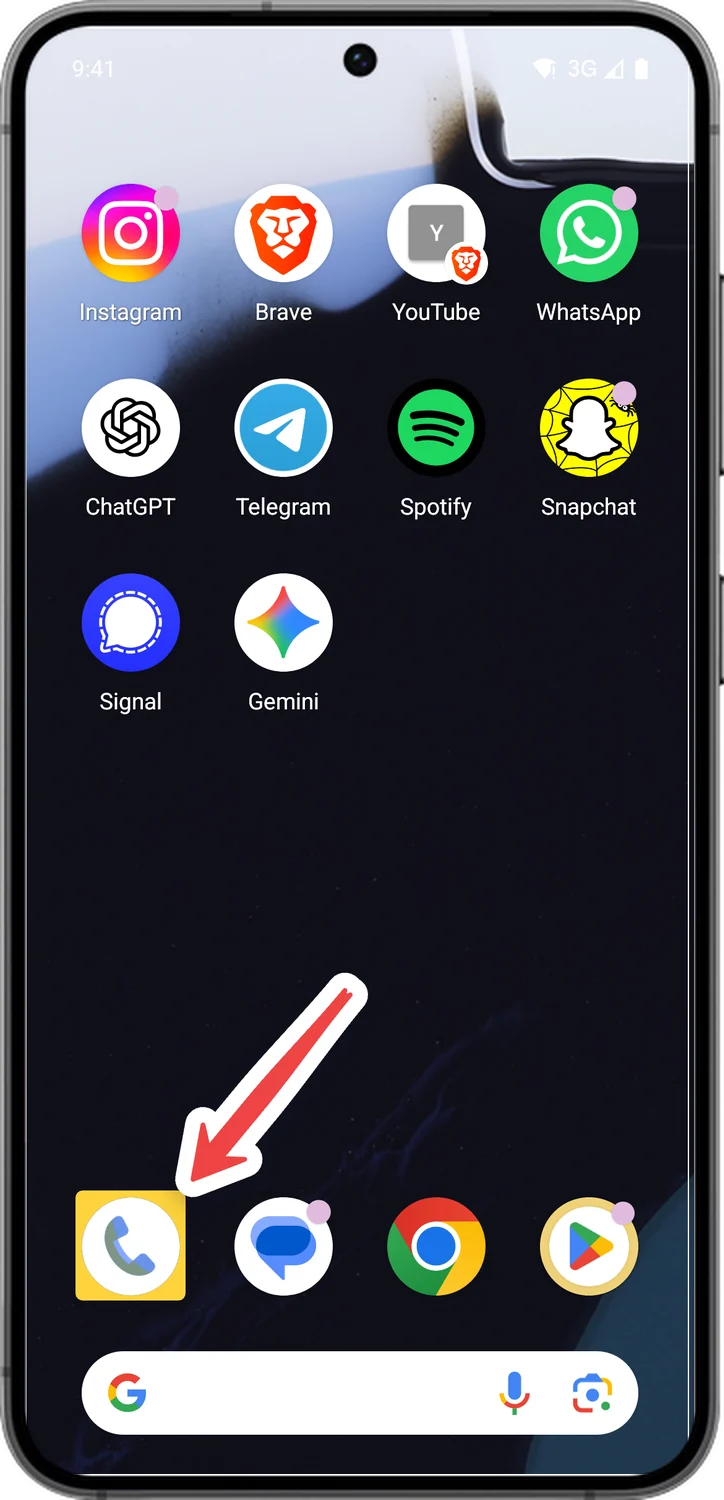
Open the Phone app
Tap the Phone app you use to make calls. It is usually in the dock at the bottom of your home screen.
- 2
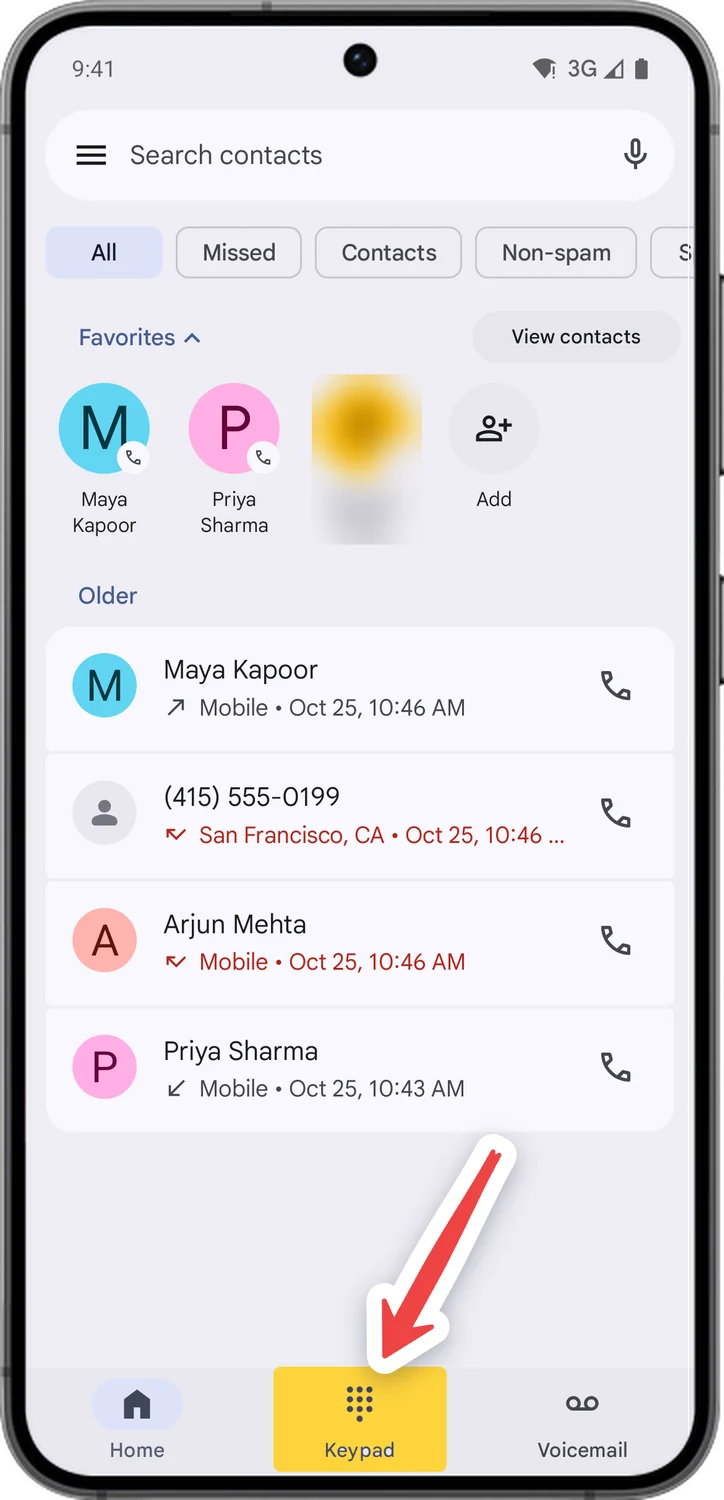
Open the keypad
Tap Keypad at the bottom. You should see the number buttons with * and # in the bottom row.
- 3
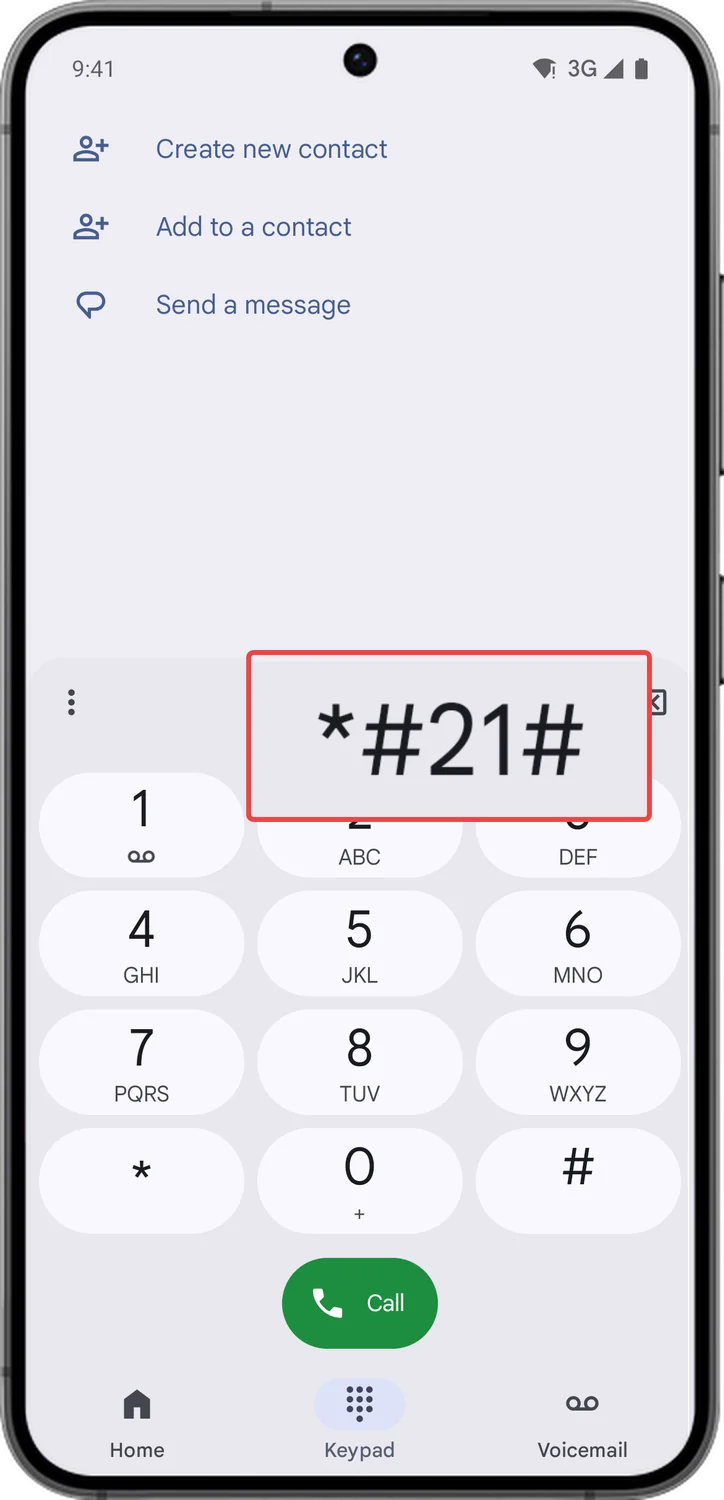
Type the code exactly as it appears
Type the code one key at a time, including every * and #. They sit on either side of 0. One wrong key and the code will not work.
- 4
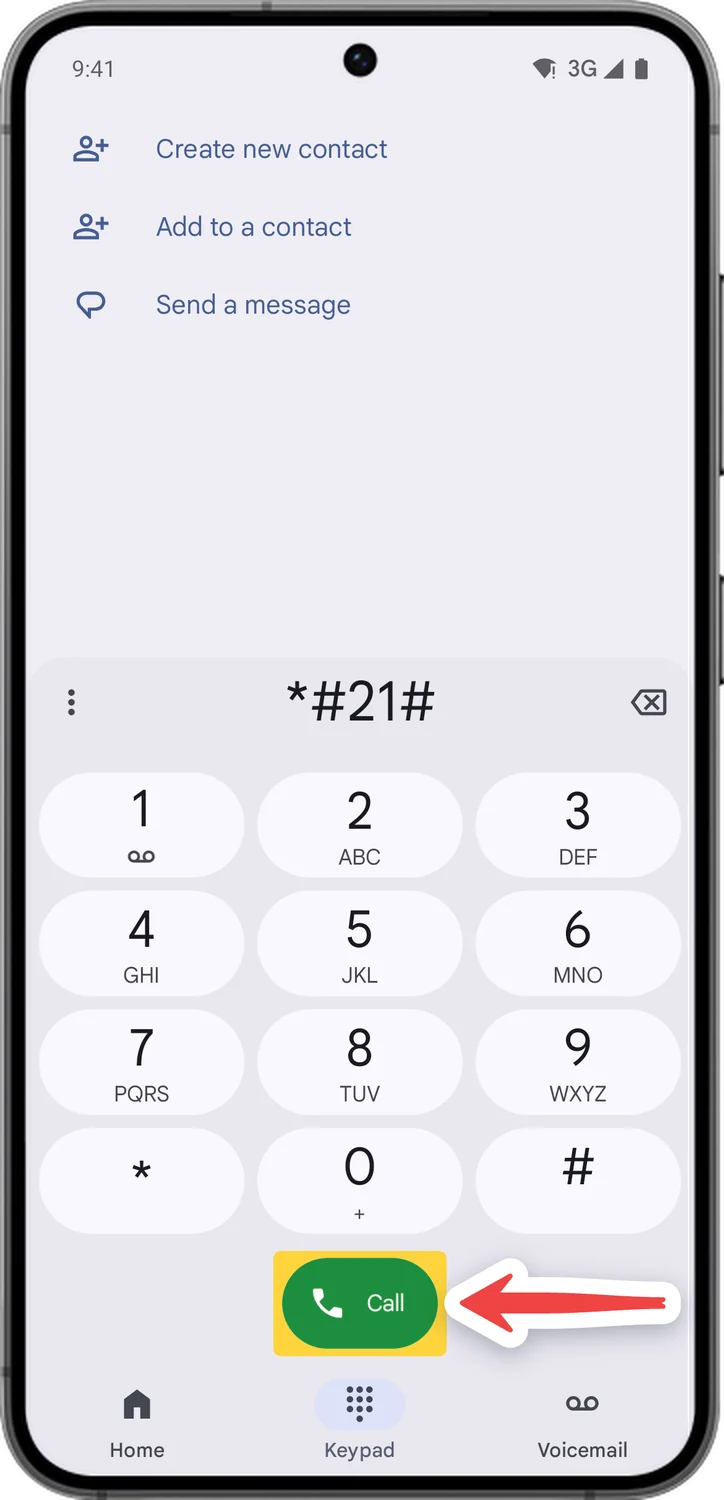
Press call if nothing happens
Most codes open on their own the moment you type the last #. Call forwarding and call waiting codes need the green Call button.
- 5
Read the screen, then go back
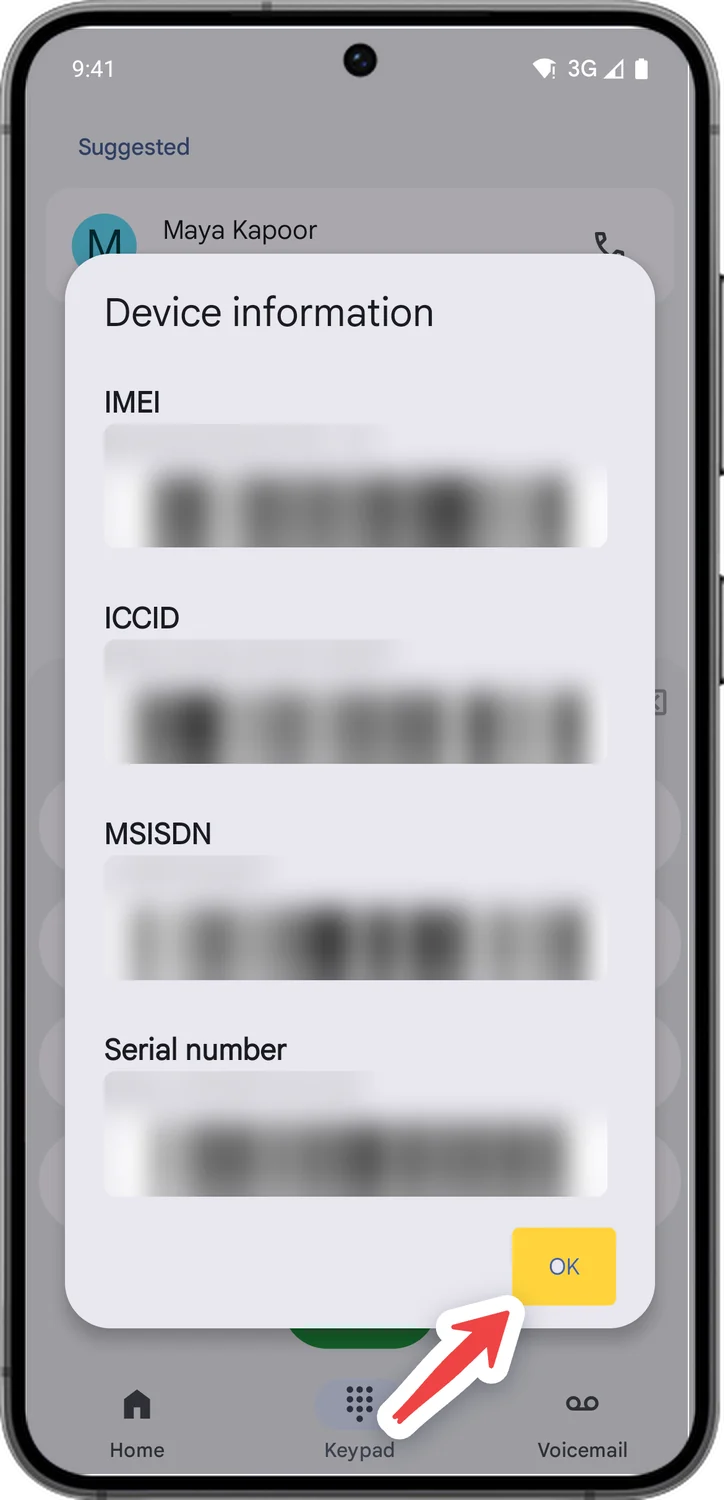
The result opens as a pop-up or a test menu. Read what you need, then tap OK or press Back. Nothing changes just by looking.
- Optional
Only if you would rather not type the code
6Paste a code instead of typing it
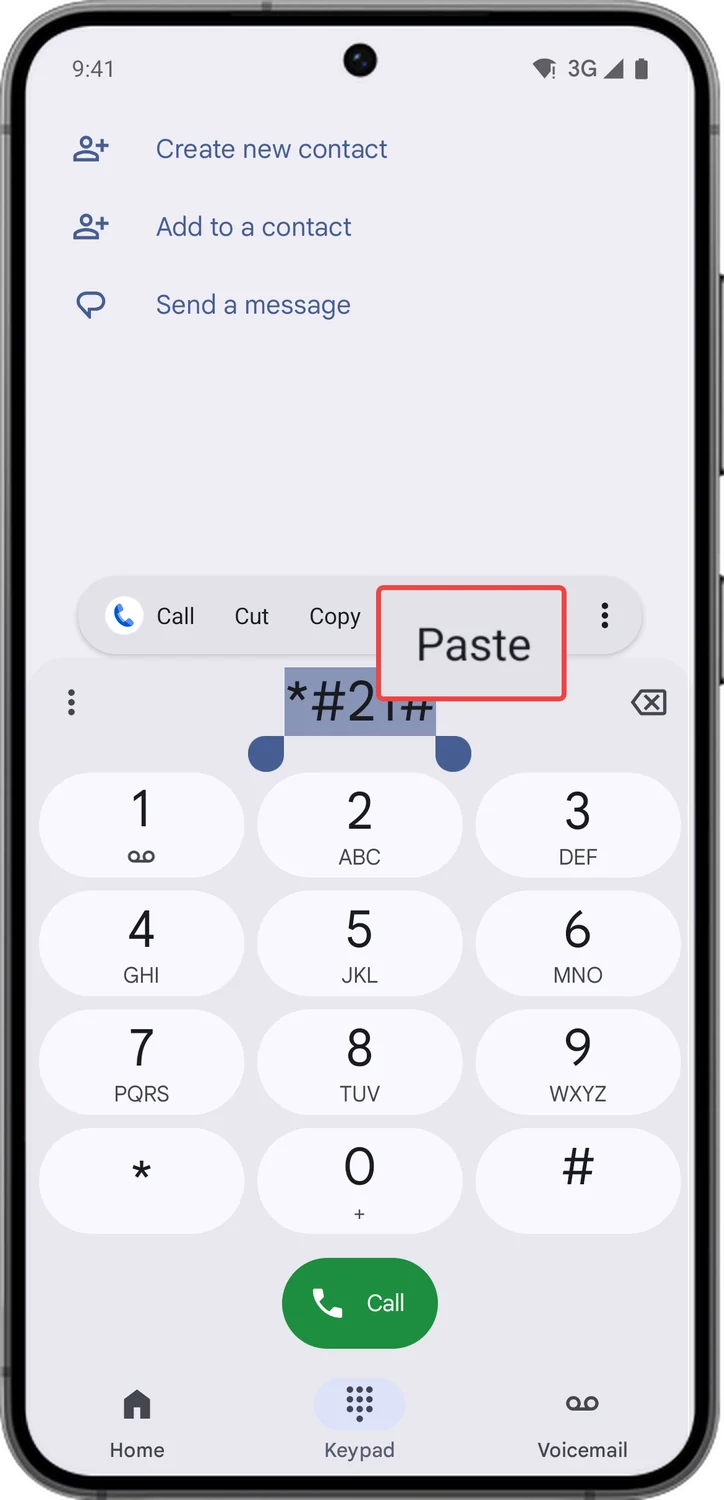
Tap Copy next to a code in the tables above, then tap and hold the number area on the keypad and choose Paste. If a pasted code does nothing, type it by hand.
Comments
0Share your thoughts, questions, or feedback about this guide.
Leave a Comment