
Motorola secret codes for Moto G, Edge and Razr (2026)
Last updated: Published November 23, 2026
Motorola phones run close to stock Android, so they have fewer hidden codes than most brands. The most useful one is *#*#2486#*#*, which opens the CQA test menu for checking the screen, cameras, speakers and sensors. Here is every code that works.
18 codes
Device information
| Code | What it does | Copy |
|---|---|---|
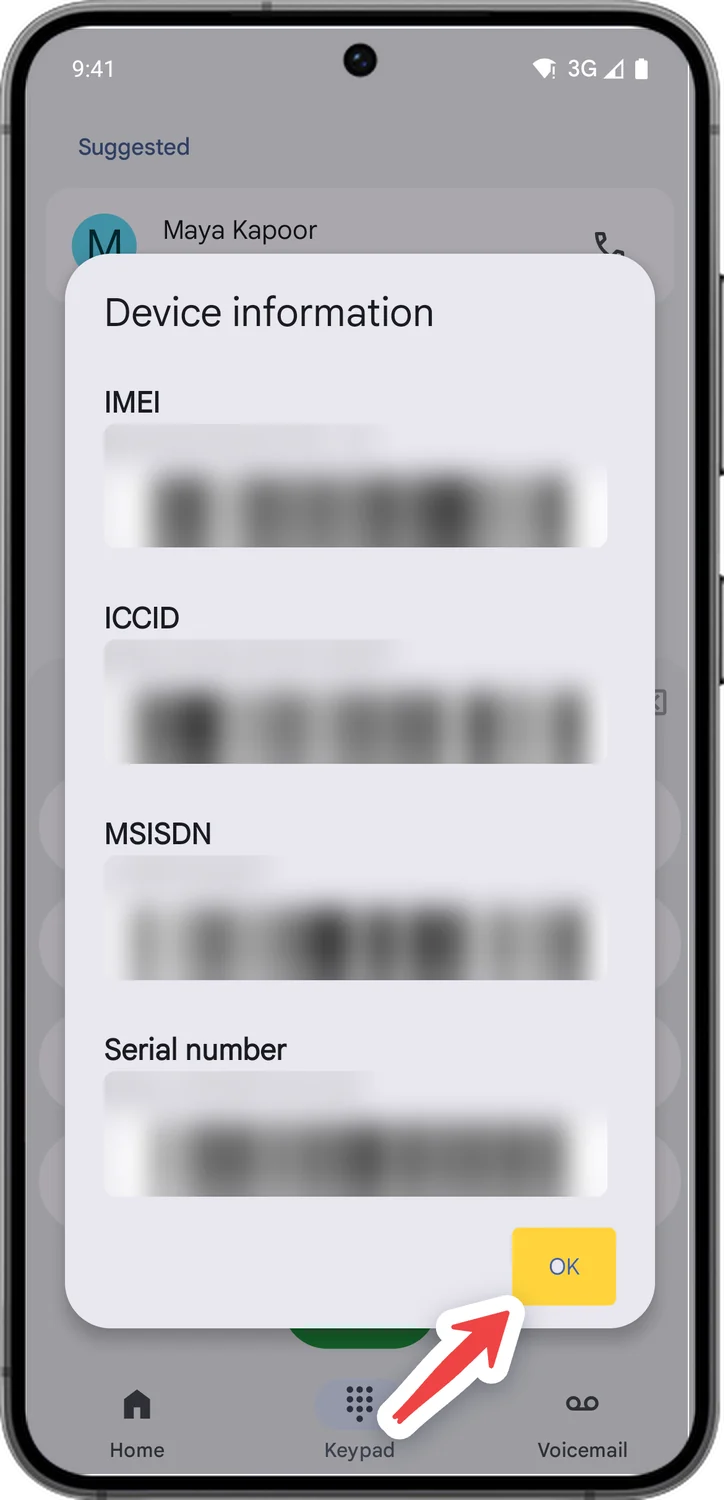
| *#06# | Show IMEI number | |
| *#07# | Show SAR and regulatory infoNot on every model | |
| *#*#4636#*#* | Phone info, signal and network type |
Hardware testing
Code does nothing? Open Device Help > Device diagnosis > Hardware test.
| Code | What it does | Copy |
|---|---|---|
| *#*#2486#*#* | Open CQA hardware test menuNot on every model |
Google and Android tools
Look, but don't change values.
| Code | What it does | Copy |
|---|---|---|
| *#*#225#*#* | Show calendar storage info | |
| *#*#426#*#* | Open Firebase Cloud Messaging diagnosticsNeeds Google Play services | |
| *#*#759#*#* | Open Google RLZ debug menu |
SIM and call forwarding
Carrier codes; support varies.
| Code | What it does | Copy |
|---|---|---|
| *#21# | Check unconditional call forwarding | |
| *#61# | Check forwarding when unanswered | |
| *#62# | Check forwarding when unreachable | |
| *#67# | Check forwarding when busy | |
| ##002# | Cancel all call forwarding | |
| *#43# | Check call waiting status | |
| *43# | Turn on call waiting | |
| #43# | Turn off call waiting | |
| *#31# | Check caller ID hiding status | |
| #31# | Hide your number for one callType it before the number | |
| **04*OLDPIN*NEWPIN*NEWPIN# | Change SIM PIN |
How to use secret codes: step-by-step guide
Here is how to use secret codes on Motorola phones.
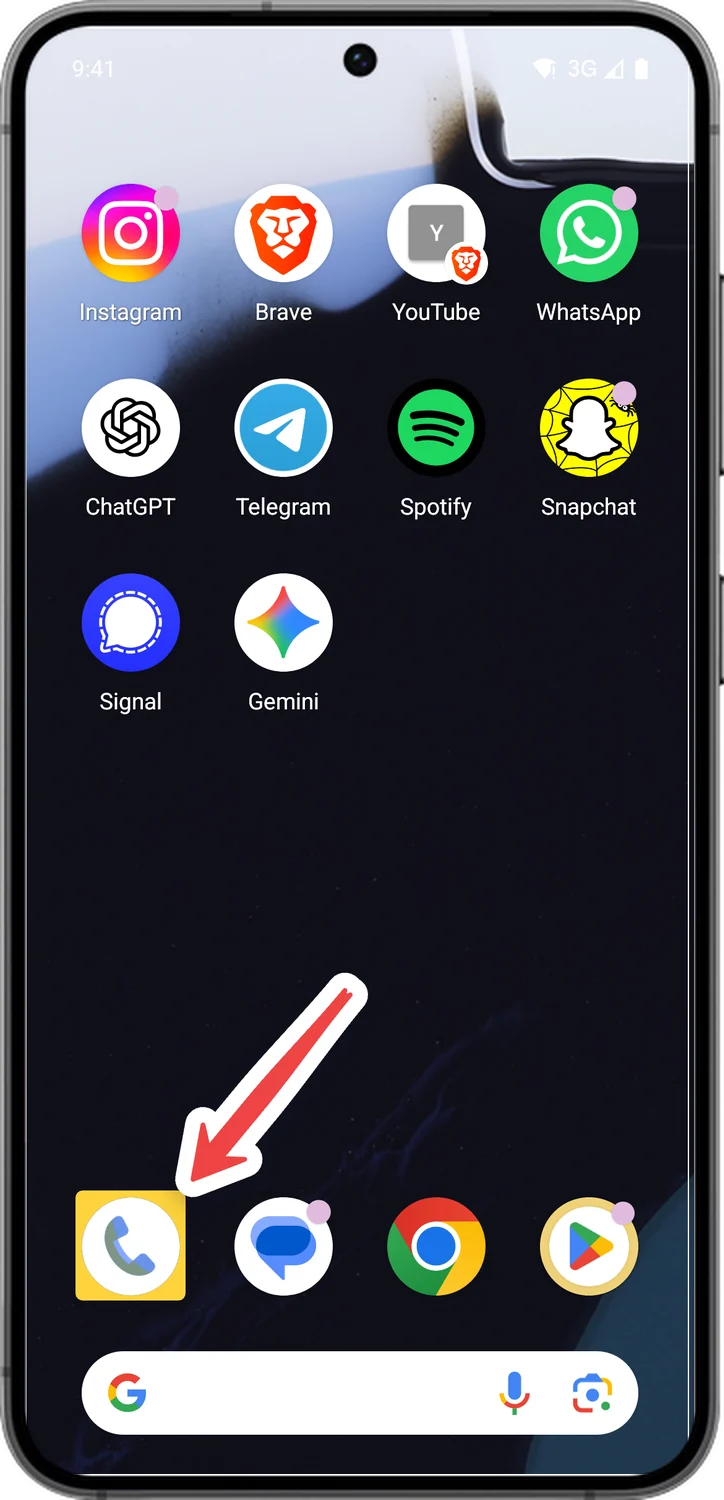
Open the Phone app
Open the Phone app.
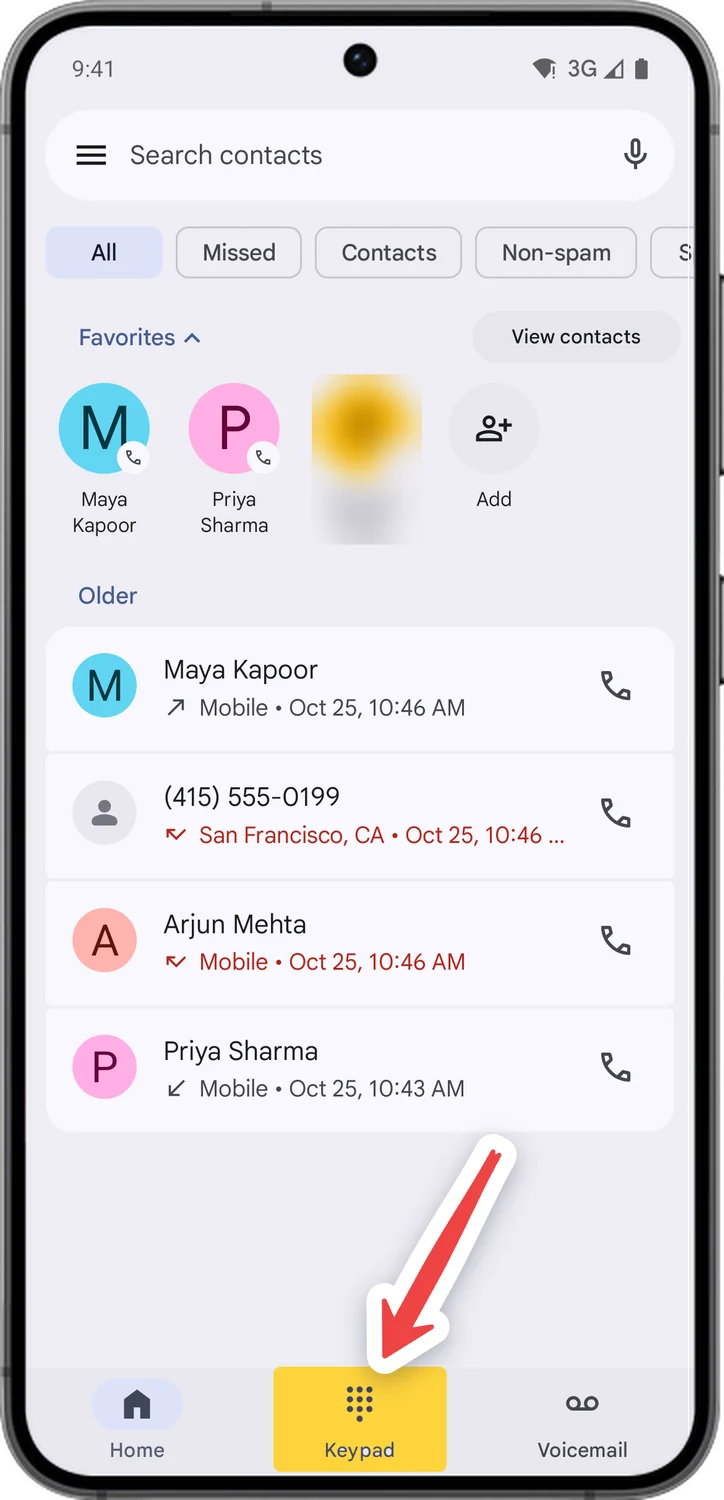
Open the keypad
Tap Keypad.
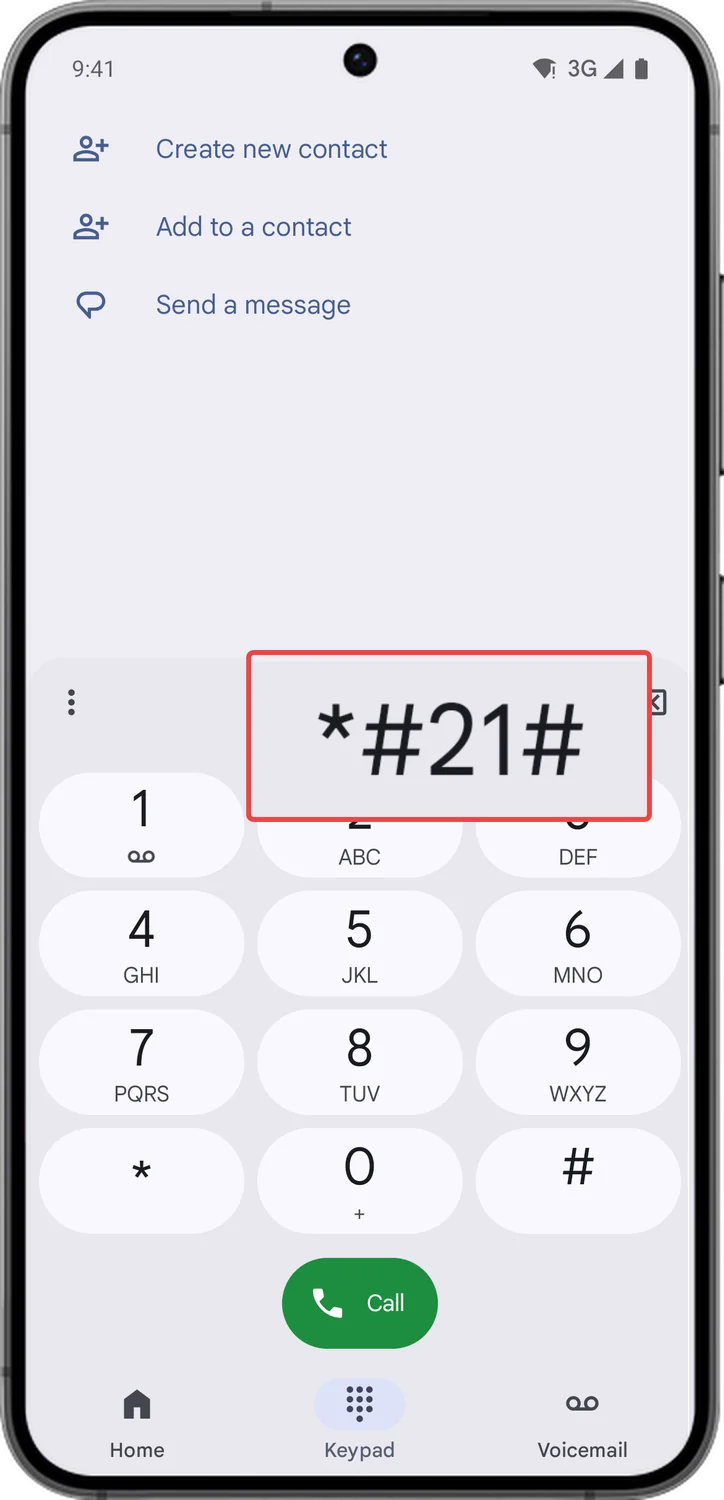
Type the code exactly as it appears
Type the code exactly, including every * and #.
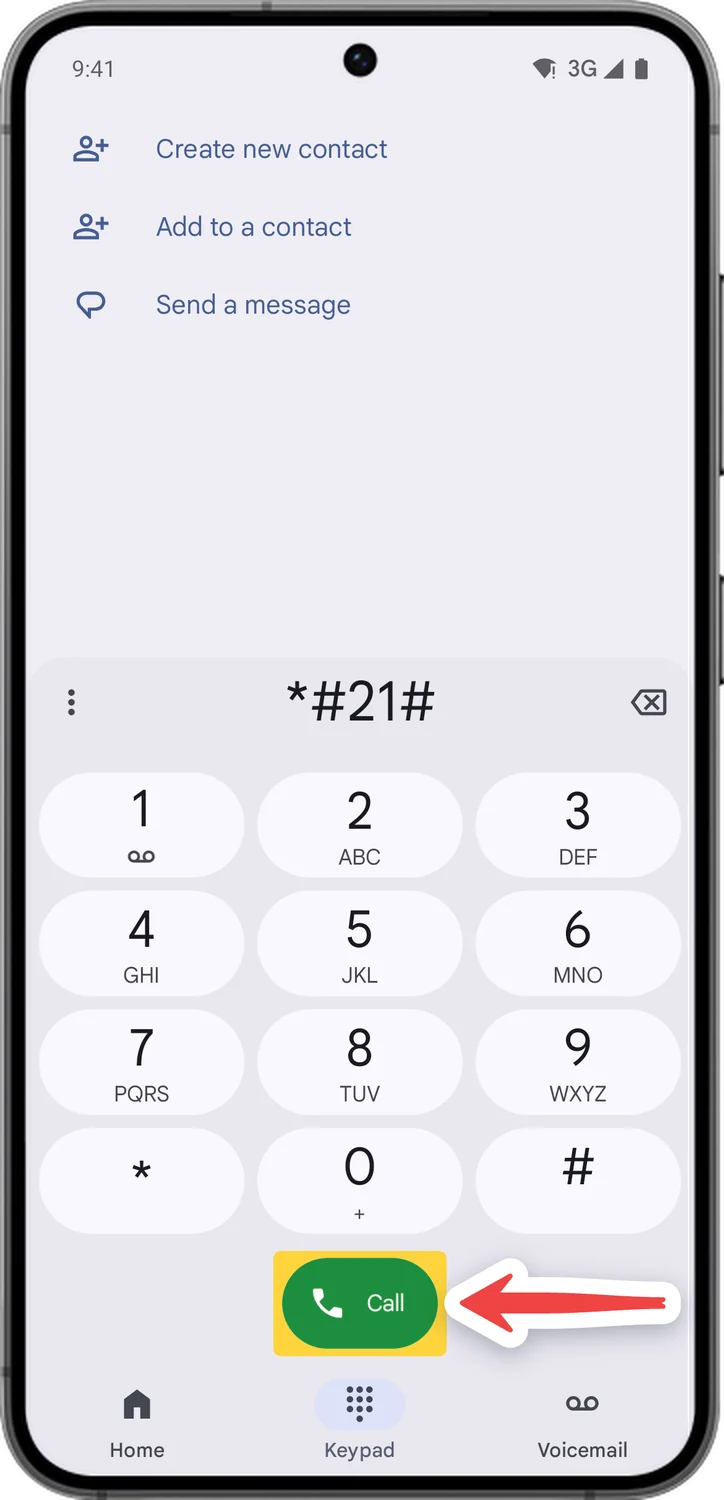
Press call if nothing happens
Most codes open on their own. If not, tap Call.
Read the screen, then go back
Read the result, then go back. Nothing changes.
Comments
0Share your thoughts, questions, or feedback about this guide.
Leave a Comment