
Mac Menu Bar Icons and Symbols Explained
The right side of the Mac menu bar fills up fast. Apple puts Wi-Fi, battery, Control Center, Siri and the clock there, and almost every app you install adds its own little icon too. None of them have labels, so it's hard to tell what's what, and a colored dot that suddenly shows up next to the clock can be a bit worrying.
In this guide, I have marked every icon and menu item on each screen, from the menu bar itself to Control Center, the Wi-Fi and battery menus, and the privacy dots. Click any highlighted box on a screenshot to see what it does, or search for an icon below.
The menu bar at a glance
The right side of the menu bar holds status menus: small icons that show something about your Mac, like battery or Wi-Fi, and open a menu when you click them. Here, icons from apps sit to the left of Apple's own. A Spotlight magnifying glass shows up only if you turn it on.


App icons
Icons that apps you install add, like Ollama (the llama) and Claude (the sparkle). Click one for that app's menu.

Text Input
The input menu. It opens the emoji picker and the Keyboard Viewer, and switches keyboard languages if you use more than one.

Battery
How much charge is left. The lightning bolt means your Mac is connected to power. Click it for details.

Wi-Fi
Wi-Fi is on and connected. Click it to see networks or turn Wi-Fi off.

Control Center
The icon with two switches opens Control Center: Wi-Fi, Bluetooth, AirDrop, brightness, volume and more.

Siri
Click it to ask Siri something.

Date and time
Always at the far right. Click it to open Notification Center with your widgets and missed notifications.



Control Center
Click the icon with two switches to open Control Center. It puts the settings you change most often in one panel, so you don't have to open System Settings for them.
Top of Control Center
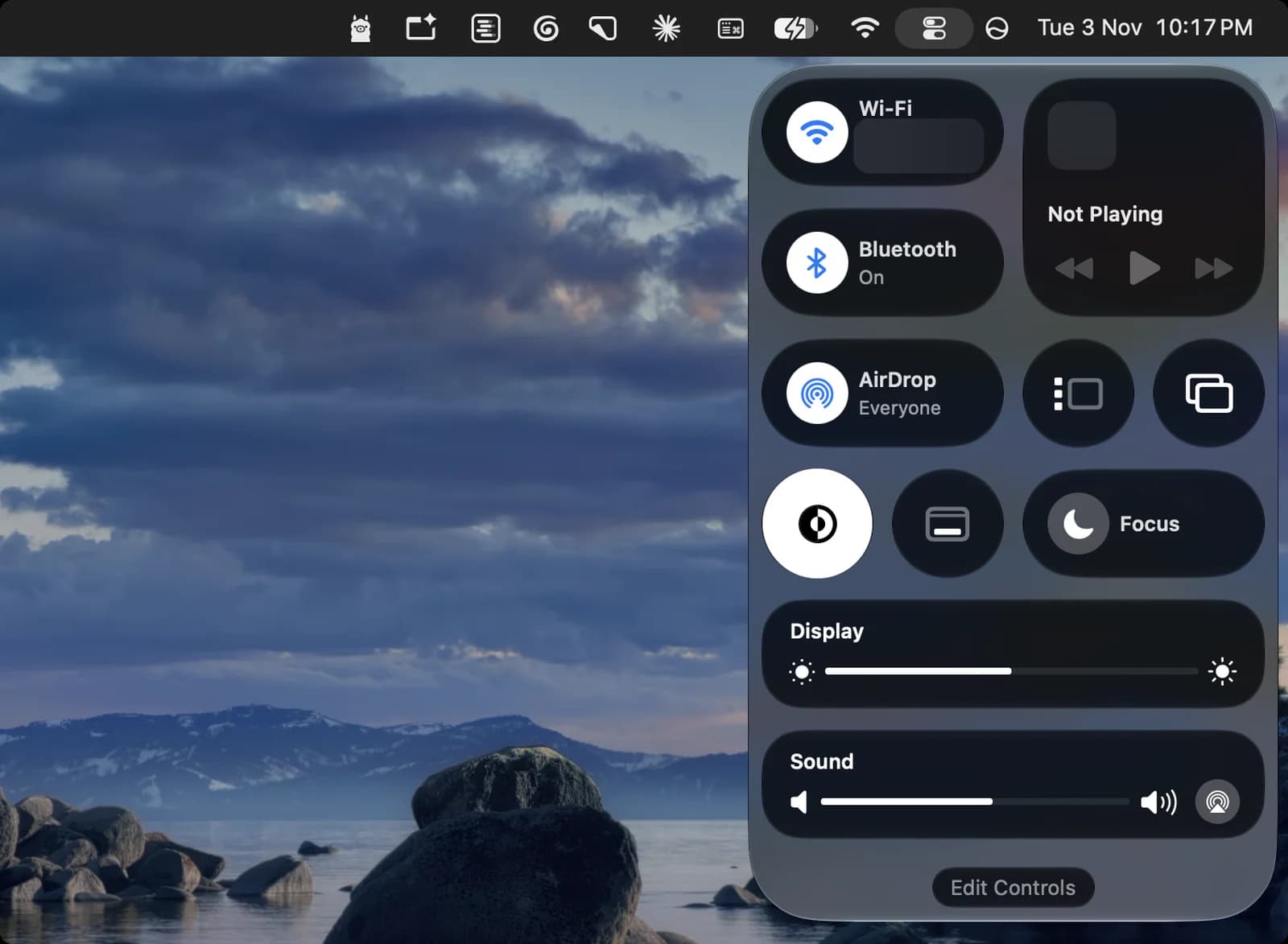
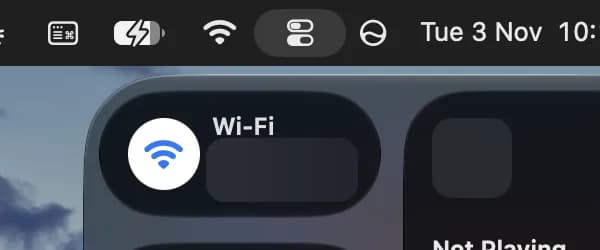
Control Center icon
Opens and closes this panel.
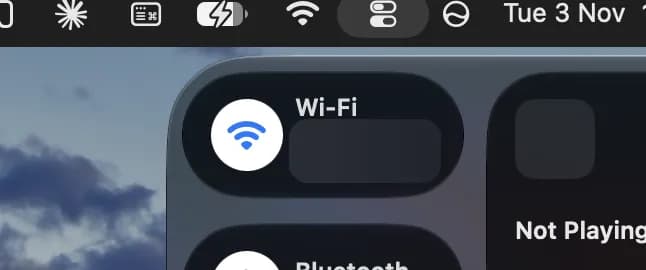
Wi-Fi tile
Shows the network you're on. Click the round icon to turn Wi-Fi on or off, or the rest of the tile to pick a network.
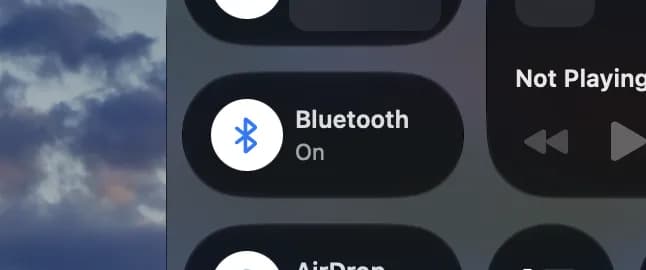
Bluetooth
Turns Bluetooth on or off. Click the name to see and connect your devices.
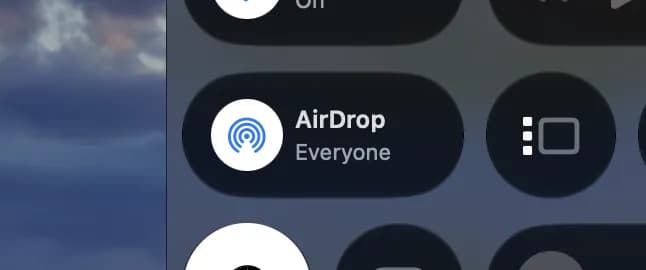
AirDrop
Turns AirDrop on or off and sets who can send you files. Everyone means anyone nearby with an Apple device.
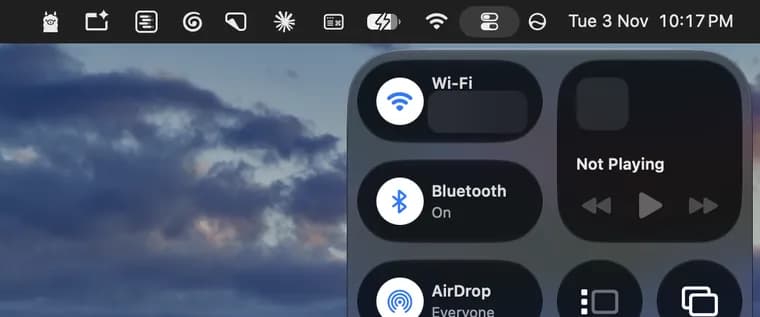
Now Playing
Play, pause and skip whatever is playing, like music or a video. It says Not Playing when nothing is.
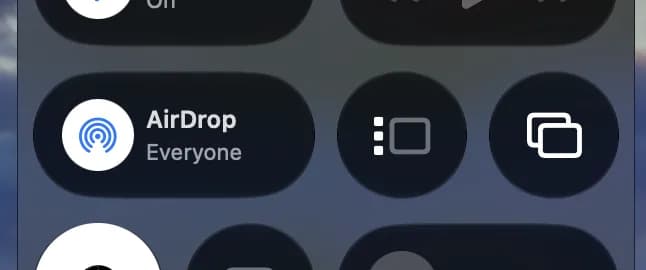
Stage Manager
Turns Stage Manager on or off. It keeps your current window in the middle and lines up other apps at the side.
Screen Mirroring
Shows your screen on an Apple TV or AirPlay TV, or uses it as a second display.


Bottom of Control Center
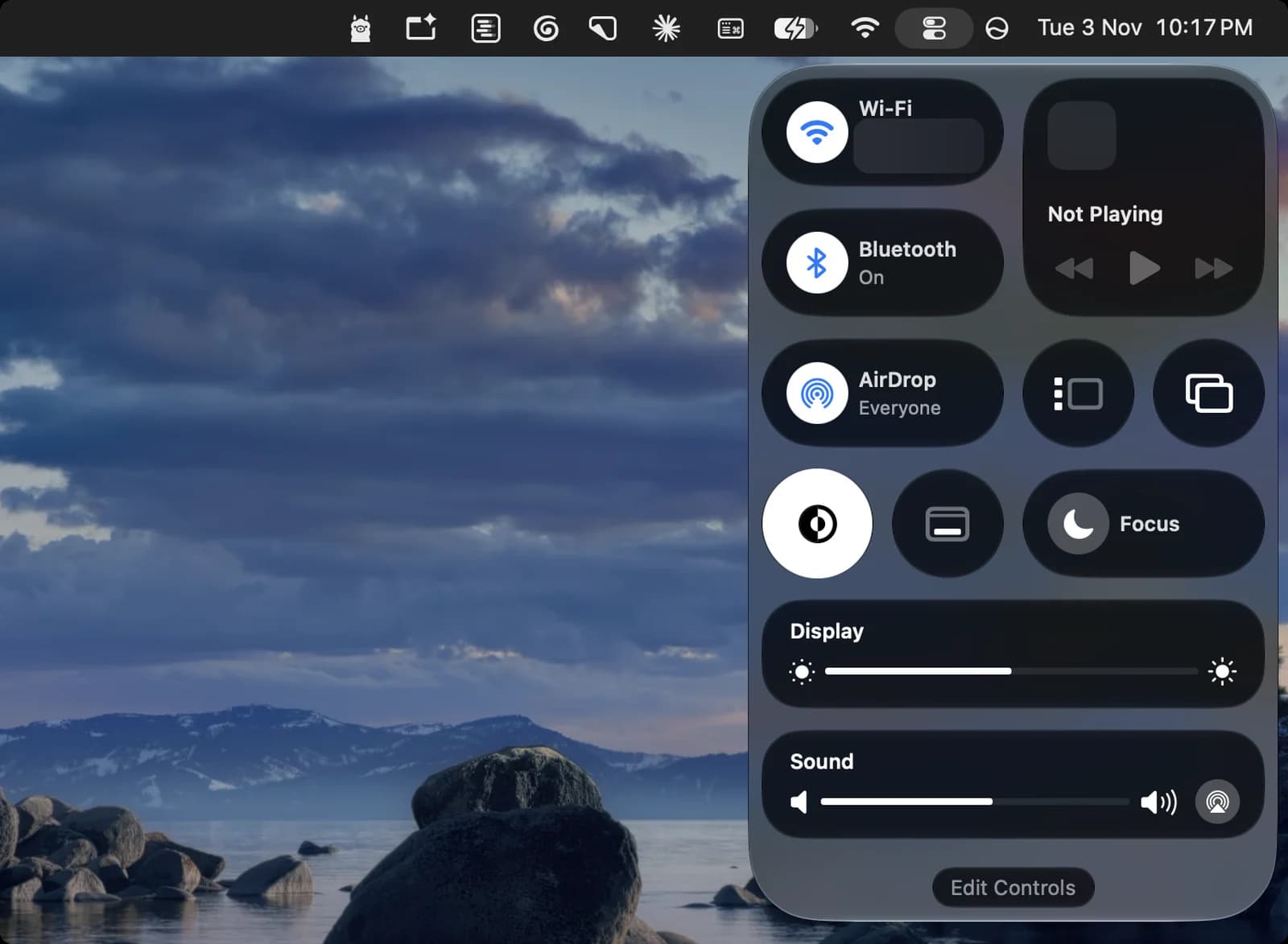

Dark Mode
Switches between Dark Mode and Light Mode. It's white here because Dark Mode is on.
Screenshot
Opens the screenshot tools to capture the screen, a window or part of it, or to record the screen.
Focus
Turns on Do Not Disturb or another Focus to silence notifications.

Display
Drag the slider to change screen brightness.
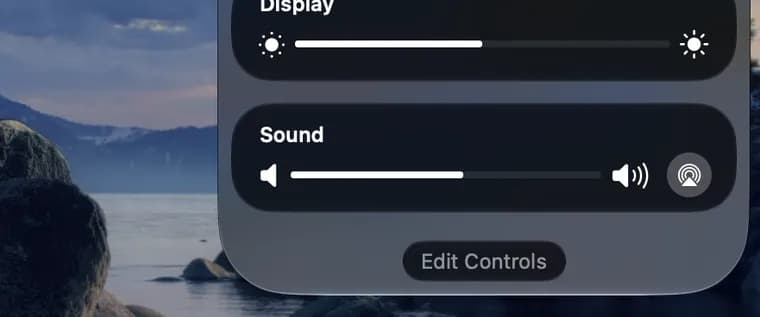
Sound
Drag the slider to change the volume.
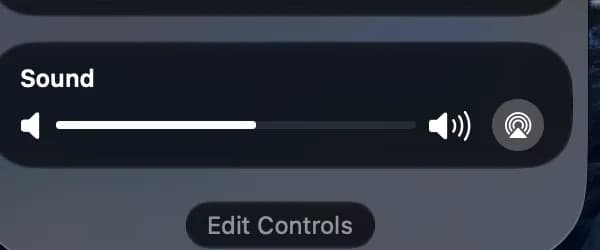
AirPlay audio
Picks where sound plays: your Mac's speakers, headphones like AirPods, or an AirPlay speaker.
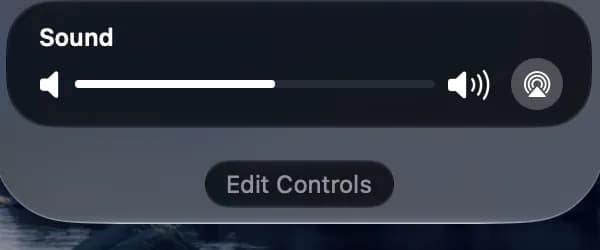
Edit Controls
Add, remove or rearrange the controls in Control Center.



Wi-Fi menu
Click the Wi-Fi icon to see networks and turn Wi-Fi on or off. The icon itself changes with the state of your connection, and Apple's list of those states is below the screenshot.
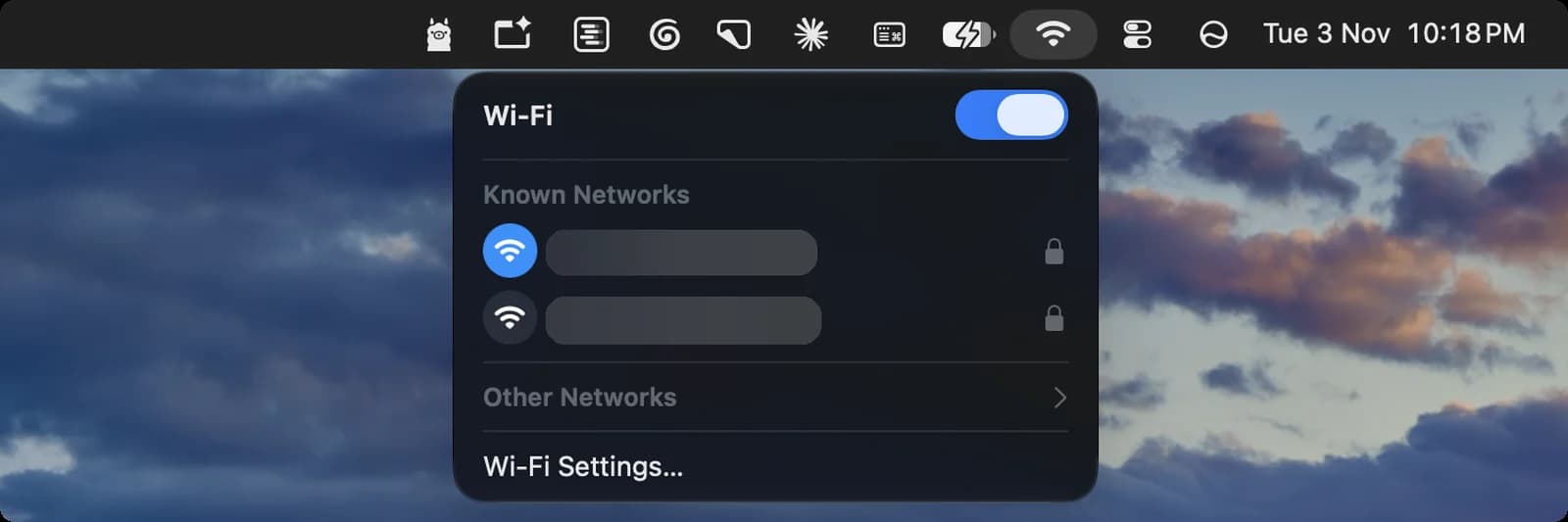

Wi-Fi icon
Click it to open this menu. Here it shows Wi-Fi is on.

Wi-Fi switch
Turns Wi-Fi on or off.
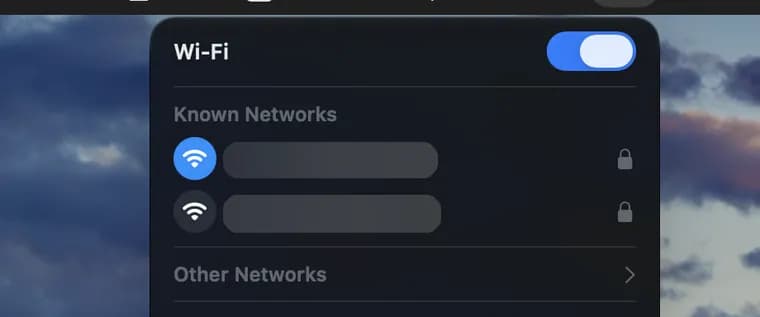
Connected network
The network you're on. The blue icon marks the one you're connected to.
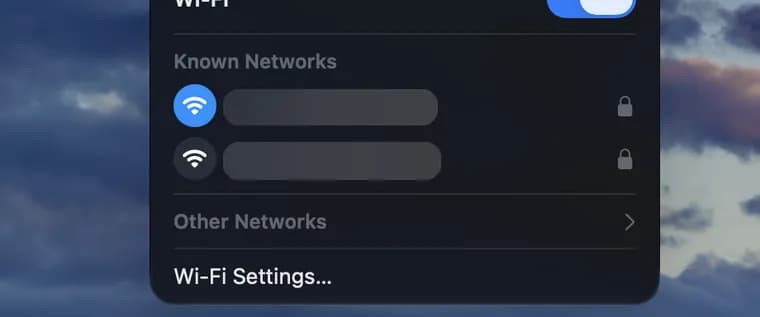
Known network
A network your Mac has joined before. The bars show its signal strength. Click it to switch.
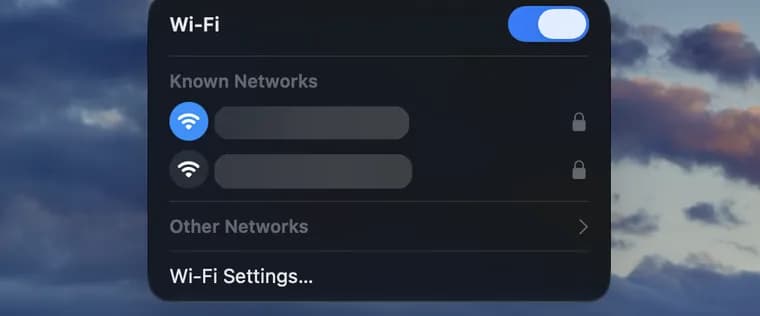
Other Networks
Shows networks your Mac hasn't joined before, so you can join a new one.
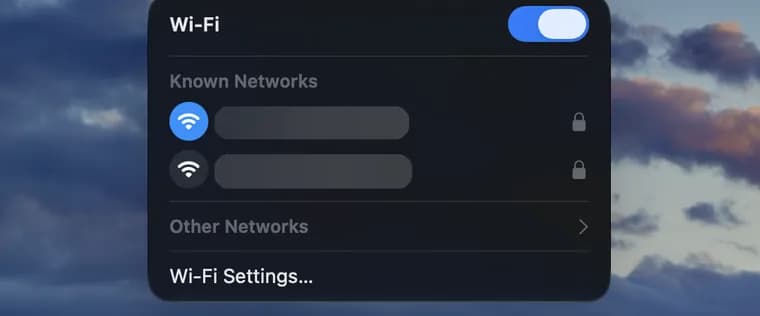
Wi-Fi Settings
Opens Wi-Fi in System Settings, where you manage your networks.
Status symbols. These only show information. They are not buttons.

Lock
The network needs a password.







What the Wi-Fi icon can tell you
Apple lists these states for the Wi-Fi icon in the menu bar:
- Wi-Fi is on.
- Wi-Fi is off or not available.
- Wi-Fi is on, but your Mac isn't connected to a network.
- Your Mac is using an internet connection shared by an iPhone or iPad (Personal Hotspot).
- Your Mac is connected to another device over a temporary Wi-Fi connection.
- Your Mac is sharing its own internet connection over Wi-Fi.
- No internet: your Mac can't get a router or IP address over Wi-Fi.
Battery menu
On a MacBook, the battery icon shows how much charge is left. Click it to see where power is coming from and which apps are using the most energy.
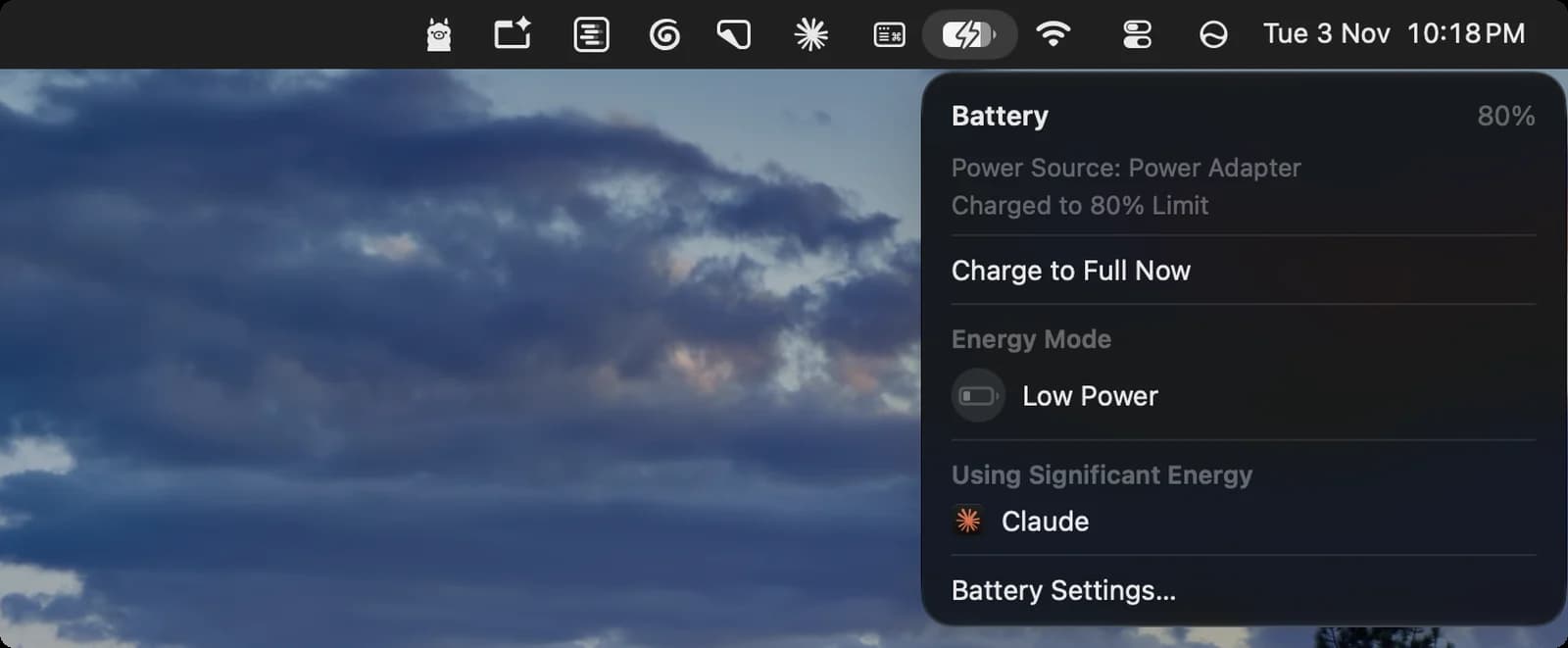

Battery icon
The fill shows charge left. The lightning bolt means your Mac is connected to power.
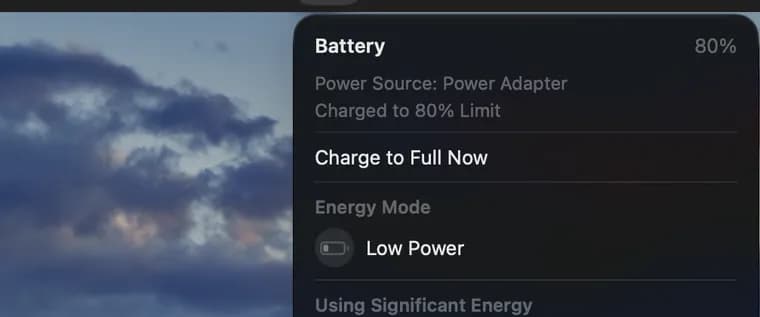
Charge to Full Now
Charges past the limit to 100% when you need a full battery.

Low Power
Turns on Low Power Mode, which cuts energy use so the battery lasts longer.

Using Significant Energy
Apps using a lot of power right now, here Claude. Quit them to save battery.

Battery Settings
Opens Battery in System Settings, with Low Power Mode, charging and battery health.
Status symbols. These only show information. They are not buttons.
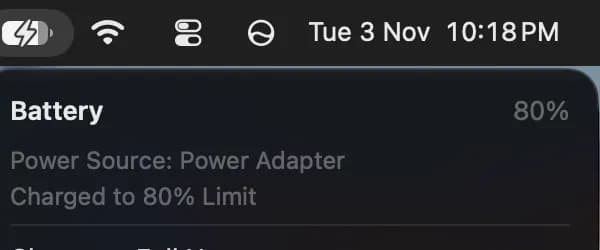
Battery percentage
How full the battery is right now, here 80%.
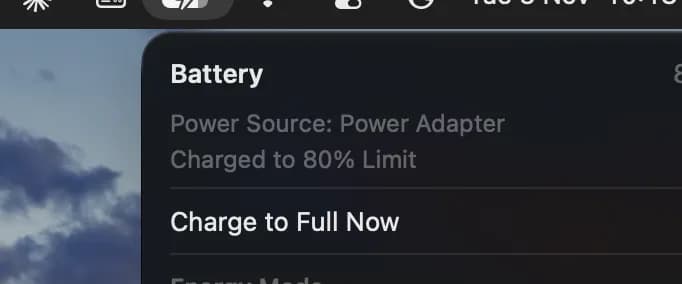
Power source and limit
Your Mac is on its power adapter. It stopped at 80% because a charge limit is set in Battery settings.







Apple menu
The Apple logo in the top-left corner opens the Apple menu. It stays the same in every app, while the menus next to it change with the app you're using.
Apple menu and app menus
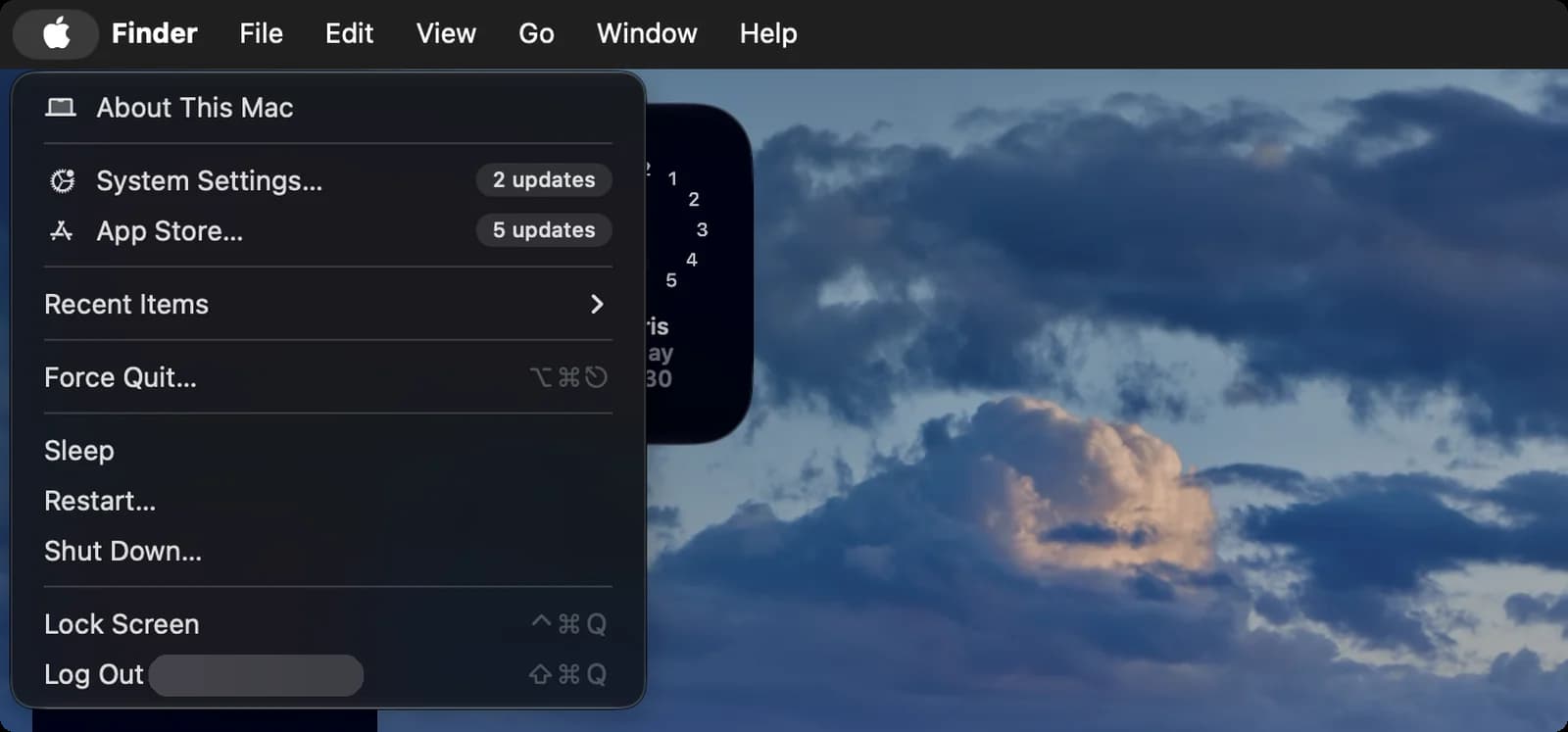
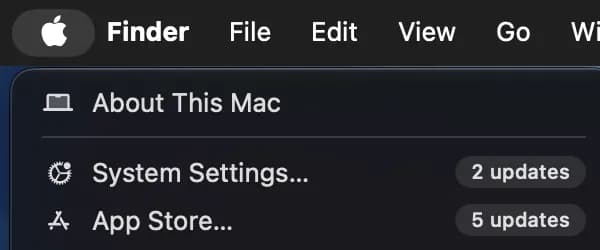
Apple menu
Always in the top-left corner. It holds Mac-wide commands like System Settings, Sleep and Shut Down.
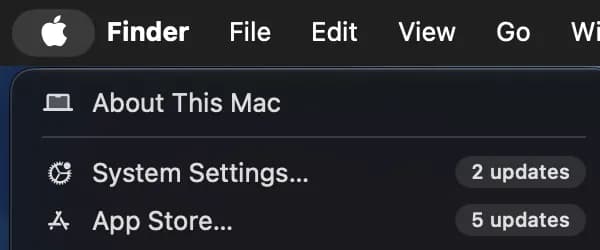
App name
The app you're using right now, in bold. Click it for that app's settings and, in most apps, Quit.
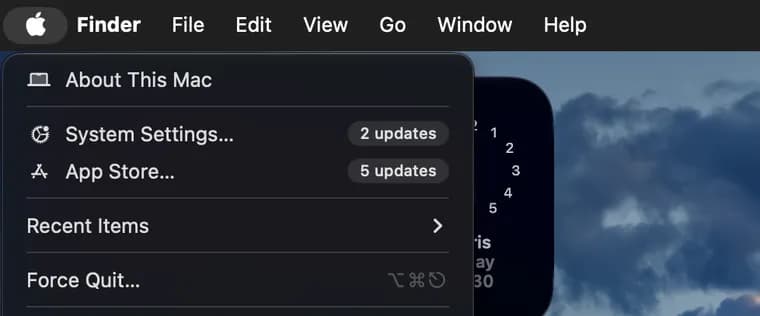
App menus
Menus for the active app. Each app has a Help menu, and most have File, Edit and Window.
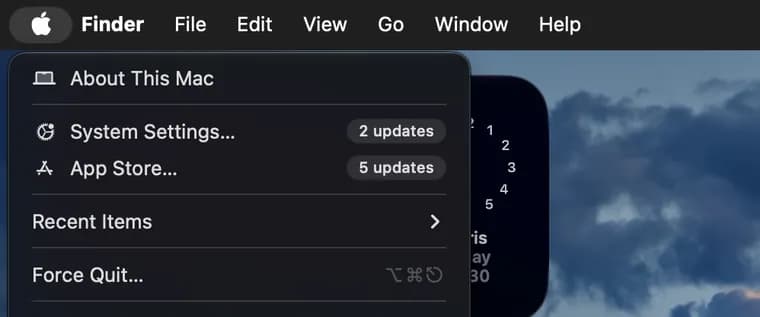
About This Mac
Shows your Mac's model, chip, memory, serial number and macOS version.
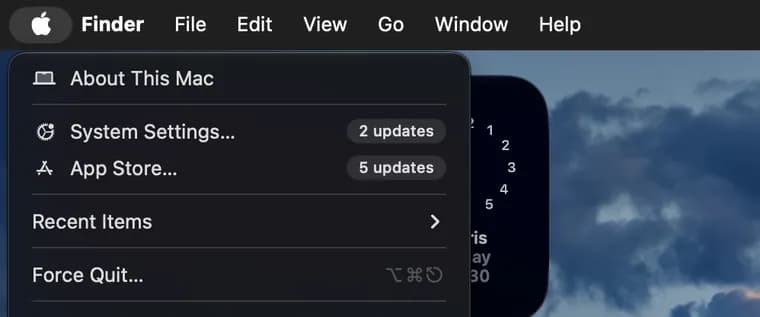
System Settings
Opens System Settings. The 2 updates badge means software updates are waiting.
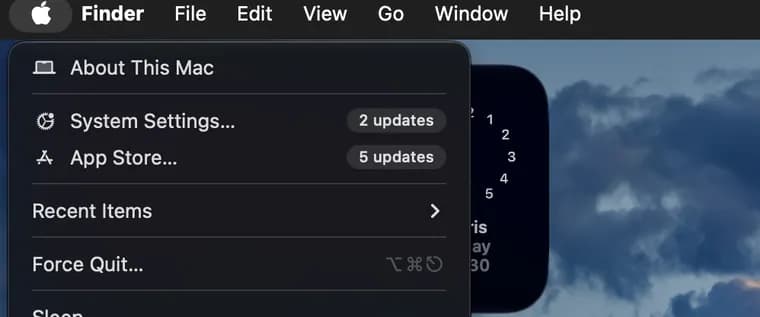
App Store
Opens the App Store. The 5 updates badge means five of your apps have updates.
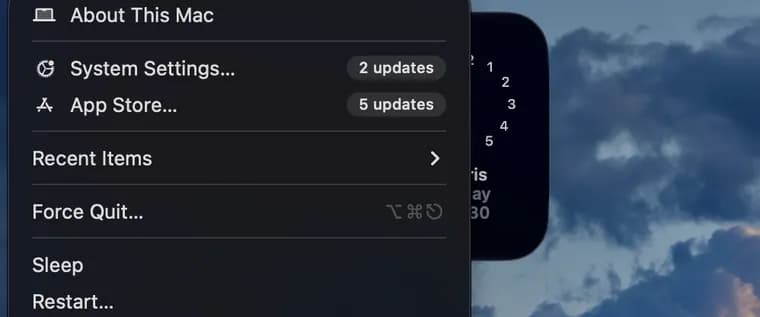
Recent Items
Apps, documents and servers you opened recently. Pick one to open it again.






Sleep, restart and log out
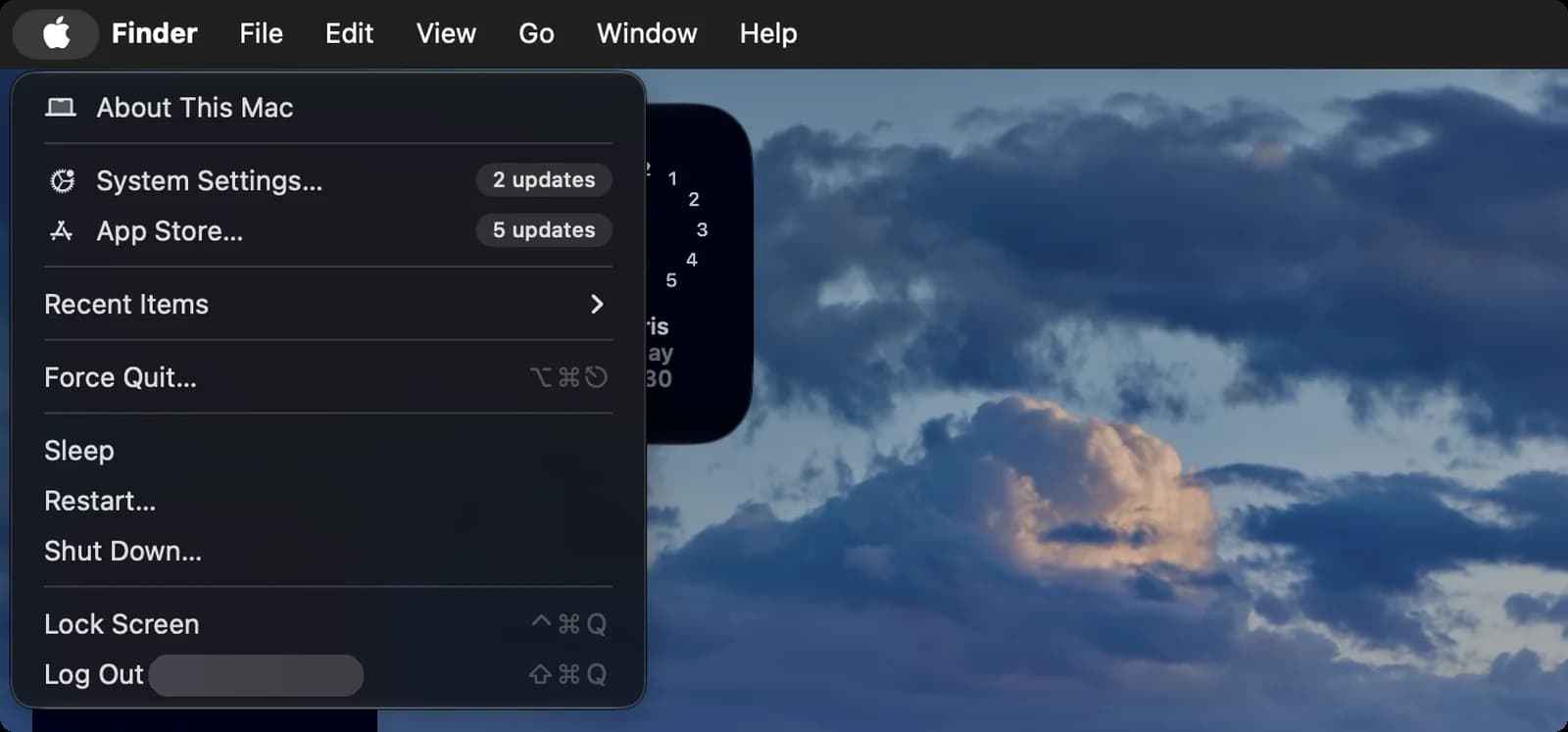
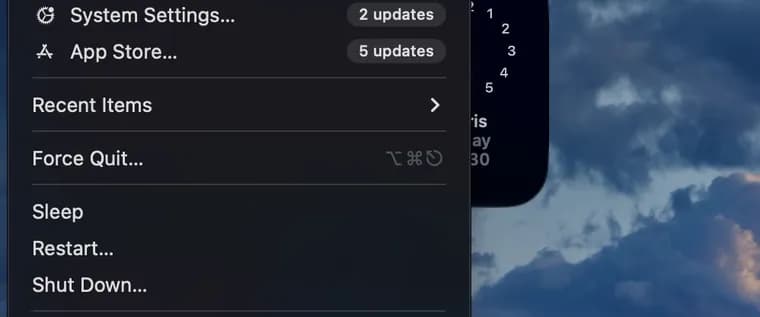
Force Quit
Closes an app that has stopped responding. The shortcut is Option-Command-Esc.
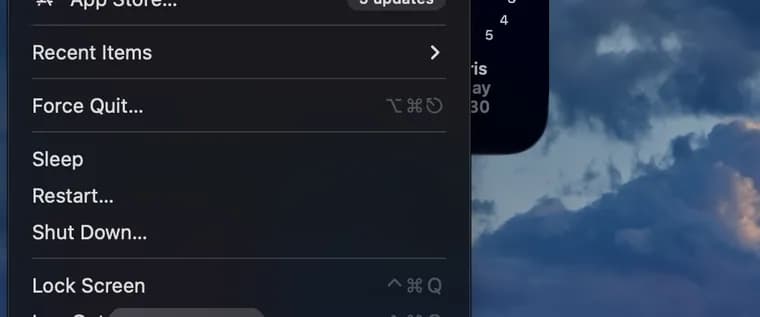
Sleep
Puts your Mac to sleep. Press a key or click to wake it.
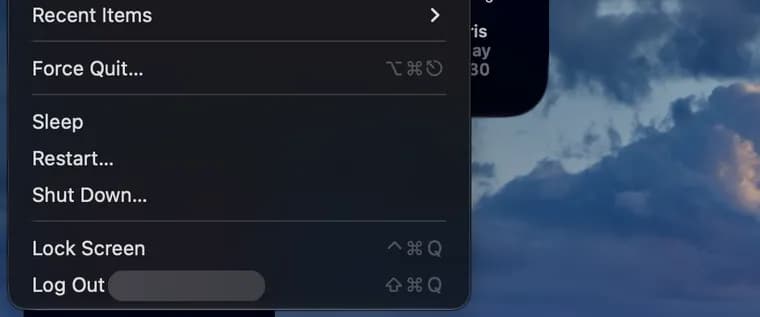
Restart
Turns your Mac off and on again, after asking you to confirm.
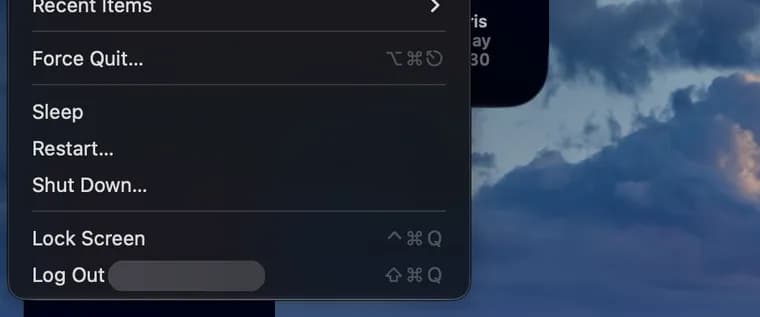
Shut Down
Turns your Mac off, after asking you to confirm.
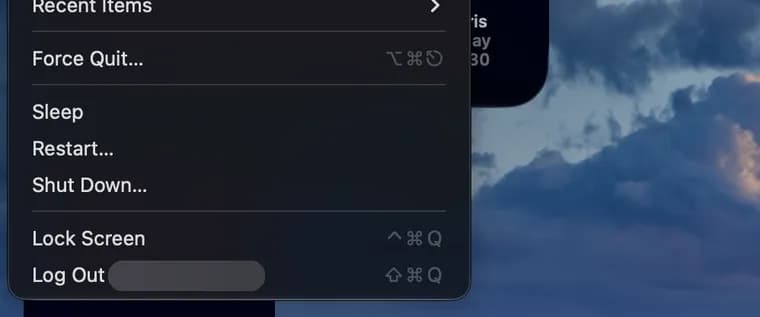
Lock Screen
Locks your Mac right away. You need your password or Touch ID to get back in. Shortcut: Control-Command-Q.
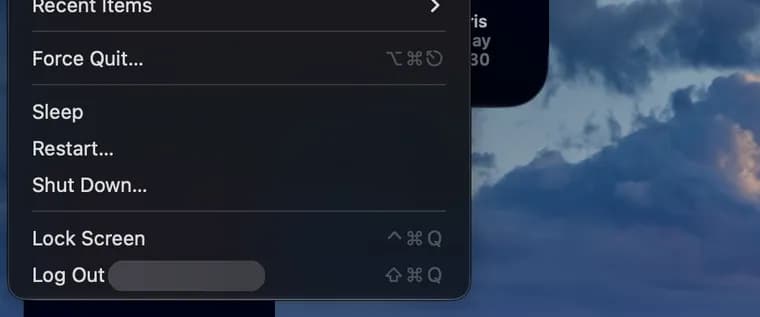
Log Out
Quits your apps and signs you out of your user account. It shows your account name. Shortcut: Shift-Command-Q.






Siri and Notification Center
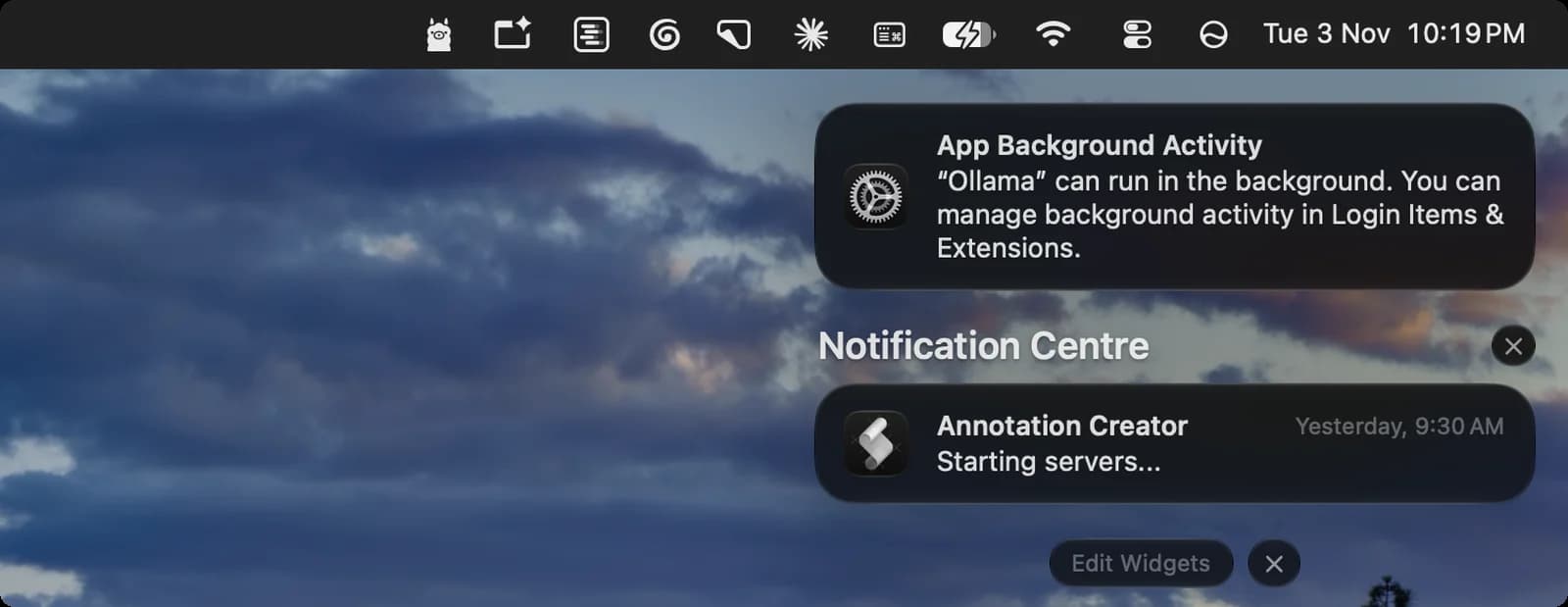
The Siri icon and the date and time sit at the right end of the menu bar. One starts Siri, and the other opens Notification Center.
Siri


Siri icon
Click it to start Siri.

Siri listening
This glowing orb means Siri is listening. Say what you need.


Notification Center
Clock
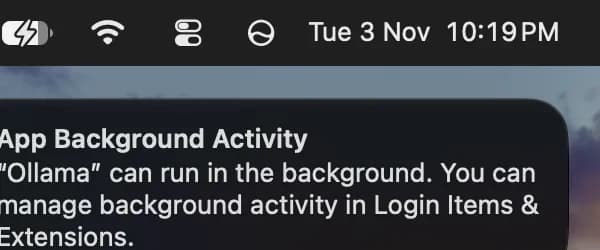
Click the date and time to open Notification Center, with widgets and missed notifications.
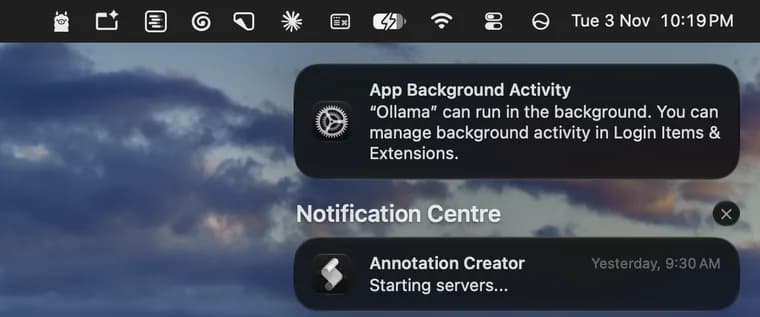
System notice
A notice from macOS. This one says Ollama can run in the background, which you manage in Login Items & Extensions settings.
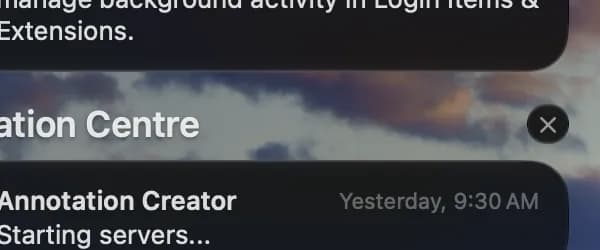
Clear notifications
Clears the notifications listed under the Notification Center heading.
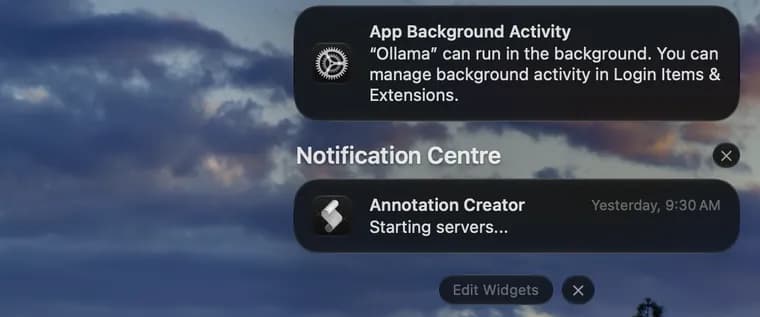
App notification
A notification you missed, with the app's name and when it arrived. Click it to open the app.
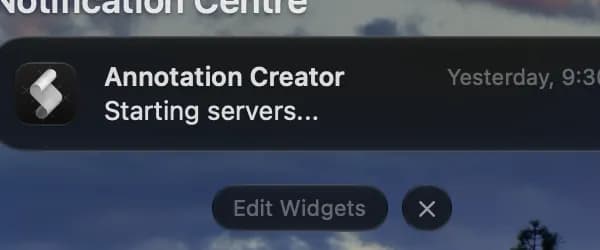
Edit Widgets
Add, remove or rearrange the widgets in Notification Center.
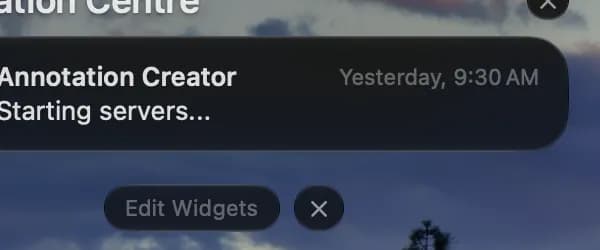
Close
Closes Notification Center.





Text Input menu
The small keyboard icon is the input menu. System Settings calls it Text Input. It's mostly for emoji and for switching between keyboard languages.

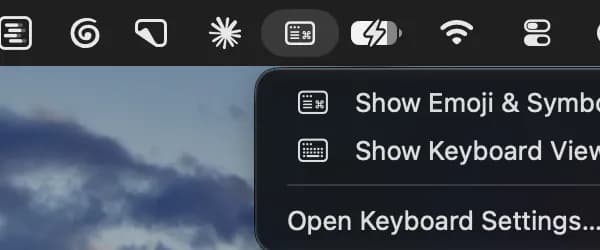
Input menu icon
Click it to open this menu.
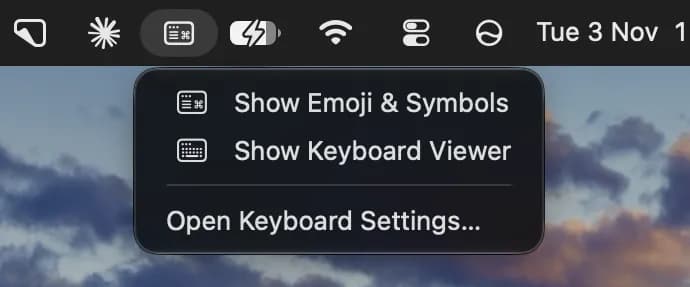
Show Emoji & Symbols
Opens the Character Viewer, where you pick emoji, symbols and special characters.
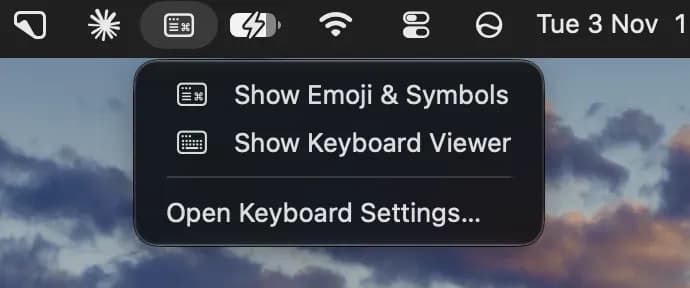
Show Keyboard Viewer
Shows an on-screen keyboard with what each key types. You can click its keys too.
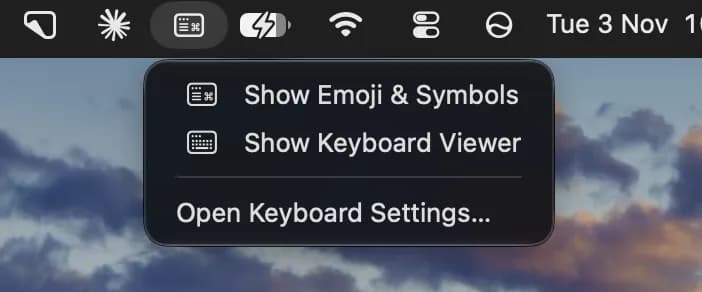
Open Keyboard Settings
Opens Keyboard in System Settings, where you add keyboard languages and input sources.



Privacy dots
A colored dot near the right end of the menu bar means an app is using something private. Orange means the microphone is in use. Green means a camera is in use, and it shows instead of orange when both are on. Purple means system audio is being recorded. An arrow means an app is using your location. Only one dot shows at a time.


Check in Control Center
Open Control Center to see which apps are using the microphone, camera, location or system audio. Click that field to open Privacy settings.
Status symbols. These only show information. They are not buttons.

Purple dot
Your Mac's system audio is being recorded by an app.


Choosing what shows in the menu bar
Open System Settings and click Menu Bar to pick which icons show. For a quicker fix, hold Command and drag an icon to move it, or hold Command and drag it out of the menu bar to remove it.
Menu bar options
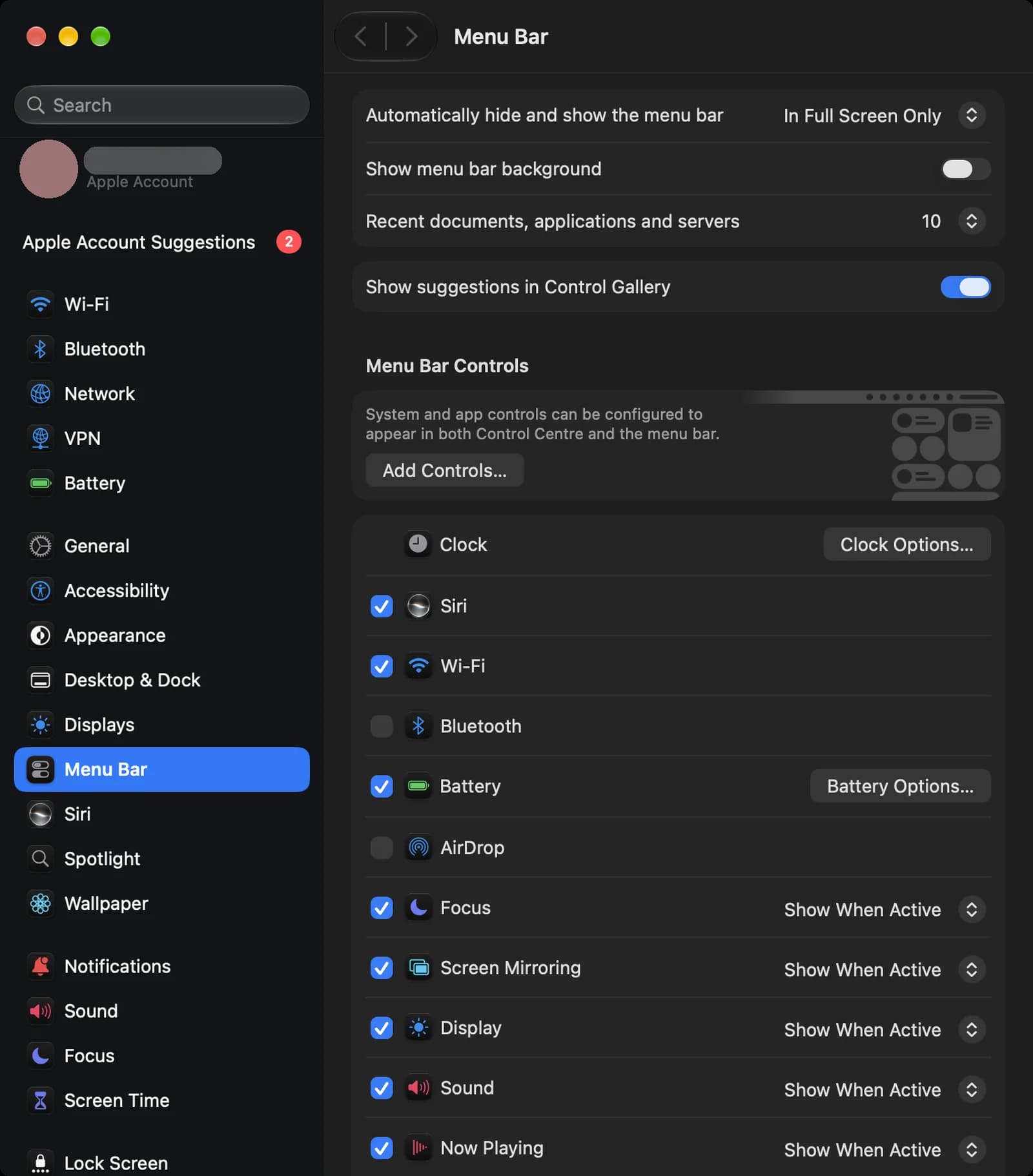
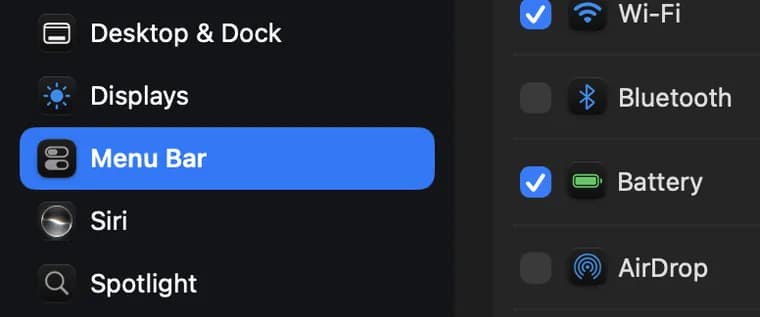
Menu Bar settings
Open System Settings, then click Menu Bar in the sidebar.
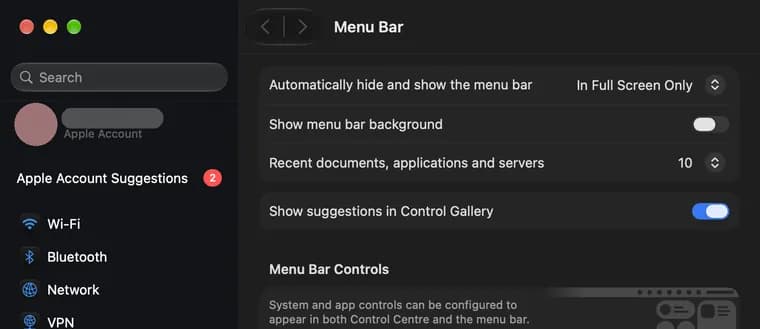
Automatically hide
Hides the menu bar until you move the pointer to the top of the screen. In Full Screen Only does this only in full-screen apps.
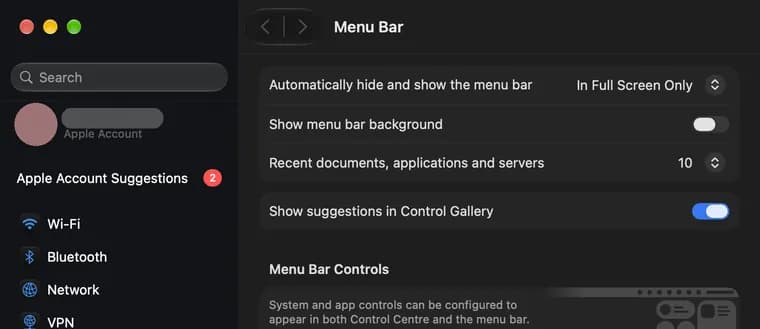
Menu bar background
Adds a background behind the menu bar so its icons stand out. It's off here.
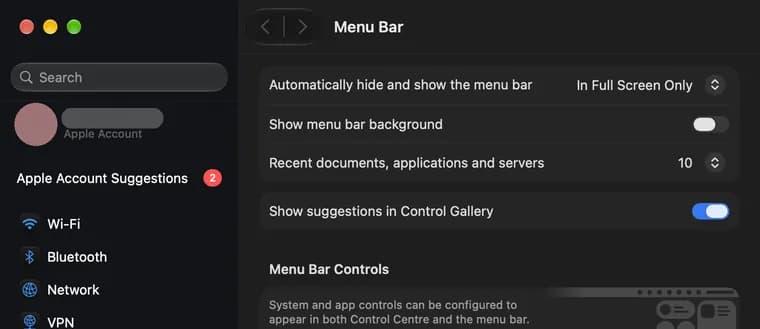
Recent items count
How many recent documents, apps and servers Recent Items in the Apple menu keeps. It's 10 here.

Control Gallery suggestions
Shows suggested controls when you add controls from the Control Gallery.
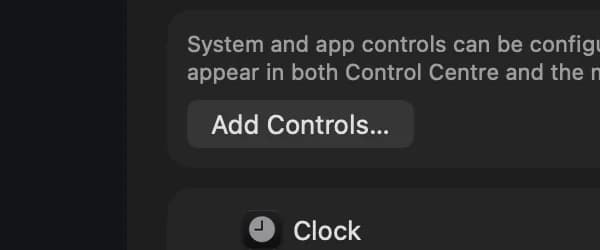
Add Controls
Opens the Control Gallery, where you add controls to Control Center and the menu bar.
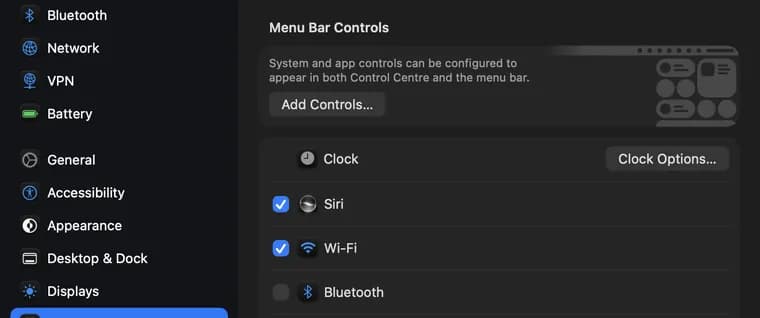
Clock Options
The clock has no tick box because it always stays. This button changes how the date and time look.







Menu Bar Controls
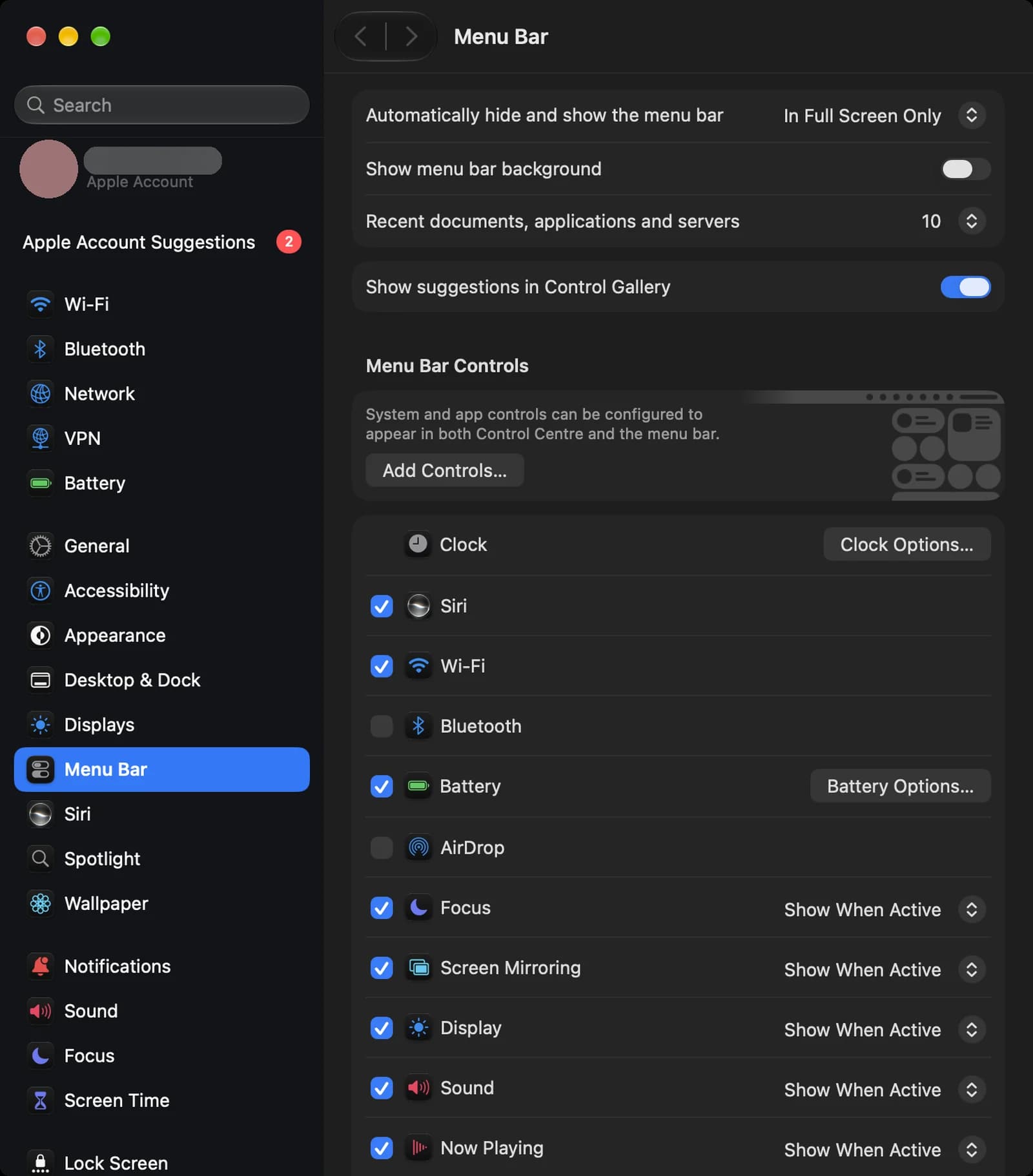
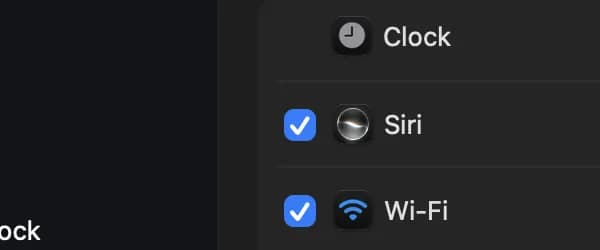
Tick box
Ticked controls show their icon in the menu bar. Untick one to remove it.
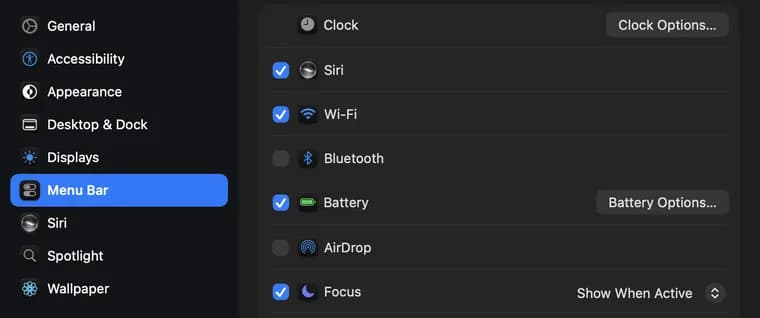
Unticked control
Bluetooth is unticked, so it stays in Control Center but not in the menu bar.

Battery Options
Two choices for the battery icon: Show Percentage puts the charge level next to it, and Show Energy Mode sets when the icon shows your energy mode, like Low Power.

Show When Active
The icon appears only while that feature is in use, for example while a Focus is on.




More controls and app icons
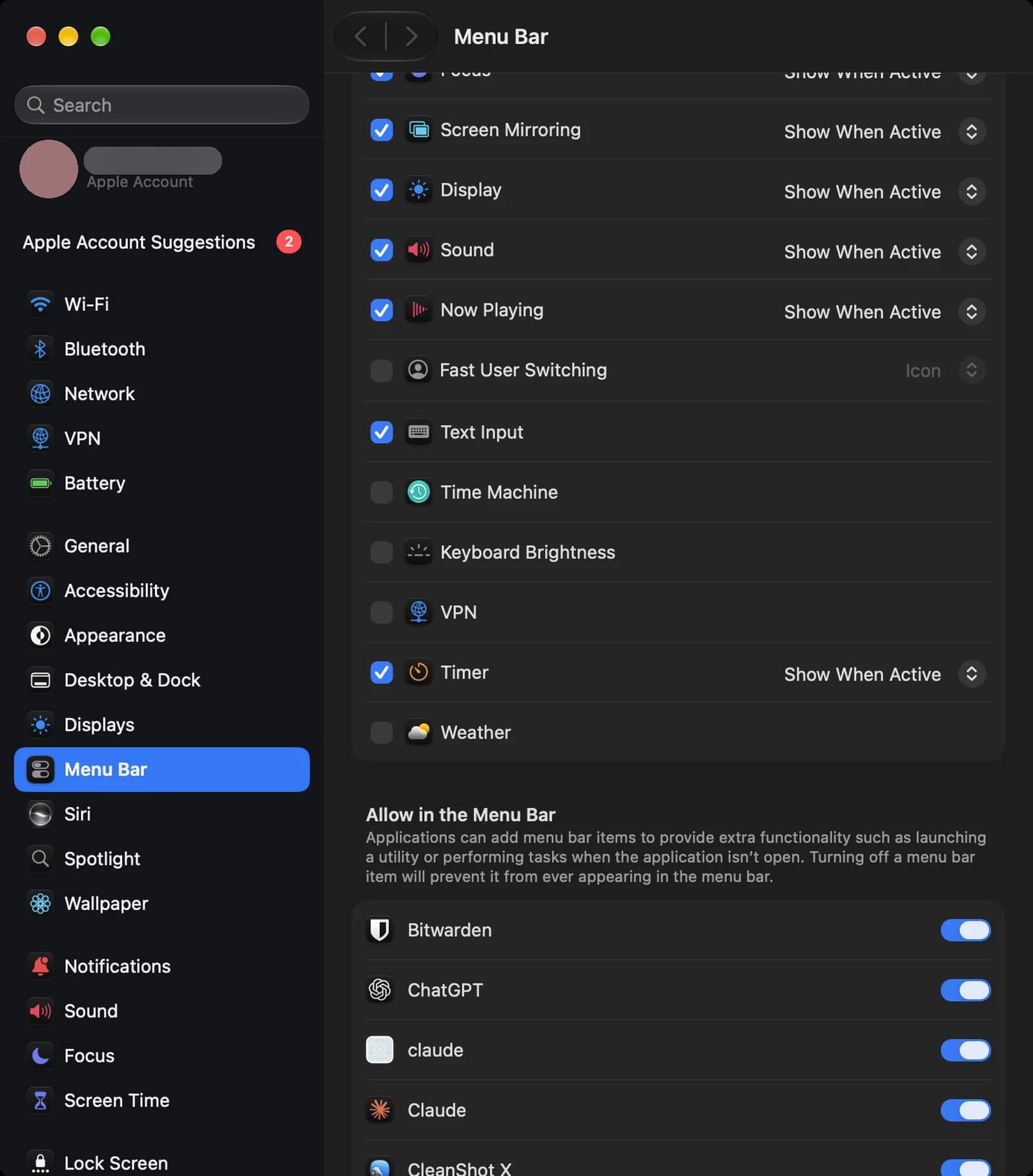
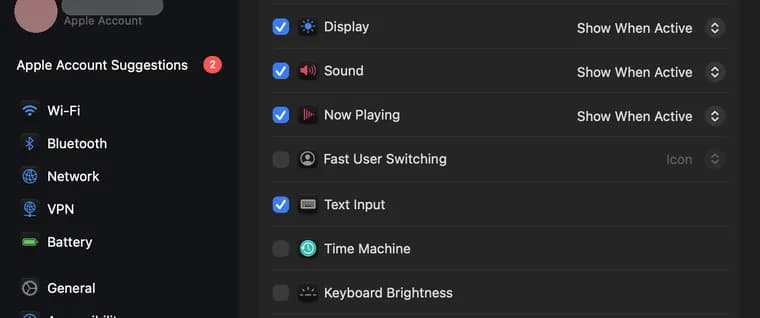
Fast User Switching
Adds a menu for switching to another user account on this Mac without logging out.
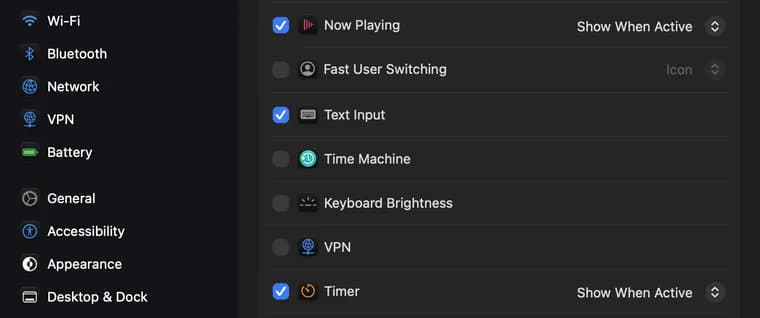
Time Machine
Shows backup status and lets you start a Time Machine backup.
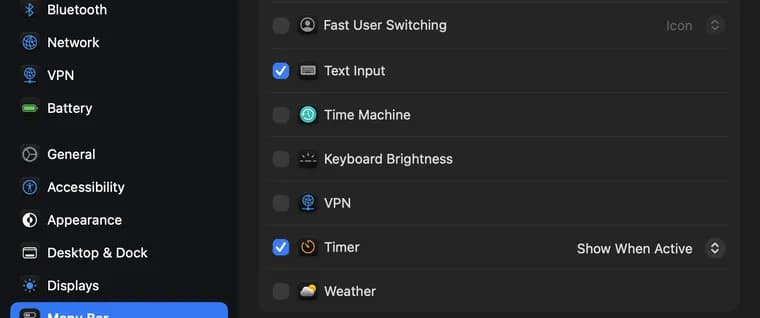
Keyboard Brightness
A slider for your keyboard's backlight.
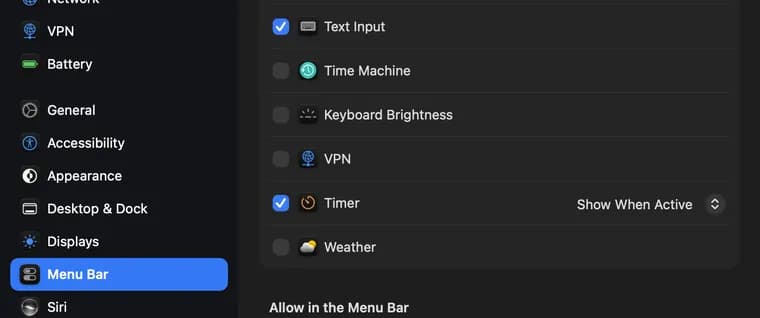
VPN
Connect to or disconnect from a VPN set up on your Mac.
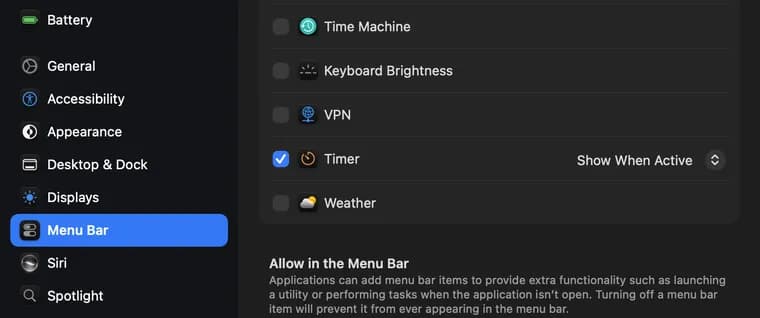
Timer
Shows a timer's countdown. With Show When Active, it appears only while a timer runs.
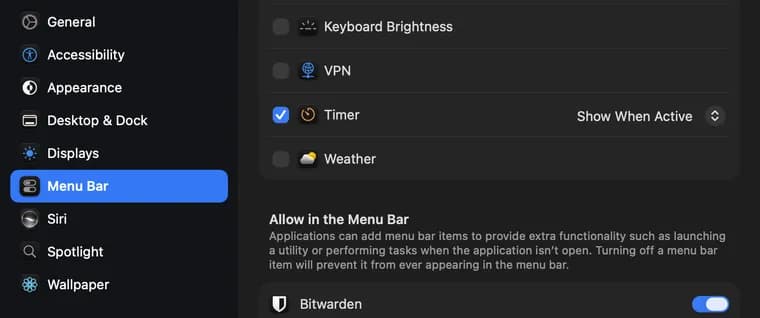
Weather
Shows the current weather in the menu bar.

Allow in the Menu Bar
Turn off an app here and its icon never appears in the menu bar, even while the app runs.


That covers the icons you will see in the Mac menu bar. These screenshots are from macOS 27 on a MacBook with a dark menu bar. Older versions of macOS look similar, but some icons have moved between Control Center and the menu bar over the years. For more guides like this, you can also visit our TechPP icon guides.
Comments
0Share your thoughts, questions, or feedback about this guide.