
LM Studio Interface Explained: Every Button and Setting
LM Studio is a desktop app that runs AI models like Gemma 4 and Qwen 3 locally on your Mac or PC, so your chats never leave your computer. The catch is that it's built for tinkerers. The first time you open it, you get a sidebar, a model picker, a settings panel full of terms like Context Length and KV Cache, and lots of small icons with no labels.
In this guide, I have marked every button and setting on each screen, starting with the chat screen you will use most and ending with the settings you will rarely touch. Click any highlighted box on a screenshot to see what it does, or search for a button below.
Chat screen
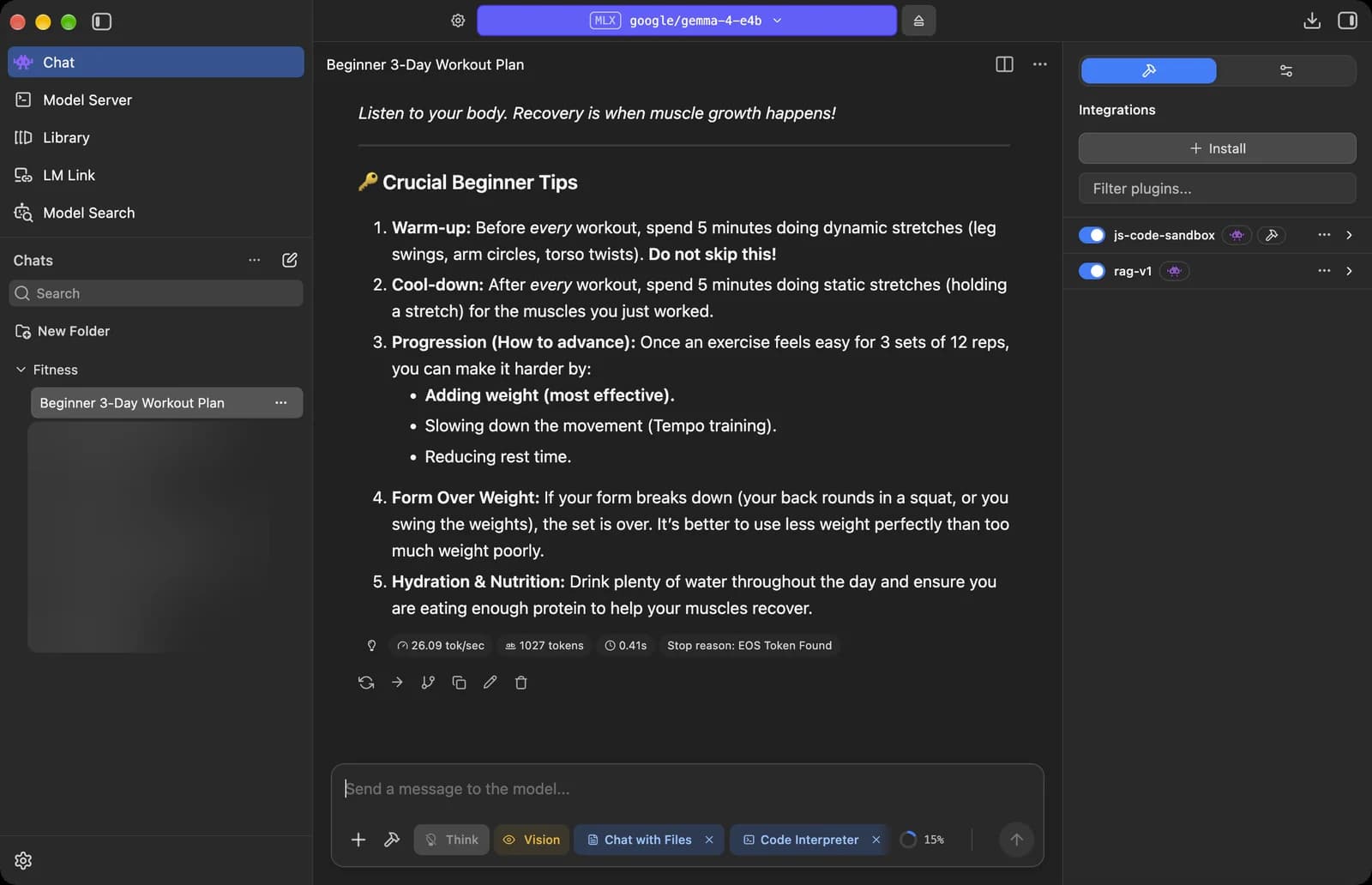
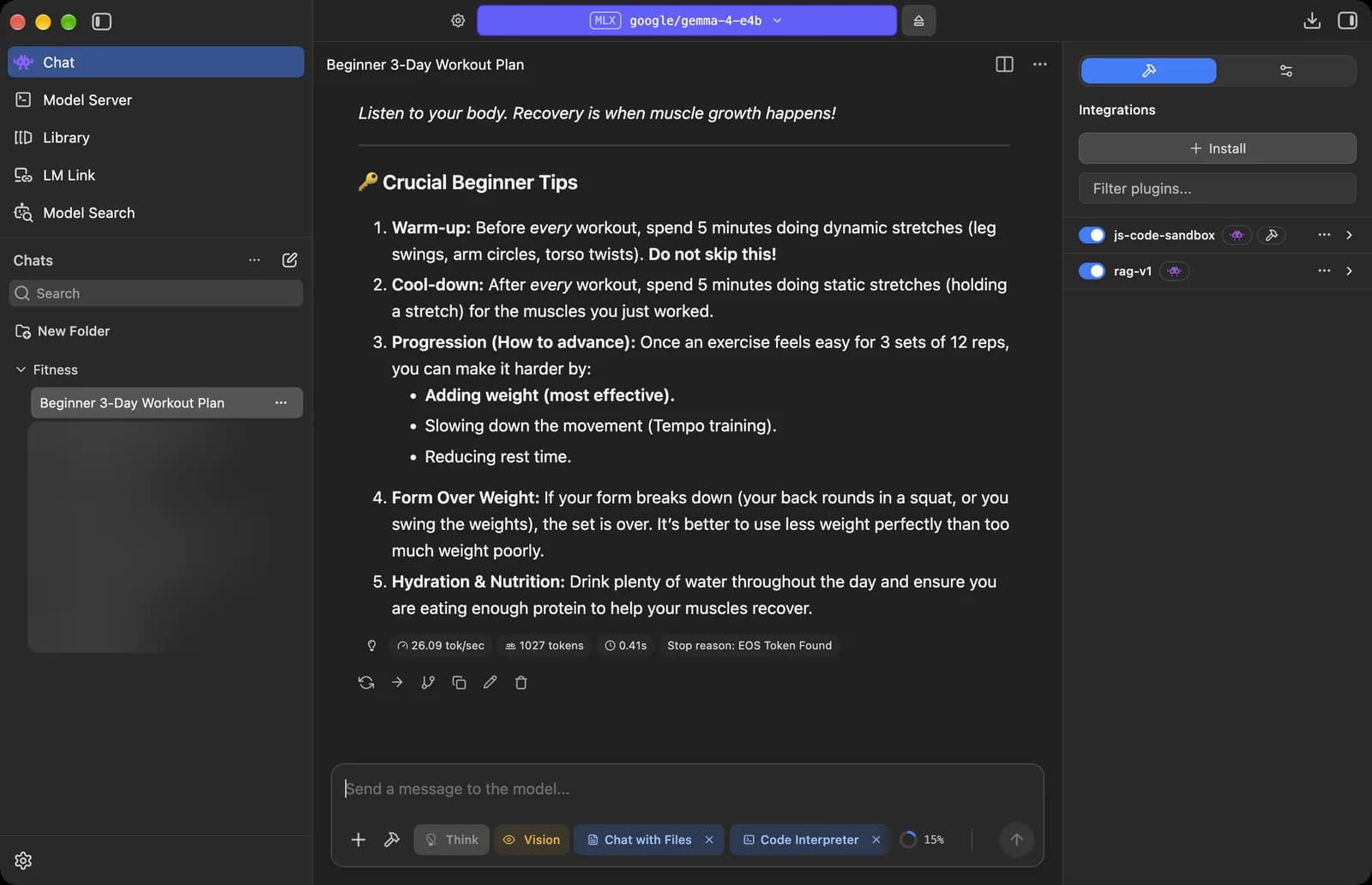
This is where you will spend most of your time. The sidebar on the left switches between LM Studio's main screens, and your chats sit right under it.
Sidebar
Chat
The chat screen you are on now. Talk to a model that runs on your own computer.

Model Server
Run a local API server so other apps on your computer can use your models.
Library
Every model you have downloaded, with its details and load settings.
LM Link
Use models running on your other computers as if they were on this one.
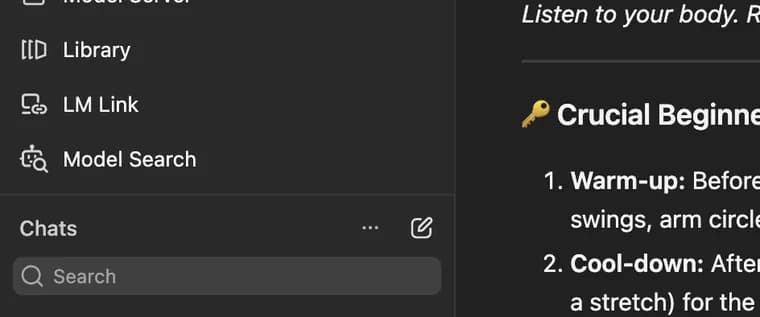
Model Search
Find and download new models from Hugging Face.

Settings
Opens Settings: updates, appearance, runtimes, hardware and more.

Hide sidebar
Hides the sidebar to give the chat more room. Click again to bring it back.


Chats list
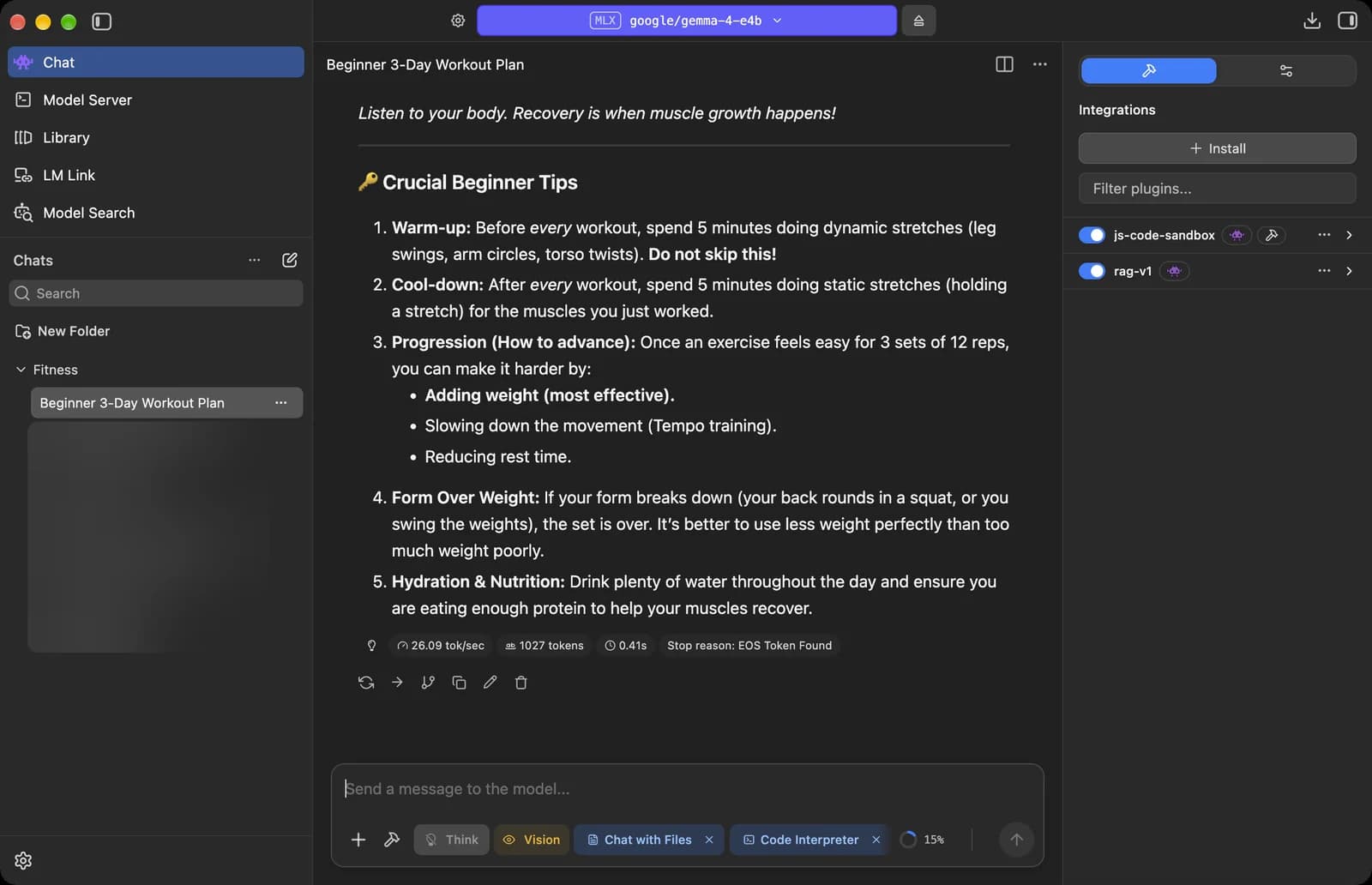

New chat
Starts a new chat. The shortcut is Cmd + N (Ctrl + N on Windows).
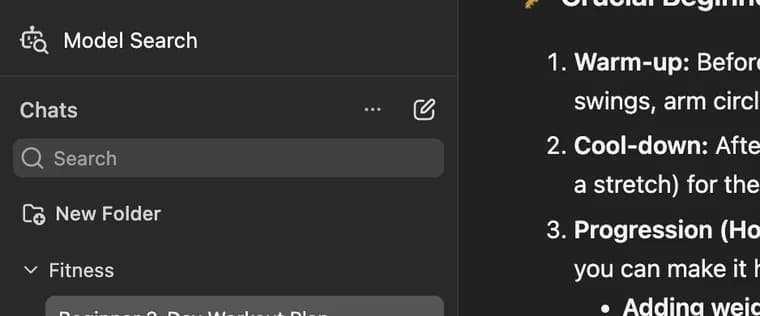
Search chats
Find an old chat by searching your chat history.

New Folder
Makes a folder for your chats. Drag chats in and out of it. The shortcut is Cmd + Shift + N.
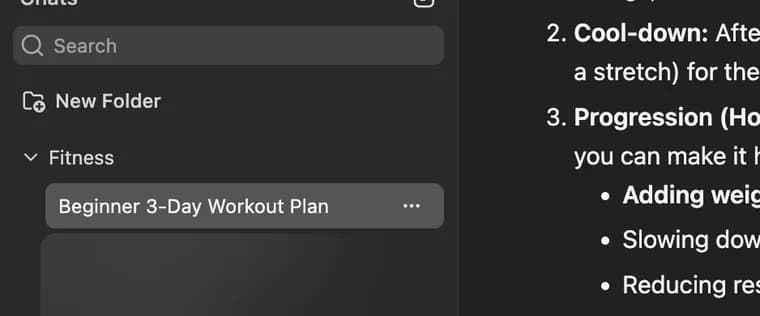
Folder
A folder of chats. Click the arrow to open or close it.
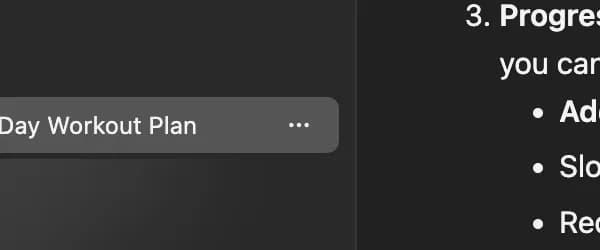
Chat menu
Options for this chat, like Duplicate, which copies the chat along with any files in it.




Top bar
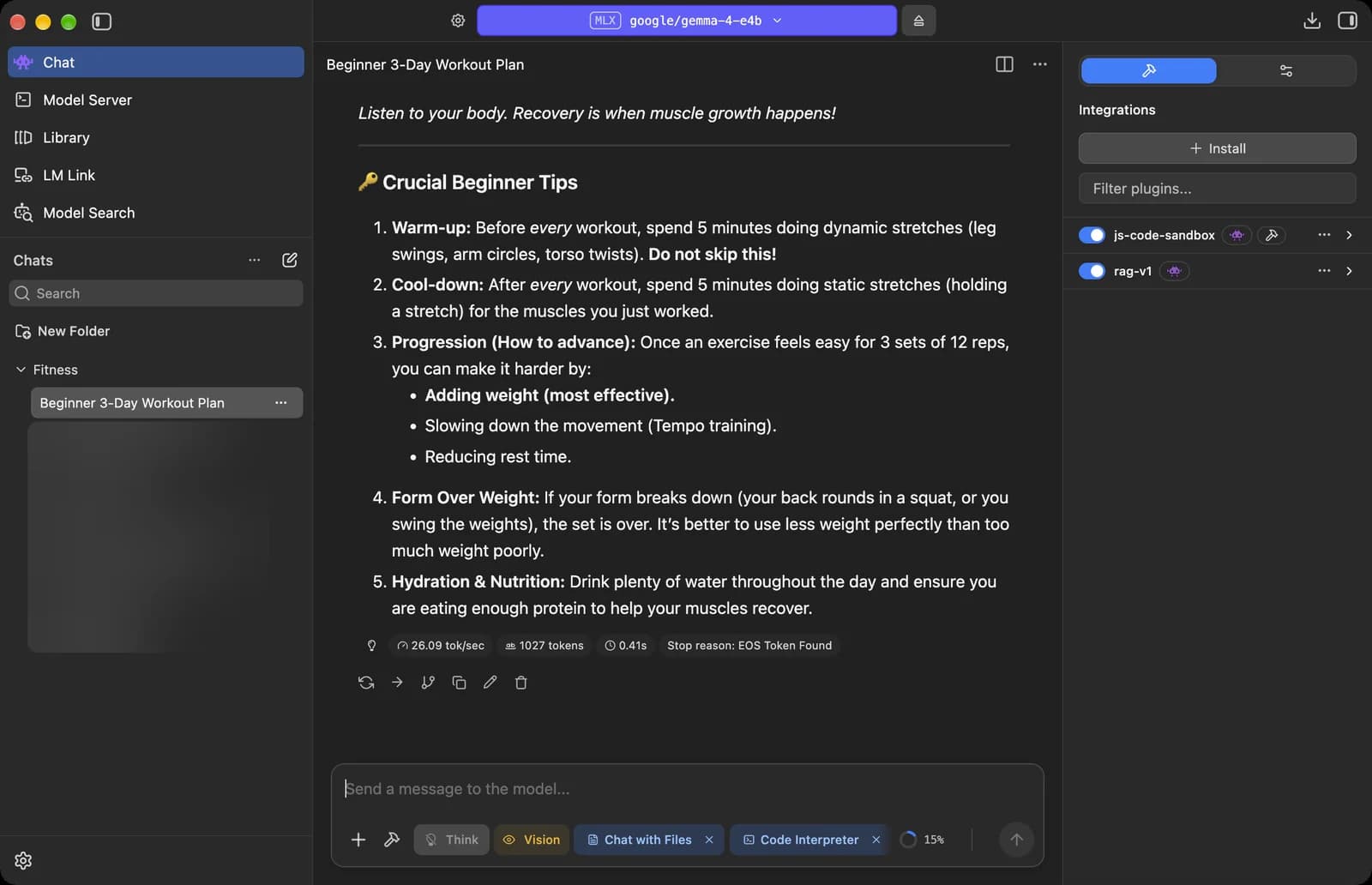

Model picker
The model this chat is using. Click it to switch to another model or load one.

Eject
Unloads the current model from memory. Do this to free up RAM when you are done.

Split view
Shows two chats side by side, for example to compare two models on the same question.
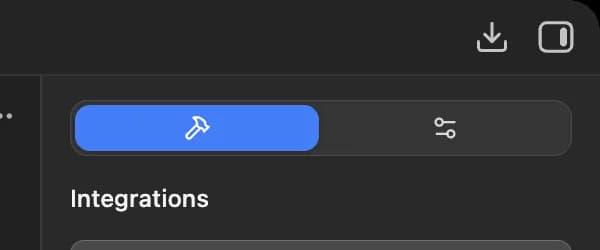
Downloads
Shows your model downloads and how far along they are.

Right panel
Shows or hides the panel on the right with integrations and model settings.



Integrations panel
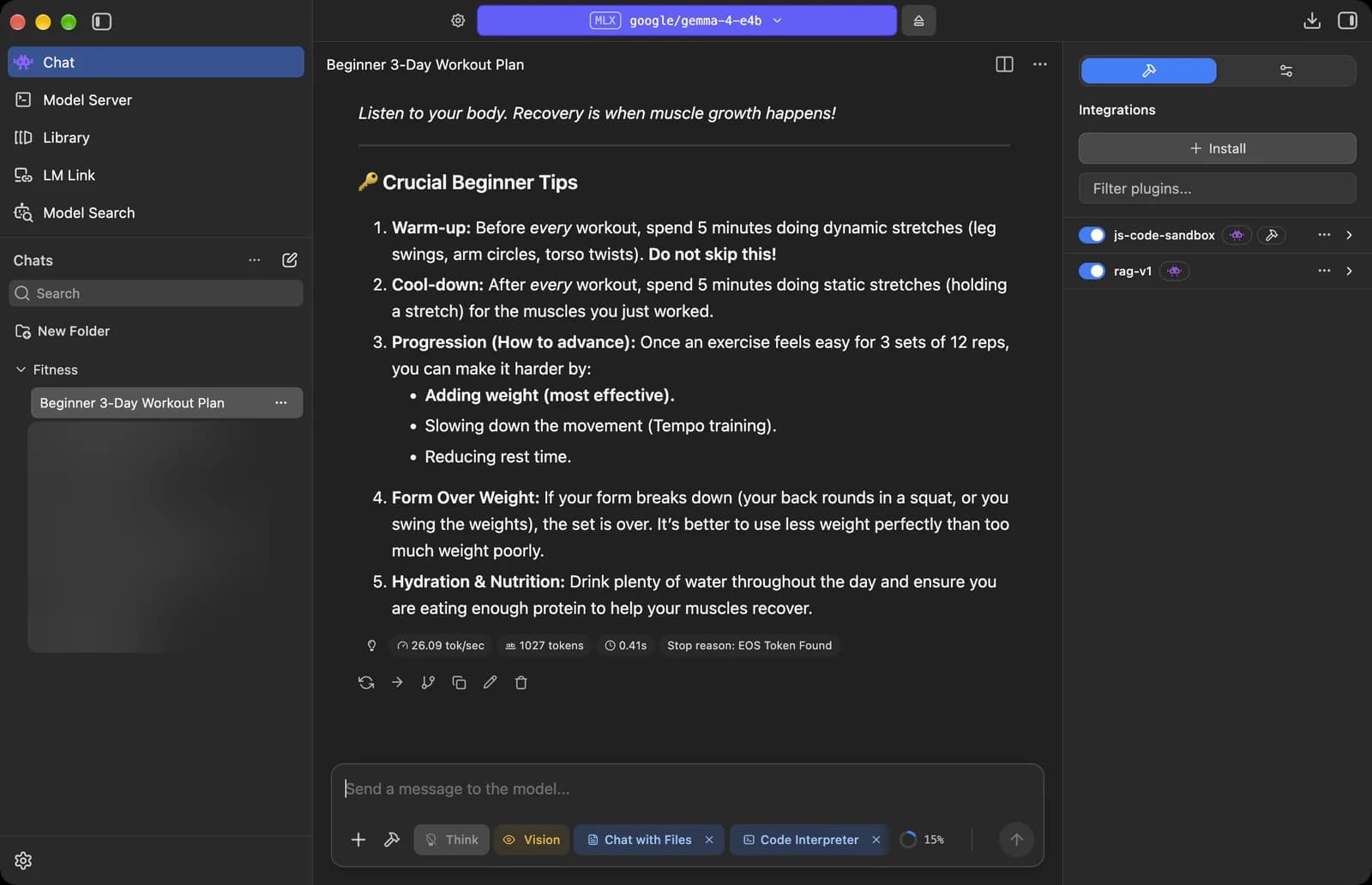

Integrations tab
The plugins and tools this chat can use.

Model Parameters tab
The settings for how the model answers in this chat, like the system prompt and temperature.
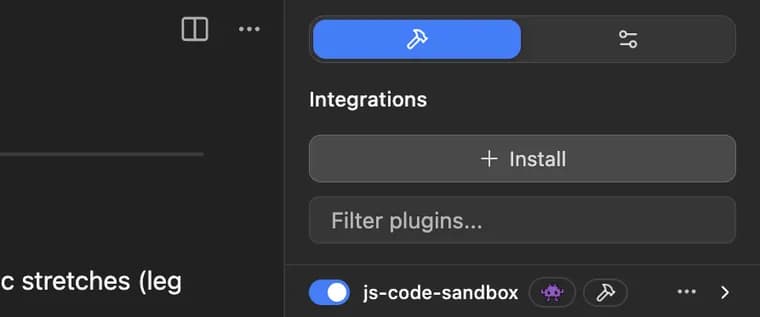
Install
Add more plugins or MCP servers. Edit mcp.json lives here, where you paste in MCP server settings.

Filter plugins
Type to find a plugin in the list.

Plugin switch
Turns a plugin on or off. js-code-sandbox lets the model run JavaScript code, and rag-v1 is LM Studio's built-in plugin for chatting with documents.





Chat input and message tools
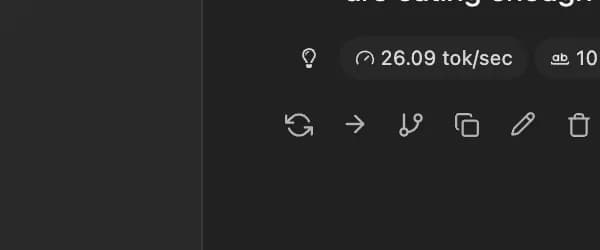
Under every reply you get the speed stats and buttons to redo, copy or edit it. The box at the bottom is where you type, attach files and switch tools on or off.
Message tools
Regenerate
Writes a new answer to the same message. The old answers are kept so you can flip between them.

Continue
Makes the model keep writing from where this reply ends.
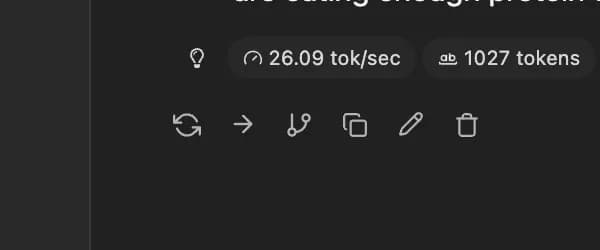
Branch
Starts a new chat with everything up to this message, so you can try a different direction.

Copy
Copies the reply text.

Edit
Change the reply text yourself. The model sees your edited version from then on.

Delete
Deletes this message from the chat.
Status symbols. These only show information. They are not buttons.

Reply stats
How the reply went: 26.09 tokens per second, 1,027 tokens in total, 0.41 seconds before the first word, and why it stopped. EOS Token Found means the model simply finished.



Message box

Message box
Type your question or instructions for the model here.

Attach
Opens a small menu to attach a file or an image.

Integrations menu
A quick menu to turn plugins on or off without opening the right panel.
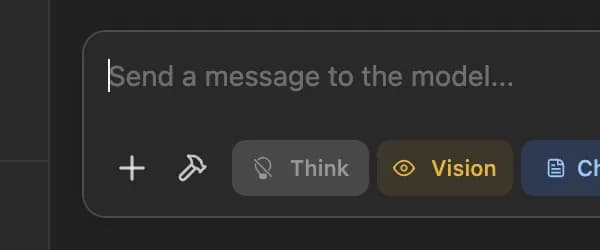
Think
Turns thinking on or off for models that can reason before they answer. Thinking gives better answers to hard questions but takes longer.

Vision
Shows the loaded model can understand images, so you can attach pictures and ask about them.

Chat with Files
Lets the model read documents you attach. The x removes it.

Code Interpreter
Lets the model write and run JavaScript in a sandbox to work things out, like math. The x removes it.







Attach menu
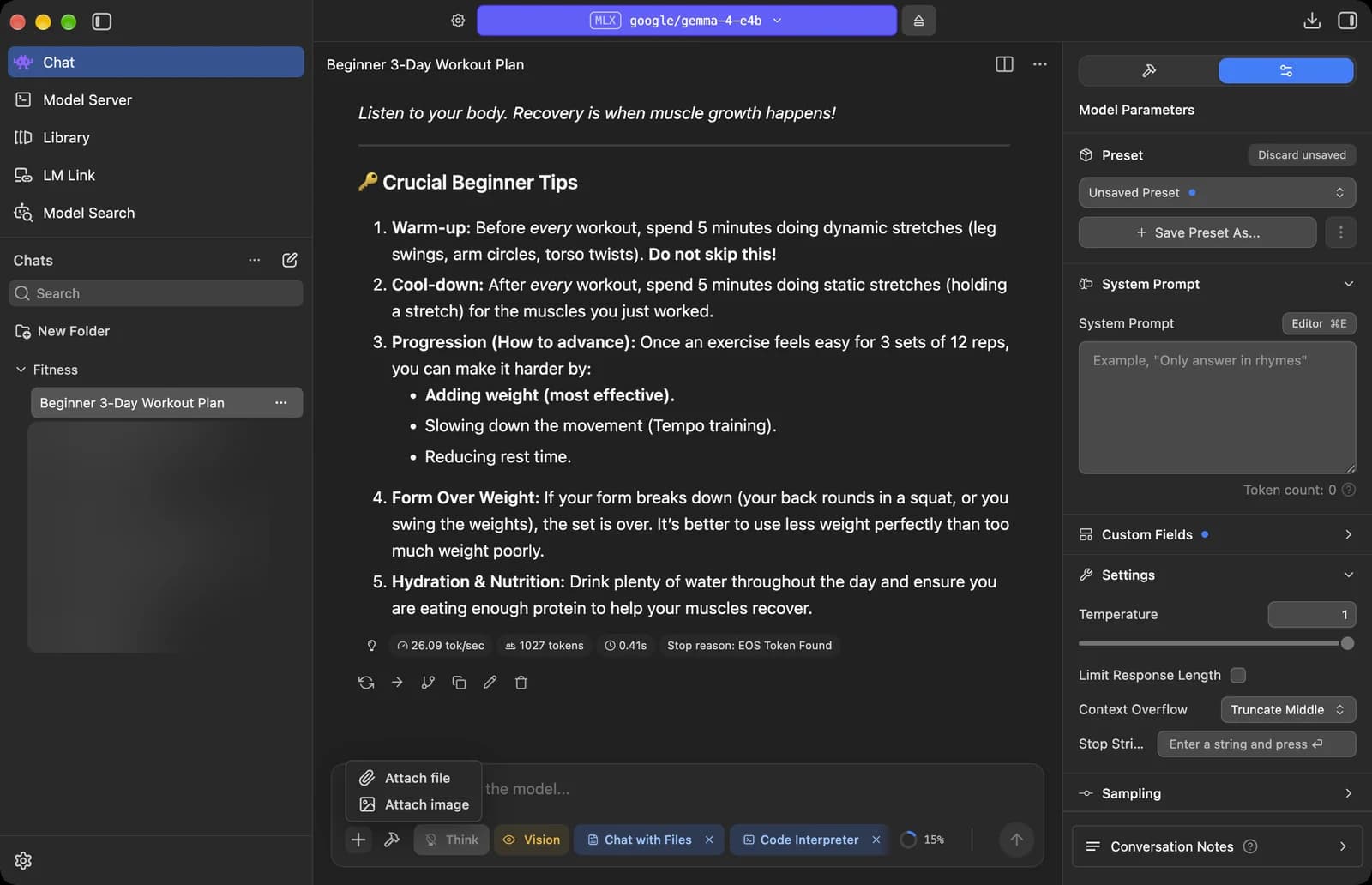

Attach file
Add a .pdf, .docx or .txt file. Short files go to the model in full. For long ones, LM Studio picks out the parts that match your question.

Attach image
Add a picture for the model to look at. This needs a model with vision, like Gemma 4 E4B here.

Send
Sends your message to the model.
Status symbols. These only show information. They are not buttons.

Context used
How much of the model's context length this chat has used, 15% here. When it fills up, the Context Overflow setting decides what gets dropped.


Model parameters panel
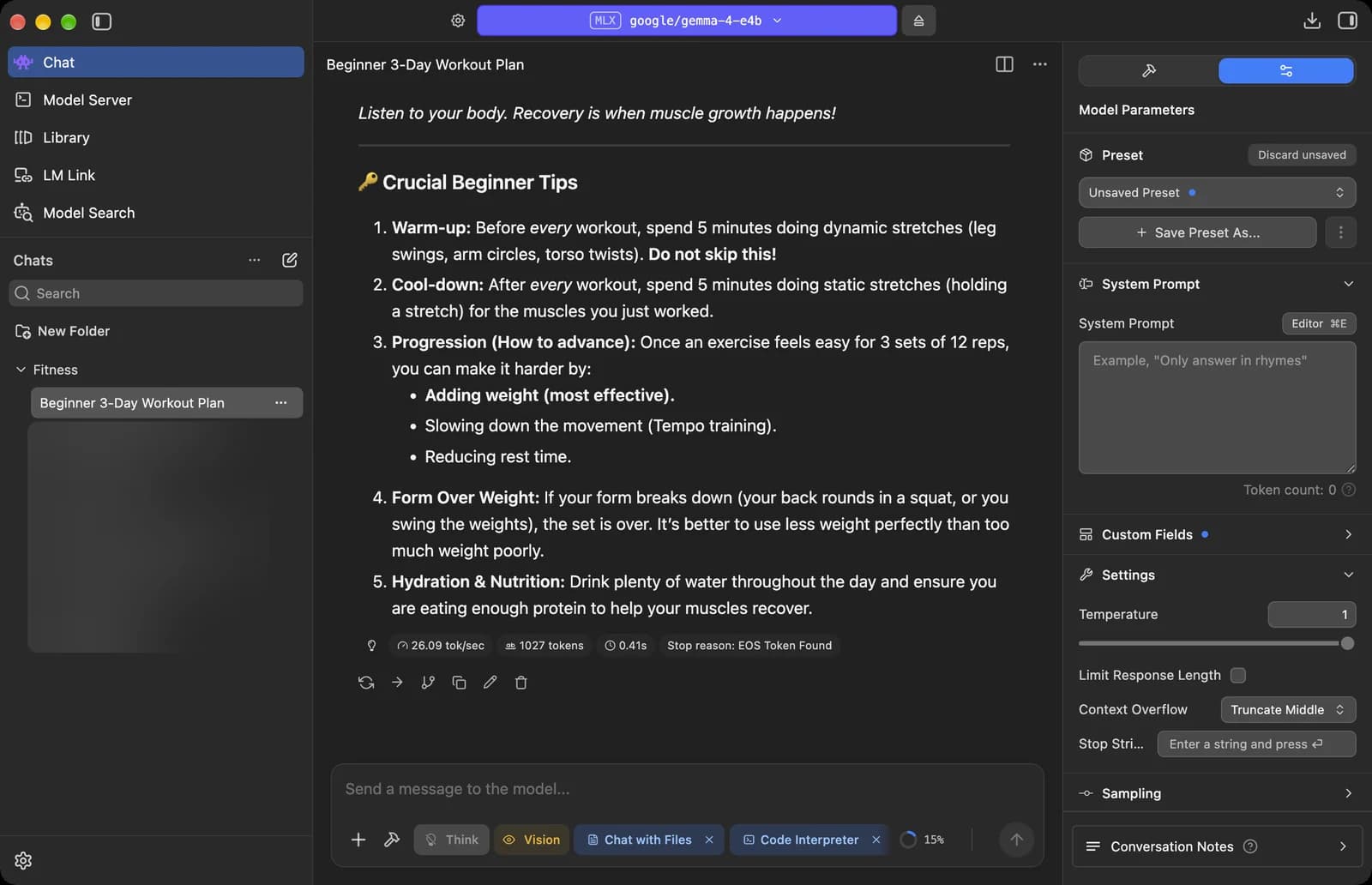
The sliders icon at the top of the right panel opens the settings for the current chat. These control how the model answers, and you can save them as a preset to reuse.
Presets and system prompt
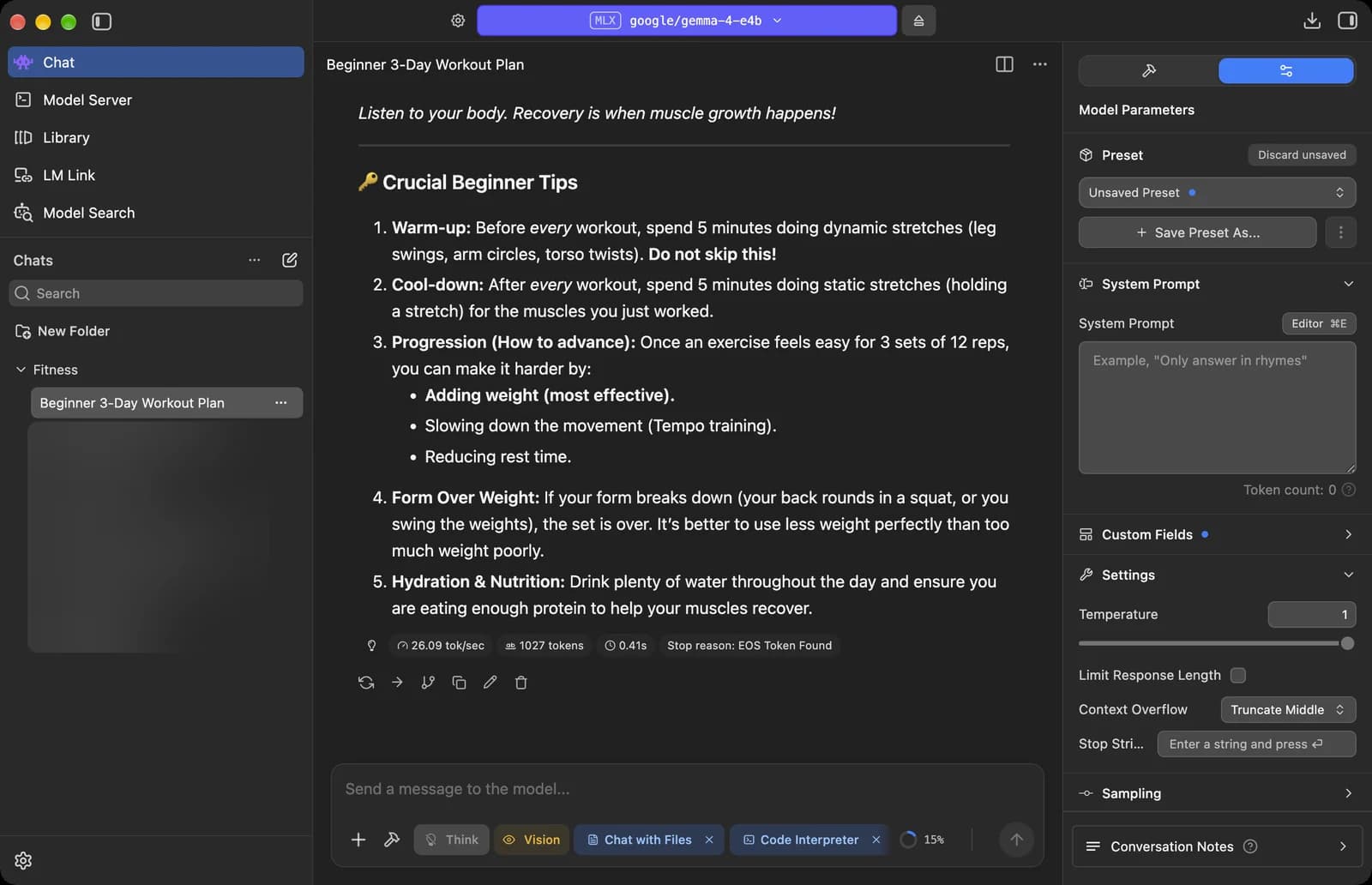
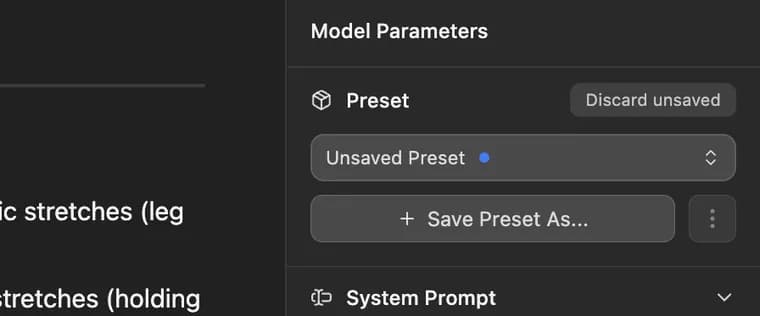
Preset
Pick a saved preset: a system prompt plus settings you can reuse in any chat. Unsaved Preset means you have changed something.
Discard unsaved
Throws away changes you have not saved to a preset.
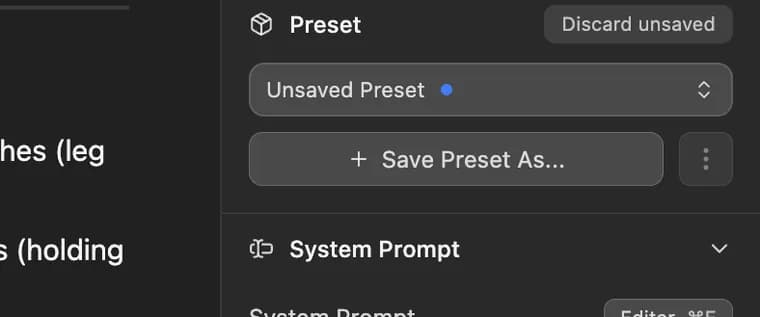
Save Preset As
Saves the current system prompt and settings as a new preset with its own name.
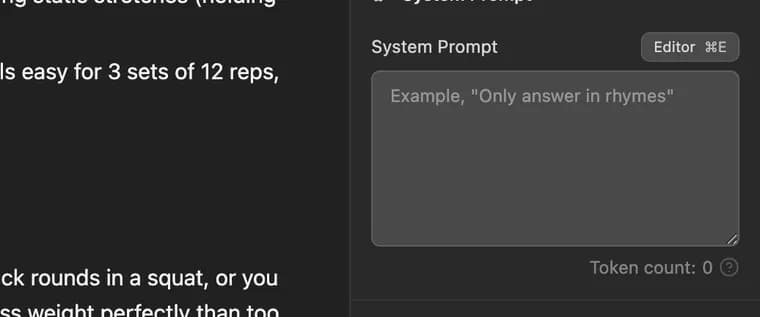
System Prompt
Standing instructions the model follows for the whole chat, like "Only answer in rhymes" or "Keep answers short."
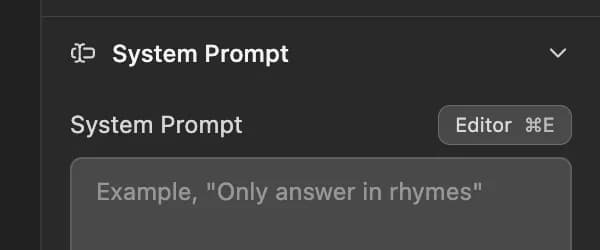
Editor
Opens a bigger editor for long system prompts. The shortcut is Cmd + E.
Status symbols. These only show information. They are not buttons.

Token count
How many tokens your system prompt uses. A token is about three quarters of a word, and these count toward the context length.





Settings
Temperature
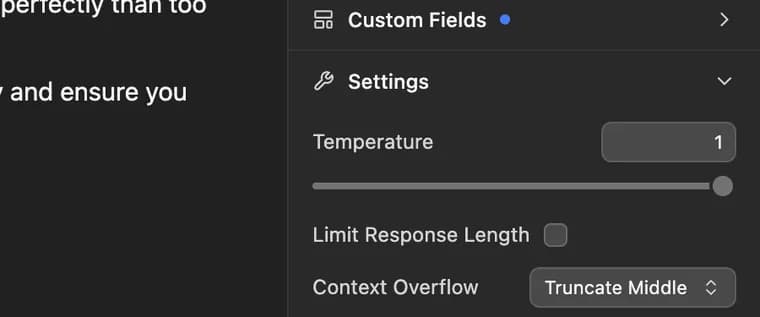
How creative the answers are. Higher values make them more random, lower values make them more predictable. It is set to 1 here.

Limit Response Length
Tick it to cap how many tokens the model can write in one answer.

Context Overflow
What happens when the chat gets longer than the context length. Truncate Middle keeps your system prompt and first message and drops the middle. Rolling Window drops the oldest messages, and Stop at Limit ends the answer.

Stop Strings
Words or symbols that make the model stop writing as soon as it produces them. Type one and press Return.
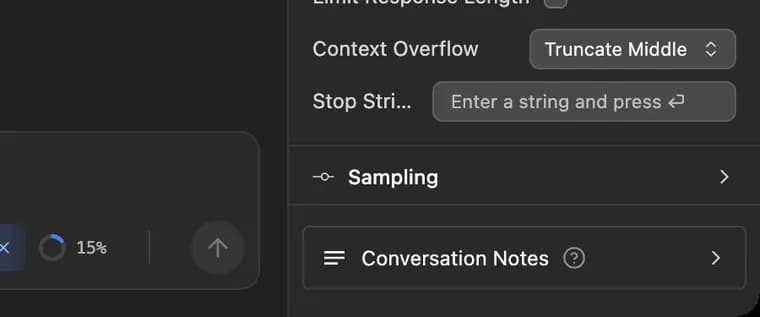
Sampling
Fine controls for how the model picks each next word, such as Top K, Top P, Min P and Repeat Penalty. Most people can leave these alone.

Conversation Notes
Add your own notes to this chat.






Picking and loading a model
Click the model name at the top of a chat to open the model picker. It shows what is loaded right now, how much memory it takes, and every model you have downloaded.
Loaded model
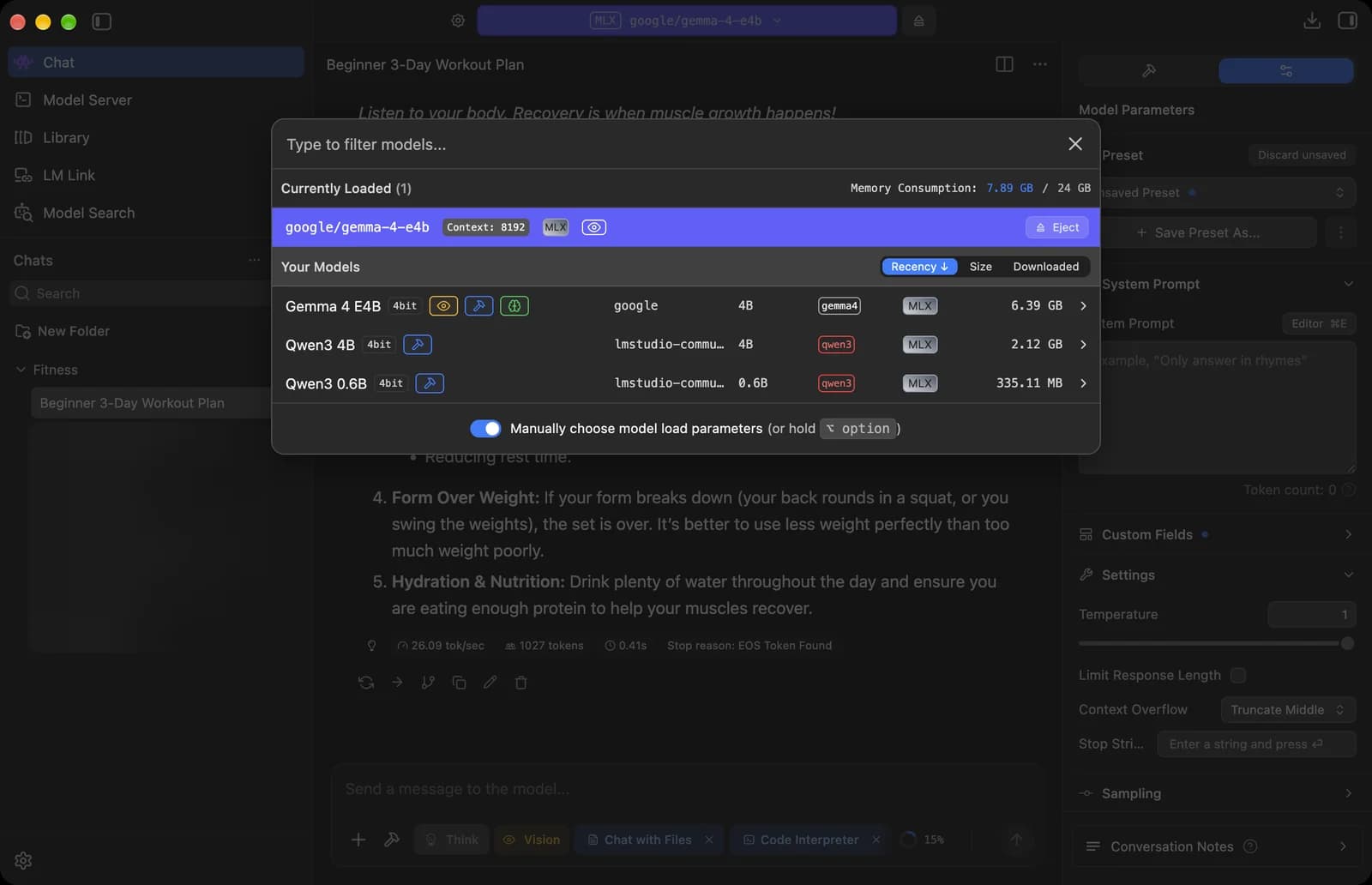

Filter models
Type to find one of your downloaded models by name.
Loaded model
The model in memory right now, which answers your chats.

Eject button
Unloads the model and frees its memory.

Sort
Sort your models by Recency, Size or Downloaded.

Close
Closes the picker without changing the model.
Status symbols. These only show information. They are not buttons.
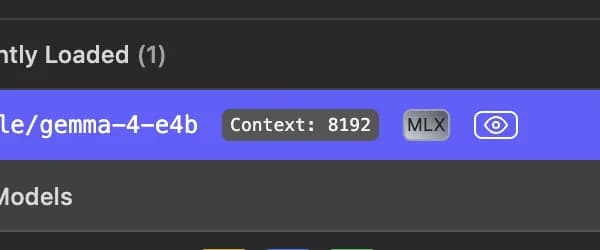
Context badge
The context length the model was loaded with: 8,192 tokens. That is how much text it can keep in mind at once.

Memory Consumption
How much memory your loaded models use, 7.89 GB, out of the 24 GB in this Mac.







Your models
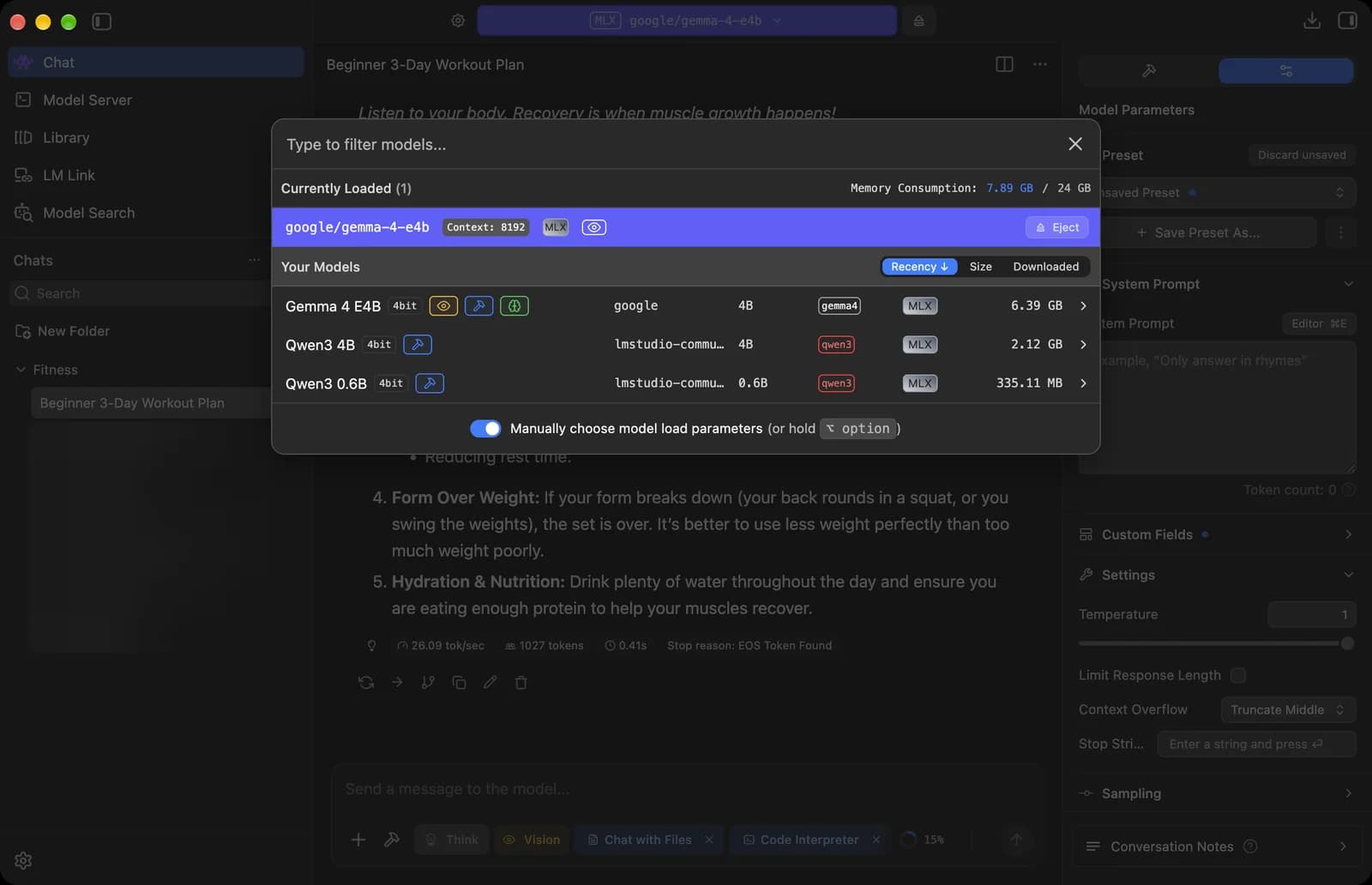

Model
Click a model to load it. The row also shows the publisher, the size in parameters (4B), the model family and the file size.

Choose load parameters
When this is on, picking a model shows its load settings, like context length, before it loads. Holding Option does the same for one load.
Status symbols. These only show information. They are not buttons.

Quantization
How much the model file is compressed. 4-bit files are much smaller but lose a little quality. LM Studio suggests 4-bit or higher if your computer can handle it.
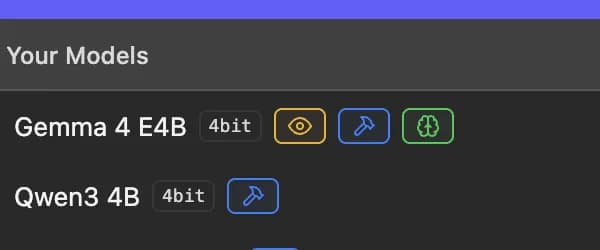
Vision badge
The eye means the model can understand images.
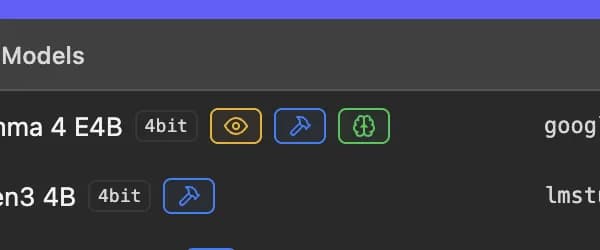
Tool use badge
The hammer means the model can use tools, like plugins and MCP servers.
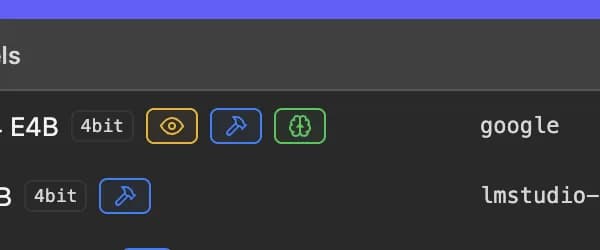
Reasoning badge
The green brain means the model can think through a problem before it answers.

Model format
The file format. MLX is Apple's format and runs only on Apple silicon Macs. GGUF runs on Mac, Windows and Linux.



Model Search (downloading models)
Model Search is where you find and download new models from Hugging Face. Searching needs an internet connection, but chatting with a model you have already downloaded does not.
Search results
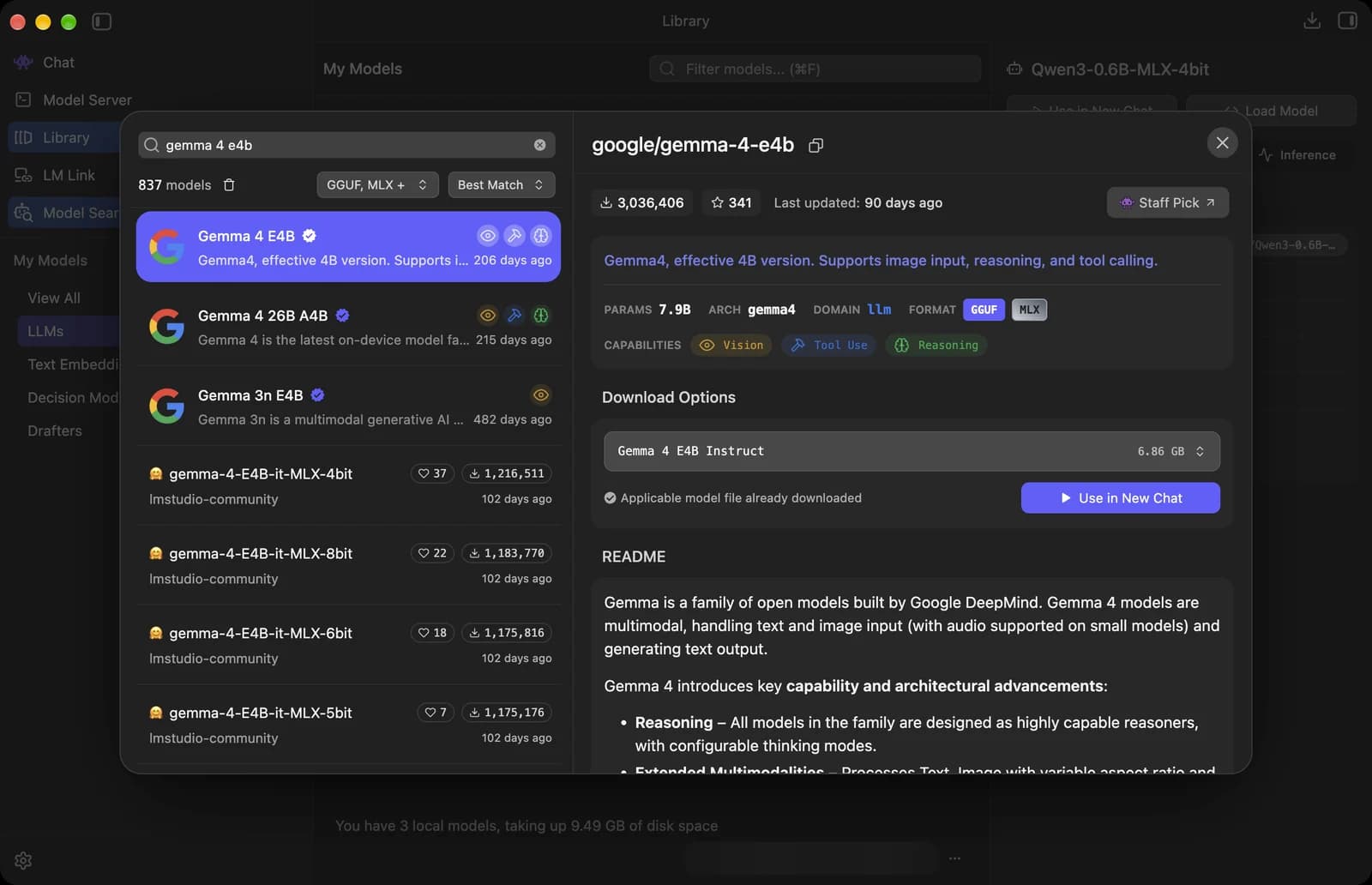
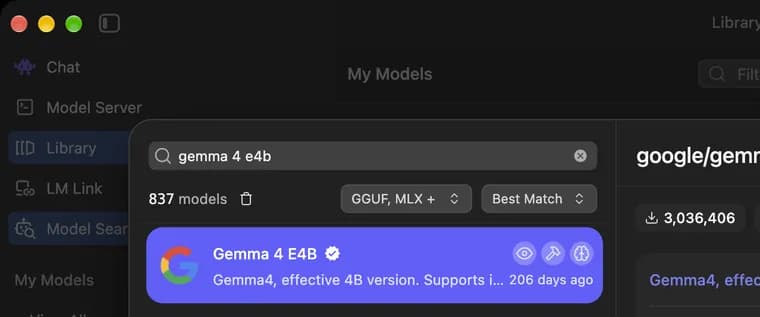
Search models
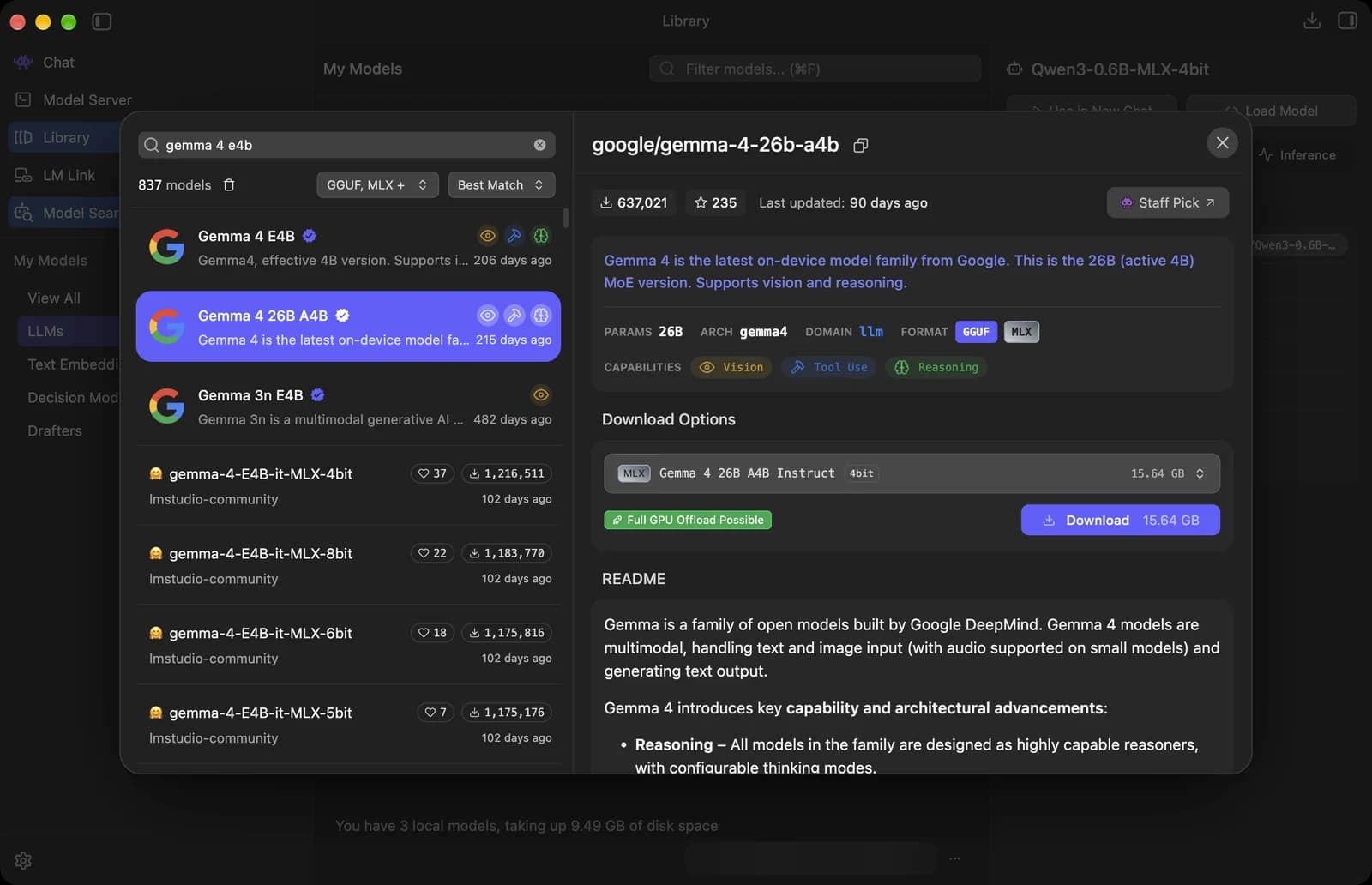
Search by name, like gemma 4 e4b. You can also paste a user/model name or a Hugging Face link.
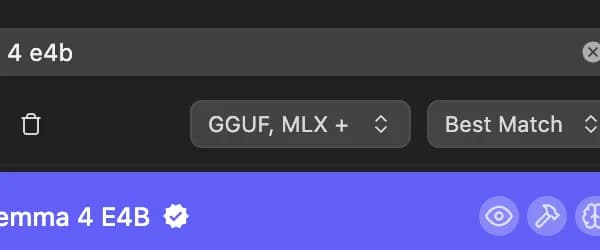
Format filter
Show GGUF models, MLX models or both. On a Mac you can use either; on Windows and Linux only GGUF works.
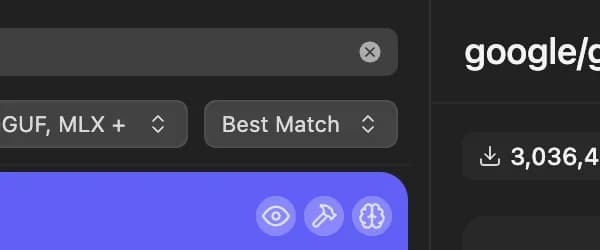
Sort results
Changes the order of the results. Best Match puts the closest matches first.
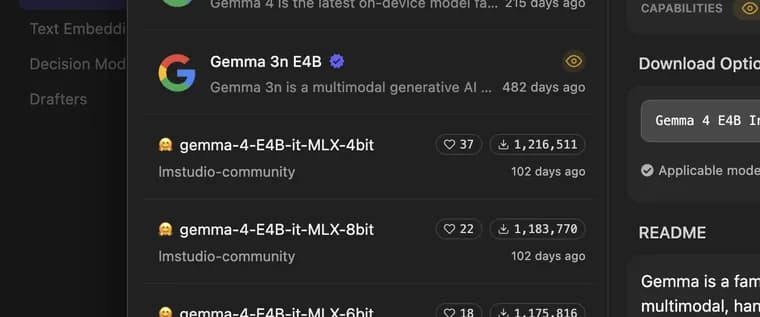
Community file
A single model file from Hugging Face, here uploaded by lmstudio-community. The heart shows likes and the arrow shows downloads.
Status symbols. These only show information. They are not buttons.
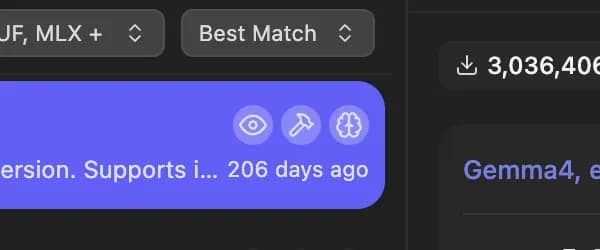
Capability icons
Eye, hammer and brain show support for images, tools and reasoning.





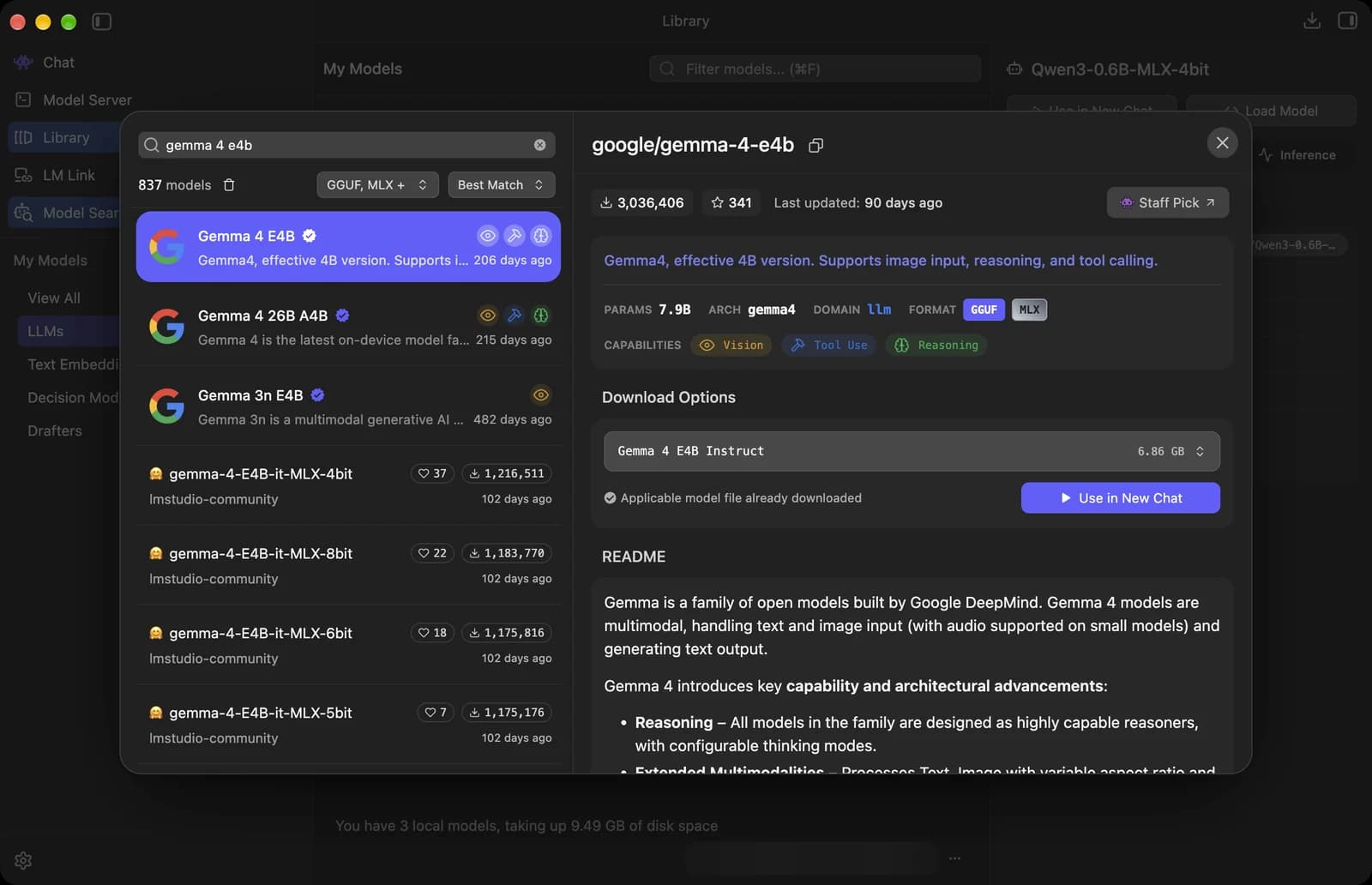
Model details
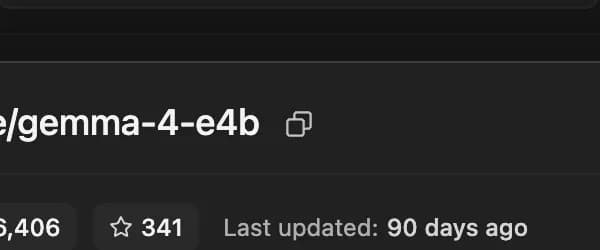
Copy model name
Copies the model's full name, like google/gemma-4-e4b.
Use in New Chat
This model is already downloaded, so the button opens a new chat with it.
Status symbols. These only show information. They are not buttons.
Popularity
How many times the model was downloaded and how many people liked it.
Staff Pick
LM Studio's team recommends this model.

Parameters
The model's size: 7.9B means 7.9 billion parameters. Bigger models are usually smarter but need more memory.
Formats
The formats this model comes in, GGUF and MLX. MLX is built for Apple silicon Macs.

Capabilities
What the model can do: Vision (understand images), Tool Use (call tools) and Reasoning (think before it answers).







Downloading a model
Download options
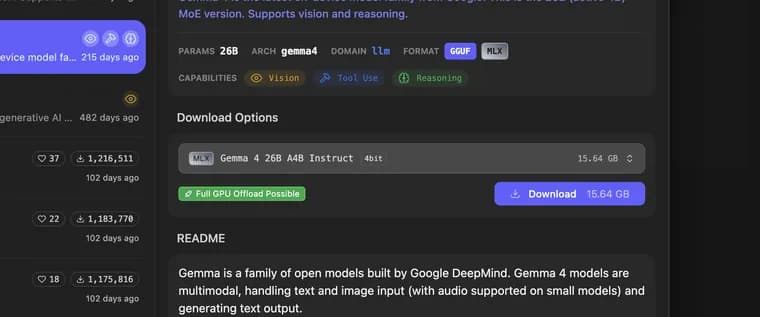
Pick which version to download. This one is the MLX file, 4-bit, 15.64 GB.
Download
Downloads the model, 15.64 GB here. Check you have that much free disk space first.
Status symbols. These only show information. They are not buttons.
Full GPU Offload Possible
The whole model fits in your graphics memory, so the GPU can run all of it. GPU offload means moving the model onto the GPU, which is much faster than the CPU.



Library (My Models, Load and Inference settings)
Library lists every model on your computer. Pick one to see its details and change the settings it loads and answers with.
My Models
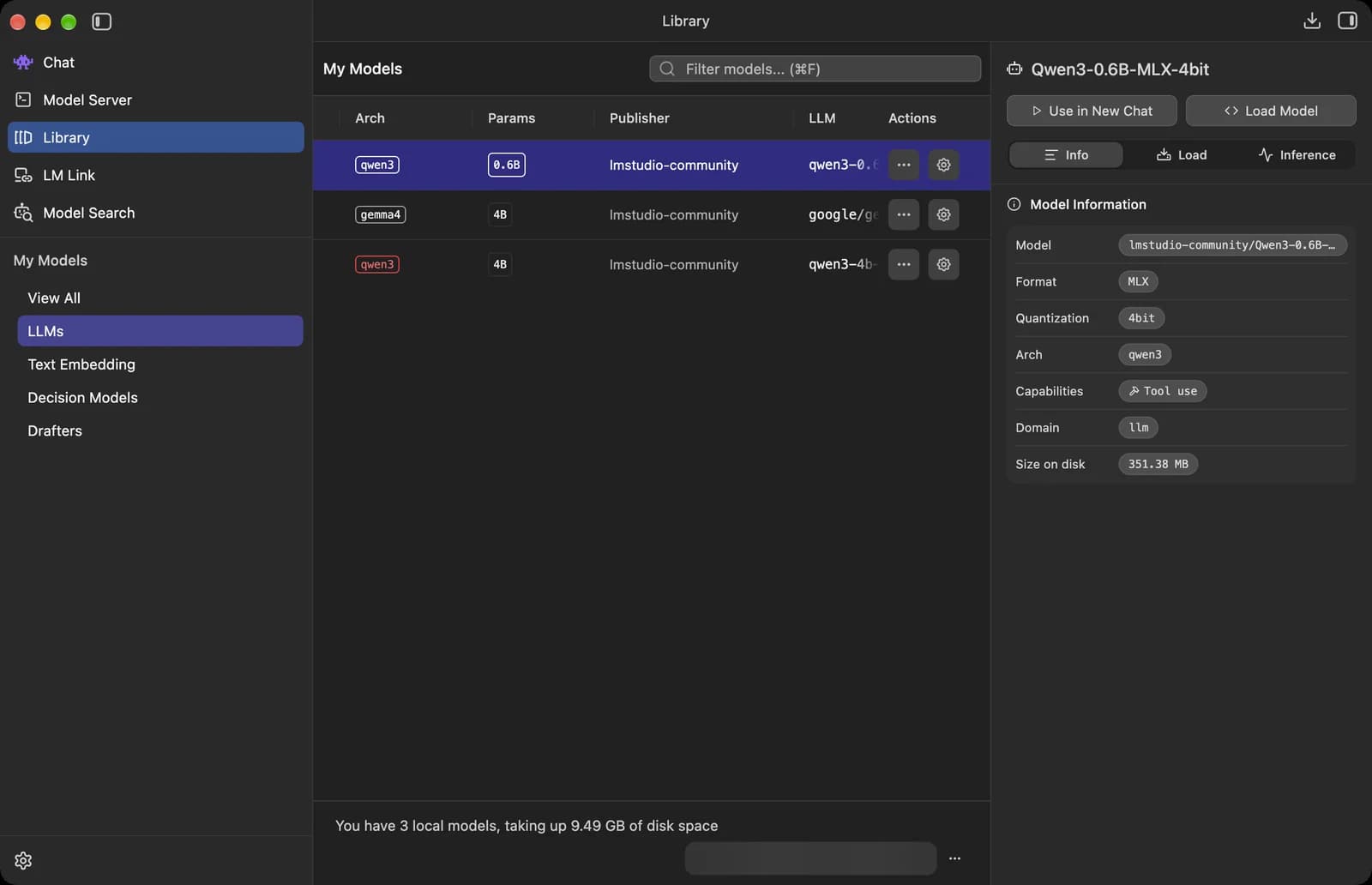

Model types
Filter by type. LLMs are chat models, Text Embedding models turn text into numbers for document search, and Drafters are small helper models for speculative decoding.
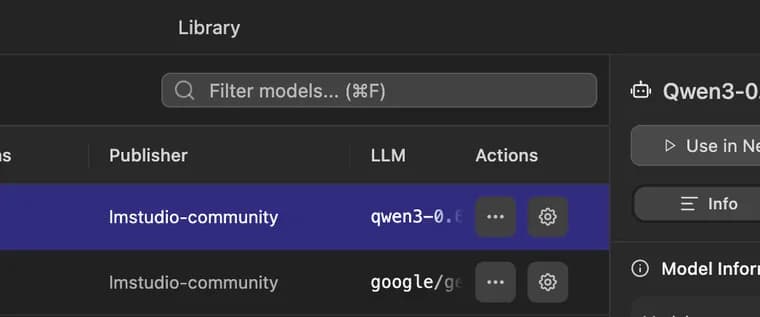
Filter my models
Type to find a model. The shortcut is Cmd + F.
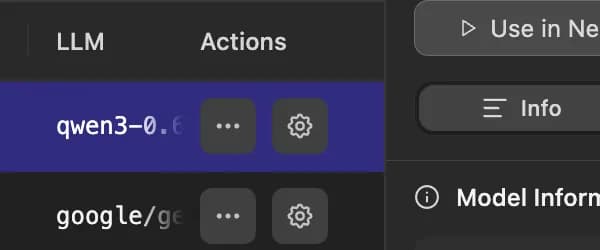
Model settings
Sets this model's default load settings, like context length. They apply every time the model loads.

Models folder
Where LM Studio saves your models on disk.
Status symbols. These only show information. They are not buttons.
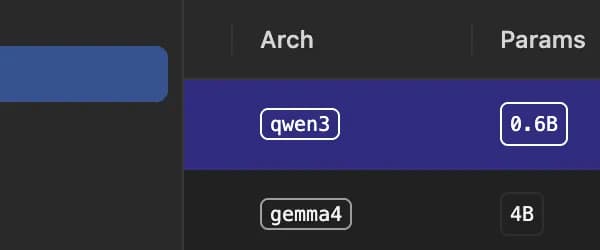
Arch
The model family it is built on, like qwen3 or gemma4.
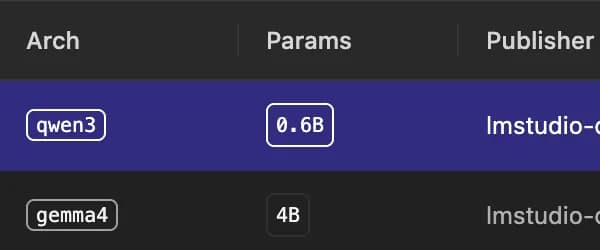
Params
The model's size in billions of parameters, like 0.6B or 4B.




Model panel
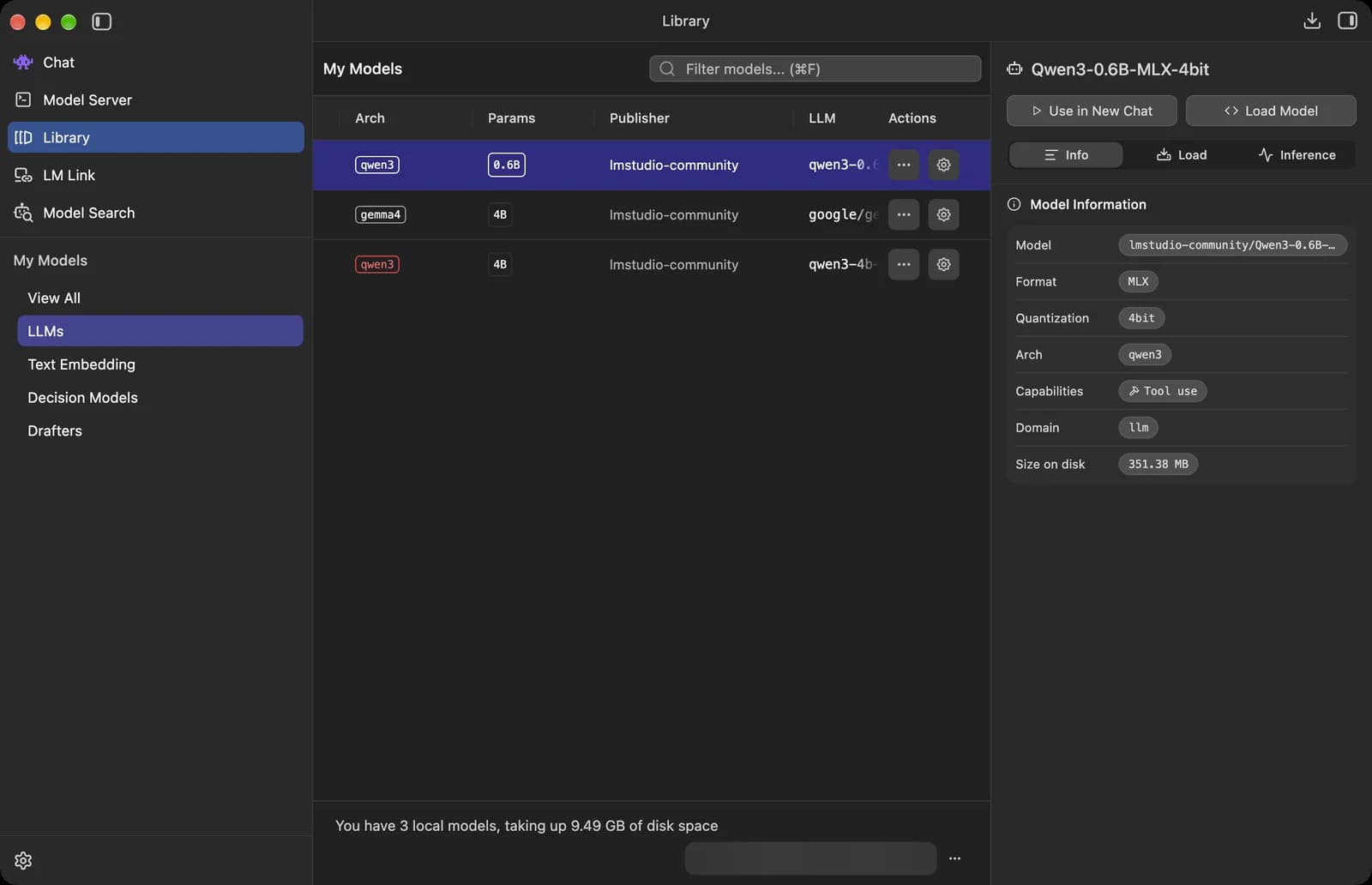
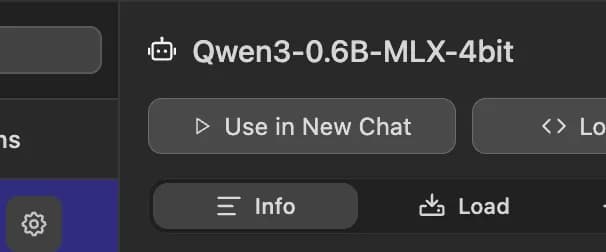
Use in New Chat button
Opens a new chat with this model.

Load Model
Loads the model into memory without opening a chat, for example to use it from the local server.
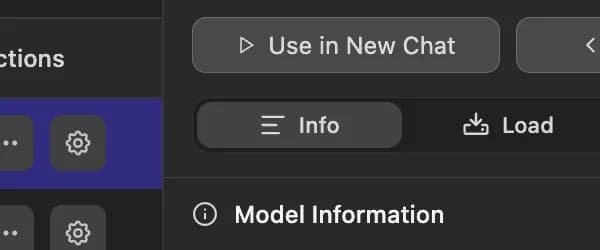
Info tab
The model's format, quantization, family, capabilities and size on disk.
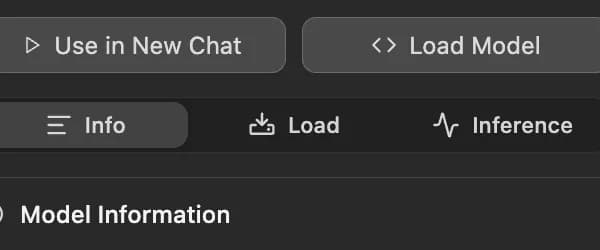
Load tab
Settings used when the model loads, like context length.
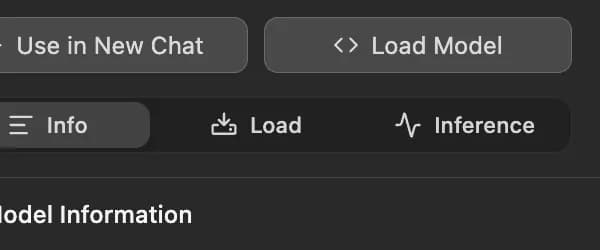
Inference tab
Settings for how this model answers, like the system prompt and temperature.





Load tab
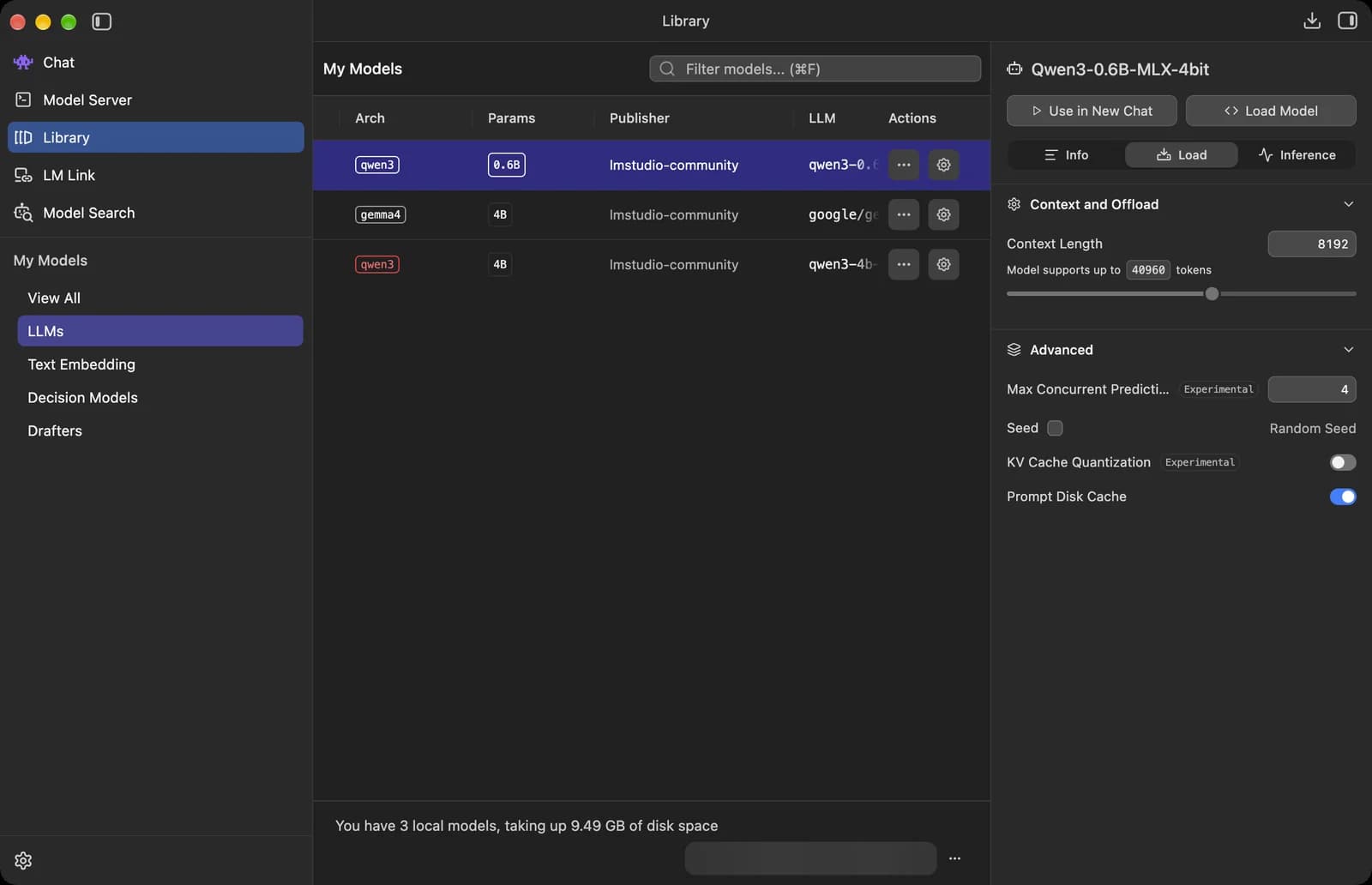

Context Length
How much text the model can keep in mind at once, in tokens. This model supports up to 40,960, but a longer context uses more memory.
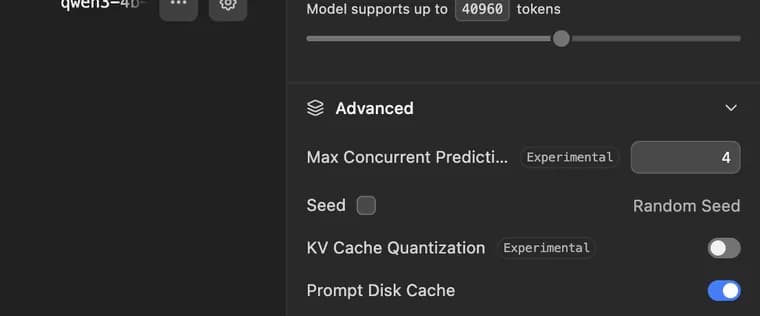
Max Concurrent Predictions
How many requests the model works on at the same time instead of making them wait in line. The default is 4.
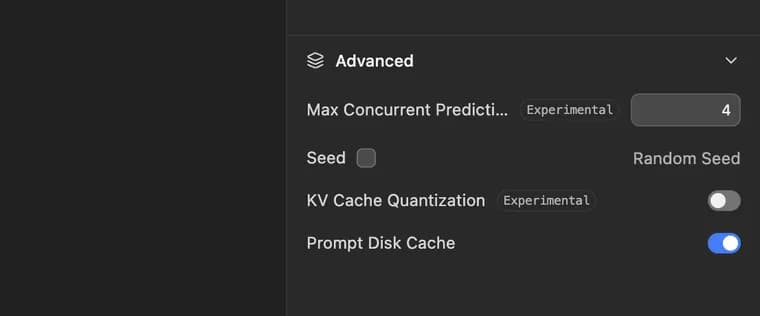
Seed
Tick it and set a number to get the same answer every time for the same prompt. Unticked, LM Studio uses a random seed.

KV Cache Quantization
Compresses the model's working memory of the chat (the KV cache) so long chats need less RAM. It can cost a little quality and is still experimental.
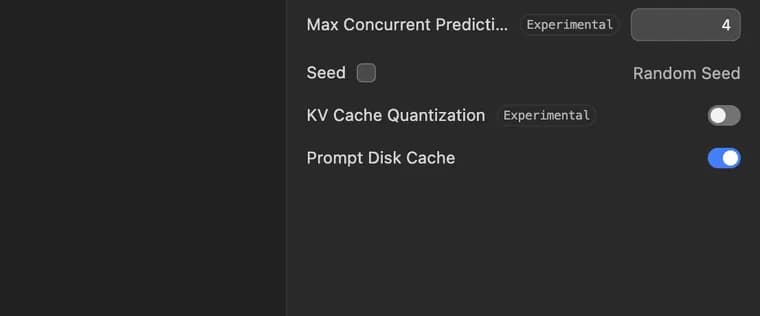
Prompt Disk Cache
Saves the already processed part of a chat to disk, so follow-up messages do not have to process it again.





Inference tab
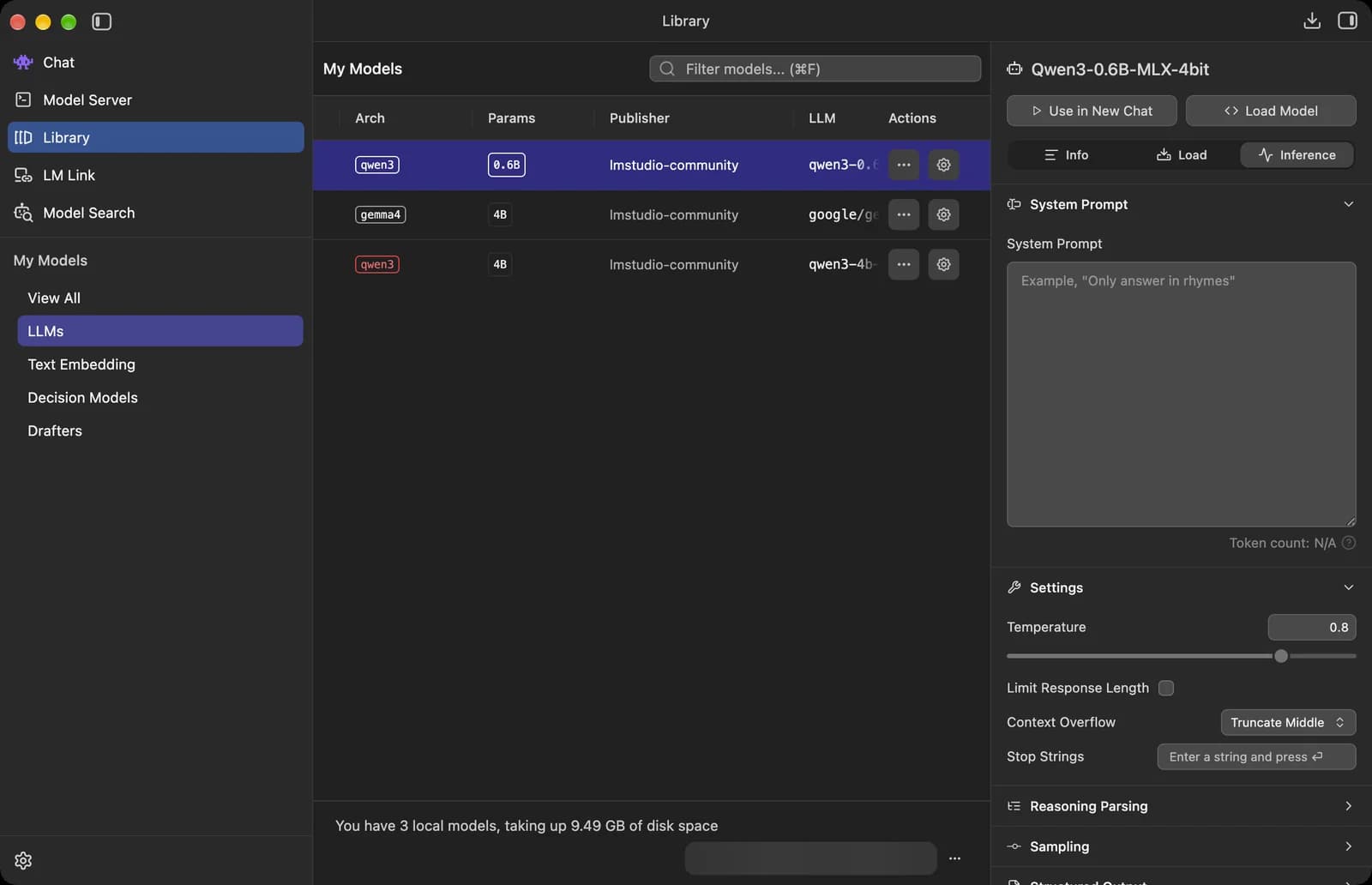
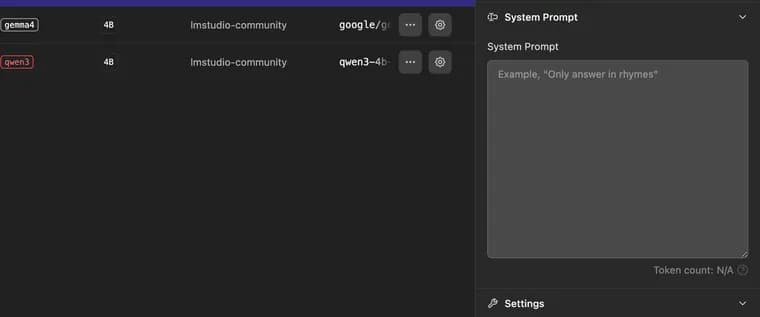
Model system prompt
A system prompt for this model, used in its chats.

Model temperature
How creative this model's answers are. 0.8 here; lower is more predictable.
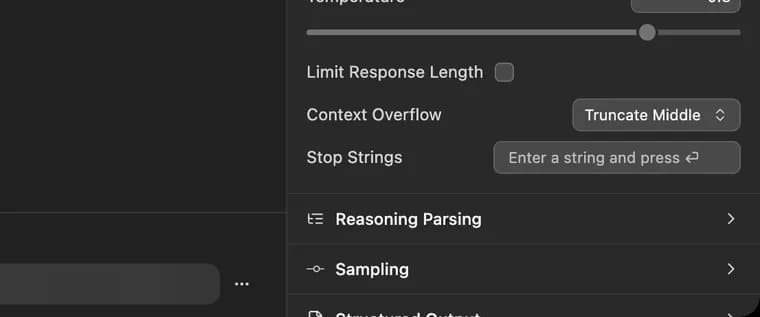
Reasoning Parsing
Tells LM Studio how to spot the model's thinking, so it shows apart from the final answer.

Sampling settings
Fine controls for how the model picks each next word, such as Top K, Top P and Repeat Penalty.




Local server (Developer)
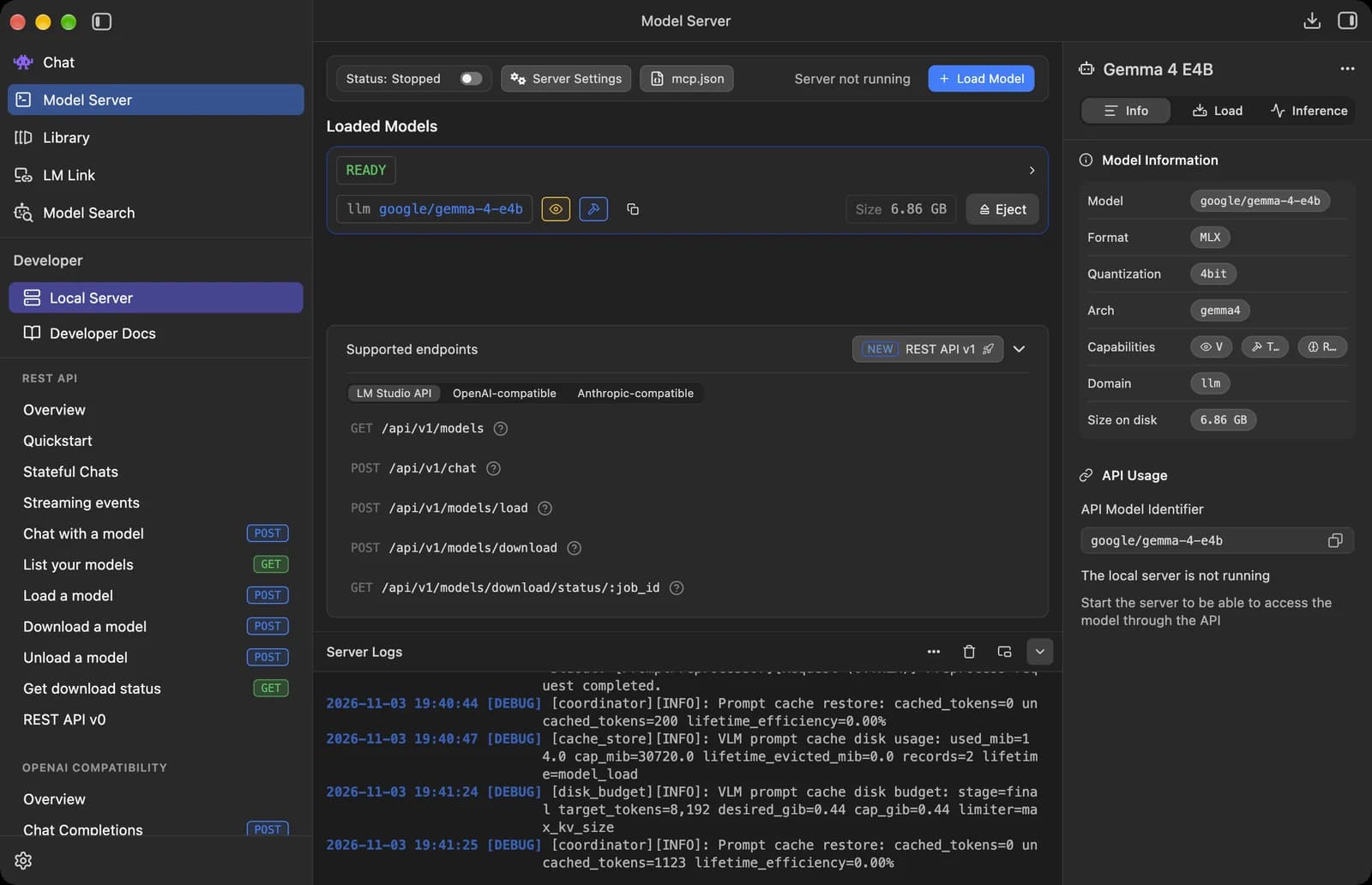
Model Server lets other apps on your computer use your local models through an API, the same way they would use OpenAI or Anthropic. It is meant for developers, but you only need the toggle to start it.
Server controls
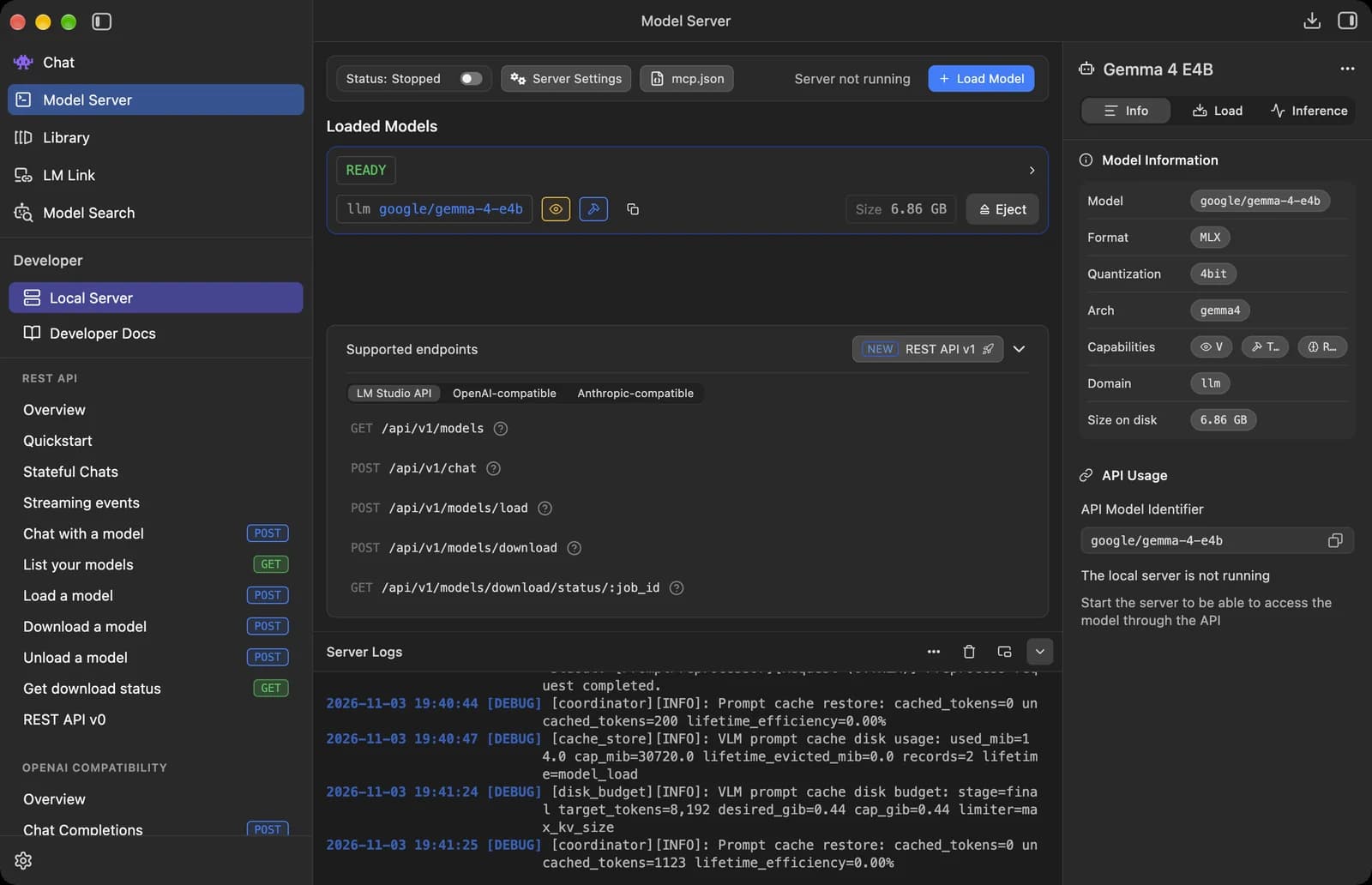

Local Server
The page you are on, with the server controls and the models it can use.
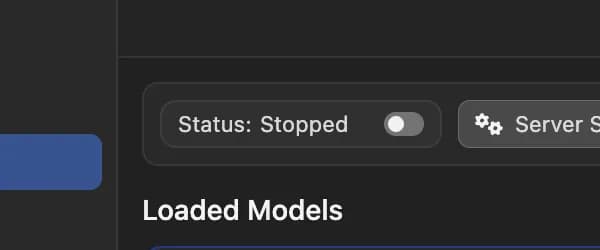
Status
Starts or stops the local server. It shows Stopped here. Once it runs, apps can reach your models at localhost:1234.

Server Settings
Server options, such as the port and serving on your local network so other devices can connect.
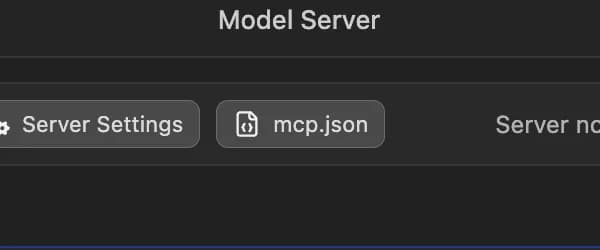
mcp.json
Opens the file where you add MCP servers, which give models extra tools. It uses the same format as Cursor.

Load Model button
Loads a model into memory so the server can use it.
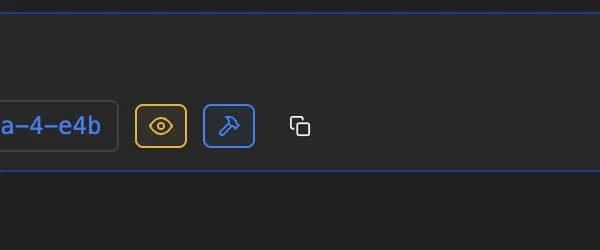
Copy model ID
Copies the model's name, to paste into your code.

Eject model
Unloads the model from memory. READY on the left means it is loaded and can answer requests.







Endpoints, logs and docs

Developer Docs
LM Studio's developer documentation, right inside the app.

API reference
Short guides for each API request. POST and GET show the type of request.

API type tabs
Switch between LM Studio's own API and the OpenAI-compatible and Anthropic-compatible ones, so apps built for those services work with your local models.

Clear logs
Clears the server log below.

API Model Identifier
The name to use in the model field of your API requests. The button on the right copies it.





LM Link
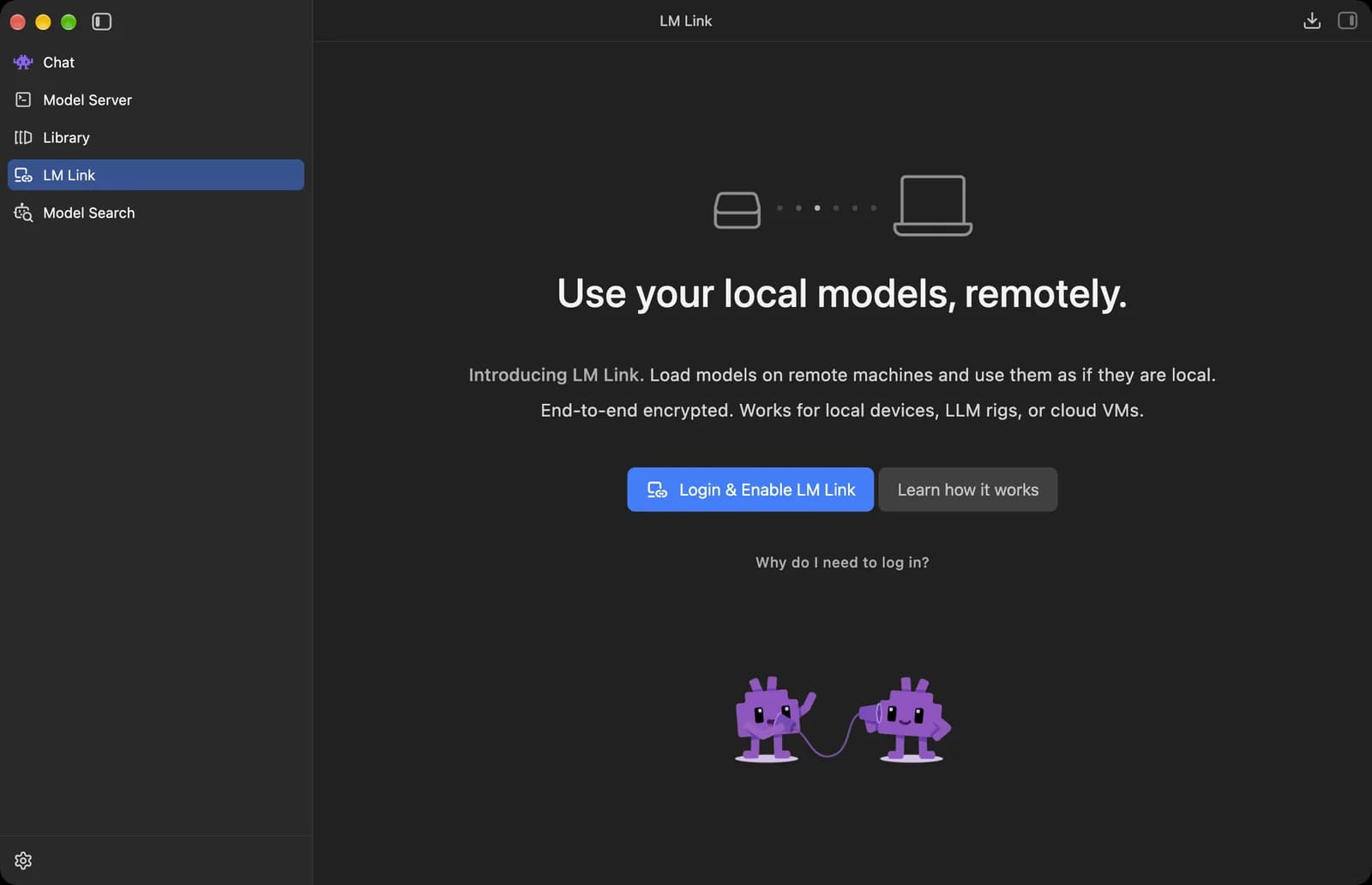
LM Link lets you use models running on another computer of yours, like a desktop with a big graphics card, as if they were loaded on this one.
Login & Enable LM Link
Sign in to an LM Studio account and turn on LM Link. Your computers then find each other, and the connection between them is end-to-end encrypted.
Learn how it works
Explains how LM Link connects your devices.

Why do I need to log in?
Explains why LM Link needs an LM Studio account.



Settings (General, Hardware, Runtime)
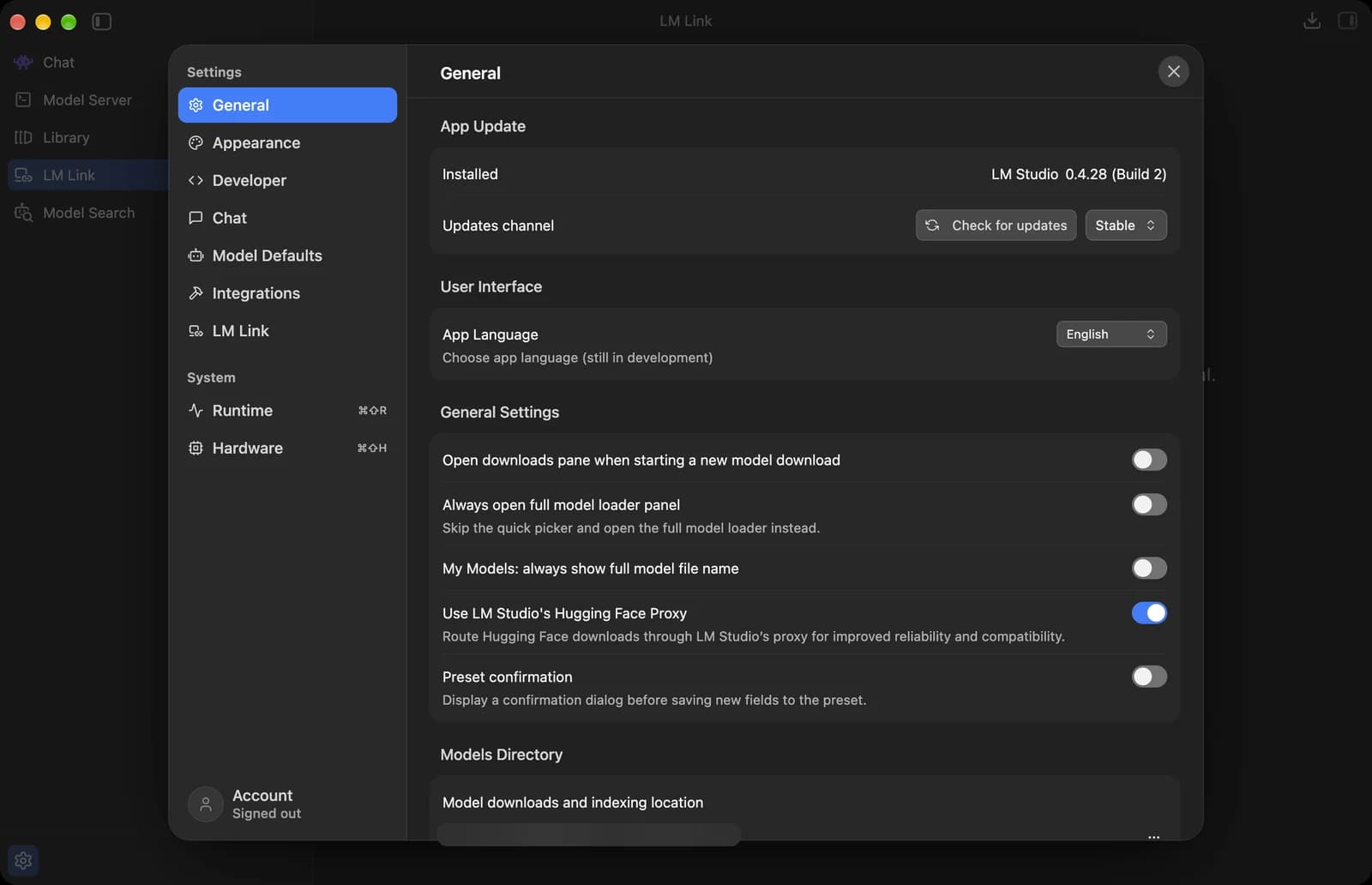
Click the gear at the bottom left to open Settings. General covers updates and downloads, Hardware shows what your computer can run, and Runtime manages the engines that run the models.
General
Check for updates
Looks for a newer version of LM Studio. This Mac has 0.4.28 installed.
Updates channel
Which releases LM Studio updates to. It is set to Stable here.

App Language
Changes the language of the app. LM Studio offers more than 30 languages, and this feature is still in development.

Full model loader
Skips the quick model picker and always opens the full loader with every load setting.

Hugging Face Proxy
Downloads models from Hugging Face through LM Studio's own proxy, for more reliable downloads.

Models directory
The folder where downloaded models are saved. Use the menu at the right to change it.

Account
Shows if you are signed in to an LM Studio account. You need one for LM Link.





Settings menu
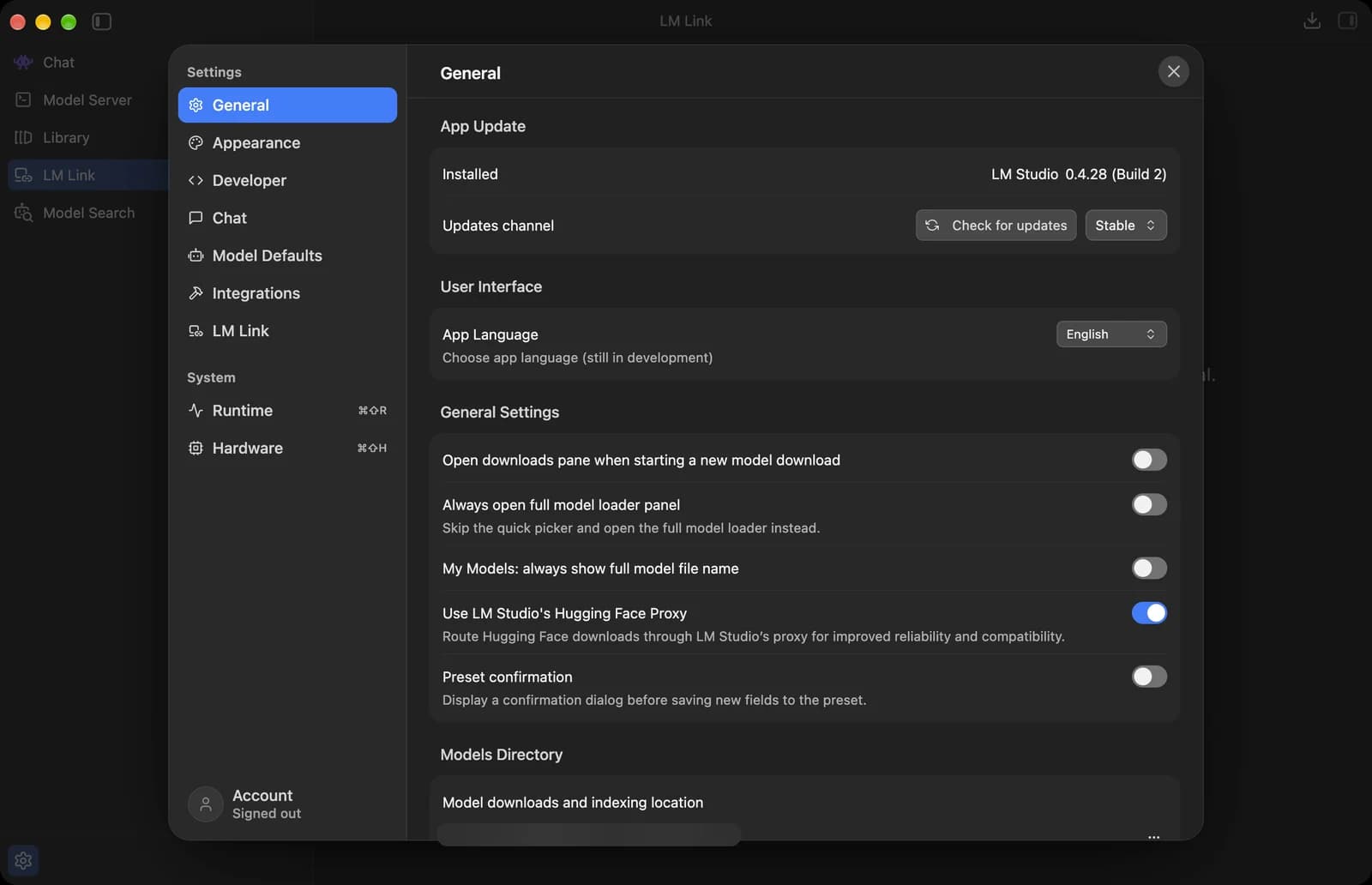
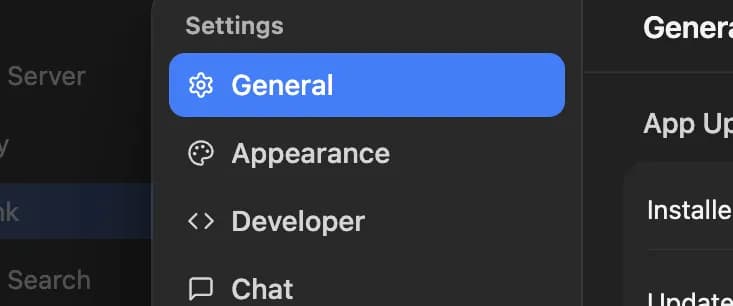
Appearance
Pick the color theme for the app.
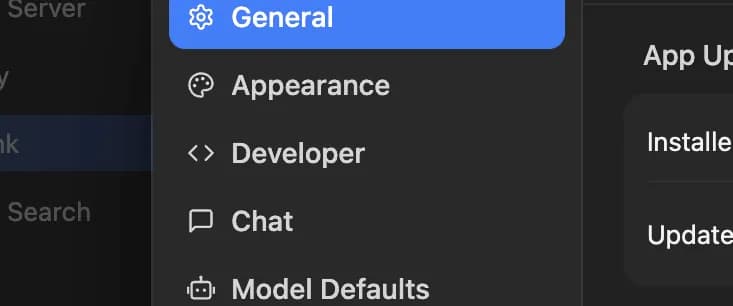
Developer
Turns on Developer Mode, which shows every advanced setting, like load and inference options.

Model Defaults
The default settings LM Studio uses for models.
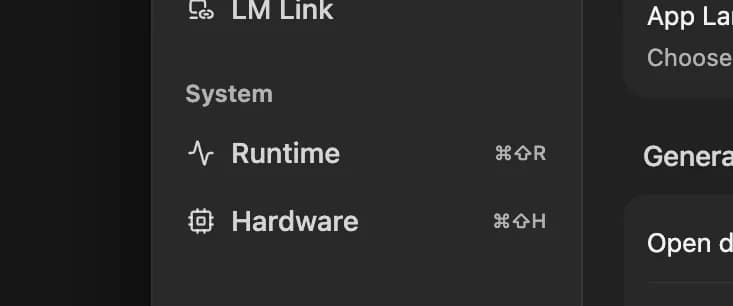
Runtime
The engines that run models. The shortcut is Cmd + Shift + R.
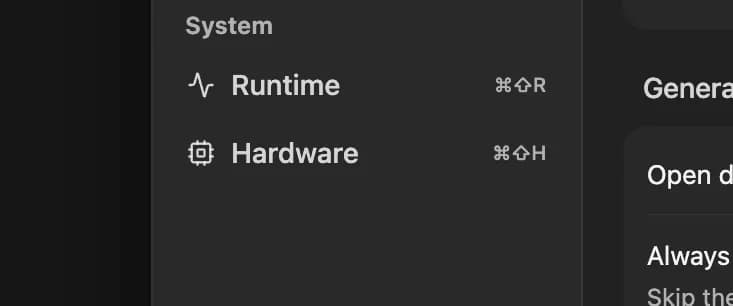
Hardware
What your computer has and how much of it models can use. The shortcut is Cmd + Shift + H.


Hardware
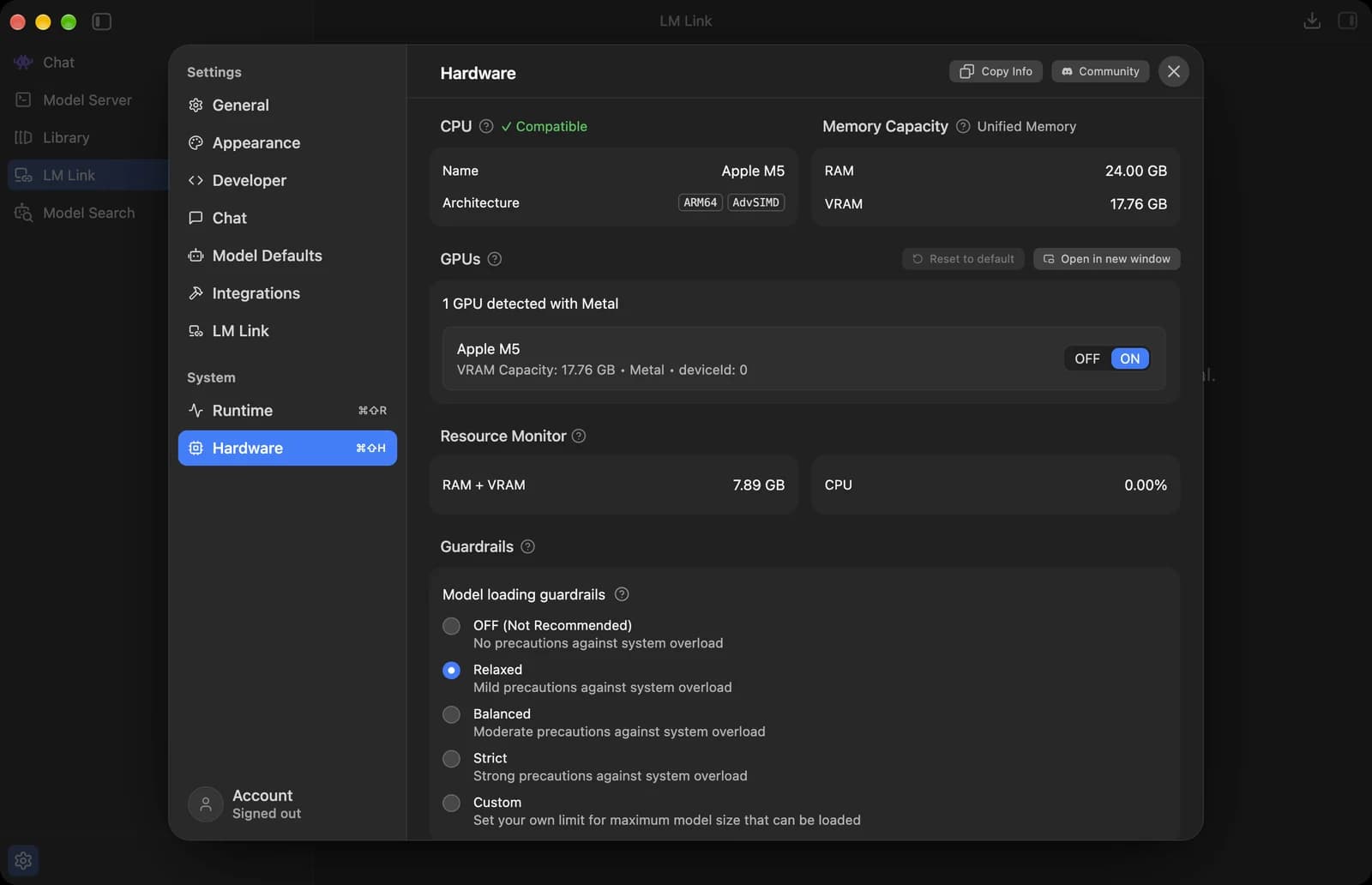

GPU switch
Turns the GPU on or off for running models. Leave it on: the GPU (Metal on a Mac) is much faster than the CPU.
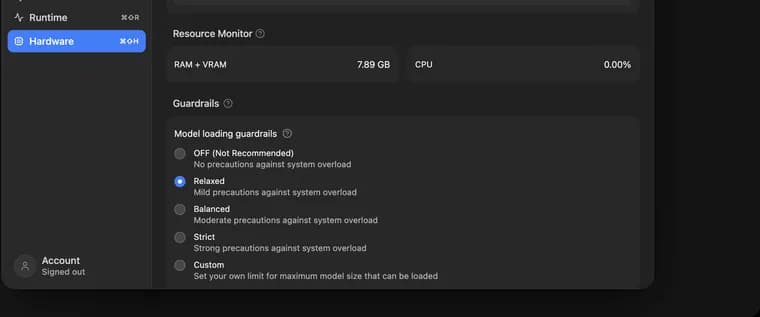
Guardrails
How careful LM Studio is about loading a model too big for your memory. OFF has no protection against overloading your computer, and Strict has the most.
Copy Info
Copies your hardware details, handy when you ask for help.
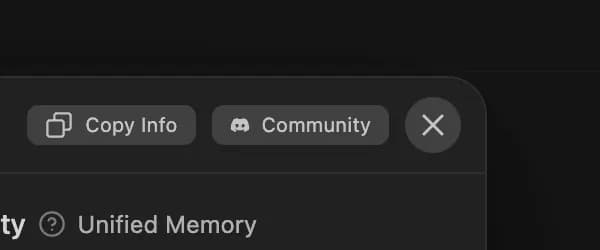
Community
Opens LM Studio's community, where you can ask for help.
Status symbols. These only show information. They are not buttons.
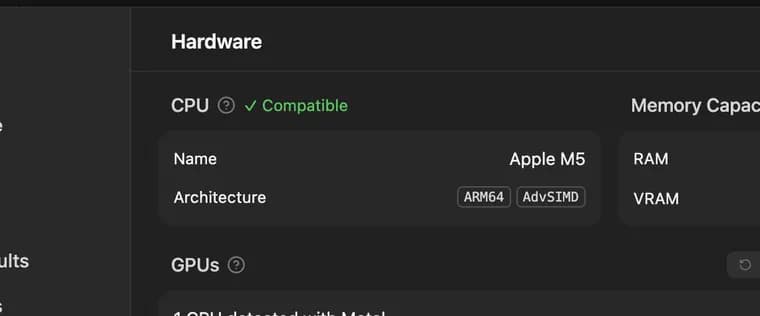
CPU check
Confirms your processor can run LM Studio, an Apple M5 here.

Memory Capacity
Your RAM, 24 GB. On a Mac the memory is shared (unified memory), so VRAM shows the part the graphics chip can use, 17.76 GB.
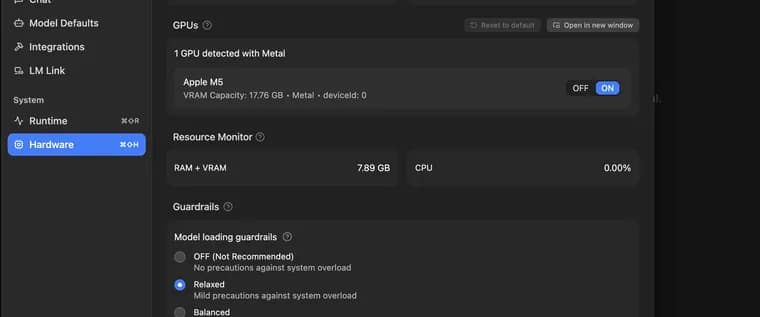
Resource Monitor
How much memory and CPU LM Studio is using right now.







Runtime
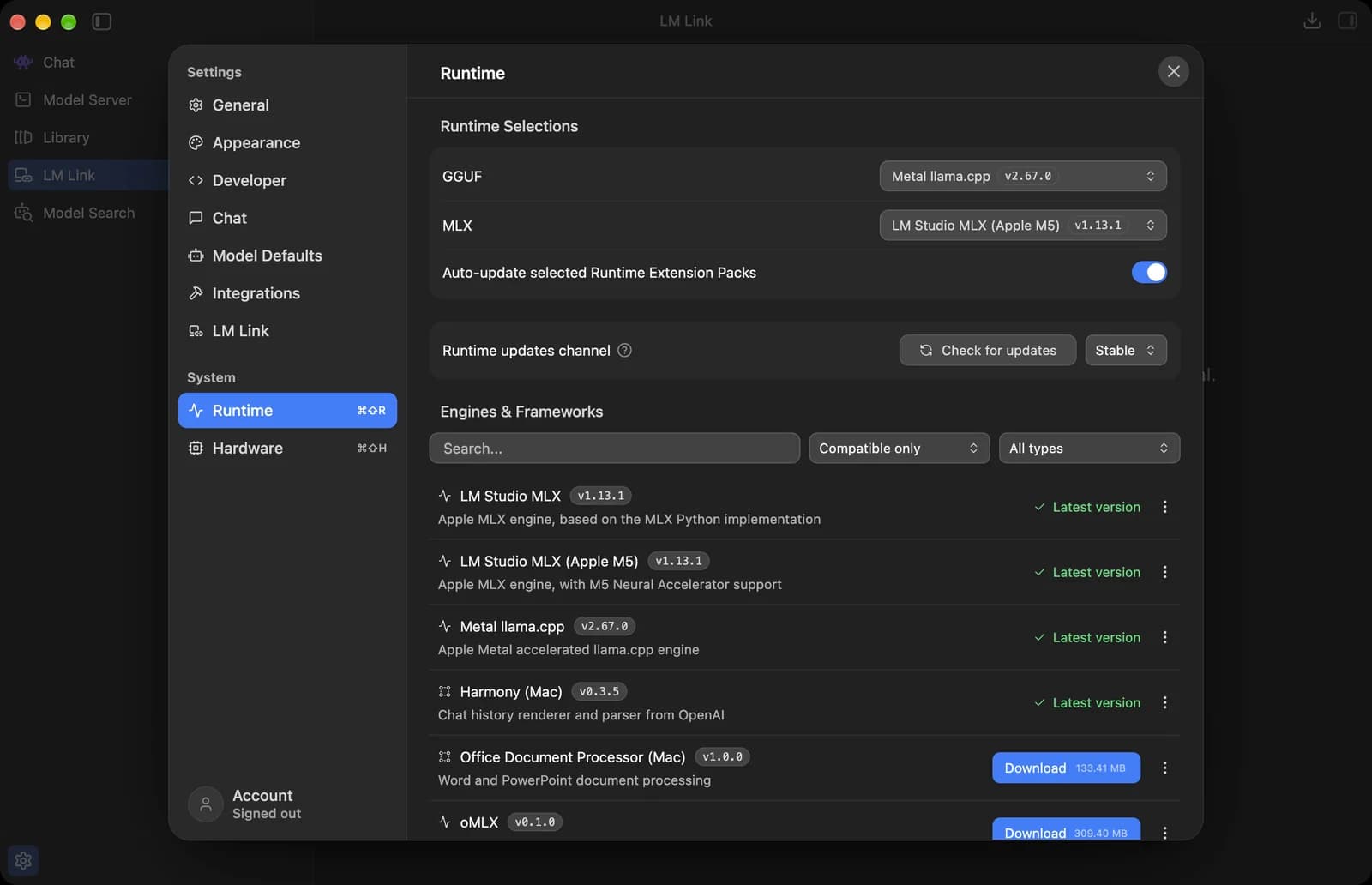

GGUF runtime
The engine for GGUF models. On a Mac it is llama.cpp running on Metal, Apple's graphics system.

MLX runtime
The engine for MLX models, Apple's format for Apple silicon. This version adds support for the M5's Neural Accelerators.
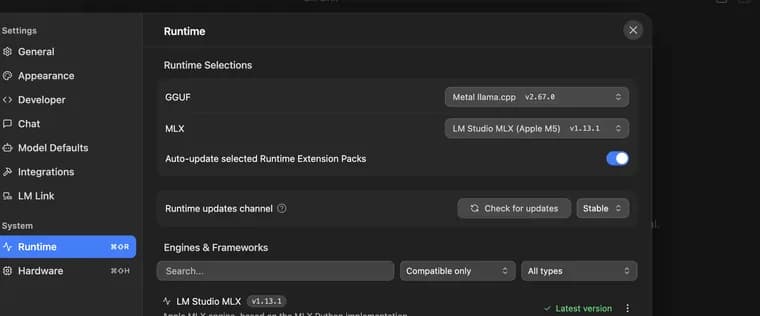
Auto-update runtimes
Keeps the selected engines up to date on their own.

Runtime updates
Checks for newer engine versions. The menu next to it picks the update channel, Stable here.

Engines & Frameworks
Every engine and add-on. Compatible only hides the ones that cannot run on your computer.
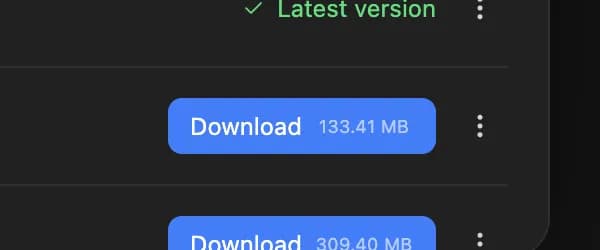
Download engine
Installs an extra engine or add-on, like Office Document Processor for Word and PowerPoint files.
Status symbols. These only show information. They are not buttons.

Latest version
This engine is already up to date.







That covers every part of the LM Studio interface. These screenshots are from LM Studio 0.4.28 on a Mac with an Apple M5 chip and 24 GB of memory, and we update this guide when the layout changes. For more guides like this, you can also visit our TechPP icon guides.
Comments
0Share your thoughts, questions, or feedback about this guide.