
iPhone secret codes list
Last updated: September 11, 2026
iPhones have far fewer hidden codes than Android phones, but the ones that exist are handy. You can check your IMEI, open Field Test Mode to see your real signal strength, and turn call forwarding and call waiting on or off, all from the Phone app keypad.
Open the Phone app, go to the keypad and type the code. Codes vary by model and iOS version, so if one does nothing, your phone doesn't support it. New to this? Follow the step-by-step guide.
General codes
| Code | What it does | Copy |
|---|---|---|
| *#06# | Shows your iPhone IMEI and device IDs | |
| *#07# | Opens regulatory and legal information | |
| *3001#12345#* | Opens iPhone Field Test Mode | |
| *#21# | Checks all-call forwarding status | |
| **21*[number]# | Forwards all calls to another number | |
| ##21# | Turns off all-call forwarding | |
| *#61# | Checks forwarding for unanswered calls | |
| **61*[number]# | Forwards unanswered calls | |
| ##61# | Turns off unanswered-call forwarding | |
| *#67# | Checks forwarding when your line is busy | |
| **67*[number]# | Forwards calls when your line is busy | |
| ##67# | Turns off busy-call forwarding | |
| *#62# | Checks forwarding when your phone is unreachable | |
| **62*[number]# | Forwards calls when your phone is unreachable | |
| ##62# | Turns off unreachable-call forwarding | |
| **004*[number]# | Enables conditional call forwarding | |
| ##004# | Disables conditional call forwarding | |
| ##002# | Disables all call forwarding | |
| *43# | Enables call waiting | |
| #43# | Disables call waiting | |
| *#43# | Checks call waiting status | |
| *#31# | Checks caller ID restriction status | |
| #31#[number] | Hides your number for one call | |
| *31#[number] | Shows your number for one call | |
| *#30# | Checks incoming caller ID status | |
| *67[number] | Hides caller ID for one call on supported carriers | |
| *82[number] | Shows caller ID for one call on supported carriers | |
| *#33# | Checks outgoing call barring | |
| *33*[password]# | Blocks outgoing calls | |
| #33*[password]# | Removes outgoing call barring | |
| *#331# | Checks international call barring | |
| *331*[password]# | Blocks outgoing international calls | |
| #331*[password]# | Allows outgoing international calls again | |
| *#332# | Checks international call restrictions | |
| *332*[password]# | Blocks most international outgoing calls | |
| #332*[password]# | Removes this international restriction | |
| *#35# | Checks incoming call barring | |
| *35*[password]# | Blocks incoming calls | |
| #35*[password]# | Allows incoming calls again | |
| *#351# | Checks incoming-call barring while roaming | |
| *351*[password]# | Blocks incoming calls while roaming | |
| #351*[password]# | Allows incoming calls while roaming | |
| #330*[password]# | Disables supported call-barring restrictions |
Jio codes
These work only on a Jio SIM.
| Code | What it does | Copy |
|---|---|---|
| *411 | Enables call waiting on Jio | |
| *412 | Disables call waiting on Jio | |
| *402 | Stops unconditional call forwarding | |
| *404 | Stops forwarding unanswered calls | |
| *406 | Stops forwarding when your line is busy | |
| *410 | Stops forwarding when unreachable | |
| *413 | Stops all call forwarding on Jio |
Older iPhone codes
These worked on older iOS versions and may do nothing on current ones.
| Code | What it does | Copy |
|---|---|---|
| *5005*25371# | Enables government test alerts on older iOS versions | |
| *5005*25370# | Disables government test alerts on older iOS versions |
Codes with [number] or [password]: replace [number] with the phone number you want calls forwarded to, including the country code, and [password] with your carrier's call barring password. Call forwarding, call waiting and call barring codes depend on your carrier, so a few may not work on every network.
How to use secret codes: step-by-step guide
Never used a dialer code before? It takes less than a minute, and you do not need to install anything.
- 1
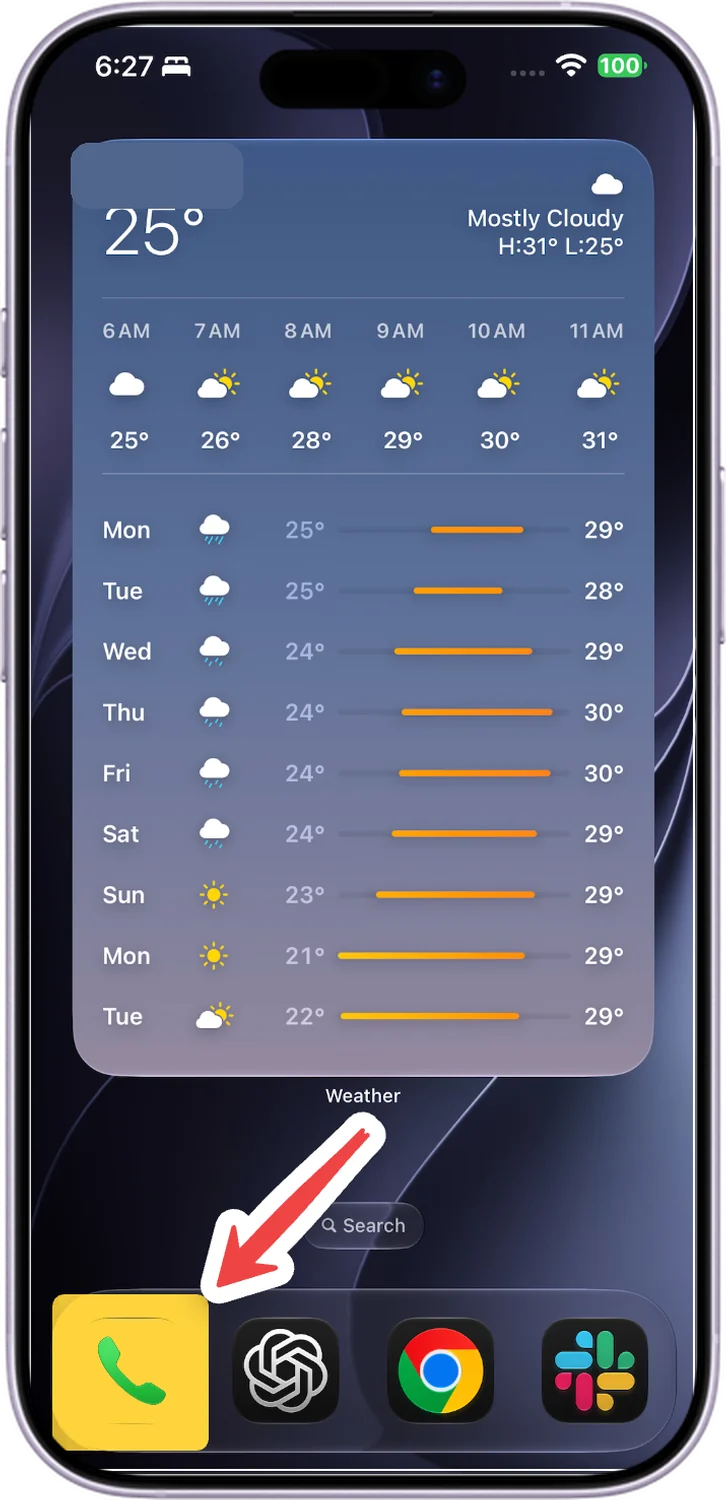
Open the Phone app
Tap the green Phone icon, the same app you use to make calls.
- 2
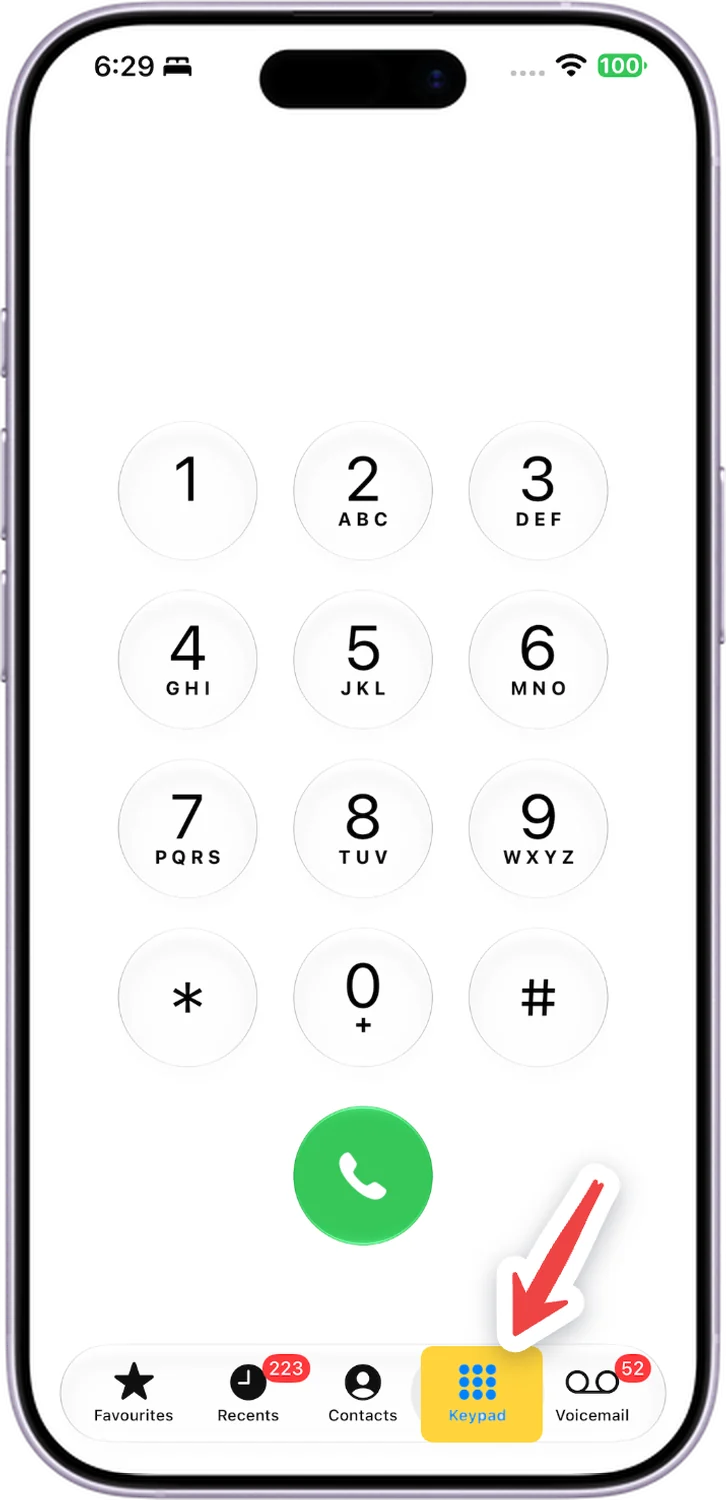
Open the keypad
Tap Keypad at the bottom. You should see the number buttons with * and # in the bottom row.
- 3
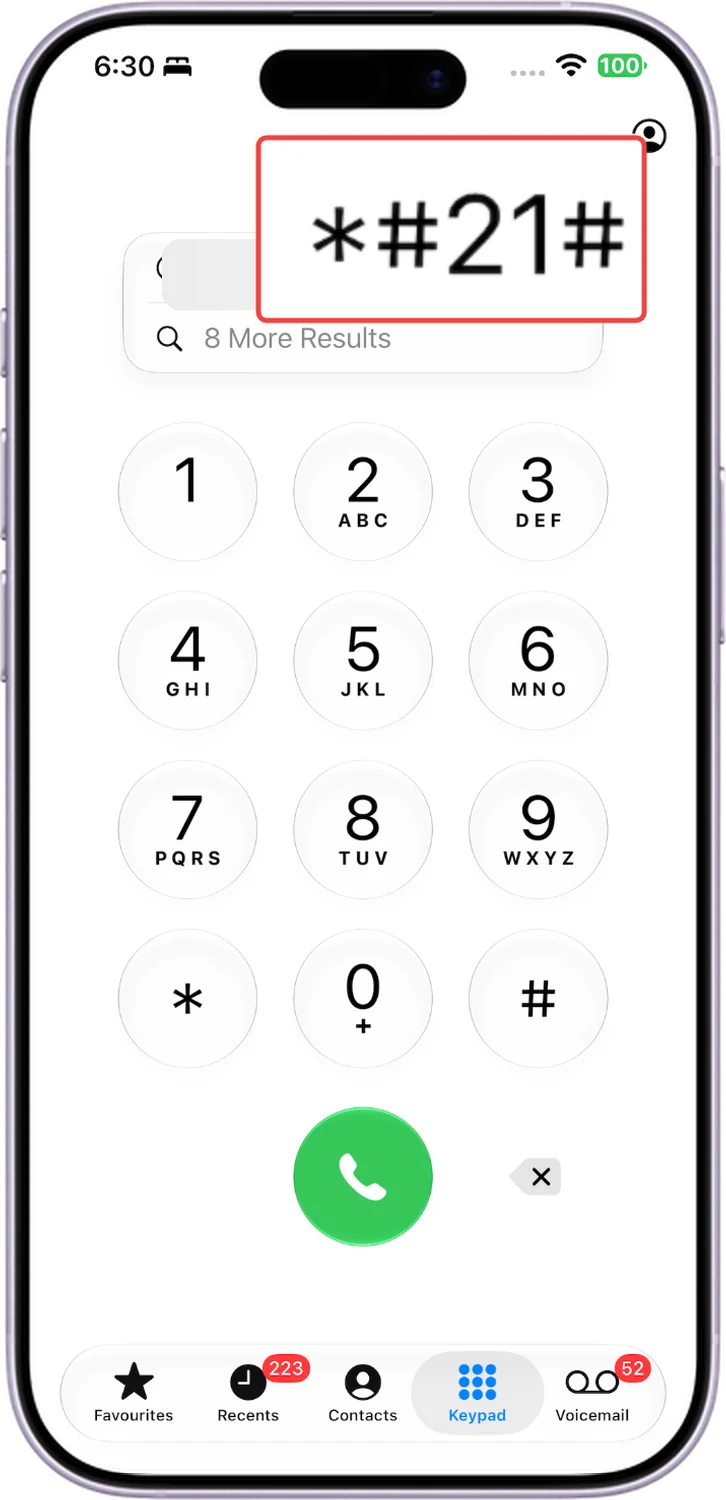
Type the code exactly as it appears
Type the code one key at a time, including every * and #. They sit on either side of 0. One wrong key and the code will not work.
- 4
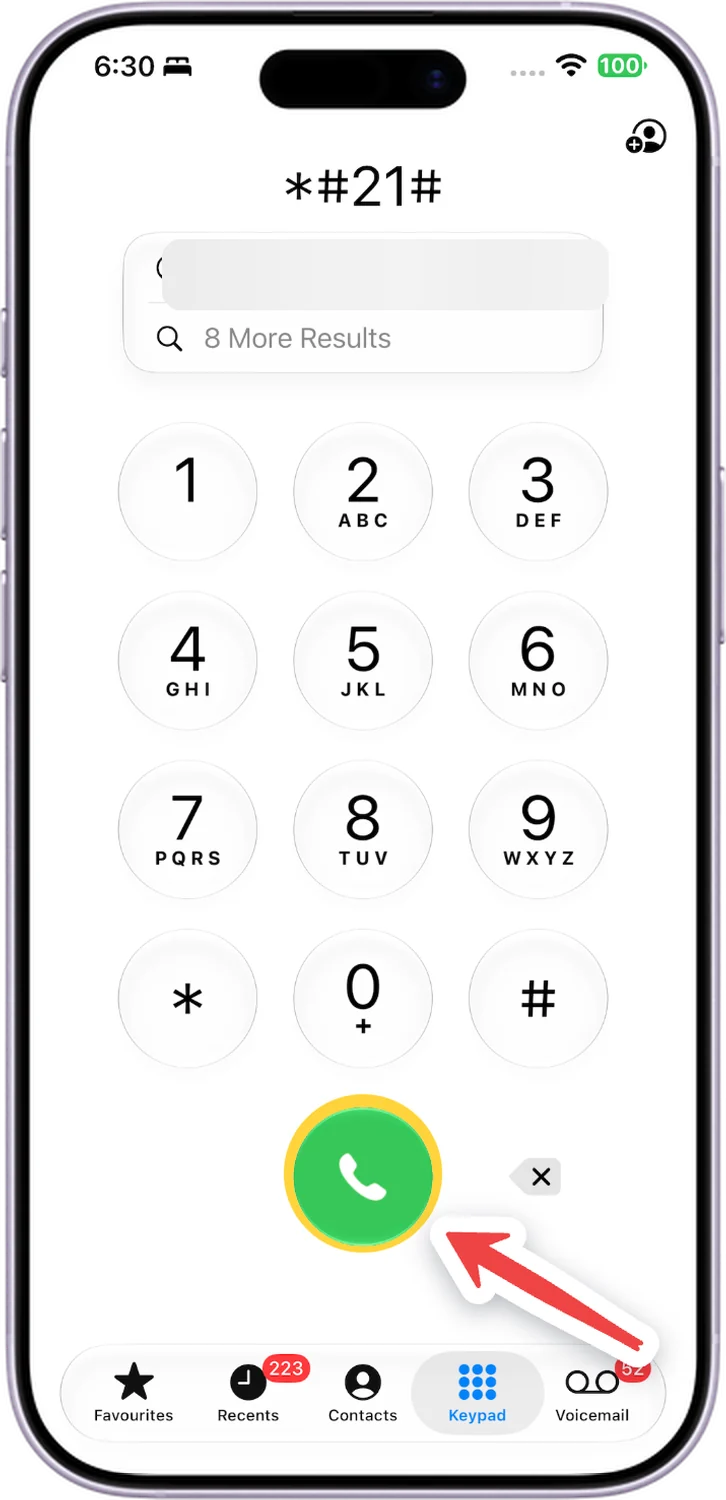
Press call if nothing happens
Codes like *#06# open on their own as soon as you type the last #. Field Test Mode and the call forwarding codes need the green Call button.
- 5
Read the screen, then go back
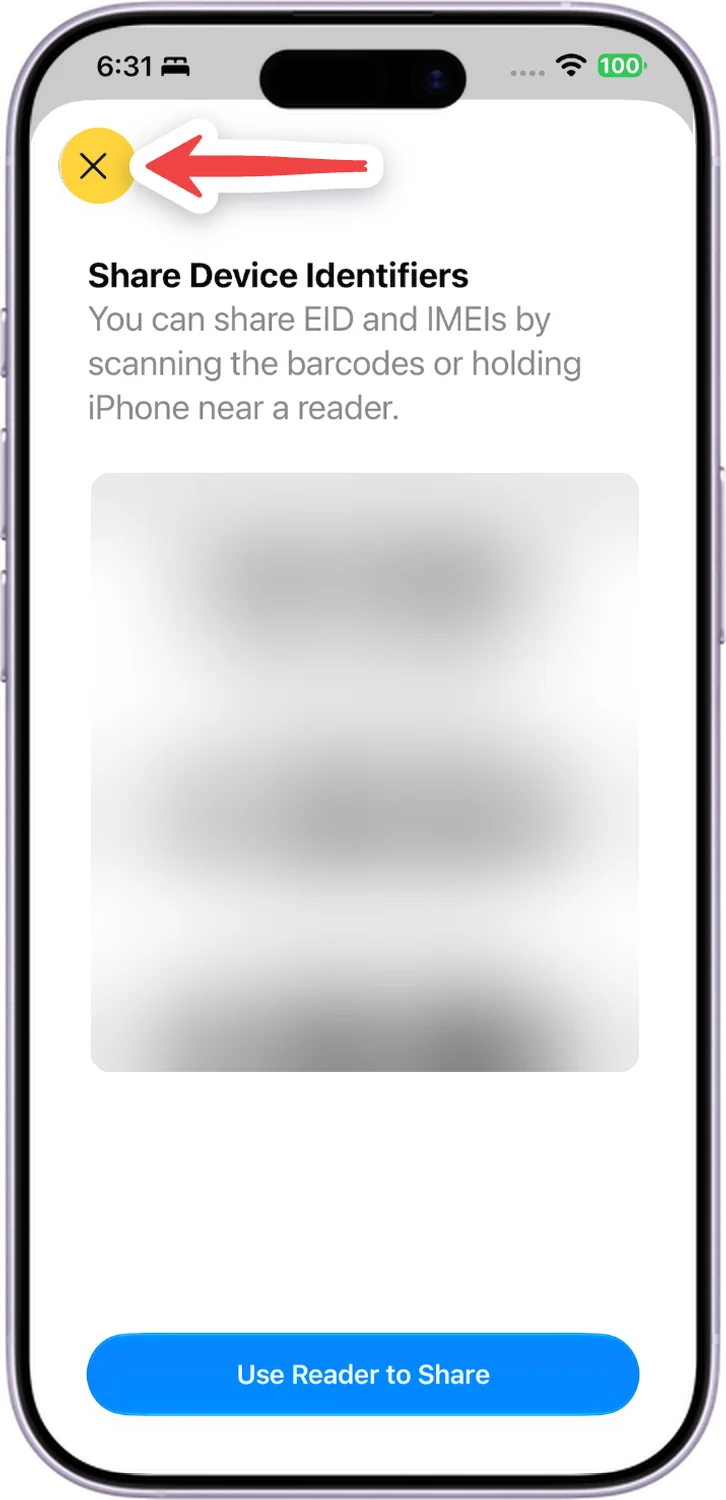
The result opens on a new screen or a pop-up. Read what you need, then tap the X or swipe down. Nothing changes on your iPhone just by looking.
- Optional
Only if you would rather not type the code
6Paste a code instead of typing it
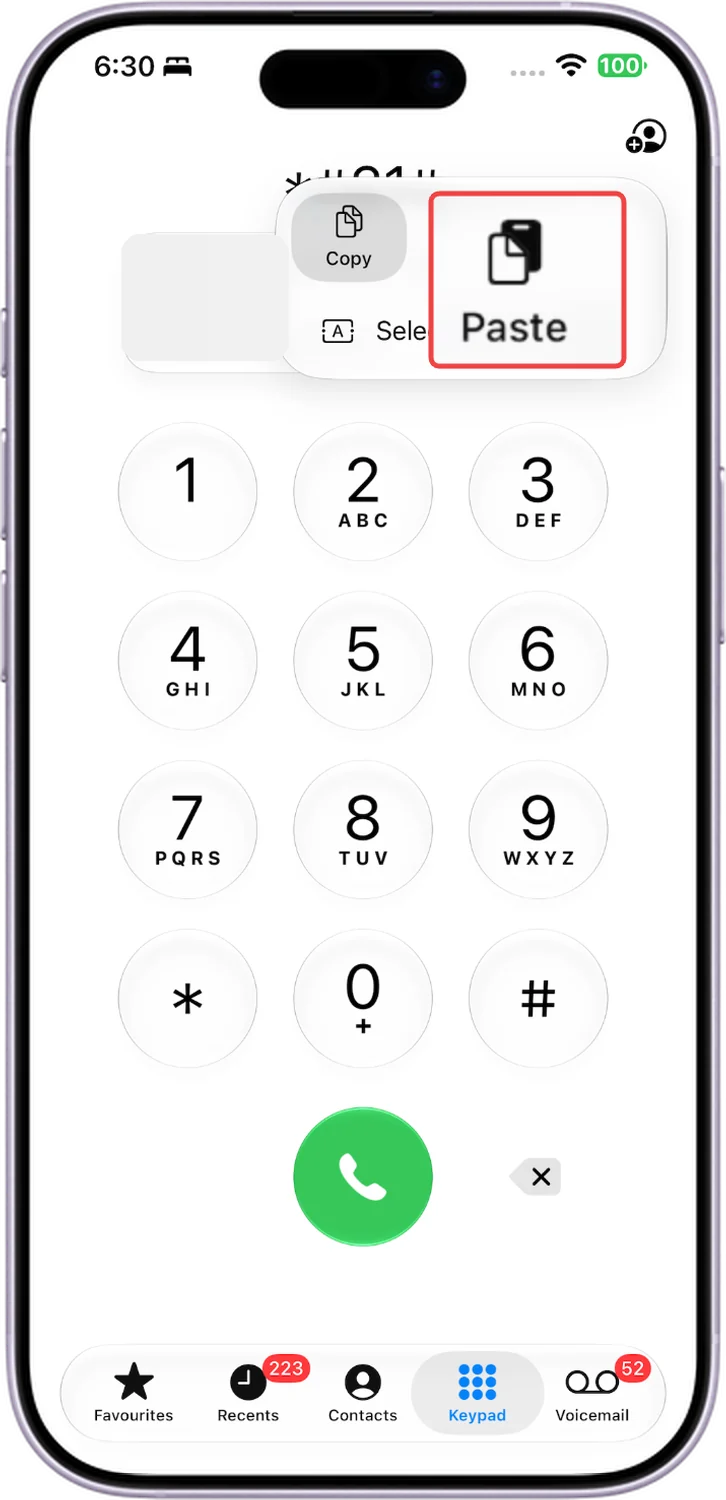
Tap Copy next to a code in the tables above, then tap and hold the number area on the keypad and choose Paste. If a pasted code does nothing, type it by hand.
Comments
0Share your thoughts, questions, or feedback about this guide.