
iPhone Control Center Icons and What They Mean
Control Center is probably the screen you open the most on your iPhone. You swipe down from the top-right corner, tap Wi-Fi or the flashlight, and close it again. But it has a lot more than that: small icons like a chain, a globe and a padlock with an arrow, extra pages for music and connectivity, and a whole gallery of controls that most people never open.
In this guide, you will learn what every icon in Control Center means on iOS 27, page by page, plus every extra control you can add. And this is an interactive guide. You can tap on every icon on the screens below to know what it does. If you are looking for the icons at the very top of the screen, like the orange dot, see our iPhone status bar icons guide.
The First Page of Control Center
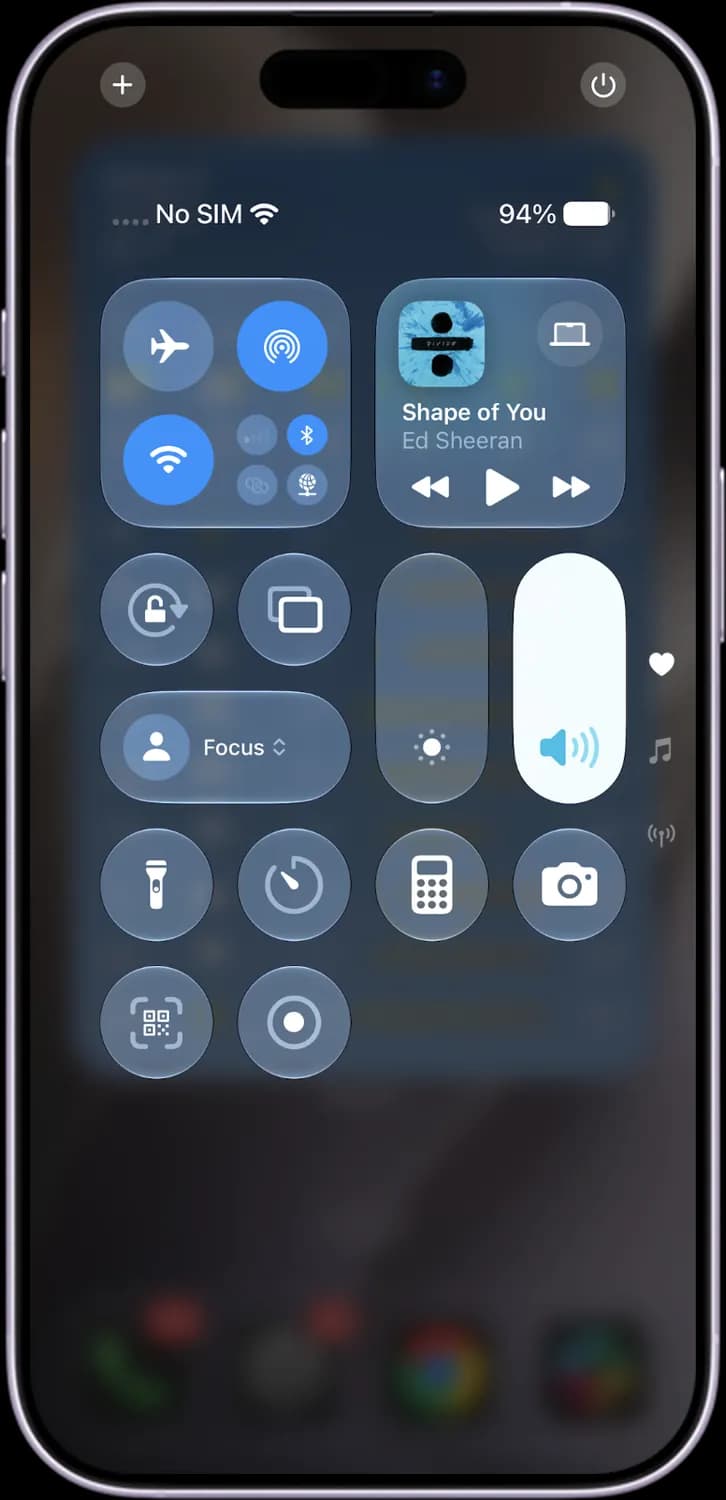
This is what you see when you swipe down from the top-right corner of the screen. The first page holds the controls you use most, and you can rearrange all of them.
Top buttons and page dots
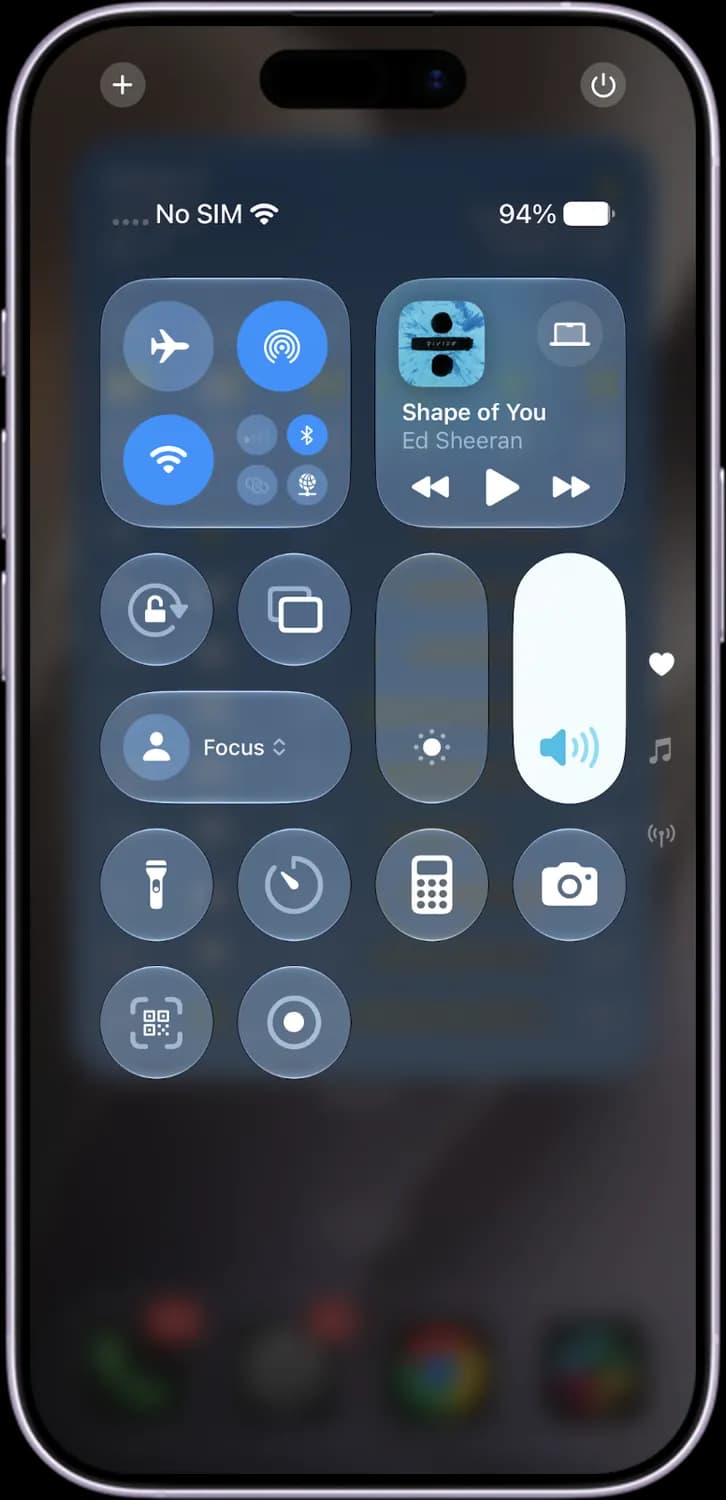

Add or edit (+)
Opens edit mode, where you can add, remove, resize and move controls, or add a new page.

Power button
Press and hold it to get the Slide to Power Off screen, the same as holding the side and volume buttons.

Favorites page dot (heart)
Takes you back to this first page. The dots on the right show which page you are on.

Now Playing page dot (music note)
Jumps to the full-size music player page.

Connectivity page dot (antenna)
Jumps to the connectivity page with Wi-Fi, Bluetooth, AirDrop and more.
Connectivity block
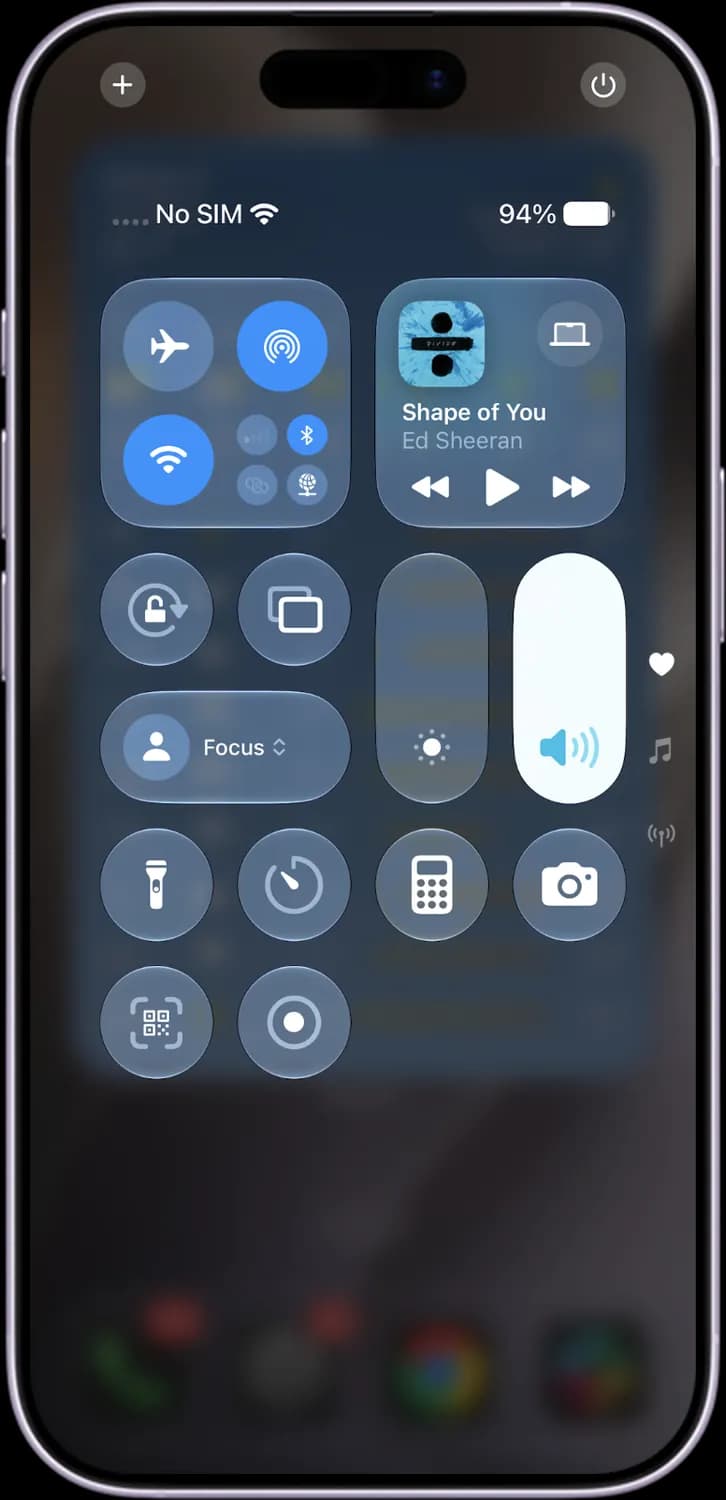

Airplane Mode (plane)
Turns off cellular, and by default Wi-Fi and Bluetooth too. Orange means it is on.

AirDrop (rings)
Turns AirDrop receiving on or off. Press and hold the block to choose Contacts Only or Everyone for 10 Minutes.

Wi-Fi (fan)
Blue means Wi-Fi is on. Tapping it disconnects you until tomorrow but leaves Wi-Fi on for AirDrop and other features.

Cellular Data (bars)
Turns cellular data on or off. Green means it is on. It stays grey when there is no SIM.

Bluetooth (rune)
Blue means Bluetooth is on. Like Wi-Fi, tapping it only disconnects your accessories until tomorrow.

Personal Hotspot (chain links)
Shares your cellular data with other devices. Green means it is on.

VPN (globe)
Connects or disconnects the VPN you set up in Settings or in a VPN app.
Music player
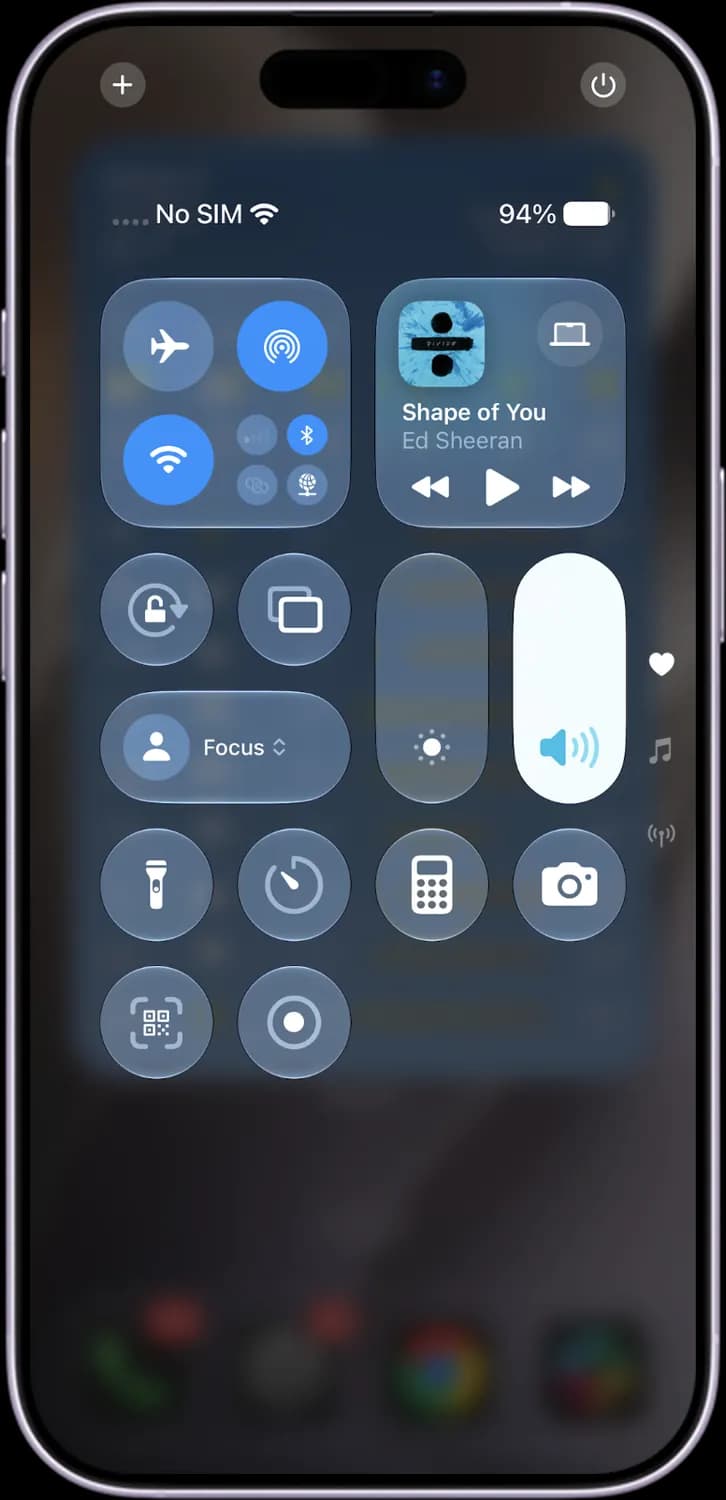

Album art
Shows what is playing. Tap the card to open the bigger player.

AirPlay output
Shows where the sound is playing, here a Mac. Tap it to switch to AirPods, a speaker or a TV.

Previous track (rewind)
Goes to the start of the song, or to the previous song if you tap it again.

Play and pause
Plays or pauses whatever was playing last, music or a podcast.

Next track (fast-forward)
Skips to the next song or episode.
Toggles and sliders
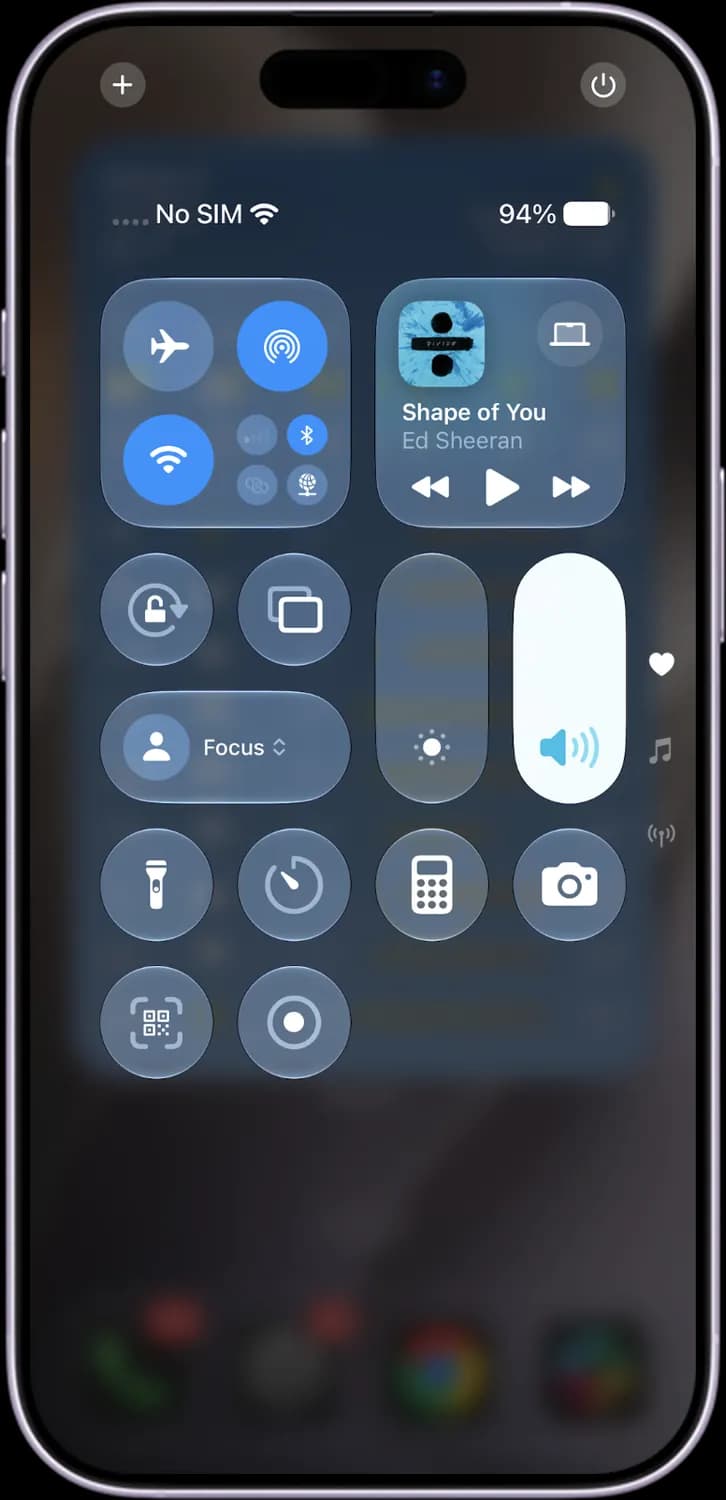
Orientation Lock (padlock and arrow)
Stops the screen from rotating. The icon turns white with a red padlock when it is on.
Screen Mirroring (two rectangles)
Shows your iPhone screen on an Apple TV, a Mac or an AirPlay TV.

Focus (person or moon)
Turns a Focus mode like Do Not Disturb or Sleep on or off. Tap it to see all your Focus modes.

Brightness (sun)
Drag up or down to change screen brightness. Press and hold for Dark Mode, Night Shift and True Tone.

Volume (speaker)
Drag to change the volume. With AirPods connected, press and hold for noise control and Spatial Audio.
Bottom row
Flashlight (torch)
Turns the flashlight on or off. Press and hold to change how bright it is.

Timer (dial)
Opens a quick timer. Press and hold to set it without opening the Clock app.
Calculator
Opens the Calculator app. Press and hold to copy the last result.

Camera
Opens the Camera app, even from the Lock Screen. Press and hold for a selfie, video or portrait shortcut.
Code Scanner (QR frame)
Opens a camera view that reads QR codes and App Clip codes and opens the link.

Screen Recording (circle in a ring)
Records your screen after a three-second countdown. Press and hold to turn the microphone on.
The Now Playing Page
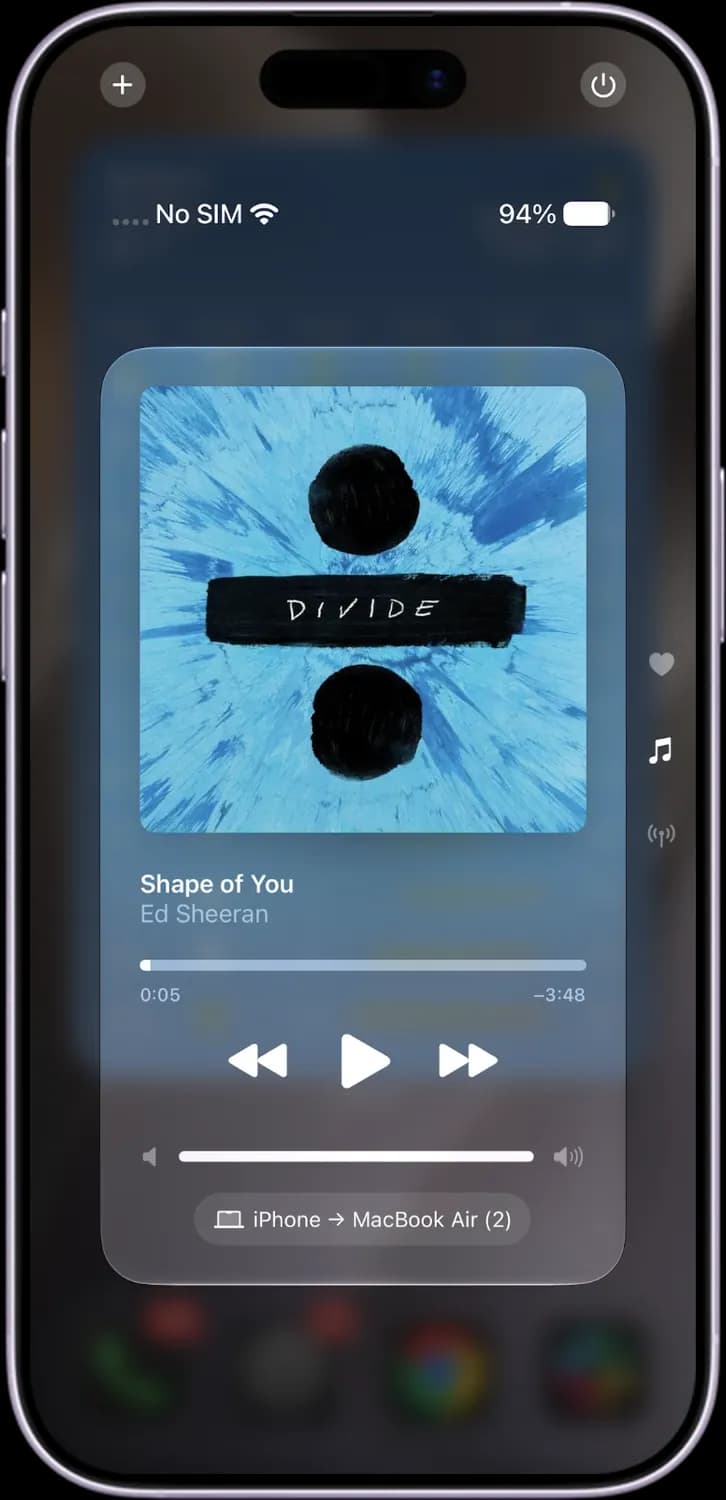
Swipe up on the first page, or tap the music note on the right, to get this full-size player. It controls whatever is playing on your iPhone.
Artwork
The cover of the song, podcast or video that is playing.

Progress bar
Shows how far into the song you are and the time left. Drag it to jump ahead or back.

Previous track
Goes to the start of the song, or to the previous one.

Play and pause
Plays or pauses.

Next track
Skips to the next song.

Volume slider
Changes the volume of what is playing.

Output pill
Shows which device is playing the sound. Tap it to send the audio to AirPods, a HomePod or a TV.
The Connectivity Page
Swipe up again, tap the antenna on the right, or press and hold the connectivity block on the first page to see every wireless control with its name and status.
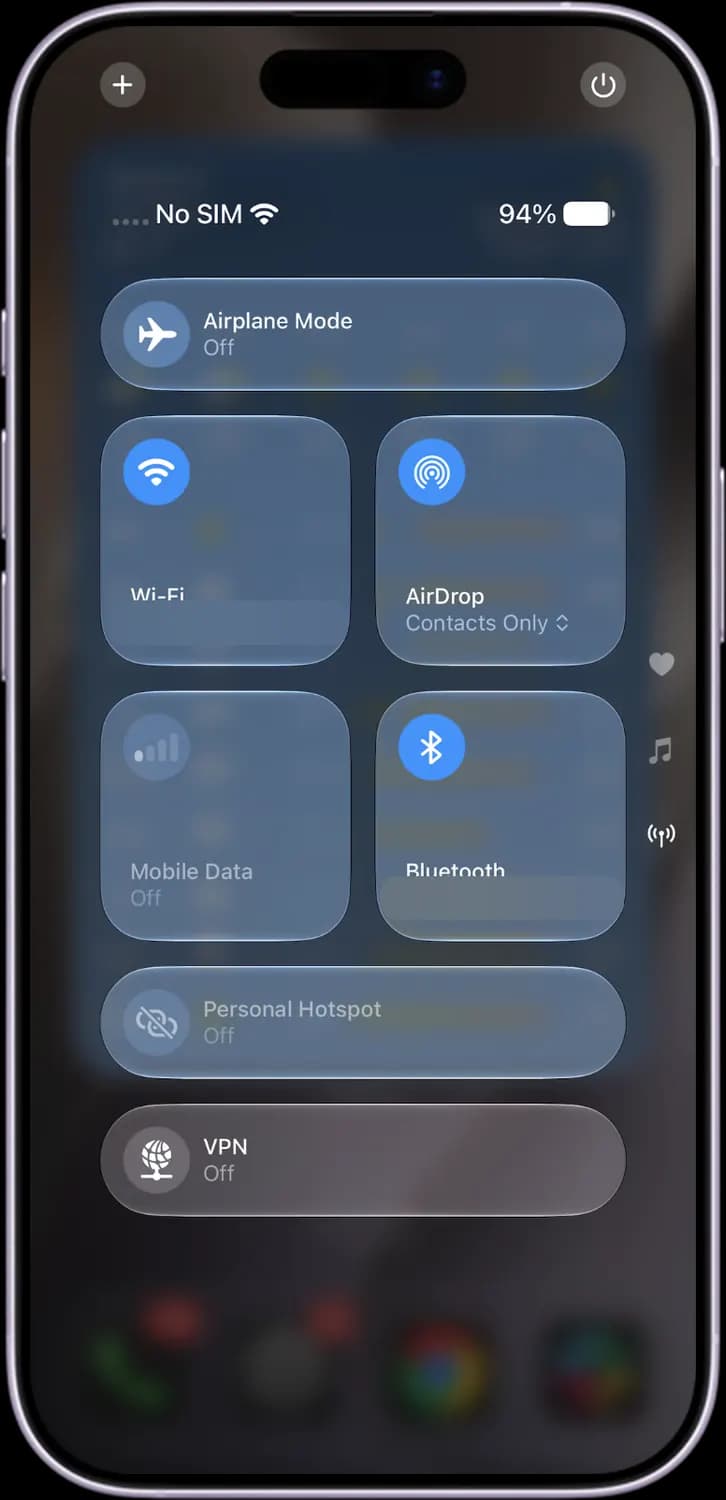

Airplane Mode
The status under the name says On or Off. Tap the row to switch it.

Wi-Fi
Shows the network you are connected to. Tap the name to pick another network without opening Settings.

AirDrop
Shows who can send you files: Receiving Off, Contacts Only or Everyone for 10 Minutes. Tap to change it.

Cellular Data
Shows On or Off. It is greyed out when there is no SIM or eSIM.

Bluetooth
Shows the accessory that is connected, like your AirPods. Tap the name to switch devices.

Personal Hotspot
Shows Off, or Discoverable when other devices can join your hotspot.

VPN
Shows Off or Connected for the VPN you set up.
The Focus Menu
Tap the Focus control to see every Focus mode on your iPhone. Each one silences different apps and people. The last three on this phone are custom Focus modes, and the + at the bottom adds a new one.
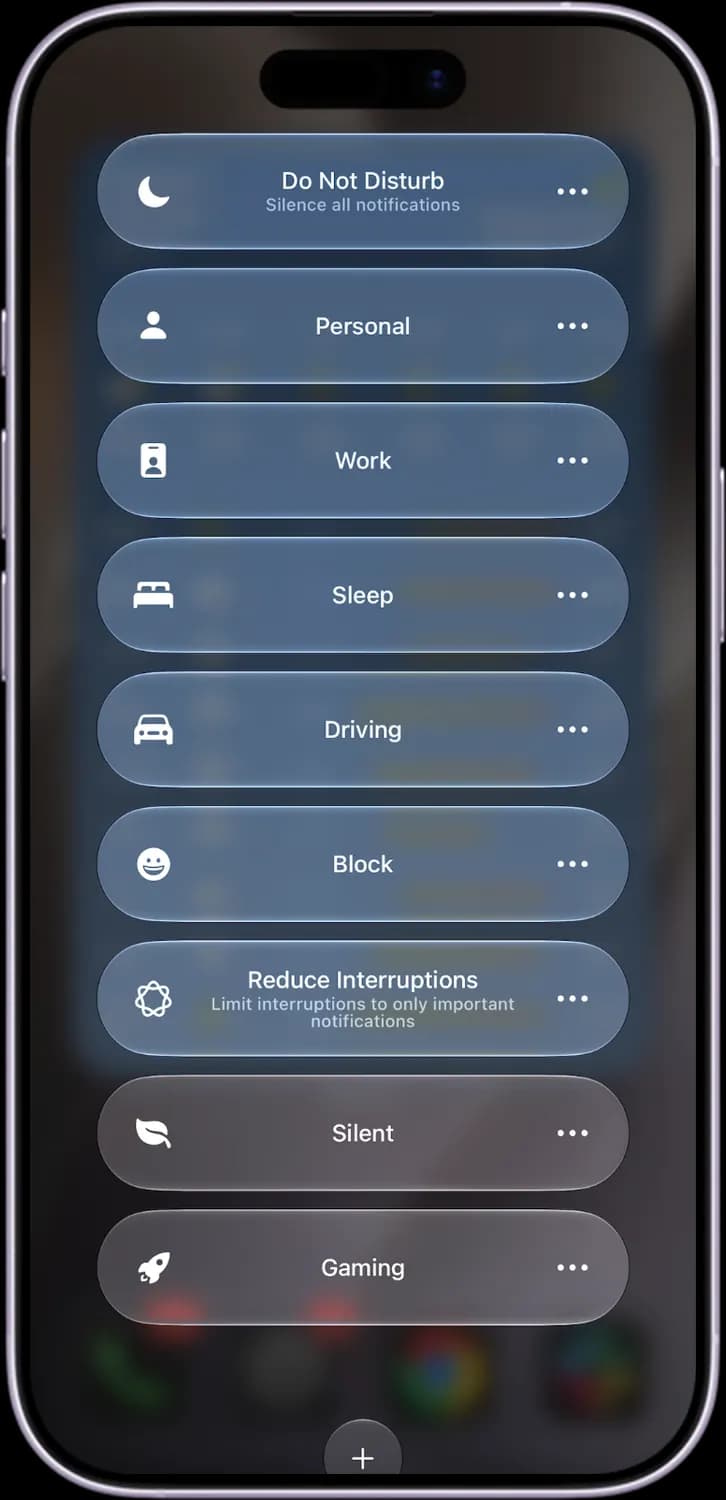

Do Not Disturb (moon)
Silences all calls and notifications until you turn it off.

Personal (person)
A Focus for personal time. You choose which people and apps can still reach you.

Work (ID badge)
A Focus for work hours, which can hide personal apps and Home Screen pages.

Sleep (bed)
Dims the Lock Screen and silences notifications at bedtime. It can turn on with your sleep schedule.

Driving (car)
Silences notifications while you drive and can auto-reply to messages.

Reduce Interruptions
Uses Apple Intelligence to let through only the notifications that look important.

More options (three dots)
Sets how long the Focus stays on: for an hour, until this evening, or until you leave this location.
Edit Mode
Tap the + at the top left, or press and hold an empty spot in Control Center, and every control starts to jiggle. This is where you change what is in Control Center.
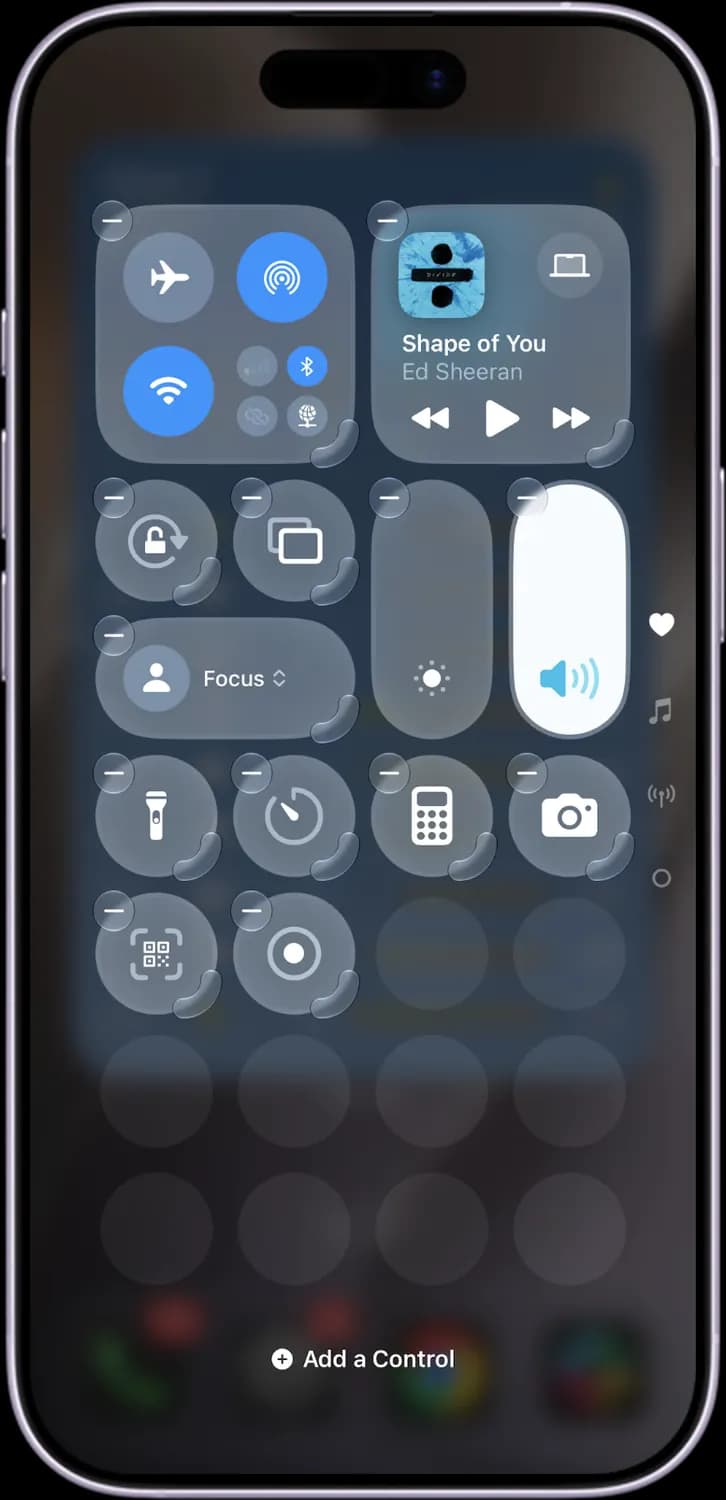

Remove (minus)
Removes that control from Control Center. You can add it back any time.

Resize handle
Drag the curved corner to make a control bigger or smaller. Bigger controls show more, like a song title.

Empty slot
A free space. Drag a control here to move it.

New page (empty dot)
Adds a new Control Center page that you can fill with your own controls.

Add a Control
Opens the gallery of every control you can add, from Apple and from your apps.
More Controls You Can Add
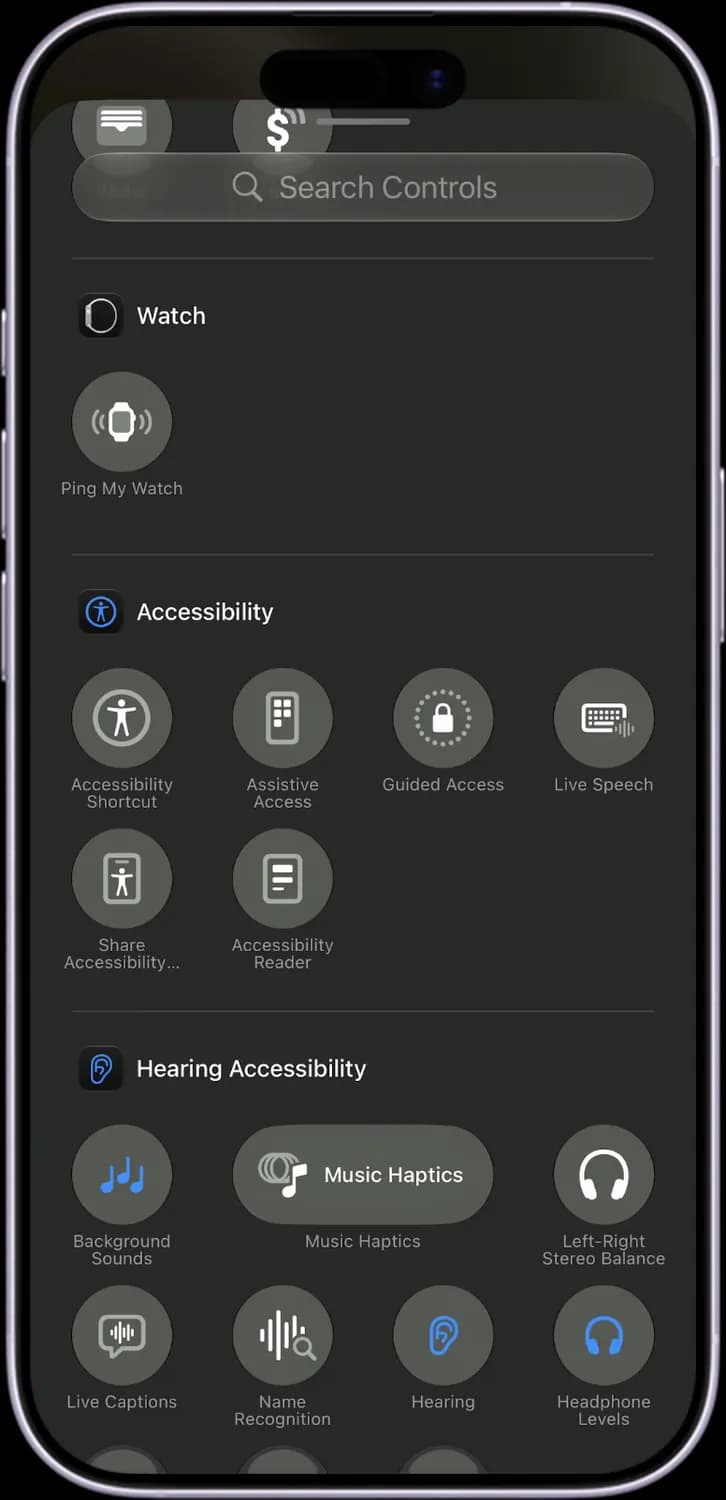
Tap Add a Control in edit mode to open this gallery. Apple puts its most popular controls at the top. These are the ones that are not on the first page by default.
Popular controls
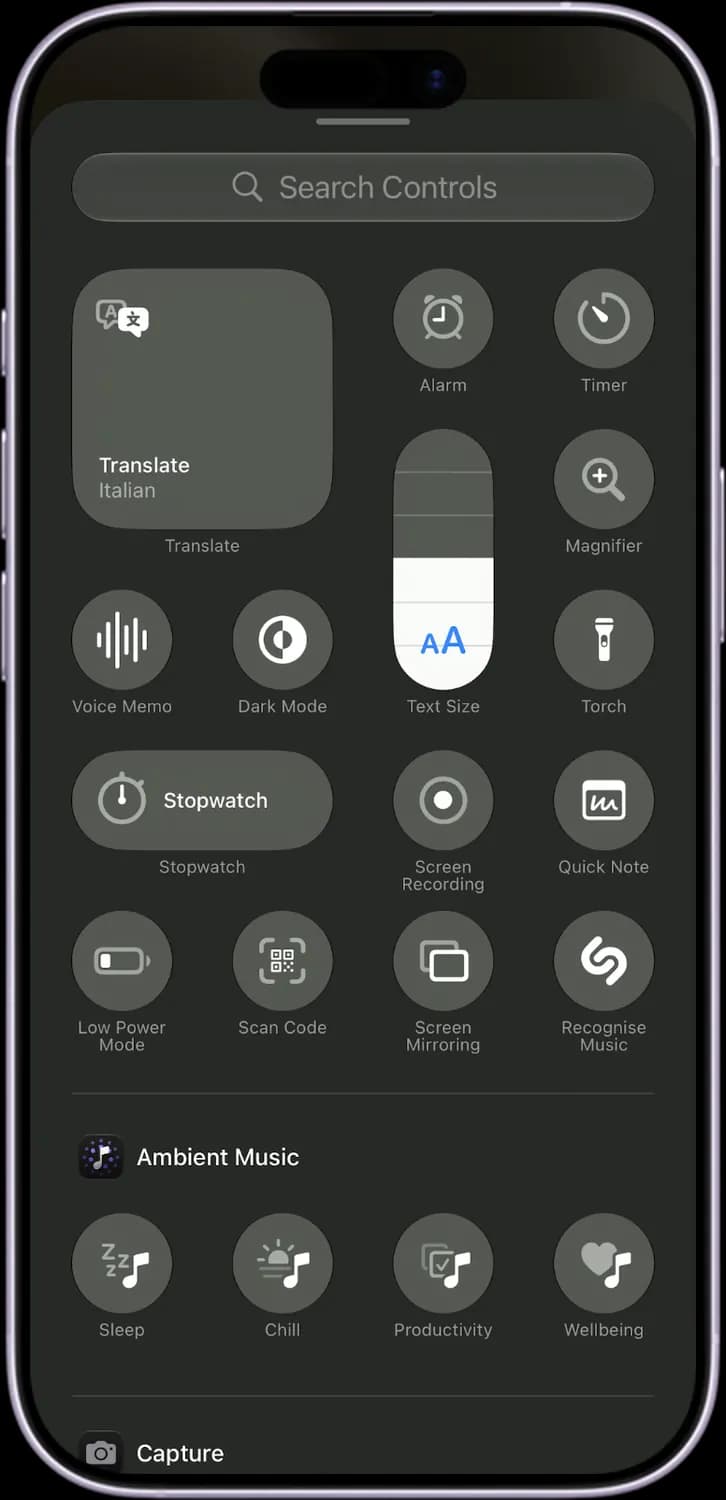
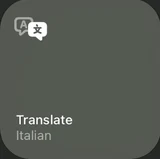
Translate
Opens a quick translator. The big tile shows the language it will translate into.
Alarm
Sets a new alarm without opening the Clock app.
Magnifier (magnifying glass)
Turns the camera into a magnifying glass for small print.

Text Size (AA)
A slider that makes text bigger or smaller across the phone.
Voice Memo (sound wave)
Starts recording a voice memo right away.

Dark Mode (half circle)
Switches between Light Mode and Dark Mode.

Stopwatch
Starts a stopwatch. The wide tile shows the running time.
More popular controls and Ambient Music
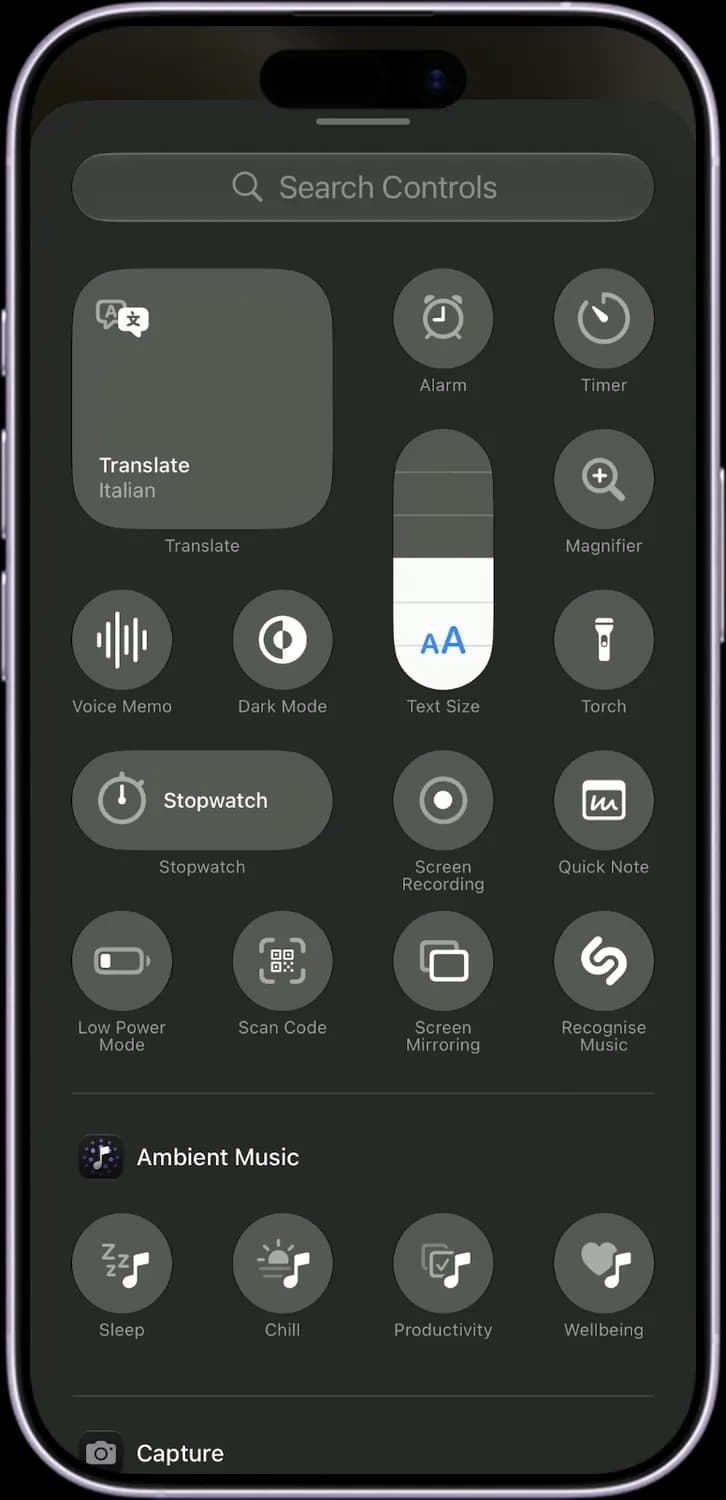

Quick Note (note with a squiggle)
Opens a new note on top of whatever you are doing.
Low Power Mode (battery)
Saves battery by cutting background activity. The battery icon turns yellow when it is on.

Recognize Music (Shazam S)
Listens to the song playing around you and tells you its name.
Ambient Music: Sleep
Plays calm music to help you fall asleep.
Ambient Music: Chill
Plays relaxed background music.

Ambient Music: Productivity
Plays focus music for work or study.

Ambient Music: Wellbeing
Plays gentle music for a break or meditation.
Controls From Apple's Apps
Further down, the gallery groups controls by app. Here are the ones from Apple's own apps. Apps you install can add their own controls too, and they show up in the same list.
Measure
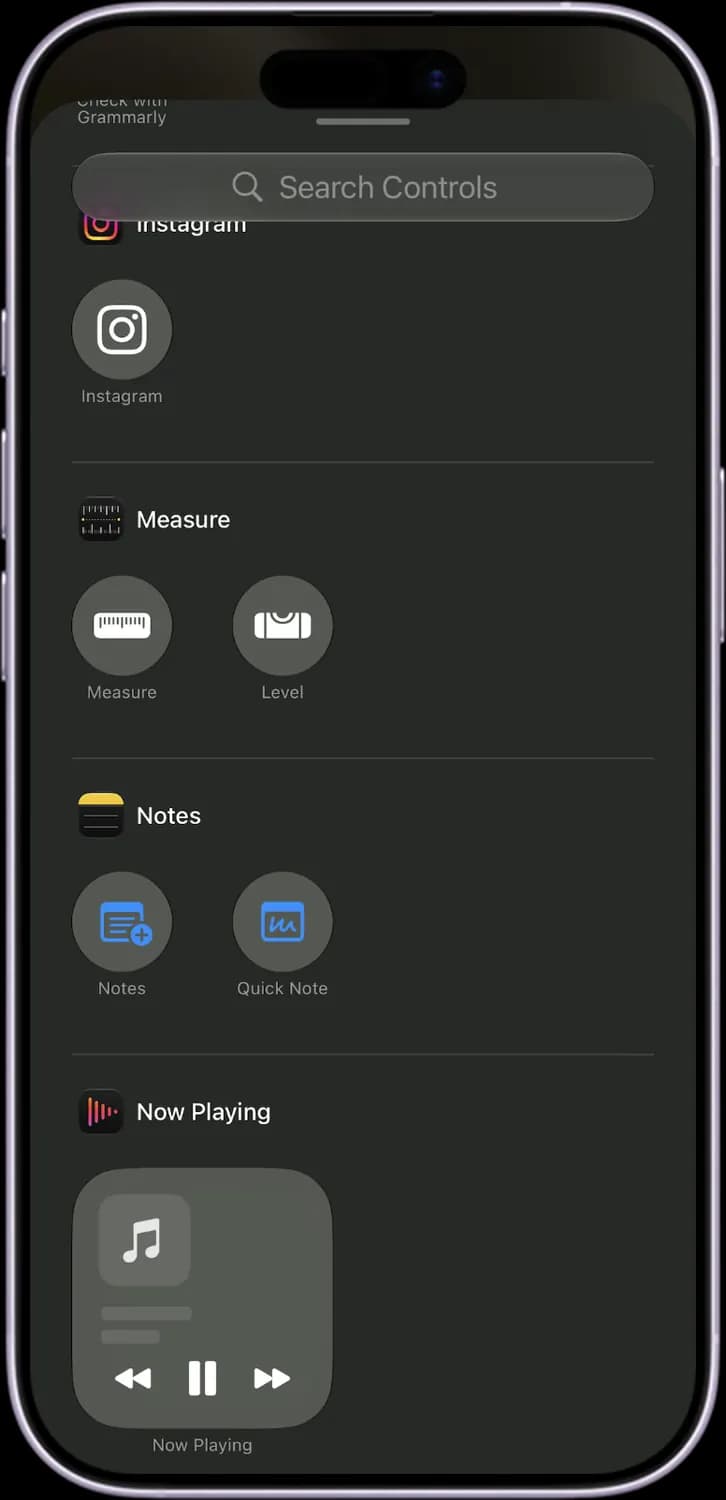
Measure (ruler)
Opens the Measure app to measure things with the camera.

Level
Opens the level, which shows if a surface is flat.
Notes, Reminders and Remote
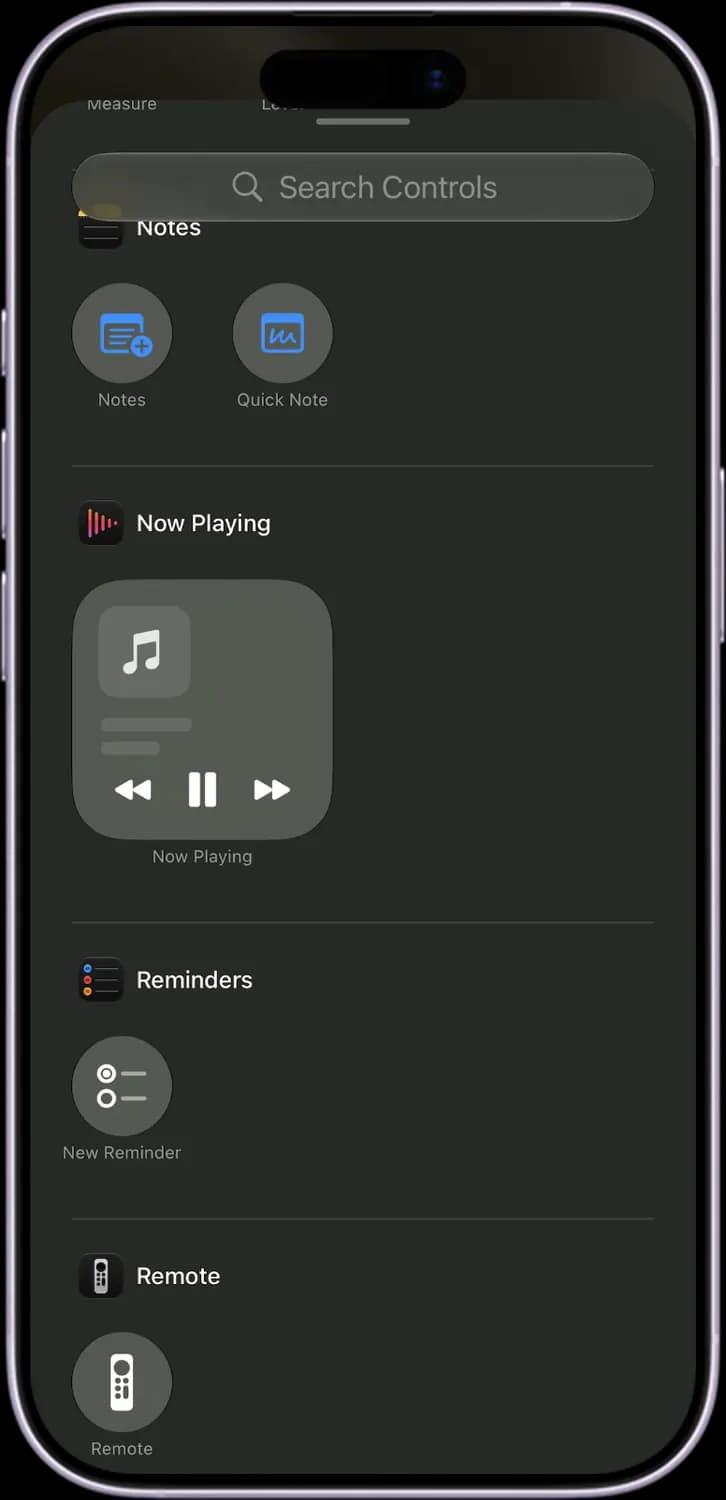

Notes
Starts a new note in the Notes app.
New Reminder
Adds a new reminder without opening the Reminders app.
Remote (TV remote)
Turns your iPhone into a remote for your Apple TV.
Shortcuts
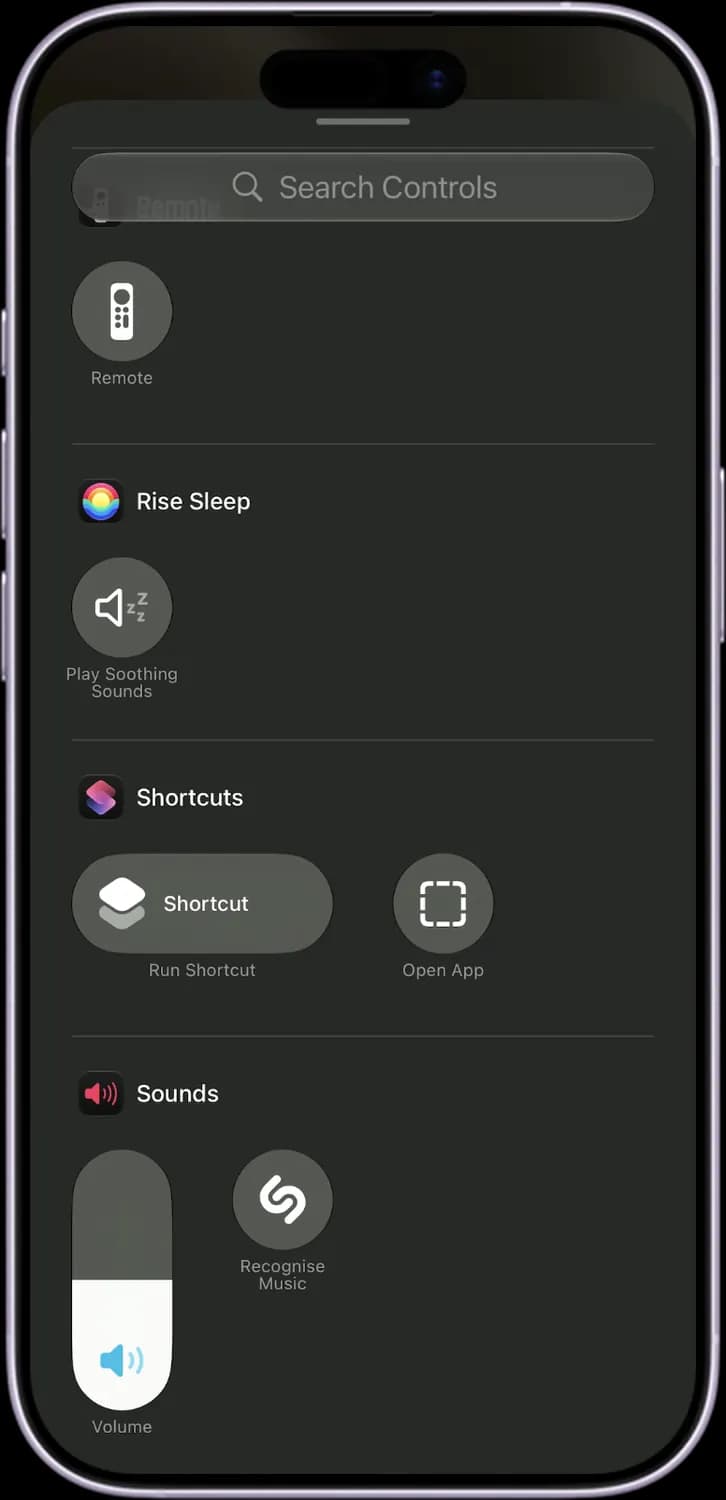

Run Shortcut
Runs a shortcut you pick from the Shortcuts app.
Open App (dashed square)
Opens any app you choose with one tap.
Utilities
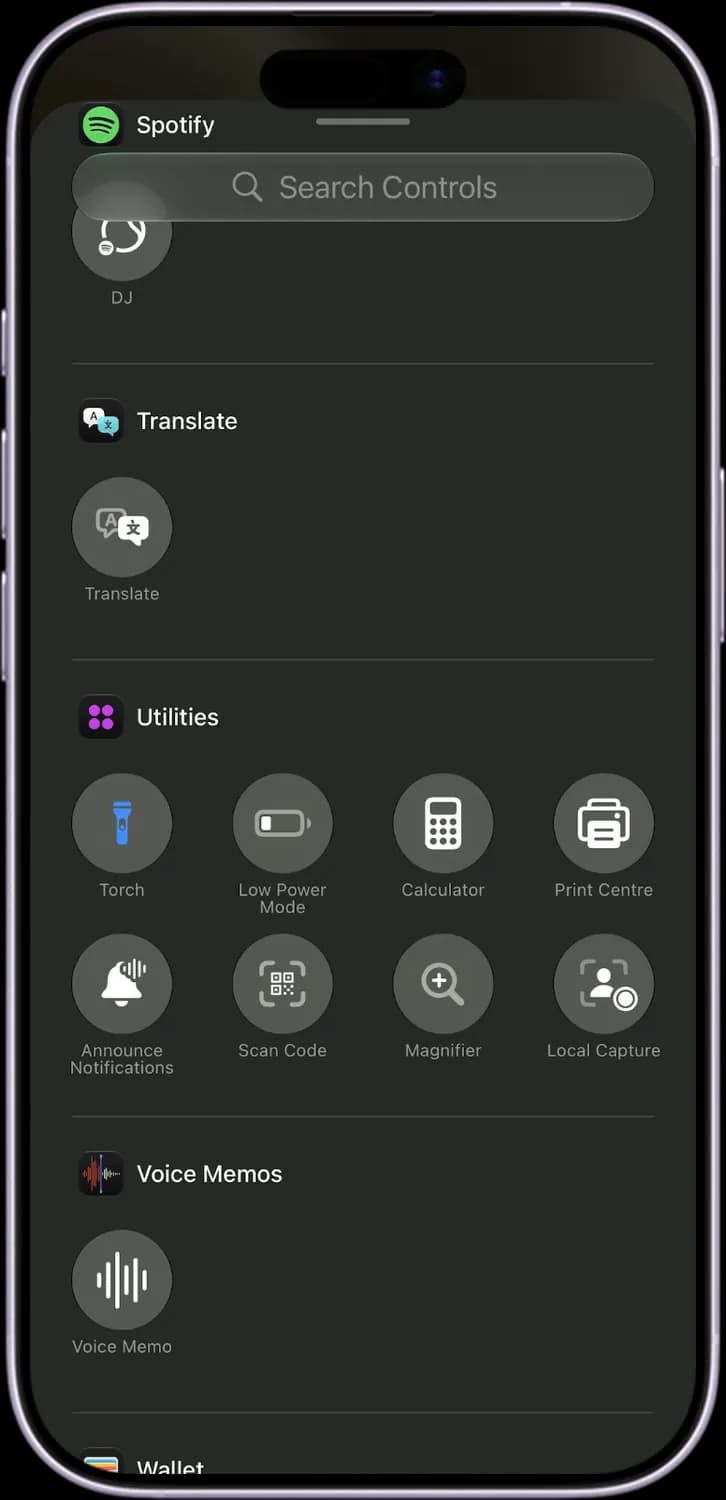

Print Center (printer)
Shows the documents waiting to print.
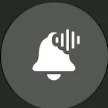
Announce Notifications (bell with sound)
Lets Siri read your notifications aloud on AirPods or CarPlay.
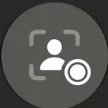
Local Capture (person with a dot)
Records your own video and audio in high quality during a video call.
Wallet and Watch
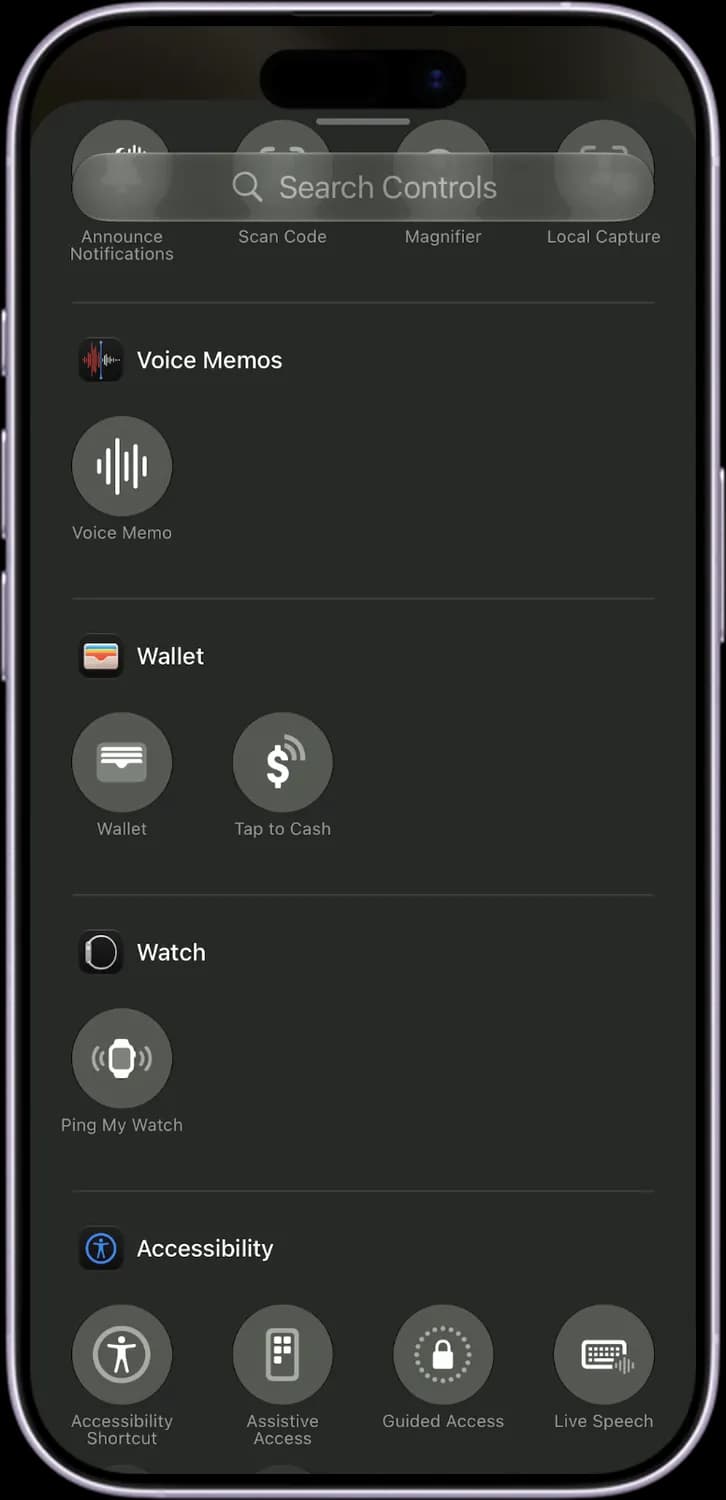
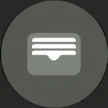
Wallet (card)
Opens Apple Wallet for Apple Pay and your passes.
Tap to Cash (dollar)
Sends Apple Cash to someone by holding your iPhones together. US only.
Ping My Watch
Makes your Apple Watch play a sound so you can find it.
Accessibility Controls
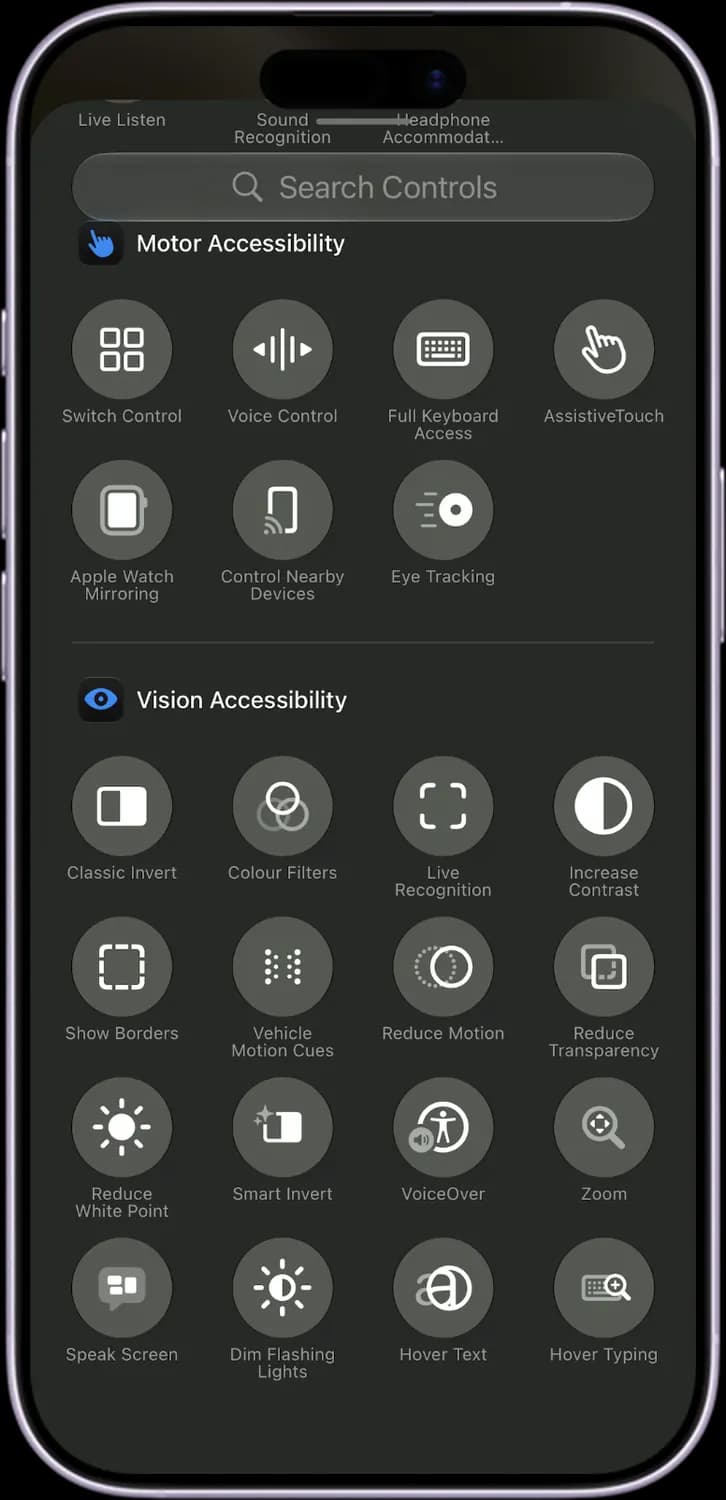
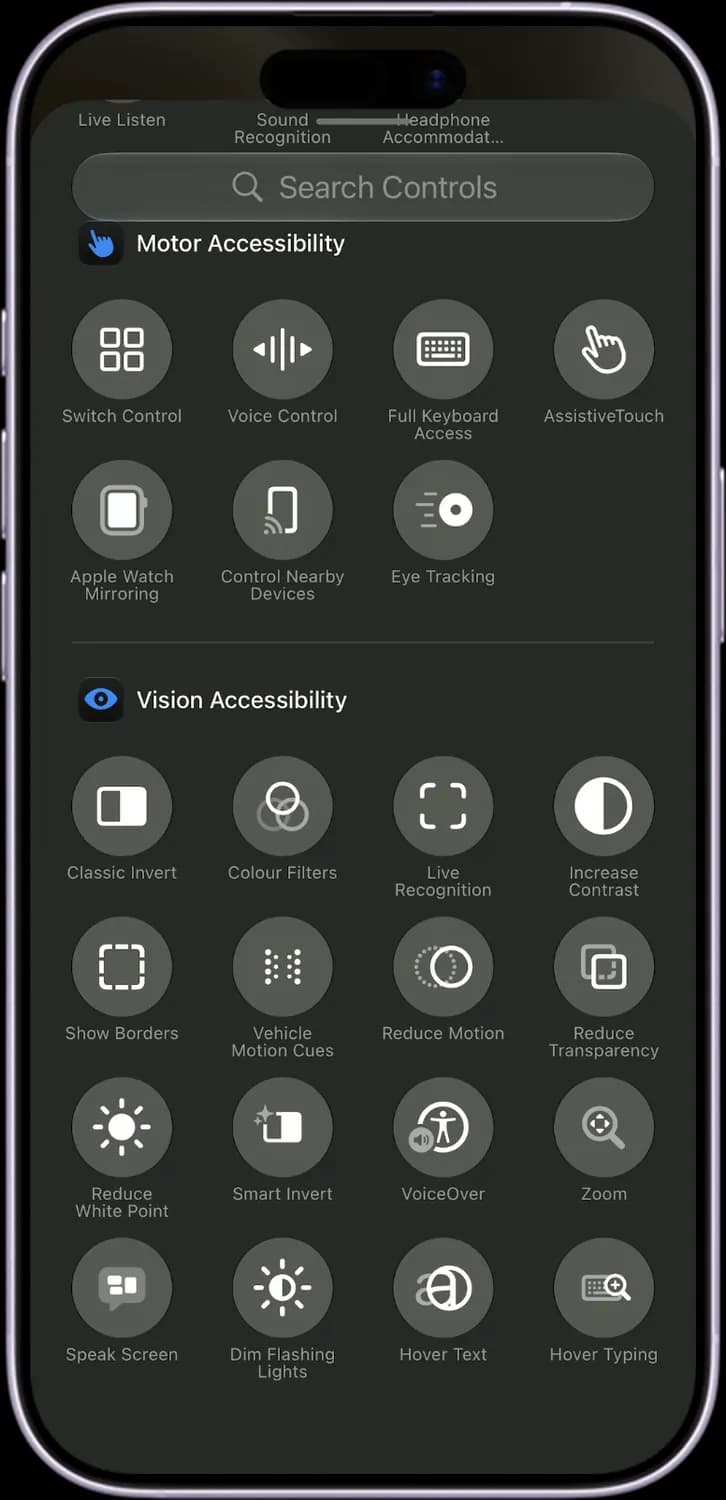
The end of the gallery has the accessibility controls, grouped as general, hearing, motor and vision. Each one turns a feature on or off without going into Settings.
Accessibility
Accessibility Shortcut (person in a circle)
Turns on the feature you set for a triple-click of the side button.
Assistive Access
Starts a simpler iPhone layout with big buttons, set up for someone who needs it.

Guided Access (padlock)
Locks the iPhone to one app and can block parts of the screen.
Live Speech (keyboard)
Speaks what you type aloud, on calls or in person.
Share Accessibility Settings
Brings your accessibility settings to someone else's iPhone or iPad for a while, when you use theirs.

Accessibility Reader
Shows the text on screen in an easy-to-read view and can read it aloud.
Hearing
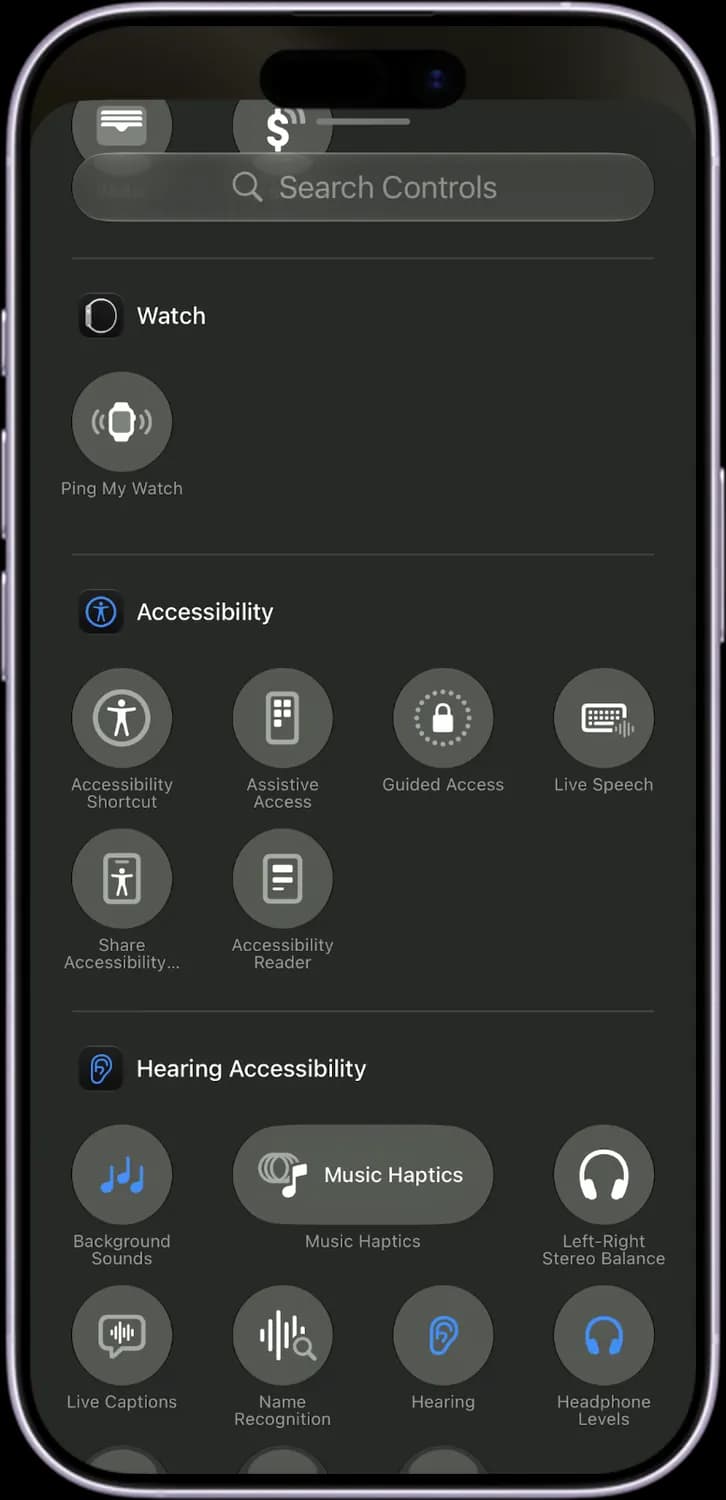

Background Sounds (music notes)
Plays rain, ocean or other sounds to hide noise around you.

Music Haptics
Plays taps and vibrations in time with the music, for people who are deaf or hard of hearing.

Left-Right Stereo Balance (headphones)
Makes one ear louder than the other.
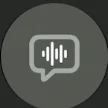
Live Captions (speech bubble)
Shows captions for any audio on the phone, including calls.
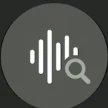
Name Recognition (sound wave with a magnifier)
Alerts you when your iPhone hears your name.
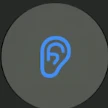
Hearing (ear)
Shows your hearing aid and hearing features in one place.

Headphone Levels (headphones)
Shows how loud your headphones are playing in decibels.
More hearing controls
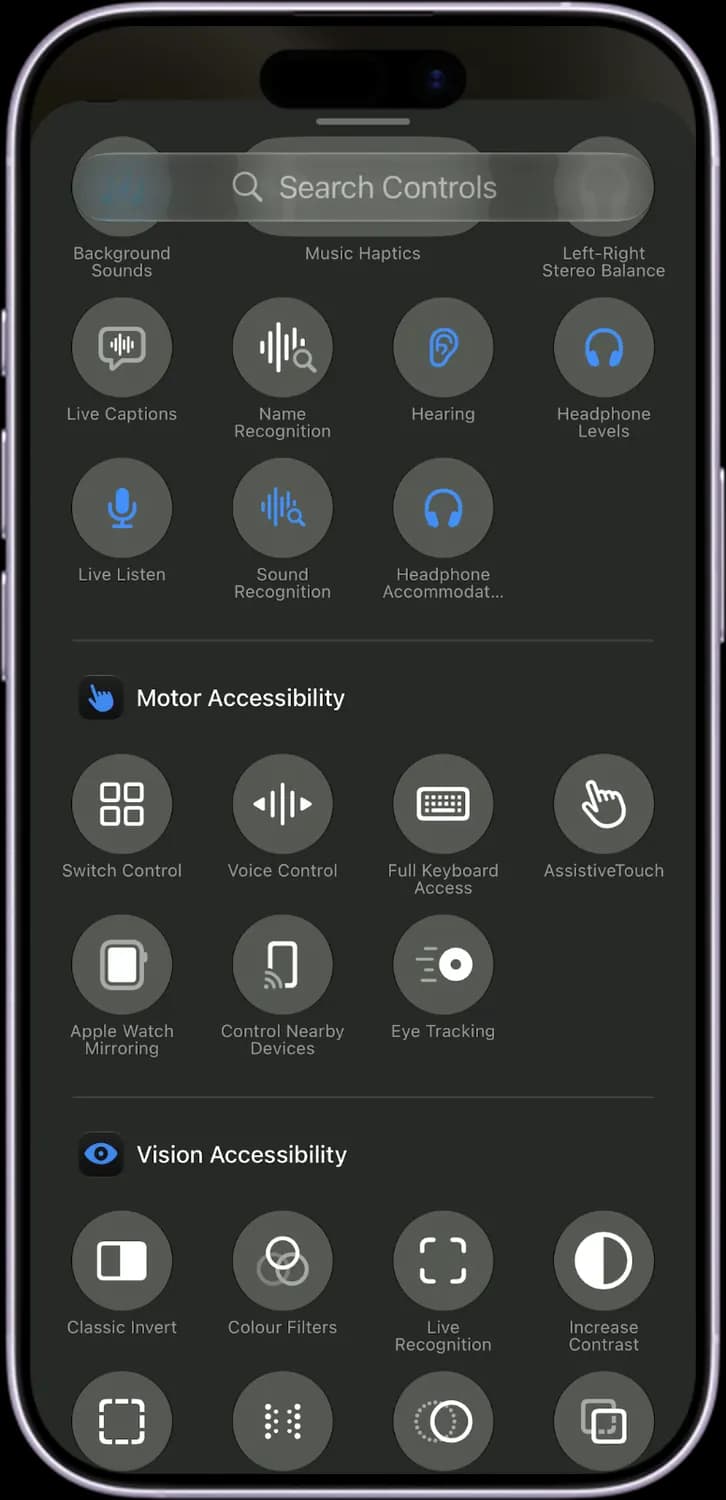
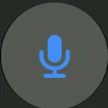
Live Listen (microphone)
Uses your iPhone as a microphone that sends sound to your AirPods or hearing aids.
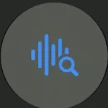
Sound Recognition (sound wave)
Alerts you to sounds like a doorbell, a crying baby or a fire alarm.
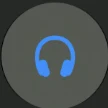
Headphone Accommodations
Boosts quiet sounds and tunes audio for your hearing.
Motor
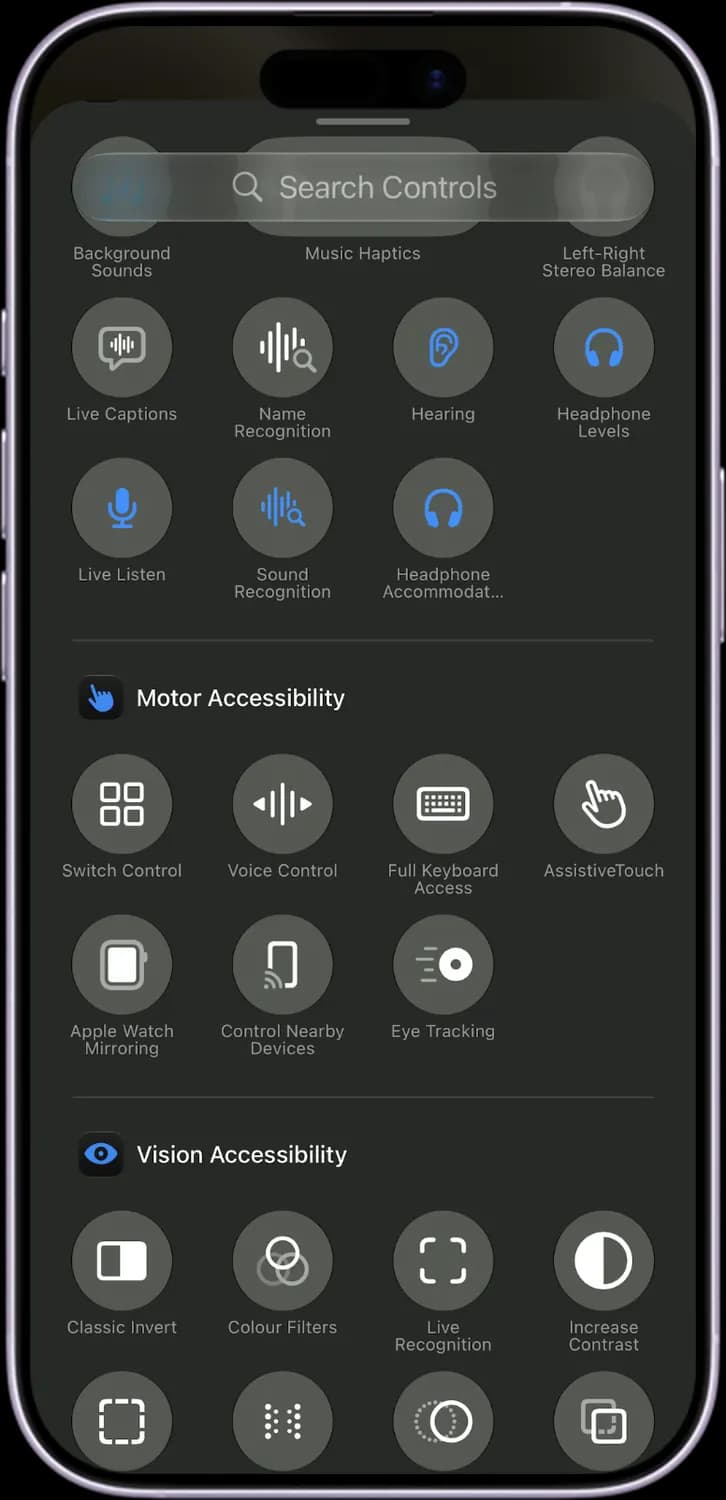
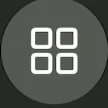
Switch Control (four squares)
Lets you control the iPhone with switches, one item at a time.
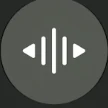
Voice Control (sound bars)
Lets you control the whole iPhone with your voice.

Full Keyboard Access (keyboard)
Lets you use the iPhone with a connected keyboard.
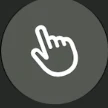
AssistiveTouch (hand)
Adds a floating on-screen button for gestures and buttons.
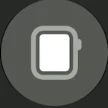
Apple Watch Mirroring
Shows your Apple Watch on the iPhone so you can control it from there.
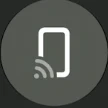
Control Nearby Devices
Controls another nearby Apple device from your iPhone.
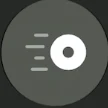
Eye Tracking (eye)
Lets you control the iPhone by looking at the screen.
Vision Accessibility Controls
The last group in the gallery helps people with low vision or light sensitivity. They are also handy for anyone who wants a dimmer or calmer screen.
Color and contrast
Classic Invert
Inverts every color on the screen.
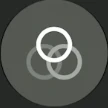
Color Filters (three circles)
Changes screen colors for color blindness, or tints the screen.

Live Recognition (dashed frame)
Uses the camera to describe what is in front of you.

Increase Contrast (half circle)
Makes colors and borders stand out more.
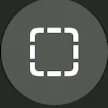
Show Borders (dashed square)
Draws outlines around buttons so they are easier to see.
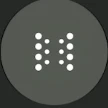
Vehicle Motion Cues (dots)
Shows moving dots on the screen to reduce motion sickness in a car.
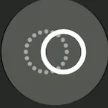
Reduce Motion
Cuts down animations and zooming effects.
Display and VoiceOver

Reduce Transparency
Makes see-through backgrounds solid so text is easier to read.

Reduce White Point (sun)
Dims bright colors, so the screen can go darker than the lowest brightness.
Smart Invert
Inverts colors but keeps photos and videos as they are.
VoiceOver (person in a circle)
Turns on the screen reader that speaks everything on screen.

Zoom (magnifier)
Magnifies part of the screen or all of it.

Speak Screen
Reads everything on the current screen aloud.
Dim Flashing Lights (sun)
Dims the screen when a video has flashing or strobing lights.
Hover
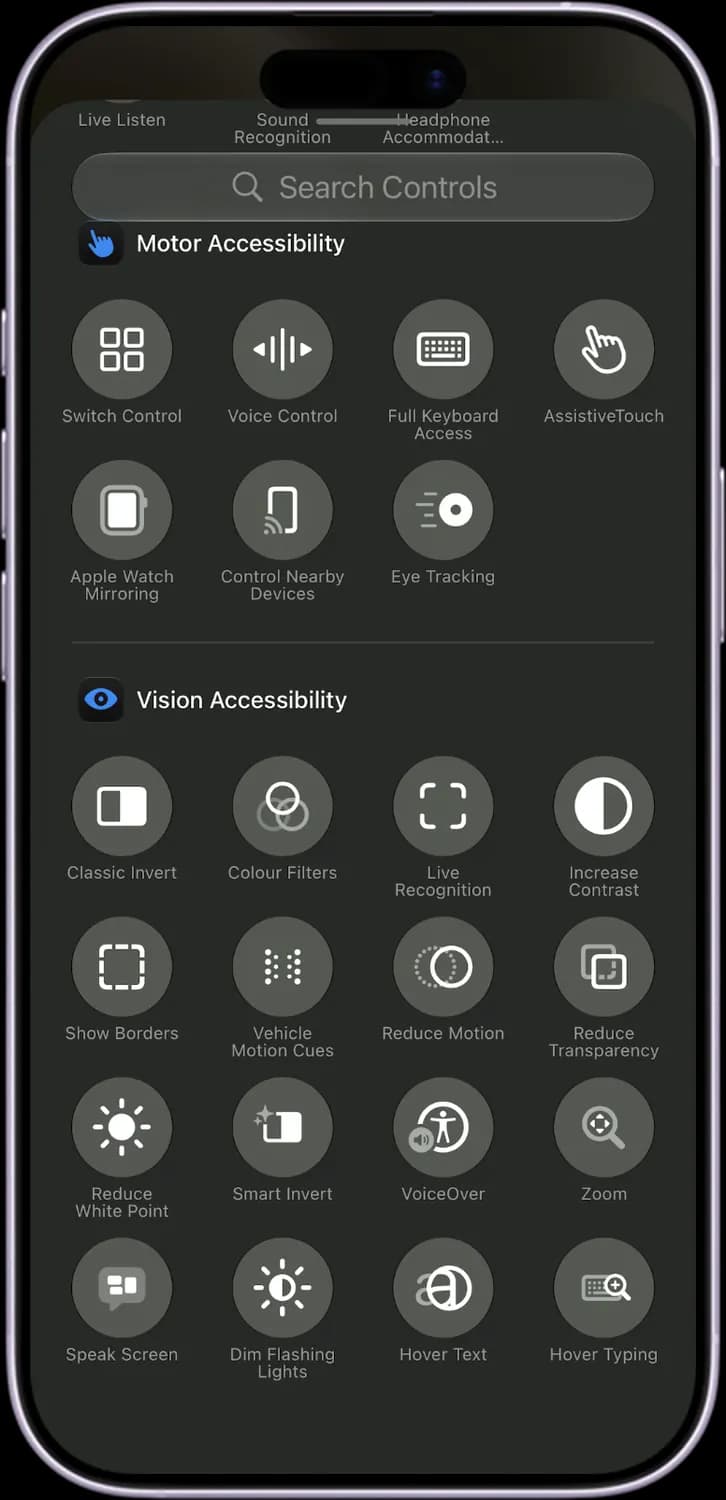
Hover Text
Shows a large copy of the text under your finger.
Hover Typing
Shows a large copy of what you type above the keyboard.
Those are the meanings of every icon in iPhone Control Center. Apple changes Control Center with most big iOS updates, so we update this guide every time it does, and you can bookmark this page to stay updated. These screens are from an iPhone on iOS 27 set to UK English, so a few labels read Torch, Colour Filters or Recognise Music, which are Flashlight, Color Filters and Recognize Music on a US iPhone. For more icon guides, you can also visit our TechPP icon guides.
Comments
0Share your thoughts, questions, or feedback about this guide.
Leave a Comment