
Google Phone App Icons and Symbols Explained
The Phone app is one of those apps we open every day without thinking much about it. But Google has redesigned the Phone app with a new Home tab, and a lot of what it shows comes as small icons: the arrows next to each call, the red ones for missed calls, the phone badge on your favorites, and the buttons that show up during a call.
In this guide, you will learn what every icon in the latest Google Phone app (also called the Google Dialer) means, screen by screen. And this is an interactive guide. You can tap on every icon on the screens below to know what it does.
Home tab and call log
Home is the tab the Phone app opens on. It has the search bar at the top, your favorite contacts below it, and your recent calls under Today, with the Keypad and Voicemail tabs at the bottom.
Search bar and favorites
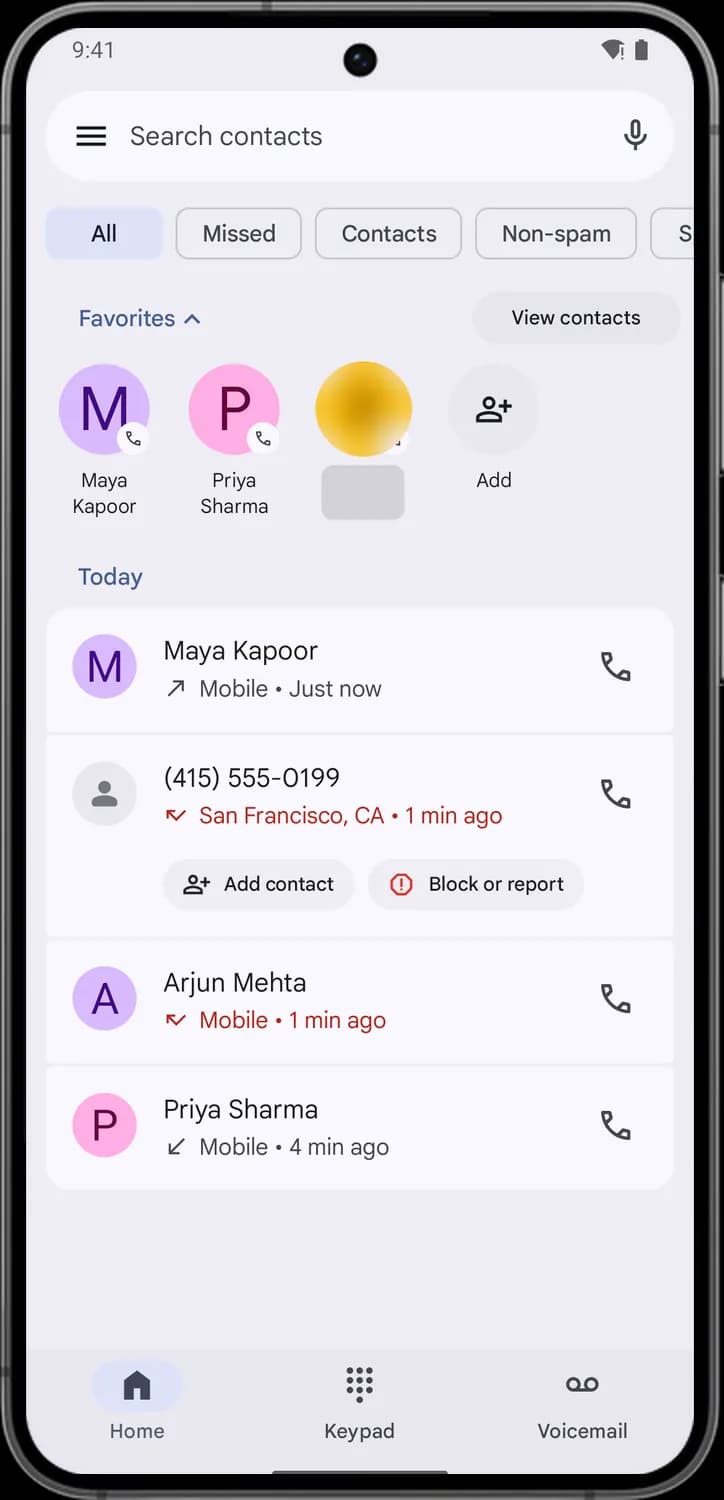

Navigation drawer
The three lines at the left of the search bar. Tap it to open the side menu with Contacts, Settings, Clear call history and Help & feedback.

Search contacts
Tap the bar and type a name or number to find a contact or a past call.

Voice search
The microphone. Tap it and say a name to search your contacts by voice.

Collapse favorites
The small arrow next to Favorites. Tap it to hide the row of favorite contacts, and tap again to show it.

Favorite contact
A contact you starred, with a small phone badge on the photo. Tap it to call that person straight away.

Add favorite
The person with a plus sign. Tap it to pick a contact and add them to your favorites row.
Call log
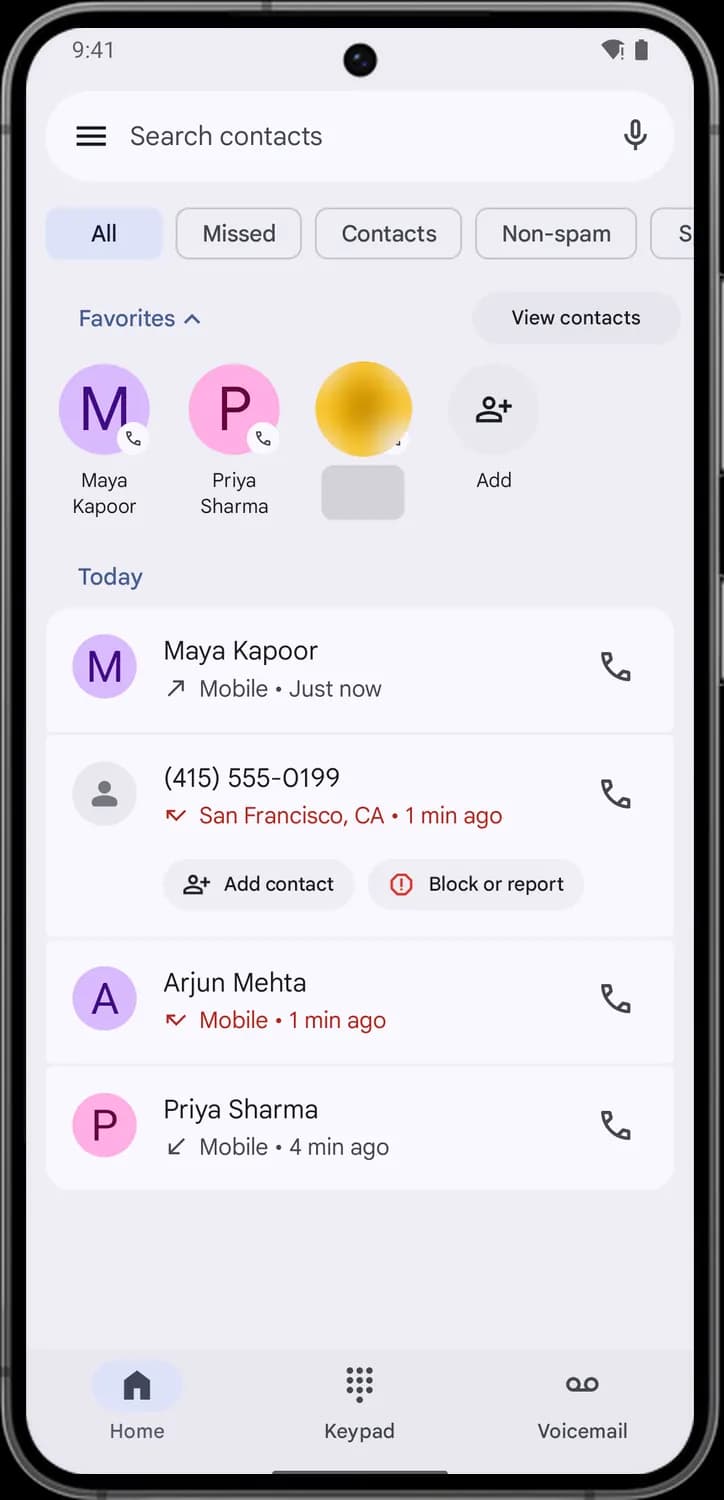

Call back
The phone icon at the right of every call. Tap it to call that number again right away.

Unsaved number
The gray person in place of a photo means the number is not saved in your contacts.

Add contact
Shown under calls from numbers you have not saved. Tap it to save the number as a new contact or add it to an existing one.

Block or report
The red stop sign. Tap it to block the number so it cannot call you again, and to report it as spam if you want.
Status symbols. These only show information. They are not buttons.

Outgoing call
The arrow pointing up and to the right means you made this call.

Missed call
The red arrow that bends back means a call came in and you did not answer it. Missed calls are also shown in red text.

Incoming call
The arrow pointing down and to the left means someone called you and you answered.
A call, tapped open
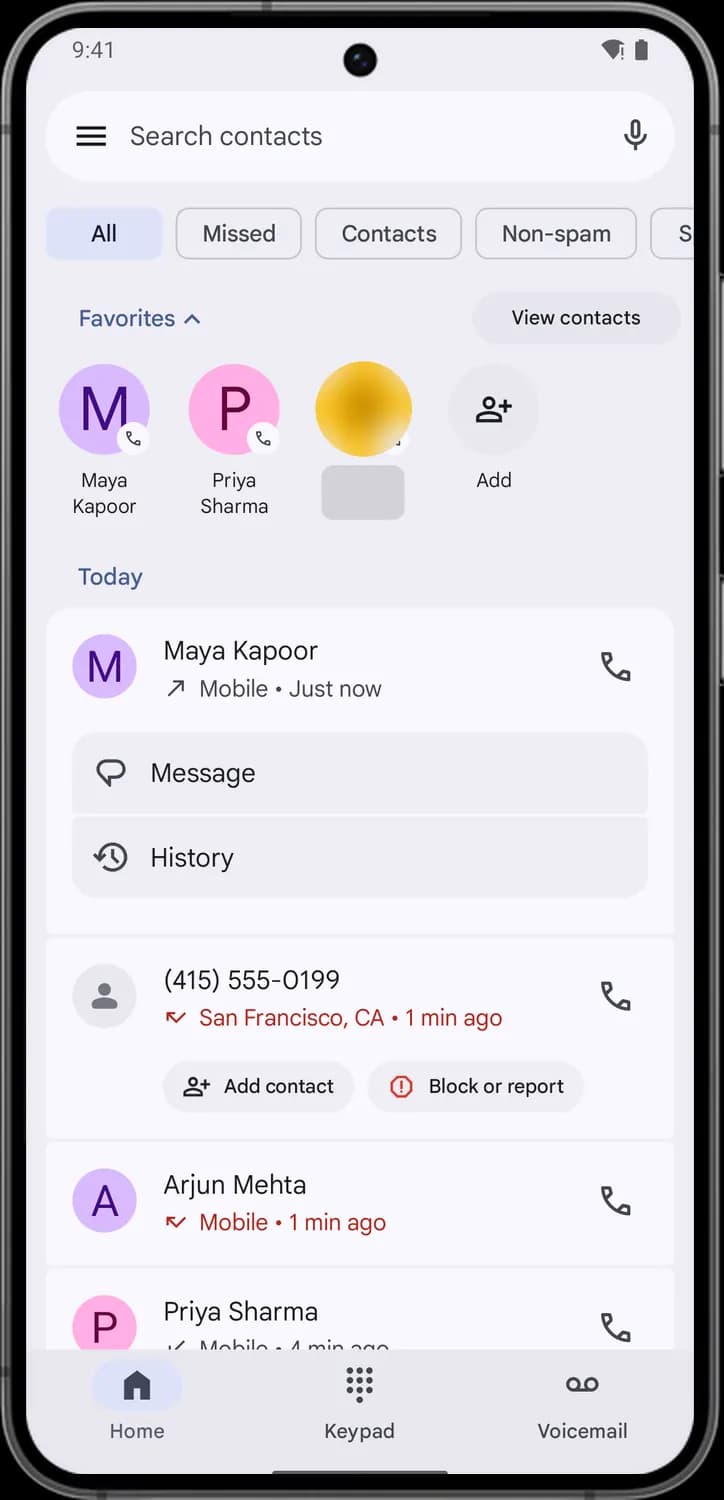

Message
Appears when you tap a call in the list. Tap it to send a text message to that number.

History
The clock with an arrow. Tap it to see every call with that number, with the time and length of each one.
Tab bar
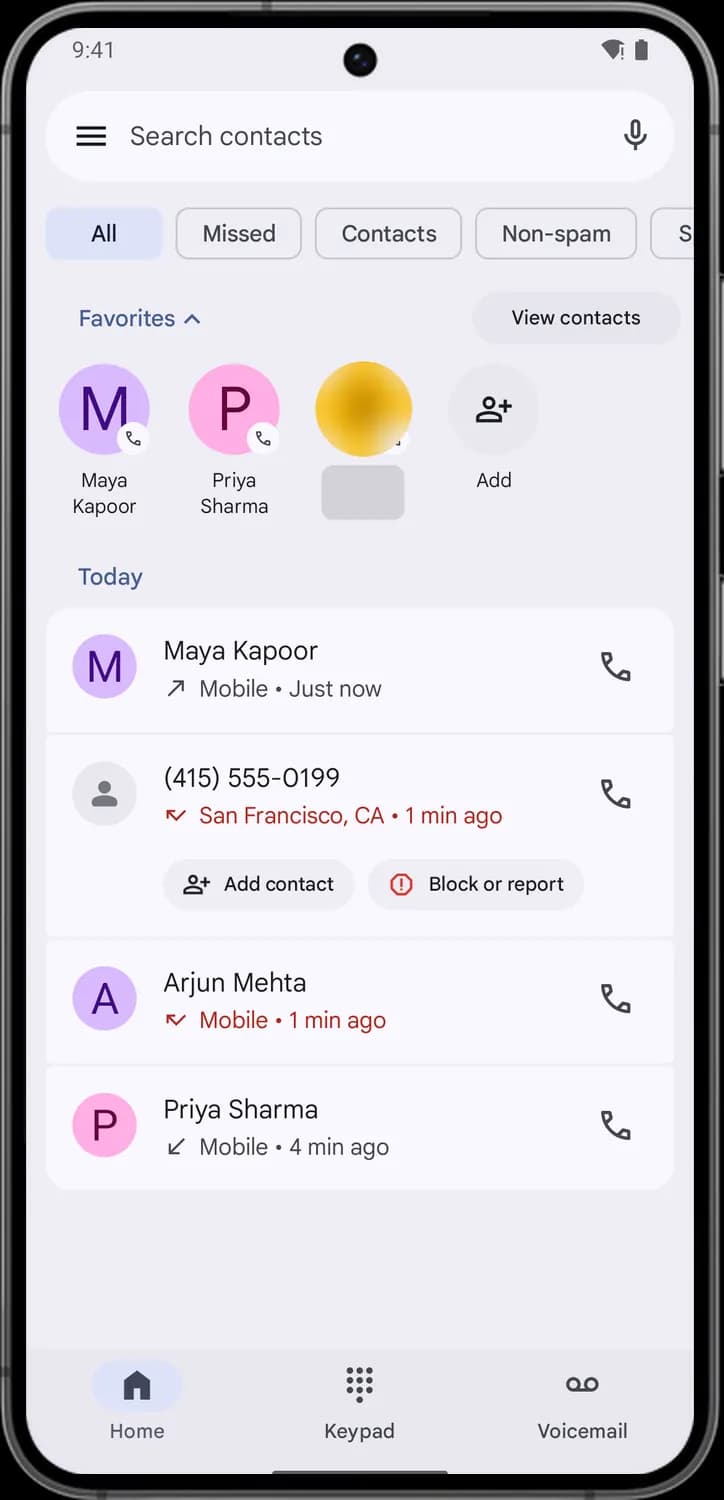

Home
The house tab. Shows your favorites and recent calls, and is where the app opens.

Keypad
The grid of dots. Opens the dial pad so you can type a number and call it.

Voicemail
The tape reel symbol. Opens your voicemail messages, if your carrier supports visual voicemail.
Call history for a contact
Tap a call in the log, then tap History to open this screen. It lists every call with that number and lets you call or text them again.
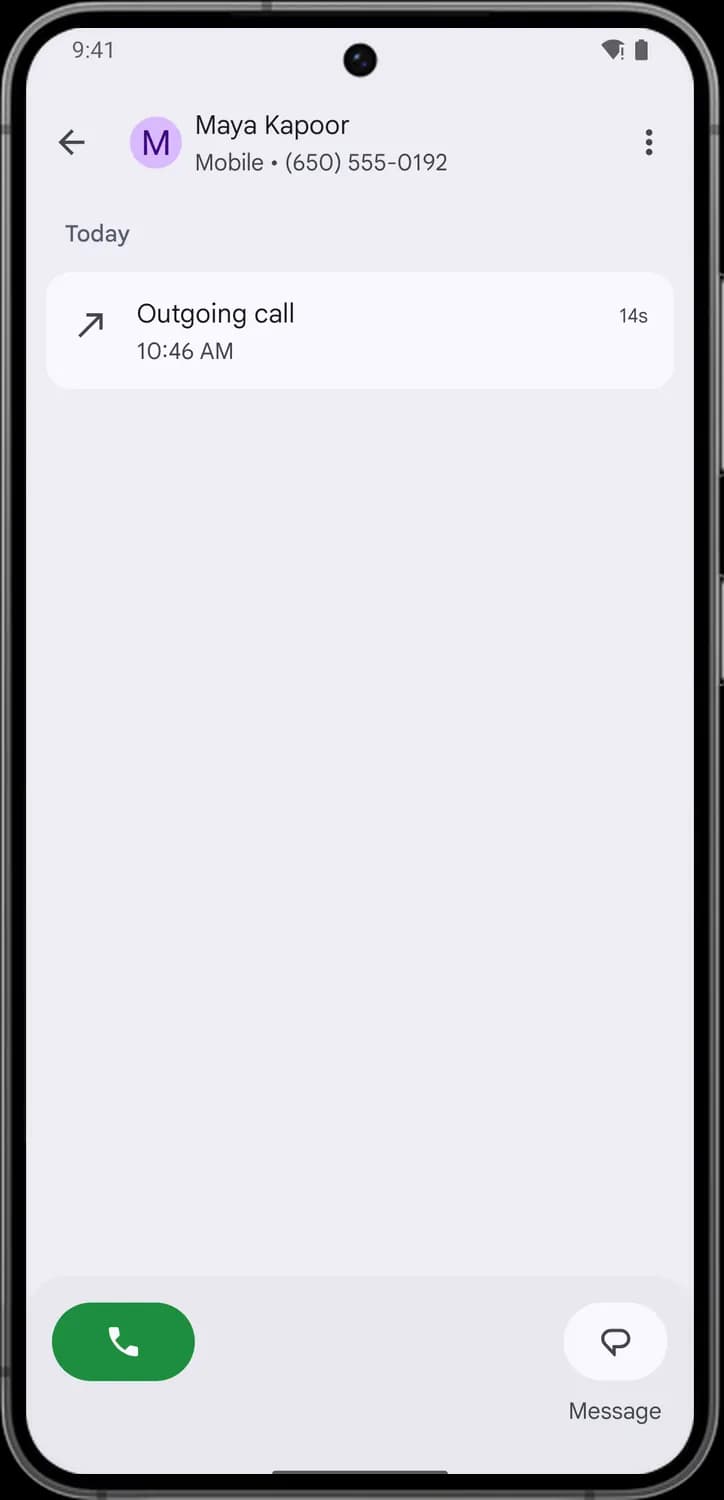

Back
The arrow at the top left. Takes you back to the call log.

Contact photo
Tap the photo or initial to open this person's contact card.

More options
The three dots. Opens a menu to copy the number, edit the number before you call, block or report it, or delete this call history.

Call
The green button at the bottom. Tap it to call this number.

Message
The speech bubble at the bottom right. Tap it to send this number a text message.
Keypad
Tap the Keypad tab to dial a number by hand. As you type, the app suggests matching contacts at the top.
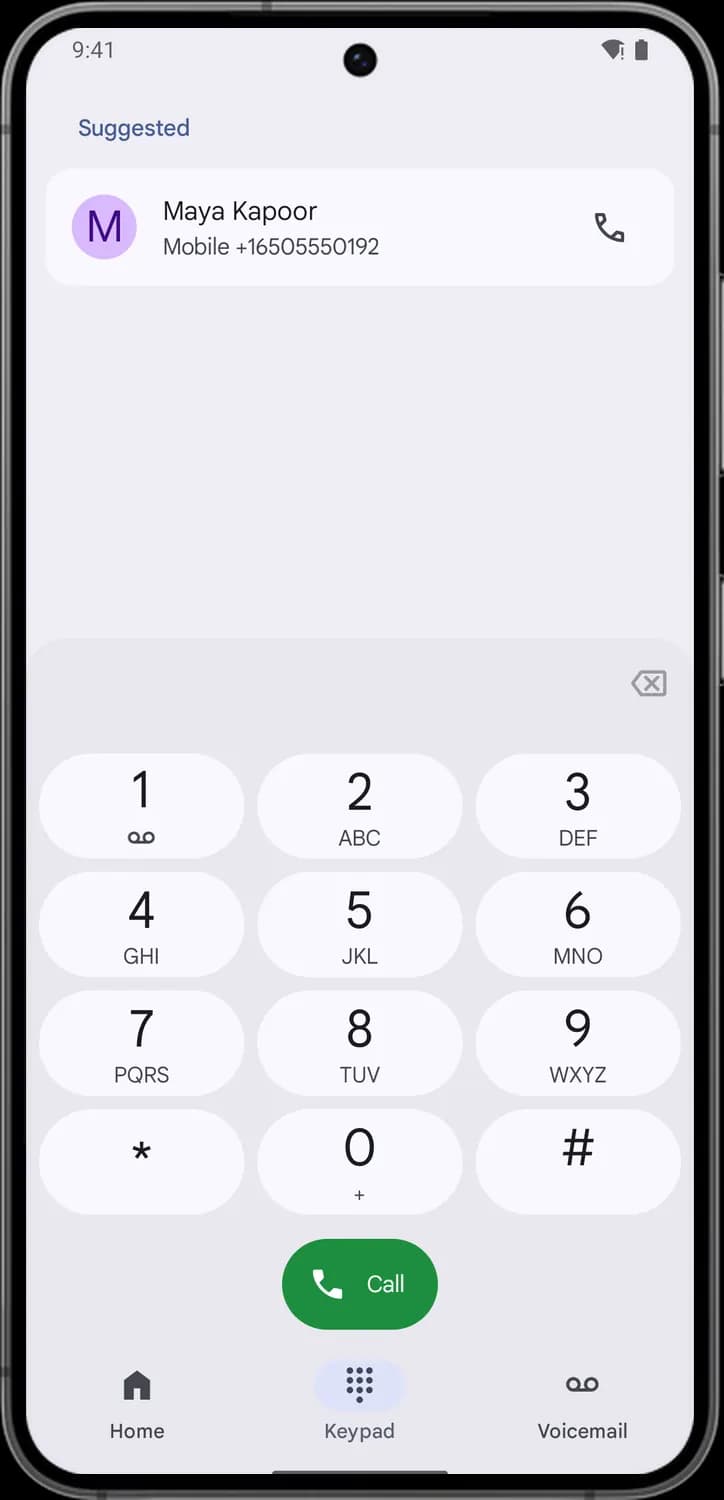

Call suggested contact
The phone icon next to a suggested contact. Tap it to call them without typing the rest of the number.

Backspace
The arrow-shaped key with an X. Tap it to delete the last digit, or touch and hold to clear the whole number.

Voicemail key
The tape reel under the 1. Touch and hold the 1 key to call your voicemail.
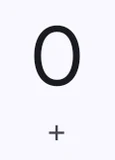
Plus key
The small plus under the 0. Touch and hold the 0 key to type a +, which you need for international numbers.

Call
The green button. Tap it to call the number you typed.
Incoming call
When someone calls and your phone is in use or unlocked, the Phone app fills the screen with the caller's name and these buttons.
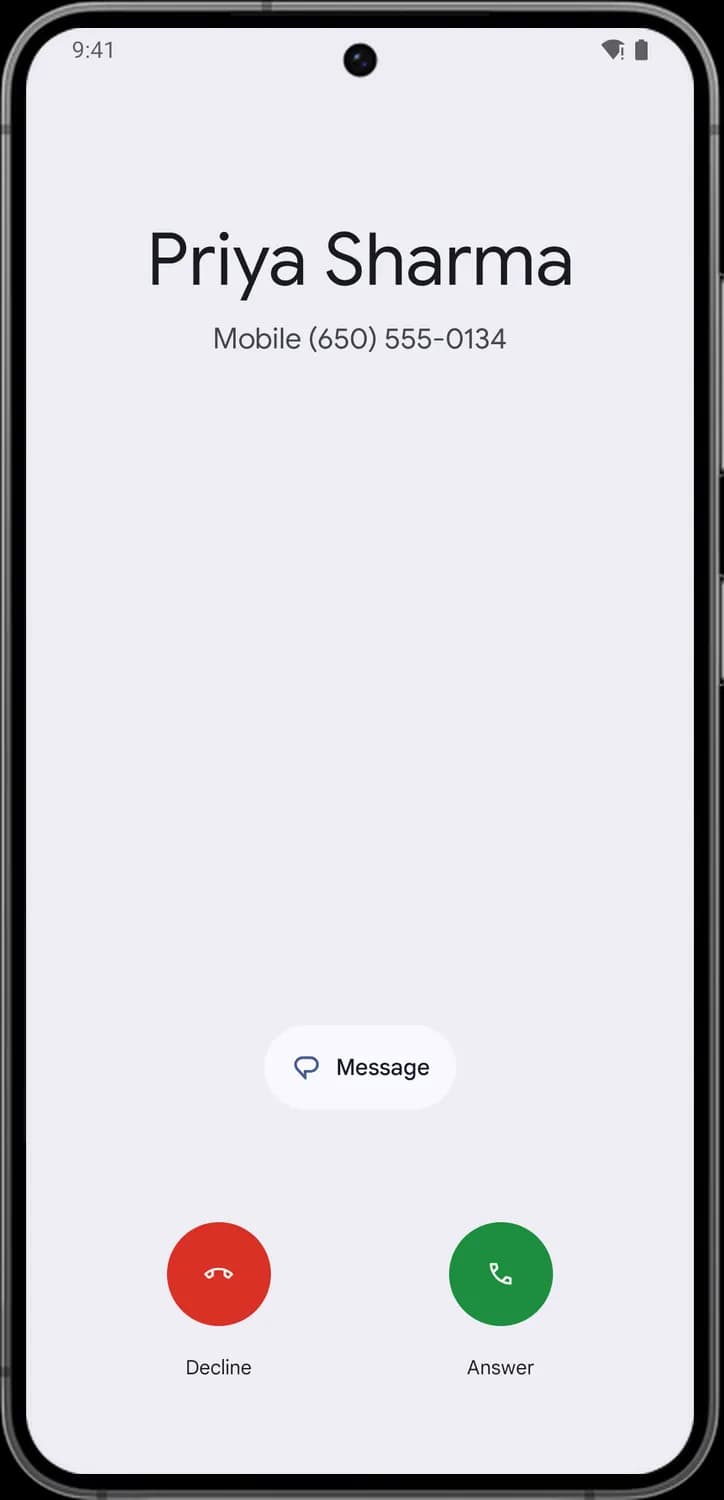

Reply with a message
The speech bubble with Message. Tap it to decline the call and send the caller a quick text, like a ready-made reply or your own words.

Decline
The red button with the phone hung up. Tap it to reject the call and send it to voicemail.

Answer
The green phone button. Tap it to pick up the call.
During a call
Once a call connects you see a timer above the caller's name and a row of buttons at the bottom. A button turns dark when it is on.
Call controls
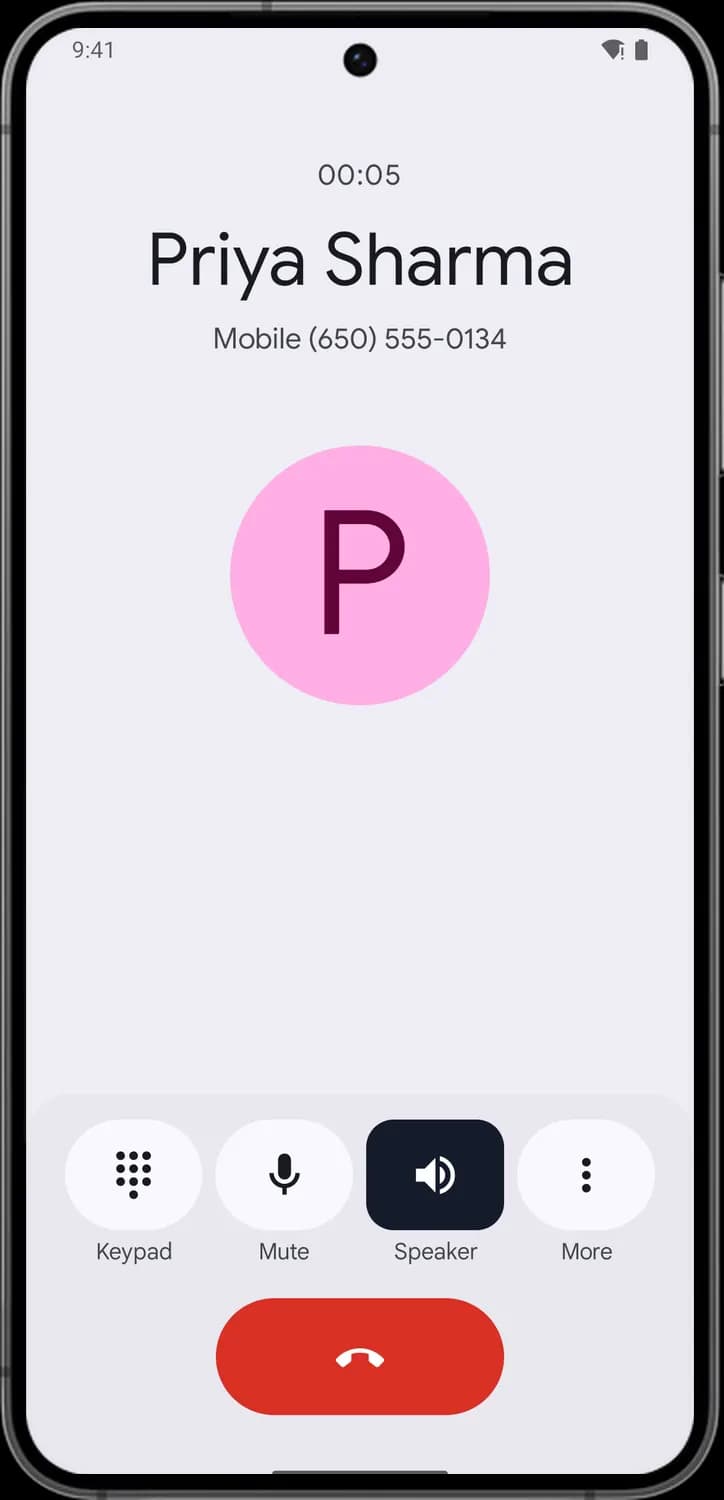

Keypad
The grid of dots. Opens a dial pad so you can press numbers in a phone menu, like "press 1 for support".

Mute
The microphone. Tap it so the other person cannot hear you, and tap again to unmute.

Speaker
The speaker with sound waves. Tap it to switch the call to the loudspeaker. It turns dark while the speaker is on, as here.

More
The three dots. Opens the More menu with Add call and Hold.

End call
The long red button with the hung-up phone. Tap it to hang up.
More menu
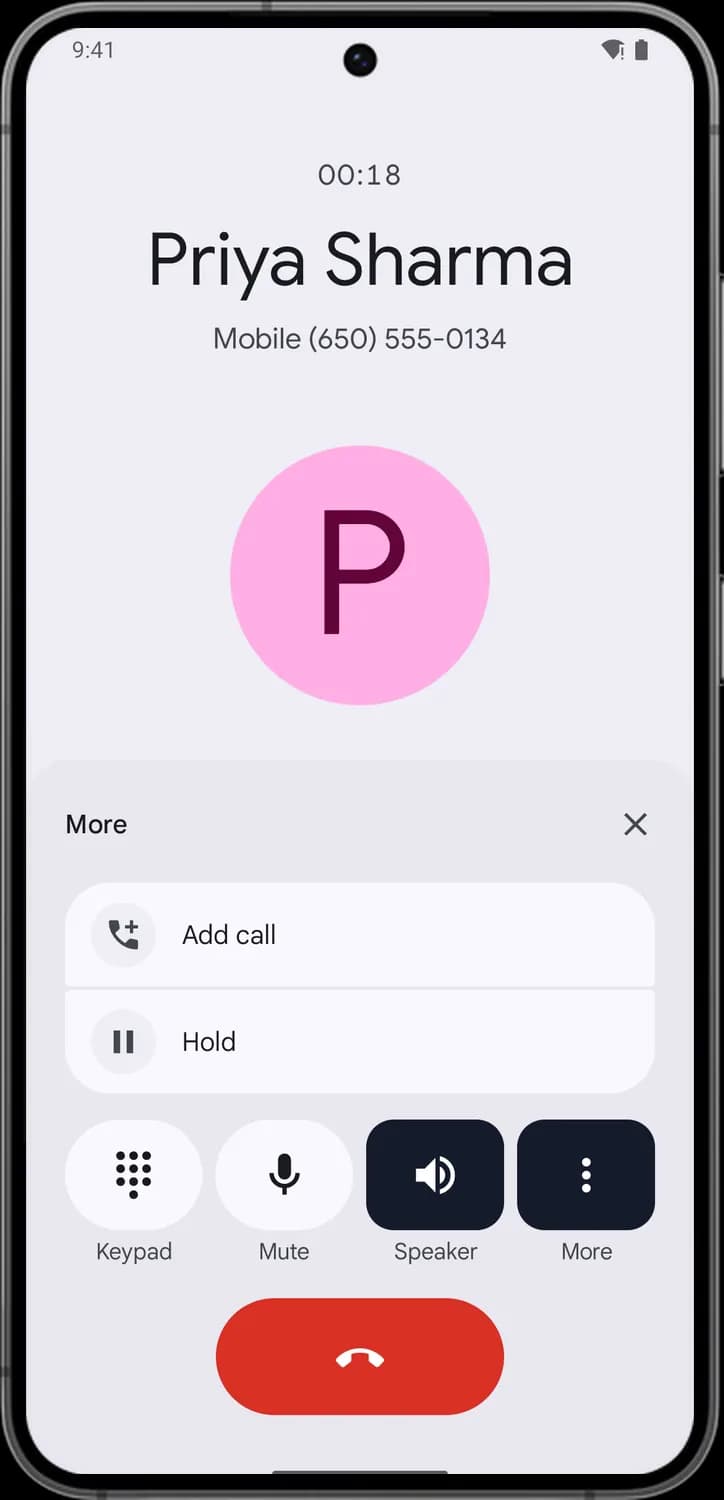

Add call
The phone with a plus. Tap it to call a second person; you can then merge the calls into a conference call.

Hold
The pause symbol. Tap it to put the caller on hold, and tap again to resume the call.

Close more menu
The X at the top right of the More menu. Tap it to close the menu.
Keypad during a call
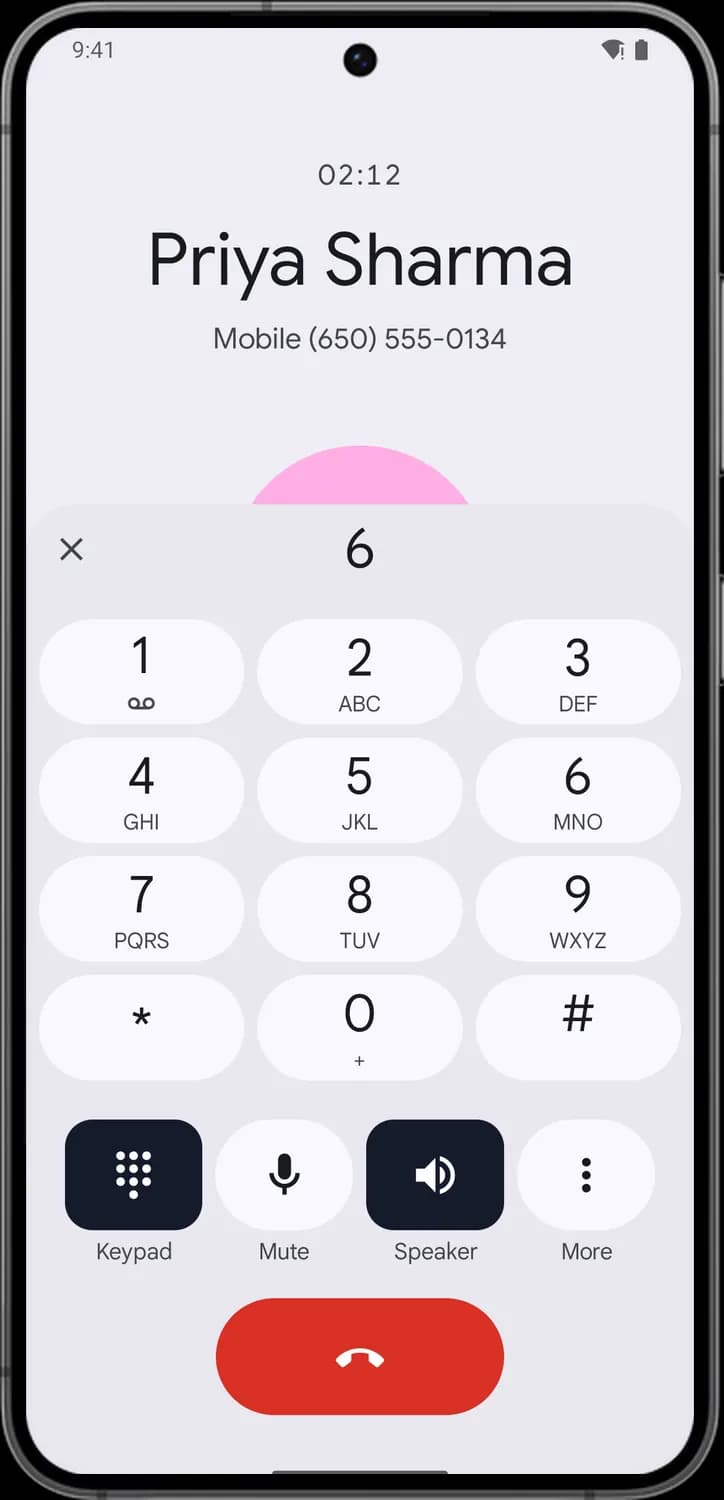

Close keypad
The X at the left of the dial pad. Tap it to hide the keypad and see the call screen again.
Status bar
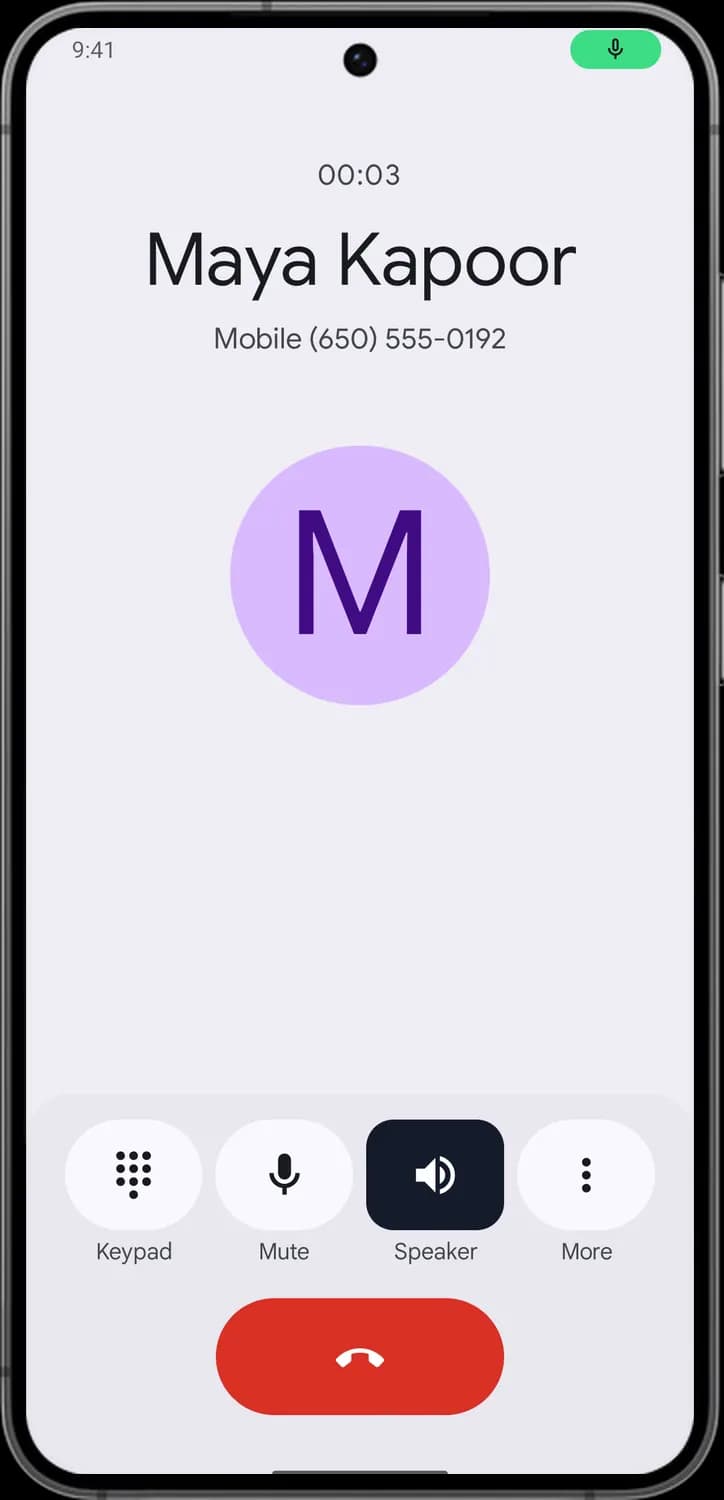
Status symbols. These only show information. They are not buttons.
Microphone in use
The green pill with a microphone in the status bar. Android shows it while an app is using your microphone, which during a call is the Phone app.
Side menu and contacts
Tap the three lines at the top left of Home to open the side menu. Contacts in that menu opens your contact list, and tapping a name opens their contact card.
Side menu
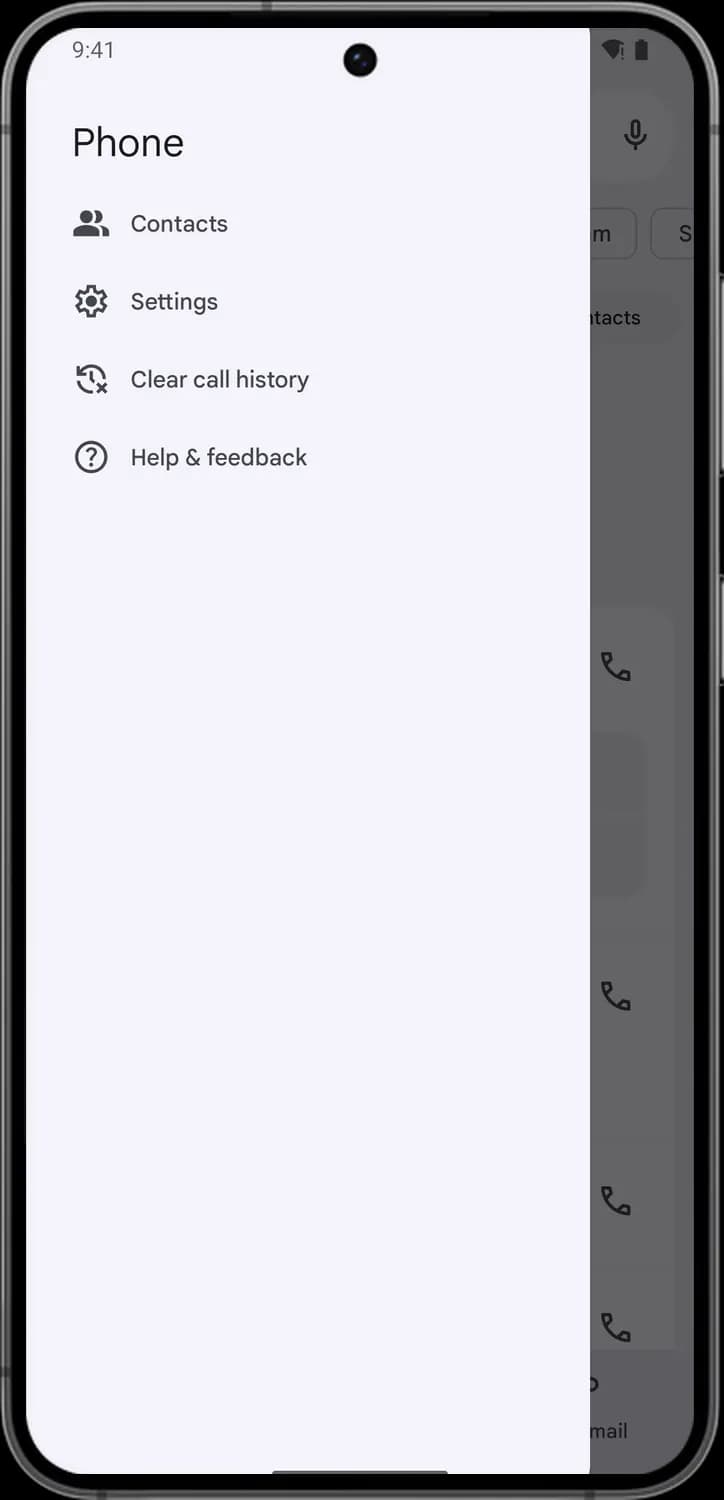

Contacts
The two people. Opens the list of everyone saved in your contacts.

Settings
The gear. Opens the Phone app's settings, such as blocked numbers, caller ID and spam, sounds, and quick responses.

Clear call history
The clock with an X. Tap it to delete every call in your call log. The app asks you to confirm first.

Help & feedback
The question mark. Opens help articles for the Phone app and lets you send feedback to Google.
Contact list
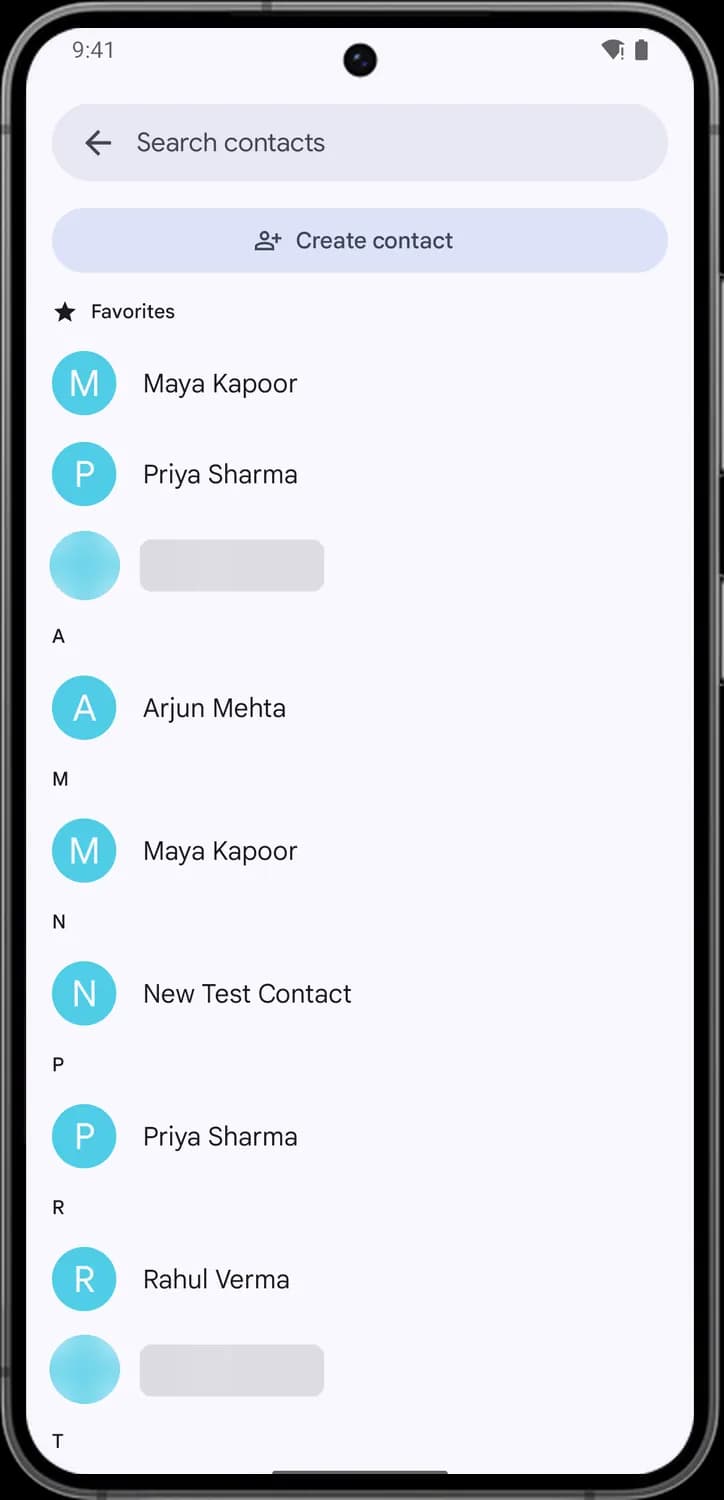

Back
The arrow at the left of the search bar. Takes you back to the previous screen.

Create contact
The person with a plus sign. Tap it to add a new contact with a name, number and other details.
Status symbols. These only show information. They are not buttons.

Favorites group
The star marks the contacts you have added to your favorites. They are listed first, above the A to Z list.
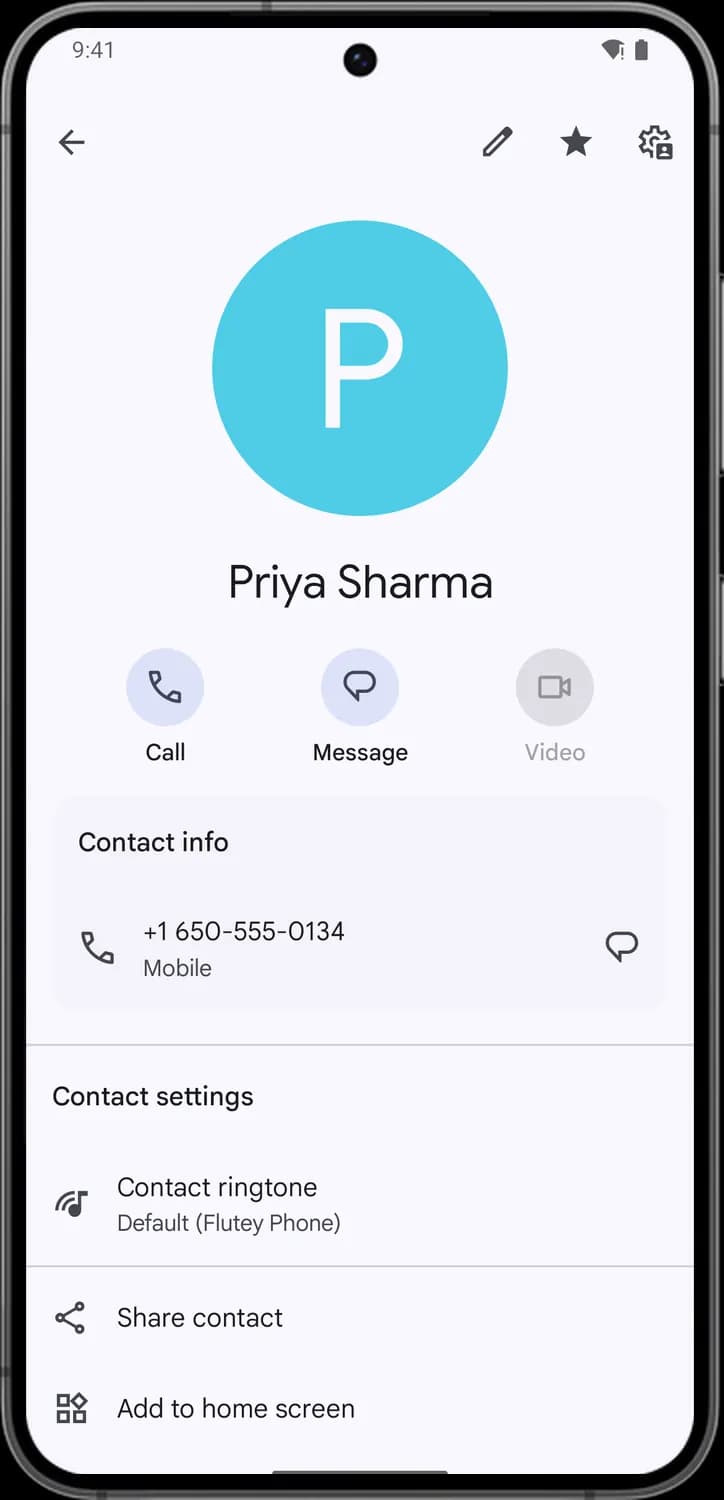
Top of a contact card

Edit contact
The pencil. Tap it to change this contact's name, number, photo or other details.

Favorite star
A filled star means this contact is a favorite. Tap it to remove them from your favorites; an empty star adds them back.

Contact settings
The gear with a person. Takes you to the settings for this contact, like its ringtone and sharing it.

Call
The phone under the photo. Tap it to call this contact.

Message
The speech bubble under the photo. Tap it to send this contact a text message.

Video
The video camera. Tap it to start a video call. It is grayed out when video calling is not available for this contact.
Contact info and settings
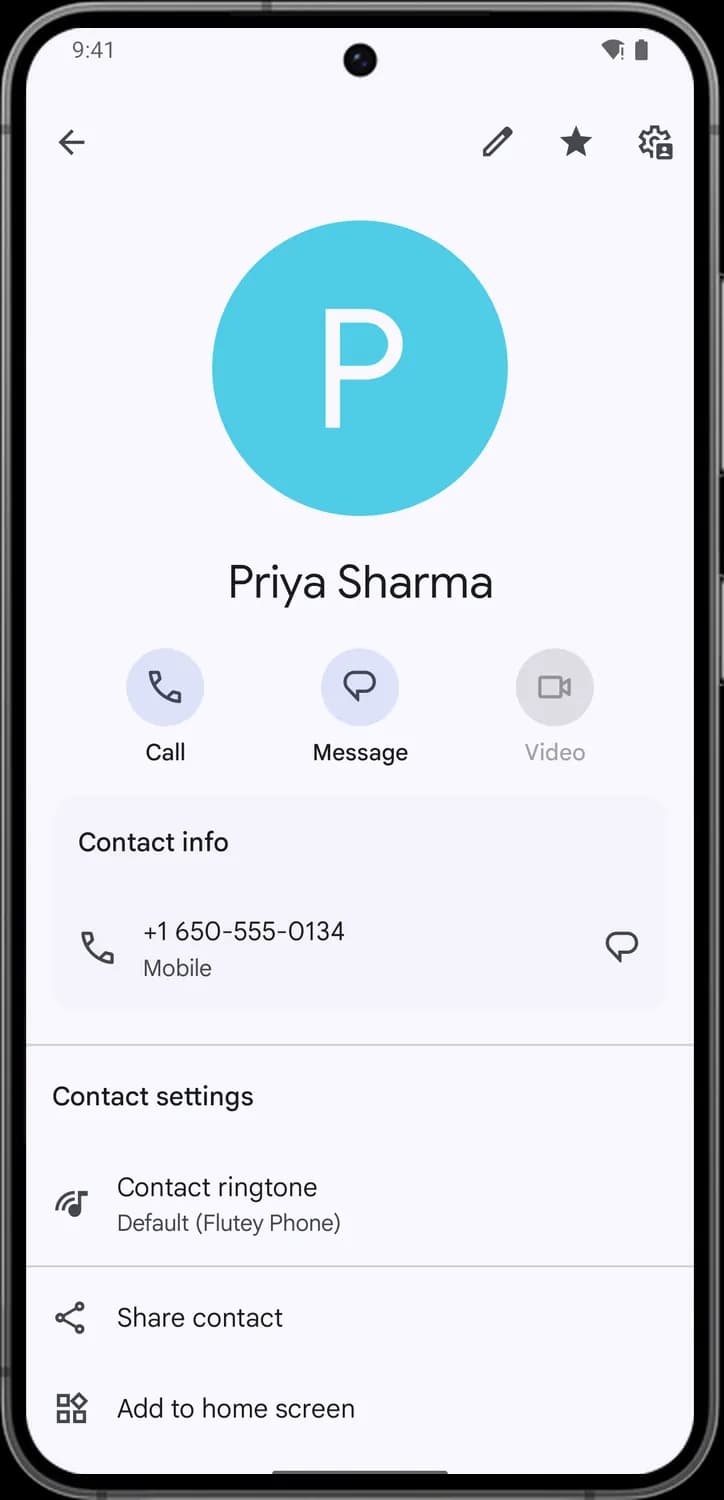

Call this number
The phone icon next to a number. Tap the row to call that number.

Text this number
The speech bubble at the end of the number row. Tap it to send a text message to that number.

Contact ringtone
The music note. Tap it to pick a different ringtone that plays only when this person calls.

Share contact
The three linked dots. Tap it to send this contact's details to someone as a contact file.

Add to home screen
The squares with one tilted. Tap it to put a shortcut to this contact on your home screen.
Those are the meanings of Google Phone app icons and symbols. Google keeps updating the Phone app and moving things around, so we update this guide every time the icons change, and you can bookmark this page to stay updated. These screens are from the Phone by Google app on Android. For more icon guides, you can also visit our TechPP icon guides.
Comments
0Share your thoughts, questions, or feedback about this guide.