
Google One Icons and Symbols Explained
You probably open Google One only when your storage is almost full, and that’s when its icons start to matter. There’s a colored ring around your profile picture, small arrow icons next to Drive, Gmail and Photos, a gear next to Device backup, and a storage manager full of cards, chips and circles that decide what gets deleted.
In this guide, you will learn what every icon in the latest Google One app means, screen by screen. And this is an interactive guide. You can tap on every icon on the screens below to know what it does.
Home screen
This is the Home tab, the first screen you see when you open Google One. It shows your plan, how much storage you have used, and shortcuts to backup, clean-up and family sharing.
Top bar and plan
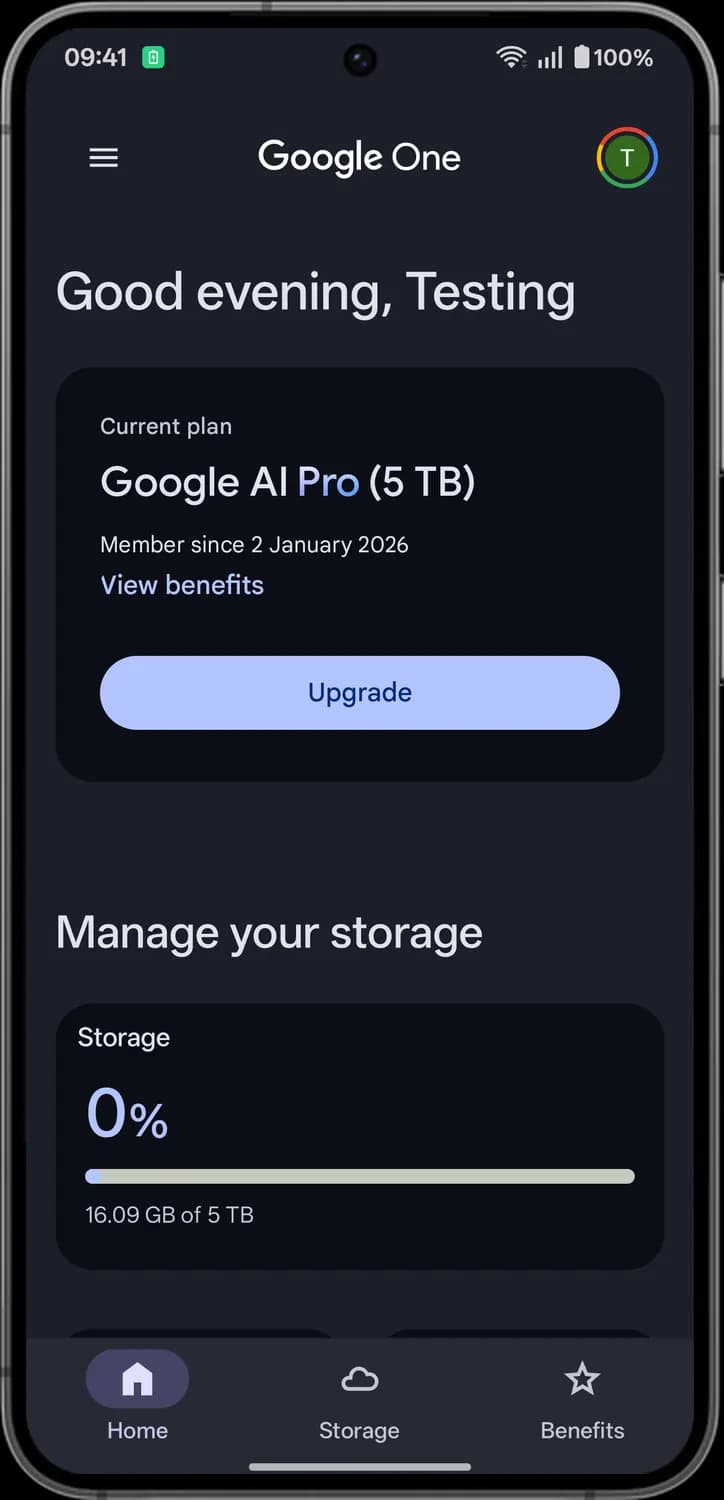

Main menu
The three lines at the top left. Tap it to open the side menu with Membership plans, Settings and Help.

Profile picture
Your profile picture or initial. The multicolor ring around it means the account is a Google One member. Tap it to open the account menu.
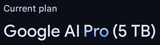
Current plan
The card at the top shows your Google One plan, how much storage it includes and since when you have been a member.

View benefits
Shows the benefits that come with your plan.

Upgrade
Opens the Google One plans, so you can move to a plan with more storage or more features.
Storage and tabs
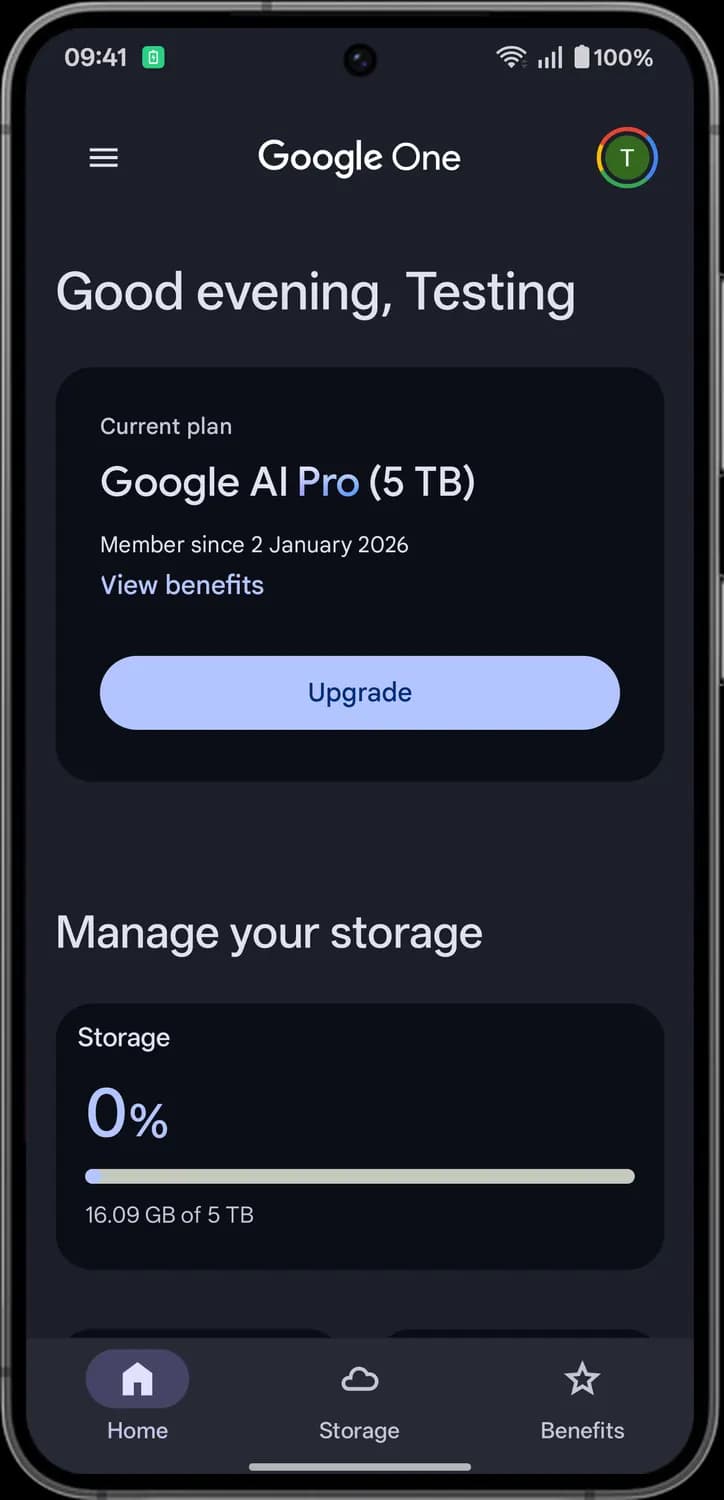

Home tab
The house icon. Brings you back to this Home screen. The filled icon with a pill behind it marks the tab you are on.

Storage tab
The cloud icon. Opens the Storage tab with a breakdown of what is using your storage.

Benefits tab
The star icon. Opens the Benefits tab with the extras included in your plan.
Status symbols. These only show information. They are not buttons.
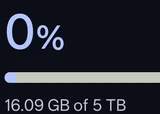
Storage meter
Shows how much of your storage you have used, as a percentage and in GB out of your total.
Backup and clean-up
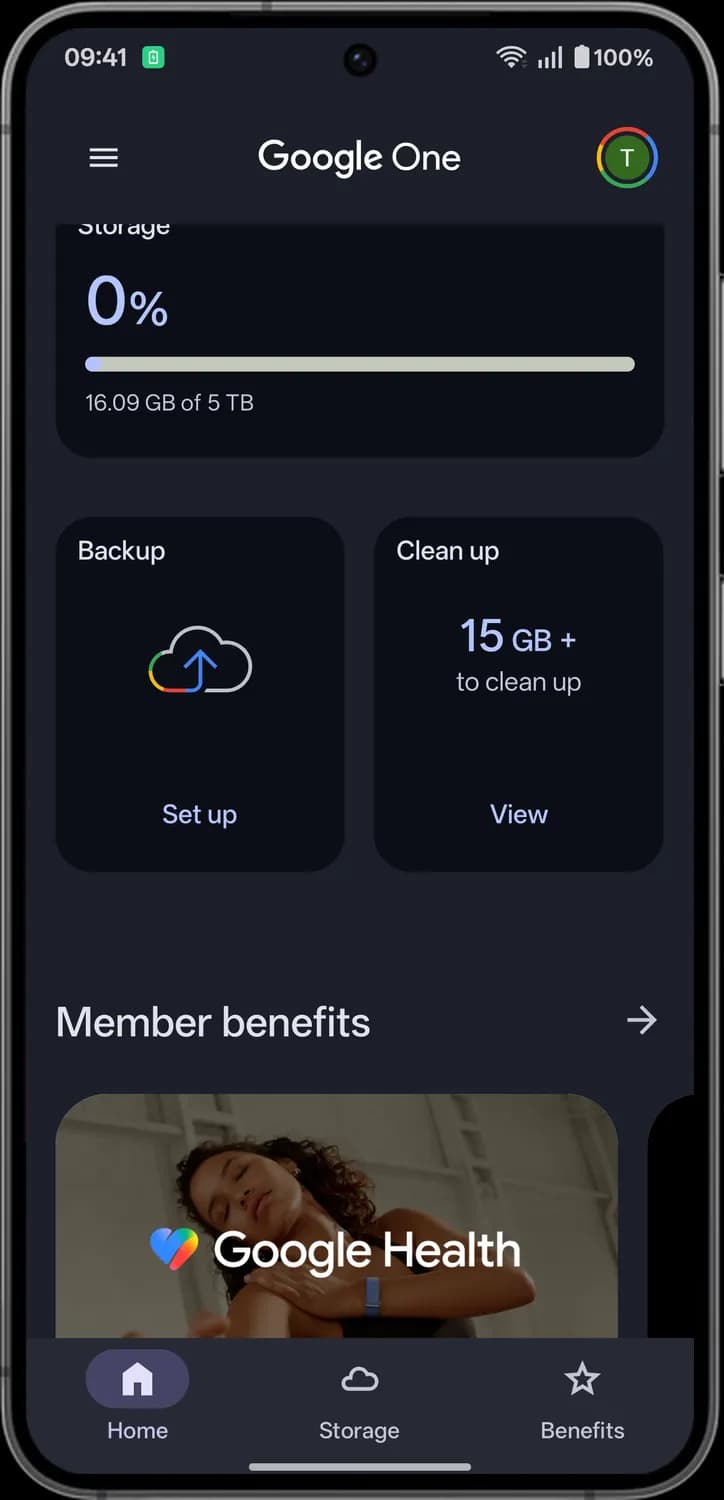

Backup
The cloud with an up arrow. This card shows whether this phone is backed up to your Google Account.

Set up
Shows up when this phone is not being backed up. Tap it to turn on backup for your apps, contacts, call history, messages and device settings.
Clean up
Shows how much space you could free up, 15 GB or more in this example.

View
Opens the Google One storage manager, where you can review and delete large files, spam emails and more.

See all benefits
The arrow next to Member benefits. Opens the full list of benefits in your plan.
Family sharing
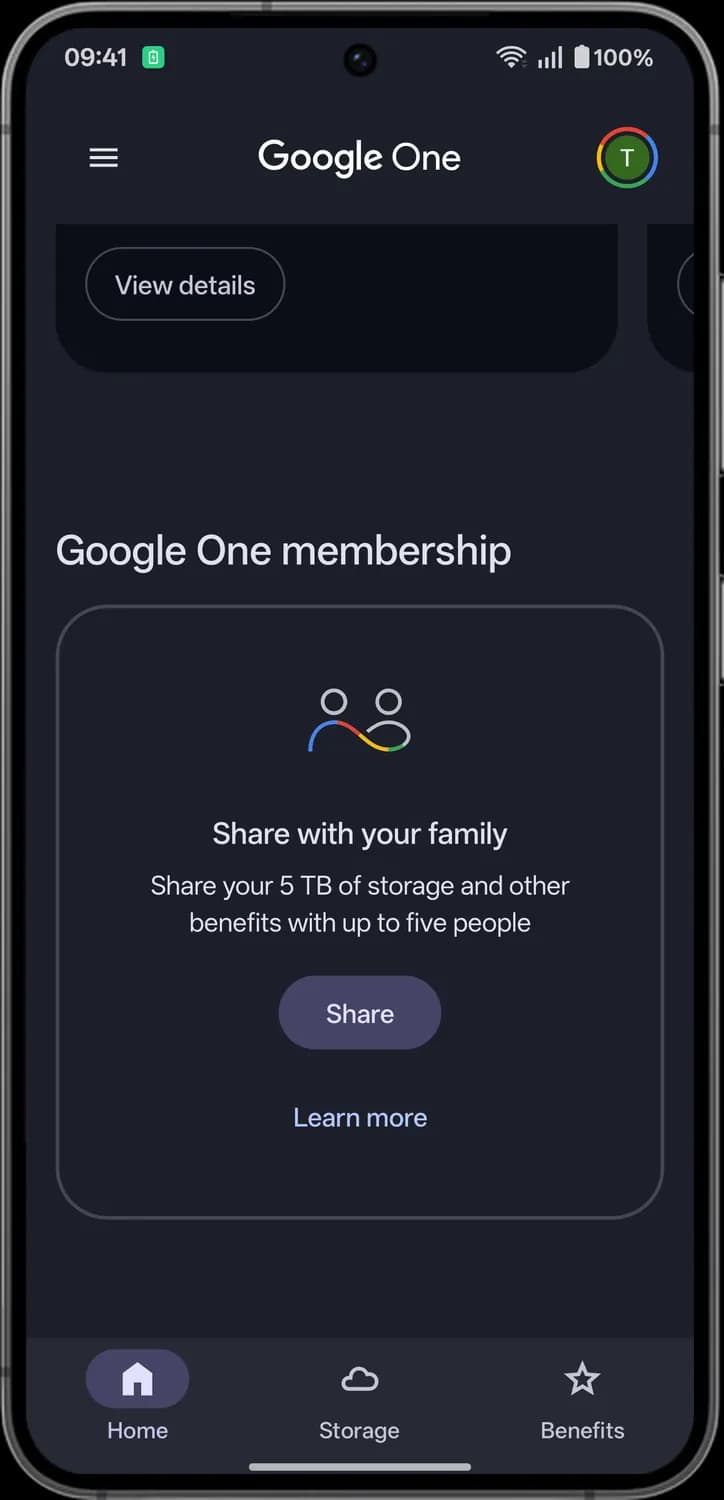

Share with your family
The two-people icon. This card is for sharing your plan's storage and other benefits with up to five other people.

Share
Starts sharing your Google One plan with your family.

Learn more
Explains how sharing your plan with family works.
Storage tab
The Storage tab breaks your storage down by service: Google Drive, Gmail, Google Photos and device backup. From here you can jump into each app or start cleaning up.
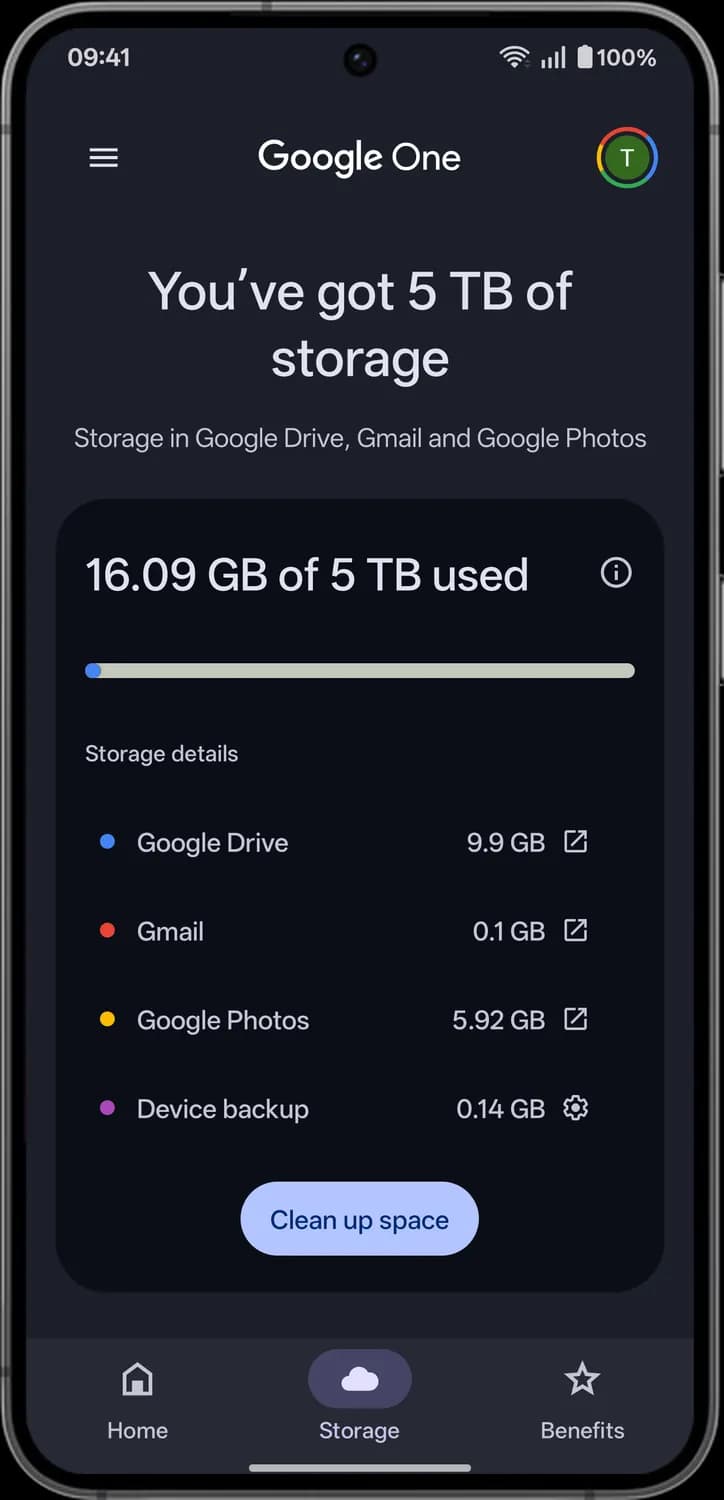

Storage info
The i in a circle. Shows where your total storage comes from, such as your Google One membership.

Open in app
The square with an arrow. Opens that service's app, like Google Drive, Gmail or Google Photos, so you can manage your files there.

Device backup settings
The gear next to Device backup. Opens the backup settings for your phone.

Clean up space
Opens the Google One storage manager, where you can find and delete things you no longer need.
Status symbols. These only show information. They are not buttons.
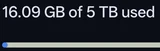
Storage used
How much of your total storage you have used. The bar fills up as you use more.

Service color
Each service has its own colored dot: blue for Google Drive, red for Gmail, yellow for Google Photos and purple for device backup.
Storage manager
The storage manager opens when you tap Clean up space or View. It groups the things you can delete, like large files and spam, and lets you clean up each service on its own.
Overview
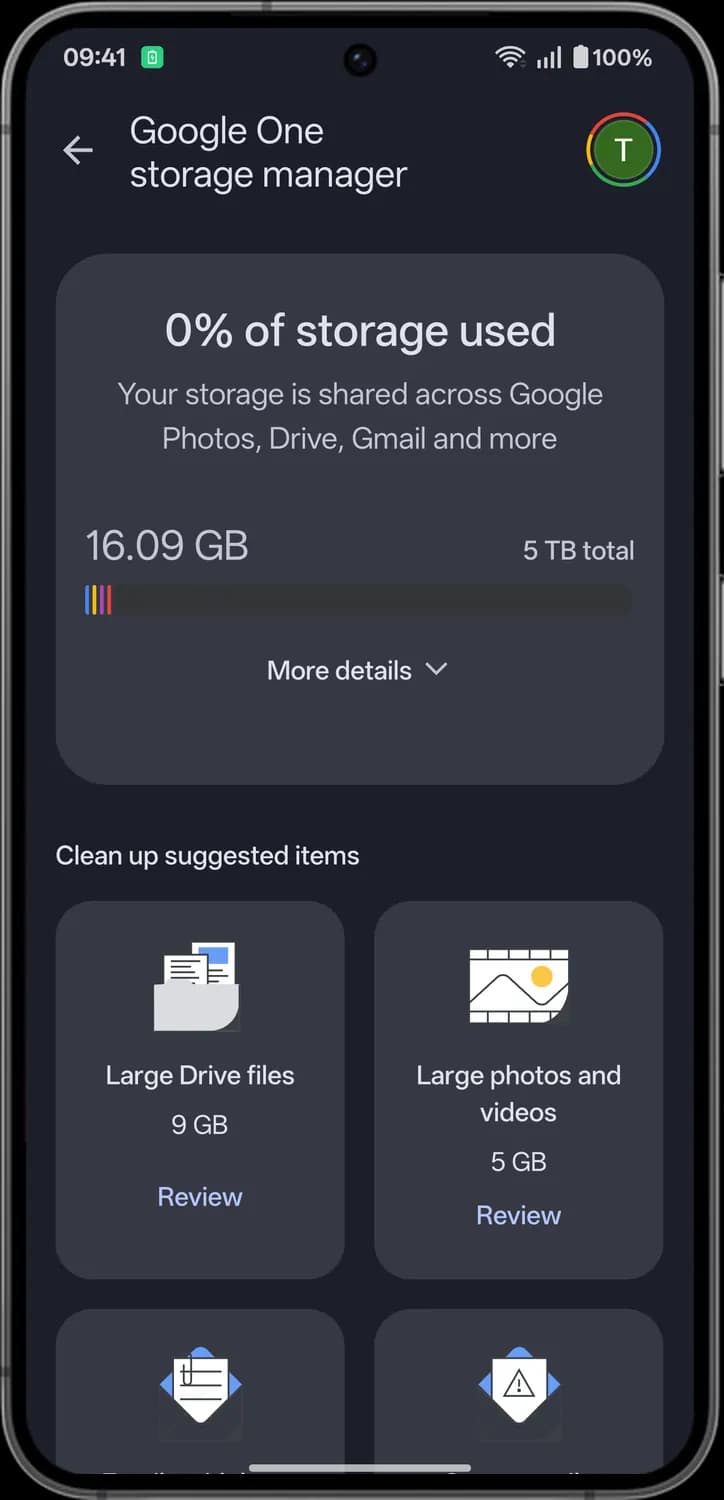

More details
Expands the card to show more about what is using your storage.

Large Drive files
The biggest files in your Google Drive and how much space they take together.

Large photos and videos
The biggest photos and videos in your Google Photos library.

Review
Opens that list, so you can pick the items you want to delete.
Status symbols. These only show information. They are not buttons.

Storage bar
Shows how much of your total storage is used. Each color stands for a service, like Google Drive, Gmail or Google Photos.
Suggestions and services
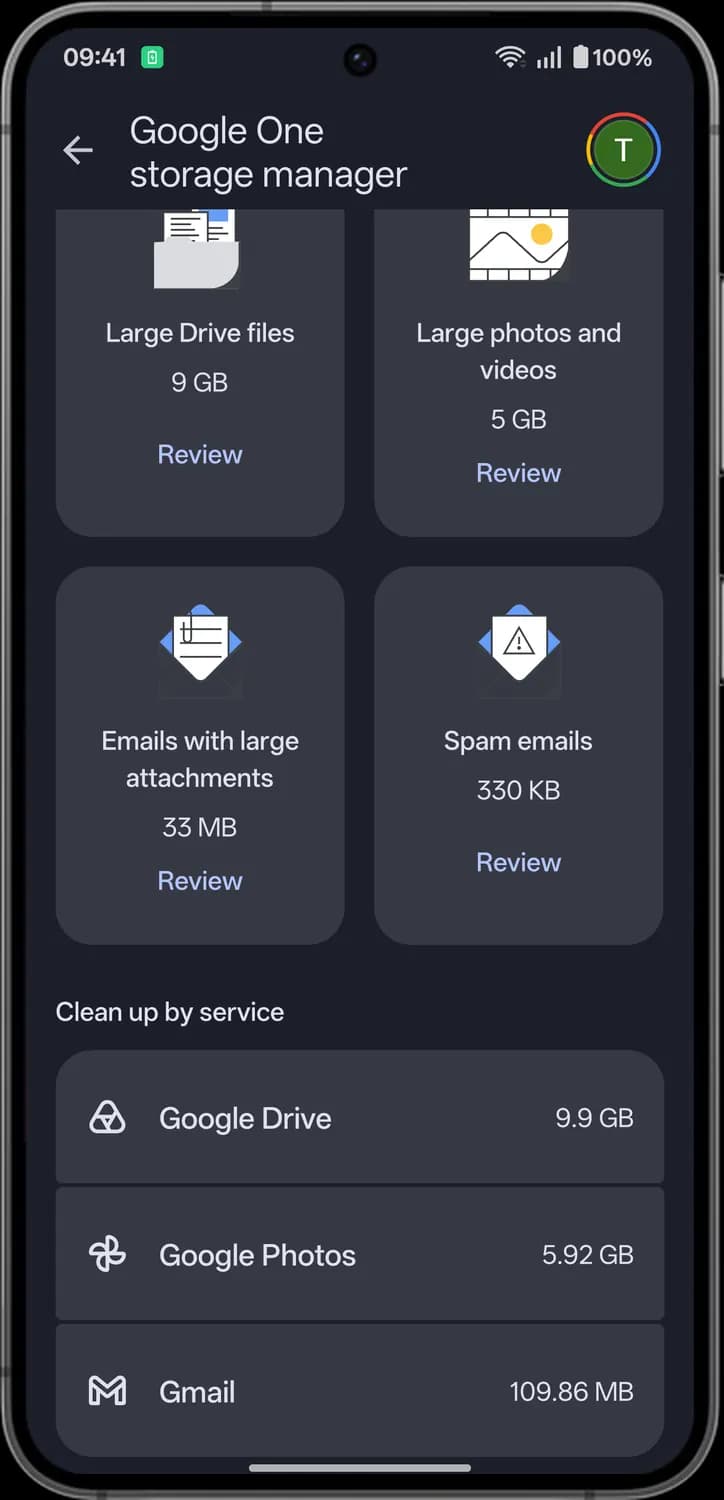

Emails with large attachments
Gmail messages with big attachments, which take up the most room in your inbox.

Spam emails
Emails in your Gmail Spam folder. They count toward your storage too.

Google Drive
The Drive outline icon. Shows how much space Google Drive uses. Tap it to clean up Drive.

Google Photos
The pinwheel icon. Shows how much space Google Photos uses. Tap it to clean up your photos and videos.

Gmail
The M icon. Shows how much space Gmail uses. Tap it to clean up your emails.
Reviewing files
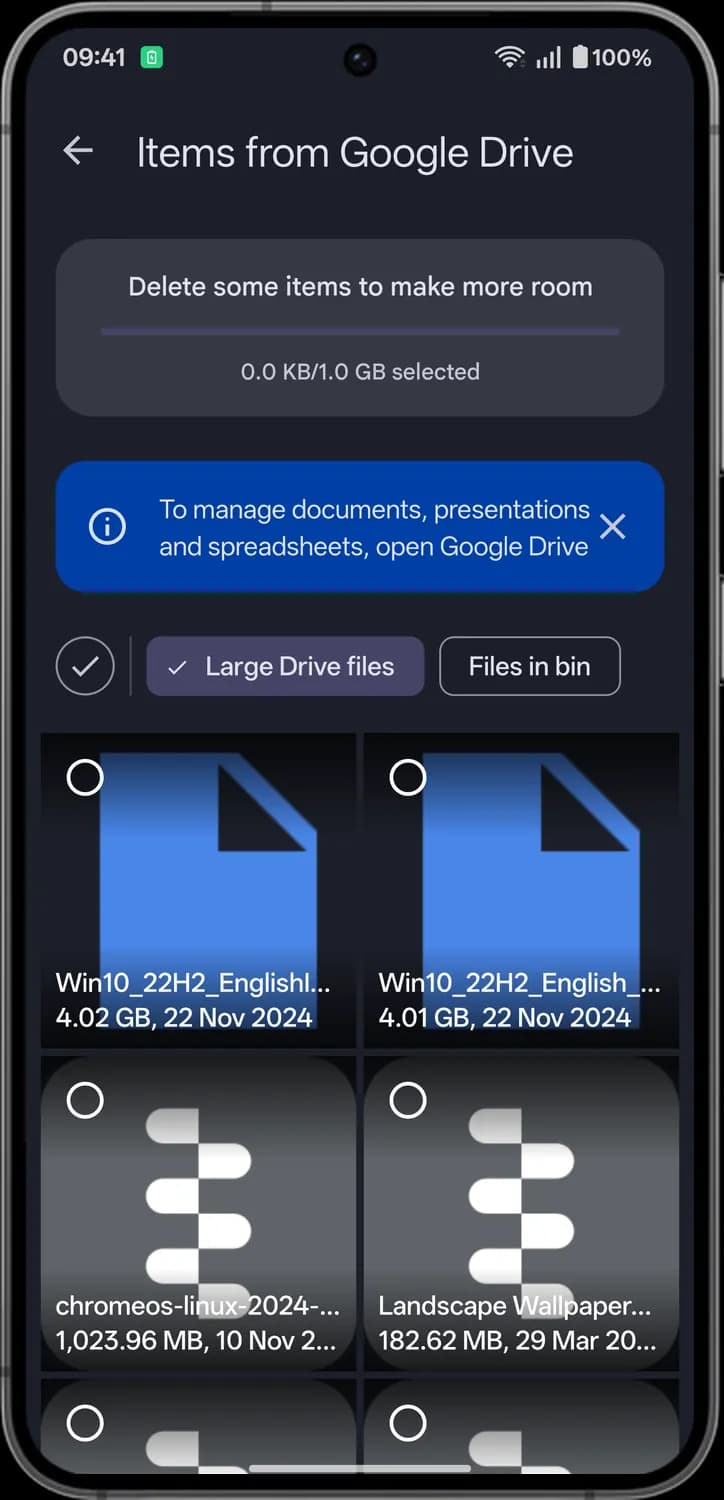

Close banner
The X on the blue tip. Hides the tip, which reminds you to manage documents, presentations and spreadsheets in Google Drive.

Select all
The tick in a circle. Selects every file in the list.

Large Drive files filter
Shows your largest Drive files. The tick means this filter is on.
Files in bin
Shows the files in your Drive bin. They still use your storage until they are deleted for good.

Selection circle
The empty circle on each file. Tap it to select that file.
Status symbols. These only show information. They are not buttons.
Selected so far
Tracks how much you have selected against the suggested amount. The bar fills as you pick files.
Selection mode
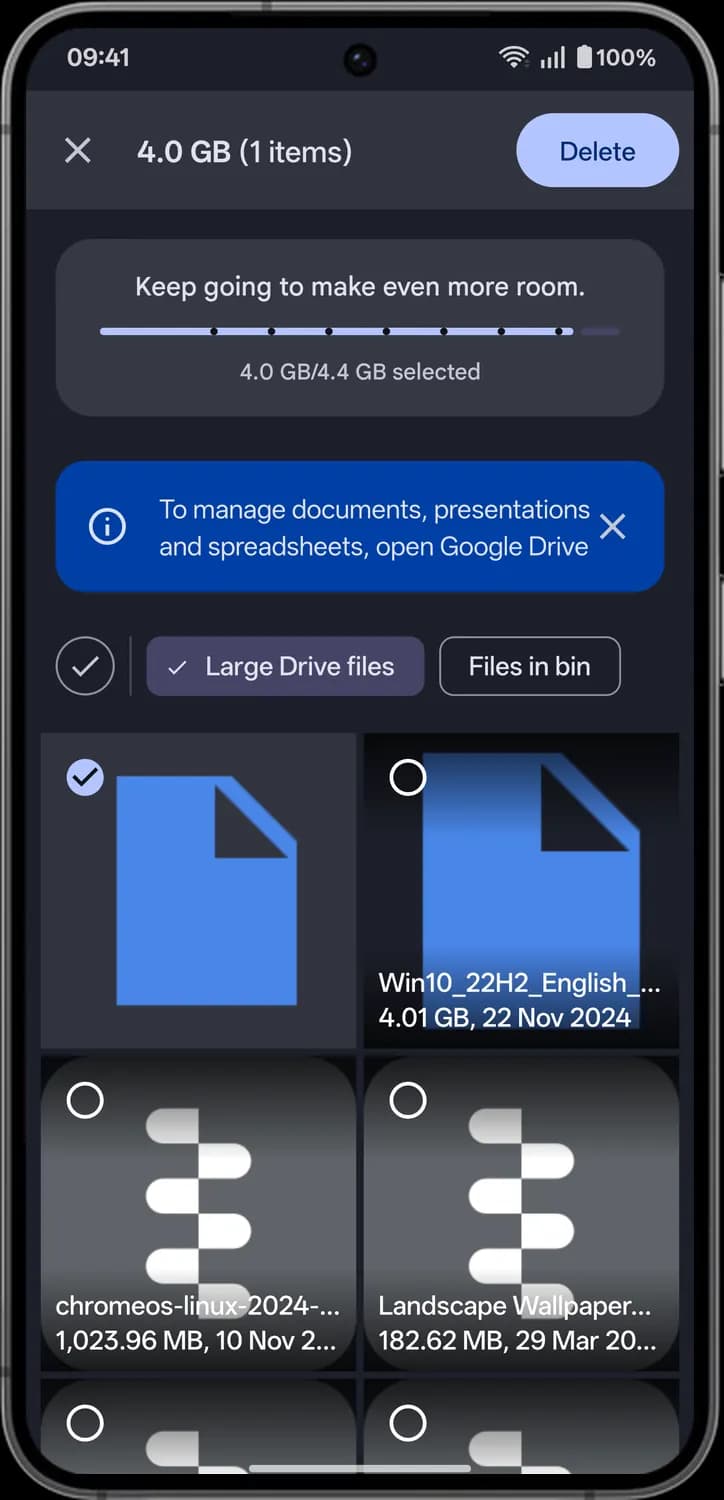

Clear selection
The X at the top left. Unselects everything and leaves selection mode.

Delete
Deletes the selected files to free up space.

Selected file
A filled circle with a tick means the file is selected.
Status symbols. These only show information. They are not buttons.

Selected size
How much space the selected files take and how many files you picked.
Device backup
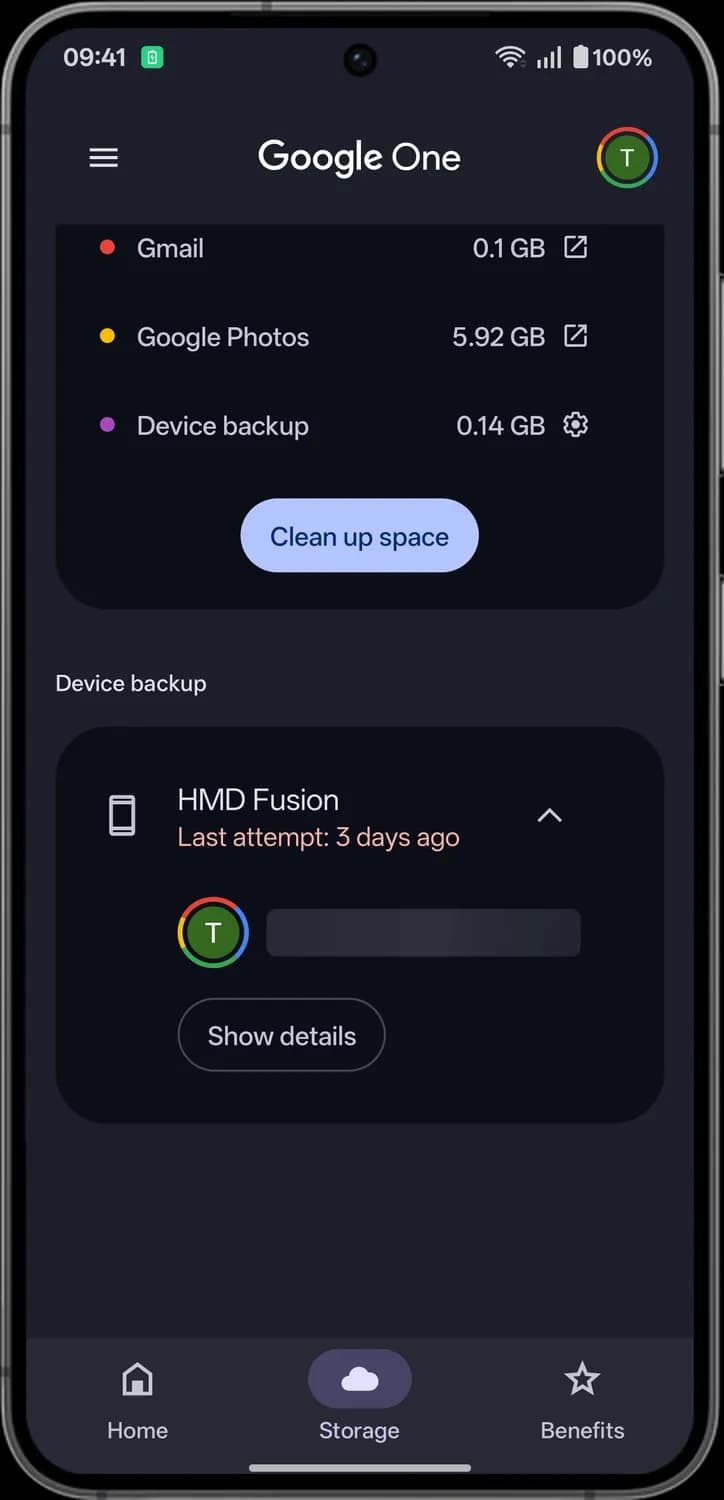
Device backup sits at the bottom of the Storage tab. It lists the phones backed up to your Google Account and what each backup holds.
Backed-up phone
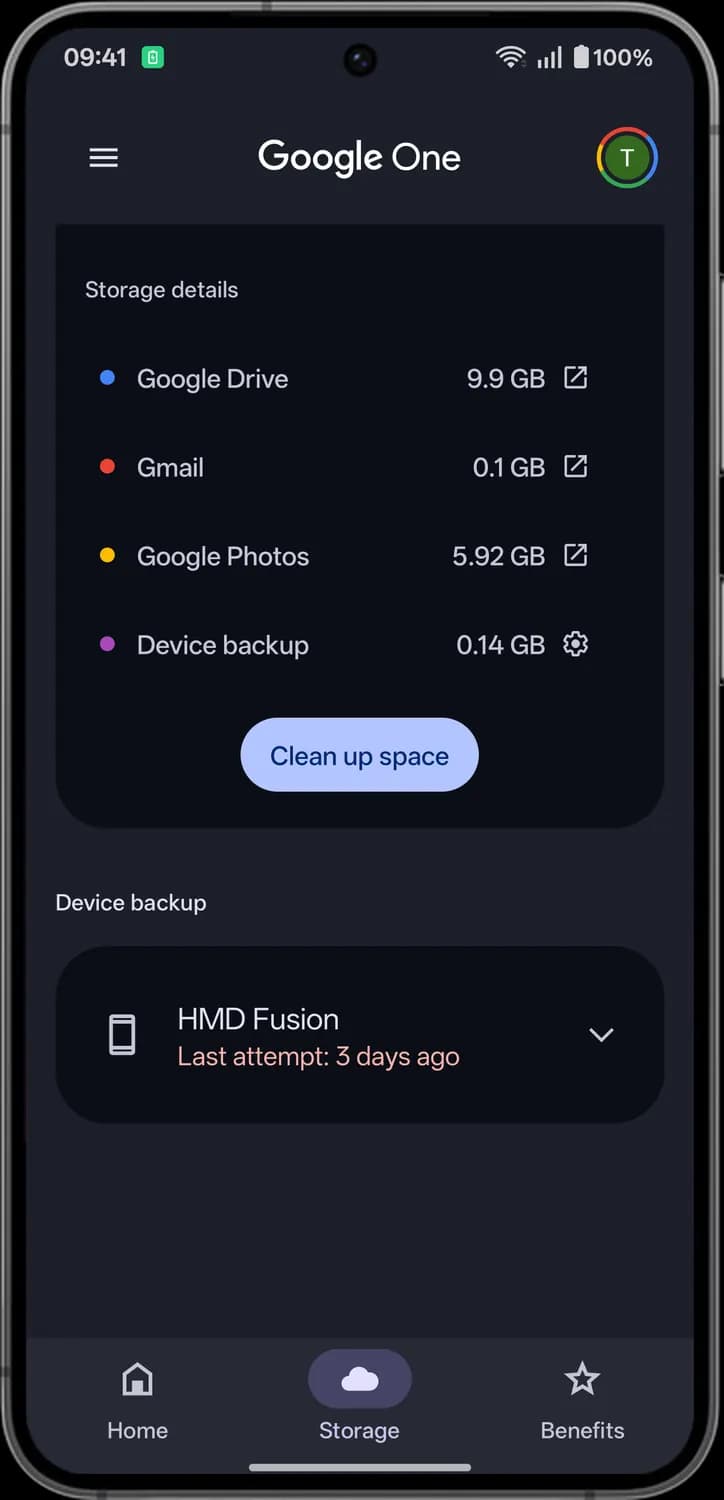

Backed-up phone
The phone icon marks a device backed up to your account, with its name and the last time it tried to back up.

Expand
The down arrow. Opens the row to show the account the phone backs up to and a Show details button.
Expanded

Backup account
The Google Account this phone backs up to. The multicolor ring means it is a Google One member account.

Show details
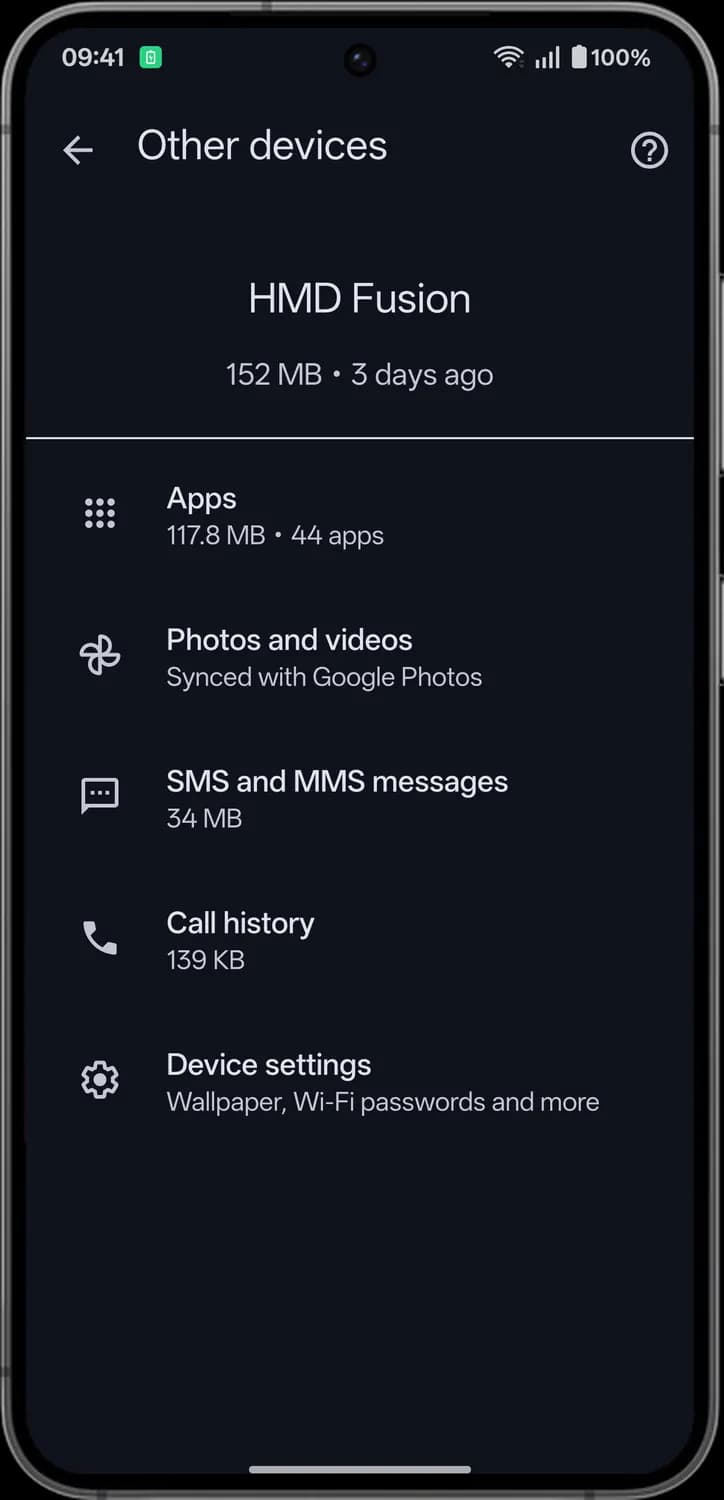
Opens a list of what is in this backup, like apps, messages and call history.

Collapse
The up arrow. Closes the row again.
What is backed up

Help
The question mark at the top right. Opens the Google One Help Center.

Apps
The grid of dots. Your apps and their data, with the backup size and how many apps are saved.

Photos and videos
The pinwheel is the Google Photos icon. Photos and videos are not part of this backup; Google Photos backs them up instead.

SMS and MMS messages
The chat bubble. Your text and picture messages.

Call history
The phone handset. The list of calls made and received on the phone.

Device settings
The gear. Phone settings such as your wallpaper and saved Wi-Fi passwords.
Benefits tab
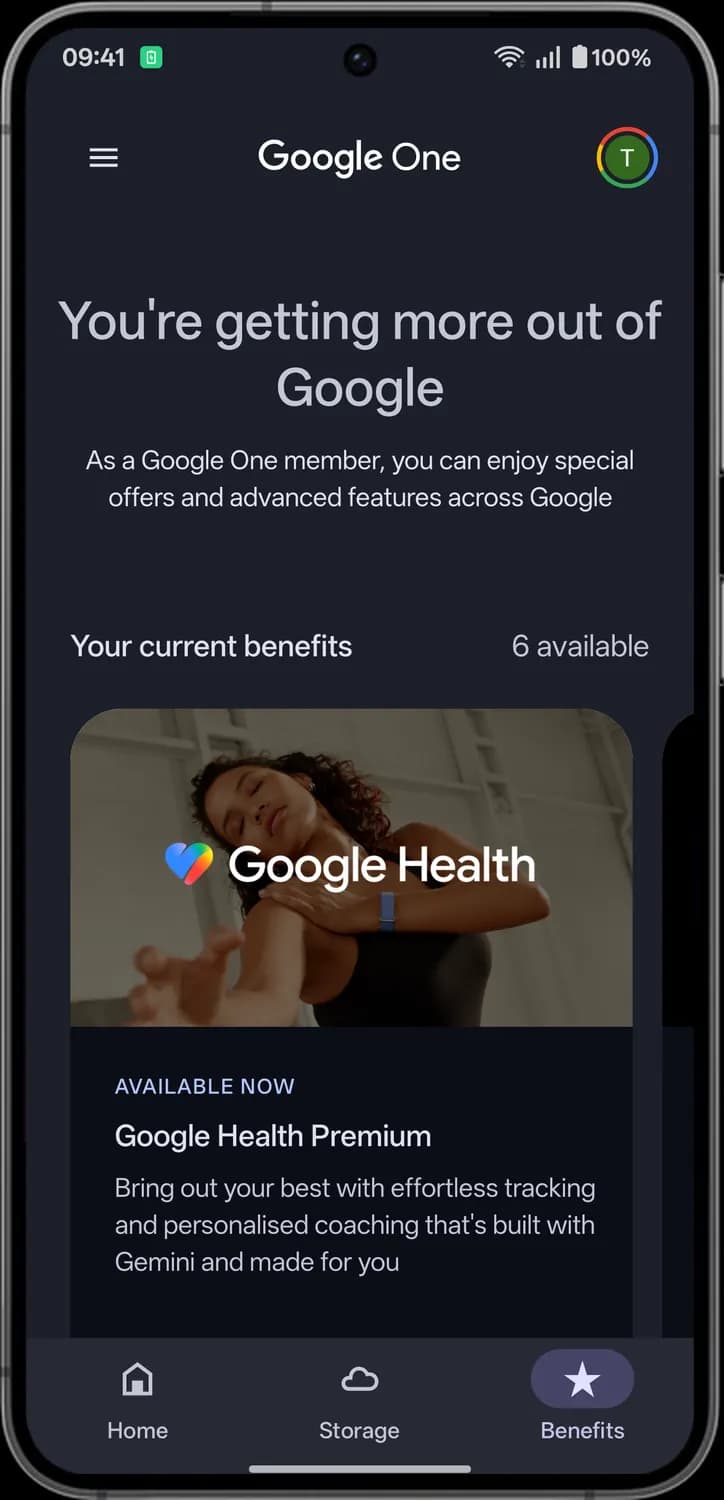
The Benefits tab lists the extras that come with your Google One plan, plus the ones that are on the way.
Your current benefits

Benefit card
Each card is one benefit, like Google Health Premium here. Swipe sideways to see the others.
Status symbols. These only show information. They are not buttons.
Benefits available
How many benefits your plan includes right now.

Available now
The label means you can start using this benefit today.
Benefit details
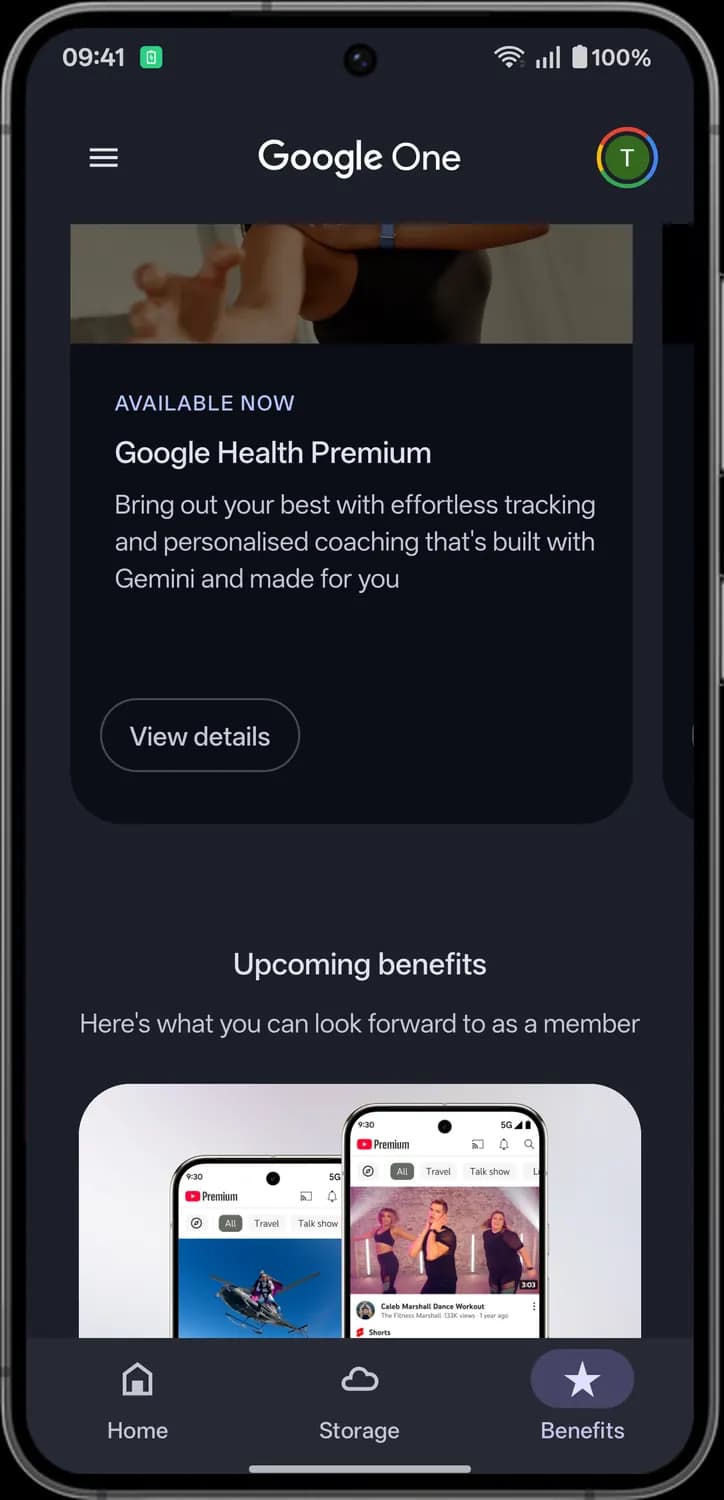

View details
Opens more about that benefit.
Upcoming benefits
Benefits that are coming to your plan later.
Side menu
Tap the three lines at the top left to open the side menu. It has your plans, the app settings and help.
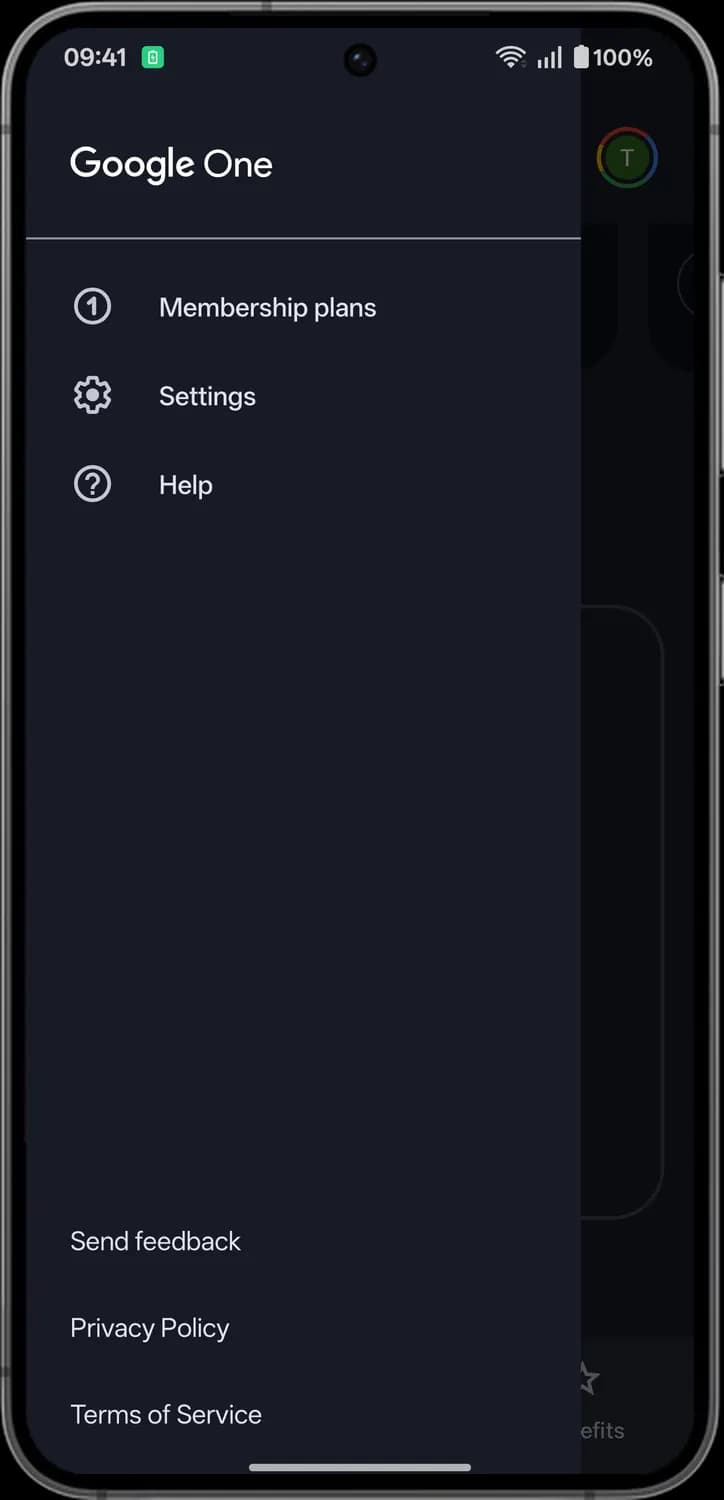

Membership plans
The 1 in a circle. Shows the Google One plans and lets you change yours.

Settings
The gear. Opens settings for notifications, emails, backup and family sharing.

Help
The question mark. Opens Google One help articles.
Account menu
Tap your profile picture at the top right to open the account menu. This is where you manage your Google Account and switch between accounts.
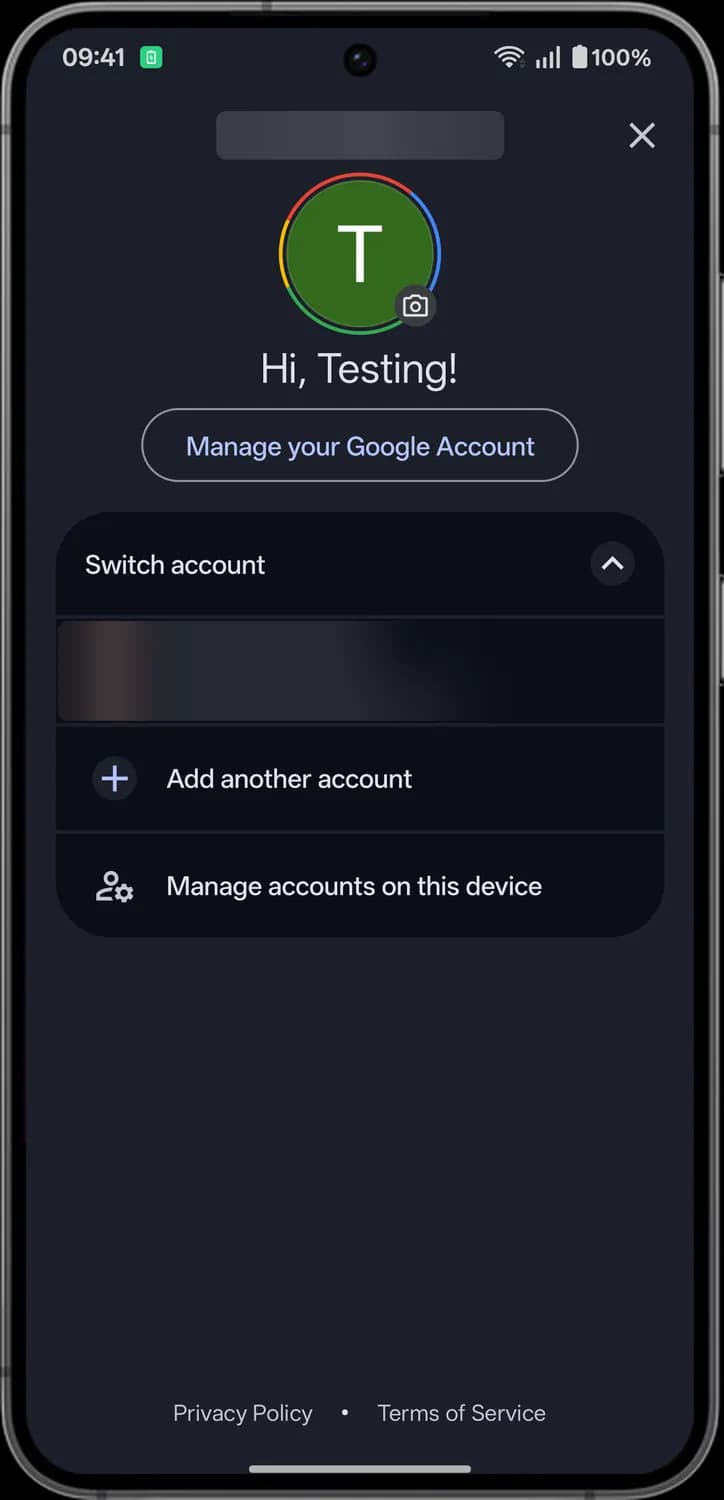

Close
The X at the top right. Closes the account menu.
Change profile picture
The camera badge. Tap it to change your profile picture.
Manage your Google Account
Opens your Google Account settings, with your personal info, security and privacy.

Switch account
The arrow next to Switch account. Shows or hides the other accounts on this phone. Tap one to switch to it.

Add another account
The plus sign. Signs in to another Google Account on this phone.

Manage accounts on this device
The person with a gear. Opens your phone's account settings, where you can remove an account.
Status symbols. These only show information. They are not buttons.
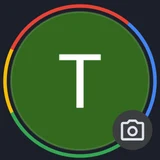
Google One ring
The multicolor ring around your profile picture means the account is a Google One member.
Those are the meanings of Google One icons and symbols. Google updates the Google One app regularly and the icons change with it, so we update this guide every time they do, and you can bookmark this page to stay updated. These screens are from Google One for Android, with a Google AI Pro plan, so a few cards may look different on your plan. For more icon guides, you can also visit our TechPP icon guides.
Comments
0Share your thoughts, questions, or feedback about this guide.