
Google Messages Icons and Symbols Explained
Google Messages is the default texting app on most Android phones, and it keeps getting new features: reactions, scheduled sending, real-time location, Gemini and chat themes. But most of them sit behind small icons in the composer, the attach panel and the menus.
In this guide, you will learn what every icon in the latest Google Messages app means, screen by screen. And this is an interactive guide. You can tap on every icon on the screens below to know what it does.
Inbox
This is the screen you see when you open Messages: all your conversations, newest first. Long-press a conversation to select it and get a row of actions at the top.
Conversation list
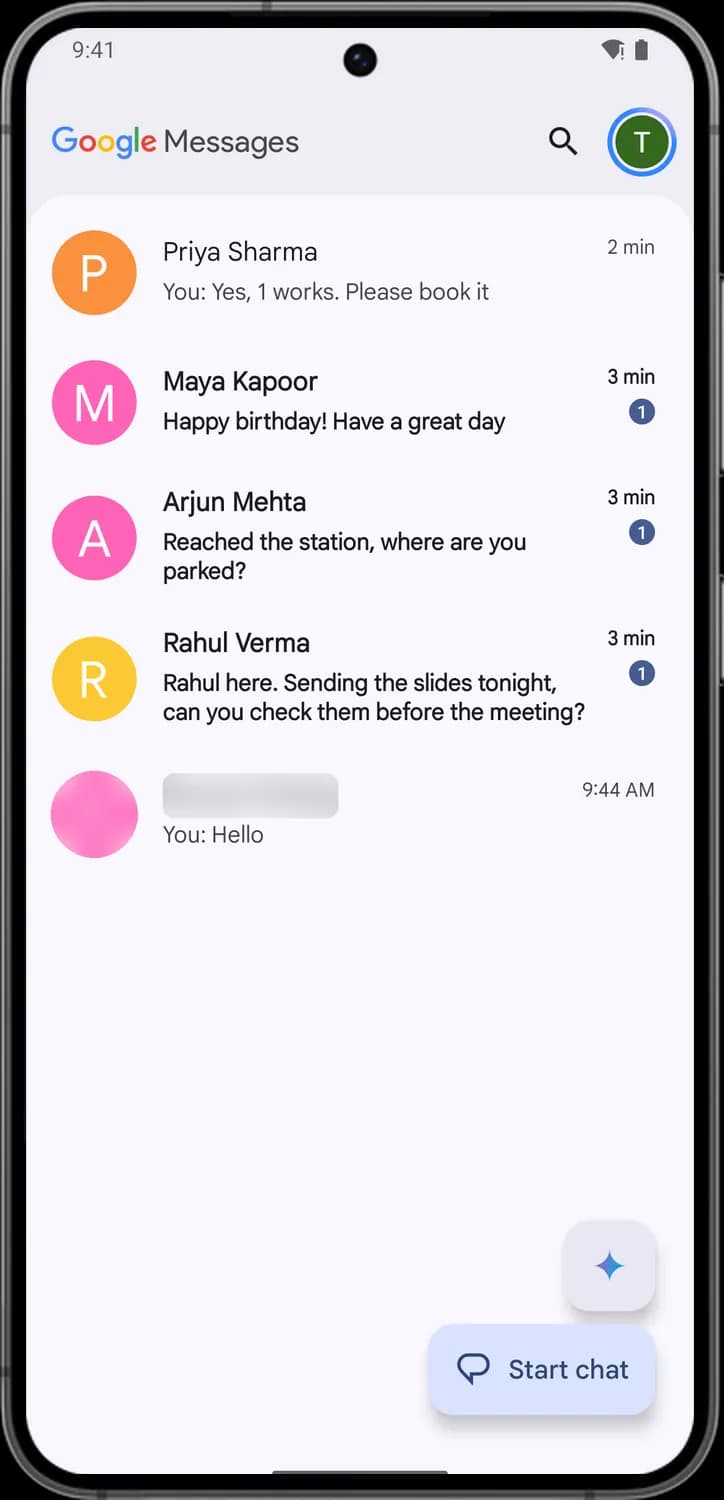

Search messages
The magnifying glass. Tap it to search all your conversations by word, contact, or things like photos, links and places.

Account and settings
Your Google account picture. Tap it to open the account menu with Archived, Trash, Spam & blocked, Device pairing and Messages settings. A colored ring around it means the account has a Google membership plan.

Contact picture
Shows the contact's photo, or their first initial in a colored circle when there is no photo. Tap anywhere on the row to open that conversation.

Gemini
The sparkle button. Tap it to open a chat with Gemini, Google's AI assistant, right inside Messages.

Start chat
The speech bubble button. Tap it to start a new conversation: pick a contact or type a phone number.
Status symbols. These only show information. They are not buttons.

Unread count
The number in the small dark circle is how many messages in that conversation you have not read yet. Unread conversations also show their name and preview in bold.
After you long-press a conversation
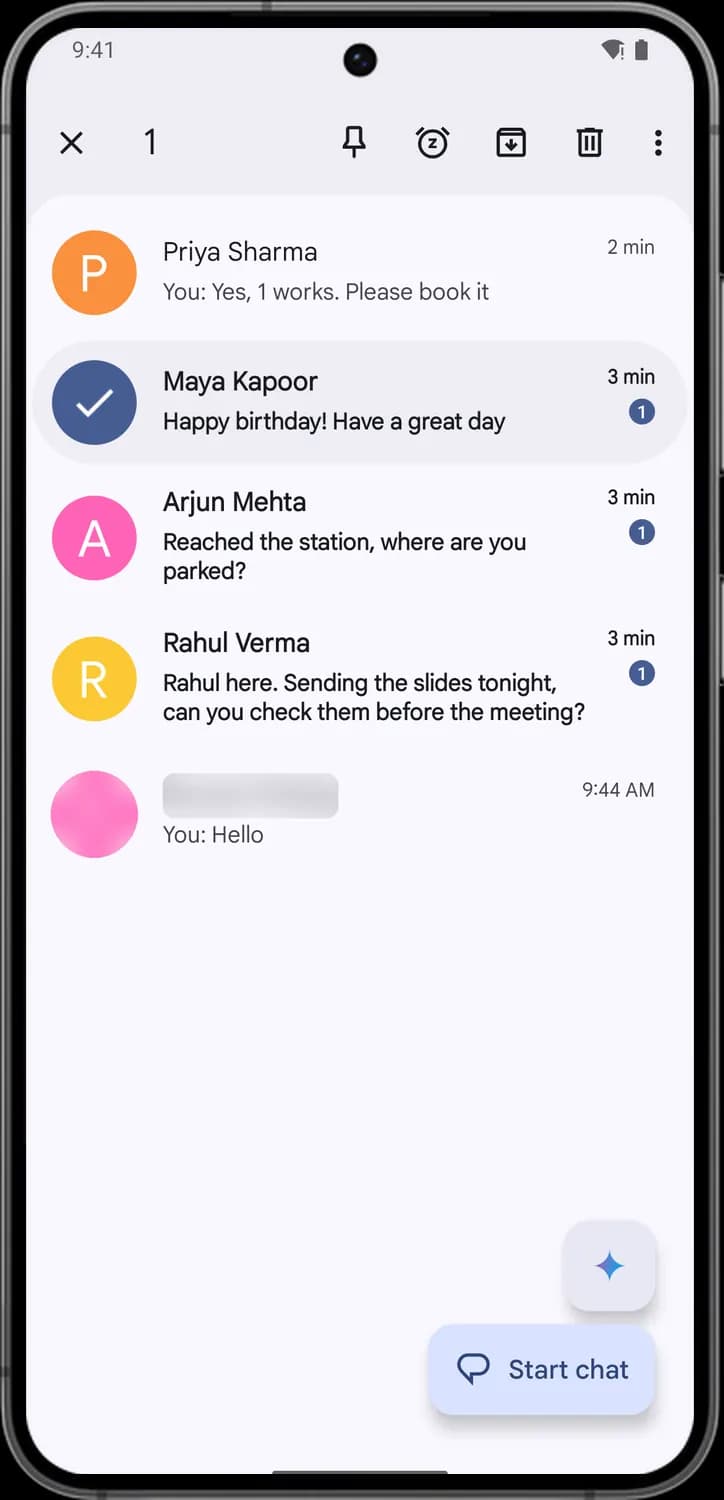

Done
The X. Tap it to leave selection mode without doing anything. The number next to it shows how many conversations you have selected.

Pin
The pushpin. Pins the selected conversation to the top of your list so it stays there even when newer messages arrive.

Snooze
The alarm clock with a Z. Silences notifications from the selected conversation for a while, so you can choose how long.

Archive
The box with a down arrow. Moves the conversation out of your inbox into Archived, which you open from the account menu. A new message brings it back.

Delete
The trash can. Moves the selected conversation to Trash, where you can still restore it for a while before it is gone for good.

More options
The three dots. Opens a short list of extra actions for the selected conversation.

Selected
The check mark replaces the contact picture on every conversation you have selected. Tap more rows to add them, or tap a checked row to unselect it.
Inside a conversation
Tap any conversation in the inbox to open it. The top bar shows who you are talking to, and the box at the bottom is where you write, attach things and send.
Top bar
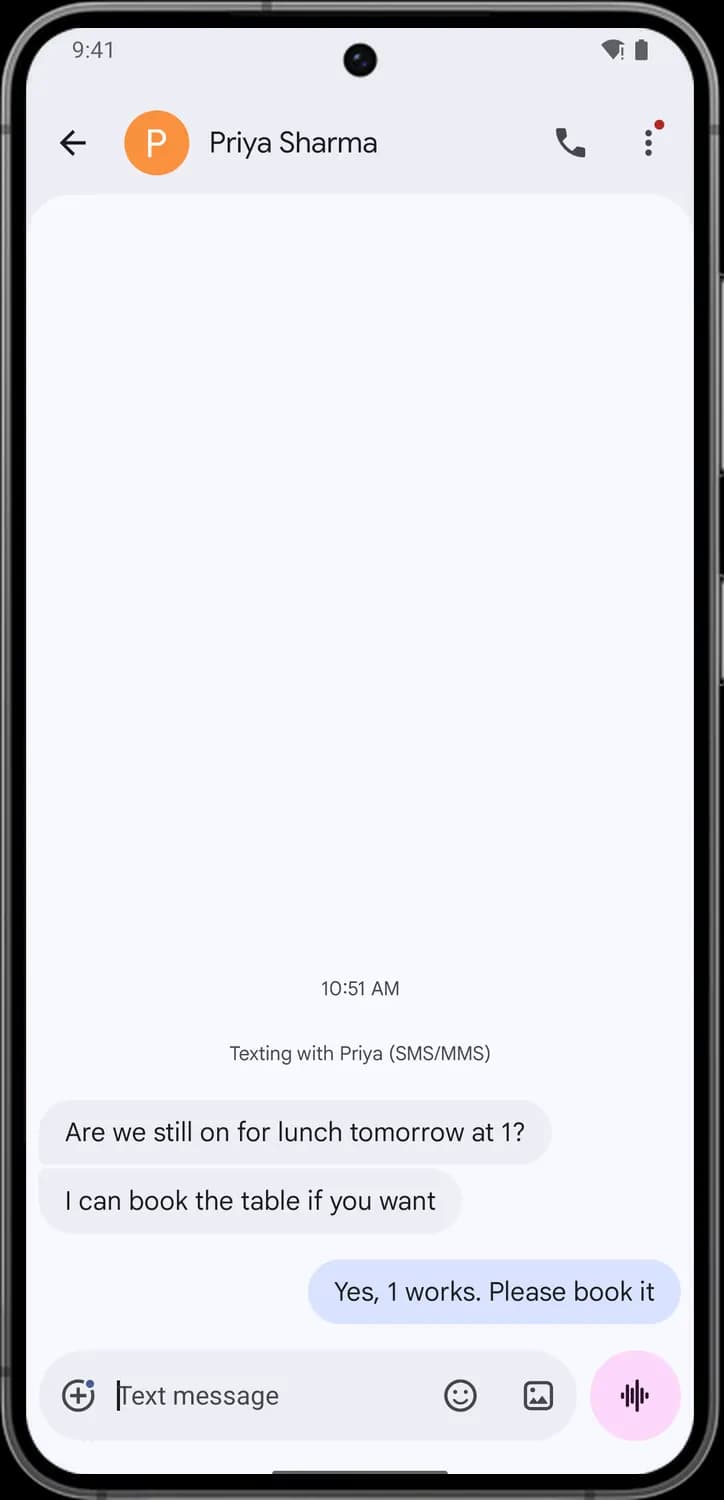

Back
The left arrow. Takes you back to your conversation list.

Contact name and picture
Tap the picture or name to open the conversation details, with call, video, search, chat theme, notifications and block options.

Call
The phone handset. Calls this person with your phone's dialer.
More
The three dots. Opens the conversation menu: Add people, Details, Starred, Search, Chat theme, Archive, Trash, Video, Block & report spam, Show subject field and Help & feedback. A red dot on it means something new is waiting in that menu.
Message box
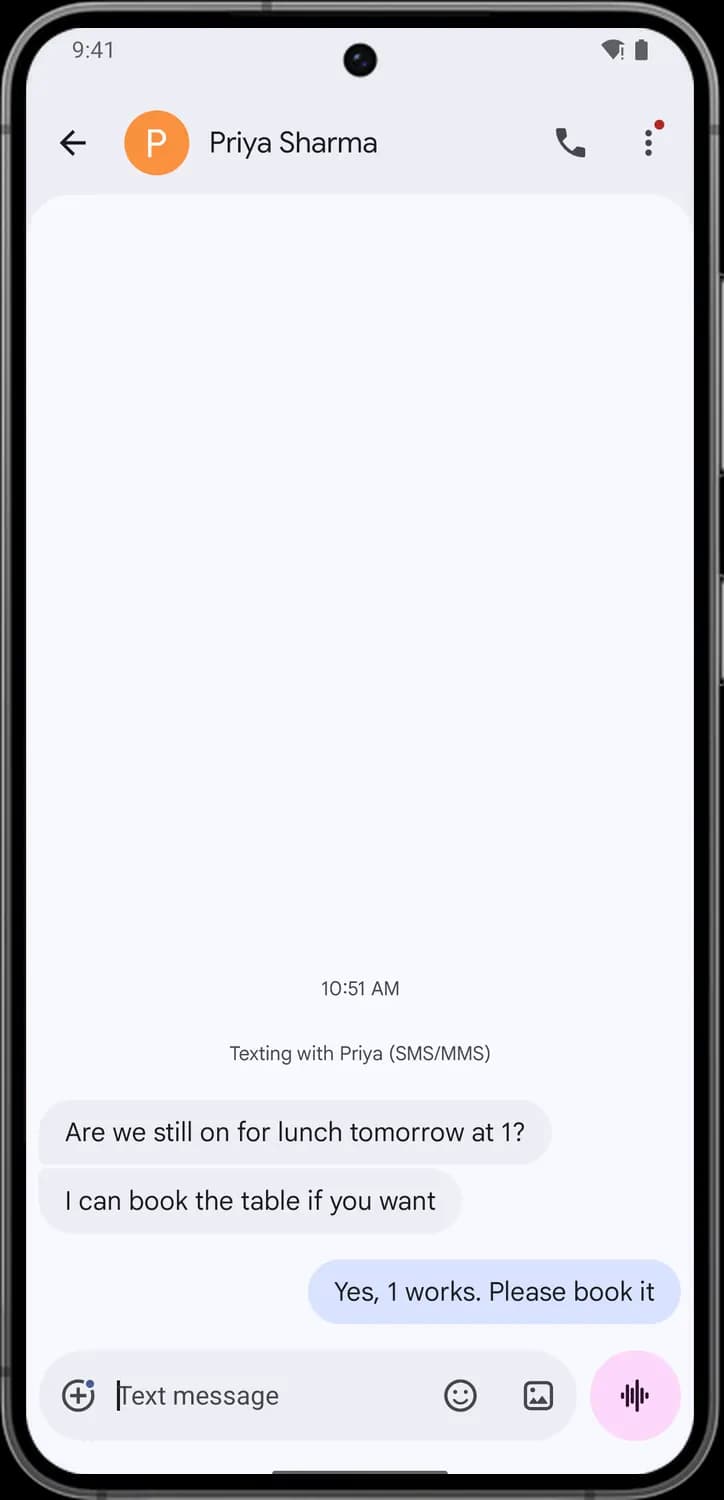

Attach
The plus in a circle. Opens the attach panel with Gallery, Camera, GIFs, Stickers, Files, location, contacts, Schedule Send and more. While the panel is open it turns into an X that closes it.
Text message
The box where you type your message. Tap it to bring up the keyboard. The hint text changes to show whether you are sending a text (SMS) or a chat message (RCS).

Emoji, GIFs and stickers
The smiley face. Opens a panel with emoji, GIFs and stickers in place of the keyboard.

Photos and videos
The picture icon. Opens your photos and videos so you can pick some to send in this conversation.

Voice message
The sound wave button. Tap it to record an audio message and send it. It changes to the Send button as soon as you start typing.
While you type
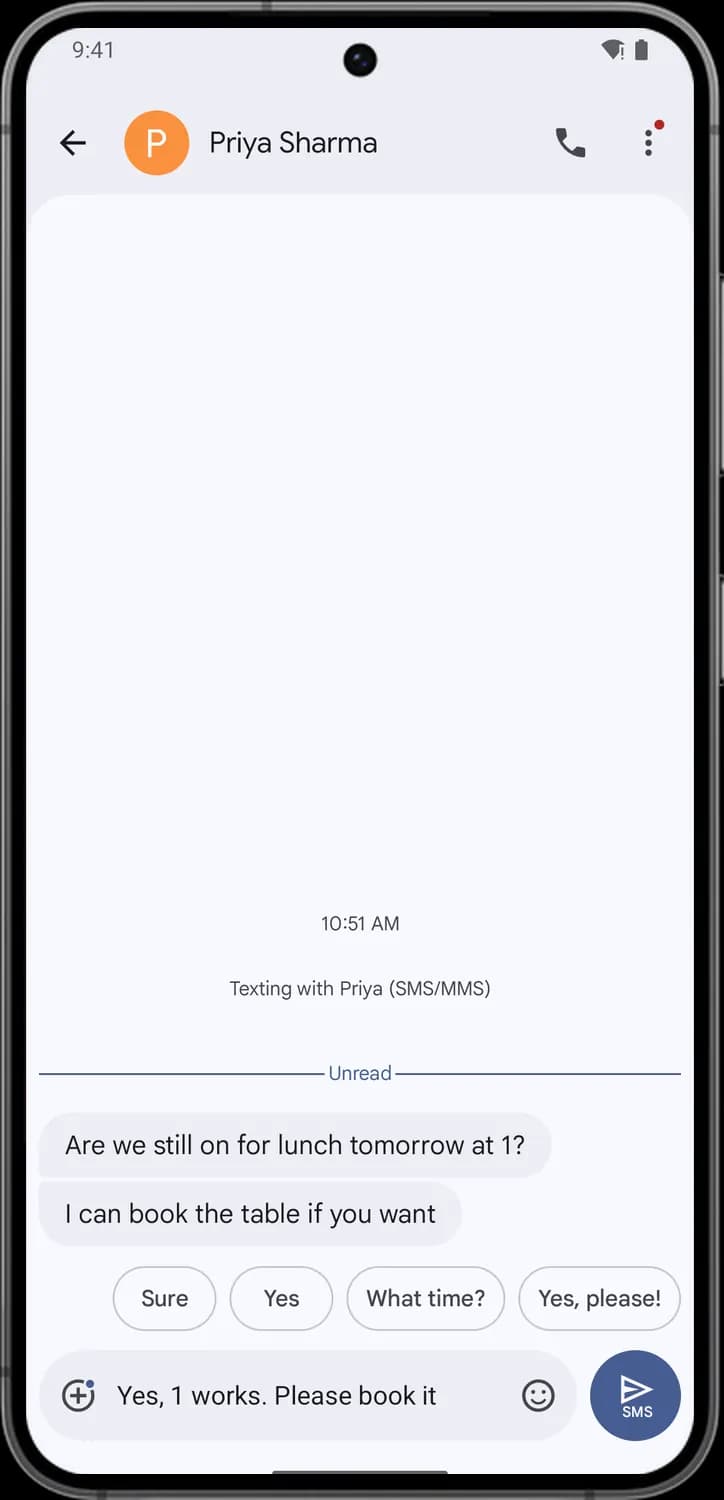
Smart replies
Suggested short answers based on the last message. Tap one to put it in the message box, then send it as is or edit it first.

Send
The paper plane. Sends what you typed. The small label under it shows how it goes out: SMS here means a regular text message, not an RCS chat.
Attach panel
Tap the plus in a circle at the left of the message box and this panel slides up. Each tile adds something different to your message.
Panel controls and first row
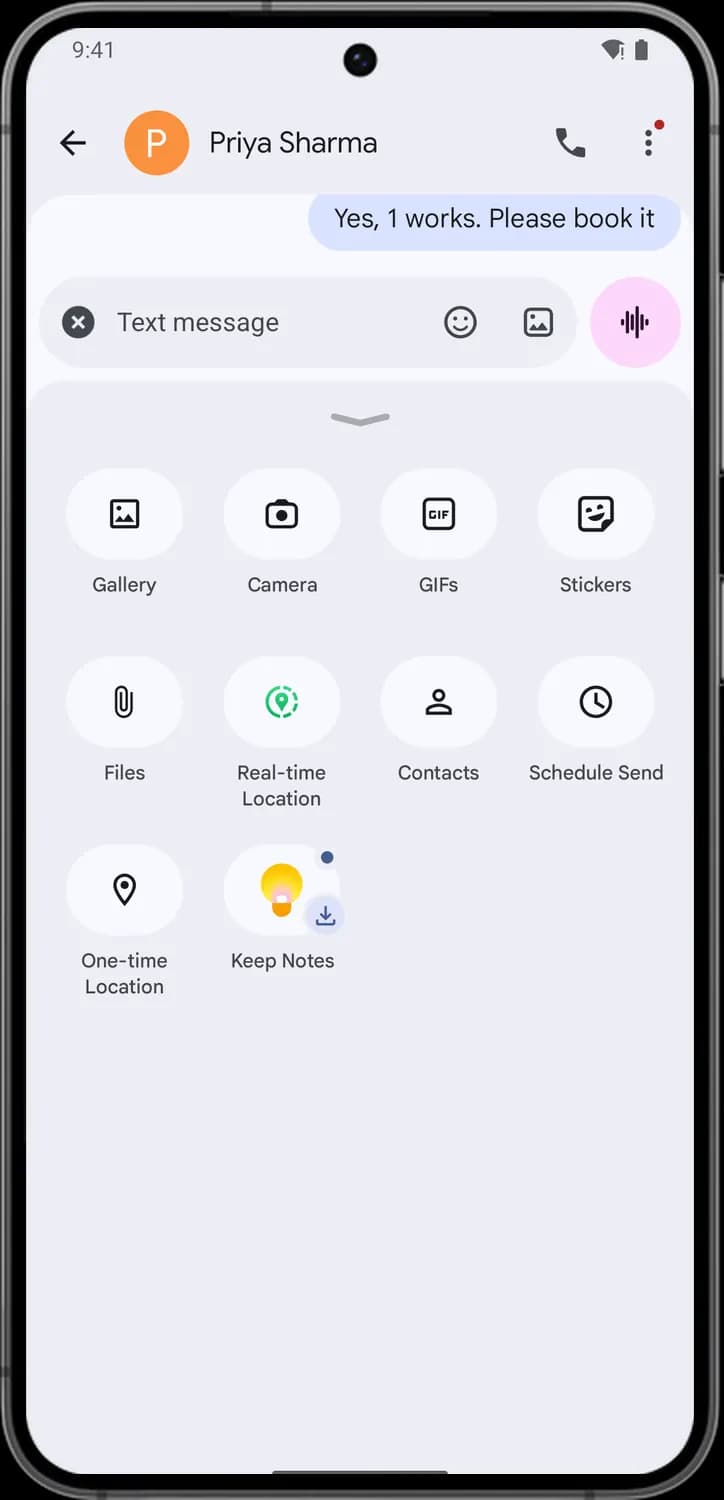

Close attach panel
The X where the plus used to be. Tap it to close the attach panel and go back to the keyboard.

Collapse
The small handle at the top of the panel. Tap it, or drag it down, to make the panel smaller.

Gallery
Opens your photos and videos so you can pick some to send.

Camera
Opens the camera so you can take a photo or record a video and send it right away.

GIFs
Opens a searchable list of animated GIFs to send.

Stickers
Opens your sticker packs so you can send a sticker in place of text.
More ways to attach
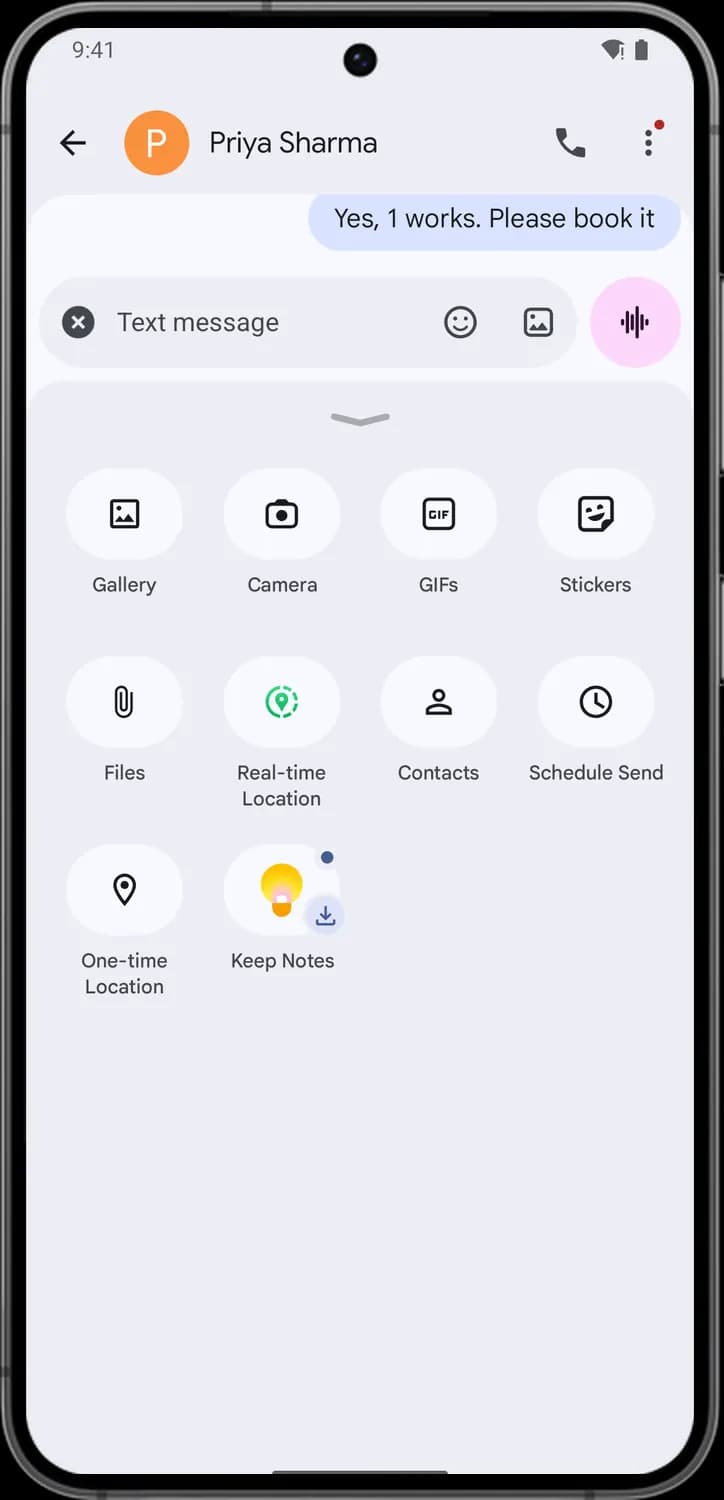

Files
Lets you pick a file from your phone, like a PDF or document, and send it.

Real-time Location
Shares your live location for a set amount of time, so the other person can follow where you are on a map.

Contacts
Lets you pick a contact from your phone and send their details as a contact card.

Schedule Send
Lets you pick a date and time to send your message later, instead of right now.

One-time Location
Sends your current location once, as a pin on a map, without sharing where you go afterward.
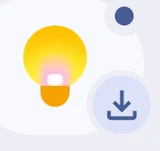
Keep Notes
Lets you send a note from Google Keep. The download badge means Keep is not installed on this phone, so tapping it takes you to install it first.
Emoji, GIFs and stickers
Tap the smiley in the message box to open this panel. The Emoji, GIFs and Stickers tabs at the top switch what it shows, and the bar along the bottom jumps between emoji categories.
Search and first categories
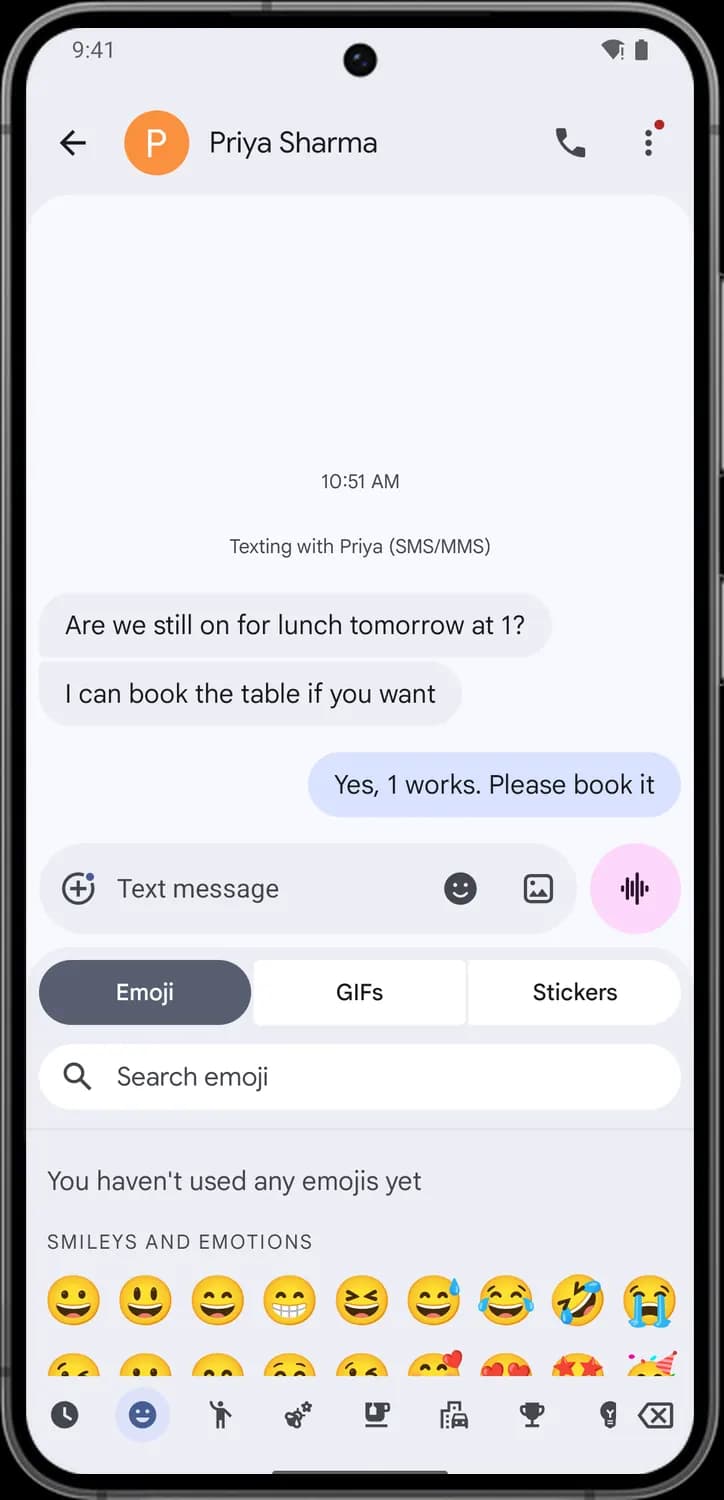

Search emoji
The magnifying glass. Tap the bar and type a word, like "cake", to find matching emoji.

Recents
Shows the emoji you used most recently, so you can find them again fast. It stays empty until you send a few.

Smileys and emotions
Jumps to faces and emotions, like smiles, laughing and crying faces.

People
Jumps to people, hands, gestures and body emoji.

Backspace
The box with an X. Deletes the last emoji or character in your message.
More categories
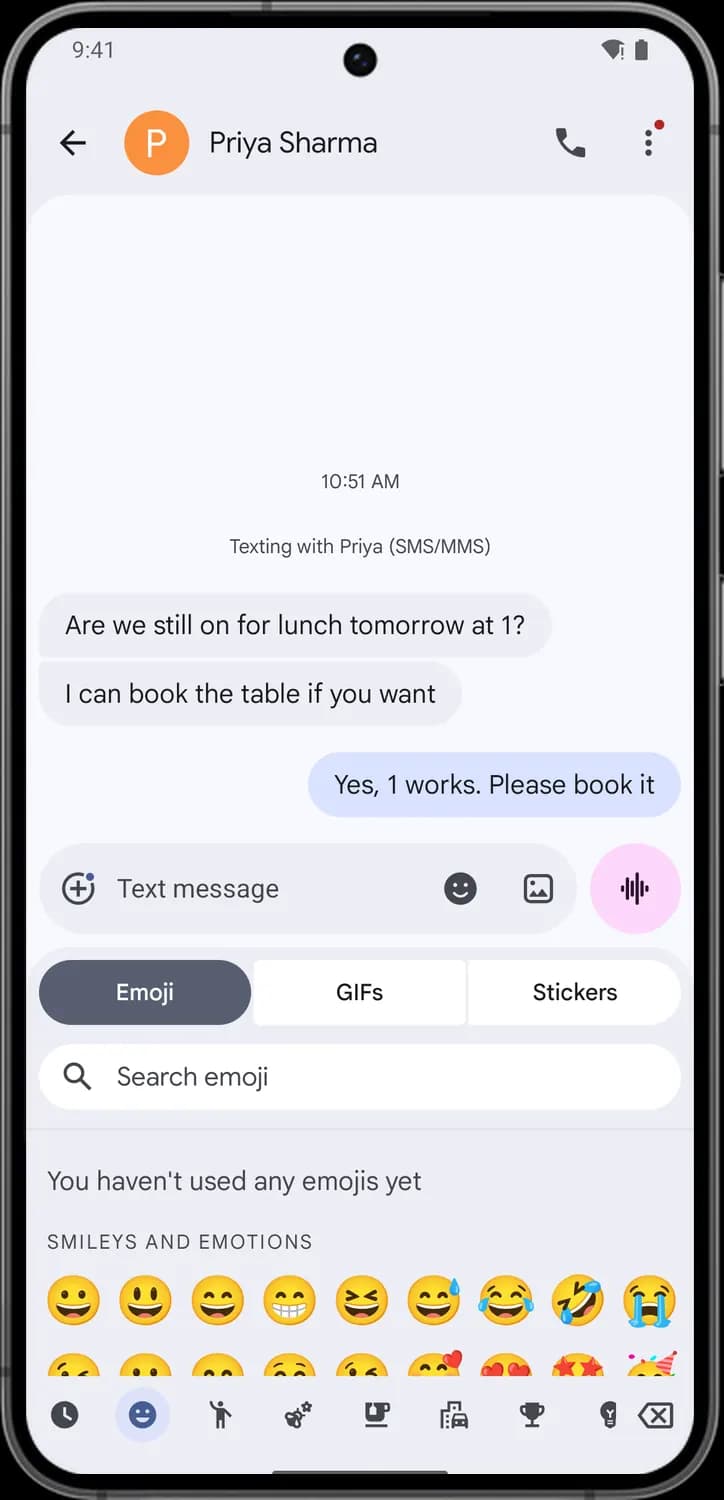

Animals and nature
Jumps to animals, plants, flowers and weather emoji.

Food and drink
Jumps to food, drinks and dishes.

Travel and places
Jumps to buildings, vehicles, places and maps.

Activities and events
Jumps to sports, games, trophies and celebration emoji.

Hide emoji panel
The smiley turns solid while this panel is open. Tap it again to close the panel.
Message actions
Long-press any message bubble and you get a row of quick reactions above it and a menu of actions below it.
Quick reactions
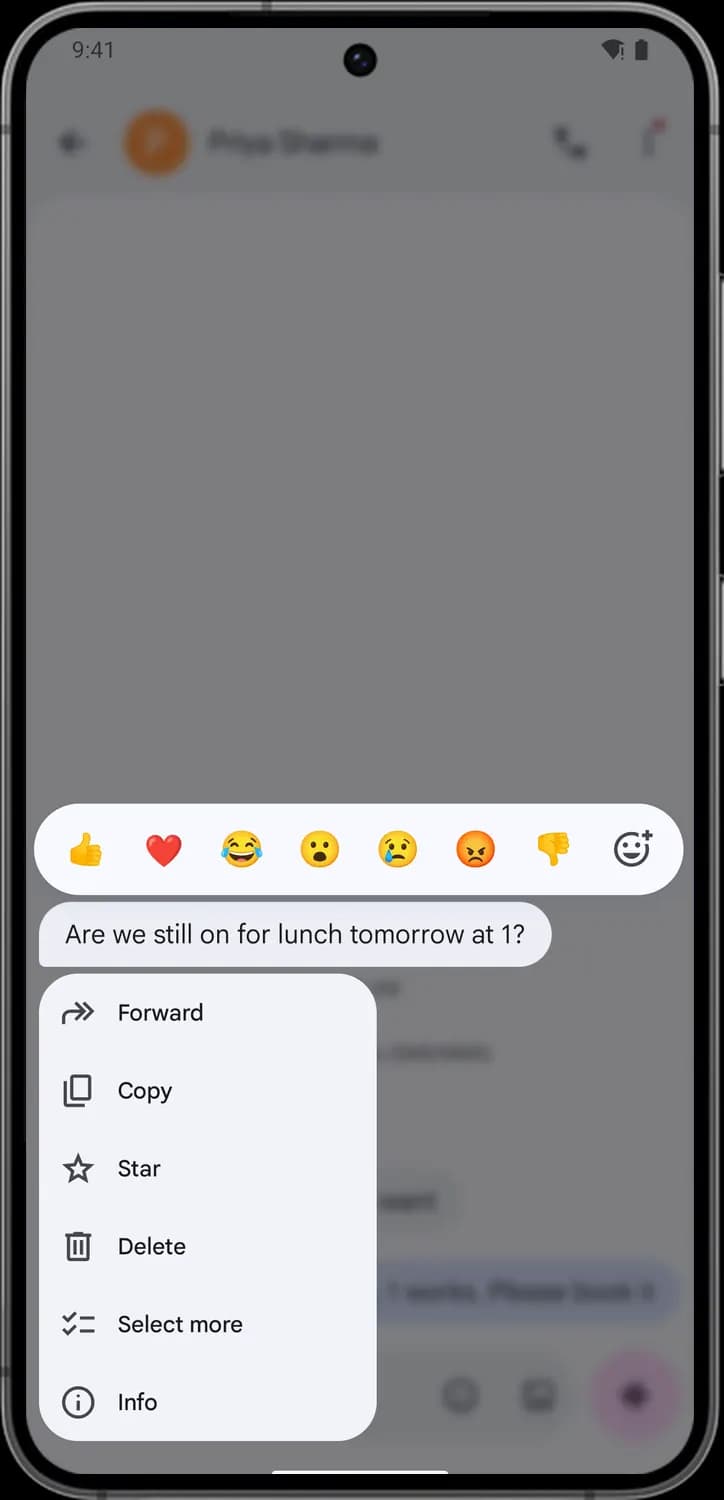

Thumbs up
Reacts to the message with a thumbs up. The reaction shows on the message bubble for both of you.

Red heart
Reacts with a red heart, for when you love the message.

Tears of joy
Reacts with a laughing face with tears, for something funny.

Surprised
Reacts with a face with an open mouth, for something surprising.
Crying
Reacts with a crying face, for sad news.
Angry
Reacts with an angry red face.

Thumbs down
Reacts with a thumbs down, for when you disagree or the answer is no.
More reactions and message menu
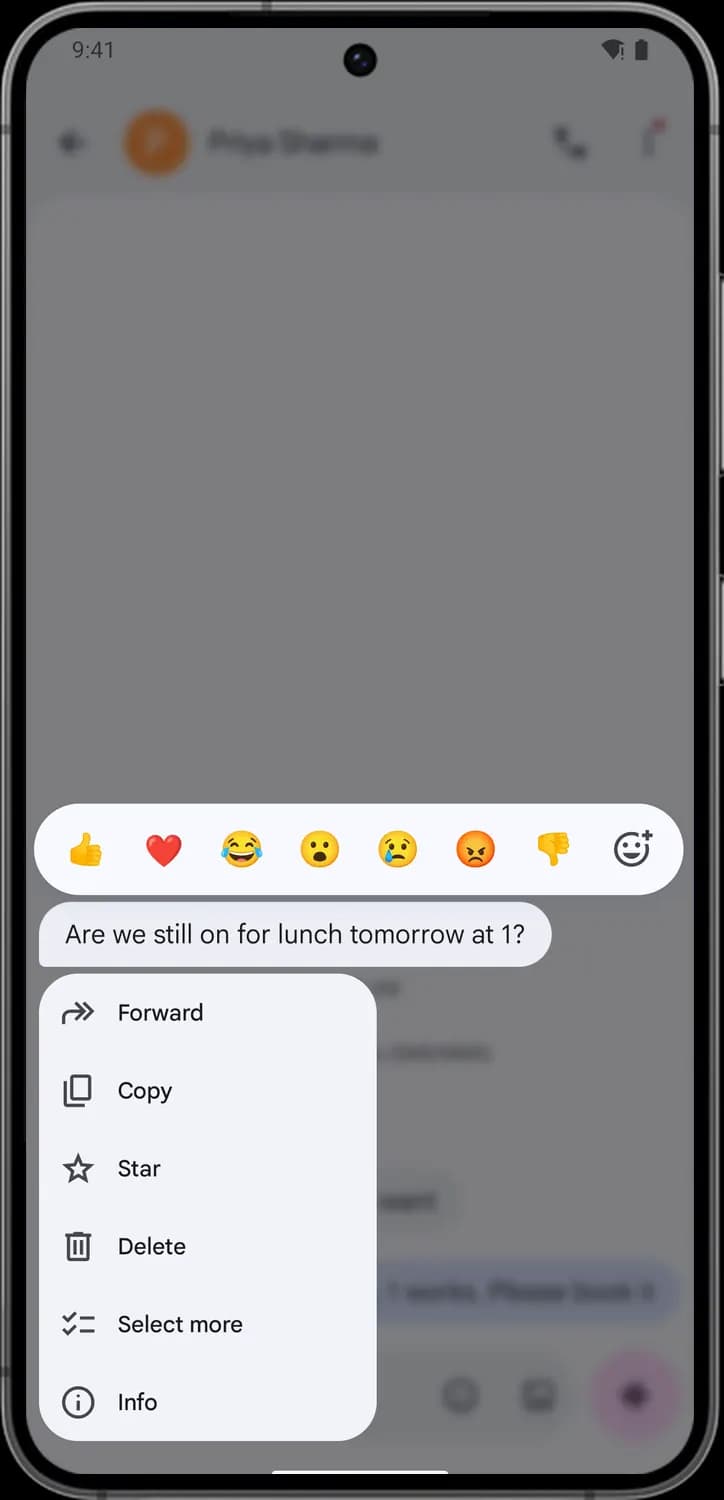

More reactions
The smiley with a plus. Opens the full emoji list so you can react with any emoji you like.

Forward
Sends a copy of this message to another contact or conversation.

Copy
Copies the message text so you can paste it somewhere else.

Star
Stars the message so you can find it later. Open Starred from the three dots menu in the conversation to see all starred messages.

Delete
Deletes this one message from the conversation on your phone.

Select more
Selects this message and lets you tap others, so you can copy, forward or delete several at once.

Info
Shows details about the message, like its type (SMS, MMS or RCS), who sent it and when.
Conversation details
Tap the contact's name at the top of a conversation, or pick Details from the three dots menu, to open this screen. The three dots menu itself is a plain text list.
Quick actions
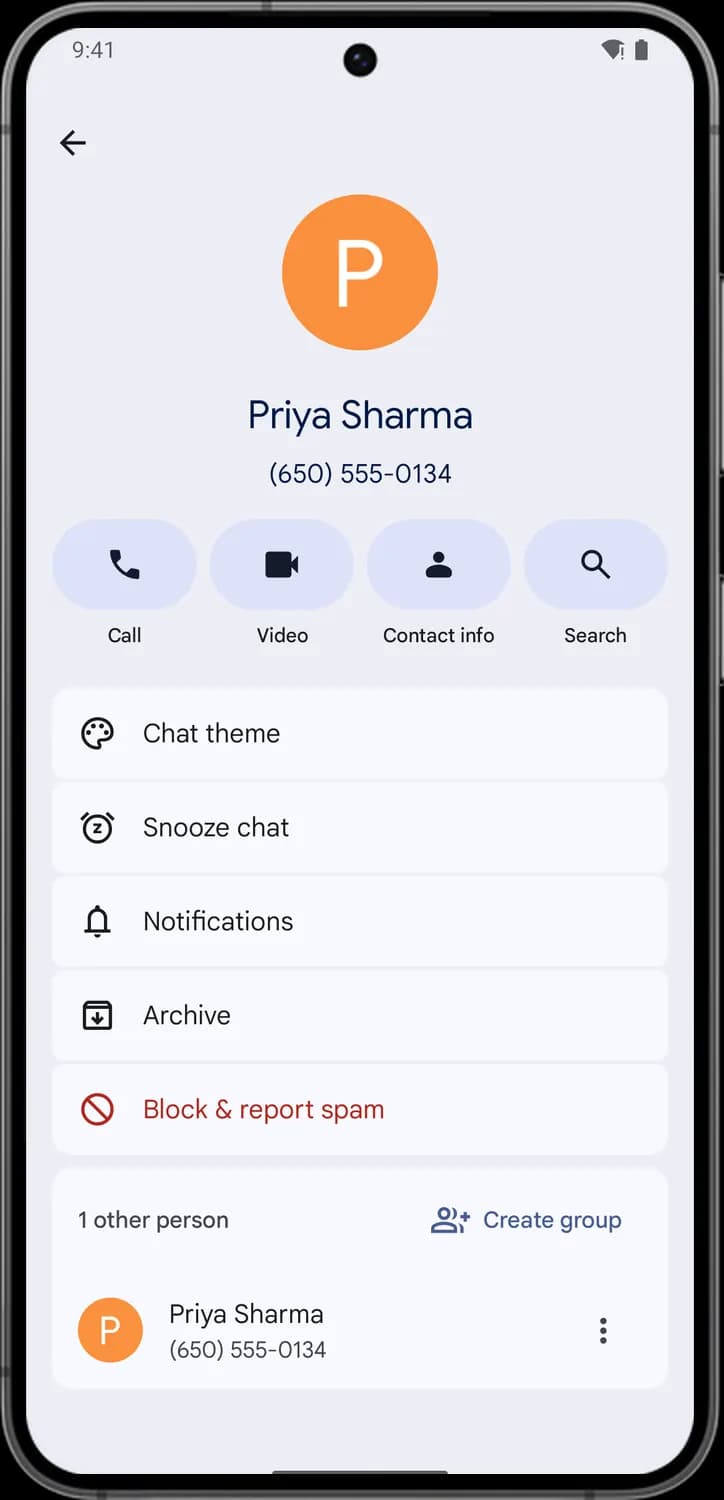

Call
The phone handset. Calls this person with your phone's dialer.

Video
The video camera. Starts a video call with this person.

Contact info
The person outline. Opens this person in your Contacts app, or lets you add them if they are not saved yet.

Search
The magnifying glass. Searches only inside this conversation.

Chat theme
The paint palette. Lets you pick a color theme for this conversation's bubbles and background.

Snooze chat
The alarm clock with a Z. Pauses notifications from this conversation for a while, so you can choose how long.
Chat settings and people
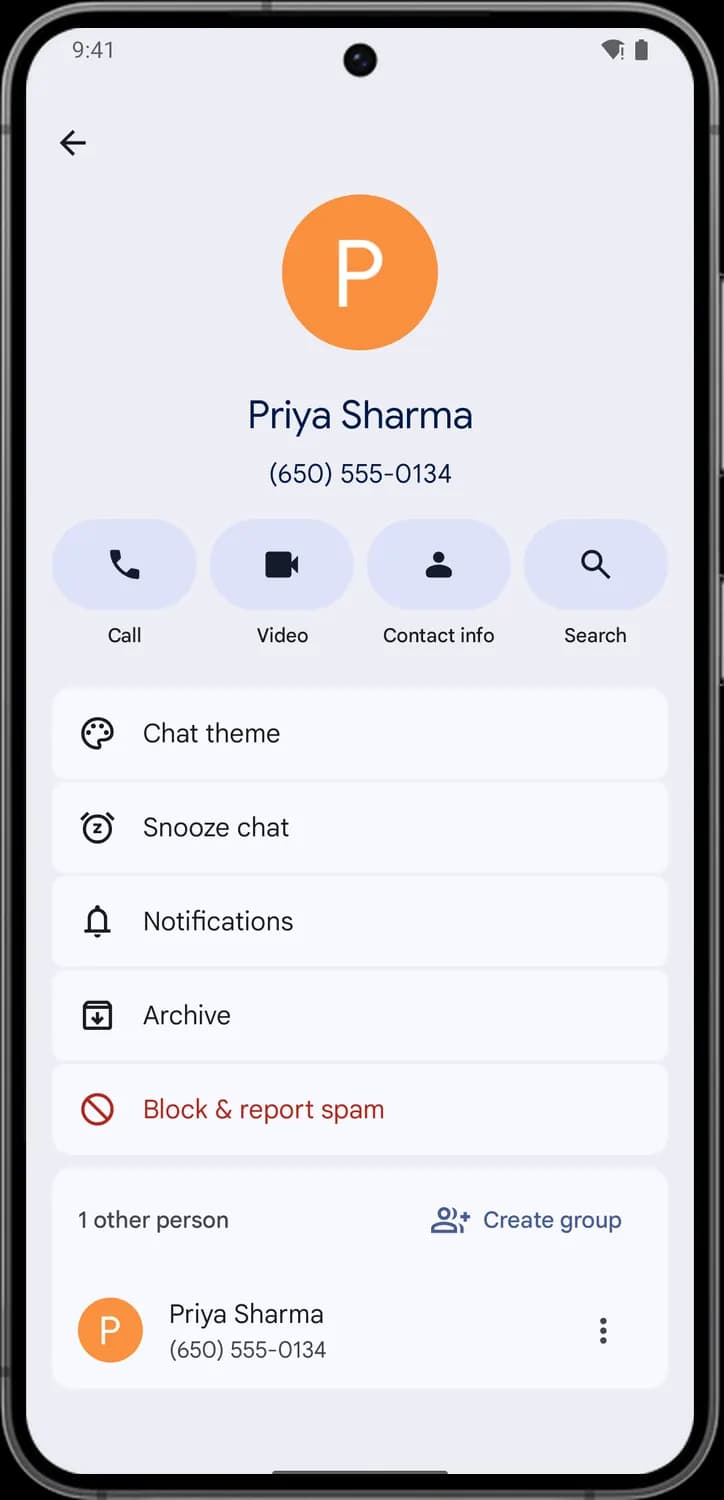

Notifications
The bell. Opens the notification settings for this conversation, like its sound and whether it pops up on screen.

Archive
The box with a down arrow. Moves this conversation out of your inbox into Archived.

Block & report spam
The circle with a line through it. Blocks this number so you stop getting its messages and calls, and lets you report it as spam too.

Create group
The person with a plus. Starts a group conversation with this person and anyone else you add.

Person options
The three dots next to a person in the chat. Opens options for that person, like calling them or viewing their contact.
Starting a new chat
Tap Start chat at the bottom of the inbox to get here. Pick someone from the list, or type a name or number in the To field.
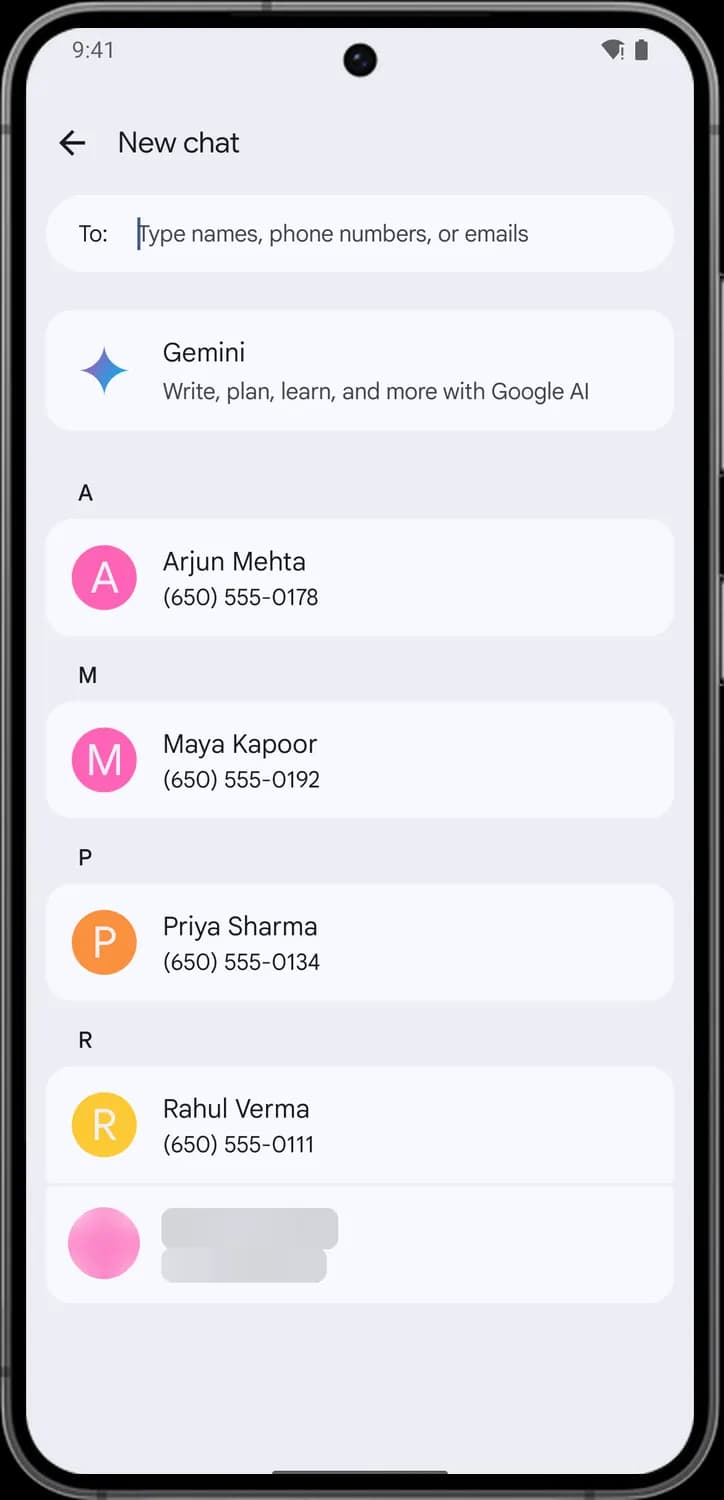
To field
Type a name, phone number or email here. Matching contacts show up as you type, and you can add several people to start a group chat.

Gemini
The sparkle. Starts a chat with Gemini, Google's AI assistant, where you can ask questions, plan or write.

Contact
Your saved contacts with their picture or initial. Tap one to open your conversation with them, or start a new one.
Account menu
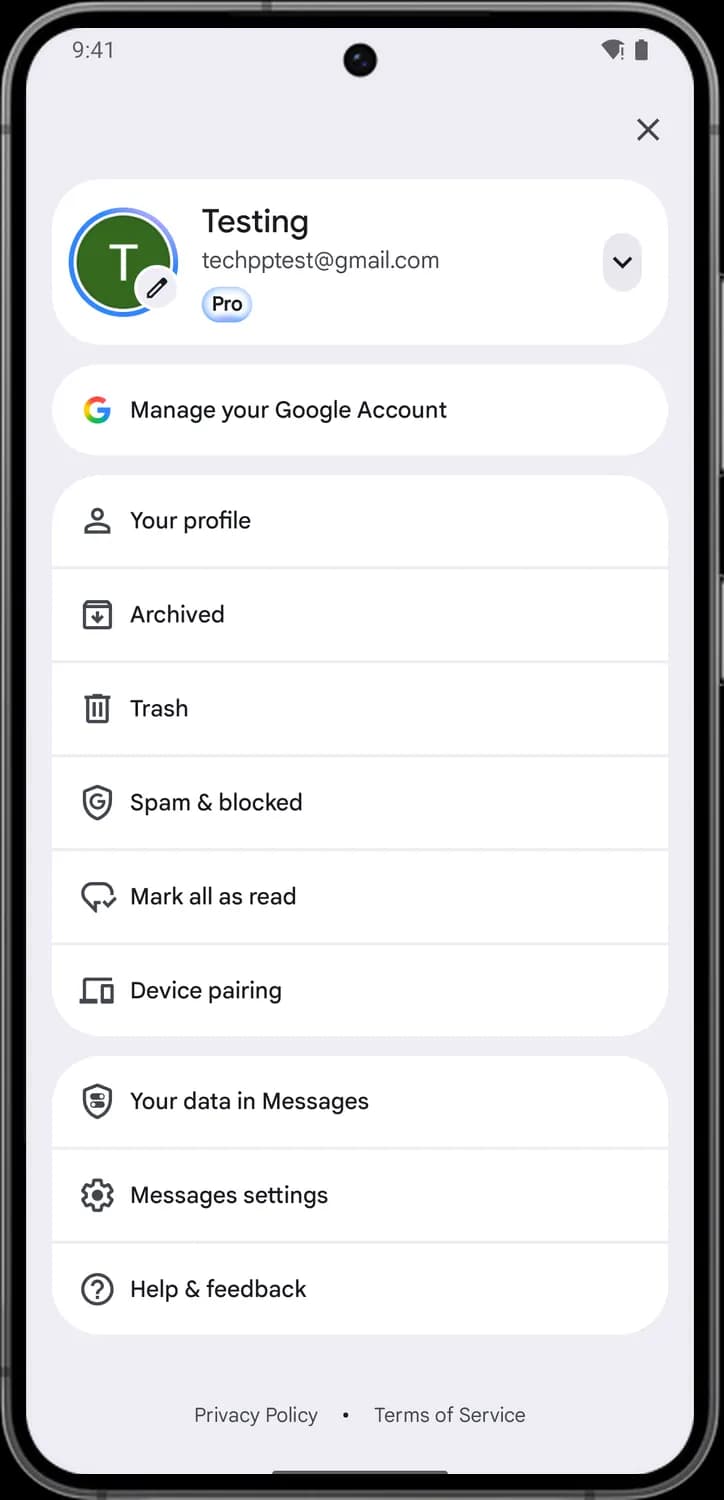
Tap your account picture at the top right of the inbox to open this menu. It holds your Google account, the Archived, Trash and Spam folders, and the way into Messages settings.
Account card

Close
The X. Closes the account menu and takes you back to your inbox.

Edit my info
The pencil on your account picture. Tap it to edit your Google profile info, like your profile picture.

Switch account
The down arrow. Opens the list of Google accounts on this phone, so you can switch accounts or add another one.

Manage your Google Account
The colored G. Opens your Google Account settings, like your personal info, security and privacy.

Your profile
The person outline. Opens your Messages profile, where you set the name and photo people see when you chat with them.

Archived
The box with a down arrow. Opens the conversations you archived. You can move them back to the inbox from here.
Status symbols. These only show information. They are not buttons.

Pro badge
Shows that this Google account is on a Google AI Pro plan. It is a label, not a button.
Folders and settings

Trash
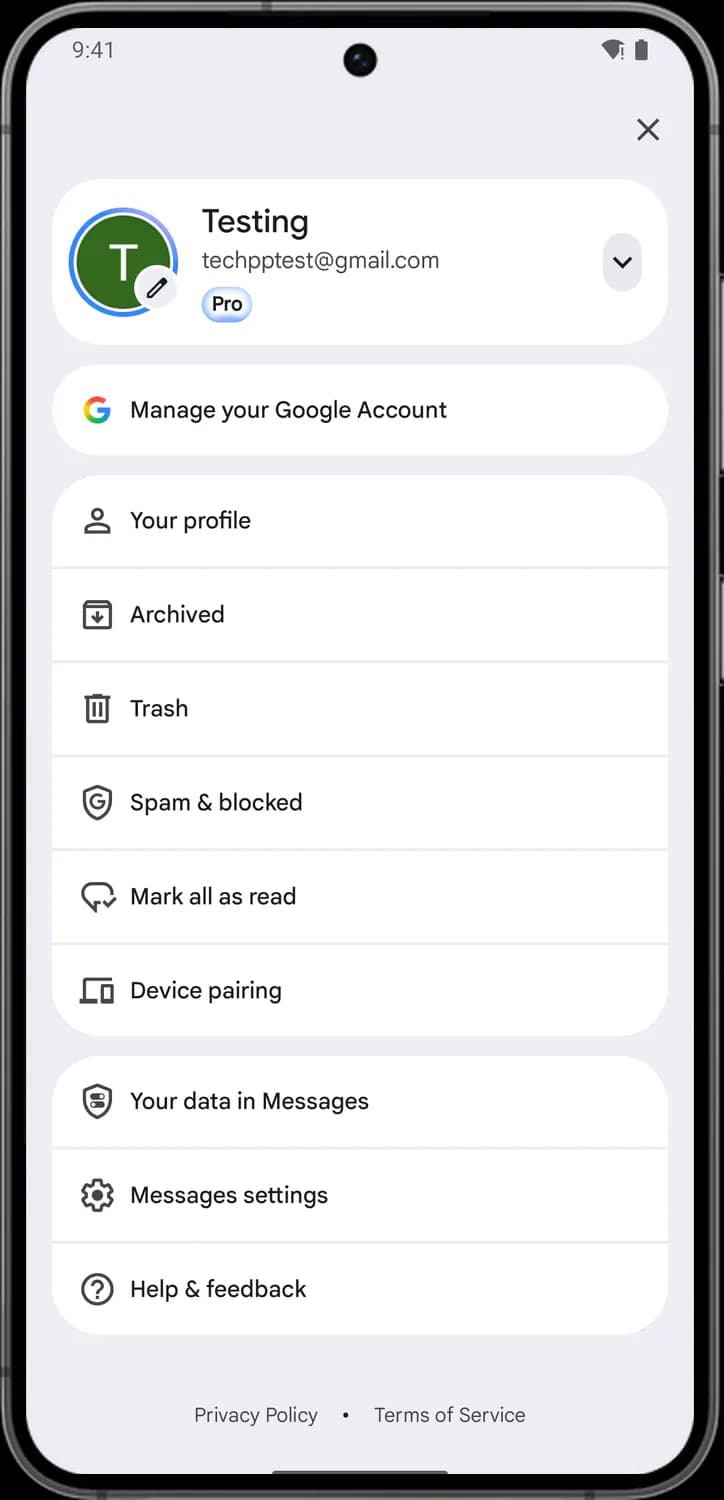
The trash can. Opens conversations you deleted. They stay here for a while, so you can restore one if you deleted it by mistake.

Spam & blocked
The shield with a G. Opens messages Messages flagged as spam and the numbers you blocked. You can unblock a number or mark a message as not spam here.

Mark all as read
The speech bubble with a check mark. Marks every conversation as read at once, which clears all the unread counts.

Device pairing
The laptop and phone. Lets you pair Messages on a computer or tablet, like Google Messages for web, so you can text from there.

Your data in Messages
The shield with toggles. Shows what data Messages uses and keeps, with links to the related settings.

Messages settings
The gear. Opens all the settings for Messages, like notifications, RCS chats, spam protection and suggestions.

Help & feedback
The question mark in a circle. Opens help articles for Messages and lets you send feedback to Google.
Those are the meanings of Google Messages icons and symbols. Google updates Messages every few weeks and the icons change with it, so we update this guide every time they do, and you can bookmark this page to stay updated. These screens are from Google Messages on Android. For more icon guides, you can also visit our TechPP icon guides.
Comments
0Share your thoughts, questions, or feedback about this guide.