
Google Maps Icons and Symbols Explained
Google Maps is the app most of us open before going anywhere, whether it’s a new restaurant, a store across town or a trip to another city. And it now does a lot more than directions: Ask Maps, saved lists, Timeline, Local Guides and live air quality. Most of these show up as small icons and pins on the map.
In this guide, you will learn what every icon in the latest Google Maps app means, screen by screen. And this is an interactive guide. You can tap on every icon on the screens below to know what it does.
Explore tab and search
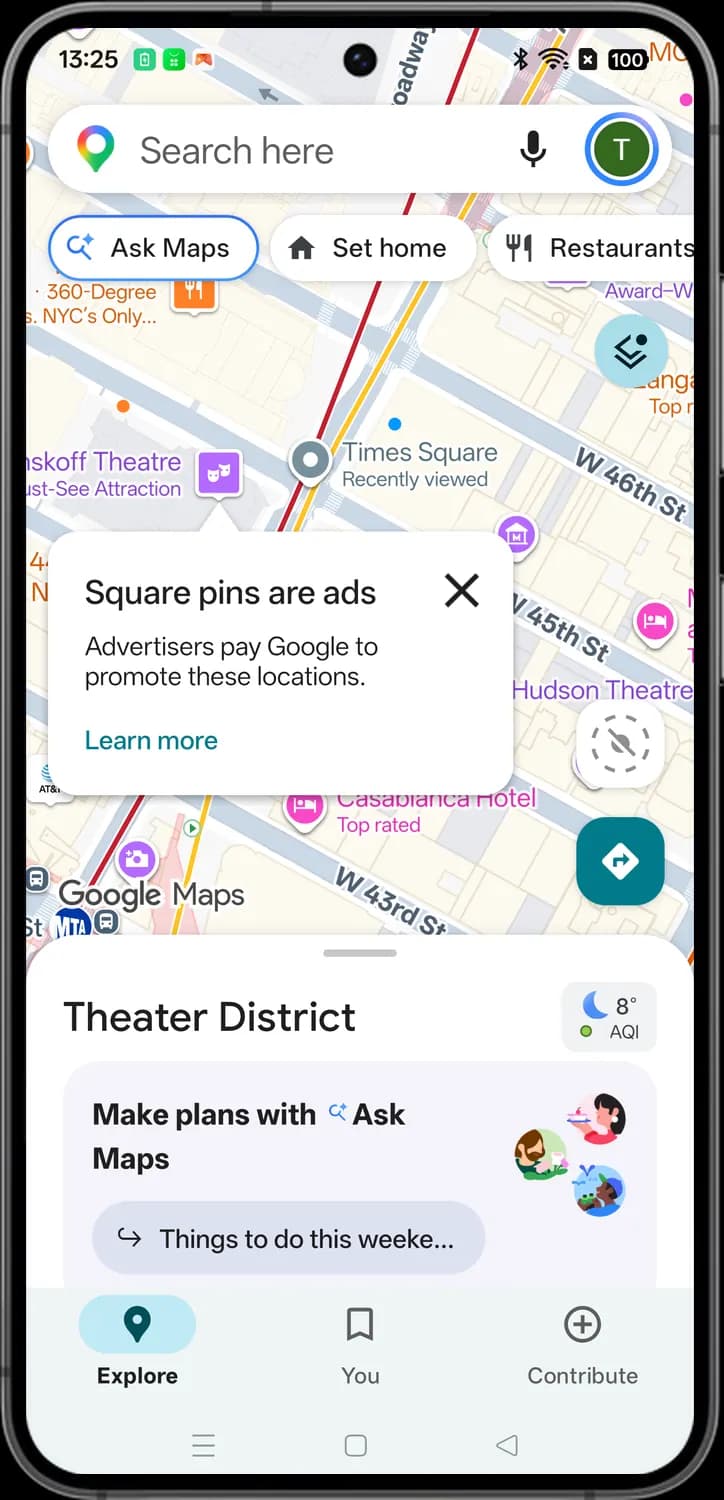
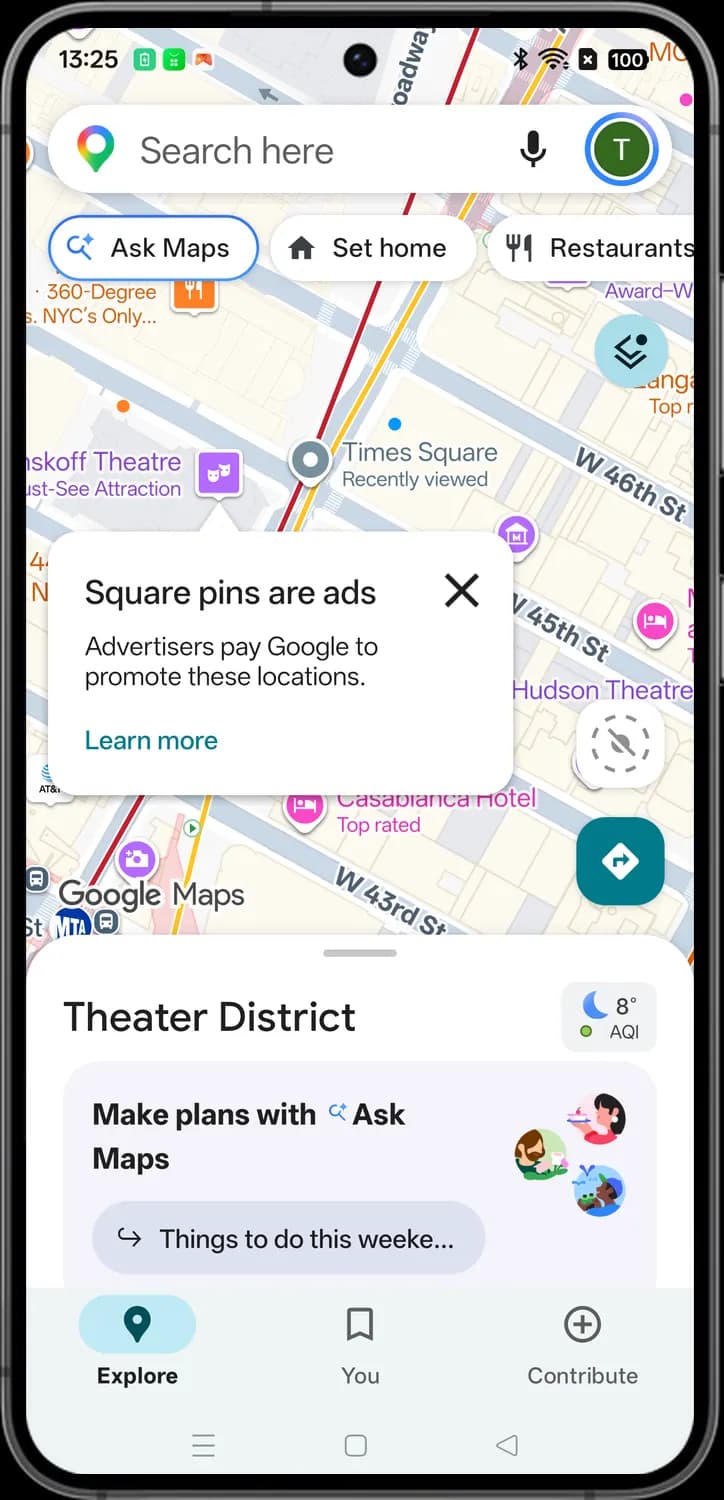
This is what you see when you open Google Maps: the search bar and shortcut chips at the top, a few round buttons over the map, and the Explore sheet with the area name at the bottom. Here the map is on Times Square in New York.
Search bar and shortcuts
Search here
The colored pin on the left is the Google Maps logo. Tap the bar to search for a place, an address or a type of business, like coffee.

Voice search
The microphone. Tap it and say what you are looking for instead of typing it.
Account
Your profile picture, or your initial if you have no photo. Tap it for the account menu with Incognito mode, offline maps, Settings and Help.

Ask Maps
The magnifier with a sparkle. Opens Ask Maps, the Gemini chat built into Maps, where you can ask a question in plain words and get places as the answer.

Set home
The house. Saves your home address so you can get directions home in one tap.

Restaurants
The fork and knife. Shows restaurants nearby as pins on the map. Swipe the row of chips for more categories, like coffee, gas and hotels.
Map buttons

Layers
The stacked squares. Opens the Layers panel, where you pick the map type and turn on extras like traffic, transit lines and bike lanes.

Location off
The crossed-out target means location services are off on your phone. Tap it to turn location on. Once it is on, this button centers the map on your blue dot.

Directions
The diamond with a turn arrow. Tap it to plan a route: type where you want to go, and Maps fills in your location as the start.
Weather and air quality
The icon and temperature show the weather in the area on the map, and the colored dot shows the air quality (AQI). Green means good air.

Ask Maps suggestion
The curved arrow marks a ready-made question for Ask Maps. Tap it to ask it and get ideas for this area.
Bottom tabs
Explore
The map with the area guide below it. Swipe up the sheet for places and ideas nearby.

You
Your saved lists, recent places, Timeline and notifications.

Contribute
Add or fix places and roads, write reviews and upload photos. Your edits earn Local Guides points.
Map symbols
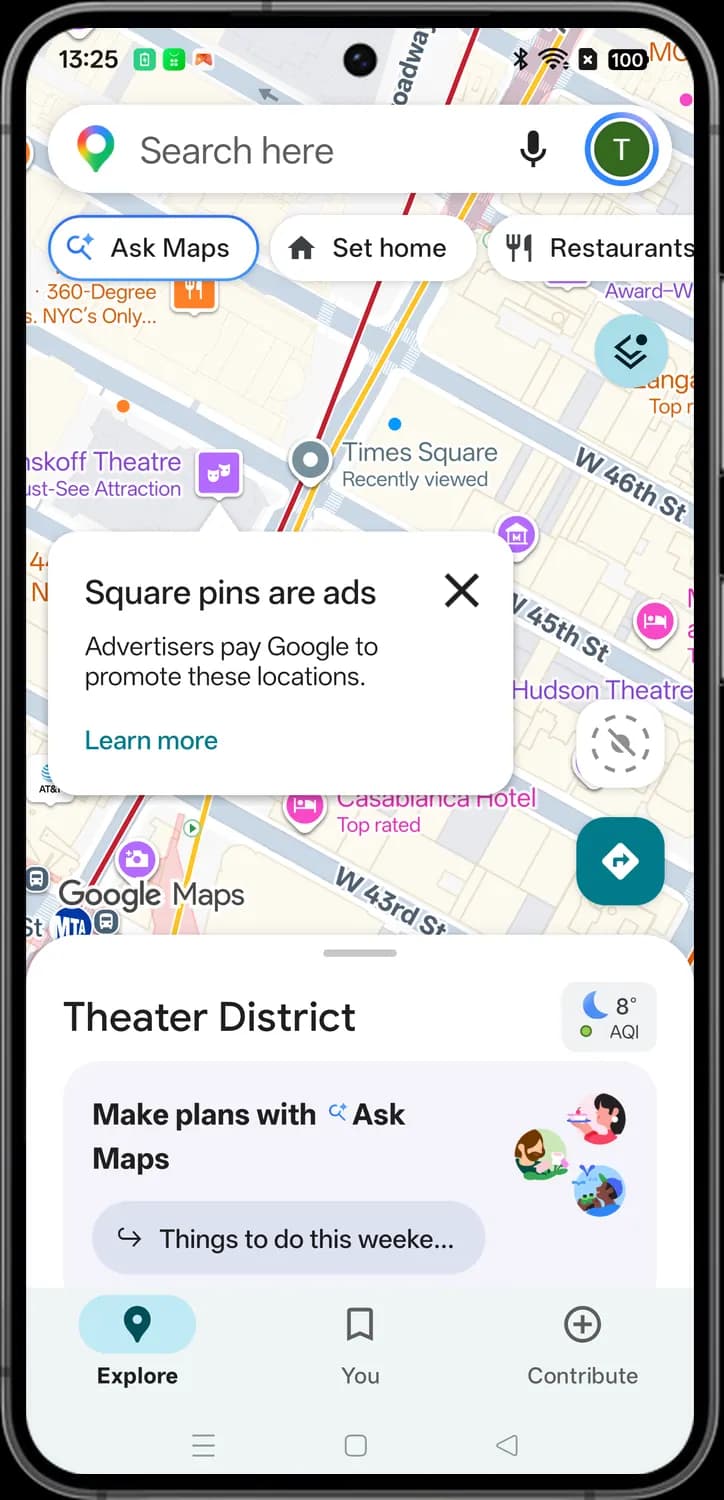
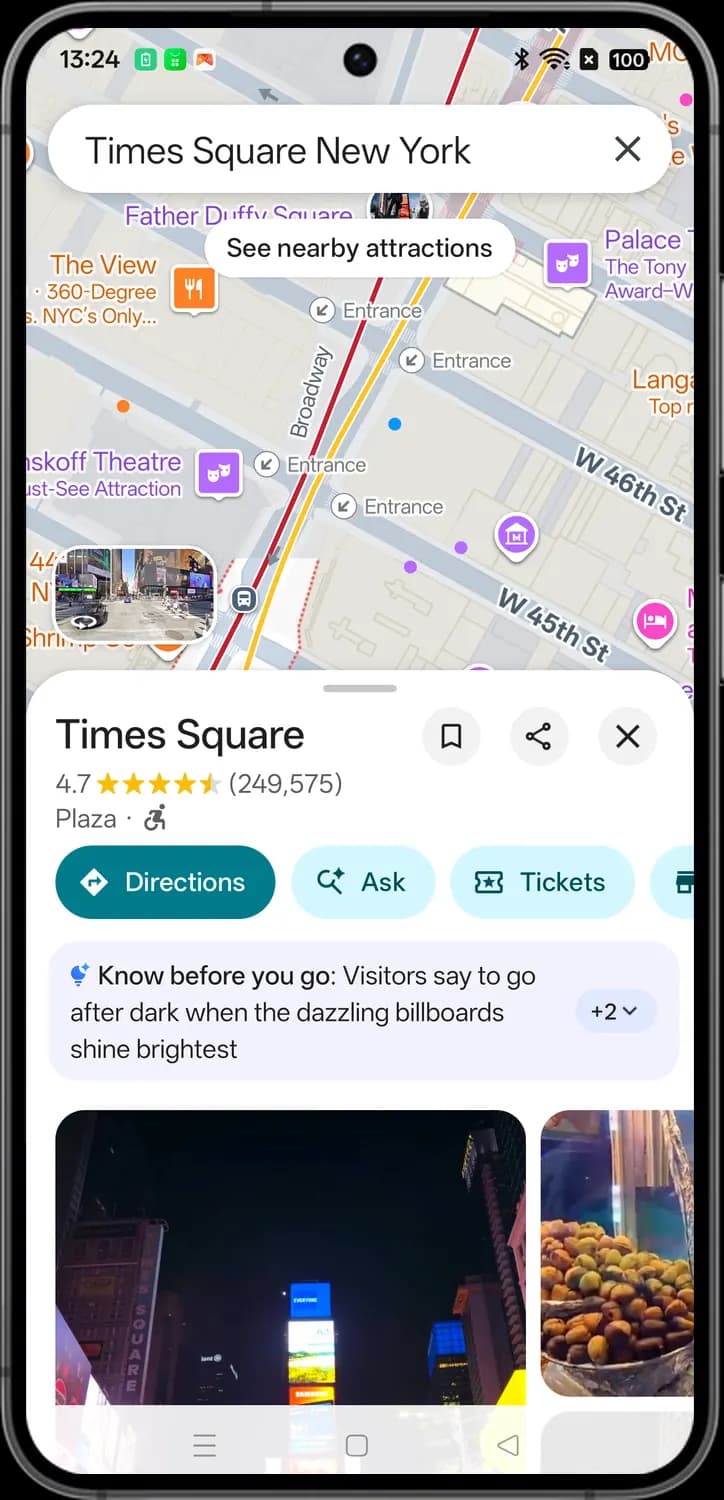
Pins on the map are color coded by type: orange for food and drink, purple for things to do, pink for hotels, blue for shopping and dark badges for transit. Tap any pin to open that place's card.
Around Times Square

Recently viewed
A gray pin with a white dot marks a place you looked at recently, so you can find it again. Its label says Recently viewed.

Museum
A purple pin with a building marks a museum.
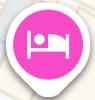
Hotel
A pink pin with a bed marks a hotel or another place to stay.

Tourist attraction
A purple pin with a camera marks a tourist attraction or a popular spot to see.
Around Fifth Avenue
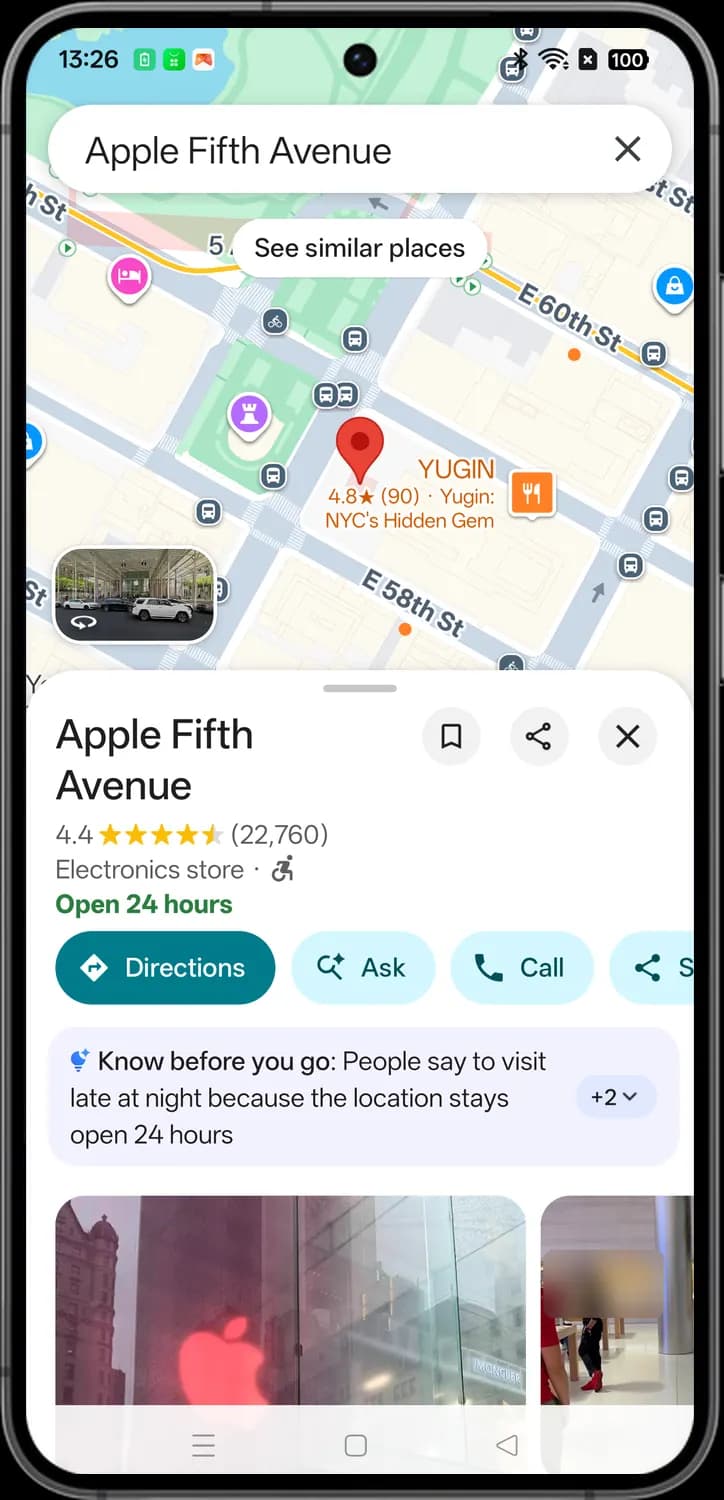
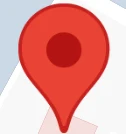
Selected place
The big red pin marks the place you searched for or tapped. Its details are in the card at the bottom.
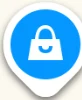
Shopping
A blue pin with a shopping bag marks a store.
Landmark
A purple pin with a tower marks a historic landmark or monument.

Bike share
A dark badge with a bicycle is a bike-share station (Citi Bike in New York), where you can pick up or drop off a rental bike.

Bus stop
A dark badge with a bus is a bus stop. Tap it to see the routes that stop there and when the next bus is due.

One-way street
Small arrows along a street show that it is one-way and which way traffic goes.
Entrances

Entrance
A circle with an arrow marks a way in. Maps shows entrances when you select a place, so you know where to walk to.
Subway stations

Subway station
The MTA logo marks a New York City subway station. Tap it to see the lines that stop there and the next trains. Other cities show their own transit logo.
A place
Tap a pin or search for a place and its card slides up from the bottom. Swipe the card up for photos and the tabs below them (Overview, Reviews, Photos and more; the tabs change with the type of place).
Card header
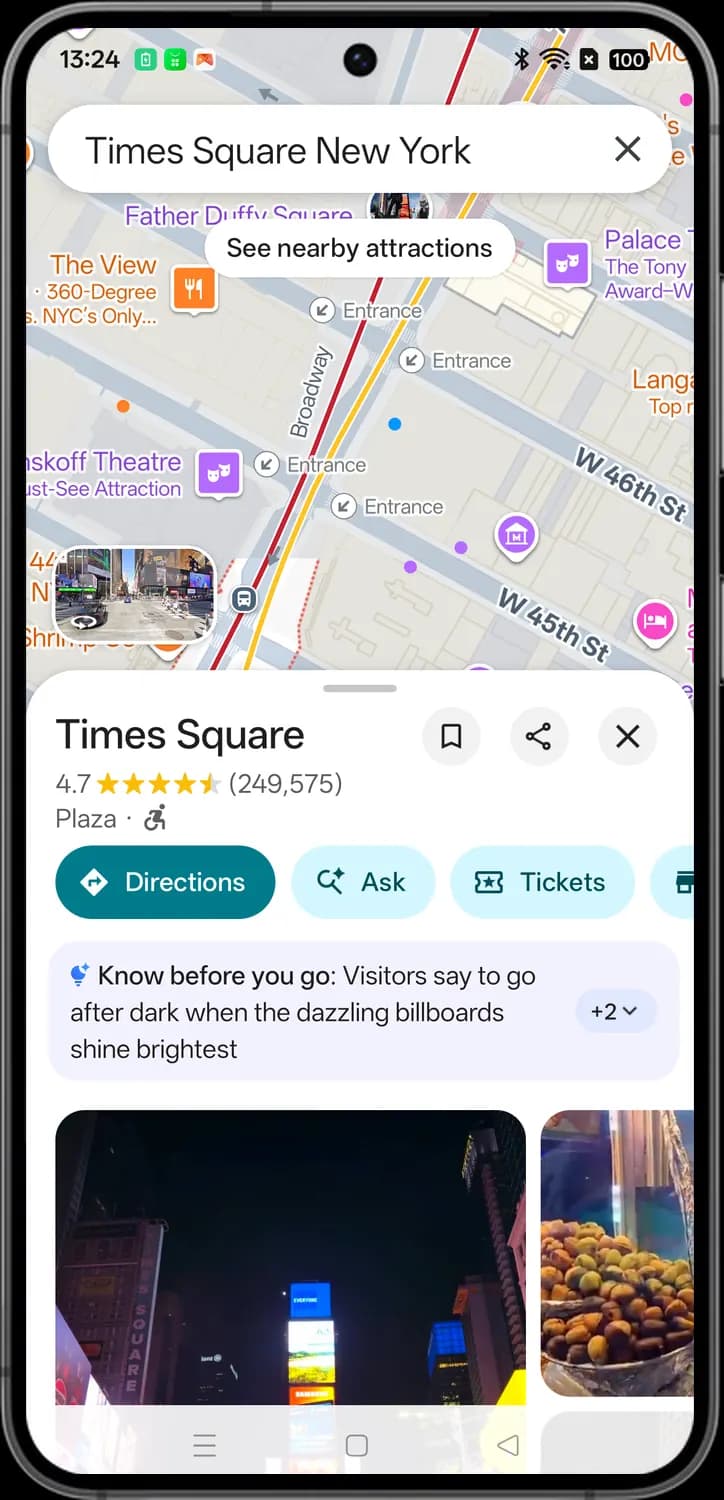

Clear search
The X in the search bar clears your search so you can look up something else.
Street View
A small Street View picture of the place. Tap it to look around at street level as if you were standing there.

Save
The bookmark. Saves the place to one of your lists, like Favorites or Want to go.

Share
Sends a link to this place through any app, or copies it.

Close
Closes the place card and goes back to the map.

Rating
The average star rating out of 5, with the number of ratings in brackets.

Wheelchair accessible
The wheelchair icon means the place has a wheelchair-accessible entrance.
Buttons and tips
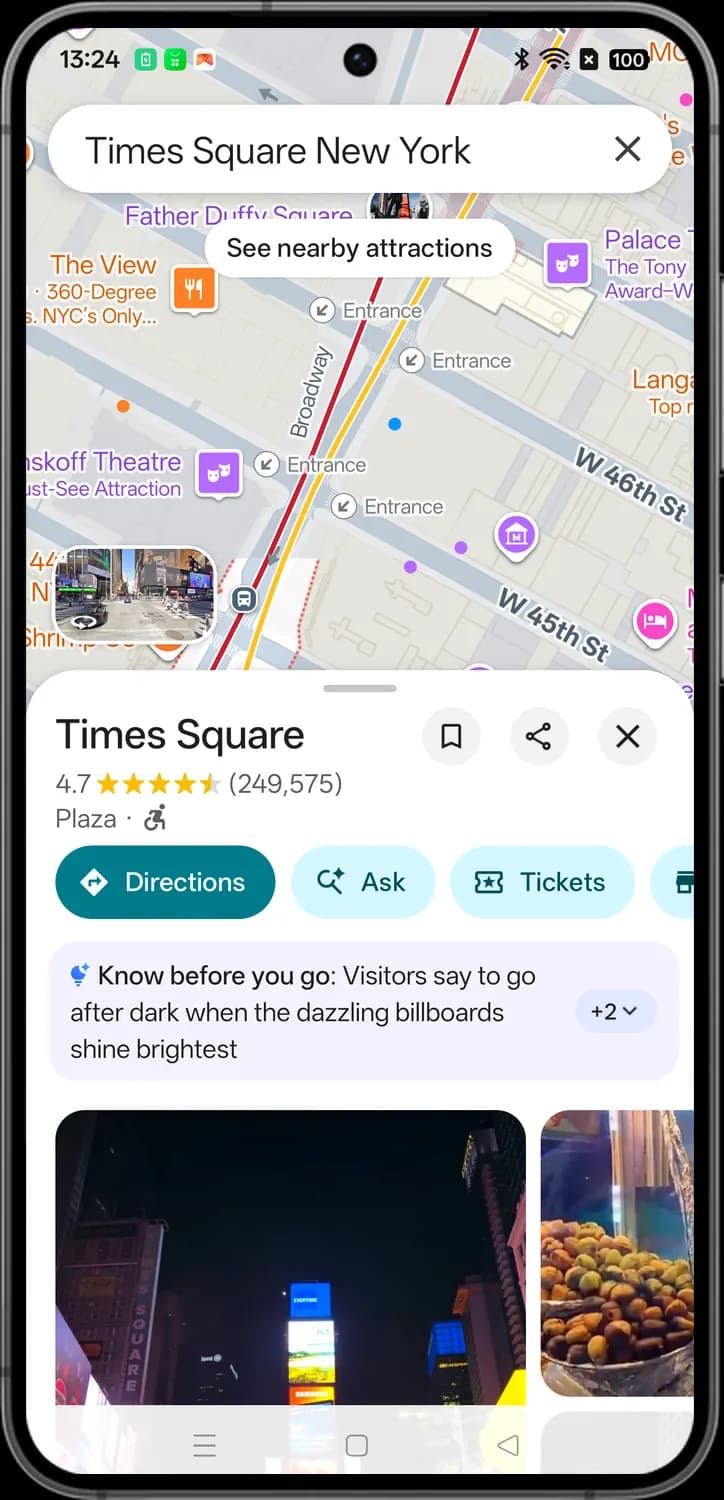

Directions
Gets a route to this place by car, transit, on foot or by bike.

Ask
The magnifier with a sparkle. Ask Maps a question about this place, like whether it is busy at night, and Gemini answers from reviews and place details.

Tickets
The ticket with a star. Lists tickets and tours for this place that you can book through Google's partners.
More tips
The Know before you go box sums up what visitors say in their reviews. Tap +2 to see the other tips.
Photos and summary
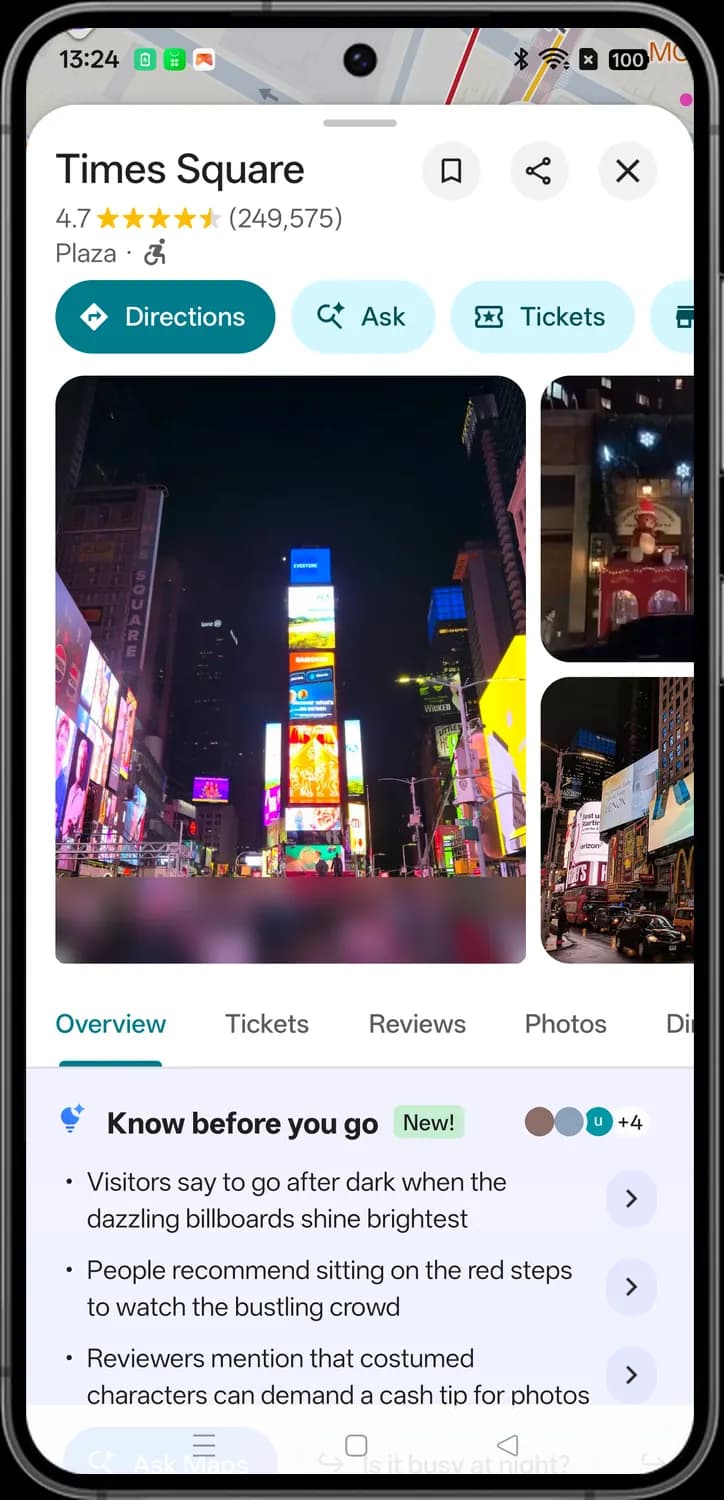

Know before you go
The light bulb with a sparkle marks an AI summary of tips from reviews. The small round photos on the right are some of the people whose reviews it is based on.
Photos and videos
Photos and videos from the business and from visitors. Tap one to open the gallery, or swipe the row for more.
Place details
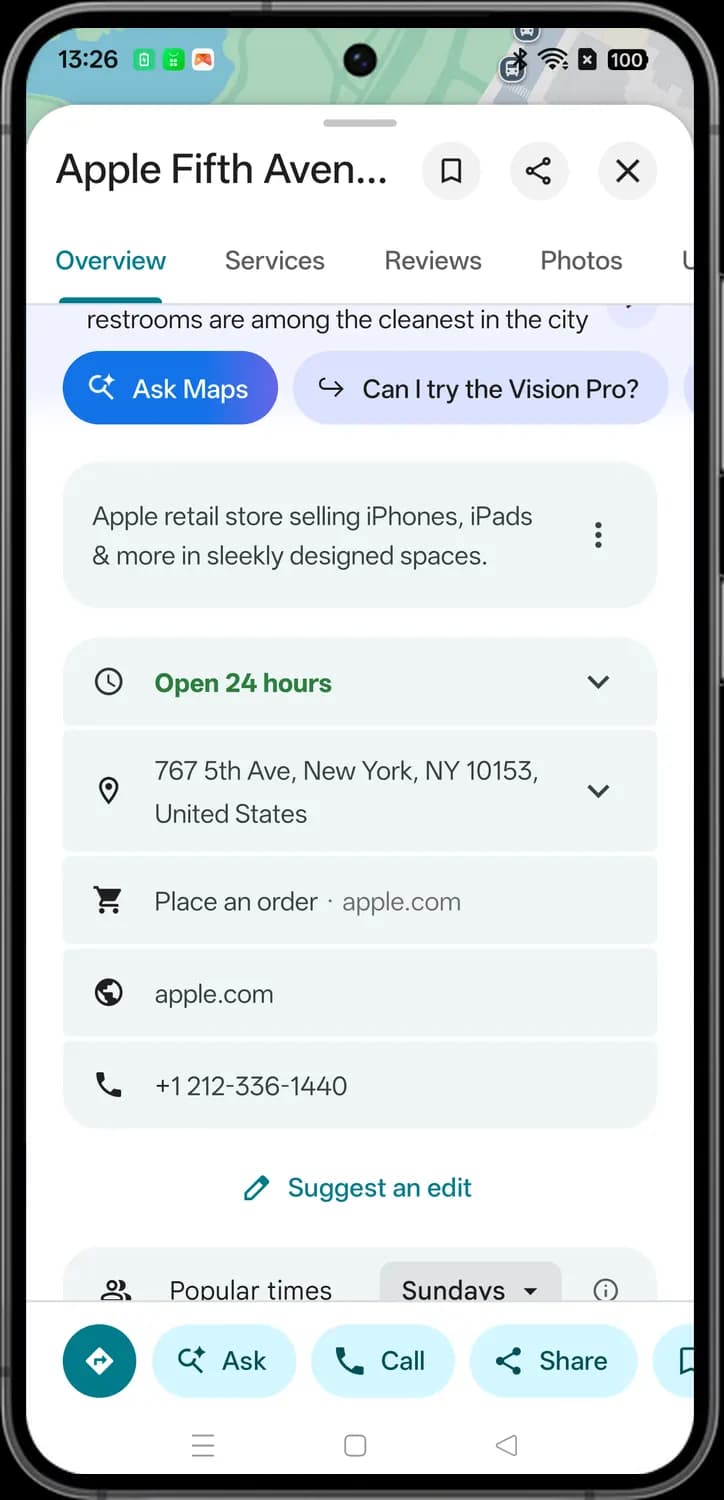
Scroll down a business's Overview tab to reach its details: hours, address, website and phone number. Here it is Apple Fifth Avenue in New York.

Hours
The clock row shows if the place is open now and when it closes. Tap the arrow to see the hours for every day of the week.

Address
The pin row is the street address. Tap it to copy the address.

Place an order
The shopping cart opens the business's own site so you can order from it.

Website
The globe opens the business's website in your browser.

Phone number
Tap the number to call it. It opens your phone's dialer with the number filled in.

Suggest an edit
The pencil. Fix wrong details for this place, like its hours or phone number, or report that it has closed.

Call
When you scroll, the card's buttons stay at the bottom of the screen. Call opens your dialer with the business's number.
Directions
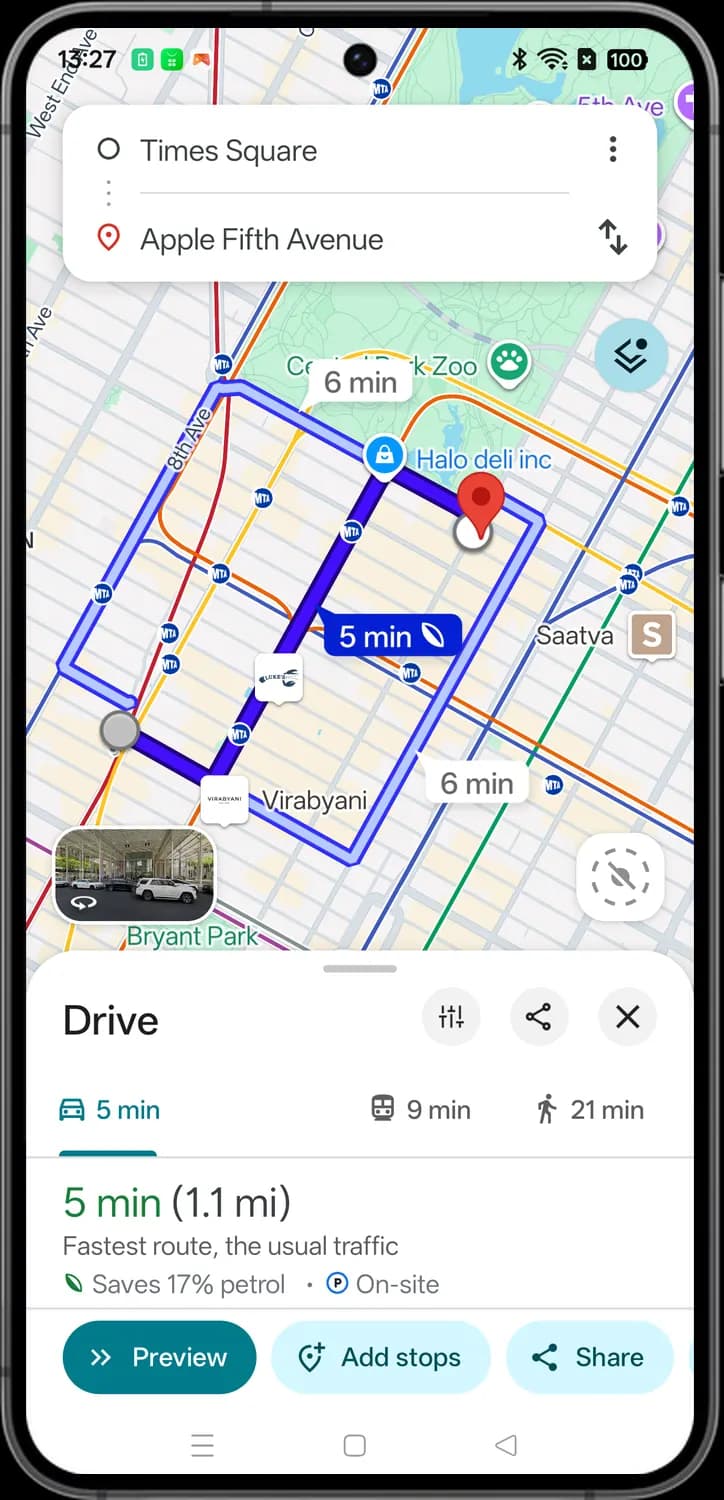
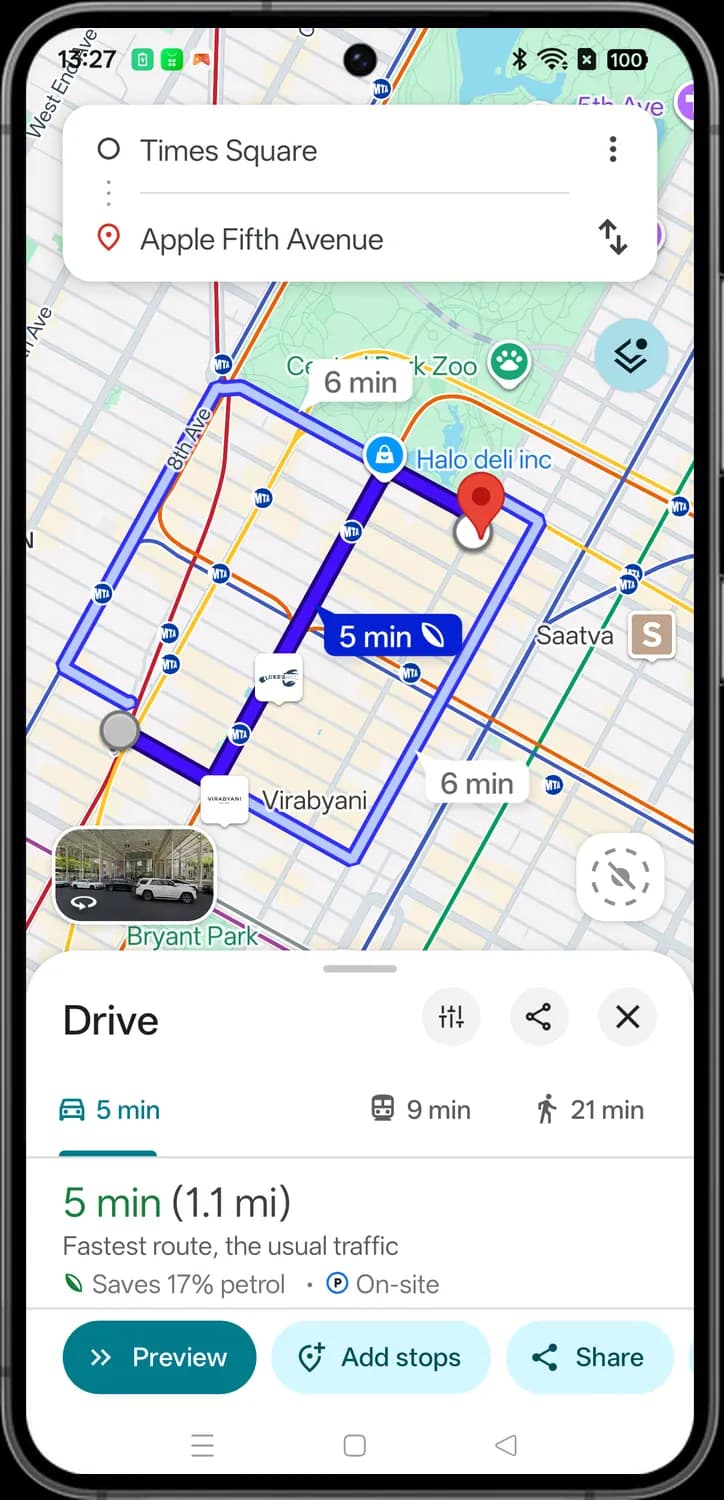
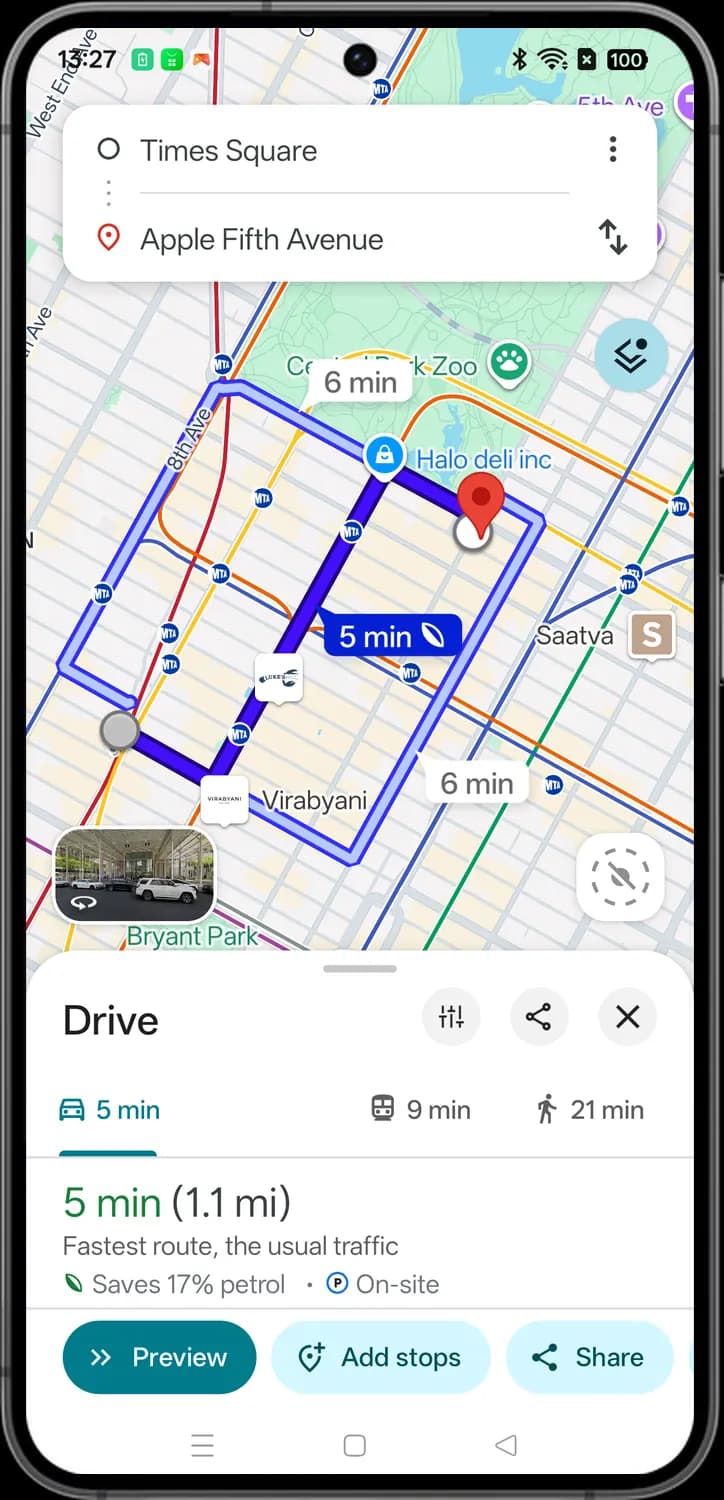
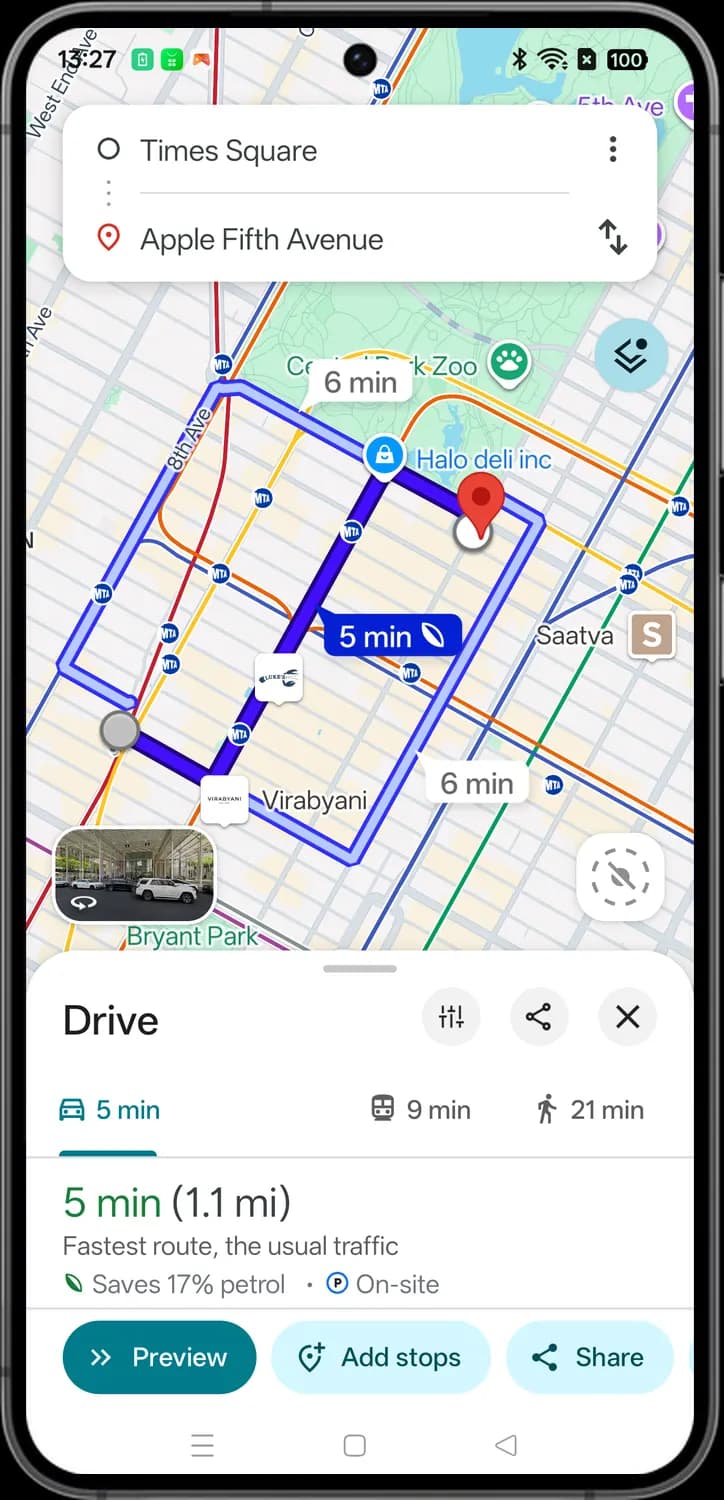
Tap Directions on a place card, or the Directions button on the map, to plan a route. This is Times Square to Apple Fifth Avenue by car.
Route on the map

Start
The empty circle is where the route starts. It is your location unless you pick another place: tap it to change it.

Destination
The red pin is where you are going. Tap it to change the destination.

Swap
The two arrows swap the start and the destination, to get the route back.
Selected route
The dark blue line is the route Maps picked, with its travel time in the blue tag. A leaf in the tag means it is also the most fuel-efficient route.
Other routes
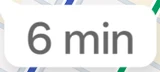
The lighter blue lines are other routes, with their times in white tags. Tap one to switch to it.
Street View preview
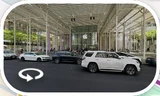
Shows a Street View picture of a turn on your route, so you can see what it looks like before you go.
Travel modes
Route options
The sliders. Set what the route should avoid, like highways, tolls and ferries.

Driving
The car. The route and travel time by car.

Transit
The train. Trips by bus, subway and train, with times and fares.

Walking
The walking person. The route on foot and how long it takes.
Route card

Fuel-efficient route
The leaf means this route uses less fuel (gas) than the others, usually because it has fewer hills and less stop-and-go traffic.

Parking
The P shows parking at your destination. On-site means the place has its own parking.

Preview
Steps through the route turn by turn on the map. You see it in place of Start when you are not at the starting point.

Add stops
The pin with a plus. Adds stops along the way, like a coffee break.
Transit
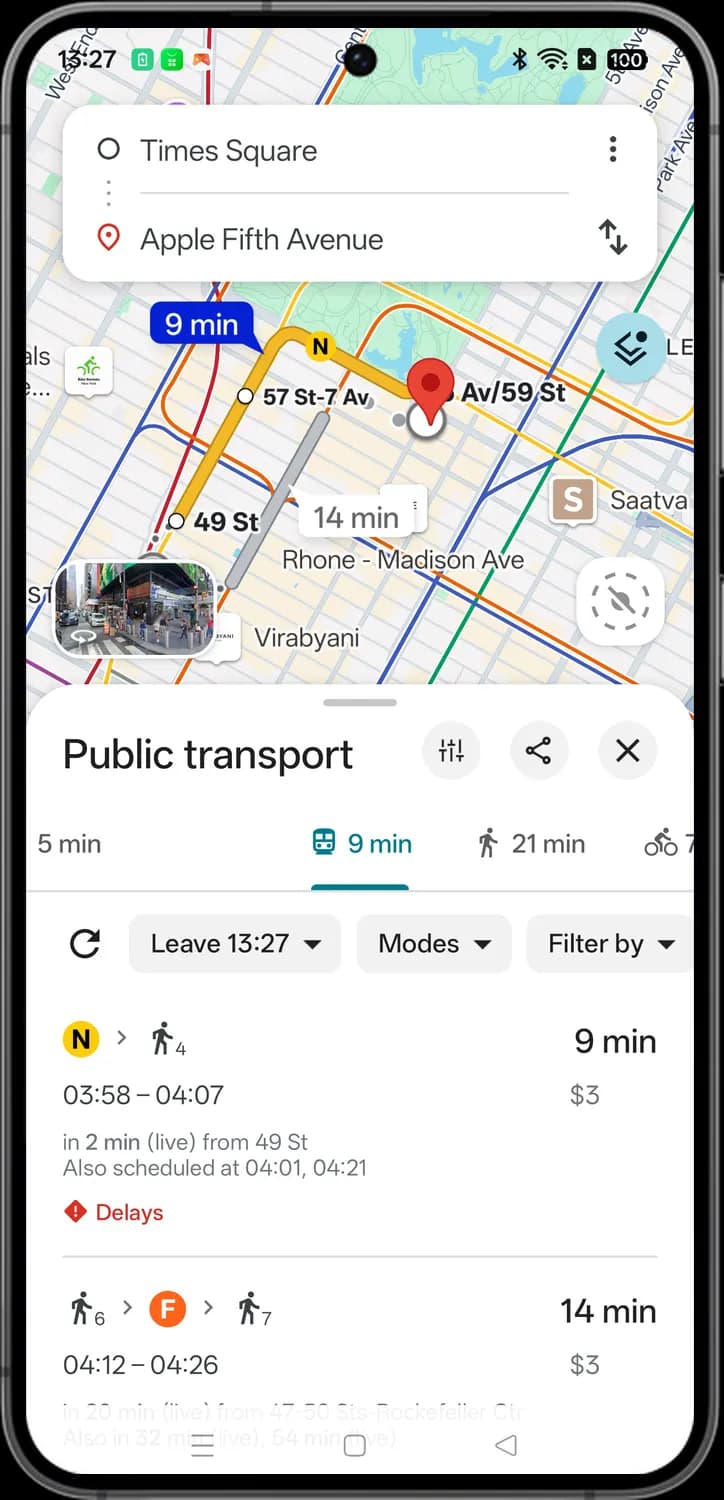
Tap the train icon in the directions to see trips by public transit: each trip lists the lines to take, the walks in between, the times and the fare.
Options

Stop on your route
White circles on the route are the stations where you get on or off, with their names.

Bicycling
The bicycle. Swipe the row of travel modes to reach it: a route by bike that prefers bike lanes and trails.

Refresh
The circular arrow reloads the trips with the latest live times.
Departure time
Pick when you leave, or switch to Arrive by to get there by a set time.

Modes
Pick the kinds of transit you prefer, like bus, subway or train.
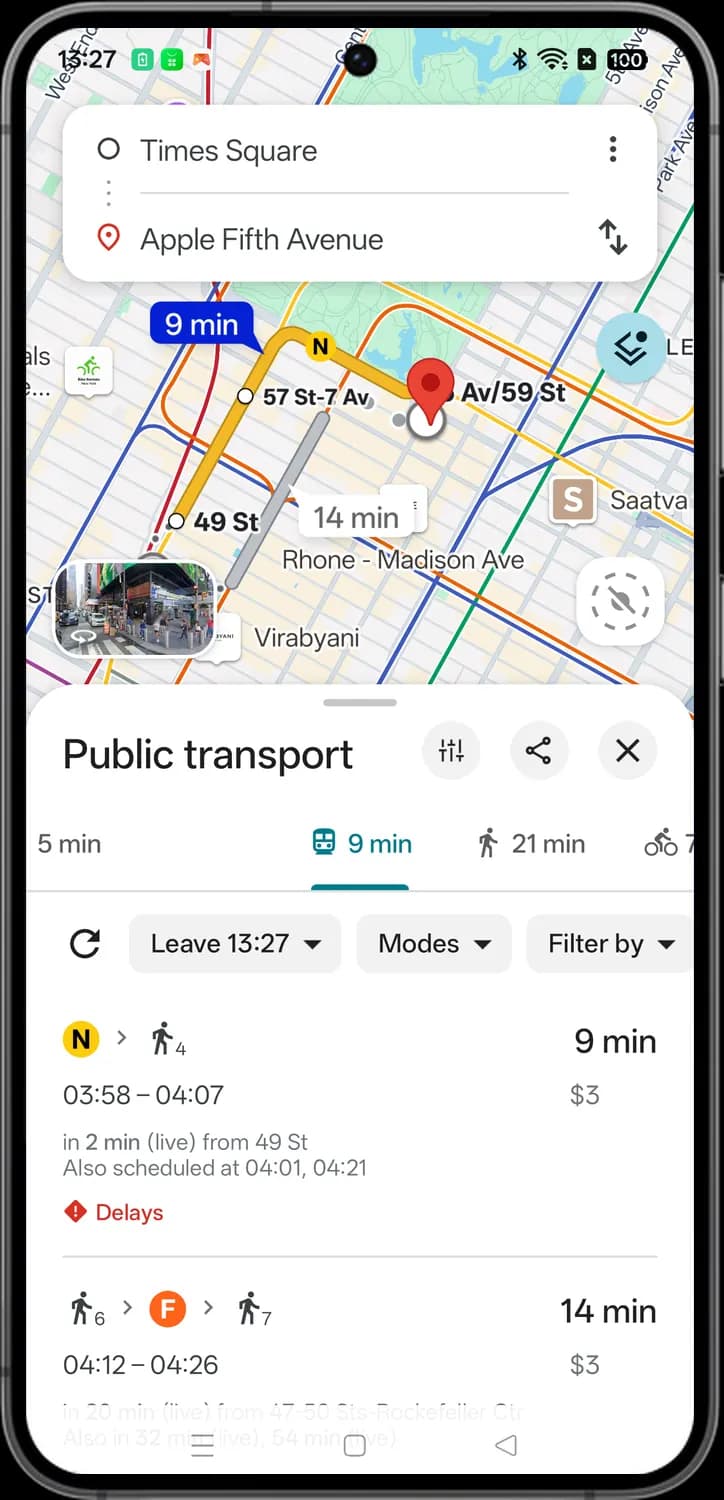
Trip list

Transit line
The round badge is the line to take, in its official color: here the yellow N train. The small arrow leads to the next part of the trip.

Walking part
The walking person with a number is a walk and how many minutes it takes, like from the station to the store.

Delays
The red warning sign means there are delays or service alerts on this line. Tap the trip to read the details.
Layers
Tap the Layers button on the map to change how the map looks and what it shows. The colored border marks what is turned on.
Map type
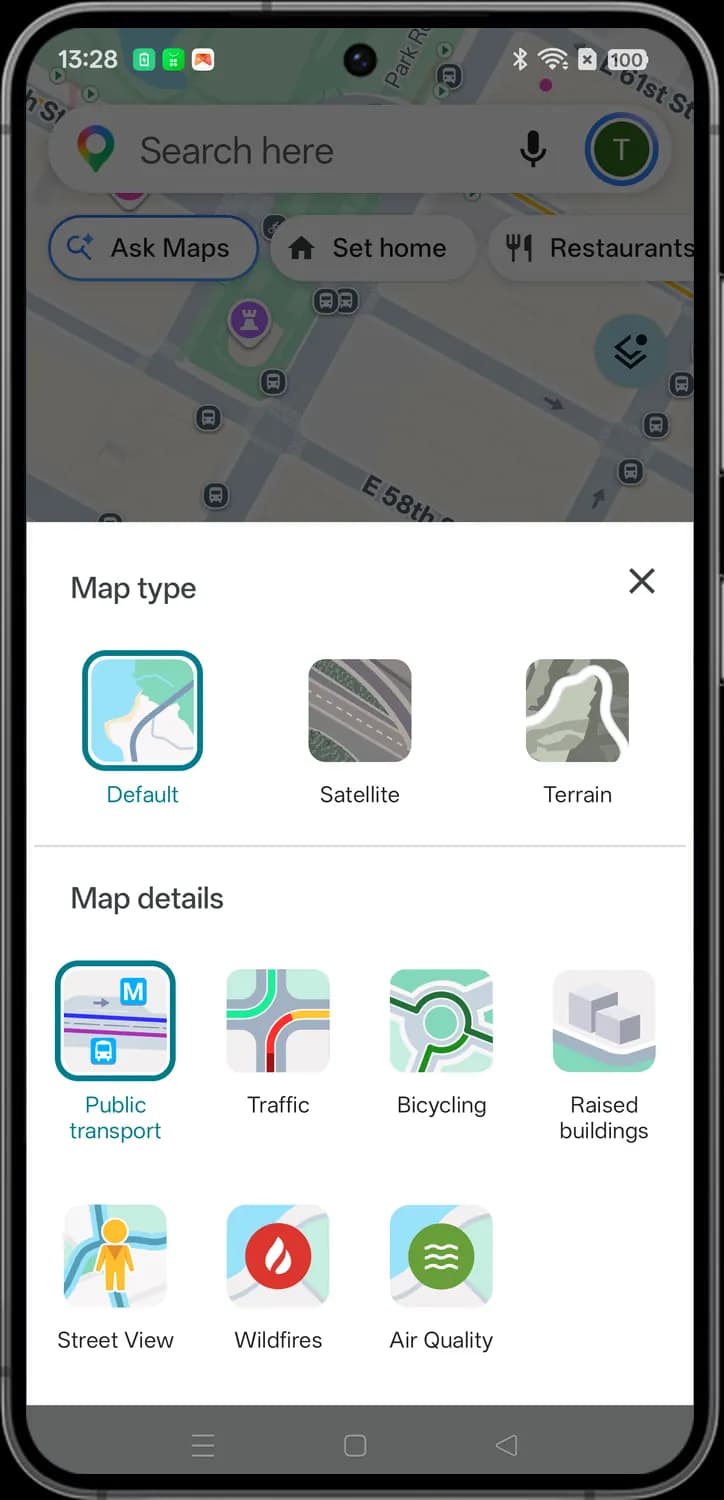

Close
Closes the Layers panel and goes back to the map.
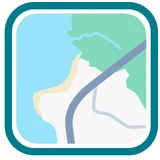
Default
The standard map with streets, place names and pins.
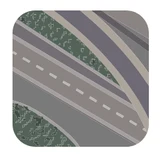
Satellite
Shows aerial photos instead of the drawn map, with roads and labels on top.
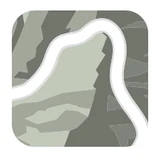
Terrain
Adds shading and contour lines so you can see hills and mountains.
Map details
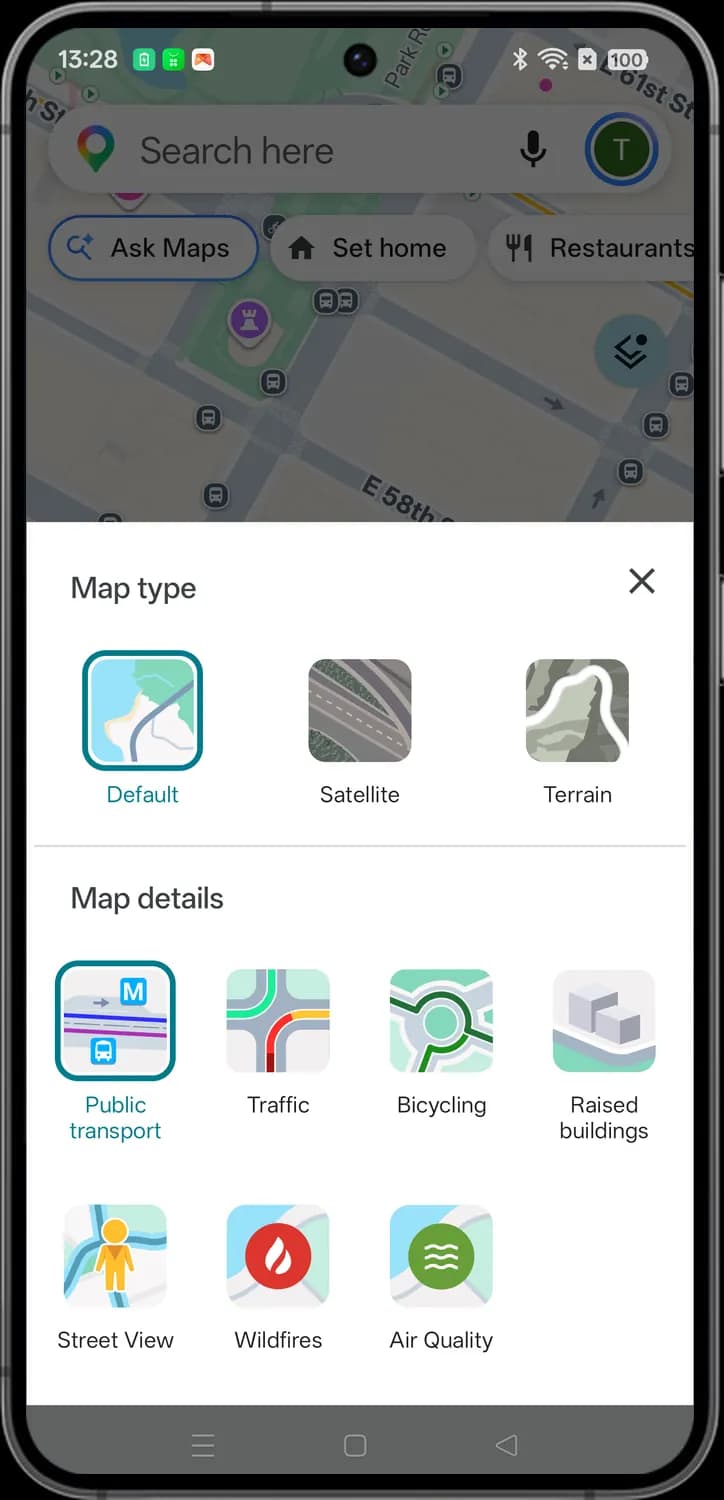
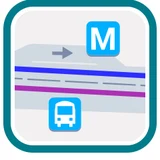
Transit
Draws subway, train and bus lines on the map in their own colors, with the stations.
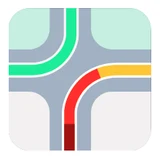
Traffic
Colors roads by live traffic: green for clear, orange for slower and red for heavy jams.
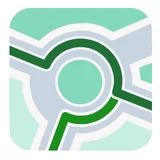
Bicycling
Shows bike lanes, trails and bike-friendly roads.
Raised buildings
Shows buildings as 3D blocks when you zoom in close.
Street View
Highlights the streets that have Street View in blue. Tap a blue line to look around there.
Wildfires
Shows active wildfires on the map.
Air Quality
Colors the map by the Air Quality Index (AQI), from green for good air to red and purple for unhealthy air.
You tab (saved places)
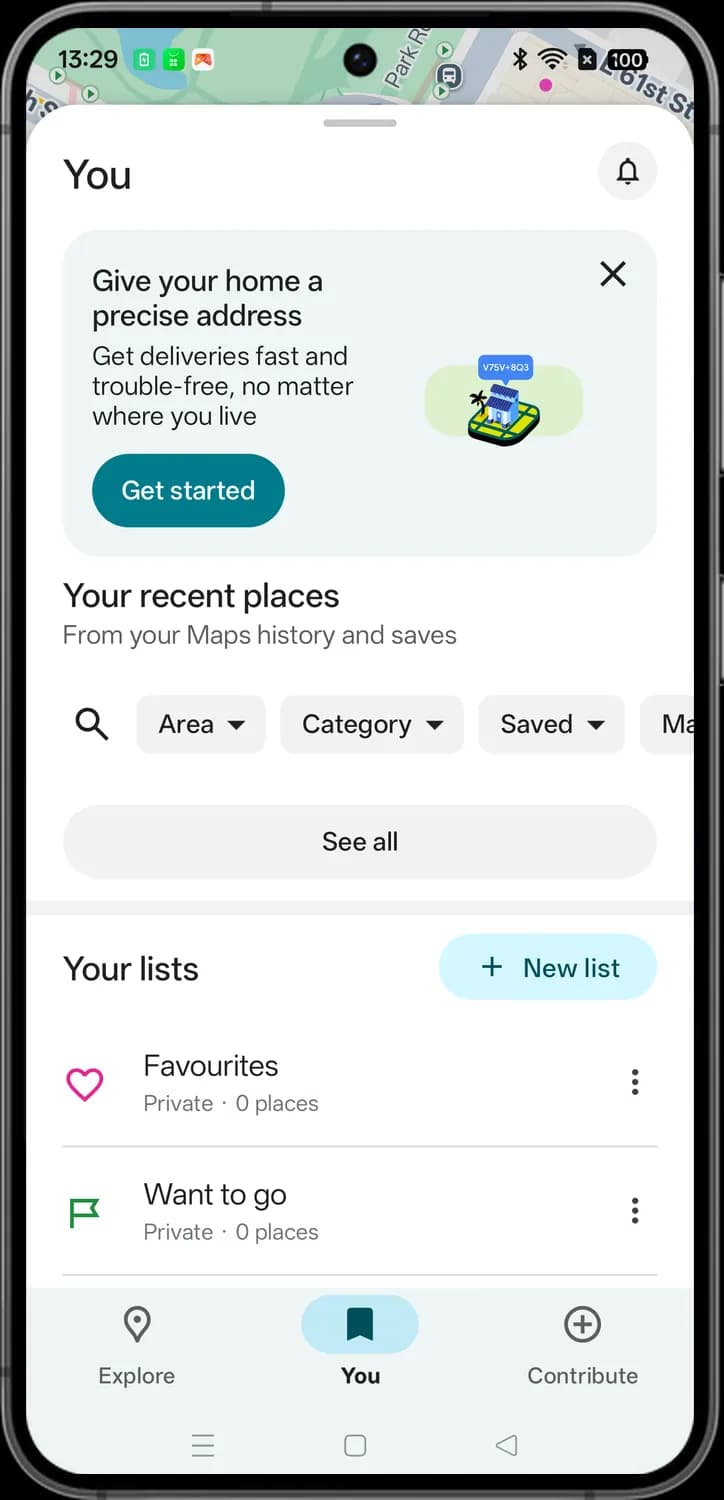
The You tab, in the middle of the bottom bar, holds your recent places, your saved lists and Timeline.
Recent places
Notifications
The bell. Your Maps notifications, like replies to your reviews and news about places you saved.

Close card
The X dismisses the tip card at the top of the tab.

Search your places
The magnifier searches your saved and recent places by name or note.
Filters
Narrow your recent places by area, category, saved list or Maps history. Each chip opens a list to pick from.

New list
The plus creates a new list of places, which you can keep private or share.
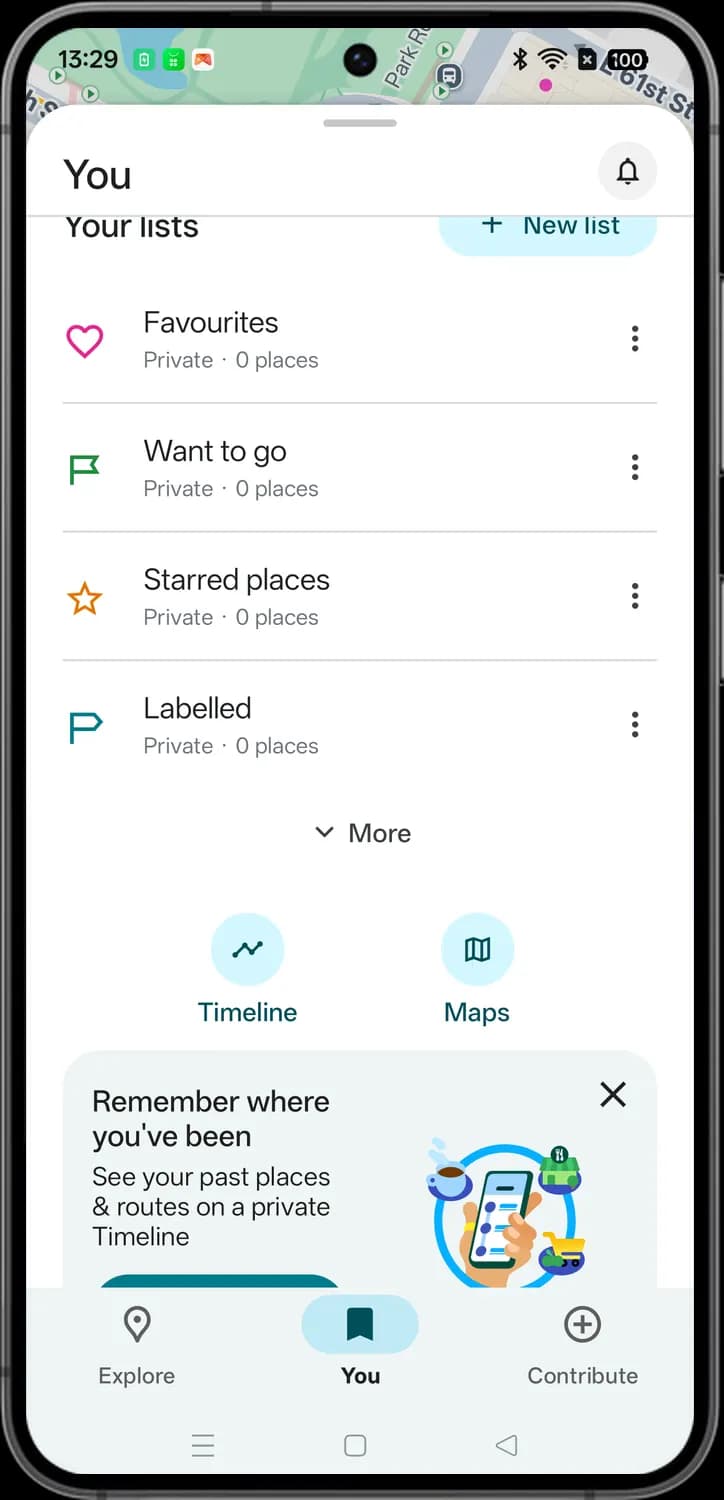
Your lists

Favorites
The heart is the Favorites list, for places you love.

Want to go
The flag is the list for places you plan to visit.

Starred places
The star is the list of places you saved with a star.

Labeled
The label holds places you gave a private name, like Home, Work or one of your own. Only you see labels.

List options
The three dots open options for that list, like sharing or editing it.
Shortcuts
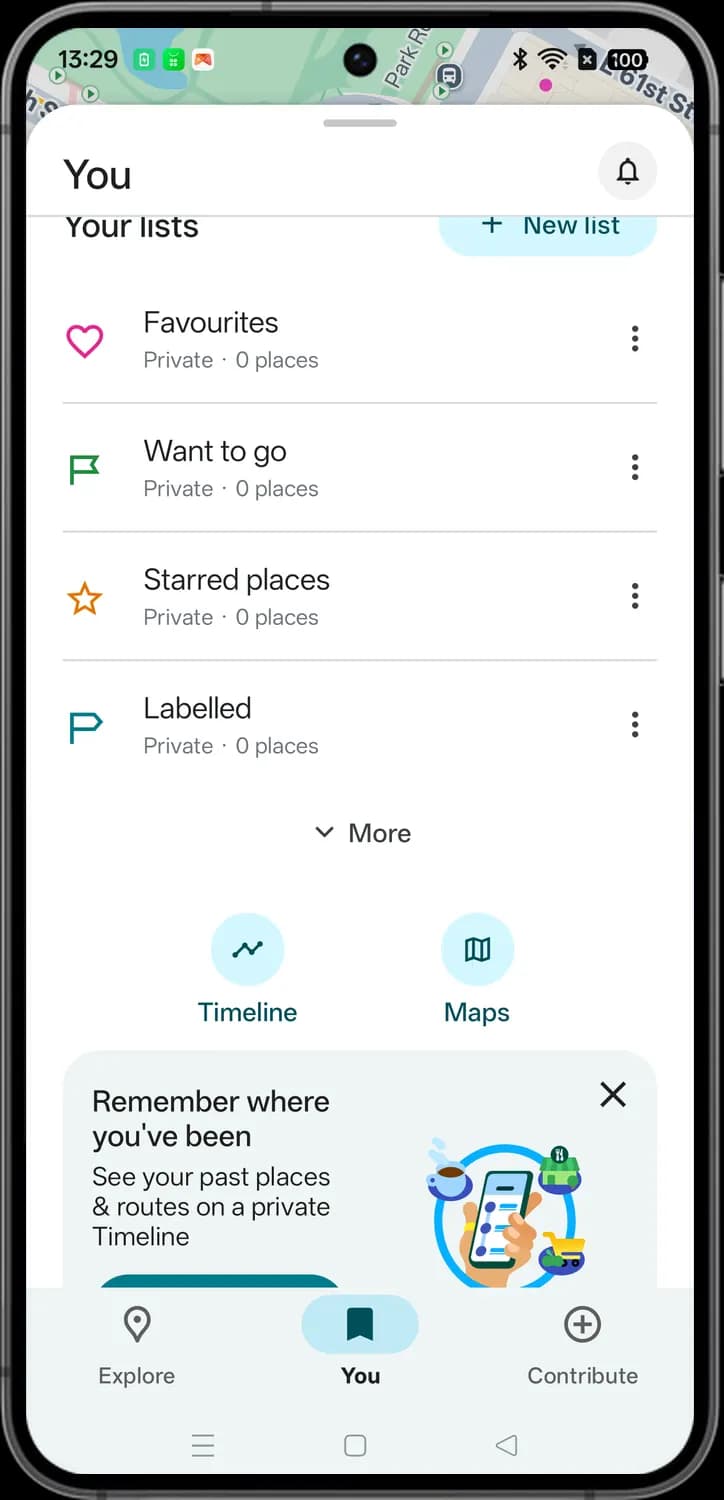

More
Shows the rest of your lists, including the ones you made.

Timeline
The zigzag line opens Timeline, a private record of the places you went and the routes you took. It only fills in if you turn Timeline on.

Maps
The folded map opens your custom maps, the ones you made or saved in Google My Maps.
Contribute
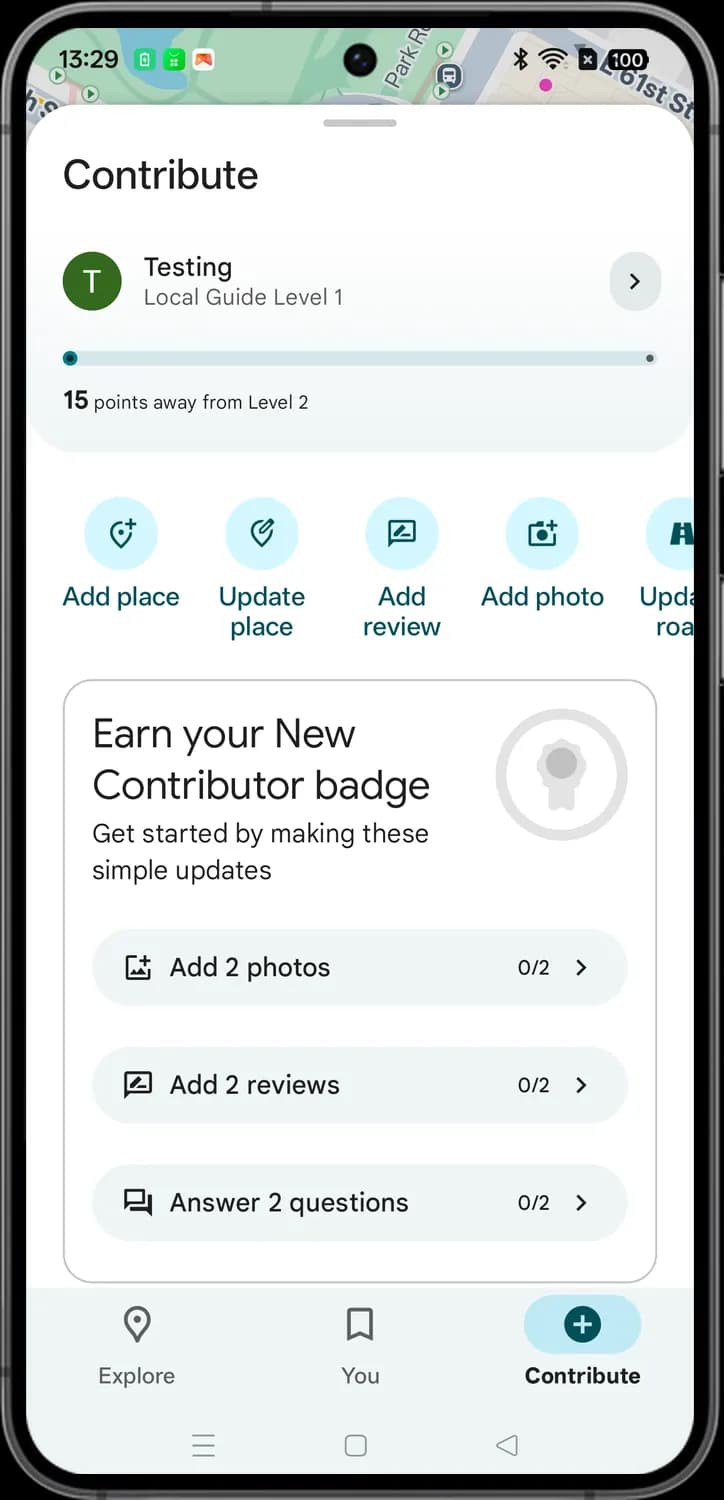
The Contribute tab is where you add to Google Maps. Your edits, reviews and photos earn Local Guides points and badges. Swipe the row of round buttons for Update road, to add or fix a road.

View profile
The arrow opens your Local Guides profile with your level, points and everything you have added.
Add place
The pin with a plus. Adds a missing place, like a new shop or restaurant, to the map.

Update place
The pin with a pencil. Change a place's name, hours or contact details, or report that it has closed.

Add review
Write a review with a star rating for a place you have been to.
Add photo
The camera with a plus. Upload photos that show what a place is like.

New Contributor badge
The badge you earn by finishing the starter tasks below it. It turns from gray to color once you have earned it.

Answer questions
The speech bubbles. Answer quick questions about places you know, like whether they have outdoor seating.
Account menu
Tap your profile picture at the top right of the search bar for the account menu. Scroll it for Your Timeline, Settings and Help.
Account and privacy
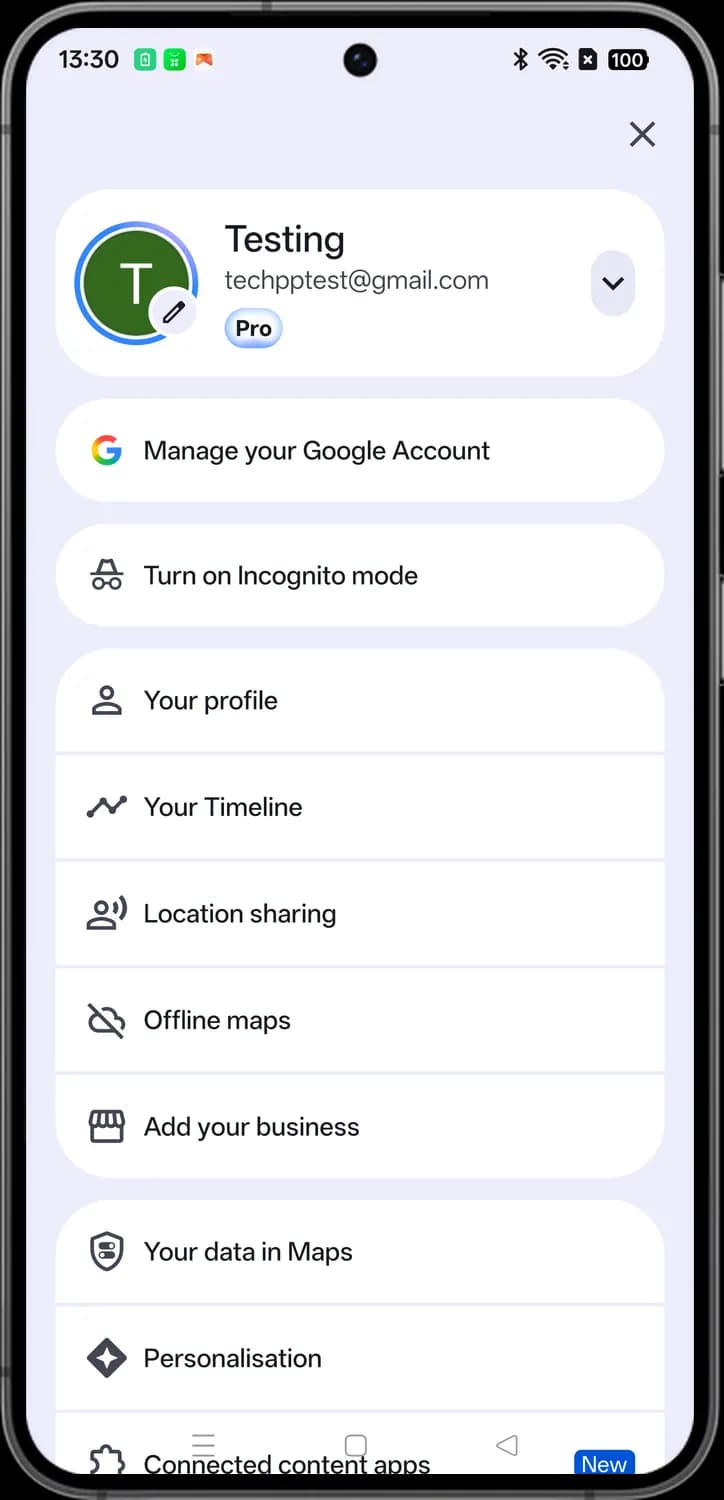

Close
Closes the account menu.

Change profile picture
The pencil on your photo. Tap it to change your Google profile picture.

Switch account
The arrow shows the other Google accounts on your phone, so you can switch to one or add another.

Manage your Google Account
The Google G. Opens your Google Account settings: personal info, security, privacy and data.

Incognito mode
The hat and glasses. Turns on Incognito mode: while it is on, Maps does not save your searches or the places you go to your account.
Menu
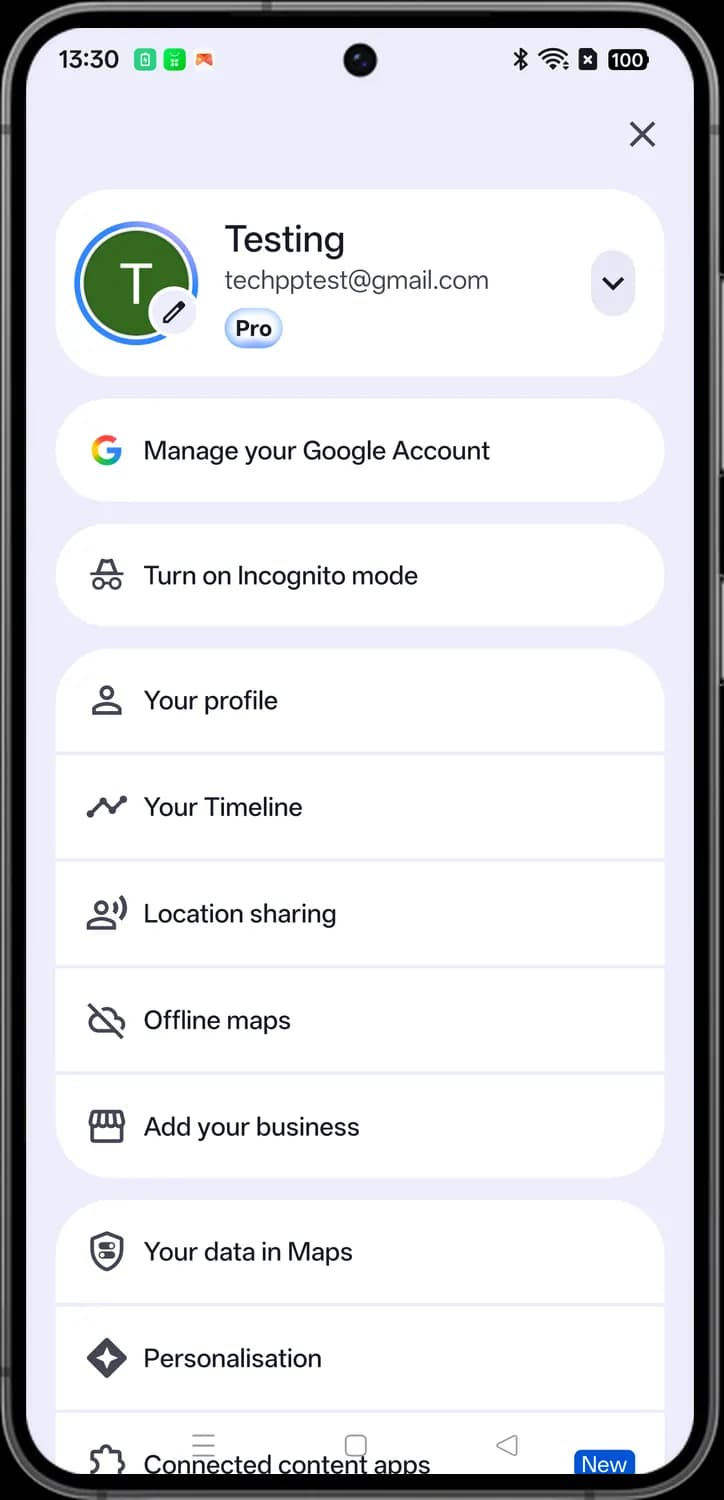

Your profile
Your public Maps profile, with the reviews, photos and lists you have shared.

Location sharing
Share your real-time location with people you choose, for a set time or until you turn it off.

Offline maps
The crossed-out cloud. Download an area so you can see the map and get driving directions without an internet connection.

Add your business
The storefront. Put your own business on Google Maps with a free Business Profile.

Your data in Maps
The shield. See and manage what Maps saves about you, like your Maps history and Timeline.

Personalization
The sparkle. Settings for how Maps uses your activity and preferences to pick suggestions for you.
Those are the meanings of Google Maps icons and symbols. Google keeps adding new features to Maps, so we update this guide every time the icons change, and you can bookmark this page to stay updated. These screens are from Google Maps for Android, and most icons mean the same thing on iPhone. For more icon guides, you can also visit our TechPP icon guides.
Comments
0Share your thoughts, questions, or feedback about this guide.