
Google Drive Icons and Symbols Explained
Google Drive looks simple until you need to find something in it. Every file gets a small colored tile for its type, a tiny people badge means it’s shared, and the three dots next to each file open a menu with close to 20 options, from Make available offline to Add to home screen.
In this guide, you will learn what every icon in the latest Google Drive app means, screen by screen. And this is an interactive guide. You can tap on every icon on the screens below to know what it does.
Home screen
This is the Home tab, the first screen you see when you open the Google Drive app. It has the search bar at the top, a list of suggested files, the Scan and New buttons, and the bottom bar.
Top bar
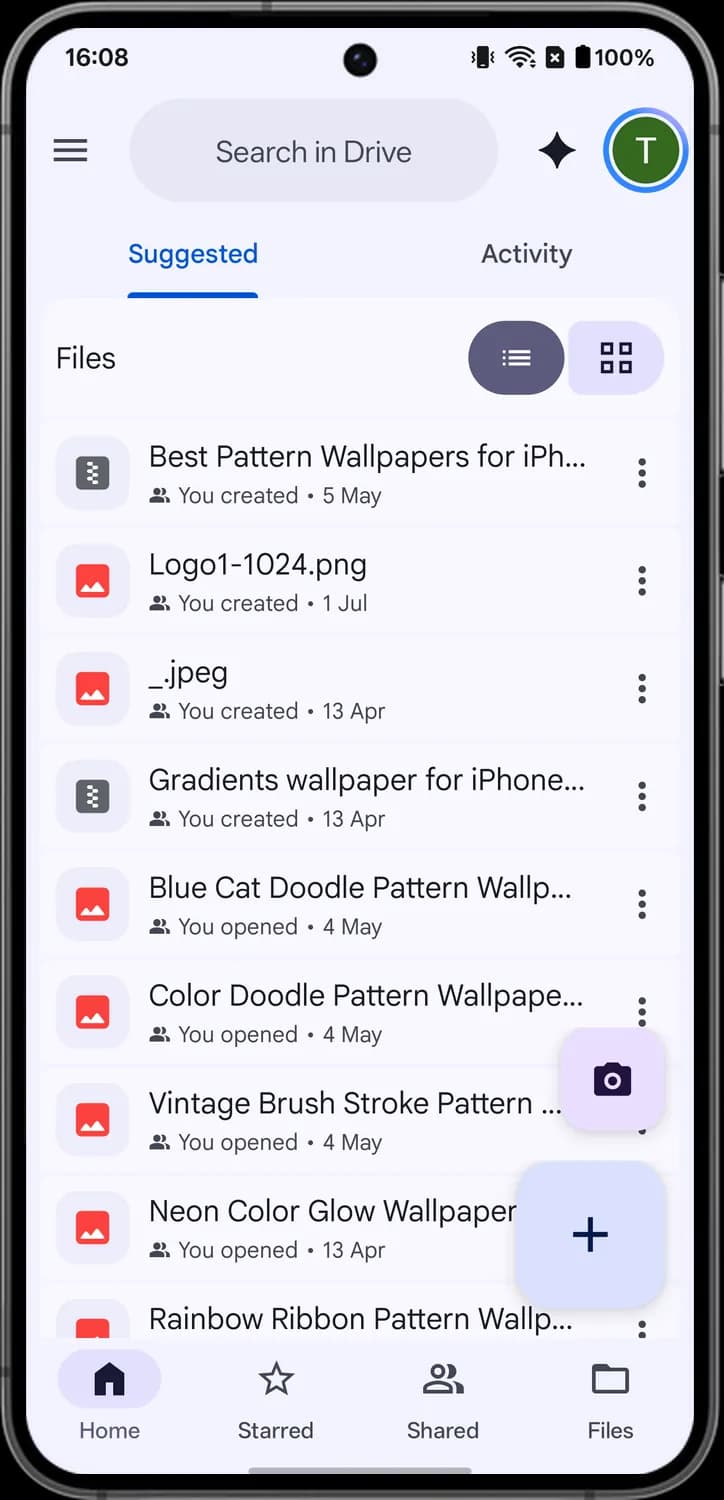

Main menu
The three lines at the top left. Tap it to open the side menu with Recent, Offline, Trash, Spam, Settings and Help.

Search
The gray pill that says Search in Drive. Tap it to search your files by name, type, owner or date.

Ask Gemini
The four-pointed sparkle. Tap it to open Gemini and ask questions about the files in your Drive.

Account
Your profile picture at the top right. Tap it to switch Google accounts, check storage or manage your account.

Suggested
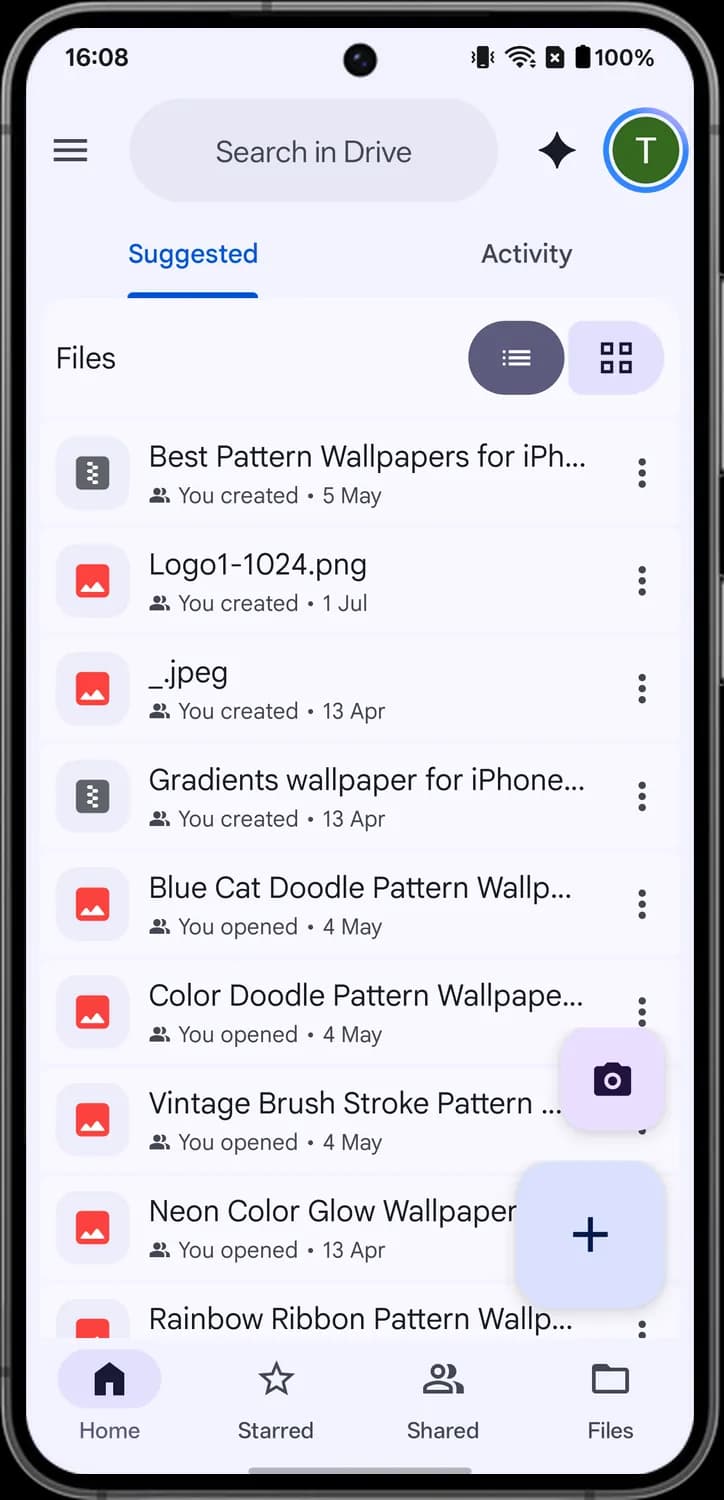
The Suggested tab. It lists files Drive thinks you will need next, based on what you opened and edited recently.
Activity
The Activity tab. It shows files with new comments, edits or share requests that need your attention.
File list

View as list
The lines with dots. Shows your files as a compact list, one file per row.

View as grid
The four squares. Shows your files as large cards with a preview of each file.

File type icon
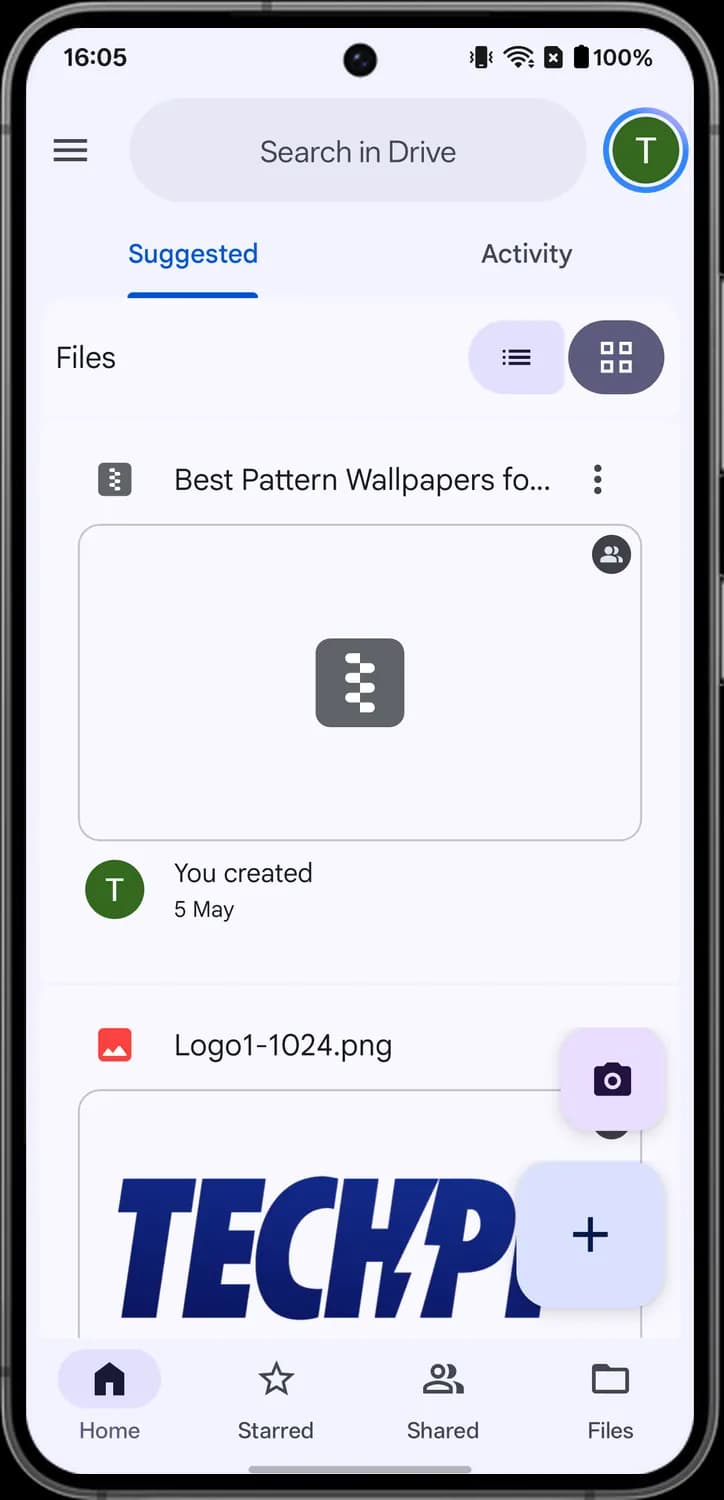
The colored tile at the left of each file. A red picture means an image and a gray zipper means a compressed zip archive.

Shared people badge
The small two-people icon before the date. It means the file is shared with other people.

More actions
The three dots at the right of a file. Tap it to open the file menu with Share, Download, Rename, Move to trash and more.
Buttons and bottom bar

Scan document
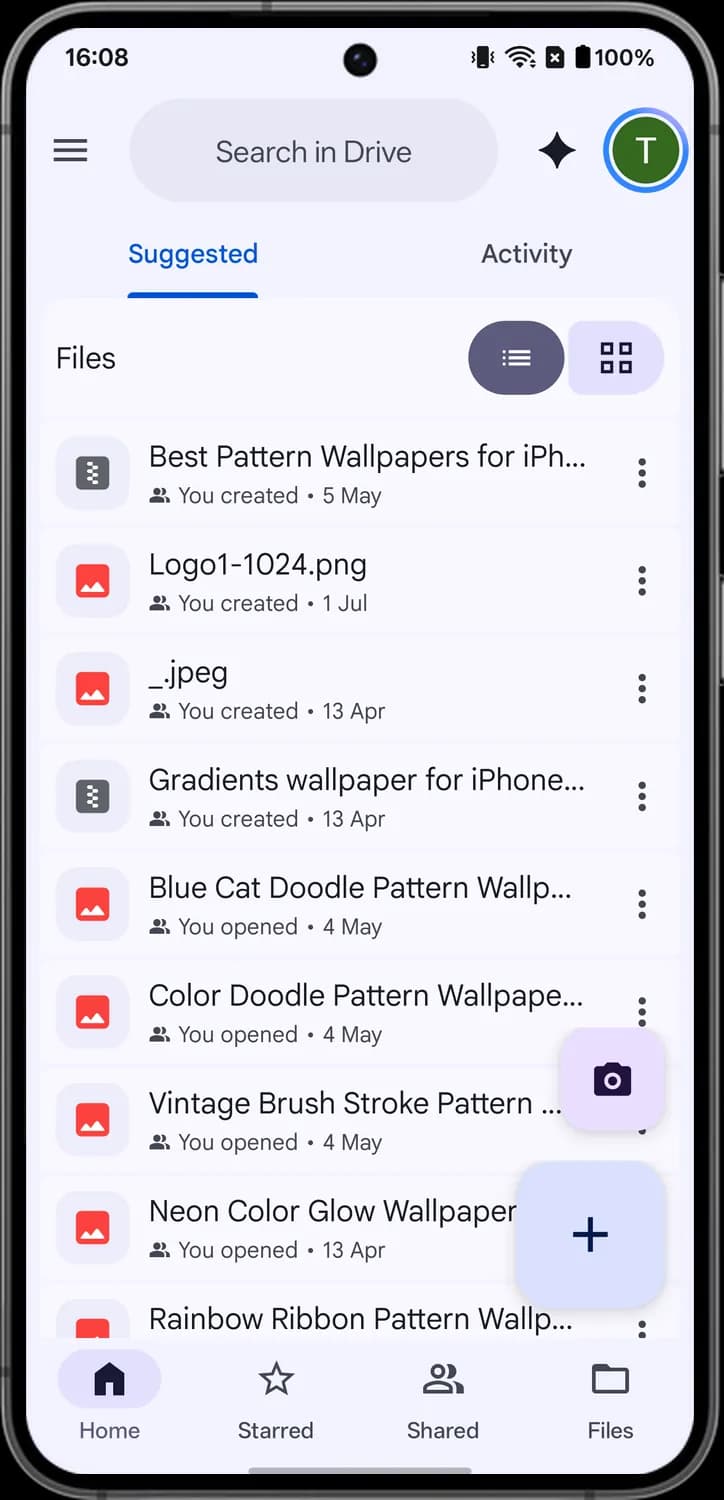
The camera button. Tap it to scan a paper document with your camera and save it to Drive as a PDF.

Create new
The big plus button. Tap it to create a new Doc, Sheet or Slides file, upload files, scan or make a folder.

Home
The house. Brings you back to this Home tab with your suggested files.

Starred
The star. Shows the files and folders you starred so you can find them fast.

Shared
The two people. Shows the files other people have shared with you.

Files
The folder. Opens My Drive and Computers so you can browse all your files and folders.
Grid view
Shared badge on thumbnail
The two-people circle on the corner of the preview. In grid view it marks a file that is shared with other people.

Profile picture
The round profile picture under the preview. It shows who did the action written next to it, like You created.
File type icons
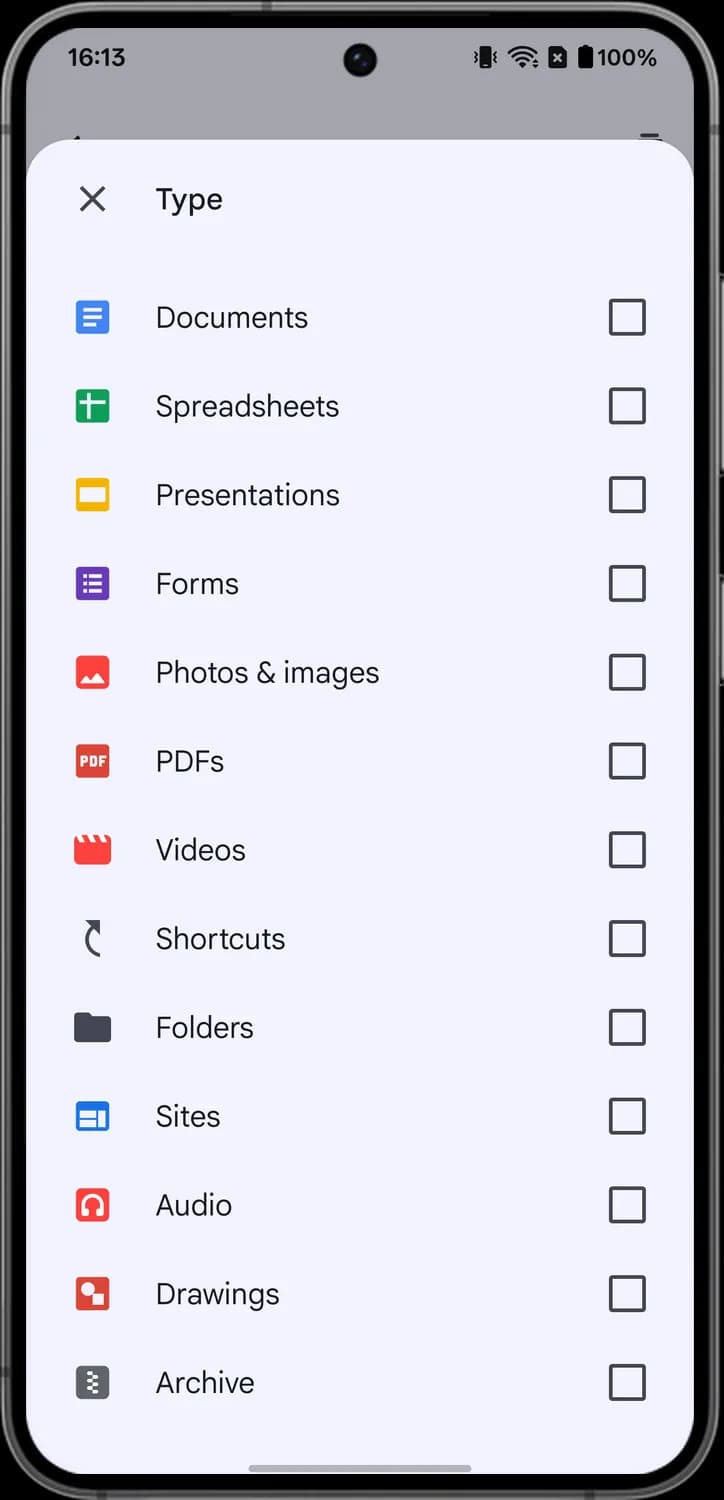
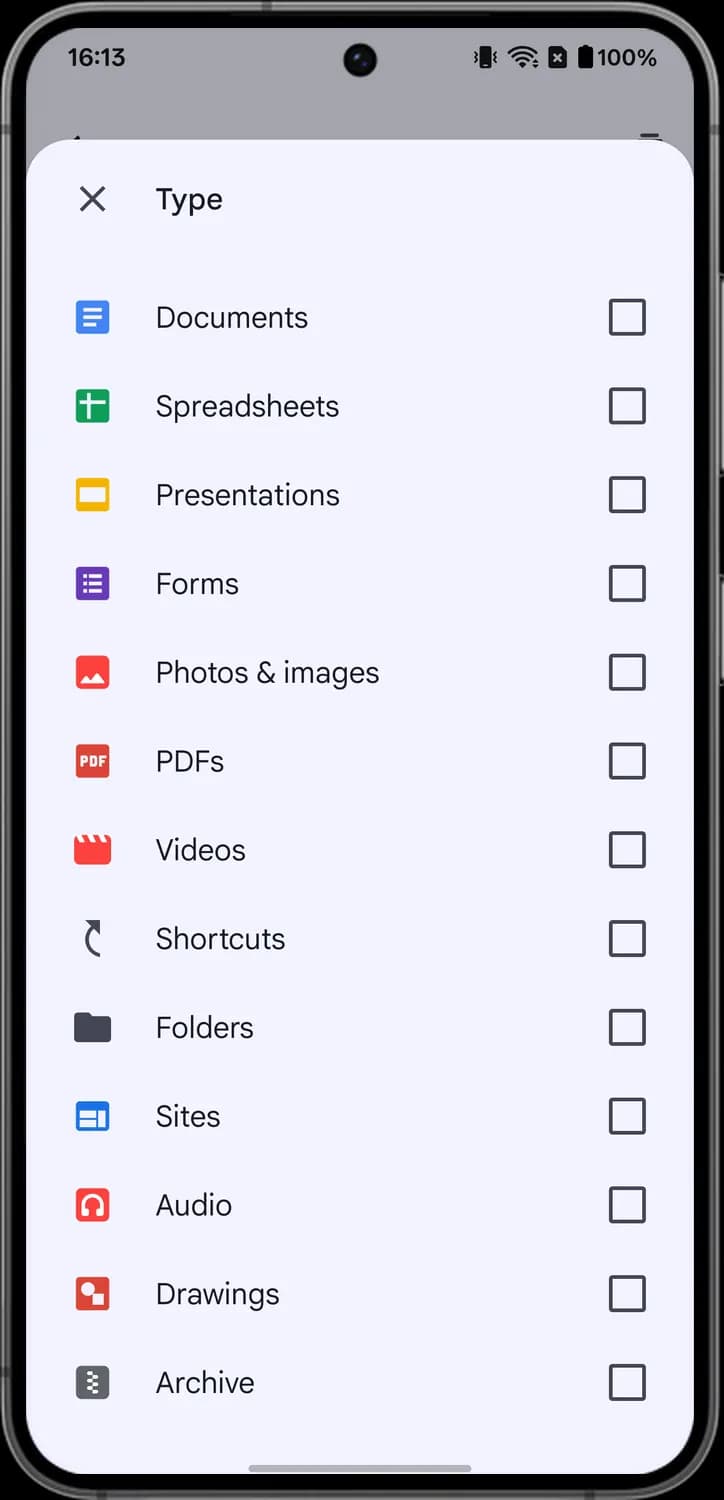
Drive puts a colored icon in front of every file so you can tell what it is at a glance. You see the full set in the Type filter when you search, and the same icons next to each file in your lists.
Type filter, first half

Google Docs
The blue page with lines. It marks a Google Docs document, a file you write in Google's word processor.

Google Sheets
The green sheet with a cross. It marks a Google Sheets spreadsheet.

Google Slides
The yellow rectangle. It marks a Google Slides presentation.

Google Forms
The purple page with a bulleted list. It marks a Google Forms survey or quiz.

Image
The red tile with mountains. It marks a photo or image file, like a JPG, PNG or screenshot.

PDF
The red tile with PDF written on it. It marks a PDF file, like a scanned document.

Video
The red clapperboard. It marks a video file.
Type filter, second half

Shortcut
The curved arrow. It stands for shortcuts, links that point to a file or folder kept somewhere else in Drive.

Folder
The dark gray folder. It marks a folder, which holds files and other folders.

Google Sites
The blue window split into panels. It marks a website made with Google Sites.

Audio
The red tile with headphones. It marks an audio file, like an MP3 or a voice recording.

Google Drawings
The red tile with a circle and a square. It marks a Google Drawings file, such as a diagram or sketch.

Archive (ZIP)
The gray tile with a zipper. It marks a compressed archive, such as a ZIP, TAR or XAPK file.
Files tab and folders
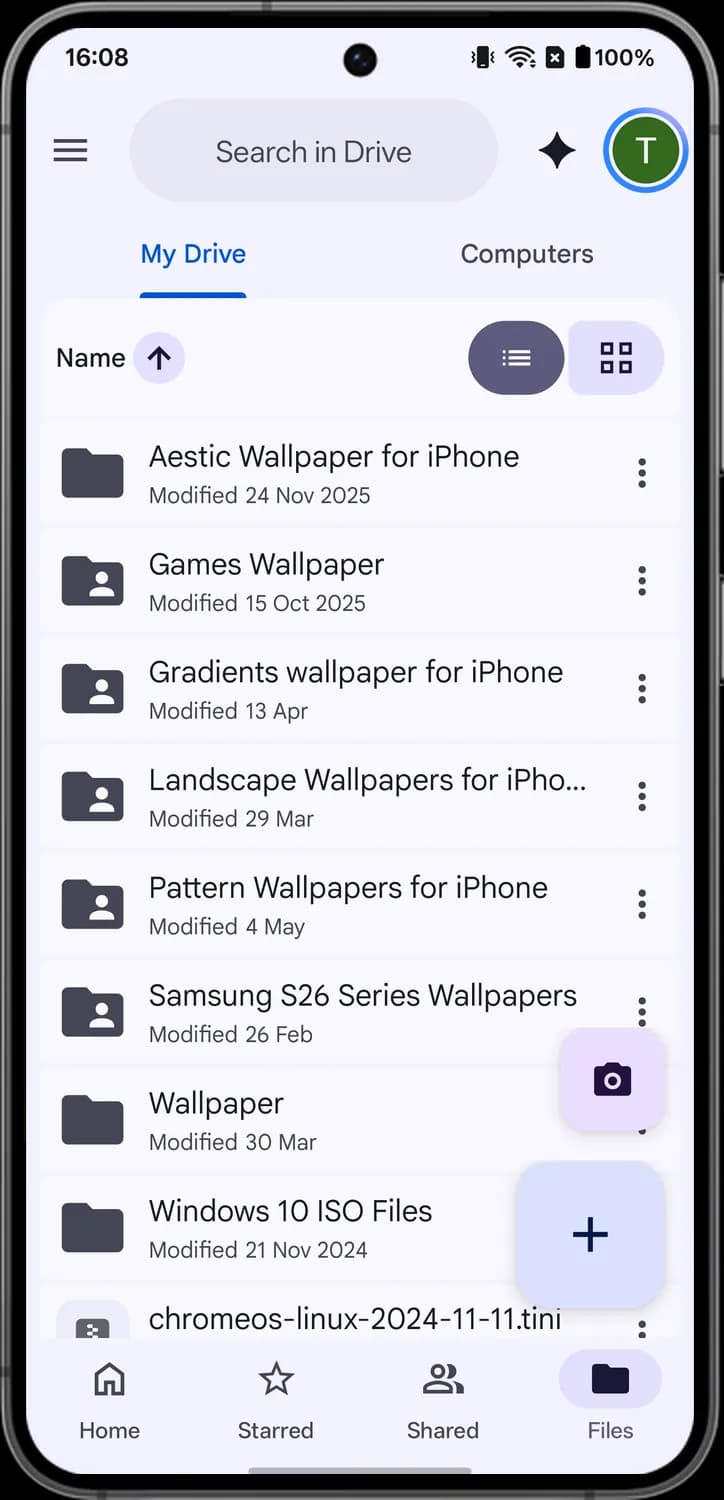
The Files tab at the bottom right shows everything in My Drive, with tabs, a sort button and view switches above the list. Tap a folder to open it, or tap its three dots for the folder menu.
Top of the Files tab

My Drive
The My Drive tab lists the files and folders stored in your own Drive. The blue line under it shows it is the tab you are on.

Computers
The Computers tab shows folders backed up from your computers with Google Drive for desktop.

Sort
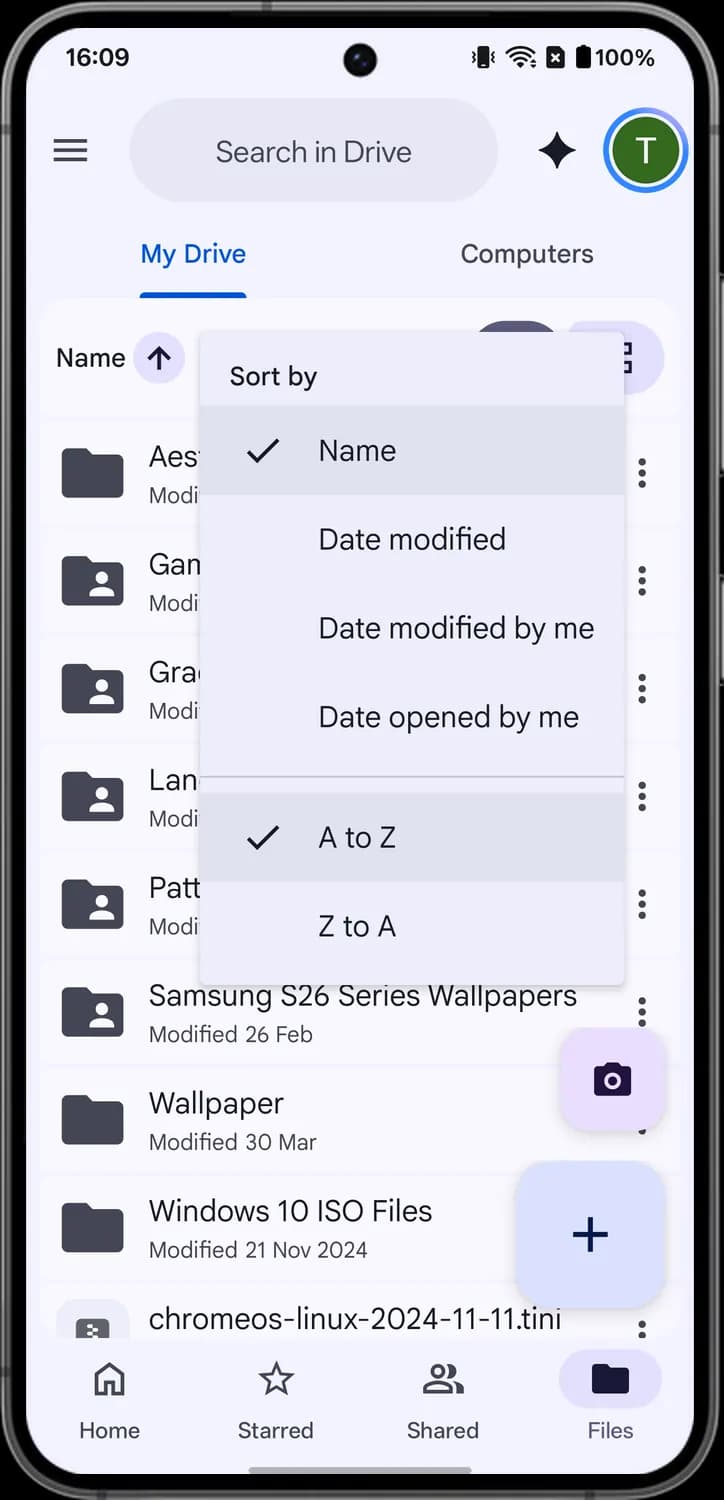
The label and the arrow in a circle show how the list is sorted. Tap it to pick another sort. An up arrow next to Name means A to Z.

List view
The lines with dots. Shows your files as a list with names and dates. It is filled in dark when it is on.

Grid view
The four squares. Shows your files as a grid of large thumbnails instead of a list.
Folder list

Folder
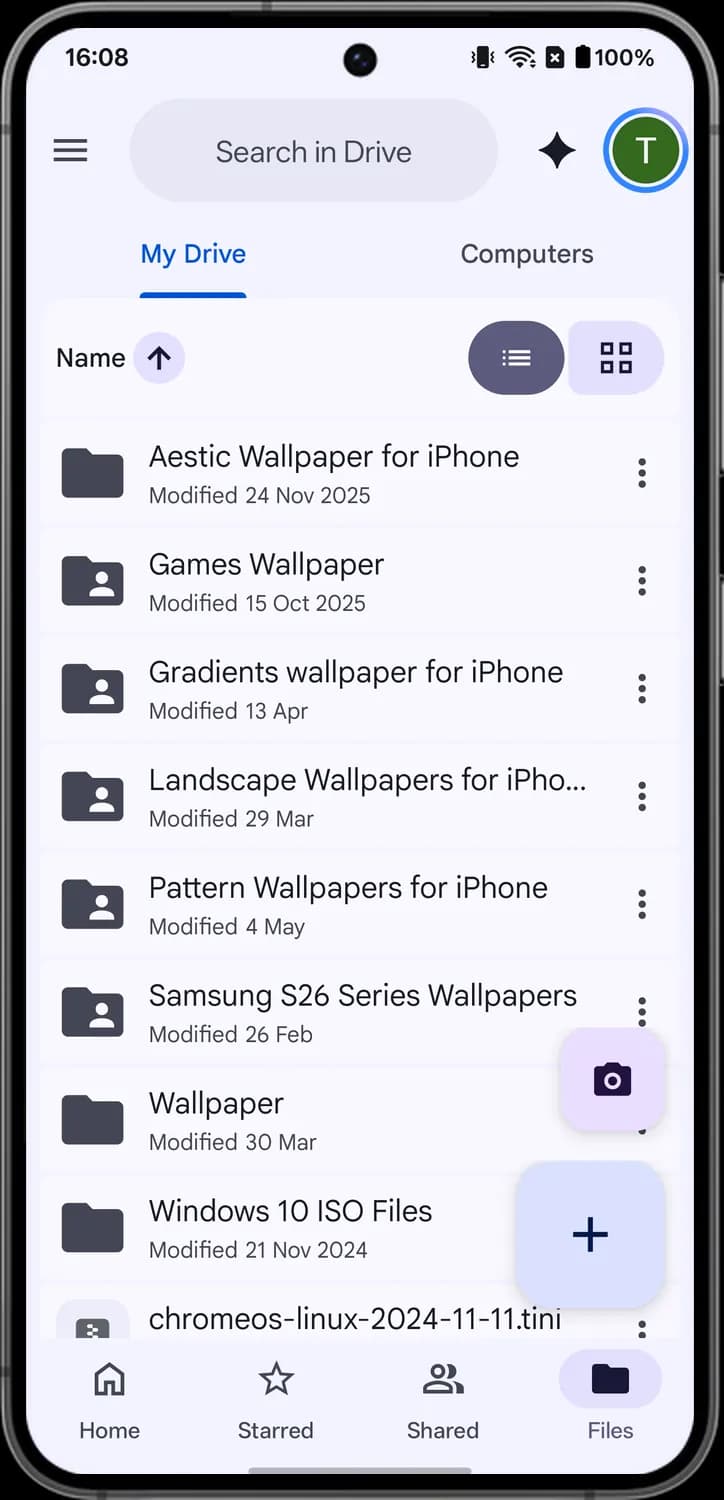
The plain dark folder. A folder that is not shared with anyone.

Shared folder
The folder with a person on it. A folder that is shared with other people.

Folder menu
The three dots at the end of a folder row. Tap them to open the folder menu with Share, Copy link, Rename, Change color, Move and more.
Sort menu

Current sort
In the Sort by menu, the check mark shows what the list is sorted by. You can pick Name, Date modified, Date modified by me or Date opened by me.

Sort direction
The second check mark shows the order. When you sort by Name, you pick A to Z or Z to A.
Inside a folder

Back
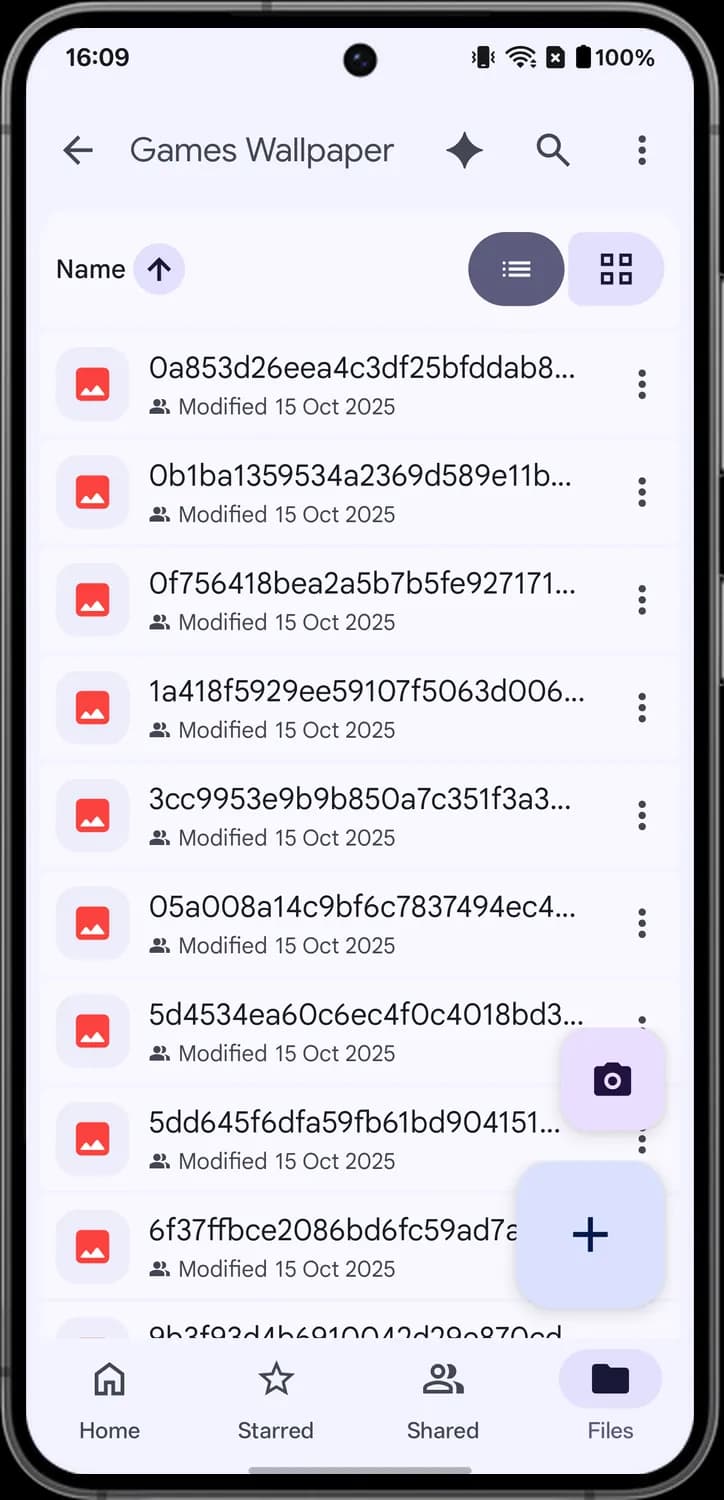
The left arrow at the top of a folder. Takes you back to the previous folder.

Ask Gemini
The four-point spark. Opens Gemini so you can ask questions about the files in this folder.

Search in this folder
The magnifying glass. Searches for files inside the folder you are in.

More actions
The three dots at the top right. Opens more actions for the folder you are in.
Folder menu
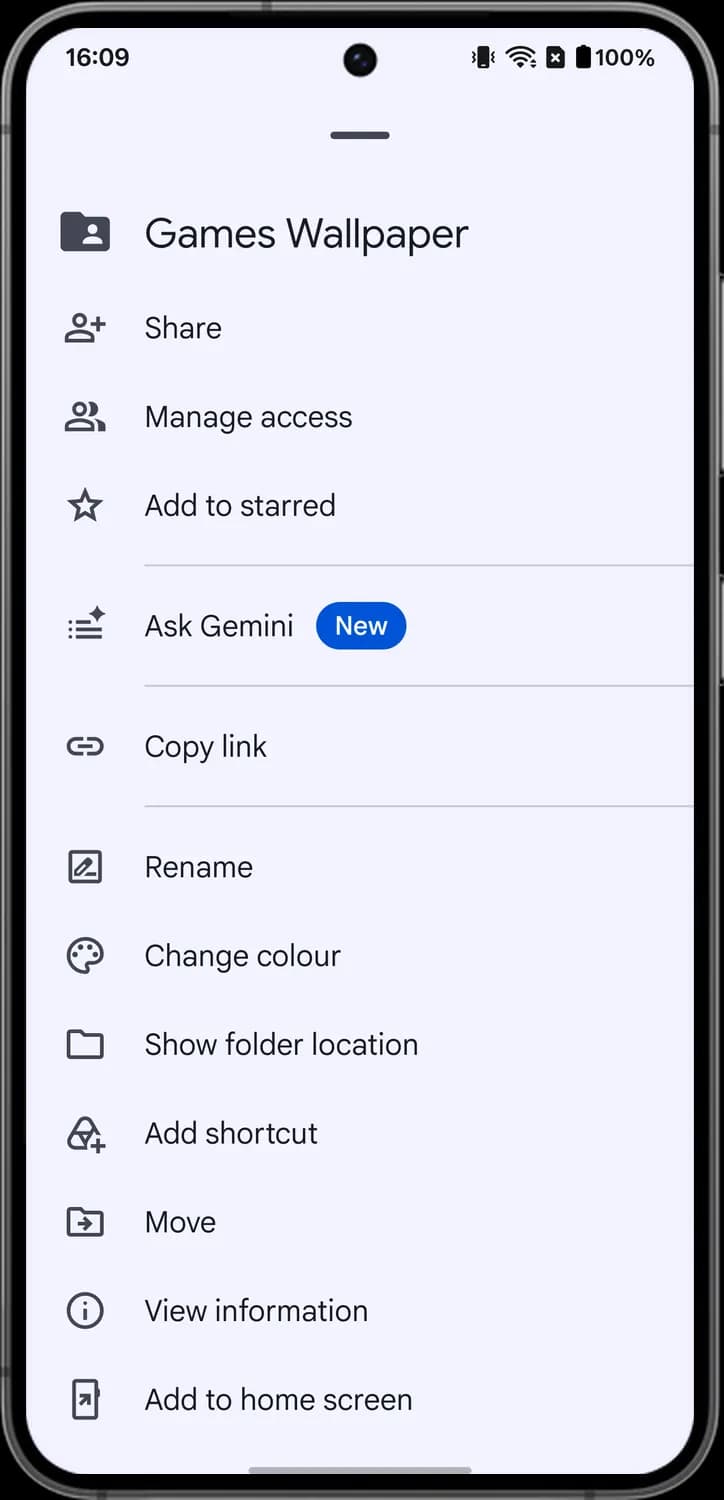

Change color
The paint palette. Lets you give the folder a color so it stands out in your list.

Show folder location
The outline folder. Takes you to the folder that holds this one.
The file menu (three dots)
Tap the three dots next to any file to open this menu. It holds almost everything you can do with a single file, from sharing it to moving it to the trash.
Top of the menu
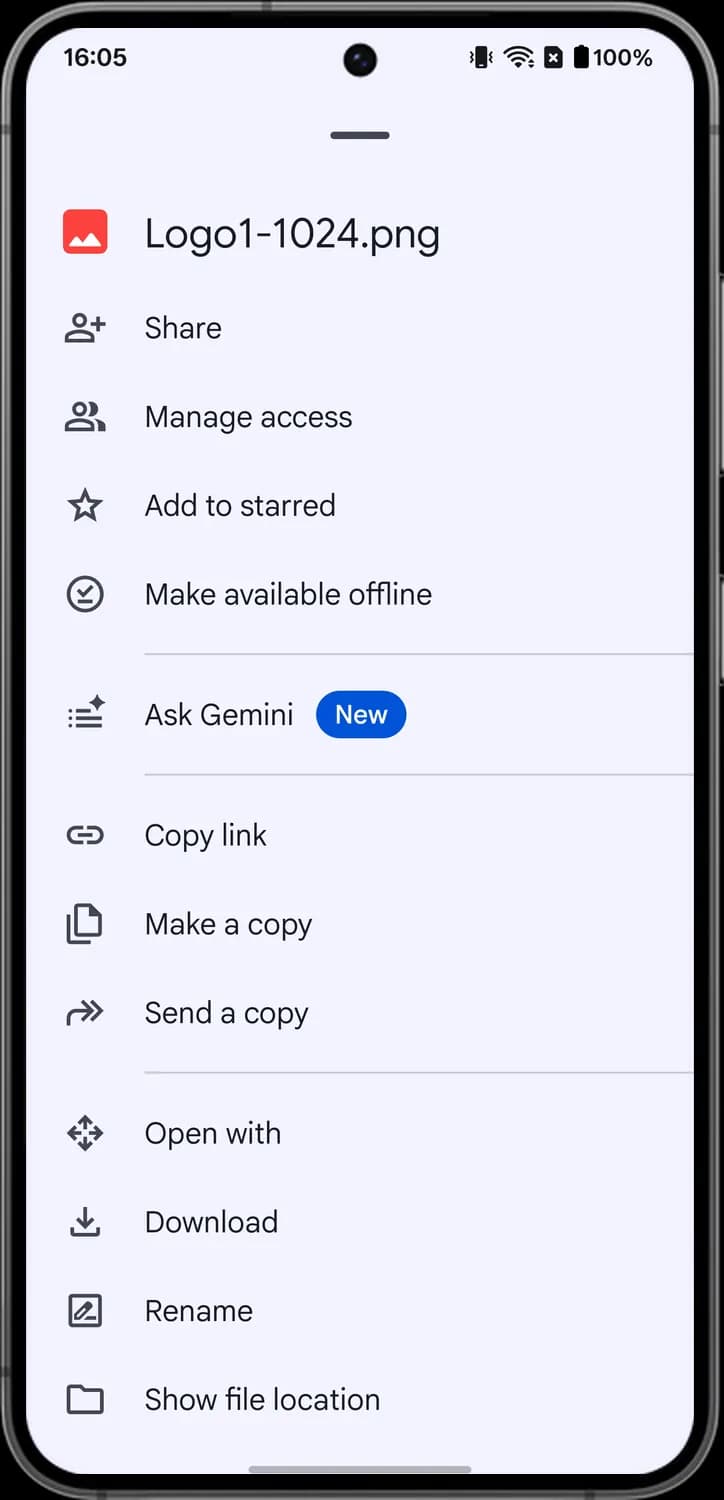

Share
The person with a plus. Lets you add people by name or email and choose whether they can view, comment or edit.

Manage access
The two people. Shows who has access to the file and lets you change their roles or the link setting.

Add to starred
The star outline. Stars the file so it shows up in the Starred tab.

Make available offline
The circle with a check and a line. Saves a copy on your phone so you can open the file with no internet.

Ask Gemini
The lines with a sparkle. Opens Gemini so you can ask questions about this file.

Copy link
The chain link. Copies the file's link so you can paste it into a message or email.

Make a copy
The two stacked pages. Creates a duplicate of the file in the same folder.
Middle of the menu
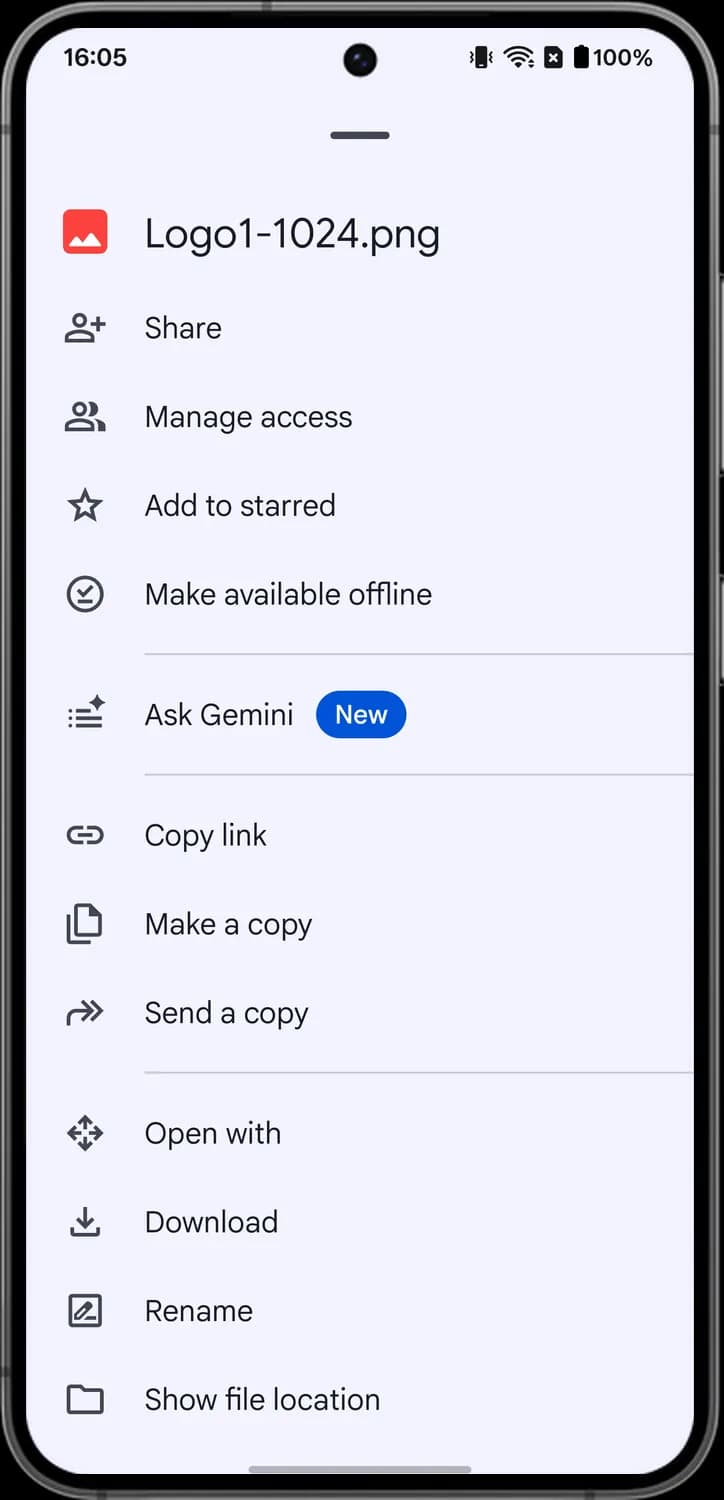

Send a copy
The double arrow. Sends the file itself to another app, like email or a chat, instead of a link.

Open with
The four arrows. Opens the file in another app on your phone that can read it.

Download
The arrow pointing down into a tray. Saves a copy of the file to your phone's storage.

Rename
The pencil in a box. Lets you change the file's name.

Show file location
The folder outline. Takes you to the folder the file is stored in.
Bottom of the menu
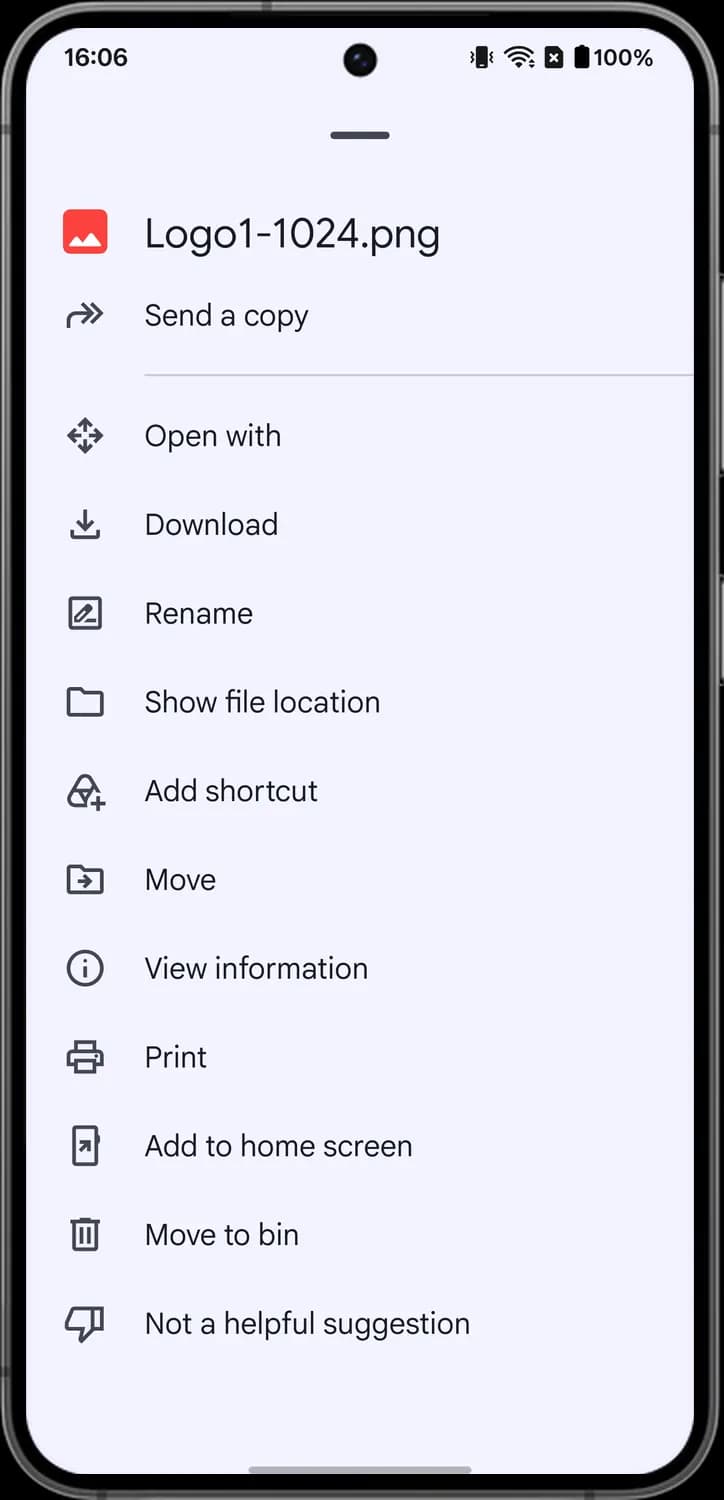

Add shortcut
The Drive logo with a plus. Adds a shortcut to this file in another folder without moving the original.

Move
The folder with an arrow. Moves the file to a different folder or drive.

View information
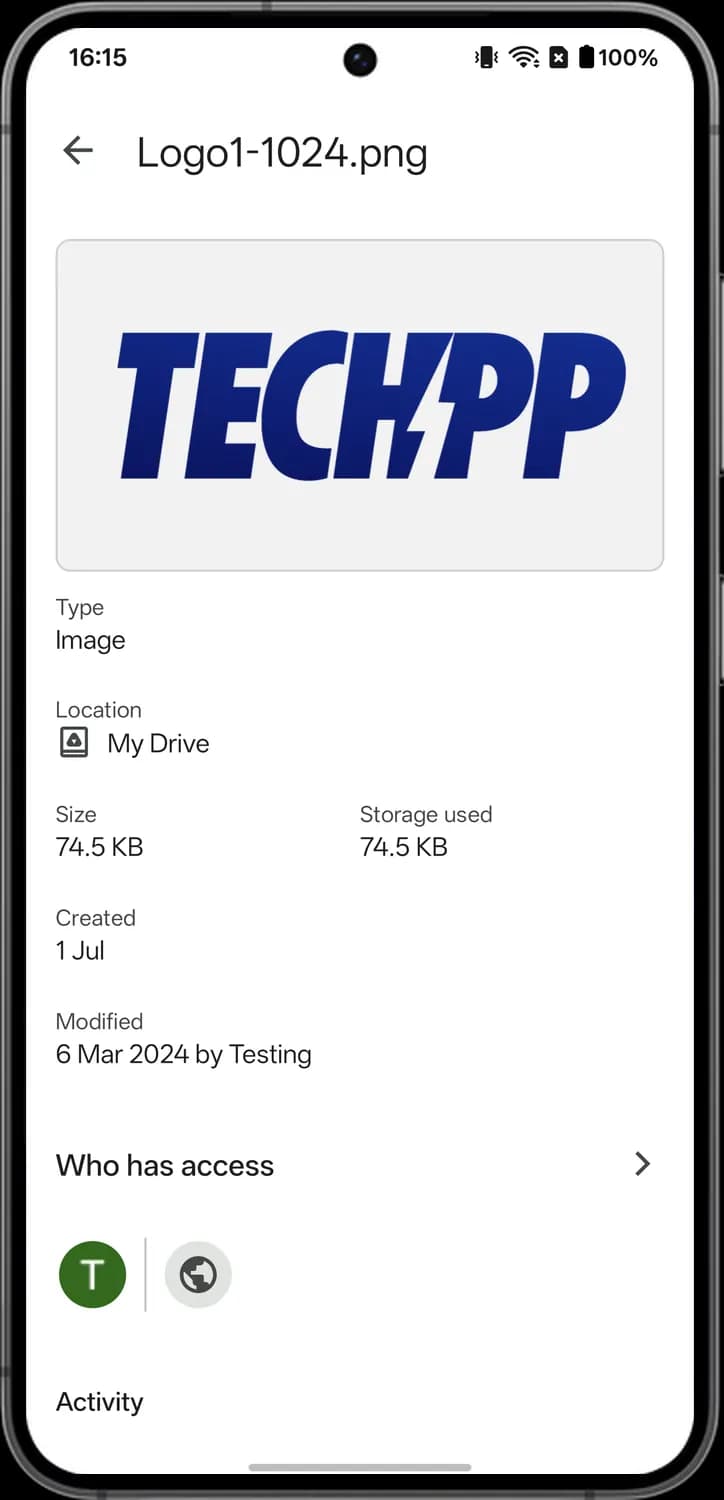
The i in a circle. Opens the details page with the file's type, size, location, dates and who has access.

Print
The printer. Sends the file to a printer connected to your phone.

Add to home screen
The phone with an arrow. Puts an icon for this file on your phone's home screen so you can open it in one tap.

Move to trash
The trash can. Moves the file to Trash, where it stays for 30 days before it is deleted for good.

Not a helpful suggestion
The thumbs down. Tells Drive you don't want this file in your Suggested list.
The New button
Tap the plus button at the bottom right of Drive to open this menu. It is where you create new files and folders, scan paper or upload from your phone.
Top of the menu
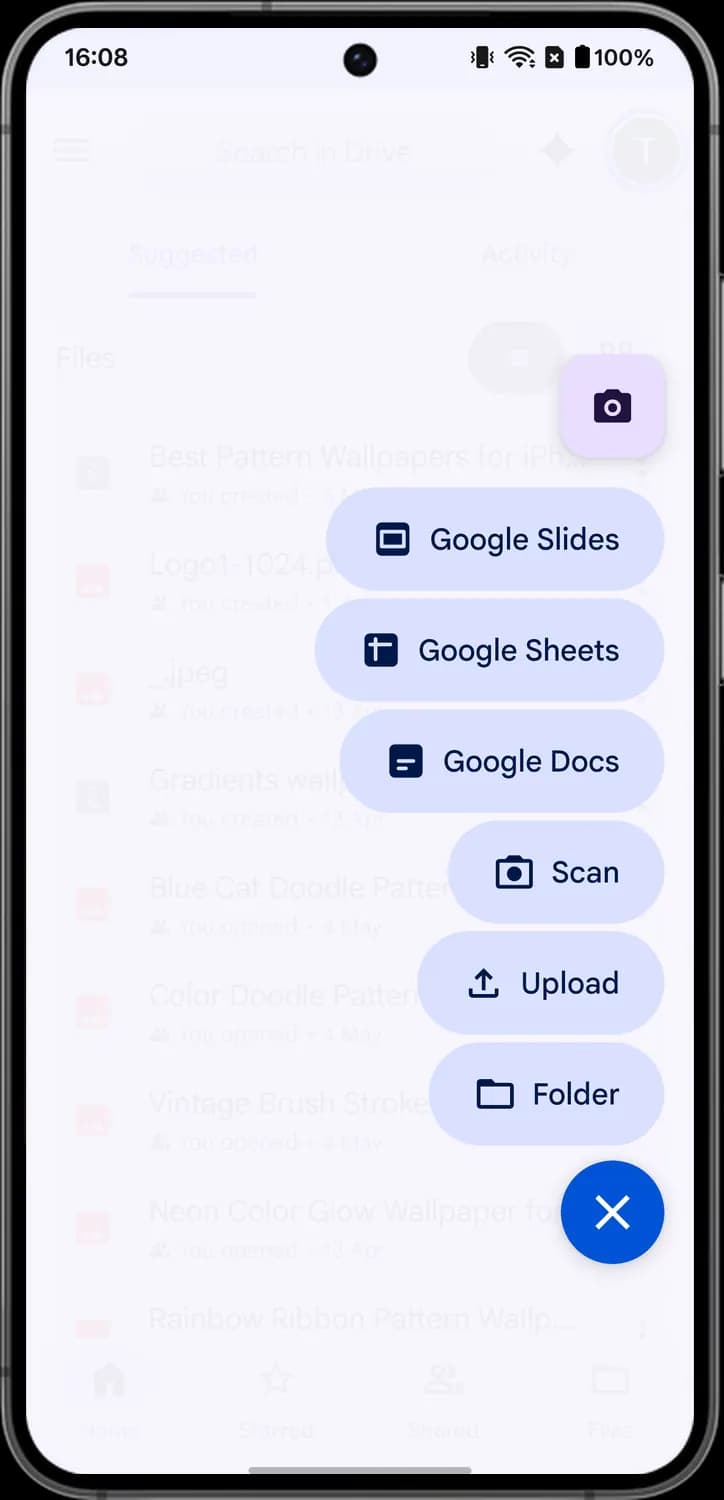

Google Slides
The slide rectangle. Creates a new, blank Google Slides presentation in your Drive.

Google Sheets
The grid with a header row. Creates a new, blank Google Sheets spreadsheet.

Google Docs
The page with lines. Creates a new, blank Google Docs document.
Bottom of the menu
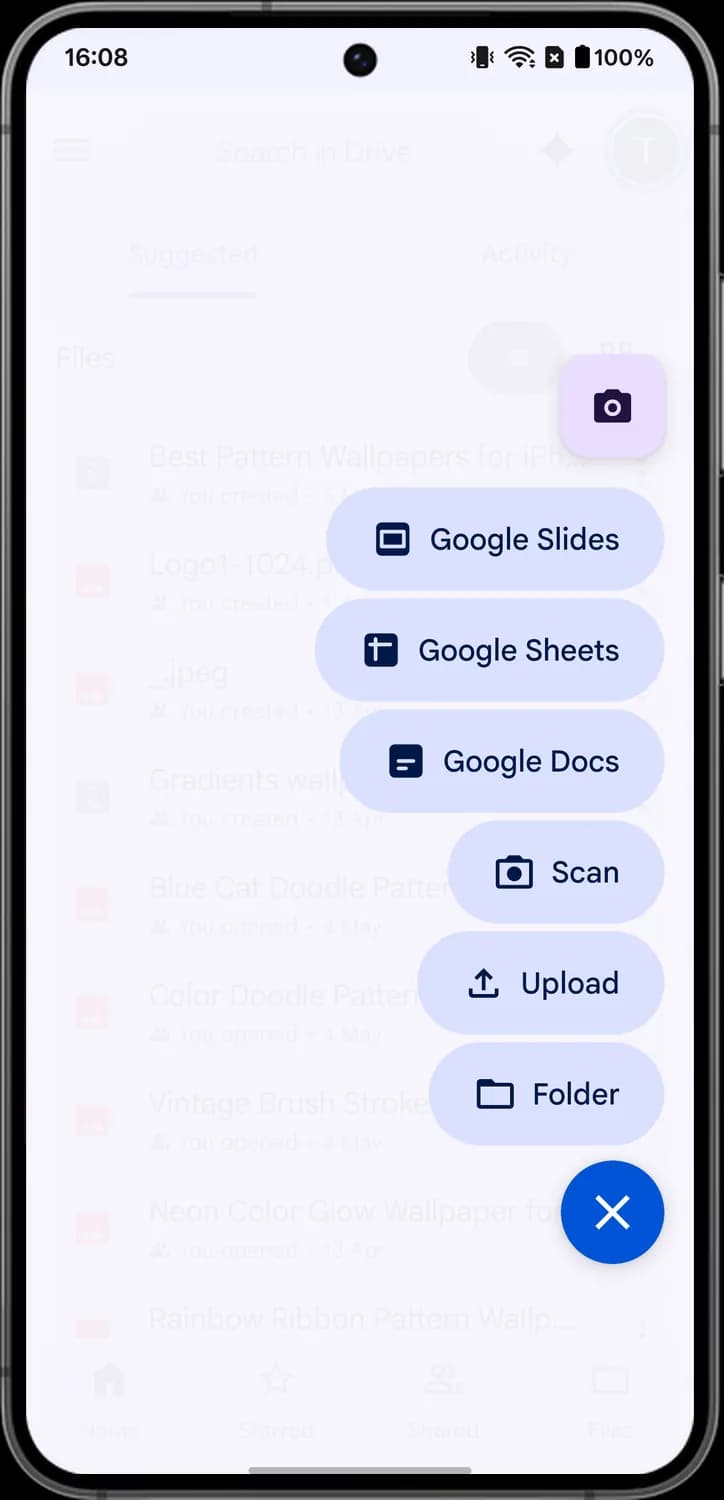

Scan
The camera in a frame. Opens the camera so you can scan paper pages and save them to Drive as a PDF.

Upload
The arrow pointing up out of a tray. Lets you pick photos, videos or other files on your phone and upload them to Drive.

Folder
The folder outline. Creates a new folder in the place you are in.

Close menu
The X in the blue circle, where the plus button was. Tap it to close this menu without creating anything.
Opening a file
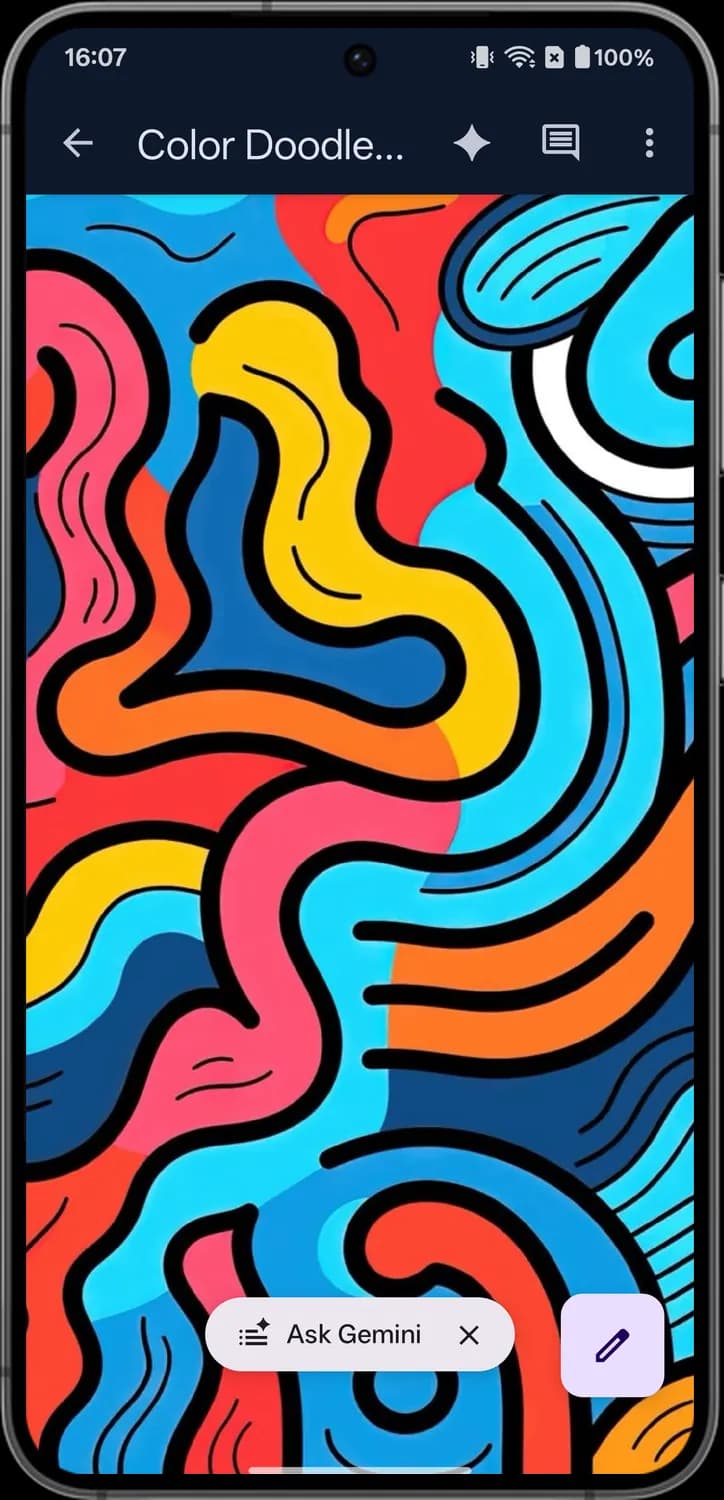
Tap a file to open it in Drive's viewer. Tap View information in the file menu to see the details page with its location and who can open it.
File viewer

Back
The left arrow at the top left. Closes the file and takes you back to the list.

Gemini
The four-pointed sparkle. Opens Gemini so you can ask questions about the file you are looking at.

Comments
The speech box with lines. Shows the comments on this file and lets you add your own.

More options
The three dots at the top right. Opens the file menu with Share, Download, Print and more.

Ask Gemini chip
The pill with a sparkle at the bottom. Tap it to ask Gemini about this file.

Close Ask Gemini
The X inside the Ask Gemini pill. Tap it to hide the pill.

Edit
The pencil button at the bottom right. Opens the file for editing, in this case in Google Photos for an image.
File details

My Drive location
The drive icon next to Location. It shows the file is stored in My Drive.

Who has access
The arrow next to Who has access. Tap it to see everyone who can open the file and change their access.

Owner
The round profile picture under Who has access. It shows a person who can open the file. Here it is you, the owner.

Anyone with the link
The globe in a gray circle. It means anyone who has the file's link can open it.
Sharing and access
Share and Manage access both open from a file's or folder's menu. Manage access shows who can open the file and how the link works, and Share is where you add people.
Manage access
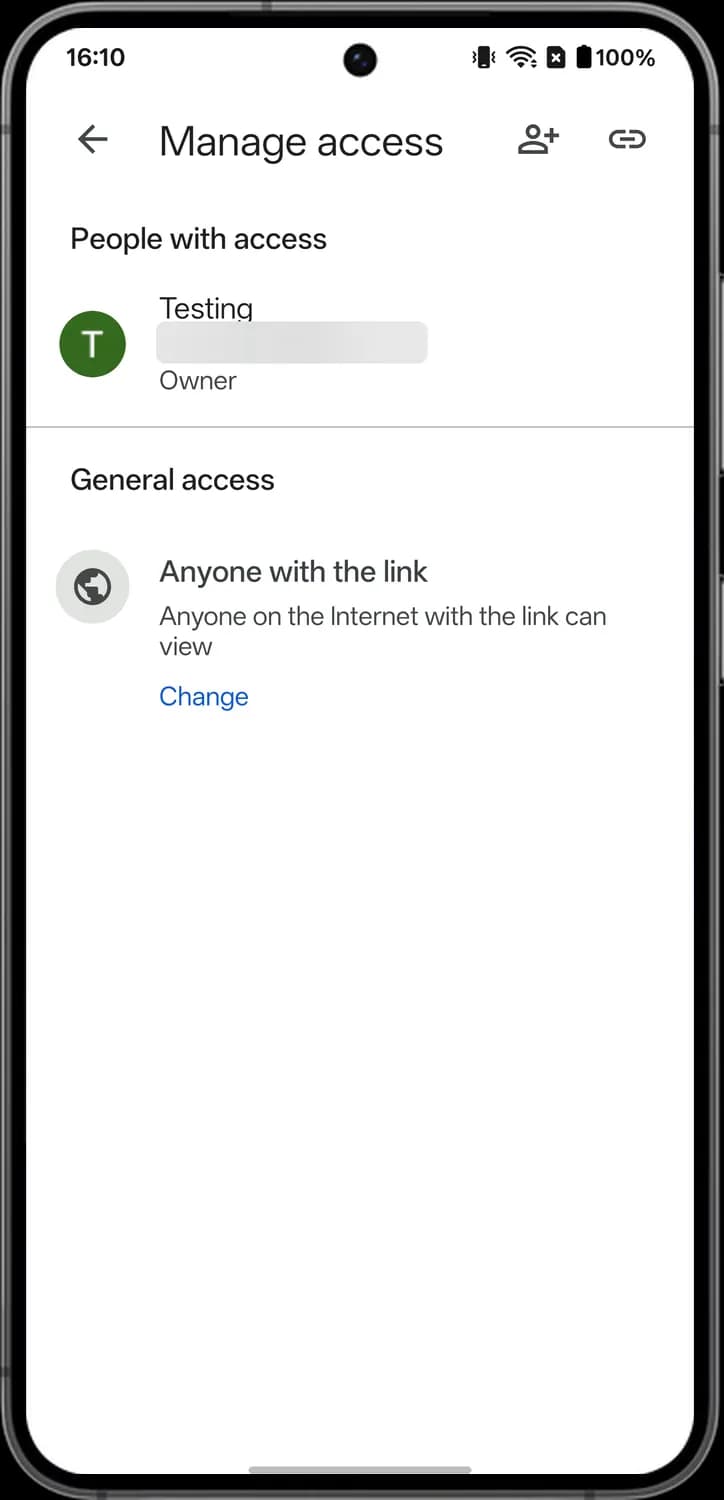

Back
The left arrow. Takes you back from Manage access.

Share
The person with a plus. Opens the Share screen so you can add people or groups.

Copy link
The chain link. Copies the link to the file so you can paste it anywhere.

Owner
Each person with access gets a row with an avatar, name, email and role. Owner means the file is yours and you decide who else can open it.

Anyone with the link
The globe means general access is set to anyone with the link, so anyone on the internet who has the link can view the file.

Change
Tap Change to switch general access, for example to Restricted so only the people you add can open it.
Share screen
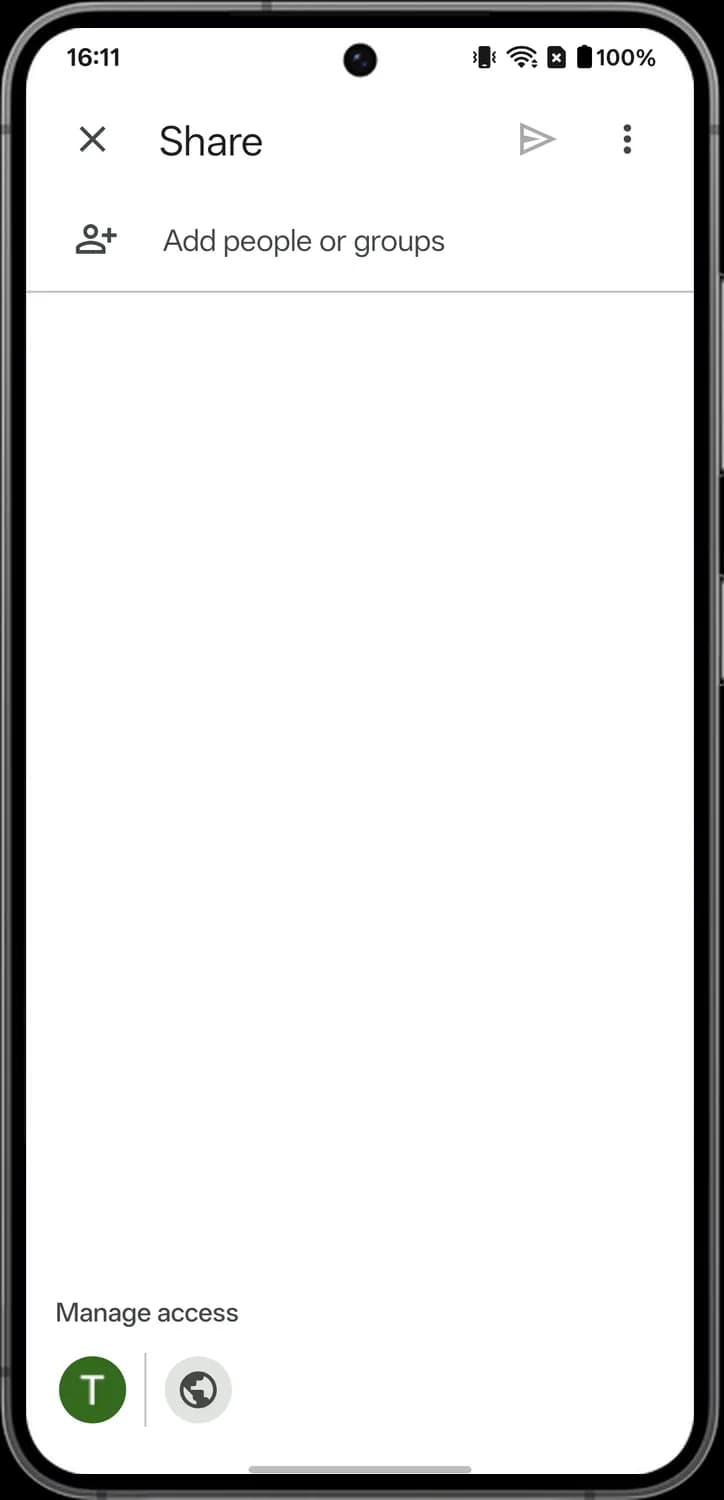

Close
The X at the top left. Closes the Share screen without sending anything.

Send
The paper plane. Shares the file with the people you added and sends them a notice. It stays gray until you add someone.

More options
The three dots at the top right. Opens extra options for this share.

Add people or groups
The person with a plus in front of the text box. Type a name, email or Google Group here to share the file with them.

People with access
The round avatars at the bottom show who already has access: your initial, plus a globe when anyone with the link can open the file. Tap them to open Manage access.
Shared tab
The Shared tab, second from the right at the bottom, lists files other people shared with you, newest first.
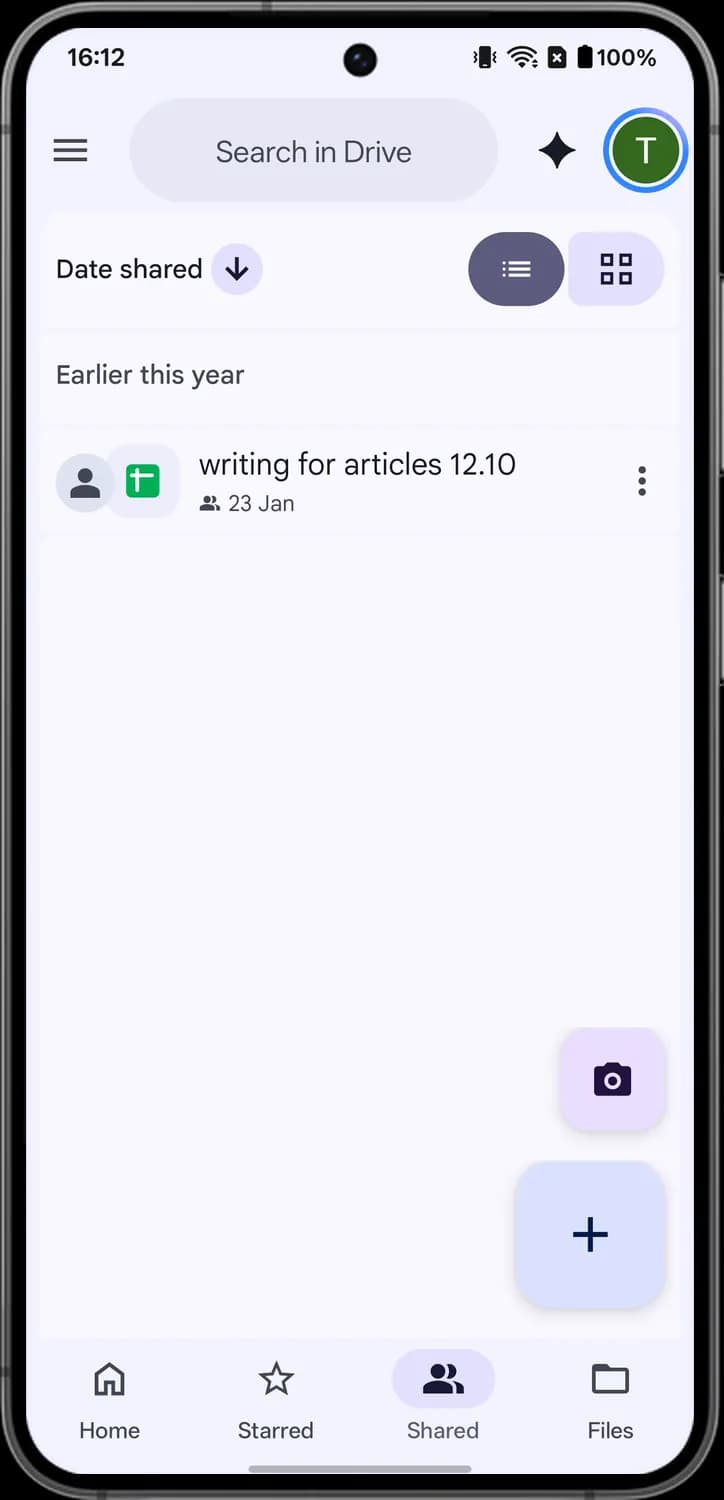

Date shared
The label and the arrow in a circle show how the list is sorted. Here it is by the date the file was shared with you, and the down arrow means newest first.

Sharer's avatar
The round avatar in front of the file icon belongs to the person who shared the file with you. It shows their profile photo if they have one.
Search
Tap Search in Drive at the top of Home or Files to open search. Before you type, you see filter chips and your recent searches.
Search bar and filters
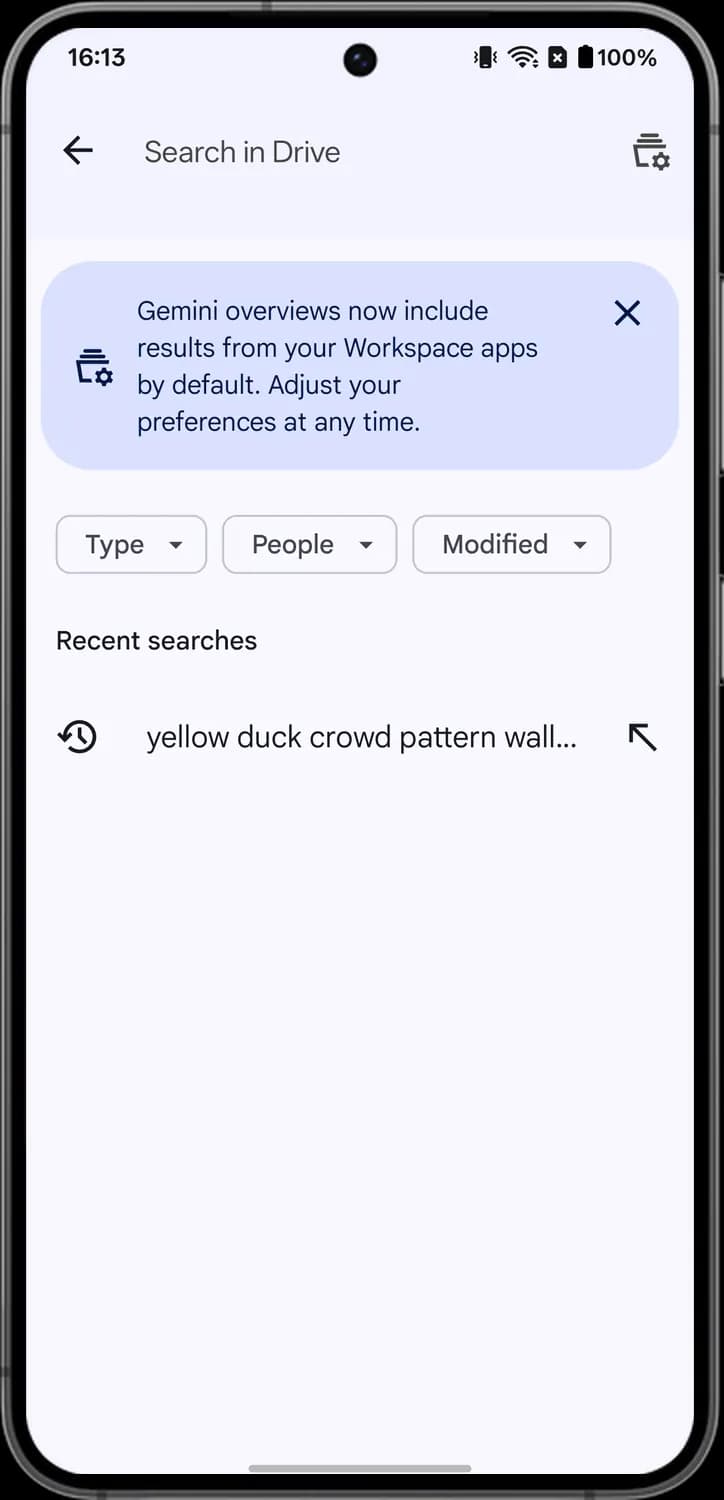

Back
The left arrow. Closes search and takes you back to where you were.

AI Overview settings
The stack of cards with a gear at the top right. Opens the settings for Gemini AI overviews in your search results.

Dismiss
The X on the blue Gemini overviews card. Tap it to hide the notice.
Type
The Type chip filters your results by file type, like documents, PDFs, images or folders.
People
The People chip filters your results by who owns or shared the file.
Modified
The Modified chip filters your results by when the file was last changed.
Recent searches
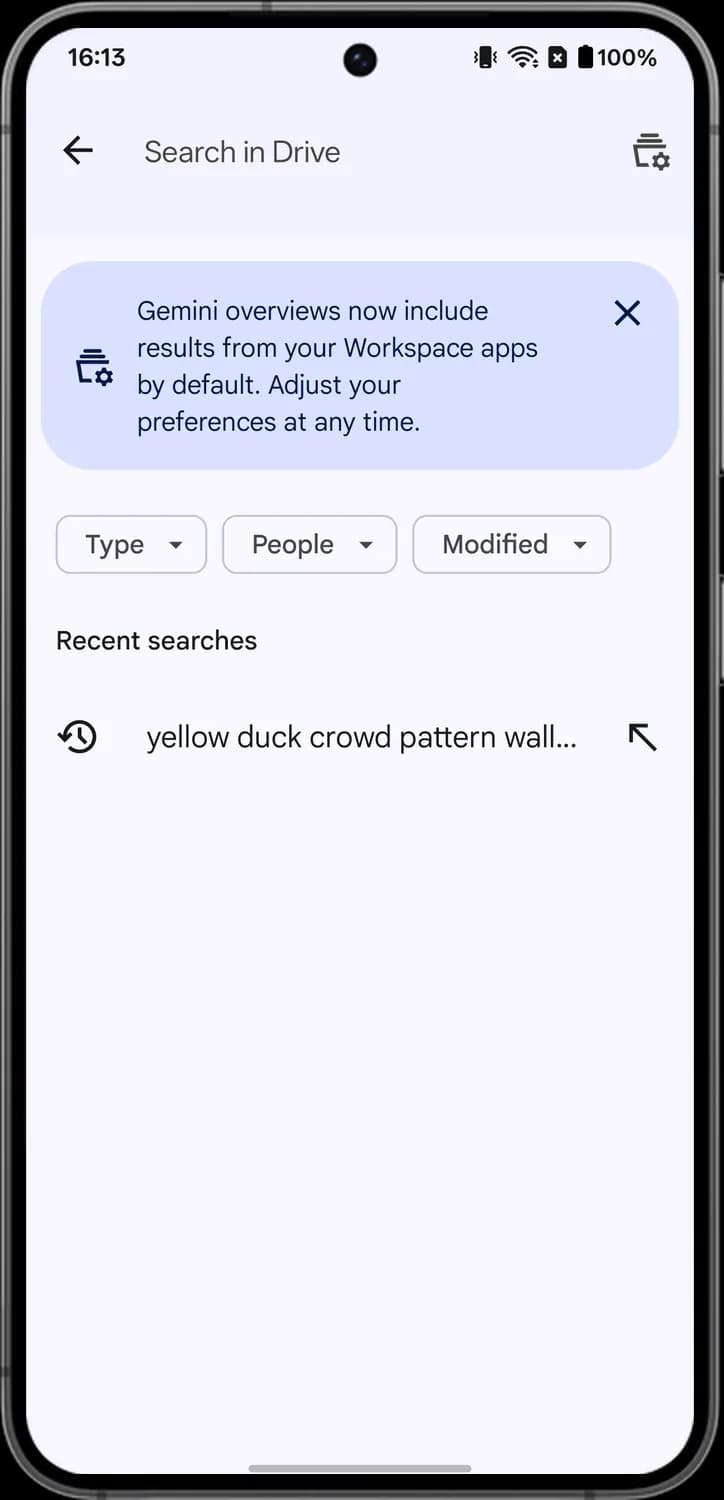

Recent search
The clock with a back arrow marks a search you ran before. Tap the row to run it again.

Edit search
The arrow pointing up and to the left. Puts that search back in the box so you can change it before you search.
Selecting files
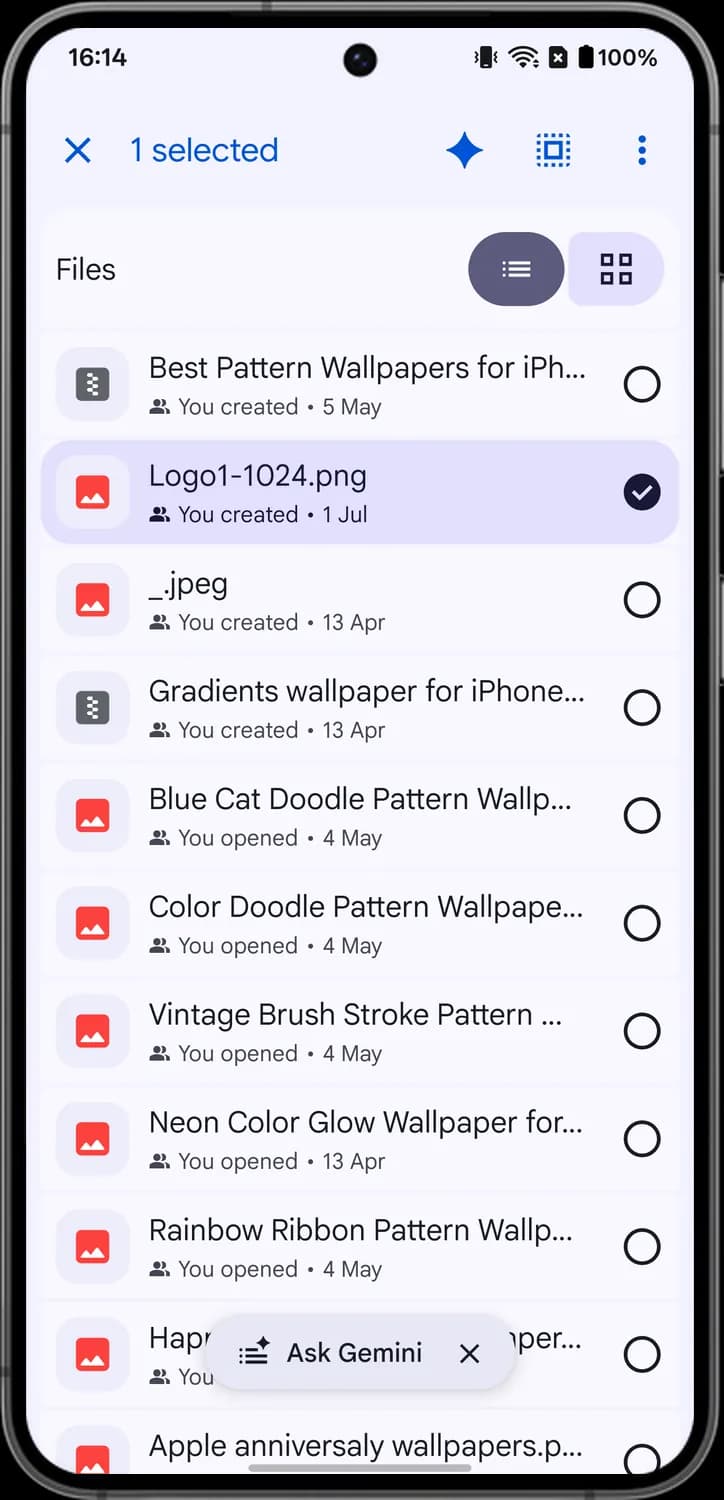
Press and hold a file to select it. The top bar changes to show how many files you picked and what you can do with them.

Clear selection
The X at the top left. Clears the selection and brings back the normal top bar.

Gemini
The blue sparkle. Opens Gemini to ask about the files you selected.

Select all
The square inside a dashed square. Selects every file in the list at once.

More actions
The three dots at the top right. Opens the actions you can apply to all the selected files.

Empty circle
The empty circle at the right of each file. Tap it to add that file to your selection.

Selected check
The dark circle with a check mark. It means the file is selected, and the row turns light purple.
Side menu
Tap the three lines at the top left of Home to open the side menu. It holds the places that do not fit in the bottom bar, plus settings, help and your storage.
Top of the menu
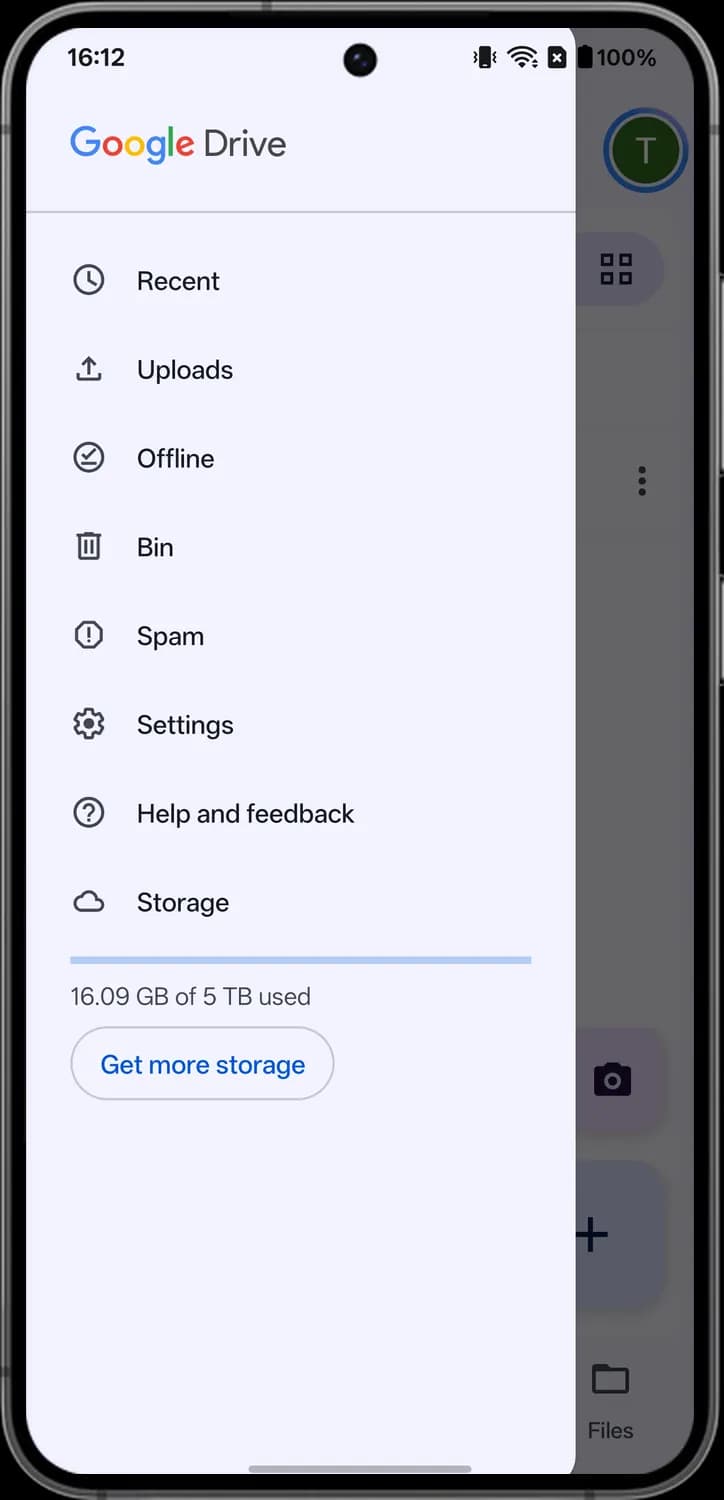

Recent
The clock. Shows the files you opened or changed most recently.

Uploads
The arrow rising out of a tray. Shows the files you uploaded to Drive.

Offline
The check mark in a circle. Lists the files you made available offline so you can open them without internet.

Trash
The trash can. Holds the files you deleted. Drive removes them for good after 30 days unless you restore them.
Bottom of the menu
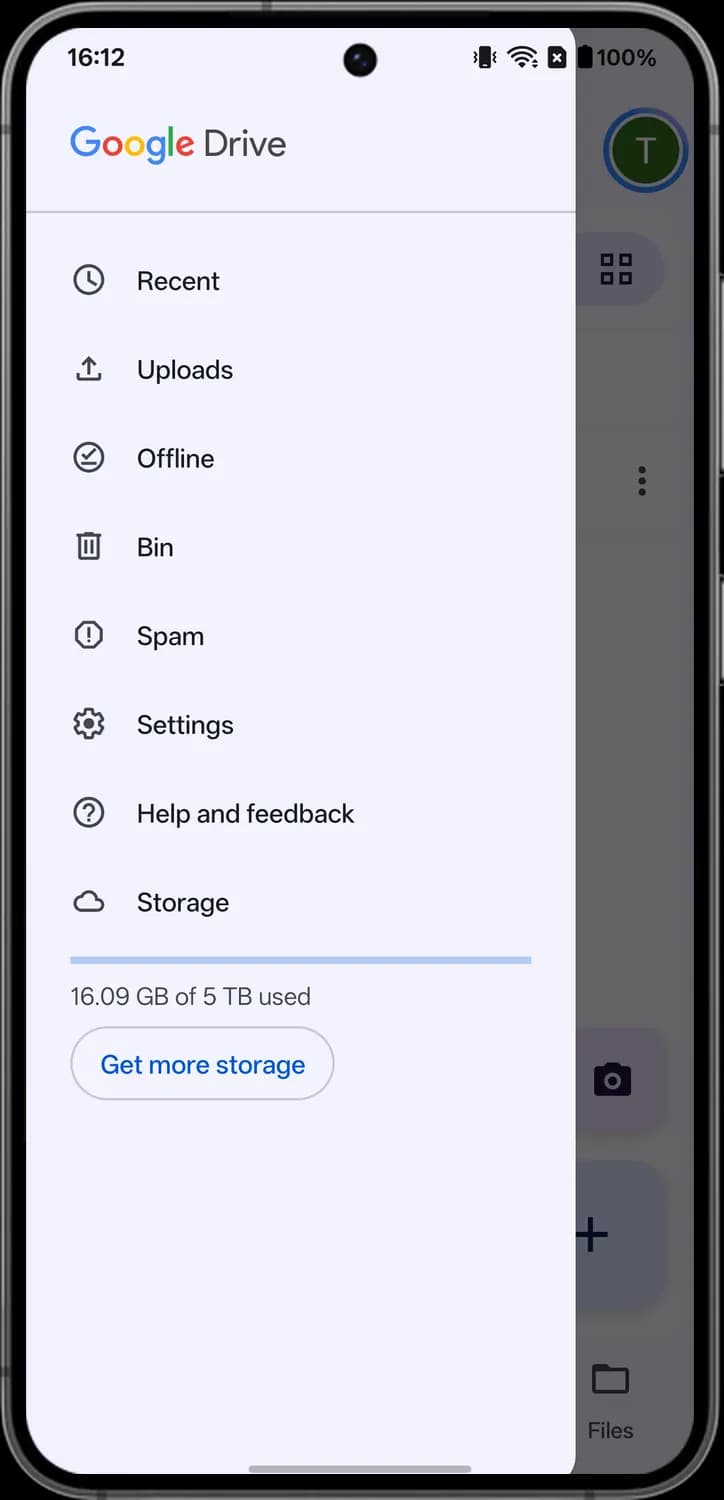

Spam
The exclamation mark in an octagon. Holds files shared with you that were marked as spam.

Settings
The gear. Opens the Drive app settings, such as theme and notifications.

Help and feedback
The question mark in a circle. Opens Drive help articles and lets you send feedback to Google.

Storage
The cloud. Shows how much of your Google storage you have used, with a bar and a Get more storage button below.
Account menu
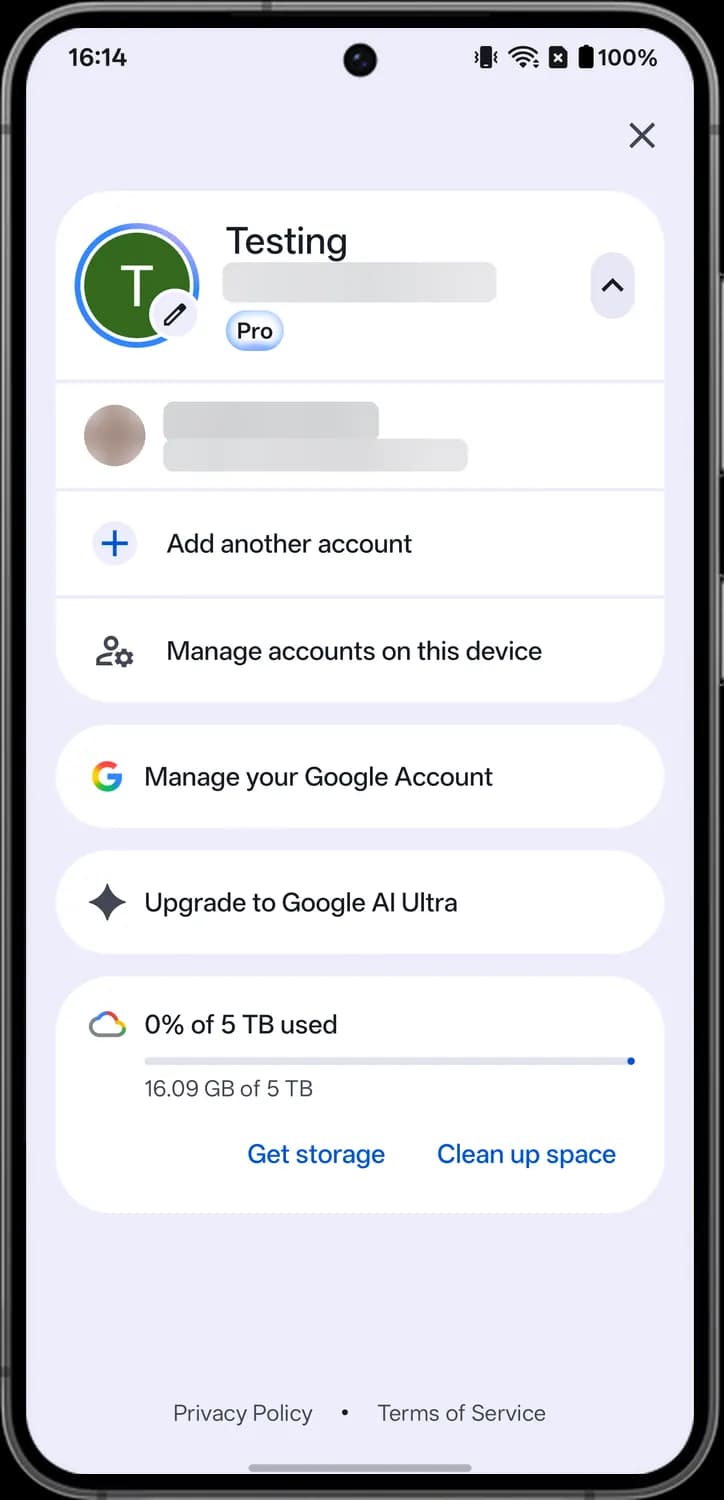
Tap your profile picture at the top right of Home or Files to open the account menu. It shows the Google account you are using, lets you switch accounts and shows your storage.
Your account
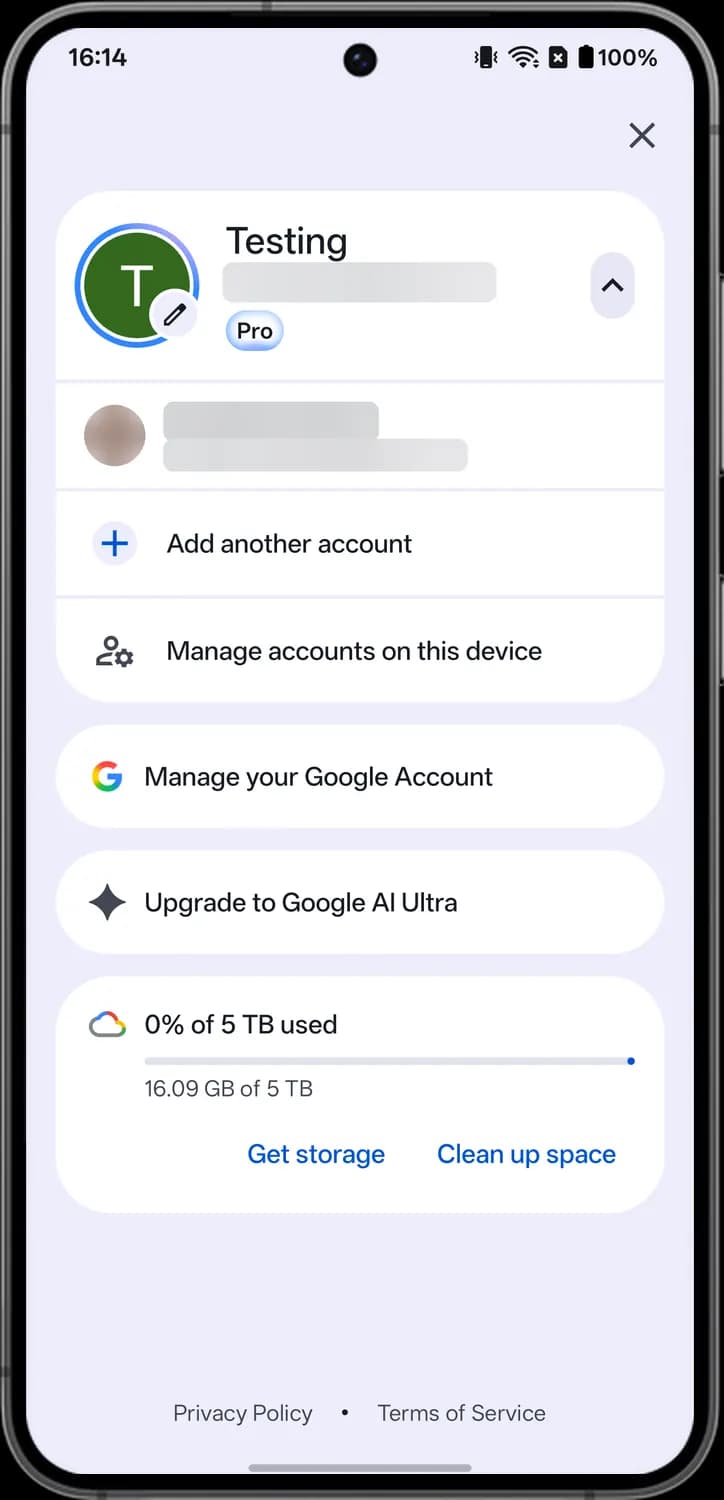

Close
The X at the top right. Closes the account menu.

Edit my info
The pencil on your profile picture. Tap it to edit your profile info, like your photo.

Account list
The arrow next to your name shows or hides the other Google accounts on this phone. It points up when the list is open.
Pro badge
The Pro badge under your email means this account has a Google AI Pro plan.
Account options

Add another account
The plus in a circle. Tap it to sign in to another Google account on this phone.

Manage accounts on this device
The person with a gear. Opens the list of Google accounts on this phone so you can manage or remove them.

Manage your Google Account
The colored G. Opens your Google Account settings for your profile, security, privacy and payments.

Upgrade to Google AI Ultra
The four-point Gemini spark. Opens the Google AI Ultra plan, the tier above AI Pro.

Storage
The colored cloud shows how much of your Google storage you have used. That space is shared by Drive, Gmail and Google Photos.
Those are the meanings of Google Drive icons and symbols. Google updates Drive regularly and the icons change with it, so we update this guide every time they do, and you can bookmark this page to stay updated. These screens are from Google Drive for Android, and the app looks almost the same on iPhone. For more icon guides, you can also visit our TechPP icon guides.
Comments
0Share your thoughts, questions, or feedback about this guide.