
Google App Icons and Symbols Explained
The Google app is no longer just a search box. It now has AI Mode, Search Live, image generation, Lens and a feed of stories picked for you, and each of them shows up as its own small icon around the search bar.
In this guide, you will learn what every icon in the latest Google app means, screen by screen. And this is an interactive guide. You can tap on every icon on the screens below to know what it does.
Home screen
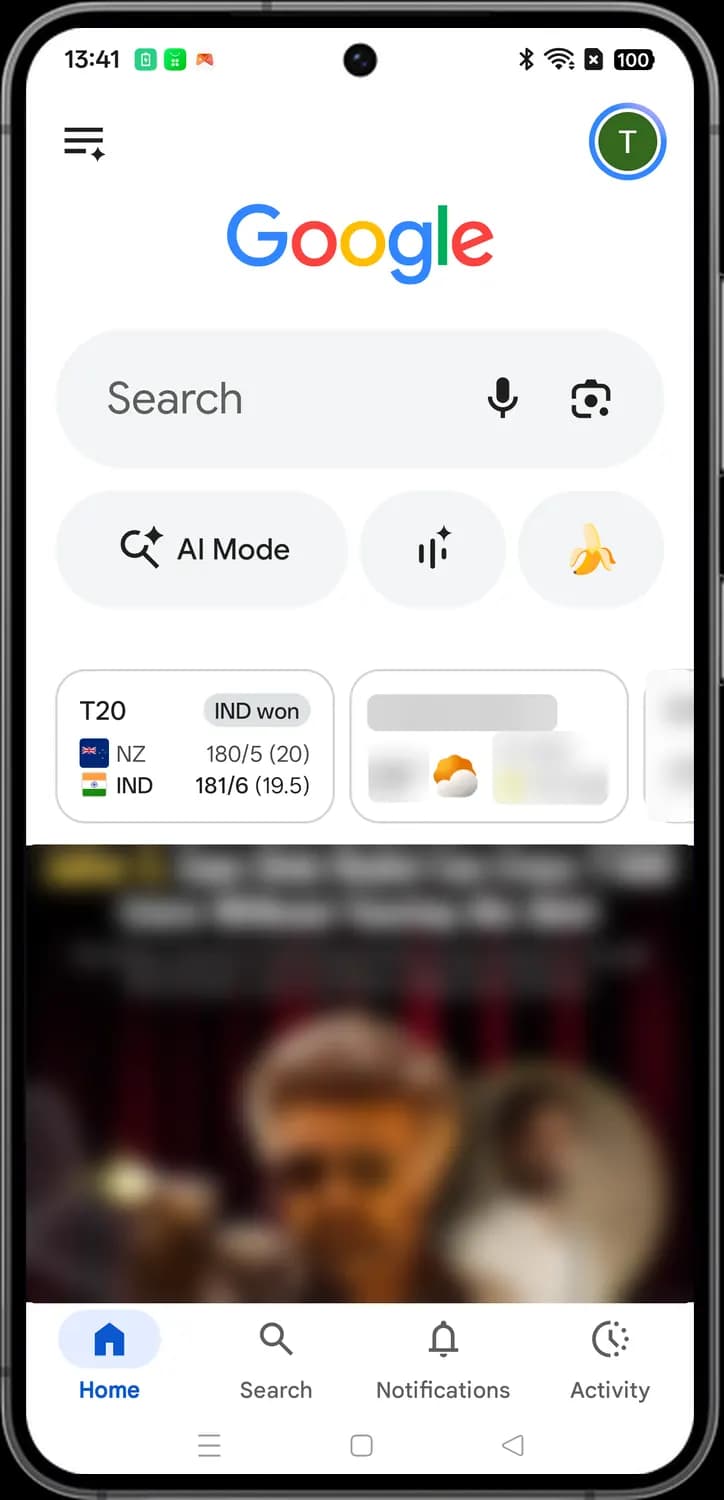
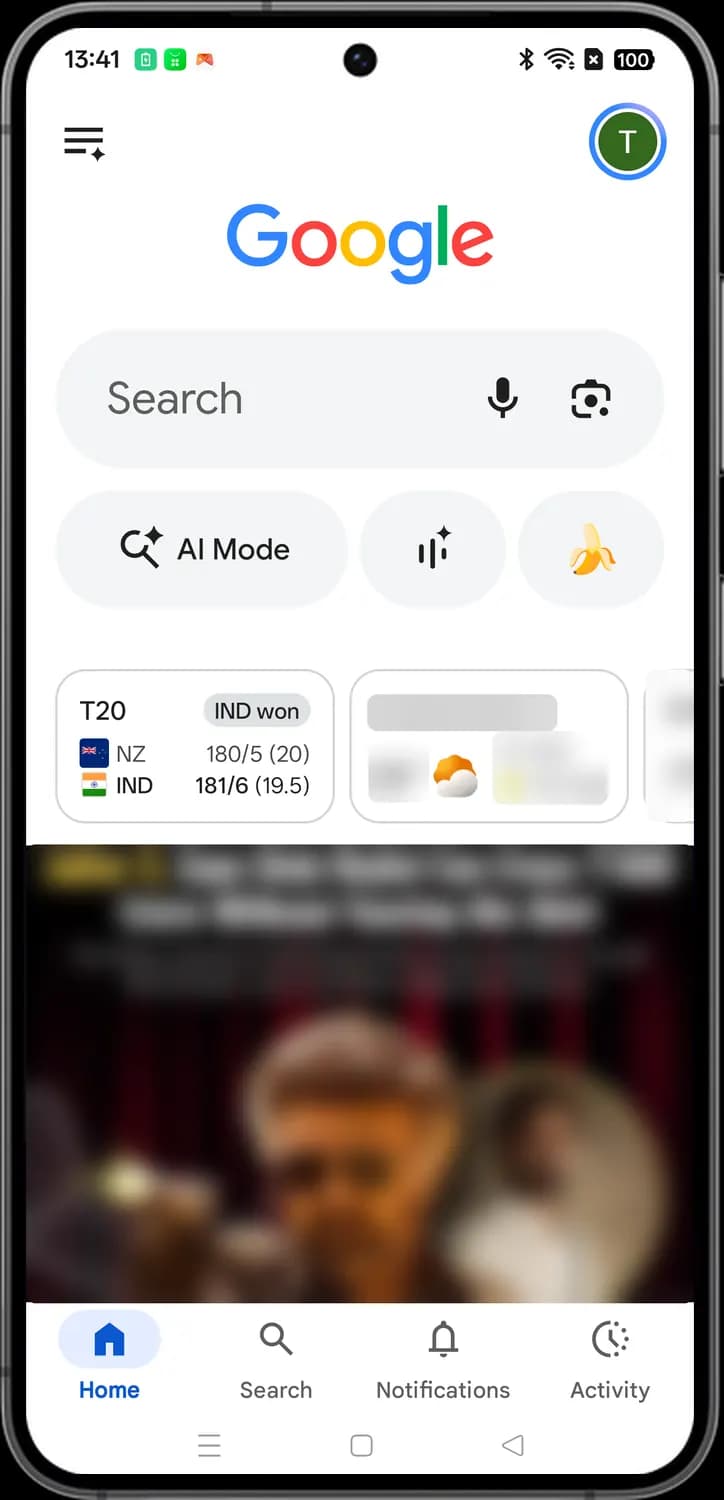
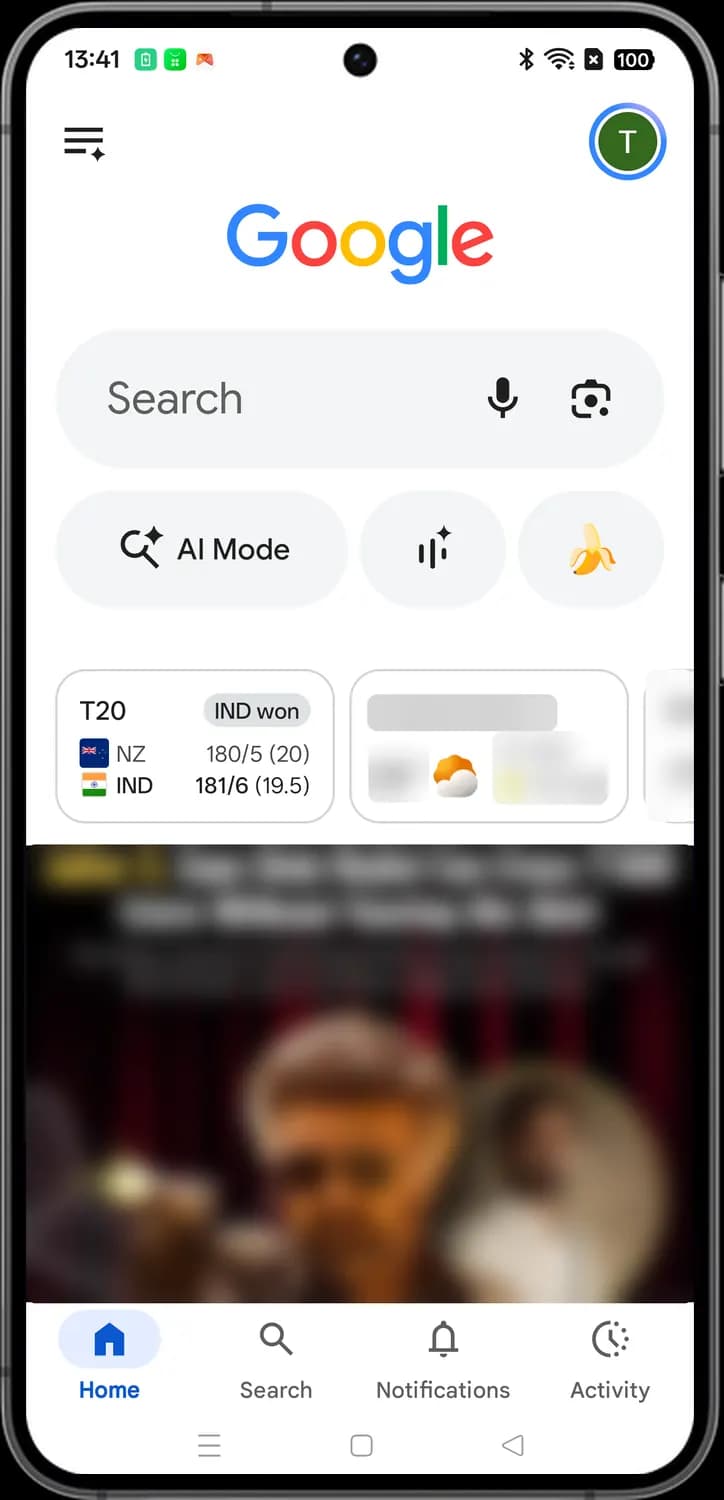
This is what you see when you open the Google app. The search bar sits up top with shortcuts for AI Mode, Search Live and image creation below it, then cards like the weather and your Discover feed of news and stories.
Top bar and search

AI Mode history
The list icon with a sparkle, top left. Tap it to see your past AI Mode conversations, pick one up where you left off, or start a new one.

Your account
Your profile picture. Tap it to open the account menu, where you manage your Google Account, Search history, SafeSearch and settings, or switch accounts.

Search bar
Tap it to type a search. As you type, Google suggests searches, and you can also add a photo or file with the + button.

Voice search
The microphone. Tap it and say what you are looking for instead of typing it.

Camera search
The Google Lens camera. Tap it to search with your camera or a photo: identify a plant, translate a sign, copy text or shop for something you see.
Shortcuts and cards

AI Mode
Tap it to ask a longer or more complex question and get an AI answer with links to sources. You can keep asking follow-up questions in the same conversation.

Search Live
The sound wave with a sparkle. Tap it to talk with AI Mode out loud in a back-and-forth conversation. You can also turn on your camera so it can see what you are pointing at.

Generate image
The banana. Tap it to create an image from a text description, or to edit one of your photos by describing the change, using Google's Nano Banana image model.

Weather
Shows the temperature and conditions where you are. Tap it to open the full forecast for today and the coming days.
Tab bar

Home
The house. Tap it to come back to this screen from anywhere in the app.

Search
The magnifying glass. Tap it to return to your most recent search results or AI Mode conversation.

Notifications
The bell. Tap it to see alerts the Google app has sent you, like weather, sports scores and updates on topics you follow.

Activity
The clock. Tap it to see your recent searches, the items you saved and your collections.
Searching
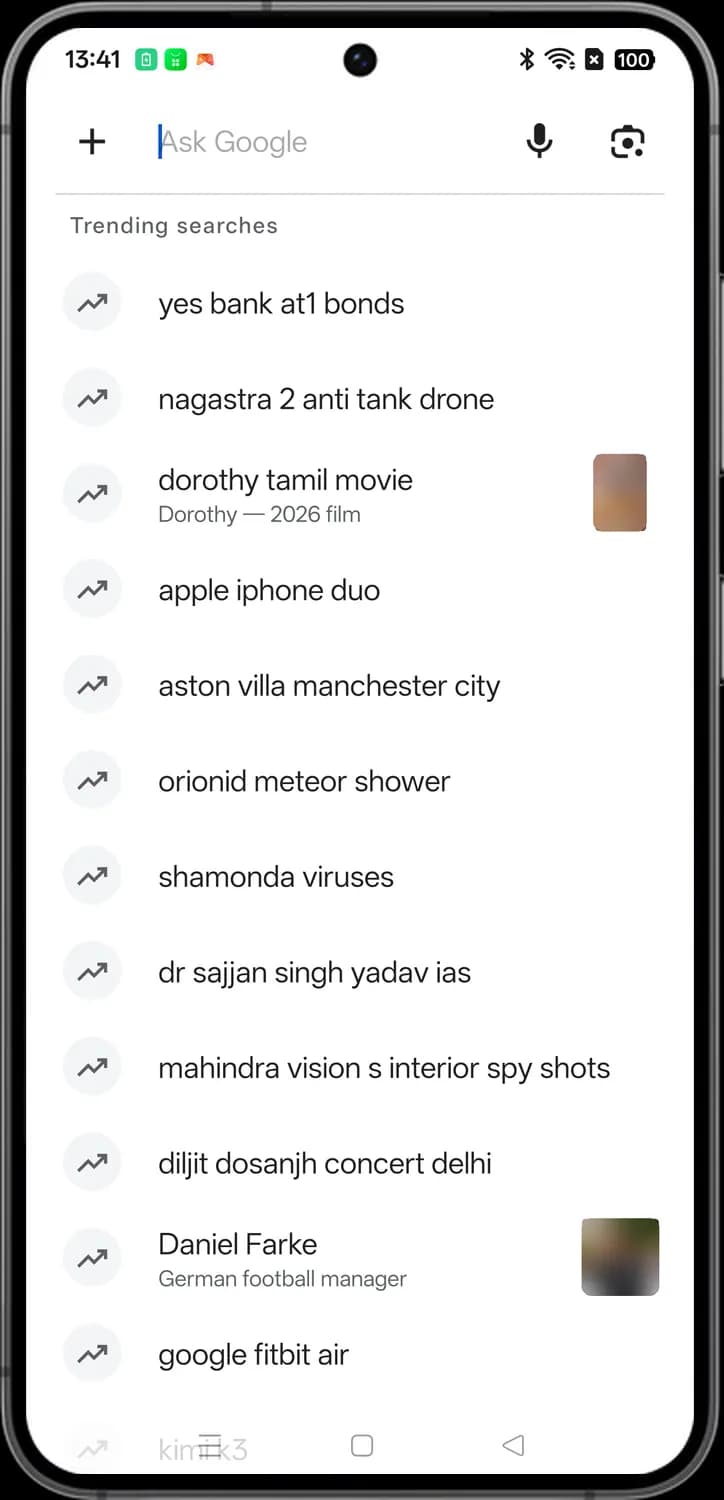
Tap the search bar on the Home screen and this screen opens with the keyboard. Below the box you see what people are searching for right now.
Search box

More input options
The + button. Tap it to add a photo or a file to your search, or to switch to AI Mode.

Ask Google
The search box. Type your question here and tap Enter on the keyboard to see results.

Trending search
The rising arrow marks a search that is popular right now. Tap the row to search it yourself.
The + menu
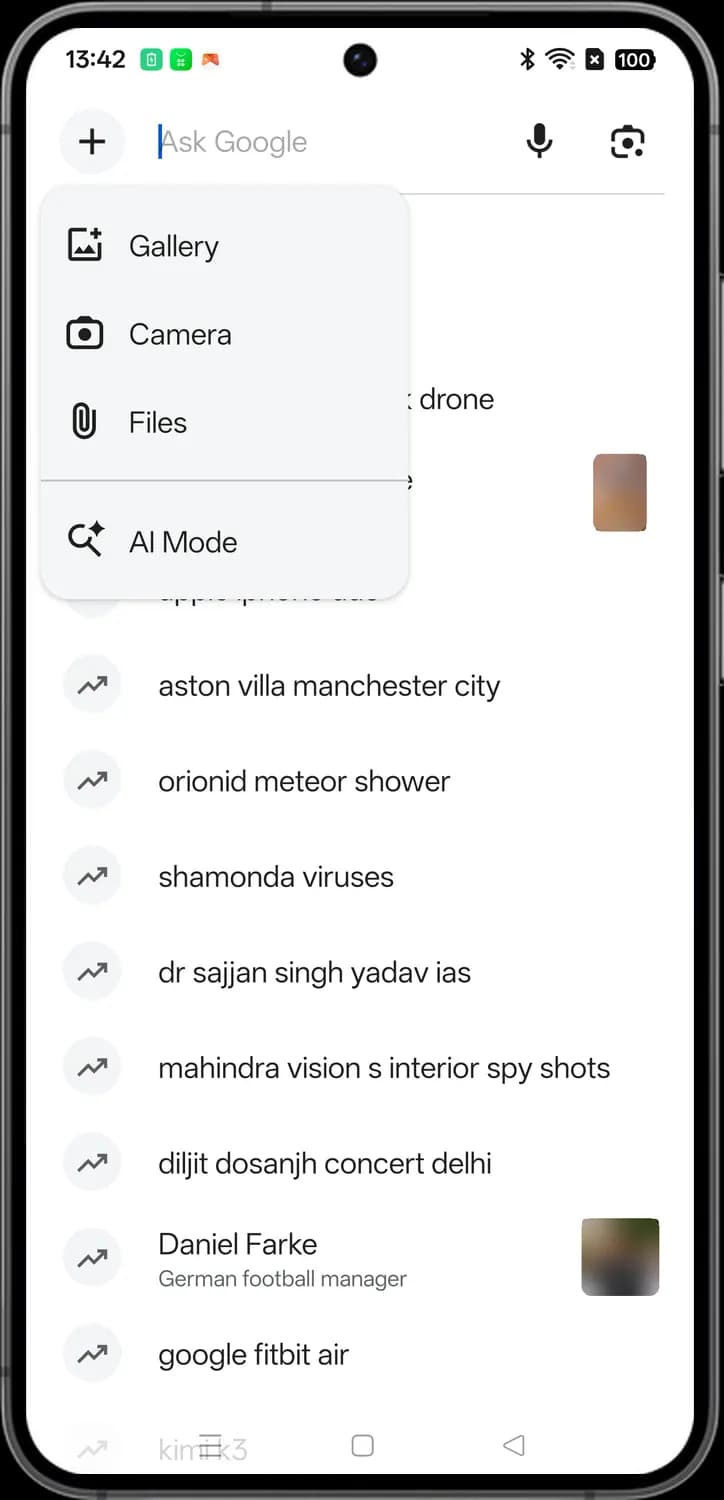

Gallery
Pick a photo from your phone and ask Google about it, like what something is or where to buy it.

Camera
Opens the camera so you can take a photo and search with it right away.

Files
The paper clip. Attach a document, such as a PDF, and ask questions about it in AI Mode.

AI Mode
Sends what you type to AI Mode instead of regular search, so you get a conversational AI answer.
Search results
After you search, results open in the Google app. An AI Overview often sits at the top with a short answer, followed by the regular web results.
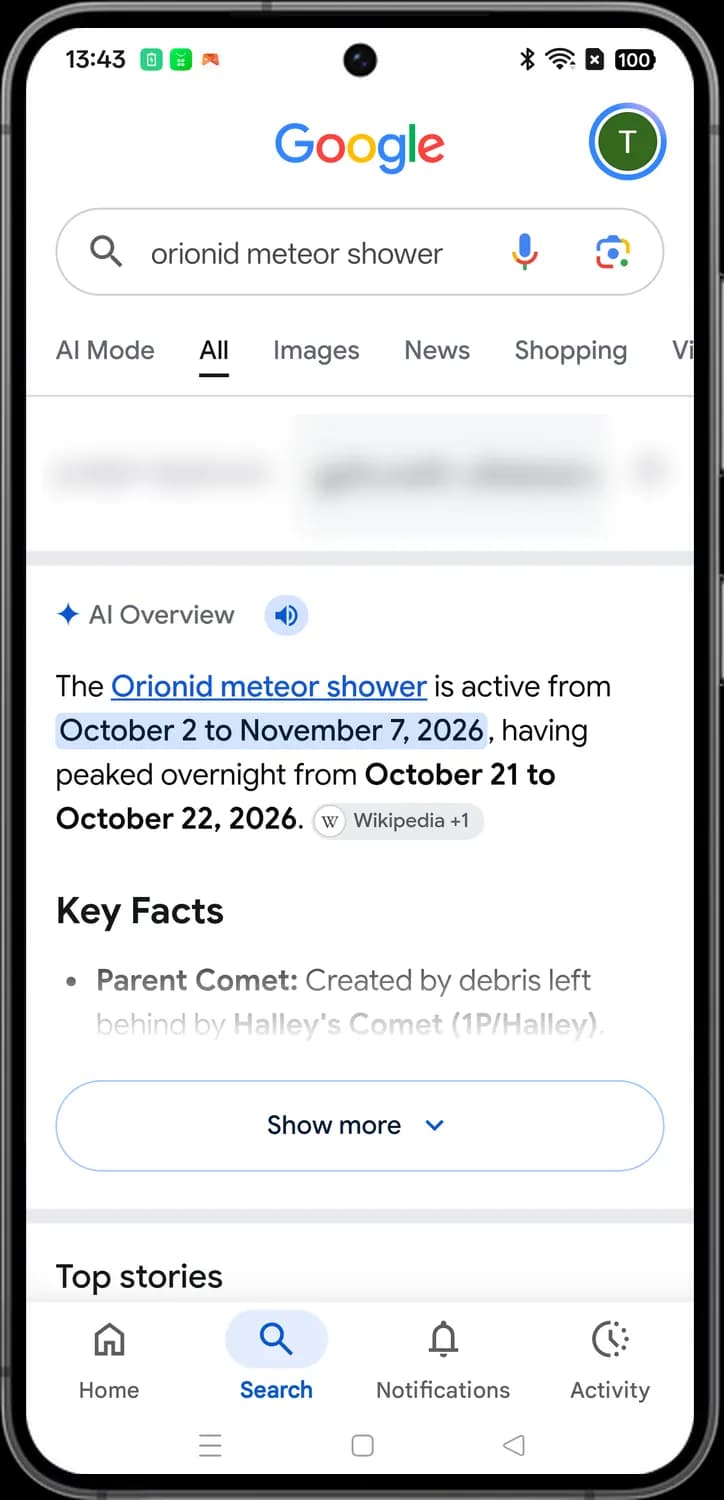

Google logo
Tap the Google logo to leave the results and go back to the Home screen.

Search box
Shows what you searched for. Tap it to change the words and search again.

Result tabs
AI Mode, All, Images, News, Shopping, Videos and more. Tap a tab to see only that kind of result, or AI Mode to ask about it in a conversation. Swipe the row for more tabs.

Listen
The speaker. Tap it to have the AI Overview read aloud.

Sources
The small chip after a sentence names the websites the information came from. Tap it to see those sources and open them.

Show more
The down arrow. Tap it to expand the AI Overview and read the rest of the answer.
Status symbols. These only show information. They are not buttons.

AI Overview
The blue sparkle marks a short summary written by Google's AI from web pages. Check the linked sources if the answer matters to you.
AI Mode
AI Mode answers your question in a conversation. Open it from the AI Mode button on the Home screen, the AI Mode tab in results, or the + menu.
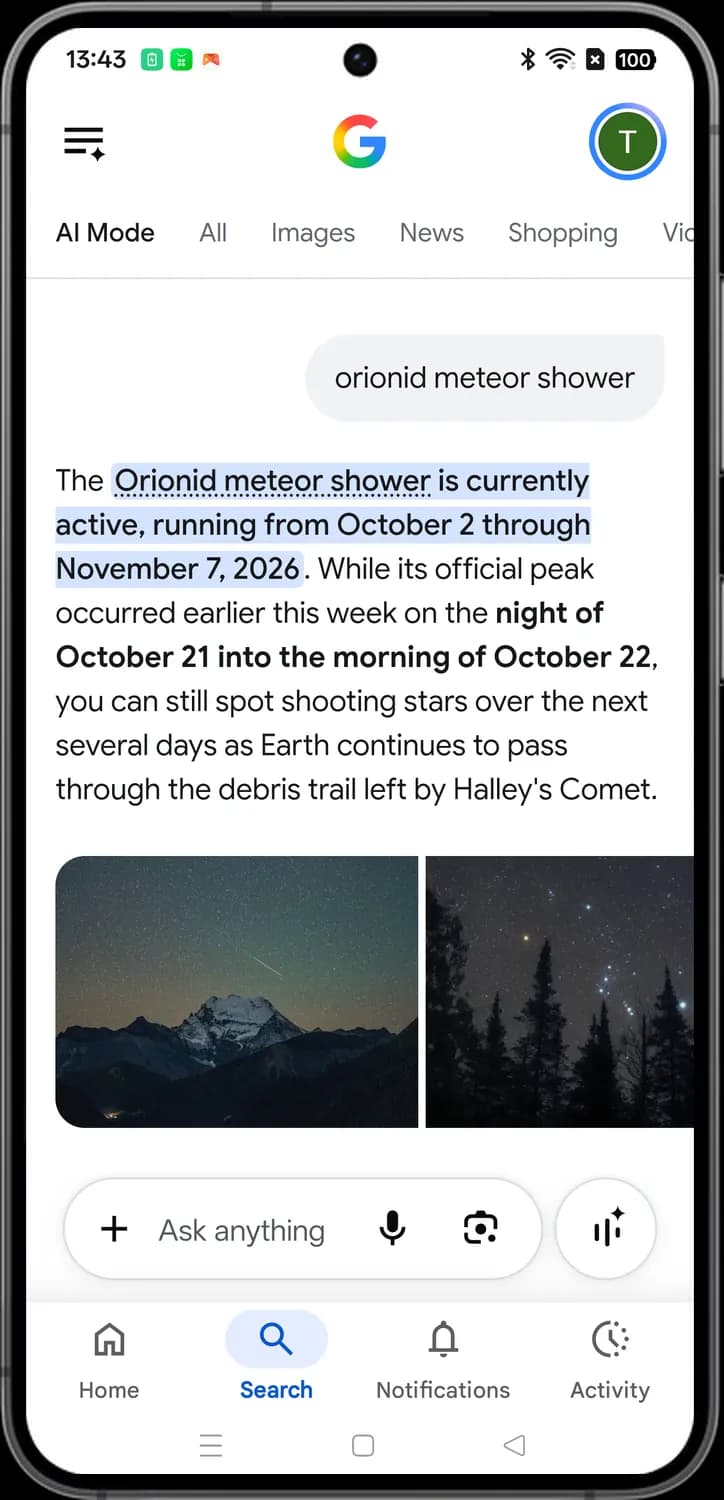

Your question
The gray bubble shows what you asked. Each follow-up question you ask appears as a new bubble below the last answer.

Image results
Pictures related to your question. Swipe through them and tap one to see it bigger with a link to the page it came from.

Ask anything
Type a follow-up question here to keep the conversation going. The +, microphone, Lens and Search Live buttons work the same way as on the search screen.
Status symbols. These only show information. They are not buttons.
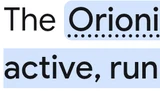
Highlighted answer
The blue highlight marks the part of the answer that most directly answers your question, so you can spot it at a glance.
Activity
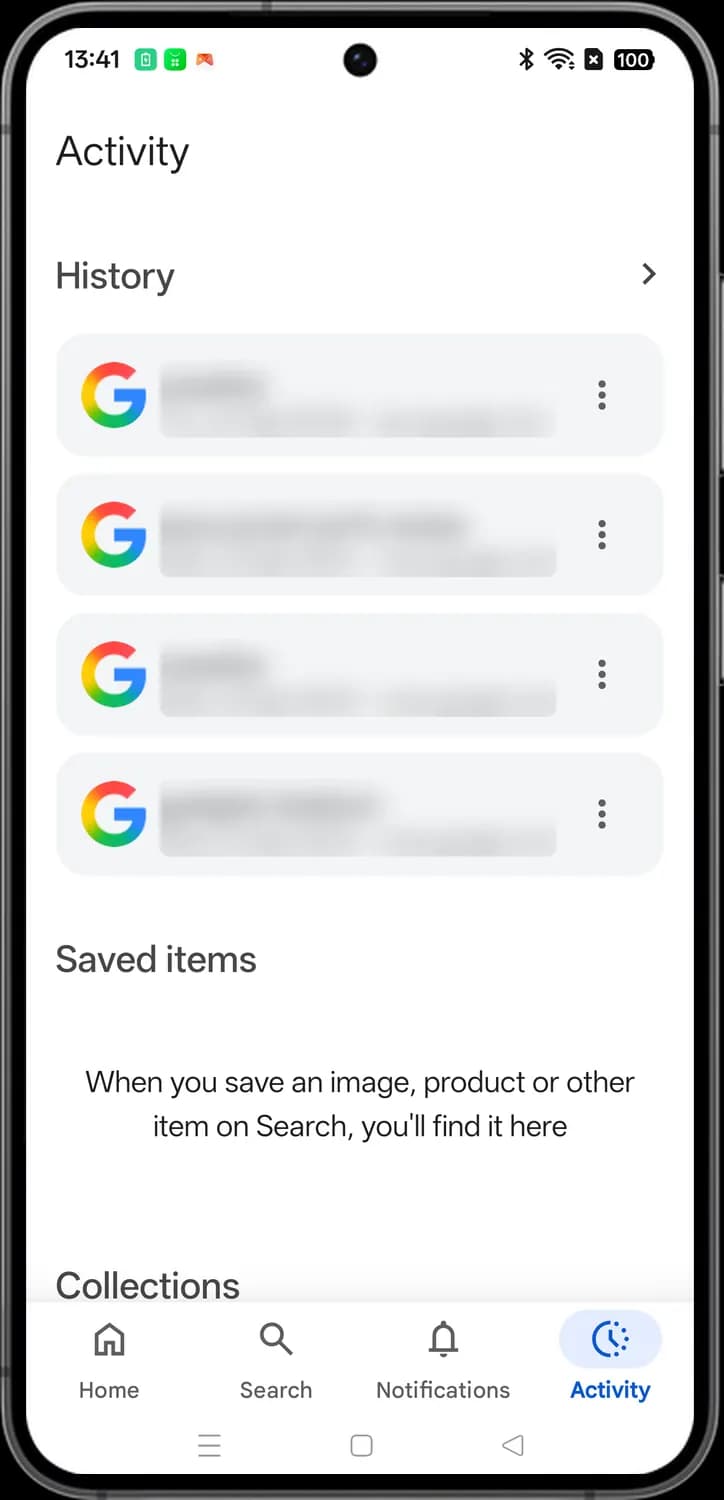
Tap Activity in the tab bar to see your recent searches. Below them are Saved items, with the images and products you saved from Search, and your Collections.

View all history
The arrow next to History. Tap it to see your full Search history, with options to delete searches.

Past search
The G marks a search you made on Google. Tap the card to run that search again.

More options
The three dots. Tap them for options for that search, like deleting it from your history.
Account menu
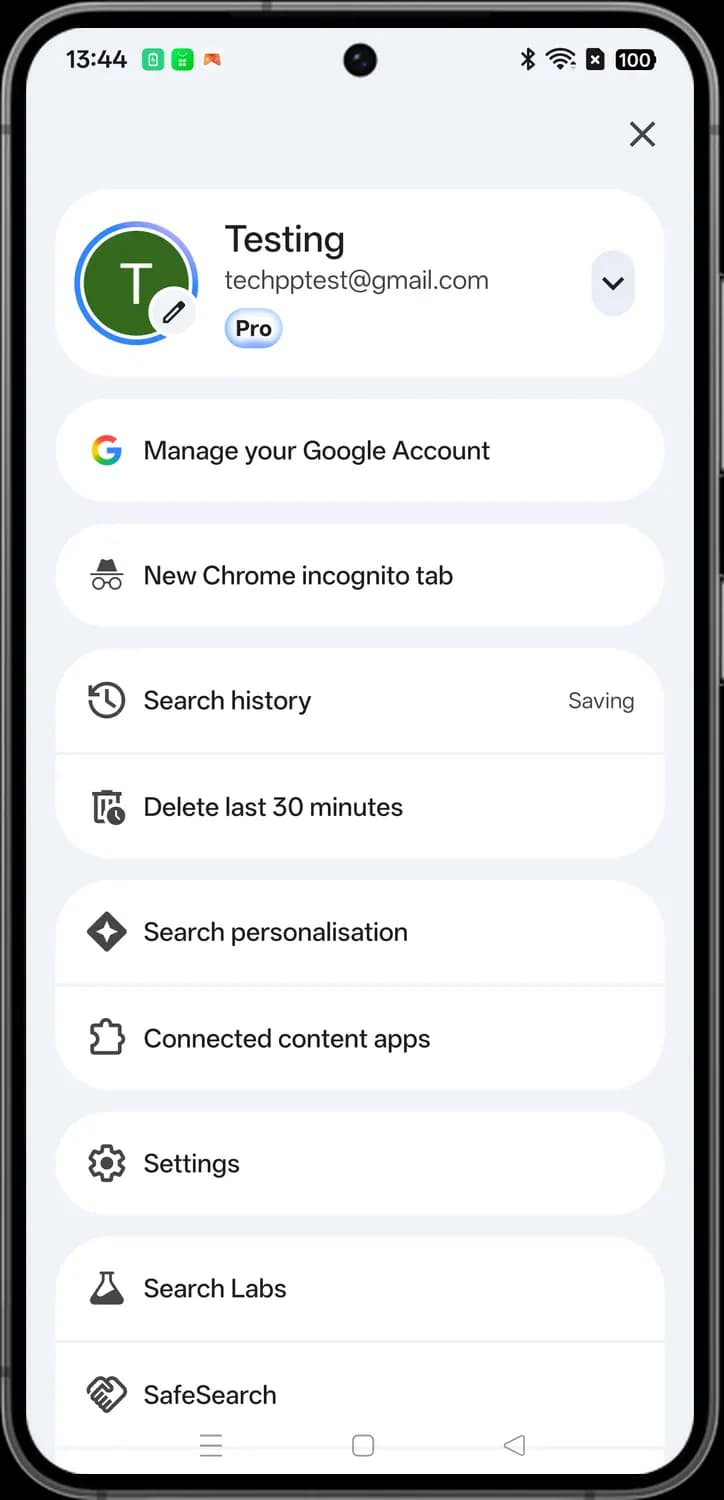
Tap your profile picture at the top right of the Home screen to open this menu. It holds your account, privacy and Search settings.
Account and history

Close
The X. Tap it to close the menu.

Profile picture
Tap the pencil on your picture to change your profile photo.

Switch account
The down arrow. Tap it to switch to another Google account on this phone or add a new one.

Manage your Google Account
The colored G. Opens your Google Account settings, where you change your personal info, privacy and security options.

New Chrome incognito tab
The hat and glasses. Opens a private Incognito tab in Chrome, so what you search there is not saved to your history.

Search history
The clock with a back arrow. Saving means your searches are being stored. Tap it to see, delete or turn off your Search history.

Delete last 30 minutes
The trash can with a clock. Tap it to delete the searches you made in the last 30 minutes.
Search settings

Search personalization
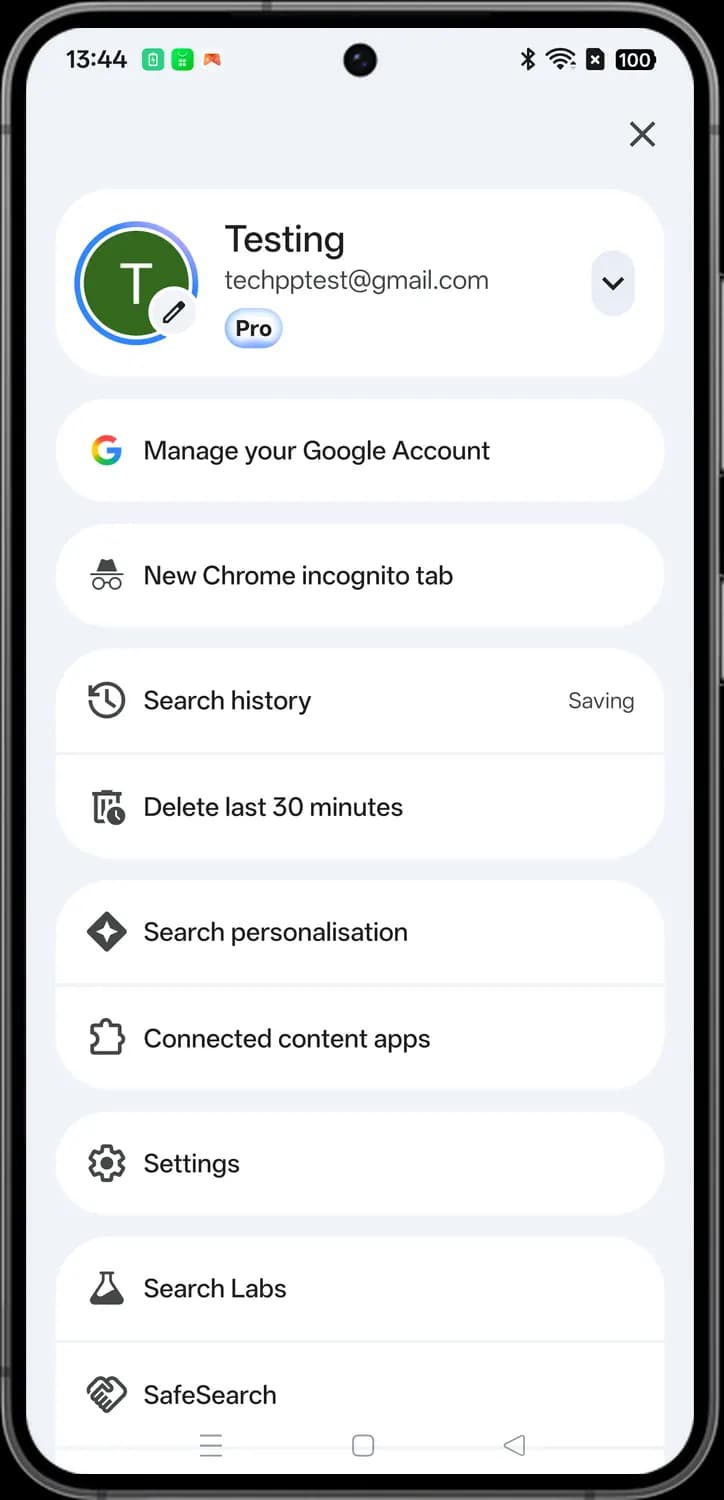
Choose whether Google uses your past activity to personalize your results and suggestions.

Connected content apps
The puzzle piece. Shows the apps you have linked to Search so it can show content from them, and lets you disconnect any of them.

Settings
The gear. Opens the Google app settings for things like notifications, language, voice and accessibility.

Search Labs
The flask. Tap it to try experimental Search features that Google is still testing, and turn them on or off.

SafeSearch
The hands. Choose whether to filter out explicit results, blur explicit images, or turn SafeSearch off.
Those are the meanings of Google app icons and symbols. Google tests new search features all the time, so we update this guide every time the icons change, and you can bookmark this page to stay updated. These screens are from the Google app on Android, and most icons mean the same thing on iPhone. For more icon guides, you can also visit our TechPP icon guides.
Comments
0Share your thoughts, questions, or feedback about this guide.