
Google AI Edge Gallery Icons and Settings Explained
Google AI Edge Gallery lets you run AI models like Gemma 4 fully on your phone, offline. I love that part, but the app assumes you already speak AI. The tiles have no labels on their icons, the live metrics panel talks in tok/s and TTFT, and the settings sheet asks you to pick TopK, TopP and temperature without saying what any of them do.
In this guide, you will learn what every icon and setting in the latest AI Edge Gallery app means, screen by screen. And this is an interactive guide. You can tap on every icon on the screens below to know what it does.
Home screen and task tiles
This is the first screen you see when you open AI Edge Gallery. Each tile below Explore other use cases is a task, a small demo app that runs an AI model on your phone.
Top of Home
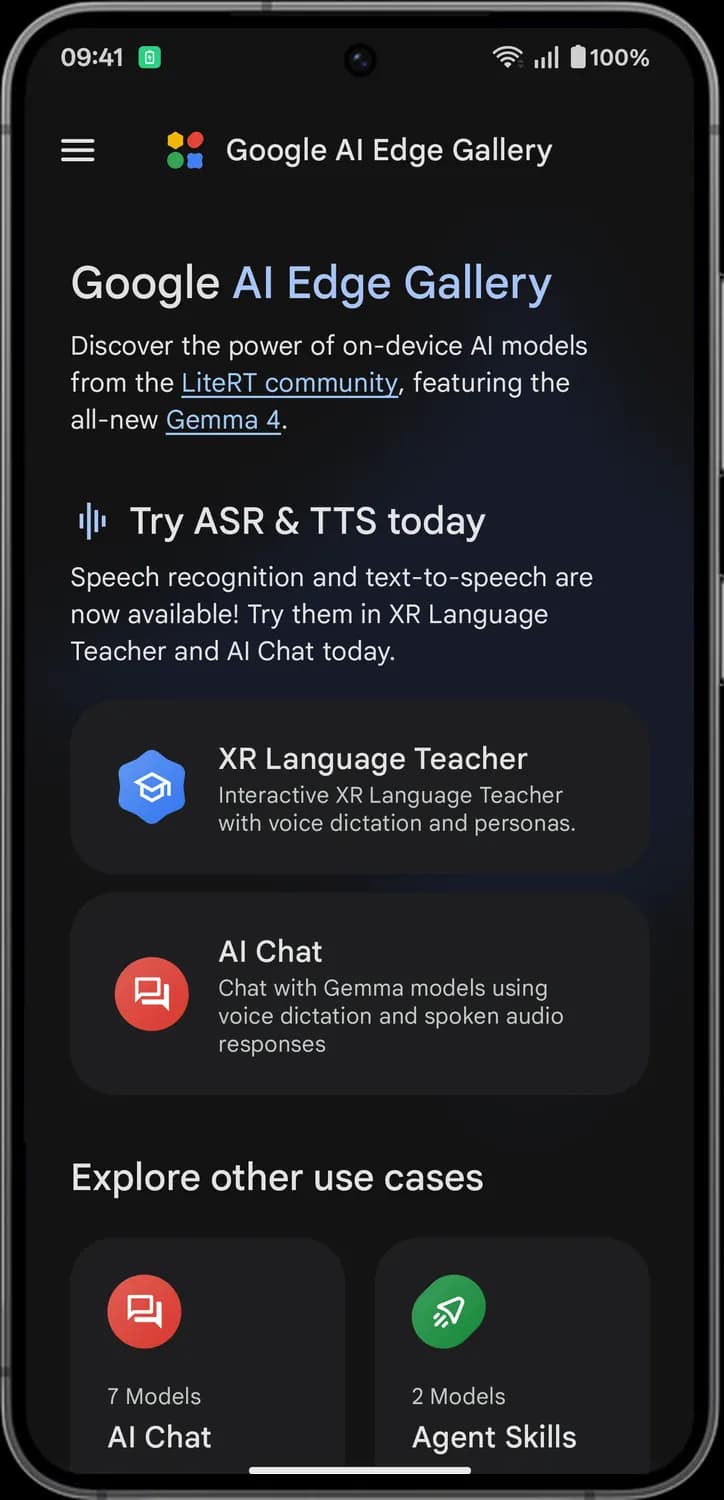

Menu
The three lines at the top left. Opens the side menu with Settings, Models and Notifications.
Try ASR & TTS today
The sound wave marks what is new. Speech recognition (ASR) turns your voice into text, and text-to-speech (TTS) reads replies aloud. The two cards under it open XR Language Teacher and AI Chat, where you can try both.
Task tiles, first half
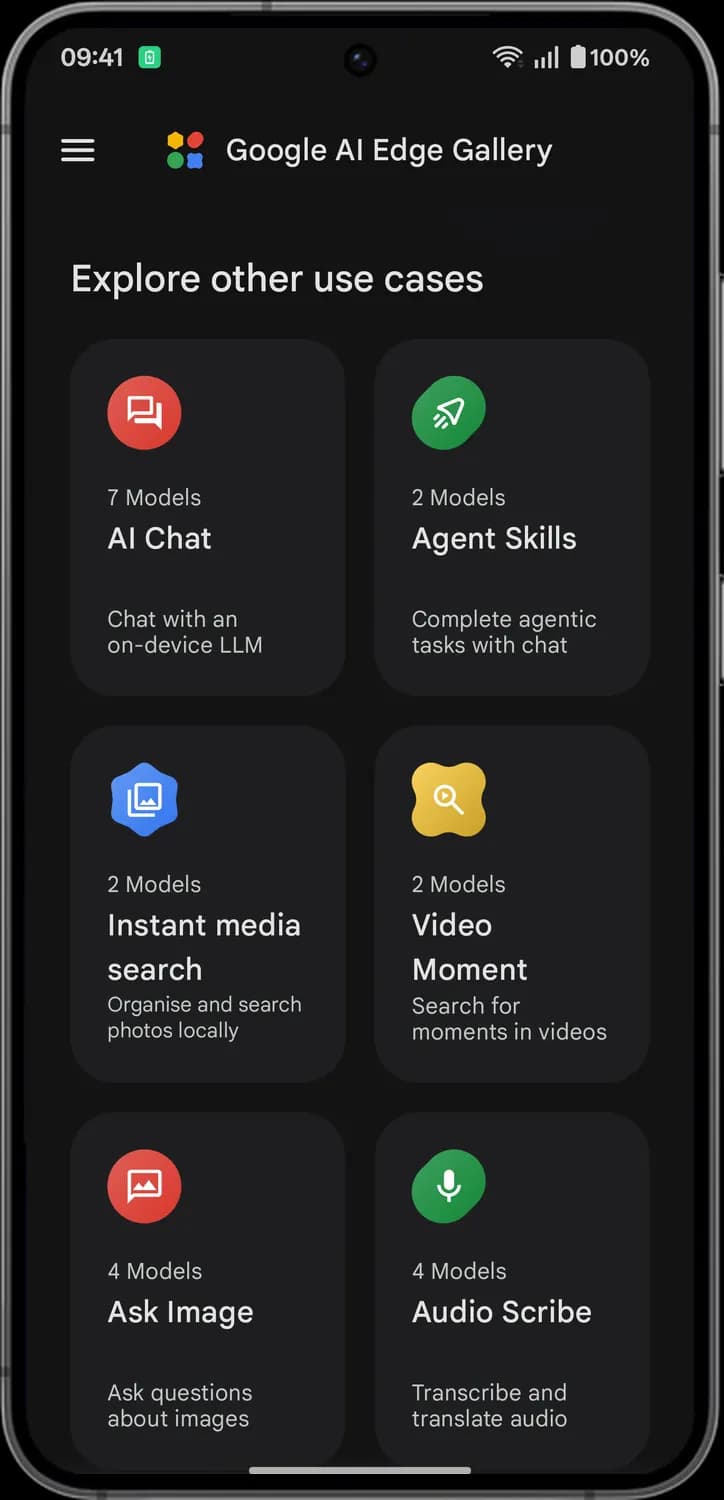

AI Chat
The red chat bubbles. Opens a chat with an AI model, such as Gemma, that runs on your phone. You can type, talk to it, and have replies read aloud.

Agent Skills
The green rocket. A chat where the model can use skills, like showing a map, looking things up on Wikipedia or setting a reminder.

Instant media search
The blue photo icon. Searches the photos on your phone by describing them in plain words, or finds photos that look like one you pick, without sending anything to the cloud.

Video Moment Finder
The yellow magnifier. Finds a moment in a video from a description, then lets you trim that clip and save it.

Ask Image
The red picture icon. Add a photo or take one with the camera, then ask the model questions about it.
Audio Scribe
The green microphone. Add a short audio clip and the model writes it out as text, or translates it.
Status symbols. These only show information. They are not buttons.
Model count
How many AI models you can use for that task. You download the one you want before the task runs.
Task tiles, second half
Prompt Lab
The blue squares. A one-question, one-answer workspace for testing prompts, with ready-made modes like Rewrite tone and Summarise text.

Tiny Garden
The yellow flower. A small experimental game where you plant and harvest a virtual garden by typing what you want in plain words.
Mobile Actions
The red sigma. Lets a small on-device model control parts of your phone from simple commands, with no internet needed.

Scrapbook
The green icon with scissors. Cuts objects out of your photos so you can use the cutouts to make your own scrapbook.

XR Language Teacher
The blue graduation cap. Point your camera at something and ask about it; the teacher answers in the language you are learning, reads it aloud and saves new words as vocabulary cards.
AI Chat screen
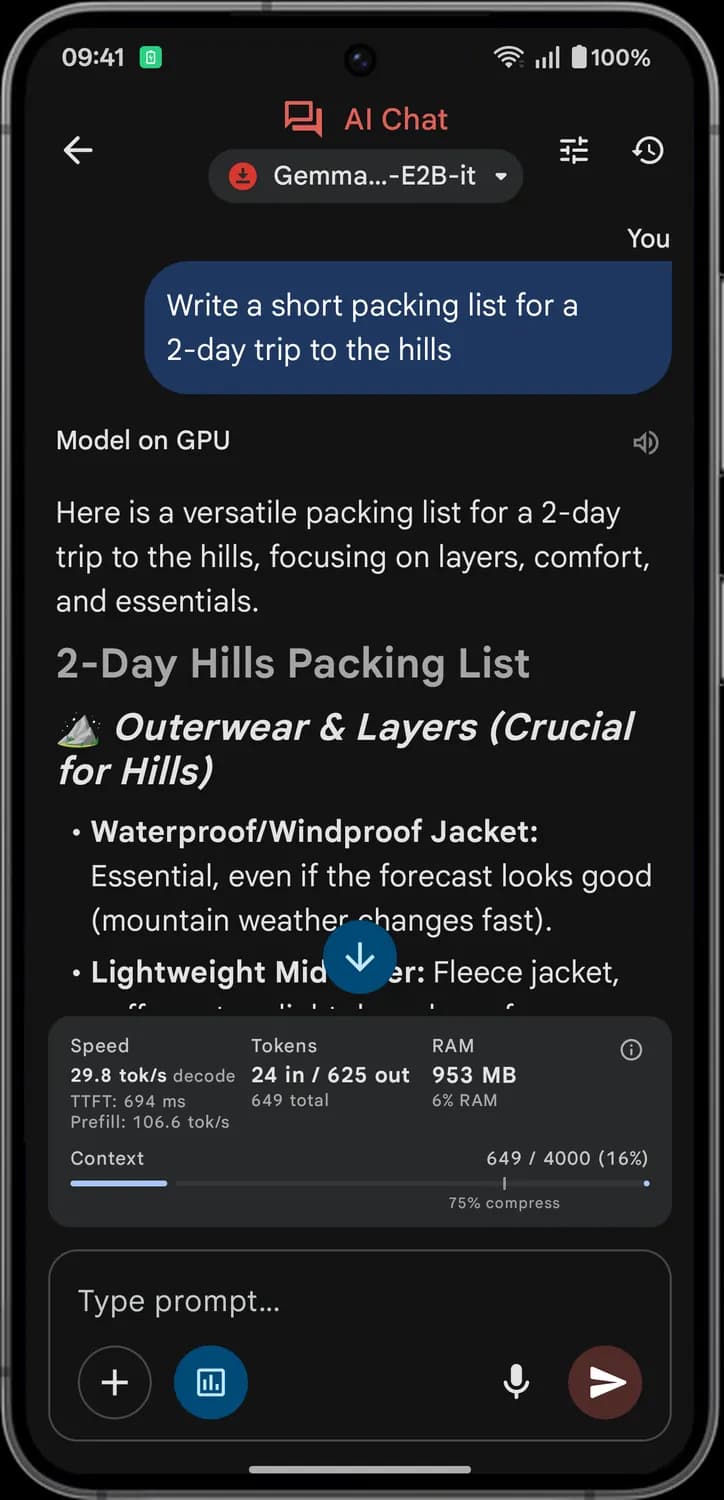
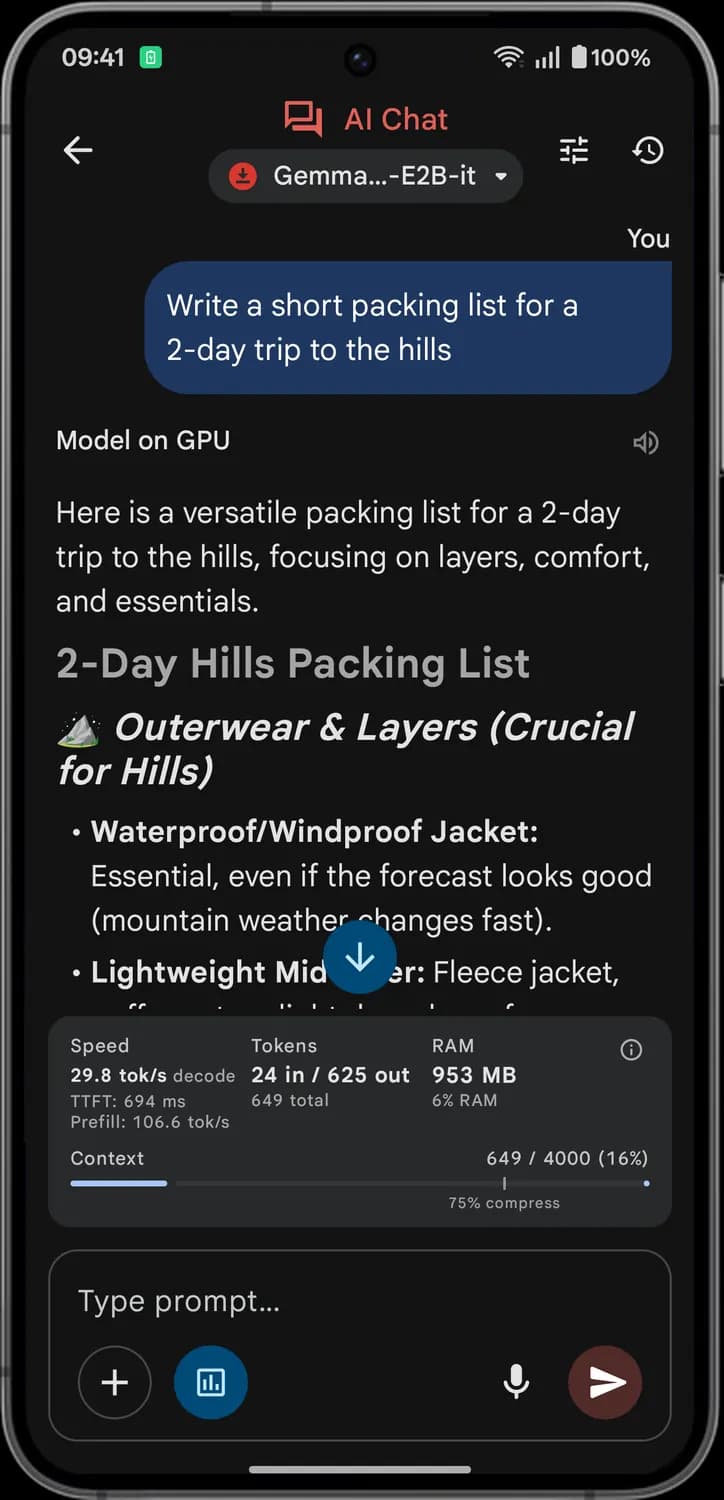
This is the chat screen you get after you tap AI Chat and then Try it on a model. The same top bar and prompt bar show up in Ask Image, Audio Scribe and Agent Skills.
Top bar and reply

Back
The left arrow. Leaves the chat and takes you back to the task page.
Model picker
The pill under the task name shows the model you are chatting with. Tap it to switch to another model for this task.

Model settings
The three sliders. Opens Configure settings, where you change things like max tokens, temperature and GPU or CPU for this model.

Chat history
The clock with an arrow. Opens your chat history, where you can start a new chat or delete old ones.

Read aloud
The speaker next to a reply. Tap it to hear the reply read out loud.
Status symbols. These only show information. They are not buttons.

Model on GPU
The label above each reply. It tells you the reply came from the model, and whether it ran on your phone's GPU or CPU.
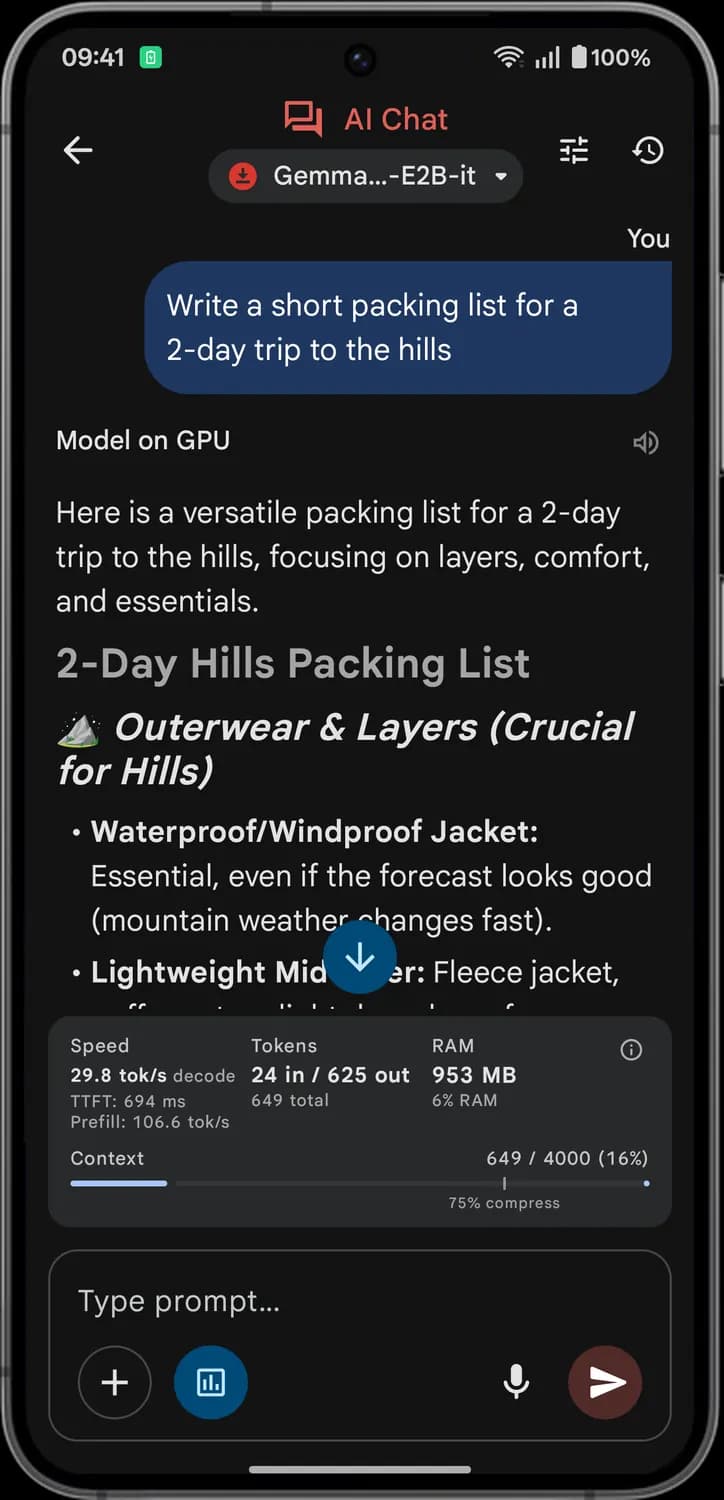
Live metrics

About live metrics
The small i at the top right of the panel. Tap it to read what the live metrics mean.

Scroll to bottom
The down arrow over the chat. Jumps to the newest message.
Status symbols. These only show information. They are not buttons.
Speed
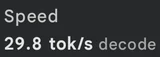
How fast the model writes, in tokens per second (tok/s). TTFT is the time to the first token of the reply, and Prefill is how fast it read your prompt.
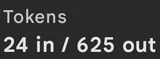
Tokens
How many tokens went in (your prompt) and came out (the reply) for the last message, and the total.
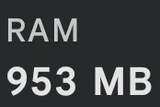
RAM
The most memory the app used while answering, and what share of your phone's total memory that is.
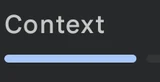
Context
How much of the chat's token limit you have used. The mark at 75% compress is where the app can shrink the chat so you can keep going.
Prompt bar
Prompt box
Type your question or instruction here. The model reads it on your phone, not in the cloud.

Add content
The plus. Opens a menu to take a picture, pick a photo, record or pick an audio clip, or reuse an earlier prompt.
Toggle live metrics
The bar chart in a blue circle. Shows or hides the live metrics panel above the prompt box. Blue means the panel is on.

Voice input
The microphone. Tap it and speak, and your words are typed into the prompt box by on-device speech recognition.

Send
The paper plane. Sends your prompt to the model.
Add content, chat history and model picker
These open from the AI Chat screen: the plus button in the prompt bar, the clock at the top right, and the model pill under the task name.
Add content menu
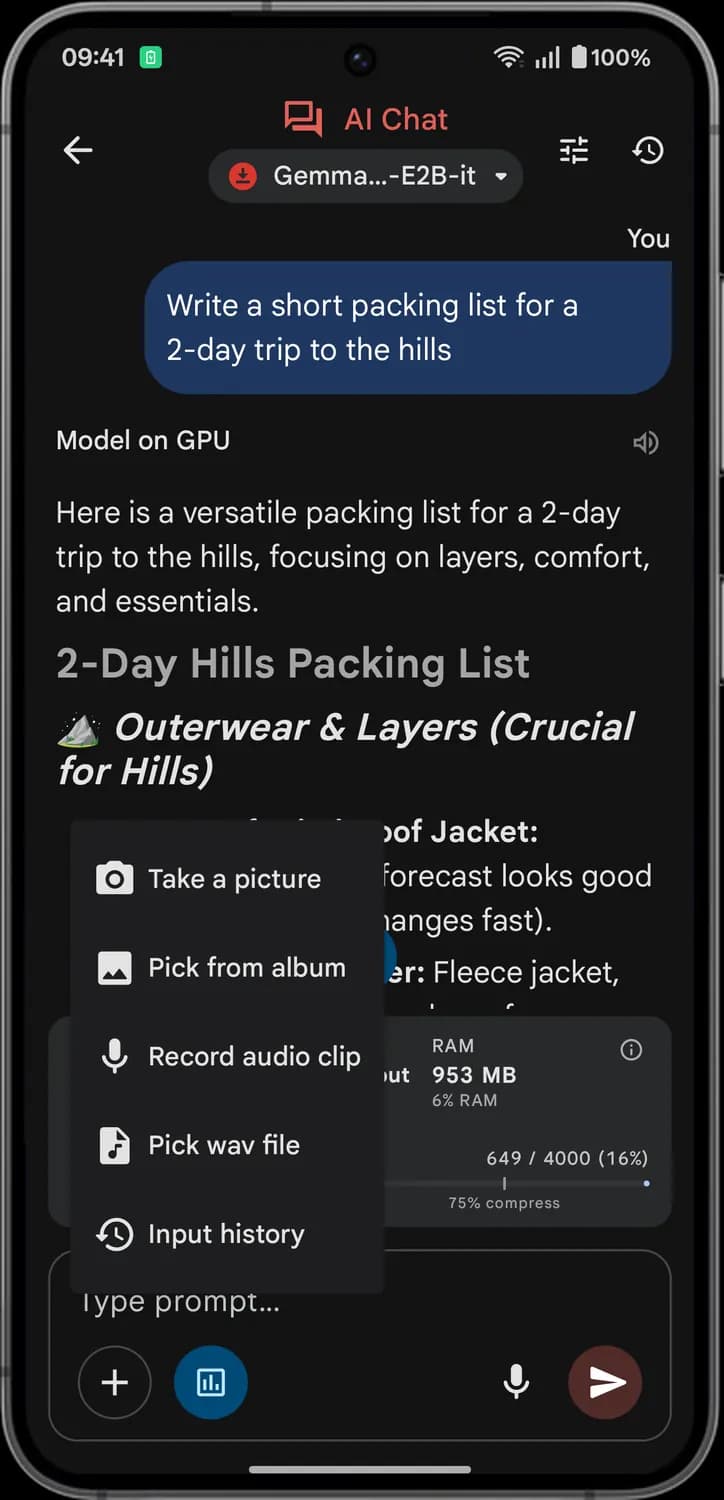

Take a picture
Opens the camera so you can take a photo and ask the model about it.

Pick from album
Adds a photo from your gallery to the prompt.
Record audio clip
Records a short clip with your microphone and adds it to the prompt.
Pick wav file
Adds an audio file in WAV format from your phone.
Input history
Shows the prompts you typed before, so you can reuse one instead of typing it again.
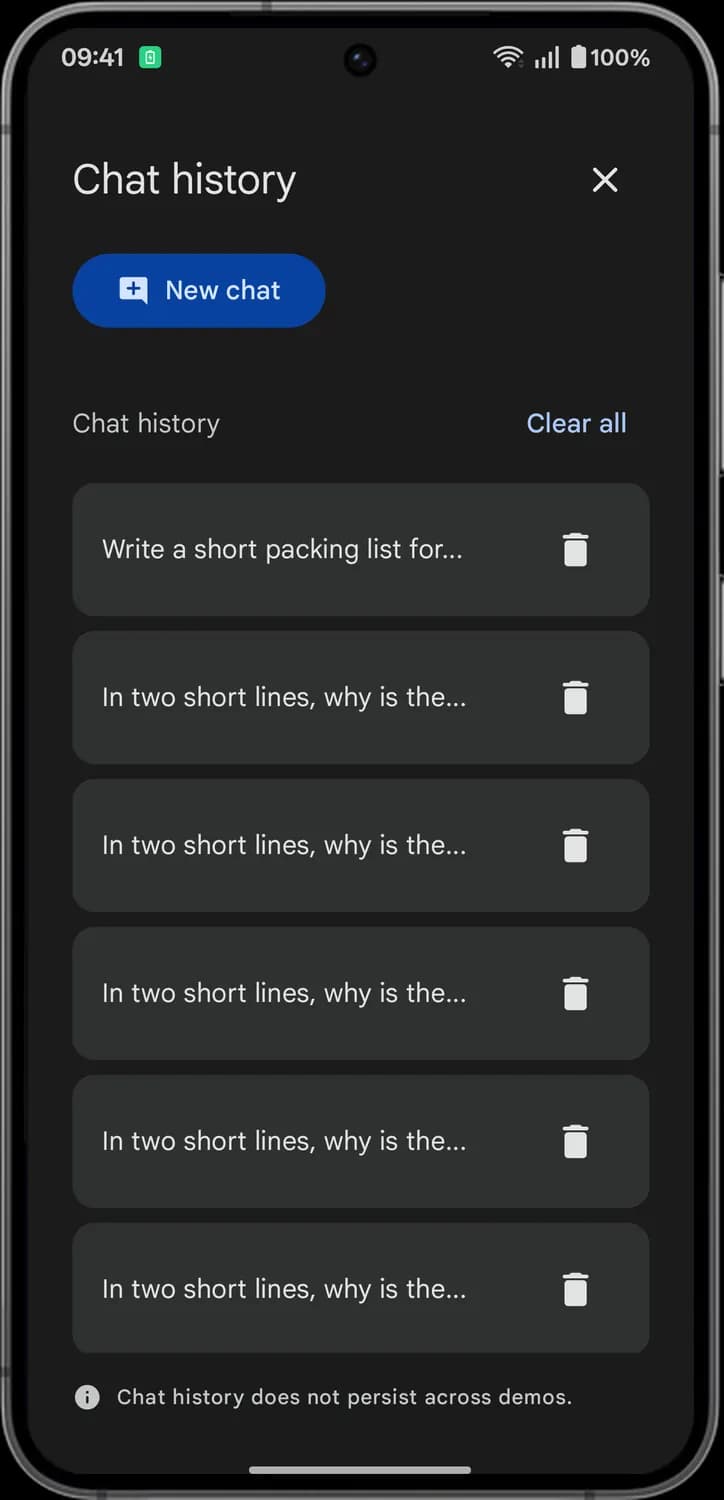
Chat history

Close
The X. Closes the chat history panel.

New chat
Starts a fresh, empty chat with the same model.
Clear all
Deletes every chat in the list at once.
Earlier chat
Each card is an earlier chat, shown by the start of its prompt. The note at the bottom says chat history does not persist across demos.

Delete
The trash can on a card. Deletes just that one chat.
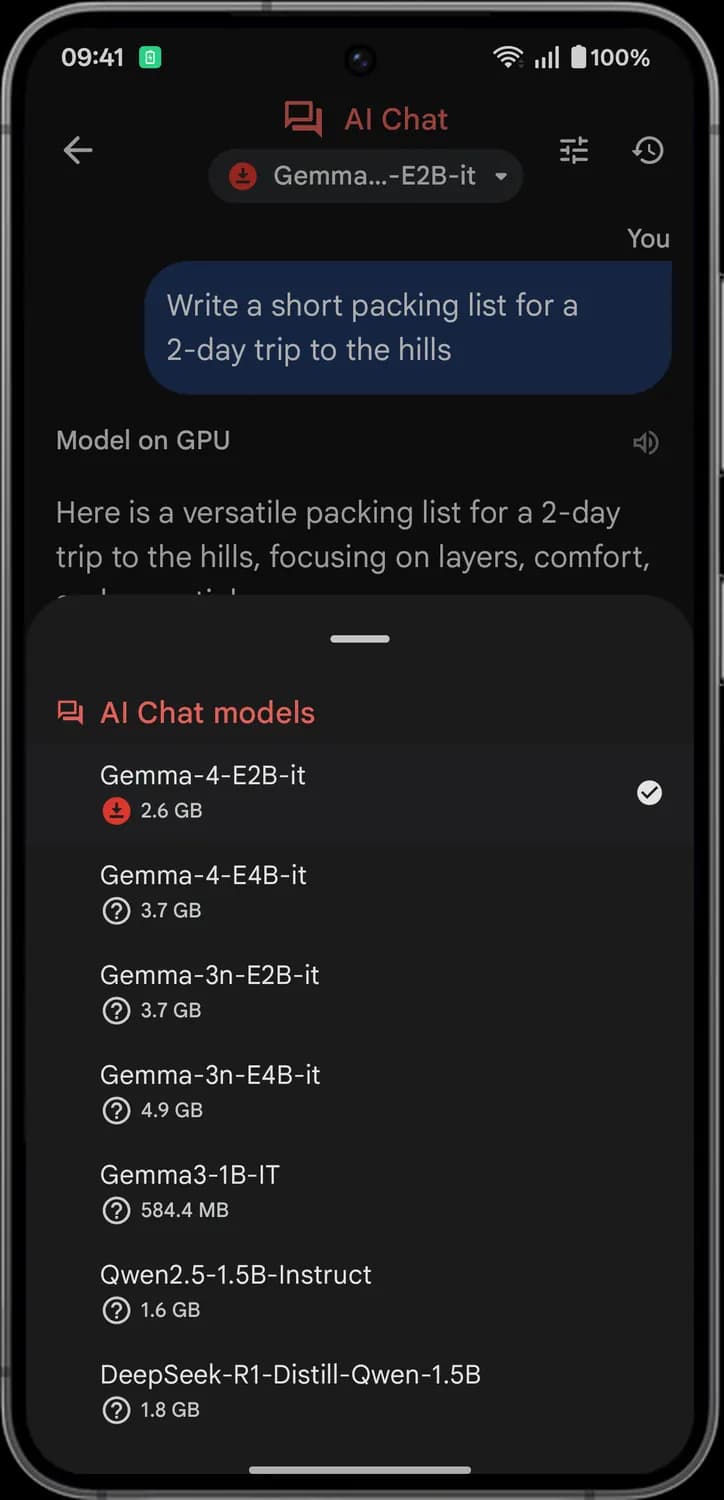
Model picker
Drag handle
The short bar at the top of the sheet. Drag it down, or tap outside the sheet, to close the model list.
Status symbols. These only show information. They are not buttons.

Selected
The tick marks the model the chat is using now. Tap another model to switch to it.

Downloaded
The down arrow in a filled circle means the model is already on your phone and ready to use offline.

Not downloaded
The question mark in a circle means the model is not on your phone yet. You need to download it before you can use it.
Model size
How much storage the model takes on your phone, and how much you download to get it.
Model settings
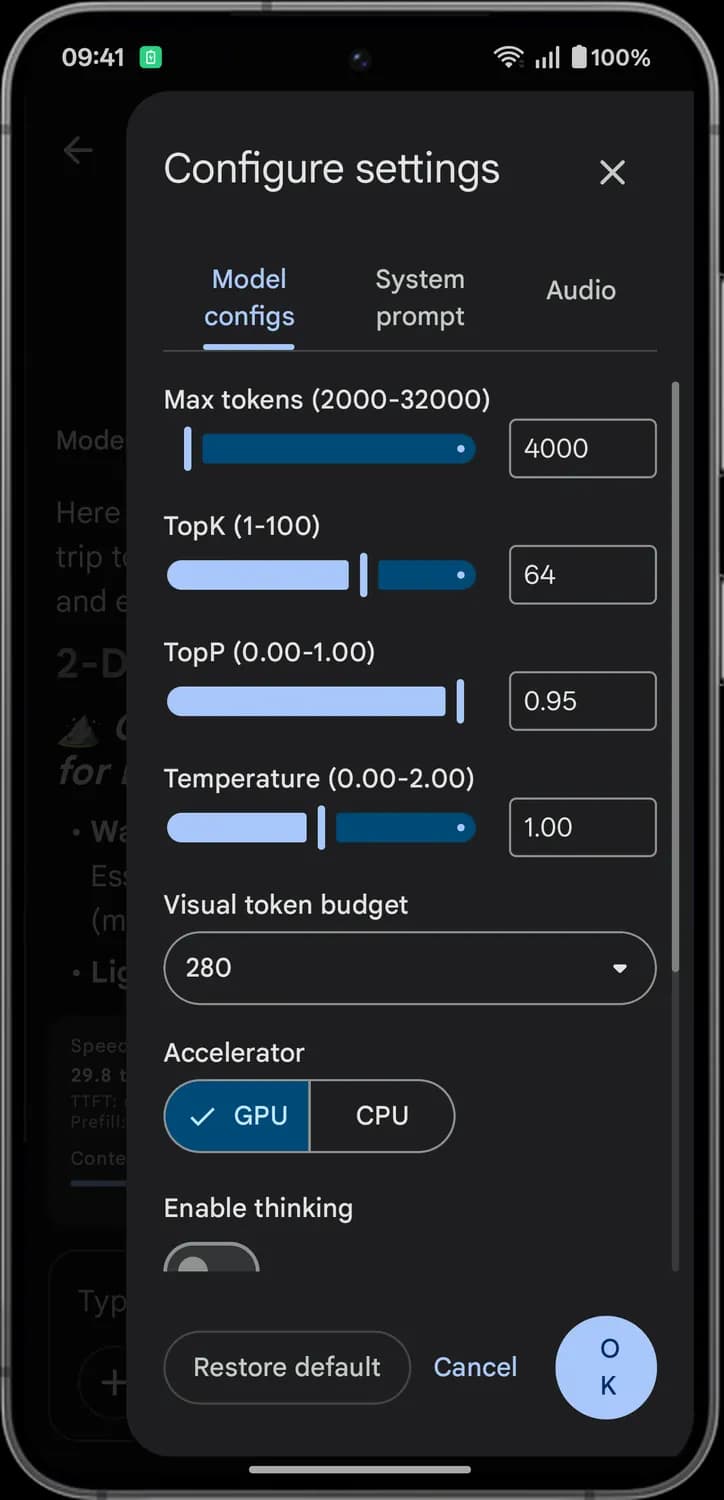
Tap the three sliders at the top of a chat to open Configure settings. These numbers change how the model writes, and you can always go back with Restore default.
Tabs and first settings

Close
The X. Closes the settings without saving your changes.
Model configs
The tab you see first. It holds the settings below, which control how the model reads and writes.
System prompt
Lets you write standing instructions the model follows for the whole chat, like the tone to use or a role to play.
Audio
Picks the speech recognition and text-to-speech engines, voices and languages used in this chat.
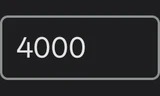
Max tokens
The most tokens the chat can hold, your messages and the replies together. A token is a short piece of a word. Higher allows longer chats but uses more memory. The range here is 2,000 to 32,000.
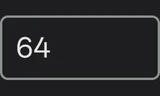
TopK
When writing each word, the model only picks from this many of its most likely next tokens. A lower number keeps answers safer and more predictable; a higher number allows more variety.
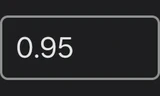
TopP
Another way to limit the choices. The model only picks from the most likely tokens that add up to this share of probability. 0.95 means it ignores the least likely 5%.
More settings and buttons
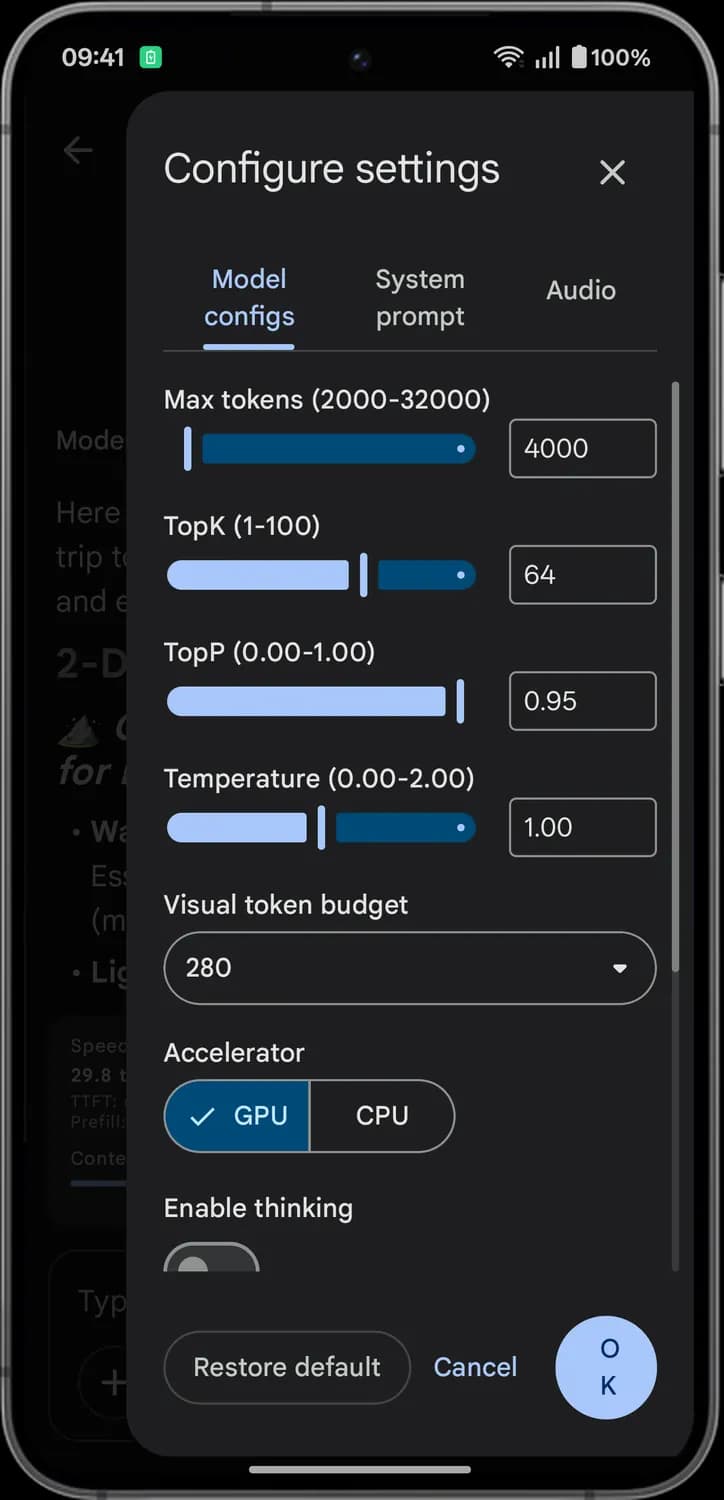
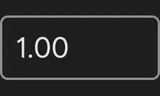
Temperature
How adventurous the answers are. Lower values, like 0.2, give focused and repeatable answers; higher values give more creative and varied ones that can drift off topic.
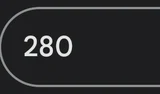
Visual token budget
How many tokens the model spends on each image you add. A higher number lets it see more detail but takes longer and uses more memory.
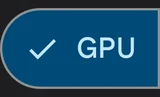
Accelerator
Runs the model on your phone's GPU or CPU. The GPU is usually faster. The label above each reply shows which one was used.
Enable thinking
Turn it on and models that support it work through the problem step by step before they answer. Answers take longer but can be better on hard questions.
Restore default
Puts every setting back to the model's original values.

Cancel
Closes the settings without saving.
OK
Saves your changes and closes the settings.
Models and downloads
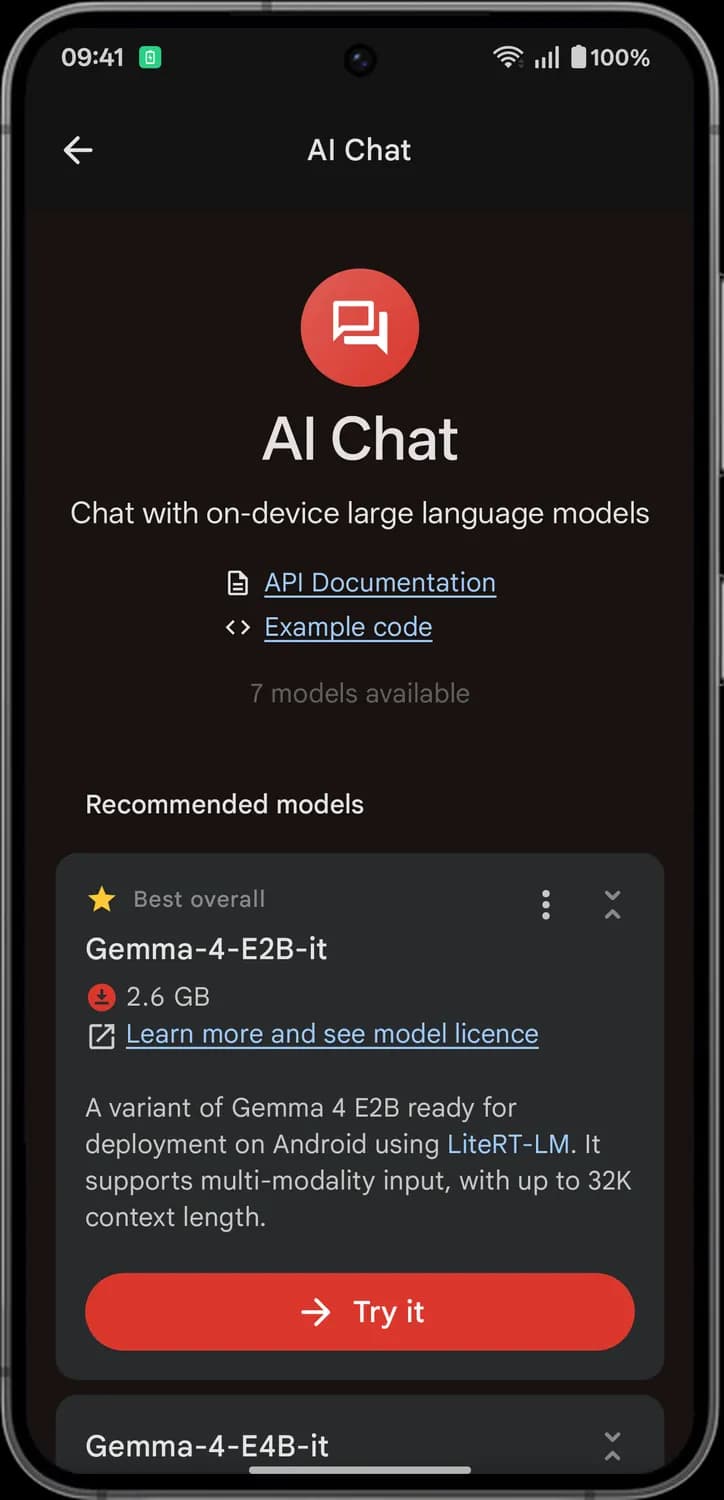
Tap a task tile and you land on its model page. It lists the models that work with that task, and each card shows whether the model is on your phone.
Top of the model page

Back
The left arrow. Takes you back to the home screen.

API Documentation
The page icon. Opens Google's developer documentation for the on-device API this task is built on.

Example code
The angle brackets. Opens example code for this task, for developers who want to build the same thing into an app.
Model card

More options
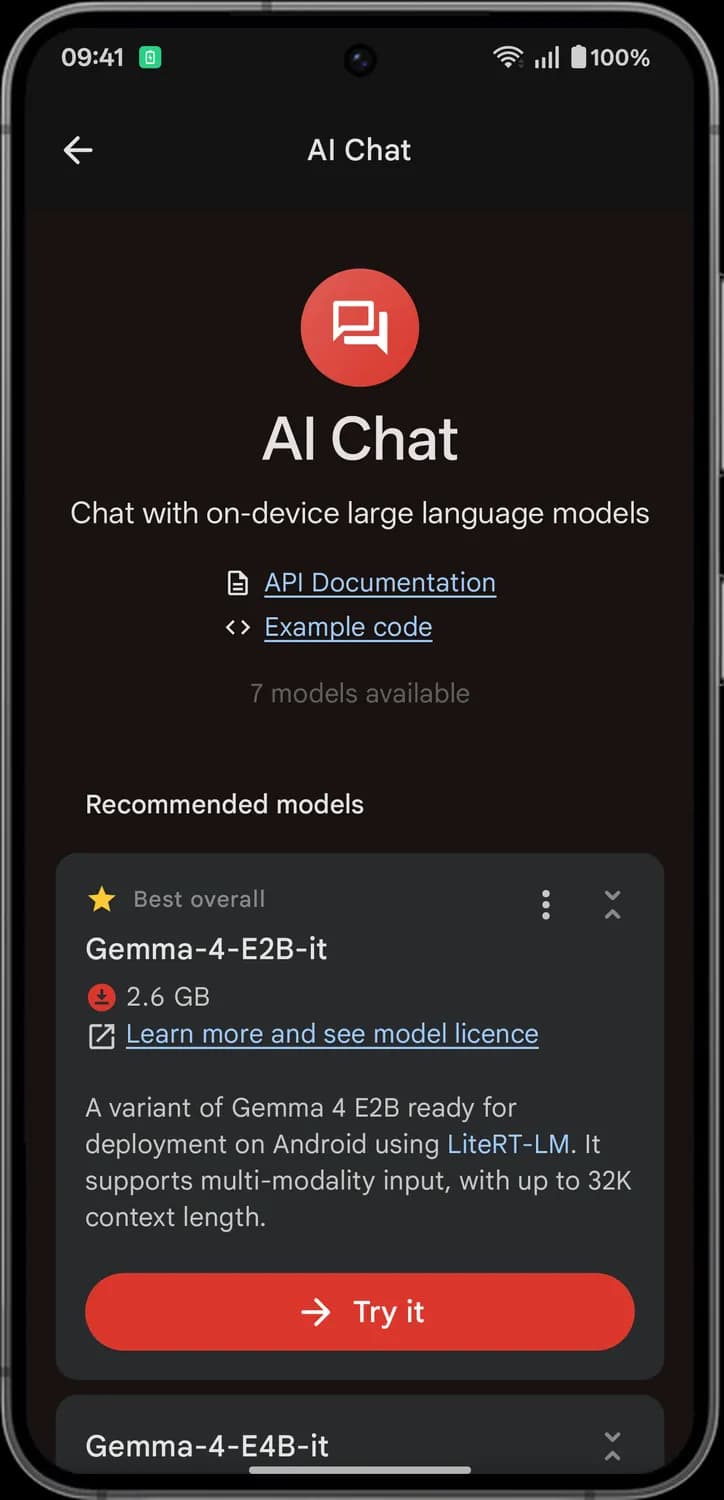
The three dots on a model card. Opens a menu with Benchmark and Delete.

Learn more and see model licence
The arrow out of a box. Opens the model's page, where you can read about it and its license.

Try it
Opens the task with this model.
Status symbols. These only show information. They are not buttons.

Best overall
The star marks the model the app recommends first for this task.

Downloaded
The filled circle with a down arrow next to the size means the model is already on your phone.
More options menu
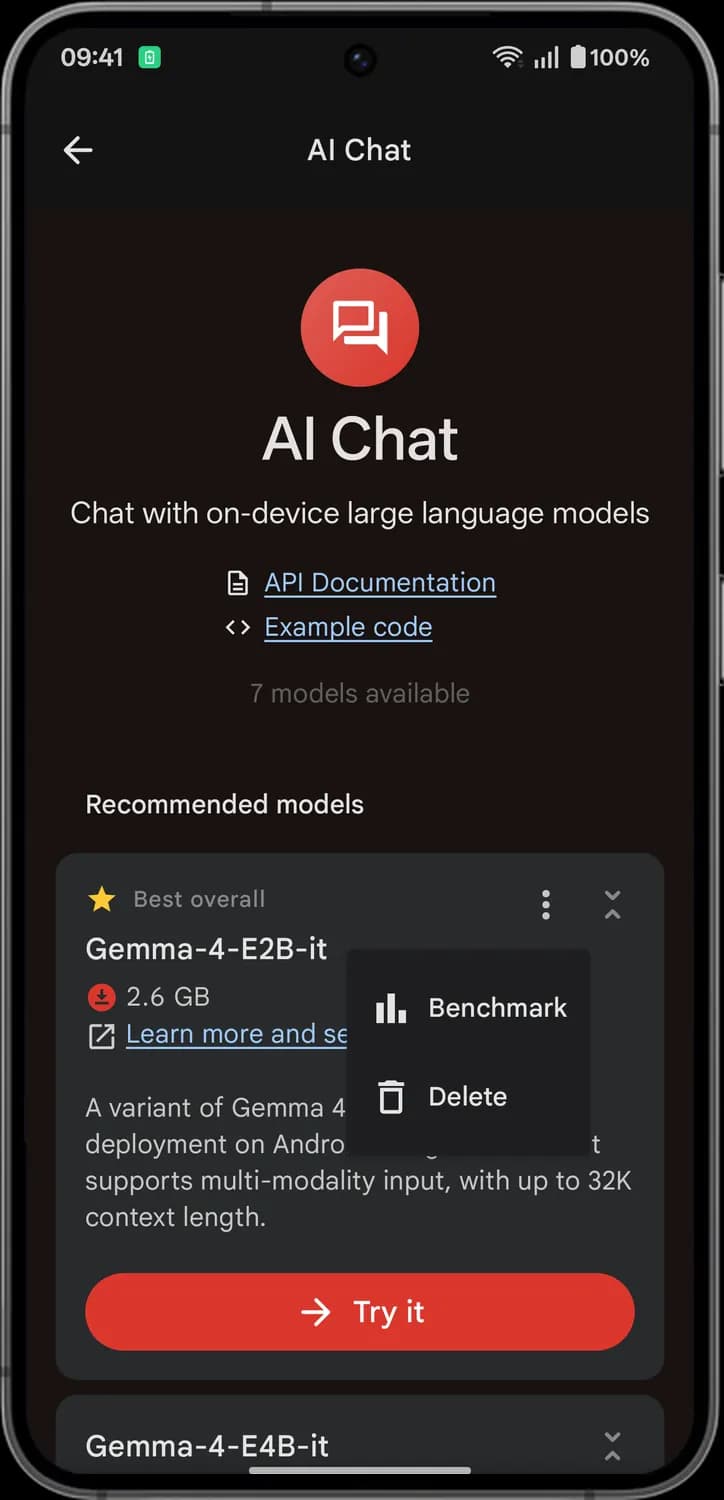

Benchmark
Opens the benchmark tool, which tests how fast the model runs on your phone. A run takes several minutes, and you can compare runs.

Delete
Deletes the downloaded model from your phone to free up space. You can download it again later.
Prompt Lab
Prompt Lab gives you one answer per prompt, with no back and forth. The tabs at the top are ready-made prompt types.
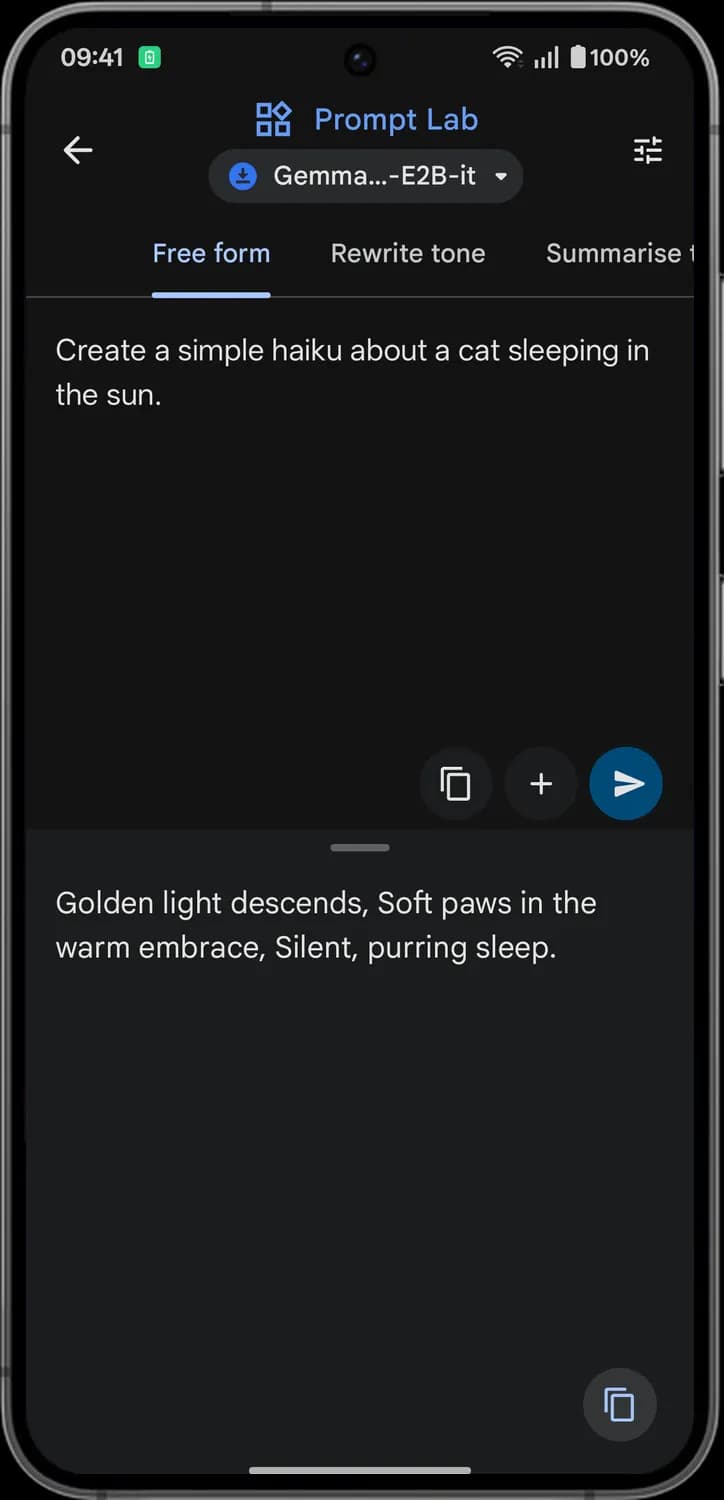
Free form
Write any prompt you like. The model answers it once.
Rewrite tone
Paste some text and pick a tone, such as formal, casual, friendly or concise, and the model rewrites it in that tone.

Summarise text
Paste some text and pick a summary style, such as bullet points, a short paragraph or a headline.

Copy prompt
The two pages. Copies the full prompt the tab builds from your text to the clipboard.

Add example prompt
The plus. Opens a list of example prompts so you can pick one instead of writing your own.

Send
The paper plane. Sends the prompt, and the answer appears in the panel below.

Copy response
The two pages at the bottom right. Copies the model's answer to the clipboard.
Ask Image and Audio Scribe
These two tasks open the same chat screen as AI Chat, but they start with a file. Ask Image needs a photo and Audio Scribe needs an audio clip.
Ask Image
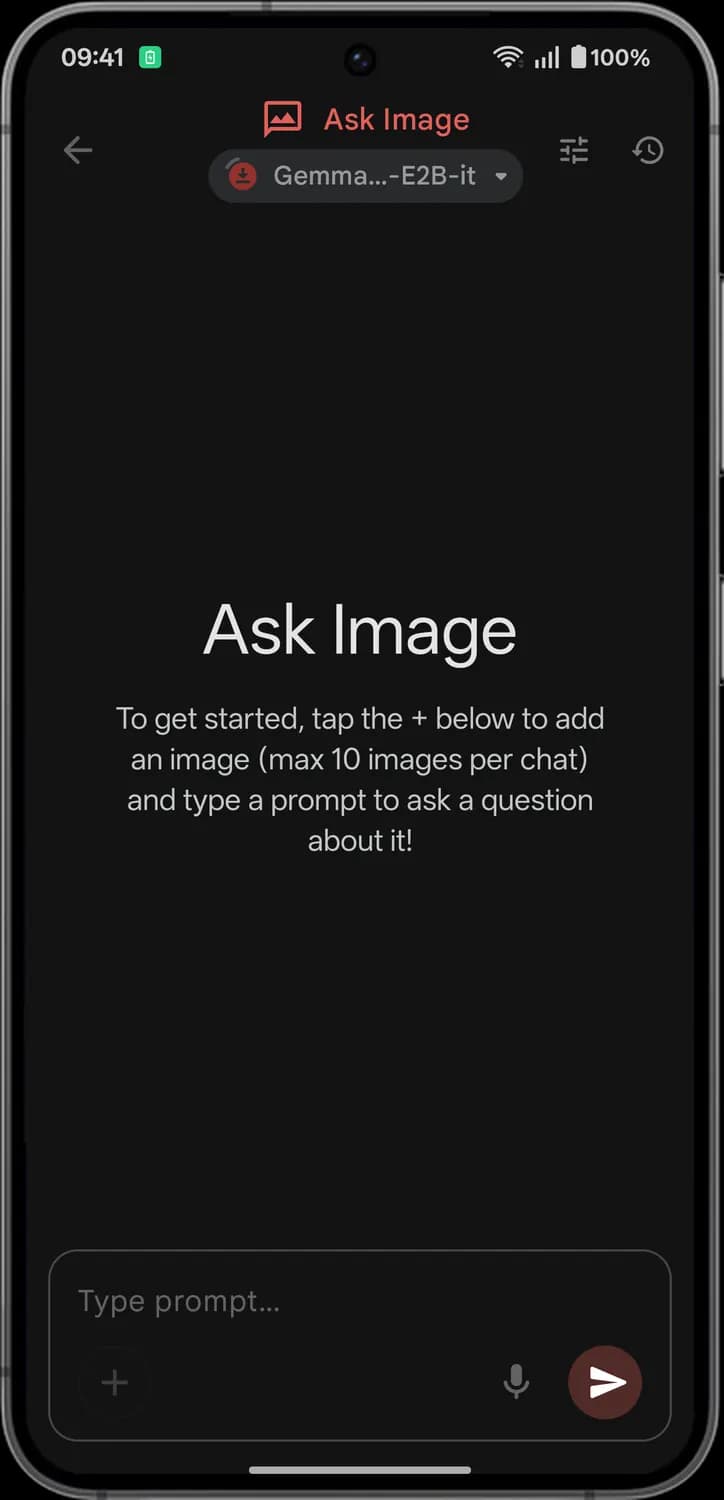

Add image
The plus. Adds a photo from the camera or your gallery. You can add up to 10 images in one chat, then type your question.
Status symbols. These only show information. They are not buttons.

Task name
The icon and name at the top show which task you are in. The model pill and the send button take the same color as that task's tile.
Audio Scribe
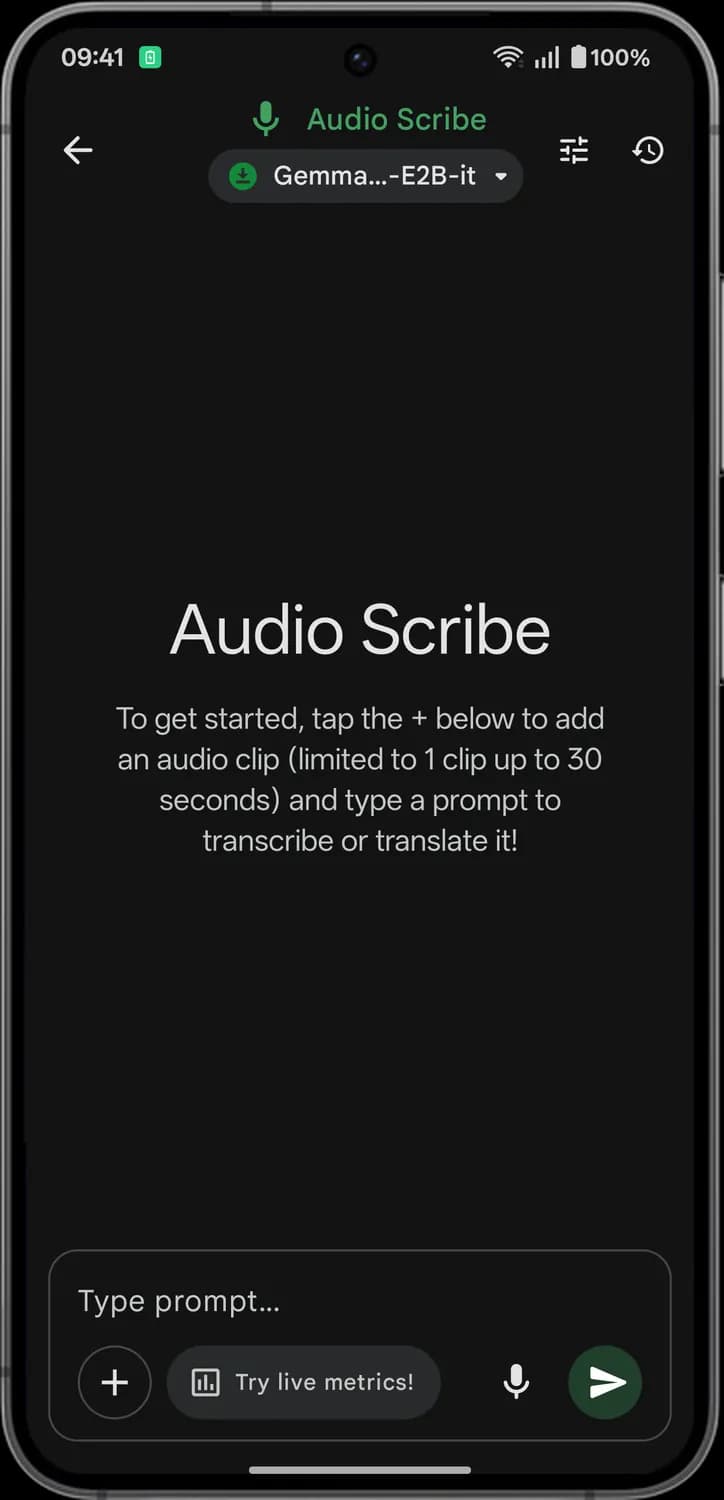

Add audio clip
The plus. Adds one audio clip, up to 30 seconds long, by recording it or picking a WAV file. Then ask the model to transcribe or translate it.
Try live metrics!
Turns on the live metrics panel, which shows how fast the model answers and how much memory it uses.

Voice input
The microphone dictates your typed prompt, like what to do with the clip. It does not add the clip itself; use the plus for that.
Agent Skills
Agent Skills is a chat where the model can use tools, called skills, to do more than write text. The Skills button at the bottom opens the list of skills you can turn on or off.
Agent Skills chat
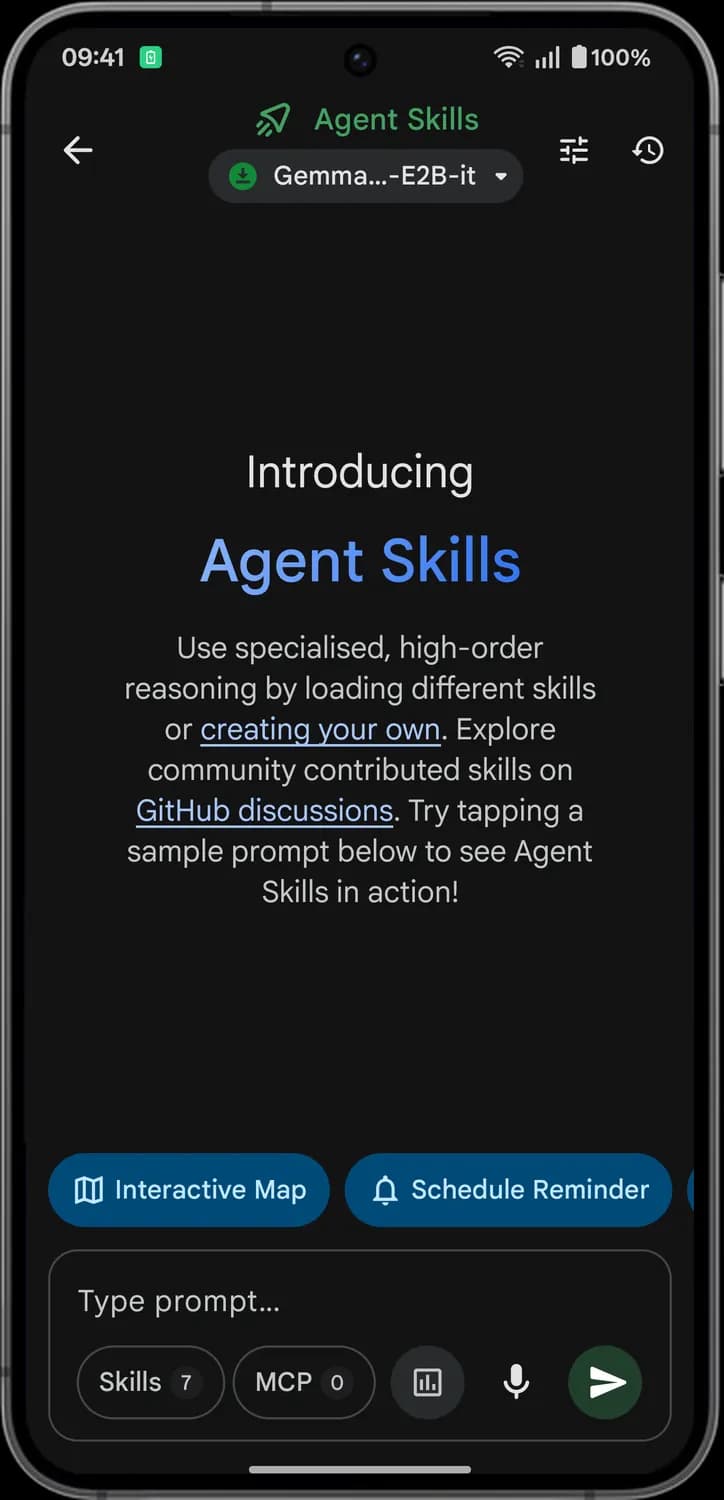

Interactive Map
A sample prompt. Tap it to try a prompt that asks the model to show the Googleplex on a map, using the interactive-map skill.

Schedule Reminder
A sample prompt. Tap it to try a prompt that asks the model to set a daily 9 am reminder. Scheduled reminders show up under Notifications in the side menu.
Skills
Opens Manage skills. The number is how many skills are turned on right now.
MCP
Opens the MCP server manager. MCP (Model Context Protocol) servers give the model extra tools; the number is how many you have added.
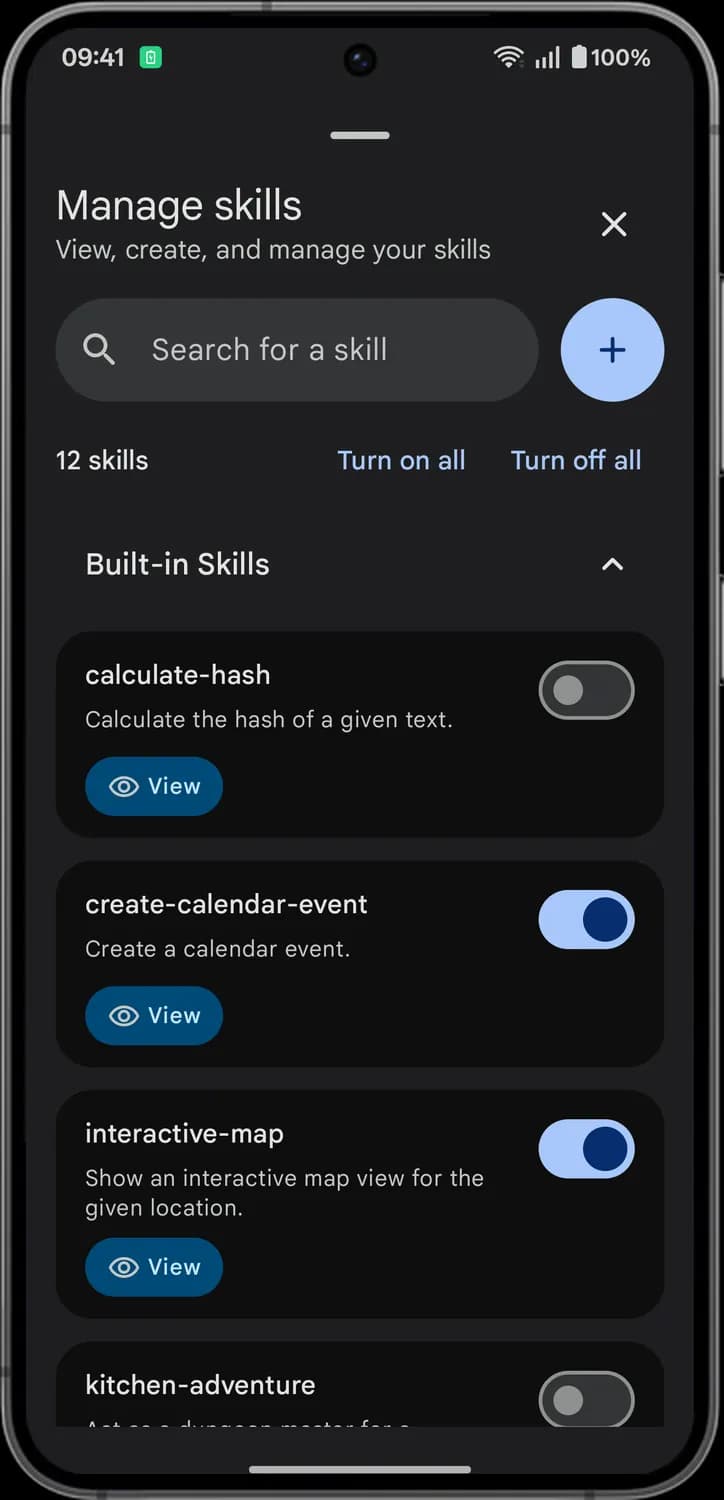
Manage skills
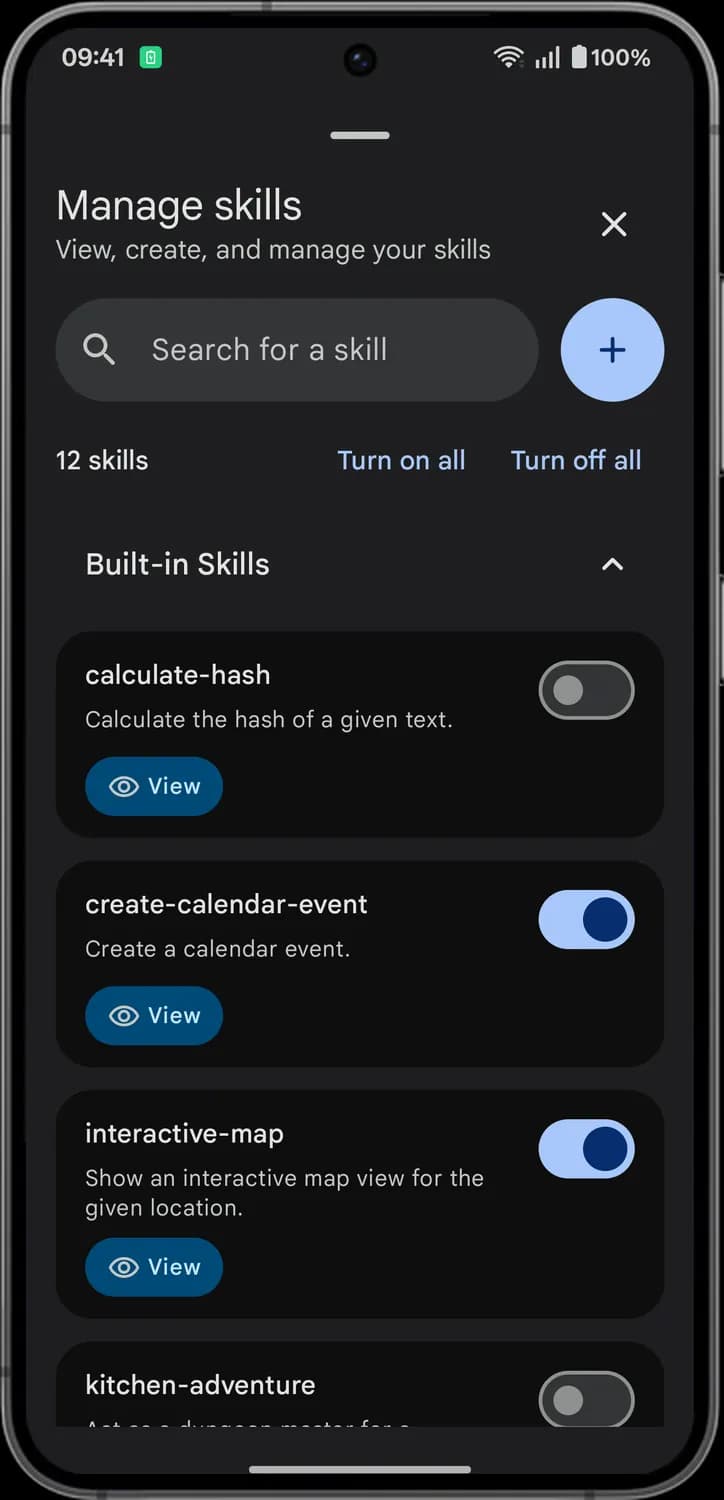

Close
The X. Closes Manage skills and takes you back to the chat.

Search for a skill
The magnifier. Type to find a skill in the list by name.

Add
The plus in a blue circle. Adds a new skill: from a featured list, from a URL, from a folder on your phone, or one you build in the app's skill creator.
Turn on all
Turns on every skill in the list.
Turn off all
Turns off every skill, so the model works as a plain chat.
Skill list

Collapse
The up arrow next to Built-in Skills. Hides the list of built-in skills; tap again to show it.

Skill switch
Turns a single skill on or off. A filled blue switch means the model can use that skill in chat.
View
The eye. Opens the skill so you can see what it does.
Side menu and Settings
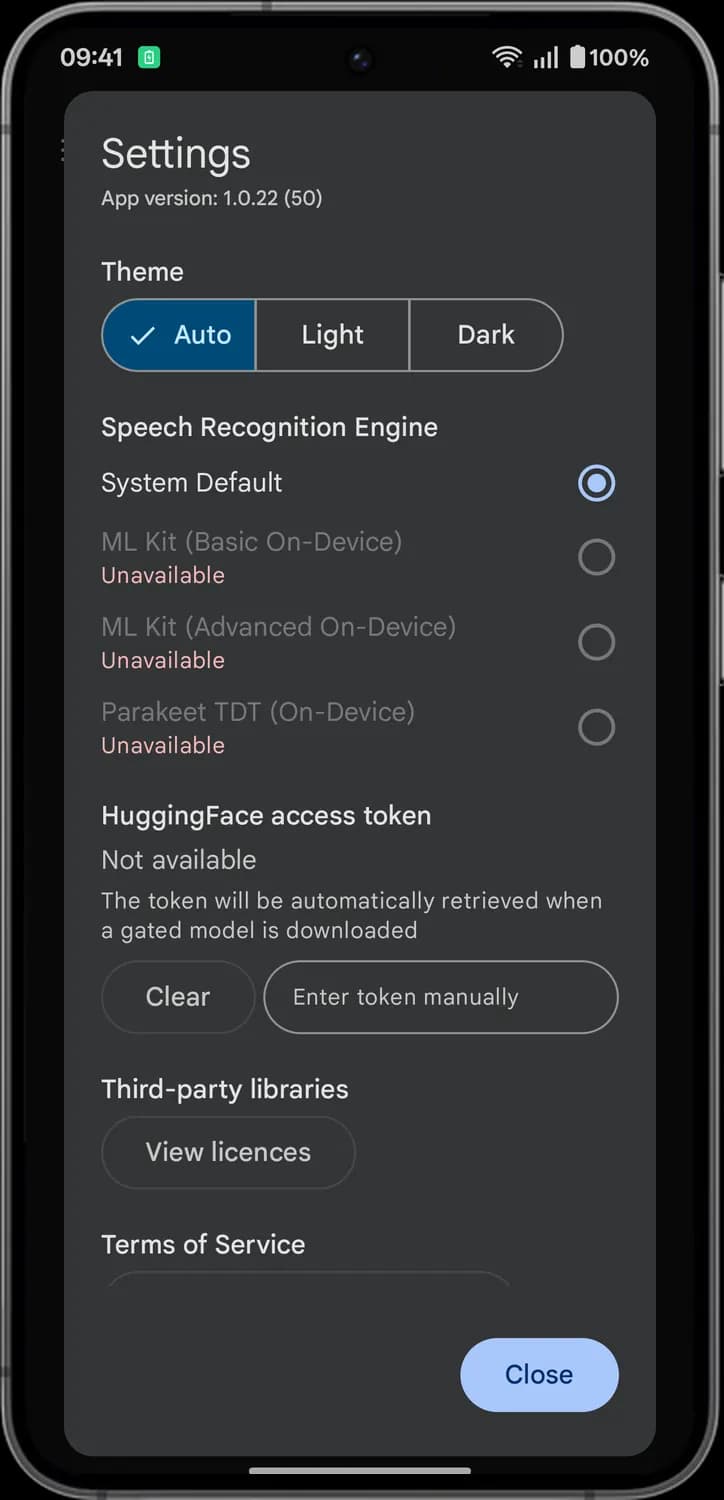
Tap the three lines at the top left of the home screen to open the side menu. Settings is where you pick the theme, the speech engine and your Hugging Face token.
Side menu
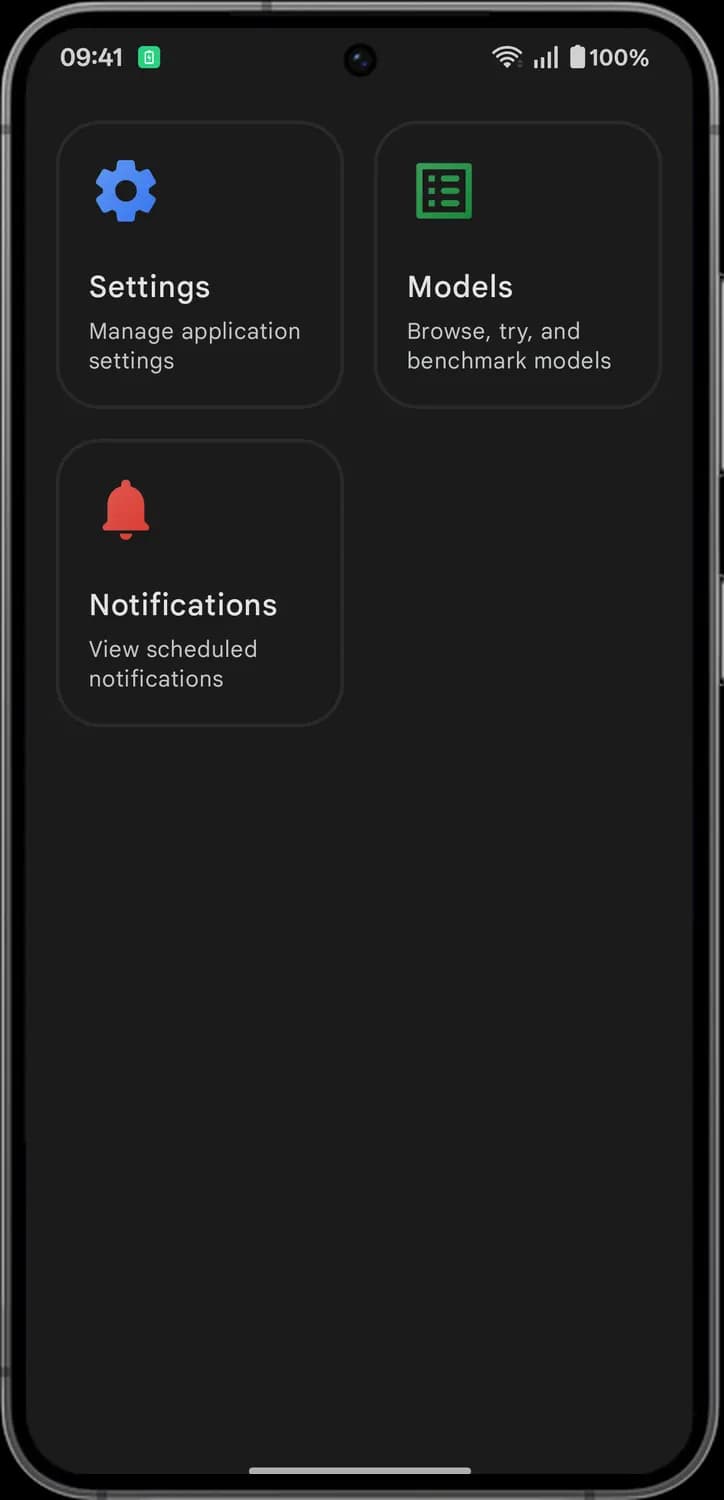

Settings
The blue gear. Opens the app settings: theme, speech recognition engine, Hugging Face token and licenses.
Models
The green list. Opens a list of all models, where you can download them, try them and run benchmarks.

Notifications
The red bell. Shows the notifications scheduled from the app, like reminders set in Agent Skills, and lets you delete them.
Settings
Theme
Picks the app's look. Auto follows your phone's light or dark mode; Light and Dark keep it fixed.

Speech Recognition Engine
Picks the on-device engine that turns your voice into text. Engines your phone cannot use show Unavailable.
Clear
Removes the saved Hugging Face access token. The app gets one automatically when you download a gated model, one that asks you to accept its terms first.
Enter token manually
Lets you paste your own Hugging Face access token instead.
View licences
Shows the licenses of the open-source libraries the app uses.
Close
Closes Settings.
Those are the meanings of Google AI Edge Gallery icons and settings. Google updates the app often and adds new tasks with it, so we update this guide every time they do, and you can bookmark this page to stay updated. These screens are from AI Edge Gallery 1.0.22 for Android, and the app is also available on iPhone. For more icon guides, you can also visit our TechPP icon guides.
Comments
0Share your thoughts, questions, or feedback about this guide.