
The Ultimate Guide to Google Account Privacy Settings (2026)
Google is huge, and your Google Account is linked to almost every Google service you use: Search, Maps, YouTube, the Play Store, Gemini and many more.
Most of these services are free, and Google pays for them with ads that run on your data. By default, your account saves your searches, the videos you watch, the apps you open, your Gemini chats and even the places you visit.
Fortunately, Google also lets you stop most of it. Google recently split Search into its own Search Services History setting and added a new Save media control, so even if you changed these settings before, it is worth checking them again.
In this guide, you will look at every setting in your Google Account you should change for the best privacy, with a screenshot for every tap.
1.Open Your Google Account Privacy Settings
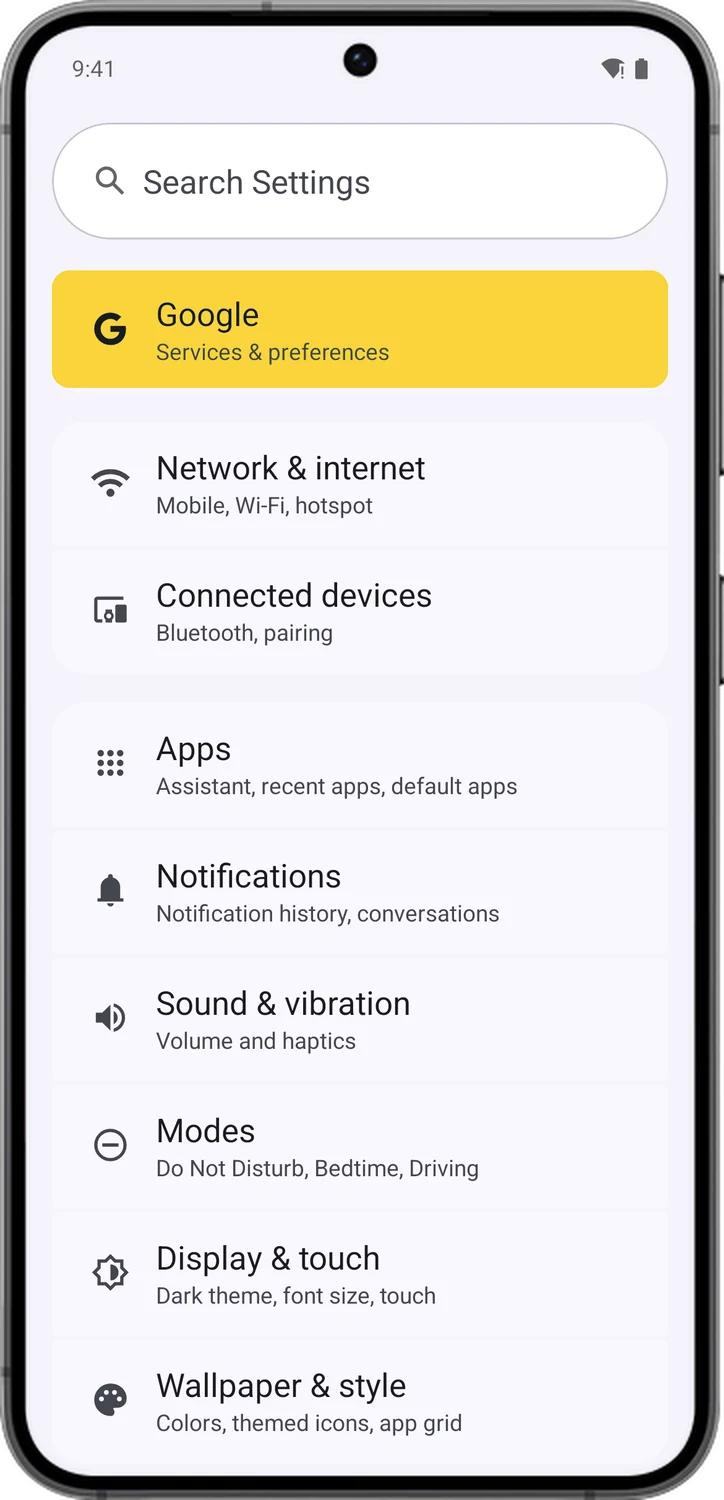
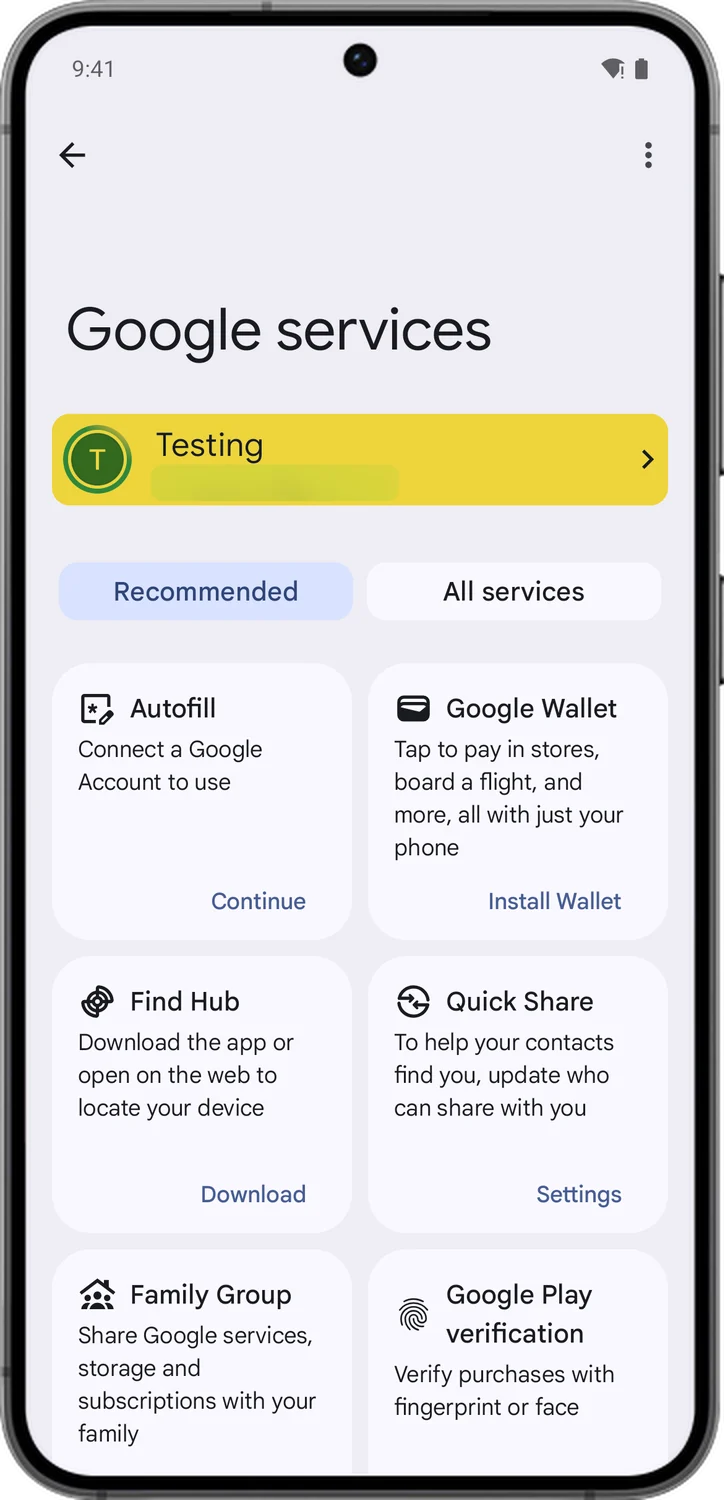
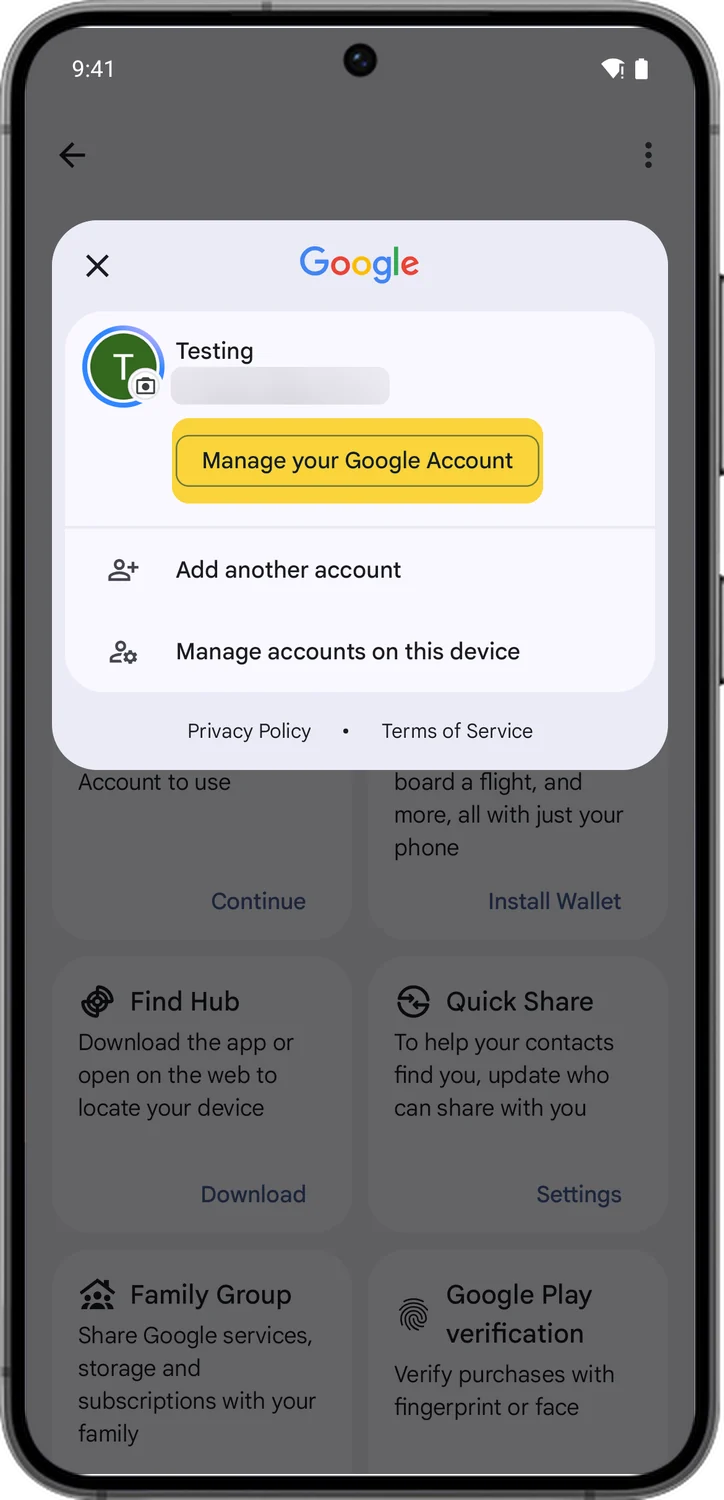
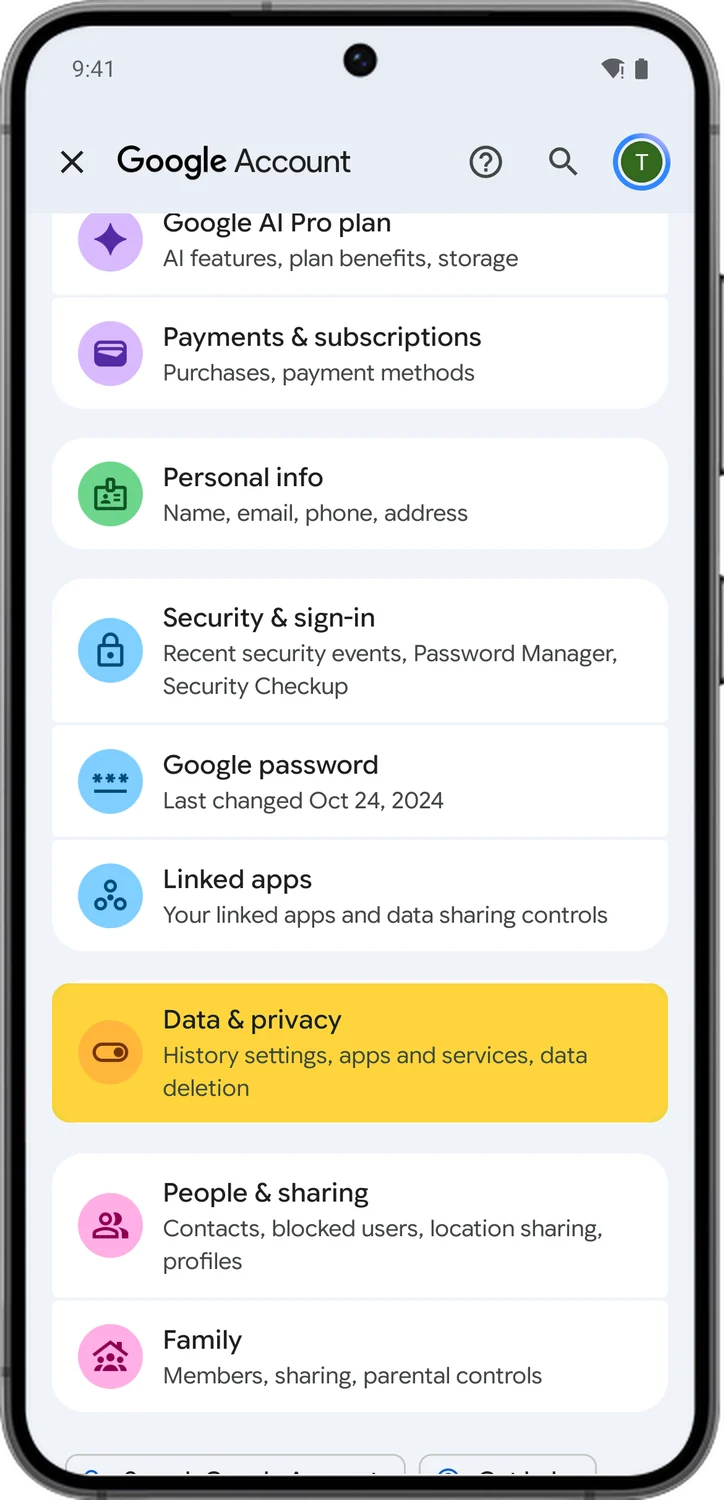
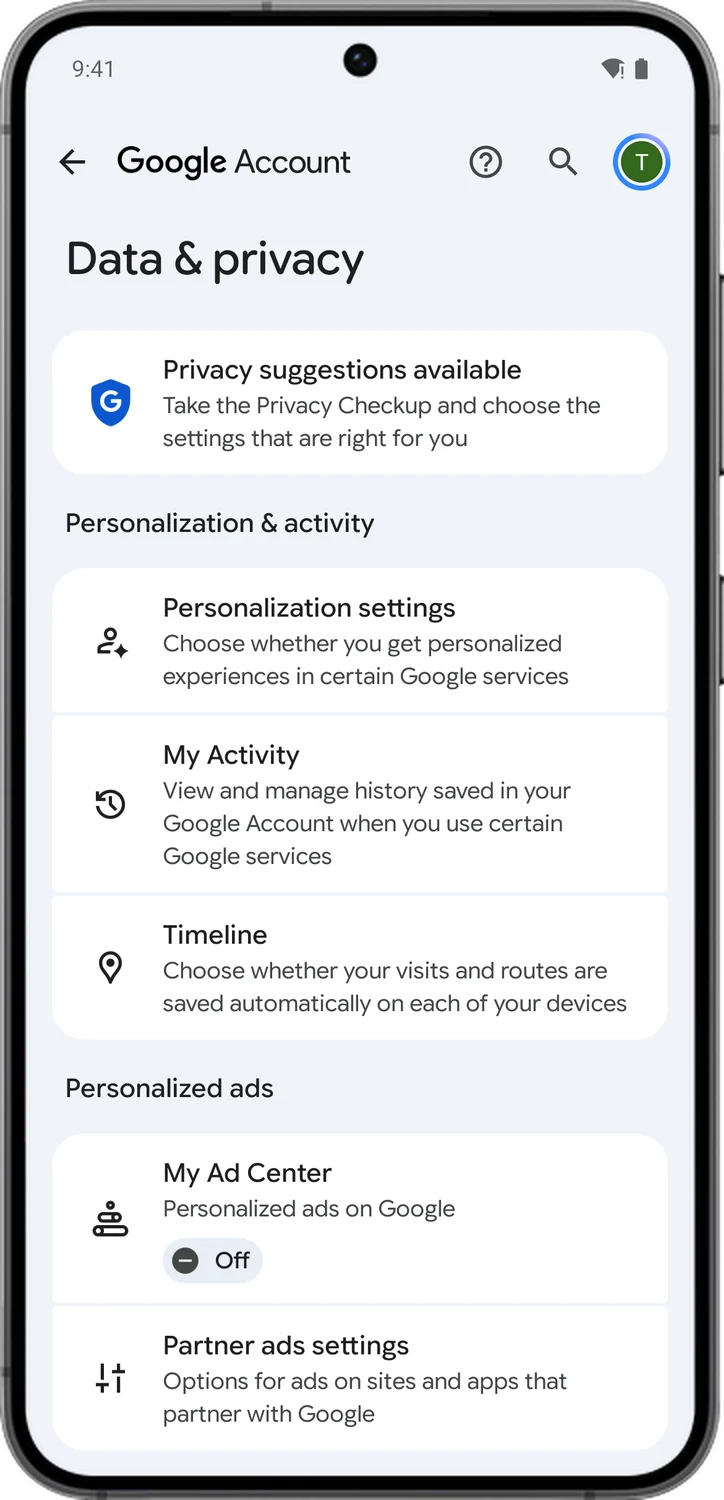
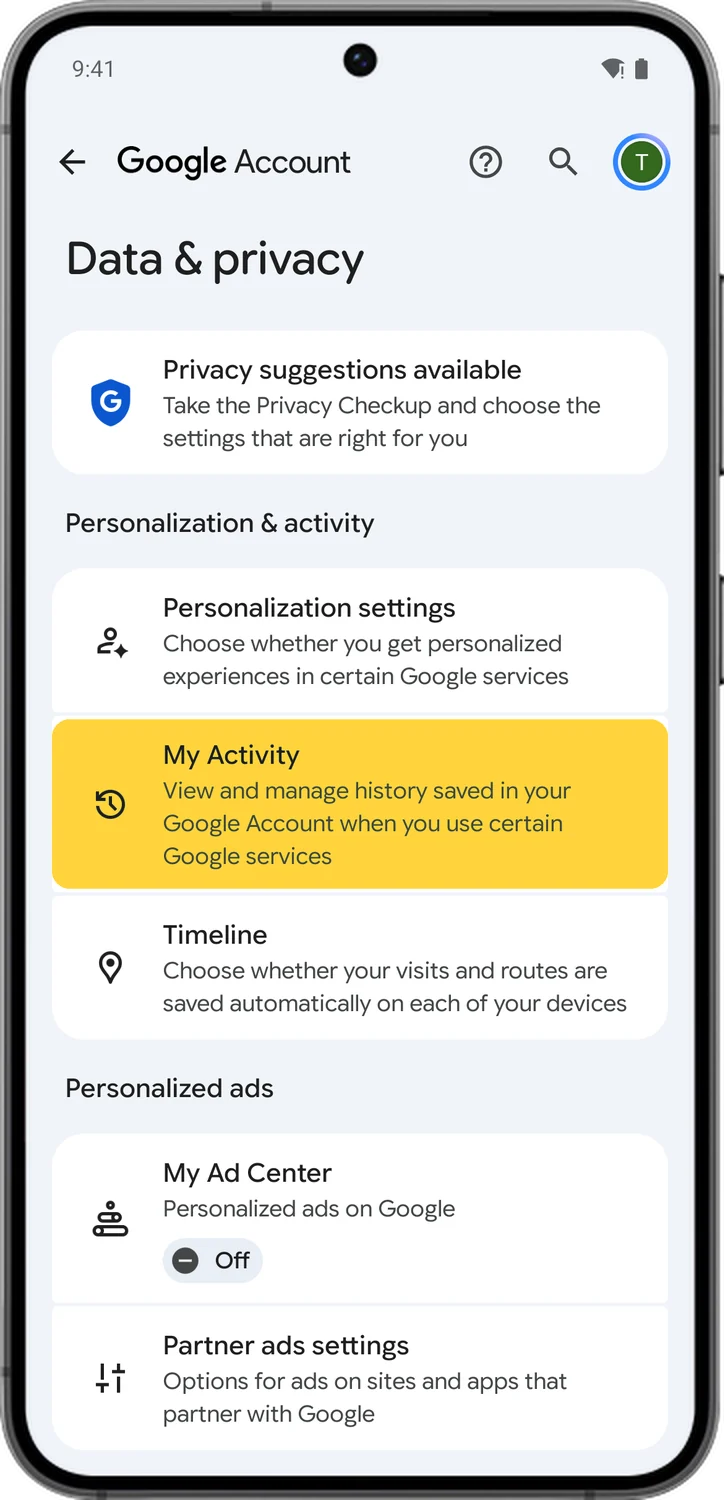
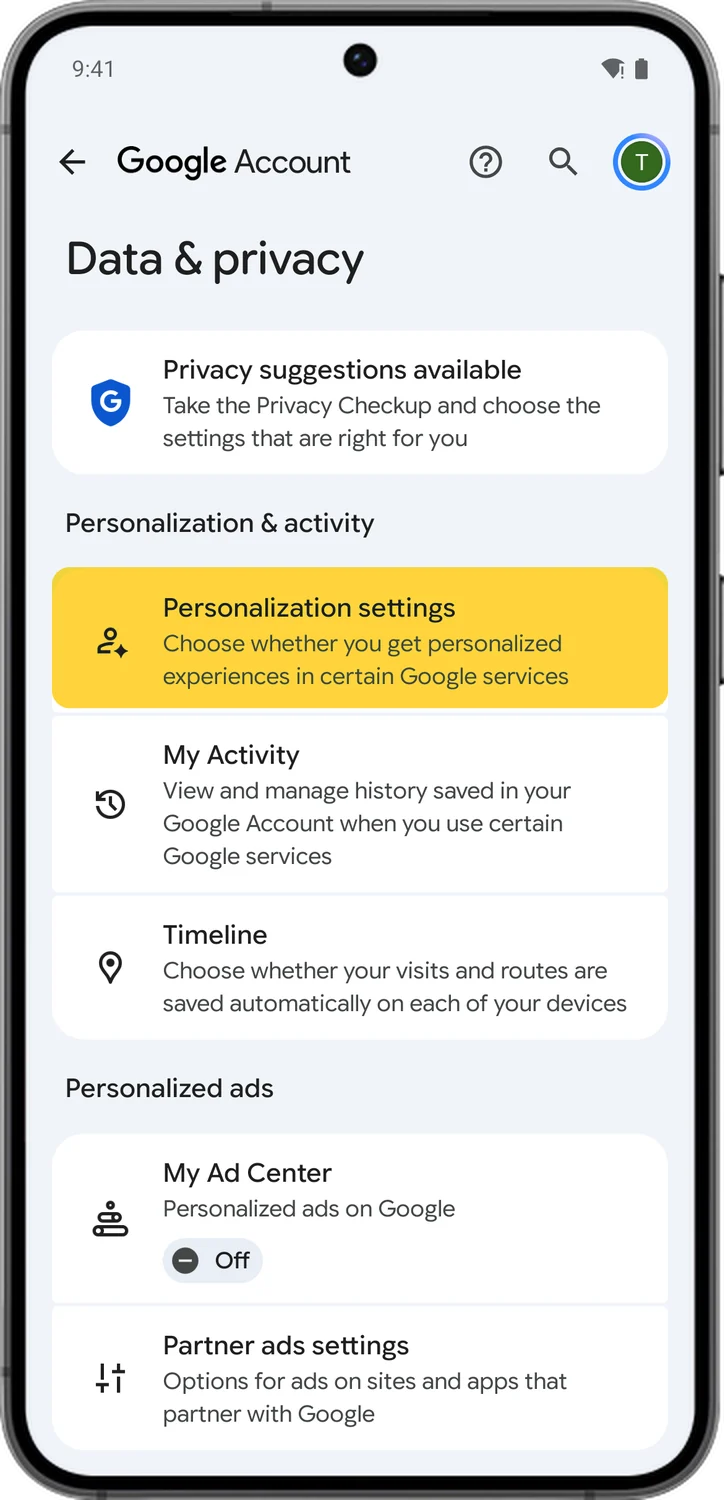
Every setting in this guide lives in one place: Data & privacy in your Google Account. On an Android phone, you get there from the Settings app. On an iPhone or a computer, open myaccount.google.com and tap Data & privacy, and you will see the same options. Learn the route once, because every section below starts from here.
2.Turn Off Search Services History
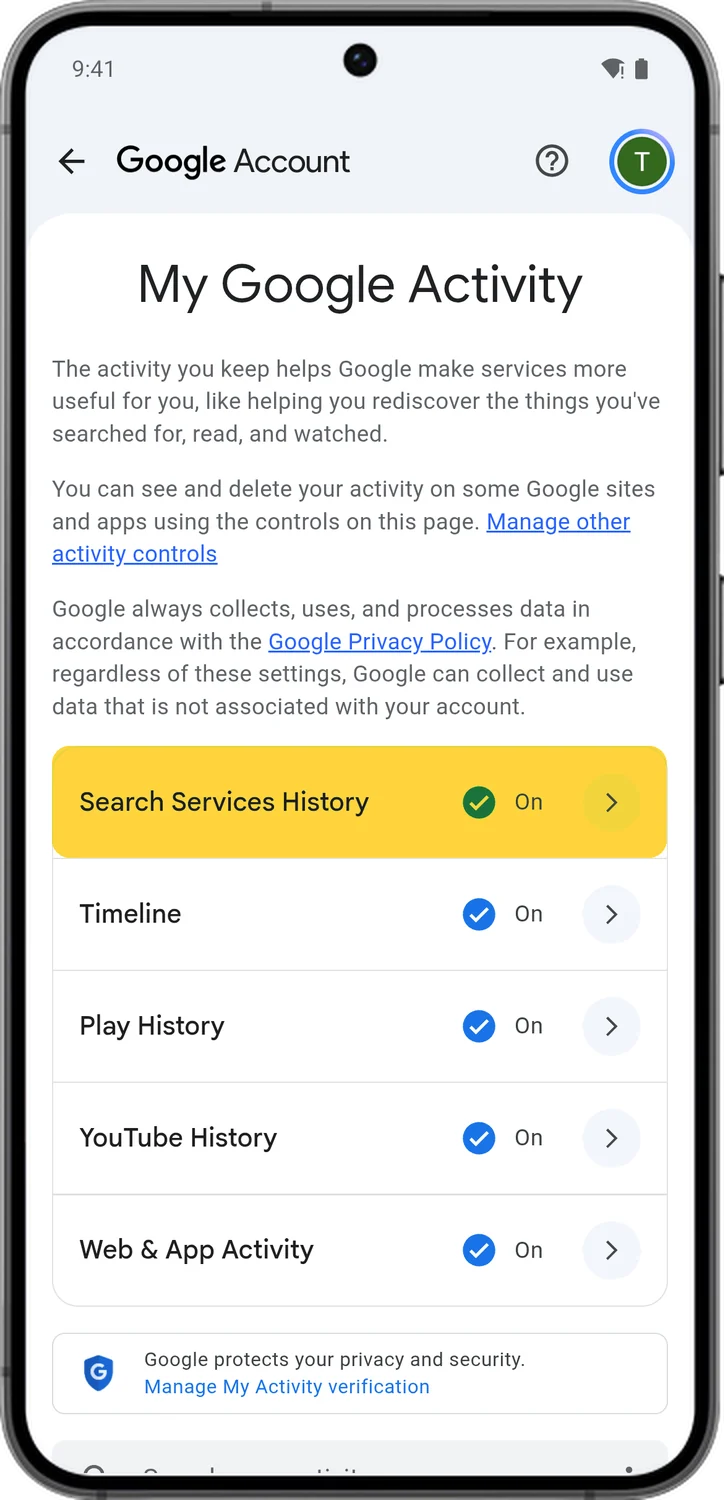
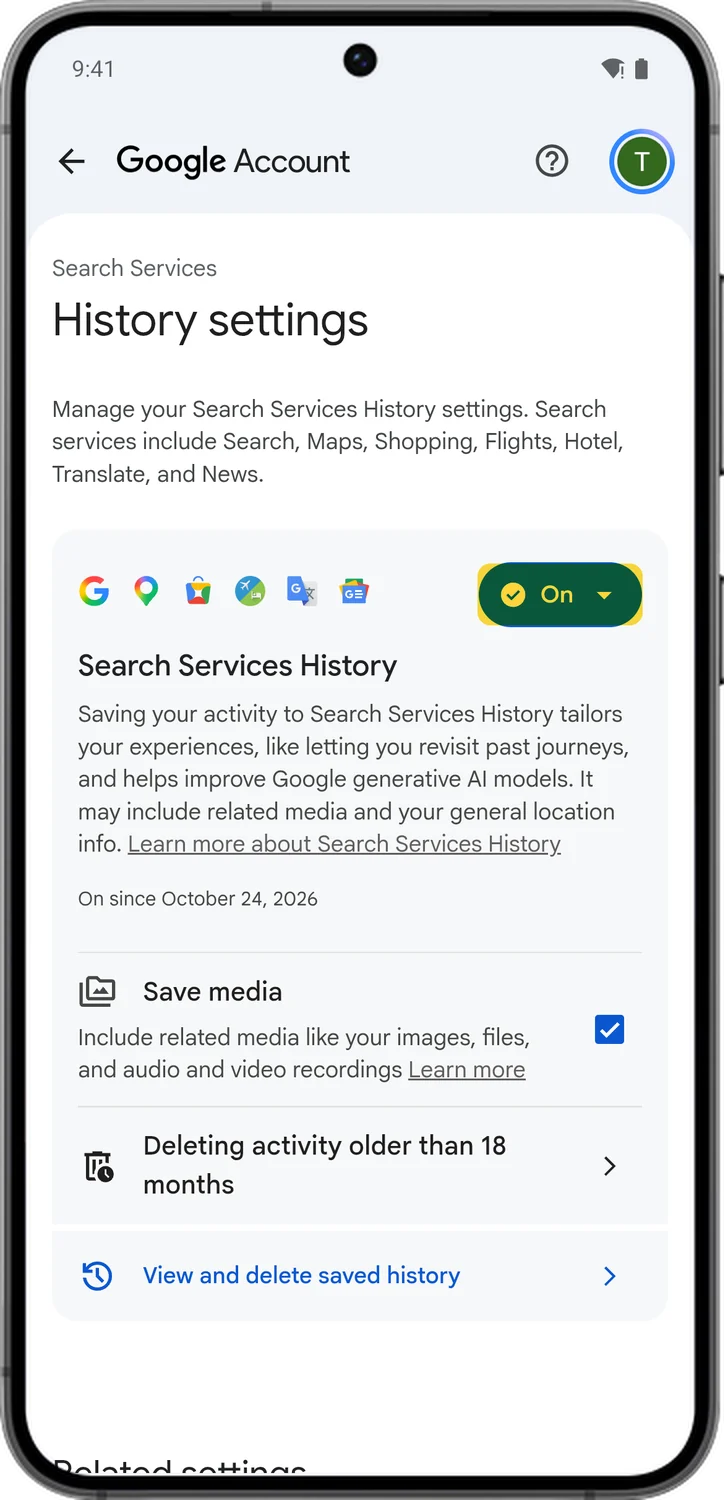
Search Services History is new. Google split it out of Web & App Activity, and it saves what you do in Search, Maps, Shopping, Flights, Hotels, Translate and News: your searches, the sites you open from them, AI Mode and AI Overview answers, and your general location. A sub-setting called Save media also keeps the images you send to Google Lens, the files you share with Search, and your voice and Search Live recordings. Google keeps this history for 18 months by default and uses it to train its AI models. Turning it off stops new activity from being saved, and Save media goes off with it.
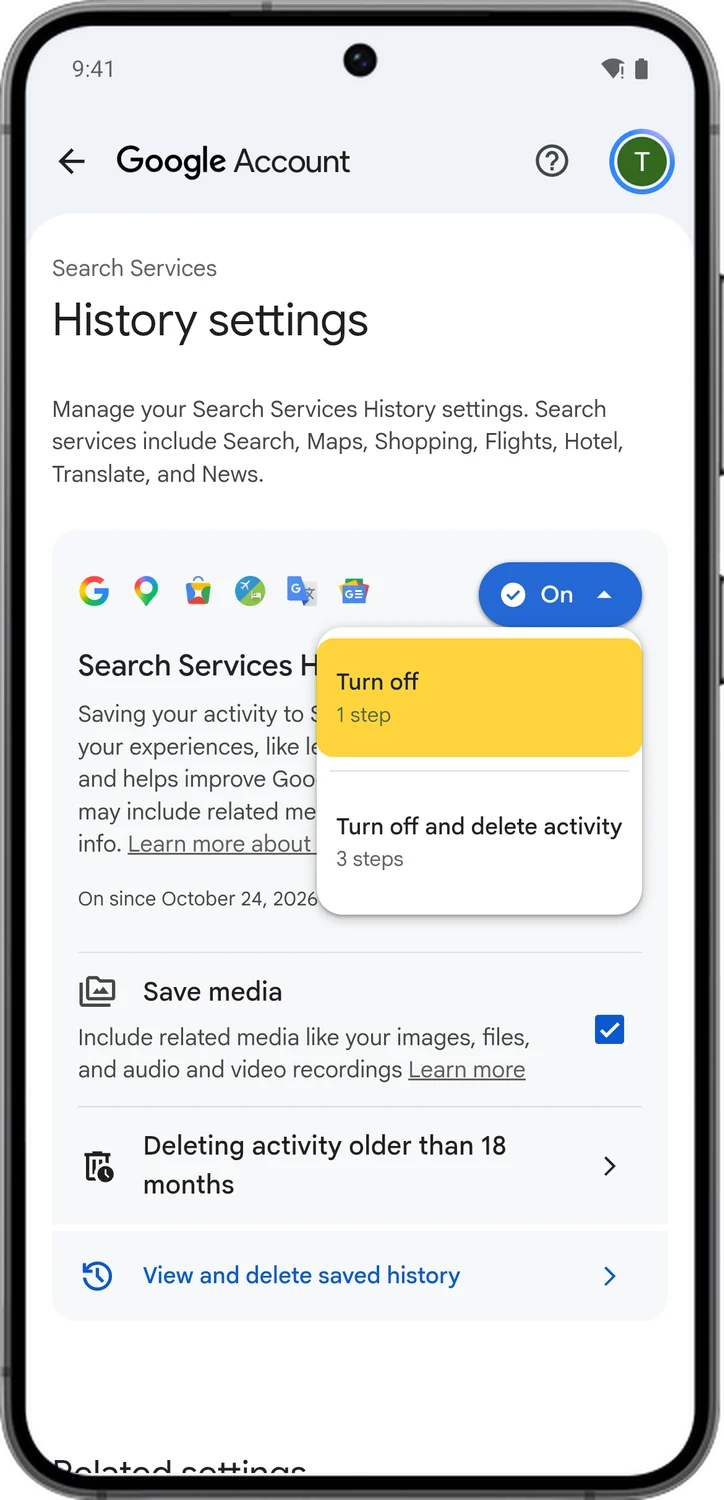
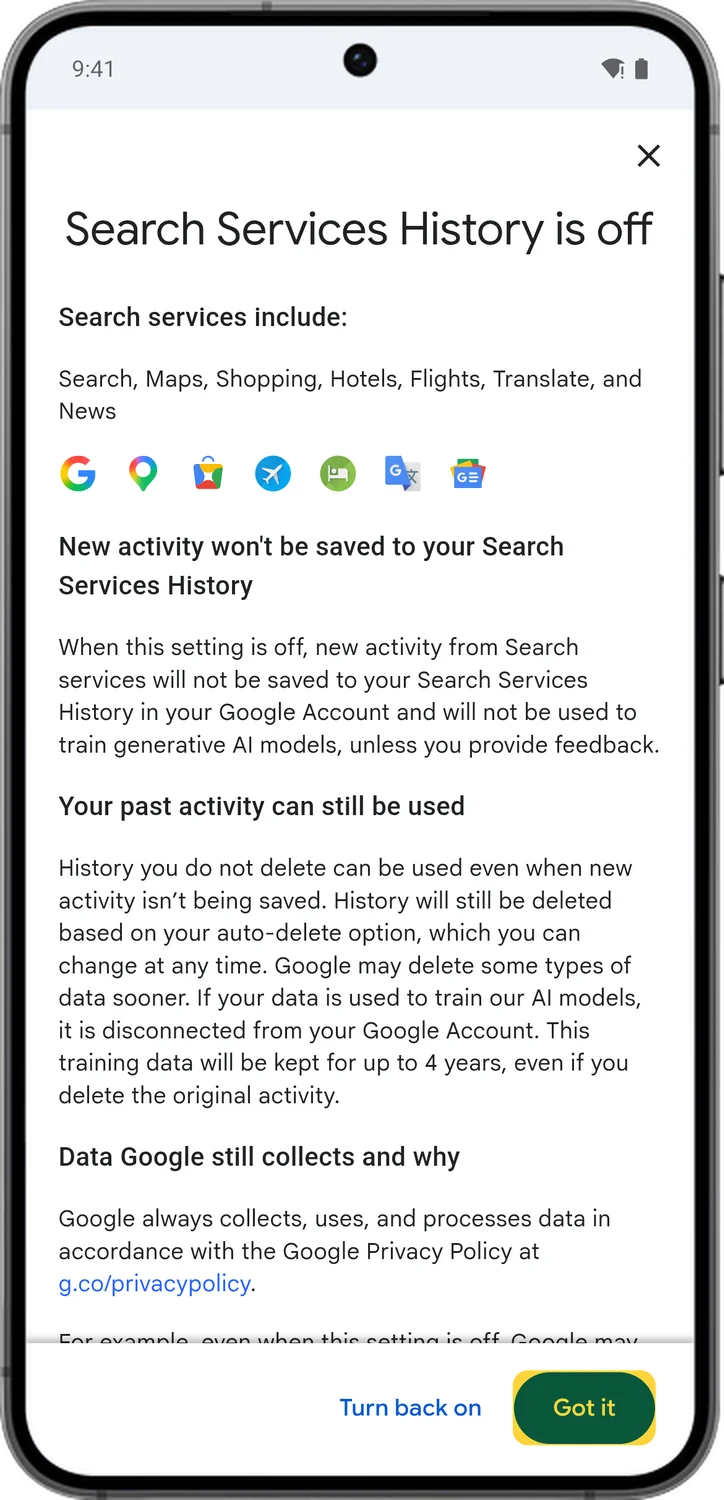
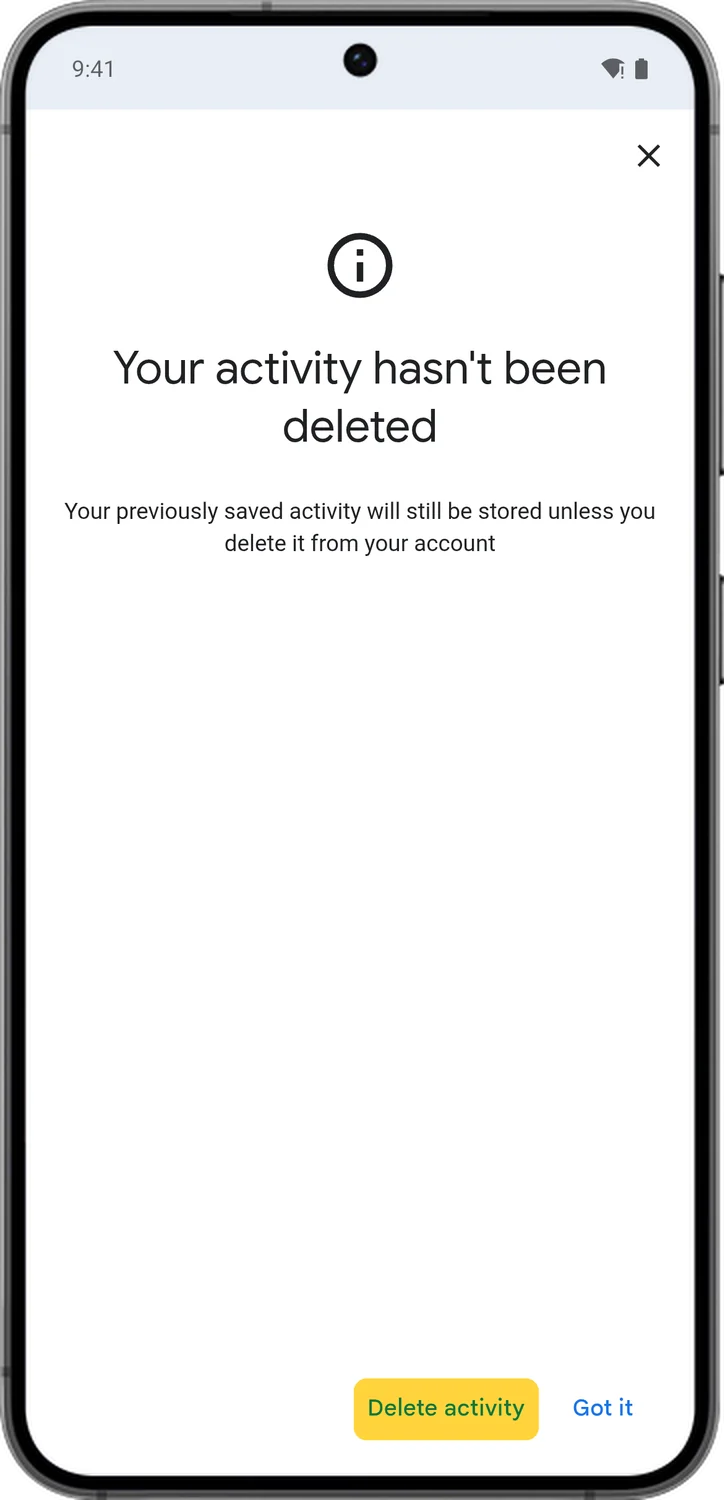
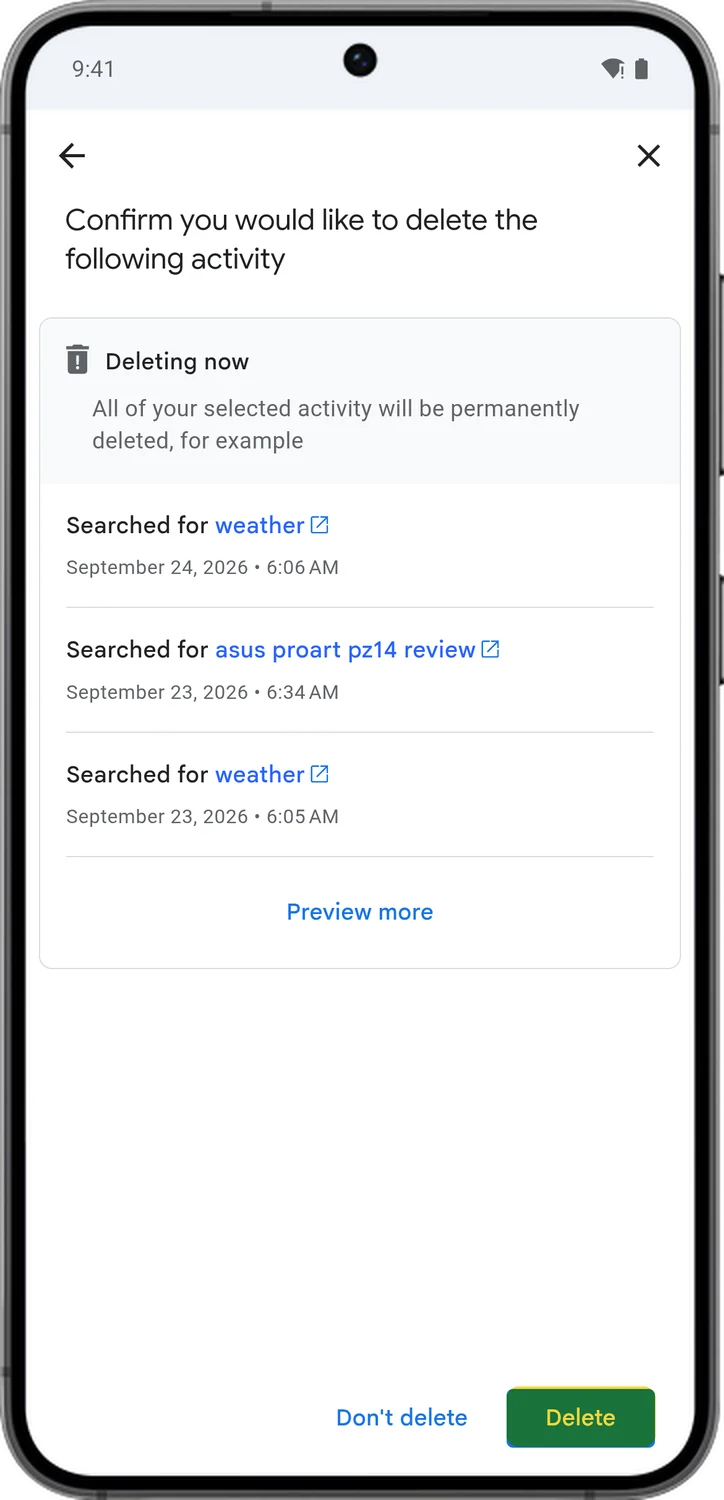
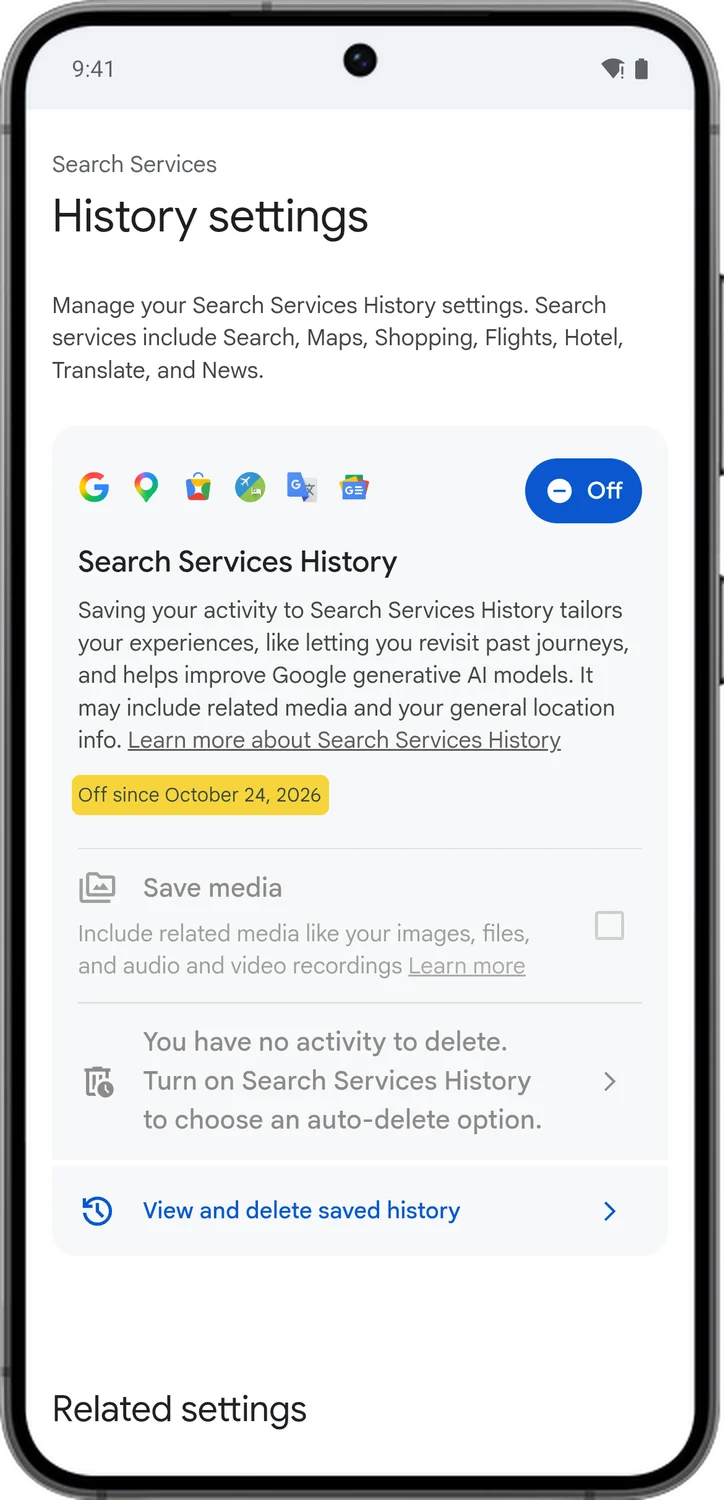
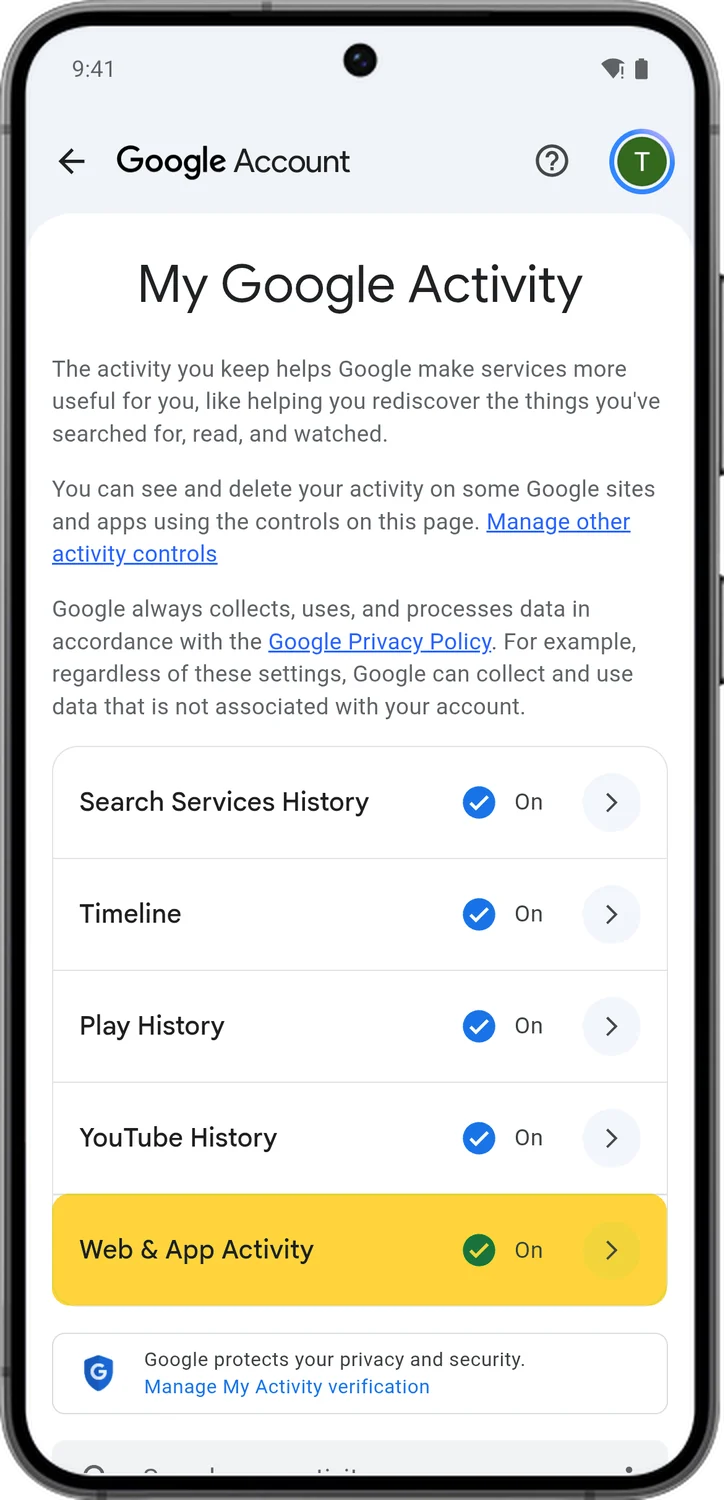
3.Turn Off Web & App Activity
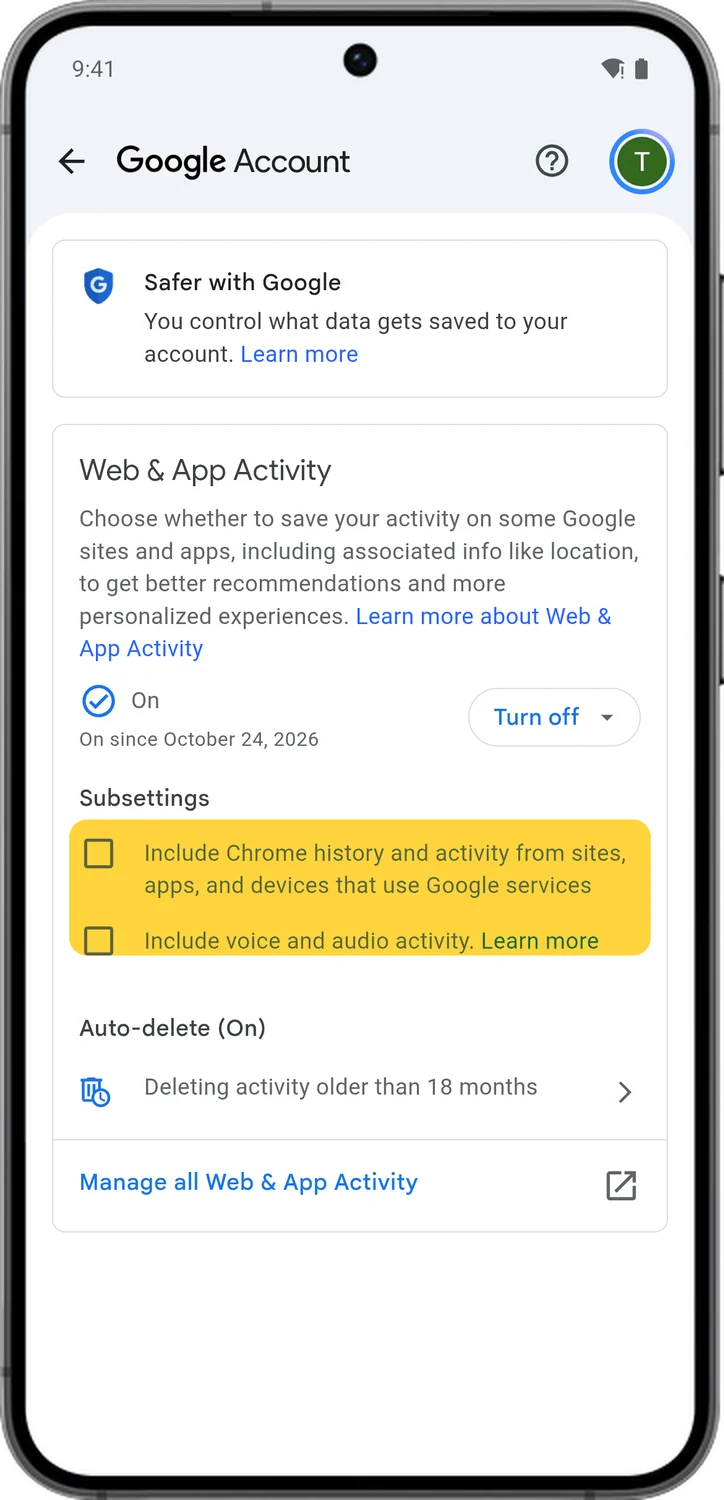
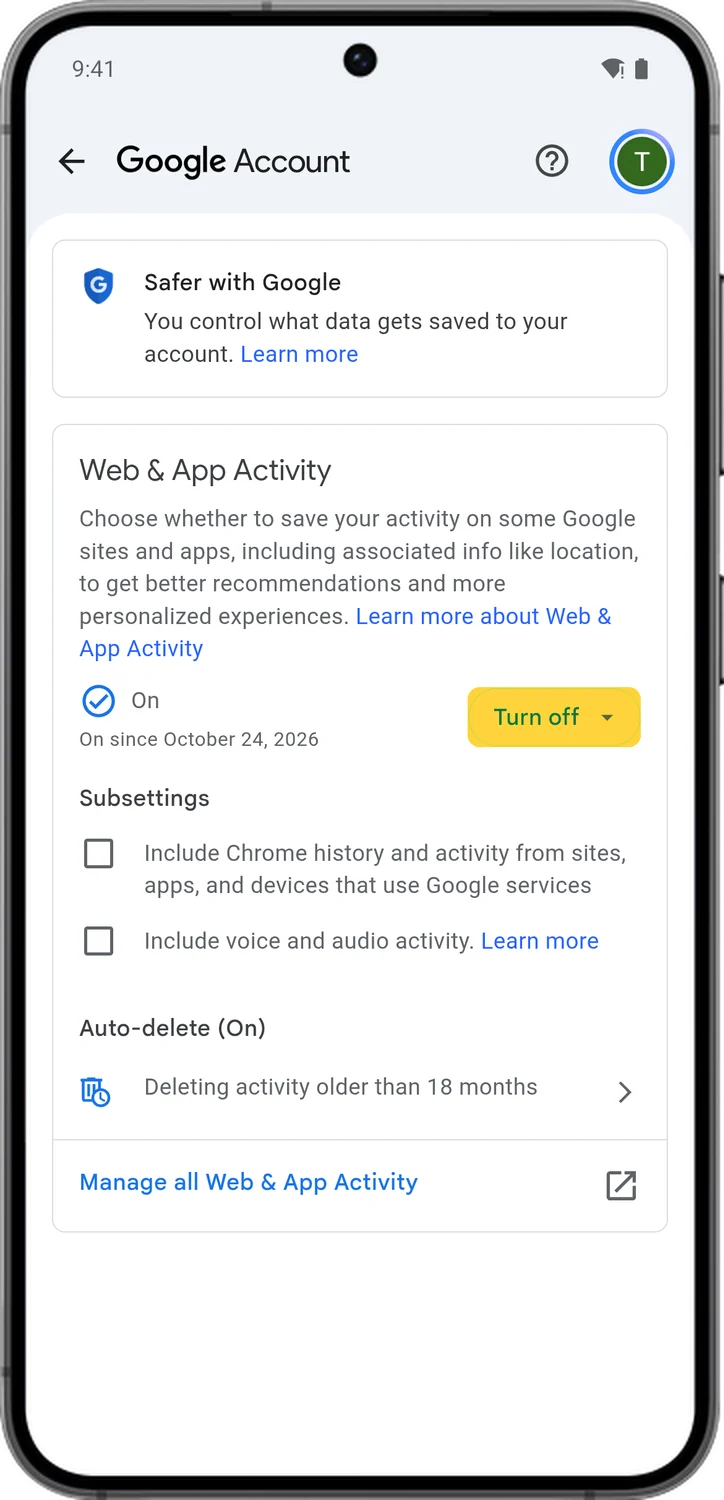
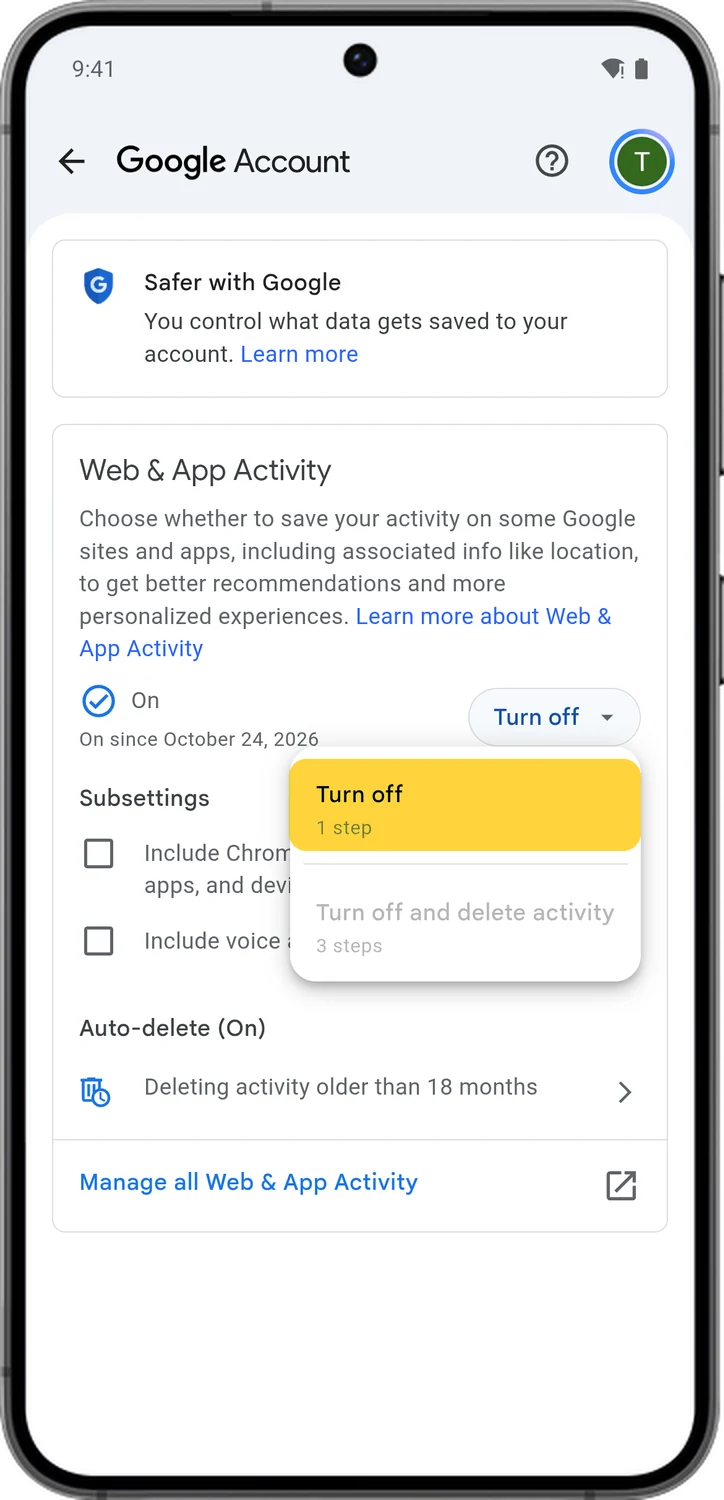
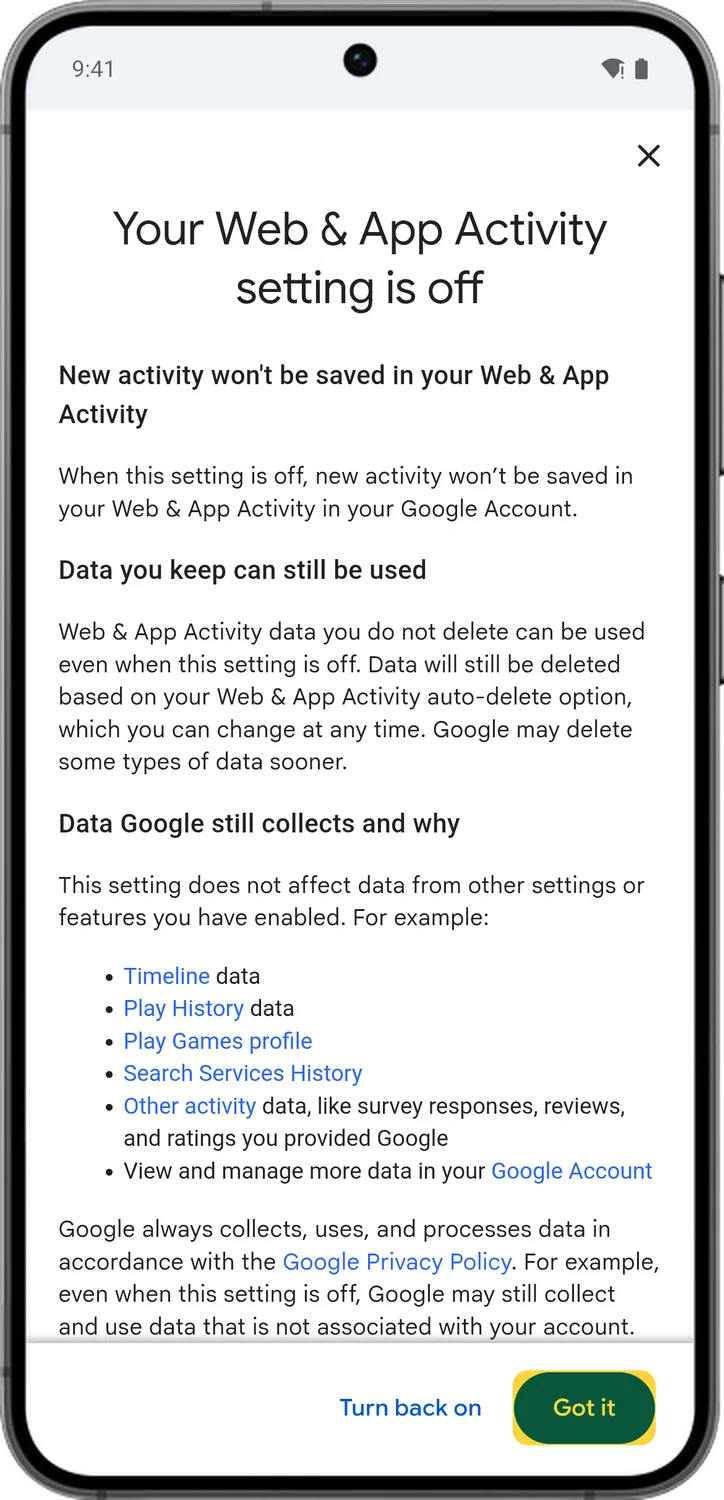
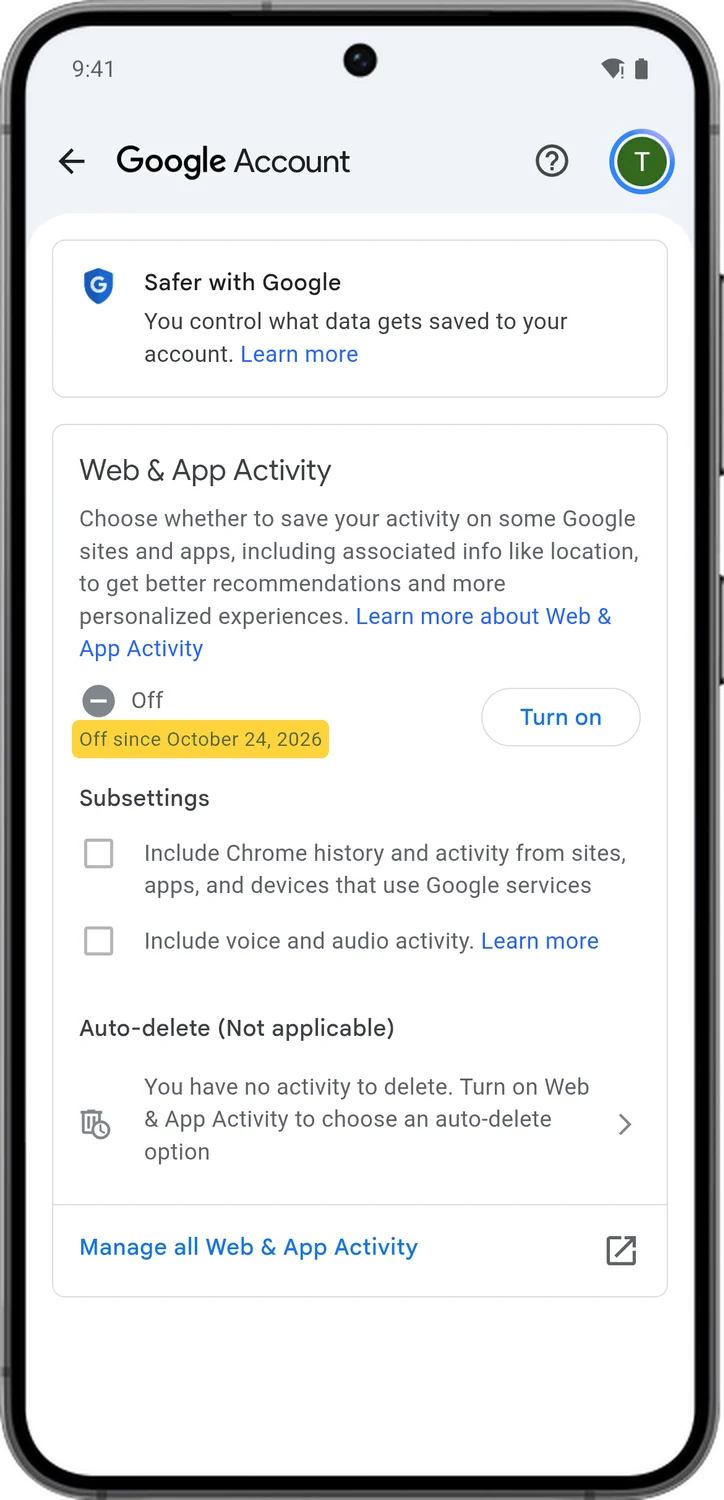
Web & App Activity now saves your activity in the Google services that don't have their own control: Google Assistant, Google TV, the Google Store and Google's help pages, along with your general location, the ads you click and what you buy on advertiser sites. Two boxes under it go further. One adds your Chrome history and activity from sites and apps that use Google services, and the other saves your Google Assistant voice recordings. Google keeps this data for 18 months unless you change it.
4.Pause YouTube History
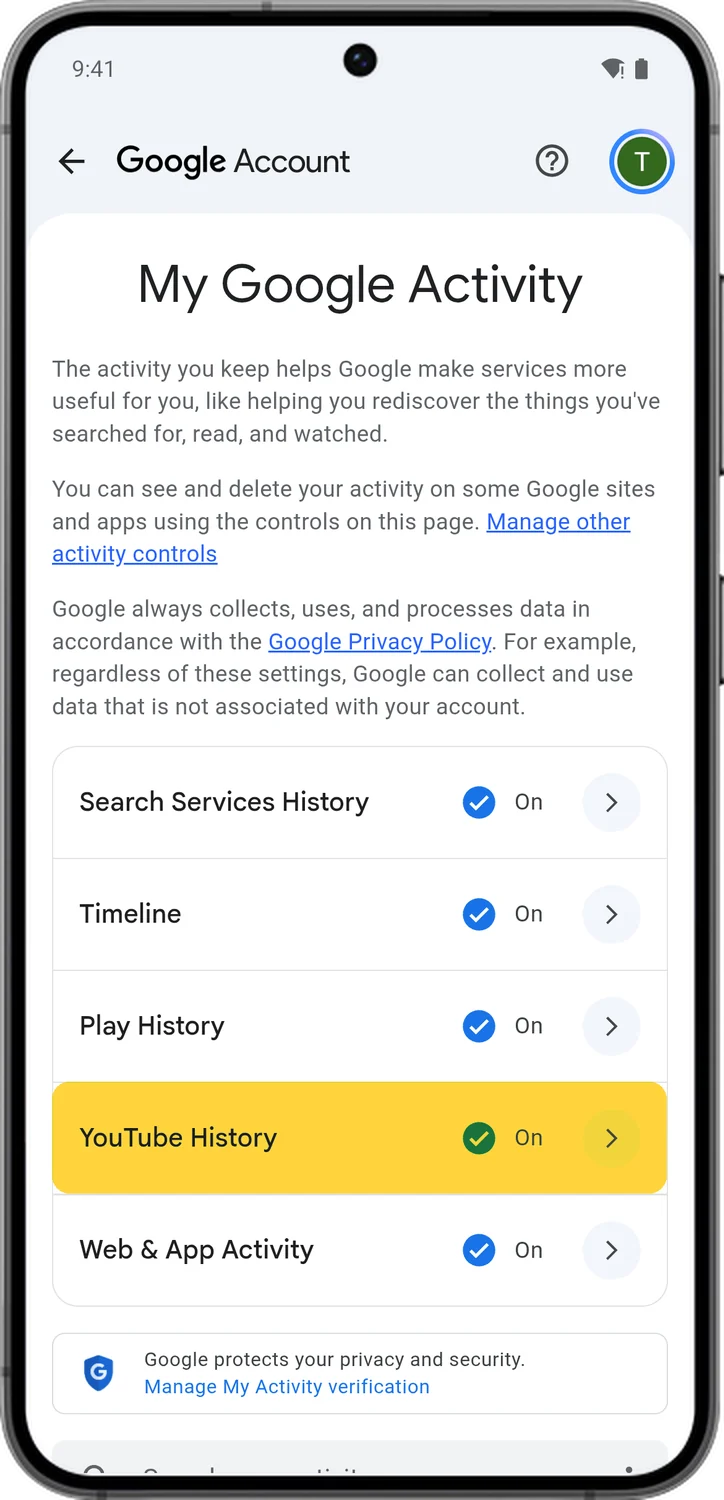
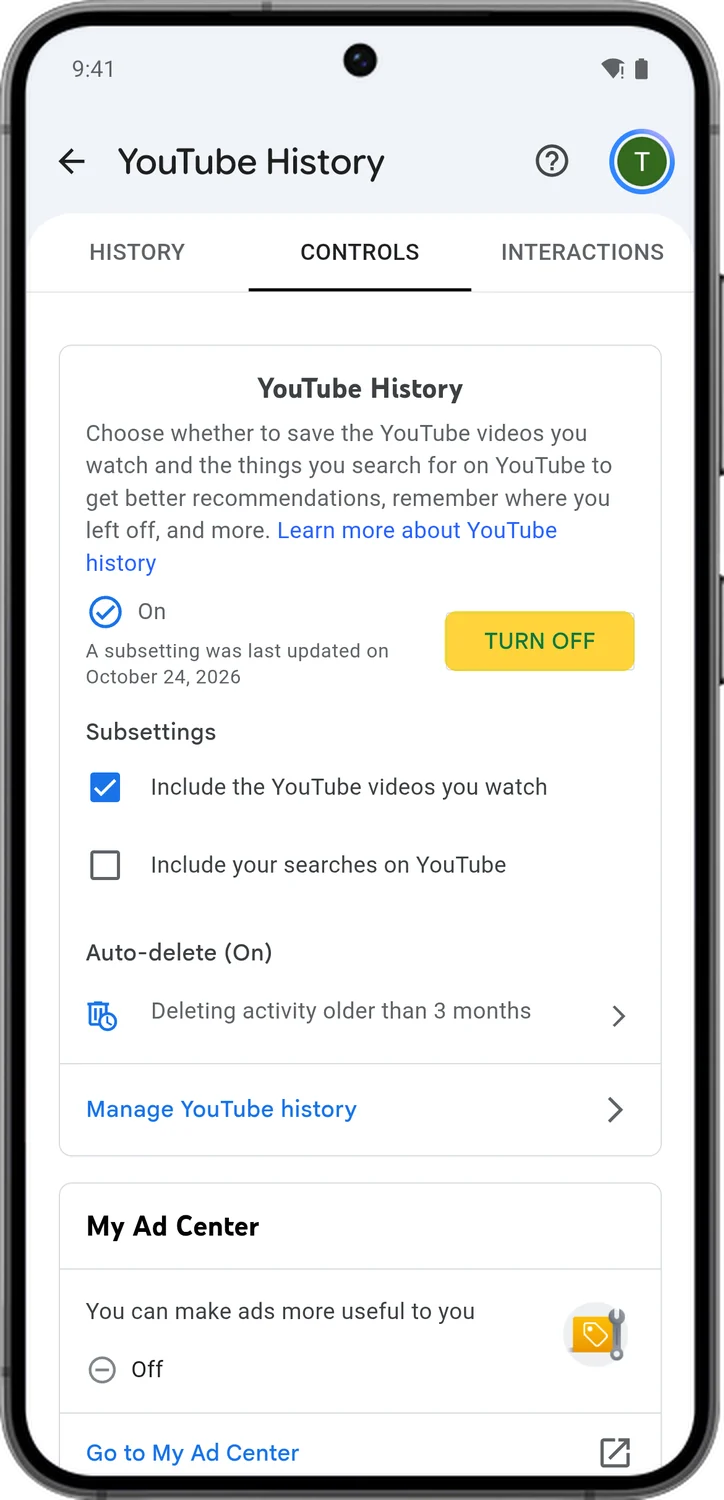
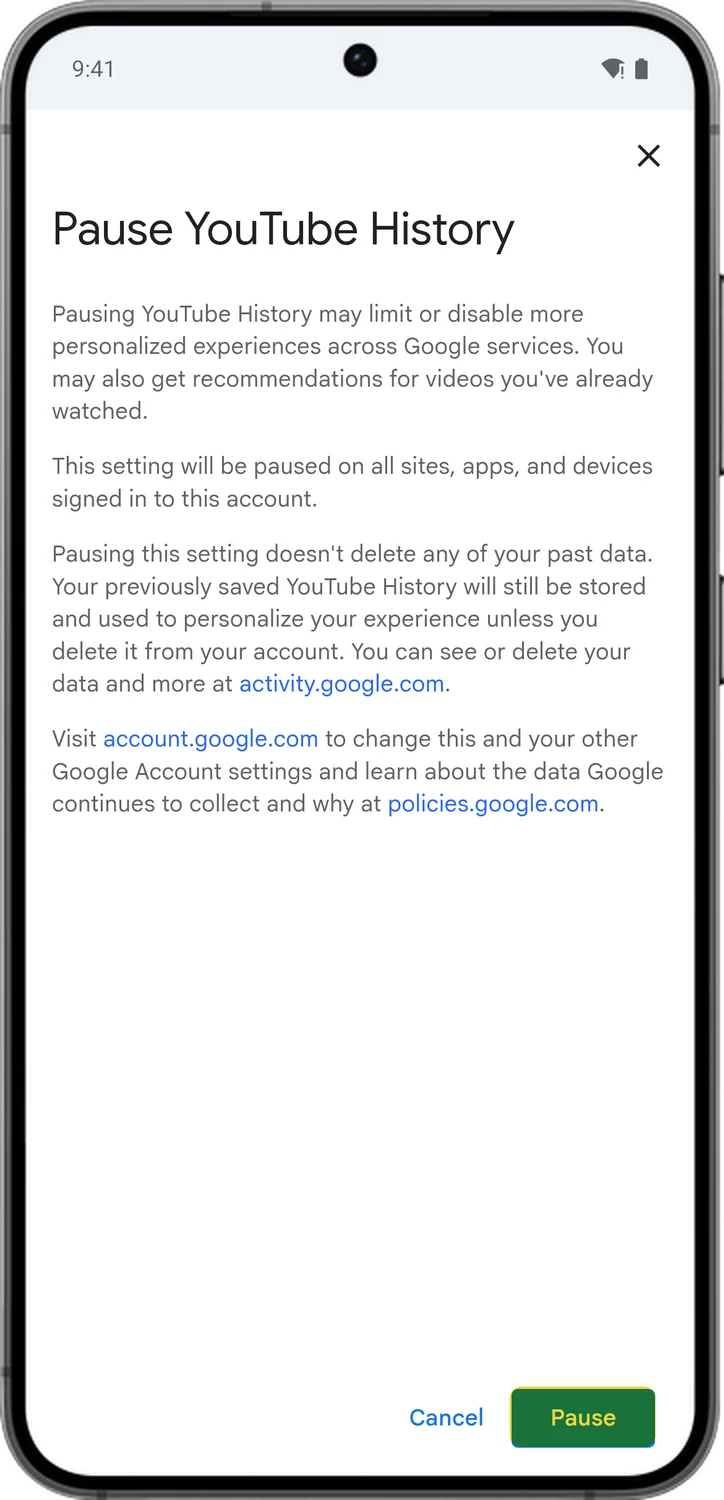
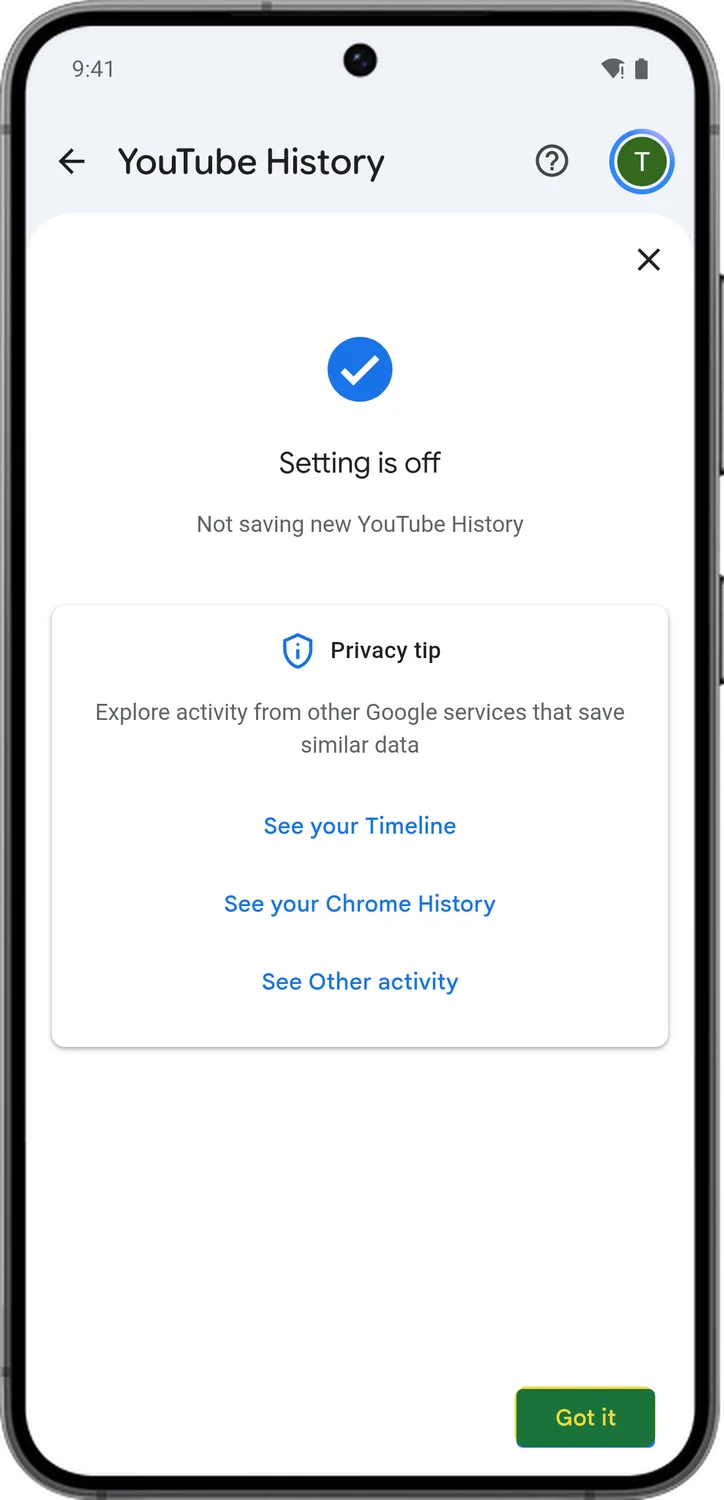
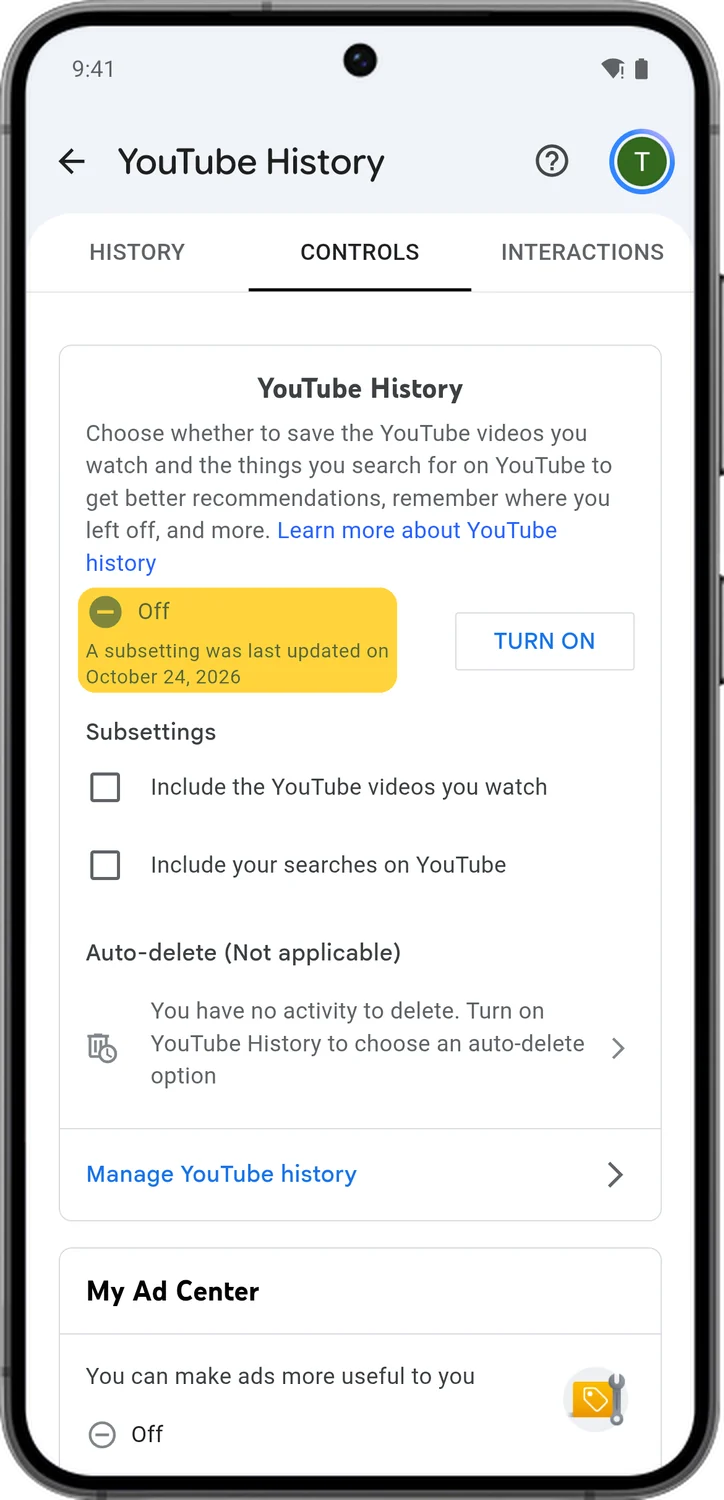
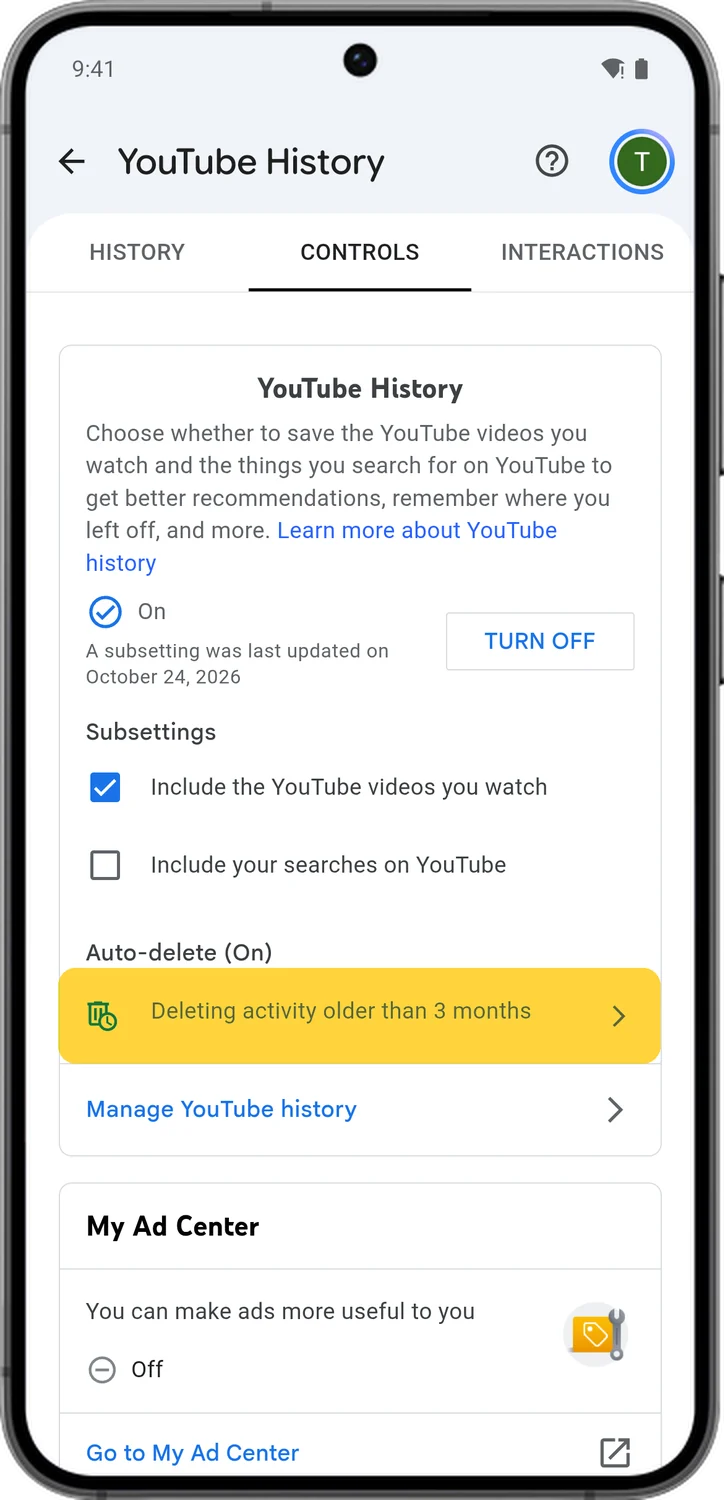
YouTube History saves the videos you watch, including Shorts and videos you only partly watch, and everything you search on YouTube. YouTube uses it for recommendations and to remember where you left off, so pausing it makes your home feed more generic. If you only want to stop one part, untick either Include the YouTube videos you watch or Include your searches on YouTube instead.
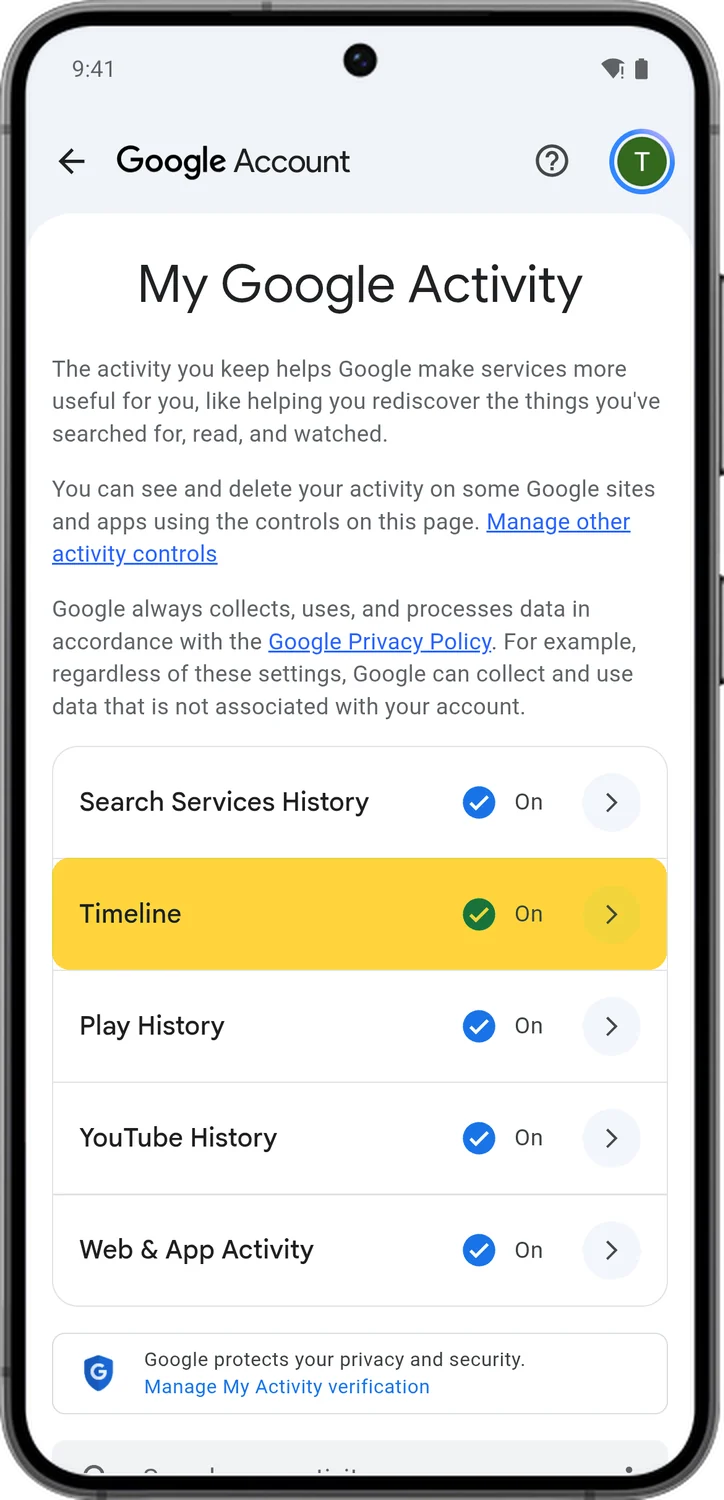
5.Turn Off Timeline
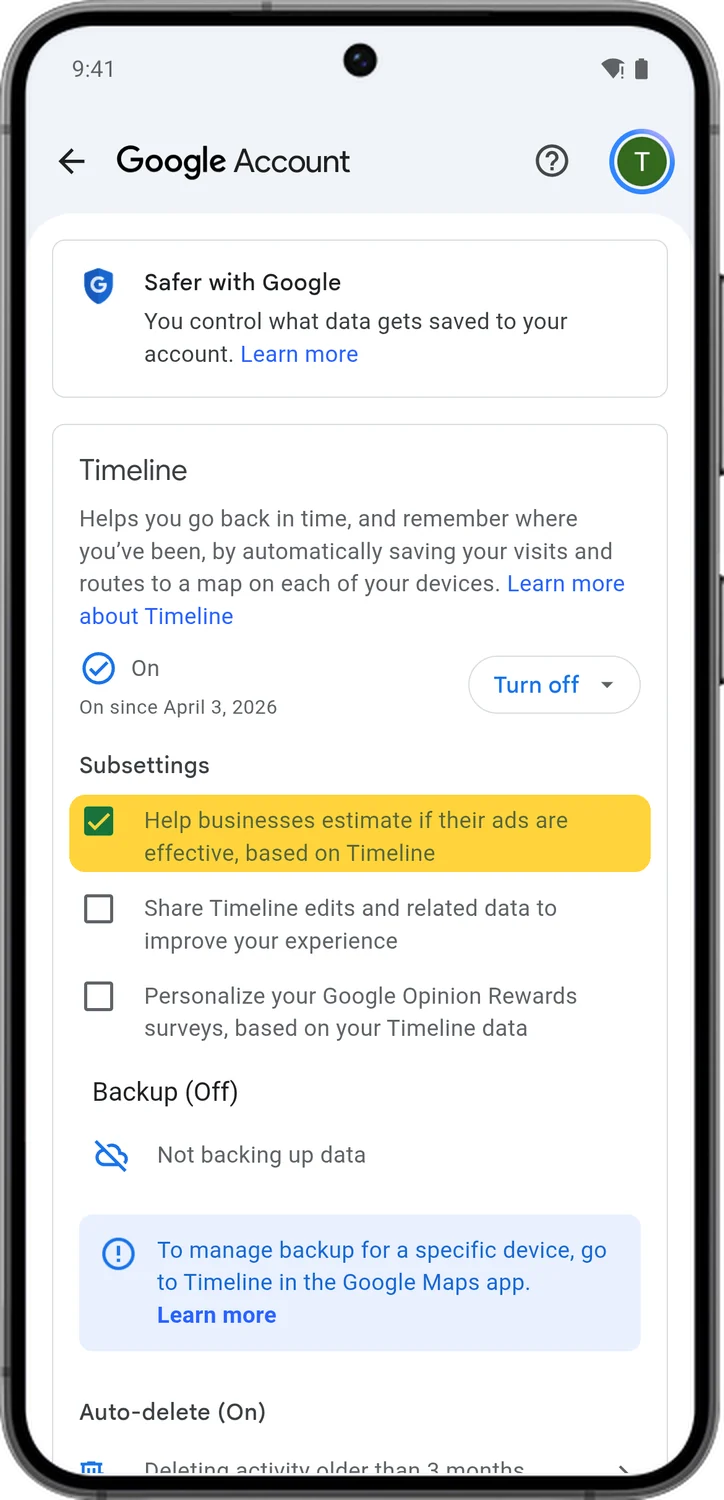
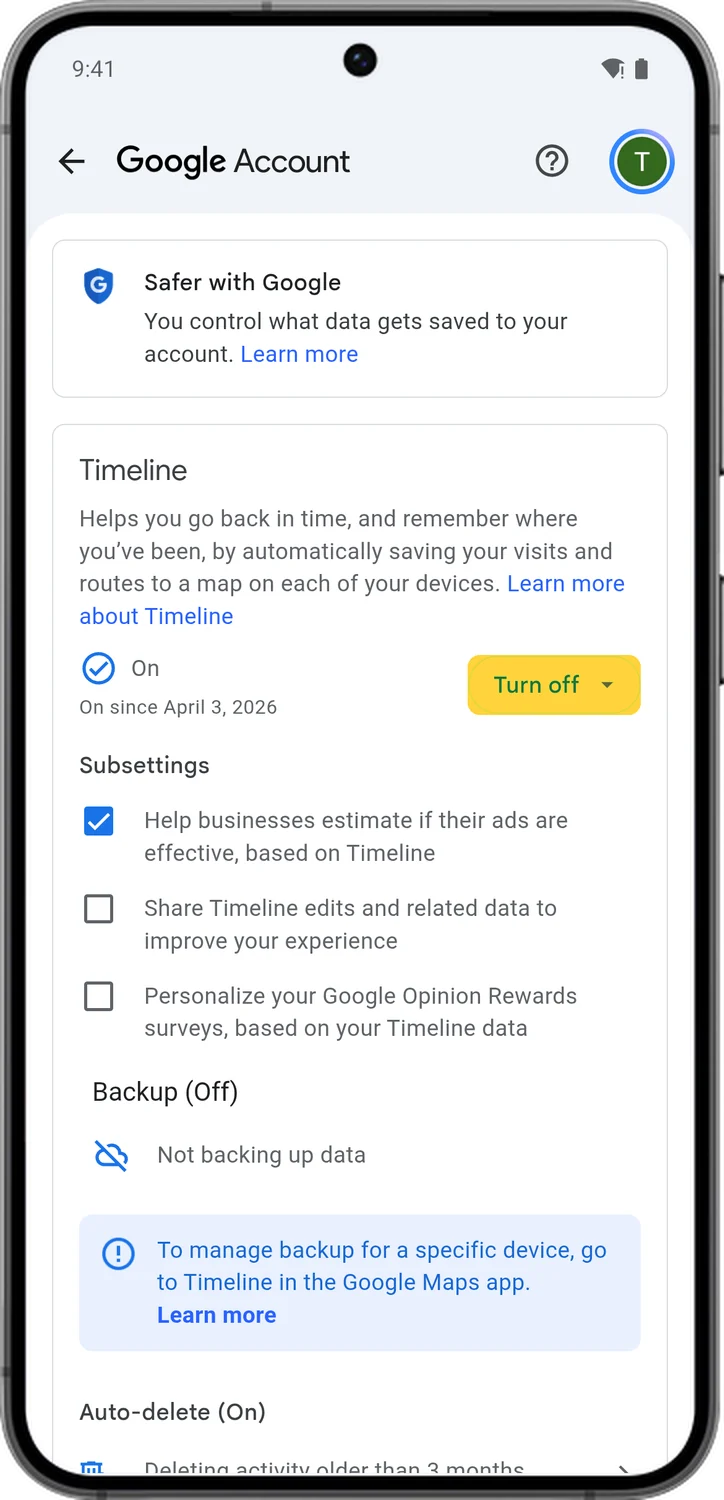
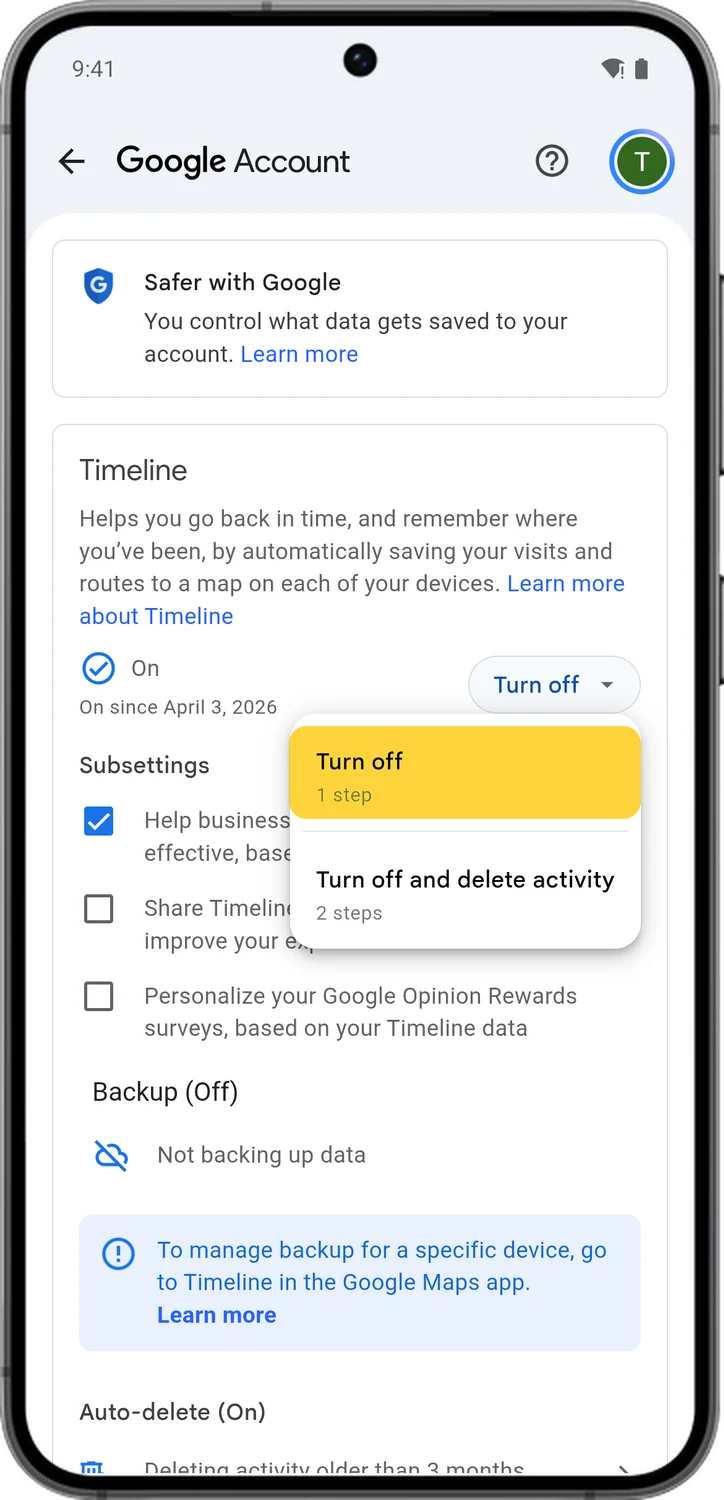
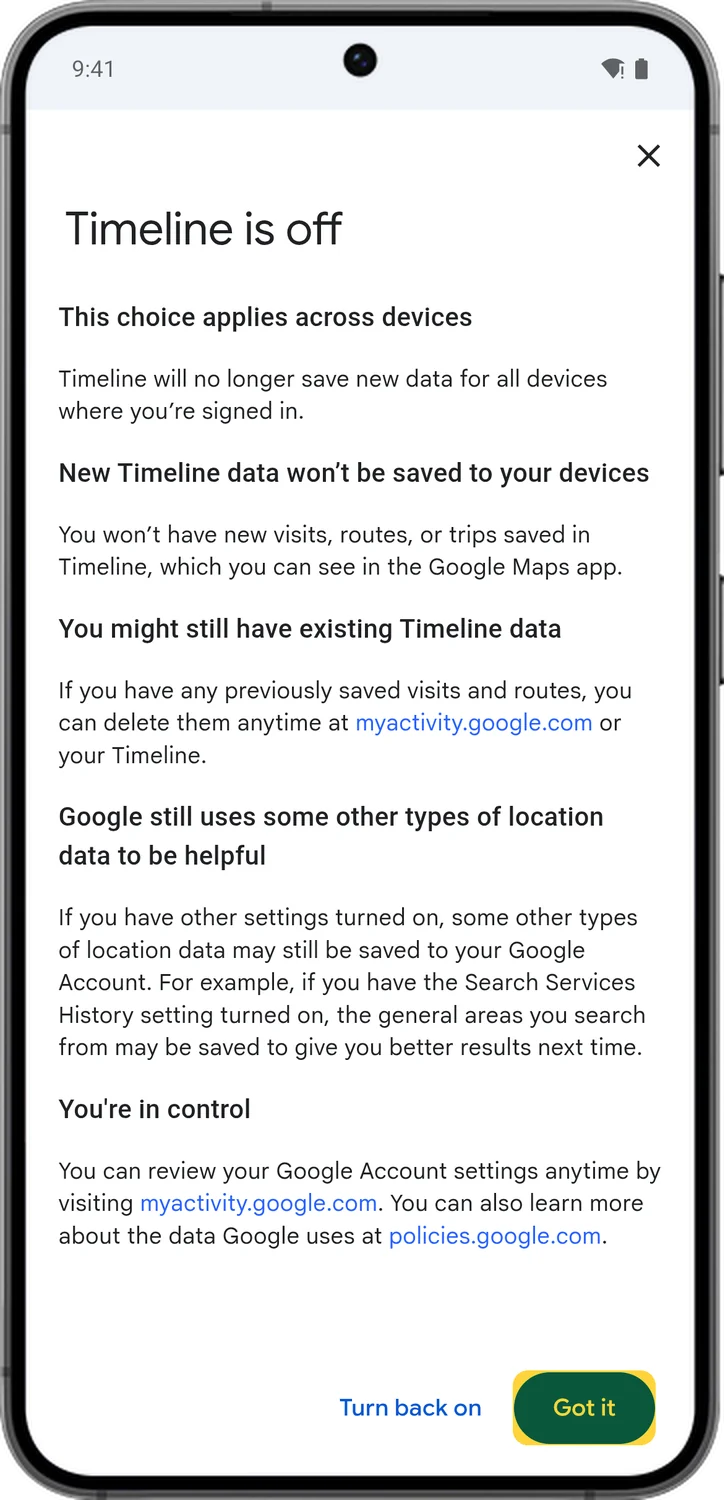
Timeline is the old Location History. It saves the places you visit and the routes you take with your signed-in devices. Google now keeps Timeline on your phone rather than its servers, and cloud backup is optional. It is off unless you turned it on, but if it says On, here is how to turn it off. Look at the subsettings too: one of them, on by default, lets businesses estimate whether their ads worked based on your Timeline.
6.Turn Off Play History
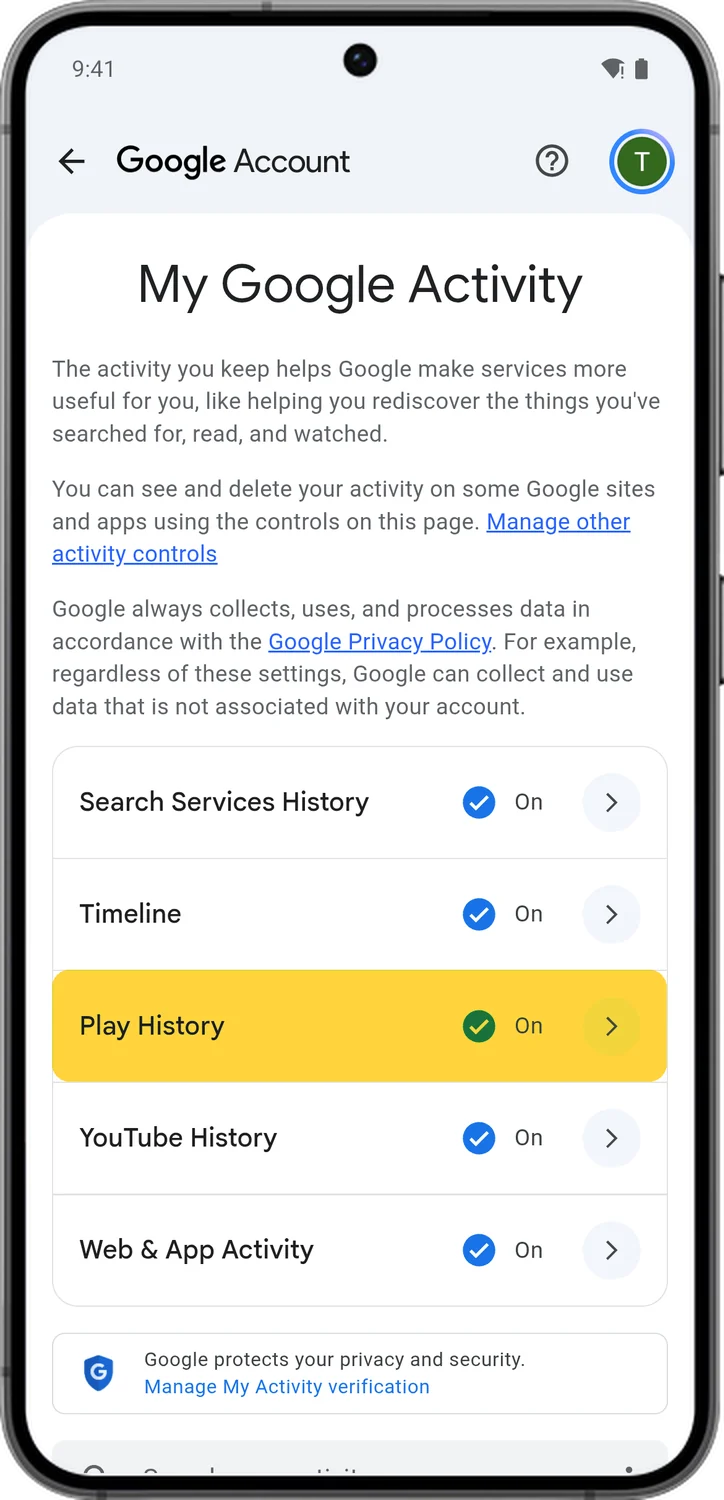
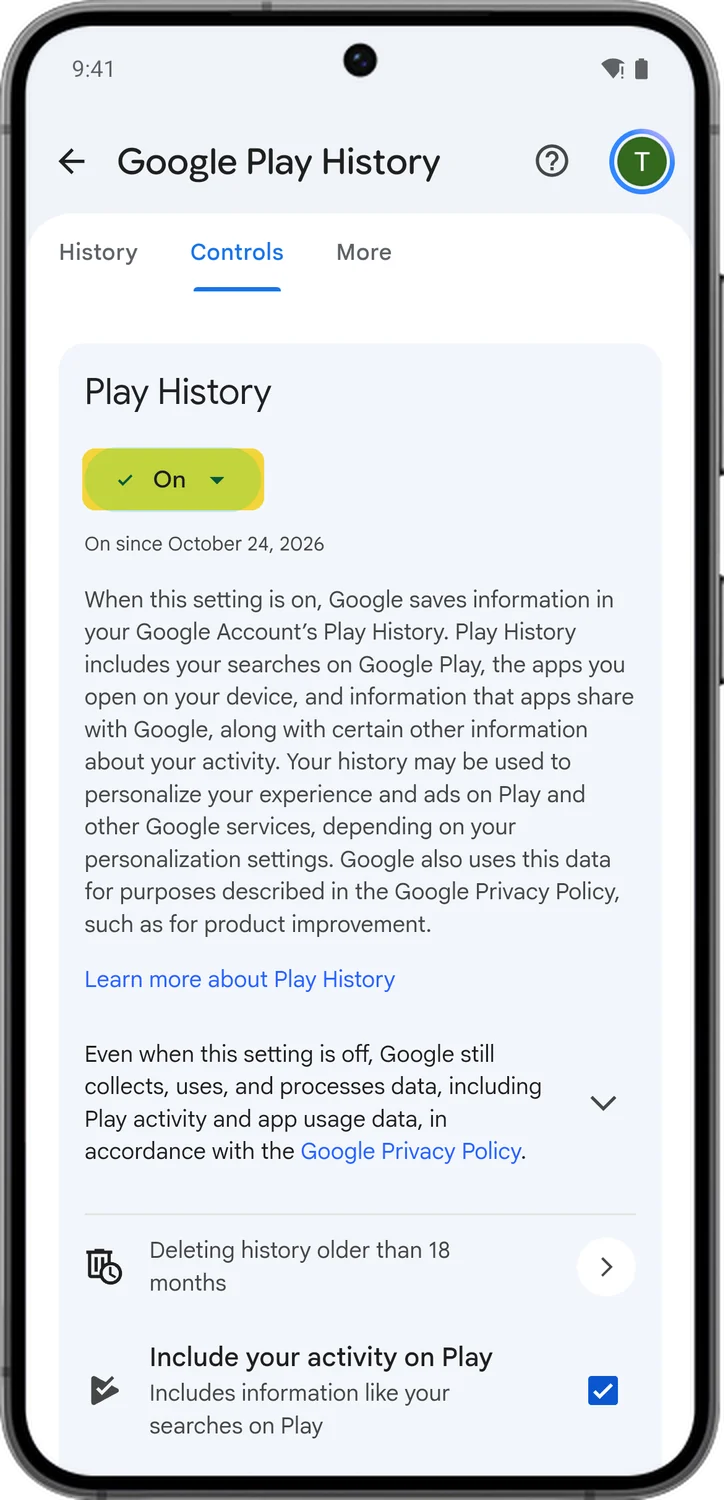
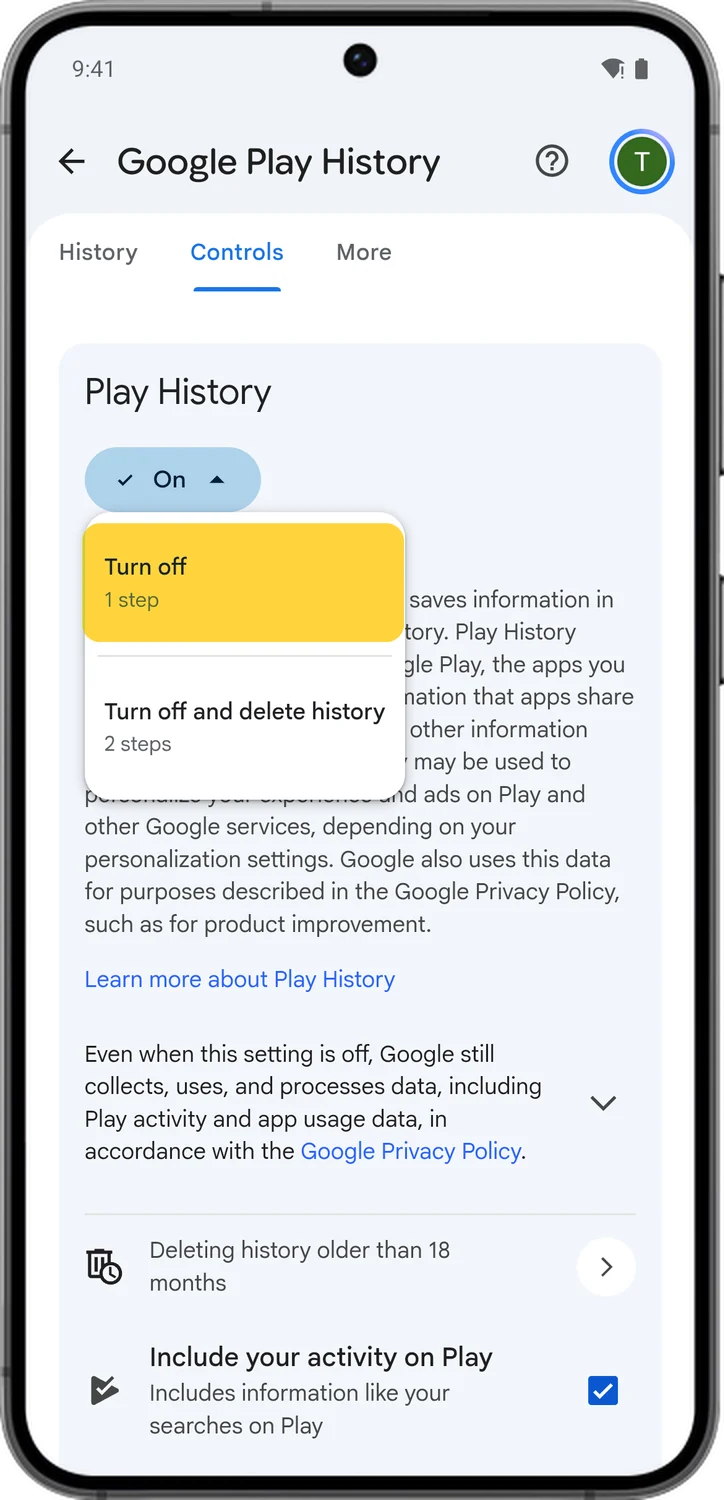
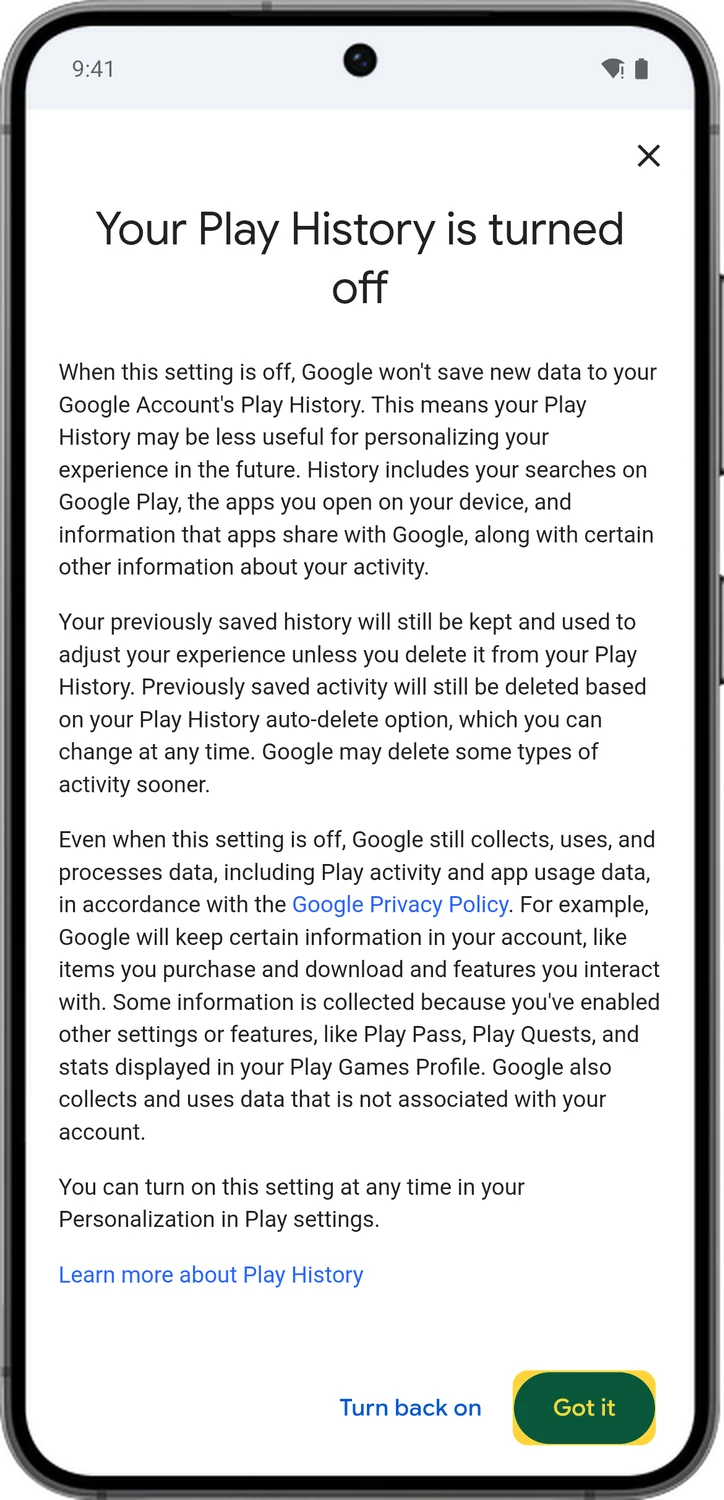
Play History saves your searches in the Play Store, the apps you open on your phone and how long you use them, and information that app developers share with Google Play. Google uses it to personalize the Play Store and the ads you see.
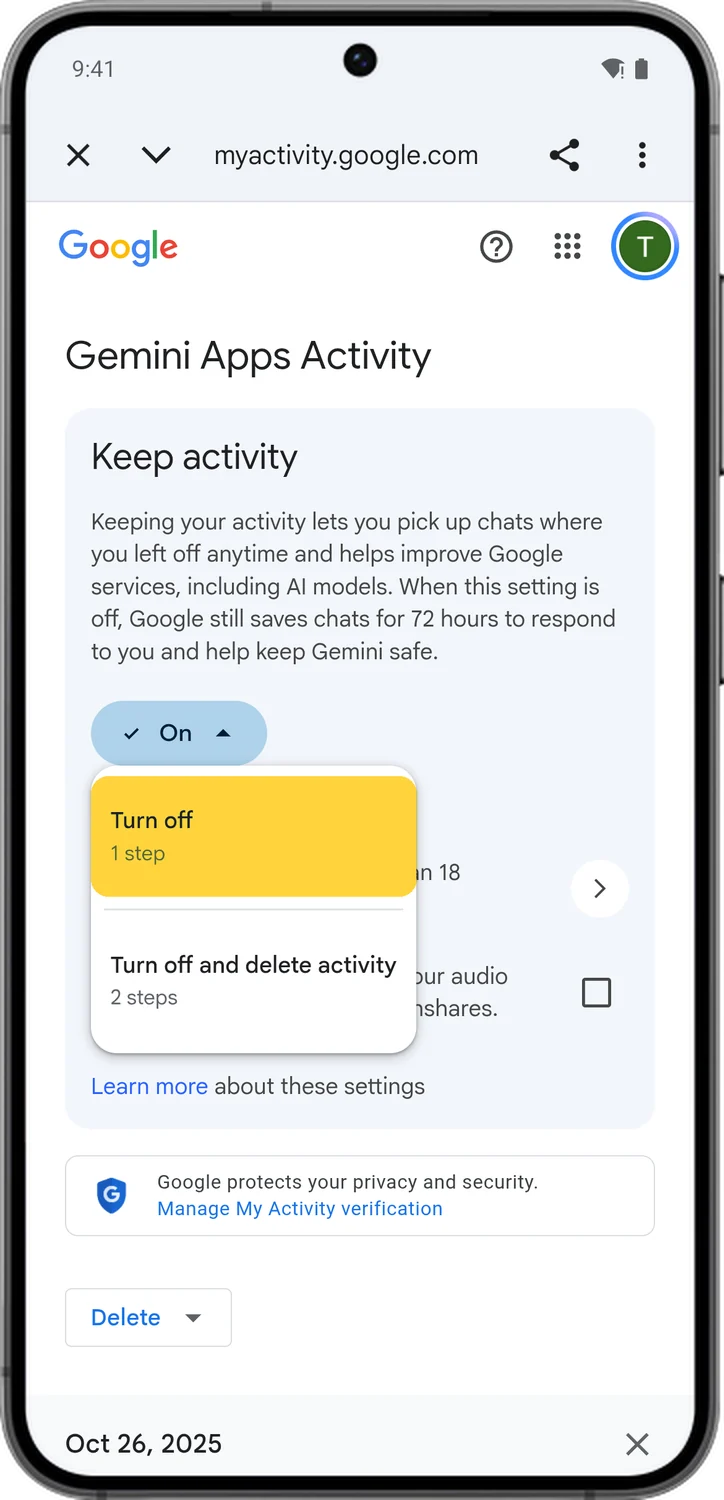
7.Turn Off Gemini Apps Activity
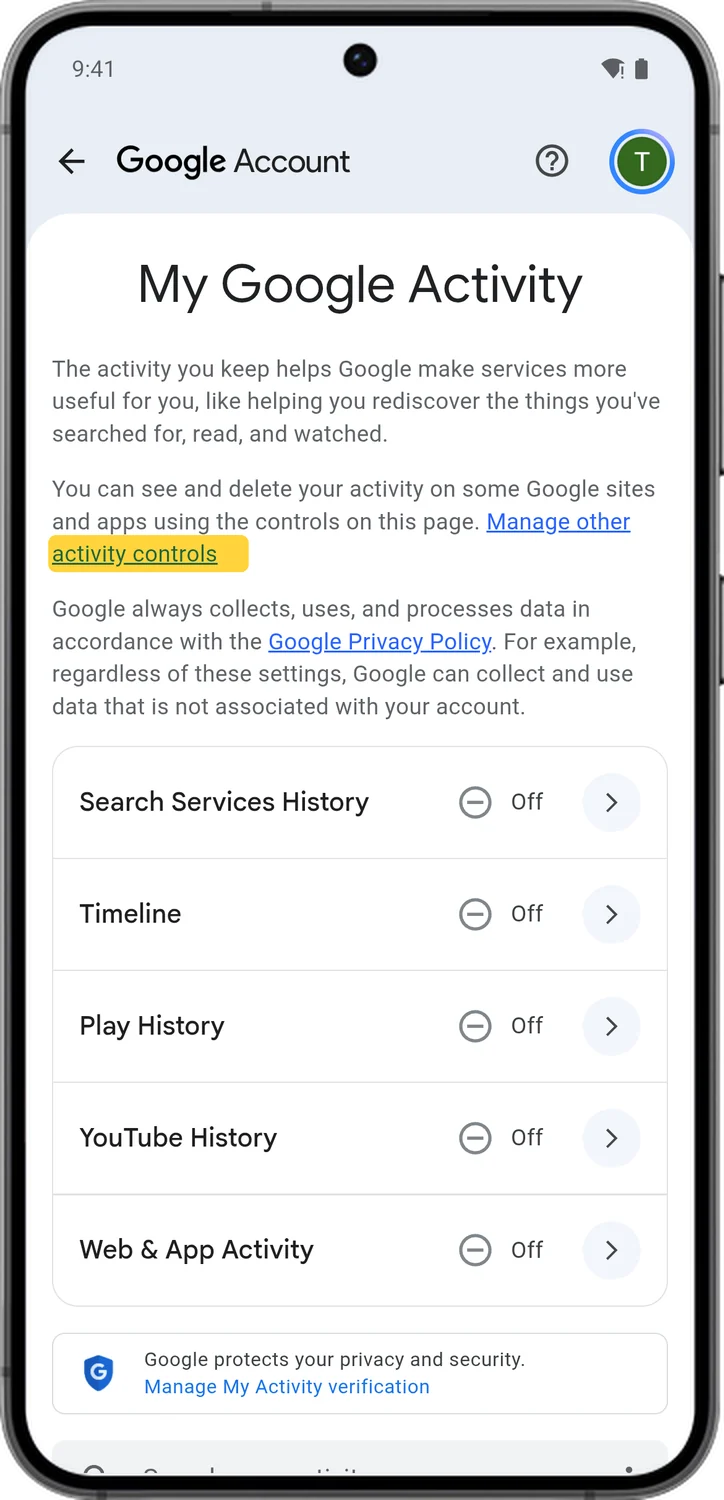
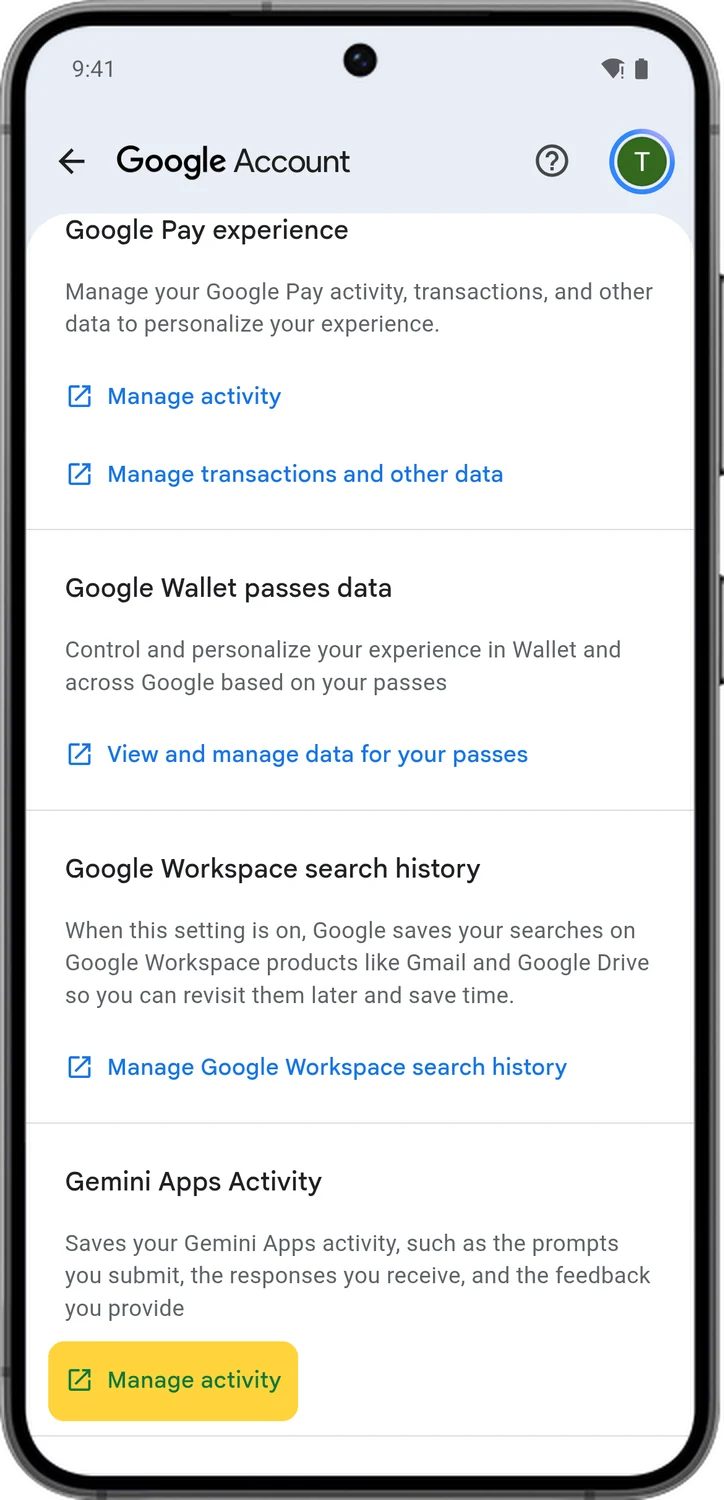
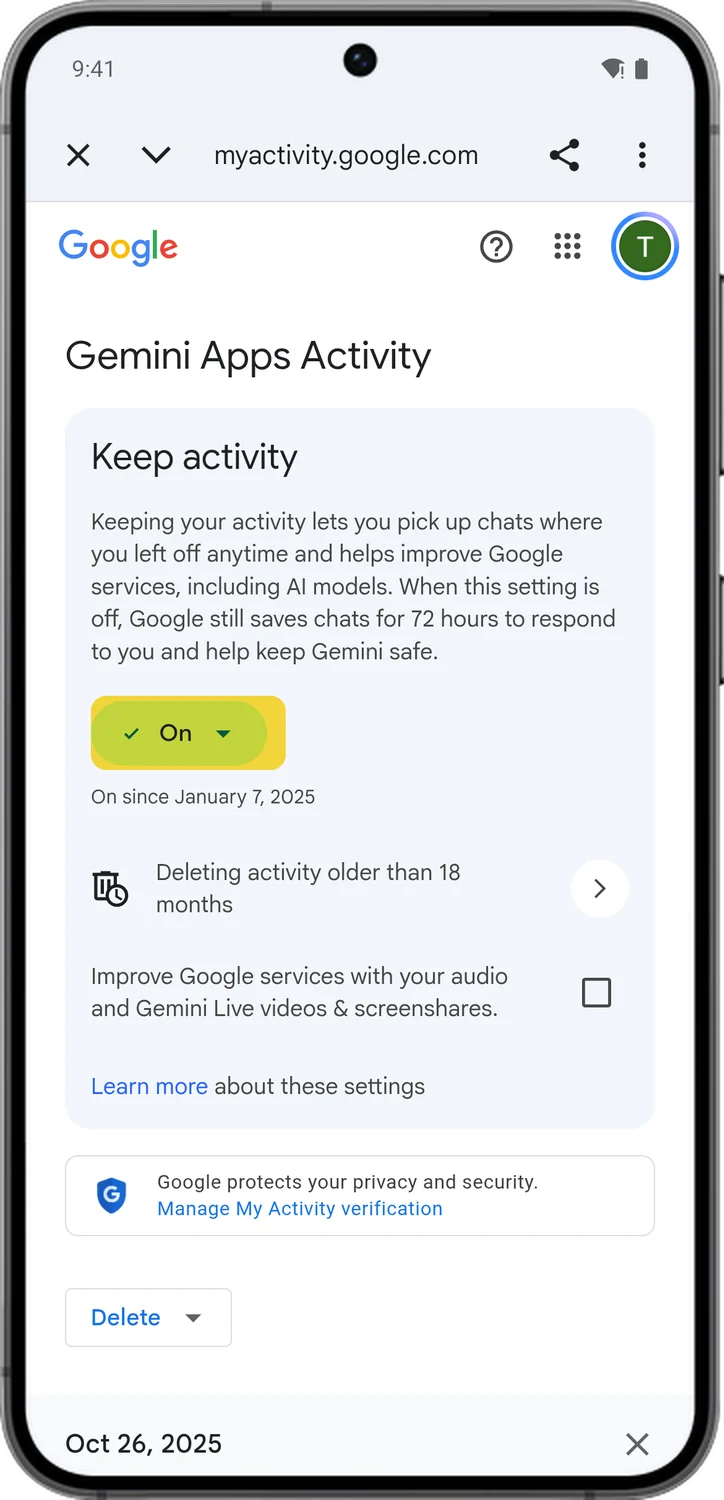
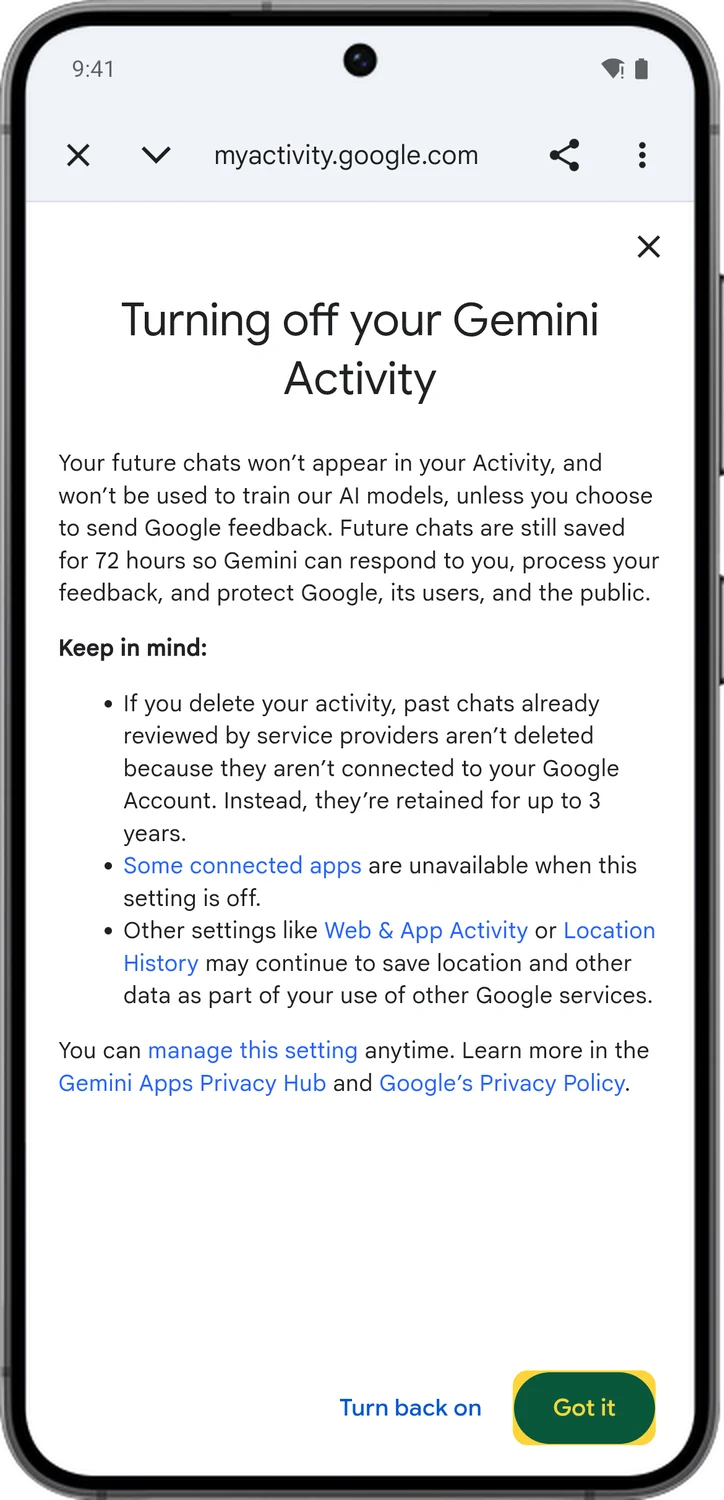
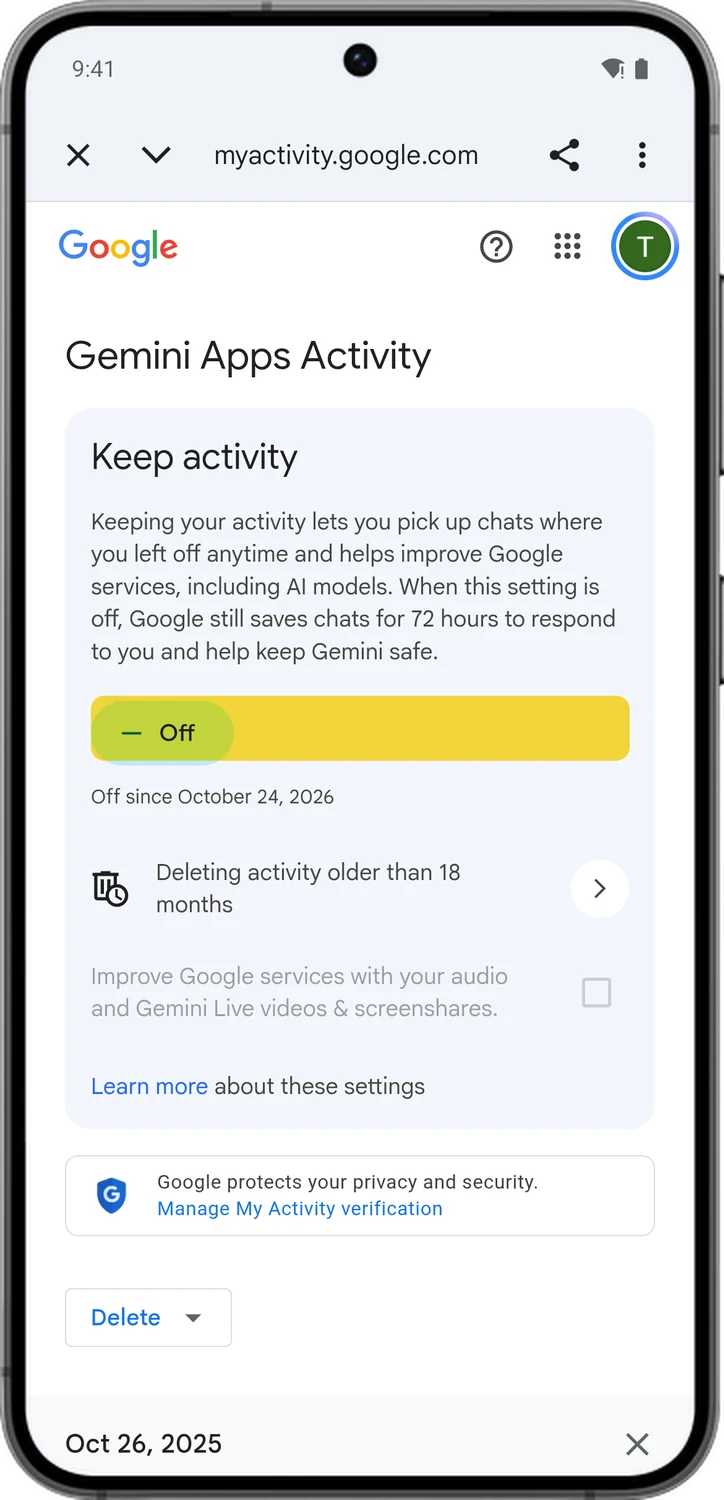
Gemini Apps Activity saves your chats with Gemini: the prompts you send, the replies, and the files, images and audio you share. A sample of chats is read by human reviewers, which is why Google tells you not to enter anything confidential. With it off, new chats are not used to train Google's AI models, but Google still keeps them for 72 hours to reply to you and keep Gemini safe.
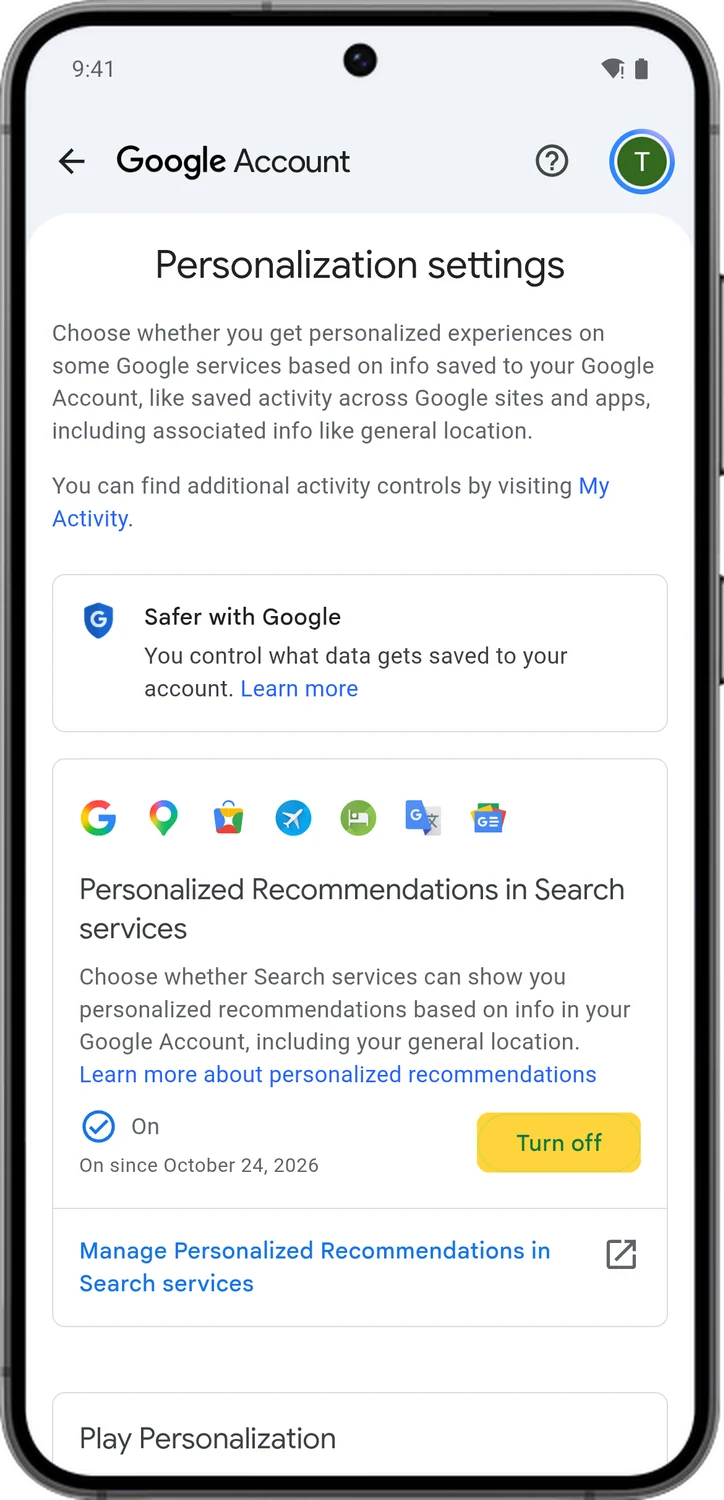
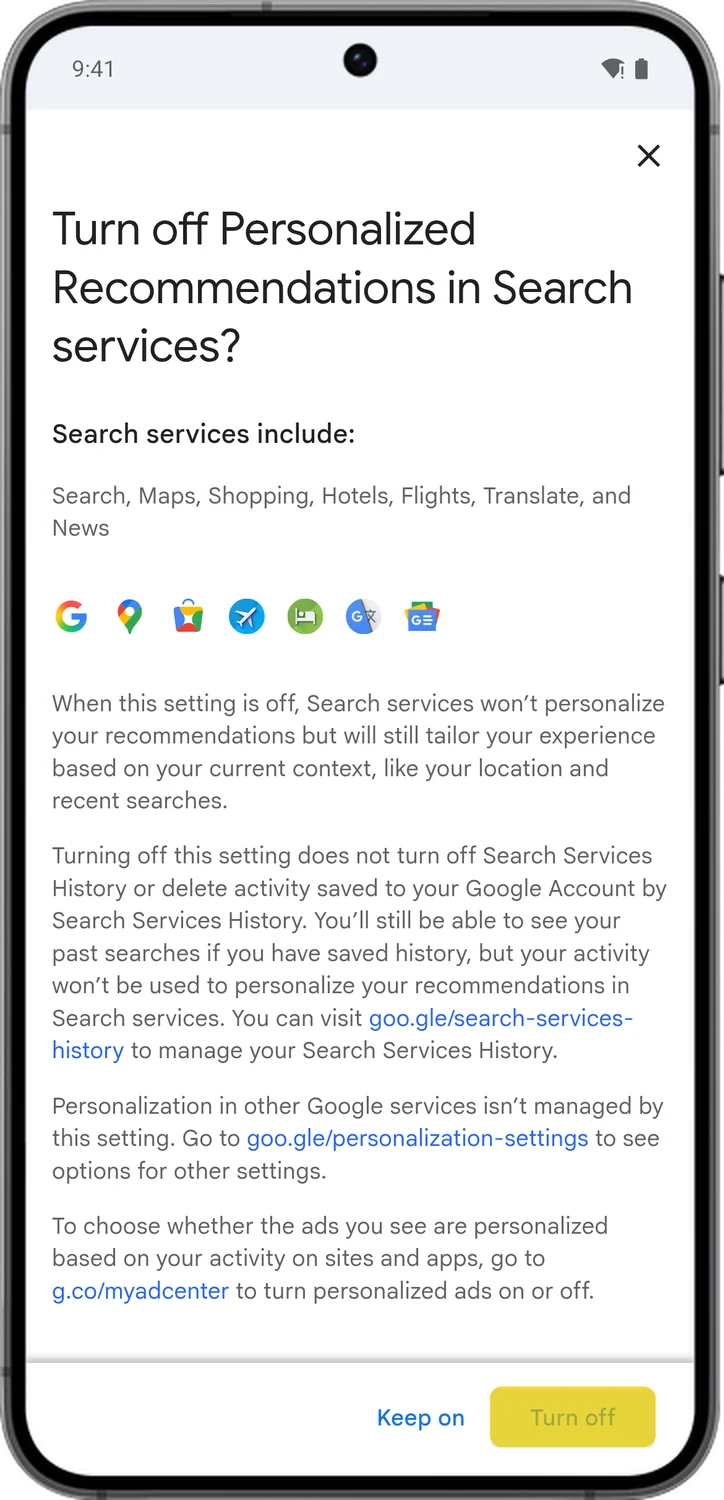
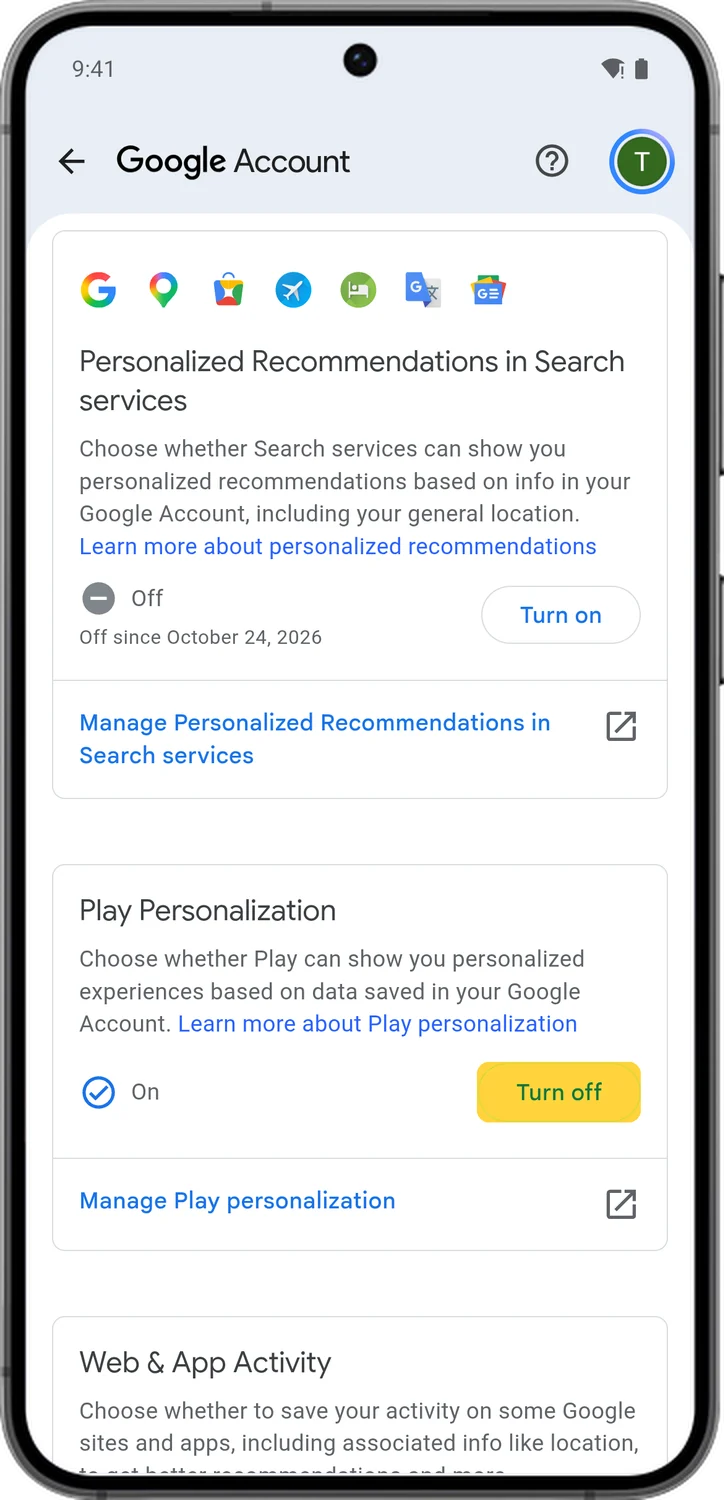
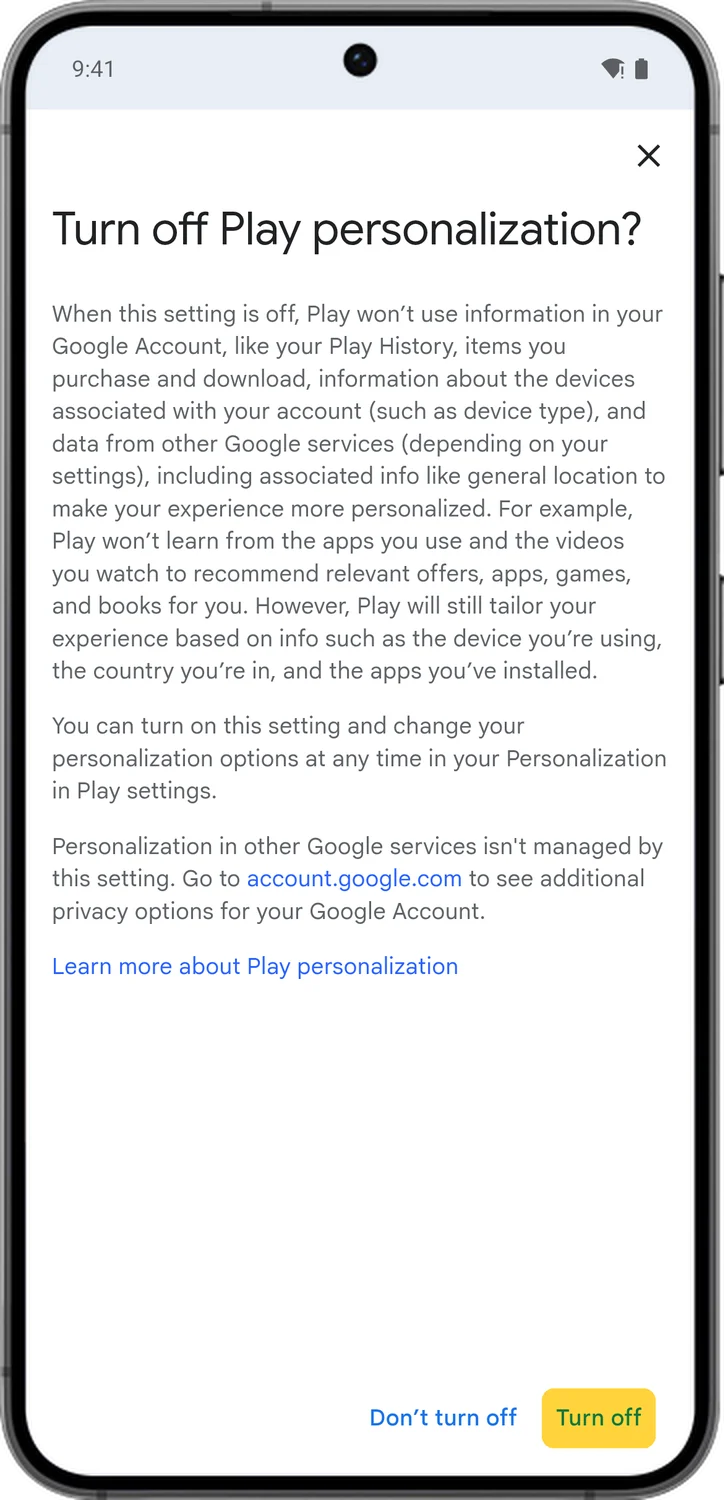
8.Turn Off Personalized Recommendations
These two switches are separate from your history. Even with your history off, Google can still use what is in your account to personalize Search and the Play Store. Personalized Recommendations in Search services tailors your results, your feed and AI answers to your interests. Play Personalization uses your Play History, purchases and devices to pick apps and offers for you. With both off, Search and Play only use what you are doing right now, like your current search and location.
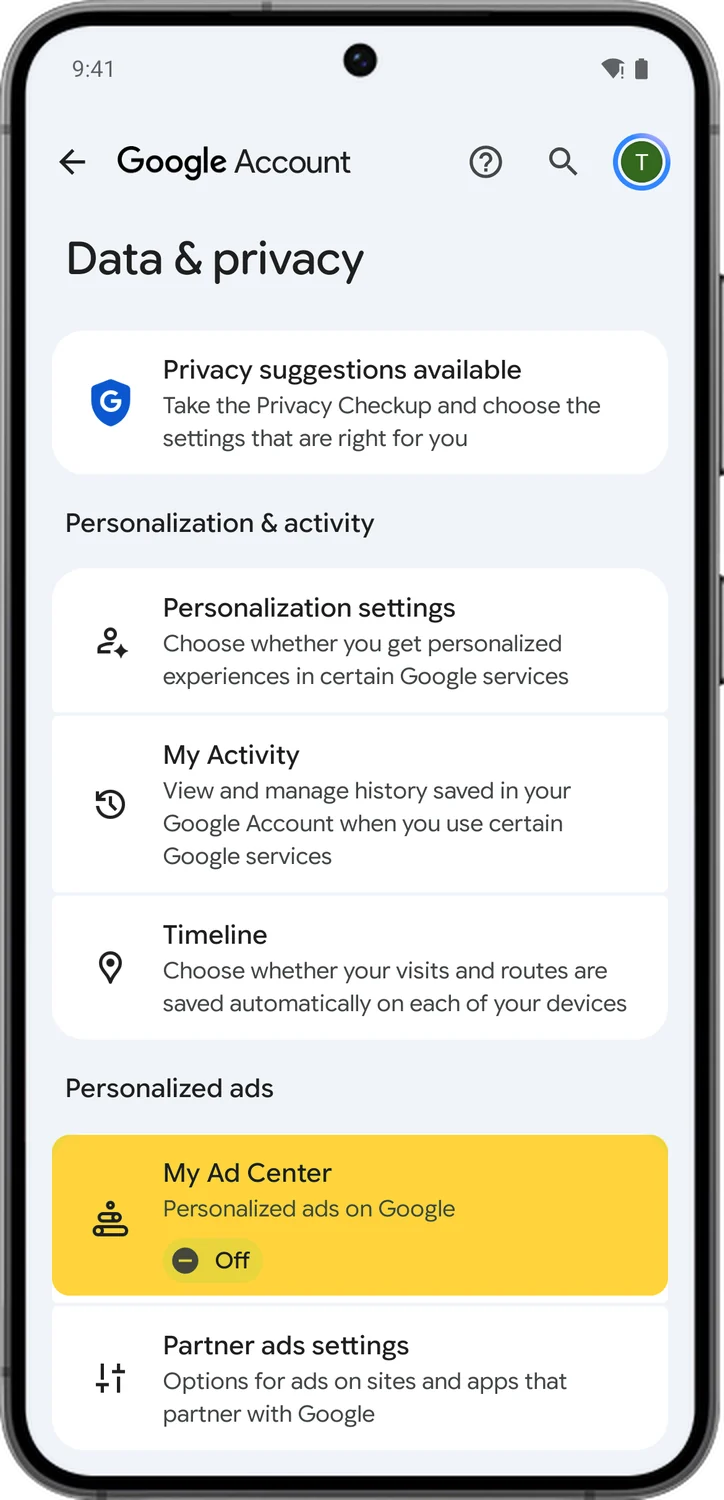
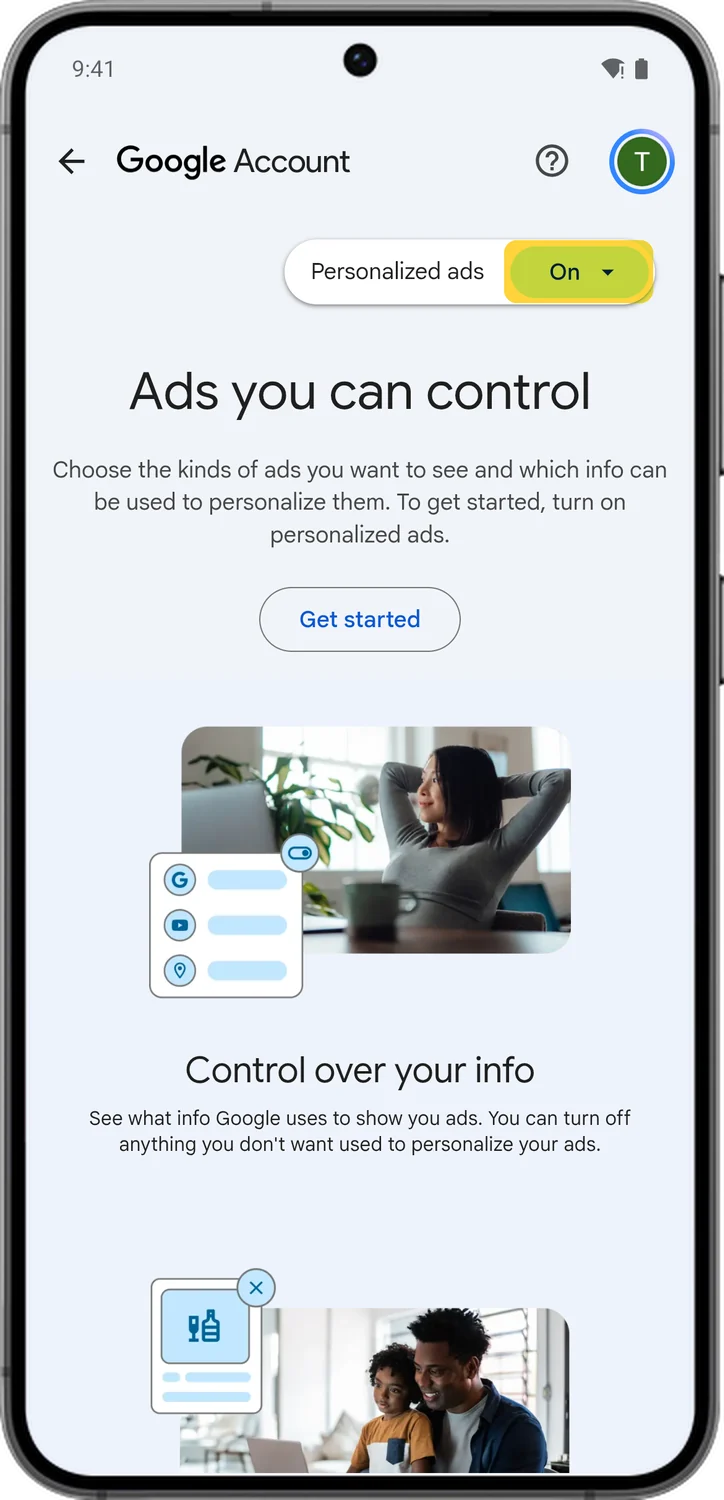
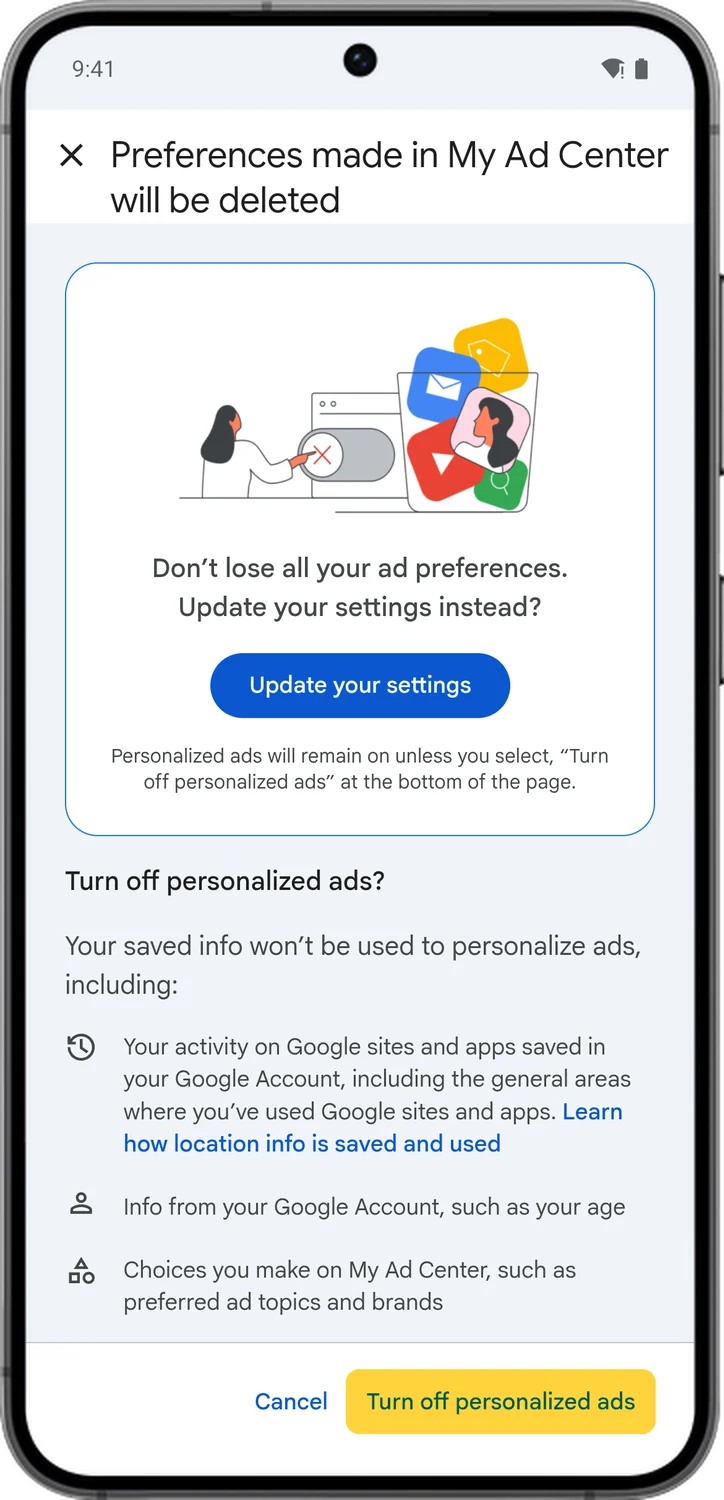
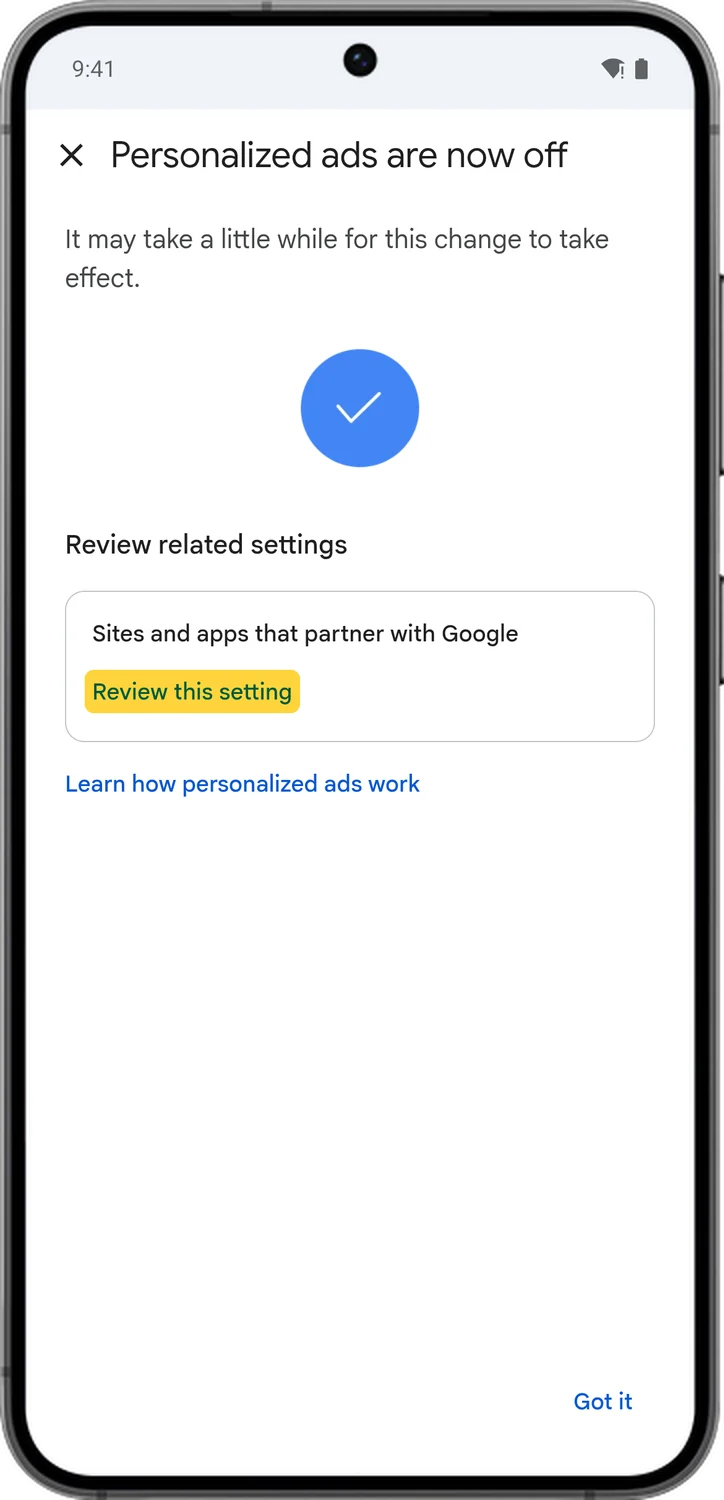
9.Turn Off Personalized Ads
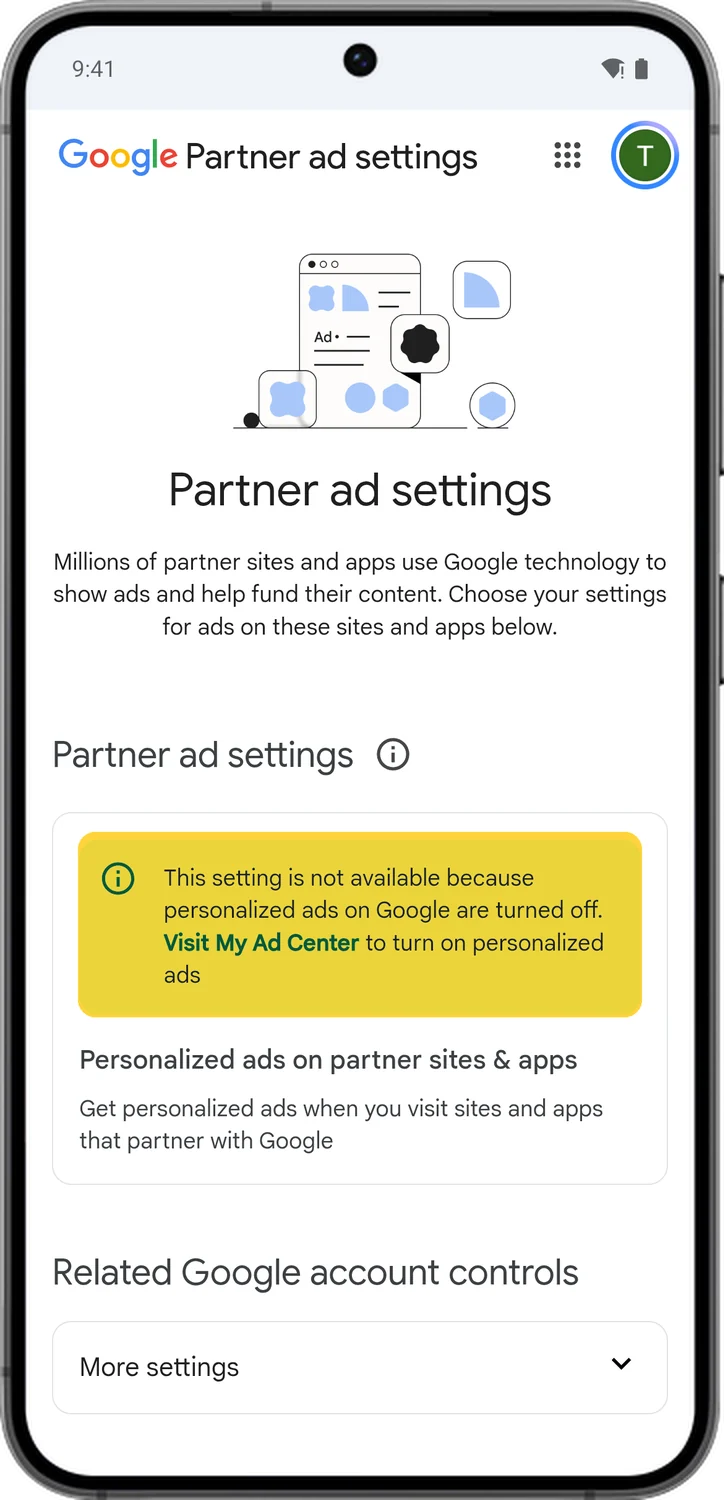
My Ad Center decides whether Google uses your activity, your age range and your interests to pick the ads you see on YouTube, Search and the sites and apps that partner with Google. With personalized ads off, you still see ads, but they are based on the page you are on, the time of day and your rough location instead of your profile.
10.Remove Apps You No Longer Use
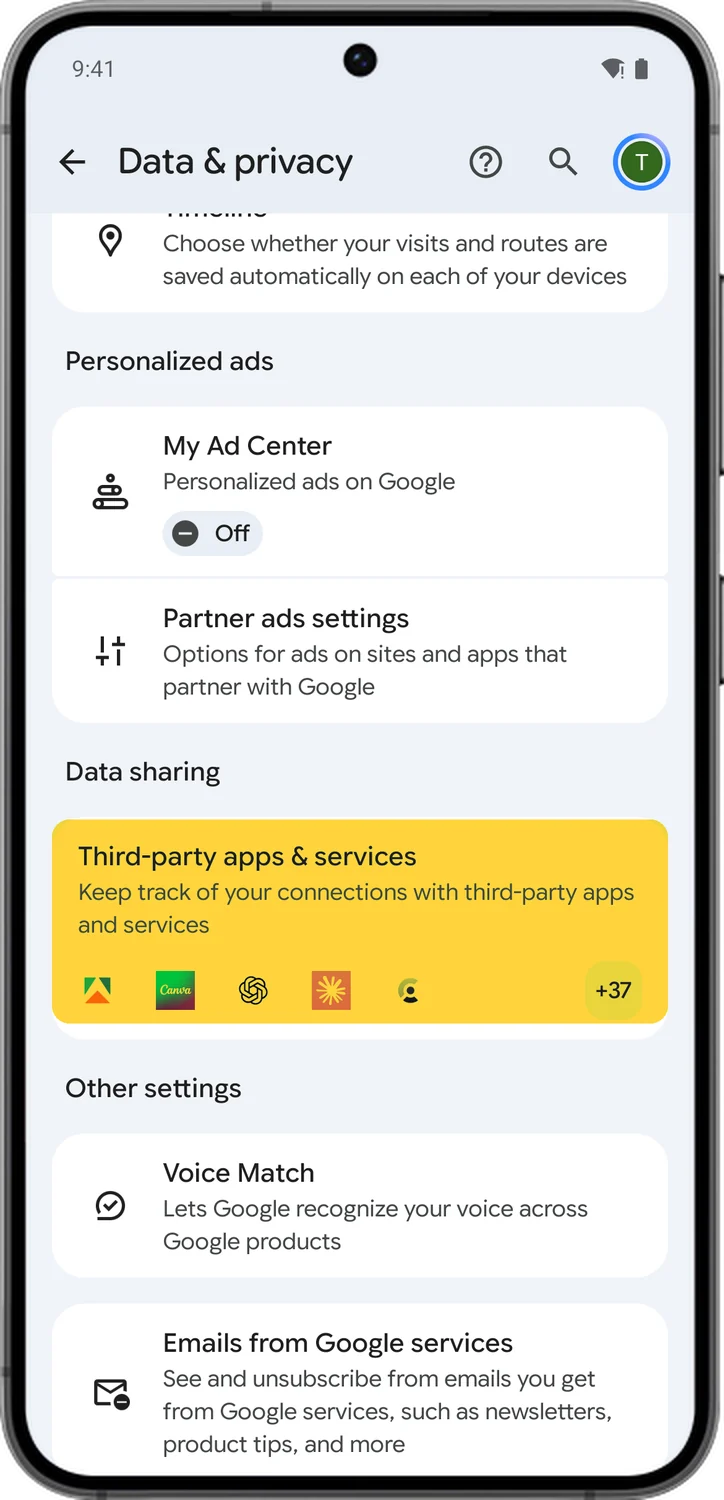
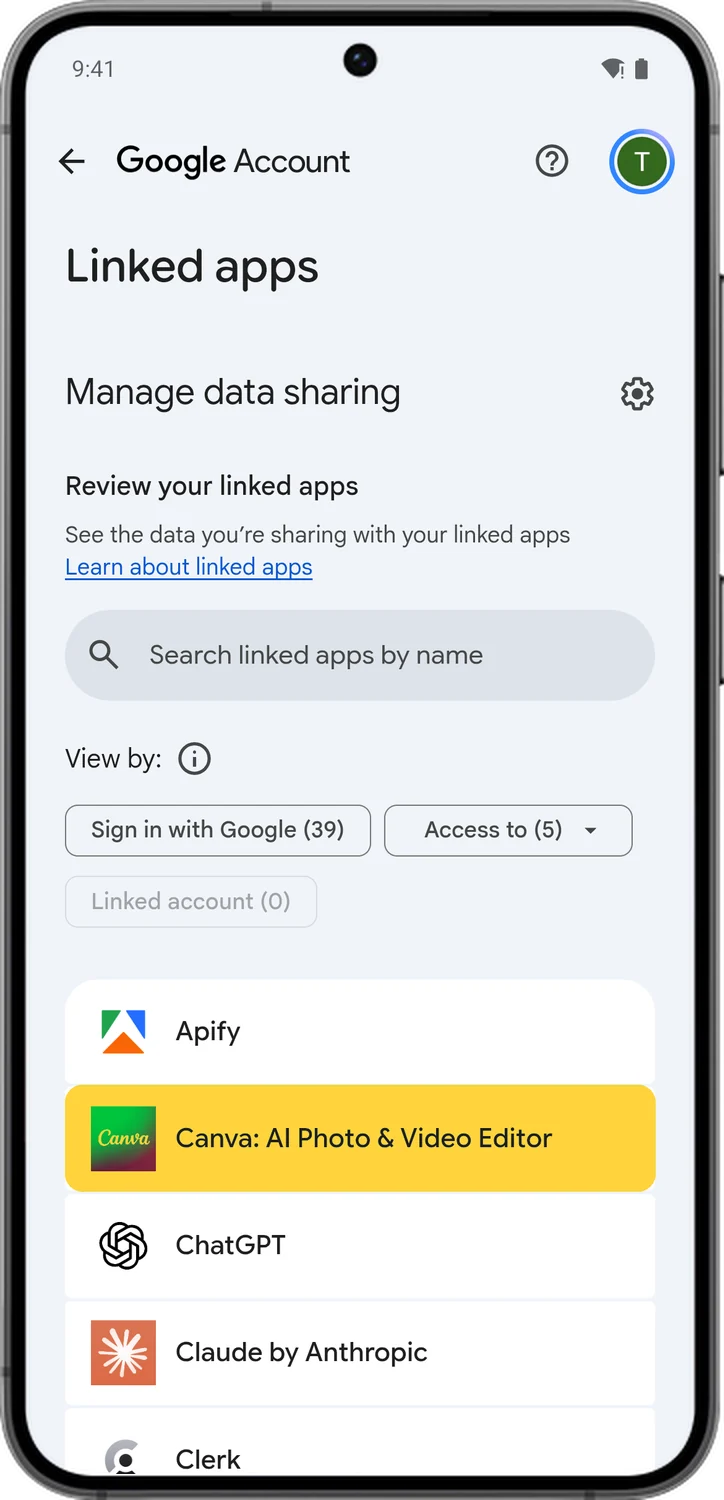
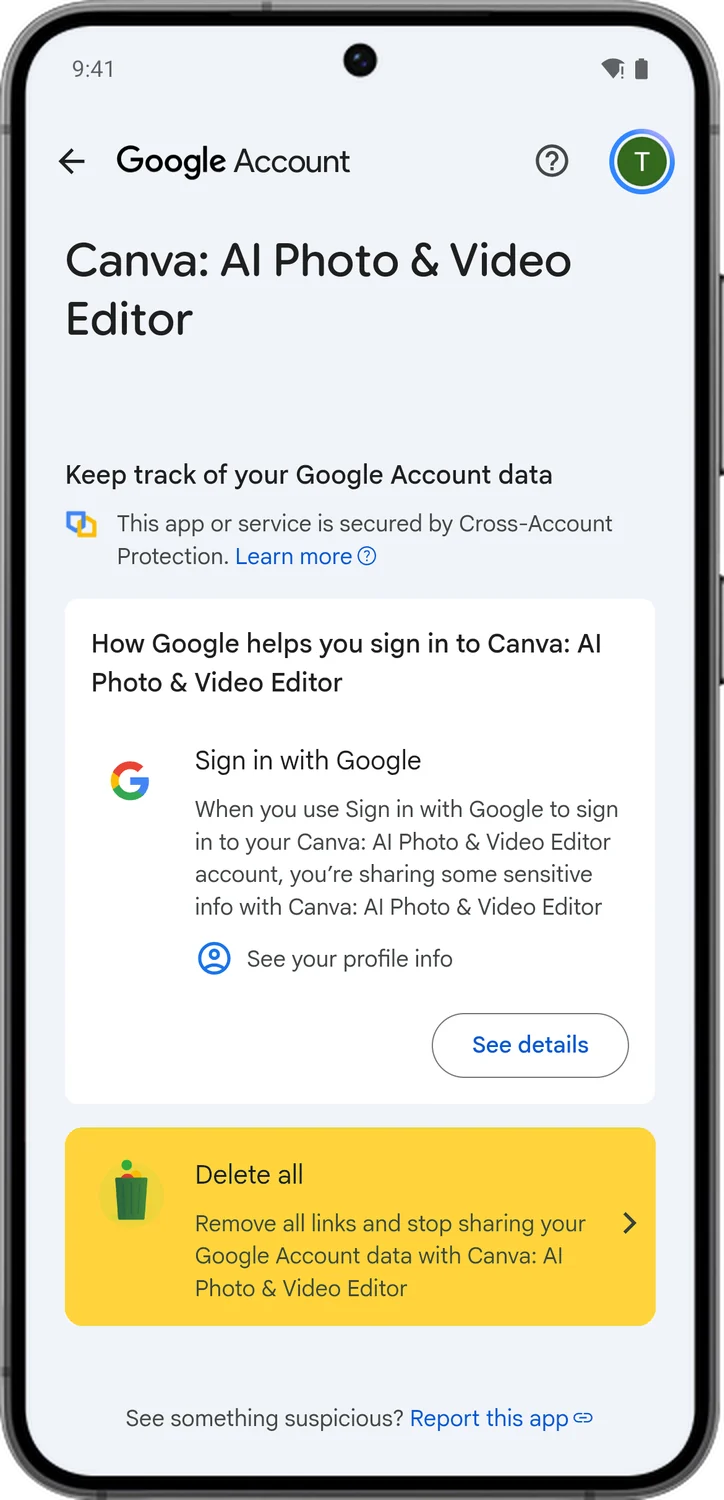
Every app and website you sign in to with Google can see some of your account data, at least your name, email address and profile photo, and some also get access to your Gmail, Drive or contacts. Go through the list once in a while and remove the ones you no longer use.
11.Set Auto-delete for the Settings You Keep
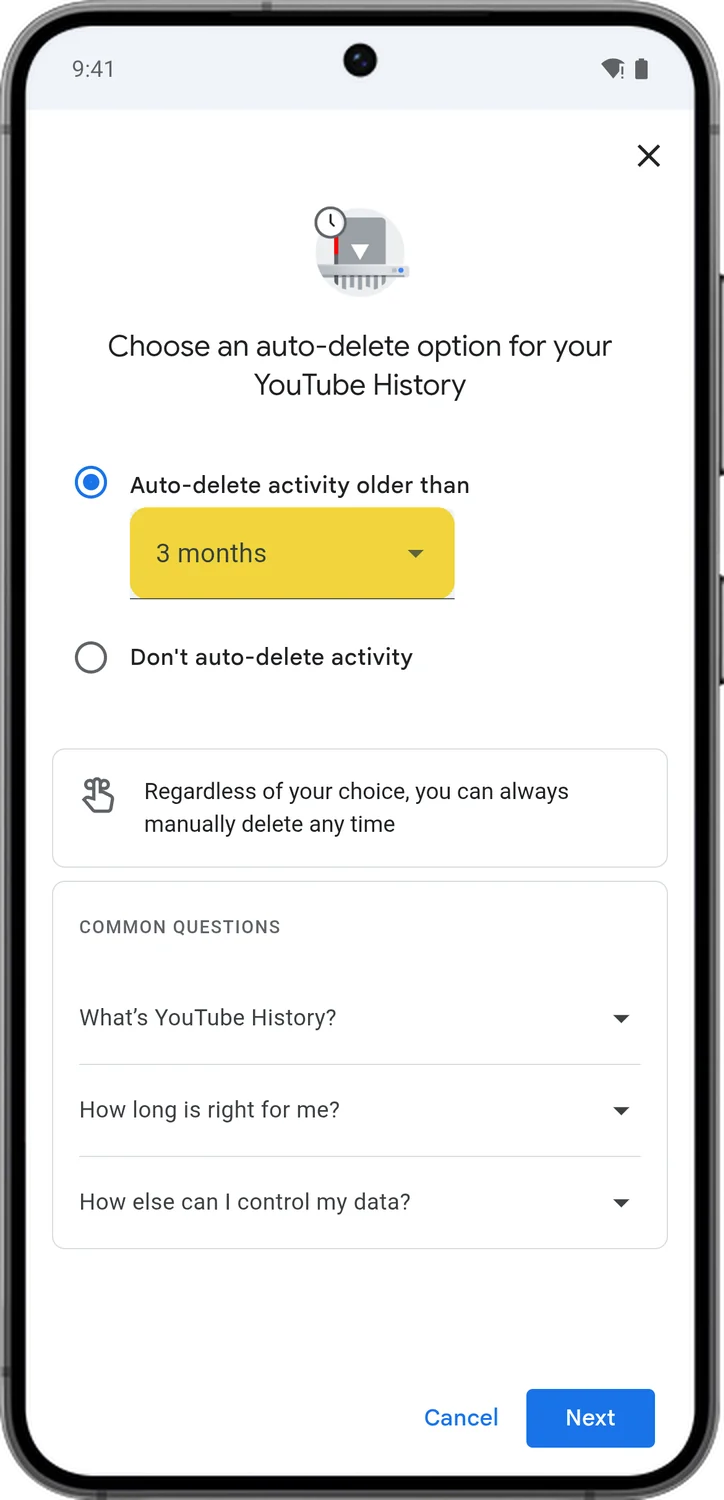
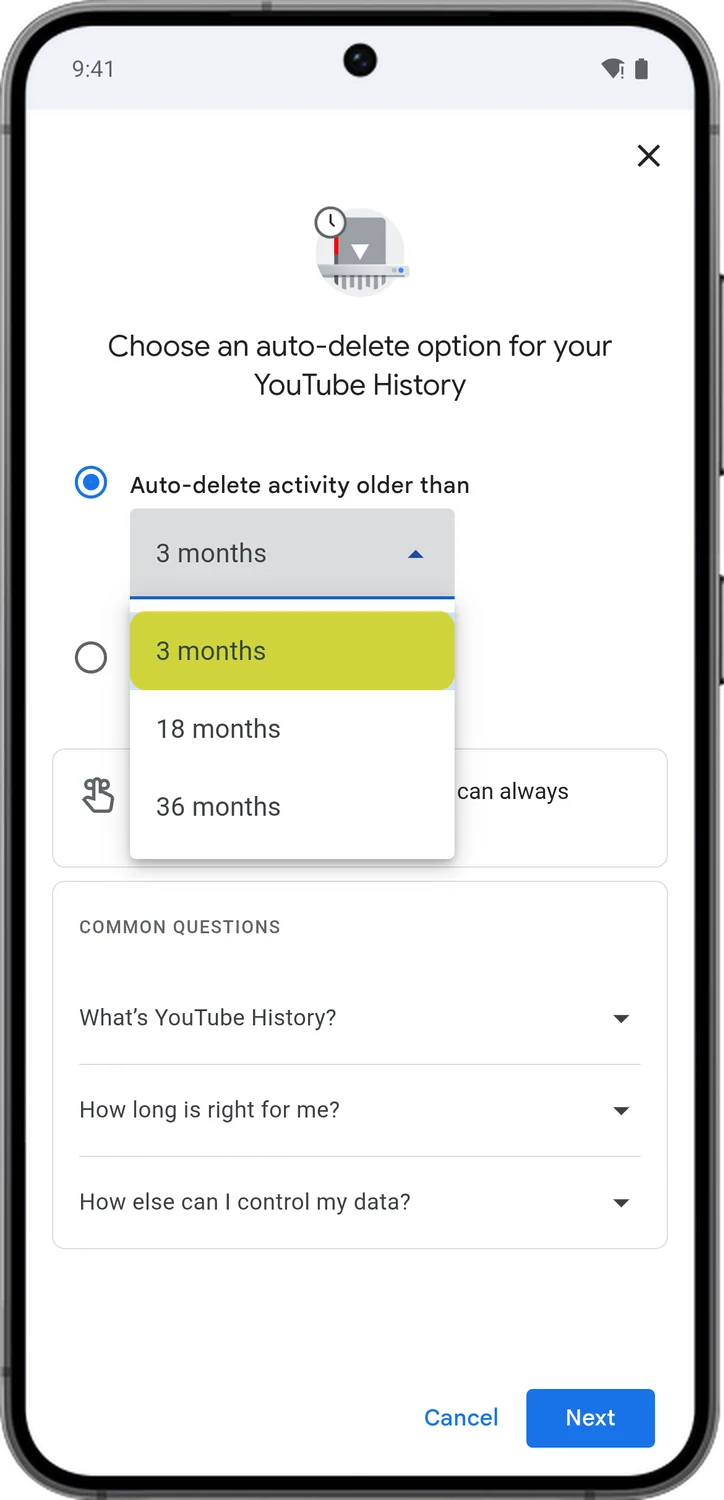
If you would rather keep a setting on, for example YouTube History for better recommendations, make it delete old activity on its own. Most controls default to 18 months, and you can bring that down to 3 months.
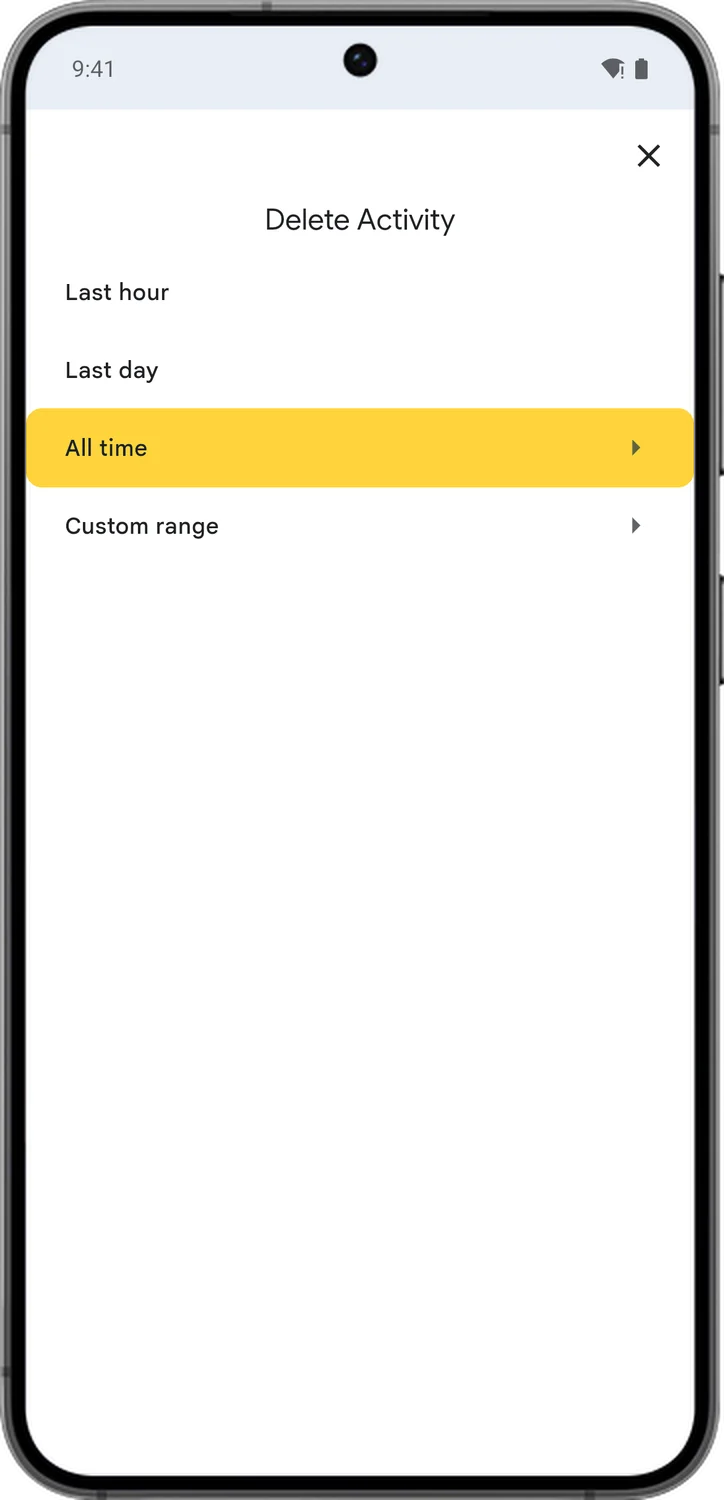
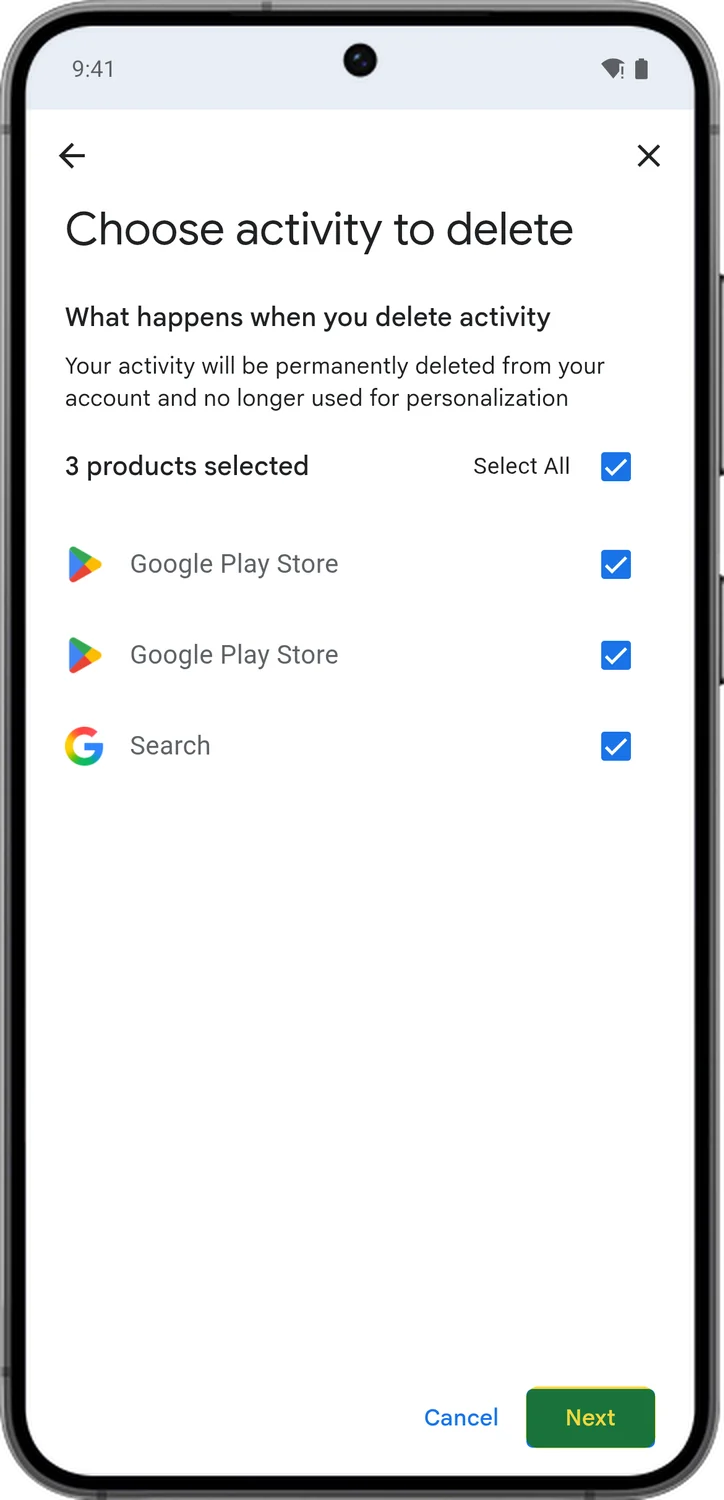
12.Delete Your Past Activity
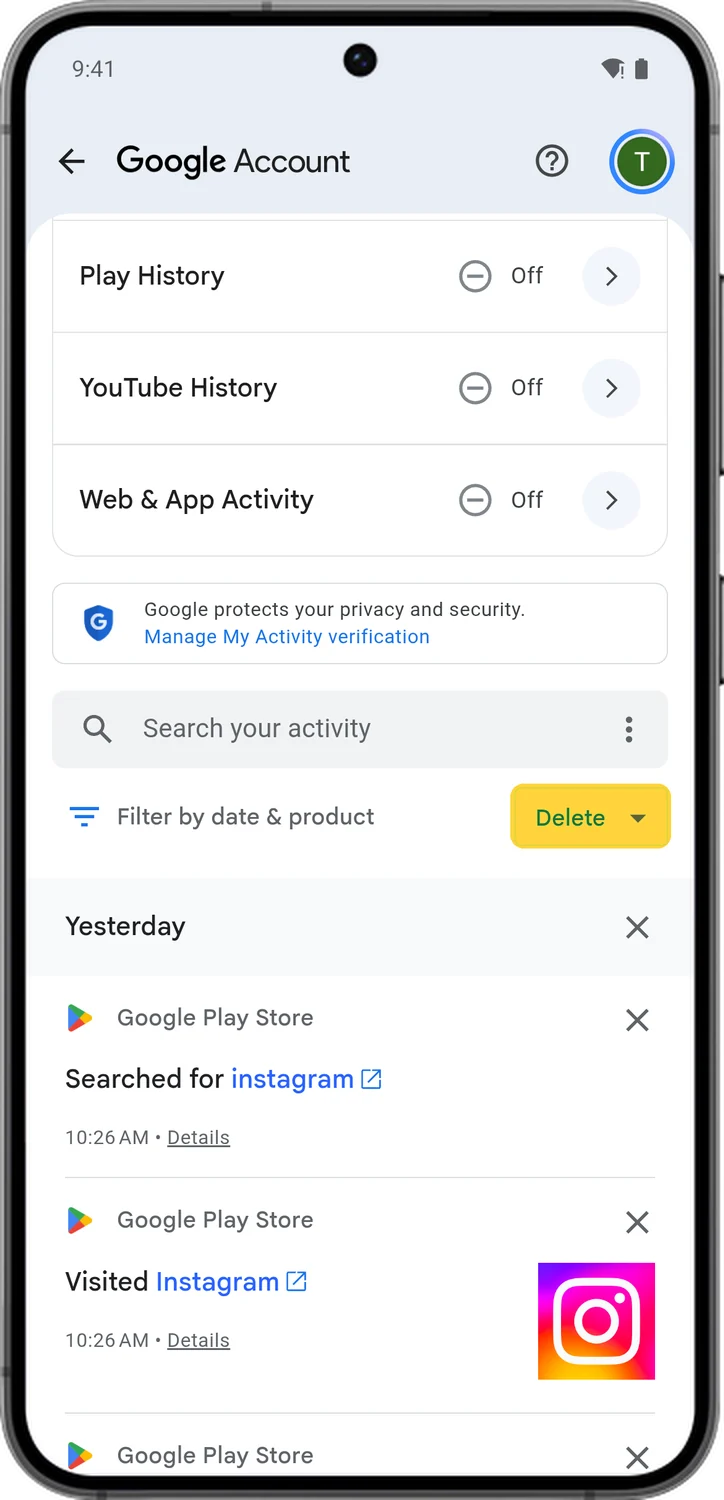
Turning a setting off only stops new activity from being saved. Everything Google already has stays in your account and can still be used, until you delete it or auto-delete removes it. Deleting it is permanent.
13.Everything Google Can Save, Setting by Setting
These are the types of data Google may save to your account while each setting is on. Use the search to find a specific one, like location, voice or Chrome.
Showing 105 of 105 data points Google can save.
Search Services History
NewSave Media
NewA sub-setting inside Search Services History.
Timeline
Timeline data is now mainly stored on your device. Cloud backup is optional.
Play History
Your purchased or downloaded apps, games, books and other Play content are stored separately and are not part of Play History.
YouTube History
You can separately disable 'Include the YouTube videos you watch' and 'Include your searches on YouTube'.
Web & App Activity
Additional data when “Include Chrome history and activity from sites, apps and devices” is on
Additional data when “Include voice and audio activity” is on
Those are the settings you can change in your Google Account for better privacy. These screens are from an Android phone, but the same settings are in your Google Account on an iPhone and on the web at myaccount.google.com. Google keeps adding new controls, and when it does, we will update this guide. For more guides like this one, see our TechPP setup guides.
Comments
0Share your thoughts, questions, or feedback about this guide.