
Gemini App Icons and Symbols Explained
The Gemini app has grown fast. Besides chatting, it can now create images, videos and music, run Deep Research, build things in Canvas and talk to you live. All of it sits behind a + button, a few small icons under every answer and a sidebar.
In this guide, you will learn what every icon in the latest Gemini app means, screen by screen. And this is an interactive guide. You can tap on every icon on the screens below to know what it does.
Home screen and prompt bar
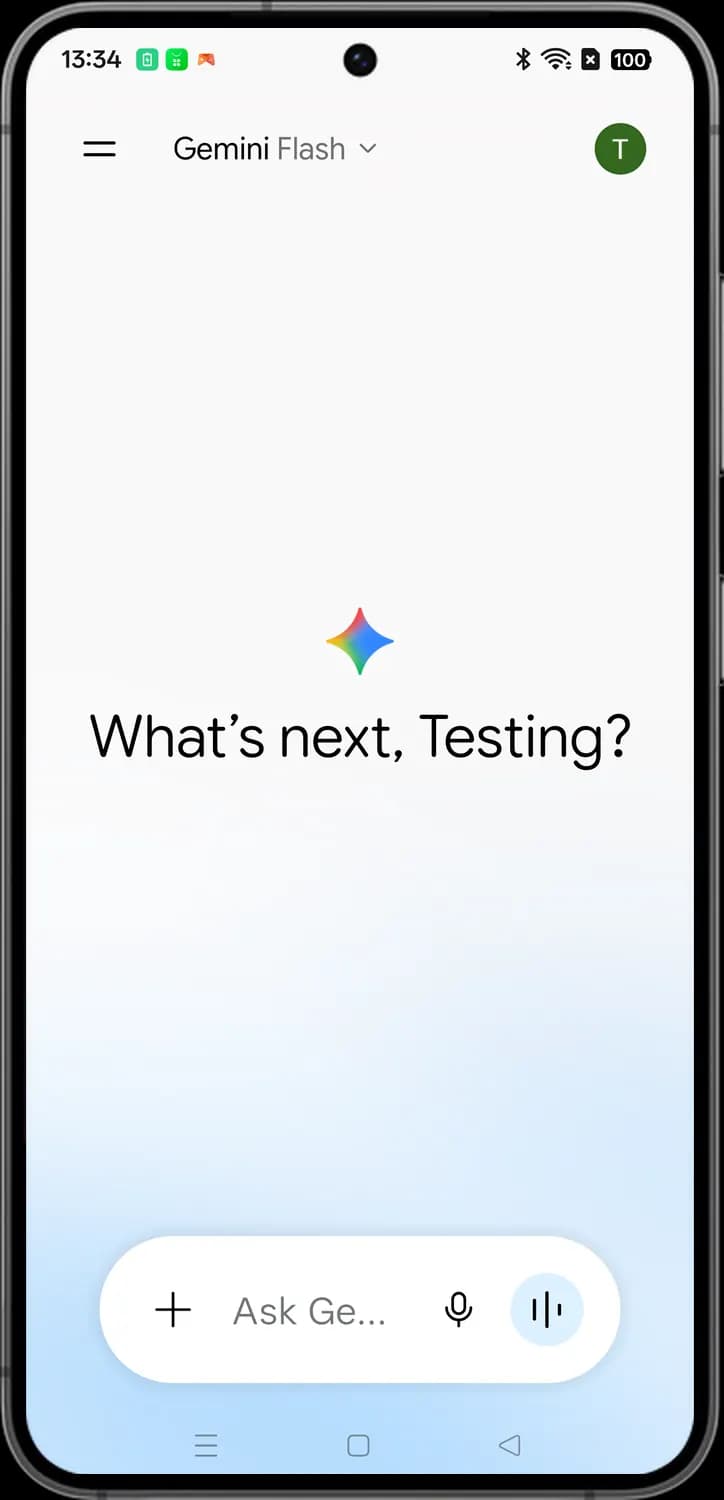
This is what you see when you open the Gemini app: the top bar with the menu, the model picker and your account, and the prompt bar at the bottom where you type or talk to Gemini.
Home screen

Open sidebar
The two lines at the top left. Tap it to open the sidebar with your chats, Library, notebooks and settings.

Model picker
Shows which Gemini model is answering you, here Flash. Tap the name or the arrow to switch to a different Gemini model.

Account
Your Google account picture. Tap it to open the account menu, where you can switch accounts, manage your subscription and get help.

Add attachments
The plus sign. Opens a sheet where you can add a photo or take one with the camera, and pick tools like Create images, Canvas and Deep Research.

Microphone
Tap it and speak your prompt instead of typing it. Gemini turns what you say into text in the prompt bar.

Open Gemini Live
The sound wave button. Starts Gemini Live, a spoken back-and-forth conversation with Gemini where you can also share your camera or screen.
While you type
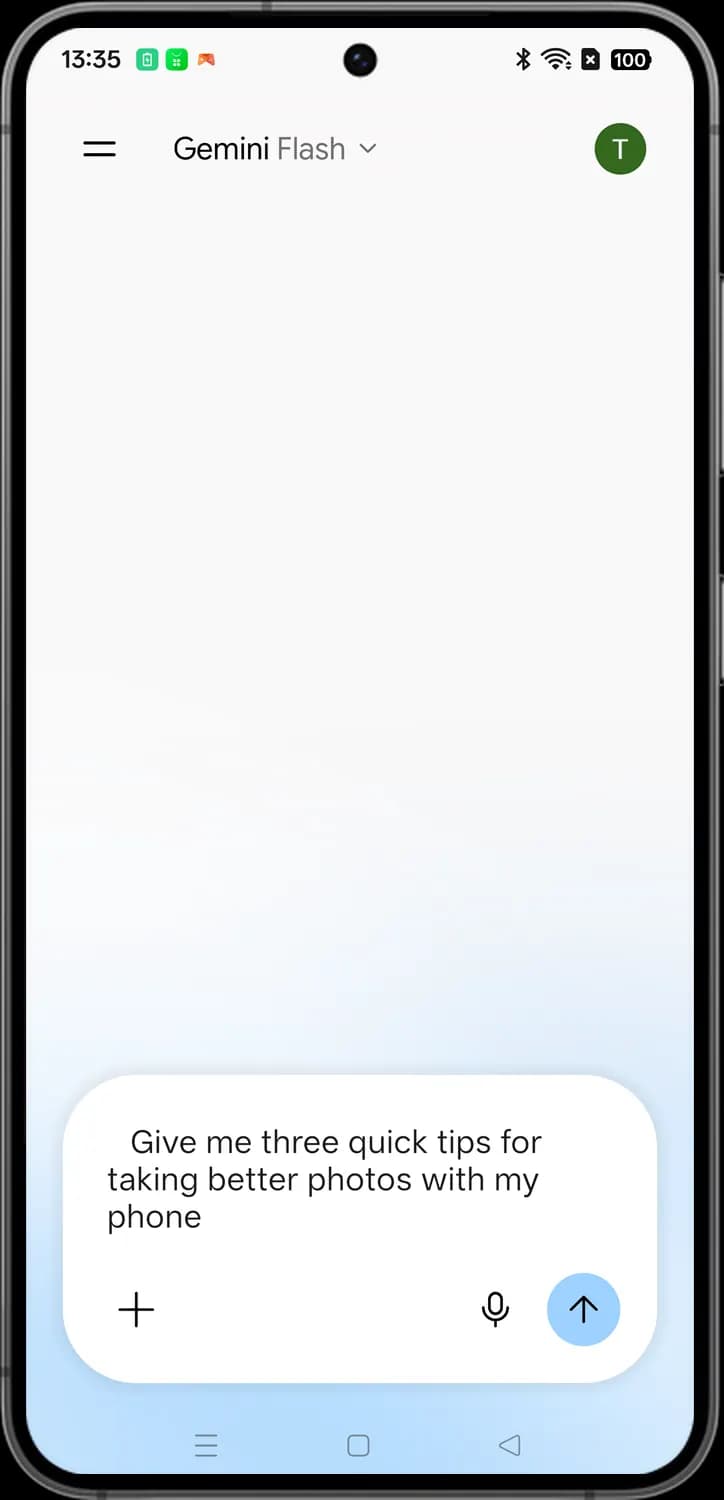

Send
The up arrow takes the place of the Live button as soon as you type something. Tap it to send your prompt to Gemini.
Attachments and tools
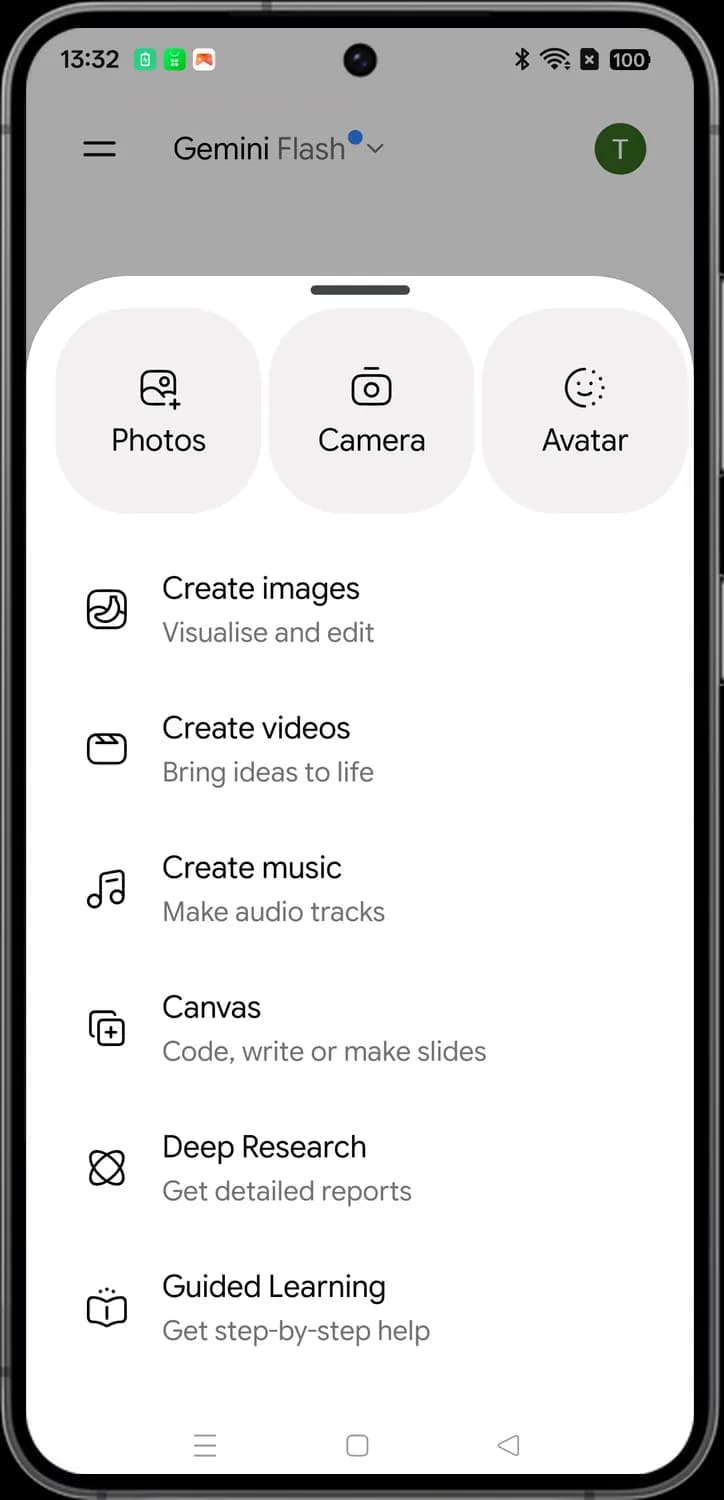
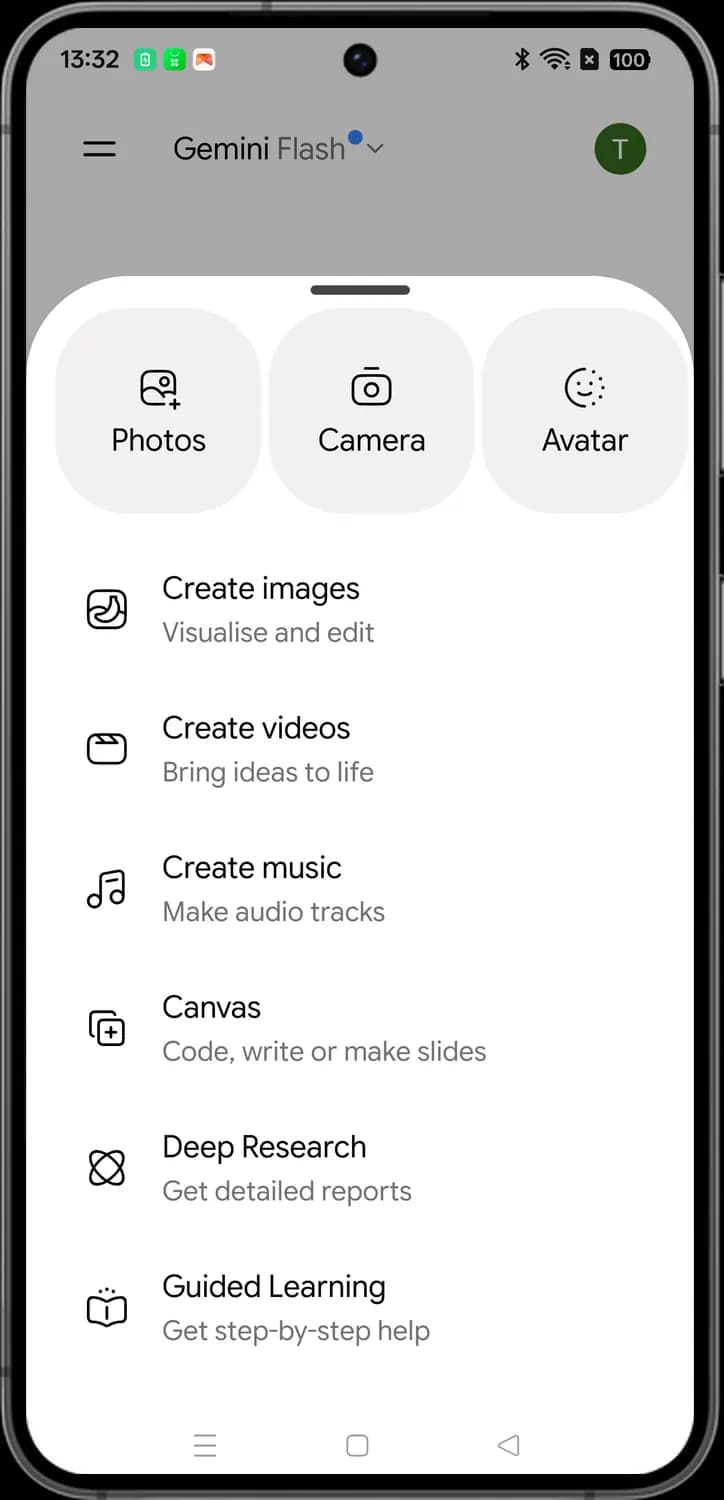
Tap the plus sign in the prompt bar and this sheet slides up. The tiles at the top add something to your prompt, and the list below switches Gemini into a tool for the next thing you ask.
Add to your prompt

Photos
The picture with a plus. Opens your photos so you can attach one or more images to your prompt.

Camera
Opens the camera so you can take a photo and attach it to your prompt, for example to ask about something in front of you.
Tools

Create images
Turns on image making. Describe a picture and Gemini creates it, or add a photo and tell Gemini how to edit it.

Create videos
Turns on video making. Describe a scene and Gemini creates a short video clip from it.

Create music
Turns on music making. Describe the sound you want and Gemini creates a short audio track.

Canvas
Opens Canvas, a workspace next to the chat where you and Gemini write and edit documents, code or slides together.

Deep Research
Gemini searches many websites on your question, then writes a detailed report with links to its sources. It takes a few minutes.

Guided Learning
Gemini teaches you the topic step by step and asks you questions along the way, instead of just giving you the answer.
Gemini's answer
Once you send a prompt, it shows in a bubble at the top and Gemini's answer appears below it. The row of icons under the answer appears when it finishes writing.
Top bar in a chat
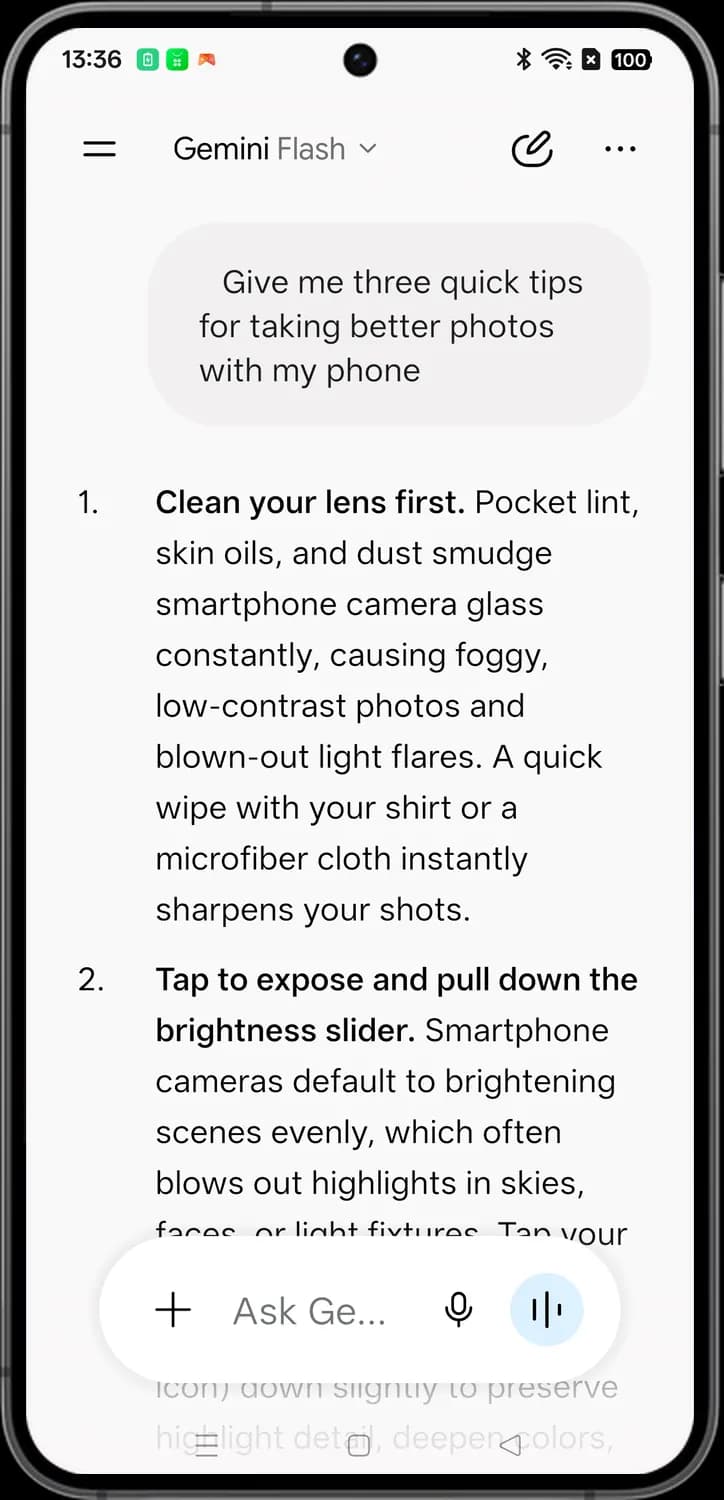

New chat
The pen icon. Starts a fresh chat with nothing from this conversation carried over.

Chat options
The three dots at the top right. Opens options for this whole chat, such as sharing, renaming or deleting it.
Under the answer
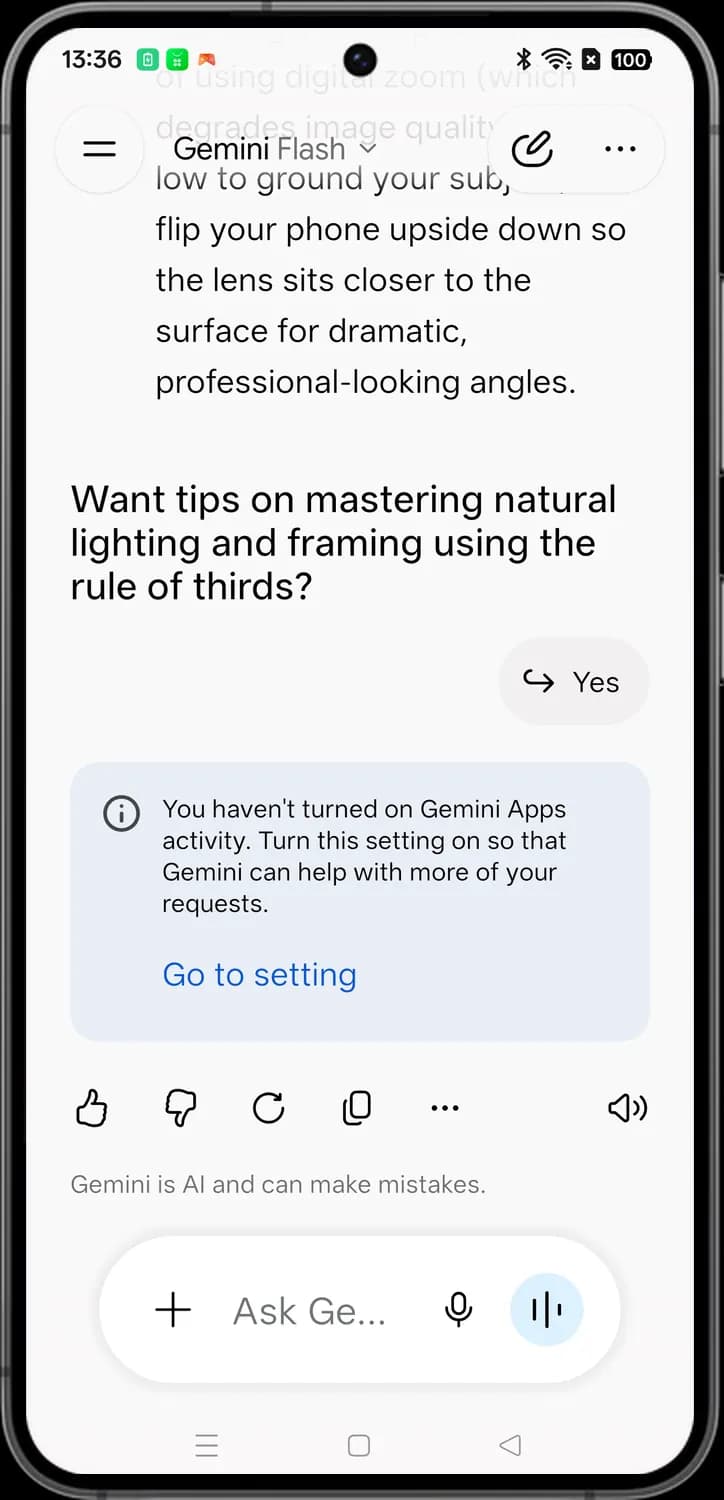

Suggested reply
A reply Gemini suggests for its own follow-up question. Tap it to send it as your next message without typing.

Good response
The thumbs up. Tells Google this answer was helpful, and lets you add a short note on why.

Bad response
The thumbs down. Tells Google the answer was wrong or unhelpful, and lets you say what went wrong.

Redo options
The circular arrow. Opens a menu to get a longer or shorter version of the answer, or a fresh try.

Copy
Copies the whole answer so you can paste it into another app.

More options
The three dots in the row. Opens a menu to export the answer to Google Docs, draft it in Gmail or report it.

Listen
The speaker. Gemini reads the answer out loud. Tap it again to stop.
Answer menus
Two of the icons under an answer open small menus. The three dots let you send the answer to another Google app, and the circular arrow lets you have it rewritten.
More options menu
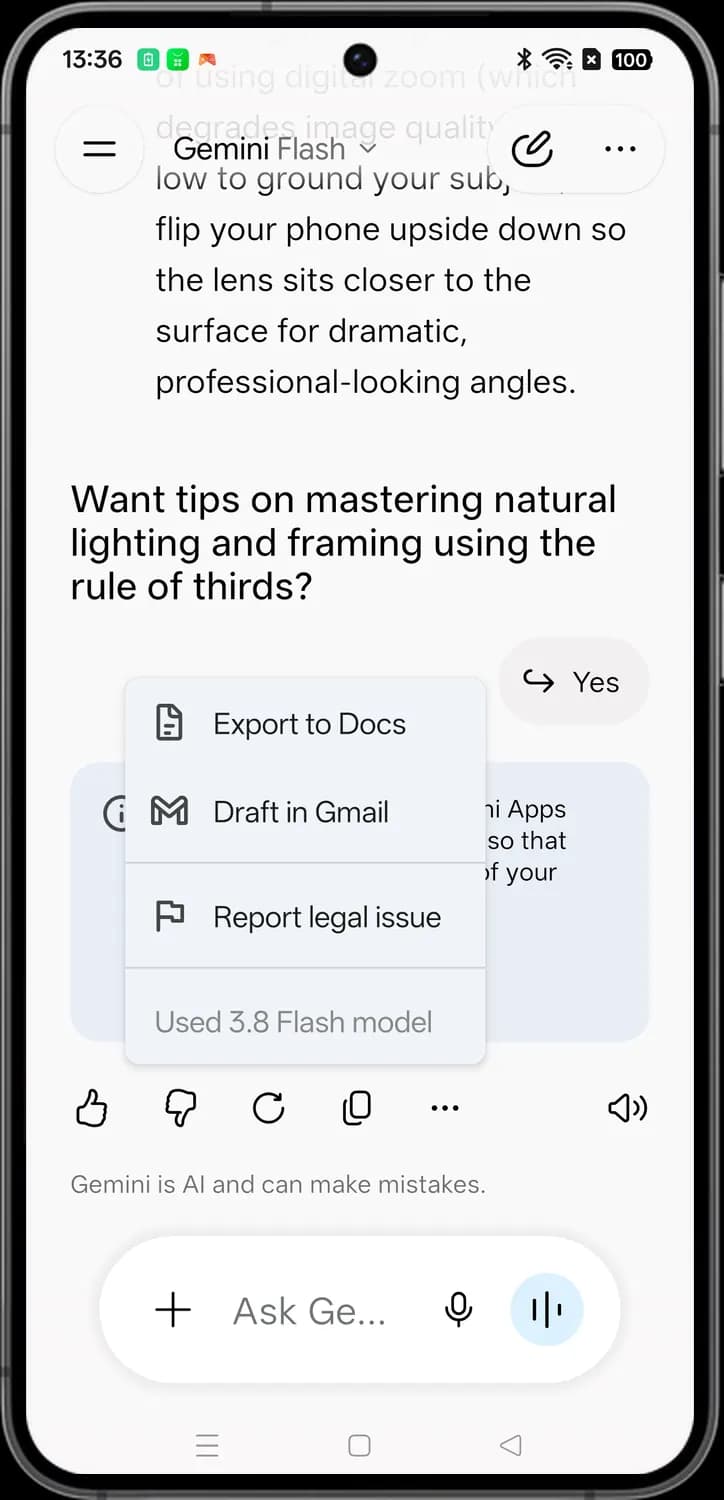

Export to Docs
Creates a new Google Doc with this answer in it, ready to edit and share.

Draft in Gmail
Opens a new Gmail draft with the answer as the email text.

Report legal issue
The flag. Opens a form to report the answer to Google for a legal reason, such as copyright or privacy.
Redo options menu
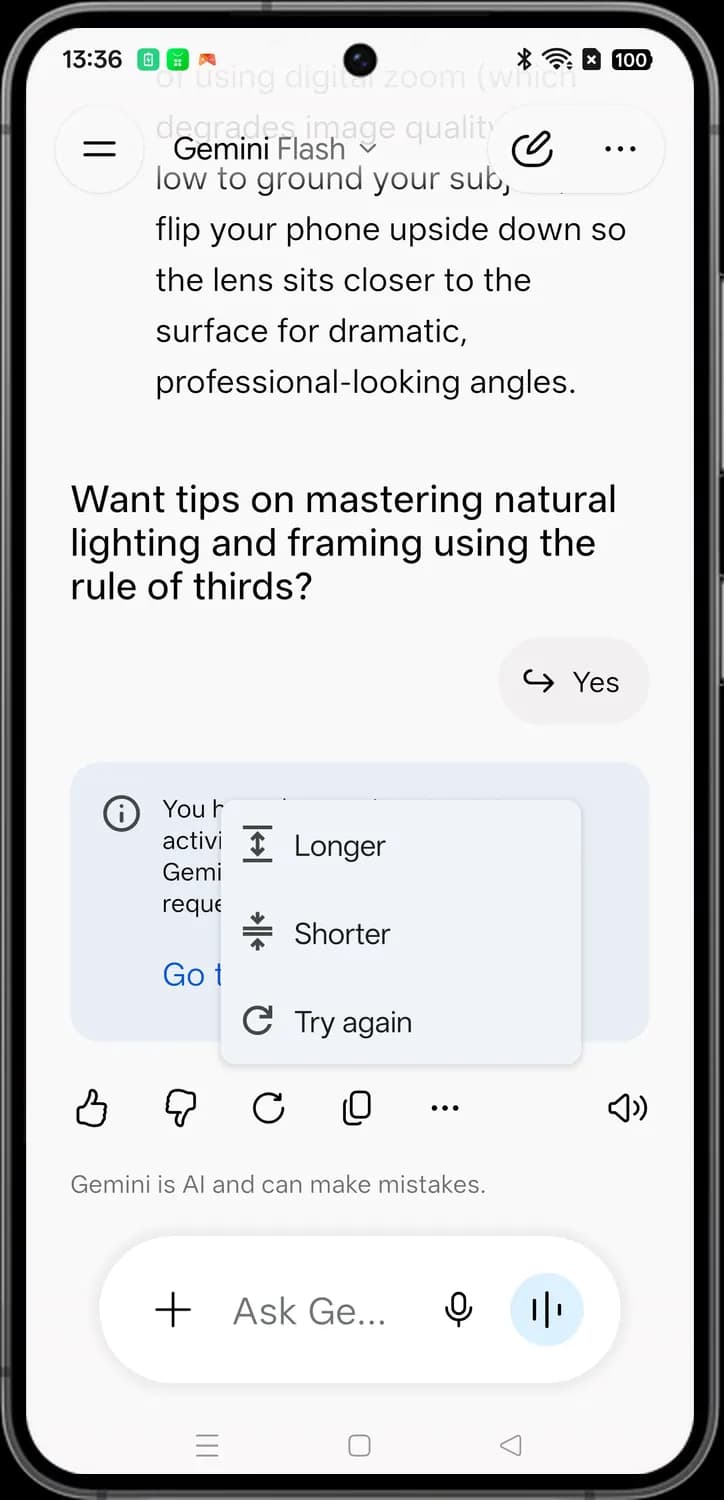

Longer
The arrows pointing out. Gemini rewrites the answer with more detail.

Shorter
The arrows pointing in. Gemini rewrites the answer in fewer words.

Try again
Gemini throws out this answer and writes a new one to the same prompt.
Sidebar
Tap the two lines at the top left of any screen to open the sidebar. It holds shortcuts to the things you made, your notebooks, your past chats and Gemini's settings.
Top of the sidebar
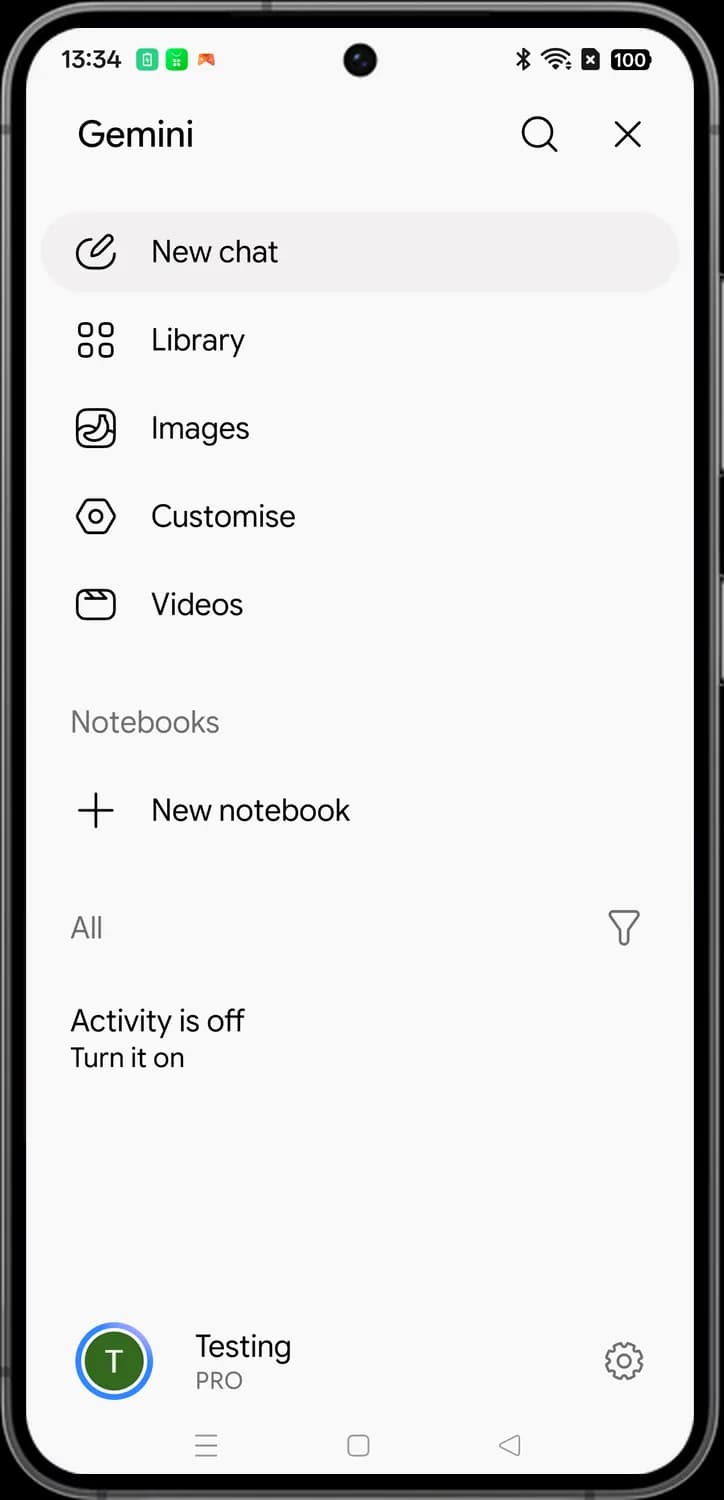

Search chats
The magnifying glass. Lets you search your past chats by the words in them.

Close sidebar
The X. Closes the sidebar and takes you back to your chat.

New chat
Starts a fresh chat. It does the same thing as the pen icon at the top of a chat.
Library
Opens your Library, where you find the images, videos and other things you made with Gemini.

Images
Opens Gemini's Images space, where you make new images and edit your photos.

Customize
Opens your personalization options, where you shape how Gemini responds to you.

Videos
Opens Gemini's Videos space, where you make short video clips from a description.
Notebooks, chats and settings
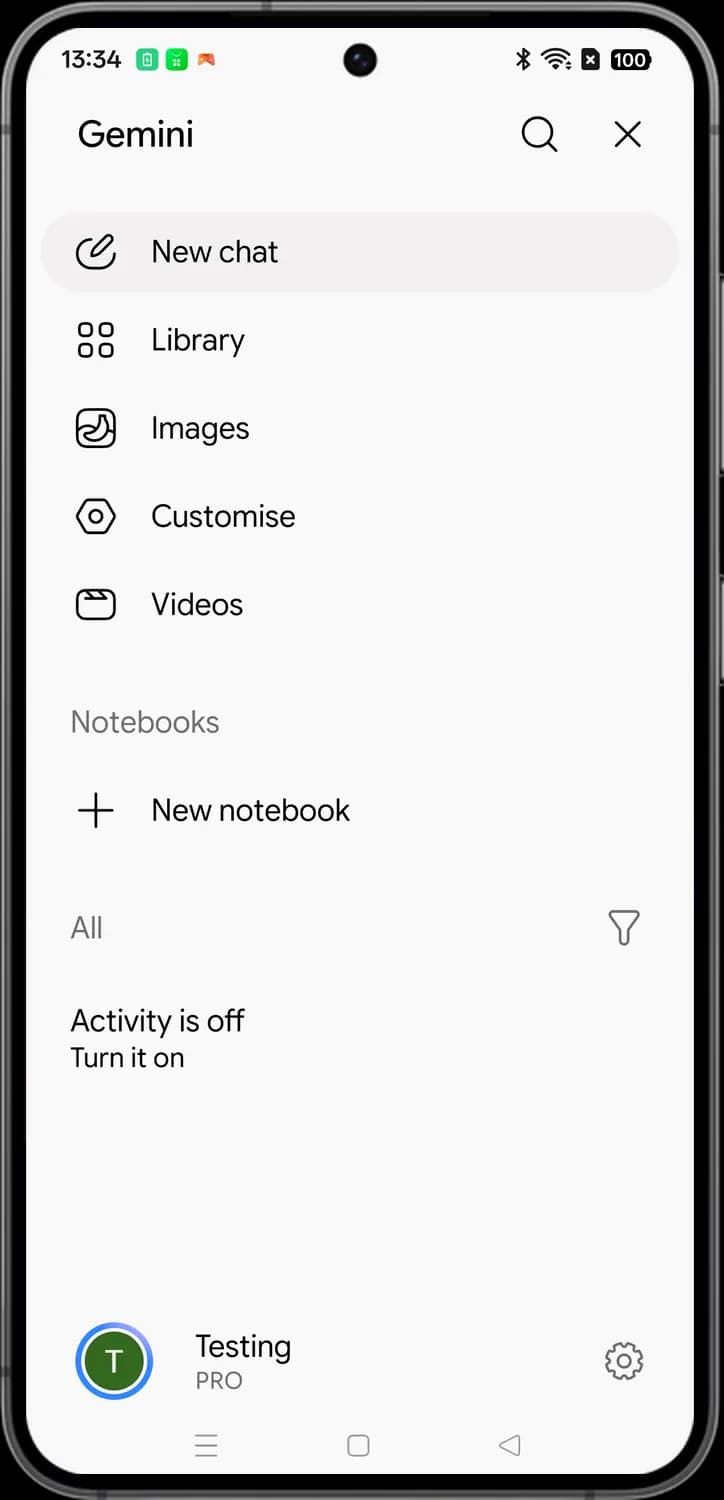

New notebook
The plus sign under Notebooks. Creates a new notebook, a space where you keep sources and chats on one topic together.

Filter chats
The funnel. Lets you choose which chats the list below shows, instead of All.

Settings
The gear at the bottom. Opens Gemini's settings, such as Gemini Apps activity, connected apps and notifications.
Account menu
Tap your profile picture at the top right of the home screen to open the account menu. It shows which Google account you are using and your plan.
Account card
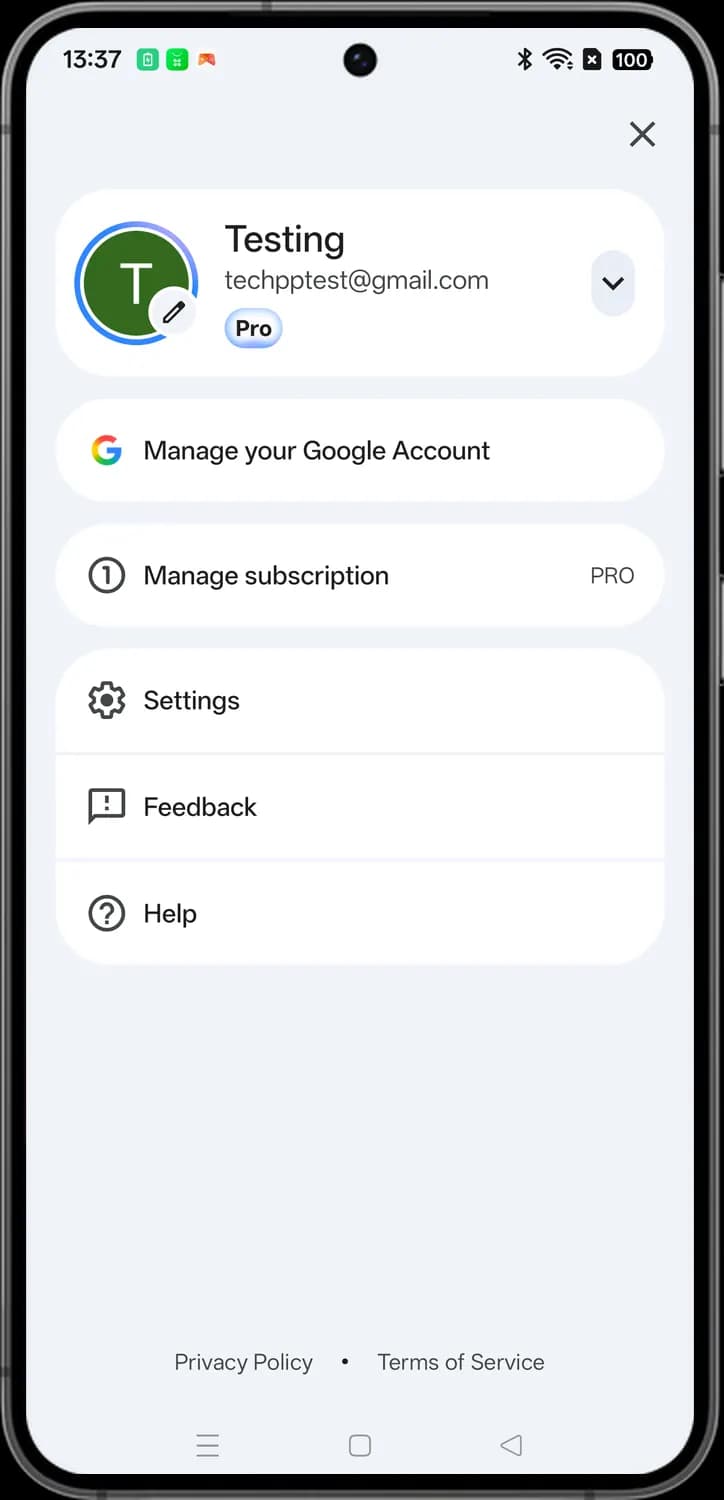

Close
The X. Closes the account menu.

Edit my info
The pencil on your profile picture. Lets you change your profile picture.

Switch account
The down arrow. Shows the other Google accounts on this phone so you can switch to one or add another.
Menu
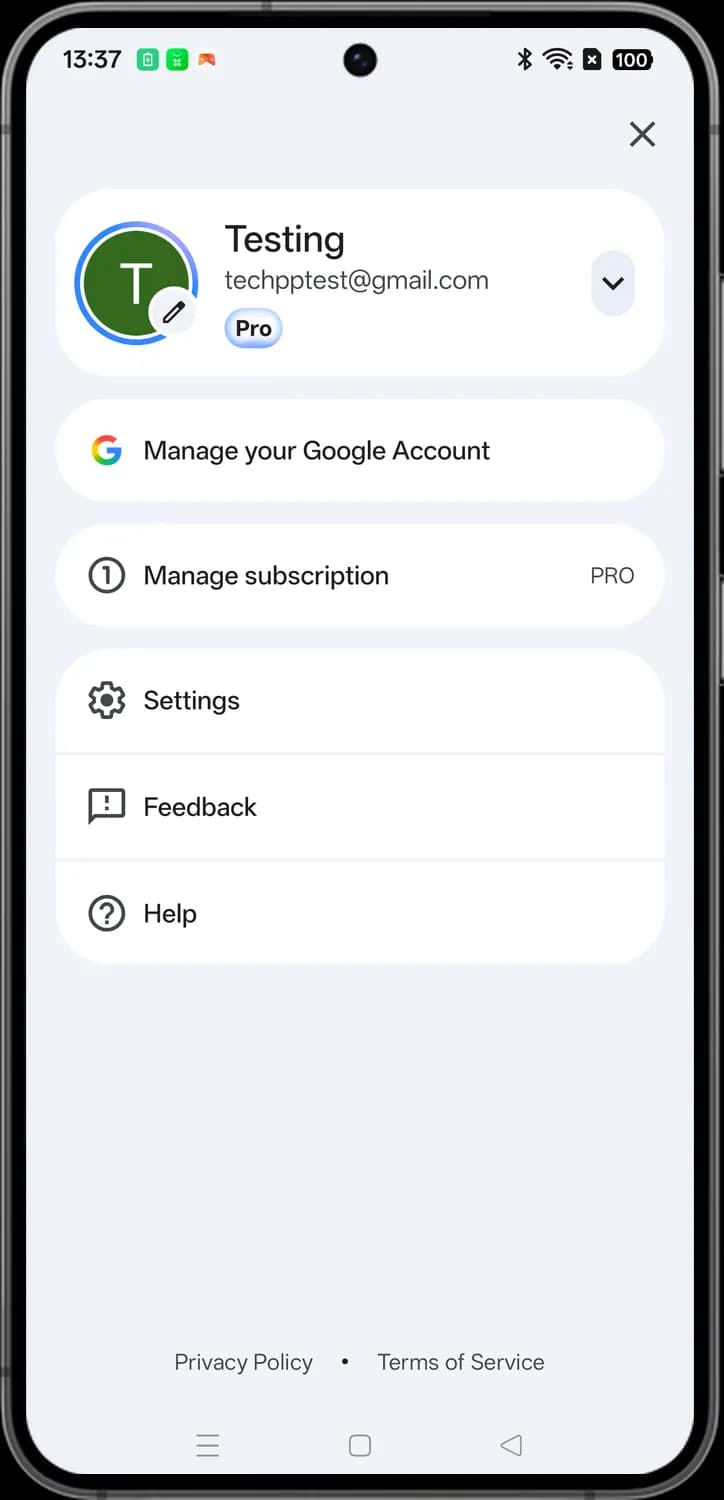

Manage your Google Account
The colored G. Opens your Google Account settings, such as your personal info, privacy and security.

Manage subscription
Shows your Google AI plan, here Pro, where you can see what it includes and change or cancel it.

Settings
Another way into Gemini's settings, the same ones the gear in the sidebar opens.

Feedback
Opens a form to send Google your comments about the Gemini app or report a problem.

Help
Opens the Gemini Help Center with answers to common questions.
Those are the meanings of Gemini app icons and symbols. Google adds new Gemini features almost every month, so we update this guide every time the icons change, and you can bookmark this page to stay updated. These screens are from the Gemini app on Android, and most icons mean the same thing on iPhone and on the web. For more icon guides, you can also visit our TechPP icon guides.
Comments
0Share your thoughts, questions, or feedback about this guide.