
Facebook Icons and Symbols Explained
Facebook looks simple until you start tapping around. The tab bar is all icons with no labels, every post hides a menu behind three dots, a long press on Like opens six more reactions, and the menu has close to 30 shortcuts, from Memories to Pokes.
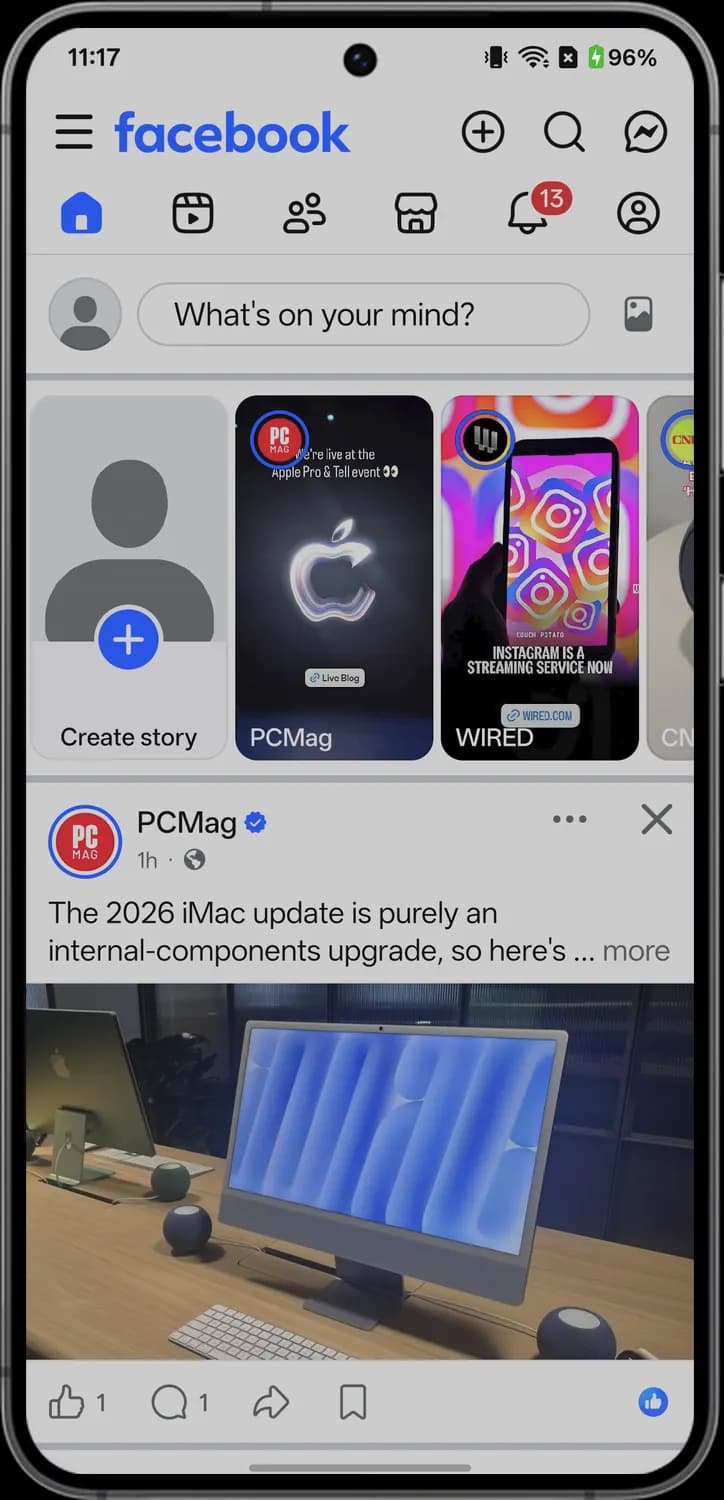
In this guide, you will learn what every icon in the latest Facebook app means, screen by screen. And this is an interactive guide. You can tap on every icon on the screens below to know what it does.
Home feed
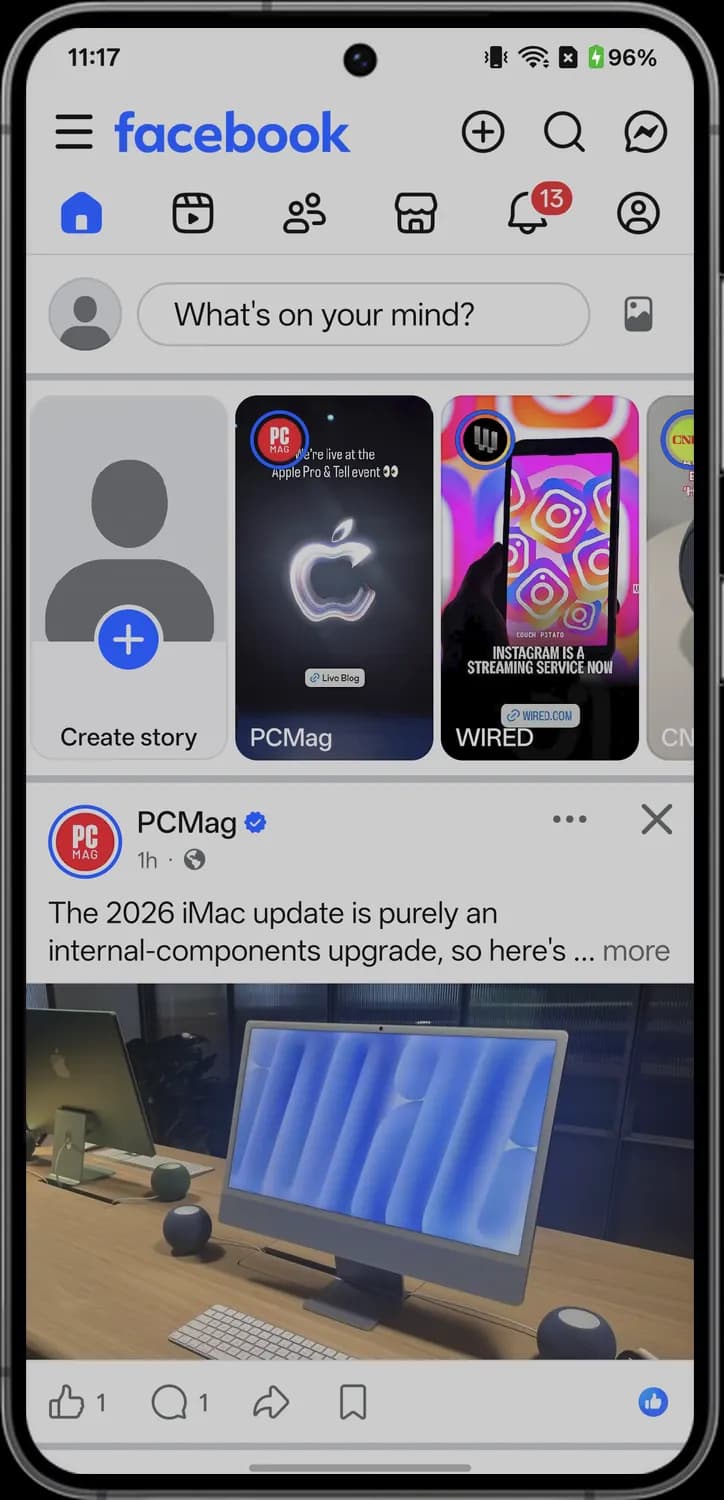
This is the Home tab, the first thing you see when you open the Facebook app. It has the top bar, the row of tabs, a box to start a post, the story tray and then posts from friends, groups and Pages you follow.
Top bar
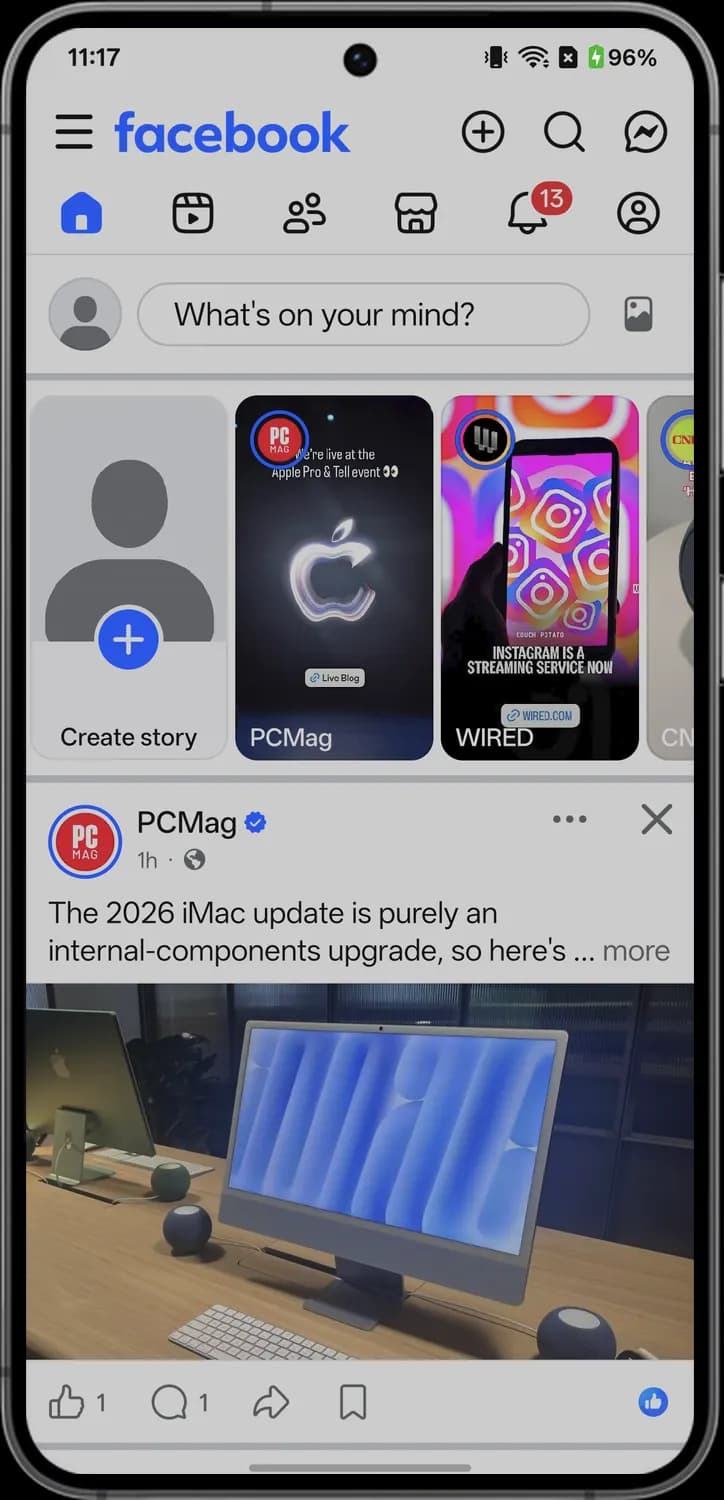

Menu
The three lines. Opens the menu with your shortcuts, groups, Feeds, Saved items, Settings and Help.

Facebook logo
The blue facebook wordmark sits at the top of the Home tab, so you know you are on your main feed.

Create
The plus in a circle. Tap it to create a new post, story or reel.

Search
The magnifying glass. Tap it to search Facebook for people, Pages, groups, posts and Marketplace listings.

Messenger
The speech bubble with a lightning bolt. Tap it to open your Messenger chats.
Tab bar
Home
The house. Takes you back to your main feed. It turns blue when you are on it.

Reels
The play button in a frame. Opens Reels, the full-screen feed of short videos.

Friends
The two people. Opens Friends, where you see friend requests and people you may know.

Marketplace
The storefront. Opens Marketplace, where people nearby buy and sell things.
Notifications
The bell. Shows likes, comments, tags, birthdays and other updates. The red number is how many you have not seen yet.

Profile
The person in a circle. Opens your own profile, with your posts, photos and About details.
Composer and stories

Your profile picture
Your profile photo, or a gray silhouette if you have not added one. Tap it to go to your profile.

Photo or video
The picture icon at the end of the What's on your mind? box. Tap it to pick photos or videos for a new post.

Create story
The blue plus on your own card in the story tray. Tap it to make a story that disappears after 24 hours.

Unseen story
A blue ring around a profile picture means that person or Page has a story you have not watched yet. Tap the card to watch it.
Post header

Verified badge
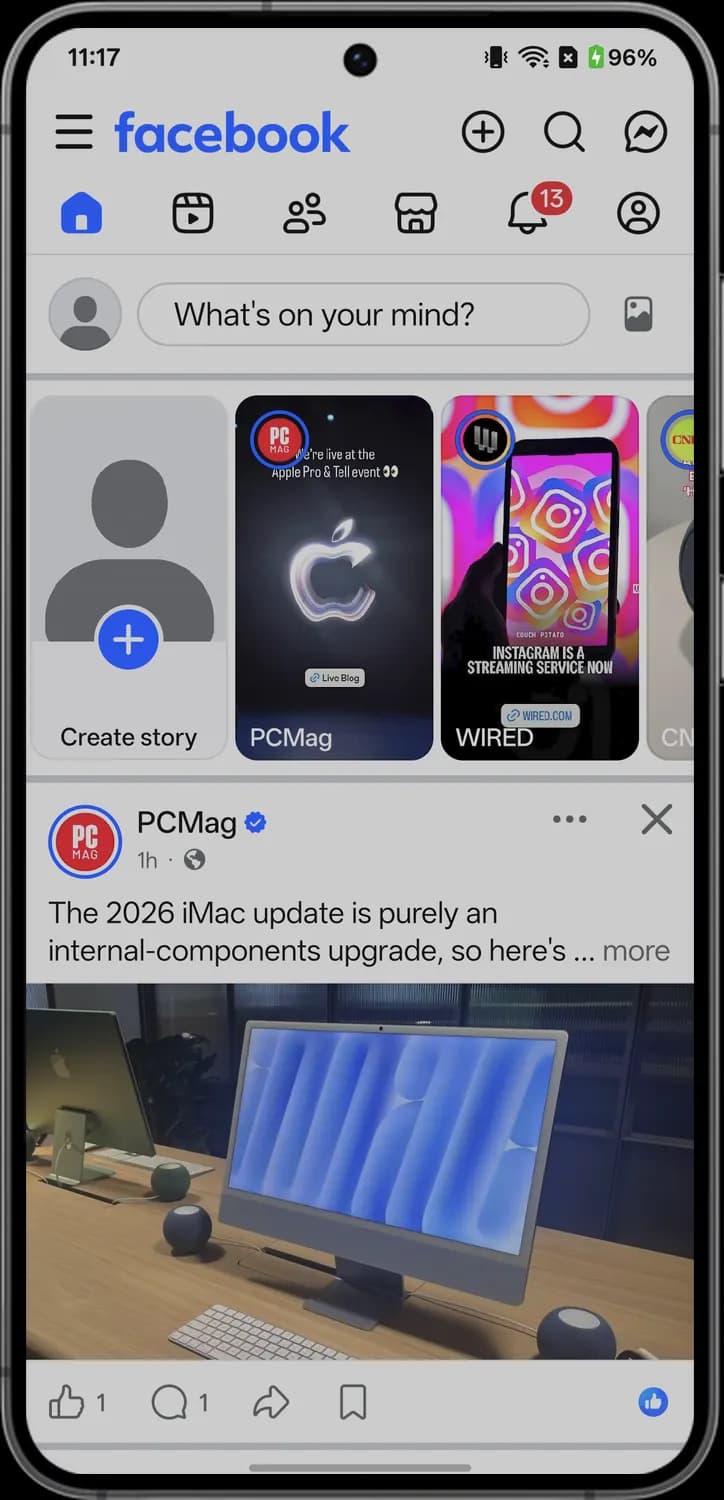
The blue check next to a name. It means the profile or Page has been verified by Meta, like this PCMag Page.

Public post
The globe next to the time shows who can see the post. A globe means it is public, so anyone on or off Facebook can see it.

More options
The three dots. Opens a menu where you can save the post, say whether you are interested, report it and more.

Hide post
The X. Hides this post from your feed and lets you see fewer posts like it.
Post actions

Like
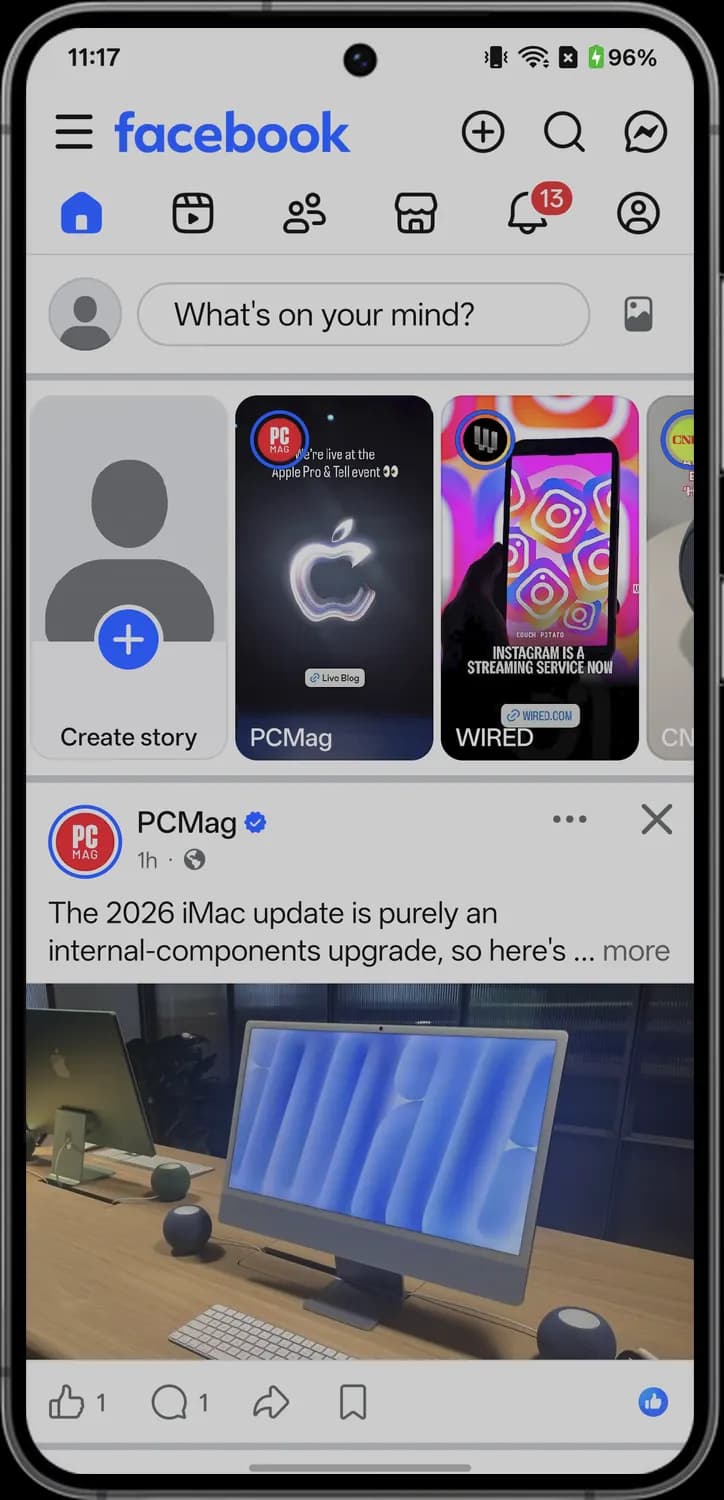
The thumbs-up. Tap it to like the post. Press and hold it to pick another reaction, like Love or Haha. The number is how many reactions it has.

Comment
The speech bubble. Opens the comments so you can read them and add your own. The number is how many comments there are.

Share
The curved arrow. Share the post to your Feed, your story, Messenger, WhatsApp or a group.

Save
The bookmark. Saves the post to your Saved list so you can come back to it later.

Reactions
The small blue thumbs-up in a circle shows which reactions people left on the post. Tap it to see who reacted.
Posts, reactions and sharing
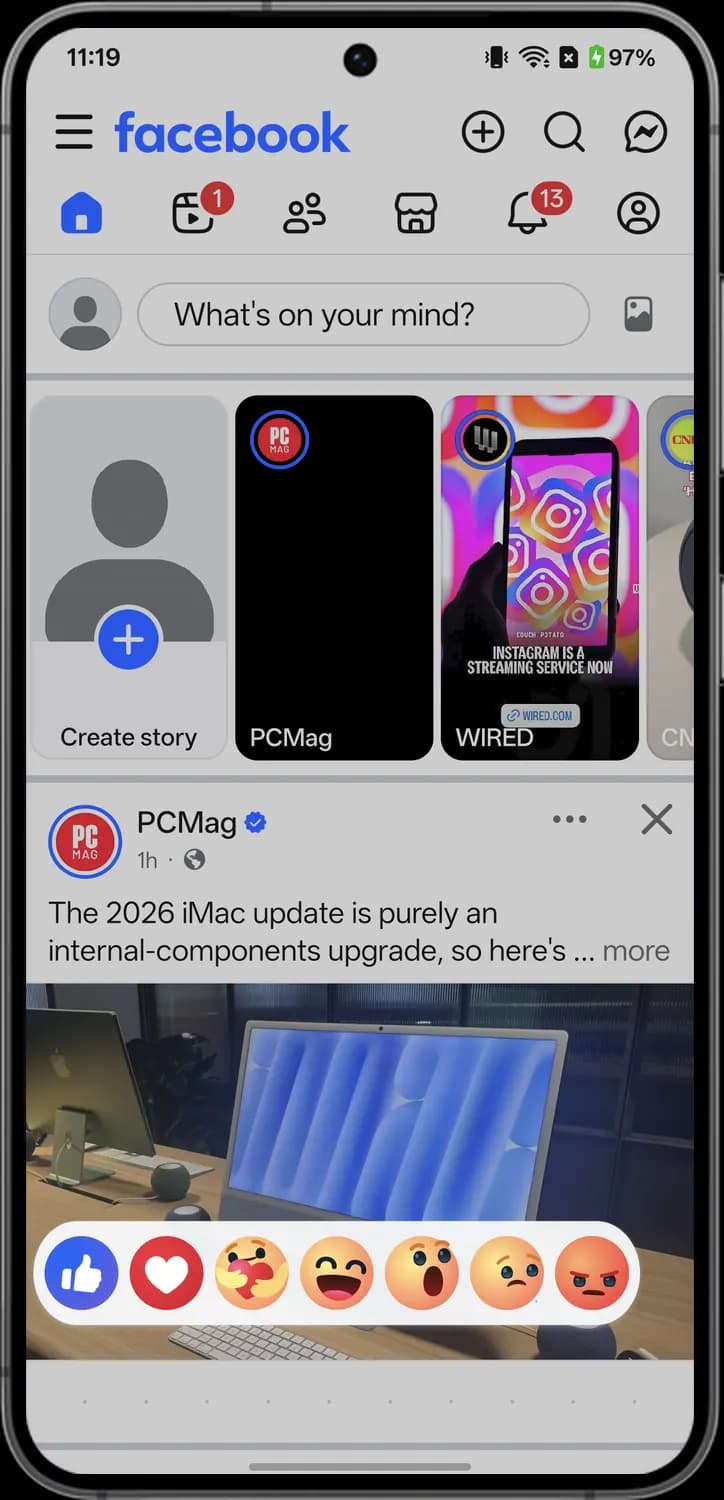
These are the menus and sheets that open from a post: the reactions tray you get by pressing and holding Like, the three-dot menu, the comments and the share sheet.
Reactions

Like
The blue thumbs-up. The standard reaction, the same as a single tap on Like.

Love
The white heart on red. Use it for posts you really love.

Care
The face hugging a heart. Shows support or sympathy for the person who posted.

Haha
The laughing face. For posts you find funny.

Wow
The surprised face. For posts that amaze or surprise you.

Sad
The face with a tear. For sad news or posts that upset you.

Angry
The red frowning face. For posts that make you angry.
Post menu
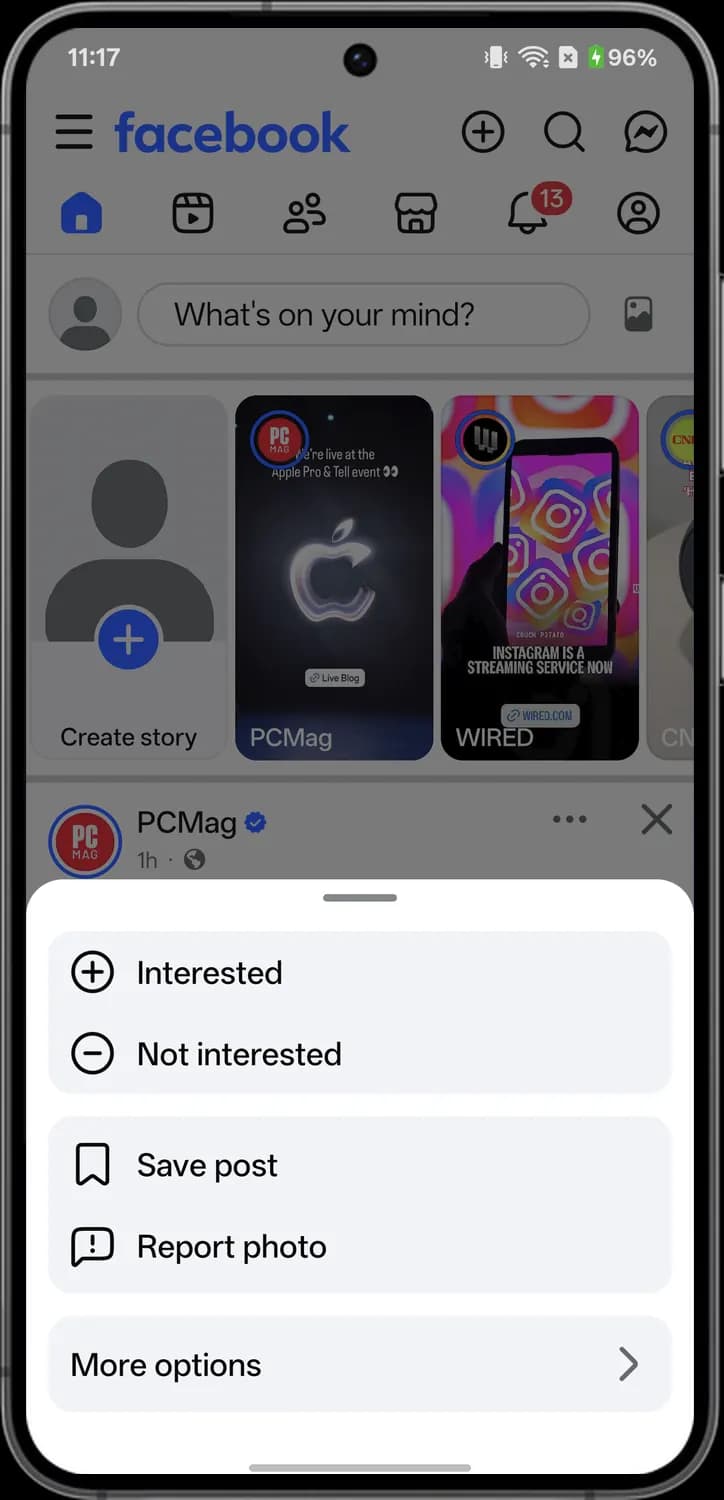
Interested
The plus in a circle. Tells Facebook you want to see more posts like this one in your feed.

Not interested
The minus in a circle. Tells Facebook to show you fewer posts like this one.

Save post
The bookmark. Saves the post to your Saved list to read later.
Report photo
The speech bubble with an exclamation mark. Report the photo to Facebook if it breaks the rules, like spam, nudity or a scam.

More options
The arrow at the end of the row. Opens more choices for the post, like Copy link and Why am I seeing this post?
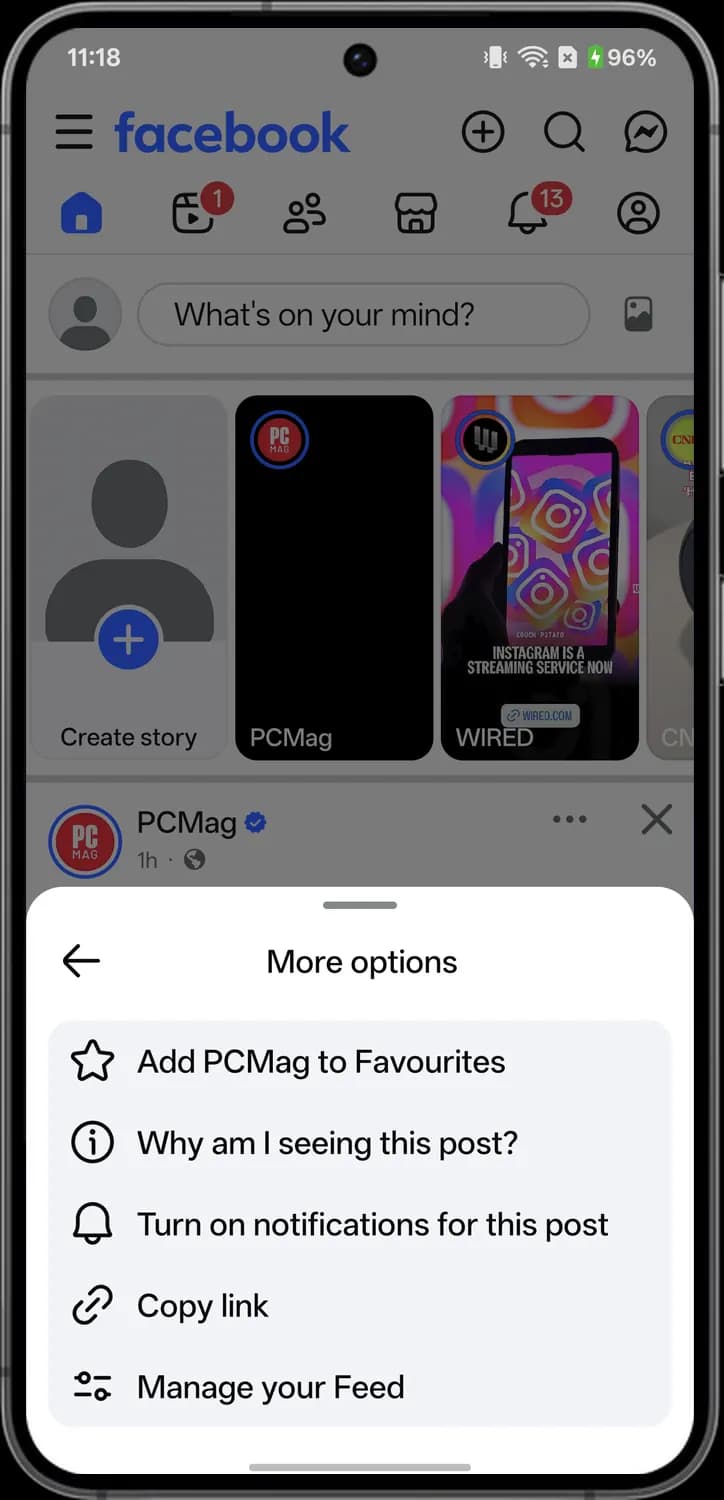
More options
Back
The left arrow. Goes back to the first post menu.

Add to Favorites
The star. Adds the Page or person to your Favorites, so their posts show up higher in your feed.

Why am I seeing this post?
The i in a circle. Explains why this post showed up in your feed, for example because you follow the Page.

Turn on notifications
The bell. Get notified about new activity on this post, like new comments.
Copy link
The chain link. Copies the post's link so you can paste it into a message, email or another app.
Manage your Feed
The two sliders. Opens your Feed preferences, where you control whose posts you see, like Favorites and the people and Pages you snoozed or unfollowed.
Comments
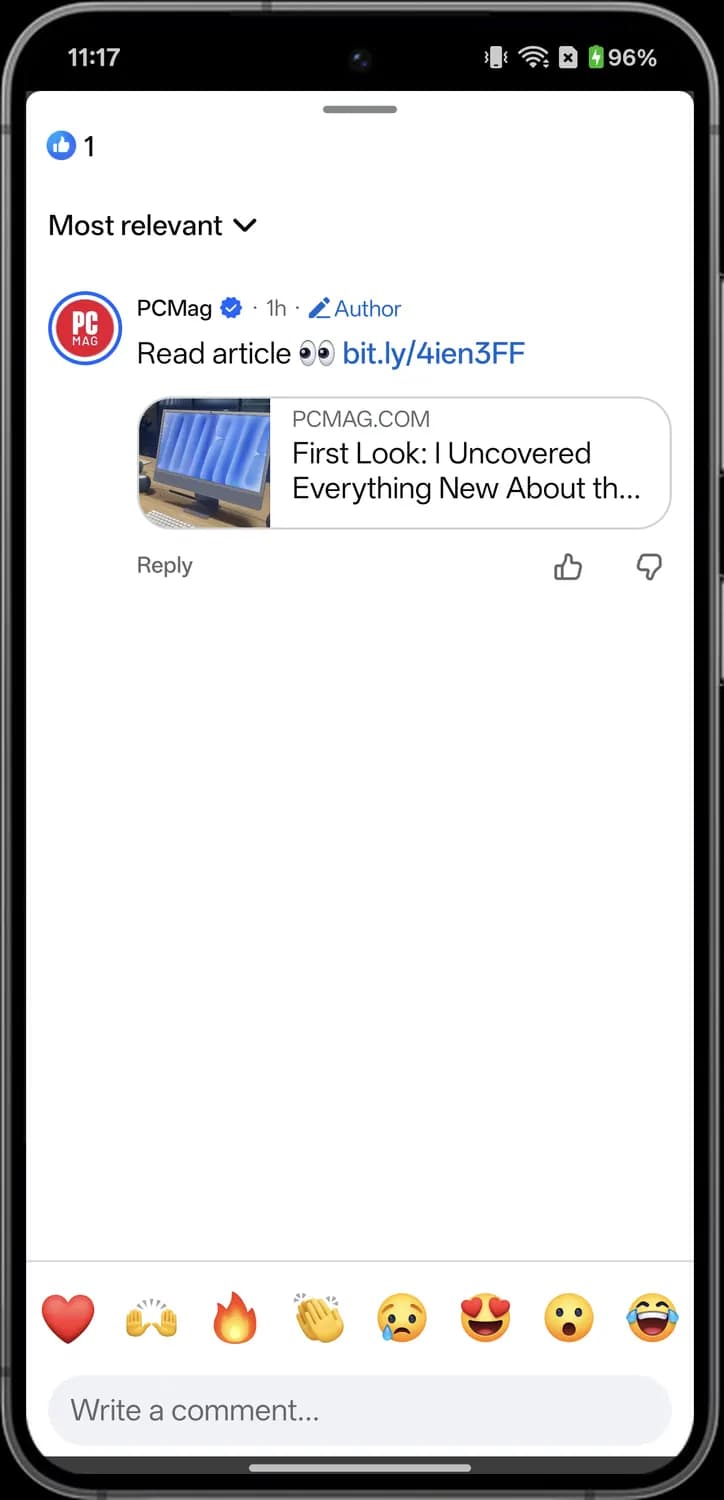

Sort comments
Most relevant with a down arrow. Tap it to change the order of the comments, for example to Newest or All comments.

Author
The pencil with the word Author marks a comment from the person or Page that made the post.

Like comment
The thumbs-up under a comment. Tap it to like the comment. Press and hold it to pick another reaction.

Downvote
The thumbs-down under a comment. Tap it to downvote a comment you think is not helpful.

Quick emoji
The row of emoji above the comment box, starting with a red heart. Tap one to add it to your comment.
Share sheet
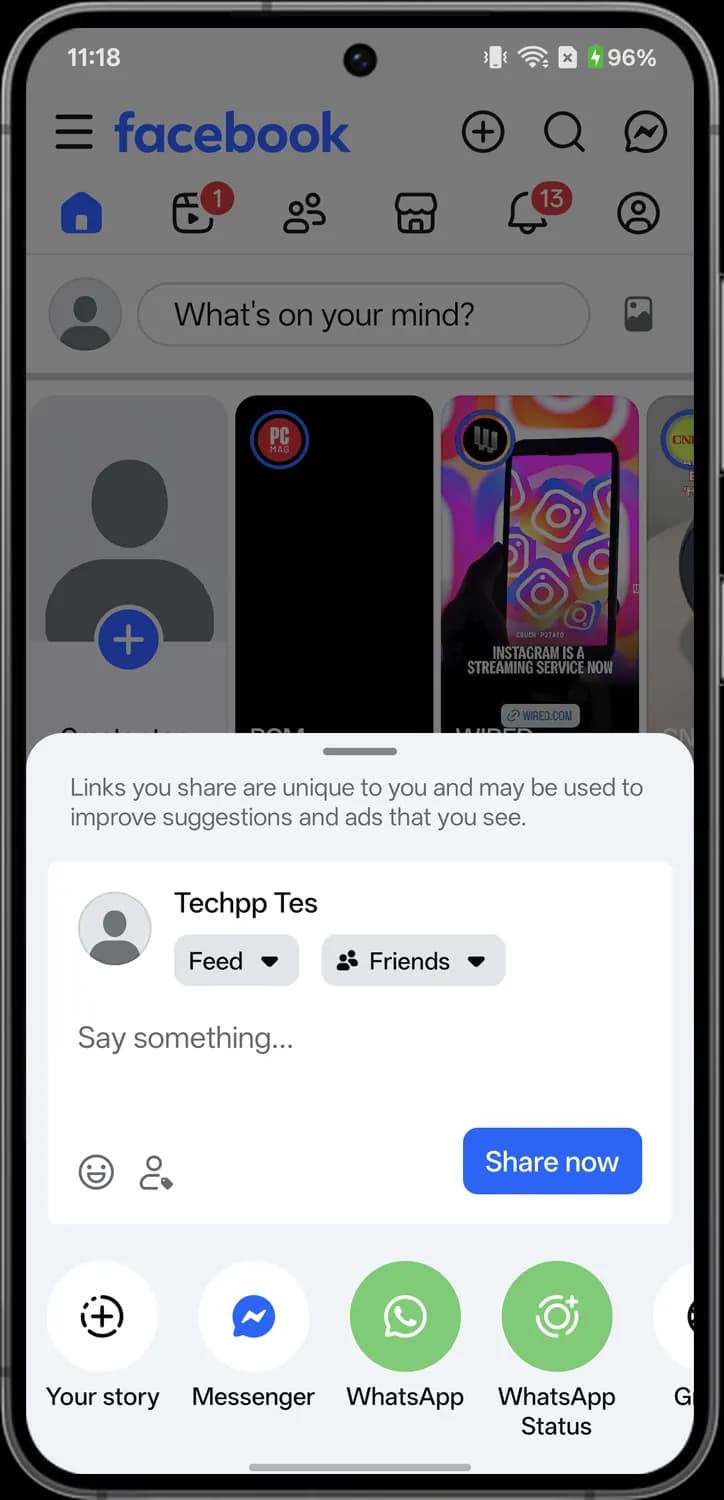

Feed
The Feed button with a down arrow picks where the share goes. Tap it to share to your Feed, your story or a group instead.

Audience
The two people with Friends. Picks who can see your share, such as Public, Friends or Only me.

Feeling or activity
The smiley face. Adds how you are feeling or what you are doing to the share.

Tag friends
The person with a tag. Tags friends in your share so they get notified.
Share to apps
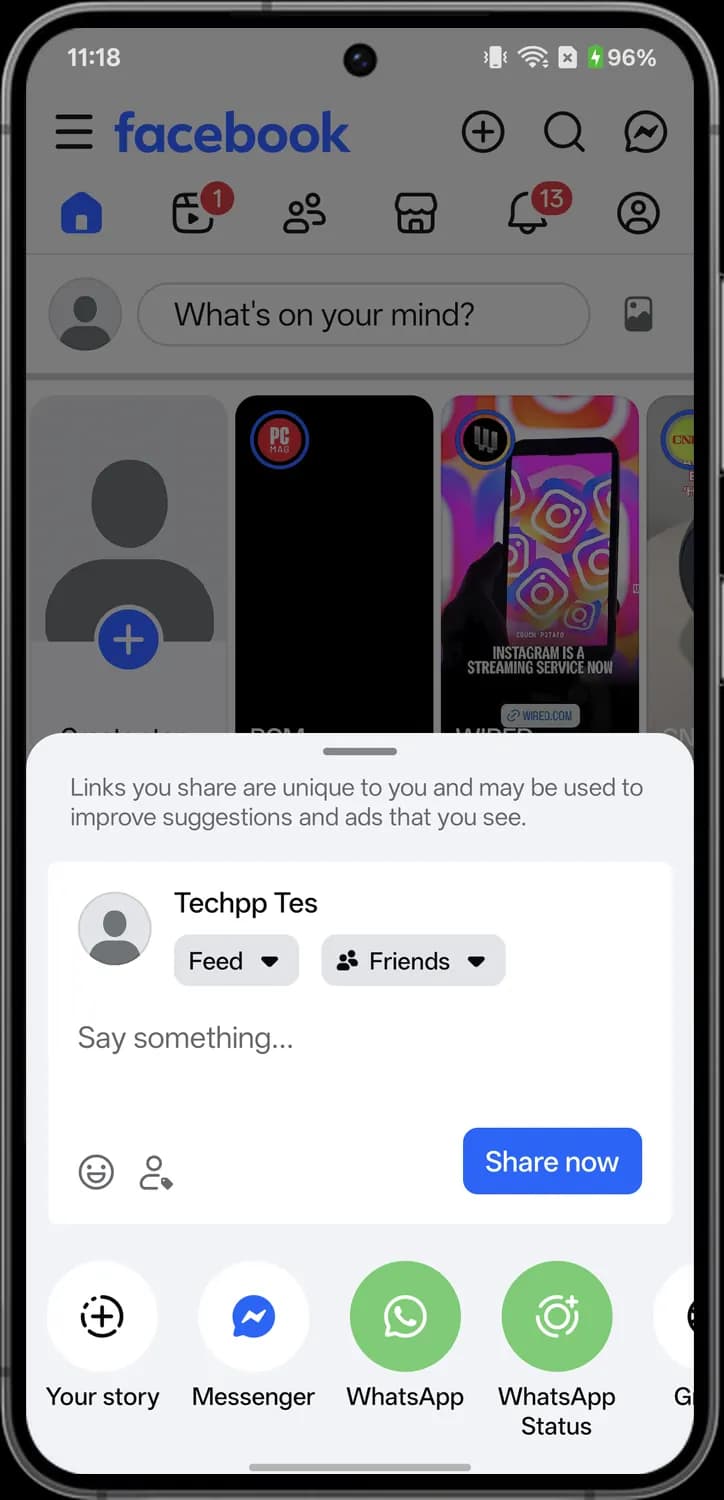

Your story
The dashed circle with a plus. Shares the post to your story for 24 hours.

Messenger
The blue Messenger logo. Sends the post to someone in a Messenger chat.

WhatsApp
The green WhatsApp logo. Sends the post's link to a WhatsApp chat.

WhatsApp Status
The green circle with a plus. Posts the link to your WhatsApp Status.
Reels
Reels are short vertical videos. Tap the Reels tab (the play button in a frame) to scroll through them full screen, or open one from search, which adds a search bar for finding related reels.
Top bar and creator
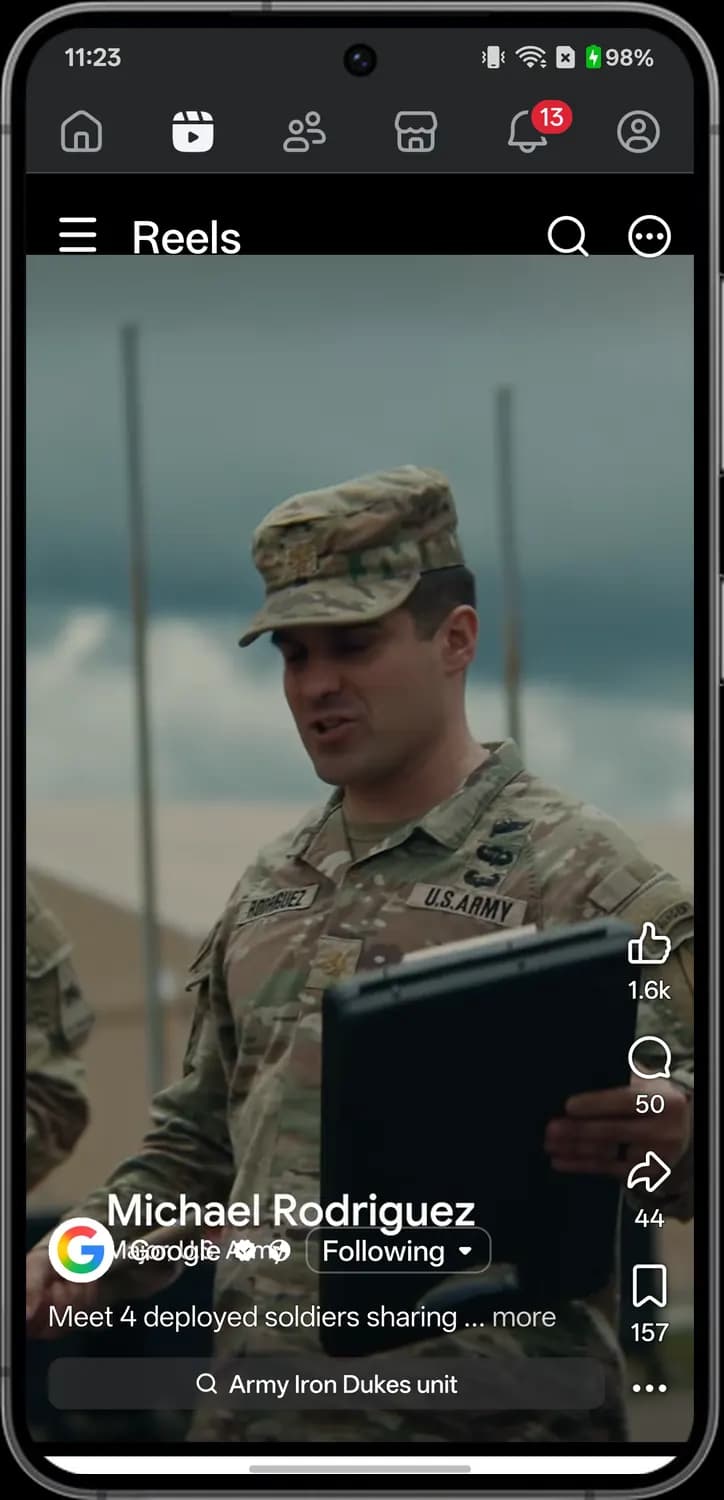

Menu
The three lines. Opens the Facebook menu with your shortcuts, Settings and help.

Search
The magnifying glass. Tap it to search Facebook from the Reels tab.

Your Reels profile
The circle with three dots. Takes you to your Reels profile, where the reels you have posted are listed.
Creator photo
The profile picture of whoever posted the reel. Tap it to see more reels from that person or Page.
Following
Shows you already follow this Page or person. The small arrow means tapping it gives you follow options, including Unfollow. If you don't follow them yet, it reads Follow.

Search suggestion
The magnifying glass in a pill under the caption. Tap it to search Facebook for that topic, here the Army unit in the video.
Side buttons
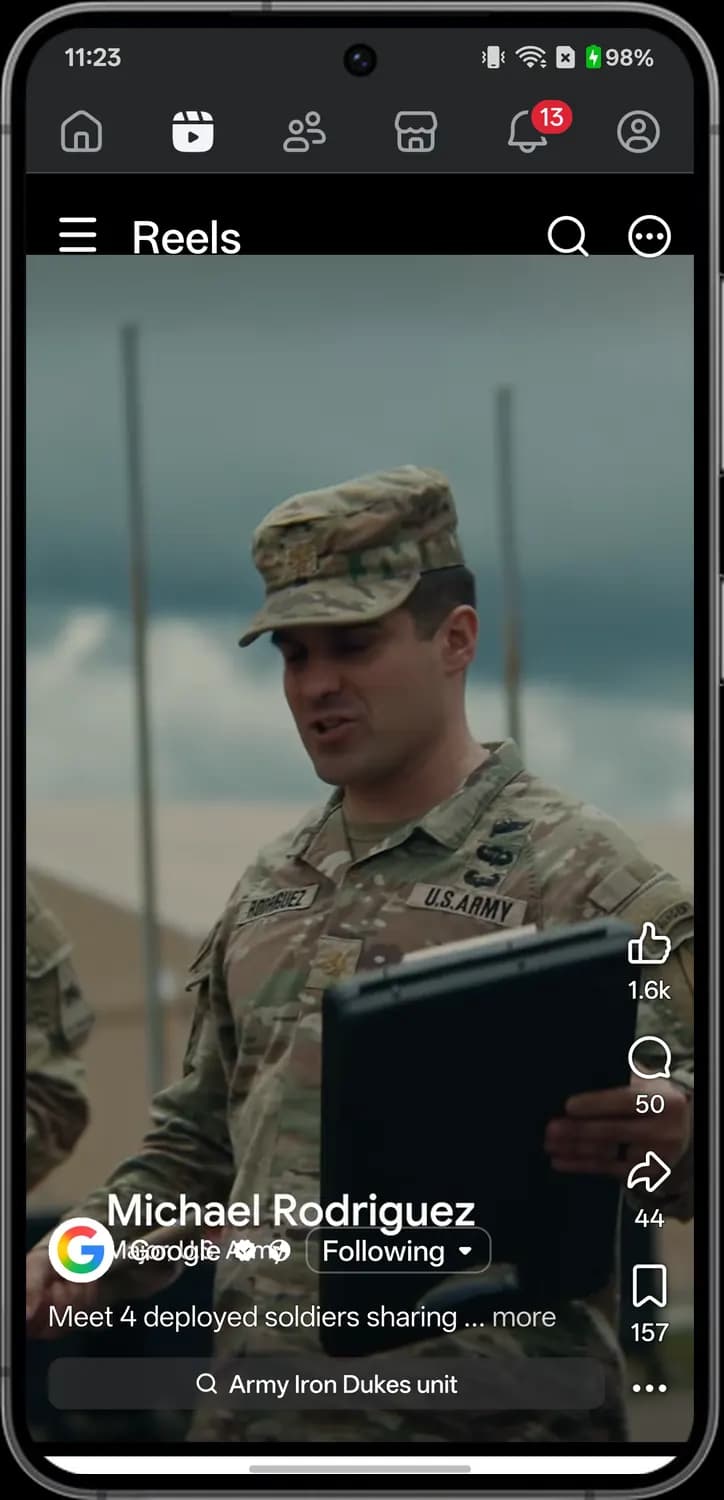

Like
The thumbs up. Tap it to like the reel, or press and hold to pick another reaction like Love or Haha. The number under it is the reaction count.

Comment
The speech bubble. Opens the comments so you can read them or add your own.

Share
The curved arrow. Share the reel to your feed, a story, a group, or send it in Messenger.

Save
The bookmark. Saves the reel to your Saved list so you can watch it later.
More
The three dots. Opens more options for this reel.
Reel opened from search
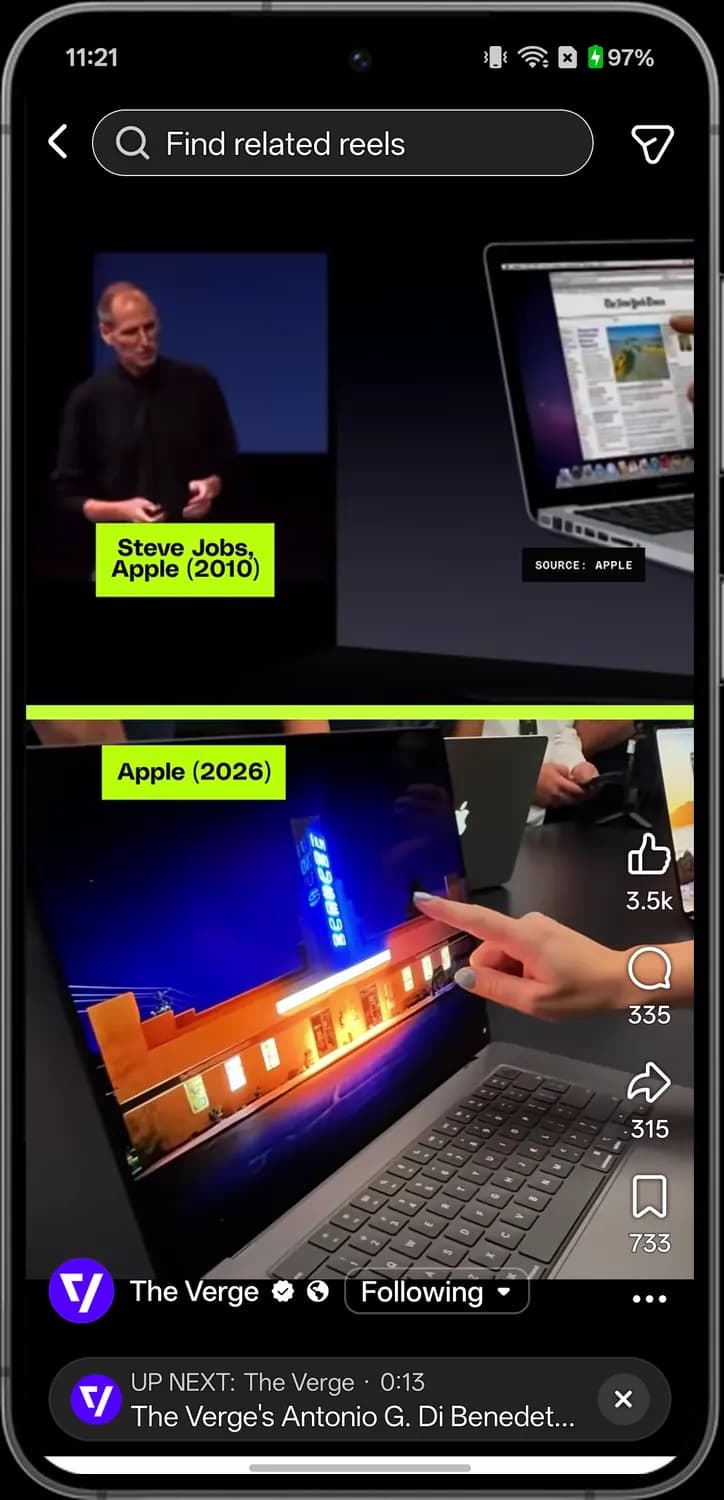

Back
The left arrow. Takes you back to your search results.

Find related reels
The magnifying glass in the top bar. Type here to look for more reels on the same subject.

Public
The globe next to the creator's name. It means the reel is public, so anyone on or off Facebook can see it.

Up next
The UP NEXT pill shows which reel plays after this one, with its creator and length. Tap it to jump straight to that reel.

Dismiss up next
The X in the pill. Closes the Up next preview.
Stories
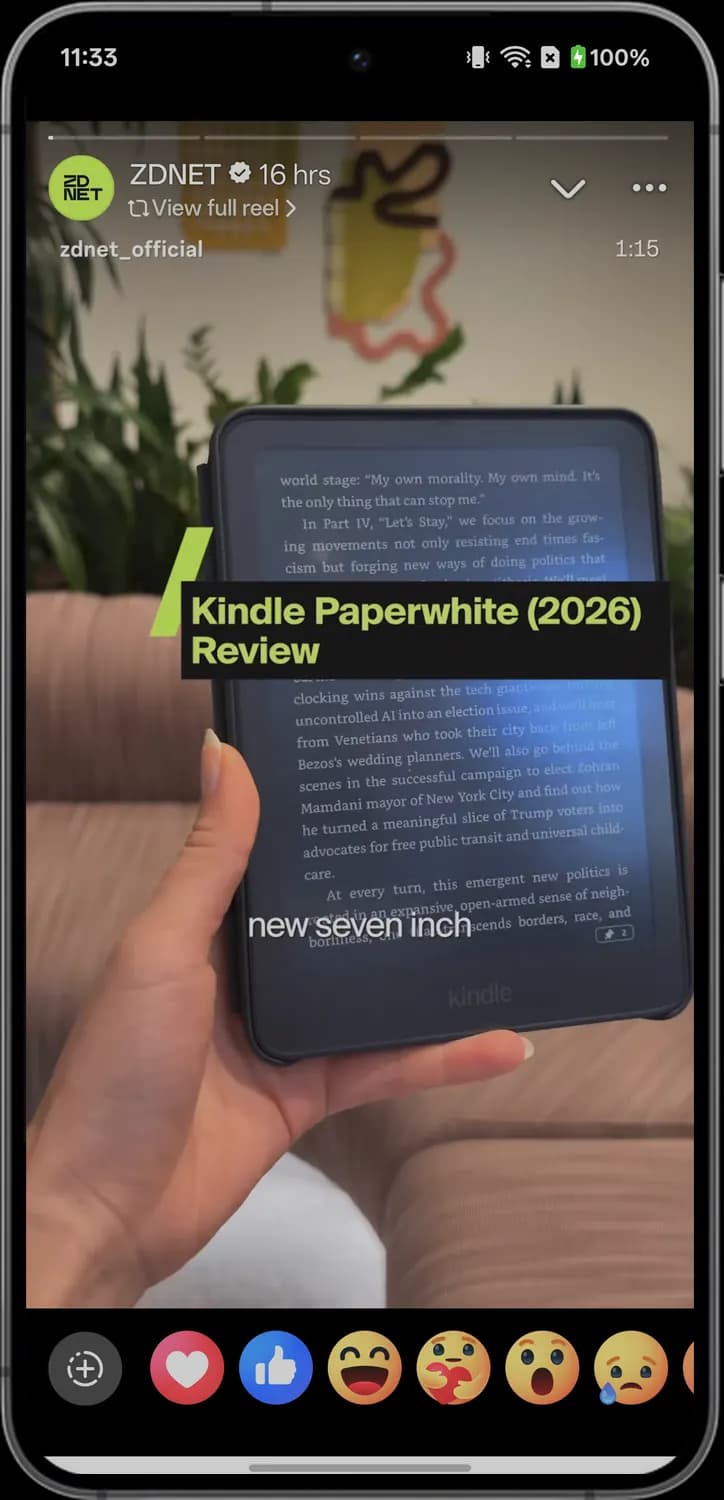
Stories are photos and short videos that disappear after 24 hours. Tap a story at the top of your Home feed to open it full screen; here a ZDNET story is playing.
Progress bars
The thin lines across the top, one for each story this Page has posted. The filled part shows how far along you are. Tap the right side of the screen to skip ahead or the left side to go back.

View full reel
The two arrows in a loop. This story was shared from a reel; tap it to watch the full reel.

Open story tray
The down arrow. Closes the full-screen story and brings back the row of stories.
More options
The three dots. Opens more options for this story.

Quick reactions
The row of emoji along the bottom: Love, Like, Haha, Care, Wow, Sad and Angry (swipe for the last one). Tap one to react to the story.
Creating a post
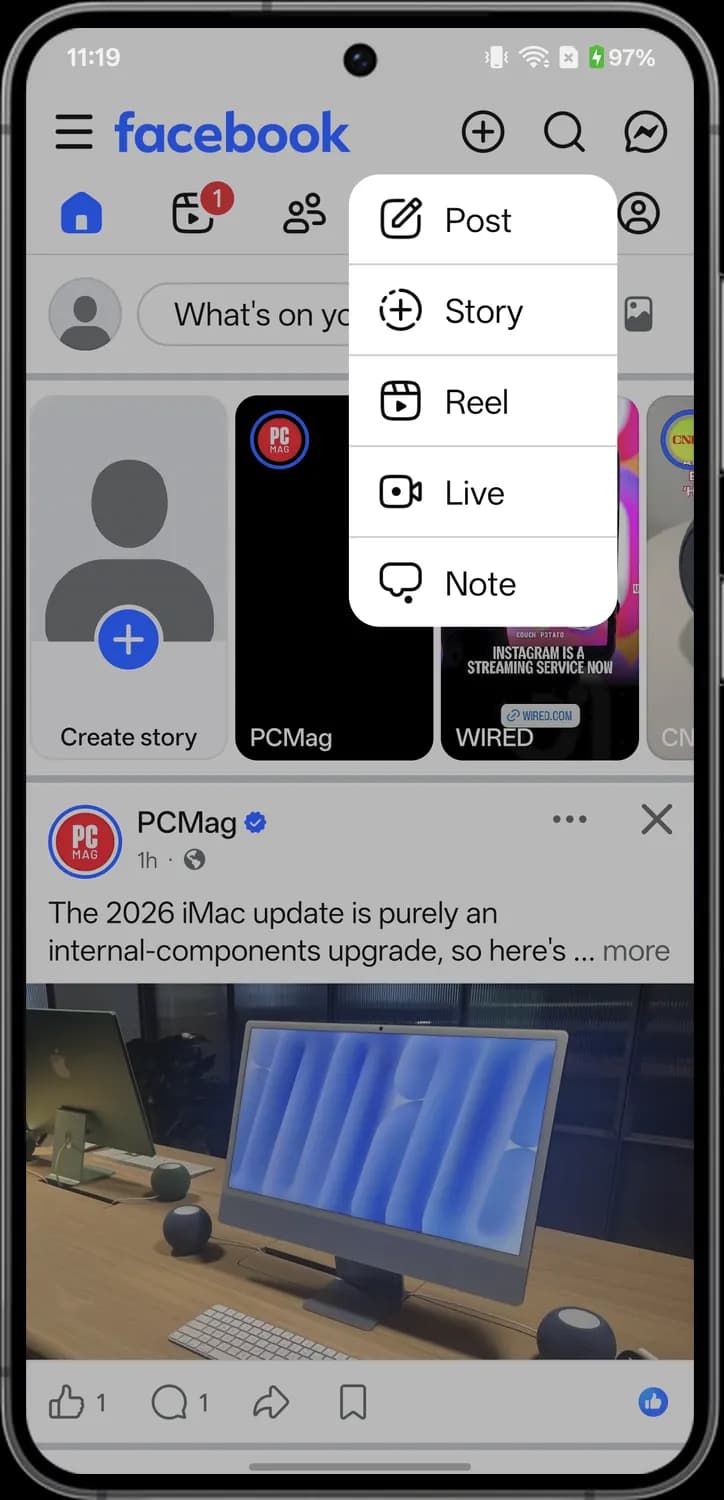
Tap the plus in the top bar of the Home feed to open this menu, then pick what you want to make. Choosing Post opens the New post screen.
Create menu

Post
The pencil on a square. Write a regular post for your feed, with text, photos or video.

Story
The plus in a dashed circle. Make a story, a photo or video that disappears after 24 hours.

Reel
The play button in a frame. Record or upload a short vertical video.

Live
The video camera. Start a live video that your friends or followers can watch as it happens.

Note
The speech bubble. Write a short note that shows above your profile picture for a day.
Top bar and chips
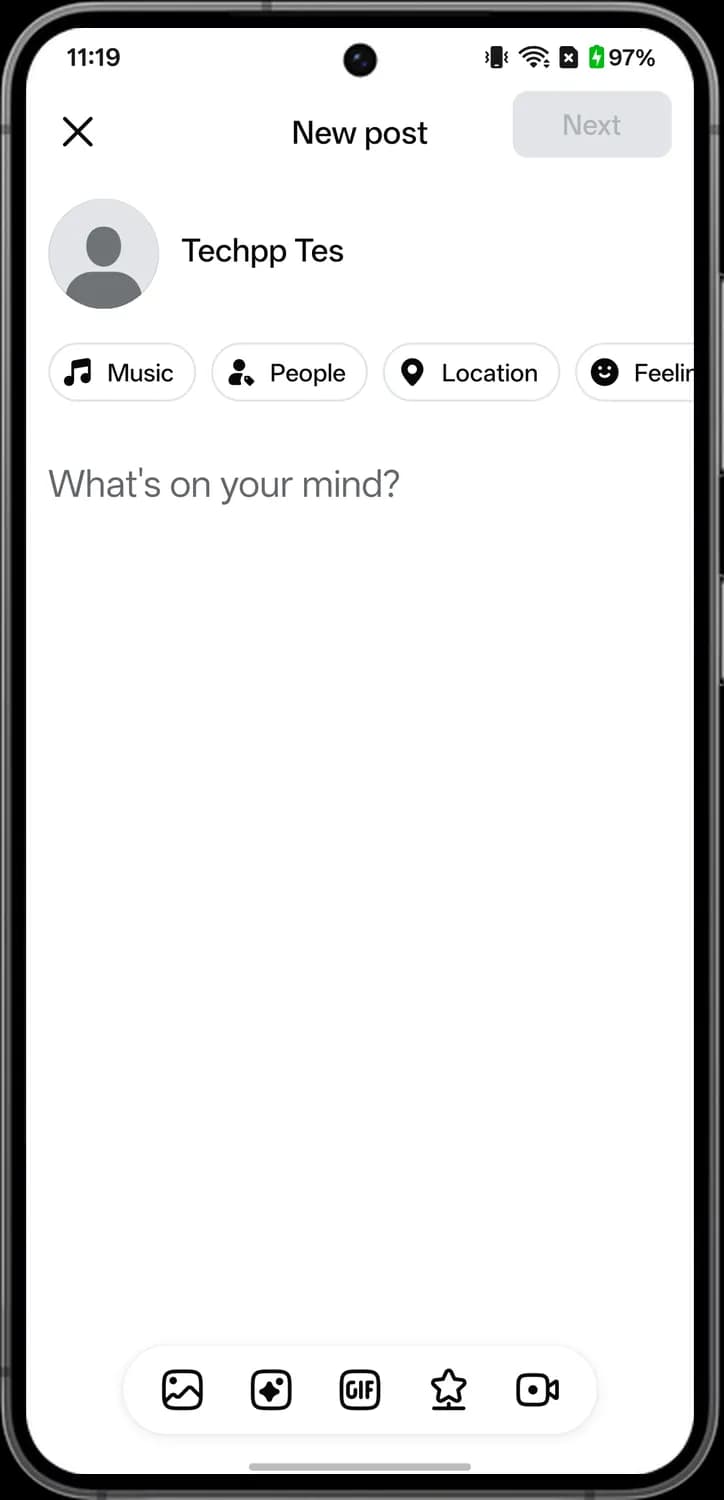

Close
The X. Leaves the New post screen without posting.

Next
Moves on to the last step, where you choose who can see the post and share it. It stays gray until you add something.

Music
The music note. Adds a song to your post.

People
The person with a tag. Tags friends in your post.

Location
The map pin. Adds a place to your post, like a restaurant or a city.

Feeling/activity
The smiley face. Adds how you feel or what you are doing, like feeling happy or watching a movie.
Add to your post
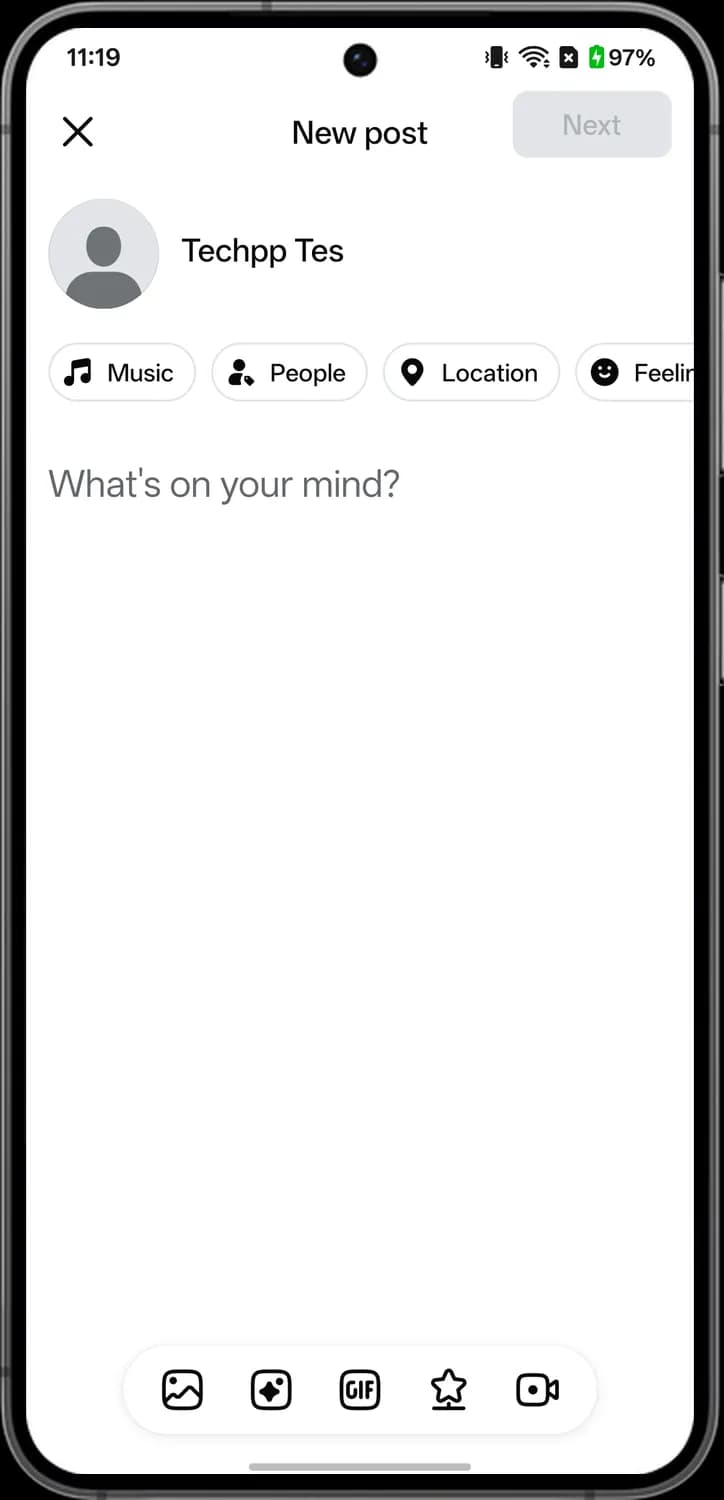

Gallery
The picture. Adds photos or videos from your phone.

AI images
The sparkle in a square. Creates an image with Meta AI from a description you type.

GIF
The GIF label. Adds an animated GIF to your post.

Life update
The star on a stand. Shares a life event, like a new job, a move or a relationship.

Live video
The video camera. Switches to going live instead of writing a post.
Search
Tap the magnifying glass at the top of the Home feed to search. Facebook search now runs through Meta AI, so you get Meta AI answers alongside people, Pages, groups and posts.
Before you type
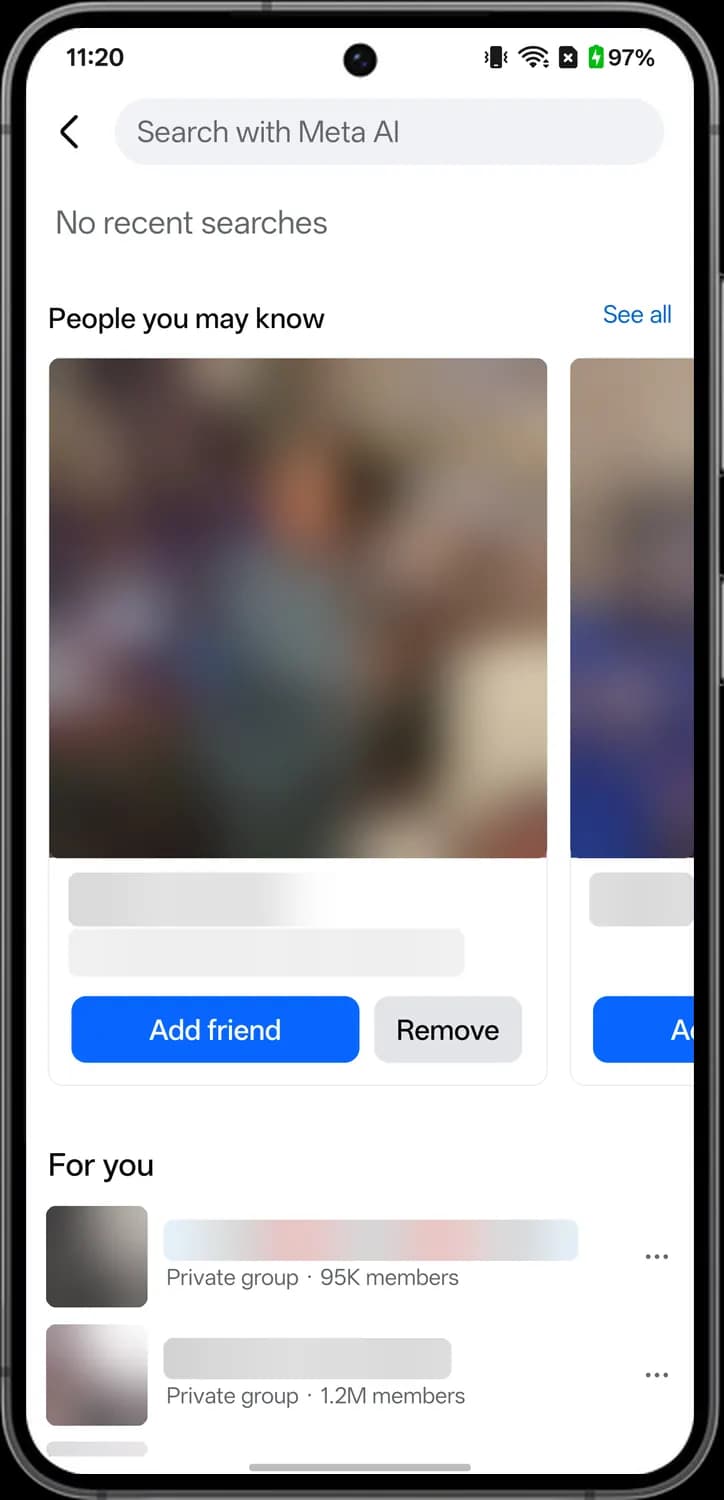

Back
The left arrow. Closes search and takes you back to where you were.

Search with Meta AI
The search box. Type a name, a topic or a question; Meta AI can answer questions here as well as find people, Pages and groups. Your recent searches are listed under it.

More options
The three dots next to a suggested group. Opens more options for that suggestion.
While you type
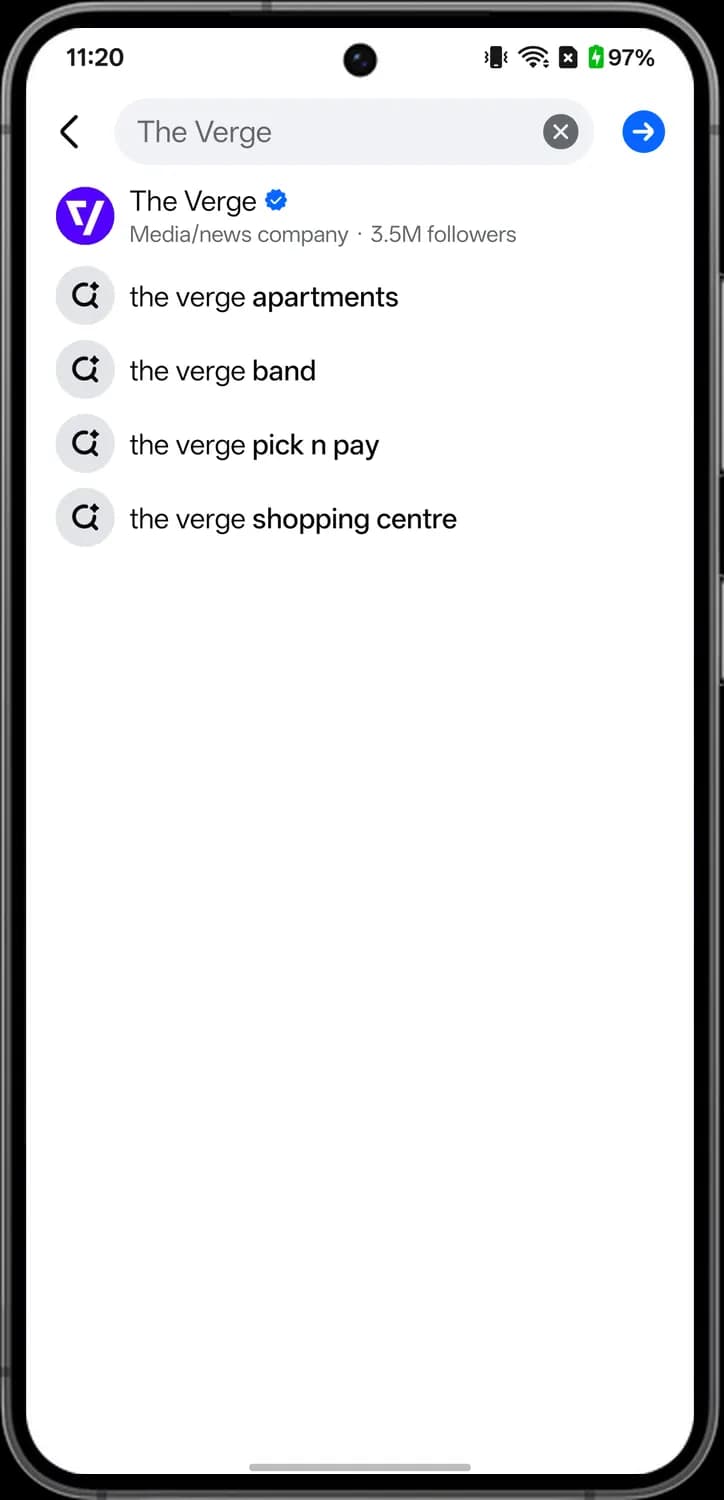

Clear text
The X in the search box. Deletes what you typed so you can start again.

Ask Meta AI
The blue arrow. Sends what you typed to Meta AI as a question instead of picking a suggestion.

Search suggestion
The magnifying glass with a sparkle. Each row is a search Facebook suggests from what you typed; tap one to run it.
Search results
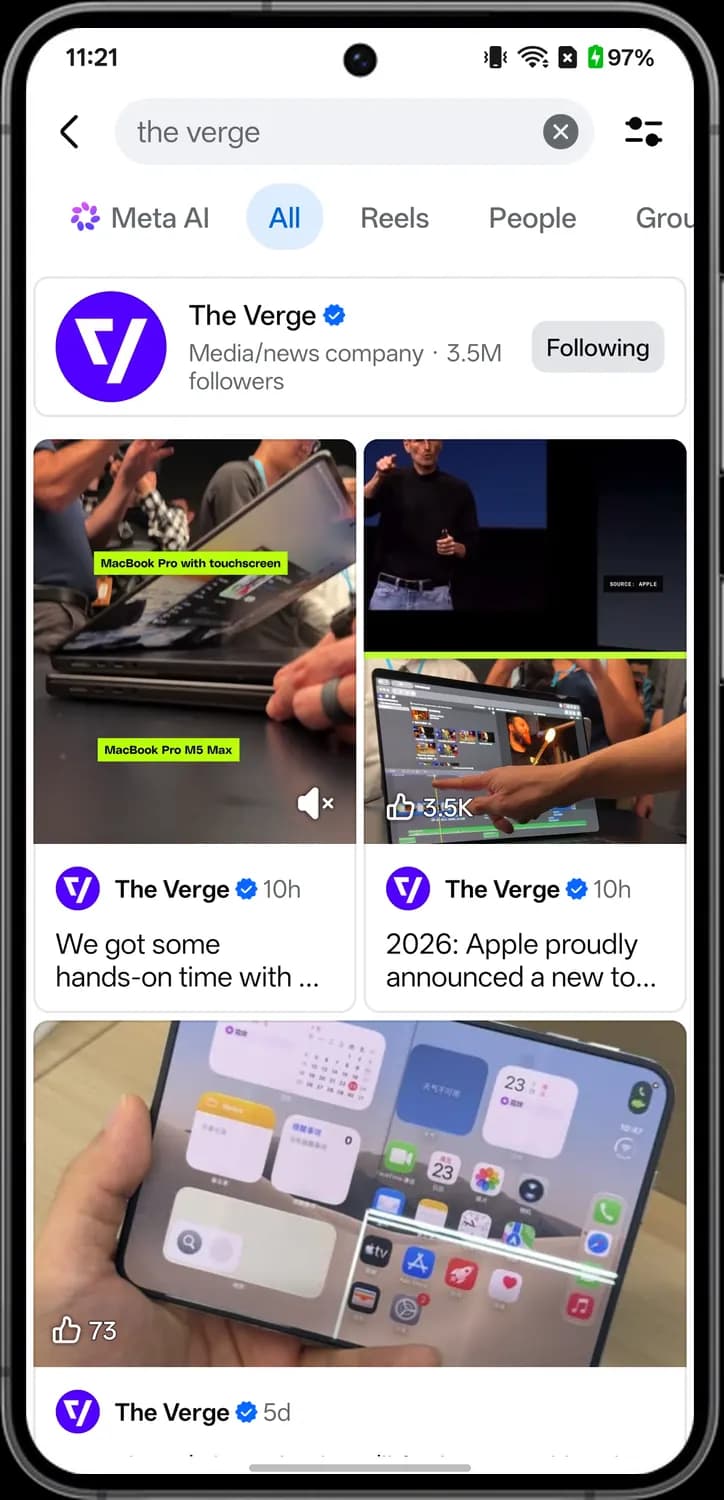
Filters
The sliders. Opens filters to narrow down the results.

Meta AI tab
The colorful Meta AI logo. Shows an answer from Meta AI about what you searched for.

Result tabs
All, Reels, People, Groups and more. Tap a tab to see only that kind of result; swipe the row for more tabs.

Verified badge
The blue check badge. It means Meta has verified that this Page or profile is the real one.
Unmute
The speaker with an X. The video preview plays silently; tap it to turn the sound on.
Notifications
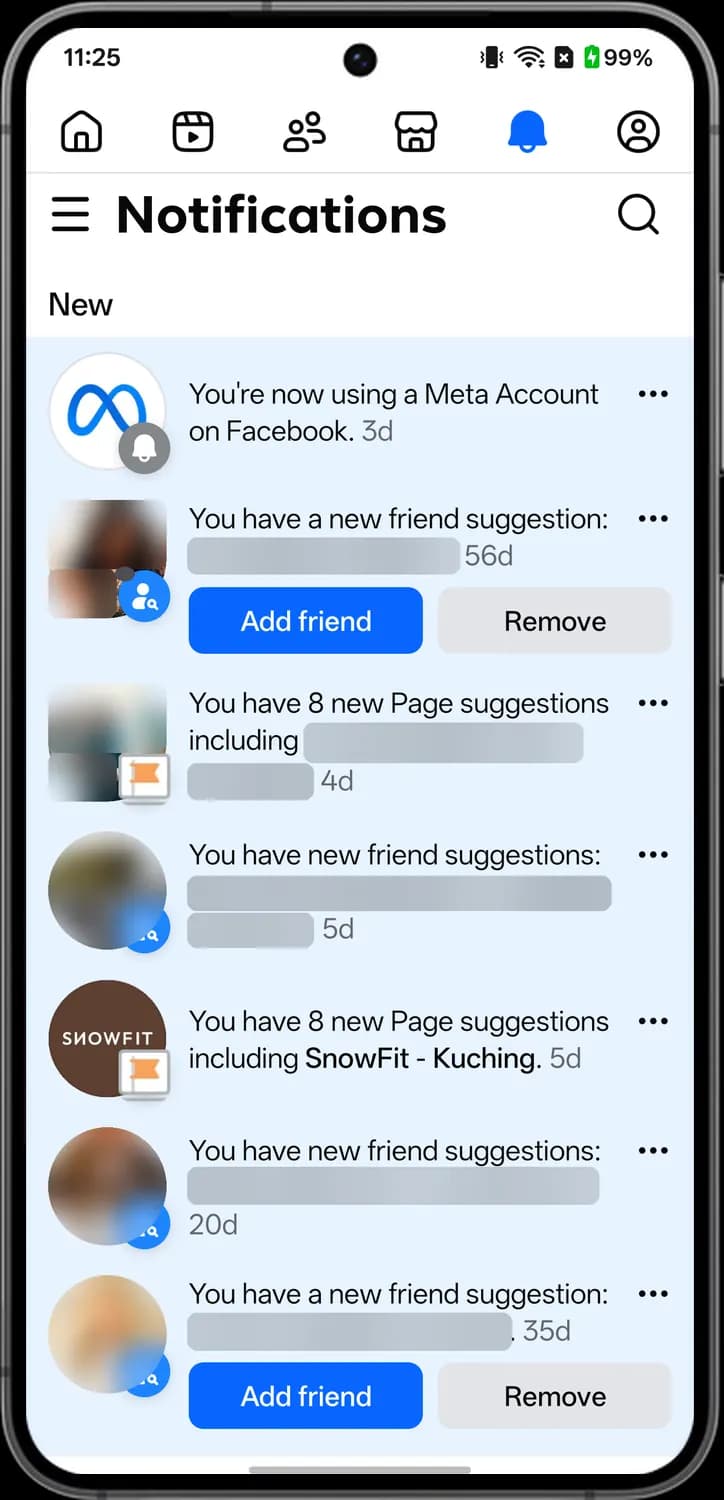
Tap the bell in the top bar to see your notifications. New ones have a blue background, and the small badge on each picture tells you what kind of notification it is.
Top bar and options
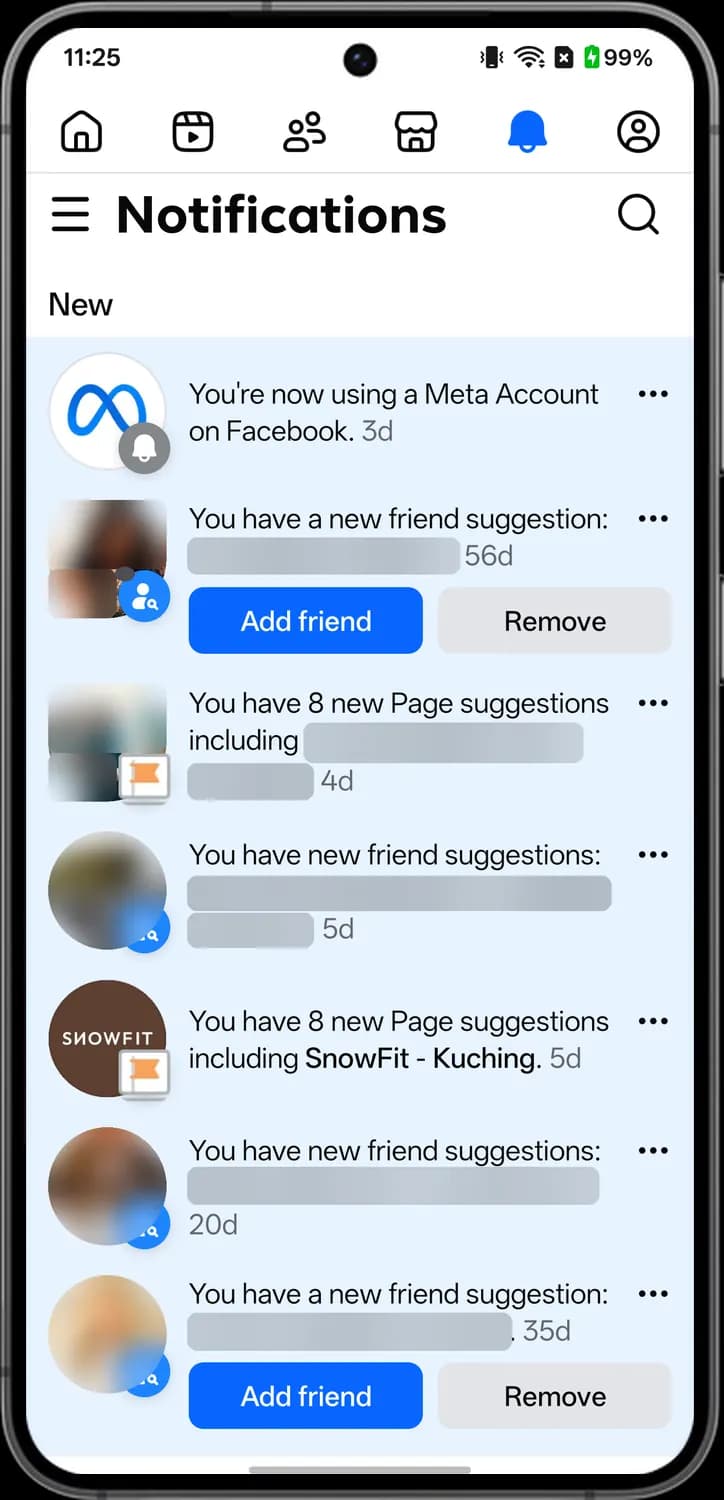

Menu
The three lines. Opens the full Facebook menu with your shortcuts, saved items and settings.

Search notifications
The magnifying glass. Opens Facebook search for people, Pages, groups and posts.

Account notice badge
A gray bell on the corner of the picture. It marks a notice from Facebook about your own account, like this one about Meta Accounts, rather than something a person did.

Notification options
The three dots next to a notification. Lets you remove that notification or turn off notifications like it.
Suggestions
Friend suggestion badge
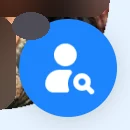
A blue circle with a person and a magnifying glass. It marks a notification about people Facebook suggests you add as friends.

Add friend
Sends a friend request to the suggested person right from the notification.

Remove
Removes the suggestion so that person stops showing up.

Page suggestion badge
An orange flag on the corner of the picture. It marks a notification suggesting Pages you might want to follow.
Friends
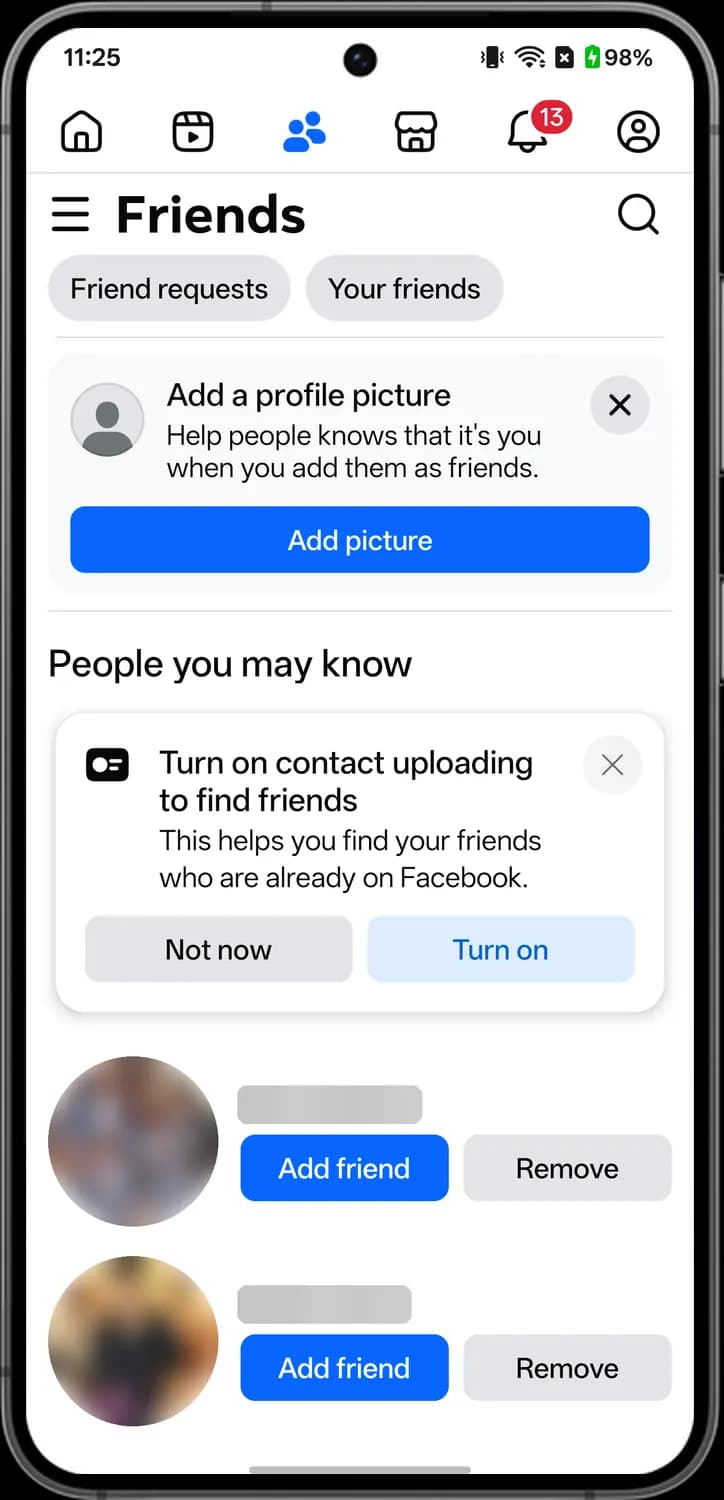
Tap the two-person icon in the top bar to open the Friends tab. It holds your friend requests, your friends list and people Facebook thinks you may know.
Top bar

Menu
The three lines. Opens the full Facebook menu with your shortcuts, saved items, settings and help.

Search friends
The magnifying glass. Tap it to search for a person by name.

Friend requests
Shows the friend requests people have sent you, where you can confirm or delete each one.

Your friends
Opens your full friends list, where you can search it, sort it, or unfriend someone.
Cards and suggestions

Close card
The X on the Add a profile picture card. Tap it to hide the card if you don't want to add a photo now.

Contact uploading
The contact card icon. This card asks to upload your phone contacts so Facebook can suggest people you know. Tap Turn on to allow it or Not now to skip.

Add friend
Sends a friend request to the person shown. The button changes to Cancel request until they answer.

Remove
Removes that person from your suggestions so they stop showing up here.
Marketplace
Marketplace is the storefront icon in the top bar, where people nearby buy and sell used and new items. Here it is set to New York, and the second screen is a single listing.
Top bar
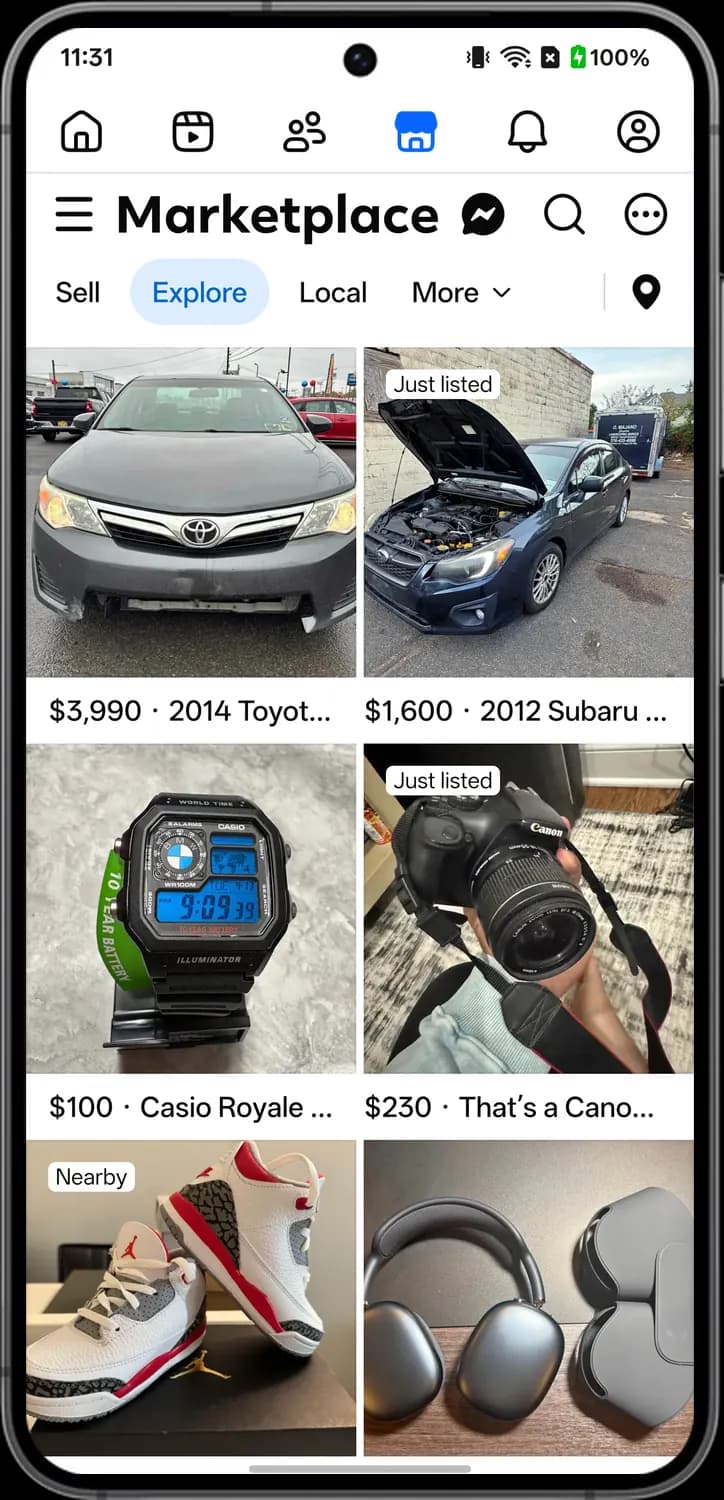

Menu
The three lines. Opens the full Facebook menu with your shortcuts, saved items and settings.

Marketplace inbox
The Messenger bolt in a bubble. Opens your Marketplace chats with buyers and sellers, kept apart from your regular messages.

Search Marketplace
The magnifying glass. Tap it to search listings near you, like a used car or a camera.

Your Marketplace account
Three dots in a circle. Opens your Marketplace account, with your listings, saved items, recent activity and settings.
Tabs and location
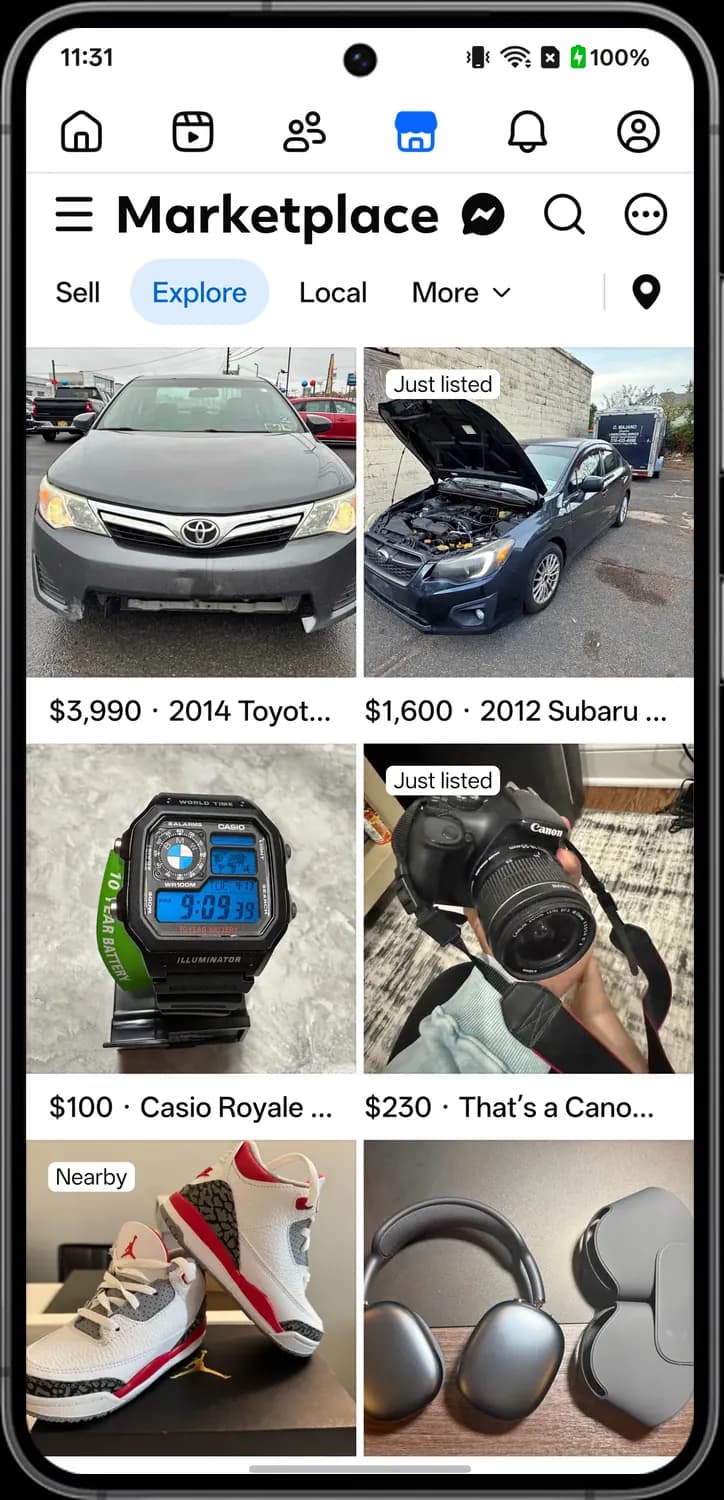

Sell
Starts a new listing. Pick what you are selling, add photos, a price and a description.

Explore
The main Marketplace feed, with listings picked for you near your location.

Local
Shows listings from sellers close to you, so you can pick items up in person.

More categories
More with a down arrow. Opens the list of categories, like vehicles, electronics, home goods and rentals.

Location
The map pin. Tap it to change the area and distance Marketplace shows listings from. Here it is set to New York.
Listing top
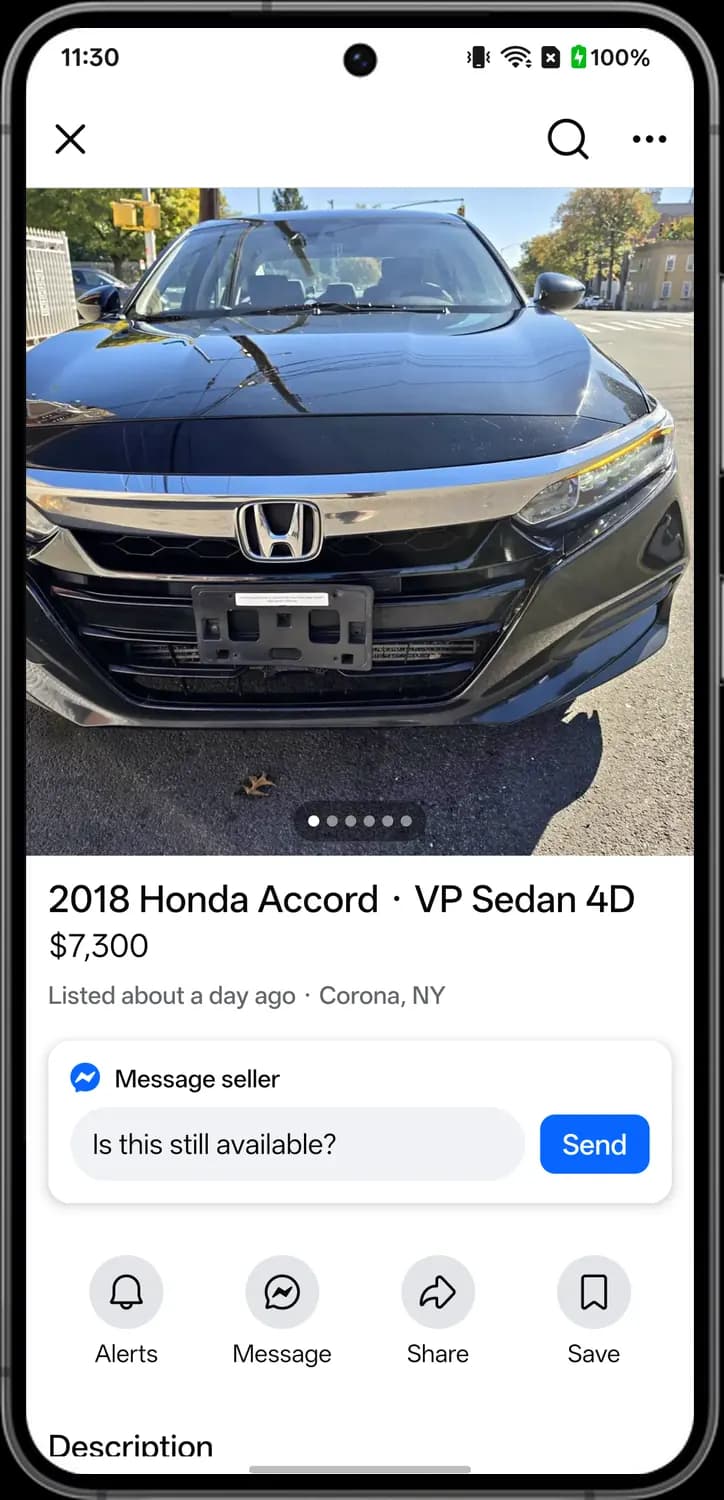

Close listing
The X. Closes the listing and takes you back to Marketplace.

Listing search
The magnifying glass. Takes you to Marketplace search so you can look for something else.

More actions
The three dots. Opens more options for this listing, like copying its link or reporting it.
Photo dots
Each dot is one photo of the item, and the white dot is the one you are on. Swipe the photo left to see the next one.
Contact and actions
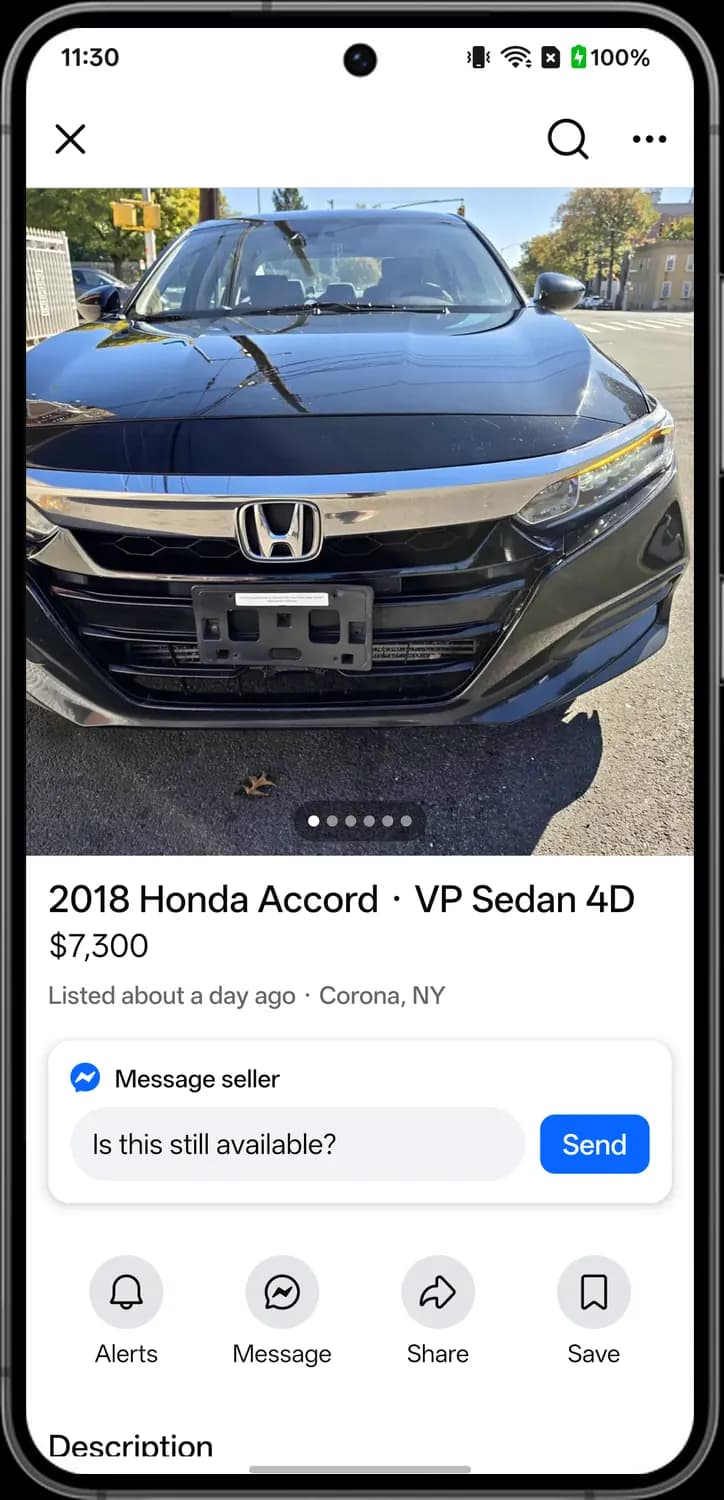

Message seller
The Messenger logo. Type a question in the box, or keep the ready-made Is this still available?, to start a chat with the seller.

Send
Sends the message in the box to the seller. Their reply shows up in your Marketplace inbox.

Alerts
The bell. Turns on alerts for this listing, so you hear about changes like a price drop.

Message
The Messenger bubble. Opens a chat with the seller about this item.

Share
The curved arrow. Sends this listing to a friend or shares it to your feed or a group.

Save
The bookmark. Saves the listing so you can find it later in your saved Marketplace items.
Your profile and Pages
Tap your picture in the top right of the top bar to open your profile. A Page is what brands, businesses and creators have instead of a personal profile; the second screen is The Verge's Page.
Top and photos
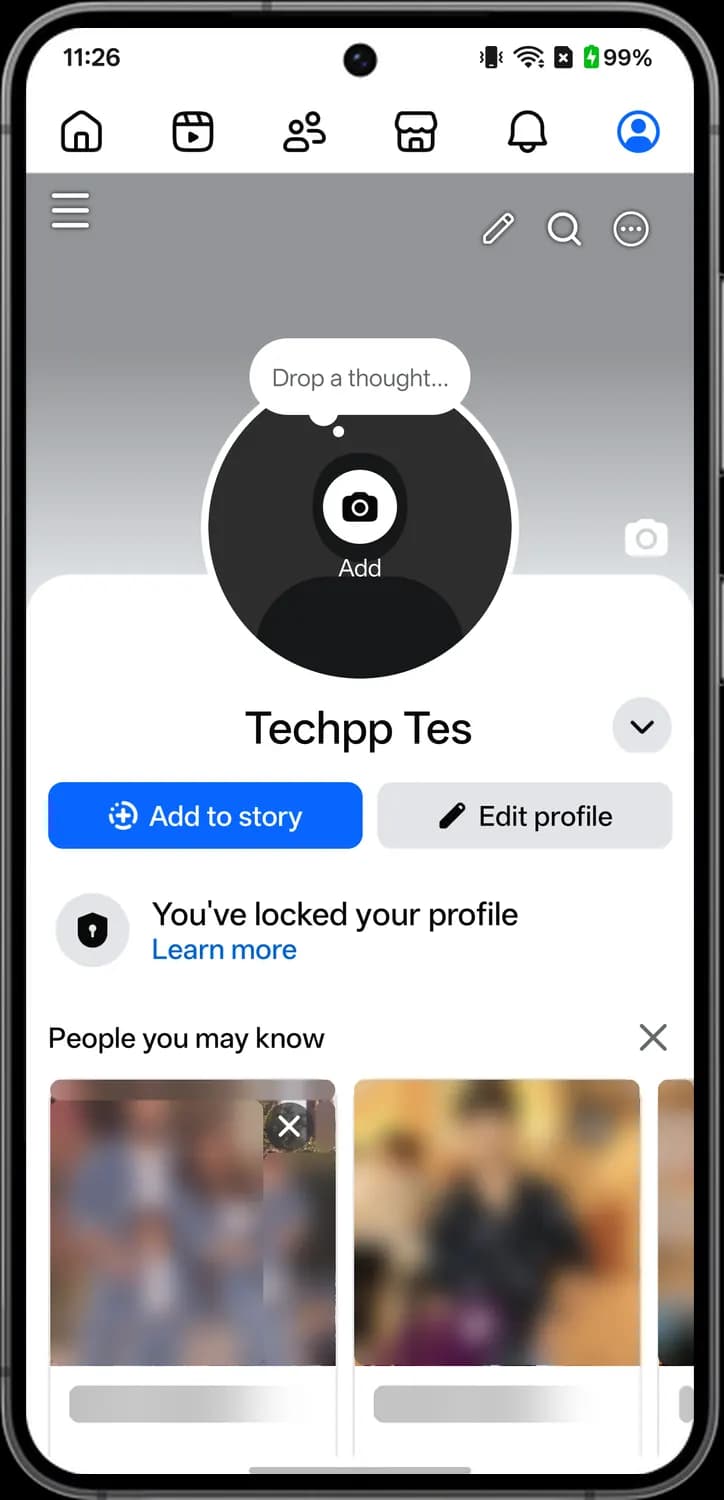

Menu
The three lines. Opens the full Facebook menu with your shortcuts, saved items and settings.

Edit pencil
The pencil. A shortcut to Edit profile, where you change your photos, bio and details.

Search profile
The magnifying glass. Tap it to search for posts on your profile.

More profile settings
Three dots in a circle. Opens more options for your profile, like profile settings, activity log and your profile link.

Drop a thought
The thought bubble above your picture. Tap it to post a short note that people see on top of your profile picture.
Add profile picture
The camera on your profile picture. Tap it to take or pick a photo for your profile picture.

Edit cover photo
The camera on the cover. Tap it to upload or change the wide cover photo behind your profile picture.
Name and buttons
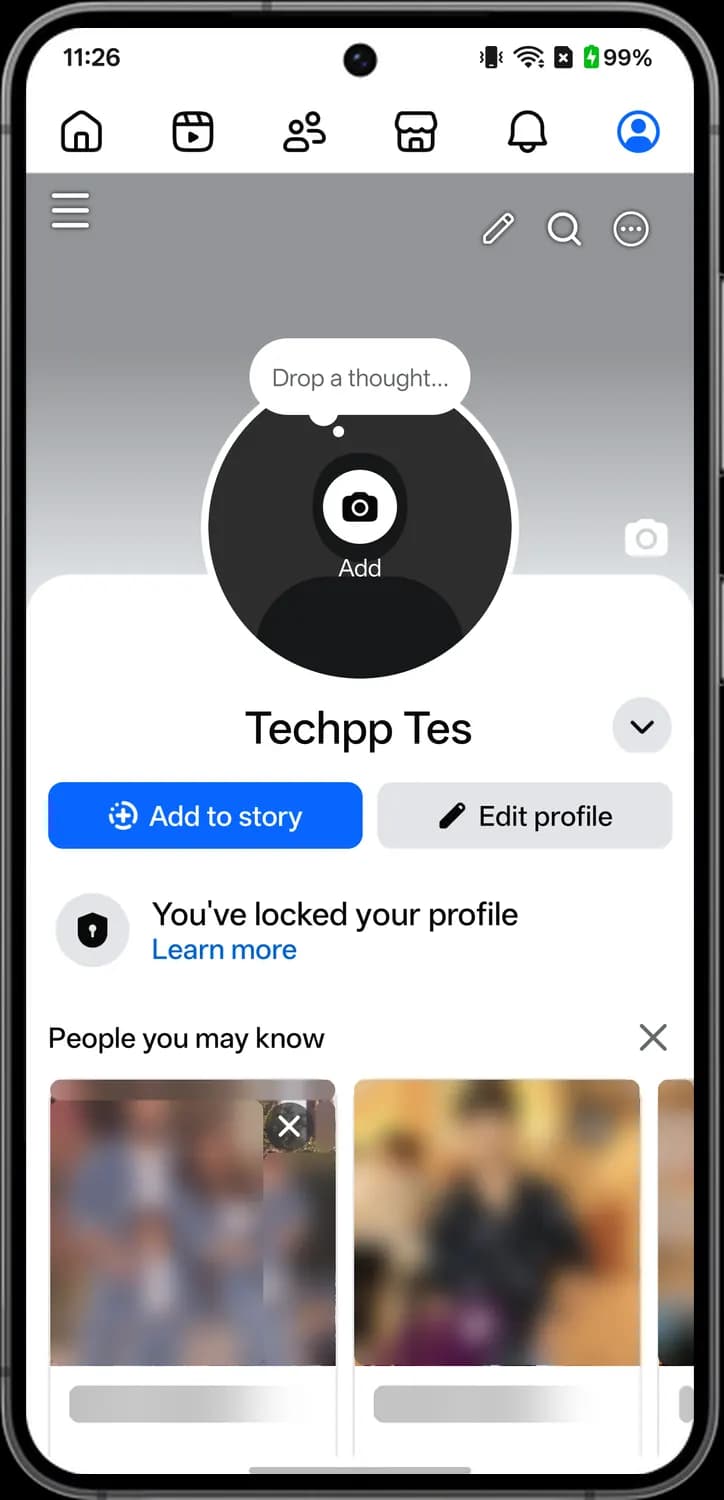

Profile switcher
The down arrow next to your name. Opens the profile switcher, where you move between your profile and any Pages you manage.

Add to story
The plus in a dotted circle. Starts a new story, a photo or video that stays up for 24 hours.

Edit profile
The pencil. Opens Edit profile, where you change your profile picture, cover photo, bio and details.

Locked profile
The shield with a keyhole. It means you have locked your profile, so people who aren't your friends see much less of it. Profile lock is only offered in some countries.

Remove suggestion
The X on a People you may know card. Removes that person from your suggestions.
Page header
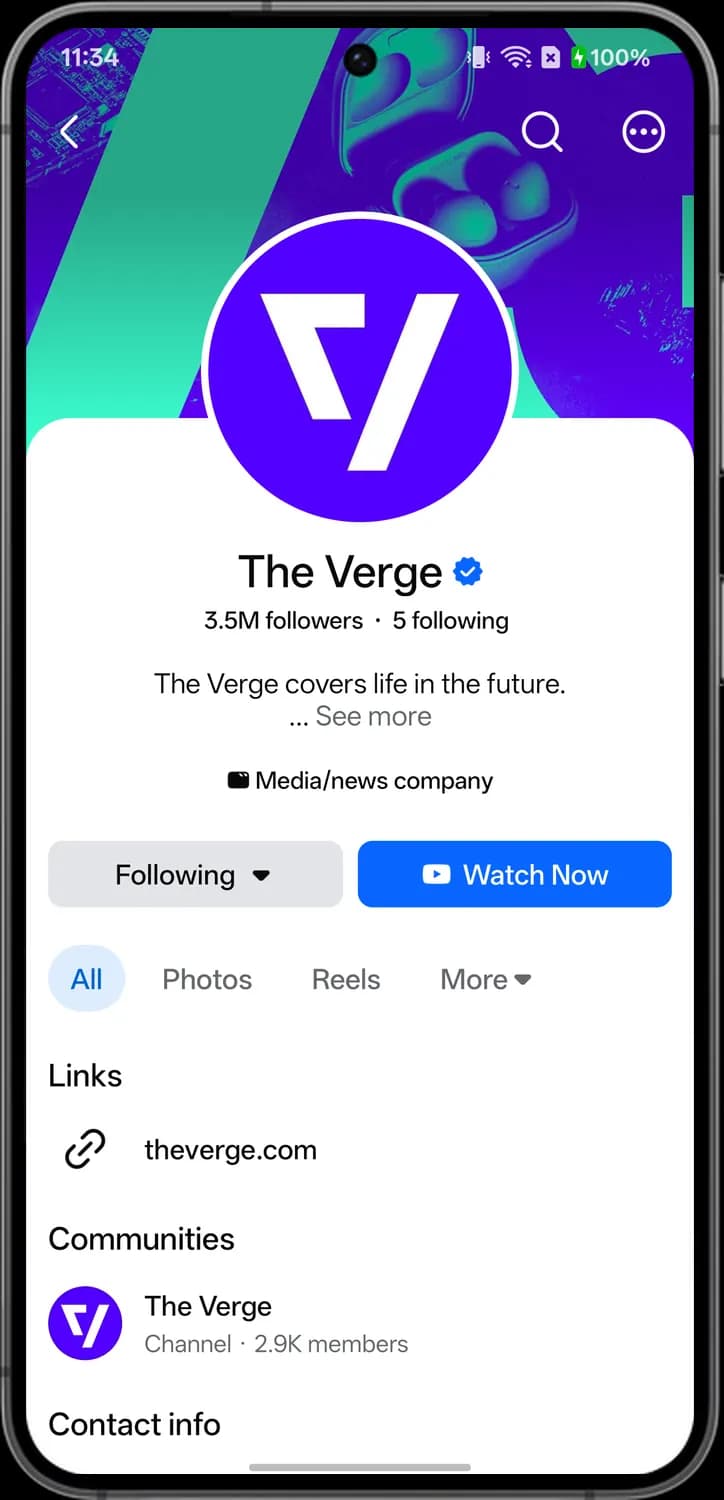

Back
The left arrow. Takes you back to the screen you came from.

Search Page
The magnifying glass. Tap it to search for posts on this Page.

Page options
Three dots in a circle. Opens a menu with more options for this Page.

Verified badge
The blue badge with a check mark. It means Meta has confirmed this Page really belongs to The Verge.
Page buttons
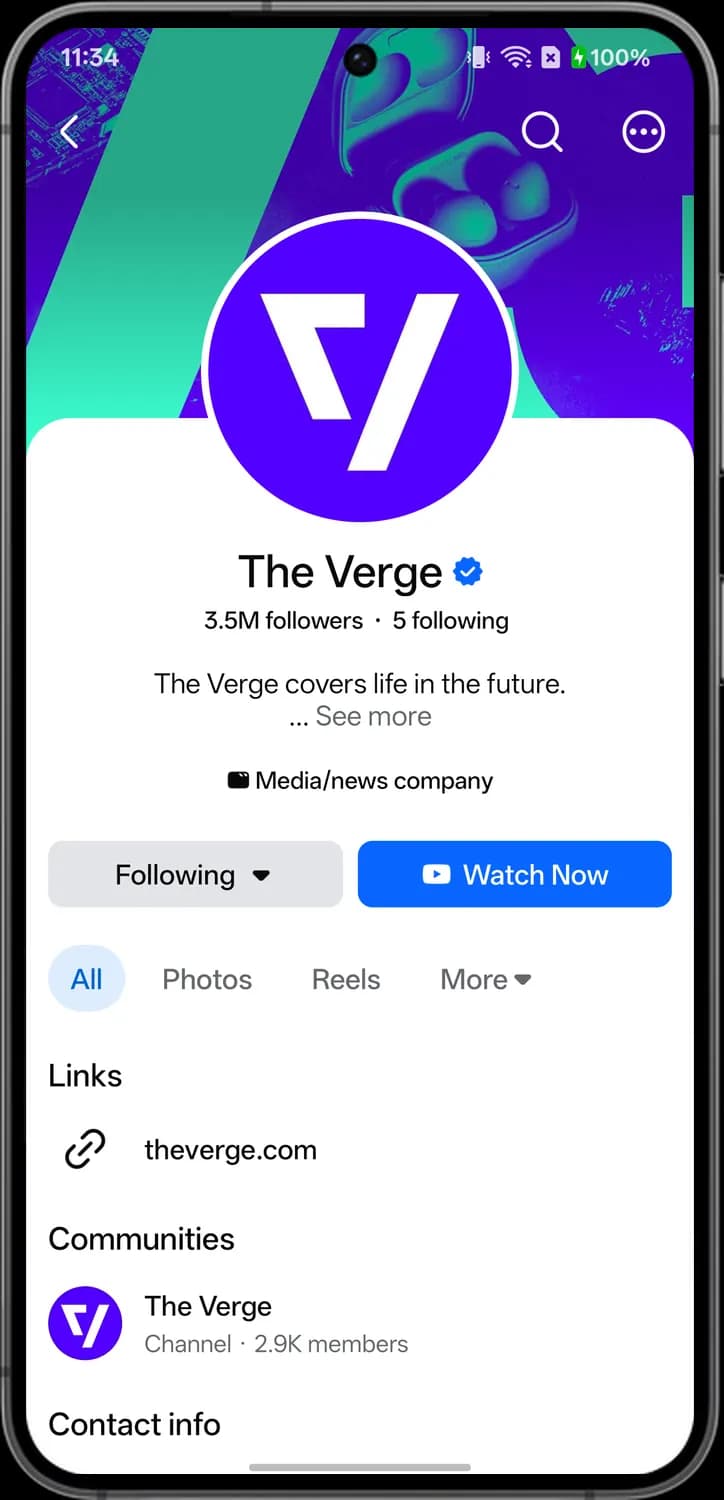

Following
Shows you already follow this Page. Tap it to unfollow, or to change how often its posts and notifications reach you.

Watch Now
The play button. This is the action button the Page has picked, and here it takes you to The Verge's videos. Other Pages may show buttons like Send message instead.

Page tabs
All, Photos, Reels and More switch what the Page shows below. More opens extra sections the Page has.

Website link
The chain link. Tap the address next to it to open the Page's website.
Menu
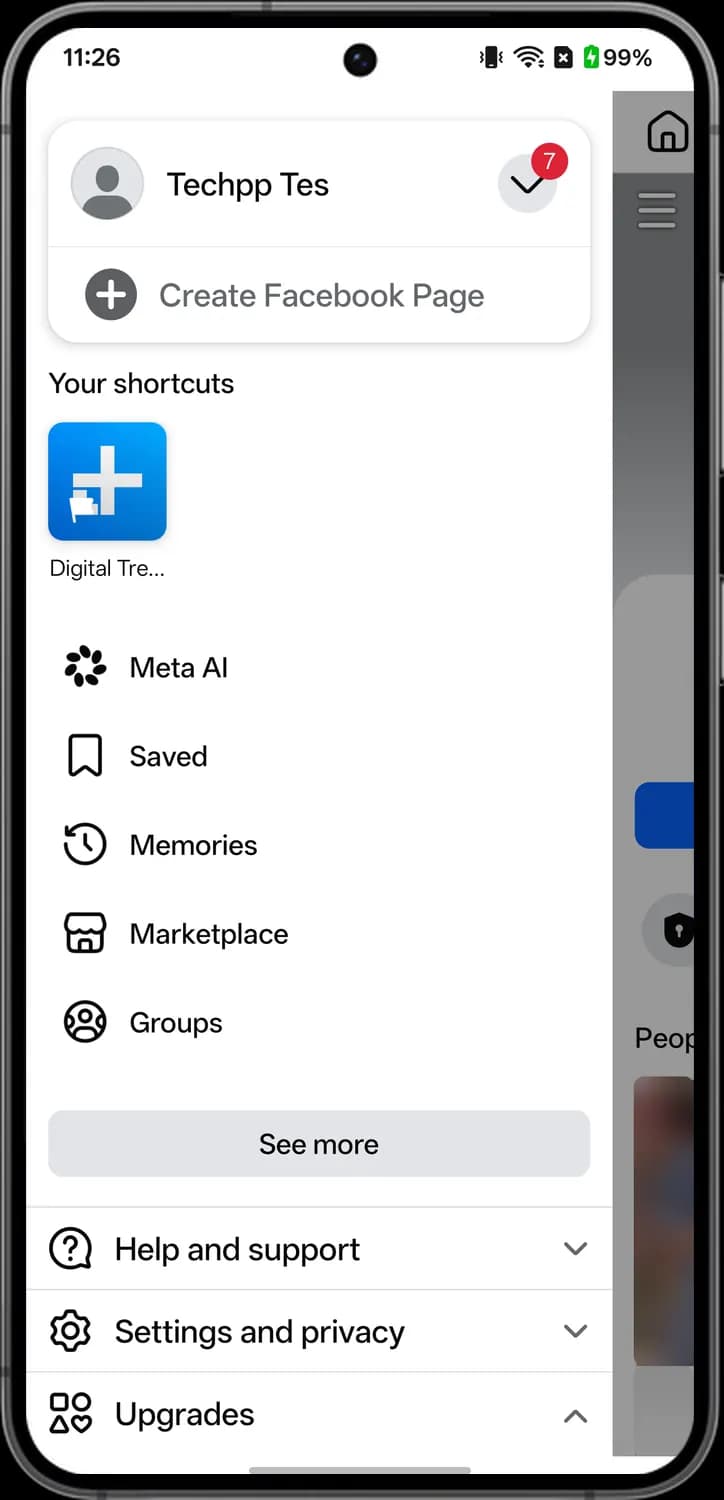
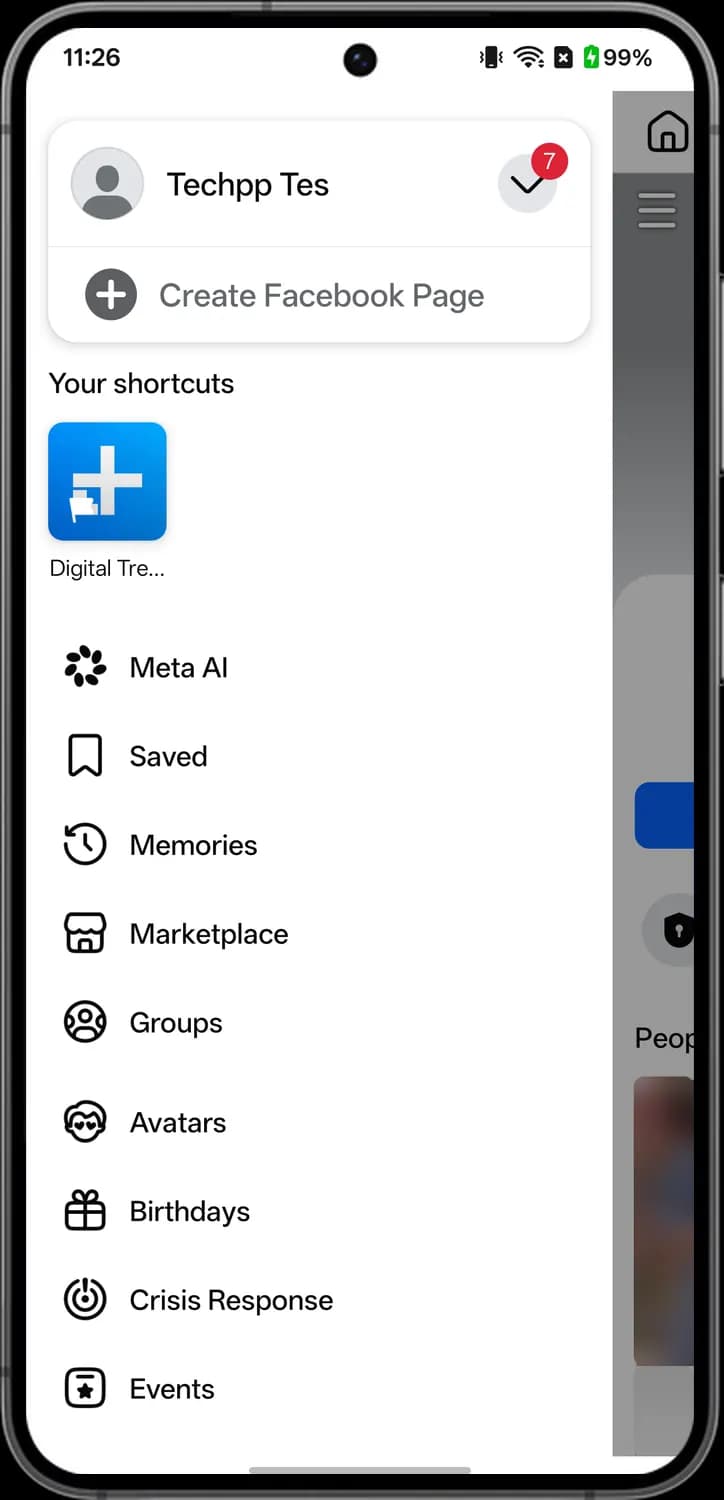
Tap the three lines at the top of the app to open the menu. It has your profile, shortcuts to every part of Facebook, settings, and links to Meta's other apps; tap See more and the section headers to show everything.
Profile and shortcuts
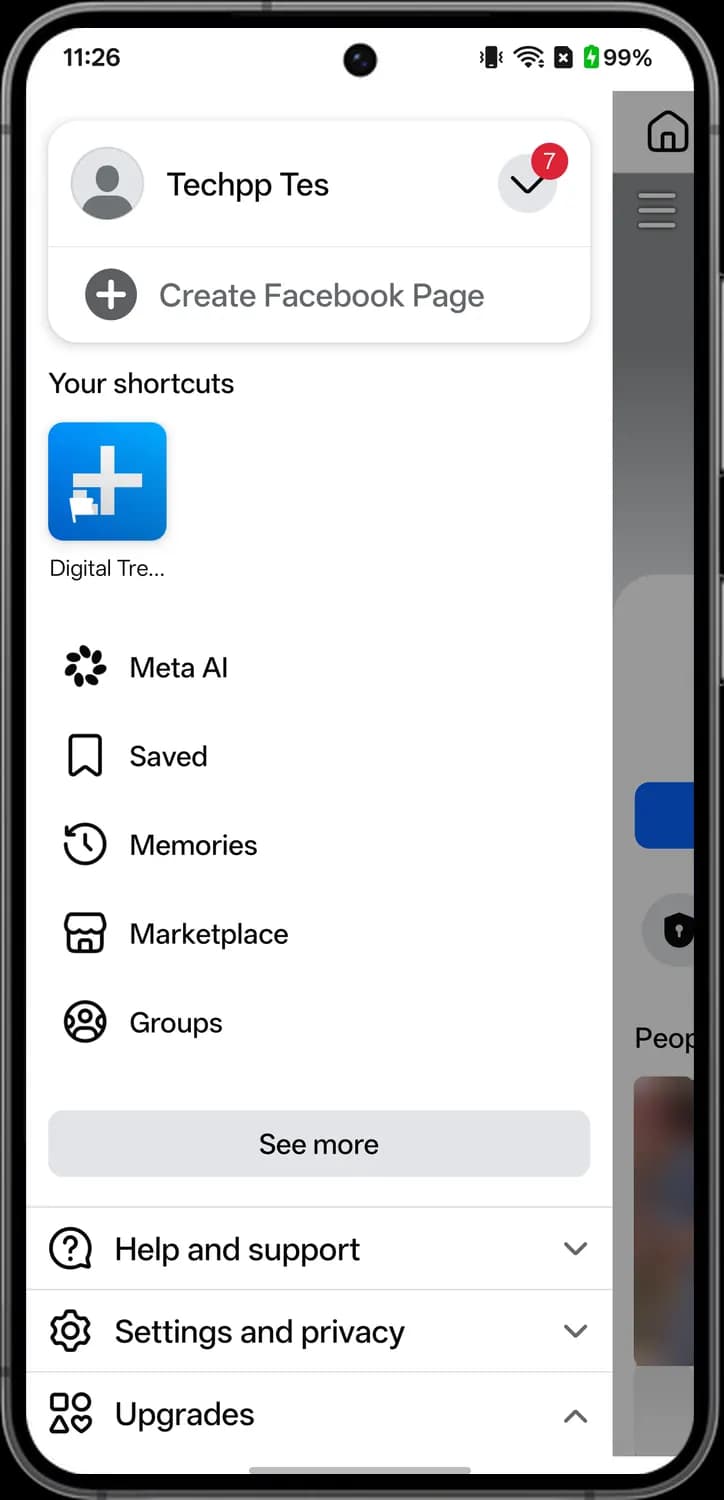

Your profile
Your profile picture and name. Tap it to open your own profile.
Profile switcher
The down arrow in a circle. Tap it to switch to another profile or Page you manage, or to add another account. A red number on it counts new items waiting there.

Create Facebook Page
The plus sign. Starts setting up a new Facebook Page for a business, brand or public figure, separate from your personal profile.

Your shortcuts
Square tiles for the Pages, groups and other places you visit most on Facebook. Tap a tile to jump straight there.

Meta AI
The ring of dots is the Meta AI logo. Opens a chat with Meta's AI assistant, where you can ask questions in plain words.

Saved
The bookmark. Shows the posts, videos, links and listings you saved to come back to later.
Memories
The clock with a backward arrow. Shows your posts and photos from this day in past years.
Main places and sections

Marketplace
The storefront. Opens Marketplace, where people nearby buy and sell items.

Groups
The circle of people. Opens your groups, with posts from the groups you joined and suggestions for new ones.

Help and support
The speech bubble with a question mark. Tap it to expand links to the Help Center and a way to report a problem.

Settings and privacy
The gear. Tap it to expand Settings, Privacy Center and the other account options shown further down.
Upgrades
The square, circle, triangle and heart. Tap it to expand or collapse paid add-ons for your account, such as Facebook Plus.
See more

Avatars
The cartoon face. Opens the avatar editor, where you build a cartoon version of yourself to use as stickers and in comments.

Birthdays
The gift box. Lists your friends' upcoming birthdays so you can send a wish.

Crisis Response
The circle with an exclamation mark. Opens Facebook's hub for disasters and other emergencies, where people can mark themselves safe and find or offer help.
Events
The calendar page with a star. Shows events near you and the ones you were invited to or said you are going to.
See more, continued
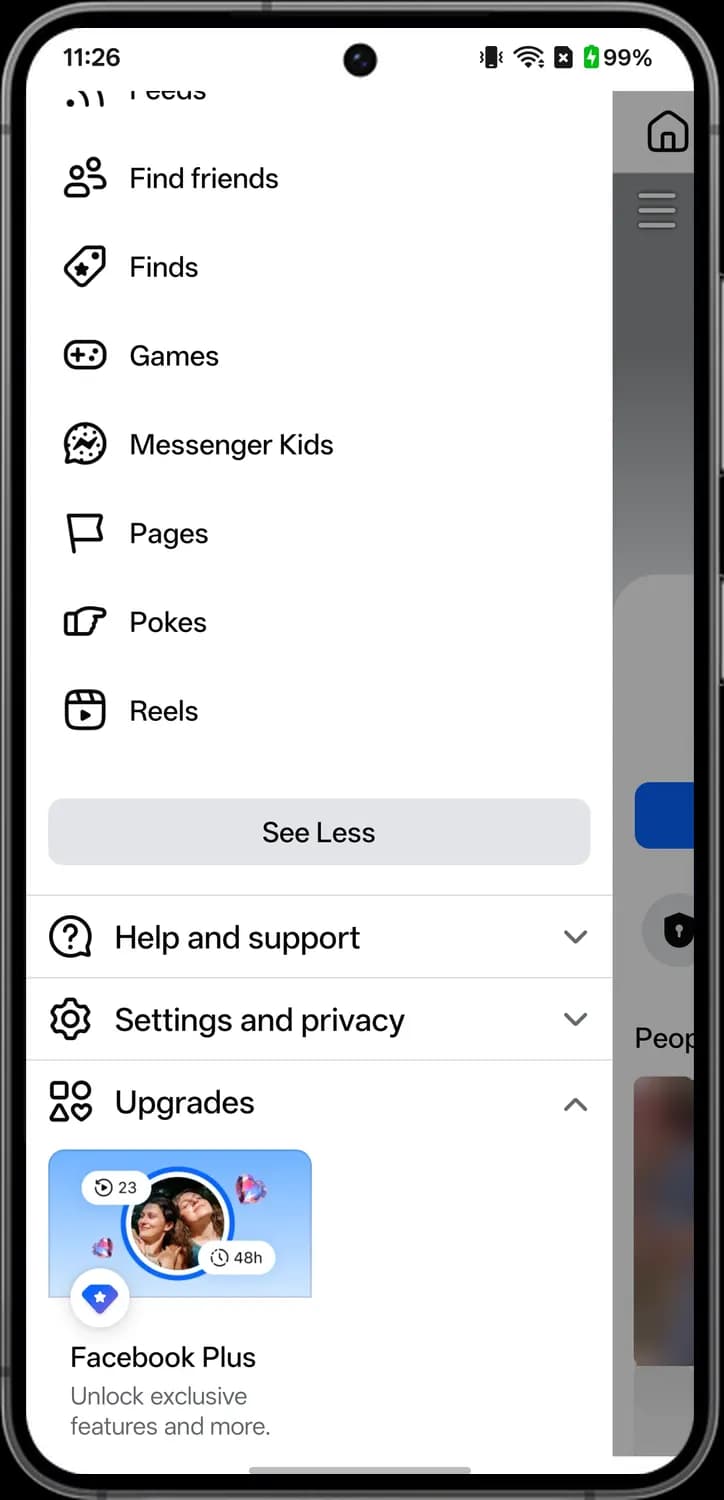

Find friends
The two people. Shows friend requests and people you may know, and lets you search for someone to add.

Games
The game controller. Opens games you can play inside the Facebook app.

Messenger Kids
The Messenger bolt in a bubble. Opens the parent controls for Messenger Kids, Meta's chat app for children.

Pages
The flag. Shows the Pages you manage and the ones you follow.
Pokes
The pointing hand. Shows pokes you received and lets you poke friends back.

Reels
The film frame with a play button. Opens Reels, Facebook's short vertical videos.
Settings and privacy
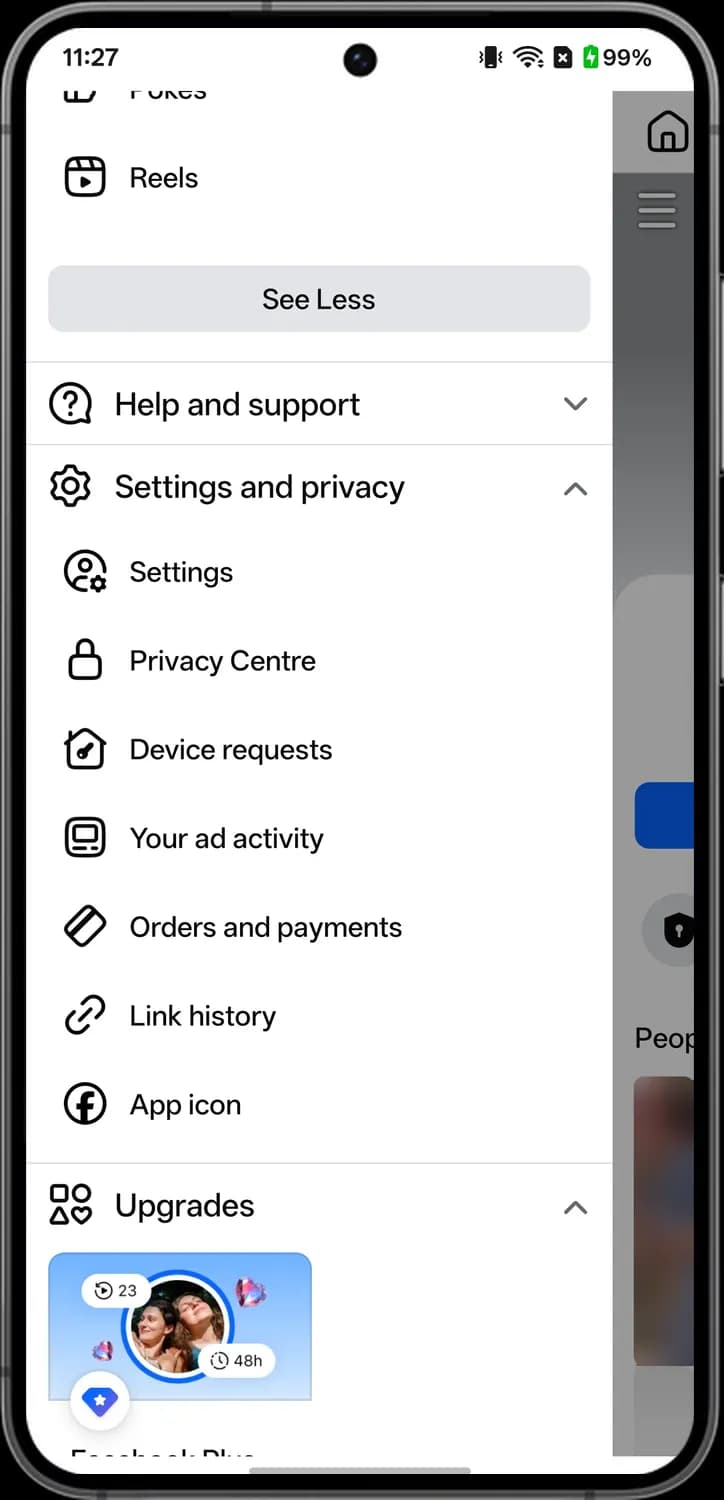

Settings
The person with a gear. Opens all of your Facebook settings, from account and privacy to notifications and display.

Privacy Center
The padlock. Opens Meta's Privacy Center, with guides and shortcuts to the privacy settings for your account.
Device requests
The house with a key. Shows requests from other devices, like a smart TV app, asking to connect to your Facebook account.

Your ad activity
The screen. Shows the ads you recently tapped or interacted with on Facebook.

Orders and payments
The card. Shows your payment history, saved payment methods and orders made through Facebook.
Link history
The chain link. Shows links you opened in Facebook's built-in browser in the last 30 days, and lets you clear them or turn this off.

App icon
The Facebook f in a circle. Lets you pick a different icon for the Facebook app on your home screen.
Upgrades and Also from Meta
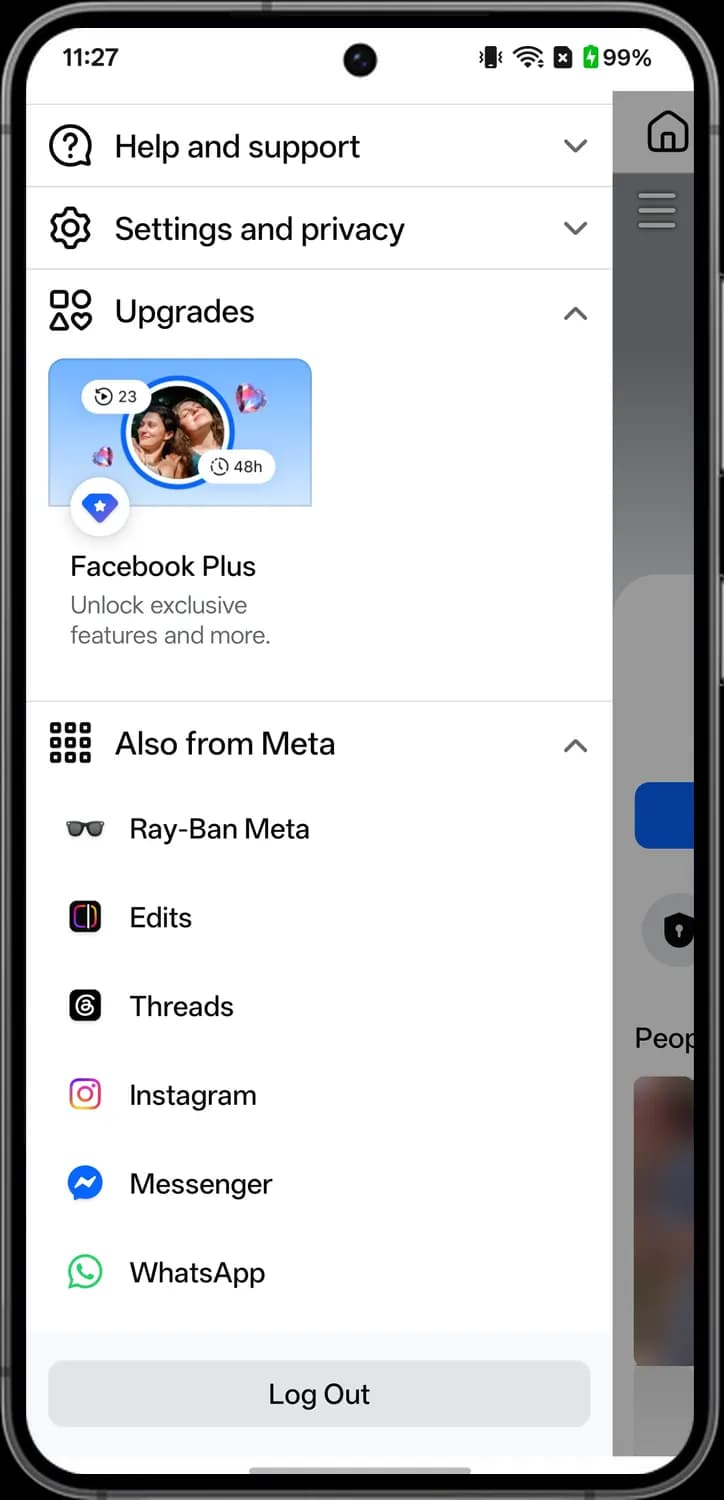

Facebook Plus
The blue diamond badge. Opens the sign-up page for Facebook Plus, Meta's paid subscription with extra features.

Also from Meta
The grid of dots. Tap it to expand or collapse a list of Meta's other apps and devices.
Ray-Ban Meta
The sunglasses. Links to Ray-Ban Meta, Meta's smart glasses, and the app that pairs with them.

Edits
Meta's video editing app for making short videos like Reels. Opens the app, or its store page if you don't have it.
Meta apps
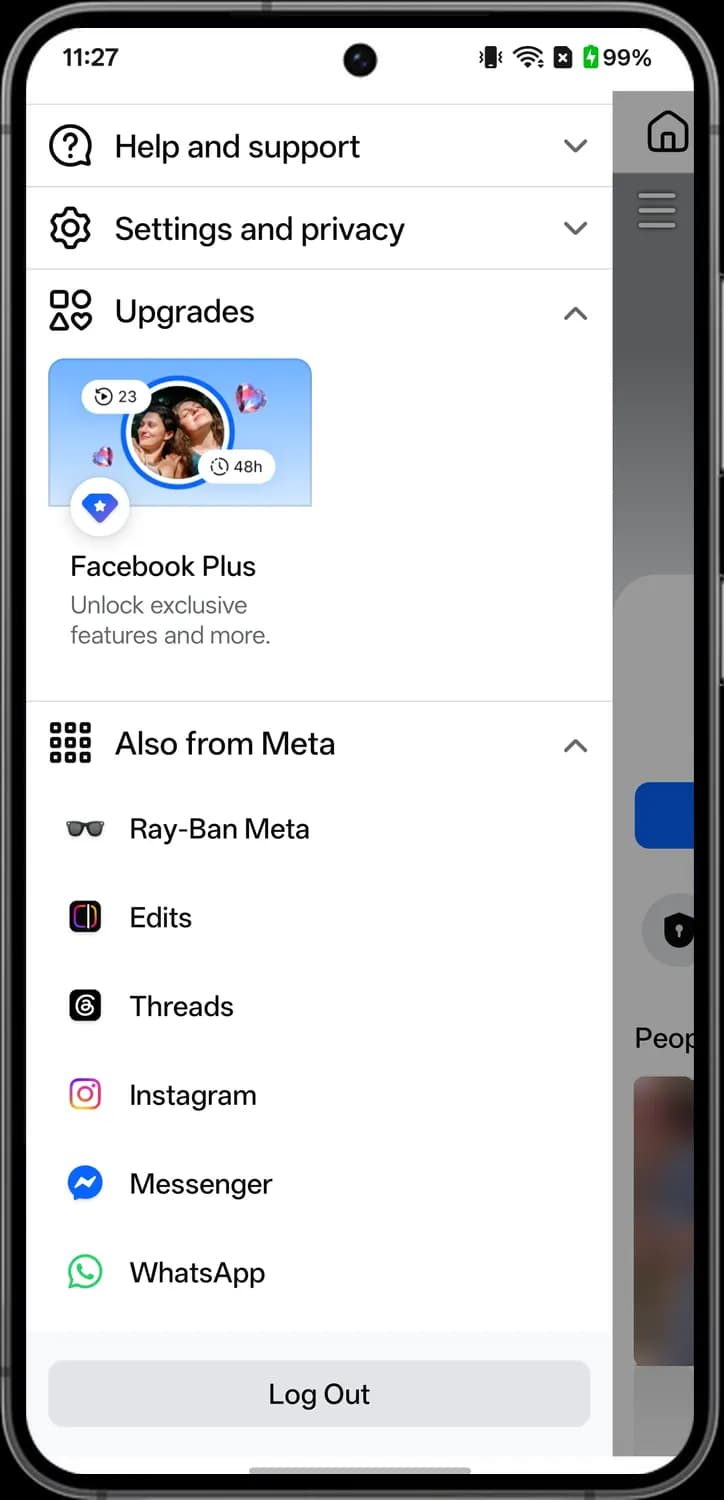

Threads
The Threads logo. Opens Meta's Threads app for short text posts, or its store page if you don't have it.

Instagram
The Instagram camera logo. Opens the Instagram app, or its store page if you don't have it.

Messenger
The Messenger bolt. Opens the Messenger app for your Facebook chats, or its store page if you don't have it.

WhatsApp
The WhatsApp phone bubble. Opens the WhatsApp app, or its store page if you don't have it.
Feeds
Open the menu and tap Feeds to see recent posts without the suggested ones mixed in. The chips at the top filter the list to just friends, groups, Pages or your favorites.
Top bar and filters
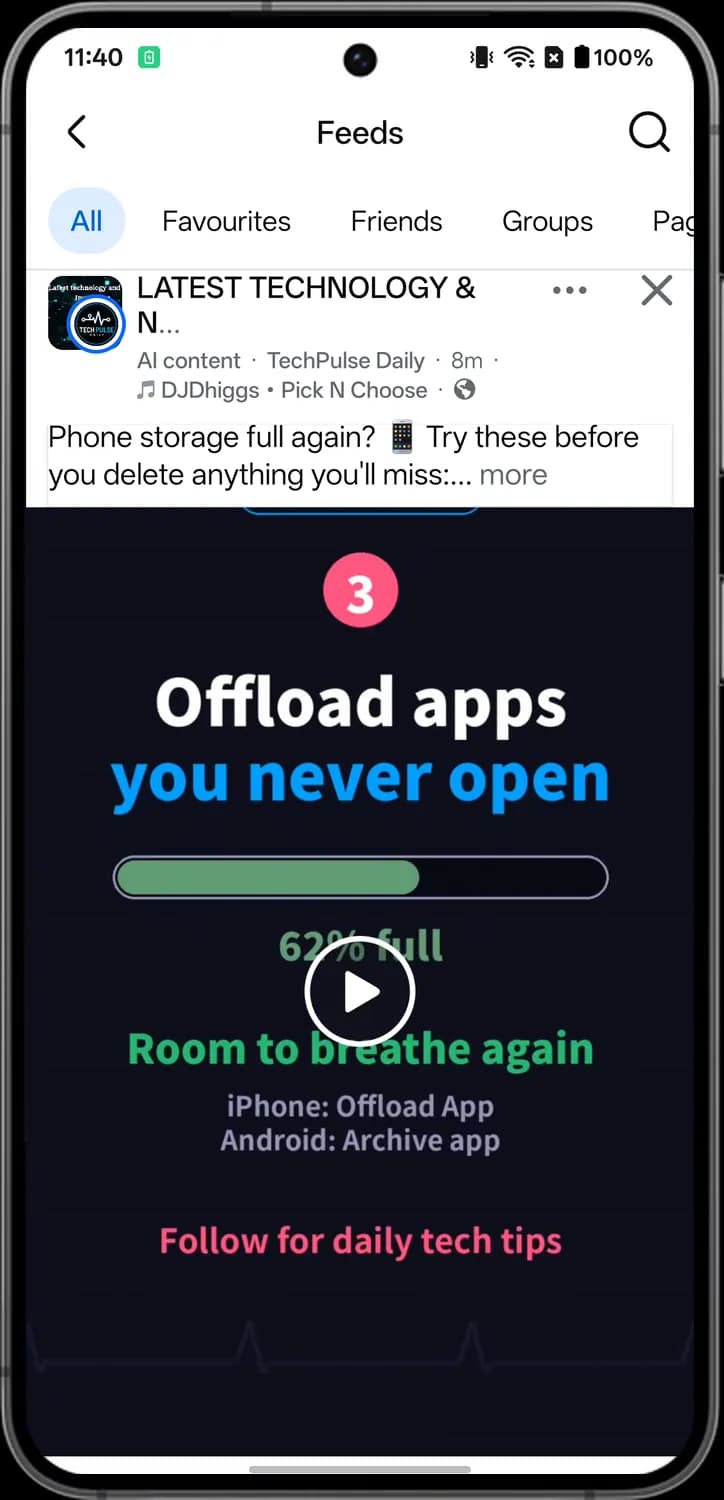

Back
The left arrow. Takes you back to the menu.

Search
The magnifying glass. Tap it to search for people, Pages, groups and posts.
All
The first chip. Shows recent posts from your friends, groups and Pages together, with the newest first.

Favorites
Shows only posts from the people and Pages you added to your Favorites list.

Friends
Shows only posts from your friends.

Groups
Shows only posts from groups you joined.
Post header
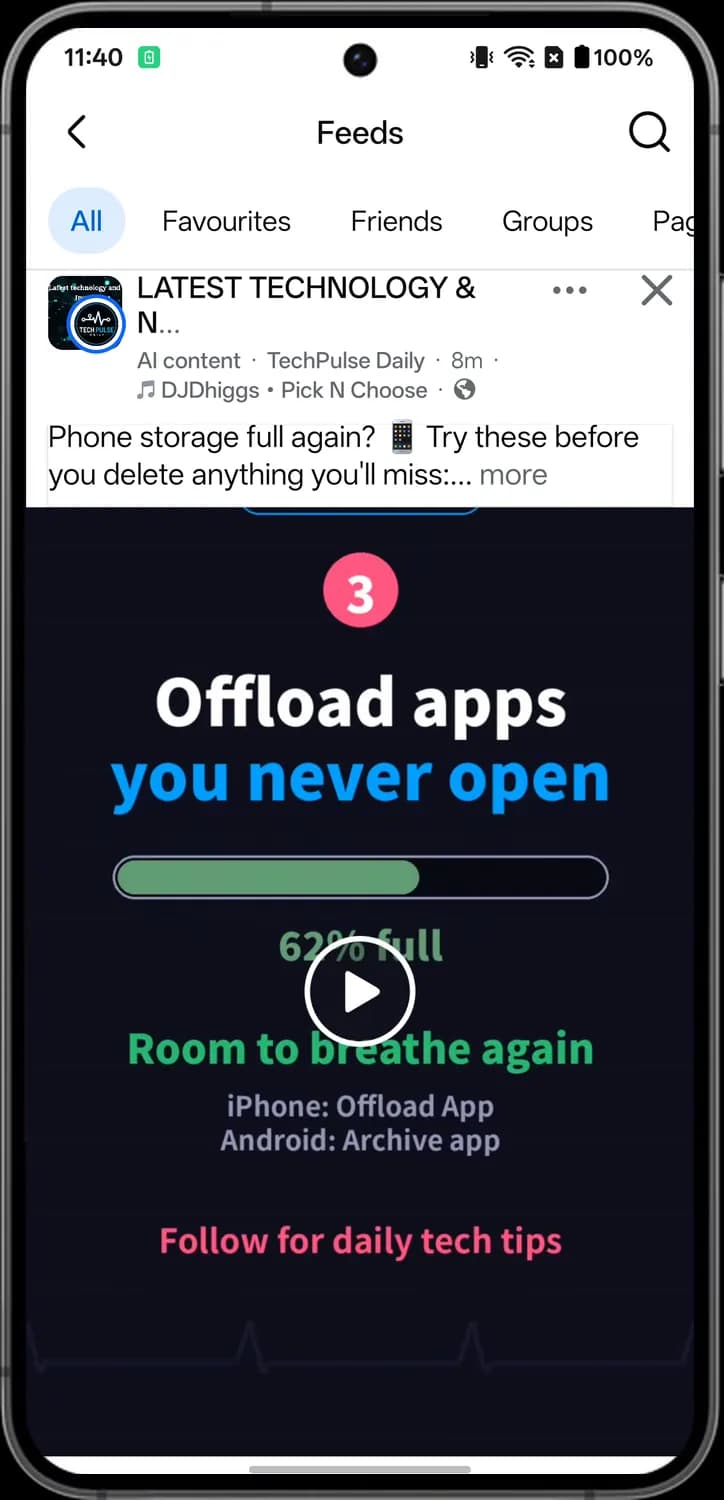
More options
The three dots on a post. Opens the post menu, with options such as saving the post or reporting it.

Hide post
The X on a post. Hides that post from your feed.

AI content
A gray label before the poster's name. Facebook adds it when a post was made or edited with AI, either because the poster said so or because Meta detected it.
Those are the meanings of Facebook icons and symbols. Meta changes the Facebook app often, so we update this guide every time the icons change, and you can bookmark this page to stay updated. These screens are from Facebook for Android, and most icons mean the same thing on iPhone. For more icon guides, you can also visit our TechPP icon guides.
Comments
0Share your thoughts, questions, or feedback about this guide.