
ChatGPT App Icons and Symbols Explained
ChatGPT started as a simple chat box, but the app now does a lot more: voice conversations, images, projects, scheduled tasks, plugins and a Think harder mode. Most of these features live behind small icons, and only a few of them have labels.
In this guide, you will learn what every icon in the latest ChatGPT app means, screen by screen. And this is an interactive guide. You can tap on every icon on the screens below to know what it does.
New chat and the message box
This is what you see when you open ChatGPT: a blank chat with two buttons at the top, a couple of suggestions and the message box at the bottom.
Top bar and suggestions
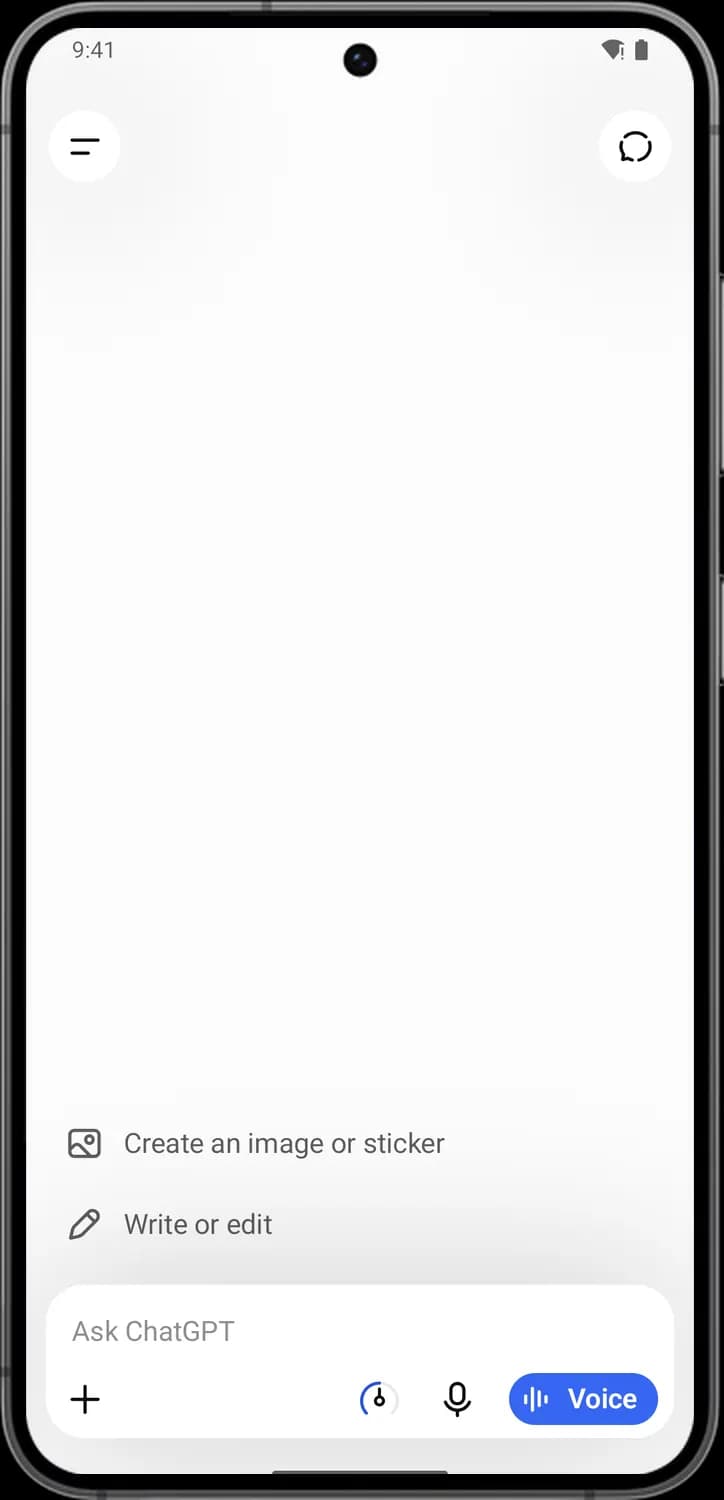

Menu
The two lines in the top left. Tap it to open the side menu with your chats, Images, Library, Projects and the rest of the app.

Temporary chat
The speech bubble with a dashed outline. Tap it to start a temporary chat that does not show up in your history, does not use or update memory and is not used to train models.

Create an image or sticker
The picture icon. Tap the suggestion to start a request for an image or a sticker, then describe what you want.

Write or edit
The pencil icon. Tap the suggestion to get help writing something new or improving text you already have.
Message box
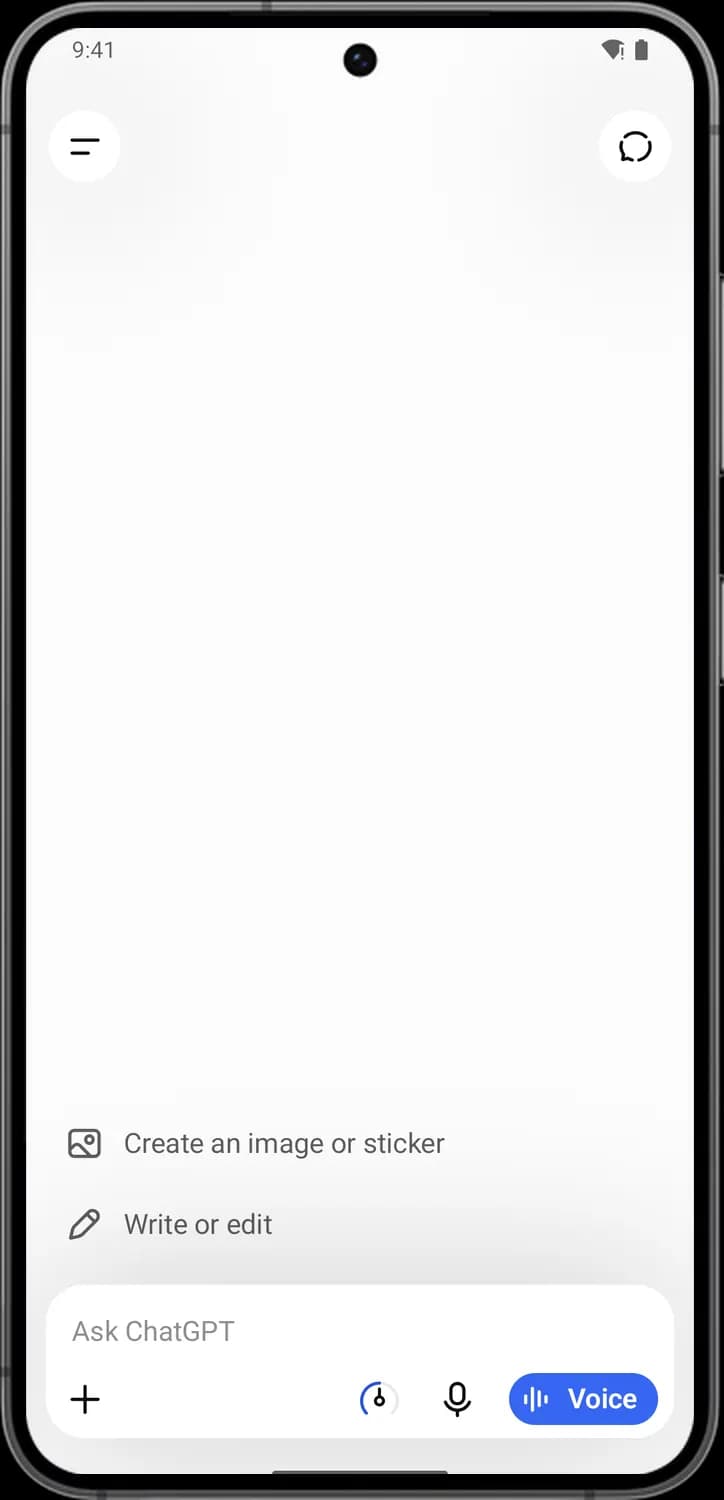

Attachment
The plus sign. Opens a small menu where you can add a photo or file, pick a plugin or turn Think harder on or off.

Think harder
The gauge icon shows up when Think harder is switched on, so ChatGPT takes more time to reason before it answers. Tap it to switch it off.

Dictation
The microphone. Tap it and speak, and ChatGPT types what you say into the message box so you can check it before sending.

Voice
The blue button with sound bars. Starts a voice conversation, where you talk to ChatGPT and it answers out loud.
The + menu
Tap the plus sign in the message box and this menu pops up above it.
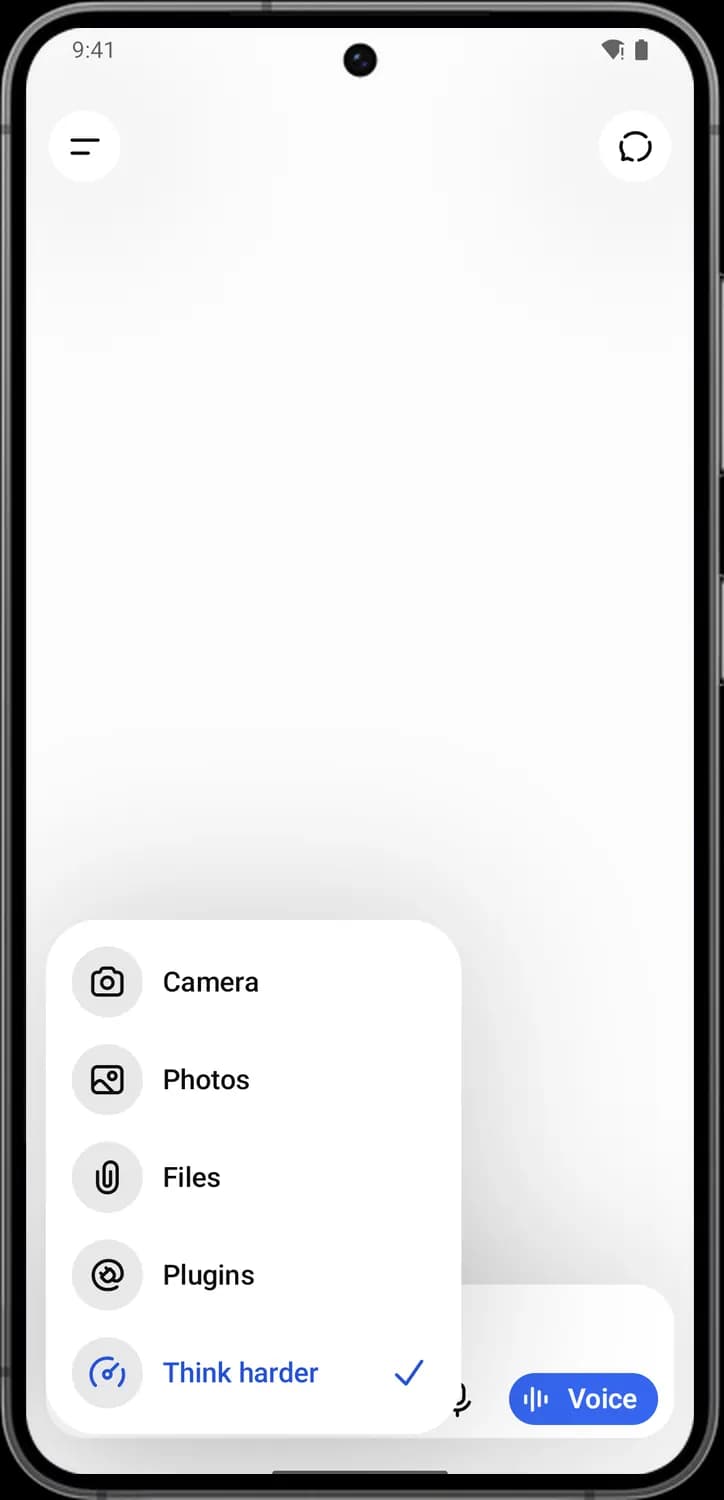

Camera
Opens the camera so you can take a photo and add it to your message, for example to ask about something in front of you.

Photos
Opens your phone's gallery so you can pick one or more photos to add to your message.

Files
Lets you attach a document, like a PDF or a spreadsheet, so ChatGPT can read it, summarize it or answer questions about it.

Plugins
Lets you pick one of your plugins, so ChatGPT can use a connected app like Gmail or GitHub for this message.

Think harder
The gauge icon. The tick means it is on, and ChatGPT reasons for longer before it answers, which helps with harder questions. Tap it to switch it on or off.
In a chat
Once you send a message, the top bar changes and a row of small buttons shows up under every reply. Long-press your own message for a few more options.
Top bar
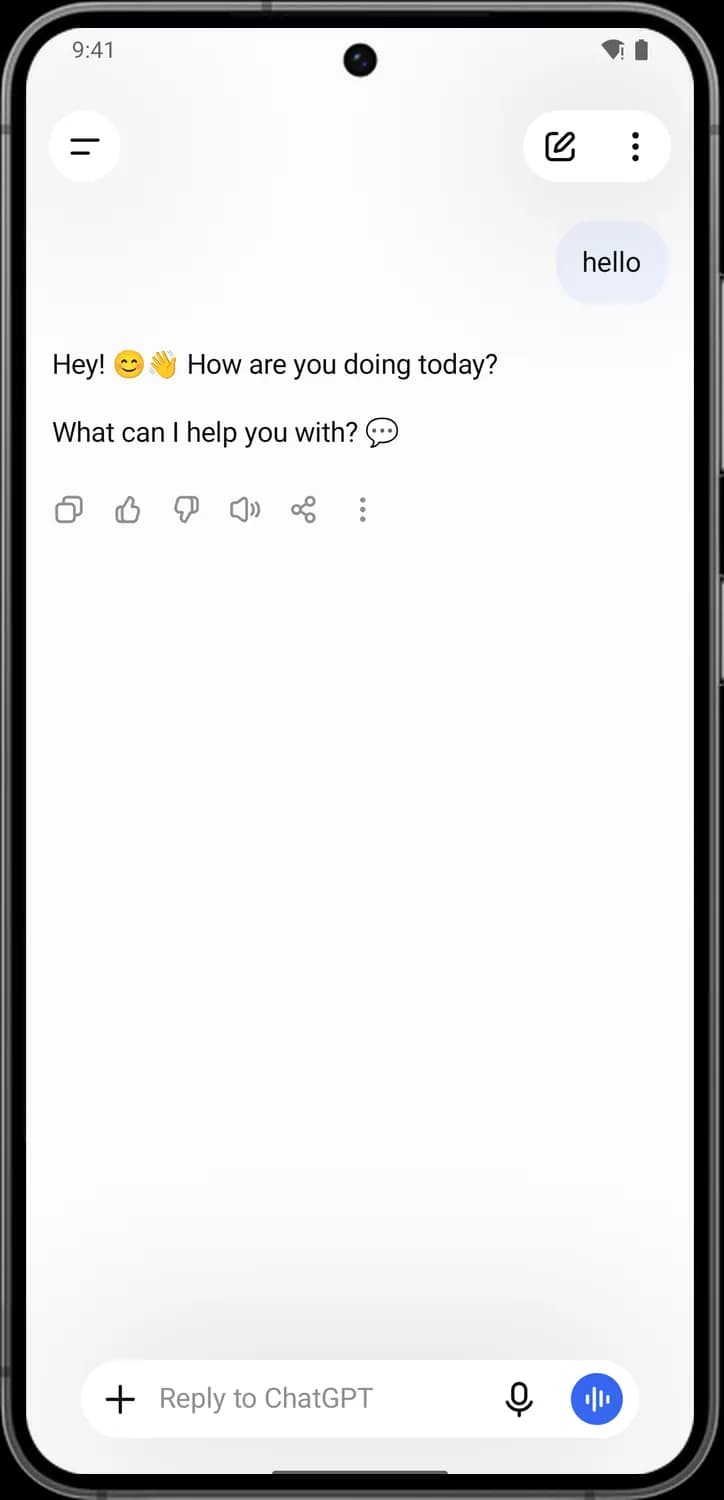

New chat
The square with a pencil. Leaves this chat and starts a fresh one. The chat you were in is saved in the side menu.

Chat menu
The three dots. Opens the menu for this chat, with Share, Pin, Add to project, Find in chat, Archive, Delete and more.
Under a reply
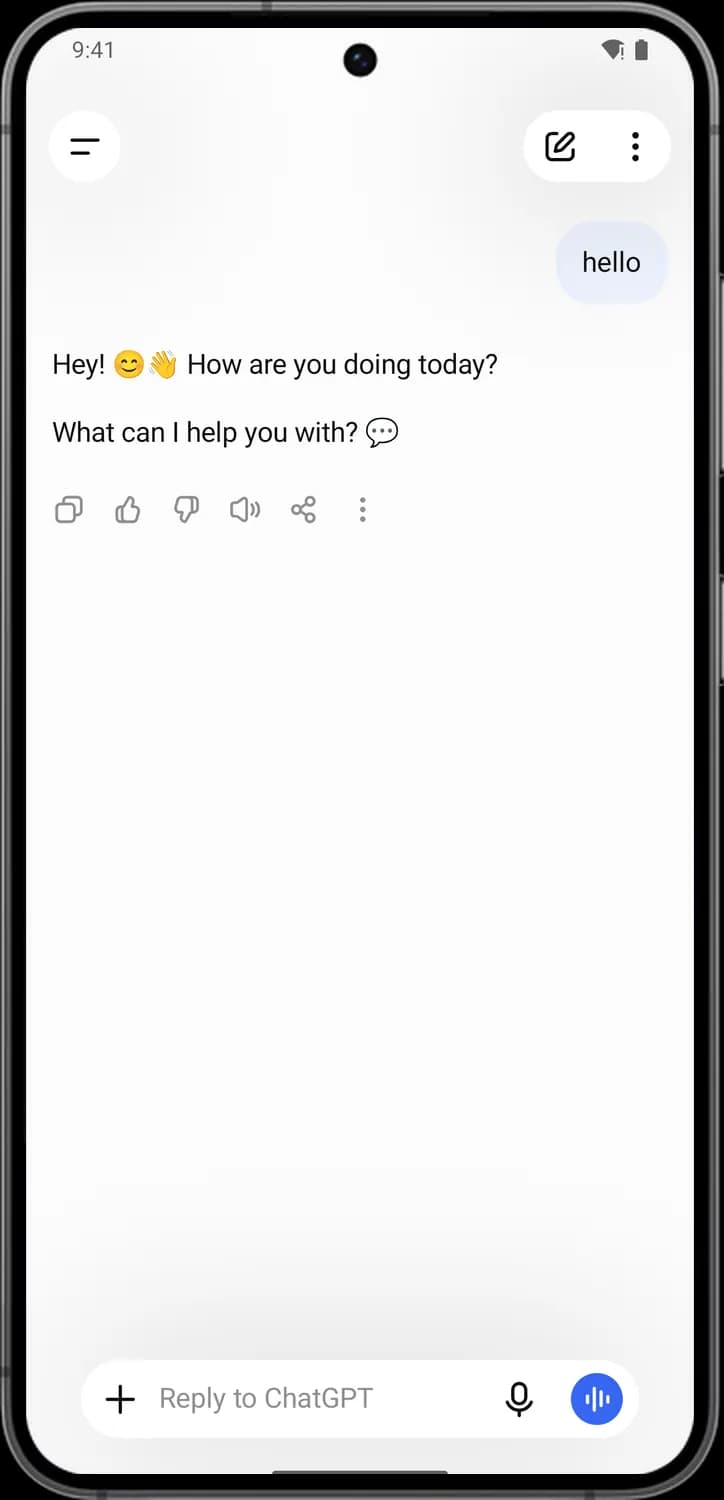

Copy reply
The two squares. Copies ChatGPT's whole reply so you can paste it somewhere else.

Good response
The thumbs up. Tells OpenAI this reply was helpful.

Bad response
The thumbs down. Tells OpenAI this reply was not good, and you can add what was wrong with it.

Read aloud
The speaker. ChatGPT reads the reply out loud in your chosen voice. Tap it again to stop.

Share reply
The three connected dots. Opens sharing options so you can send this reply or a link to the chat to someone else.

More actions
The three dots under the reply. Opens a small menu with Branch in new chat, Retry and Search the web.
More actions menu
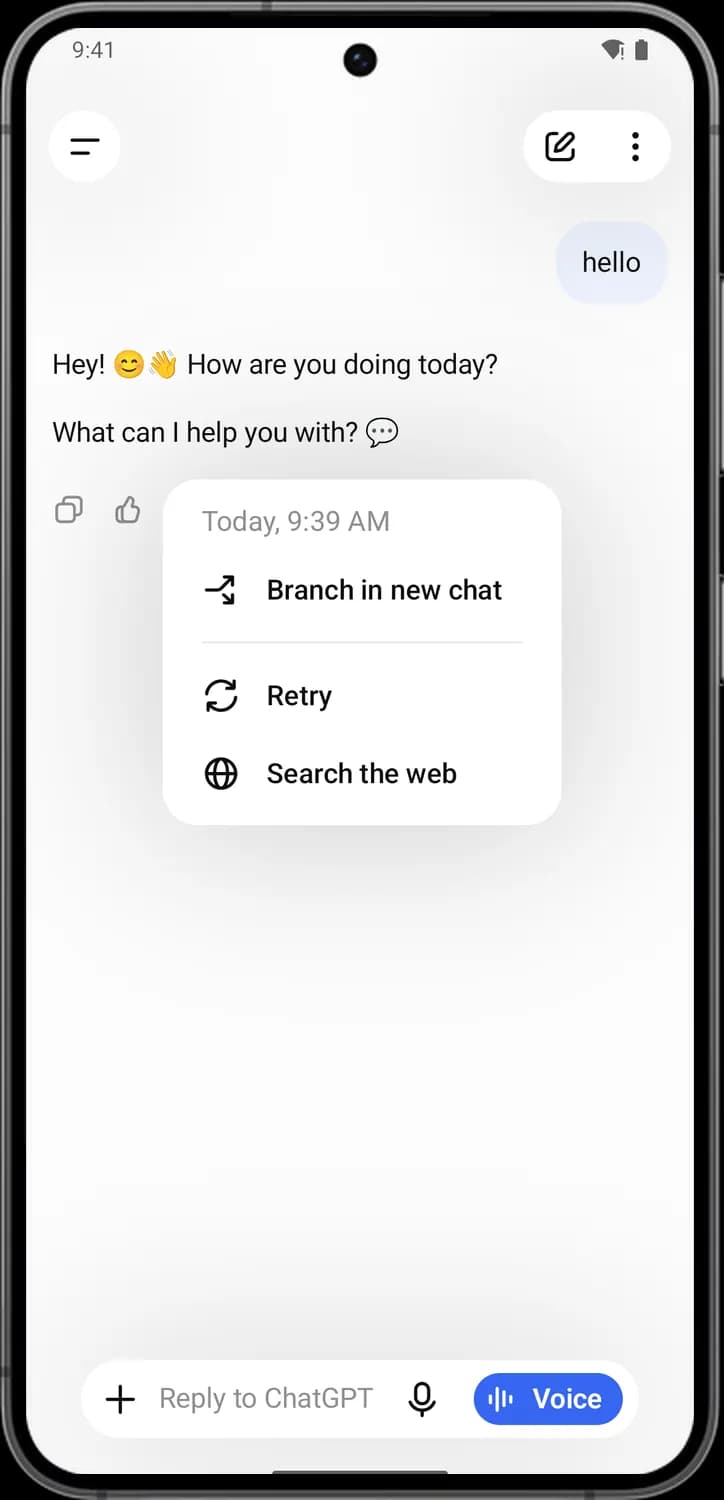

Branch in new chat
Starts a new chat that carries on from this reply, so you can try a different direction without changing the original chat.

Retry
Asks ChatGPT to write a new answer to the same message. The new reply replaces the old one on screen.

Search the web
Has ChatGPT answer again, this time searching the web first, so the reply can use current information and show its sources.
Long-press on your message
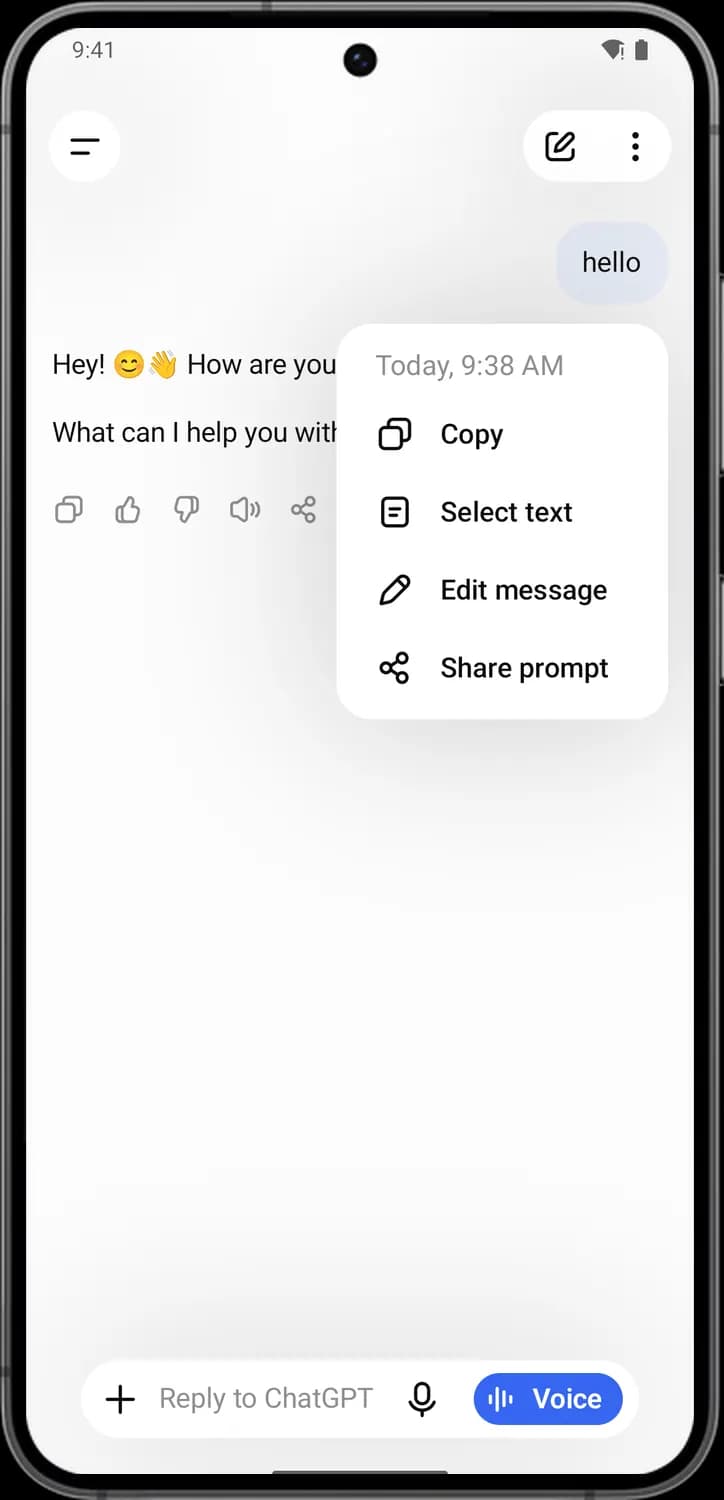

Copy message
Copies the whole message you sent.

Select text
Opens your message so you can select and copy just part of it.

Edit message
Lets you change what you wrote and send it again. ChatGPT then writes a new reply to the edited message.

Share prompt
Opens your phone's share sheet to send the text of your message to another app.
Chat menu
Tap the three dots at the top right of a chat to open this menu. The name of the chat is shown at the top.
Chat menu, part 1
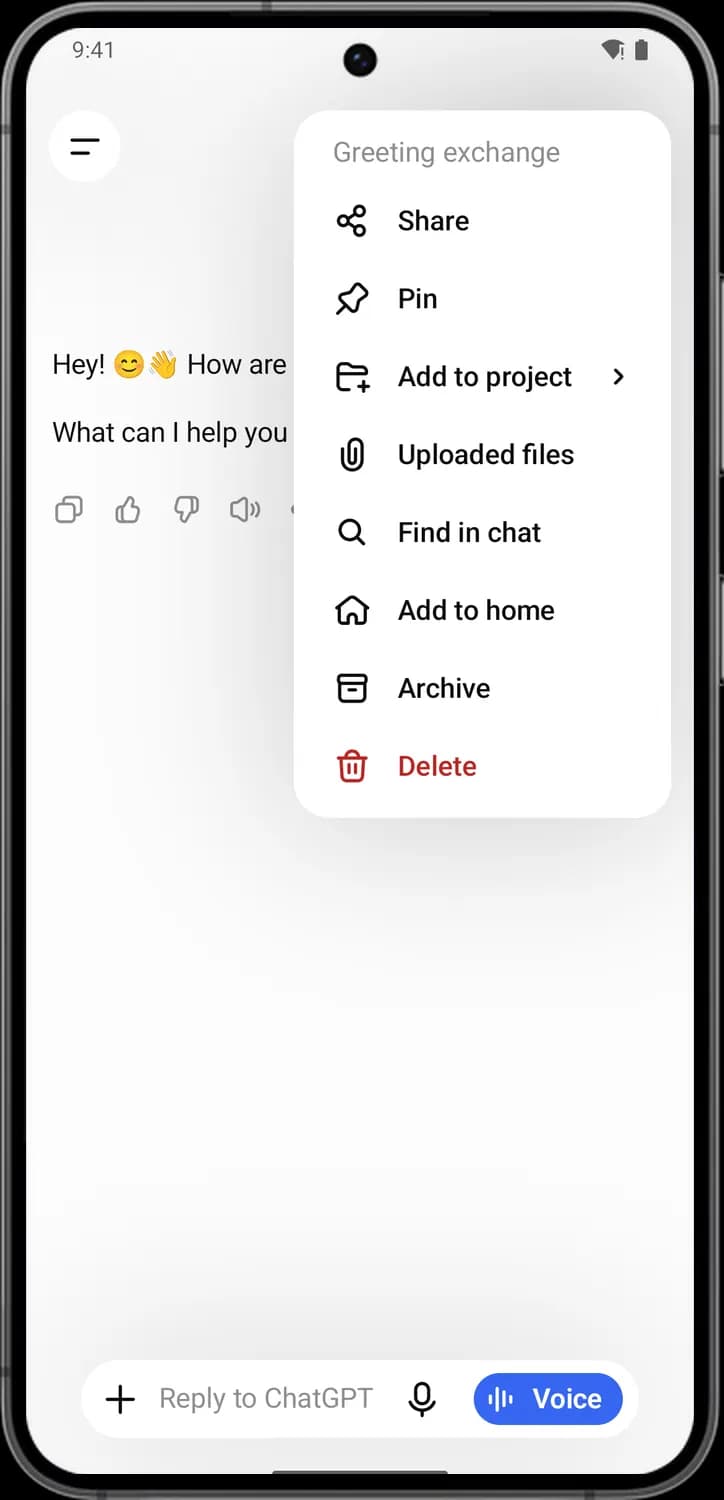

Share
Creates a link to this conversation that you can send to anyone. People with the link can read the chat, but your later messages are not added to it.

Pin
Pins this chat to the top of the chat list in the side menu, so it is easy to find again.

Add to project
Moves this chat into one of your projects. The arrow means it opens a list of projects to pick from, or you can create a new one.

Uploaded files
Shows the files and photos you have added to this chat.
Chat menu, part 2
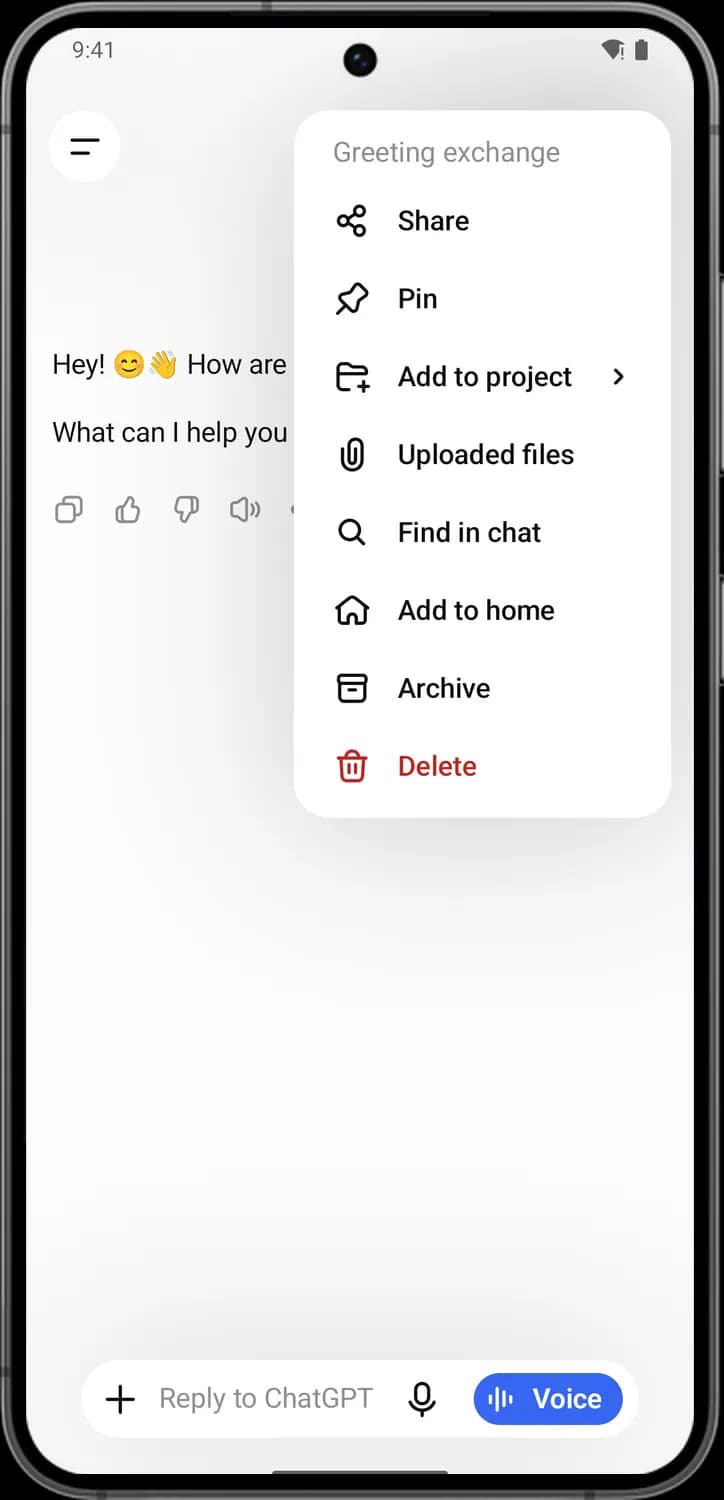

Find in chat
Lets you search for a word or phrase inside this conversation.

Add to home
Puts a shortcut to this chat on your phone's home screen, so you can open it with one tap.

Archive
Hides the chat from your chat list without deleting it. You can find archived chats again in Settings.

Delete
Deletes this chat. ChatGPT asks you to confirm first.
Temporary chat
Tap the dashed speech bubble on a new chat to start a temporary chat. A temporary chat is not saved to your history, and OpenAI may keep a copy for up to 30 days for safety.
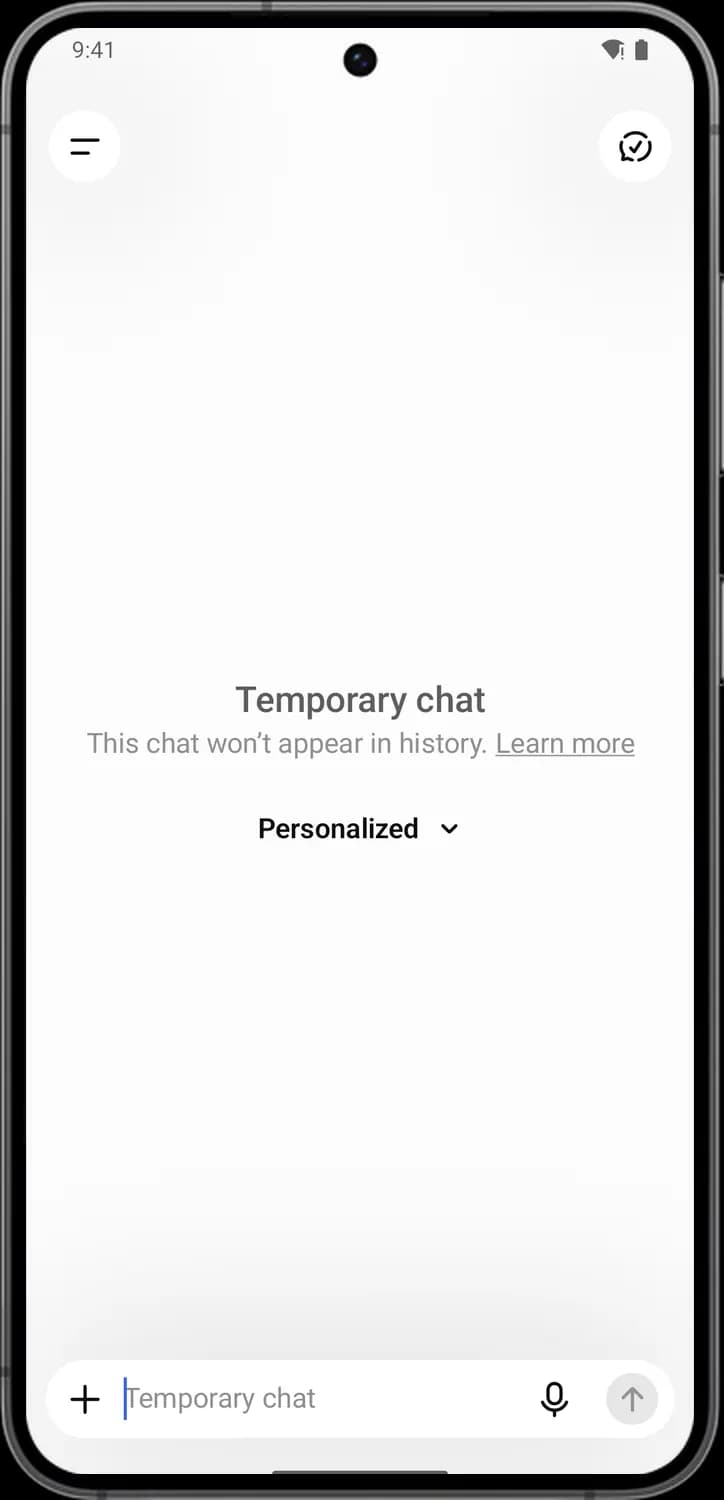

Temporary chat on
The speech bubble with a tick shows you are in a temporary chat. Tap it to leave and go back to a normal chat.

Personalization
Shows whether this temporary chat uses your personalization, like your memories and custom instructions. Tap it to change that for this chat.

Send
The arrow pointing up. It turns dark once you type something. Tap it to send your message.
Voice mode
Tap the blue Voice button in the message box to talk to ChatGPT. The screen turns into a big moving orb with a few controls around it.
During a voice chat
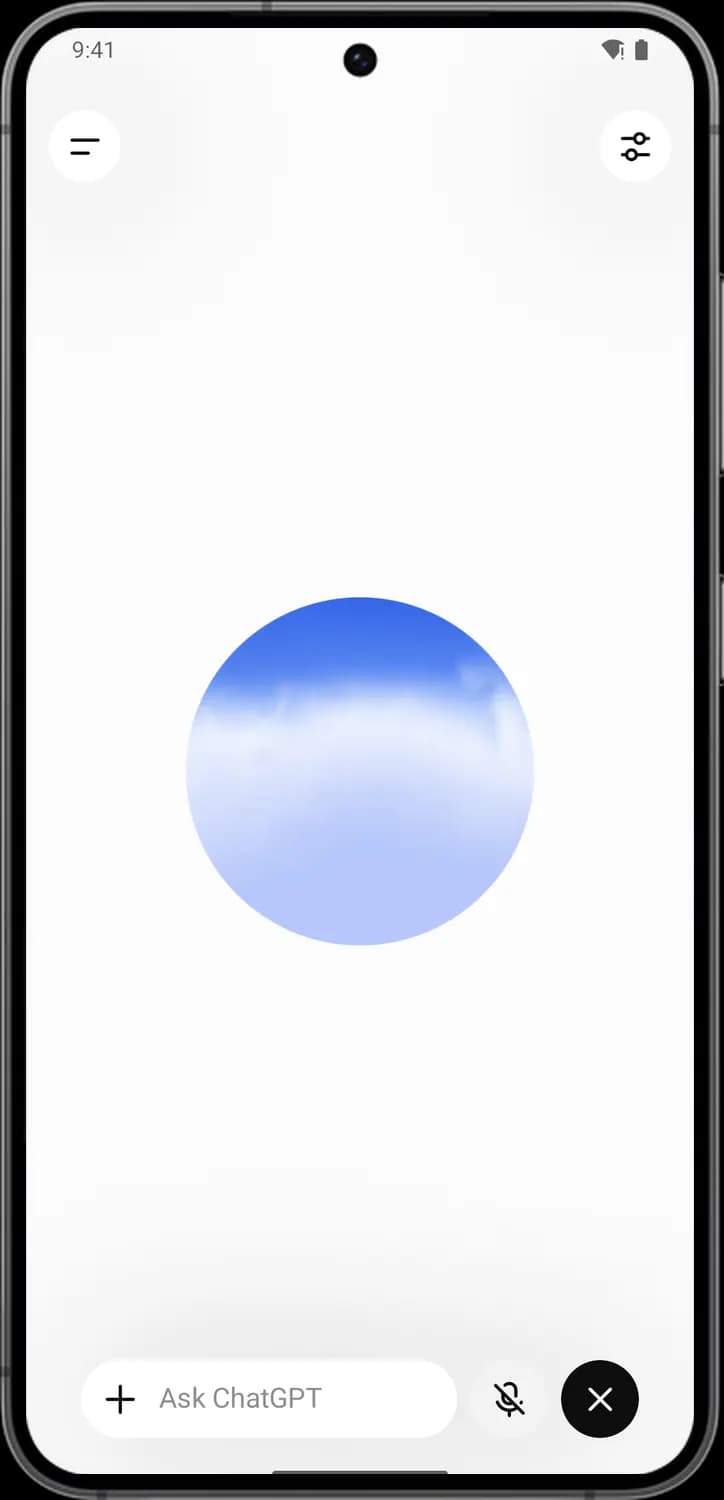

Voice settings
The sliders in the top right. Opens a sheet where you can change the voice, the language and where the sound plays.

Orb
The orb moves as you talk and as ChatGPT answers. Tap it to turn focus mode on or off.

Mute microphone
The microphone with a line through it. Tap it to mute yourself so ChatGPT stops listening, and tap it again to unmute.

End
The X in the black circle. Ends the voice conversation and takes you back to the chat, where you can read what was said.
Voice settings
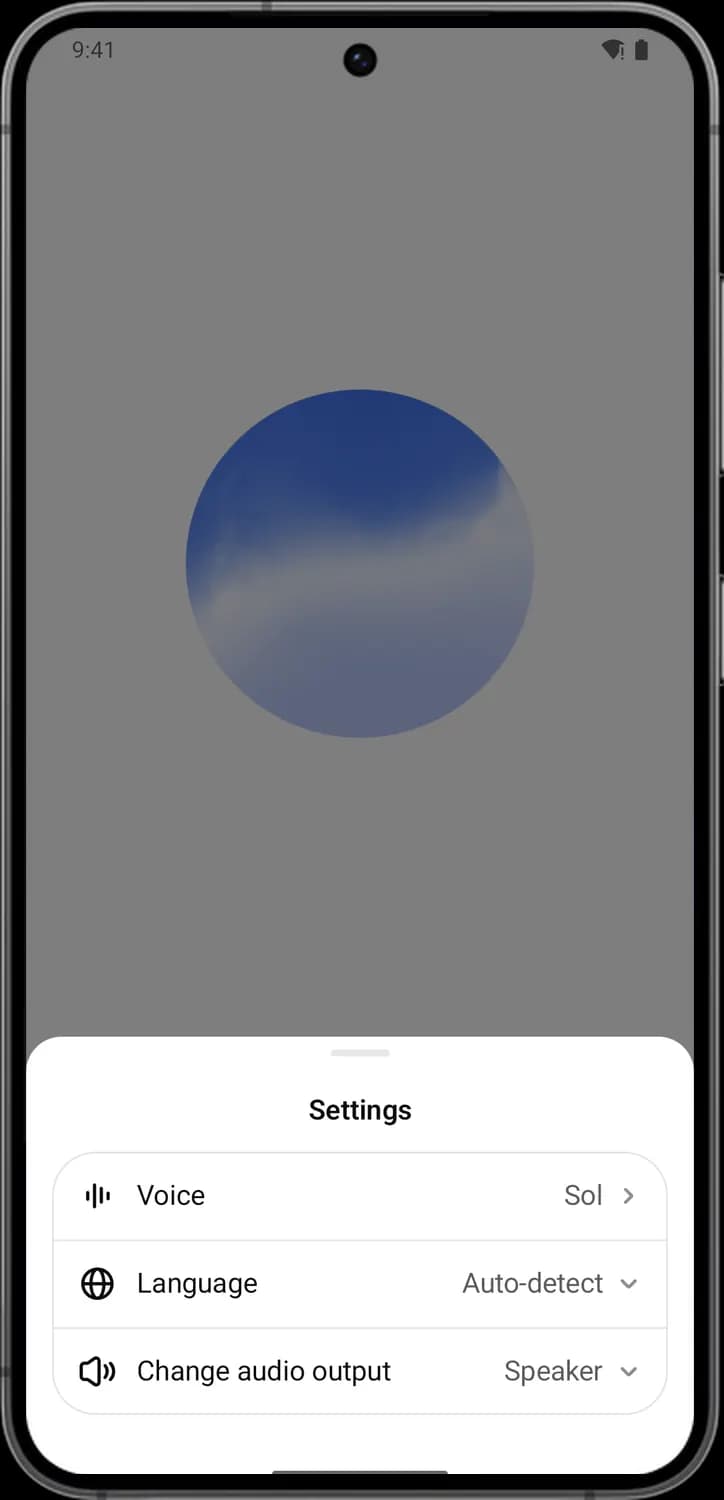

Voice
Pick the voice ChatGPT speaks with. The name on the right (here Sol) is the voice you have now.

Language
Set the language you speak in. Auto-detect lets ChatGPT work it out on its own.

Change audio output
Choose where you hear ChatGPT, such as the phone's speaker or connected headphones.
Side menu
Tap the two lines in the top left of any chat to slide out the side menu. Your recent chats are listed below the shortcuts.
Top of the menu
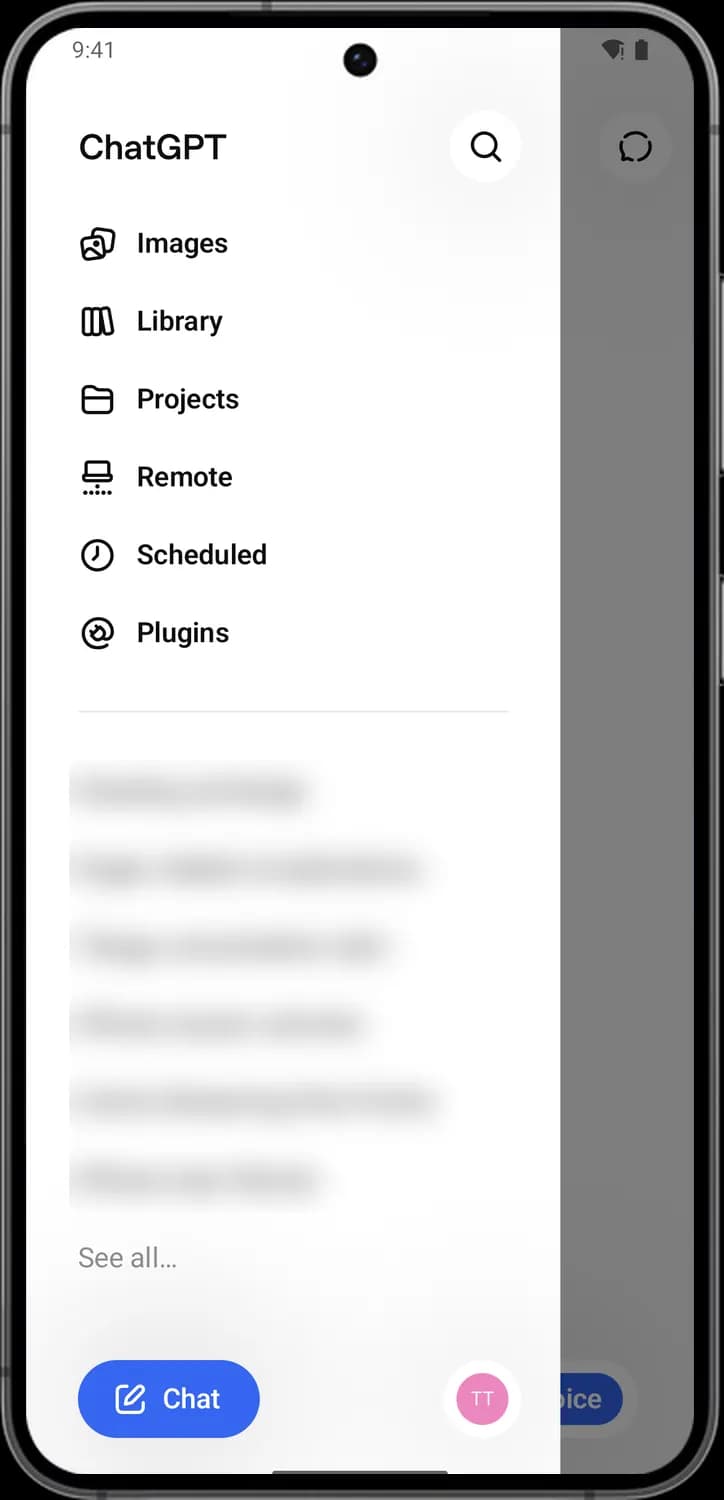

Search
The magnifying glass. Opens search, where you can find past chats, files and projects by typing a word.

Images
Opens Images, where you can create pictures, try trending styles and start from ready-made templates.

Library
Opens your Library: the files and images you have added to or made in ChatGPT, all in one place.

Projects
Opens Projects, where you group related chats, files and instructions together.

Remote
Set up remote control, so you can use ChatGPT on your desktop computer from your phone.

Scheduled
Opens scheduled tasks: things you ask ChatGPT to do at a set time or on repeat, like a daily news update.

Plugins
Opens the plugin directory, where you can add plugins that connect ChatGPT to apps like Gmail, Google Drive and GitHub.
Bottom of the menu
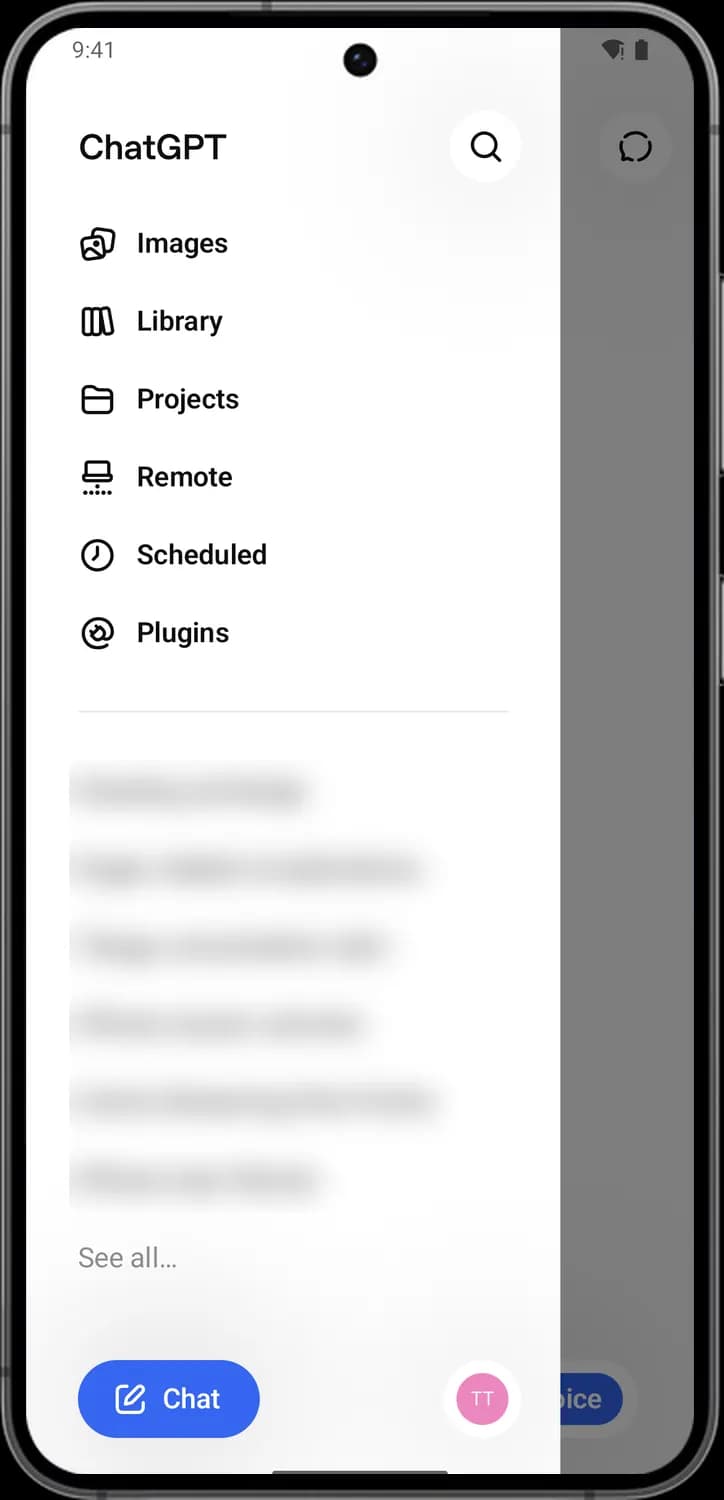

New chat
The blue Chat button with a pencil. Closes the menu and starts a new chat.

Account settings
Your profile picture or initials (TT here). Opens Settings, where you manage your account and how ChatGPT works.
Images
Tap Images in the side menu to open a gallery of trending styles and templates. Tap a card to use it, or describe your own image in the box at the bottom.
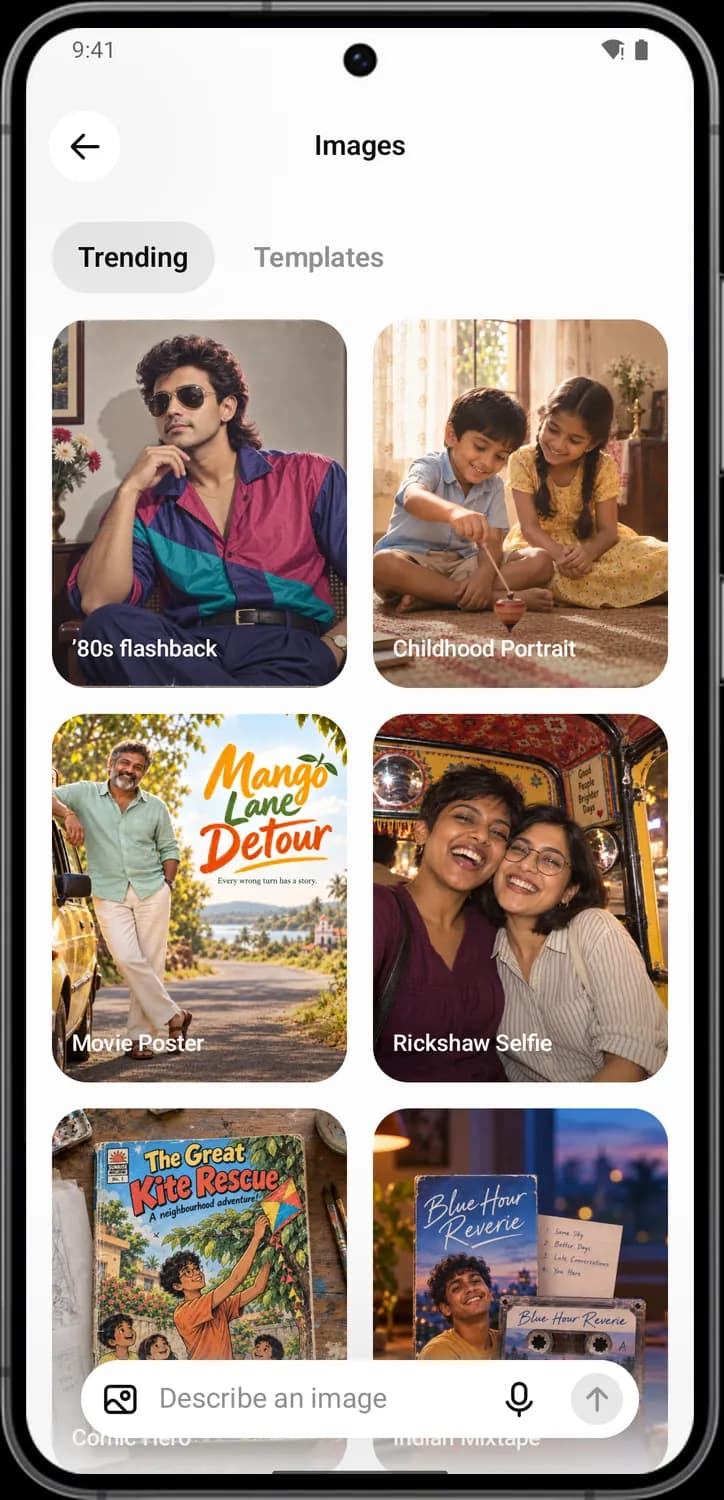

Back
The arrow in the top left. Takes you back to the previous screen. You see it on most screens you open from the side menu.

Add a photo
The picture icon in the message box. Pick a photo from your gallery so ChatGPT can edit it or use it in the image it makes.
Library and Projects
Library keeps your files and images in one place. Projects group chats and files on one topic. Both open from the side menu.
Library
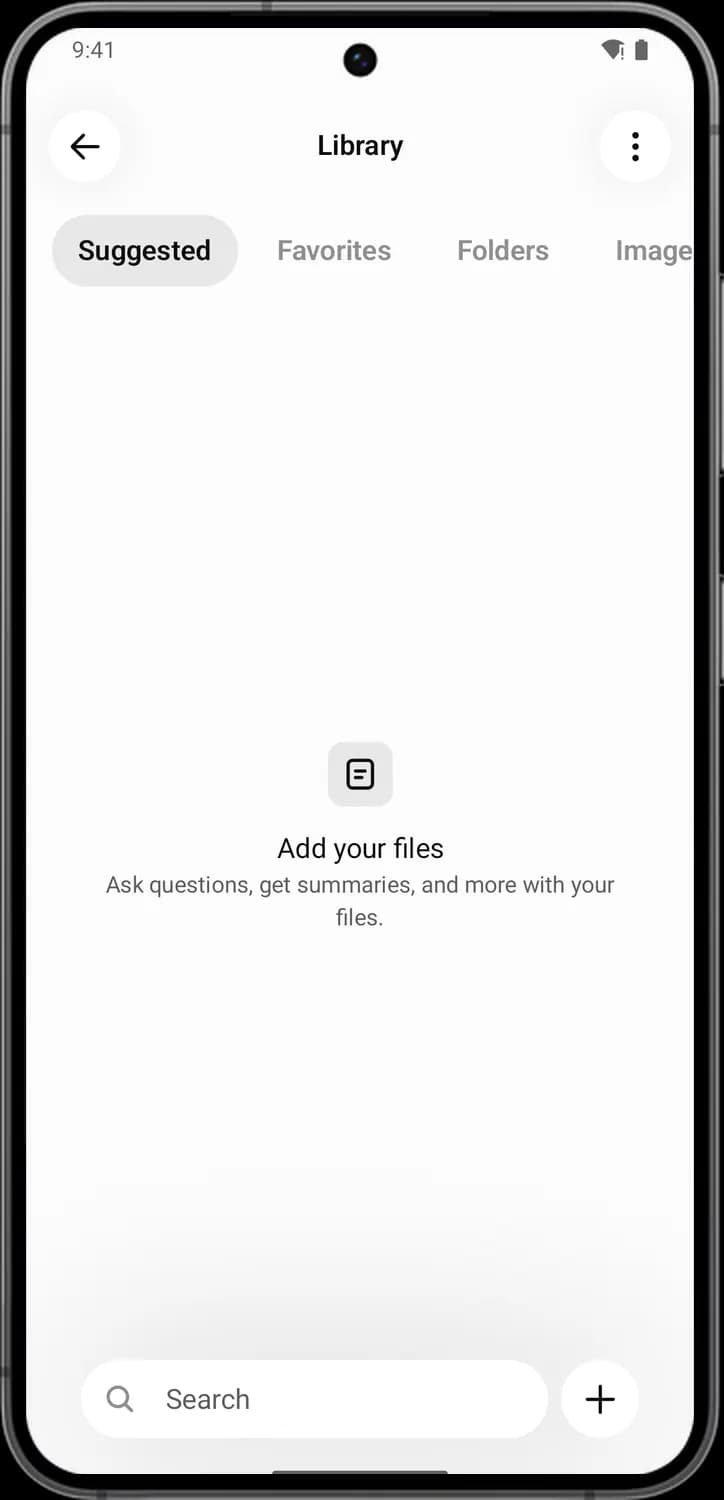

Search library
The magnifying glass. Type to find a file or image in your library.

Add to library
The plus sign. Lets you add a file from your phone to your library, so you can use it in any chat.
Projects
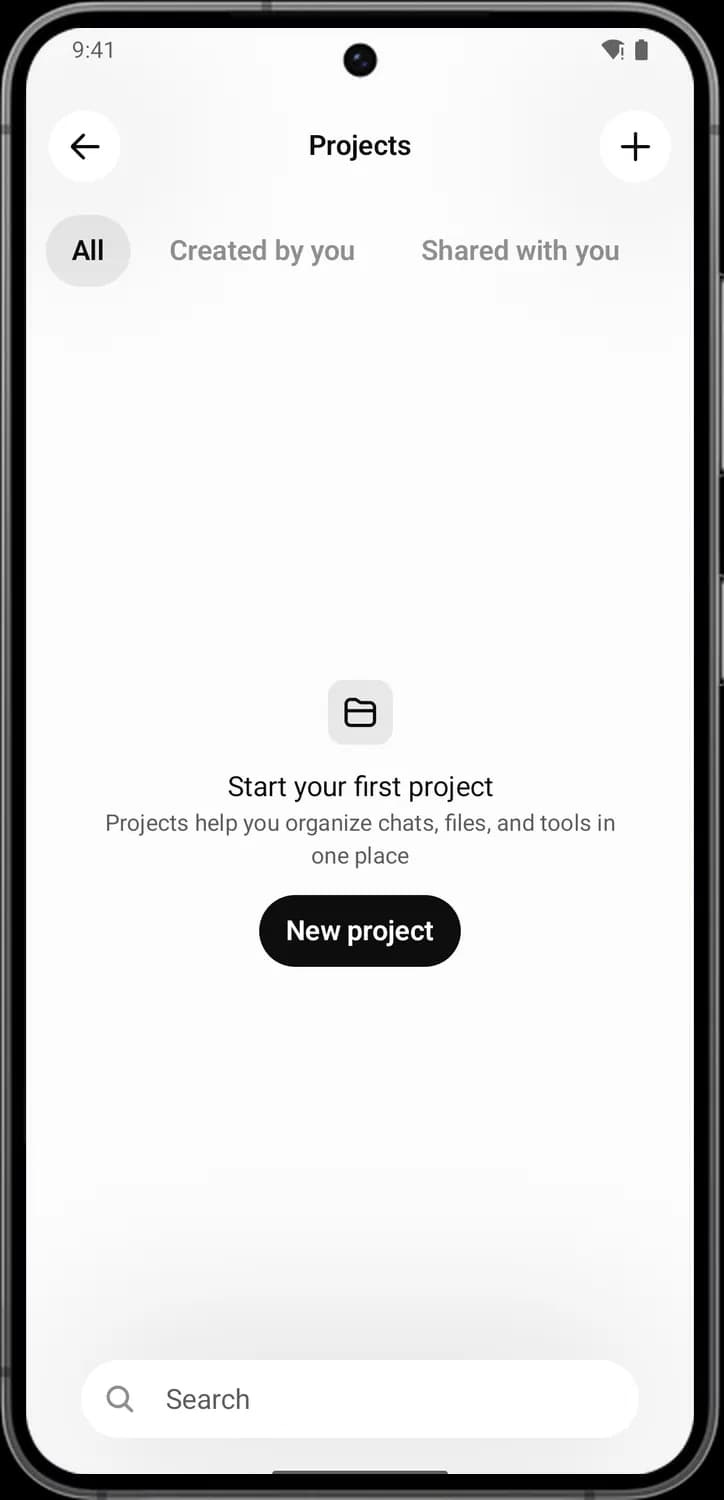

New project
The plus sign in the top right. Creates a new project. You give it a name, then add chats and files to it.

Search projects
The magnifying glass. Type to find one of your projects by name.
Plugins
Tap Plugins in the side menu to see the plugins you have installed and browse popular ones. Tap a plugin to read what it does.
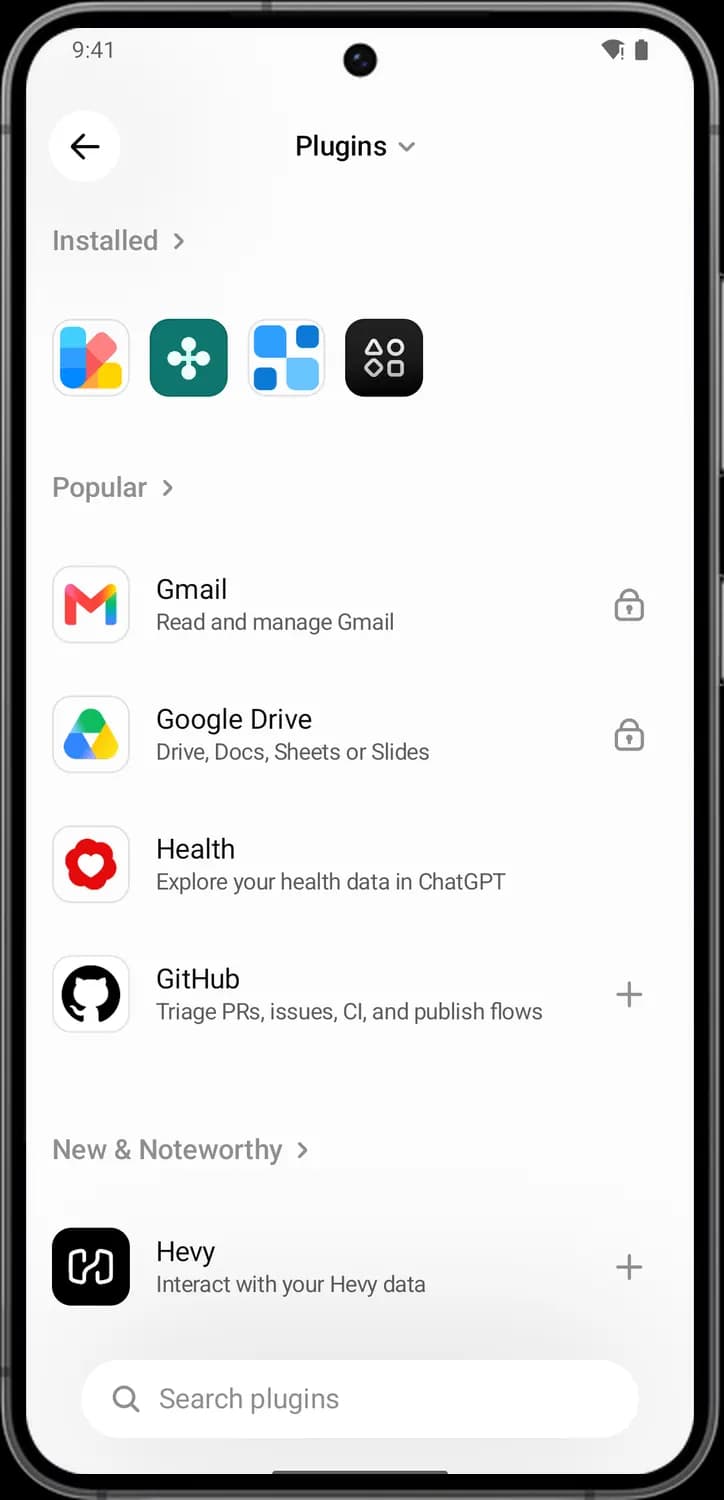

Add plugin
The plus sign. Adds the plugin. For apps like GitHub you then sign in to connect your account.

Search plugins
The magnifying glass. Type the name of an app or task to find a plugin for it.
Settings
Tap your initials at the bottom of the side menu to open Settings. Every row has its own icon, and the list scrolls a long way down.
Profile and My ChatGPT
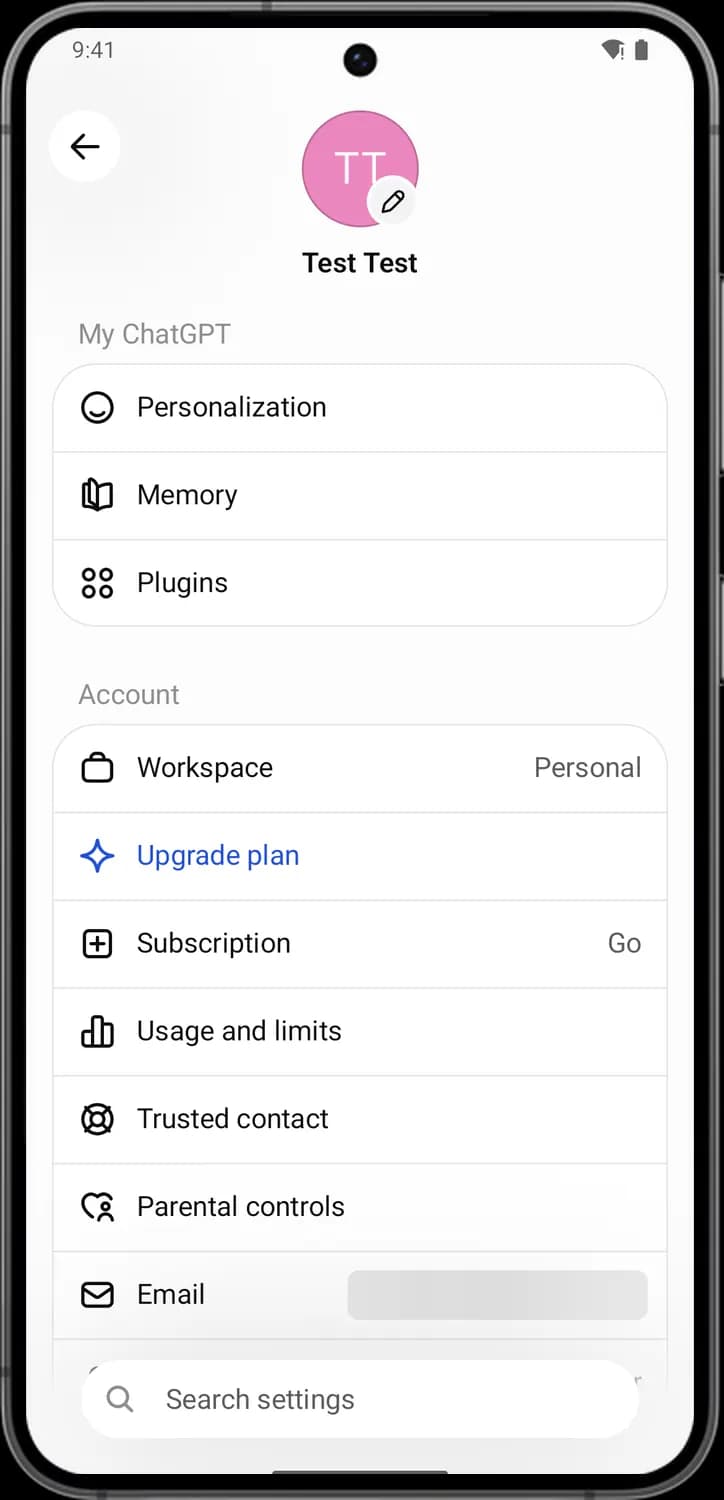

Edit profile
The pencil on your profile picture. Change your name and profile photo.

Personalization
Set how ChatGPT talks to you, like its style and tone, and add custom instructions and details about yourself.

Memory
See and delete what ChatGPT remembers about you, or turn memory off.

Plugins settings
See the plugins you have connected and manage or disconnect them.

Search settings
The magnifying glass at the bottom. Type to jump straight to a setting instead of scrolling.
Account
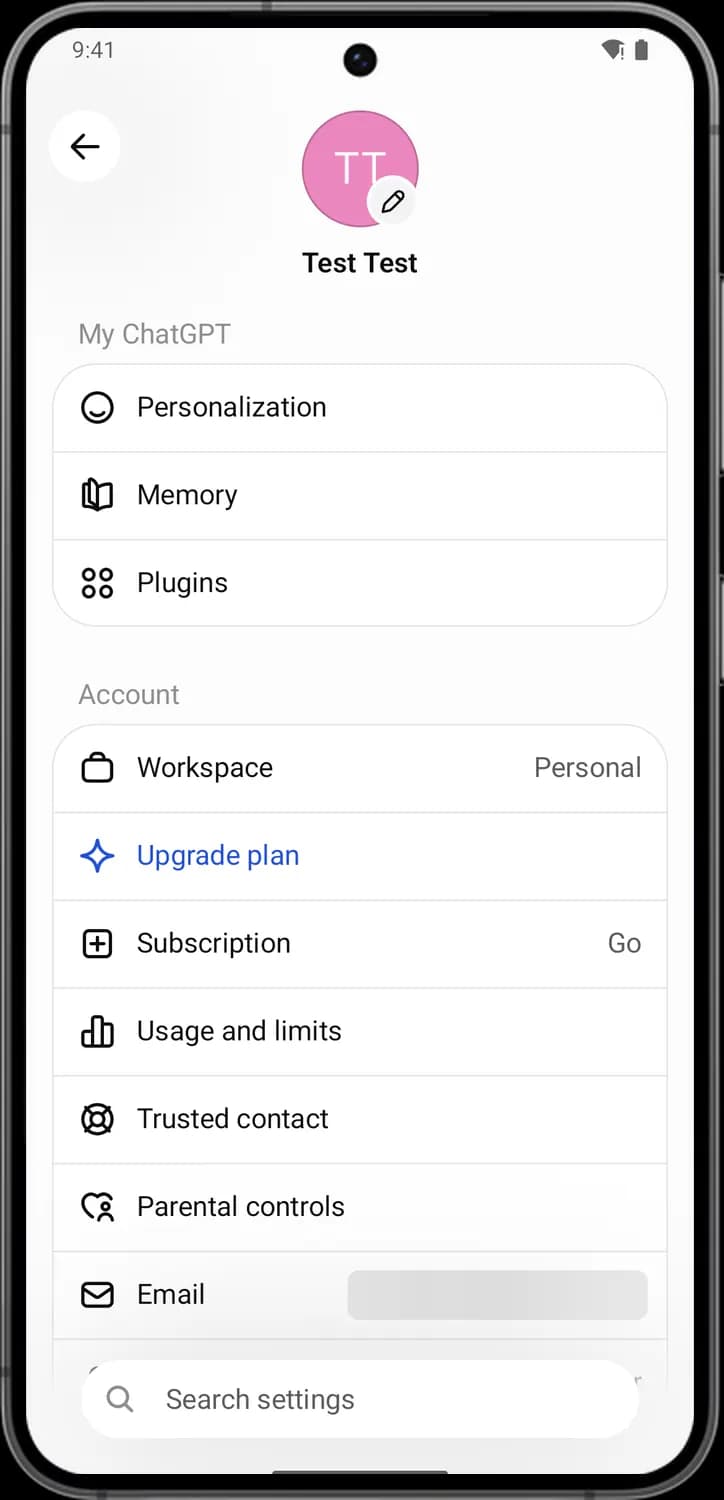

Workspace
Shows which workspace you are using (Personal here). If you belong to a work or team workspace, you switch to it here.

Upgrade plan
The sparkle. Shows the paid ChatGPT plans and lets you upgrade.

Subscription
Shows your current plan (Go here) and lets you manage or cancel it.

Usage and limits
Shows how much you have used ChatGPT and the limits on your plan.

Trusted contact
Add a person you trust, like a friend or family member, as an emergency contact for your account.

Parental controls
Link a teen's account to yours and manage their settings, like quiet hours and which features they can use.

Email
Shows the email address your account uses.
Appearance and app settings
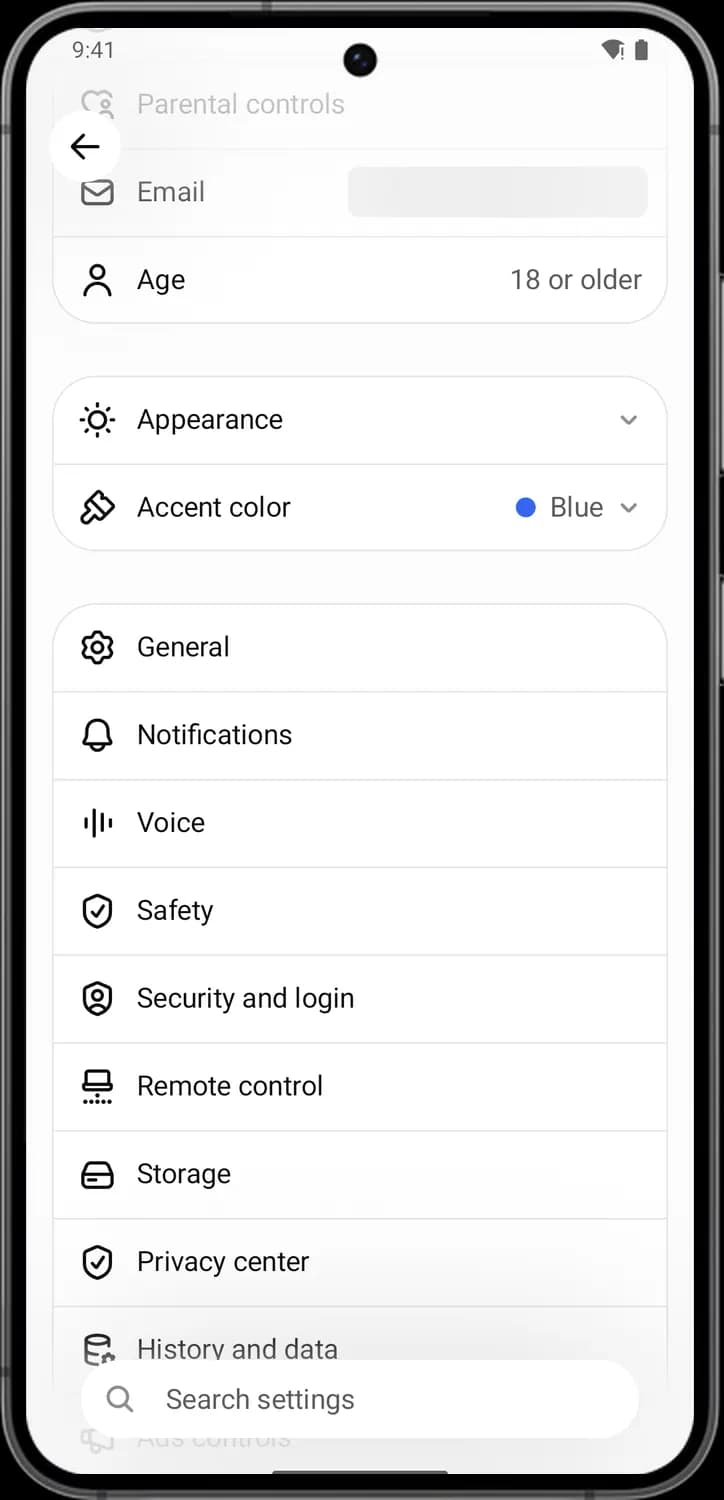

Age
Shows the age group on your account (18 or older here). If it is wrong, this is where you can verify your age.

Appearance
Choose a light or dark look for the app, or let it follow your phone's setting.

Accent color
Pick the color used for buttons and highlights in the app (Blue here).

General
Opens the app's general preferences.

Notifications
Choose which notifications ChatGPT sends you.

Voice settings
Choose ChatGPT's voice and other options for voice mode.

Safety
Opens the safety settings for your account.
Security and storage
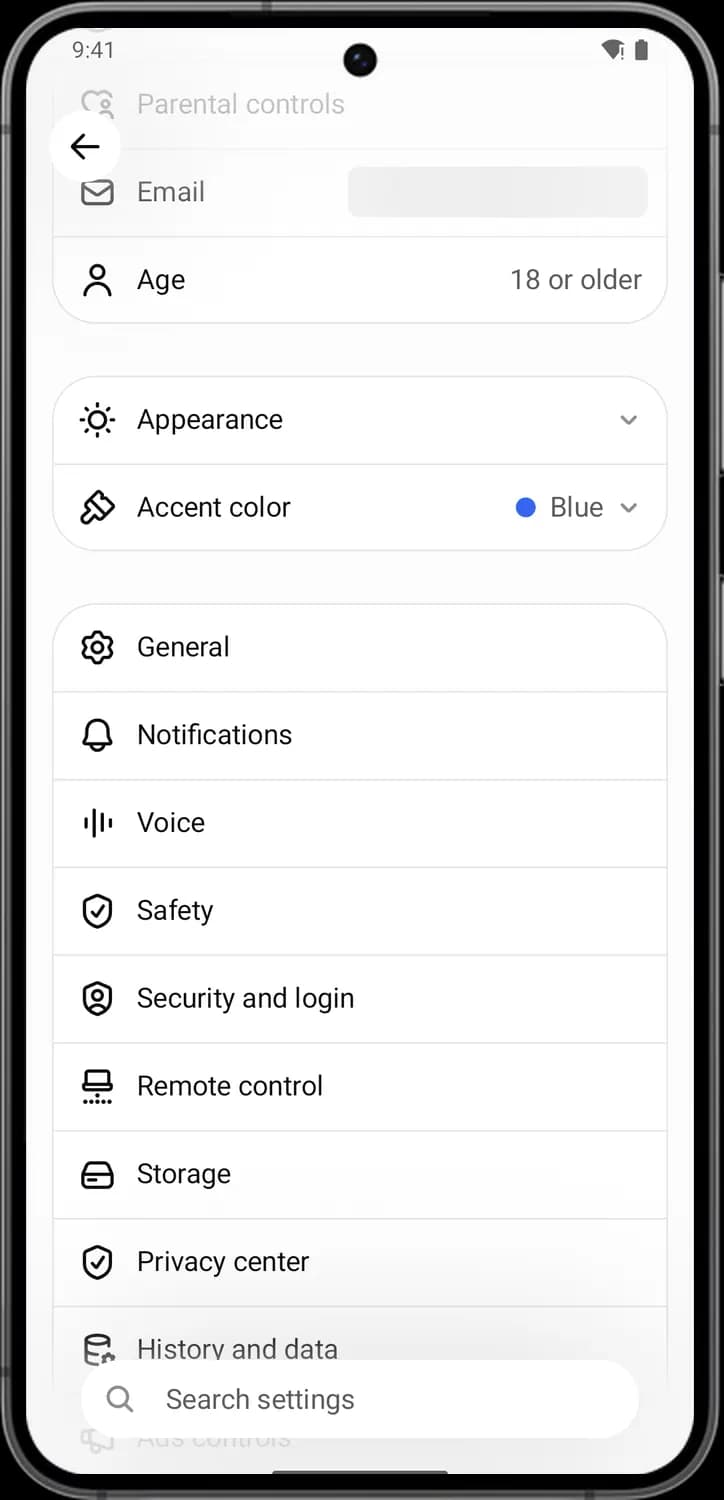

Security and login
Manage how you sign in, like multi-factor authentication, and log out of other devices.

Remote control
Turn remote control of ChatGPT on your desktop on or off and manage it.

Storage
See how much space your files and images take up and manage them.

Privacy center
Opens OpenAI's privacy center, where you can make requests about your personal data.
Data, help and logging out
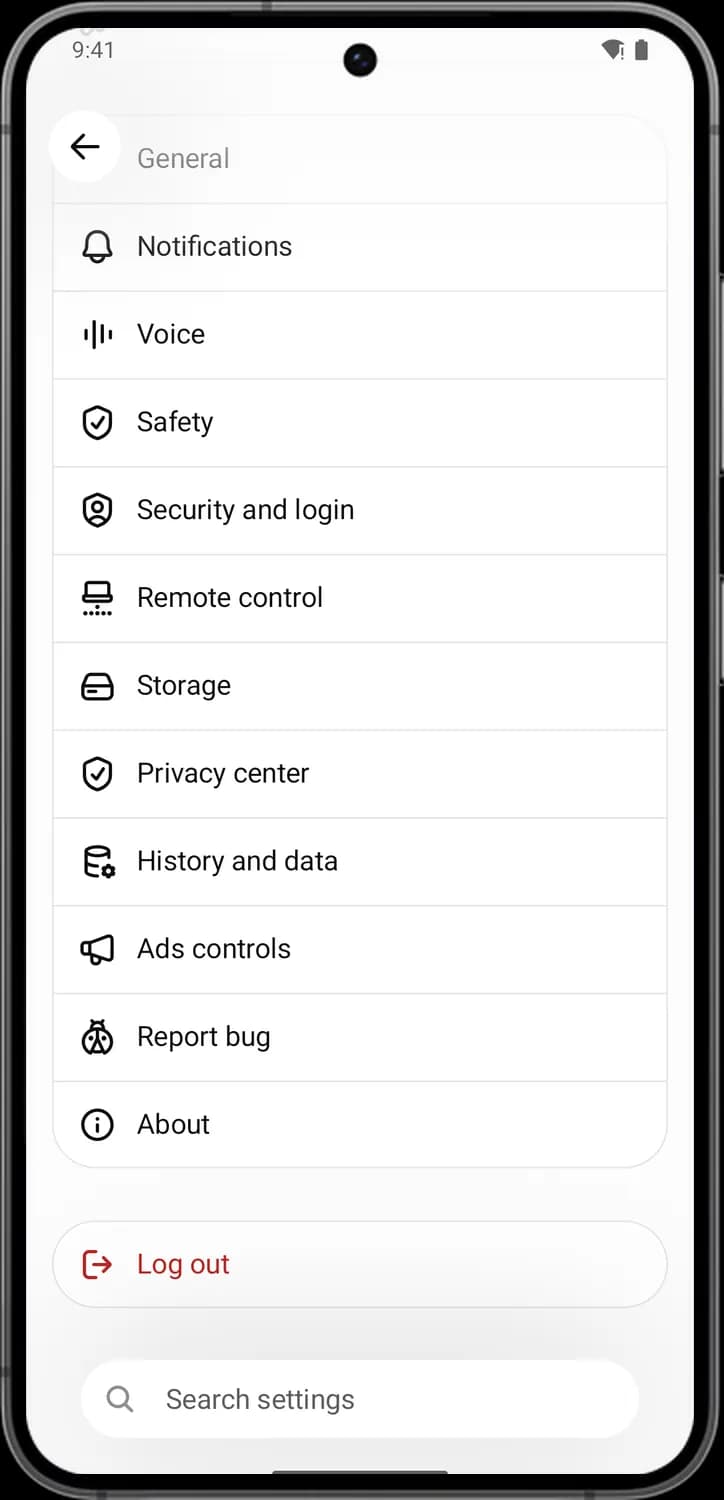

History and data
Manage your data: whether your chats help improve the models, archived chats, exporting your data and deleting all chats.

Ads controls
Manage the ads you see in ChatGPT, such as whether they are personalized.

Report bug
Send a bug report to OpenAI when something in the app is not working.

About
Shows the app version and links to the terms of use and privacy policy.

Log out
Signs you out of ChatGPT on this phone.
Those are the meanings of ChatGPT app icons and symbols. OpenAI updates the ChatGPT app almost every week, and icons move around with new features, so we update this guide every time they change, and you can bookmark this page to stay updated. These screens are from the ChatGPT app on Android. For more icon guides, you can also visit our TechPP icon guides.
Comments
0Share your thoughts, questions, or feedback about this guide.