
Bluesky Icons and Symbols Explained
Bluesky looks a lot like the old Twitter, but some of its icons work differently. The # at the top opens your feeds, the bookmark under a post saves it to your Saved list, and the two arrows give you a choice between a plain repost and a quote post.
In this guide, you will learn what every icon in the latest Bluesky app means, screen by screen. And this is an interactive guide. You can tap on every icon on the screens below to know what it does.
Home Feed
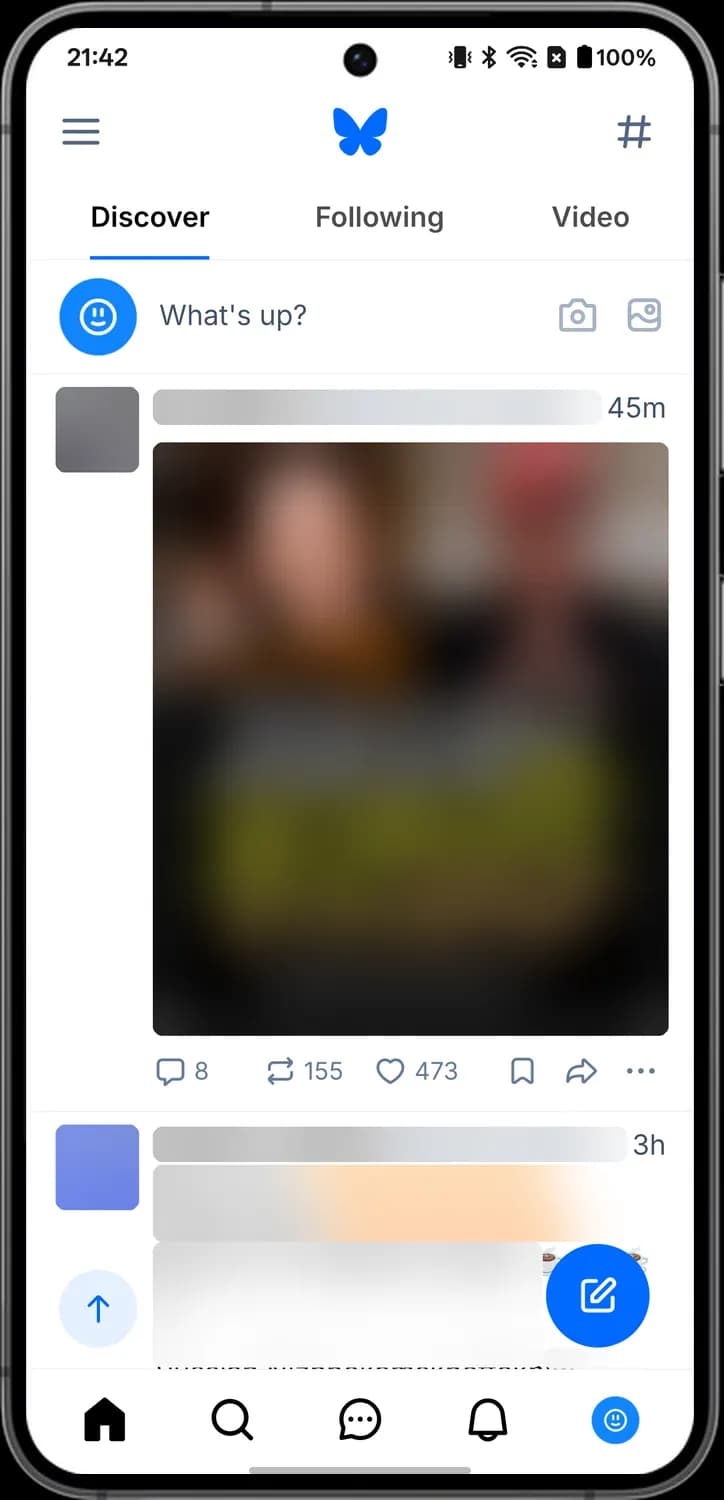
This is the Home tab, the first screen you see when you open Bluesky. Your feeds sit in tabs at the top (Discover, Following, Video) and the tab bar at the bottom takes you around the app.
Top bar and composer
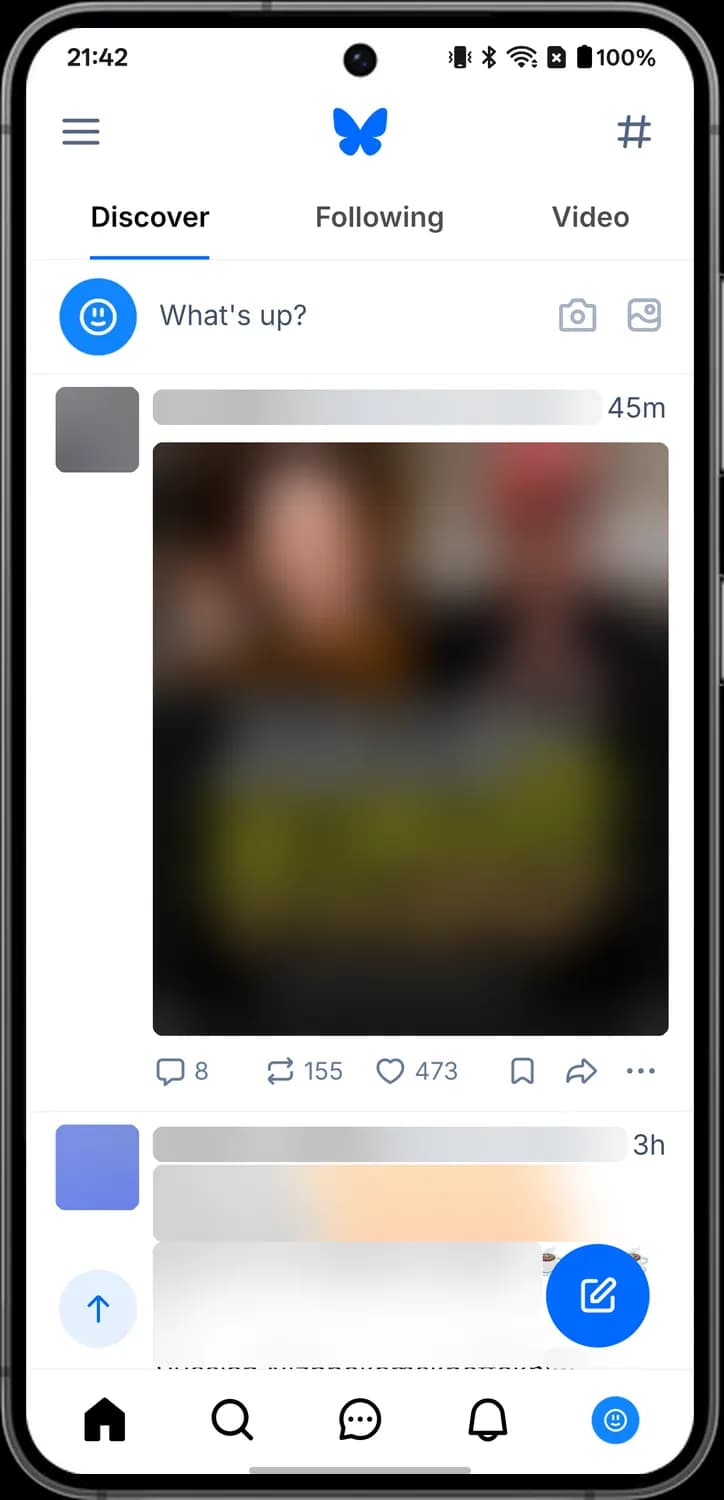

Menu
The three lines at the top left. Tap it to open the side menu with Explore, Feeds, Lists, Saved, Settings and your profile card.

Feeds
The hash sign at the top right. Tap it to open the Feeds screen, where you manage your saved feeds and find new ones.

What's up
The row with your profile picture and "What's up?". Tap it to start writing a new post.

Camera
Opens the camera so you can take a photo or video and post it.

Add image
Opens your gallery so you can pick images to attach to a new post.
Buttons and tab bar

Load new posts
The round arrow button at the bottom left. Tap it to jump back to the top of the feed and load the newest posts.

New post
The blue pen button. Tap it to open the composer and write a new post.

Home tab
The house icon. Takes you back to your Home feed. Tap it again to scroll to the top.

Search tab
The magnifying glass. Opens Explore, where you search for people, posts and feeds and see what is trending.

Chat tab
The speech bubble. Opens your direct message chats.

Notifications tab
The bell. Shows your likes, reposts, replies, mentions and new followers.

Profile tab
Your profile picture. Opens your own profile with your posts, replies, media and likes.
Post Actions
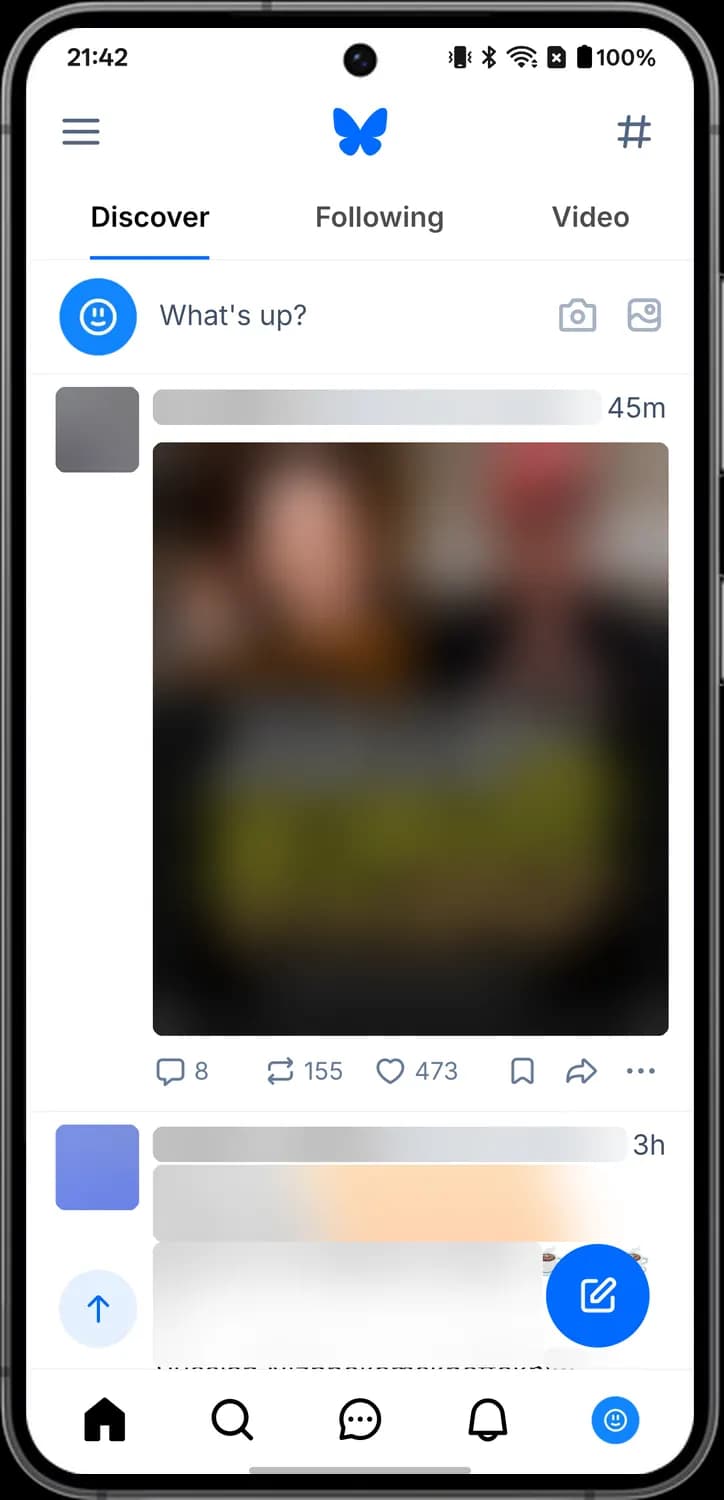
Every post in a feed has the same row of buttons under it. The numbers next to the first three show how many replies, reposts and likes the post has.

Reply
The speech bubble. Tap it to write a reply to the post. The number shows how many replies it has.

Repost
The two arrows in a loop. Tap it to open the menu where you can repost the post to your followers or quote it.

Like
The heart. Tap it to like the post. It turns pink when you have liked it.

Save
The bookmark. Tap it to add the post to your saved posts, which you find under Saved in the side menu.

Share
The curved arrow. Opens the share menu: send the post in a chat, share it to another app or copy its link.

More options
The three dots. Opens the post menu with Translate, Copy post text, mute, block, hide and report options.
Post Menu
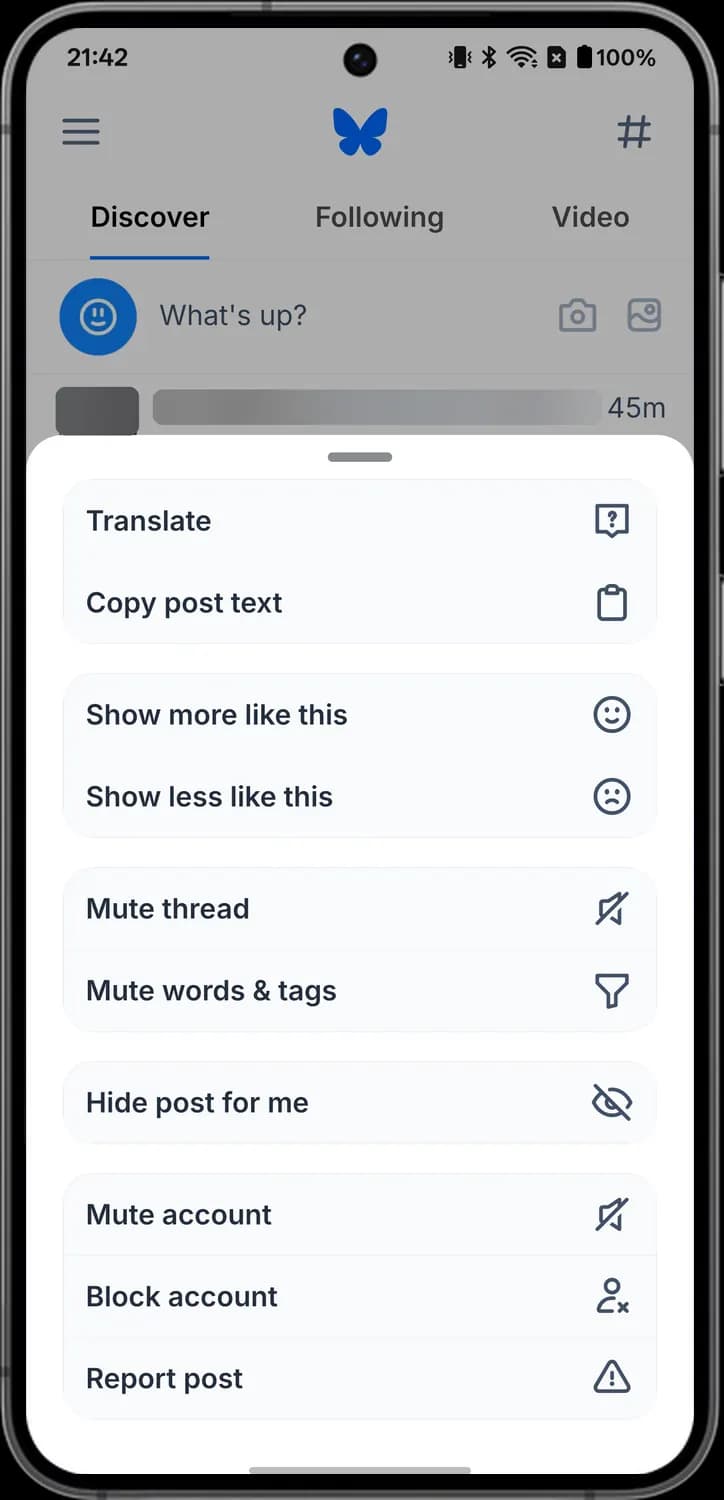
Tap the three dots under any post to open this menu. The options here change your feed or deal with the account, and none of them tell the other person.
Translate to mute thread

Translate
Shows the post translated into your language.

Copy post text
Copies the text of the post so you can paste it somewhere else.

Show more like this
The smiling face. Tells the Discover feed you want to see more posts like this one.

Show less like this
The frowning face. Tells the Discover feed you want to see fewer posts like this one.

Mute thread
The crossed-out speaker. Stops notifications from this thread.
Muting, blocking and reporting
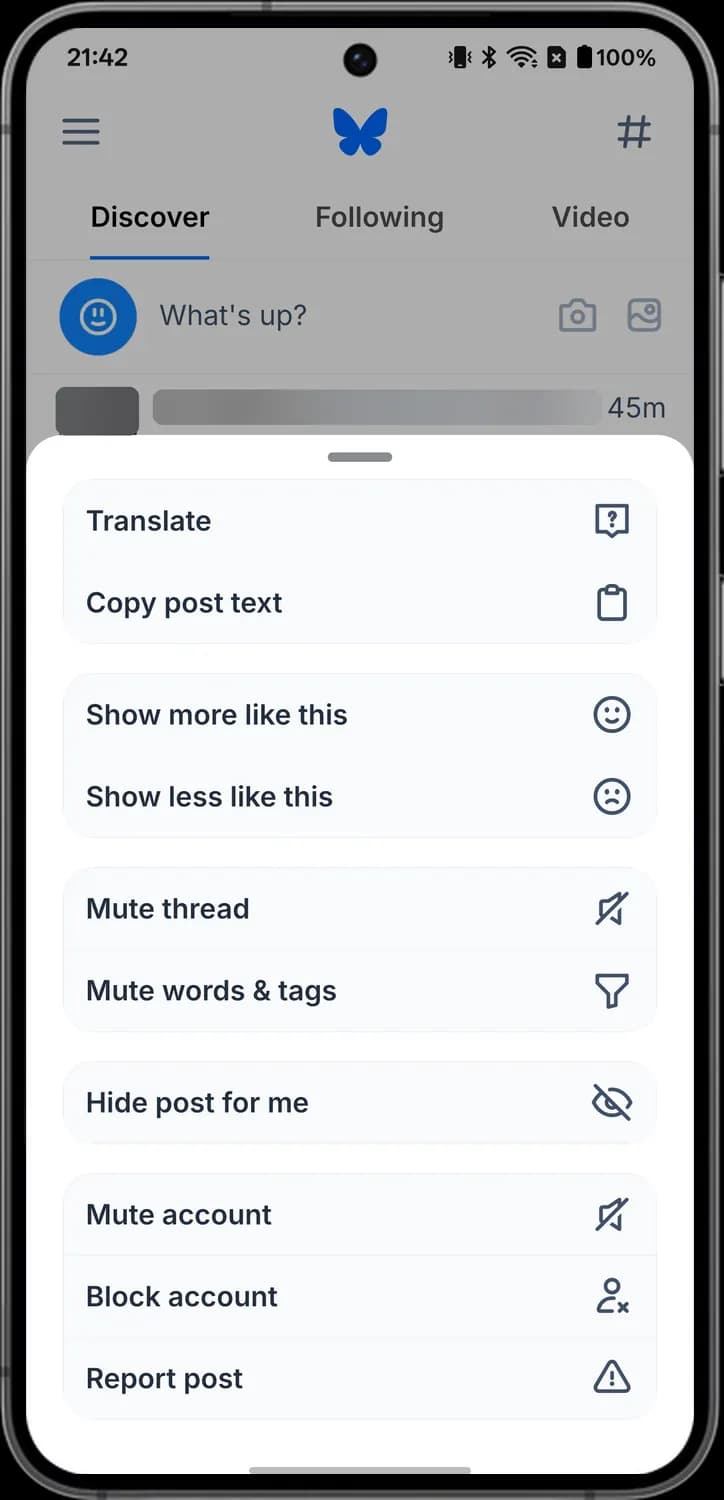

Mute words and tags
The funnel. Opens your muted words, so posts with words or tags you add are hidden from your feeds.

Hide post for me
The crossed-out eye. Hides this post from your view. Other people still see it.

Mute account
The crossed-out speaker. Hides this account's posts from your feeds and notifications. The account is not told.

Block account
The person with an x. Blocks the account, so you no longer see each other's posts and they cannot reply to you or follow you.

Report post
The warning triangle. Sends the post to Bluesky's moderators for review.
Repost and Share Menus
The repost button and the share button under a post each open a small menu. Quoting and chatting both need you to be signed in.
Repost menu
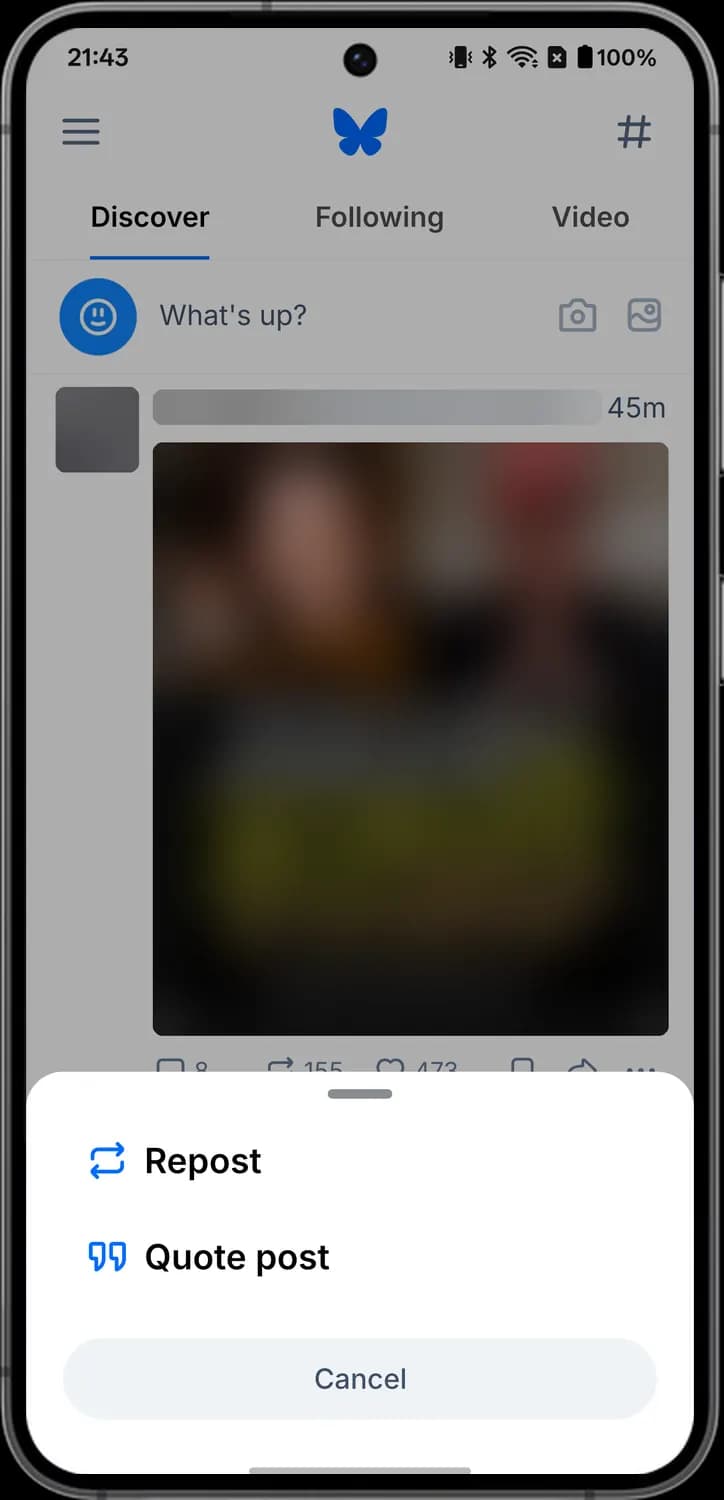

Repost
The two arrows in a loop. Reposts the post so it shows up in your followers' feeds. Tap it again later to undo the repost.

Quote post
The quotation marks. Opens the composer with this post attached, so you can add your own words above it.
Share menu
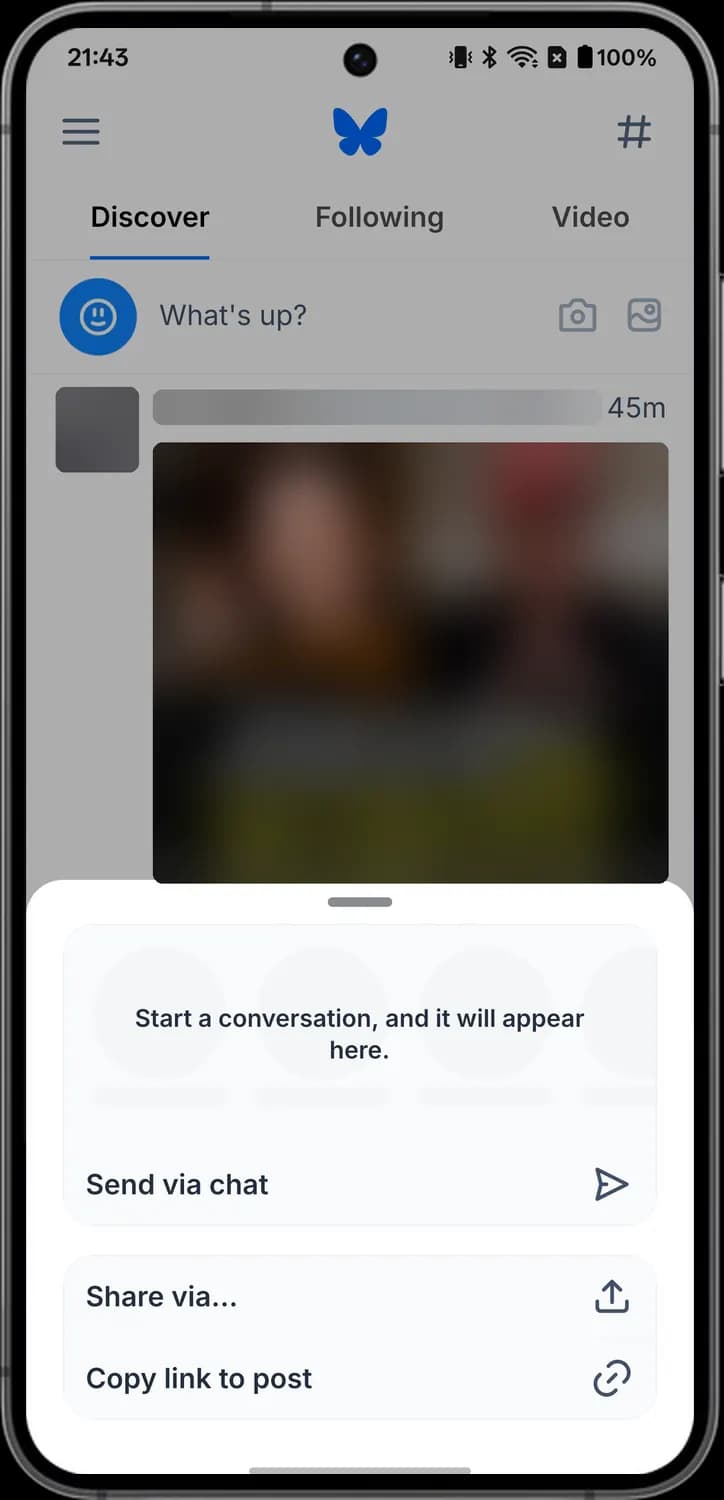

Send via chat
The paper plane. Sends the post to someone in a Bluesky direct message.

Share via
The box with an up arrow. Opens Android's share sheet so you can send the post to another app.

Copy link to post
The chain link. Copies the post's web link to your clipboard.
Post and Replies
Tap a post to open it on its own, with the replies under it. The full date, the reply setting and the counts for reposts, quotes and likes appear here.
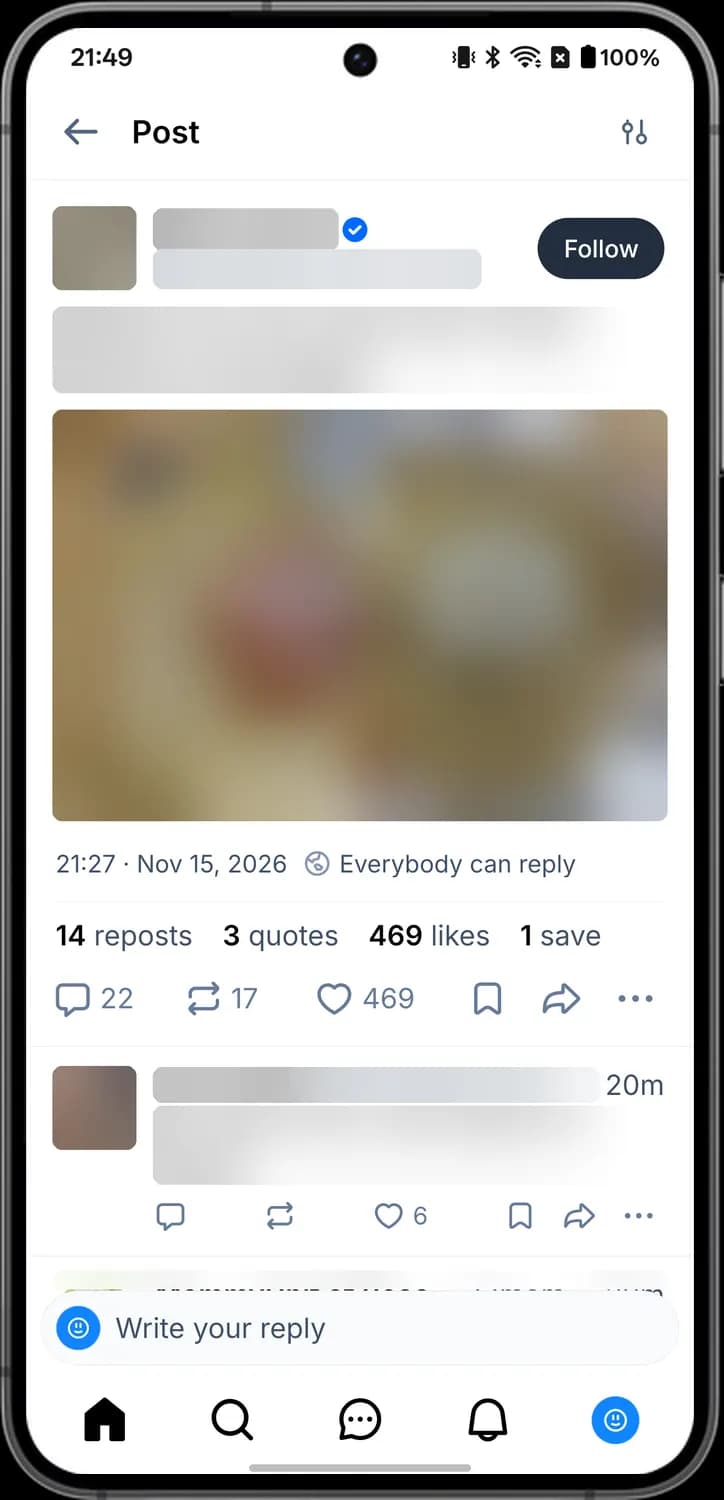

Back
The arrow at the top left. Takes you back to the screen you came from.

Thread options
The sliders at the top right. Choose whether replies show as a flat list (Linear) or nested (Threaded), and sort them by top, oldest or newest.

Verified badge
The blue tick next to a name. It means the account has been verified. Tap it to see who verified it.

Who can reply
The globe next to the date. Shows who is allowed to reply, here everybody. Tap it to see the details.

Reply box
The "Write your reply" bar at the bottom. Tap it to reply to the post you are viewing.
Side Menu
Tap the three lines at the top left of Home, Explore, Chat or Notifications to open this menu. Home, Chat, Notifications and Profile here do the same as the tab bar.
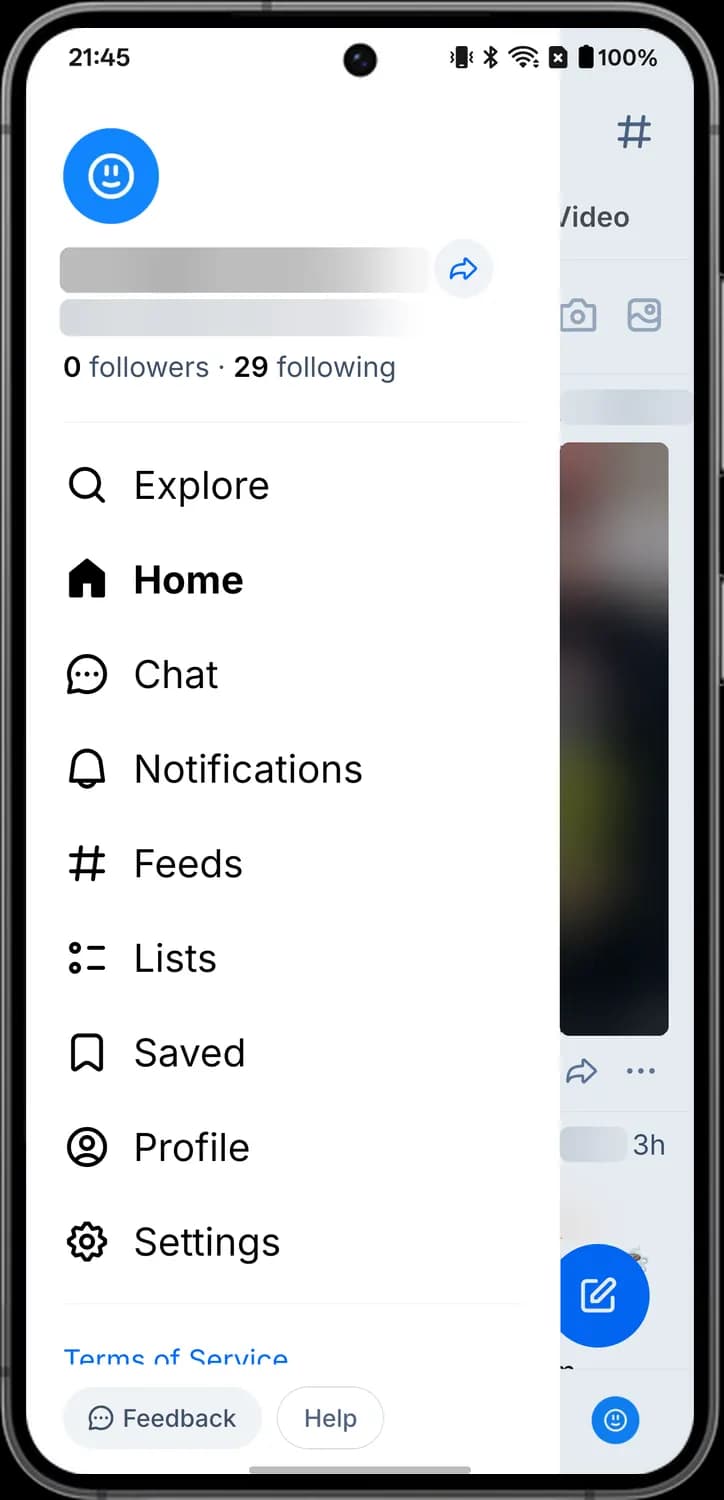

Invite friends
The curved arrow next to your name. Opens sharing options so you can invite friends to find you on Bluesky.

Explore
The magnifying glass. Opens Explore, the same screen as the Search tab.

Feeds
The hash sign. Opens the Feeds screen with your saved feeds and feeds you can add.

Lists
The dots and lines. Opens your lists: groups of accounts you can read as a feed or use to mute or block many accounts at once.

Saved
The bookmark. Opens the posts you saved with the bookmark button.

Settings
The gear. Opens Settings for your account, privacy, moderation, notifications and appearance.

Feedback
The speech bubble with dots. Opens a form to send feedback about the app to Bluesky.
Feeds
Open the Feeds screen with the hash sign on Home. My Feeds lists the feeds you have saved, and Discover New Feeds lets you find feeds made by other people.
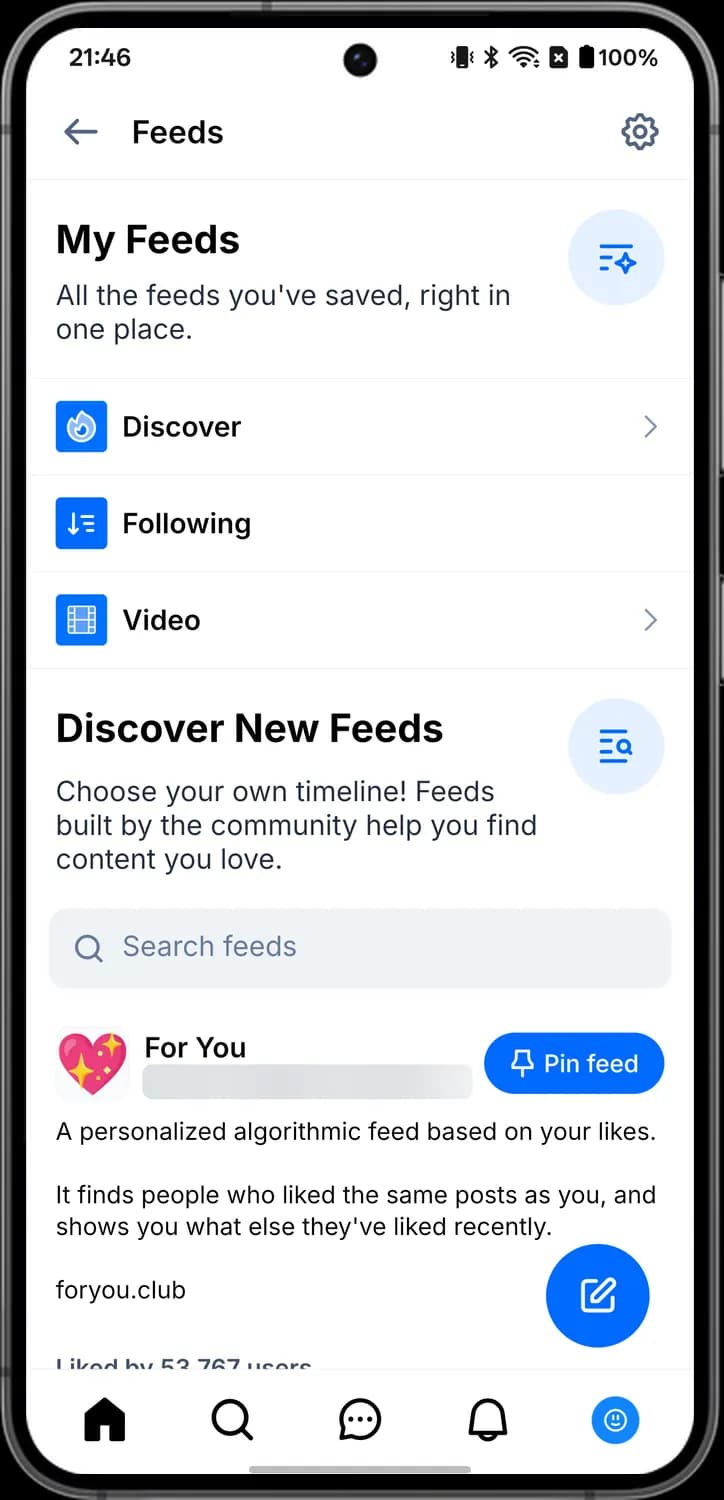

Edit My Feeds
The gear at the top right. Lets you reorder, pin and remove your saved feeds.

Discover feed
The blue flame. Bluesky's own Discover feed of popular posts picked for you. Tap the row to open it.

Video feed
The film strip. Bluesky's Video feed, a full-screen feed of videos. Tap the row to open it.

Search feeds
The magnifying glass in the box. Type here to look for feeds by name or topic.

Pin feed
The pin. Adds this feed to your feeds and pins it as a tab at the top of Home.
Explore and Search
The Search tab opens Explore. Search for people, posts and feeds at the top, and scroll down for your interests and trending topics.
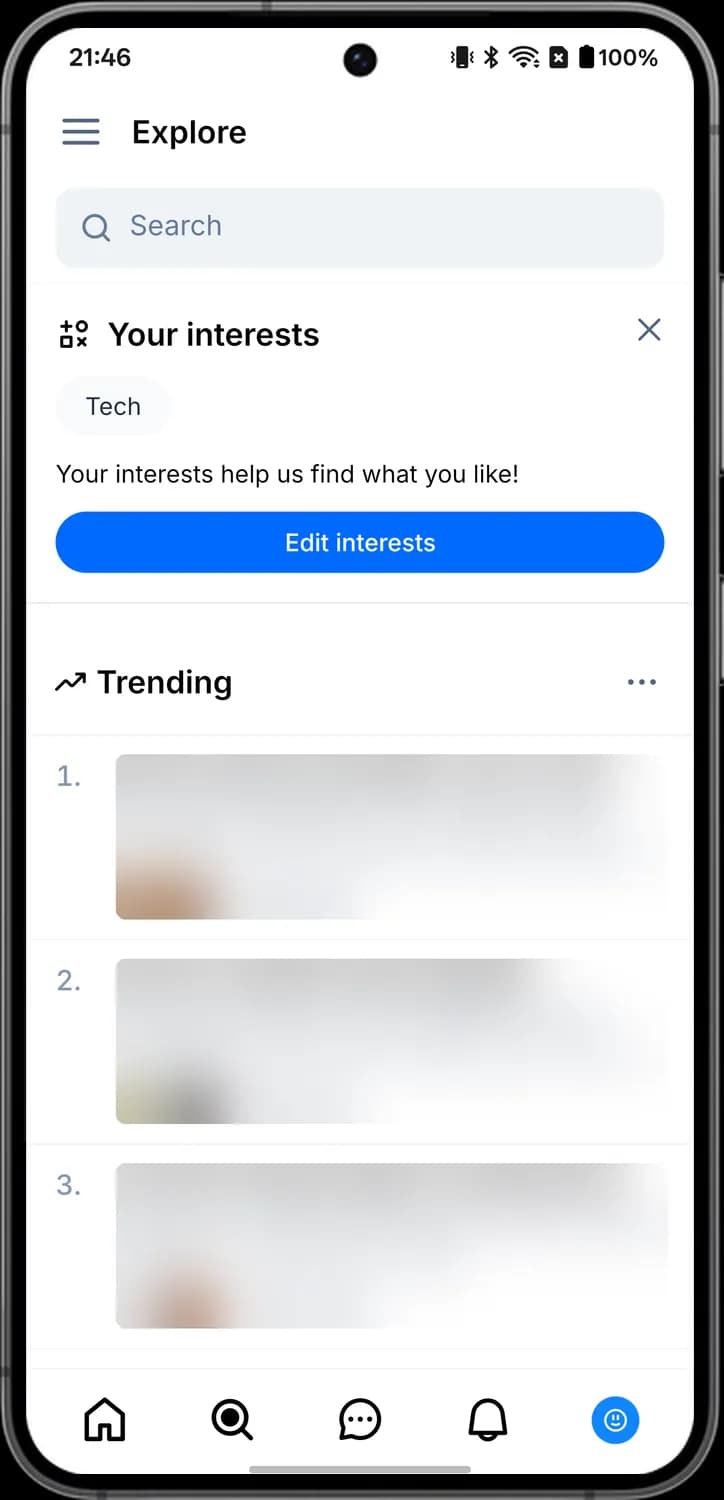

Search
The magnifying glass in the box. Tap it and type to search for people, posts and feeds.

Hide this card
The x at the top right of the card. Hides the Your interests card from Explore.

Trending options
The three dots next to Trending. Opens options for the Trending list.
Status symbols. These only show information. They are not buttons.

Your interests
The shapes icon marks the Your interests card, which shows the topics you picked when you joined.

Trending
The rising line marks the Trending list of topics people are posting about right now. Tap a topic to see its posts.
Chat
The Chat tab holds your direct messages. Message requests from people you don't follow wait in their own inbox until you accept them.
Chats
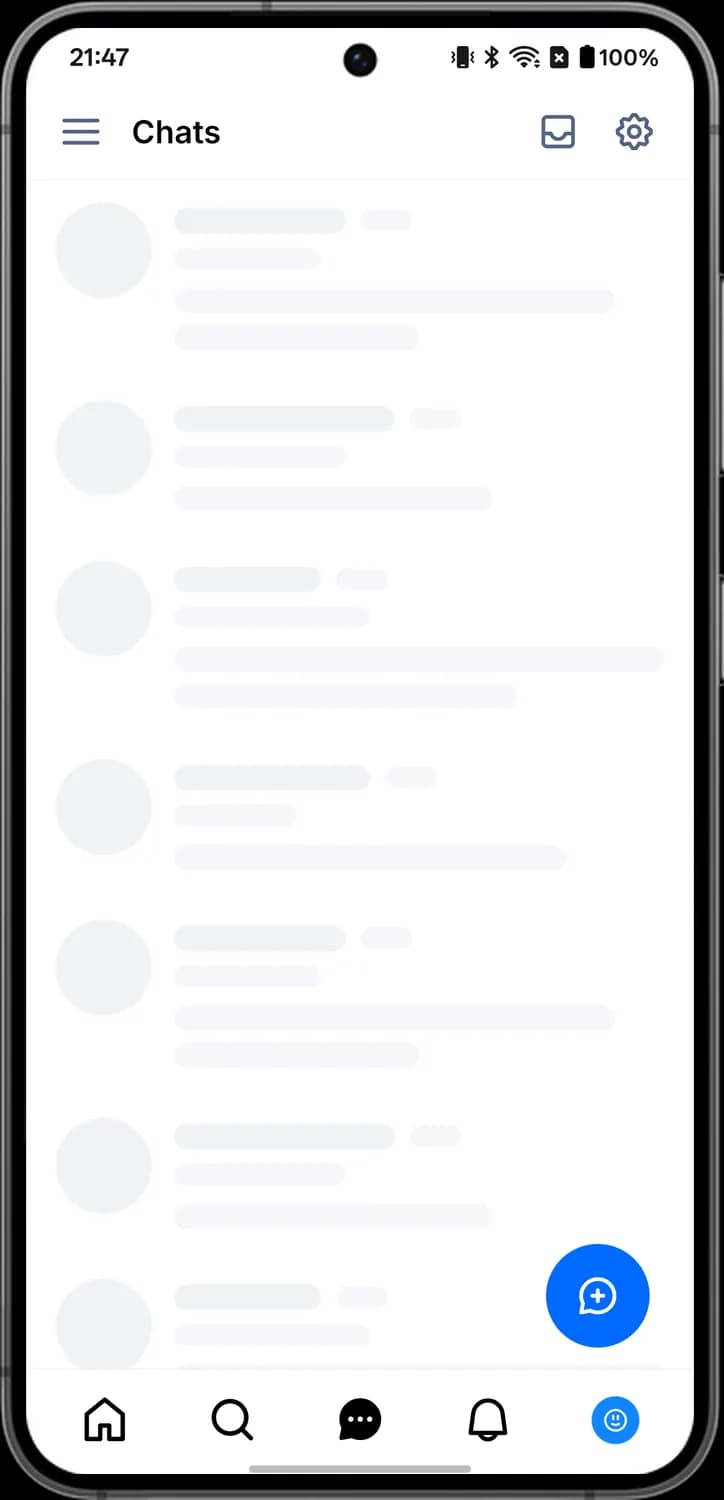

Requests
The inbox tray. Opens message requests from people you don't follow.

Chat options
The gear. Opens a menu to mark chats or requests as read, or go to chat settings.

New chat
The blue bubble with a plus. Tap it to start a new chat with someone.
Chat options
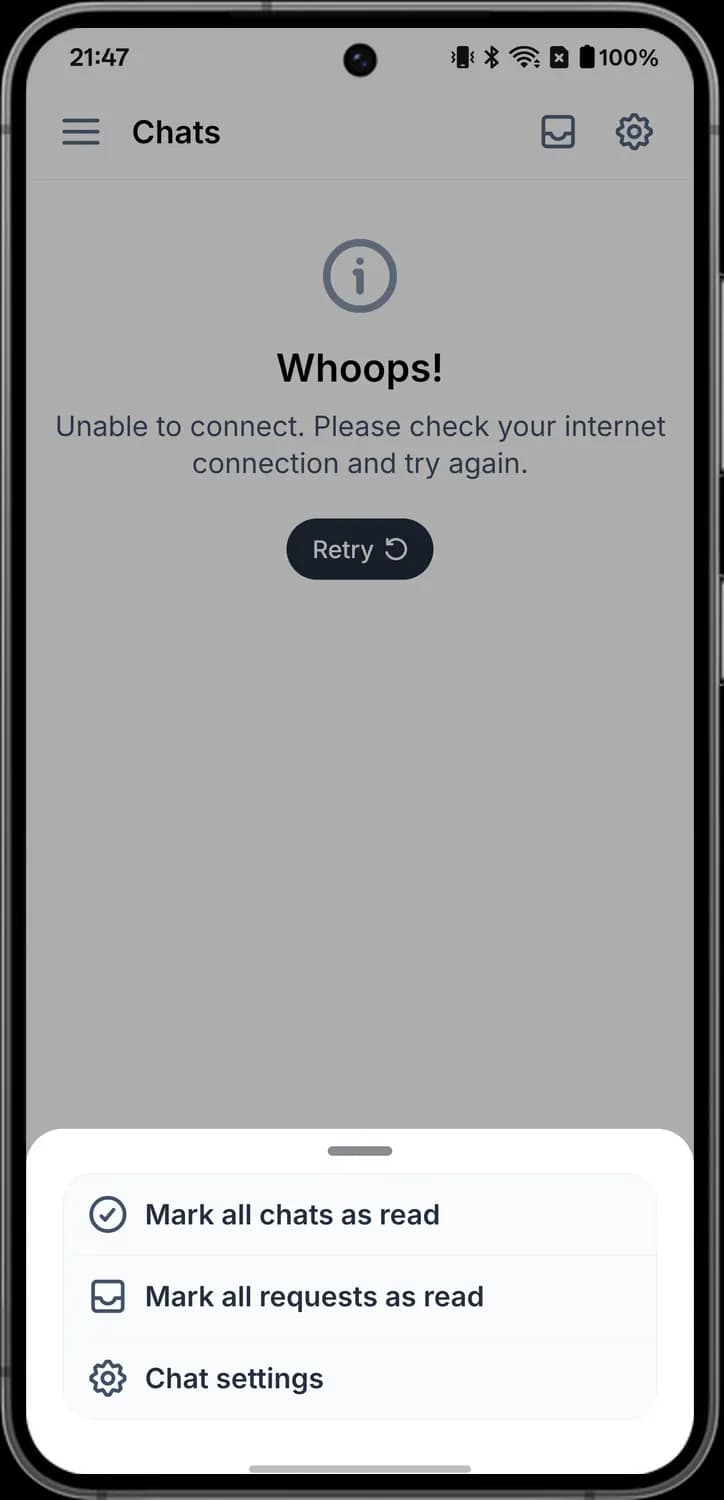

Mark all chats as read
The tick in a circle. Marks every chat as read so the unread dots go away.

Mark all requests as read
The inbox tray. Marks every message request as read.

Chat settings
The gear. Opens chat settings, where you choose who is allowed to message you.
New chat
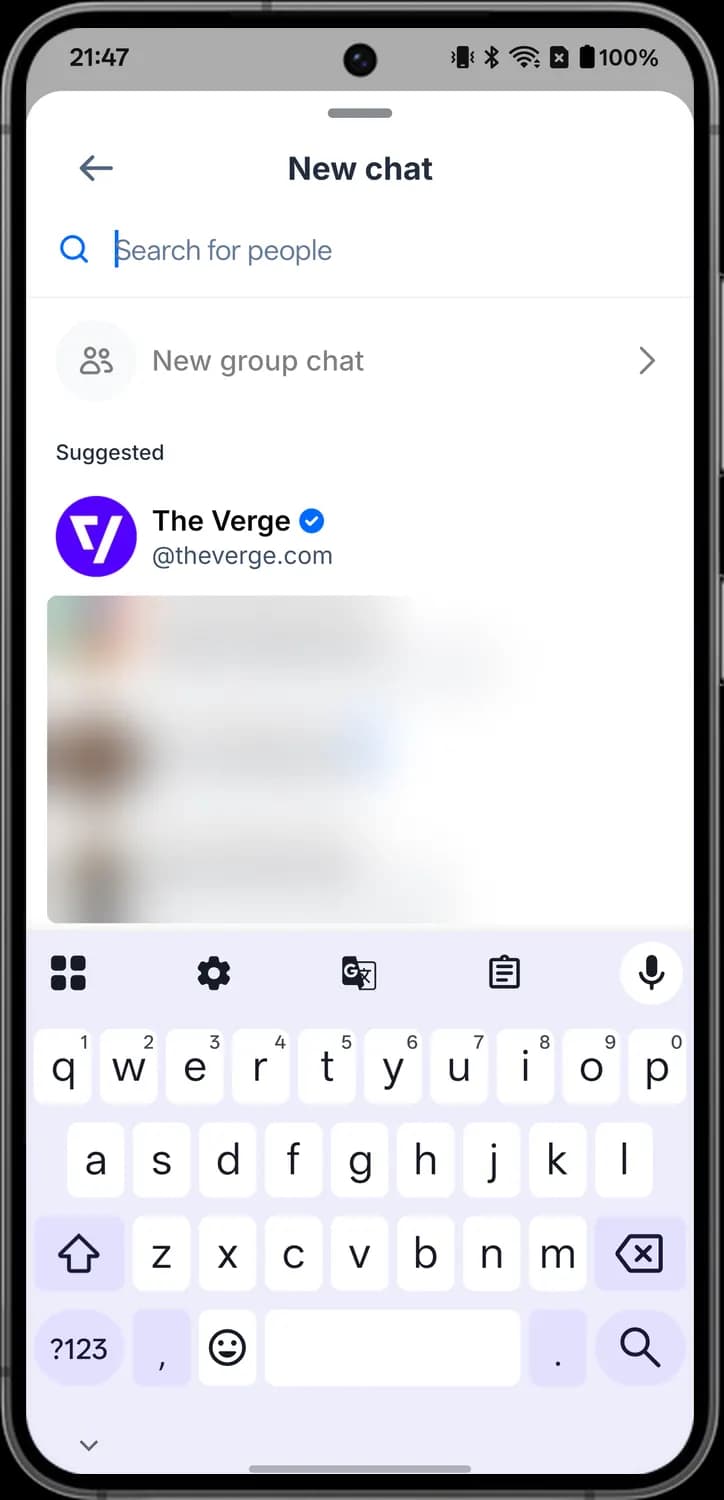

Search people
The magnifying glass. Type a name or handle to find the person you want to chat with.

New group chat
The two people. Starts a group chat with several people.
Notifications
The bell tab shows your notifications, with a Mentions tab for posts that name you. The gear opens one settings row per notification type.
Notifications
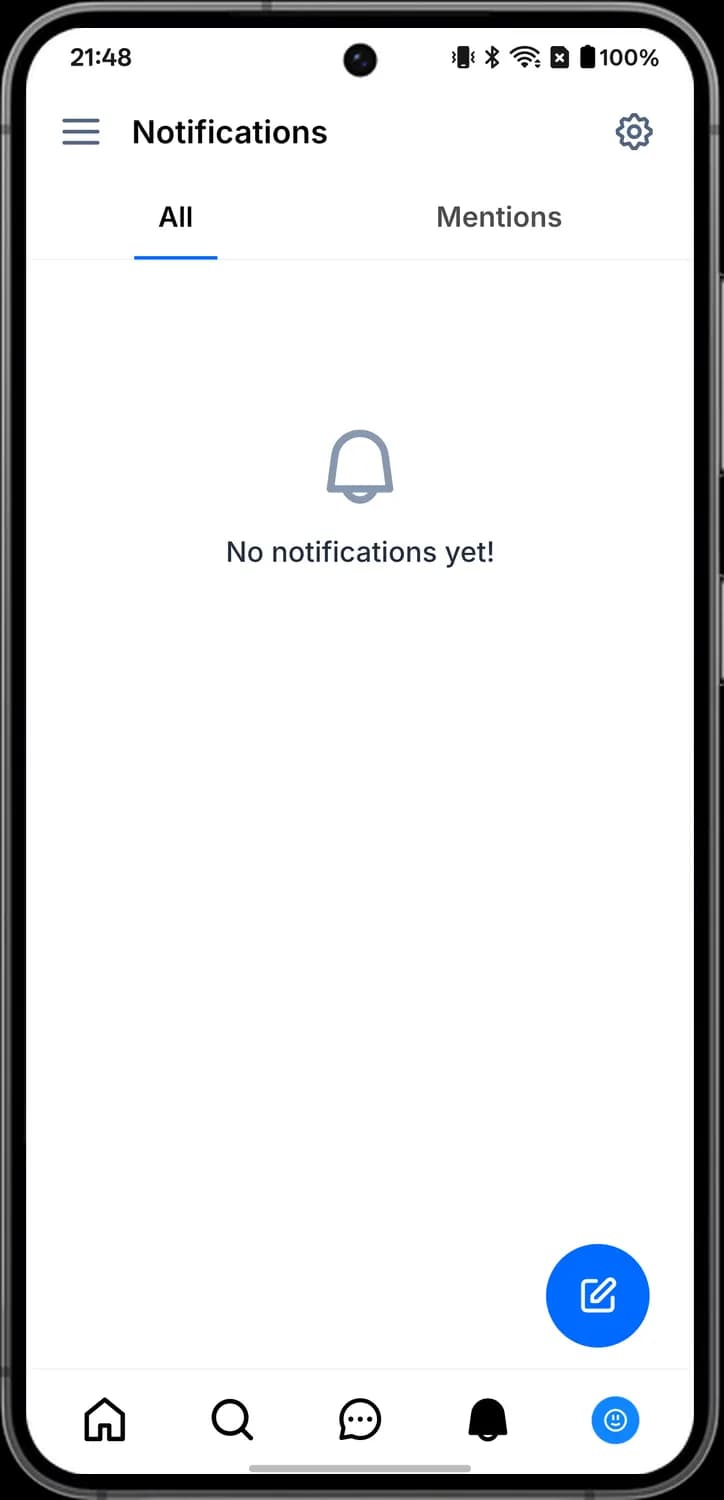

Notification settings
The gear at the top right. Opens the list of notification types, where you choose which ones you get in the app and as push alerts.
Push, likes and replies
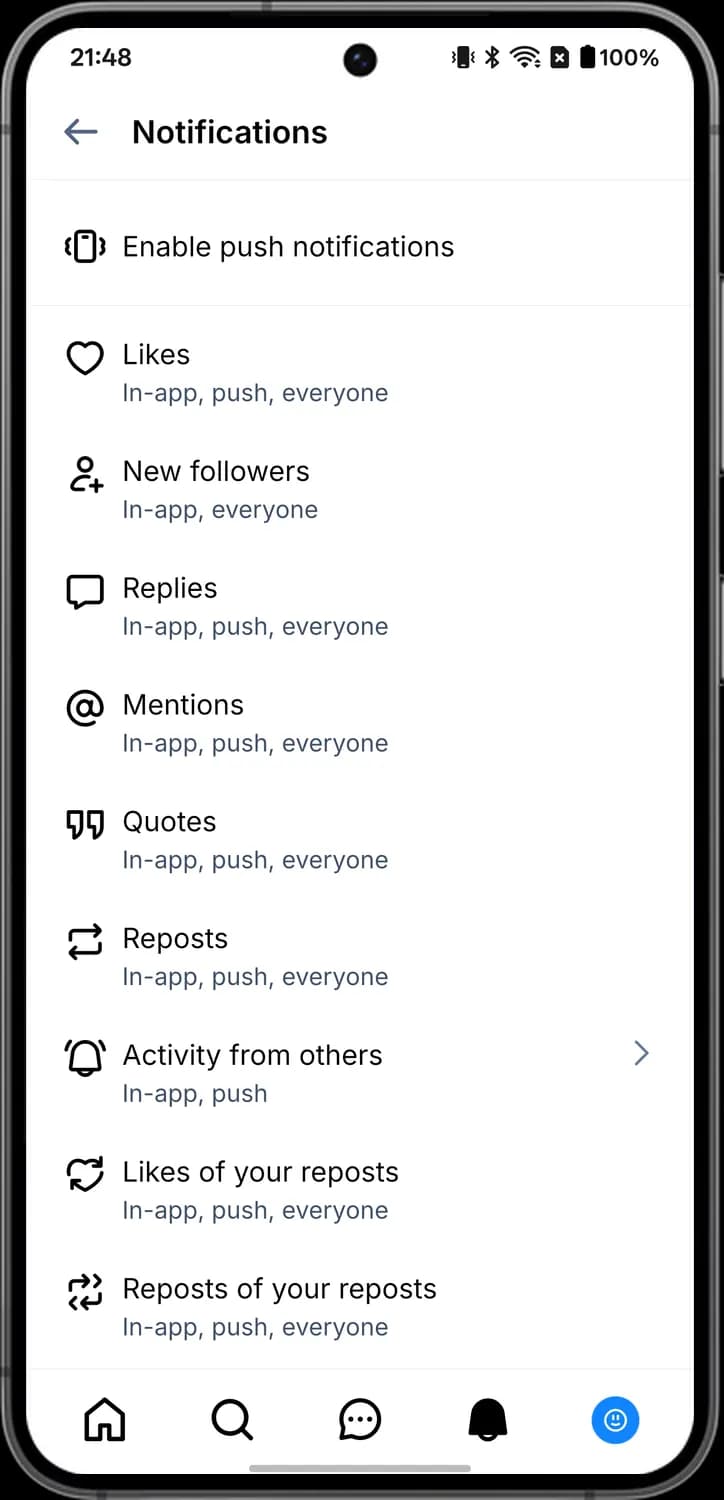

Push notifications
The buzzing phone. Turns on push notifications so Bluesky can alert you outside the app.

Likes
The heart. Choose how you hear about likes on your posts.

New followers
The person with a plus. Choose how you hear about new followers.

Replies
The speech bubble. Choose how you hear about replies to your posts.

Mentions
The at sign. Choose how you hear about posts that mention you.
Quotes, reposts and activity
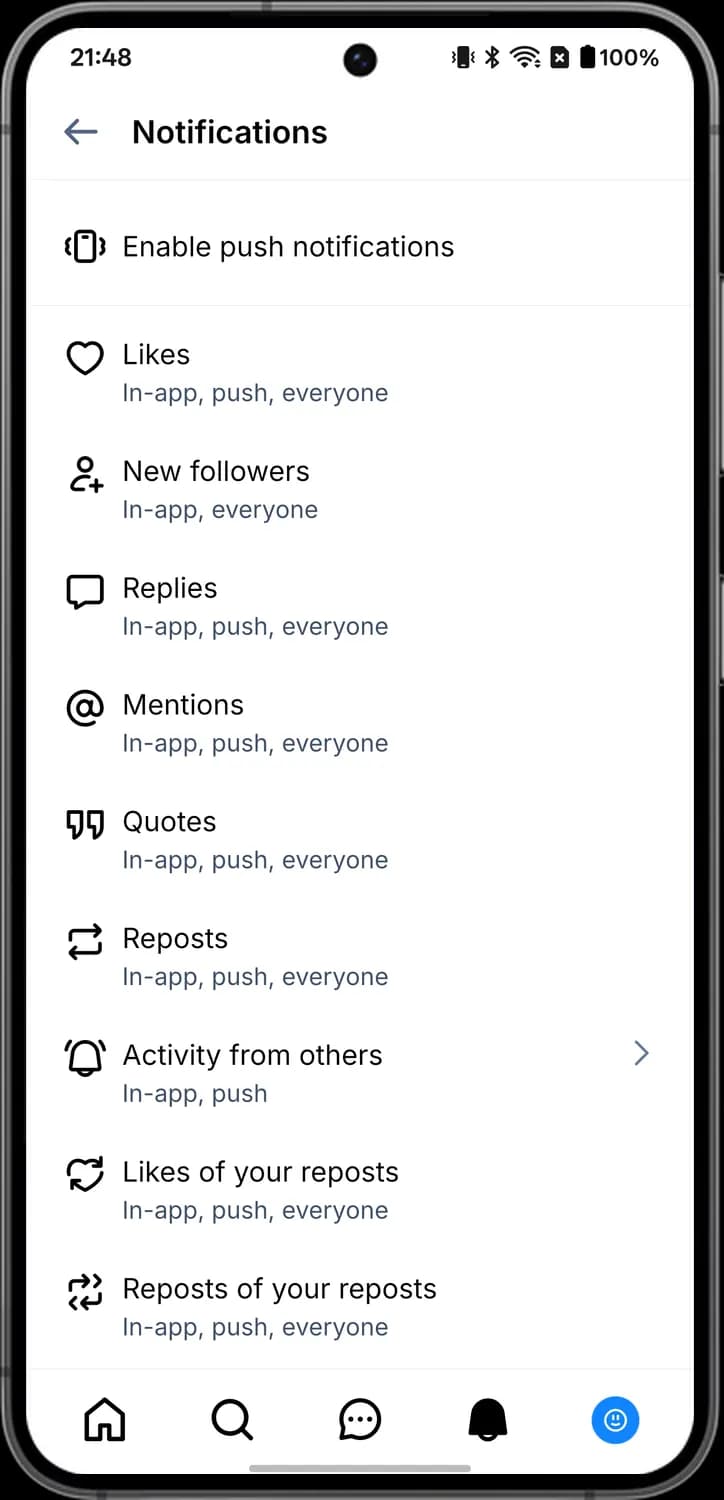

Quotes
The quotation marks. Choose how you hear about people quoting your posts.

Reposts
The looped arrows. Choose how you hear about reposts of your posts.

Activity from others
The ringing bell. Choose the accounts whose new posts and replies you want to be told about.

Likes of your reposts
The heart made of arrows. Choose how you hear about likes on posts you reposted.

Reposts of your reposts
The arrows in a square. Choose how you hear about reposts of posts you reposted.
Profile
Tap the Profile tab to see your own profile. Your posts, replies, media, videos, likes and feeds sit in tabs under your follower counts.
Your profile
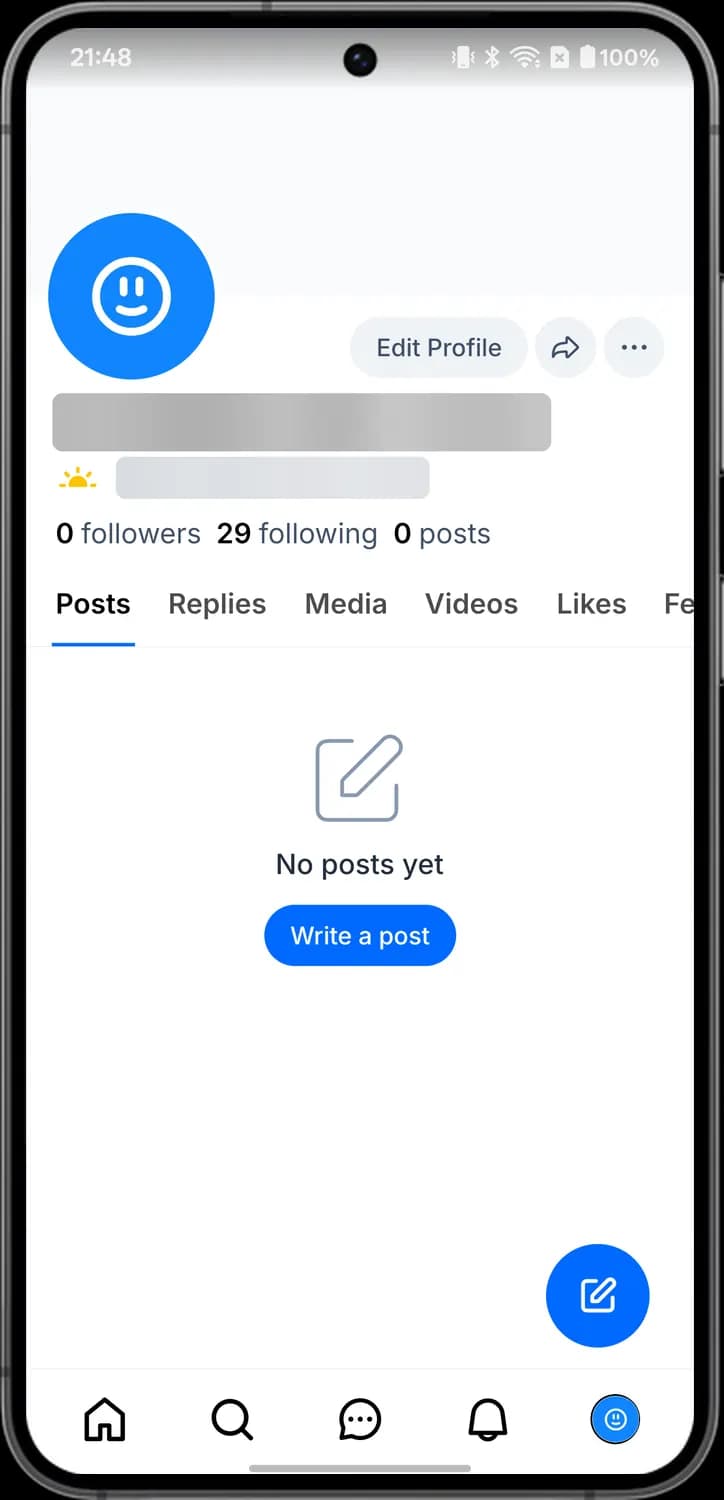

Profile picture
Your profile picture. Tap it to see it full size.

Invite friends
The curved arrow. Opens sharing options so you can send your profile to friends.

Profile options
The three dots. Opens the profile menu with Share via, Search posts, Starter Packs, lists and Go live.

New user badge
The small rising sun before the handle. It marks an account that joined recently. Tap it to see when it joined.
Profile menu
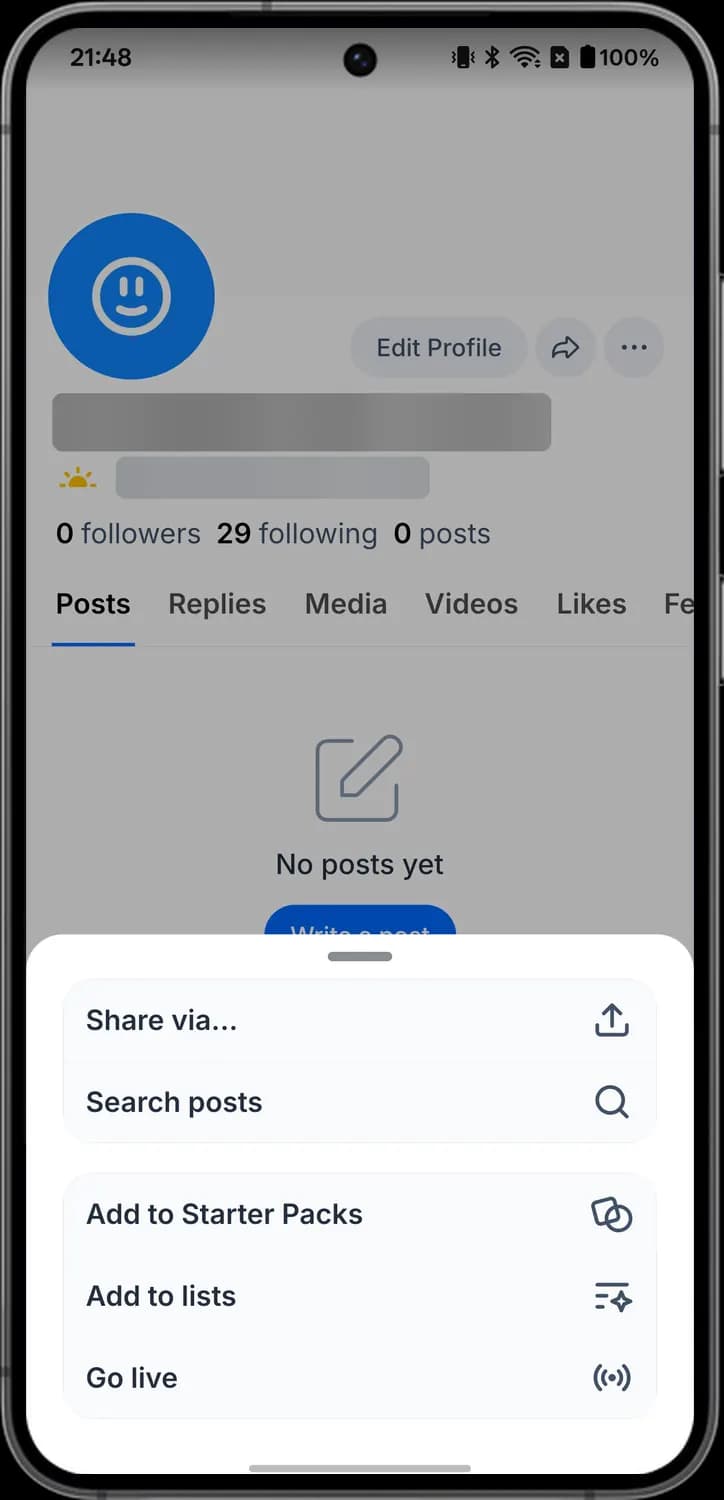

Share via
The box with an up arrow. Opens Android's share sheet to send a link to the profile.

Search posts
The magnifying glass. Searches only the posts from this profile.

Add to Starter Packs
The overlapping shapes. Adds the account to one of your starter packs, the sets of accounts you recommend to new users.

Add to lists
The lines with a star. Adds the account to one of your lists.

Go live
The broadcast waves. Lets you link a live stream, so your profile picture shows that you are live.
Settings
Open Settings from the side menu. Each row opens its own page of options.
Account to appearance
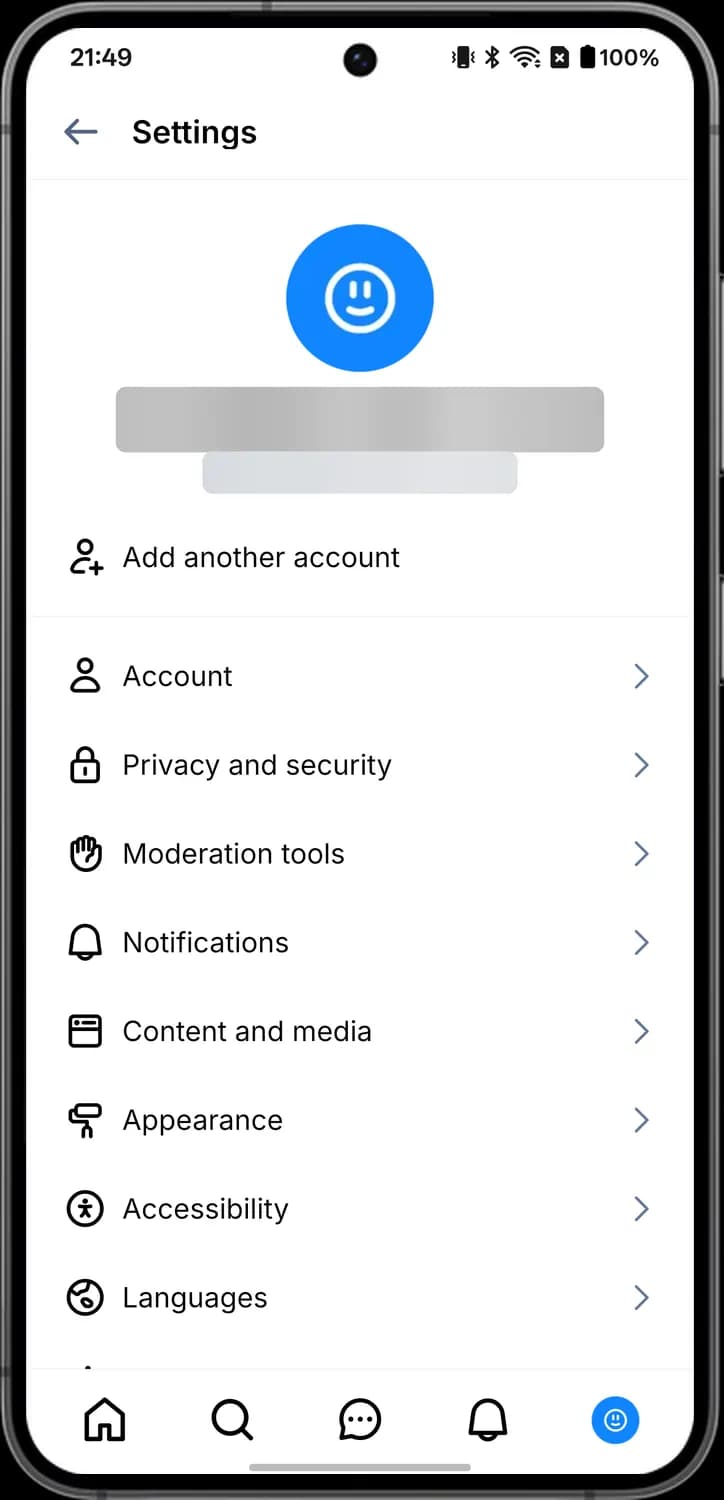

Add another account
The person with a plus. Signs in to a second Bluesky account so you can switch between them.

Account
The person. Your email, password, handle, birthday and account export or deletion.

Privacy and security
The padlock. Two-factor sign-in, app passwords and who can see your content when logged out.

Moderation tools
The raised hand. Muted words, muted and blocked accounts, content filters and moderation services.

Notifications
The bell. Opens the same notification settings as the gear on the Notifications tab.

Content and media
The browser window. Autoplay, saved feeds, thread preferences and how external media is shown.

Appearance
The paint roller. Light or dark mode and text size.
Accessibility to about
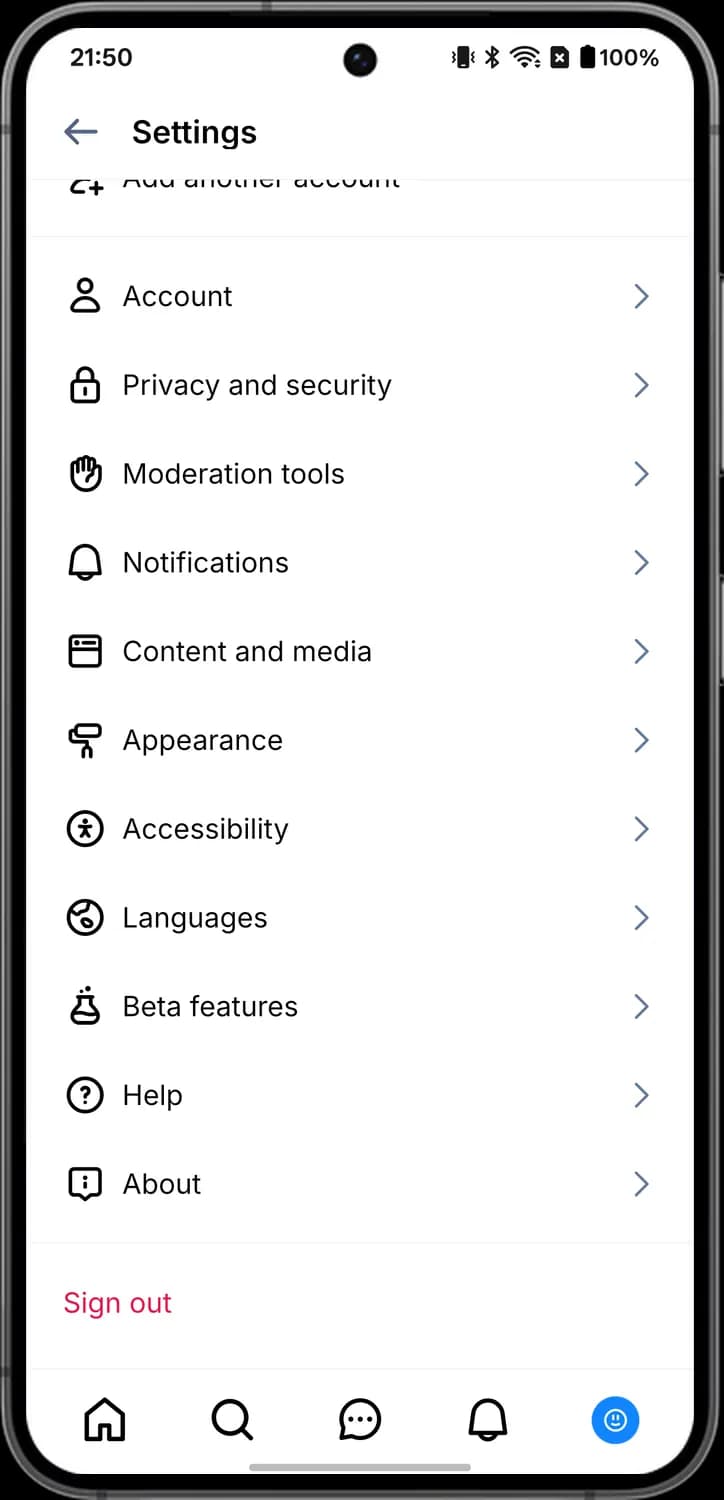

Accessibility
The person in a circle. Options such as requiring alt text on images and turning off haptics.

Languages
The globe. Your app language, the language you write posts in and which languages you see in feeds.

Beta features
The flask. Try features Bluesky is still testing.

Help
The question mark. Opens Bluesky's help centre.

About
The speech bubble with an exclamation mark. App version, terms of service and privacy policy.
Video Player
Tap a video in a feed, or open the Video tab, to watch it full screen. The same post buttons sit under the video, in white.
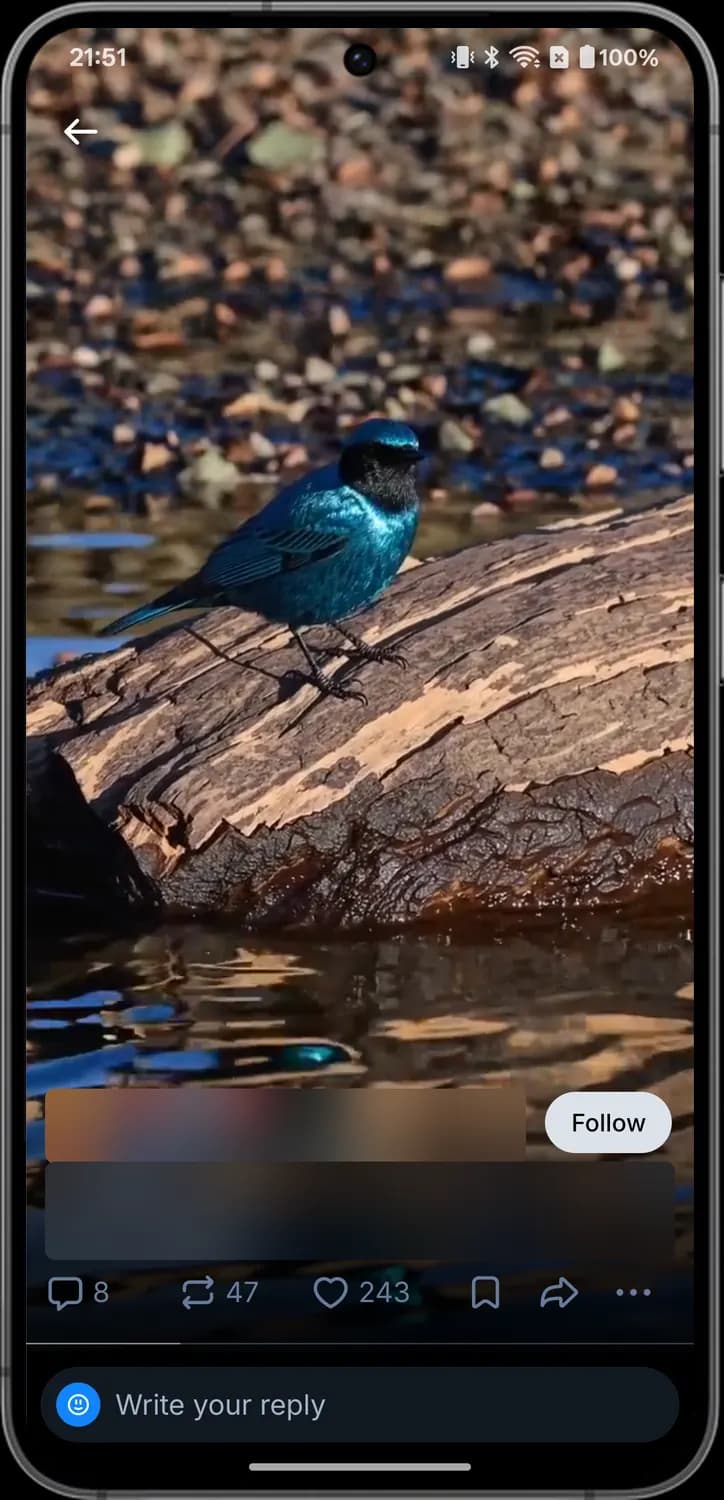

Close video
The arrow at the top left. Leaves the full-screen player.

Reply
The speech bubble. Write a reply to the video post.

Repost
The looped arrows. Repost or quote the video.

Like
The heart. Like the video.

Save
The bookmark. Add the video post to your saved posts.

Share
The curved arrow. Send the video in a chat, share it to another app or copy its link.

More options
The three dots. Opens the post menu for the video.
Those are the meanings of Bluesky icons and symbols. Bluesky updates its app often and the icons change with it, so we update this guide every time they do, and you can bookmark this page to stay updated. These screens are from Bluesky for Android, so a few icons may sit in slightly different places on iPhone or the web. For more icon guides, you can also visit our TechPP icon guides.
Comments
0Share your thoughts, questions, or feedback about this guide.
Leave a Comment