
Ad-blocking DNS servers
Last updated: October 31, 2026
A browser ad blocker only works inside that browser. The ads in your phone apps, games and smart TV keep coming. An ad-blocking DNS fixes that for the whole device: it refuses to look up the addresses of ad and tracking servers, so those ads never load. You set it once, it costs nothing, and you don't install anything. Here are the free ones that work right now, with every address you need.
Ad-blocking DNS servers compared
| DNS | Private DNS hostname | Blocks | Good to know |
|---|---|---|---|
| AdGuard DNS | dns.adguard-dns.com | Ads, trackers | Ads, trackers. Free, no sign-up |
| Control D | p2.freedns.controld.com | Ads, trackers, malware | Ads, trackers, malware. Free, no sign-up |
| DNS4EU | noads.joindns4.eu | Ads, trackers, malware | Ads, trackers, malware. Free, EU-backed, meant for people in Europe |
| dnsforge | dnsforge.de | Ads, trackers, malware | Ads, trackers, malware. Free, German, runs on donations |
| LibreDNS | noads.libredns.gr | Ads, trackers | Ads, trackers. Free, encrypted DNS only, so not for routers |
| NextDNS | Your own, after you sign up | The lists you pick | Blocks the lists you pick. Free for 300,000 lookups a month, then it stops filtering |
DNS addresses to block ads
AdGuard DNS
| Setting | Address |
|---|---|
| Private DNS (Android) | dns.adguard-dns.com |
| DNS over HTTPS | https://dns.adguard-dns.com/dns-query |
| IPv4 | 94.140.14.1494.140.15.15 |
| IPv6 | 2a10:50c0::ad1:ff2a10:50c0::ad2:ff |
Control D
| Setting | Address |
|---|---|
| Private DNS (Android) | p2.freedns.controld.com |
| DNS over HTTPS | https://freedns.controld.com/p2 |
| IPv4 | 76.76.2.276.76.10.2 |
| IPv6 | 2606:1a40::22606:1a40:1::2 |
DNS4EU
| Setting | Address |
|---|---|
| Private DNS (Android) | noads.joindns4.eu |
| DNS over HTTPS | https://noads.joindns4.eu/dns-query |
| IPv4 | 86.54.11.1386.54.11.213 |
| IPv6 | 2a13:1001::86:54:11:132a13:1001::86:54:11:213 |
dnsforge
| Setting | Address |
|---|---|
| Private DNS (Android) | dnsforge.de |
| DNS over HTTPS | https://dnsforge.de/dns-query |
| IPv4 | 176.9.93.198176.9.1.11749.12.67.12291.99.154.175 |
| IPv6 | 2a01:4f8:151:34aa::1982a01:4f8:141:316d::1172a01:4f8:c013:29d::1222a01:4f8:c010:8c35::175 |
LibreDNS
| Setting | Address |
|---|---|
| Private DNS (Android) | noads.libredns.gr |
| DNS over HTTPS | https://doh.libredns.gr/noads |
How to set up ad-blocking DNS
Android
- 1
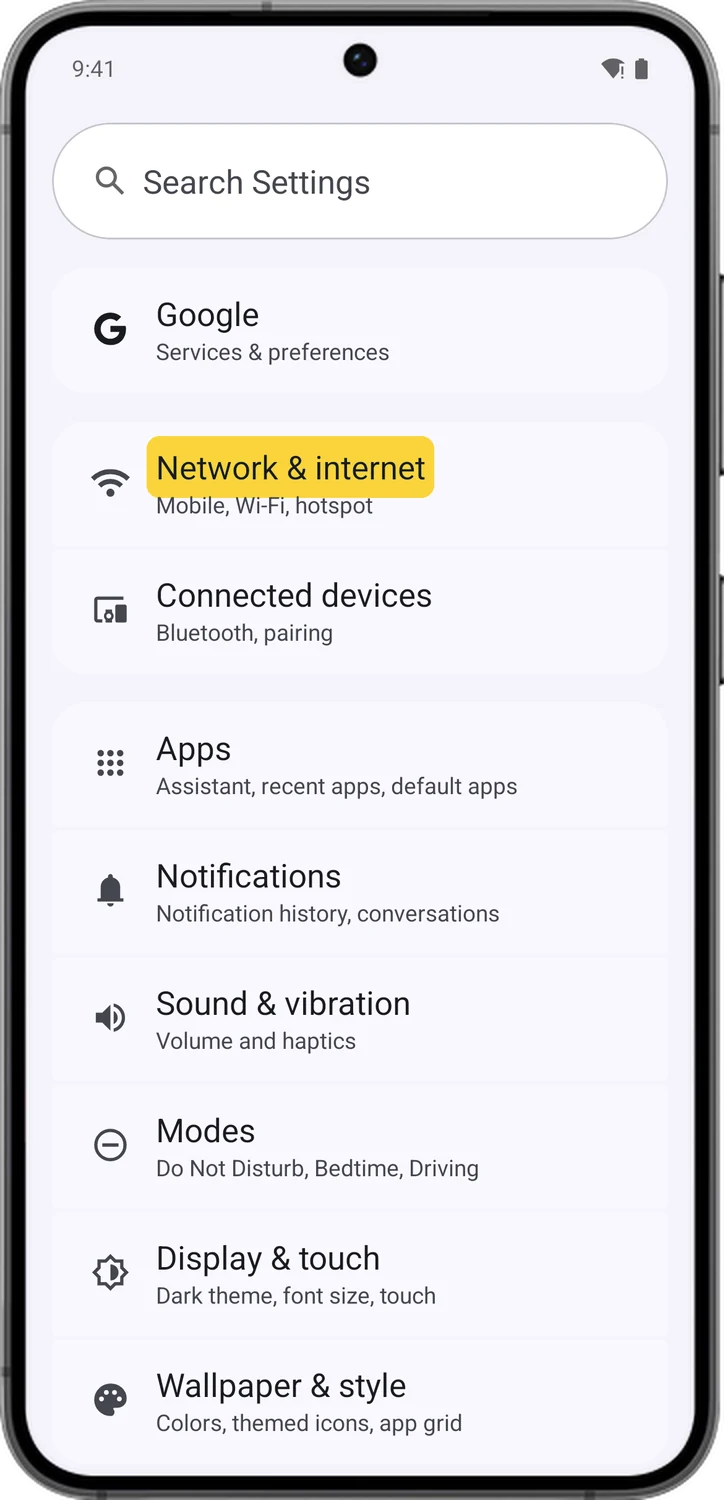
Open Network & internet
Open Settings and tap Network & internet. On Samsung it is Connections, then More connection settings.
- 2
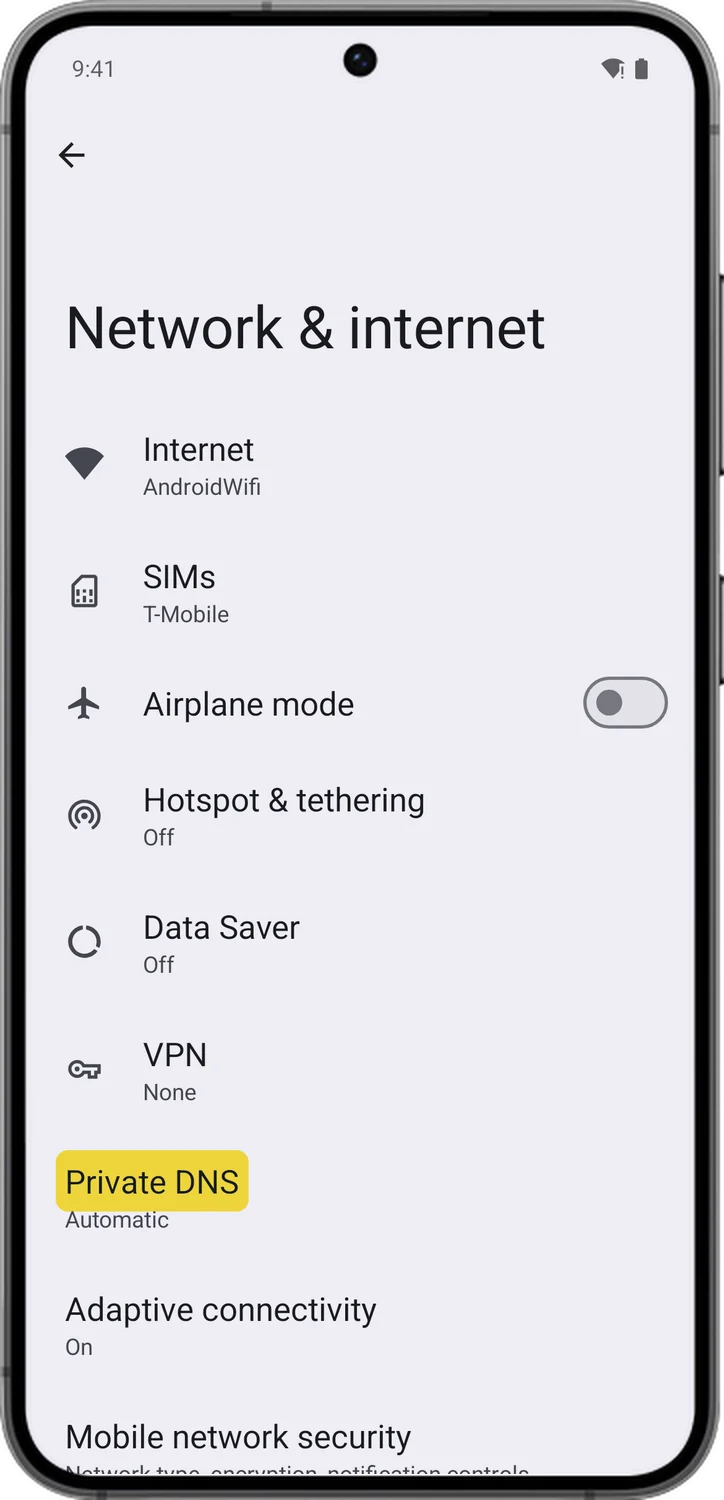
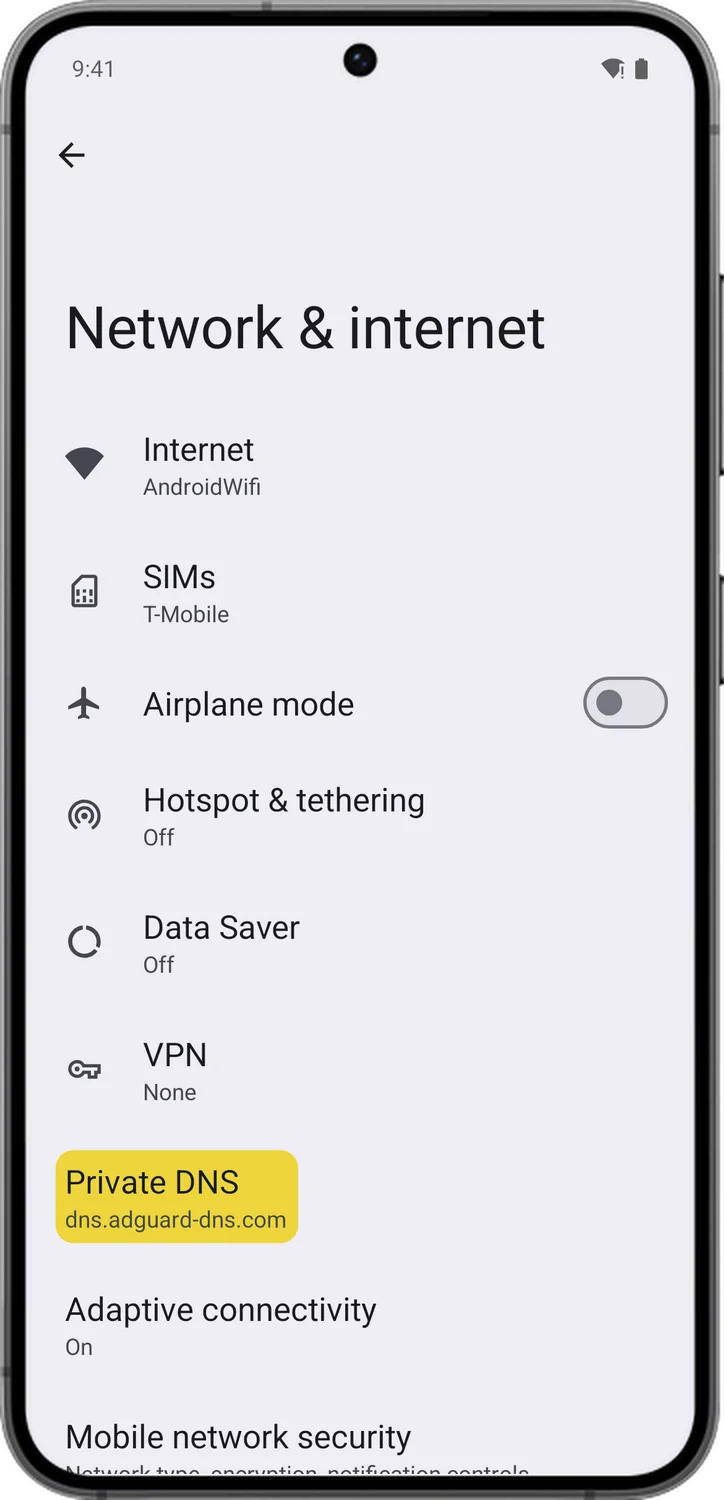
Open Private DNS
Tap Private DNS. It says Automatic until you change it.
- 3
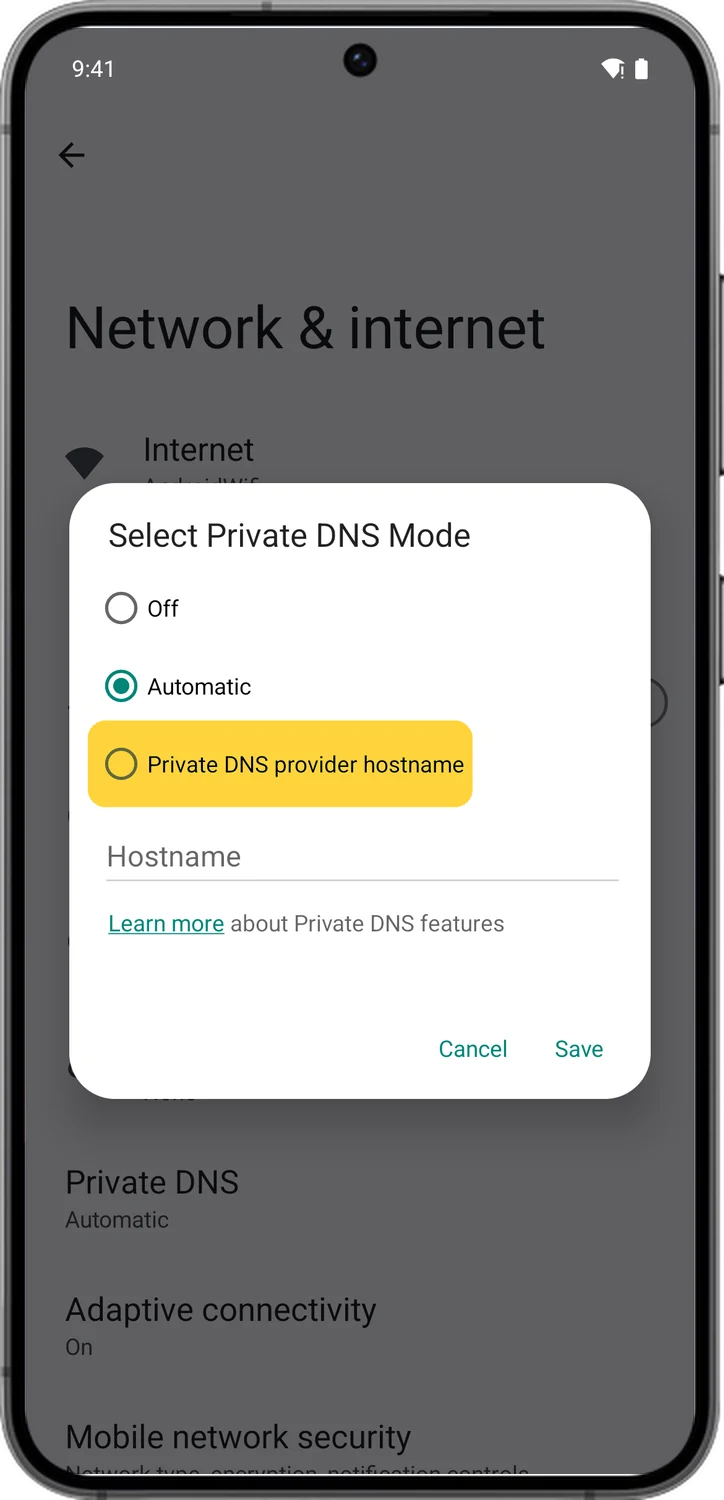
Choose your own hostname
Pick Private DNS provider hostname.
- 4
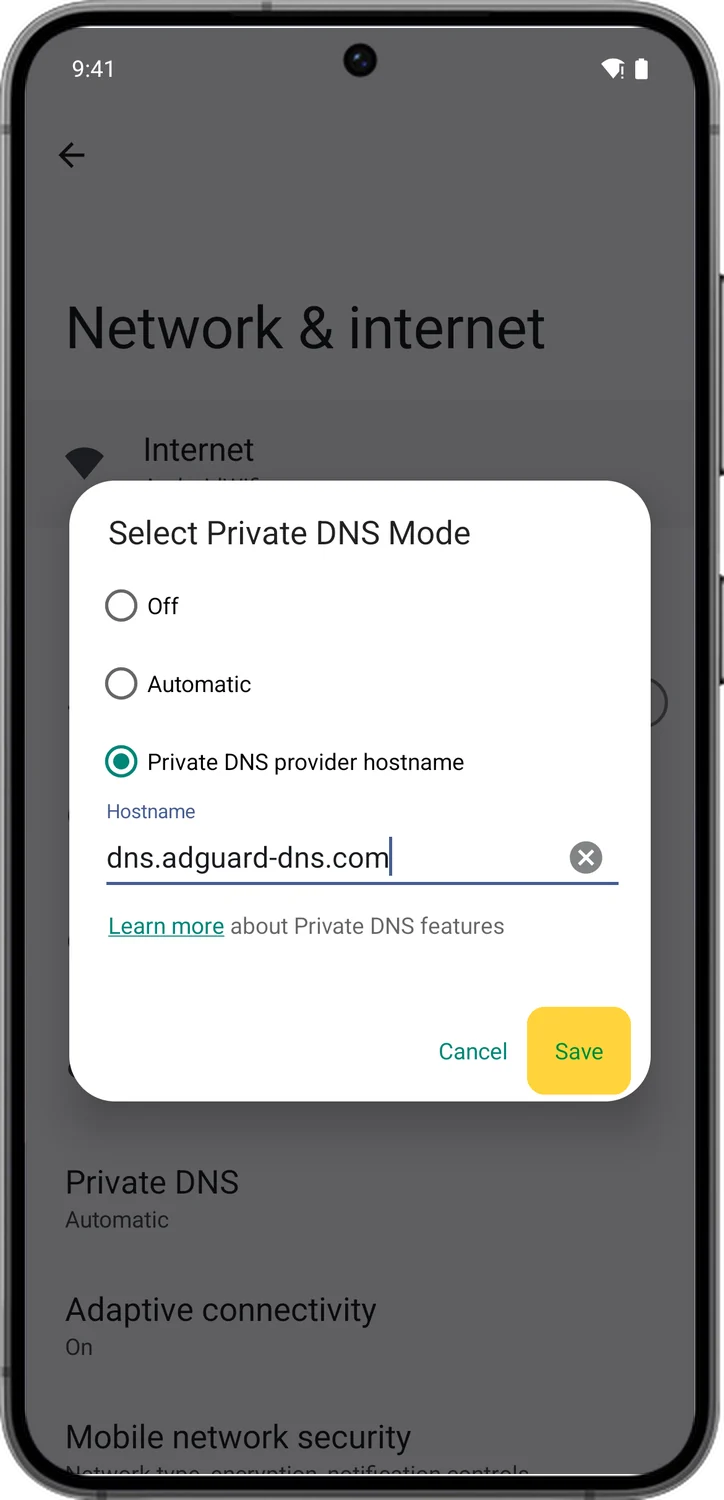
Type the hostname and save
Type the hostname from the table above, for example dns.adguard-dns.com, and tap Save.
- 5
Check it took
Private DNS now shows the hostname. It works on Wi-Fi and mobile data, and every app uses it.
iPhone and iPad
- 1
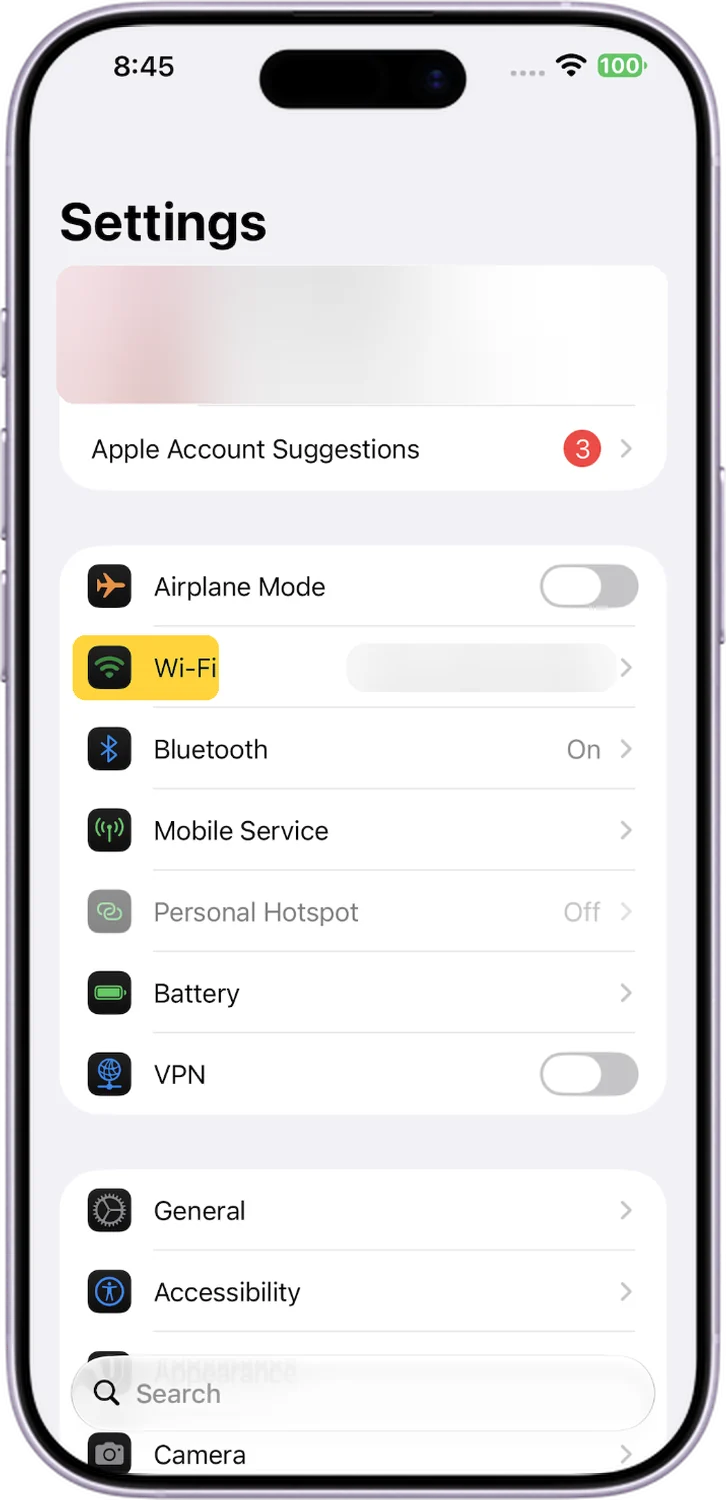
Open Wi-Fi
Open Settings and tap Wi-Fi.
- 2
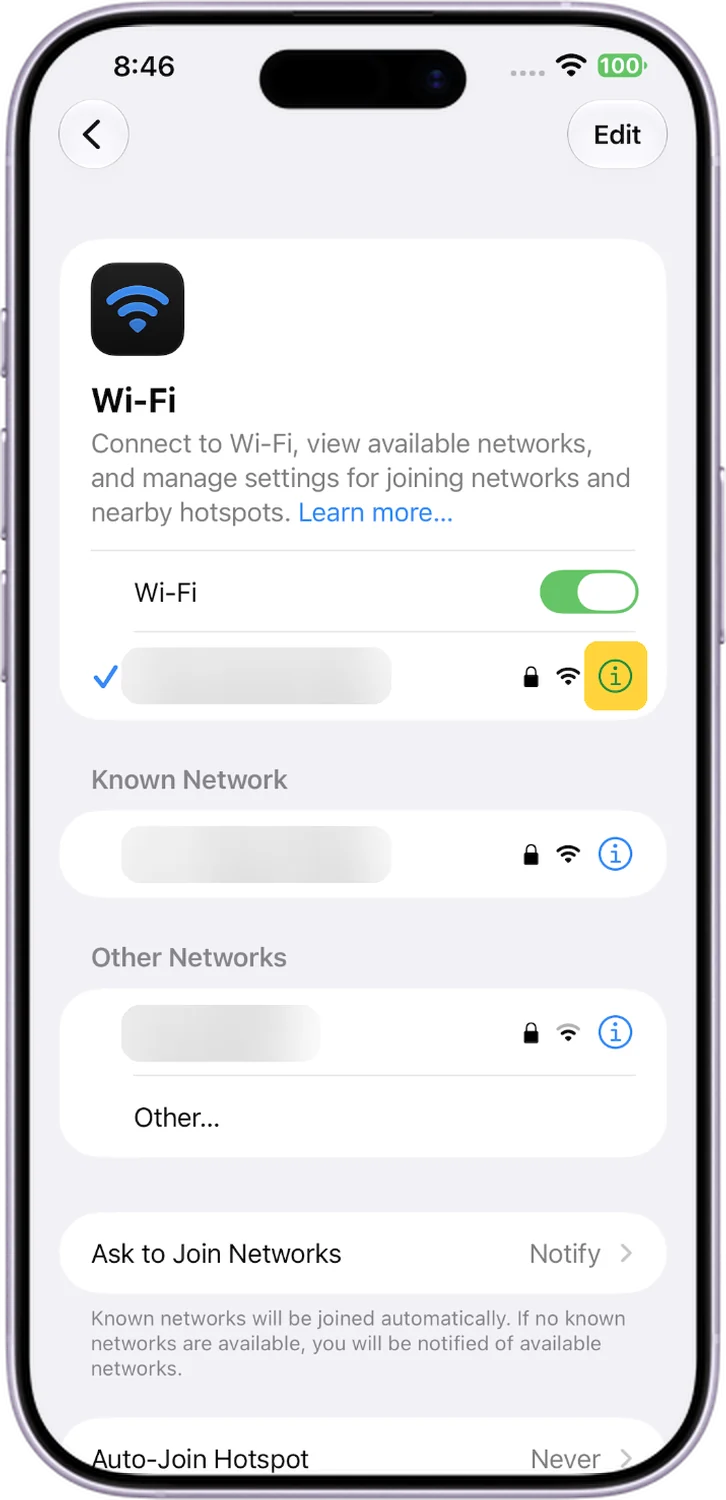
Open your network's details
Tap the (i) next to the Wi-Fi network you are connected to.
- 3
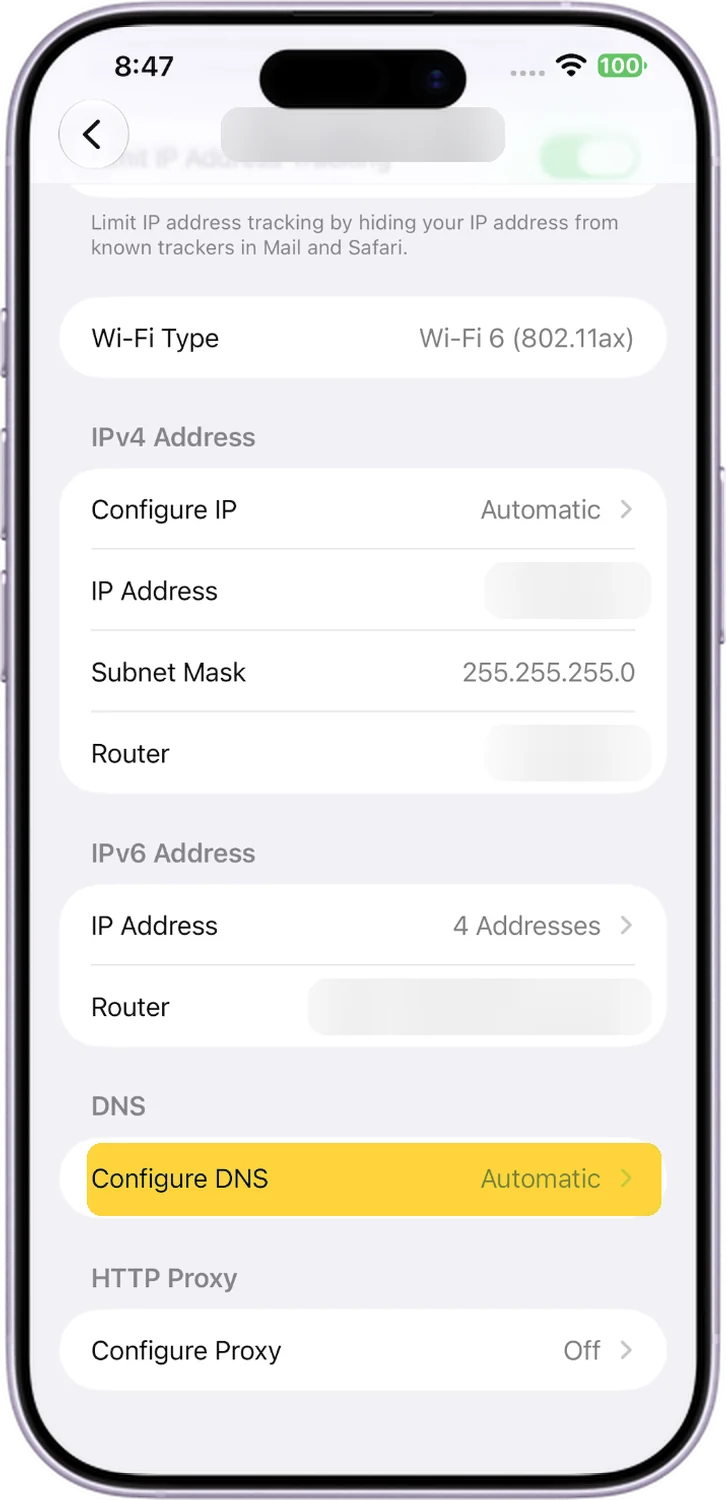
Open Configure DNS
Scroll down and tap Configure DNS. It says Automatic until you change it.
- 4
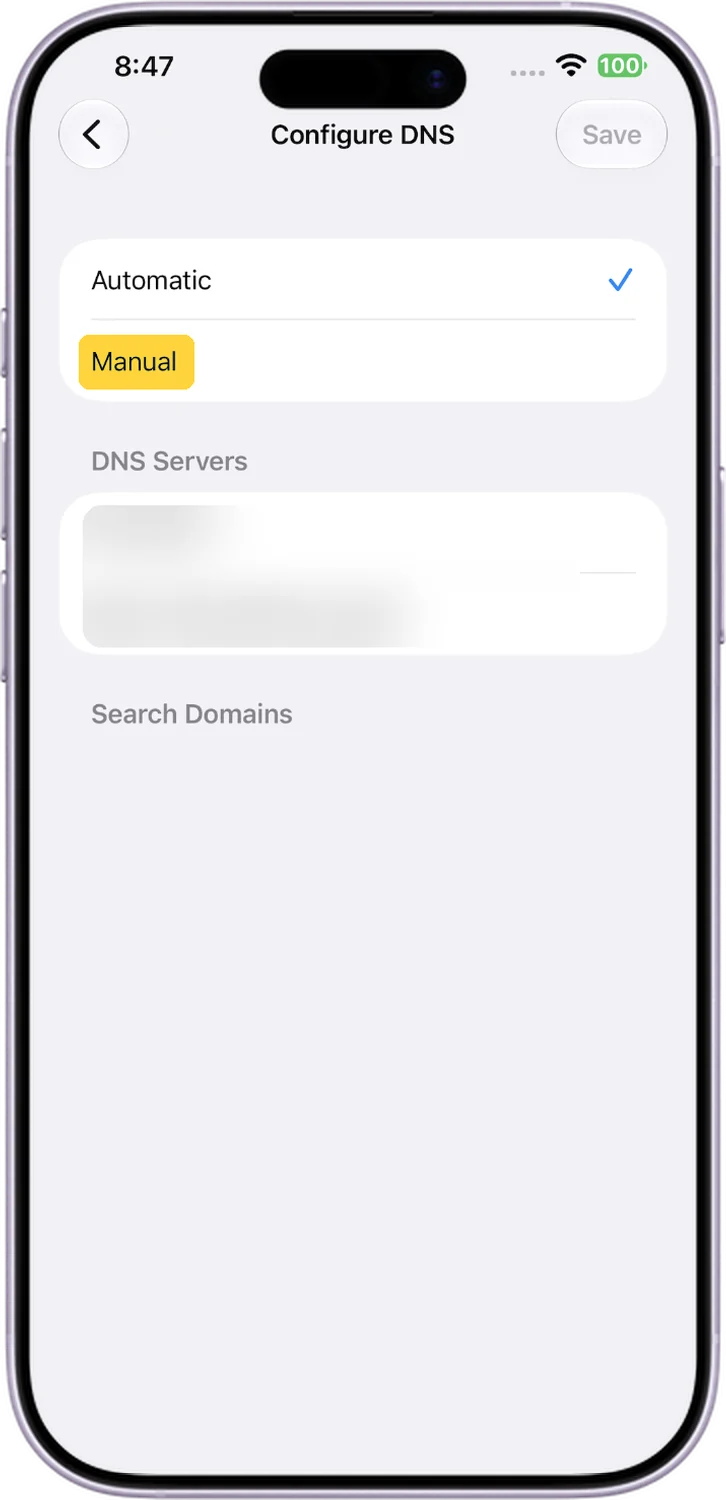
Switch to Manual
Tap Manual.
- 5
Add the DNS servers and save
Remove the servers listed with the red minus buttons, tap Add Server and type the first IPv4 address, add the second the same way, then tap Save.
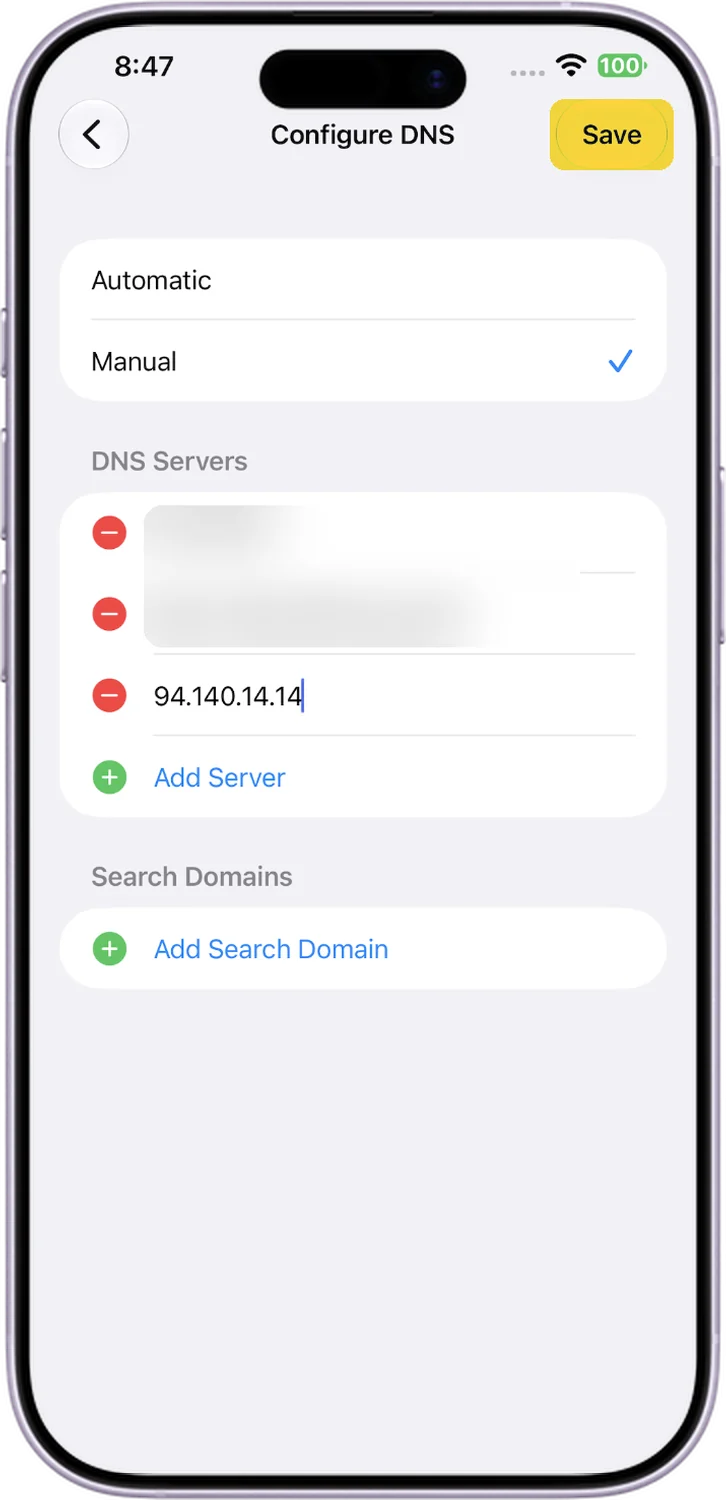
This only covers that Wi-Fi network. For mobile data as well, you need a DNS profile from the provider's own setup guide.
Mac
- 1
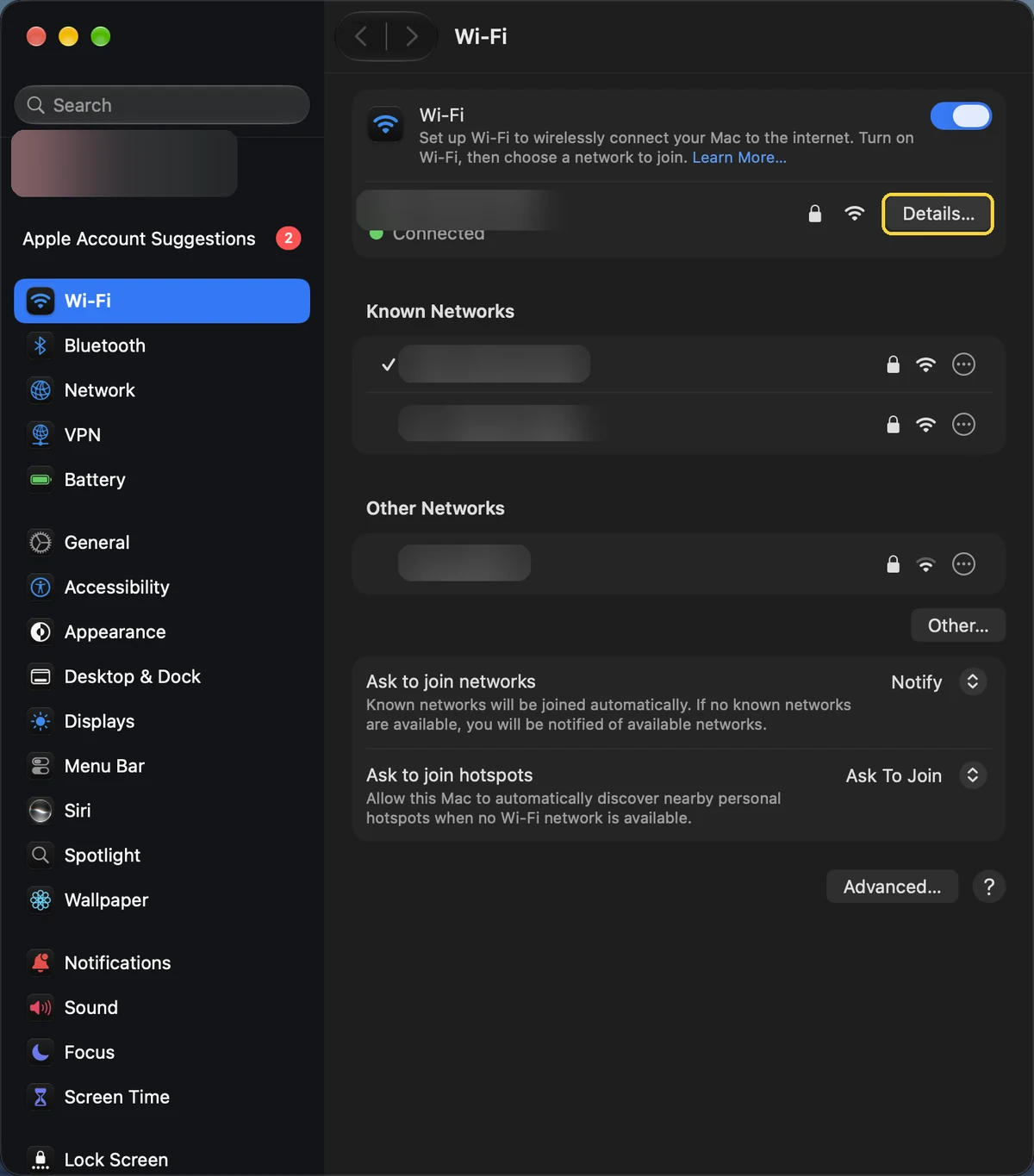
Open your Wi-Fi details
Open System Settings, click Wi-Fi, then click Details next to the network you are connected to.
- 2
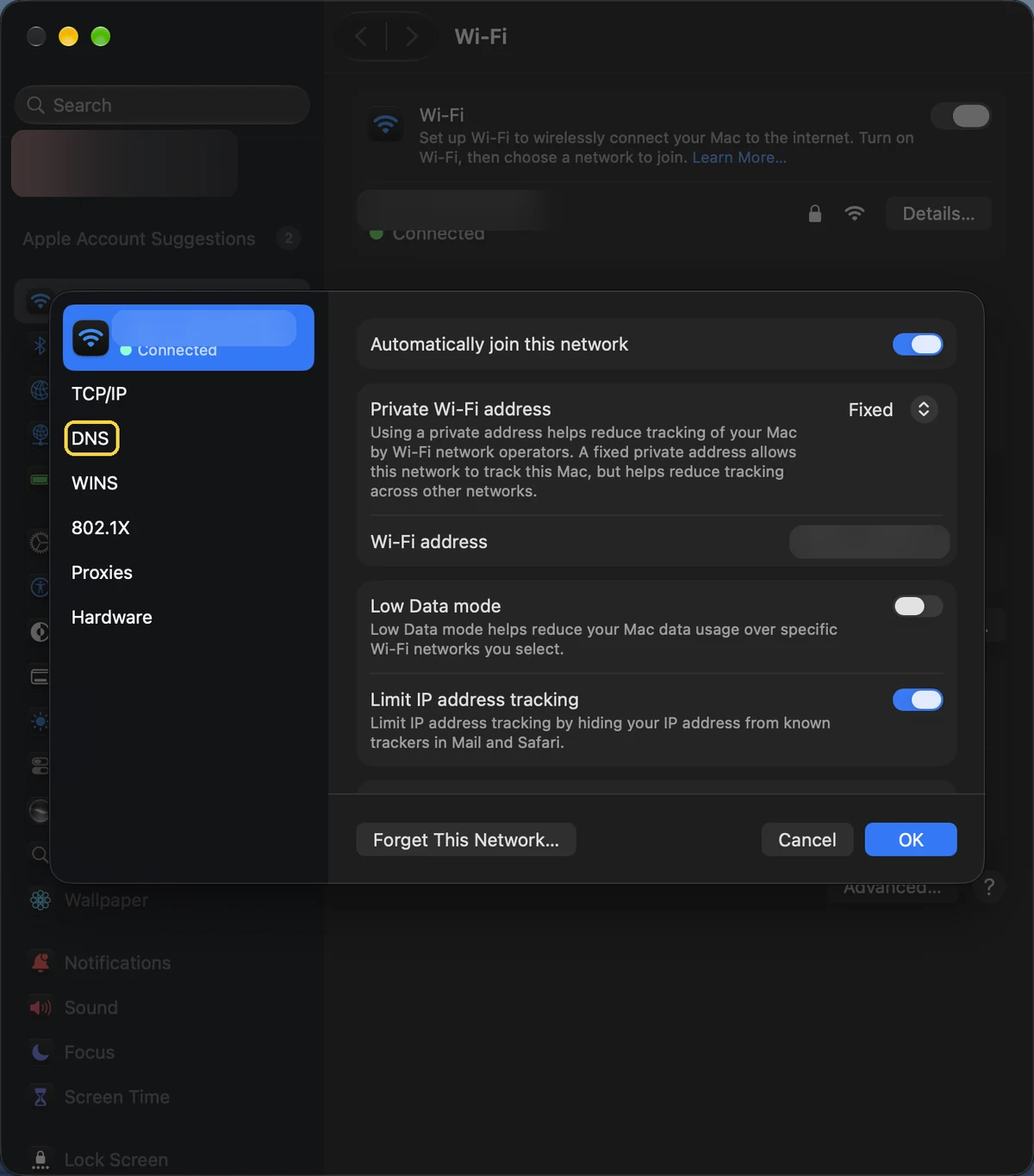
Open the DNS tab
Click DNS in the list on the left.
- 3
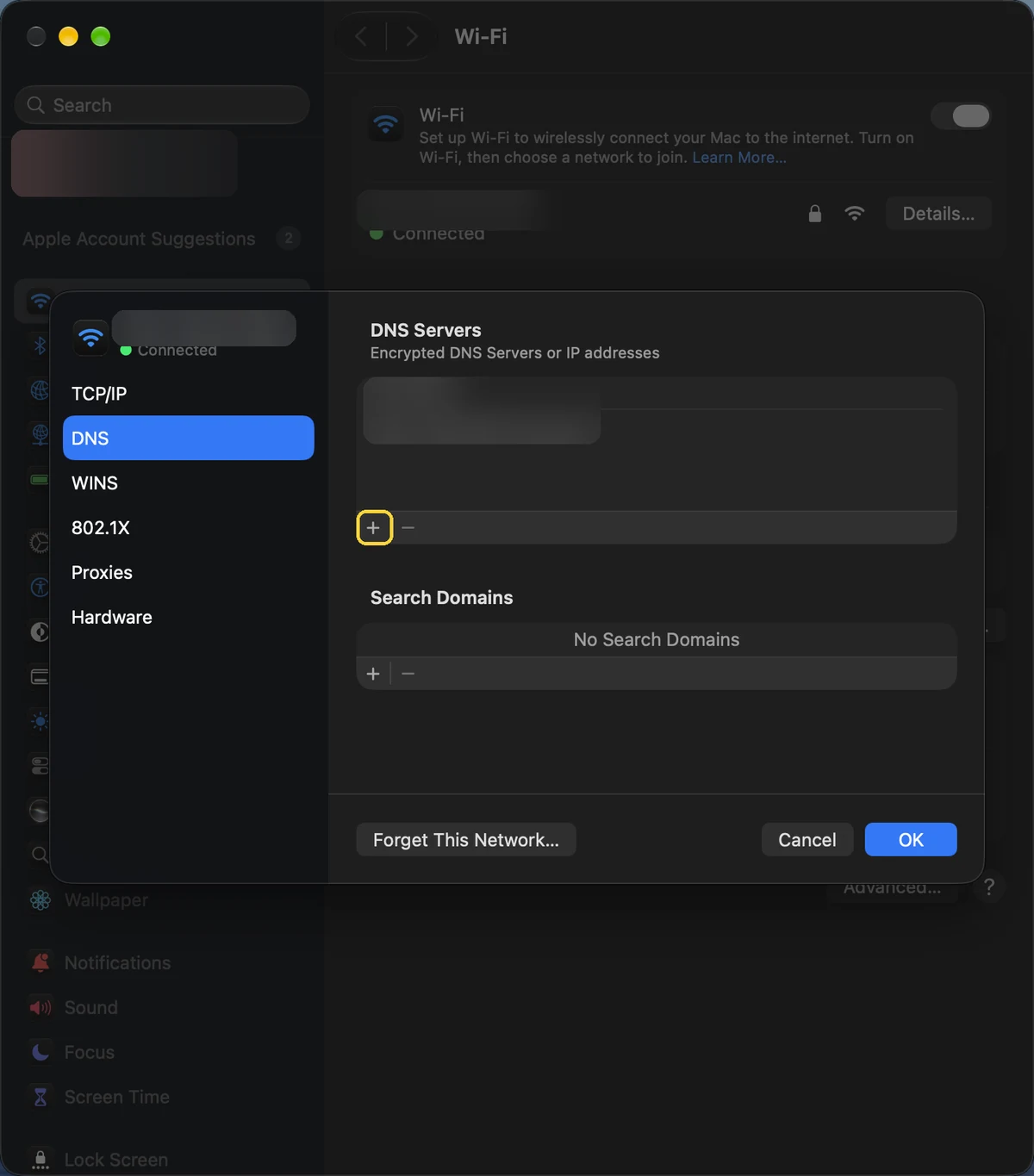
Add a DNS server
Under DNS Servers, click +.
- 4
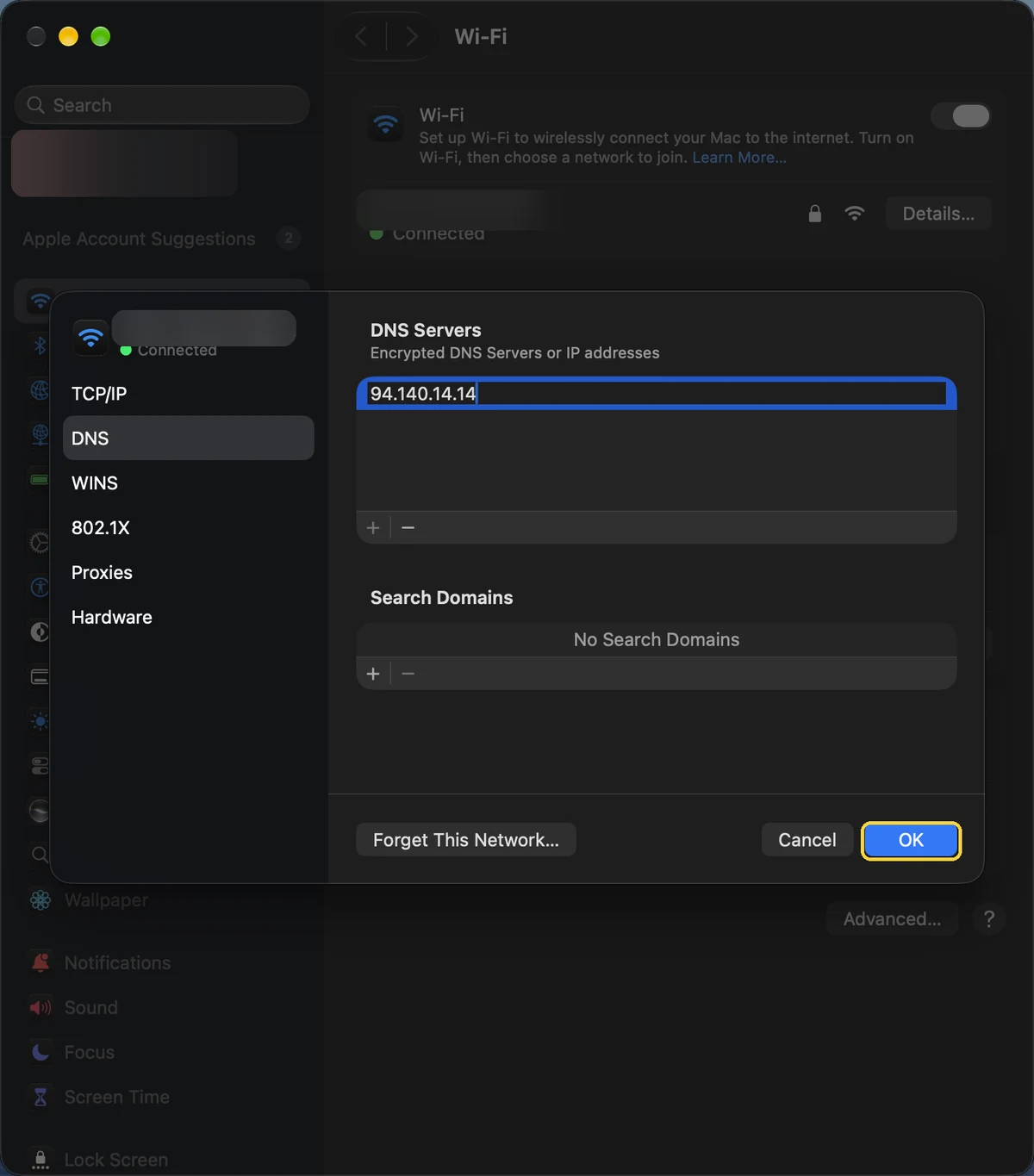
Type the address and click OK
Type the first IPv4 address and press Return, click + again for the second one, then click OK.
Windows 11
- 1
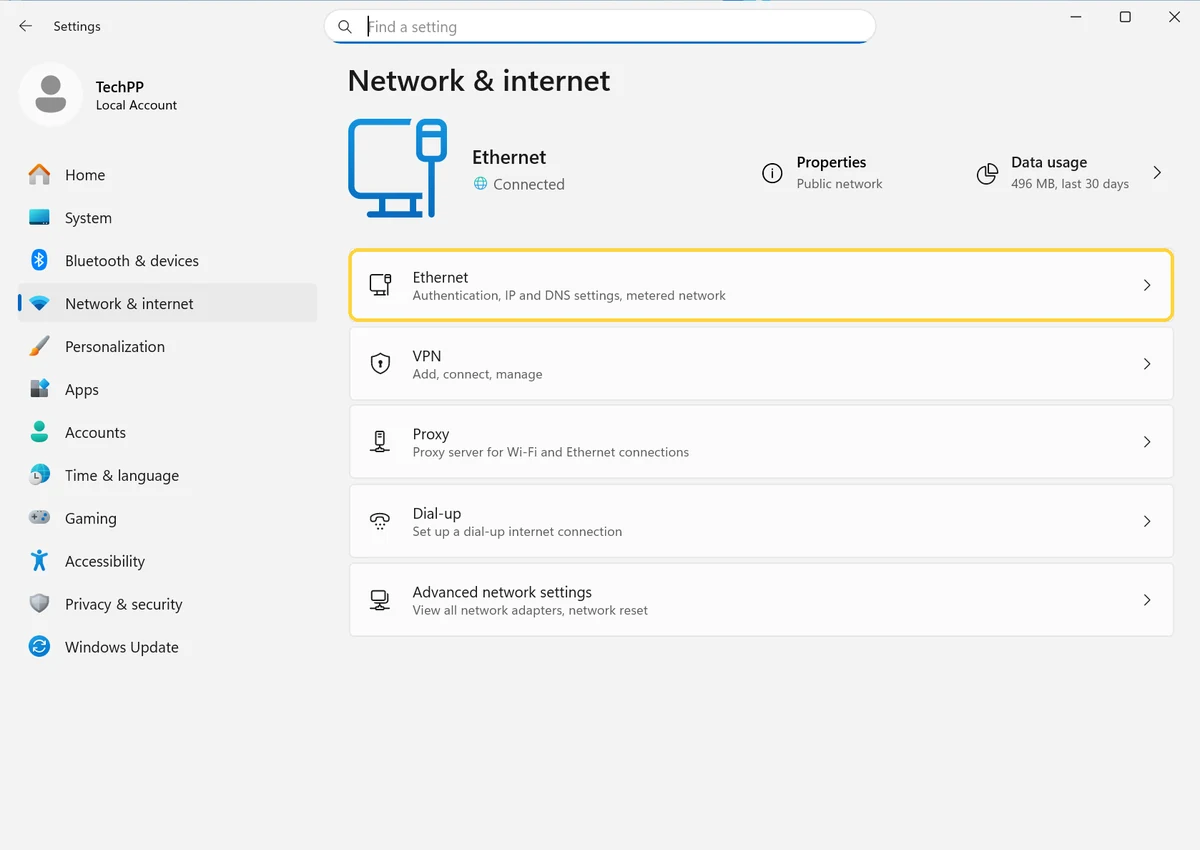
Open Network & internet
Open Settings with Windows + I, go to Network & internet and open Ethernet or Wi-Fi, whichever you use. On Wi-Fi, then open Hardware properties.
- 2
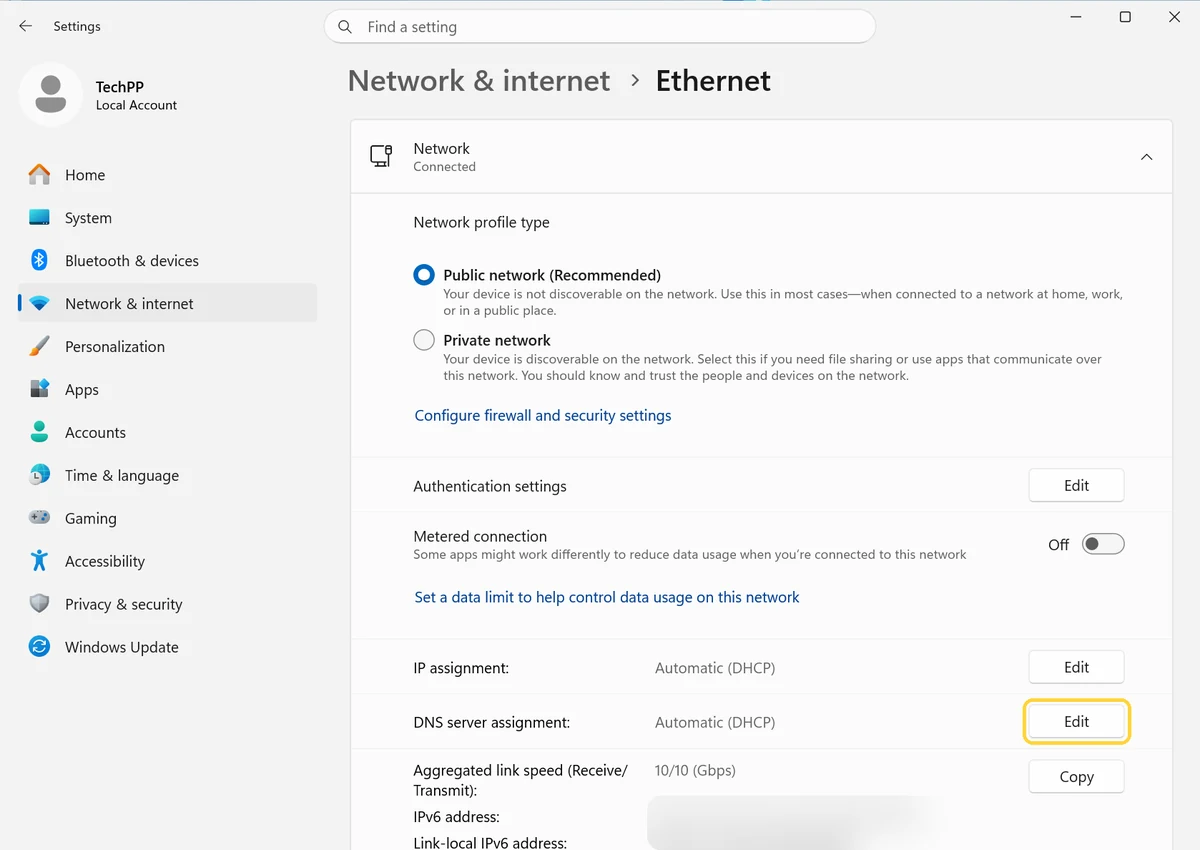
Edit the DNS server
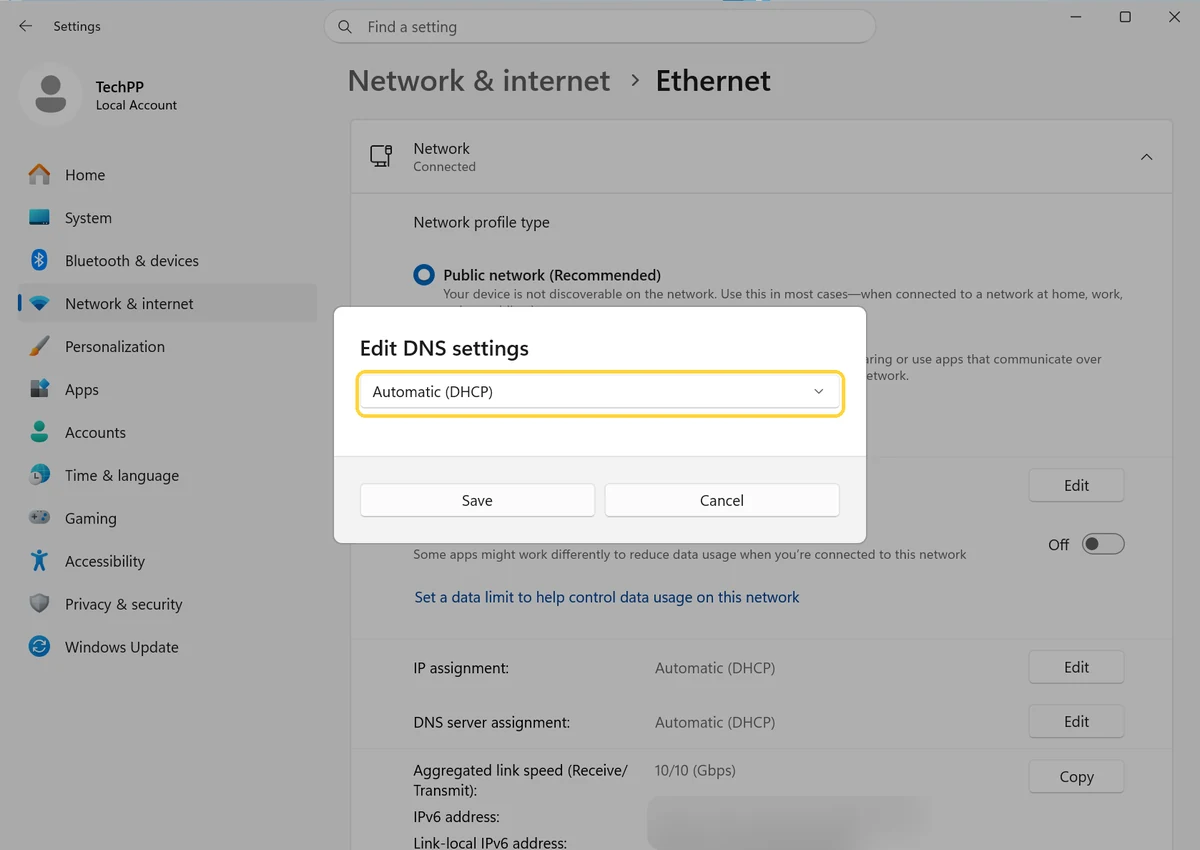
Next to DNS server assignment, click Edit.
- 3
Switch to Manual
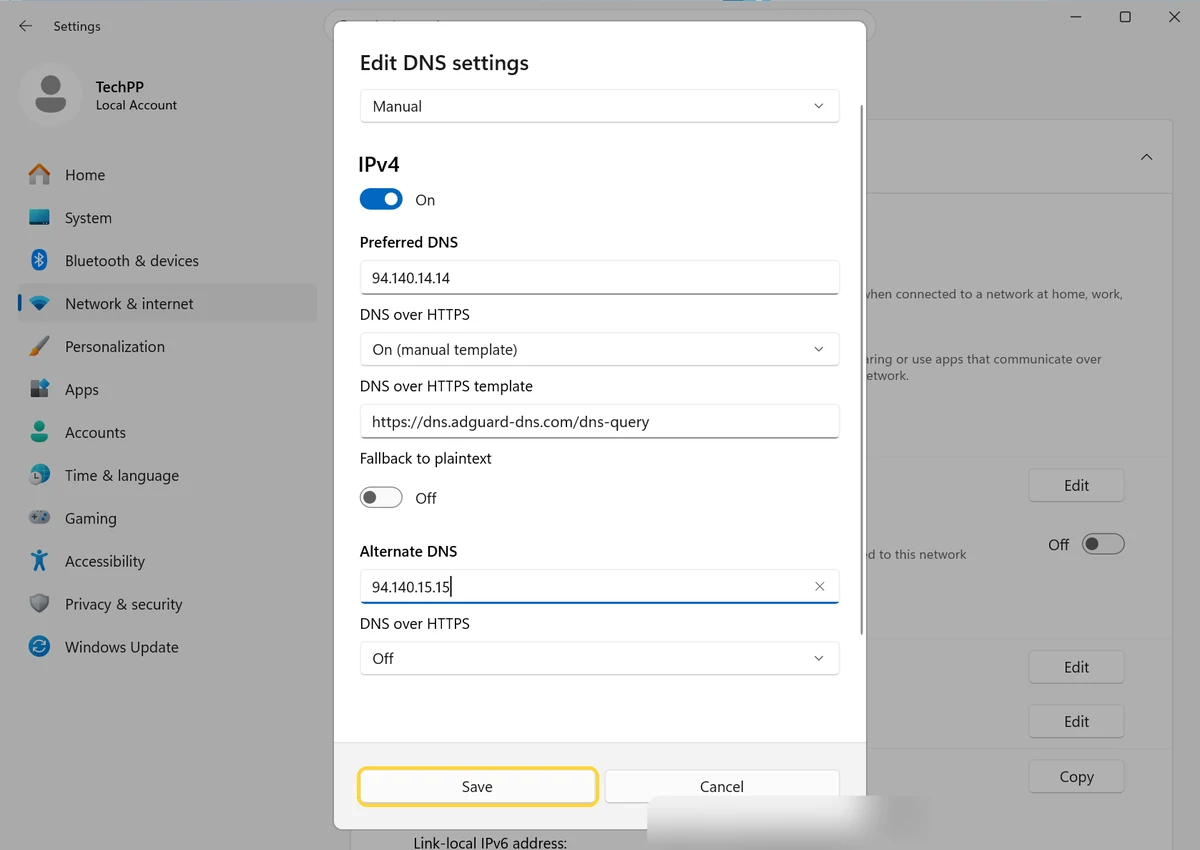
Change Automatic (DHCP) to Manual, then turn on IPv4.
- 4
Enter the addresses and save
Type the first IPv4 address in Preferred DNS, set DNS over HTTPS to On (manual template) and paste the DNS over HTTPS address. Add the second IPv4 address as Alternate DNS, then click Save.
Chrome
- 1
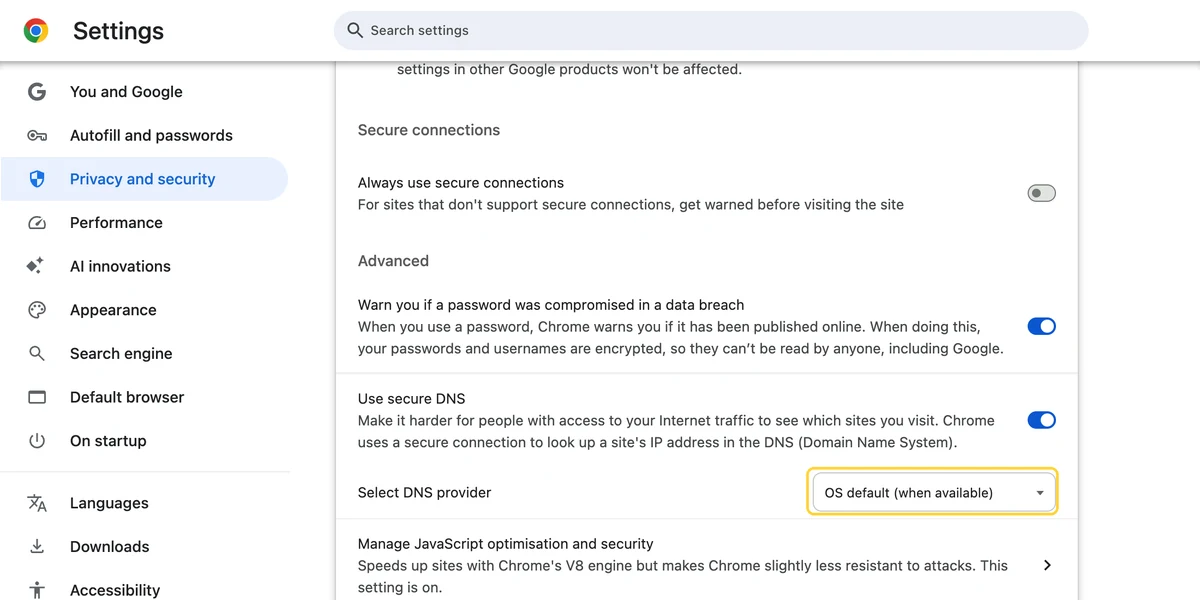
Find Use secure DNS
Open Settings, then Privacy and security, then Security, and scroll to Use secure DNS. Open the menu next to Select DNS provider.
- 2
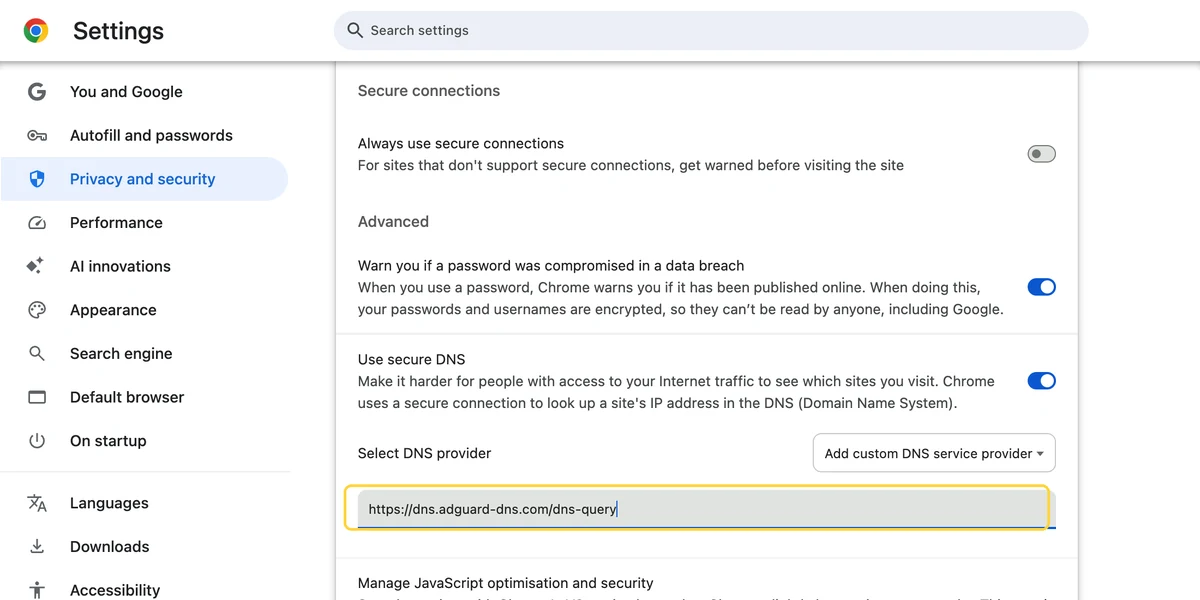
Add the DNS over HTTPS address
Choose Add custom DNS service provider and paste the DNS over HTTPS address, for example https://dns.adguard-dns.com/dns-query.
This only covers Chrome, not the other apps on your device.
Router
Open your router's settings page, find the DNS fields (often under WAN or DHCP) and enter the two IPv4 addresses. Every device on your Wi-Fi then uses it, including smart TVs that have no DNS setting of their own. LibreDNS won't work here, because it only takes encrypted lookups.
Note: Addresses are from each provider's own setup page as of October 31, 2026. Mullvad's free DNS is not listed because it shuts down on November 2, 2026.
Comments
0Share your thoughts, questions, or feedback about this guide.